Step 1 of 8
Run Your First Local Script
Connect a local JavaScript file to HTML and verify a saved change through browser Console output.

Learning path · Level 4 · Tutorial 1
Run JavaScript from a local HTML page and use named values and expressions to calculate and display results in the browser console.

 Run Your First Local Script
Connect a local JavaScript file to HTML and verify a saved change through browser Console output. 3 min
Run Your First Local Script
Connect a local JavaScript file to HTML and verify a saved change through browser Console output. 3 min
 Read Statements, Expressions, and Comments
Distinguish value-producing expressions, executable statements, and explanatory comments in a short JavaScript script. 2 min
Read Statements, Expressions, and Comments
Distinguish value-producing expressions, executable statements, and explanatory comments in a short JavaScript script. 2 min
 Name Values with const and let
Declare readable names for notebook-order values, use const for fixed bindings, and use let when quantity needs reassignment. 4 min
Name Values with const and let
Declare readable names for notebook-order values, use const for fixed bindings, and use let when quantity needs reassignment. 4 min
 Recognize Everyday Primitive Values
Recognize numbers, strings, booleans, null, and undefined in a notebook-order script. 3 min
Recognize Everyday Primitive Values
Recognize numbers, strings, booleans, null, and undefined in a notebook-order script. 3 min
 Inspect Values with typeof
Inspect notebook-order values with typeof and recognize the historical null result. 3 min
Inspect Values with typeof
Inspect notebook-order values with typeof and recognize the historical null result. 3 min
 Calculate with Arithmetic Expressions
Use arithmetic precedence, parentheses, and statement order to calculate notebook-order totals. 4 min
Calculate with Arithmetic Expressions
Use arithmetic precedence, parentheses, and statement order to calculate notebook-order totals. 4 min
 Build Readable Strings
Produce a readable Console summary with concatenation and template-literal interpolation. 4 min
Build Readable Strings
Produce a readable Console summary with concatenation and template-literal interpolation. 4 min
 Apply and Review: An Order Summary
Complete a local notebook-order script, verify its Console output, and review variables, primitive values, arithmetic, and interpolation. 4 min
Apply and Review: An Order Summary
Complete a local notebook-order script, verify its Console output, and review variables, primitive values, arithmetic, and interpolation. 4 min
Step 1 of 8
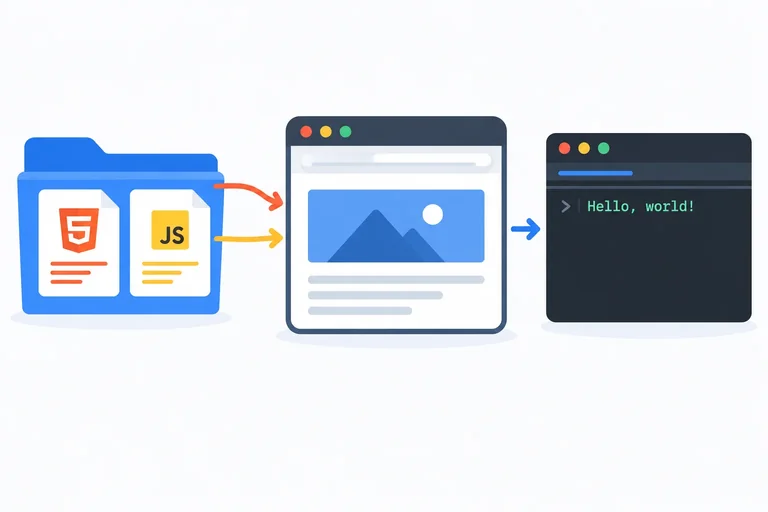
Connect a local JavaScript file to HTML and verify a saved change through browser Console output.
JavaScript source for this tutorial belongs in a plain-text .js file. Keep index.html and app.js together in the same local folder.
The <script> element in index.html connects the page to app.js. Because this external classic script has defer, the browser can parse the HTML while it downloads the script, then runs the script after HTML parsing finishes.
console.log(...) sends a message to the browser’s Console. It does not add visible text to the page.
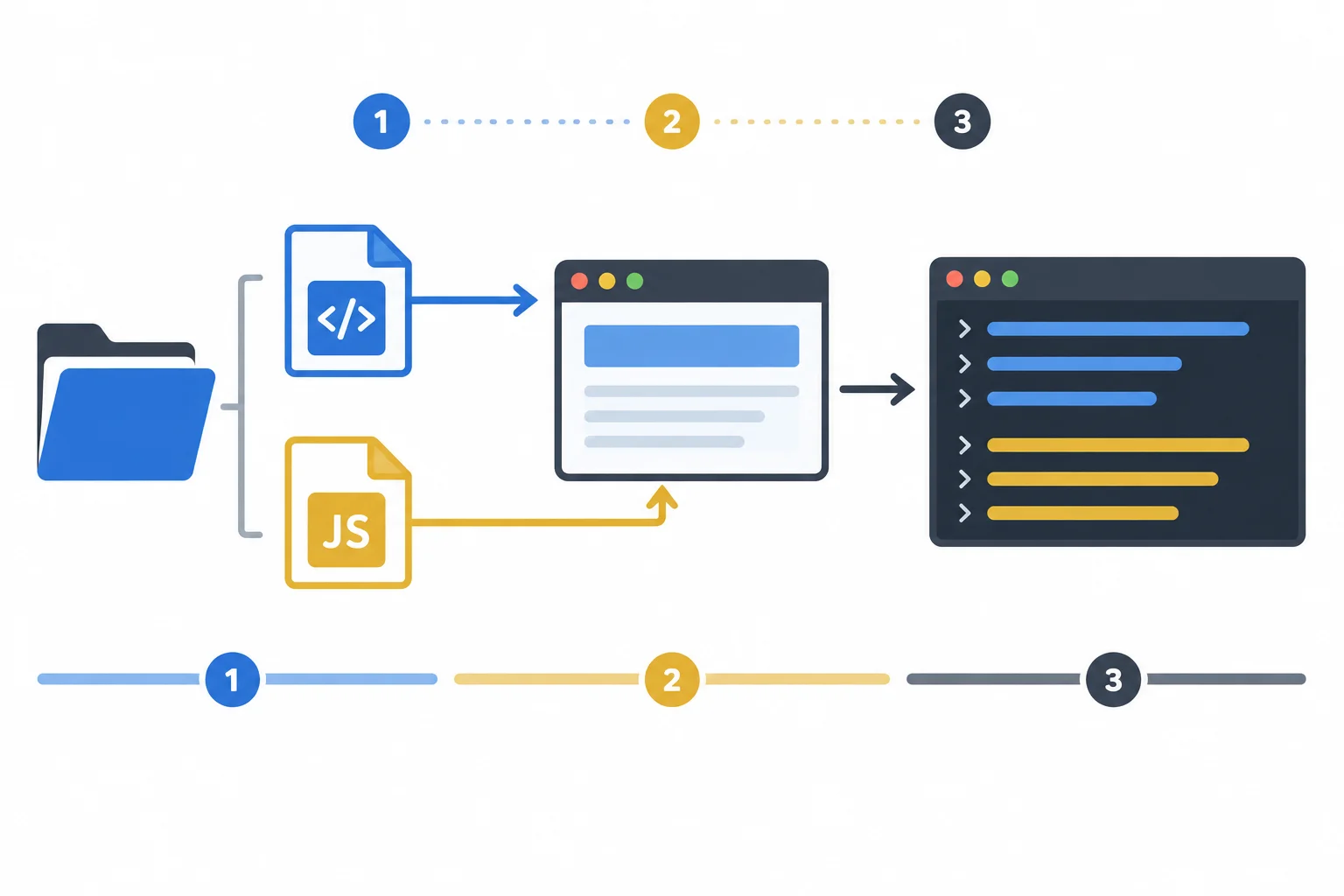
Open index.html; its deferred script connection loads and runs app.js after the HTML is parsed, and console.log sends output to the Console.
Create a folder for this tutorial. Inside it, create two plain-text files named exactly index.html and app.js. Replace the complete contents of each file with the matching code below. Save both files.
Then open index.html in your browser, or refresh it if it is already open. Open the browser developer tools and select the Console panel to inspect the logged message.
Complete runnable replacement — index.html. Replace the entire contents of index.html with this file.
<!doctype html>
<html lang="en">
<head>
  <meta charset="UTF-8">
  <meta name="viewport" content="width=device-width, initial-scale=1.0">
  <title>Notebook Order</title>
  <script src="app.js" defer></script>
</head>
<body>
  <h1>Notebook Order</h1>
</body>
</html>Notebook order ready.
When you open or refresh index.html after also saving app.js below, the linked script writes this line in the Console.
Complete runnable replacement — app.js. Replace the entire contents of app.js with this file, then save it.
console.log("Notebook order ready.");Notebook order ready.
Expected console output after saving both files and opening or refreshing index.html.
Complete the opening script tag so the HTML page connects to the external script using this tutorial’s setup.
<script ></script>After index.html is already open, arrange the workflow for checking a changed message in the Console.
In your own app.js, replace only the message inside the double quotes with a different short English message of your choice. Save the file, refresh index.html, and inspect the Console.
Write exactly the changed Console line you observed.
Write at least 1 characters (0/1).
Step 2 of 8
Distinguish value-producing expressions, executable statements, and explanatory comments in a short JavaScript script.
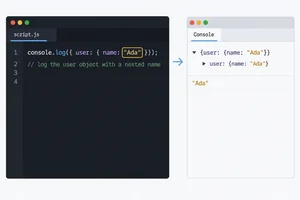
An expression is code that produces a value. A literal is a simple expression written directly in code: "Notebook" produces a string value, and 12 produces a number value.
A statement is an instruction in the script. In console.log("Notebook");, the complete line is a logging statement, while "Notebook" is the expression inside it. In this tutorial, end each statement with a semicolon.
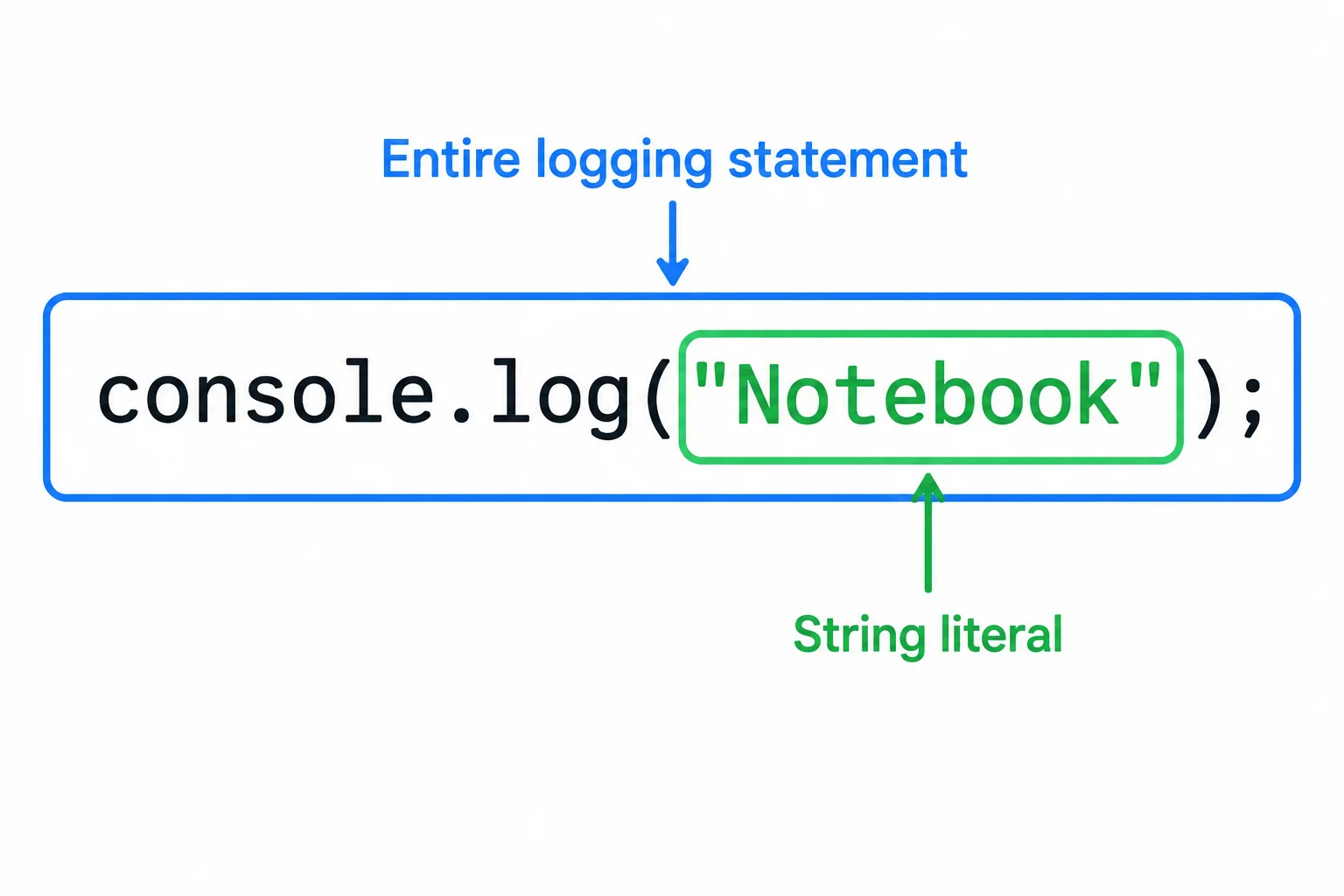
The complete instruction is the statement; the value-producing literal within it is the expression.
Complete runnable replacement — app.js
// Log two literal expressions.
console.log("Notebook");
console.log(12);Notebook 12
After saving app.js, refresh index.html and inspect the Console.
Match each code fragment to its role.
Tap an item and then its matching pair.
Complete the statement so it displays the product name in the Console.
console.("Notebook");A script contains these lines in this exact source order:
console.log("Notebook");// Log the price next.console.log(12);console.log("Done");
Arrange the values that appear in the Console from first to last. Do not include a value for the comment.

Step 3 of 8
Declare readable names for notebook-order values, use const for fixed bindings, and use let when quantity needs reassignment.
A variable gives a value a readable name so the script can use that value later. A declaration introduces the name; initialization supplies its first value.
In const unitPrice = 12;, unitPrice is the name and 12 is the initial value. Use descriptive lowerCamelCase names such as unitPrice and productName. Names are case-sensitive, so productName and productname are different names.
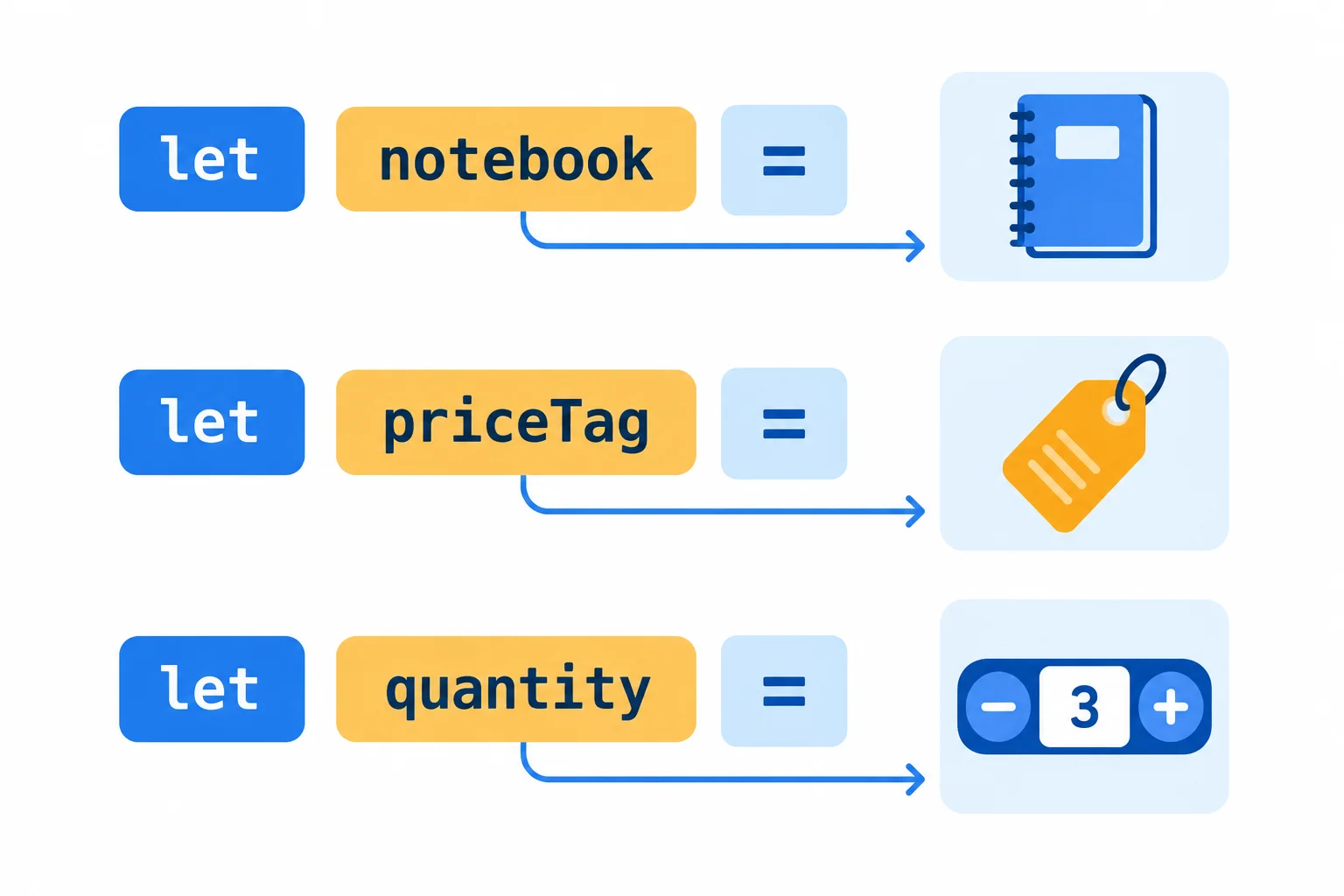
A declaration connects a readable name to the value that initializes it.
Example — app.js fragment
const productName = "Notebook";
const unitPrice = 12;
const shippingFee = 5;Choose the declaration keyword from whether the variable will need reassignment:
const when the binding will keep the same assigned value. It must be initialized on its declaration, and it prevents later reassignment of that binding.let when the variable needs a new assigned value later.For this order, the product name, unit price, and shipping fee stay the same. The quantity changes from 2 to 3, so quantity uses let. Prefer const whenever reassignment is unnecessary.
The declaration and initialization happen together in each row.
| Name | Initial value | Keyword | Why |
|---|---|---|---|
| productName | "Notebook" | const | Does not change |
| unitPrice | 12 | const | Does not change |
| quantity | 2 | let | Changes later |
| shippingFee | 5 | const | Does not change |
Tip
Do not write let or const again when changing an existing variable. The line quantity = 3; is a reassignment: = assigns the value on the right to the existing name on the left. It is not an equality test.
app.js — complete runnable replacement
const productName = "Notebook";
const unitPrice = 12;
let quantity = 2;
const shippingFee = 5;

console.log(quantity);
quantity = 3;
console.log(quantity);2 3
Expected console output
Statements run in source order. The first console.log reads the initialized value, 2. After quantity = 3;, the second console.log reads the new value, 3.
Replace the contents of your local app.js with the code above, save it, refresh index.html, and inspect the Console.
The first log happens before reassignment; the second happens after it.
| Source-order moment | quantity value | Console output |
|---|---|---|
| Initialization | 2 | — |
| First log | 2 | 2 |
| Reassignment | 3 | — |
| Second log | 3 | 3 |
Complete this app.js script. Choose declaration keywords, make the valid reassignment, and predict the first and second values logged to the Console.
 productName = "Notebook";
const unitPrice = 12;
 quantity = 2;
const shippingFee = 5;

console.log(quantity);
quantity = ;
console.log(quantity);

// Expected console output:
//
// 
Step 4 of 8
Recognize numbers, strings, booleans, null, and undefined in a notebook-order script.
A primitive value is a basic value used directly in JavaScript. In this notebook-order example, you will work with five everyday kinds:
12"Notebook"true or falsenull for an intentionally absent valueundefined when a declared variable has no supplied valueQuotes matter: 12 is a number, while "12" is text—a string.

The same order can contain a number, text, a yes-or-no value, an intentional absence, and an unsupplied value.
Each form has a different role in the notebook order.
| Value form | Primitive category | Order role |
|---|---|---|
| `12` | number | Unit price |
| `"Notebook"` | string | Product name |
| `false` | boolean | Gift-wrap choice |
| `null` | null | No discount code |
| `let deliveryNote;` | undefined | No note supplied |
null and undefined both describe an absent value, but they communicate different situations.
Use null when absence is intentional: discountCode currently has no code. Use a let declaration with no initializer when a variable exists but no value was supplied: deliveryNote is therefore undefined.
That differs from a name that was never declared at all: in that case, there is no variable with that name.
Example
const unitPrice = 12;
const displayedUnitPrice = "12";
const hasGiftWrap = false;
const discountCode = null;
let deliveryNote;
Tip
Do not put quotation marks around false or null. With quotation marks, they would be strings of text instead of the boolean or intentionally absent value shown here.
Match each JavaScript form to its primitive category or meaning.
Tap an item and then its matching pair.
Complete the declarations so that each comment describes the value or declaration below it.
// Numeric amount
const unitPrice = ;

// Numeric-looking text
const displayedUnitPrice = ;

// Gift-wrap choice
const hasGiftWrap = ;

// No discount code entered
const discountCode = ;

// Note declared but not supplied

Step 5 of 8
Inspect notebook-order values with typeof and recognize the historical null result.
typeof is an operator: it evaluates an operand and produces a string that describes that operand’s current value type.
Use it inside a logging statement:
console.log(typeof variableName);
console.log displays the string returned by typeof in the Console. It does not add content to the web page.
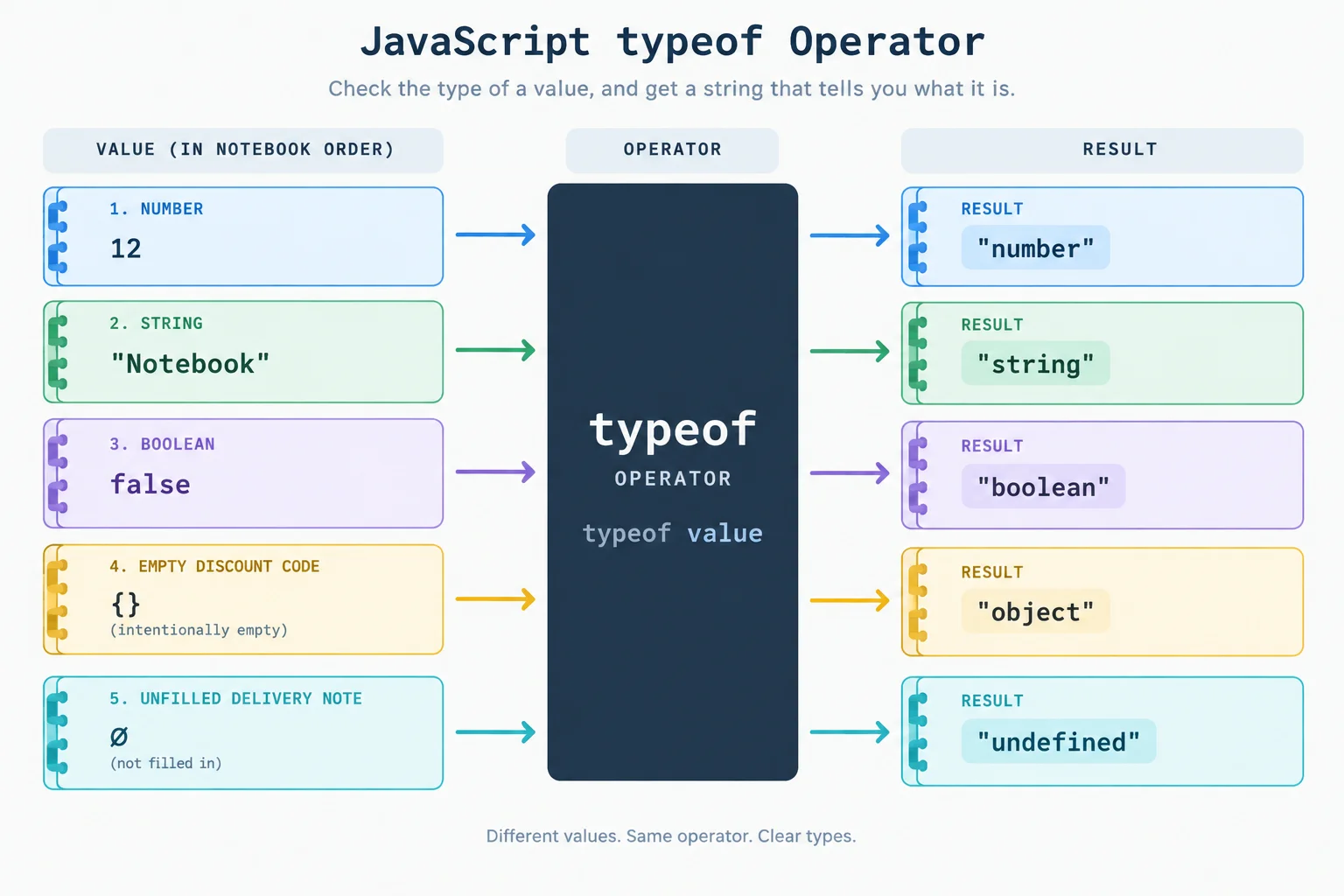
typeof produces a descriptive string; it does not change the value it inspects.
Replace the contents of app.js, save the file, refresh index.html, and inspect the Console.
const productName = "Notebook";
const unitPrice = 12;
const quantity = 2;
const shippingFee = 5;
const hasGiftWrap = false;
const discountCode = null;
let deliveryNote;

// Inspect the current value types.
console.log(typeof unitPrice);
console.log(typeof productName);
console.log(typeof hasGiftWrap);
console.log(typeof discountCode);
console.log(typeof deliveryNote);number string boolean object undefined
Expected console output (one line per logging statement). The Console displays the strings without quotation marks.
Each Console line is a result string returned by typeof. Compare that result with the value being inspected.
| Variable | Current value | typeof result |
|---|---|---|
| unitPrice | 12 | number |
| productName | "Notebook" | string |
| hasGiftWrap | false | boolean |
| discountCode | null | object |
| deliveryNote | no supplied value | undefined |
Warning
typeof null returns the string "object". This is a historical limitation in JavaScript—not a classification of null as an object. null is still a primitive value that can represent intentional absence.
Complete both Console statements so they inspect the values’ types.
console.log( unitPrice);
console.log( hasGiftWrap);Write two complete console.log statements: one that inspects quantity, and one that inspects discountCode.
Assume quantity currently holds 2. Then predict the two Console lines in order. Finally, state whether the second result proves that null is an object, and explain why in one sentence.
Write at least 80 characters (0/80).
Step 6 of 8
Use arithmetic precedence, parentheses, and statement order to calculate notebook-order totals.
Arithmetic expressions combine numeric values with operators and produce a number. JavaScript uses + for addition, - for subtraction, * for multiplication, / for division, and % for the remainder after division.
Multiplication, division, and remainder happen before addition and subtraction. Operators at the same precedence level run from left to right: 20 / 5 * 2 becomes 4 * 2, so it produces 8. Parentheses make an intended group explicit.
Use these operators with numeric values.
| Operator | Meaning | Example | Result |
|---|---|---|---|
| + | Addition | 12 + 5 | 17 |
| - | Subtraction | 12 - 5 | 7 |
| * | Multiplication | 12 * 2 | 24 |
| / | Division | 12 / 2 | 6 |
| % | Remainder | 17 % 5 | 2 |
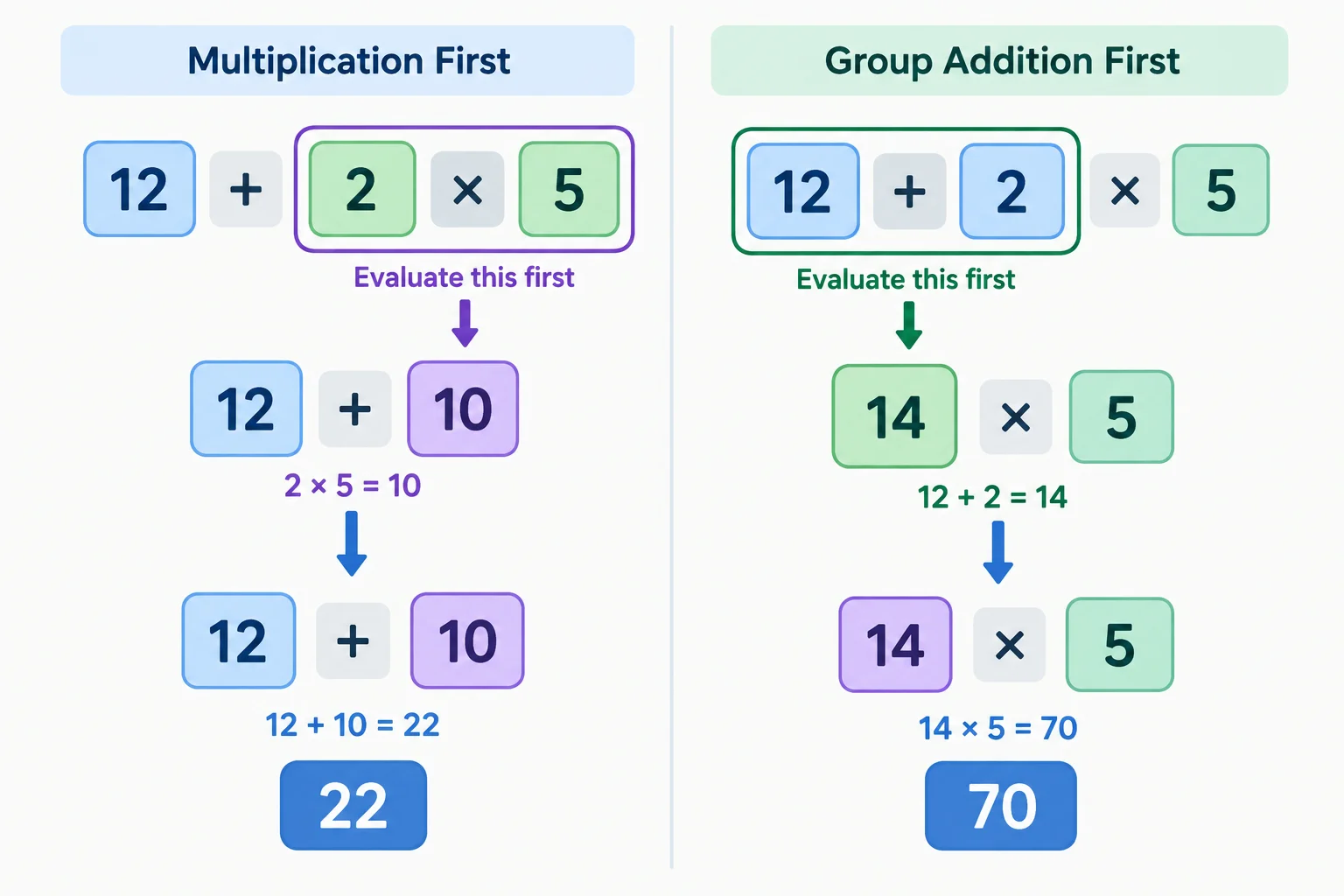
Without parentheses, 12 + 2 * 5 produces 22 because multiplication happens first. With parentheses, (12 + 2) * 5 produces 70 because the addition is grouped first.
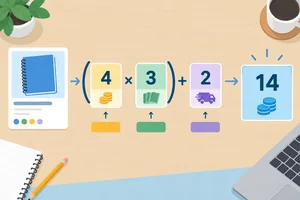
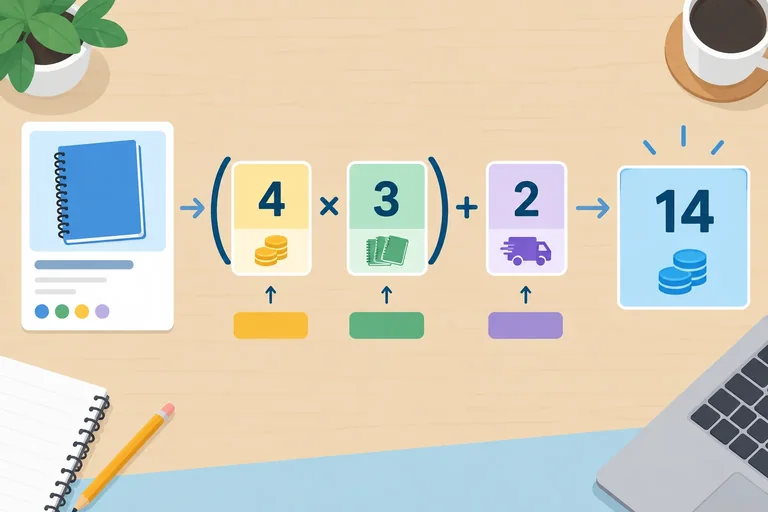
For a notebook order, multiply the unit price by the quantity, then add shipping. The parentheses are not required by JavaScript for this particular formula, but they clearly show that the item subtotal is calculated before shipping is added.
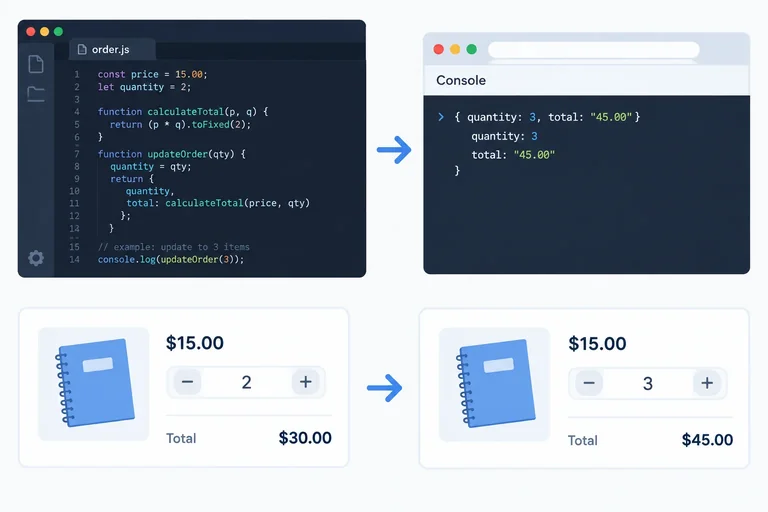
A calculated value is stored when its declaration executes. If you later reassign an input, JavaScript does not go back and update an earlier calculated value automatically. Calculate again when you need a new total.
Replace the contents of app.js with this complete file. Save it, refresh index.html, and inspect the Console.
const productName = "Notebook";
const unitPrice = 12;
let quantity = 2;
const shippingFee = 5;

// Calculate totals at two execution moments.
const initialTotal = (unitPrice * quantity) + shippingFee;

quantity = 3;
const updatedTotal = (unitPrice * quantity) + shippingFee;

console.log(initialTotal);
console.log(updatedTotal);29 41
The first total was calculated while quantity was 2. The second calculation occurs after quantity is reassigned to 3.
What number does this expression produce?
20 / 5 * 2
Which pair gives the results of these expressions in order?
8 + 4 * 3(8 + 4) * 3
Complete the script. Use the changed quantity before calculating the total, then record the results of the grouped and ungrouped expressions in their comments.
const unitPrice = 12;
let quantity = 2;
const shippingFee = 5;

quantity = ;
const total = (unitPrice * quantity)  shippingFee;

const groupedResult = (10 + 2) * 3; //
const ungroupedResult = 10 + 2 * 3; //

console.log(total);
console.log(groupedResult);
console.log(ungroupedResult);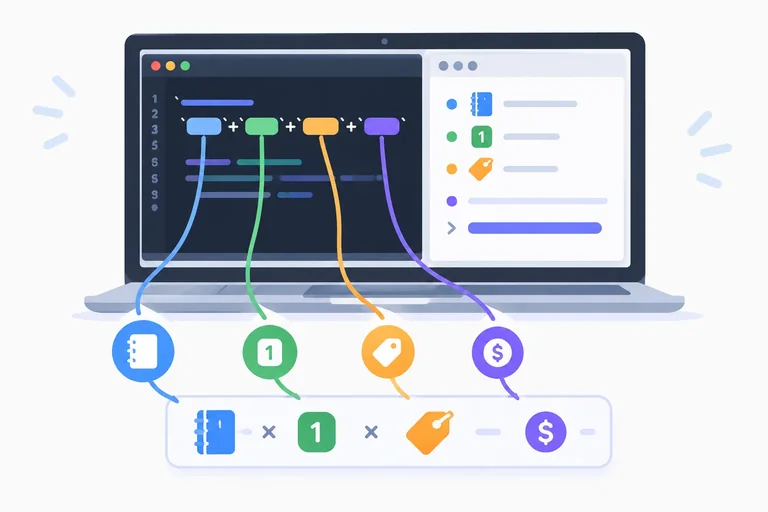
Step 7 of 8
Produce a readable Console summary with concatenation and template-literal interpolation.
The + operator can add numbers or join text. When both operands are numbers, it performs numeric addition. When you combine a string with a number, the result is text—a concatenated string.
For a readable message, include every space and punctuation mark deliberately. JavaScript does not add a space between pieces for you.
Example
const total = unitPrice * quantity + shippingFee;
const totalLabel = "Total: $" + total;

console.log(totalLabel);A template literal is often clearer for a message with several values. It uses backticks instead of ordinary double quotes.
Inside a template literal, ${...} inserts the value produced by an expression. Text outside a placeholder stays exactly as written, including spaces, commas, dollar signs, and periods.
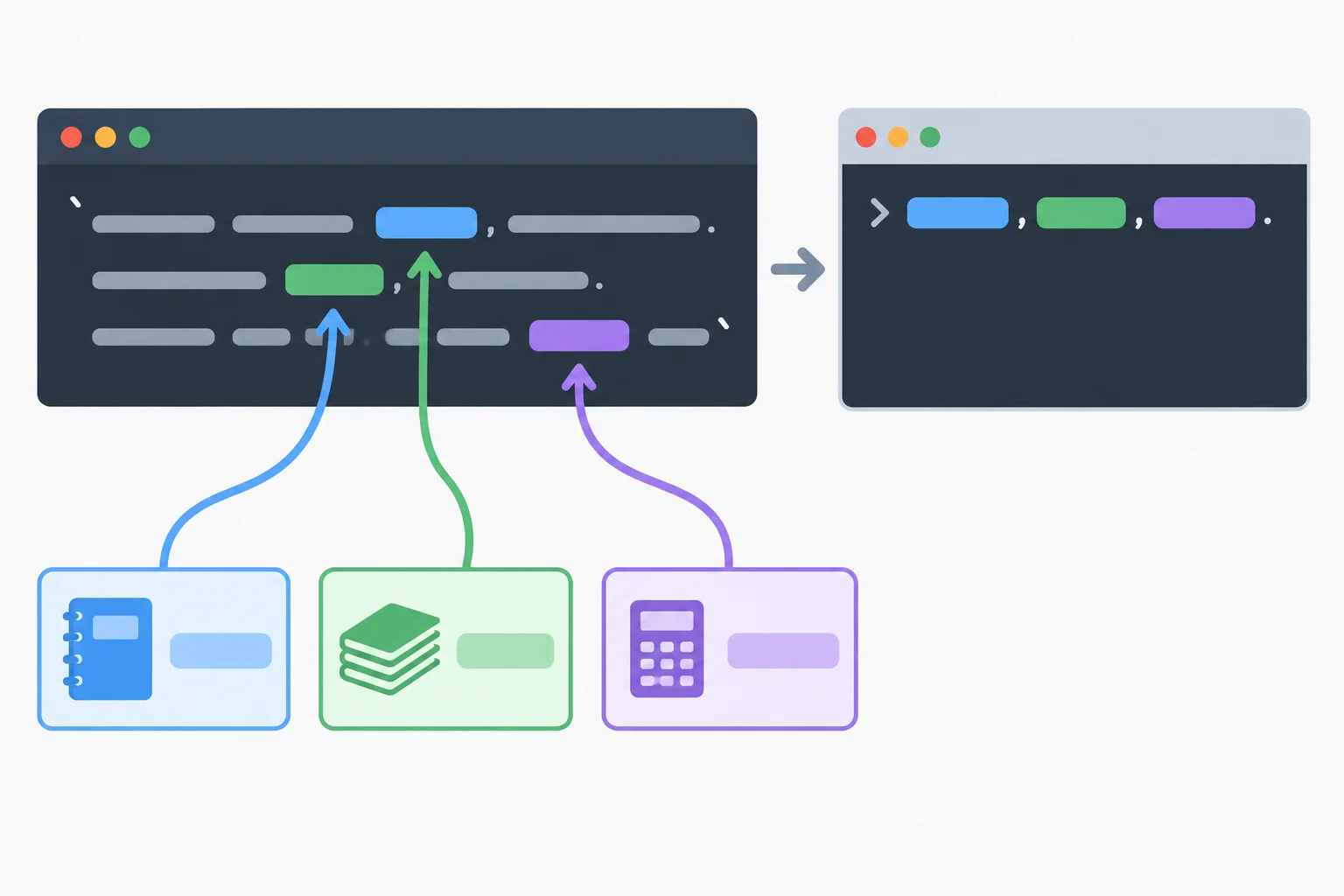
Literal text remains fixed; each ${...} placeholder contributes the current value of its expression to the final Console line.
Replace the contents of app.js with this complete runnable file. Save it, refresh index.html, and inspect the Console.
const productName = "Notebook";
const unitPrice = 12;
let quantity = 2;
const shippingFee = 5;

quantity = 3;

// Calculate the total.
const total = unitPrice * quantity + shippingFee;
console.log(`${productName}: ${quantity} items, total $${total}.`);Notebook: 3 items, total $41.
Expected console output after the saved file runs in the linked local page.
With unitPrice equal to 12, quantity equal to 3, and shippingFee equal to 5, which expression produces the number 41 rather than a string?
Use these bindings: productName is "Notebook", unitPrice is 12, quantity is 3, and shippingFee is 5.
Write three lines:
total.console.log statement using a template literal for the notebook summary.Preserve the required spaces, comma, dollar sign, and final period.
Write at least 100 characters (0/100).
Step 8 of 8
Complete a local notebook-order script, verify its Console output, and review variables, primitive values, arithmetic, and interpolation.
Use the two local files you created earlier. Keep index.html connected to app.js with the deferred classic script. Then replace the entire contents of app.js with the runnable script below.
This first run uses quantity 2. The total is calculated when the total statement runs, and console.log sends two different results to the Console: a readable order summary and a type description.
const productName = "Notebook";
const unitPrice = 12;
let quantity = 2;
const shippingFee = 5;

// Calculate the total.
const total = unitPrice * quantity + shippingFee;

console.log(`${productName}: ${quantity} items, total $${total}.`);
console.log(typeof total);Notebook: 2 items, total $29. number
Expected console output after saving app.js, refreshing index.html, and opening the Console.
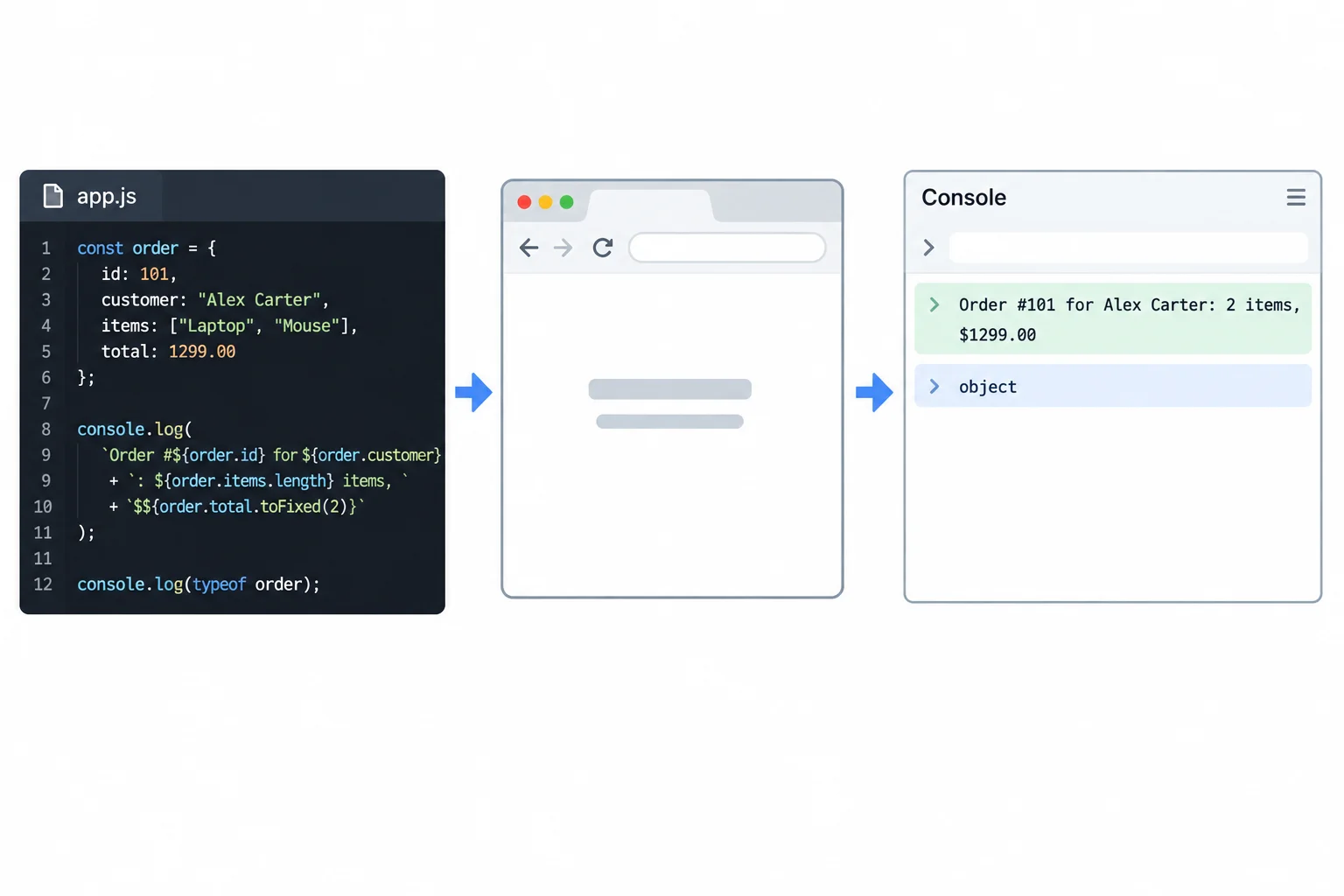
The first Console line communicates the order result. The second line is the string produced by typeof total.
Complete the missing declaration keyword and arithmetic operators in this updated order script.
const productName = "Notebook";
const unitPrice = 12;
 quantity = 2;
const shippingFee = 5;

quantity = 3;

// Calculate the total.
const total = unitPrice  quantity  shippingFee;

console.log(`${productName}: ${quantity} items, total $${total}.`);
console.log(typeof total);Now verify both quantities in your own local file.
2 produces total $29.const total calculation.app.js, refresh index.html, and inspect the Console again.Placement matters: a calculated value does not automatically change when an input changes later. With the reassignment before calculation, the new summary total is $41. The type inspection still reports number.
Example
quantity = 3;Summary
This small script brings together the core workflow:
app.js file.const names initialized bindings that are not reassigned; let supports the changing quantity.hasGiftWrap = false, intentional absence such as discountCode = null, and an uninitialized let deliveryNote; are everyday primitive-value examples.typeof describes the current value with a string.After completing both local runs, report what you actually observed after the run with the changed quantity. Write the full summary line, the type-inspection result, and a brief explanation of why the declaration for quantity differs from the declarations for bindings that are not reassigned.
Write at least 90 characters (0/90).
Congratulations! You completed: Work with JavaScript Values and Variables
Thousands of online courses in video, ebooks and audiobooks.
To test your knowledge during online courses
Generated directly from your cell phone's photo gallery and sent to your email

Download our app via QR Code or the links below:.



Carry knowledge in your pocket.
Download the Cursa app.
There are hundreds of free courses available, with a free certificate of completion that is saved in your mobile image gallery.
Download the app to access the Course Completion Certificate for Free.


+ 10 million
students

Free and Valid
Certificate

60 thousand free
exercises

4.8/5 rating in
app stores

Free courses in
video and ebooks