
Step 1 of 8
Describe One Record with an Object
Represent one stationery product as an object literal with meaningful named properties.

Learning path · Level 4 · Tutorial 4
Represent a small collection of records with arrays and objects, access its data, and recognize when an edit changes a shared value.

 Describe One Record with an Object
Represent one stationery product as an object literal with meaningful named properties. 2 min
Describe One Record with an Object
Represent one stationery product as an object literal with meaningful named properties. 2 min
 Read Values by Property Name
Read a stationery record with dot notation and bracket notation, including a property name supplied through a string binding. 2 min
Read Values by Property Name
Read a stationery record with dot notation and bracket notation, including a property name supplied through a string binding. 2 min
 Describe an Ordered List with an Array
Create a simple array, read elements by zero-based index, and use length to reason about valid and missing positions. 3 min
Describe an Ordered List with an Array
Create a simple array, read elements by zero-based index, and use length to reason about valid and missing positions. 3 min
 Combine Records into a Collection
Model the stationery inventory as an ordered array of product records and read data through an index followed by a property name. 2 min
Combine Records into a Collection
Model the stationery inventory as an ordered array of product records and read data through an index followed by a property name. 2 min
 Update Properties and Array Elements
Use assignment to mutate a record property or replace an existing array element, then verify exactly what changed with console output. 2 min
Update Properties and Array Elements
Use assignment to mutate a record property or replace an existing array element, then verify exactly what changed with console output. 2 min
 Add and Remove the Final Element
Append and remove the final inventory record with push() and pop(), while separating each method’s return value from the changed array. 2 min
Add and Remove the Final Element
Append and remove the final inventory record with push() and pop(), while separating each method’s return value from the changed array. 2 min
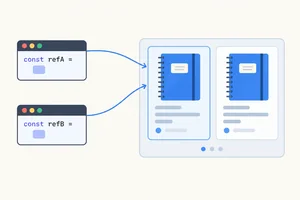 Recognize Shared References and the Limits of const
Trace object and array aliases, compare identity, and distinguish permitted mutation from prohibited const rebinding. 3 min
Recognize Shared References and the Limits of const
Trace object and array aliases, compare identity, and distinguish permitted mutation from prohibited const rebinding. 3 min
 Build and Check a Small Inventory
Complete and verify a small local stationery inventory program using records, arrays, mutations, and a shared reference. 4 min
Build and Check a Small Inventory
Complete and verify a small local stationery inventory program using records, arrays, mutations, and a shared reference. 4 min
Step 1 of 8
Represent one stationery product as an object literal with meaningful named properties.
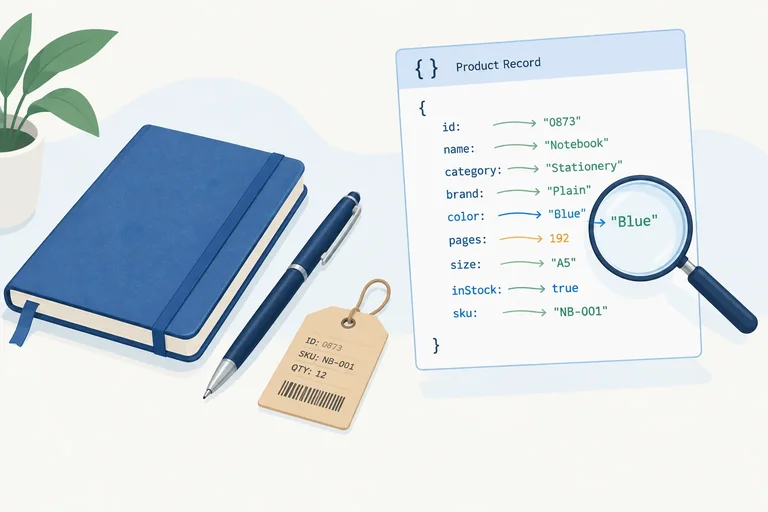
A record describes one related thing. For a stationery product, its identifier, name, and stock count belong together.
An object groups these related values under meaningful property names. Instead of treating 1, "Notebook", and 3 as unrelated values, one object says what each value represents.
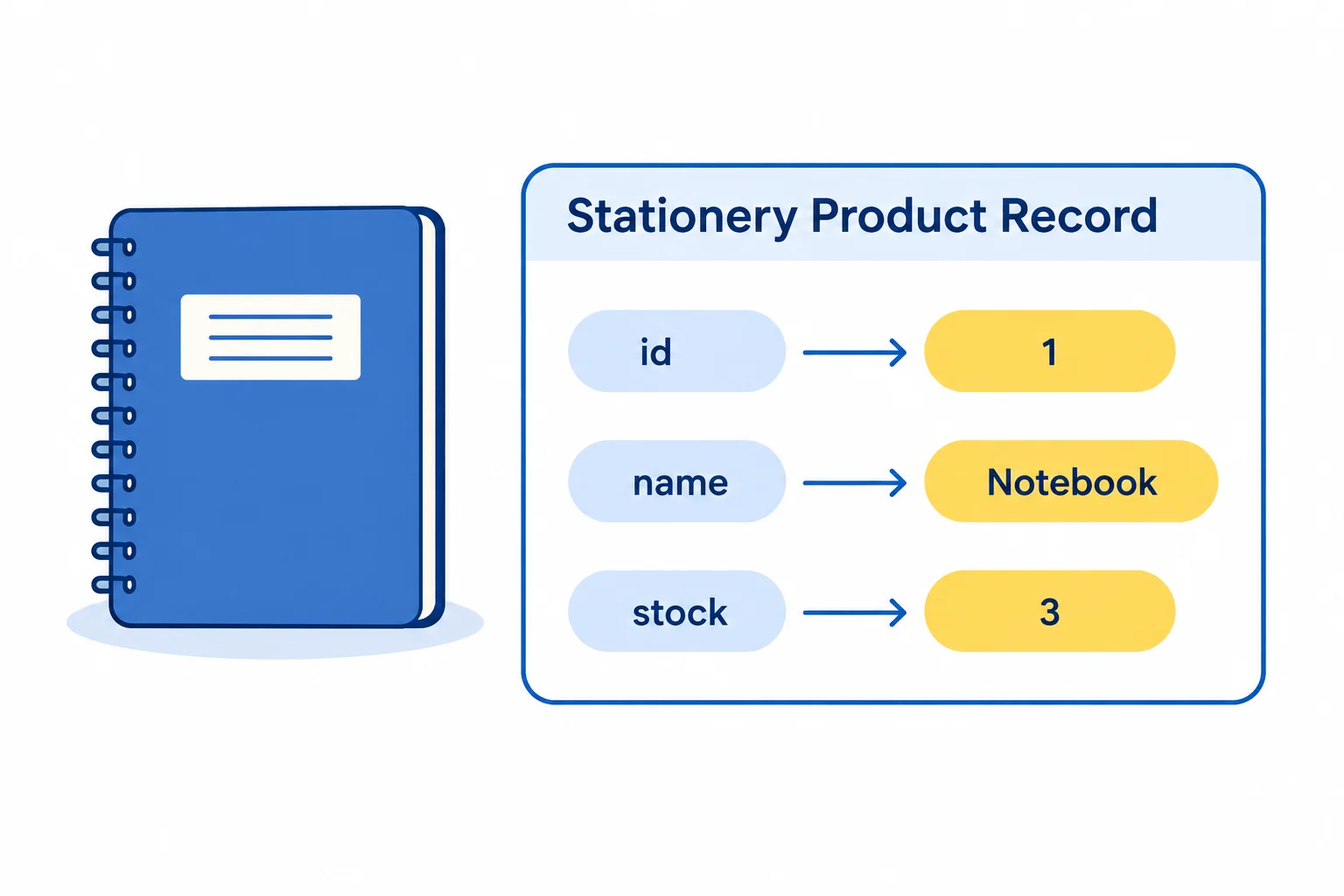
Property names describe the role of each value in the product record.
An object literal is written with curly braces: { and }. Inside, each property has a name, a colon, and its value:
propertyName: value
Use commas to separate properties. Here, id, name, and stock are property names. The values are a number, a string, and a number.
One object literal for the Notebook product
const product = {
  id: 1,
  name: "Notebook",
  stock: 3
};
Tip
The property name communicates meaning:
id identifies this product.name holds its product name.stock holds the count of individual items available.The braces make all three properties part of the same record.
Match each property name with the value it describes in the Notebook record.
Match every property name to its value.
Tap an item and then its matching pair.
Complete the object literal so it groups the Notebook product's three attributes with meaningful property names.
Fill in the property names.
const product = {
  : 1,
  : "Notebook",
  : 3
};
Step 2 of 8
Read a stationery record with dot notation and bracket notation, including a property name supplied through a string binding.
Use dot notation when you know the property name in the code. Write the object binding, a period, and the literal property name.
product.name reads the value stored under the name property. The word after the period is a property name, not a string and not a variable lookup.
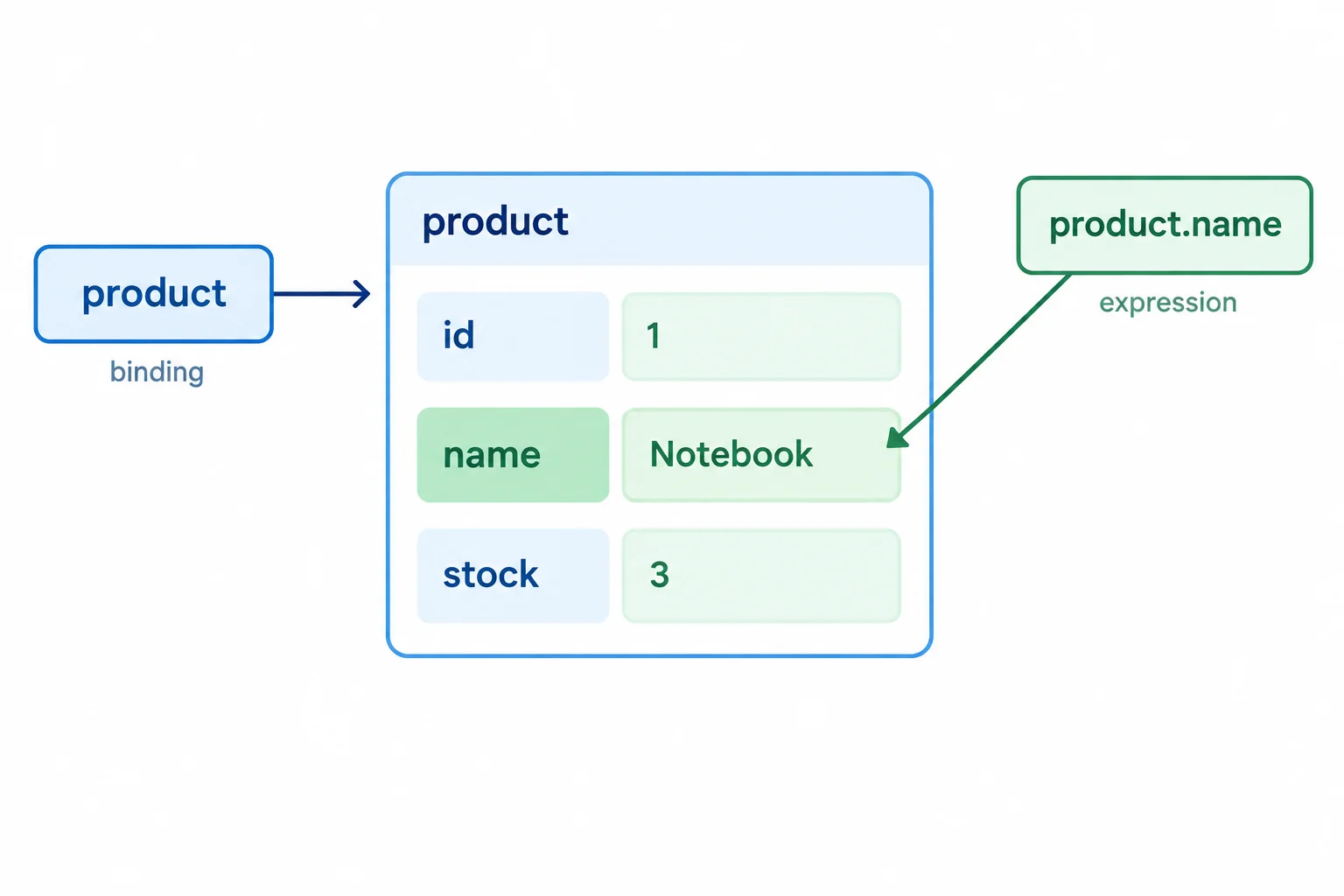
Dot notation follows a known property name to its value.
Replace the contents of records.js with this code, save, refresh the browser, and inspect the console.
const product = { id: 1, name: "Notebook", stock: 3 };

console.log(product.name);
console.log(product.stock);Notebook 3
The console prints primitive values on separate lines.
Bracket notation uses an expression inside square brackets.
product["stock"] uses the string value "stock" as the key.product[propertyName] first reads the value held by propertyName, then uses that value as the key.When a property is absent, an ordinary read produces undefined. The record has no category property, so product.category produces undefined.
These expressions can reach the same property, but they interpret what is inside the brackets differently.
| Expression | What supplies the key | Result |
|---|---|---|
| product["stock"] | The string "stock" | 3 |
| product[propertyName] | The value stored in propertyName | 3 |
| product.category | The literal name category | undefined |
This runnable example starts again with the same record.
const product = { id: 1, name: "Notebook", stock: 3 };
const propertyName = "stock";

console.log(product["stock"]);
console.log(product[propertyName]);
console.log(product.category);3 3 undefined
The first two reads select the same stock value. The final read is missing from the record.
Given const propertyName = "stock";, which expression uses the key held in propertyName to read a value from product?
Complete the reads so the code uses a fixed property, a quoted key, the key held by a binding, and one absent property.
const product = { id: 1, name: "Notebook", stock: 3 };
const propertyName = "";

console.log(product.);
console.log(product[""]);
console.log(product[propertyName]);
console.log(product.);
Step 3 of 8
Create a simple array, read elements by zero-based index, and use length to reason about valid and missing positions.
An array represents an ordered list of values. Write an array literal with square brackets ([]) and separate its elements with commas.
For this inventory, productNames is a list of string values. The order gives each element a position.
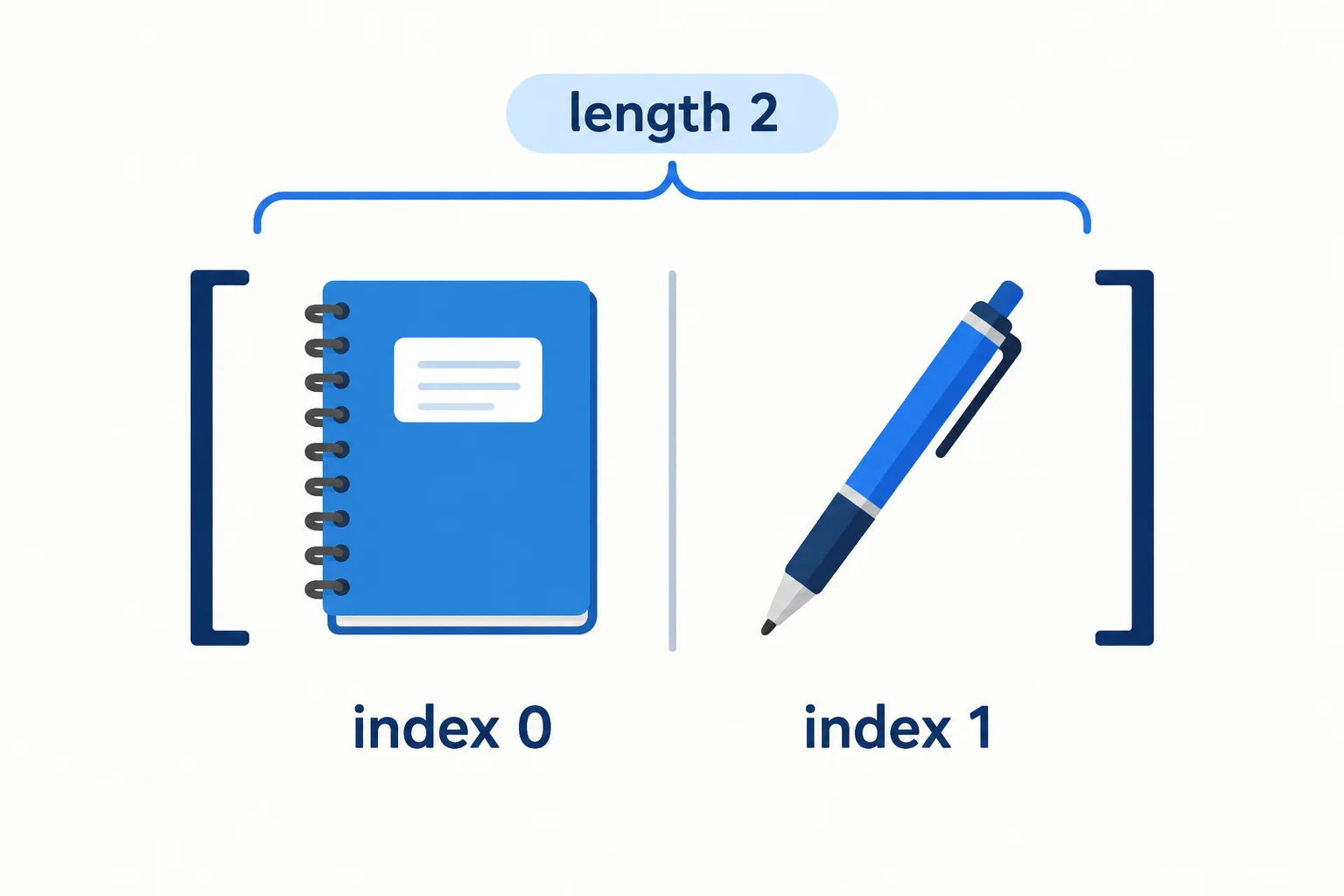
Indexes identify positions, beginning with 0; length counts all elements.
In records.js, start with this array and inspect its elements in the browser console.
const productNames = ["Notebook", "Pen"];

console.log(productNames[0]);
console.log(productNames[1]);Notebook Pen
Use square brackets after an array binding to read one element by its index. The first index is 0, not 1.
length is a property that reports how many elements the array has. It is not the final index. For a nonempty array, the final valid index is length - 1.
An empty array is []. It has no elements, so its length is 0. Reading past the final index produces undefined.
Replace the contents of records.js with this example, then save, refresh, and check the browser console.
const productNames = ["Notebook", "Pen"];
const emptyProductNames = [];

console.log(productNames.length);
console.log(productNames[productNames.length - 1]);
console.log(emptyProductNames.length);
console.log(productNames[2]);2 Pen 0 undefined
Tip
productNames.length is 2, while the final valid index is 1. Index 2 is one position beyond this two-element array.
True or false: In const productNames = ["Notebook", "Pen"];, productNames.length is the final valid index.
Complete the indexes so the logs read the first product name, the last product name, the number of elements, and an out-of-range read—in that order.
const productNames = ["Notebook", "Pen"];

console.log(productNames[]);
console.log(productNames[productNames.length - ]);
console.log(productNames.length);
console.log(productNames[]);
Step 4 of 8
Model the stationery inventory as an ordered array of product records and read data through an index followed by a property name.
An array can hold related product records in order. Each element is an object, so every record can use the same property names—id, name, and stock—while storing its own values.
The collection is named products. Its first element is at index 0; its second is at index 1.
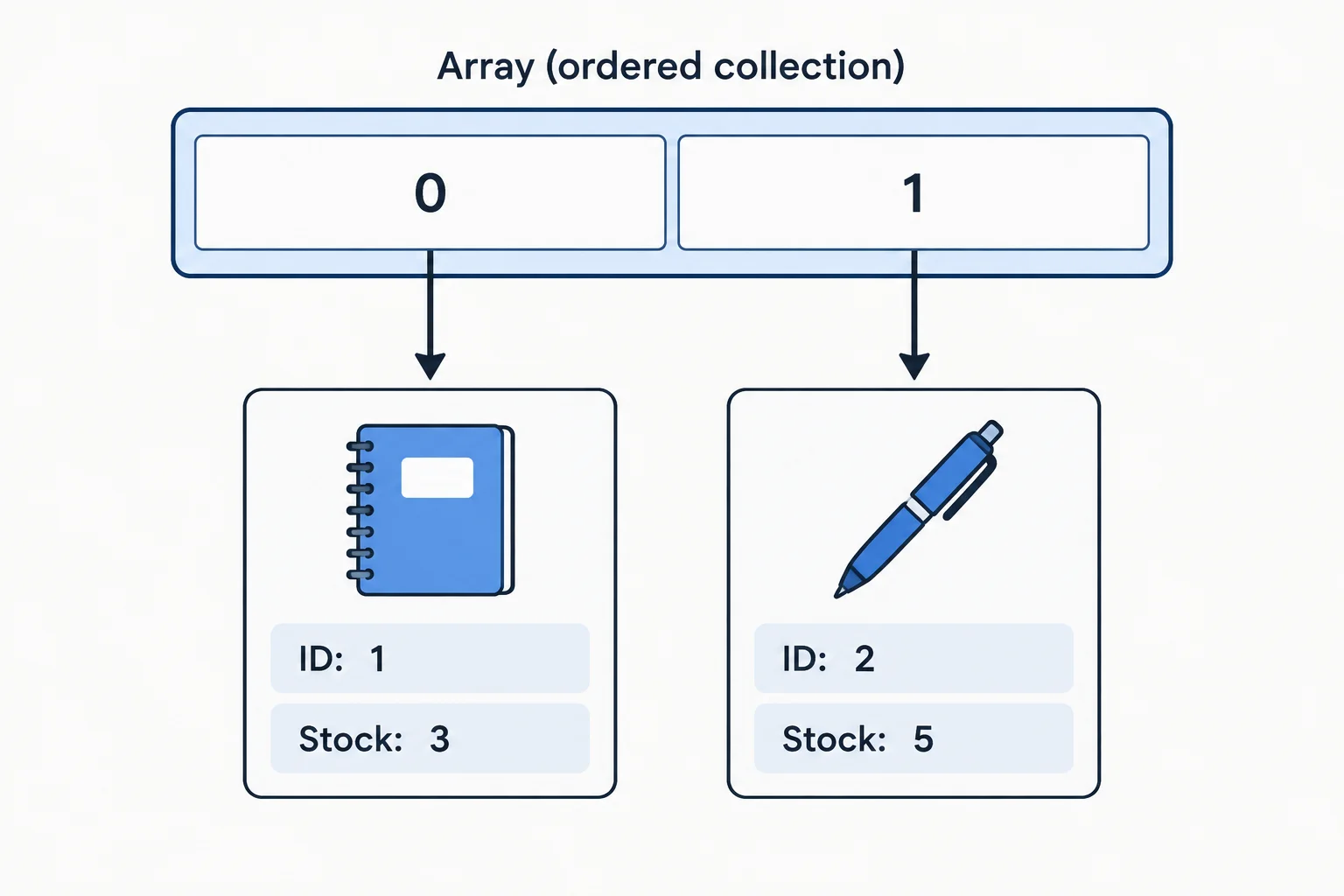
Indexes describe positions in the array; each position holds one complete product record.
<!doctype html>
<html lang="en">
  <head>
    <meta charset="utf-8">
    <title>Inventory</title>
    <script src="records.js" defer></script>
  </head>
  <body>
    <h1>Inventory</h1>
  </body>
</html>const products = [
{ id: 1, name: "Notebook", stock: 3 },
{ id: 2, name: "Pen", stock: 5 }
];
console.log(products.length);2
Open the browser console after saving both files and refreshing the page.
To read data inside this collection, select an array element first, then read one property from that record.
products[0].stock means: select the record at index 0, then read its stock property.
An index is a position in products. An id is data stored inside a record. The Notebook has id 1, but it is at index 0. JavaScript does not use an ID as an array index automatically.
const products = [
  { id: 1, name: "Notebook", stock: 3 },
  { id: 2, name: "Pen", stock: 5 }
];

console.log(products[0].stock);
console.log(products[1].name);3 Pen
The first log reads the Notebook stock. The second reads the name in the record at index 1.
Warning
A missing property on a selected record produces undefined. For example, products[1].category is undefined because the Pen record has no category property.
An out-of-range element read also produces undefined: products[2] is undefined here. But do not continue with .stock after that selection. products[2].stock fails because there is no record at index 2 from which to read a property.
Match each expression to the value it produces.
Tap an item and then its matching pair.
Complete the collection and the nested read that logs the Notebook stock count.
const products = ;

console.log(products[].);
Step 5 of 8
Use assignment to mutate a record property or replace an existing array element, then verify exactly what changed with console output.
A mutation changes an existing object or array. To change one property, place the property access on the left side of =.
products[0].stock = 4; selects the record at index 0, then changes only its stock property. The record’s id and name stay the same.
You can also use a quoted property name with bracket notation: products[1]["stock"] = 6;. These assignments edit records inside the existing products array; they do not assign a new value to the products binding.
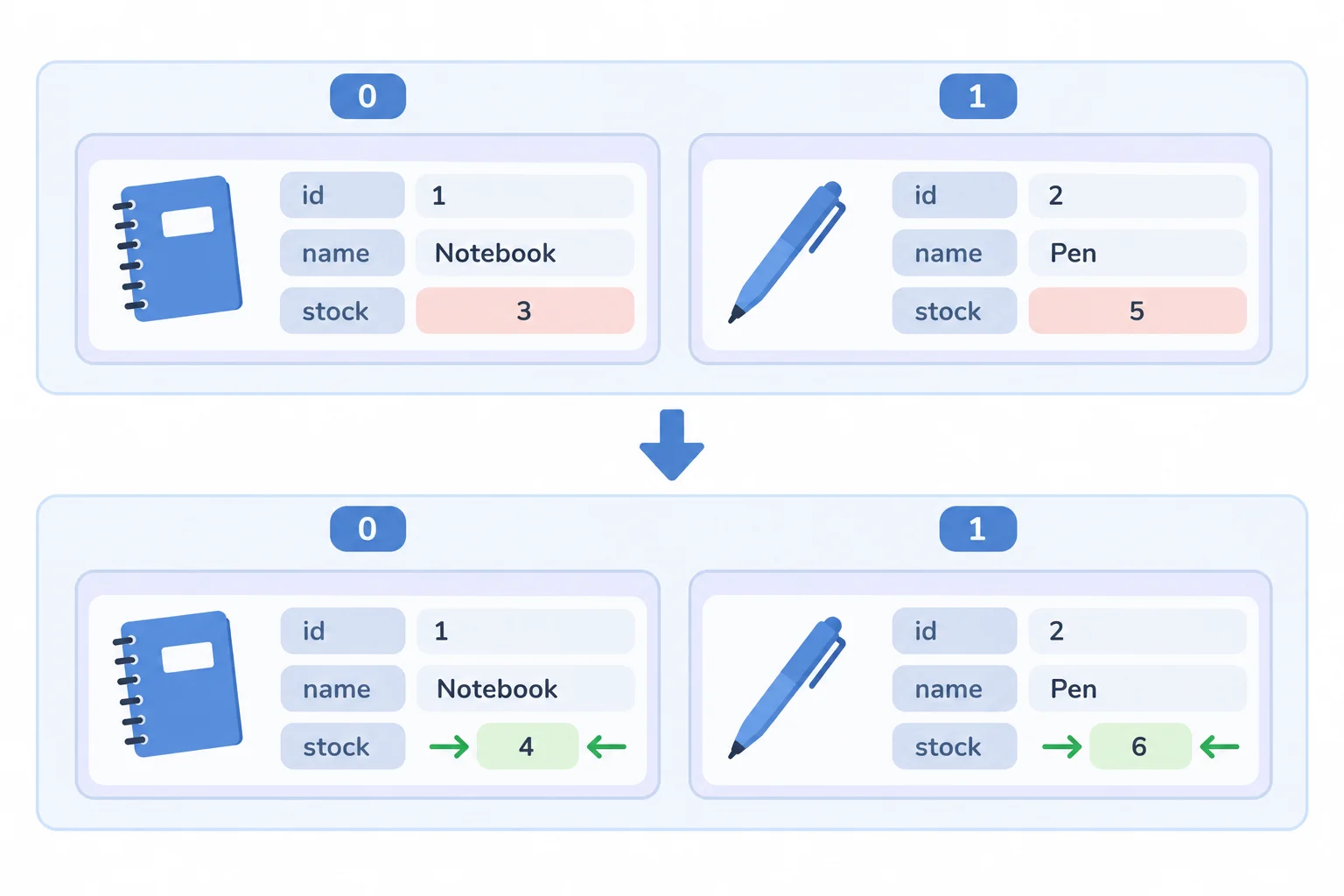
A property assignment changes the selected property, not the whole record or the array.
Replace the contents of records.js with this code, save, refresh the browser, and inspect the console.
const products = [
  { id: 1, name: "Notebook", stock: 3 },
  { id: 2, name: "Pen", stock: 5 }
];

products[0].stock = 4;
products[1]["stock"] = 6;

console.log(products[0].stock);
console.log(products[1].stock);4 6
An assignment can instead target an entire array element. products[1] = ... replaces the record stored at index 1 with a different record.
Compare the assignment targets:
products[1].stock = 2; edits one property of the record already at index 1.products[1] = { id: 3, name: "Eraser", stock: 2 }; replaces that entire element.In either case, index 0 is unaffected. The products binding itself is also not reassigned.
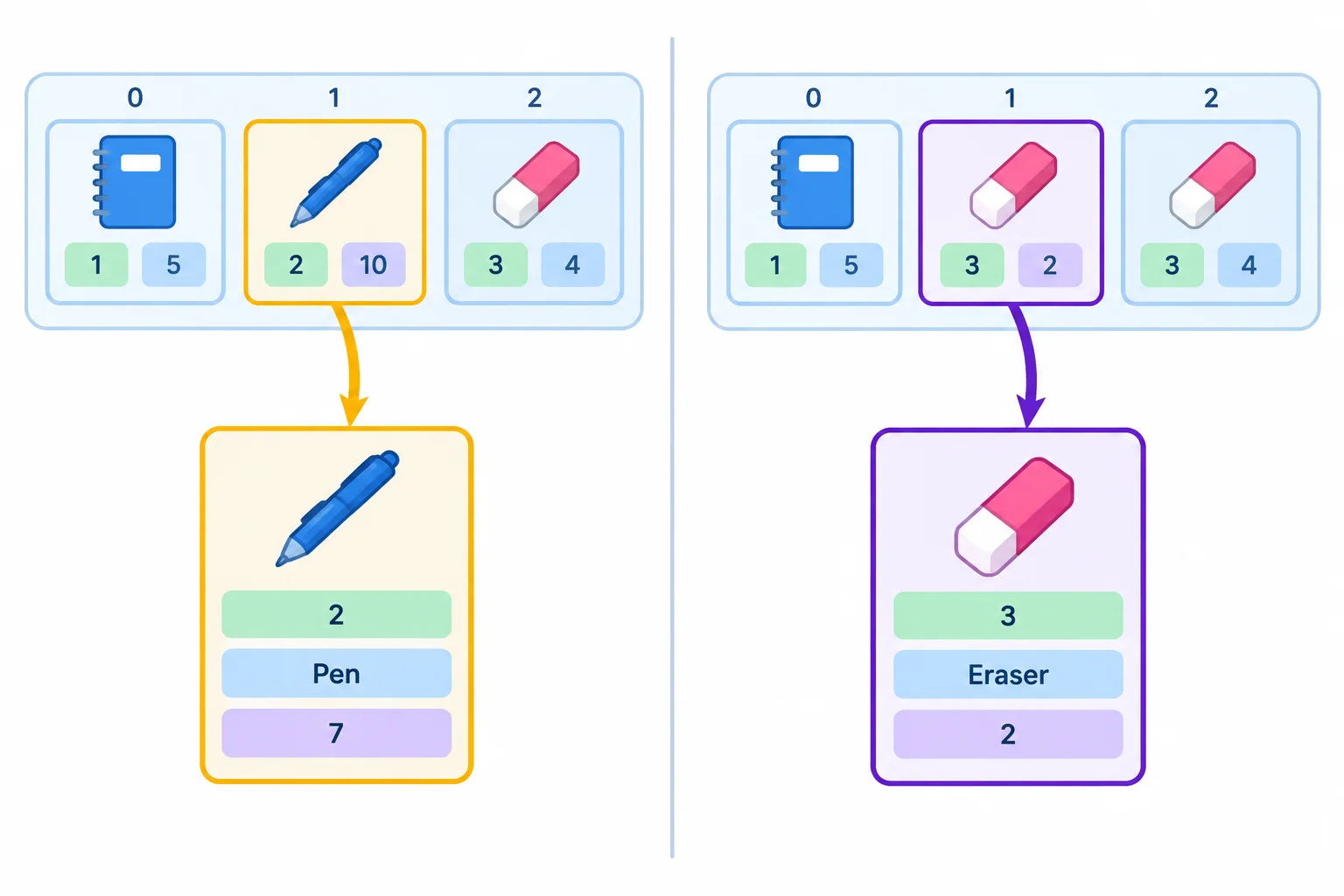
A nested target edits a property; an index target replaces the element in that slot.
This example starts again with the initial collection. The console confirms values from the replacement record and the unchanged first record.
const products = [
  { id: 1, name: "Notebook", stock: 3 },
  { id: 2, name: "Pen", stock: 5 }
];

products[1] = { id: 3, name: "Eraser", stock: 2 };

console.log(products[1].id);
console.log(products[1].name);
console.log(products[0].name);3 Eraser Notebook
Which assignment replaces the entire record at index 1 while leaving the record at index 0 unchanged?
Complete both assignments. Then complete every output comment with the primitive value that the console will show. Write string output without quotation marks.
const products = [
  { id: 1, name: "Notebook", stock: 3 },
  { id: 2, name: "Pen", stock: 5 }
];

products[0].stock = ;
products[1] = ;

console.log(products[0].stock); // Output:
console.log(products[1].name); // Output:
console.log(products[0].name); // Output:
console.log(products[1].stock); // Output: 
Step 6 of 8
Append and remove the final inventory record with push() and pop(), while separating each method’s return value from the changed array.
push() changes an existing array by appending one element at its end. Its return value is the array’s new length—not the record that was added.
Start with the two-record inventory. After appending the Eraser record, it occupies index 2, and the array length is 3. Try this by replacing the contents of records.js and checking the browser console.
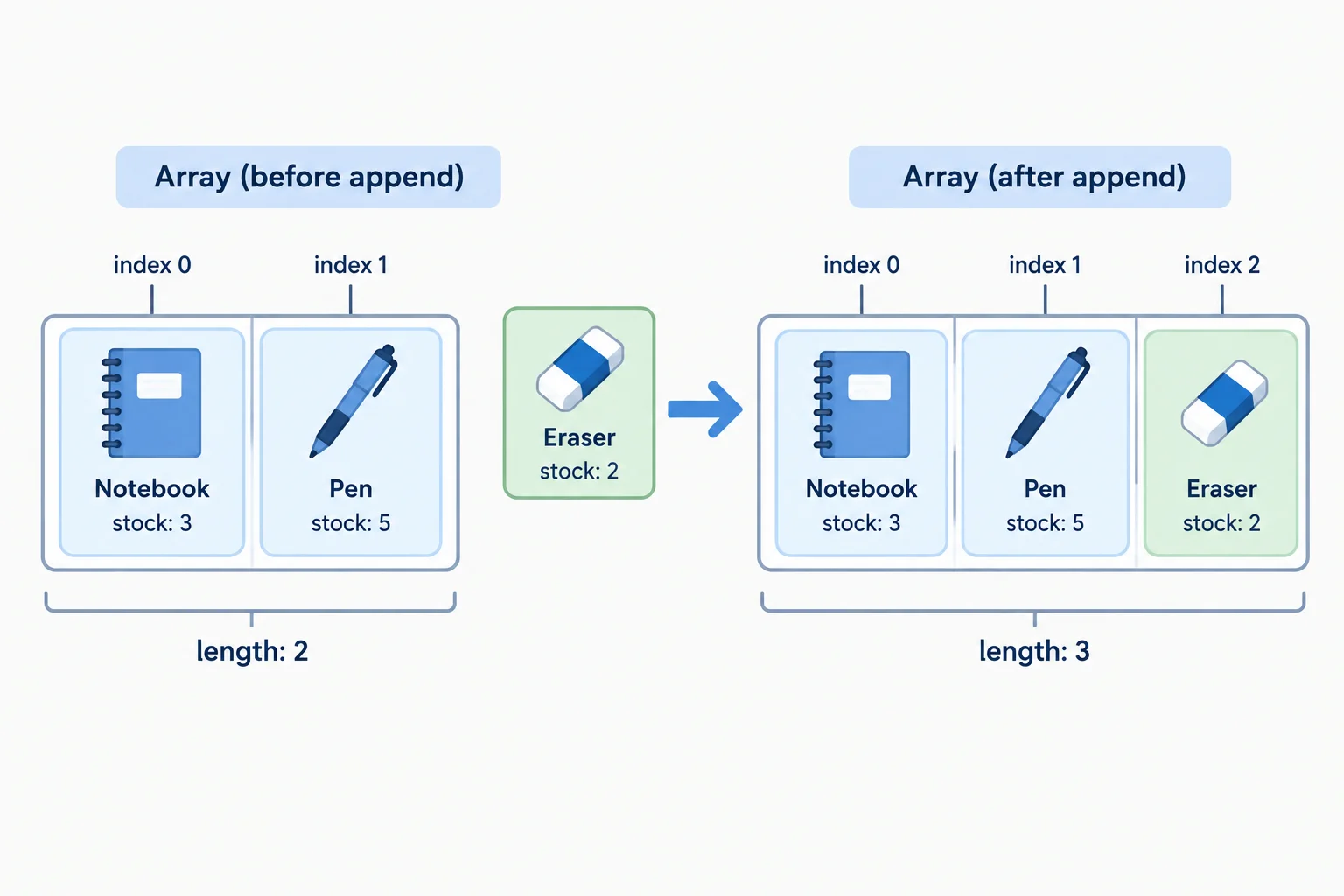
push() appends at the end and returns the new length.
Run this in records.js. The console shows the return value first, then the mutated array’s length and final record name.
const products = [
  { id: 1, name: "Notebook", stock: 3 },
  { id: 2, name: "Pen", stock: 5 }
];

const newLength = products.push({ id: 3, name: "Eraser", stock: 2 });

console.log(newLength);
console.log(products.length);
console.log(products[2].name);3 3 Eraser
Each line is a primitive value logged to the browser console.
pop() changes an existing array by removing its final element. It takes no argument and returns the removed element.
If an array has no elements, pop() has nothing to remove. It returns undefined, and the array still has length 0.
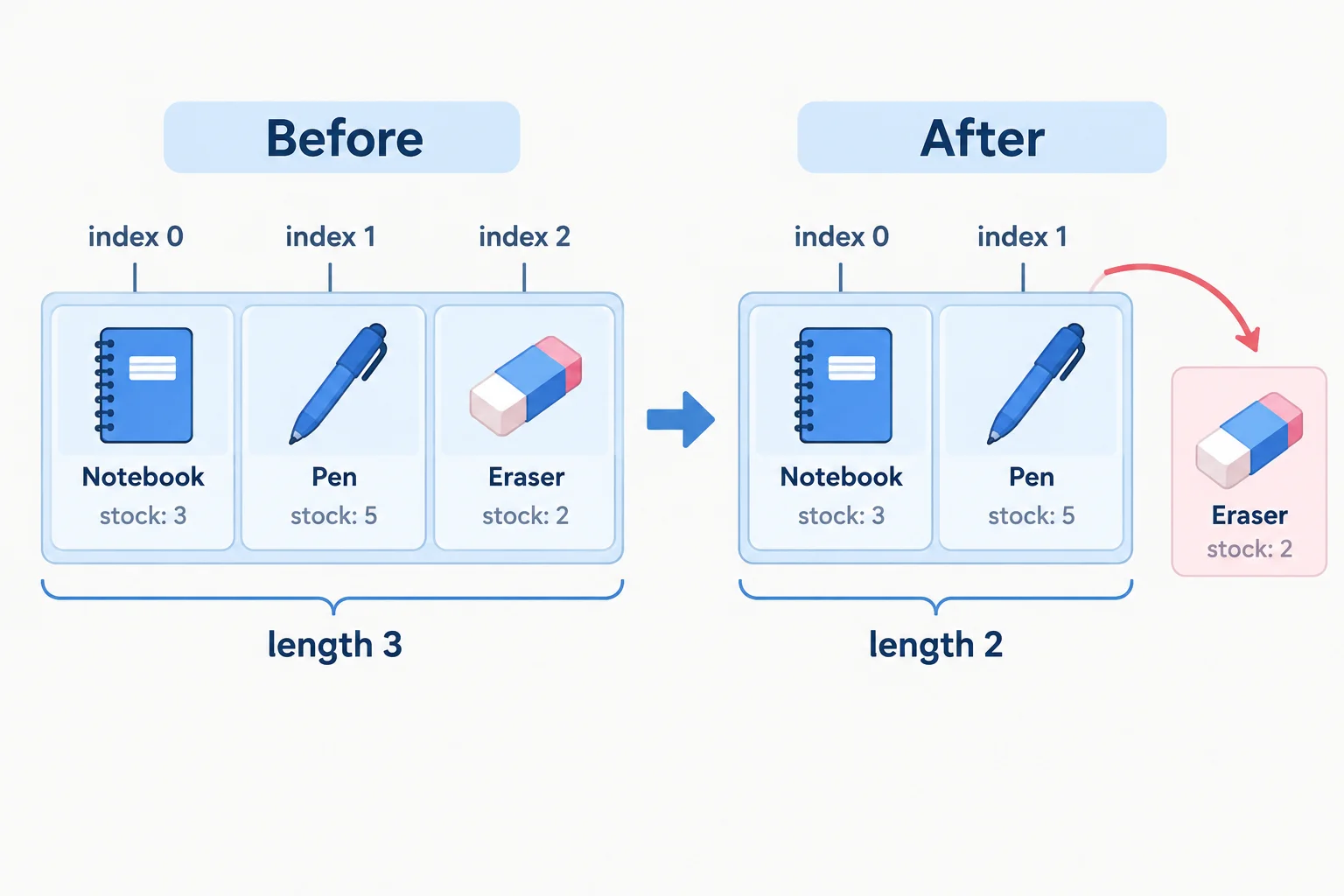
pop() removes only the final element and returns that removed record.
Both methods mutate the same array, but their return values are different.
| Method | Argument | Array mutation | Return value |
|---|---|---|---|
| `push()` | Element to append | Adds it at the end | New length |
| `pop()` | None | Removes final element | Removed element |
| `pop()` on `[]` | None | No change | `undefined` |
Replace records.js with this example. The final indexed read is out of range after the removal, so it logs undefined.
const products = [
  { id: 1, name: "Notebook", stock: 3 },
  { id: 2, name: "Pen", stock: 5 }
];

const removedProduct = products.pop();

console.log(removedProduct.name);
console.log(products.length);
console.log(products[1]);Pen 1 undefined
The last line reads an index that no longer exists after `pop()` changed the array.
Match each operation to its outcome.
Tap an item and then its matching pair.
In a fresh records.js file, write a complete sequence that starts with the initial two-record products array. Append { id: 3, name: "Eraser", stock: 2 }, store the value returned by that call, then remove and store the final record.
Add console logs that verify: the append return value, the removed record’s name, the final products length, and the result and length after calling the removal method on an empty array. State the five expected console outputs in your response.
Write at least 120 characters (0/120).
Step 7 of 8
Trace object and array aliases, compare identity, and distinguish permitted mutation from prohibited const rebinding.
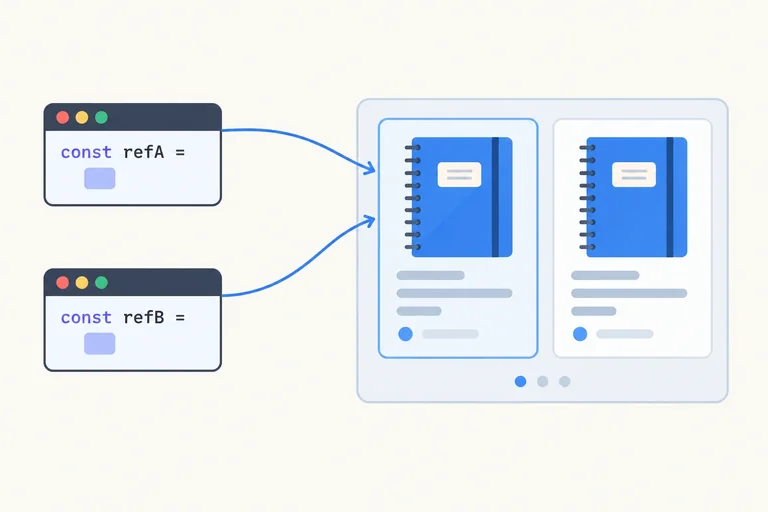
products[0] selects the first record in the array. When you assign that selected record to selectedProduct, JavaScript does not create another record. Both access paths reach one object.
An object has an identity: it is a particular value, not merely a set of matching properties. A shared reference means two bindings can reach that same value. A mutation through either path is visible through the other path.
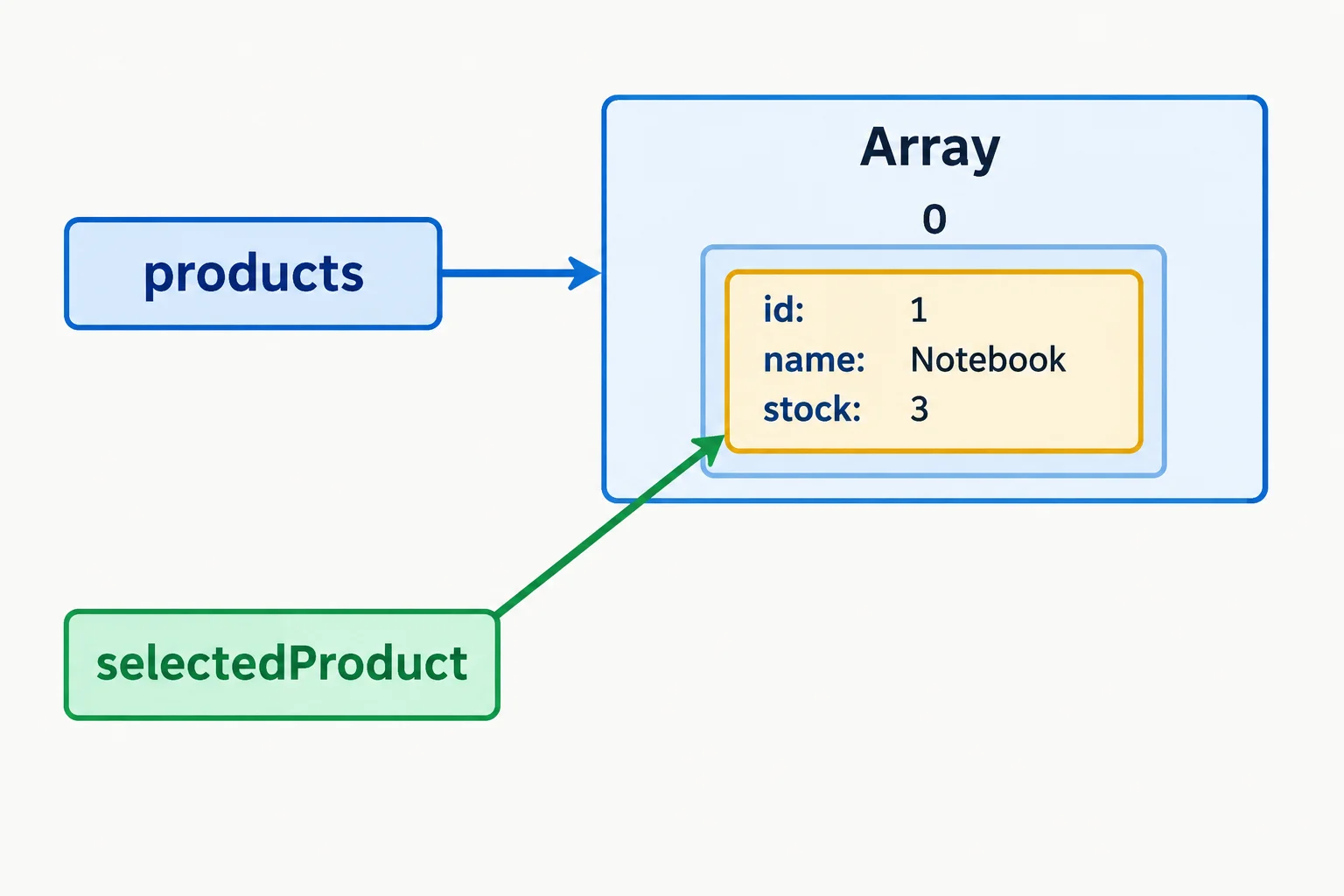
Two arrows reach one record, so a property mutation is observed through both paths.
Replace the contents of records.js with this code, save, refresh the browser, and inspect the console.
const products = [
  { id: 1, name: "Notebook", stock: 3 },
  { id: 2, name: "Pen", stock: 5 }
];

const selectedProduct = products[0];

selectedProduct.stock = 4;

console.log(products[0].stock);
console.log(selectedProduct.stock);4 4
Both logs read the stock property of the one shared record.
Two object literals create two separate objects, even if every property value matches. For objects and arrays, === asks whether both operands refer to the same value. It does not compare whether their properties look alike.
The same rule applies to two separately written arrays with matching elements: they are separate array values.
This example creates two separate record literals with matching contents.
const product = { id: 1, name: "Notebook", stock: 3 };
const sameLookingProduct = { id: 1, name: "Notebook", stock: 3 };

console.log(product === sameLookingProduct);
console.log(product === product);false true
The first comparison is false because the literals created separate objects. The second is true because it compares one object with itself.
Assigning an existing array to another binding also does not copy it. Here, sharedProducts and products reach the same array. An object selected from that array remains the same record as well.
const prevents assigning a different value to a binding. It does not prevent mutations to an object or array that the binding already reaches.
Run this fresh example to observe an object mutation and an array mutation through aliases.
const products = [
  { id: 1, name: "Notebook", stock: 3 },
  { id: 2, name: "Pen", stock: 5 }
];

const selectedProduct = products[0];
const sharedProducts = products;

selectedProduct.stock = 4;
sharedProducts.push({ id: 3, name: "Eraser", stock: 2 });

console.log(products[0].stock);
console.log(products.length);
console.log(sharedProducts[2].name);4 3 Eraser
The first log shows the edited property. The next two logs show that appending through sharedProducts changed the same array reached by products.
Each expression below has a different effect on a const binding.
| Expression | Effect with const |
|---|---|
| selectedProduct.stock = 4; | Allowed: mutates one property |
| sharedProducts.push({ id: 3, name: "Eraser", stock: 2 }); | Allowed: mutates the shared array |
| sharedProducts = []; | Not allowed: attempts to rebind the binding |
Consider this fresh program. Which summary is accurate?
const products = [
  { id: 1, name: "Notebook", stock: 3 },
  { id: 2, name: "Pen", stock: 5 }
];

const selectedProduct = products[0];
const sharedProducts = products;
const matchingProduct = { id: 1, name: "Notebook", stock: 4 };

selectedProduct.stock = 4;
sharedProducts.pop();

console.log(products[0].stock);
console.log(products.length);
console.log(selectedProduct === products[0]);
console.log(selectedProduct === matchingProduct);
Step 8 of 8
Complete and verify a small local stationery inventory program using records, arrays, mutations, and a shared reference.
Use a small local folder with two files: index.html loads records.js, and the browser console shows the checks. Create both files, then open or refresh index.html and inspect the console. This final task uses the inventory data and operations you have already practiced.

Save the files locally; inspect the results in the browser console.
Save this as index.html.
<!doctype html>
<html lang="en">
  <head>
    <meta charset="UTF-8">
    <meta name="viewport" content="width=device-width, initial-scale=1.0">
    <title>Inventory Check</title>
    <script src="records.js" defer></script>
  </head>
  <body>
    <h1>Inventory Check</h1>
  </body>
</html>Complete records.js. Each blank represents a concept used in the final inventory check.
const  = [
  { id: 1, name: "Notebook", stock: 3 },
  { id: 2, name: "Pen", stock: 5 }
];

const sharedProducts = products;

console.log(products[0].);
products[0]. = 4;

const newLength = products.({
  id: 3,
  name: "Eraser",
  stock: 2
});
const removedProduct = products.();

sharedProducts[0]. = 6;

console.log(products[0].stock);
console.log(newLength);
console.log(products.length);
console.log(removedProduct.name);
console.log(products[2]);
console.log(products === sharedProducts);Now replace the contents of records.js with this complete version. Save, refresh index.html, and compare your browser console with the expected primitive outputs.
Save this as records.js.
const products = [
  { id: 1, name: "Notebook", stock: 3 },
  { id: 2, name: "Pen", stock: 5 }
];

const sharedProducts = products;

console.log(products[0].name);
products[0].stock = 4;

const newLength = products.push({
  id: 3,
  name: "Eraser",
  stock: 2
});
const removedProduct = products.pop();

sharedProducts[0].stock = 6;

console.log(products[0].stock);
console.log(newLength);
console.log(products.length);
console.log(removedProduct.name);
console.log(products[2]);
console.log(products === sharedProducts);Notebook 6 3 2 Eraser undefined true
The console may include browser messages in addition to these lines. Compare the values and their order.
After you run the supplied files and compare the console values, explain in one or two sentences why the stock read through products[0] is affected by the edit made through sharedProducts[0], even though both bindings use const.
Write at least 40 characters (0/40).
Summary
You can now build and inspect a small collection of related records without introducing any new syntax.
id, name, and stock properties.products[0].stock.push() appends a final element and returns the new length; pop() removes the final element and returns it.const prevents rebinding, not mutation. products and sharedProducts observe the same edit because they refer to the same array and its records.Congratulations! You completed: Represent Records and Lists with Objects and Arrays
Thousands of online courses in video, ebooks and audiobooks.
To test your knowledge during online courses
Generated directly from your cell phone's photo gallery and sent to your email

Download our app via QR Code or the links below:.



Carry knowledge in your pocket.
Download the Cursa app.
There are hundreds of free courses available, with a free certificate of completion that is saved in your mobile image gallery.
Download the app to access the Course Completion Certificate for Free.


+ 10 million
students

Free and Valid
Certificate

60 thousand free
exercises

4.8/5 rating in
app stores

Free courses in
video and ebooks