Step 1 of 9
Define the Task and Its Expected Outcomes
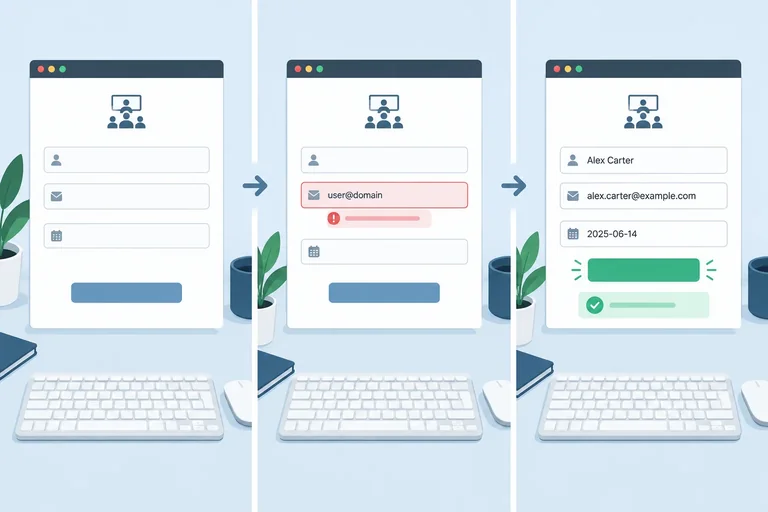
Prepare a reproducible local form task with explicit starting conditions, an invalid submission, and a successful correction.

Learning path · Level 12 · Tutorial 6
Audit one short user task with a keyboard and an available screen reader, record reproducible accessibility findings, and verify corrections through targeted manual and automated checks.
 Define the Task and Its Expected Outcomes
Prepare a reproducible local form task with explicit starting conditions, an invalid submission, and a successful correction. 3 min
Define the Task and Its Expected Outcomes
Prepare a reproducible local form task with explicit starting conditions, an invalid submission, and a successful correction. 3 min
 Run the Keyboard-Only Pass
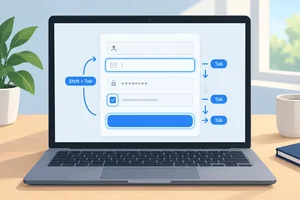
Complete the Workshop registration task without a pointer and collect concise evidence about focus movement, visibility, and recovery. 3 min
Run the Keyboard-Only Pass
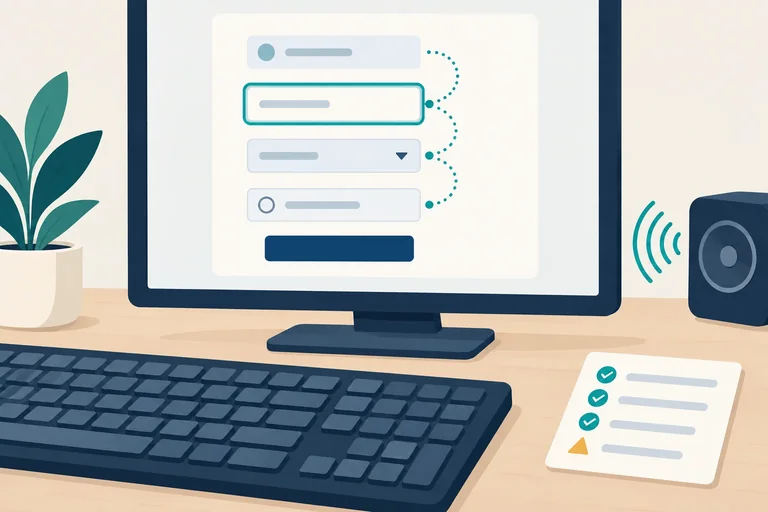
Complete the Workshop registration task without a pointer and collect concise evidence about focus movement, visibility, and recovery. 3 min
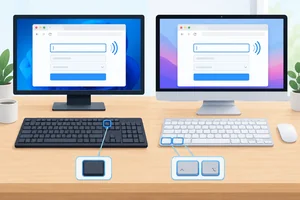 Prepare One Screen-Reader Pairing
Enable one available screen-reader/browser pairing, establish its key settings, and verify basic reading, silencing, and control activation locally. 3 min
Prepare One Screen-Reader Pairing
Enable one available screen-reader/browser pairing, establish its key settings, and verify basic reading, silencing, and control activation locally. 3 min
 Separate Reading Navigation from Focus
Separate screen-reader reading navigation, keyboard focus, and interaction mode while exploring and operating the registration form. 3 min
Separate Reading Navigation from Focus
Separate screen-reader reading navigation, keyboard focus, and interaction mode while exploring and operating the registration form. 3 min
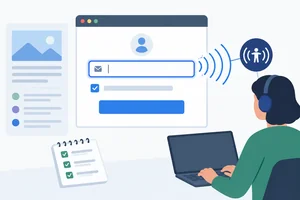 Check Controls and Instructions in Context
Evaluate the initial form controls through both reading navigation and direct keyboard focus in one selected screen-reader/browser pairing. 3 min
Check Controls and Instructions in Context
Evaluate the initial form controls through both reading navigation and direct keyboard focus in one selected screen-reader/browser pairing. 3 min
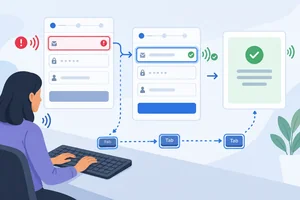 Audit Error Recovery and Completion Feedback
Observe the same form task through invalid recovery and completion, distinguishing field-level error information from dynamic feedback. 3 min
Audit Error Recovery and Completion Feedback
Observe the same form task through invalid recovery and completion, distinguishing field-level error information from dynamic feedback. 3 min
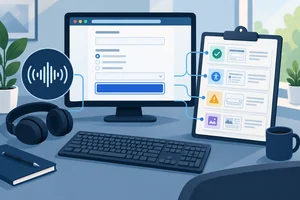 Write a Reproducible Finding
Convert keyboard and screen-reader observations into a concise finding that another tester can reproduce, while preserving uncertainty and coverage limits. 3 min
Write a Reproducible Finding
Convert keyboard and screen-reader observations into a concise finding that another tester can reproduce, while preserving uncertainty and coverage limits. 3 min
 Correct and Retest the Affected Behavior
Correct the two intentional accessibility gaps, repeat the original manual task, and add focused Chromium regression coverage without treating automation as evidence of screen-reader speech. 4 min
Correct and Retest the Affected Behavior
Correct the two intentional accessibility gaps, repeat the original manual task, and add focused Chromium regression coverage without treating automation as evidence of screen-reader speech. 4 min
 Deliver the Audit and State Its Limits
Submit a concise, evidence-based audit summary that records what was tested, what the evidence supports, and what remains unverified. 2 min
Deliver the Audit and State Its Limits
Submit a concise, evidence-based audit summary that records what was tested, what the evidence supports, and what remains unverified. 2 min
Step 1 of 9
Prepare a reproducible local form task with explicit starting conditions, an invalid submission, and a successful correction.
Use one bounded task so every observation has a clear before-and-after condition.
alex in Email address.alex@example.com.Use these fictional values only. This specimen simulates registration: it sends nothing and stores nothing.
For later screen-reader checks, evaluate whether the needed meaning is communicated. Do not require one universal spoken order or transcript.
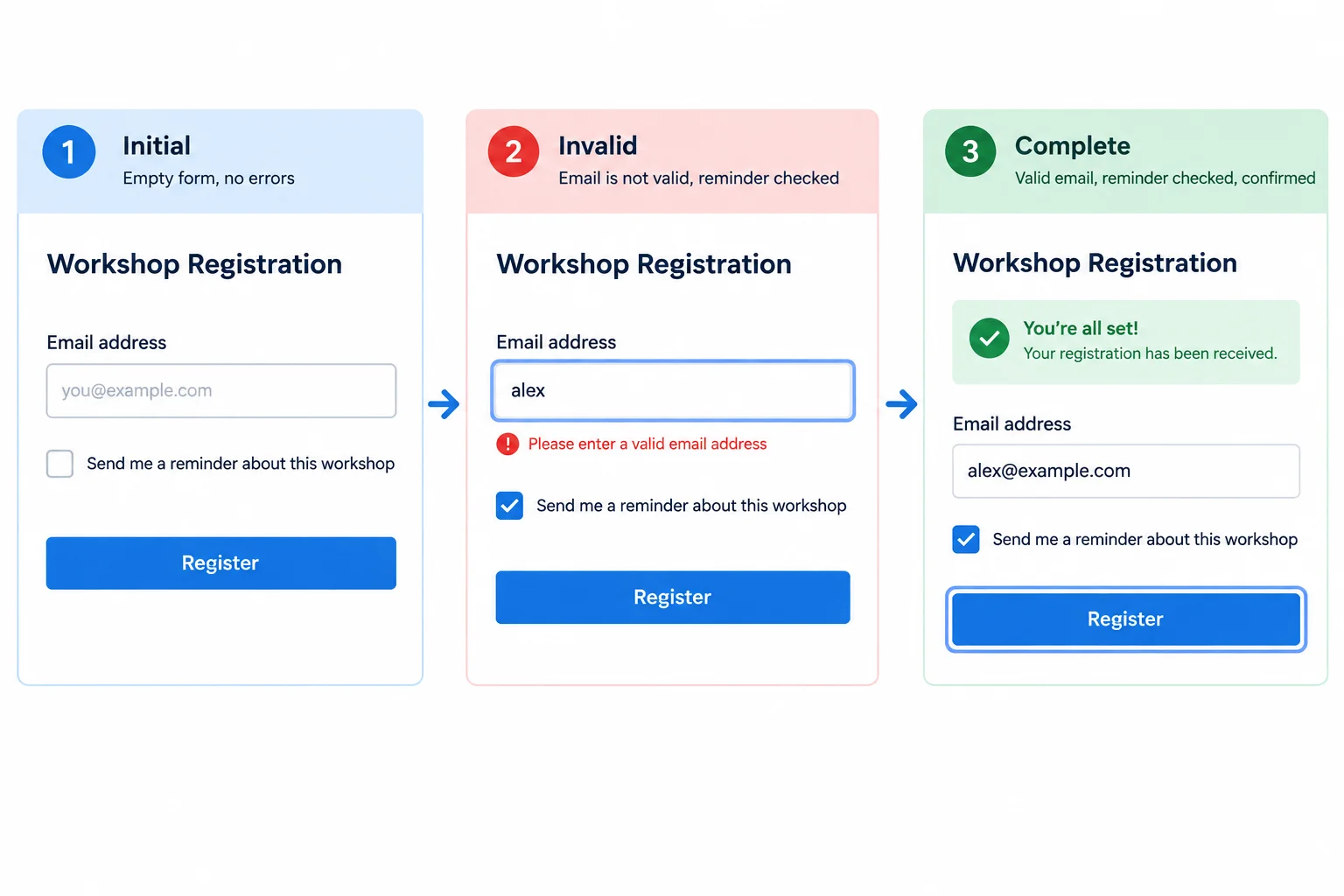
Set observable expectations from this map; do not treat it as a prediction of exact screen-reader speech.
These are the observations to establish during the task. They describe the interface outcome, not a required assistive-technology transcript.
| State | Email address | Reminders | Feedback and focus |
|---|---|---|---|
| initial | Empty; required | Unchecked | Instruction is visible; no error or completion message |
| invalid | Contains alex; marked invalid | Checked | Error is visible; focus returns to Email address |
| complete | Contains alex@example.com; no invalid state | Still checked | Error is gone; completion message is visible; focus remains on Register |
Create a local folder named task-audit, then create audit.html inside it. Paste the two sections below into that file in order. Together, they form one complete self-contained page with inline CSS and JavaScript.
Paste section 1 first without adding closing tags. Then append section 2 directly after it, save the file, and open task-audit/audit.html in a browser as a local file. Reloading the page restores the initial state.
<!doctype html>
<html lang="en">
<head>
  <meta charset="UTF-8">
  <meta name="viewport" content="width=device-width, initial-scale=1">
  <title>Workshop registration</title>
  <style>
    body { font-family: system-ui, sans-serif; margin: 2rem; }
    main { max-width: 34rem; }
    form { display: grid; gap: 1rem; }
    label, input, button { font: inherit; }
    input, button { padding: 0.5rem; }
    input:focus-visible, button:focus-visible {
      outline: 3px solid #005fcc;
      outline-offset: 3px;
    }
    .field { display: grid; gap: 0.4rem; }
    .check { display: flex; gap: 0.5rem; align-items: center; }
    .error { color: #a40000; min-height: 1.5rem; }
  </style>
</head>
<body>
  <main>
    <h1>Workshop registration</h1>
    <form id="registration-form" novalidate>
      <div class="field">
        <label for="email">Email address</label>
        <input
          id="email"
          name="email"
          type="email"
          required
          aria-describedby="email-help"
        >
        <p id="email-help">Use a complete email address.</p>
        <p id="email-error" class="error" role="alert"></p>
</div> <label class="check">
<input id="reminders" name="reminders" type="checkbox">
Send session reminders
</label>
<button type="submit">Register</button>
</form>
<p id="signup-status"></p>
</main>
<script>
const form = document.querySelector('#registration-form');
const email = document.querySelector('#email');
const emailError = document.querySelector('#email-error');
const status = document.querySelector('#signup-status');
const submitButton = document.querySelector('button[type="submit"]');
form.addEventListener('submit', (event) => {
event.preventDefault();
if (!email.validity.valid) {
emailError.textContent = 'Enter an email address such as alex@example.com.';
email.setAttribute('aria-invalid', 'true');
status.textContent = '';
email.focus();
return;
}
email.removeAttribute('aria-invalid');
emailError.textContent = '';
status.textContent = 'Registration complete.';
submitButton.focus();
});
</script>
</body>
</html>Workshop registration Email address [empty required email input] Use a complete email address. [unchecked] Send session reminders [Register] No error text is shown. No completion feedback is shown.
Open the completed file locally in a browser. This is the expected visible result immediately after opening or reloading it; later steps exercise its invalid and complete states.
Open audit.html directly in your browser as a local file. The specimen has no external assets, network requests, or persistence; reload it before each repeat to return to initial.
Prepare one local pairing for the later manual checks:
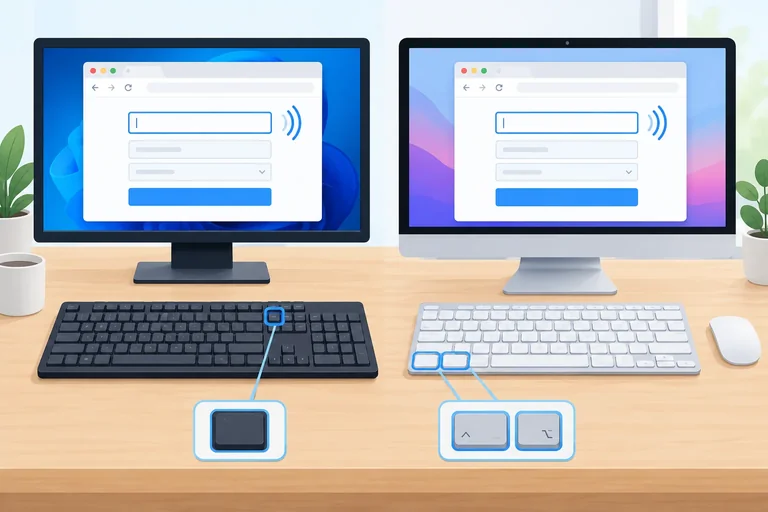
Confirm that your browser and operating-system settings allow Tab to move through webpage controls. On macOS, if expected controls are skipped, check Safari’s webpage keyboard-navigation setting or the relevant macOS Keyboard navigation setting. Record the actual setting you verified or changed.
Record the environment without inventing version numbers: OS and version / browser and version / screen reader and version / relevant settings. If neither pairing is available, the later screen-reader check is Not tested.
Tip
The page is deliberately local and self-contained. It uses fictional registration data only and does not transmit or retain information. Reload before every new run so the same task starts from the same state.
Warning
A clean automated accessibility scan from the preceding tutorial does not establish that this task is usable. It cannot by itself show reachable keyboard focus, understandable error recovery, or useful dynamic feedback through a screen reader.
Put the actions of the defined audit task in the only order that preserves its intended state transitions.
After the second submission, which combined observation establishes successful error recovery and completion?
Step 2 of 9
Complete the Workshop registration task without a pointer and collect concise evidence about focus movement, visibility, and recovery.
Turn the screen reader off for this pass. Open task-audit/audit.html, reload it, and begin from the initial state. After opening the file, do not use a mouse, trackpad, or touch input.
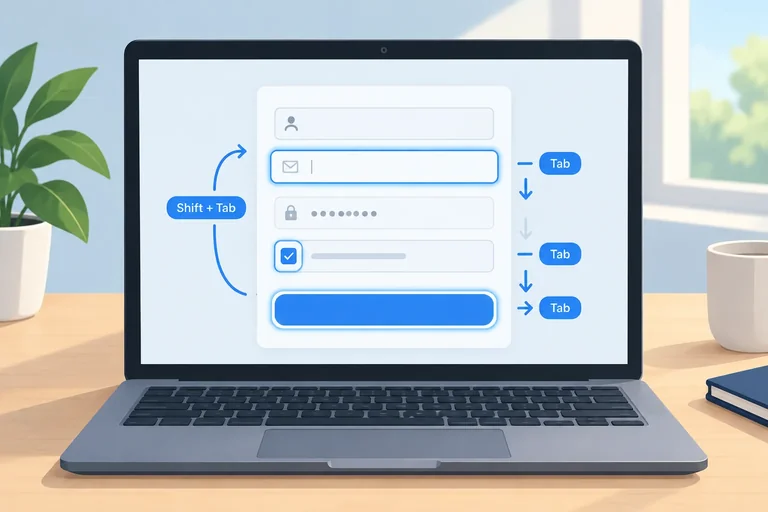
Use Tab to move forward and Shift+Tab to move backward. For every focused control, check two things: can you reach it in the task sequence, and can you visually identify the current focus location?
If Tab appears to skip native controls, first check the browser or operating-system keyboard-navigation setting. On macOS with Safari, enable the setting that allows Tab to highlight each item on a webpage when needed. Repeat from the initial state after changing a setting; a configuration condition is not automatically a page defect.
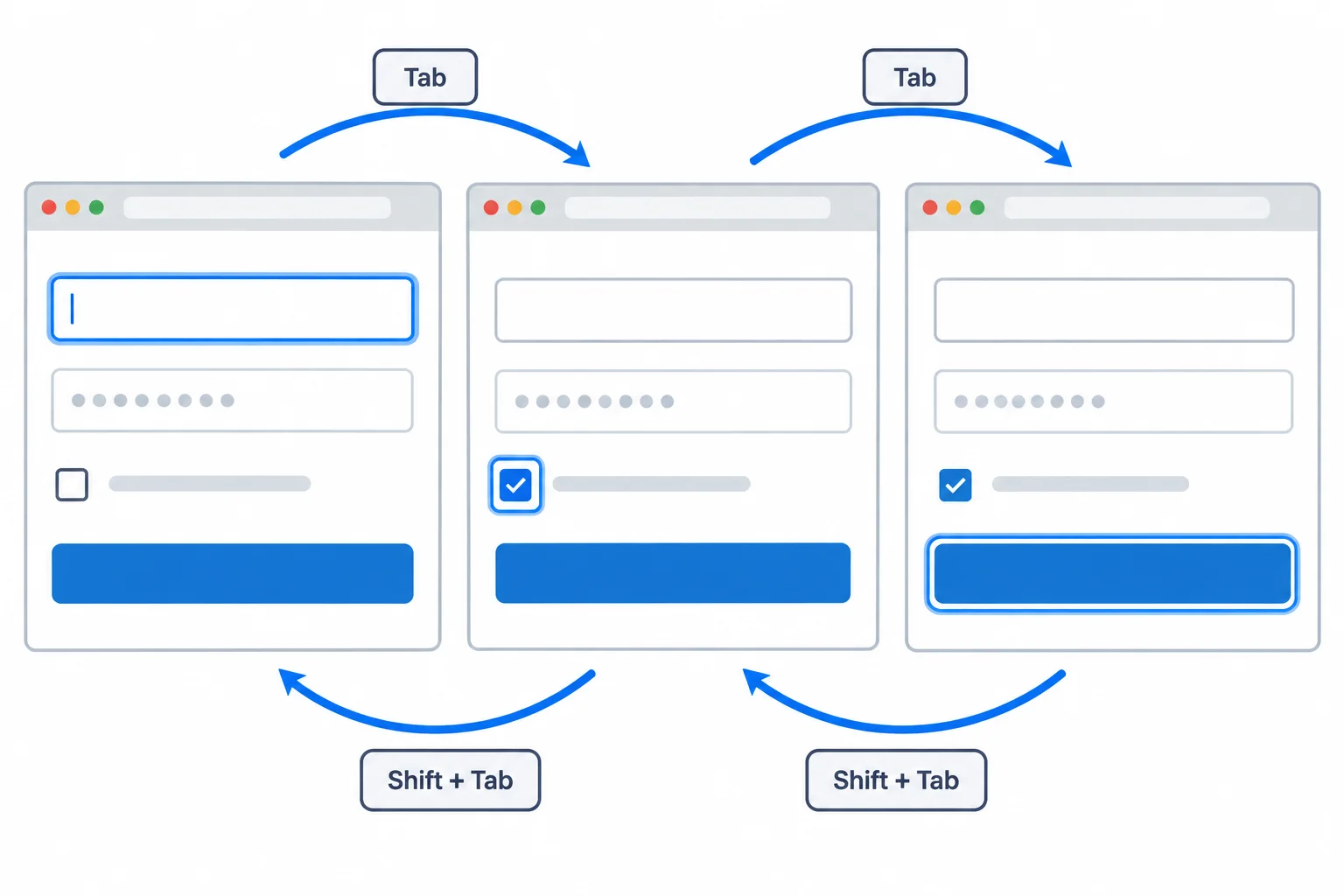
Within the form, the intended forward order is Email address, Send session reminders, then Register. Reverse navigation should traverse the same controls in the opposite direction.
Tip
A keyboard pass can legitimately produce passing evidence. Record what happened instead of assuming that an audit must uncover a defect. Use Pass when the observed behavior supports the task, and use Fail only after reproducing the behavior from the documented initial state.
Perform the same bounded task defined earlier. Keep the checkbox selected in both submissions. Observe the visible focus indicator after every action, especially after each submission.
Use this sequence as a compact observation guide. Keep notes short, but include the state, action, and result label (Pass or Fail).
| State | Keyboard actions | Evidence to capture |
|---|---|---|
| initial | Reload. Use Tab forward, then Shift+Tab backward. | Actual reachable sequence; reverse sequence; visible focus. |
| invalid | Enter alex. Tab to reminders; press Space. Tab to Register; press Space. | Where focus lands after submission; whether it remains visible and reversible. |
| complete | At the email field, replace the value with alex@example.com. Tab through the already-selected checkbox to Register; press Space. | Whether completion is visible; focus location; whether Tab and Shift+Tab still work. |
Tip
Use Space to toggle the focused checkbox. Use Space to activate the focused native button in this pass. A native button also commonly supports Enter, but do not assume that one activation key operates every kind of control.
After the invalid submission, check whether focus supports immediate correction. After the complete submission, verify that you can still move forward or backward rather than becoming trapped. Reaching browser chrome after moving past the last page control is not, by itself, a focus trap.
Complete the keyboard-only pass now. Report what you actually observed in your environment; do not infer a result from the intended fixture behavior.
Write at least 120 characters (0/120).
Step 3 of 9
Enable one available screen-reader/browser pairing, establish its key settings, and verify basic reading, silencing, and control activation locally.
Choose exactly one pairing that you can run locally:
Do not substitute a reference video, an illustration, or a different pairing for a local check. If neither pairing is available, record this check as Not tested rather than assuming equivalent behavior.
For the Windows branch, if NVDA is not installed, obtain the installer from the official NV Access site, install it locally, and launch NVDA from the Start menu. Use Firefox for this audit.
For the macOS branch, use the built-in VoiceOver reader with Safari. Turn VoiceOver on in System Settings > Accessibility > VoiceOver, or use Command+F5. On keyboards where function keys require it, use Fn+Command+F5.
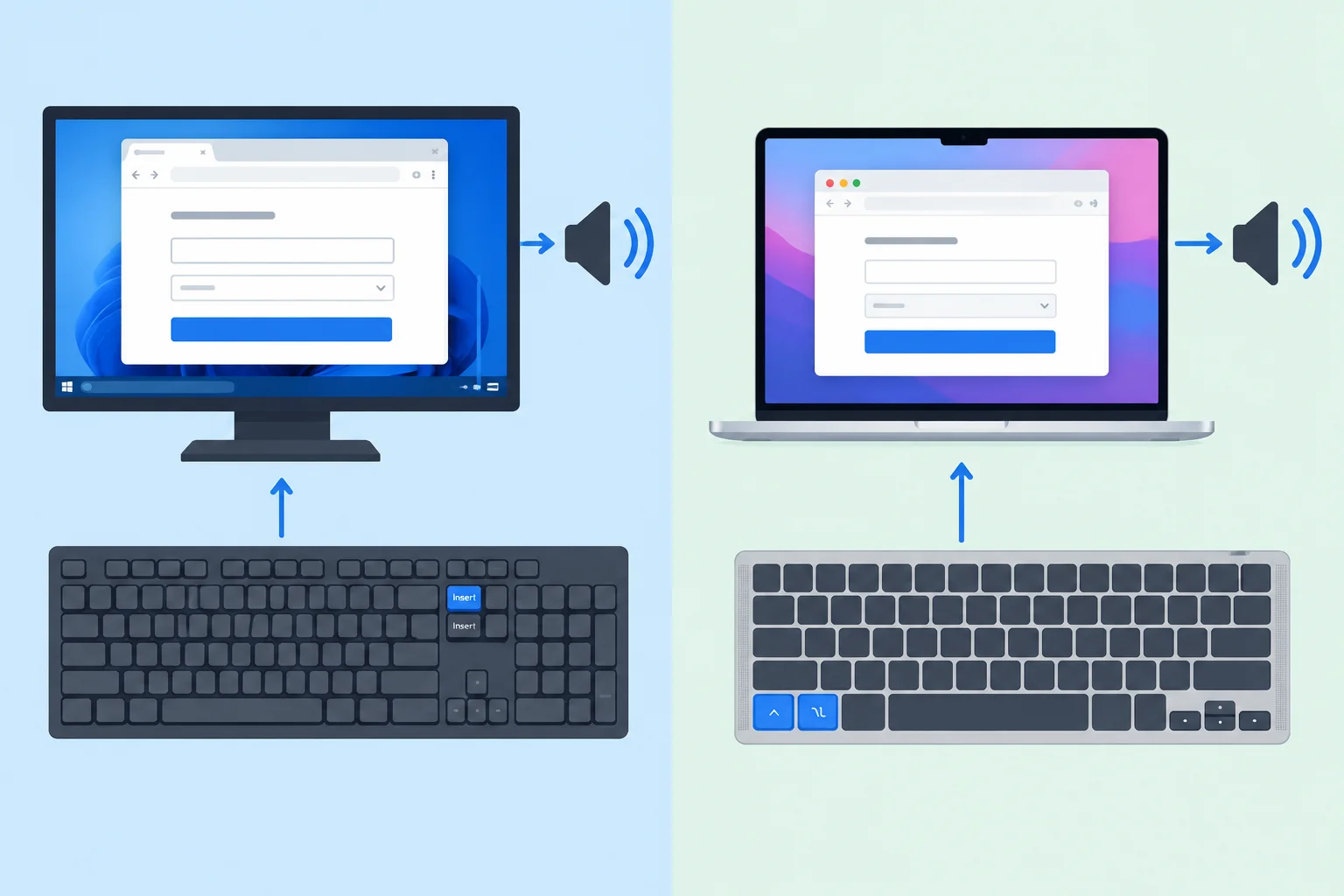
Use one complete local pairing: NVDA with Firefox on Windows, or VoiceOver with Safari on macOS.
Establish these settings before testing. For NVDA, open Preferences > Settings > Keyboard, choose the Desktop keyboard layout, and confirm that NVDA is the configured modifier—normally Insert.
For VoiceOver, define VO as Control+Option. Keep Quick Nav off; if necessary, toggle it with Left Arrow+Right Arrow pressed together. Ensure your browser and system configuration allow Tab to move through webpage controls. Record the actual setting name and value if you change or verify one.
If your keyboard requires Fn for function keys, use it with the commands below.
Use this short reference during the setup check. It is intentionally not a complete command catalog.
| Action | NVDA with Firefox | VoiceOver with Safari |
|---|---|---|
| Start or stop reader | Launch NVDA from Start; exit with NVDA+Q | Toggle with Command+F5 |
| Read the current item | NVDA+Tab | VO+F3 |
| Read continuously | NVDA+Down Arrow | VO+A |
| Silence current speech | Control | Control |
| Move focus forward or backward | Tab / Shift+Tab | Tab / Shift+Tab |
| Activate a focused native control | Space for checkbox; Enter for button | Space for checkbox; Enter for button |
Tip
Use Control to stop speech already in progress; it does not turn the screen reader off. Let speech begin before silencing it, so you verify both actions locally.
Run a small setup check before testing task outcomes:
task-audit/audit.html and reload it so the form is in the initial state.Tab to reach Email address, then use your branch's command for reading the current item. Let speech begin.Control to silence speech.Tab to Send session reminders and press Space once to select it. Do not submit the form yet.At this stage, verify only that you can start the reader, hear one item, silence speech, and activate a native control. Do not evaluate instructions, errors, or completion feedback yet.
Tip
Record a concise note using the required finding fields:
When paraphrasing speech, write Meaning heard: followed by the meaning. Use quotation marks only for wording you actually observed. Do not invent version numbers or a universal spoken transcript.
Match each essential setup action to its command for the stated pairing.
Tap an item and then its matching pair.
Now report the result of the setup check you actually performed. Include:
Control silenced it, and whether Send session reminders changed state after SpaceIf you could not perform the check, use Not tested and state what was unavailable. If you paraphrase speech, begin with Meaning heard:.
Write at least 80 characters (0/80).
Step 4 of 9
Separate screen-reader reading navigation, keyboard focus, and interaction mode while exploring and operating the registration form.
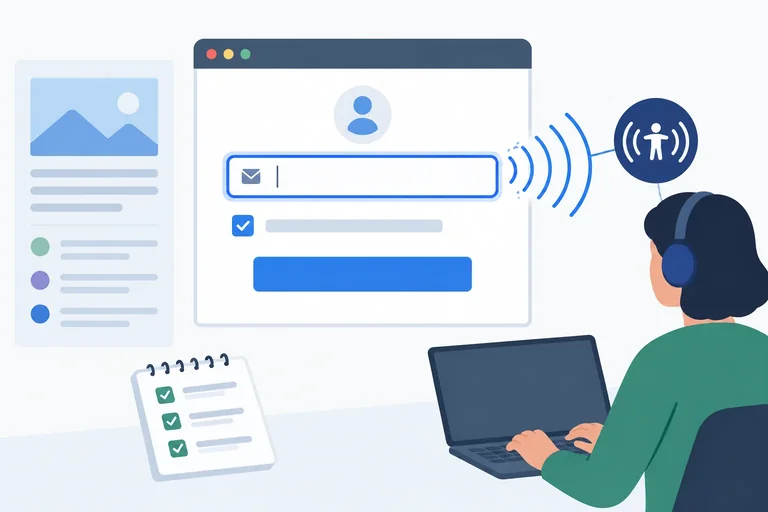
A screen reader can have a reading position while the browser has keyboard focus. The reading position is where the screen reader is exploring or reading. Keyboard focus is the element that receives keys such as typing, Space, Enter, and Tab.
They may appear to move together because tracking settings can synchronize them, but they are not the same thing. For example, you can read the email instruction without placing keyboard focus in the email field.
Use this distinction in the Workshop registration task: read the instruction, move focus to Email address, then enter and operate controls. The diagram is a model of the two positions—not evidence of what happens in your own environment.
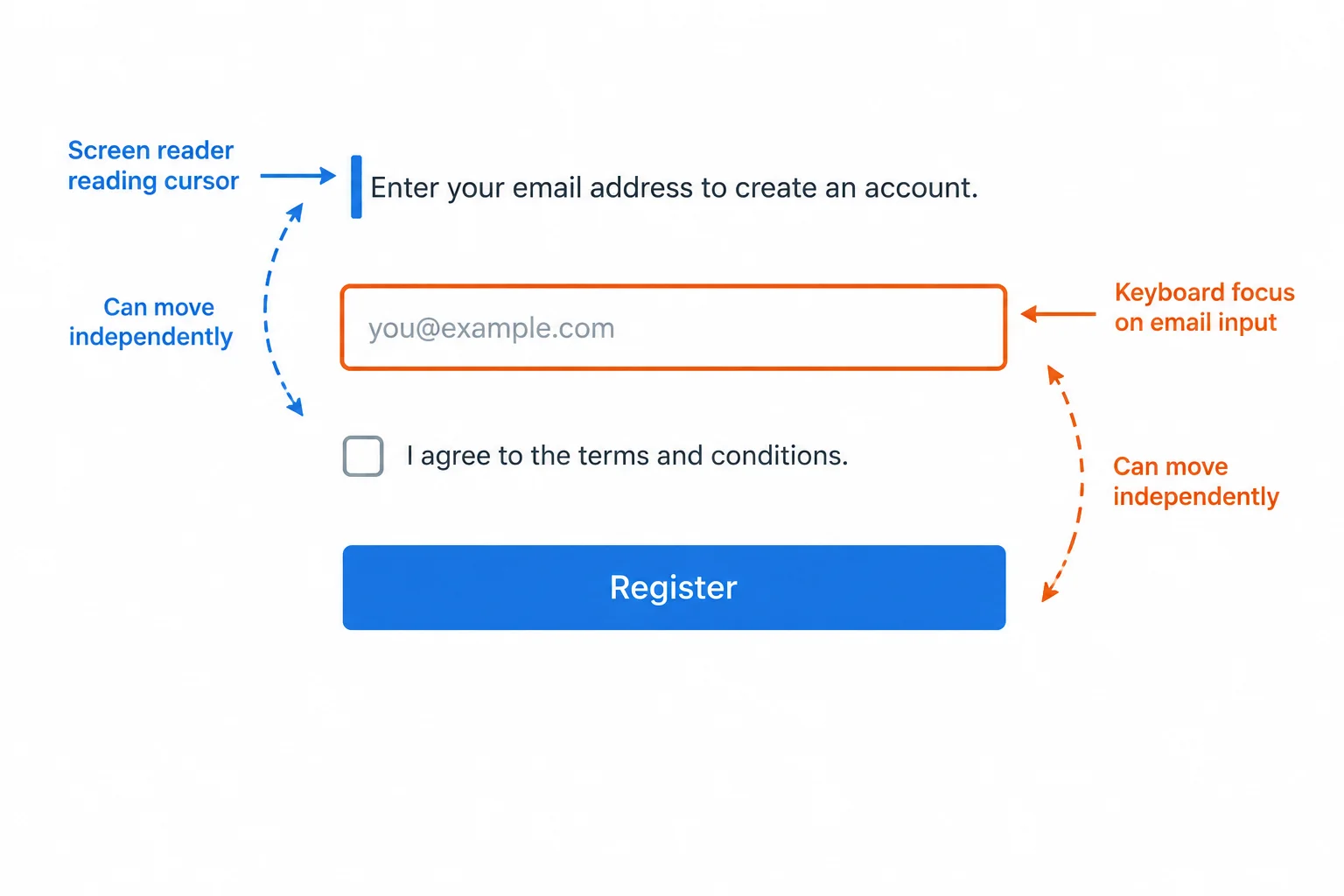
The reading position can explore content while keyboard focus remains on the control that receives keystrokes.
Tip
Before recording a navigation problem, identify both positions: what the screen reader is reading and which element receives keyboard input. A surprising key result can be a mode or navigation issue rather than a page defect.
Choose navigation based on your immediate goal. The commands below use the pairing prepared in the previous step; screen-reader settings can affect the details.
Use reading navigation to understand surrounding content. Use Tab or Shift+Tab to put browser focus on a native control before typing or using its normal keyboard operation.
| Goal | NVDA with Firefox | VoiceOver with Safari | What to check |
|---|---|---|---|
| Read the email instruction | Browse mode; use reading navigation | Use VO+Right Arrow or VO+Left Arrow | Reading position reaches the instruction |
| Enter an email | Focus mode usually activates for the editable field; type normally | Use Tab to move keyboard focus, then type | The email input receives text |
| Operate reminders | Tab to the checkbox; use Space | Tab to the checkbox; use Space | The checked state changes |
| Operate Register | Tab to the button; use Enter or Space | Tab to the button; use Enter or VO+Space | The button receives activation |
Warning
NVDA: Browse mode uses keys for document reading; focus mode sends relevant keys to a control. An editable field commonly triggers focus mode automatically. If a navigation key edits or moves the text caret when you intended to read, confirm the mode; NVDA+Space switches between browse and focus mode.
VoiceOver: With Quick Nav off, VO+Right Arrow moves VoiceOver navigation, while Tab moves keyboard focus. When VoiceOver presents a relevant group, use VO+Shift+Down Arrow to interact and VO+Shift+Up Arrow to stop interacting. VO means Control+Option.
In NVDA with Firefox, keyboard focus is in the Email address input. Pressing Down Arrow moves the text caret, but the tester wants to explore nearby page content rather than edit the email. What should the tester do first?
Step 5 of 9
Evaluate the initial form controls through both reading navigation and direct keyboard focus in one selected screen-reader/browser pairing.
Stay within the initial portion of the same Workshop registration task. Reload audit.html so the form returns to its initial state, turn on your selected screen-reader/browser pairing, and do not submit the form yet.
First, use reading navigation briefly to encounter the instruction near the email field. Then move keyboard focus directly to Email address, select Send session reminders, and continue to Register.
This comparison answers two different questions:
Only the second question establishes the relationship a person receives when navigating directly to the control.
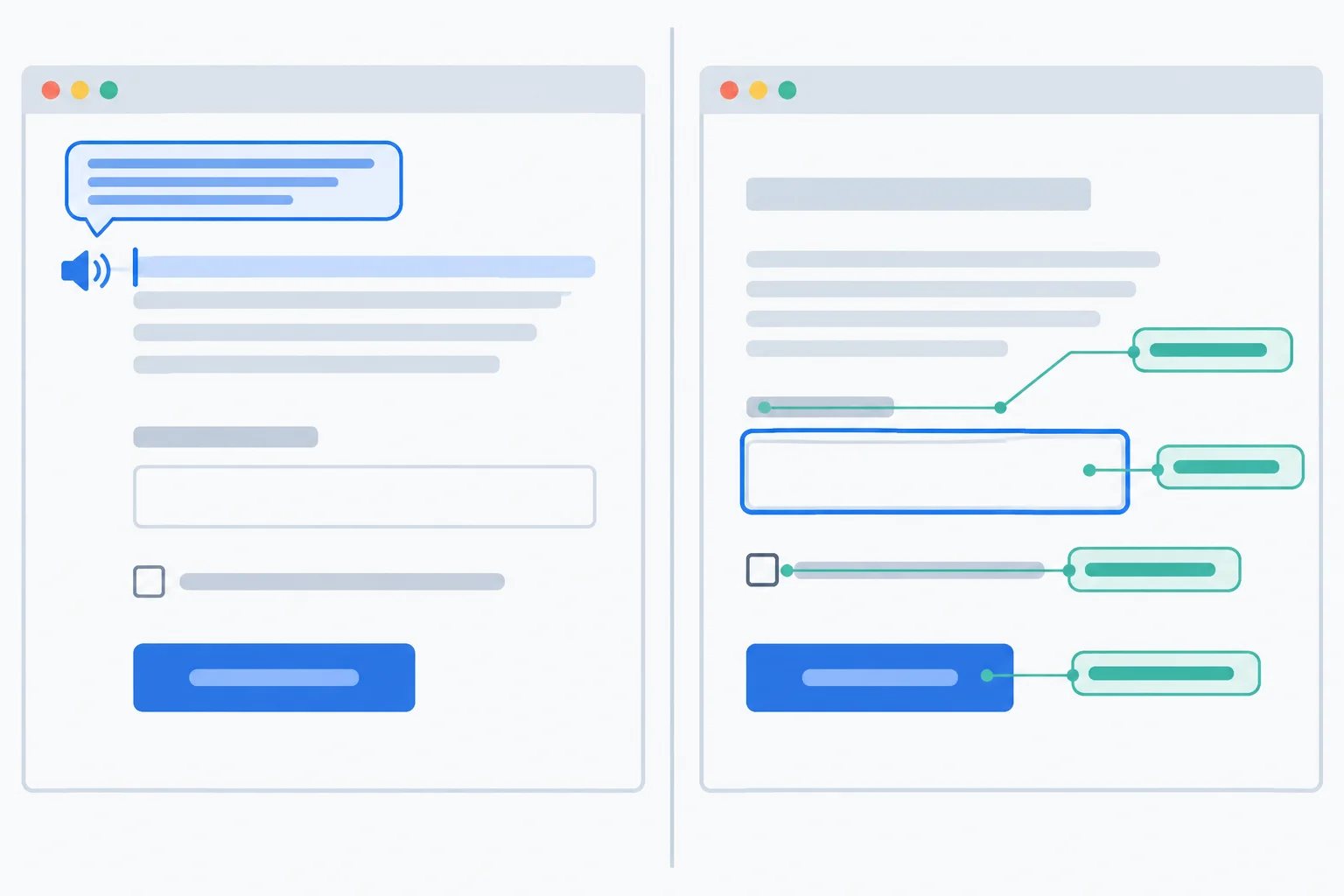
Reading navigation can find adjacent text. Direct keyboard focus checks what is communicated in the control's own context.
Tip
Do not try to capture a universal spoken transcript. Screen readers and settings can change the order and wording. In your notes, paraphrase the meaning with the prefix Meaning heard:. Use quotation marks only for wording you actually observed.
For each direct-focus check, listen for enough information to operate the control confidently. A useful record identifies the control’s meaningful name and role, plus its current value or relevant state. Record whether guidance remains available when you arrive at the email field directly—not only after reading nearby content.
Operate the checkbox with its native keyboard action, then listen again for its changed state. Reach the button with keyboard focus and confirm its purpose before moving on. Keep the form in the initial state; error recovery and completion feedback are checked later.
Use this as a compact observation checklist. Record what your actual pairing communicates; do not mark an item as heard merely because the corresponding text is visible on screen.
| Target | Direct-focus evidence to check | Interaction evidence |
|---|---|---|
| Email address | Meaningful name and input role; current value and required state as communicated | Guidance is available when focus arrives directly |
| Send session reminders | Meaningful name and checkbox role; current state | After its native keyboard toggle, the changed checked state is communicated |
| Register | Meaningful name and button role | Its purpose is clear before activation |
Match each observation to the kind of evidence it provides.
Tap an item and then its matching pair.
Reload to the initial state and perform the initial portion of the task with your screen reader: use reading navigation to locate nearby guidance, move focus to Email address, select Send session reminders, then move to Register. Do not submit.
In your response, create three short direct-control records—one for the email input, checkbox, and button. Begin each with Meaning heard: and state the meaning communicated about name, role, and relevant value or state. Then add a separate line beginning Nearby text discovered by reading navigation: describing only information you found before direct focus.
Do not invent a quotation. If something was not communicated, say so clearly.
Write at least 180 characters (0/180).
Step 6 of 9
Observe the same form task through invalid recovery and completion, distinguishing field-level error information from dynamic feedback.
Reload audit.html so the form is in the initial state. Use your selected screen reader and browser pairing.
Using keyboard focus, enter alex in Email address, select Send session reminders, move to Register, and activate it. Let ordinary speech finish before pressing another reading or navigation key.
Then capture three separate observations:
Do not treat one state cue as proof of the whole error. For speech you did not transcribe exactly, record a semantic note beginning with Meaning heard: rather than presenting a guessed universal transcript.
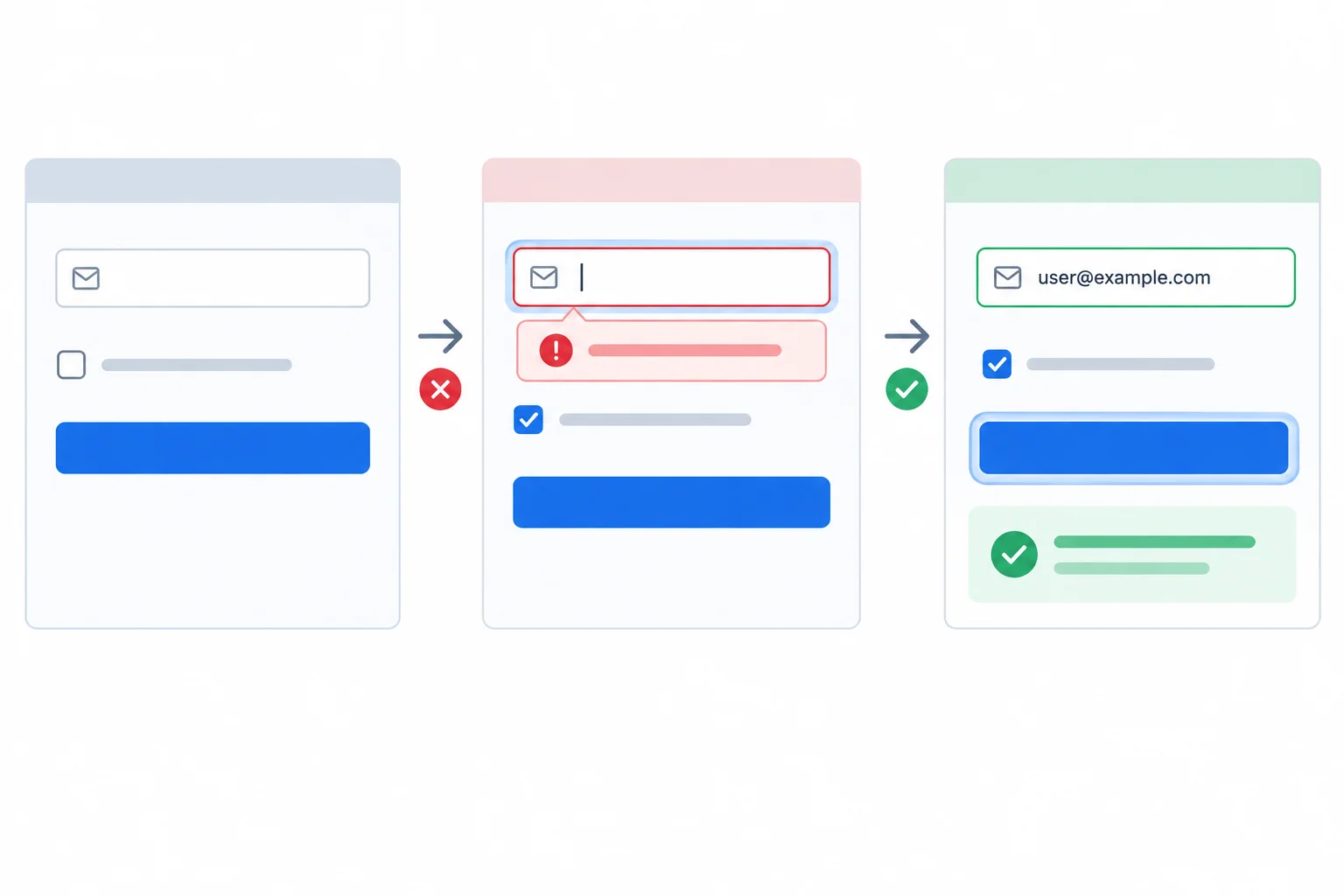
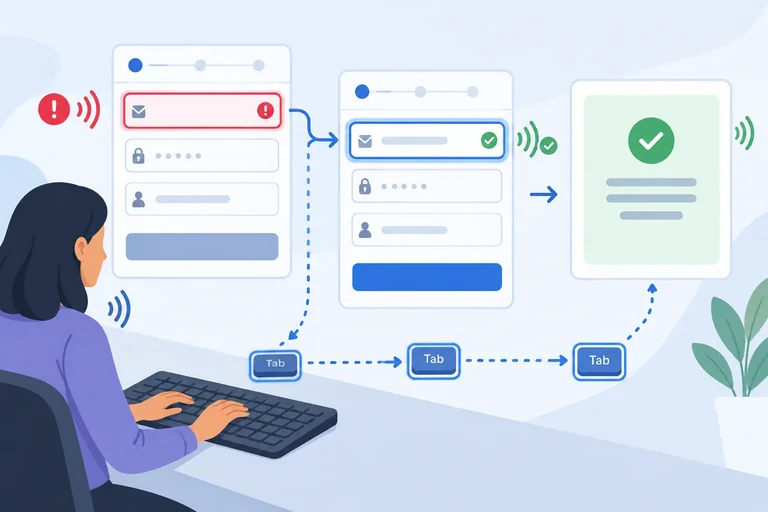
Treat each arrow as a transition to observe: focus, error availability, and later completion feedback.
An announcement or state such as invalid can establish that the field has a problem. It does not by itself establish that the screen reader can obtain the actual error text when the field receives focus again.
After invalid submission, first note the focused item. Then move away and return to Email address using normal keyboard focus navigation. This isolates the field-level experience from information you may have encountered only by reading nearby page content.
Use this compact record while the form is in the invalid state. Capture what your pairing communicates, not an assumed order of name, role, state, and description.
| Check | Probe | Evidence to capture |
|---|---|---|
| Focused destination | Immediately after activating Register | Which control has keyboard focus |
| Problem state | Return focus to Email address | Whether an invalid state is conveyed |
| Recovery text | Keep focus on Email address | Whether the error explains the needed correction |
| Error availability | Leave and return to the field | Whether the error remains available on return |
| Position recovery | Move forward and backward afterward | Whether normal navigation continues without a trap |
Continue from the invalid state. Replace alex with alex@example.com; keep Send session reminders selected. Return to Register and activate it.
The resulting complete state updates the feedback container with Registration complete. and keeps keyboard focus on Register. Before searching or reading elsewhere, pause and allow normal speech to finish. Ask whether completion became apparent at that moment.
Next, use keyboard focus to return to Email address and check for stale invalid or error information. A corrected field should not continue to present obsolete failure feedback.
Warning
A message that can be found later by reading around the page is not necessarily feedback that was communicated when it appeared.
If completion was unclear, reload to initial and repeat the same two attempts: alex plus selected reminders, then alex@example.com plus selected reminders. Keep the same browser, screen-reader settings, and navigation method. Nearby reading, interrupted speech, or a changed setting can explain an uncertain result; record that uncertainty rather than guessing.
Write a short evidence note from one run, using the state names invalid and complete. Describe what your selected screen reader communicated after the invalid submission and after the correction. Include: where focus went after each submission; whether the error was available when you returned to Email address; whether the error explained recovery; whether stale error information remained after correction; and whether completion was apparent without a manual search. Use Meaning heard: for paraphrased speech.
Write at least 350 characters (0/350).
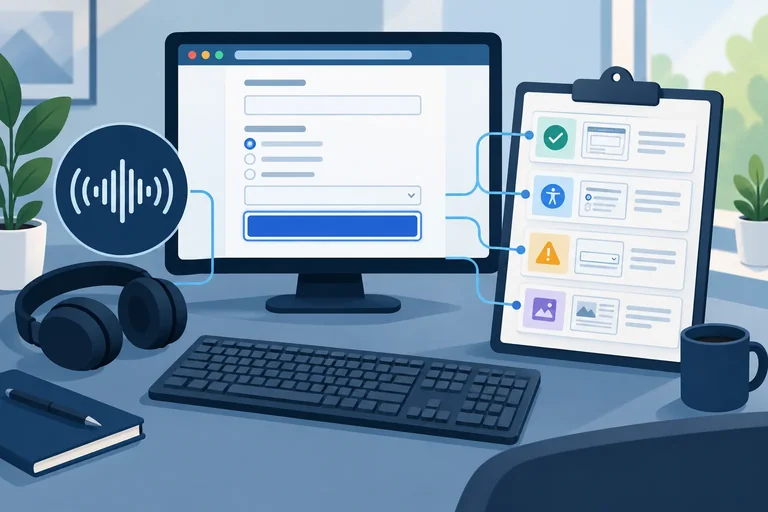
Step 7 of 9
Convert keyboard and screen-reader observations into a concise finding that another tester can reproduce, while preserving uncertainty and coverage limits.
A reproducible finding lets another tester repeat one result in one stated environment. It is evidence about this task—not a verdict on the whole site.
Begin with a result label: Pass, Fail, or Not tested. Then preserve enough context to reproduce the result:
initial, invalid, or complete.Use the versions your computer reports. Do not replace them with assumed version numbers.
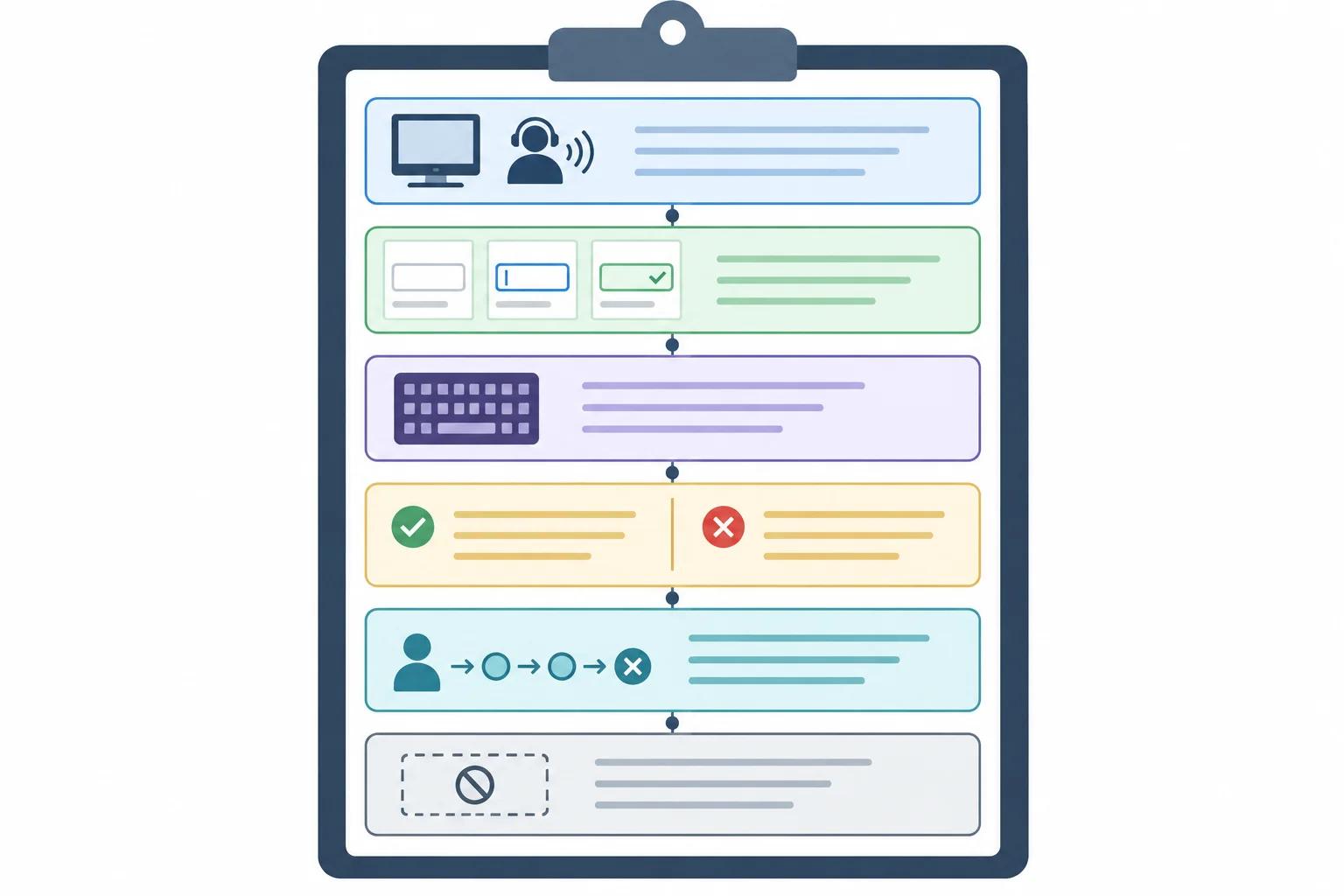
A finding connects the test context to an observed outcome and its task impact.
Keep observation and interpretation separate. Observed contains facts from your run: focus location, visible feedback, keys used, and a concise semantic paraphrase of speech. Prefix a paraphrase with Meaning heard:. Use quotation marks only for wording you actually captured.
A suspected implementation cause is not an observation. Put it in a separate Suspected cause note and qualify it: “not confirmed by this check” or “requires source inspection.” Do not turn a suspected cause into a claim that a change has fixed anything.
For a supported Pass, say what was checked and what passed. For an unavailable check, use Not tested rather than filling the gap with an assumption.
Use these fields consistently. Add a result label at the top and keep Suspected cause clearly separate from the required finding fields.
| Field | Record | Avoid |
|---|---|---|
| Result | Pass, Fail, or Not tested | An unqualified overall verdict |
| Environment | Actual OS / browser / screen reader / relevant settings | Assumed versions |
| State | initial, invalid, or complete | A vague point in the journey |
| Actions | Keys, `alex` or `alex@example.com`, checkbox, submission, navigation method | “Tested the form” |
| Expected | Specific task outcome | A source-code diagnosis |
| Observed | Direct behavior; use `Meaning heard:` for a paraphrase | Invented universal speech |
| Impact | Concrete user uncertainty or barrier | A broad conformance claim |
| Retest | Current result, or Not tested | A promised future outcome |
| Limits | Untested combinations or behaviors | Claims beyond this environment |
Example
Illustrative supported Pass record — adapt it; do not copy it as your result.
Result: Pass
Environment: [actual OS and version] / [actual browser and version] / screen reader off / pointer not used.
State: complete
Actions: From initial, use Tab to reach Email address; enter alex; use Space to select Send session reminders; activate Register; correct the value to alex@example.com; activate Register again.
Expected: Completion feedback is visible and focus remains on Register.
Observed: The completion feedback was visible, and keyboard focus remained on Register.
Impact: No keyboard-only barrier was established for this completion check.
Suspected cause: Not applicable; no failure was observed.
Retest: Not tested — no correction was applied in this record.
Limits: This supports the keyboard-only check in the stated browser. It does not establish screen-reader behavior or results in other combinations.
You completed the keyboard-only task successfully, but no screen reader was available on this computer. Which result label belongs to the screen-reader portion of the audit?
Write one record from your own audit. It may be a Fail supported by evidence, a supported Pass, or a Not tested record for an unavailable check.
Include: Result; Environment; State; Actions; Expected; Observed; Impact; a separate Suspected cause note; Retest; and Limits. Use the actual task inputs and describe whether your evidence came from keyboard focus or reading navigation. Keep observed facts separate from any unconfirmed cause.
Write at least 400 characters (0/400).
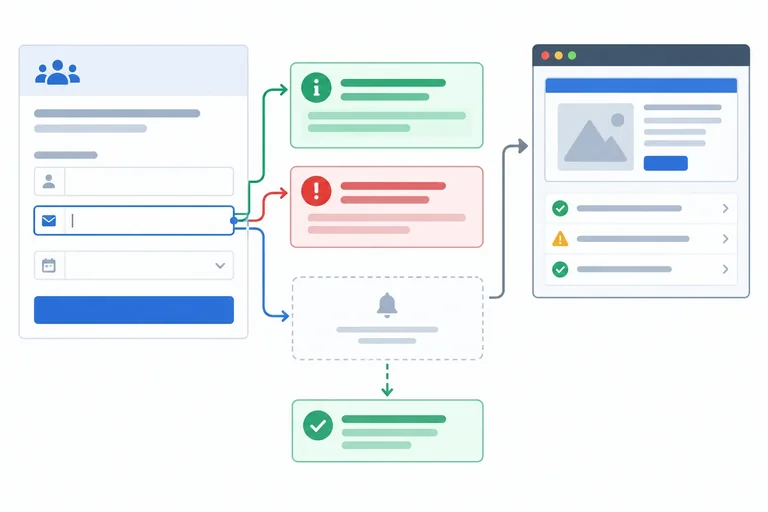
Step 8 of 9
Correct the two intentional accessibility gaps, repeat the original manual task, and add focused Chromium regression coverage without treating automation as evidence of screen-reader speech.
Only after preserving your baseline records, reveal the two intentional gaps in audit.html:
email-help but does not include email-error, so the conditional error is not part of its programmatic description.Make only the two edits shown next. Keep the existing validation, focus behavior, help text, error text, error styling, and error alert behavior unchanged. The completion container must expose its semantics in the initial state, before text is inserted in the complete state.
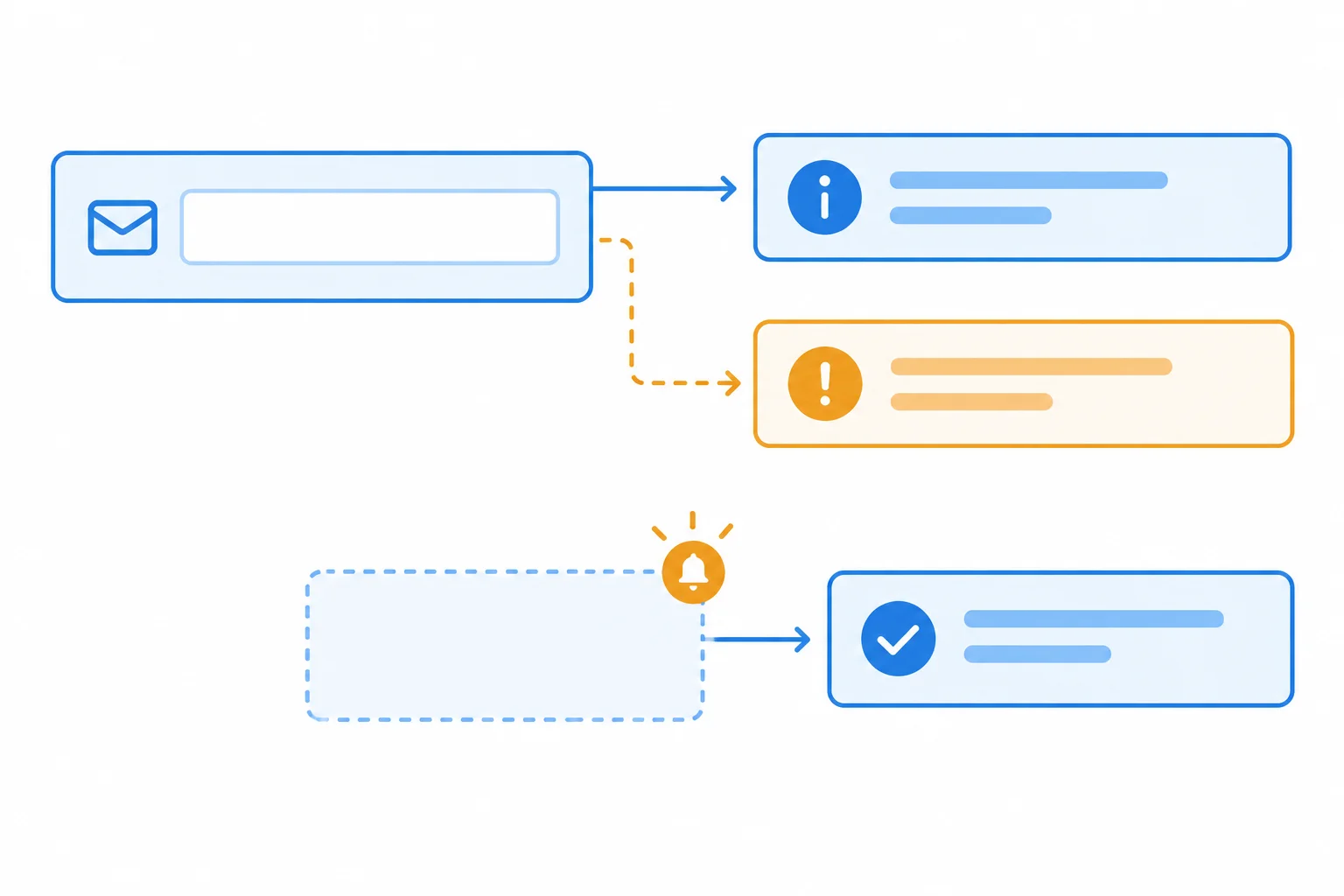
The corrected email relationship includes persistent help and conditional error information. The completion container has notification semantics before success content is inserted.
In audit.html, replace only the email input opening tag and the completion container opening tag with these versions. Leave the surrounding label, help paragraph, error paragraph, and JavaScript exactly as they are.
<input
  id="email"
  name="email"
  type="email"
  required
  aria-describedby="email-help email-error"
>

<p id="signup-status" role="status"></p>Save the edits and reload audit.html. This restores the initial state. Use the same manual environment, screen-reader settings, and browser keyboard-navigation settings that you documented for the baseline.
First repeat affected keyboard observations with the screen reader off. Then repeat the affected task with the screen reader on. Do not substitute an automated result for a screen-reader retest. Let ordinary speech finish before deciding whether the completion feedback was communicated.
Use the original inputs in both attempts: enter alex, select Send session reminders, and activate Register; then correct the field to alex@example.com, keep reminders selected, and activate Register again.
Use Pass, Fail, or Not tested. Keep the actual manual environment separate from automated Chromium details.
| State | Actions | Evidence to record |
|---|---|---|
| initial | Reload; use Tab and Shift+Tab through the three controls. | Reachability, logical order, and a visible focus indicator. |
| invalid | Enter alex; select reminders; activate Register. | Email receives focus; returning directly to Email address makes the error available. If applicable, write Meaning heard: followed by a paraphrase. |
| complete | Enter alex@example.com; keep reminders selected; activate Register. | Stale invalid feedback is removed; focus remains on Register; completion is apparent without searching the page. |
| limits | Repeat uncertain observations from initial. | Actual pairing and settings, plus behavior not tested. |
Tip
A DOM-exposed description, role, focus position, or status text can be protected with automation. None of those checks proves that a particular screen reader delivered speech at a useful time, without duplication or disruption. Your manual retest supplies that communication evidence.
From task-audit, create playwright.audit.config.ts and audit.spec.ts using the complete files below. If this folder does not yet have package.json, the first command creates it. The spec constructs a local file URL, so it needs no server.
The test logs the actual Chromium version. Record that automated browser detail separately from your manual Firefox/NVDA or Safari/VoiceOver environment. This is a Chromium DOM and browser-behavior regression check, not a screen-reader test.
Run these commands from task-audit after saving the two files below.
npm init -y
npm install -D @playwright/test @axe-core/playwright
npx playwright install chromium
npx playwright test --config=playwright.audit.config.ts --project=chromiumAutomated Chromium: <actual Chromium version> 1 passed (<actual duration>)
Package-installation output varies and is omitted. The version and timing below are examples of variable fields; preserve the actual values from your run.
Save as playwright.audit.config.ts. It limits discovery to this local regression file and runs the supplied check in Chromium.
import { defineConfig } from '@playwright/test';

export default defineConfig({
  testDir: '.',
  testMatch: 'audit.spec.ts',
  projects: [
    {
      name: 'chromium',
      use: { browserName: 'chromium' }
    }
  ]
});Save as audit.spec.ts. It asserts the corrected error description and focus in invalid, then stale-error removal, focus, and status content in complete. Each scan is tied to the rendered state; neither scan is evidence of screen-reader speech.
import { expect, test } from '@playwright/test';
import AxeBuilder from '@axe-core/playwright';
import path from 'node:path';
import { pathToFileURL } from 'node:url';

const auditUrl = pathToFileURL(path.resolve('audit.html')).href;

test('retests corrected registration feedback', async ({ page }) => {
  console.log('Automated Chromium:', page.context().browser()?.version());
  await page.goto(auditUrl);

  const email = page.getByLabel('Email address', { exact: true });
  const reminders = page.getByRole('checkbox', {
    name: 'Send session reminders',
    exact: true
  });
  const register = page.getByRole('button', {
    name: 'Register',
    exact: true
  });

  await email.fill('alex');
  await reminders.check();
  await register.click();

  await expect(email).toBeFocused();
  await expect(email).toHaveAccessibleDescription(
    /Use a complete email address\.\s+Enter an email address such as alex@example\.com\./
  );
  expect((await new AxeBuilder({ page }).analyze()).violations).toEqual([]);

  await email.fill('alex@example.com');
  await register.click();

  await expect(email).not.toHaveAttribute('aria-invalid', 'true');
  await expect(page.locator('#email-error')).toHaveText('');
  await expect(register).toBeFocused();
  await expect(page.getByRole('status')).toHaveText('Registration complete.');
  expect((await new AxeBuilder({ page }).analyze()).violations).toEqual([]);
});Complete the targeted assertion for the corrected completion feedback.
await expect(page.getByRole()).toHaveText('Registration complete.');What does the completed automated assertion establish?
Create a concise before-and-after retest record from your actual work. Include all four parts:
Prefix every paraphrase of speech with Meaning heard:. Do not infer manual speech from the automated result.
Write at least 220 characters (0/220).

Step 9 of 9
Submit a concise, evidence-based audit summary that records what was tested, what the evidence supports, and what remains unverified.
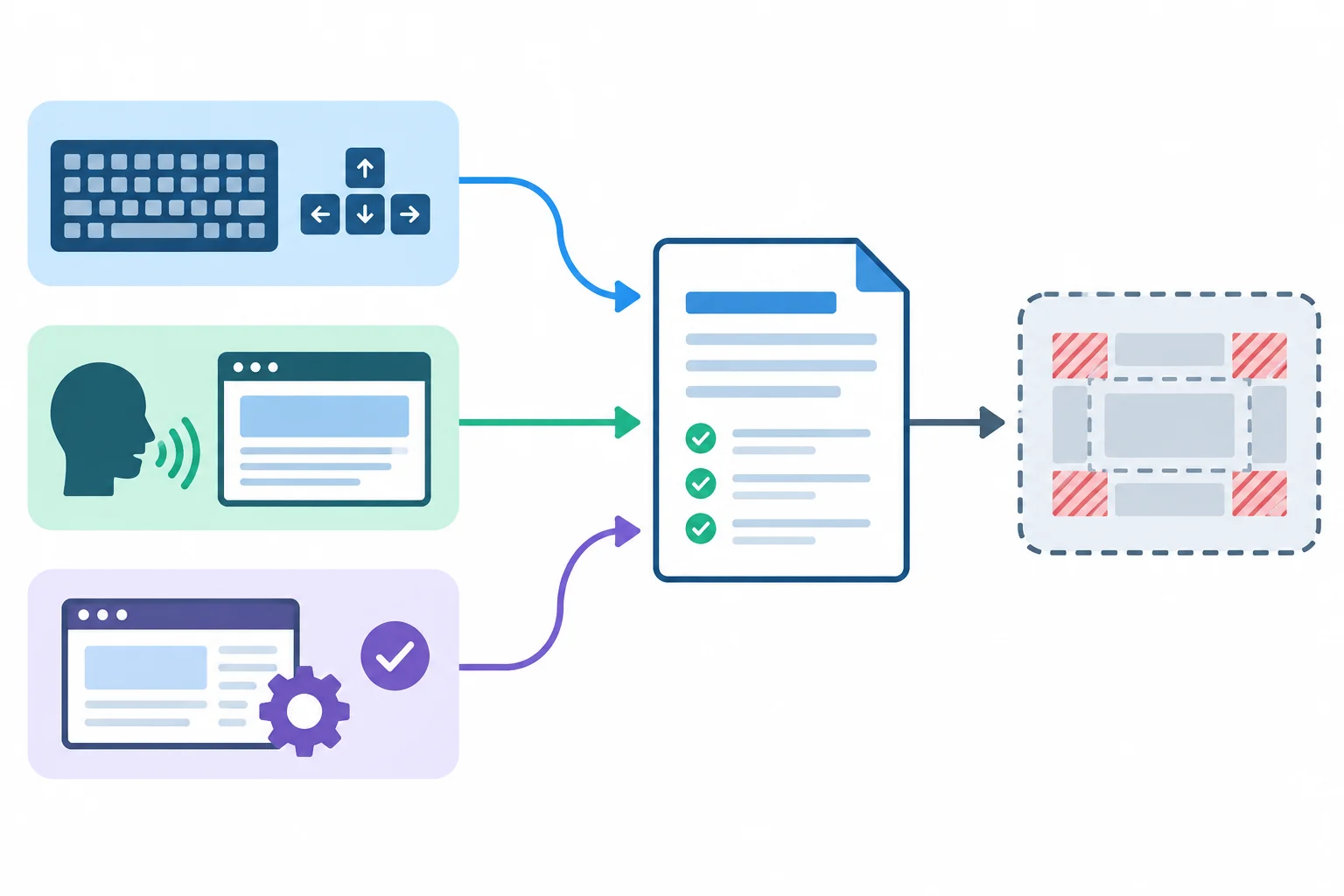
Combine evidence from each check, but keep the coverage boundary visible.
Summary
A useful handoff is short enough to act on and specific enough to reproduce. It reports evidence—not a broad accessibility verdict.
Use this compact structure for the handoff:
Scope — Workshop registration: from initial, enter alex, select Send session reminders, submit, understand and correct the error with alex@example.com, then confirm completion.
Manual environment — Record actual OS and version / browser and version / screen reader and version / relevant settings. List keyboard-only results and the one screen-reader/browser pairing separately, using Pass, Fail, or Not tested.
Findings — For every supported result, use: Environment; State; Actions; Expected; Observed; Impact; Retest; Limits. Distinguish what you heard or observed from a suspected code cause. For speech, write Meaning heard: before a paraphrase; quote only wording you actually captured.
Correction and retest — State whether the targeted correction was applied and whether the original task was repeated from initial with the same inputs and settings.
Automation — Record Chromium and its actual reported version separately. Describe behavioral assertions and state-based scan results as automated evidence, not as a screen-reader test.
Limits — Name untested pairings, unavailable checks, or behavior not established. Do not conclude that the page is universally accessible or conformant.
Tip
A defensible conclusion is narrow: for example, it can say that a particular observation passed or failed in the stated environment after the stated actions. It cannot turn an untested combination into a pass. Leave unresolved and Not tested checks visible.
Write your final audit handoff for the Workshop registration task. Identify the task and tested states; give your actual manual environment; report supported keyboard and screen-reader results; include any supported finding with the required fields; state correction and retest outcomes; record automated Chromium evidence separately; and name at least one meaningful coverage limit. Use only claims supported by checks you actually performed.
Write at least 500 characters (0/500).
Congratulations! You completed: Audit a User Task with Keyboard and a Screen Reader
You completed this level!
Up next: Front-End Performance
 Understand Browser Tasks and RenderingExplain when browser work can become visible and why JavaScript can delay interaction even when an interface uses asynchronous functions.
Thousands of online courses in video, ebooks and audiobooks.
To test your knowledge during online courses
Generated directly from your cell phone's photo gallery and sent to your email

Download our app via QR Code or the links below:.



Carry knowledge in your pocket.
Download the Cursa app.
There are hundreds of free courses available, with a free certificate of completion that is saved in your mobile image gallery.
Download the app to access the Course Completion Certificate for Free.


+ 10 million
students

Free and Valid
Certificate

60 thousand free
exercises

4.8/5 rating in
app stores

Free courses in
video and ebooks