Step 1 of 10
Define the Critical Local Journey
Define a focused Trail Shop browser journey and create the local application it will exercise.

Learning path · Level 12 · Tutorial 4
Run the same critical Playwright journey in locally installed Chromium and Firefox, control API responses, and investigate cross-browser differences without treating engine checks as complete target-browser coverage.
 Define the Critical Local Journey
Define a focused Trail Shop browser journey and create the local application it will exercise. 2 min
Define the Critical Local Journey
Define a focused Trail Shop browser journey and create the local application it will exercise. 2 min
 Install Playwright and Separate Test Discovery
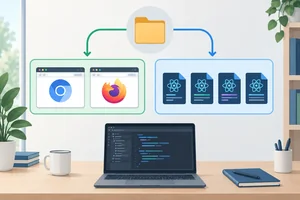
Install local Playwright browser-testing tools and configure separate discovery boundaries for Playwright journeys and Vitest source tests. 3 min
Install Playwright and Separate Test Discovery
Install local Playwright browser-testing tools and configure separate discovery boundaries for Playwright journeys and Vitest source tests. 3 min
 Connect the Local Server and Browser Projects
Configure Playwright to own one local Vite server and run the same suite in isolated Chromium and Firefox projects. 3 min
Connect the Local Server and Browser Projects
Configure Playwright to own one local Vite server and run the same suite in isolated Chromium and Firefox projects. 3 min
 Control the Browser's API Response
Make the Trail Shop journey deterministic by intercepting its product request before navigation. 3 min
Control the Browser's API Response
Make the Trail Shop journey deterministic by intercepting its product request before navigation. 3 min
 Interact Through Accessible Locators
Navigate the controlled Trail Shop catalog with accessible Playwright locators and synchronize the journey through observable interface state. 3 min
Interact Through Accessible Locators
Navigate the controlled Trail Shop catalog with accessible Playwright locators and synchronize the journey through observable interface state. 3 min
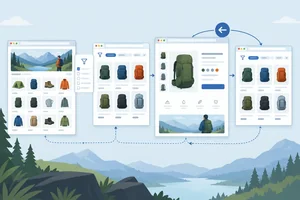 Verify URLs, Detail Navigation, and Back
Complete the Trail Shop browser journey by verifying filtered state, detail navigation, and browser-history restoration through both URLs and visible results. 3 min
Verify URLs, Detail Navigation, and Back
Complete the Trail Shop browser journey by verifying filtered state, detail navigation, and browser-history restoration through both URLs and visible results. 3 min
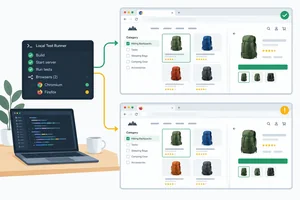 Run and Compare Both Browser Engines
Run the controlled Trail Shop journey across both configured browser projects, distinguish headless and headed execution, and record each project's real outcome. 2 min
Run and Compare Both Browser Engines
Run the controlled Trail Shop journey across both configured browser projects, distinguish headless and headed execution, and record each project's real outcome. 2 min
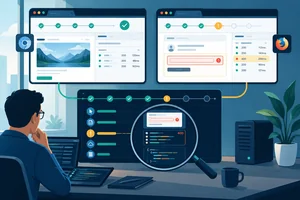 Investigate a Project-Specific Failure
Preserve, inspect, and document local evidence for a selected Playwright browser-project discrepancy without mistaking an injected test failure for an engine defect. 4 min
Investigate a Project-Specific Failure
Preserve, inspect, and document local evidence for a selected Playwright browser-project discrepancy without mistaking an injected test failure for an engine defect. 4 min
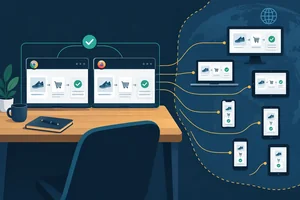 State What the Engine Checks Do Not Prove
Define exactly what the Chromium and Firefox project results establish, then identify the actual-browser or device evidence that remains necessary. 2 min
State What the Engine Checks Do Not Prove
Define exactly what the Chromium and Firefox project results establish, then identify the actual-browser or device evidence that remains necessary. 2 min
 Complete the Local Verification Record
Restore the complete local configuration and journey, run it in both browser projects, and document results and remaining coverage honestly. 3 min
Complete the Local Verification Record
Restore the complete local configuration and journey, run it in both browser projects, and document results and remaining coverage honestly. 3 min
Step 1 of 10
Define a focused Trail Shop browser journey and create the local application it will exercise.
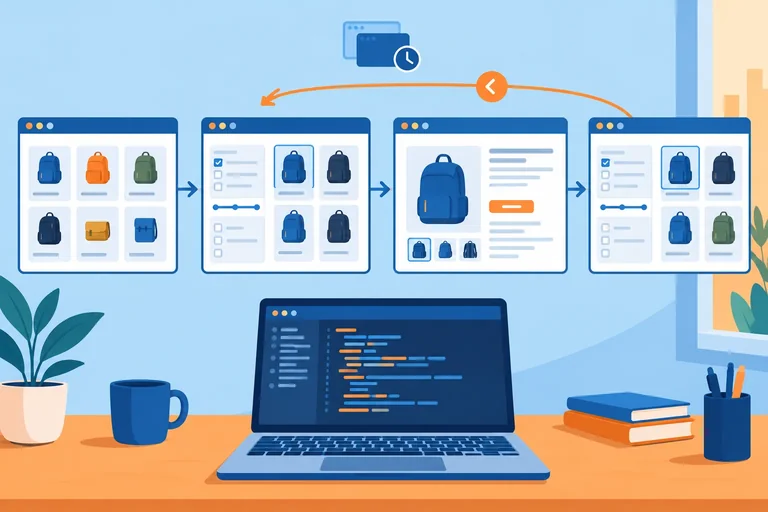
A browser journey protects one valuable user outcome across boundaries that isolated unit or component tests do not cross. Keep it bounded: do not duplicate every component case.
For Trail Shop, follow this sequence:
The journey checks observable outcomes: URL, selected control, visible links, and headings. It does not inspect React state variables, component names, or internal function calls.
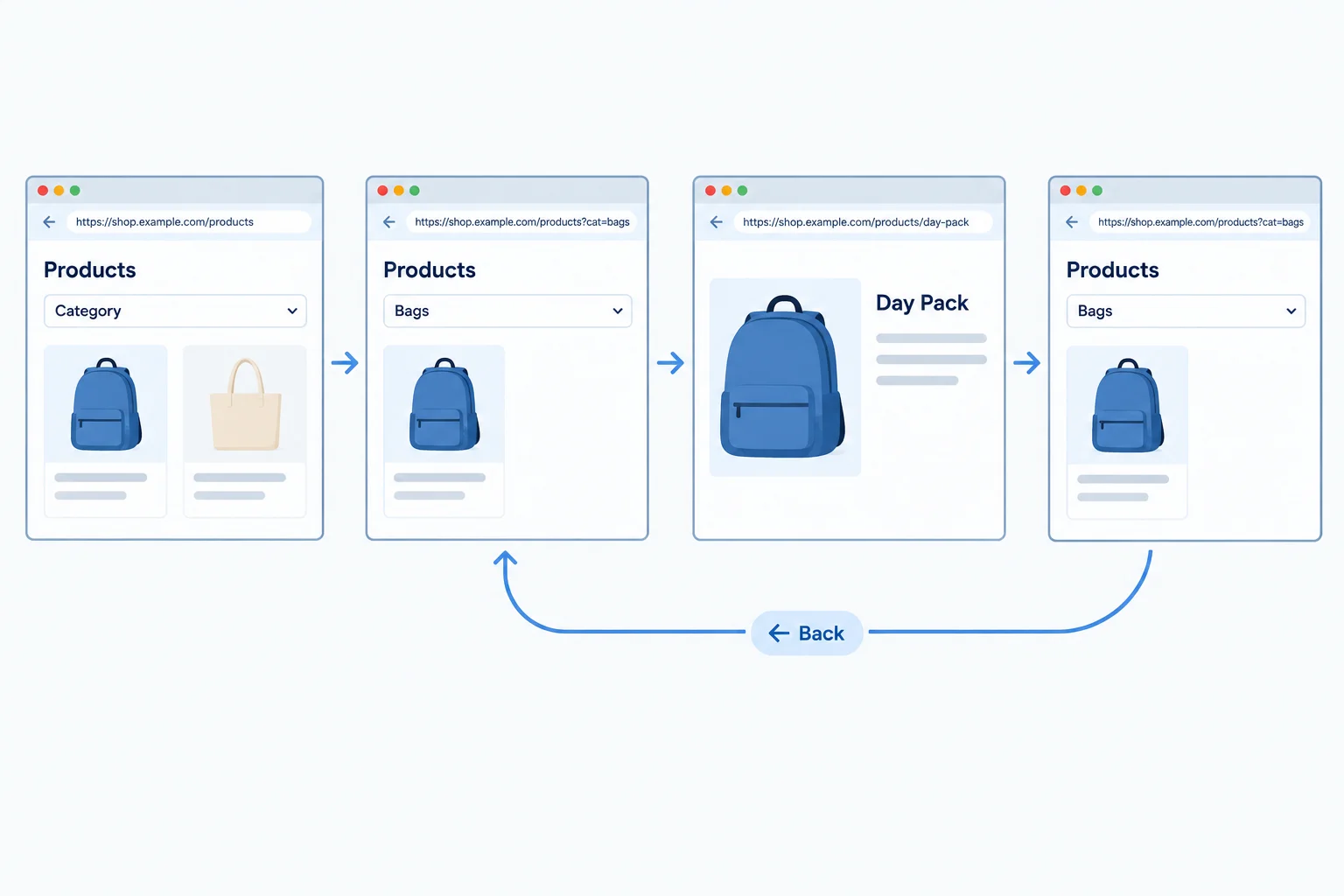
The route and rendered state change together. Back must restore the filtered catalog, not merely any catalog.
Create a self-contained React, TypeScript, and Vitest-ready workspace on your computer. No repository, hosted app, downloaded asset, or API is required. The first command creates the Vite project; the remaining commands install the application and source-test dependencies.
Do not start a development server yet. You will add the application files first.
Run these commands in a terminal. The final command adds a local Vitest script for the source-test setup that already exists in this workspace; the browser-test discovery boundary is configured in the next step.
npm create vite@latest journey-lab -- --template react-ts
cd journey-lab
npm install react-router-dom
npm install -D vitest jsdom
npm pkg set scripts.test='vitest run'> npx > create-vite journey-lab --template react-ts Scaffolding project in ./journey-lab... Done. Now run: cd journey-lab npm install added packages, and audited packages found 0 vulnerabilities
This is representative npm output. Package counts, audit messages, and Vite versions can vary by date and operating system.
Replace vite.config.ts with this complete file. It supplies the existing Vitest environment that the next step will keep while narrowing test discovery.
import { defineConfig } from 'vitest/config';
import react from '@vitejs/plugin-react';

export default defineConfig({
  plugins: [react()],
  test: {
    environment: 'jsdom',
  },
});Replace src/main.tsx with this complete file.
import { StrictMode } from 'react';
import { createRoot } from 'react-dom/client';
import { BrowserRouter } from 'react-router-dom';
import App from './App';

createRoot(document.getElementById('root')!).render(
  <StrictMode>
    <BrowserRouter>
      <App />
    </BrowserRouter>
  </StrictMode>,
);Replace src/App.tsx by joining the next two sections, in order, into one file. The catalog filters its loaded records locally. The detail route derives its content from that same list.
src/App.tsx — Part 1 of 2. Start the file with this section.
import { useEffect, useState } from 'react';
import { Link, Route, Routes, useParams, useSearchParams } from 'react-router-dom';

type Product = {
  slug: string;
  name: string;
  category: string;
};

function Catalog({ products }: { products: Product[] }) {
  const [params, setParams] = useSearchParams();
  const category = params.get('category') ?? '';
  const visible = category
    ? products.filter((product) => product.category === category)
    : products;

  return (
    <main>
      <h1>Products</h1>
      <label>
        Category
        <select
          value={category}
          onChange={({ target }) =>
            setParams(target.value ? { category: target.value } : {})
          }
        >
          <option value=''>All</option>
          <option value='bags'>Bags</option>
          <option value='lighting'>Lighting</option>
        </select>
      </label>
      <ul>
        {visible.map((product) => (
          <li key={product.slug}>
            <Link to={`/products/${product.slug}`}>{product.name}</Link>
          </li>
        ))}
      </ul>
    </main>
  );
}
src/App.tsx — Part 2 of 2. Append this directly after Part 1, then save.
function Detail({ products }: { products: Product[] }) {
  const { slug } = useParams();
  const product = products.find((item) => item.slug === slug);

  if (!product) {
    return <main><h1>Product not found</h1></main>;
  }

  return (
    <main>
      <h1>{product.name}</h1>
      <p>Category: {product.category}</p>
      <Link to='/products'>Catalog</Link>
    </main>
  );
}

export default function App() {
  const [products, setProducts] = useState<Product[] | null>(null);
  const [error, setError] = useState(false);

  useEffect(() => {
    fetch('/api/products')
      .then((response) => {
        if (!response.ok) throw new Error('Request failed');
        return response.json() as Promise<Product[]>;
      })
      .then(setProducts)
      .catch(() => setError(true));
  }, []);

  if (error) return <main><p role='alert'>Unable to load products.</p></main>;
  if (!products) return <main><p>Loading products…</p></main>;

  return (
    <Routes>
      <Route path='/products' element={<Catalog products={products} />} />
      <Route path='/products/:slug' element={<Detail products={products} />} />
    </Routes>
  );
}
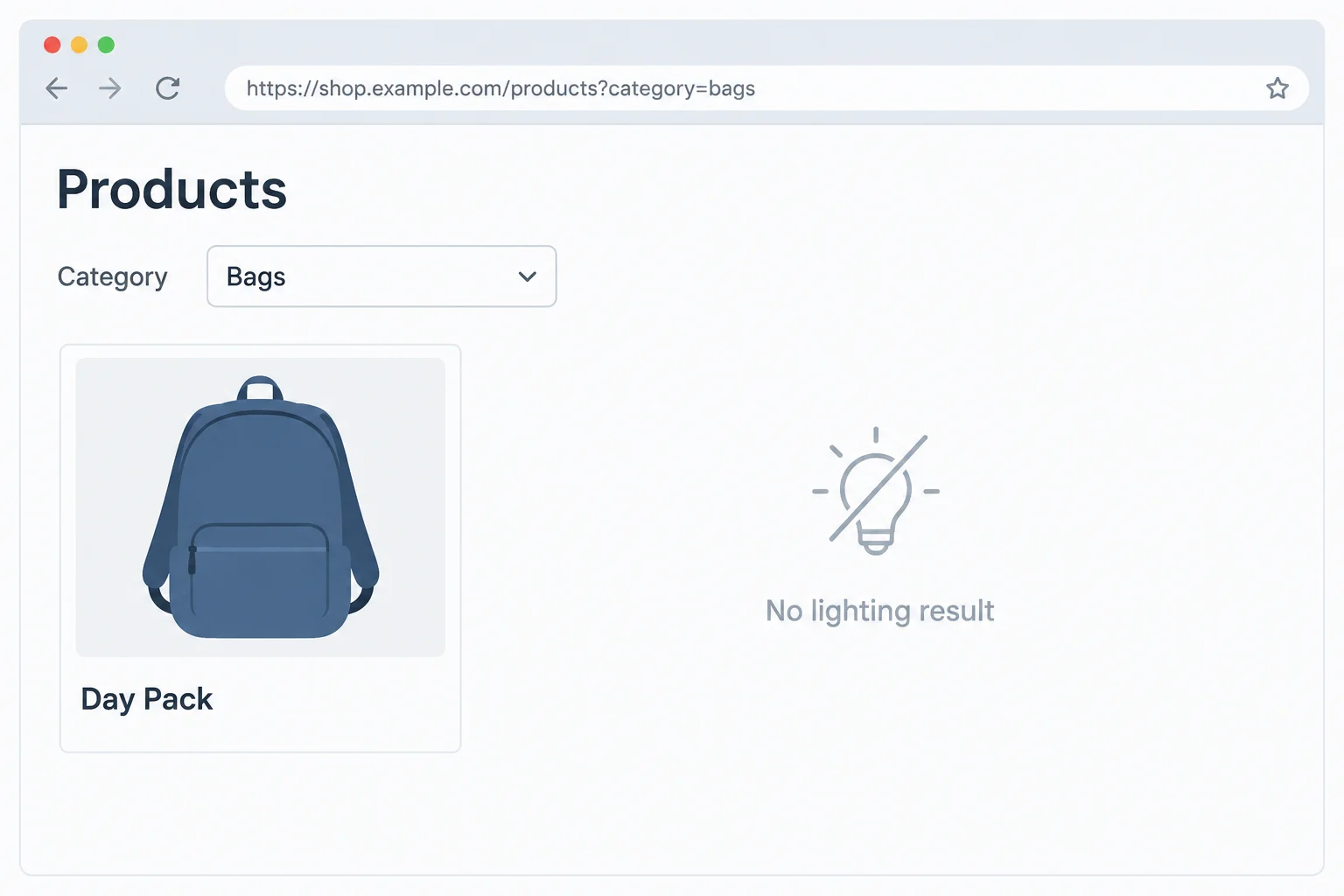
This is the user-facing filtered outcome: Products, a Category select set to Bags, and a Day Pack link.
After saving the files, you may inspect the application manually. Vite stays running until you stop it, so use this only for a brief check.
npm run dev -- --host 127.0.0.1 --port 5173 --strictPort> journey-lab@0.0.0 dev > vite --host 127.0.0.1 --port 5173 --strictPort VITE v6.x.x ready in 180 ms ➜ Local: http://127.0.0.1:5173/ ➜ press h + enter to show help
The Vite version and timing may vary. The required readiness address is `http://127.0.0.1:5173/`.
Tip
To inspect the route, visit http://127.0.0.1:5173/products. Then stop this manual Vite process with Ctrl+C before moving to the Playwright-managed runs in later steps.
Later, Playwright starts Vite itself with the same strict port and reuseExistingServer: false. Leaving this manual process running would occupy port 5173 and make that later run fail instead of testing the application.
Warning
This Vite application deliberately provides no API. A direct visit to /products can show Unable to load products. because /api/products has no server response.
That is expected now. In a later step, the browser journey will supply a successful response for that one request. The application’s fetch, local filtering, rendering, routes, and browser history will remain real application behavior. This is not a live-backend check.
Write the journey’s observable checkpoints in order, from the initial catalog through the Back action. Then name one React-internal check that would not be an appropriate replacement for an observable checkpoint.
Write at least 180 characters (0/180).
Step 2 of 10
Install local Playwright browser-testing tools and configure separate discovery boundaries for Playwright journeys and Vitest source tests.
From journey-lab, install the test packages as project-local development dependencies, then install the Playwright-managed browser builds. The package provides the Playwright test runner and APIs. The install command downloads the Chromium and Firefox builds that later browser projects use; it does not select an arbitrary browser already installed on your computer.
Run these commands from journey-lab. Re-running the npm command is safe if Step 1 already installed Vitest and jsdom; npm will confirm that the existing dependencies are current.
npm install -D @playwright/test vitest jsdom
npx playwright install chromium firefoxadded <package count> packages, and audited <package count> packages found 0 vulnerabilities Downloading Chromium <build> from <Playwright download source> Chromium <build> downloaded to <local Playwright browser cache> Downloading Firefox <build> from <Playwright download source> Firefox <build> downloaded to <local Playwright browser cache>
Representative success output. Package counts, audit messages, browser build numbers, download URLs, and whether a cached browser is reused vary by machine and Playwright version. Confirm that npm completes successfully and that both Chromium and Firefox are downloaded or already installed.
Warning
A Playwright browser build can also require supported operating-system dependencies. If installation or launch reports a missing dependency, follow Playwright's installation guidance for your operating system. Do not assume an installed Chrome, Firefox, or another branded browser is the build used by this local setup.
This is an annotated layout, not a request to create src/App.test.tsx. The workspace already has src/main.tsx and src/App.tsx; a source test appears only when you add one later. The important boundary is where each runner searches.
journey-lab/
├── src/
│   ├── main.tsx
│   ├── App.tsx
│   └── App.test.tsx          # illustrative future Vitest test
├── e2e/
│   └── catalog.spec.ts       # Playwright browser journey
├── playwright.config.ts
└── vite.config.ts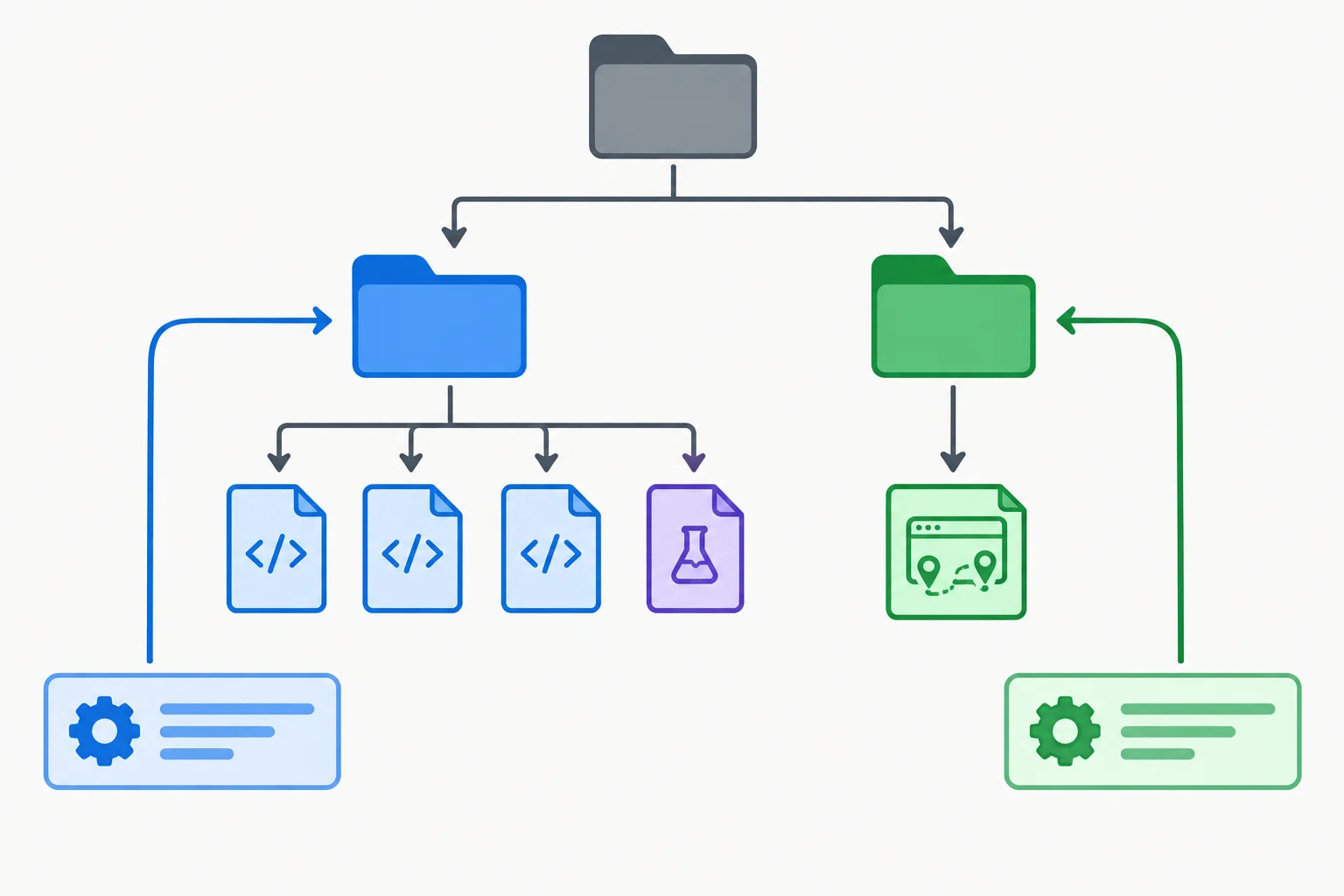
Playwright searches the e2e/ journey area; Vitest searches source-level test files under src/.
Tip
Put the Trail Shop browser journey in e2e/catalog.spec.ts. A future source test such as src/App.test.tsx belongs to Vitest. Explicit discovery patterns prevent either runner from attempting to collect the other runner's files.
Create playwright.config.ts with explicit browser-test discovery. Later steps extend this same file with the local server and browser-project settings; do not add those settings yet.
playwright.config.ts
import { defineConfig } from '@playwright/test';

export default defineConfig({
  testDir: './e2e',
  testMatch: '**/*.spec.ts',
});Replace vite.config.ts with this complete compatible configuration. It preserves the React plugin and jsdom environment from the initial workspace while adding a narrow Vitest pattern. An empty matching set is valid now: you do not need to invent a source test for this browser-journey tutorial.
vite.config.ts
import { defineConfig } from 'vitest/config';
import react from '@vitejs/plugin-react';

export default defineConfig({
  plugins: [react()],
  test: {
    environment: 'jsdom',
    include: ['src/**/*.test.{ts,tsx}'],
  },
});Match each example test path to the complete discovery rule that should collect it.
Tap an item and then its matching pair.
Step 3 of 10
Configure Playwright to own one local Vite server and run the same suite in isolated Chromium and Firefox projects.
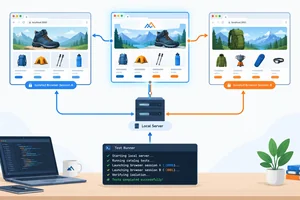
A browser-project run is a small local system, not just a test file. Playwright starts the Vite command, waits for the configured readiness URL, launches the selected browser engine, and gives the test a page in that browser.
baseURL is the shared origin used by relative navigation later in the journey. Therefore, the Vite host, port, readiness URL, and baseURL must describe the same local application: 127.0.0.1:5173.
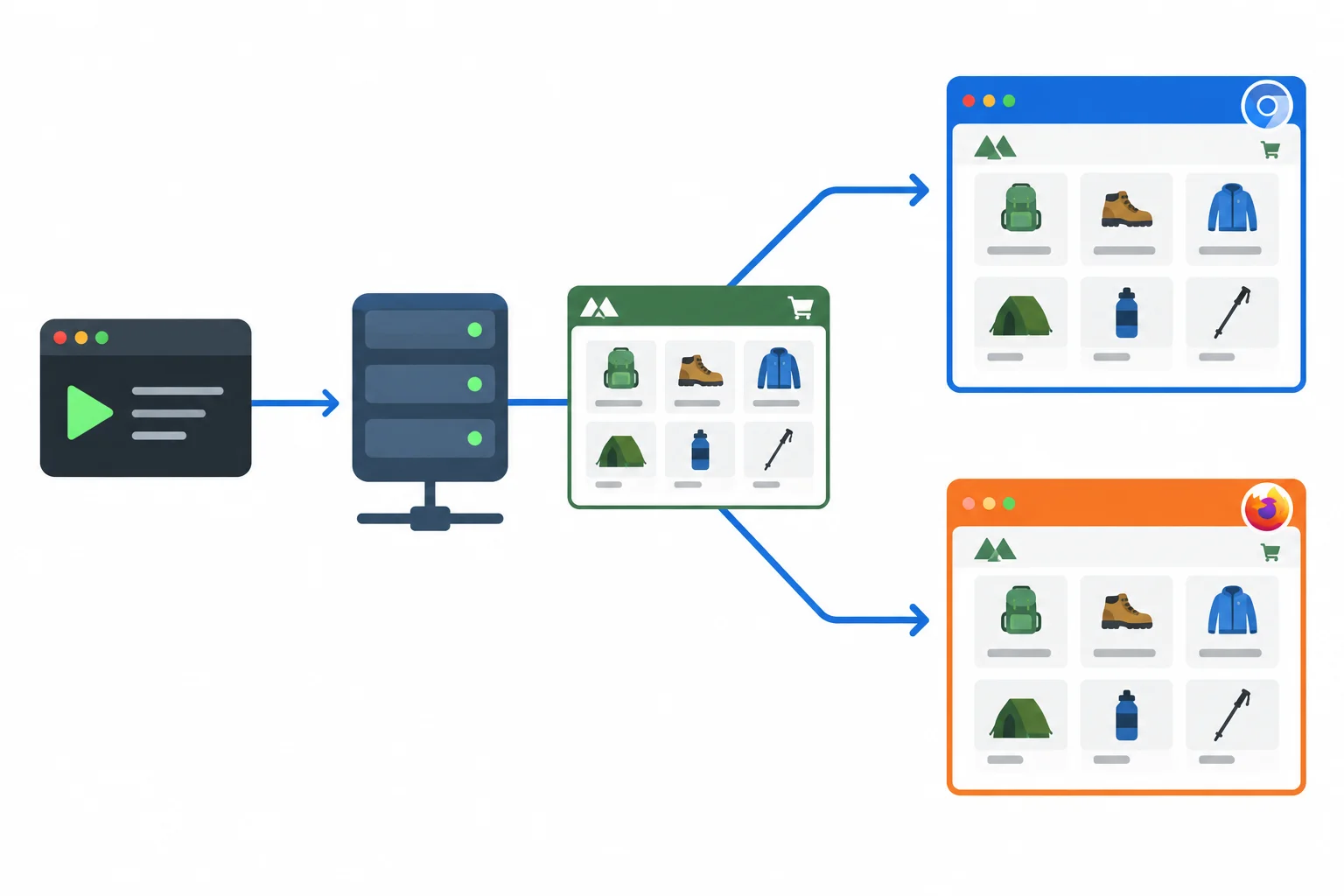
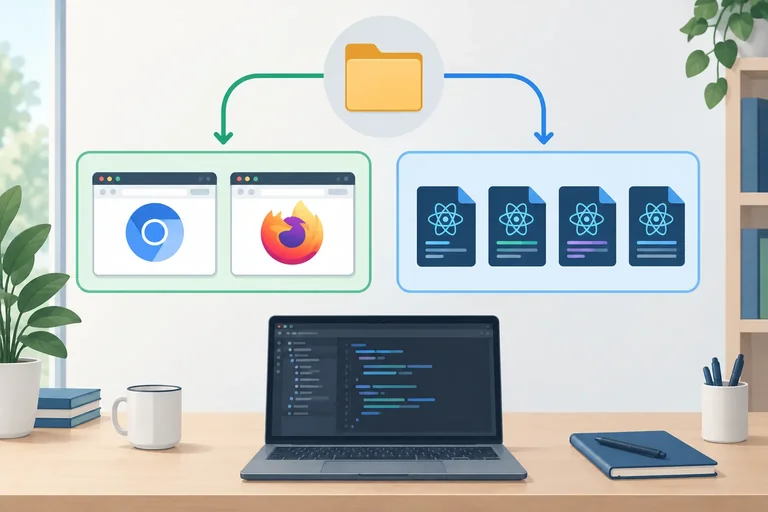
The test runner owns the Vite process, then runs the same suite once per browser project.
Put this complete configuration in playwright.config.ts. The global use settings apply to both projects. Each project supplies only its browser engine and uses the same 1280 × 720 viewport.
The webServer block launches Vite with the exact host and strict port. Its url is the address Playwright waits for before tests begin. With reuseExistingServer: false, this practice workspace does not attach to a server that happened to be running already.
playwright.config.ts
import { defineConfig } from '@playwright/test';

export default defineConfig({
  testDir: './e2e',
  testMatch: '**/*.spec.ts',
  use: {
    baseURL: 'http://127.0.0.1:5173',
    viewport: { width: 1280, height: 720 },
  },
  webServer: {
    command: 'npm run dev -- --host 127.0.0.1 --port 5173 --strictPort',
    url: 'http://127.0.0.1:5173',
    reuseExistingServer: false,
  },
  projects: [
    {
      name: 'chromium',
      use: { browserName: 'chromium' },
    },
    {
      name: 'firefox',
      use: { browserName: 'firefox' },
    },
  ],
});
Warning
Do not replace --strictPort with a fallback port for this workspace. If port 5173 is occupied, Vite stops instead of silently selecting another port. Resolve the conflicting local process, then run the test again. This makes a connection mistake visible rather than letting a test target an unexpected application.
For each test and each browser project, Playwright provides a fresh browser context and a fresh page. The context is the isolated browser session that contains browser-managed state such as cookies and local storage; page is the tab the test controls.
A Chromium test does not pass its session to Firefox, and one test does not inherit another test's state. That isolation makes outcomes easier to compare. This tutorial uses Playwright's built-in fixtures; it does not reuse authentication state or define custom fixtures.
Tip
Keep a browser-project configuration symmetric. The same spec and viewport should run under both named projects; only the selected browser engine differs. A project is a Playwright configuration entry, not a claim about every installed target browser or device.
Complete the values that make this server and two-project configuration use one controlled local origin.
export default defineConfig({
  use: {
    baseURL: '',
    viewport: { width: 1280, height: 720 },
  },
  webServer: {
    command: 'npm run dev -- --host  --port  --strictPort',
    url: '',
    reuseExistingServer: ,
  },
  projects: [
    { name: 'chromium', use: { browserName: 'chromium' } },
    { name: 'firefox', use: { browserName: 'firefox' } },
  ],
});A teammate launches Vite with --host 127.0.0.1 --port 5173 --strictPort, but sets baseURL to http://127.0.0.2:5173. Also, another local application already occupies port 5173.
In 3–5 sentences, describe the corrected server and project configuration. Explain why the host mismatch prevents a trustworthy run and why the occupied strict port must be resolved before running the suite.
Write at least 180 characters (0/180).
Step 4 of 10
Make the Trail Shop journey deterministic by intercepting its product request before navigation.
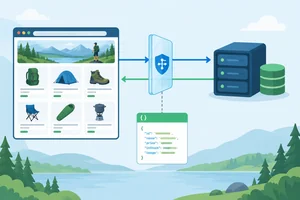
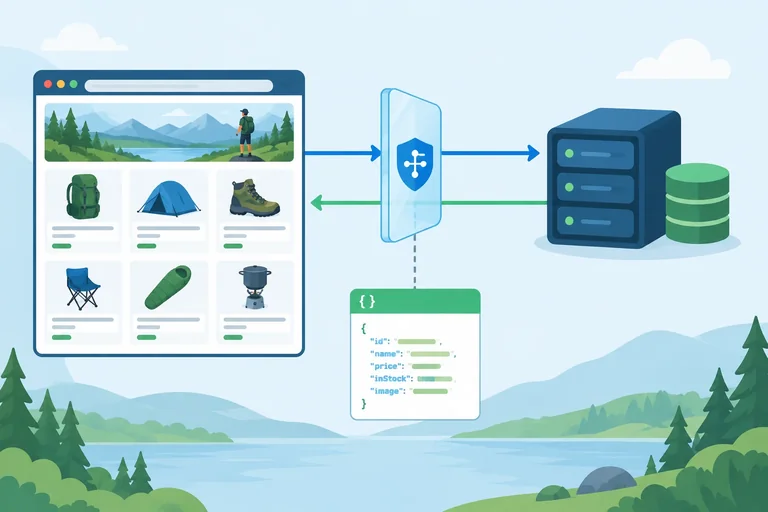
The Trail Shop page still performs its real fetch('/api/products'). Playwright intercepts that one browser request and supplies a controlled response before it reaches a server.
Register the route before page.goto('/products'): navigation loads the app, and the app can request products immediately. A broad pattern such as **/* could replace documents, scripts, and other resources; target only the products endpoint instead.
Each test receives a fresh page fixture, so each test must register its own handler. The controlled data is not shared through cookies, local storage, or another test.
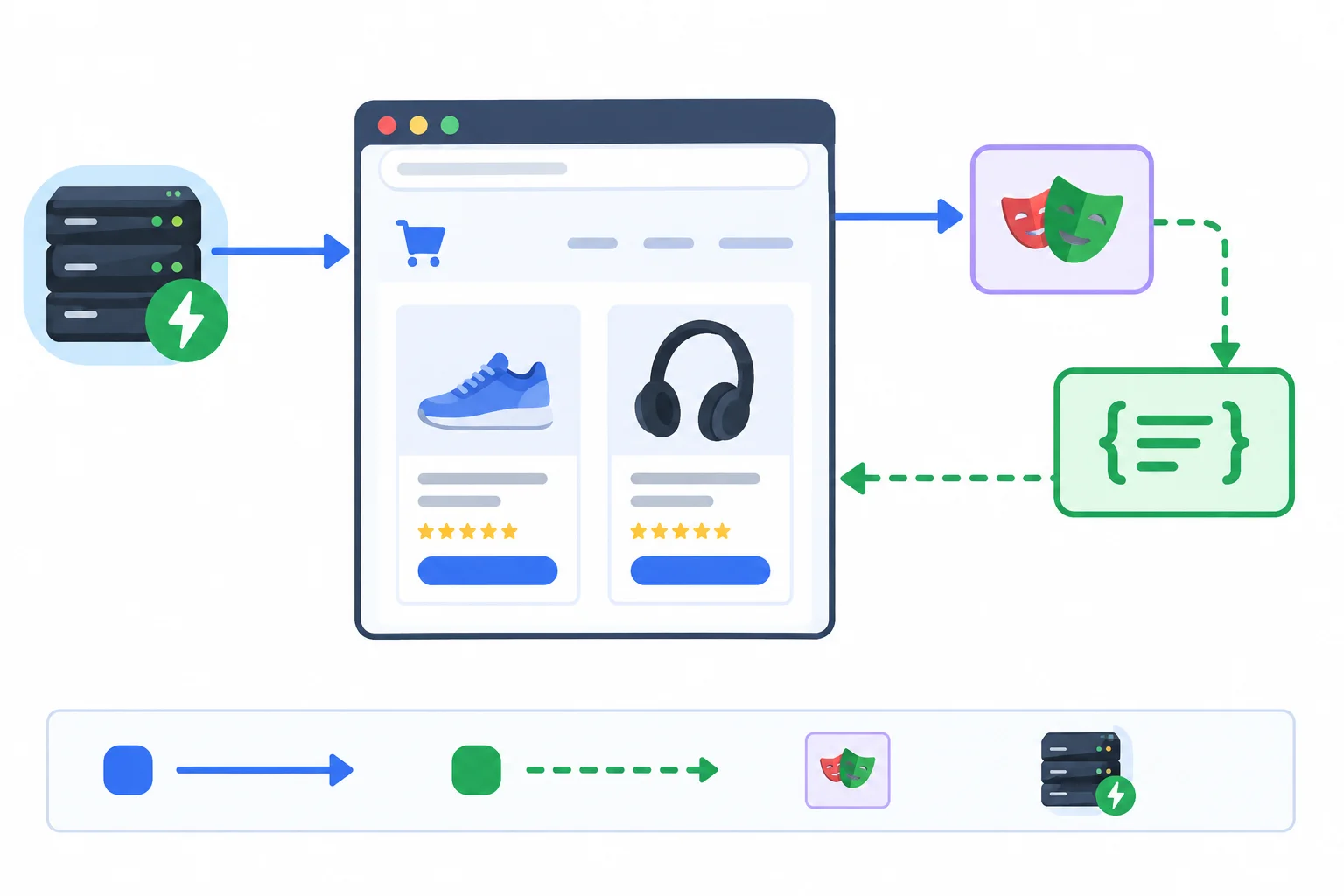
Vite still serves the application. Only the /api/products response is substituted; the browser fetch, React rendering, and routing behavior remain real.
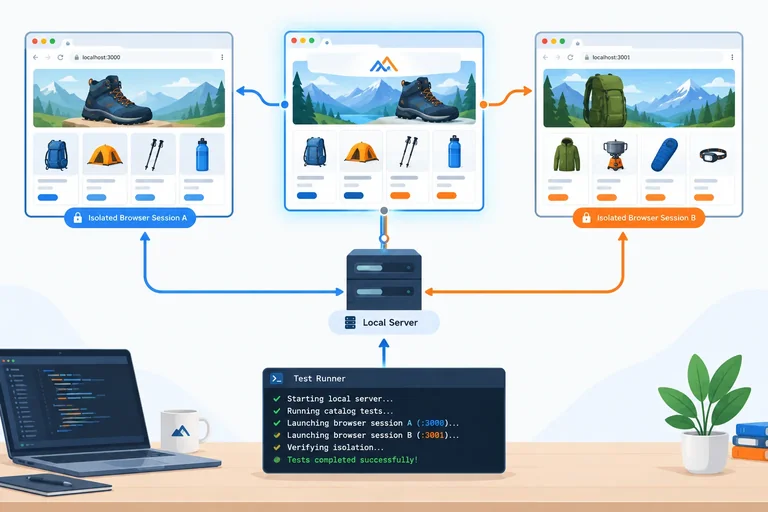
page.route() observes requests from this page. The glob **/api/products limits the handler to the intended endpoint. Inside the handler, route.fulfill() creates a successful JSON response with the exact records used by the journey.
This is a controlled browser journey, not a live-backend test. It does not establish that a production API has the same contract, is available, or correctly authorizes requests.
Add this near the beginning of the journey test, before its catalog navigation.
import { test, expect } from '@playwright/test';

test('shows products from the controlled catalog response', async ({ page }) => {
  await page.route('**/api/products', async route => {
    await route.fulfill({
      contentType: 'application/json',
      body: JSON.stringify([
        { slug: 'day-pack', name: 'Day Pack', category: 'bags' },
        { slug: 'trail-light', name: 'Trail Light', category: 'lighting' },
      ]),
    });
  });

  await page.goto('/products');

  await expect(page.getByRole('heading', { name: 'Products' })).toBeVisible();
});
Tip
The route callback runs only when the matching request occurs. Calling page.route() does not fetch data itself; it prepares the response handler that the application's later request will use.
Complete the marked expressions so the products response is fulfilled inline and the interception is ready before navigation triggers the request.
import { test } from '@playwright/test';

test('controls the catalog data before navigation', async ({ page }) => {

    await ({
      contentType: 'application/json',
      body: JSON.stringify([
        { slug: 'day-pack', name: 'Day Pack', category: 'bags' },
        { slug: 'trail-light', name: 'Trail Light', category: 'lighting' },
      ]),
    });
  });

  await page.goto('/products');
});
Step 5 of 10
Navigate the controlled Trail Shop catalog with accessible Playwright locators and synchronize the journey through observable interface state.
The configured baseURL lets the journey navigate by application path, so begin with await page.goto('/products'); rather than repeating the host and port.
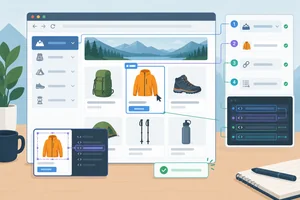
Target what a person can identify in Trail Shop:
Products heading by heading role and accessible name;Category label;Day Pack product link by link role and accessible name.These locators describe the interface contract. They do not depend on CSS classes, DOM nesting, or React component names.
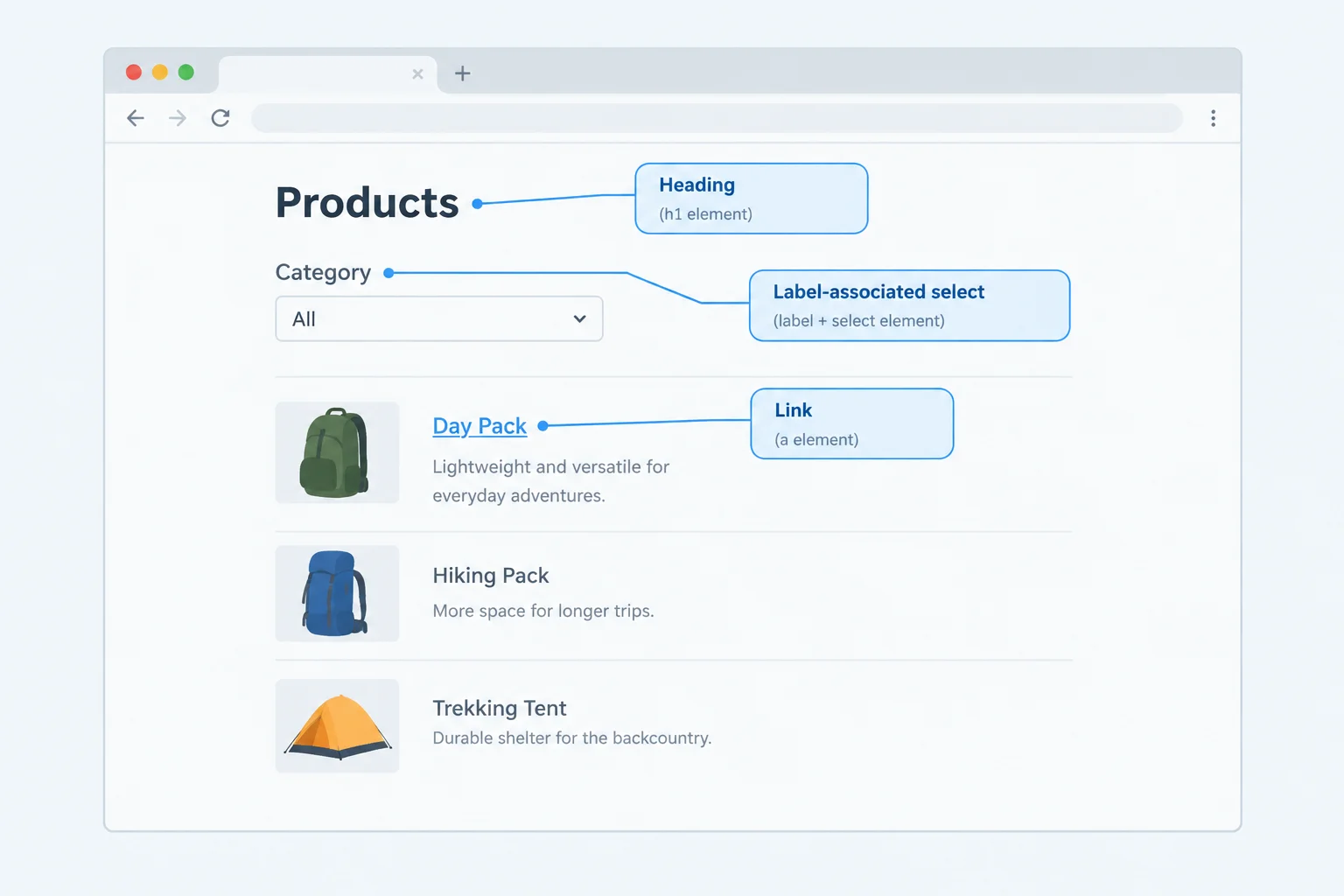
Use a role and accessible name for semantic content; use the associated label for the select control.
Replace, do not append to, the exploratory e2e/catalog.spec.ts from Step 4. Delete its earlier import and its shows products from the controlled catalog response test, then paste the complete file below.
The result must contain exactly one Playwright import and one evolving journey test. It retains the controlled API handler, navigates to the catalog, and confirms the first filtered state. In Step 6, extend this same test callback before its final });; do not create a second test or import.
e2e/catalog.spec.ts — replace the entire file
import { test, expect } from '@playwright/test';

test('filters, opens detail, and restores the filter with Back', async ({ page }) => {
  await page.route('**/api/products', async route => {
    await route.fulfill({
      contentType: 'application/json',
      body: JSON.stringify([
        { slug: 'day-pack', name: 'Day Pack', category: 'bags' },
        { slug: 'trail-light', name: 'Trail Light', category: 'lighting' },
      ]),
    });
  });

  await page.goto('/products');

  const catalogHeading = page.getByRole('heading', { name: 'Products' });
  const category = page.getByLabel('Category');

  await expect(catalogHeading).toBeVisible();
  await category.selectOption('bags');
  await expect(category).toHaveValue('bags');
});
A locator is a reusable query, not a one-time DOM snapshot. The category locator can first perform an action and then support a later assertion. Playwright waits for an awaited action such as selectOption() only when the target is ready to receive it.
Web-first assertions such as toBeVisible() and toHaveValue() retry while observable interface state settles. By contrast, await category.inputValue() reads one immediate value, and a fixed delay merely waits for elapsed time. Neither is a substitute for asserting the user-visible outcome.
The next step uses getByRole('link', { name: 'Day Pack' }) to confirm and activate the now-visible product link, then verifies detail navigation and browser Back inside this same test.
Tip
Keep the API handler before page.goto(). The application still performs its real fetch, local filtering, rendering, and routing; only the /api/products response is controlled for this journey.
After selecting a category, which approach synchronizes the journey with the control's observable state?
Complete the accessible locators and retrying assertions for the initial catalog journey.
const catalogHeading = page.getByRole(, { name: 'Products' });
const category = page.getByLabel();

await page.goto('/products');
await expect(catalogHeading).();
await category.selectOption('bags');
await expect(category).('bags');

const dayPackLink = page.getByRole(, { name: 'Day Pack' });
await expect(dayPackLink).toBeVisible();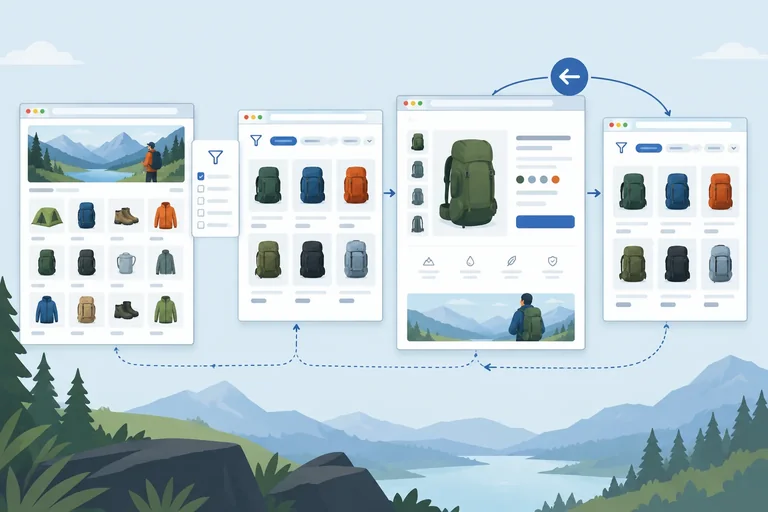
Step 6 of 10
Complete the Trail Shop browser journey by verifying filtered state, detail navigation, and browser-history restoration through both URLs and visible results.
A route is only one part of the user-visible result. After filtering, verify the address, the selected Category control, the included Day Pack link, and the excluded Trail Light link. After detail navigation, verify both the product route and the rendered product heading.
Browser Back is also a contract: it should return to the filtered catalog state, not merely to a URL that looks correct. A URL-only check can miss a stale select value or stale product results. Keep these checks in the same independent journey, with identical expectations for every browser project.
| Journey point | Expected URL | Visible state |
|---|---|---|
| Catalog | /products | Products heading |
| Filter Bags | /products?category=bags | Bags selected; Day Pack only |
| Open product | /products/day-pack | Day Pack heading |
| Browser Back | /products?category=bags | Filtered catalog restored |
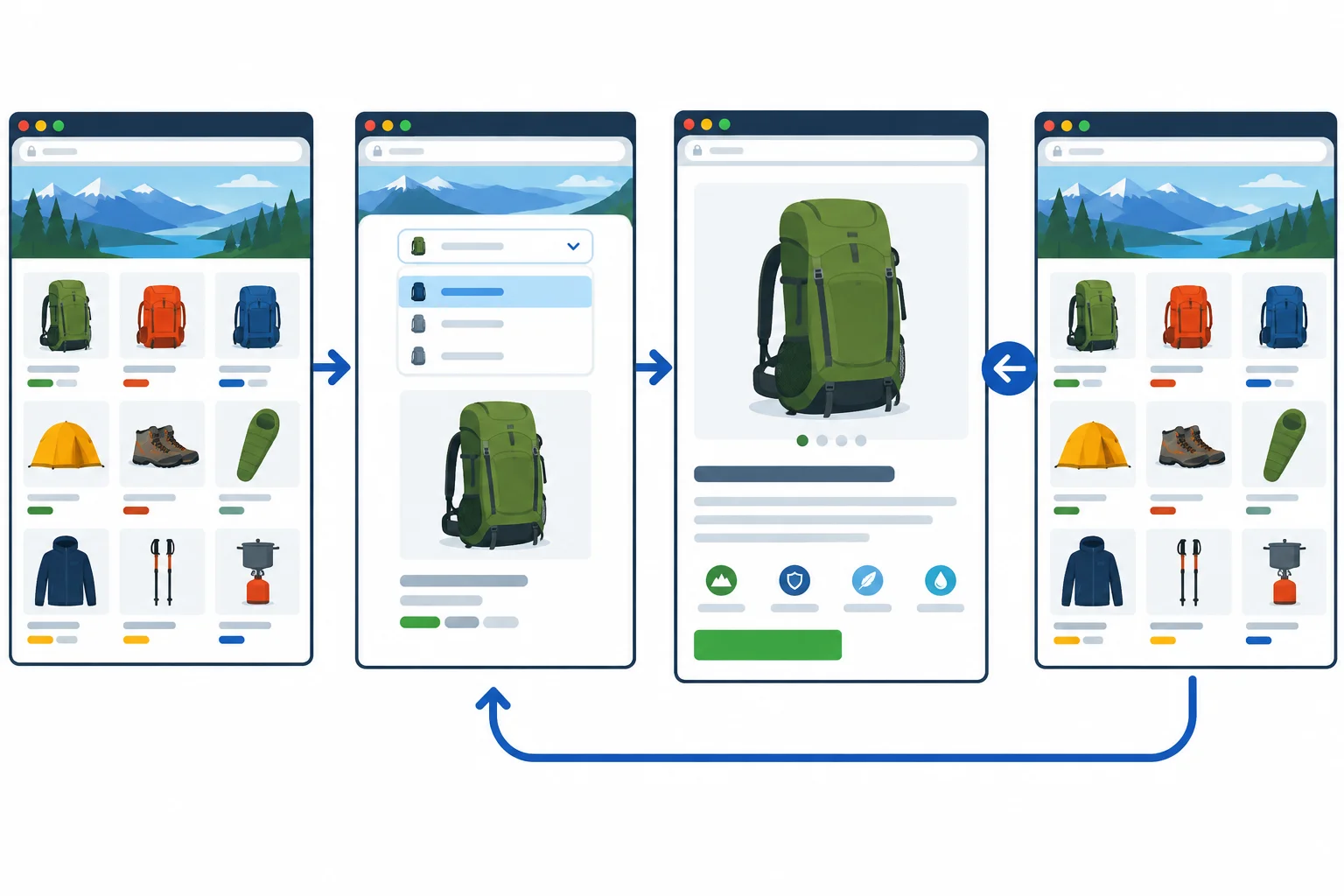
The journey moves from /products to the Bags-filtered catalog, then to Day Pack detail; browser Back restores the earlier filtered state.
Replace the entire existing e2e/catalog.spec.ts file from Step 5; do not append this code after its earlier closing });. Paste Part 1 and then Part 2 consecutively into that one file.
This replacement uses one locator named category and contains one sequence only: filter, verify the filtered catalog, click Day Pack once, verify detail, use browser history, and verify restoration. The controlled response remains before navigation.
e2e/catalog.spec.ts — Part 1 of 2. Start the replacement file with this section.
import { test, expect } from '@playwright/test';

test('filters, opens detail, and restores the filter with Back', async ({ page }) => {
  await page.route('**/api/products', async route => {
    await route.fulfill({
      contentType: 'application/json',
      body: JSON.stringify([
        { slug: 'day-pack', name: 'Day Pack', category: 'bags' },
        { slug: 'trail-light', name: 'Trail Light', category: 'lighting' },
      ]),
    });
  });

  await page.goto('/products');

  const category = page.getByLabel('Category');
  await expect(page.getByRole('heading', { name: 'Products' })).toBeVisible();
  await category.selectOption('bags');

  await expect(page).toHaveURL(
    'http://127.0.0.1:5173/products?category=bags',
  );
  await expect(category).toHaveValue('bags');
  await expect(page.getByRole('link', { name: 'Day Pack' })).toBeVisible();
  await expect(page.getByRole('link', { name: 'Trail Light' })).toHaveCount(0);

  await page.getByRole('link', { name: 'Day Pack' }).click();
e2e/catalog.spec.ts — Part 2 of 2. Append this directly after Part 1, then save.
  await expect(page).toHaveURL(
    'http://127.0.0.1:5173/products/day-pack',
  );
  await expect(page.getByRole('heading', { name: 'Day Pack' })).toBeVisible();

  await page.goBack();

  await expect(page).toHaveURL(
    'http://127.0.0.1:5173/products?category=bags',
  );
  await expect(category).toHaveValue('bags');
  await expect(page.getByRole('link', { name: 'Day Pack' })).toBeVisible();
  await expect(page.getByRole('link', { name: 'Trail Light' })).toHaveCount(0);
});
Tip
page.goBack() activates browser history created by the link navigation. Do not replace it with the application's Catalog link: that would test a different navigation mechanism. The restored checks deliberately repeat the selected filter and matching results, because a restored address alone is not sufficient evidence.
Complete the detail and browser-Back assertions for the existing Trail Shop journey.
await page.getByRole('link', { name: 'Day Pack' }).click();

await expect(page).(
  'http://127.0.0.1:5173/products/day-pack',
);
await expect(page.('heading', { name: 'Day Pack' })).toBeVisible();

await page.goBack();

await expect(page).(
  'http://127.0.0.1:5173/products?category=bags',
);
await expect(category).toHaveValue('bags');
await expect(page.getByRole('link', { name: 'Day Pack' })).toBeVisible();
await expect(page.getByRole('link', { name: 'Trail Light' })).(0);In 2–4 sentences, describe one concrete regression that could pass a URL-only assertion after browser Back. Then name the observable restored-state check that would reveal it.
Write at least 100 characters (0/100).
Step 7 of 10
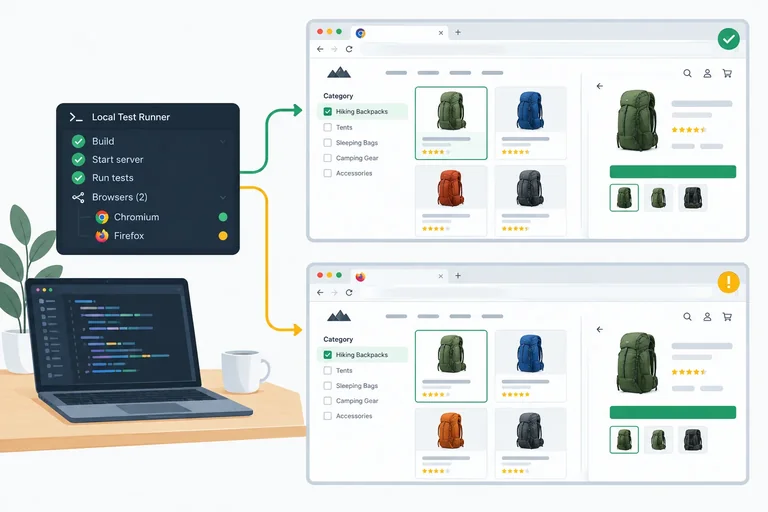
Run the controlled Trail Shop journey across both configured browser projects, distinguish headless and headed execution, and record each project's real outcome.
From journey-lab, run the complete suite once. With no --project filter, Playwright runs the same journey for every configured browser project: chromium and firefox.
The normal run is headless: browsers run without visible windows. Read the result lines carefully: each should be qualified by its project name. Two project-qualified results mean two executions; one result does not represent the other project.
Run this command from the journey-lab directory.
npx playwright testRunning 2 tests using 2 workers ✓ 1 [chromium] › e2e/catalog.spec.ts:3:1 › filters, opens detail, and restores the filter with Back ✓ 2 [firefox] › e2e/catalog.spec.ts:3:1 › filters, opens detail, and restores the filter with Back 2 passed (4.2s)
Illustrative successful output only. Worker count, ordering, durations, and your actual pass/fail status can differ. Confirm that both `[chromium]` and `[firefox]` appear in your own result.
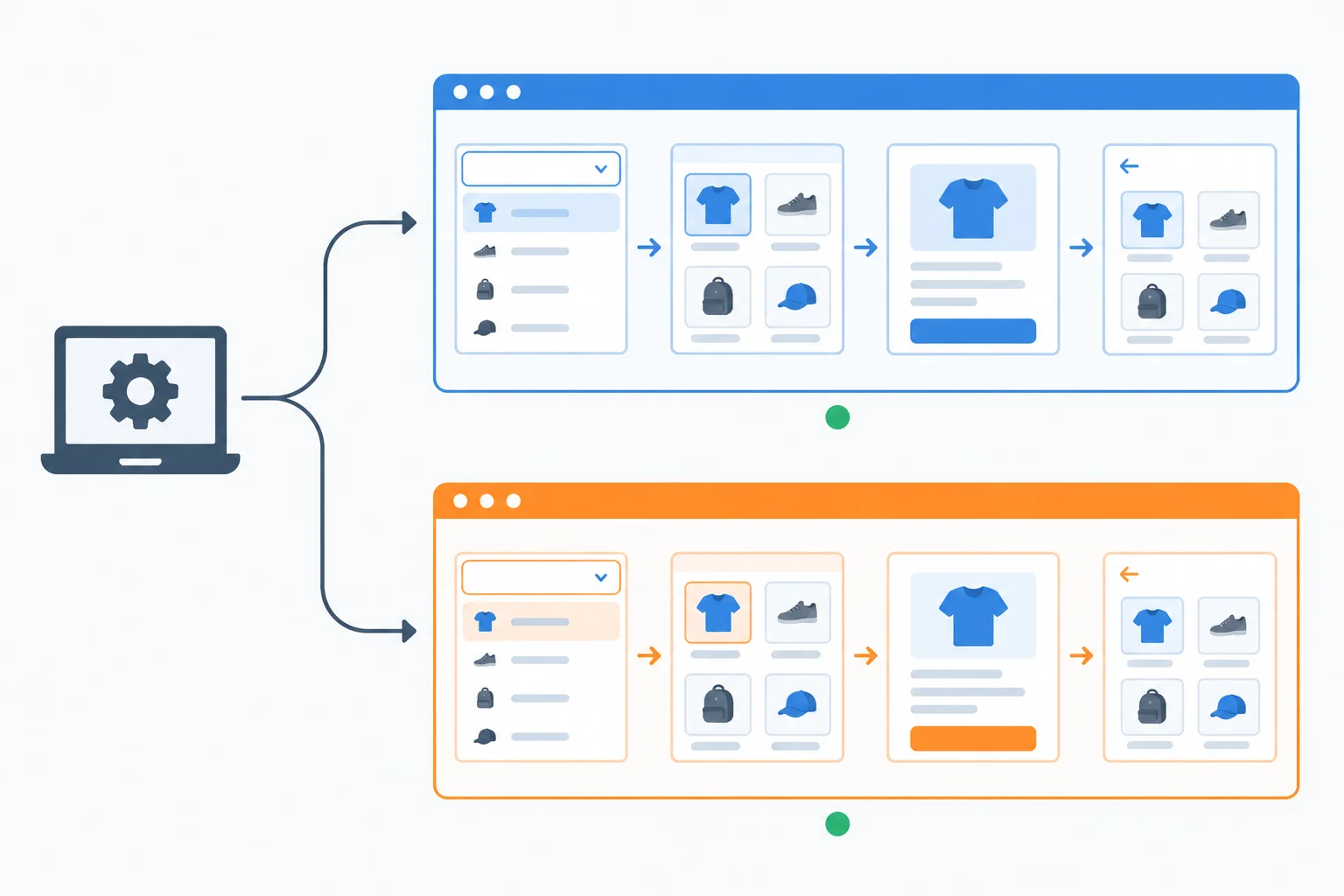
One test definition is executed separately by the Chromium and Firefox browser projects.
Complete the command with either configured browser project name to run one project only.
npx playwright test --project=A headed run opens the selected browser window so you can watch the same journey. It changes visibility, not the journey's locators, controlled response, actions, or assertions.
Use it when you need to observe a run locally. Keep the normal headless command for routine execution; do not alter expectations merely because a window is visible.
This example visibly runs the Firefox project. Replace only the project name when you intentionally need the Chromium project.
npx playwright test --project=firefox --headedRunning 1 test using 1 worker ✓ 1 [firefox] › e2e/catalog.spec.ts:3:1 › filters, opens detail, and restores the filter with Back 1 passed (3.1s)
The browser window is visible during this run. Worker count, terminal formatting, duration, and actual outcome vary; a successful run ends with one Firefox project result.
Warning
If a browser project cannot launch, record it as not run or as a launch/environment error, not as a passing application journey. A missing browser binary or an operating-system environment problem prevents the test from reaching the application, so it is not evidence of an application defect either.
Use the project-qualified terminal lines to fill a small result matrix. Compare what actually happened, rather than assuming that a result from one project transfers to the other.
Classify each configured project independently after the run.
| Recorded status | What you can say | What you cannot say |
|---|---|---|
| Pass | That project's journey executed and its assertions passed. | The other project passed. |
| Fail | That project's journey executed and reported a failure. | The cause is already known. |
| Not run / launch error | No completed journey result exists for that project. | The project passed or the app failed. |
Run npx playwright test in journey-lab. Report the actual outcome for both chromium and firefox as pass, fail, or not run. If either project did not run, include the concise launch or environment reason shown locally. Do not infer an outcome for a project that has no result line.
Write at least 80 characters (0/80).
Step 8 of 10
Preserve, inspect, and document local evidence for a selected Playwright browser-project discrepancy without mistaking an injected test failure for an engine defect.
Do not add delays or retry the suite while investigating. A first-run failure is evidence; a later retry can pass and conceal the condition that needs inspection.
Replace playwright.config.ts with the complete configuration below. It retains the existing discovery, controlled local Vite server, shared viewport, and symmetric browser projects while adding diagnostic settings:
retries: 0 preserves the initial outcome;playwright-report/ without opening it automatically;trace: 'retain-on-failure' keeps failure artifacts under test-results/.A retained trace supports investigation of a failed run; it does not itself prove an engine defect.
Replace the configuration so diagnostics are enabled without changing the local server or browser-project conditions.
import { defineConfig } from '@playwright/test';

export default defineConfig({
  testDir: './e2e',
  testMatch: '**/*.spec.ts',
  retries: 0,
  reporter: [
    ['list'],
    ['html', { open: 'never' }],
  ],
  use: {
    baseURL: 'http://127.0.0.1:5173',
    viewport: { width: 1280, height: 720 },
    trace: 'retain-on-failure',
  },
  webServer: {
    command: 'npm run dev -- --host 127.0.0.1 --port 5173 --strictPort',
    url: 'http://127.0.0.1:5173',
    reuseExistingServer: false,
  },
  projects: [
    { name: 'chromium', use: { browserName: 'chromium' } },
    { name: 'firefox', use: { browserName: 'firefox' } },
  ],
});Start with the browser project that actually failed. The commands below use Firefox as the selected example; use --project=chromium only when Chromium is the project with the recorded failure.
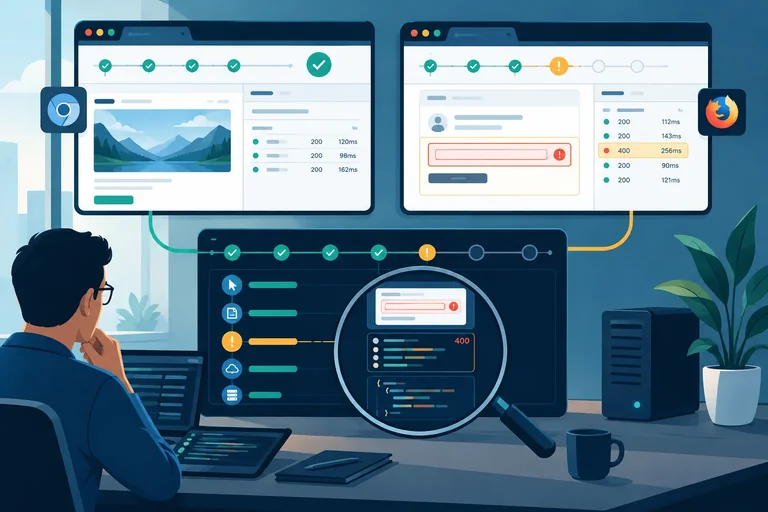
First reproduce visibly. Then inspect the report and trace as separate local viewer sessions. In the evidence, work backward from the failed assertion:
/api/products received the controlled fulfilled response.Close each viewer tab or window when finished, then stop its terminal server with Ctrl+C before moving to the next command.
Run this from journey-lab to reproduce the selected Firefox failure with a visible browser window. Close the browser window after observing the run.
npx playwright test --project=firefox --headedRunning 1 test using 1 worker
✘ 1 [firefox] › e2e/catalog.spec.ts:3:1 › filters, opens detail, and restores the filter with Back (2.1s)
1 failed
[firefox] › e2e/catalog.spec.ts:3:1 › filters, opens detail, and restores the filter with BackThis is representative failed output. Timings and source locations vary. If the project passes, do not invent a defect; use the explicitly simulated workflow on the next screen instead.
After a failure generates playwright-report/, run this command. Inspect the failed assertion and its attachments in the browser report. Close the report tab or window, then press Ctrl+C in this terminal to stop the local report server.
npx playwright show-reportServing HTML report at http://localhost:9323. Press Ctrl+C to quit.
The local address and wording can vary. The command serves the existing report; it does not rerun the test.
Copy the trace path printed by your failed run, surround that real path with single quotes, and replace the example path below. For example, if the terminal printed a trace under test-results/, paste that complete generated path between the quotes. Inspect the action log, DOM snapshot, request evidence, and failed assertion. Then close the trace-viewer tab or window and press Ctrl+C in this terminal.
npx playwright show-trace 'test-results/catalog-firefox-failure/trace.zip'Serving trace viewer at http://localhost:9323. Press Ctrl+C to quit.
The shown path is an example format only, not a path you should assume exists. The viewer address, port, and wording vary by machine.
Run this separately and record the installed Playwright version in the discrepancy record.
npx playwright --versionVersion 1.52.0
Your installed version will differ. Record the exact line from your computer.
Temporarily add browser to the existing journey test fixture and add this line near the start of its callback. Keep the existing route handler and journey assertions below it. Run the selected project once, record the printed build, then remove the diagnostic line.
test('filters, opens detail, and restores the filter with Back', async ({ page, browser }) => {
  console.log(`Browser build: ${browser.version()}`);

  // Keep the existing route handler and journey assertions here.
});Browser build: 136.0
This is representative terminal output; the actual browser build depends on the locally installed Playwright browser binary.
Use the report and trace as connected evidence: an assertion says where the journey was observed to fail; the action log, snapshot, and controlled request help locate why it first diverged.
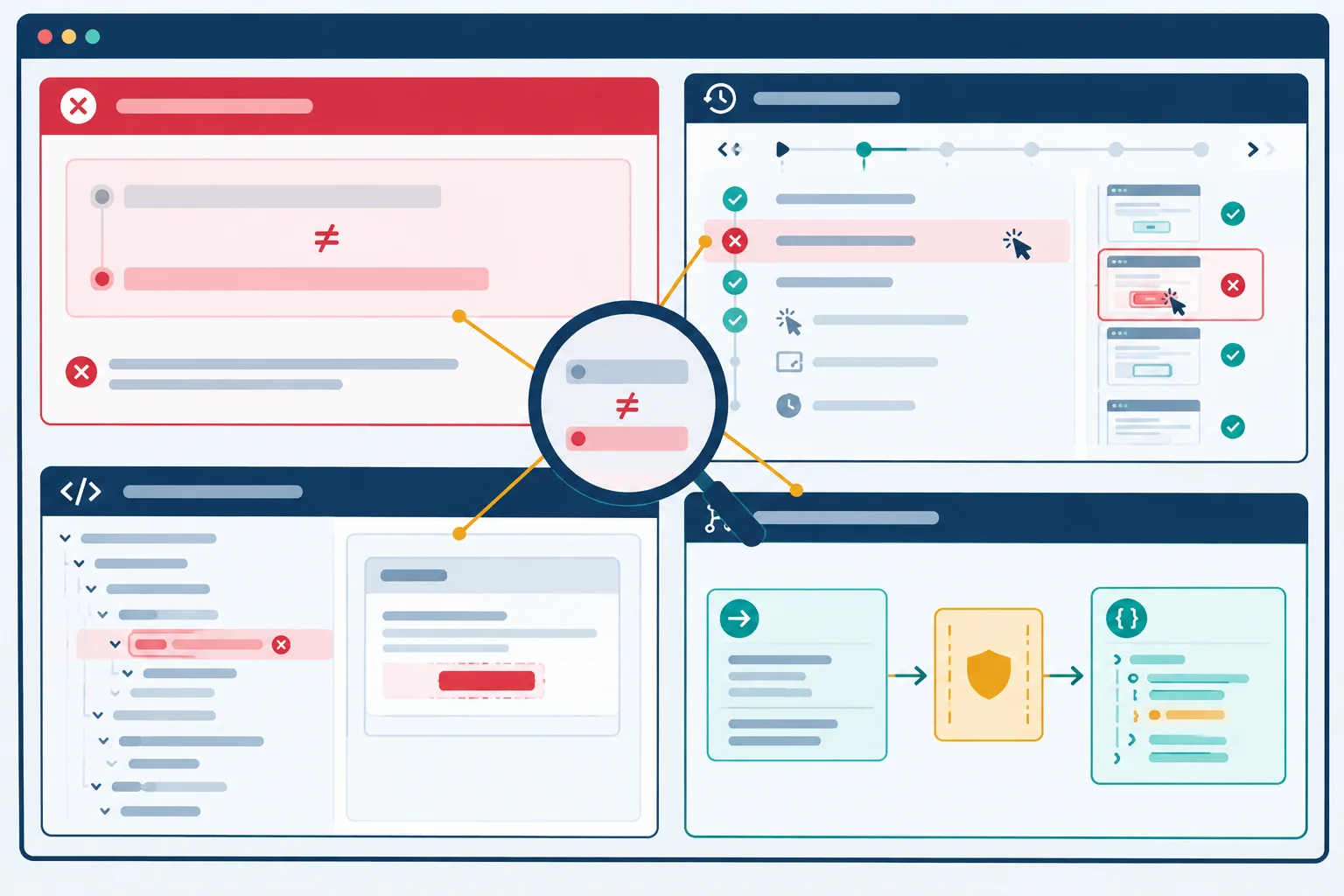
Inspect the failed assertion together with the action log, DOM snapshot, and /api/products request evidence.
A passing two-project run is not evidence of an engine-specific defect. You can still practice retaining and reading local artifacts with a deliberately injected test error.
Keep the successful all-project run as the baseline. Temporarily change only the URL expectation immediately after selecting the category, run only Firefox, and label the resulting failure as an injected test error. It is not an application or Firefox defect.
A responsible comparison keeps source conditions visible:
Those outcomes came from different test source, so they are not an engine comparison. After inspecting the new report and trace, restore the original correct expectation before the final two-project run.
For the temporary diagnostic run only, complete the intentionally incorrect category in the URL expectation.
await category.selectOption('bags');

await expect(page).toHaveURL(
  'http://127.0.0.1:5173/products?category=',
);Run this temporary diagnostic only after making the intentional mutation. Inspect the generated local report and actual trace path using the separate viewer operations from the previous screen. Restore the original expectation when finished.
npx playwright test --project=firefoxRunning 1 test using 1 worker
✘ 1 [firefox] › e2e/catalog.spec.ts:3:1 › filters, opens detail, and restores the filter with Back
1 failed
[firefox] › e2e/catalog.spec.ts:3:1 › filters, opens detail, and restores the filter with BackThis representative failure is expected only while the temporary incorrect expectation remains in the test source. Your trace path will be generated locally and must be copied from your own failure output.
Capture only evidence you actually observed. The report directory is playwright-report/; for a trace, record the exact generated path under test-results/ rather than guessing a filename. Record your operating system from your own computer and the fixed viewport as 1280 × 720.
| Field | What to record |
|---|---|
| Execution | Selected project and exact reproduction command |
| Versions | Browser build from `browser.version()` and Playwright version |
| Environment | Operating system and 1280 × 720 viewport |
| Evidence | `playwright-report/` and actual generated trace path |
| First divergence | Expected versus observed action, URL, or rendered state |
| Next check | One testable application, assumption, or environment investigation |
Warning
Do not mask a discrepancy with an arbitrary sleep, a forced action, or blanket retries. First test a concrete explanation: inspect whether the application rendered an unexpected state, whether a test assumption conflicts with the snapshot, or whether the local environment changed the run. An injected incorrect expectation must remain labeled as injected evidence, not an engine bug.
Using a real project-specific failure or the explicitly injected diagnostic failure, write a concise local discrepancy record in about 6–10 lines.
Include the selected browser project, browser build, Playwright version, operating system, viewport, and exact reproduction command. State whether the evidence was real application behavior or an injected incorrect expectation. Name playwright-report/ and the actual retained trace path you inspected. Describe the first divergence with expected versus observed behavior, then give one justified next investigation.
Do not claim an engine bug unless equivalent source and controlled conditions support that conclusion.
Write at least 400 characters (0/400).
Step 9 of 10
Define exactly what the Chromium and Firefox project results establish, then identify the actual-browser or device evidence that remains necessary.
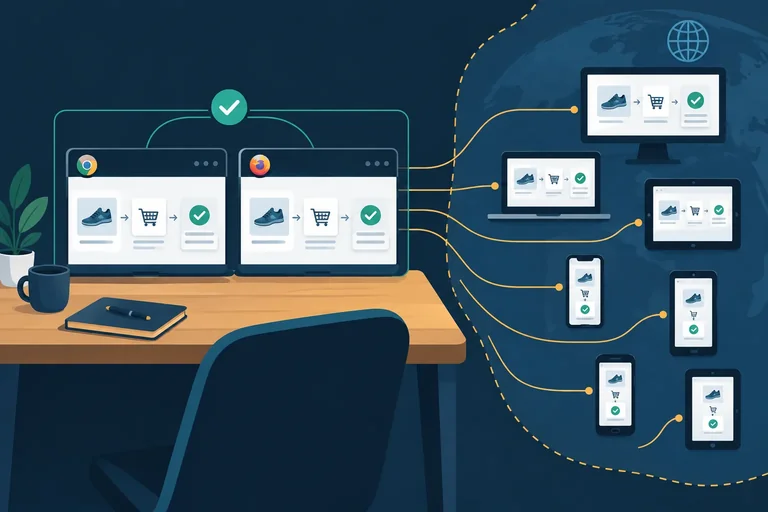
Your two Playwright projects are useful evidence: the same Trail Shop journey ran in Playwright’s installed Chromium and Firefox builds at the configured viewport. That is an engine check under a controlled local condition.
It is not a blanket compatibility claim. A browser engine is not the same thing as every actual target browser, version, operating system, or physical device used by people. A Chromium pass does not prove all supported Chrome or Edge configurations; a Playwright Firefox pass does not prove every target Firefox installation.
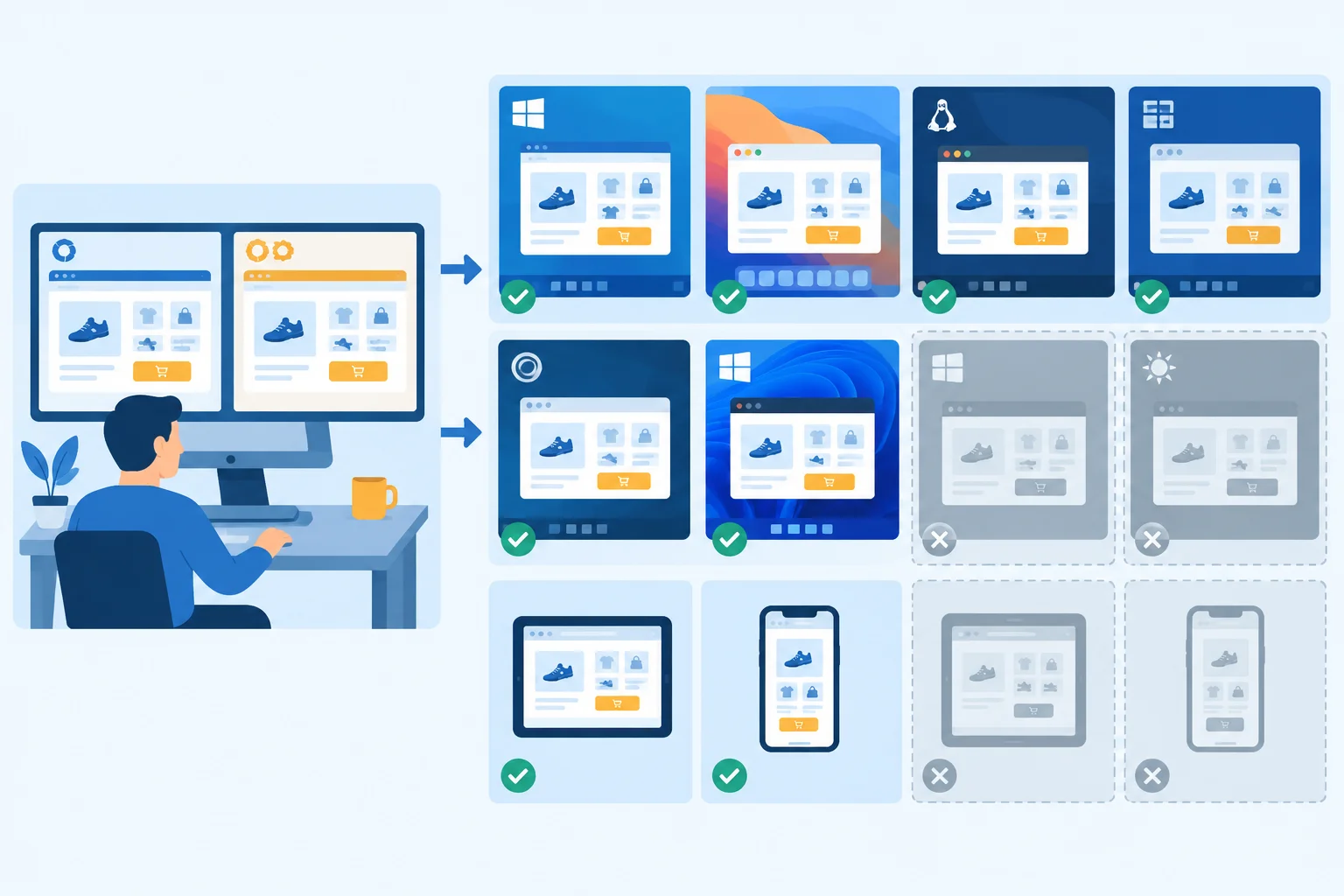
The checked local engines are valuable evidence, but they are only a subset of the environments that may matter.
Tip
Do not rename an engine result as a branded-browser result. Record the project that ran, then state separately which actual browser and device combinations still need evidence.
Use support requirements and the application audience to choose the next checks. Each proposed check should identify a browser version, operating system, device when relevant, and a task—not only a browser name.
A passing journey is one piece of evidence. Keep these boundaries visible in your verification record.
| Observed evidence | It does not establish | Next evidence to seek |
|---|---|---|
| Chromium and Firefox projects pass | Every shipped Chrome, Edge, or Firefox configuration passes | A supported browser/version and OS combination |
| Controlled /api/products response | Live backend availability, authorization, or API contract behavior | A separate live-service check where appropriate |
| Accessible locators find controls | Accessibility conformance or usable assistive-technology behavior | Later accessibility scans and manual task audits |
| Desktop-sized 1280 × 720 viewport | Physical mobile-device behavior or Safari/iOS behavior | A target device and browser task check |
Warning
Safari and iOS are not covered by the Chromium and Firefox projects. Even an engine project or device emulation would not reproduce every actual-browser version, operating-system integration, network condition, input method, or physical-device characteristic.
Match each statement to the kind of conclusion it supports.
Match each statement with its appropriate conclusion.
Tap an item and then its matching pair.
Write a short coverage statement for the completed two-project run. First, state what it establishes. Then name one still-required actual-browser or device check, including its browser and version, operating system, device if relevant, and the Trail Shop task to perform. Also name one claim this check set does not establish.
Write at least 180 characters (0/180).
Step 10 of 10
Restore the complete local configuration and journey, run it in both browser projects, and document results and remaining coverage honestly.
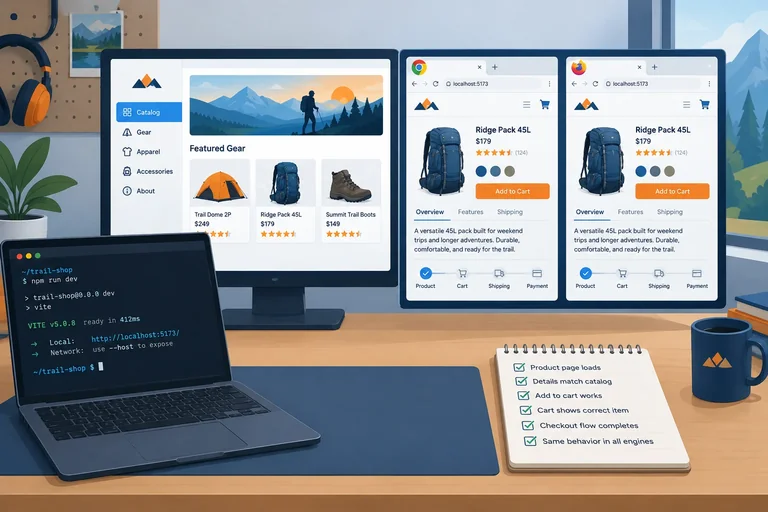
After any investigation, restore the correct assertion if you temporarily changed one. Then keep one stable baseline: Playwright discovers only e2e/*.spec.ts, starts the local Trail Shop server itself, and runs the same suite in two browser projects.
Save this complete reference as playwright.config.ts. It retains failure evidence without opening the HTML report automatically.
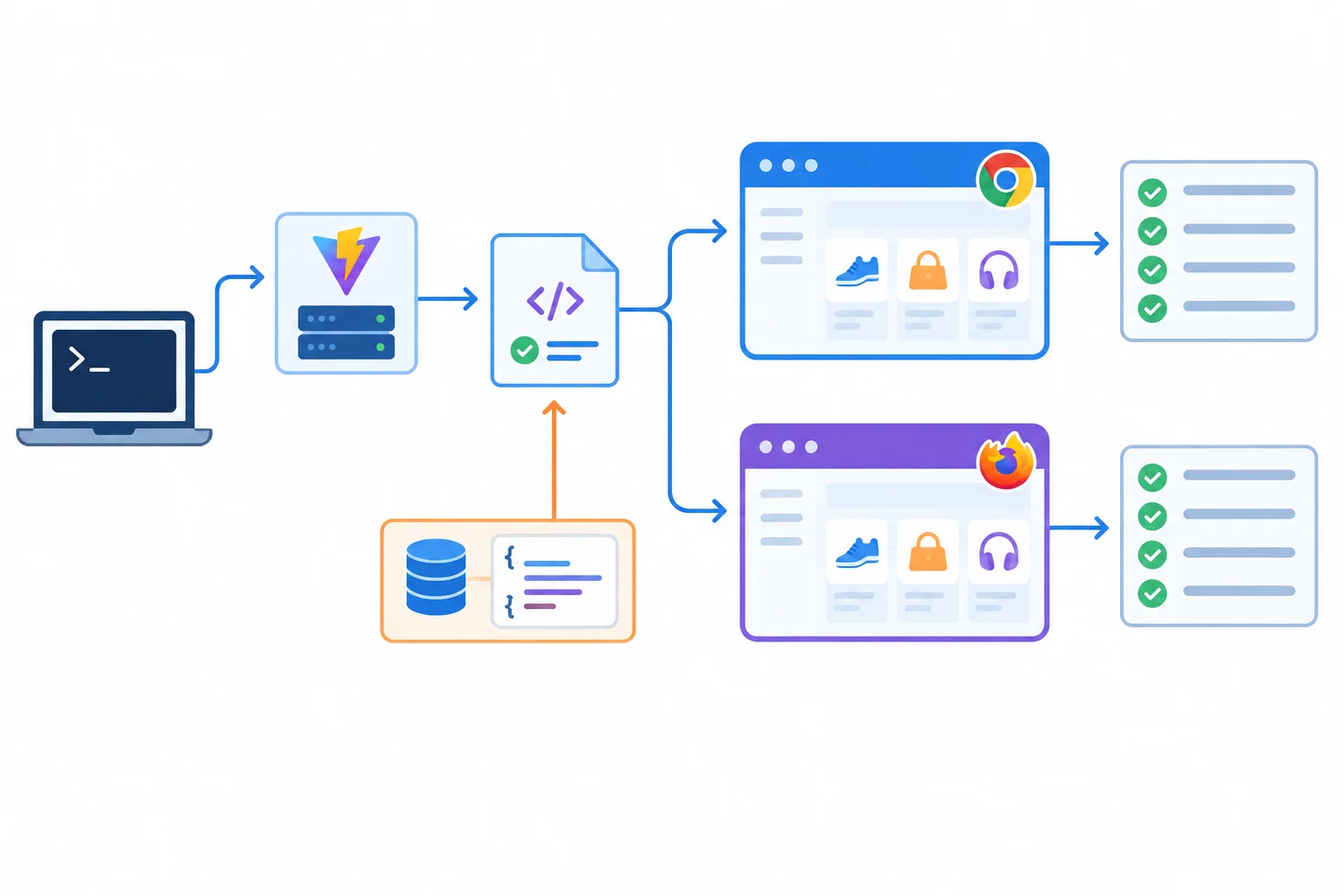
The final evidence comes from one restored journey run in each browser project, not from separate engine-specific test logic.
playwright.config.ts
import { defineConfig } from '@playwright/test';

export default defineConfig({
  testDir: './e2e',
  testMatch: '**/*.spec.ts',
  retries: 0,
  reporter: [
    ['list'],
    ['html', { open: 'never' }],
  ],
  use: {
    baseURL: 'http://127.0.0.1:5173',
    viewport: { width: 1280, height: 720 },
    trace: 'retain-on-failure',
  },
  webServer: {
    command: 'npm run dev -- --host 127.0.0.1 --port 5173 --strictPort',
    url: 'http://127.0.0.1:5173',
    reuseExistingServer: false,
  },
  projects: [
    { name: 'chromium', use: { browserName: 'chromium' } },
    { name: 'firefox', use: { browserName: 'firefox' } },
  ],
});Create or restore e2e/catalog.spec.ts from the two consecutive sections below. The API handler is registered before navigation. The test has no browser-project condition: identical actions and expectations run in Chromium and Firefox.
This controlled response exercises Trail Shop's real fetch, filtering, rendering, route, and history behavior. It does not verify a live backend.
e2e/catalog.spec.ts — Part 1 of 2
import { test, expect } from '@playwright/test';

const products = [
  { slug: 'day-pack', name: 'Day Pack', category: 'bags' },
  { slug: 'trail-light', name: 'Trail Light', category: 'lighting' },
];

test('restores the filtered catalog after detail and Back', async ({ page }) => {
  await page.route('**/api/products', (route) =>
    route.fulfill({
      contentType: 'application/json',
      body: JSON.stringify(products),
    }),
  );

  await page.goto('/products');
  await expect(page.getByRole('heading', { name: 'Products' })).toBeVisible();

  const category = page.getByLabel('Category');
  await category.selectOption('bags');

  await expect(page).toHaveURL(
    'http://127.0.0.1:5173/products?category=bags',
  );
  await expect(category).toHaveValue('bags');
  await expect(page.getByRole('link', { name: 'Day Pack' })).toBeVisible();
await expect(page.getByRole('link', { name: 'Trail Light' })).toHaveCount(0);e2e/catalog.spec.ts — Part 2 of 2; paste directly after Part 1
  await page.getByRole('link', { name: 'Day Pack' }).click();

  await expect(page).toHaveURL('http://127.0.0.1:5173/products/day-pack');
  await expect(page.getByRole('heading', { name: 'Day Pack' })).toBeVisible();

  await page.goBack();

  await expect(page).toHaveURL(
    'http://127.0.0.1:5173/products?category=bags',
  );
  await expect(category).toHaveValue('bags');
  await expect(page.getByRole('link', { name: 'Day Pack' })).toBeVisible();
  await expect(page.getByRole('link', { name: 'Trail Light' })).toHaveCount(0);
});From journey-lab, run the restored suite once across all configured browser projects. Do not treat a project that was not run as a pass. Compare this final evidence with the earlier diagnostic run: a prior injected incorrect expectation must no longer be present.
If a real discrepancy remains, preserve its project-qualified outcome and reference the relevant local evidence in playwright-report/ or the generated artifact under test-results/. Do not guess a trace filename; use the path produced by the failing run.
Run both configured browser projects from journey-lab.
npx playwright testRunning 2 tests using 2 workers ✓ 1 [chromium] › e2e/catalog.spec.ts:8:1 › restores the filtered catalog after detail and Back (1.2s) ✓ 2 [firefox] › e2e/catalog.spec.ts:8:1 › restores the filtered catalog after detail and Back (1.4s) 2 passed (3.0s)
This is an illustrative all-pass result. Timing and source locations vary. Record the actual project-qualified outcome shown on your computer; a failure or an unexecuted project is not an all-pass result.
Use this compact structure for your local record. Replace every bracketed value with evidence from your own final run.
| Record field | What to write |
|---|---|
| Final command | The exact `npx` command you ran |
| Project outcomes | Chromium: [pass/fail/not run]; Firefox: [pass/fail/not run] |
| Comparison | Whether the final run differs from the earlier diagnostic run |
| Discrepancy | None, or project, observed behavior, expected behavior, and local report/trace evidence |
| Remaining checks | Specific actual browser/version, operating system, device, and user task still to check |
| Scope statement | Controlled API response; no claim of live-backend verification or accessibility conformance |
Summary
A finished local verification is evidence, not a universal compatibility claim.
npx playwright test to execute Chromium and Firefox together, then record each project-qualified outcome.Run the restored final journey locally, then submit your concise verification record. Include the exact command, the actual Chromium and Firefox outcomes, comparison with any earlier diagnostic run, and either the investigated discrepancy or a clear statement that none occurred. Name remaining actual-browser or device checks with a browser/version, operating system or device, and task. End with a scope statement that does not claim live-backend verification or accessibility conformance.
Write at least 350 characters (0/350).
Congratulations! You completed: Run Local Browser Journeys with Playwright
50 XP
Thousands of online courses in video, ebooks and audiobooks.
To test your knowledge during online courses
Generated directly from your cell phone's photo gallery and sent to your email

Download our app via QR Code or the links below:.



Carry knowledge in your pocket.
Download the Cursa app.
There are hundreds of free courses available, with a free certificate of completion that is saved in your mobile image gallery.
Download the app to access the Course Completion Certificate for Free.


+ 10 million
students

Free and Valid
Certificate

60 thousand free
exercises

4.8/5 rating in
app stores

Free courses in
video and ebooks