Step 1 of 10
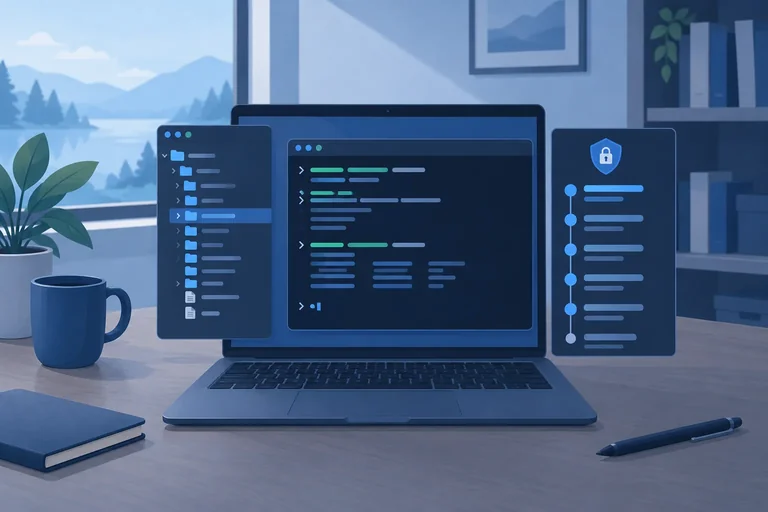
Prepare a Safe Local Repository
Create an isolated local Git practice repository, verify Git, and configure the identity recorded in future commits.

Learning path · Level 6 · Tutorial 6
Record understandable checkpoints for a local project, inspect exactly what changed, and recover earlier file contents without relying on a remote service.
 Prepare a Safe Local Repository
Create an isolated local Git practice repository, verify Git, and configure the identity recorded in future commits. 3 min
Prepare a Safe Local Repository
Create an isolated local Git practice repository, verify Git, and configure the identity recorded in future commits. 3 min
 Choose What Belongs in History
Exclude installed dependencies while retaining the files needed to understand and recreate the project. 2 min
Choose What Belongs in History
Exclude installed dependencies while retaining the files needed to understand and recreate the project. 2 min
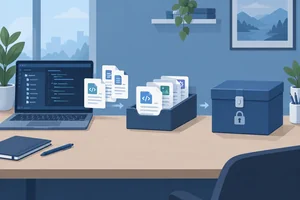 Record the First Checkpoint
Stage, inspect, and record the first reviewed checkpoint in a local Git repository. 4 min
Record the First Checkpoint
Stage, inspect, and record the first reviewed checkpoint in a local Git repository. 4 min
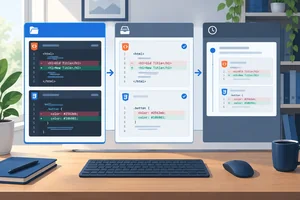 See Exactly What Changed
Inspect saved edits, then use status and two diff views to distinguish unstaged work from content selected for the next commit. 3 min
See Exactly What Changed
Inspect saved edits, then use status and two diff views to distinguish unstaged work from content selected for the next commit. 3 min
 Unstage Without Losing Edits
Refine an over-broad staging selection, preserve unrelated working-tree edits, and record only the intended heading change. 3 min
Unstage Without Losing Edits
Refine an over-broad staging selection, preserve unrelated working-tree edits, and record only the intended heading change. 3 min
 Inspect Earlier Snapshots
Find a local checkpoint and inspect its recorded patch or a file's stored contents without altering current work. 2 min
Inspect Earlier Snapshots
Find a local checkpoint and inspect its recorded patch or a file's stored contents without altering current work. 2 min
 Discard Only an Unwanted Edit
Review an unwanted unstaged stylesheet change, discard only that file after inspection, and distinguish discarding from unstaging. 2 min
Discard Only an Unwanted Edit
Review an unwanted unstaged stylesheet change, discard only that file after inspection, and distinguish discarding from unstaging. 2 min
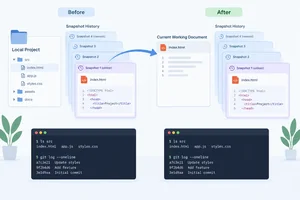 Recover a File and Keep the History
Restore index.html from the baseline snapshot, review the result, and record the recovery without removing earlier local commits. 3 min
Recover a File and Keep the History
Restore index.html from the baseline snapshot, review the result, and record the recovery without removing earlier local commits. 3 min
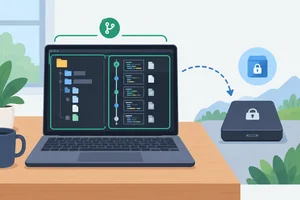 Know What Local Commits Protect
Determine what existing local commits preserve, what they leave out, and why a separate backup is still necessary. 1 min
Know What Local Commits Protect
Determine what existing local commits preserve, what they leave out, and why a separate backup is still necessary. 1 min
 Complete a Local Recovery Challenge
Apply the complete local Git workflow to record a change, recover an earlier stylesheet, and verify the retained history. 3 min
Complete a Local Recovery Challenge
Apply the complete local Git workflow to record a change, recover an earlier stylesheet, and verify the retained history. 3 min
Step 1 of 10
Create an isolated local Git practice repository, verify Git, and configure the identity recorded in future commits.
Git can record a project’s history on your own computer. This tutorial uses only a local repository: no account, hosting service, remote repository, or sign-in is required.
First, open a terminal and run this command from any location to confirm that Git is available.
Check the installed Git version.
git --versiongit version 2.45.1
Your version number will differ. Continue if it is 2.23 or later; later steps use `git restore`.

A local Git repository stores project history on the computer where the project lives.
Tip
If Git is missing or older than 2.23, install a current supported release using trusted Git installation instructions for your operating system. Then run git --version again. Do not substitute another command: later steps use git restore.
Choose a location outside any existing repository, then create a fresh folder named git-practice. Open that folder in your editor and terminal.
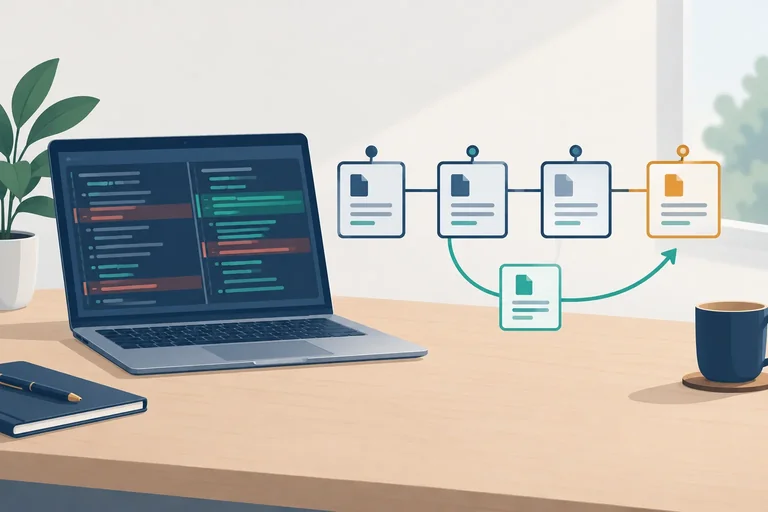
Create the following files exactly. Do not create .gitignore yet; you will add it in the next step. The linked stylesheet and baseline heading give later Git changes something clear to compare.
Create index.html.
<!doctype html>
<html lang="en">
  <head>
    <meta charset="UTF-8" />
    <meta name="viewport" content="width=device-width, initial-scale=1.0" />
    <title>Local Change Lab</title>
    <link rel="stylesheet" href="styles.css" />
  </head>
  <body>
    <main>
      <h1>Local Change Lab</h1>
      <p>A small project for practicing local Git history.</p>
    </main>
  </body>
</html>Create styles.css.
:root {
  font-family: system-ui, sans-serif;
  color: #1e293b;
  background: #f8fafc;
}

body {
  display: grid;
  min-height: 100vh;
  margin: 0;
  place-items: center;
}

main {
  padding: 2rem;
}

h1 {
  color: #334155;
}Create package.json with this dependency-free package configuration.
{
  "name": "git-practice",
  "version": "1.0.0",
  "private": true
}From the git-practice folder, run npm’s install command. It generates package-lock.json; do not hand-author or manually edit that lockfile. This package has no dependencies, so do not rely on a node_modules folder being created.
Generate the lockfile from the saved package.json.
npm installup to date, audited 1 package in 300ms found 0 vulnerabilities
Timing and audit wording vary by npm version. Confirm that `package-lock.json` now exists.
Still in the git-practice folder, initialize Git. This creates a hidden .git directory for repository metadata and local history. Do not edit .git manually; use Git commands to work with the repository.
Initialization creates repository structure, but it does not record a project checkpoint.
Run this command from git-practice.
git initInitialized empty Git repository in /path/to/git-practice/.git/
The path and any reported default branch name vary by computer. This tutorial does not depend on a branch name.

git init adds Git’s hidden metadata directory; it does not automatically record the project files.
Tip
Set an identity for commits in this repository only. The name and email are authorship information recorded with future commits. They are example values to replace with your preferred commit identity—not account credentials and not a sign-in to any service.
Use your own name and email if you prefer. Keep --local so these settings apply only inside this repository.
git config --local user.name "Alex Morgan"
git config --local user.email "alex@example.com"In your git-practice terminal, complete the commands. The displayed values are example commit identity values, not service login details.
Complete the missing command parts.
git
git config  user.name "Alex Morgan"
git config  user.email "alex@example.com"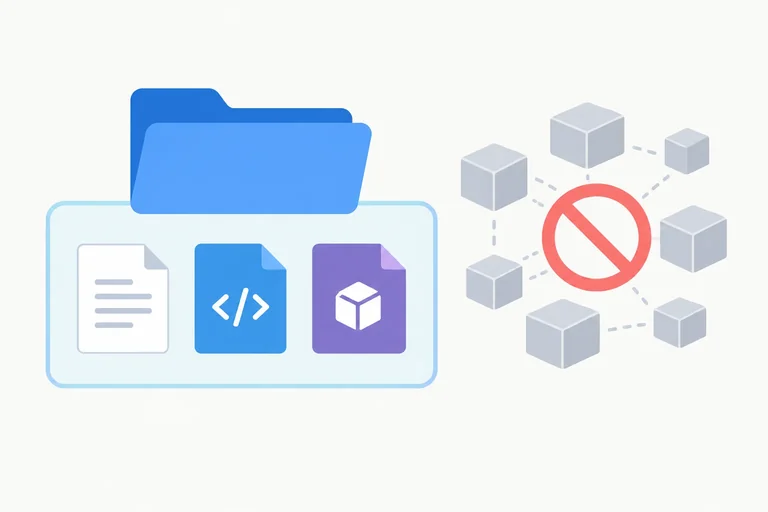
Step 2 of 10
Exclude installed dependencies while retaining the files needed to understand and recreate the project.
Before the first commit, use long-form status to see the files Git recognizes in the new git-practice repository. They are in your working tree, but Git has not recorded them yet.
This dependency-free practice package may not create a node_modules/ directory at all. Do not expect that directory to appear here; you will add its ignore rule proactively for any installed dependencies the project may have later.
Run this from git-practice.
git statusOn branch <your initial branch> No commits yet Untracked files: (use "git add <file>..." to include in what will be committed) index.html package-lock.json package.json styles.css nothing added to commit but untracked files present (use "git add" to track)
Your initial branch name and the ordering of files can vary. With this dependency-free package, `node_modules/` may not exist and is not expected in this output.
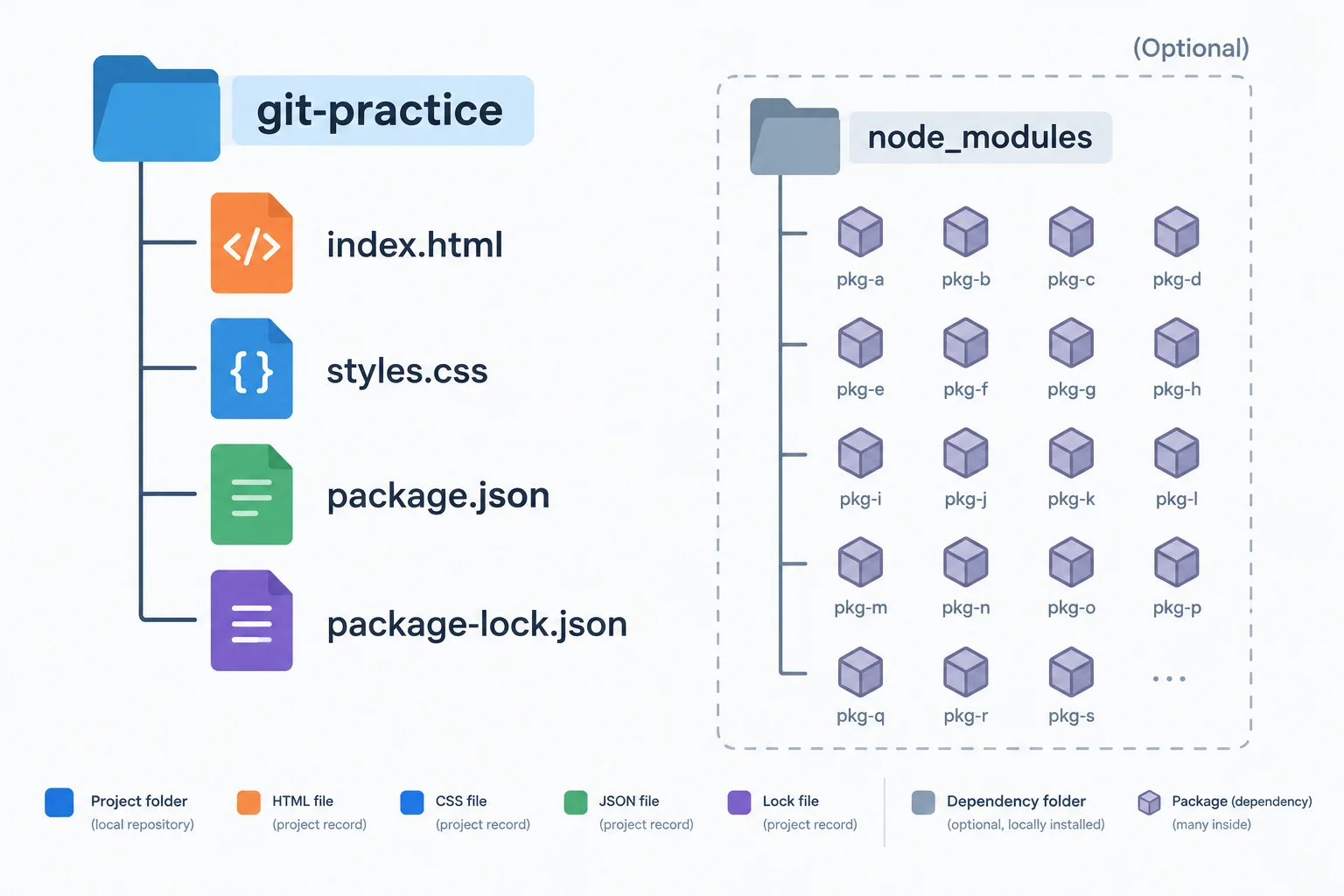
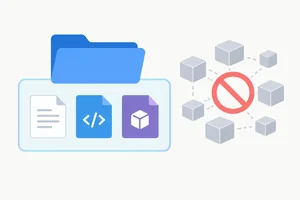
The project files are untracked candidates for history. The dashed dependency folder may not exist in this dependency-free practice package, but it should be ignored whenever installed dependencies create it.
Create a file named .gitignore in the git-practice folder with your editor. Its rule tells Git to ignore the installed dependency directory whenever that directory exists.
Keep .gitignore itself in project history: the project needs the same exclusion rule wherever it is used. Because this rule is added before the first commit, it applies while dependency contents are still untracked. After saving it, run git status again.
Contents of .gitignore
node_modules/Check the remaining project-file candidates after saving .gitignore.
git statusOn branch <your initial branch> No commits yet Untracked files: (use "git add <file>..." to include in what will be committed) .gitignore index.html package-lock.json package.json styles.css nothing added to commit but untracked files present (use "git add" to track)
The branch name and file ordering can vary. `node_modules/` is absent because it does not exist in this practice project; if it exists later, this rule keeps it out of ordinary untracked-file reporting.
Files that explain or recreate the project belong in history. Installed copies can be recreated from the manifest and lockfile, so they do not.
| Project item | Decision | Reason |
|---|---|---|
| index.html and styles.css | Track | Authored page and styles |
| package.json | Track | Project package configuration |
| package-lock.json | Track | Generated resolved dependency record |
| .gitignore | Track | Shared exclusion rule |
| node_modules/ | Ignore | Local installed dependency contents |
Tip
An ignore rule affects untracked paths. Adding node_modules/ later would not automatically stop Git from tracking a dependency folder that had already been recorded. That is why this practice adds the rule now, before its first commit.
Match each item with its appropriate handling before the initial commit.
Tap an item and then its matching pair.
Complete the handling decision for each category, then complete the one-line .gitignore entry that applies the dependency decision.
# Authored source (index.html and styles.css):
# Project configuration (package.json):
# Dependency record (package-lock.json):
# Installed dependencies (node_modules/):
Step 3 of 10
Stage, inspect, and record the first reviewed checkpoint in a local Git repository.
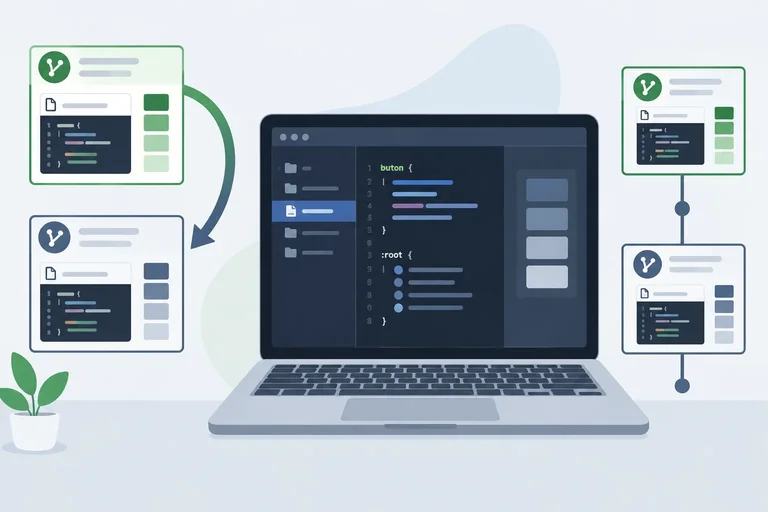
Git keeps three local states separate:
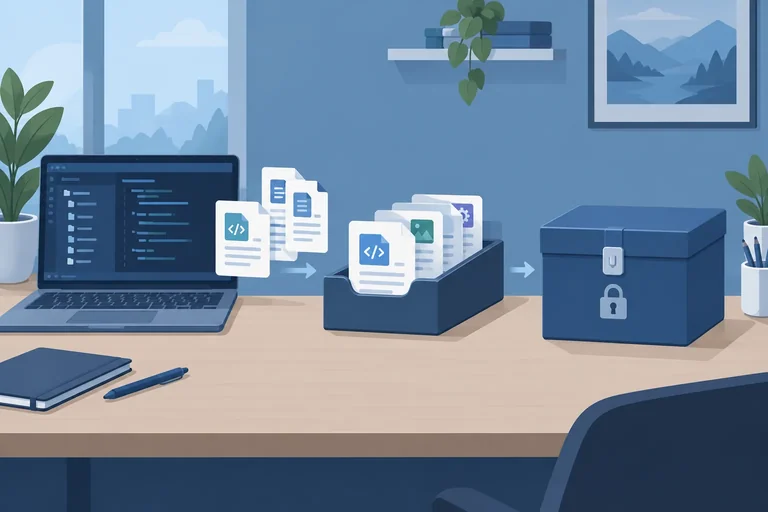
git-practice.Saving a file changes the working tree. Staging selects its current contents. Committing records the staged selection. These are distinct actions.
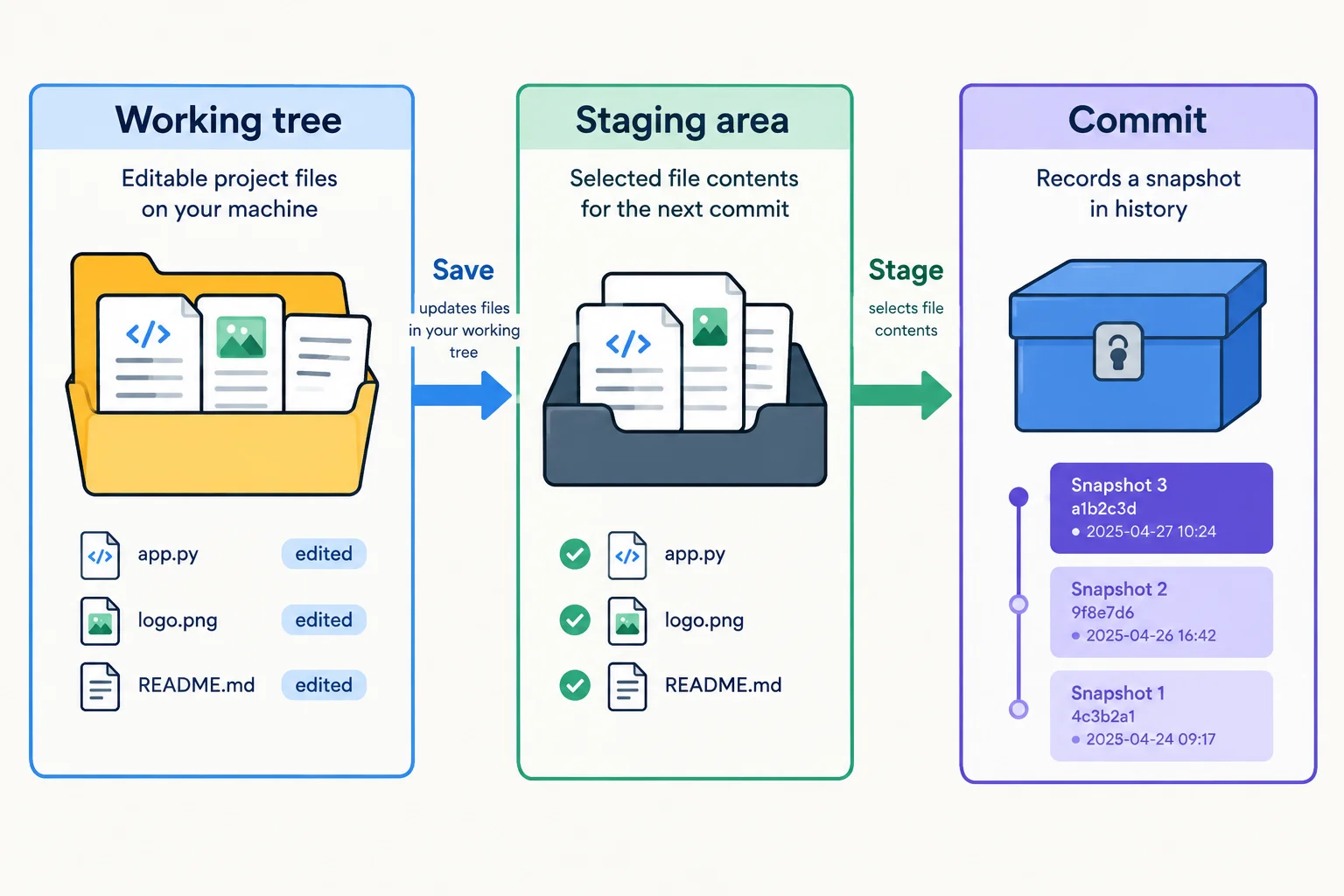
Saving affects the working tree; staging selects contents; committing records the selected snapshot.
Tip
After the first commit, HEAD refers to the currently checked-out commit. Throughout this tutorial, HEAD remains the latest commit. A commit records what is in the staging area at that moment—not every possible edit on disk.
From the git-practice folder, stage the five baseline files with explicit paths. The -- separator makes clear that the remaining values are paths.
Run this from git-practice. Git normally produces no output when the files are staged successfully.
git add -- .gitignore index.html styles.css package.json package-lock.jsonReview the staged .gitignore and HTML contents. In this initial diff, + marks lines being added to the first snapshot.
git diff --staged -- .gitignore index.htmldiff --git a/.gitignore b/.gitignore new file mode 100644 index 0000000..<hash> --- /dev/null +++ b/.gitignore @@ -0,0 +1 @@ +node_modules/ diff --git a/index.html b/index.html new file mode 100644 index 0000000..<hash> --- /dev/null +++ b/index.html @@ -0,0 +1,15 @@ +<!doctype html> +<html lang="en"> + <head> + <meta charset="UTF-8" /> + <meta name="viewport" content="width=device-width, initial-scale=1.0" /> + <title>Local Change Lab</title> + <link rel="stylesheet" href="styles.css" /> + </head> + <body> + <main> + <h1>Local Change Lab</h1> + <p>A small project for practicing local Git history.</p> + </main> + </body> +</html>
Output excerpt. The object hash and file-mode details can vary; the added file contents should match your saved files.
Review the selected stylesheet contents as part of the same initial checkpoint.
git diff --staged -- styles.cssdiff --git a/styles.css b/styles.css
new file mode 100644
index 0000000..<hash>
--- /dev/null
+++ b/styles.css
@@ -0,0 +1,20 @@
+:root {
+ font-family: system-ui, sans-serif;
+ color: #1e293b;
+ background: #f8fafc;
+}
+
+body {
+ display: grid;
+ min-height: 100vh;
+ margin: 0;
+ place-items: center;
+}
+
+main {
+ padding: 2rem;
+}
+
+h1 {
+ color: #334155;
+}Output excerpt. The object hash can vary; the added CSS lines should match your saved stylesheet.
Review the project configuration and the lockfile generated by npm install. Do not manually edit the lockfile.
git diff --staged -- package.json package-lock.jsondiff --git a/package.json b/package.json
new file mode 100644
index 0000000..<hash>
--- /dev/null
+++ b/package.json
@@ -0,0 +1,5 @@
+{
+ "name": "git-practice",
+ "version": "1.0.0",
+ "private": true
+}
diff --git a/package-lock.json b/package-lock.json
new file mode 100644
index 0000000..<hash>
--- /dev/null
+++ b/package-lock.json
@@ -0,0 +1,12 @@
+{
+ "name": "git-practice",
+ "version": "1.0.0",
+ "lockfileVersion": 3,
+ "requires": true,
+ "packages": {
+ "": {
+ "name": "git-practice",
+ "version": "1.0.0"
+ }
+ }
+}Output excerpt. The lockfile structure shown is typical of current npm versions; its lockfile version, hash, or formatting can vary. Verify that your generated lockfile is staged along with `package.json`.
Tip
Git may open a pager when a diff is long. Read the output, then press q to return to the terminal.
The reviewed staging area is ready to become the first local checkpoint. Create the commit, then use long-form status to verify the result.
Create the first local snapshot with the required message.
git commit -m "Create local practice baseline"[<initial-branch> (root-commit) <commit-hash>] Create local practice baseline 5 files changed, 53 insertions(+) create mode 100644 .gitignore create mode 100644 index.html create mode 100644 package-lock.json create mode 100644 package.json create mode 100644 styles.css
Your initial branch name and commit hash will differ. The insertion count can differ if npm generated a different lockfile format.
Check the repository after the commit.
git statusOn branch <initial-branch> nothing to commit, working tree clean
The initial branch name varies by Git installation and configuration.
Tip
“Working tree clean” means there are no pending tracked changes. Ignored files may still exist on your computer; Git simply does not report them as ordinary untracked files.
Put the actions in the only order that creates a reviewed local checkpoint.
Complete the commands that record the supplied baseline files after they have been saved.
git  -- .gitignore index.html styles.css package.json package-lock.json
git  --staged
git  -m ""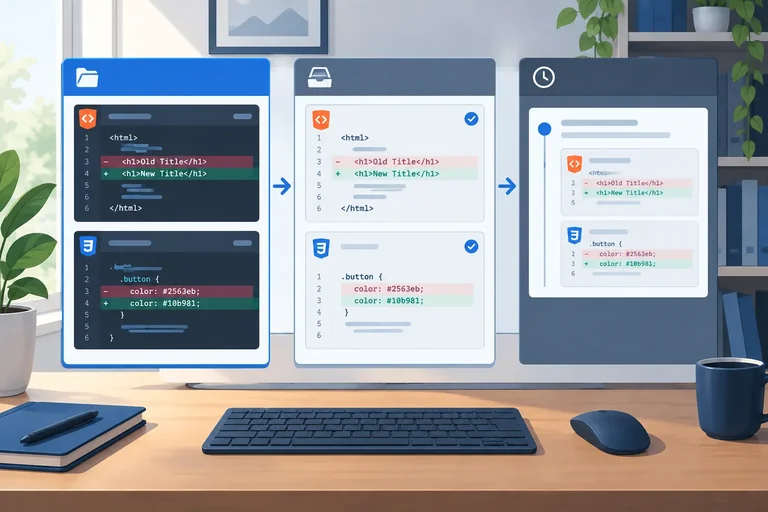
Step 4 of 10
Inspect saved edits, then use status and two diff views to distinguish unstaged work from content selected for the next commit.
In your existing git-practice folder, make and save these two edits:
index.html, change the heading from Local Change Lab to My Local Change Lab.styles.css, change the h1 color from #334155 to #2563eb.Both files are already tracked by the baseline commit. Saving these edits changes the working tree only. The staging area and HEAD—the currently checked-out, latest commit—still contain the baseline contents.
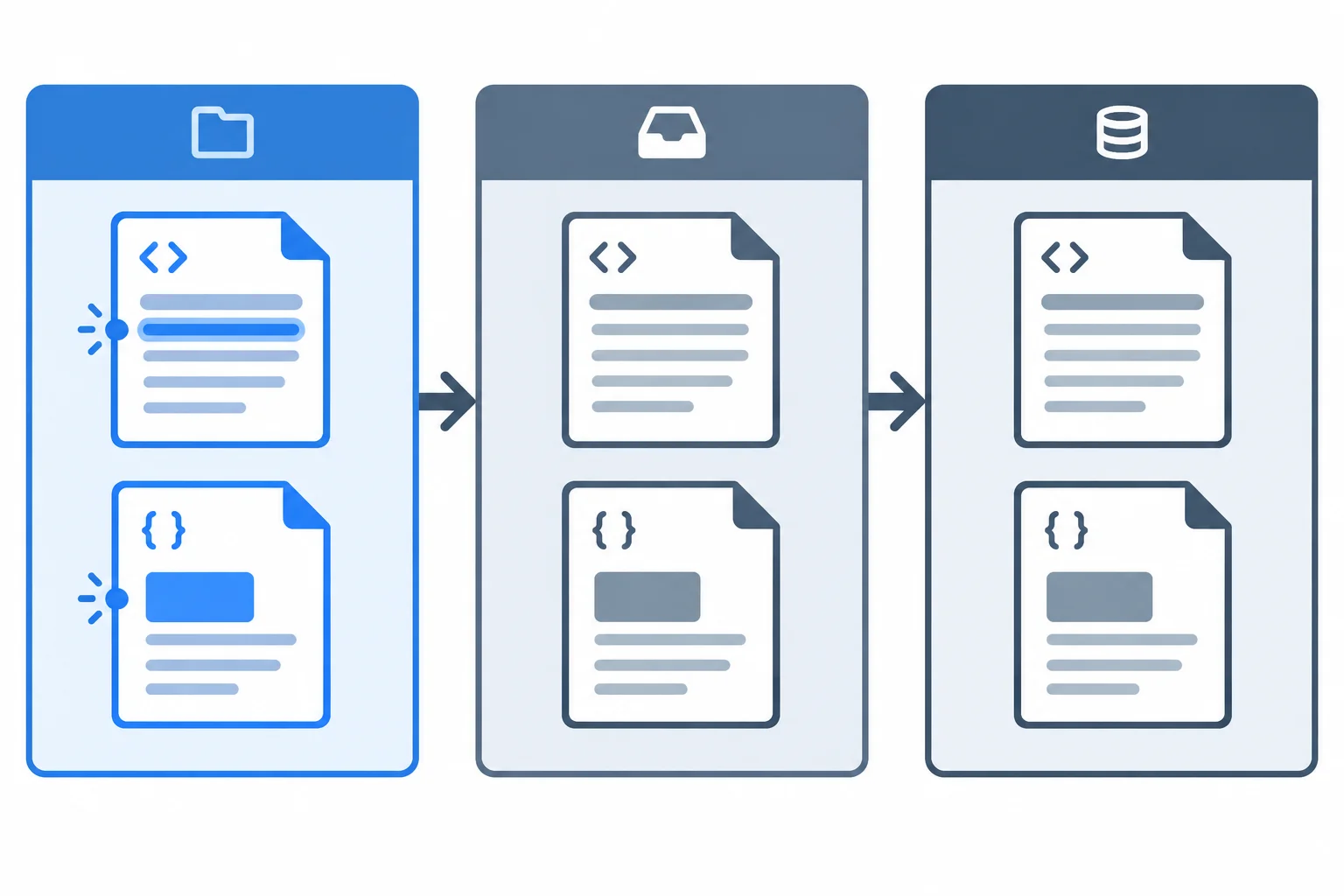
After saving both edits, the working tree differs from the staging area and from HEAD. Nothing has been selected for the next commit yet.
Run this from the git-practice folder to locate the saved edits.
git statusOn branch <your-current-branch> Changes not staged for commit: (use "git add <file>..." to update what will be committed) (use "git restore <file>..." to discard changes in working directory) modified: index.html modified: styles.css no changes added to commit (use "git add" and/or "git commit -a")
Your branch name and Git's instructional hints can vary. The important section is “Changes not staged for commit,” which should list both files.
git diff compares the working tree with the staging area. Before staging, the staging area still has the baseline heading, so a file-scoped diff shows the saved HTML edit.
The diff --git, index, ---, and +++ lines are comparison metadata, not source edits. In the source lines, - labels a removal from the earlier version and + labels an addition in the newer version.
Use an explicit path to inspect only the HTML change.
git diff -- index.htmldiff --git a/index.html b/index.html
index 9ac3b51..df51f84 100644
--- a/index.html
+++ b/index.html
@@ -8,7 +8,7 @@
</head>
<body>
<main>
- <h1>Local Change Lab</h1>
+ <h1>My Local Change Lab</h1>
<p>A small project for practicing local Git history.</p>
</main>
</body>The index IDs and hunk line numbers can vary. The unchanged paragraph is context, while the labeled `-` and `+` source lines are the actual heading change.
Now select only the HTML contents for the next commit. Staging captures the current index.html contents in the staging area; the stylesheet color edit remains only in the working tree.
Afterward, git diff compares the working tree with the staging area, so it shows the unselected stylesheet edit. git diff --staged compares the staging area with HEAD, so it shows the selected heading edit. Ordinary git diff does not display the contents of a brand-new untracked file.
If you edit a file again after staging it, its later working-tree version can differ from its earlier staged version. That file can then appear in both status sections.
Stage only the HTML file, then check which status section contains each file.
git add -- index.html
git statusOn branch <your-current-branch> Changes to be committed: (use "git restore --staged <file>..." to unstage) modified: index.html Changes not staged for commit: (use "git add <file>..." to update what will be committed) (use "git restore <file>..." to discard changes in working directory) modified: styles.css
`git add` normally produces no output. Your branch name and Git's hints can vary.
This view now shows the tracked change that remains outside the staging area.
git diffdiff --git a/styles.css b/styles.css
index a631d92..b78ad15 100644
--- a/styles.css
+++ b/styles.css
@@ -16,5 +16,5 @@ main {
}
h1 {
- color: #334155;
+ color: #2563eb;
}The index IDs and hunk line numbers can vary. The `-` and `+` labels identify the removed and added CSS source lines.
This view previews the tracked content currently selected for the next commit.
git diff --stageddiff --git a/index.html b/index.html
index 9ac3b51..df51f84 100644
--- a/index.html
+++ b/index.html
@@ -8,7 +8,7 @@
</head>
<body>
<main>
- <h1>Local Change Lab</h1>
+ <h1>My Local Change Lab</h1>
<p>A small project for practicing local Git history.</p>
</main>
</body>The index IDs and hunk line numbers can vary. This command compares the staging area with HEAD.
Match each command or file to its comparison or current state.
Tap an item and then its matching pair.

Step 5 of 10
Refine an over-broad staging selection, preserve unrelated working-tree edits, and record only the intended heading change.
A focused commit tells one understandable story. index.html already has the staged heading change, while styles.css has an unrelated unstaged color change.
Deliberately stage the stylesheet now. This makes the next commit too broad, so you can correct its selection without deleting the edit.
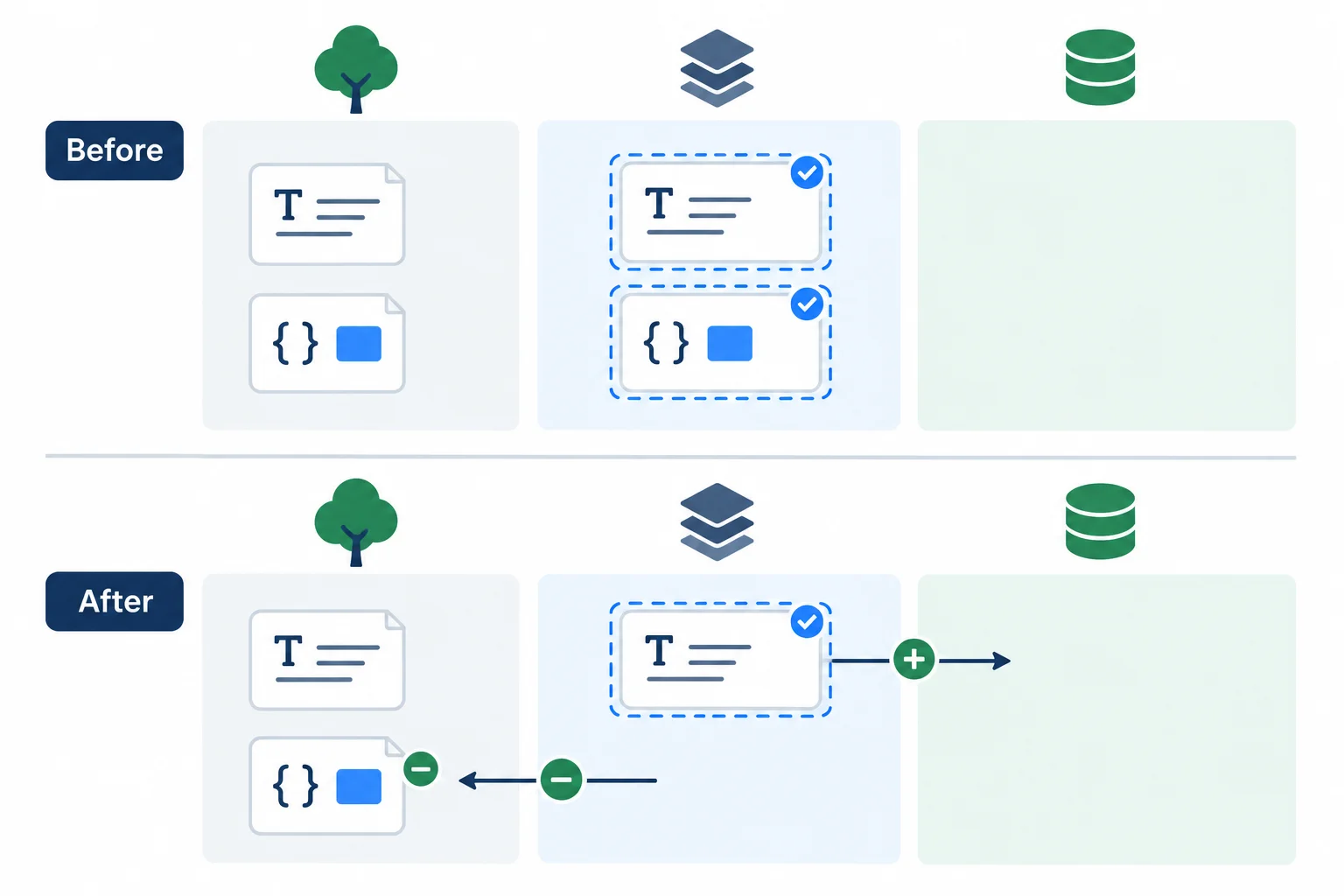
Unstaging changes the next commit's selection only. It leaves the saved stylesheet edit in the working tree.
Run this from the git-practice folder. It temporarily adds the stylesheet edit to the staging area.
git add -- styles.cssBoth files should now appear under Changes to be committed. The current branch name differs between repositories.
git statusOn branch <your-current-branch>
Changes to be committed:
(use "git restore --staged <file>..." to unstage)
modified: index.html
modified: styles.cssThe branch name varies. Git normally shows both modified files in the staged section.
HEAD is the currently checked-out commit; throughout this tutorial, it remains the latest commit. Because the baseline commit exists, Git can replace the staging-area entry for styles.css with the version from HEAD.
This does not overwrite the edited file in the working tree. The result is a focused selection: the heading stays staged, while the blue stylesheet edit stays saved but unselected.
Remove only styles.css from the staging area. Git normally produces no output for a successful unstage.
git restore --staged -- styles.cssCheck the working-tree version of the stylesheet. The surrounding lines match the complete baseline file; - marks the earlier color and + marks the saved edit that survived.
git diff -- styles.cssdiff --git a/styles.css b/styles.css
--- a/styles.css
+++ b/styles.css
@@ -16,5 +16,5 @@
}
h1 {
- color: #334155;
+ color: #2563eb;
}This focused diff shows the relevant hunk. The object-ID metadata line, if shown by Git, is omitted here because it is not source content.
Now inspect exactly what the next commit would contain. Only the staged heading change appears; the unchanged paragraph provides context from the complete HTML page.
git diff --stageddiff --git a/index.html b/index.html
--- a/index.html
+++ b/index.html
@@ -8,7 +8,7 @@
</head>
<body>
<main>
- <h1>Local Change Lab</h1>
+ <h1>My Local Change Lab</h1>
<p>A small project for practicing local Git history.</p>
</main>
</body>This focused diff shows the relevant hunk. The object-ID metadata line, if shown by Git, is omitted here because it is not source content.
The staged diff now contains one coherent change. Record it with the required message. A commit records the staging area, not every edit currently present in the working tree.
Create the focused checkpoint.
git commit -m "Clarify page heading"[<your-current-branch> <abbreviated-hash>] Clarify page heading 1 file changed, 1 insertion(+), 1 deletion(-)
The branch name and abbreviated commit hash vary on each computer.
The heading is now committed. The stylesheet edit remains uncommitted in the working tree, ready for a later decision.
git statusOn branch <your-current-branch>
Changes not staged for commit:
(use "git add <file>..." to update what will be committed)
(use "git restore <file>..." to discard changes in working directory)
modified: styles.css
no changes added to commit (use "git add" and/or "git commit -a")The branch name varies. The important result is that only styles.css remains under unstaged changes.
Complete the file-scoped unstage command and predict where the stylesheet edit remains after the heading commit.
git  --staged -- styles.css
git commit -m "Clarify page heading"

# After the commit, the stylesheet edit remains in the  and is excluded from it.
Step 6 of 10
Find a local checkpoint and inspect its recorded patch or a file's stored contents without altering current work.
Your repository now has two commits. Run git log --oneline from git-practice to view them newest first. Each line starts with an abbreviated commit hash followed by its message.
HEAD is still the currently checked-out, latest commit: Clarify page heading. Locate Create local practice baseline and copy the hash beside that message. Hashes are created locally, so yours will not match an example from another computer.
The stylesheet color edit is still only in the working tree. Because it has not been committed, it is not an entry in this history.
Run this command inside the git-practice folder.
git log --oneline8fa31c7 Clarify page heading 42bd9e1 Create local practice baseline
Representative output only: abbreviated hashes differ in every repository. Copy the hash beside `Create local practice baseline` in your own output.
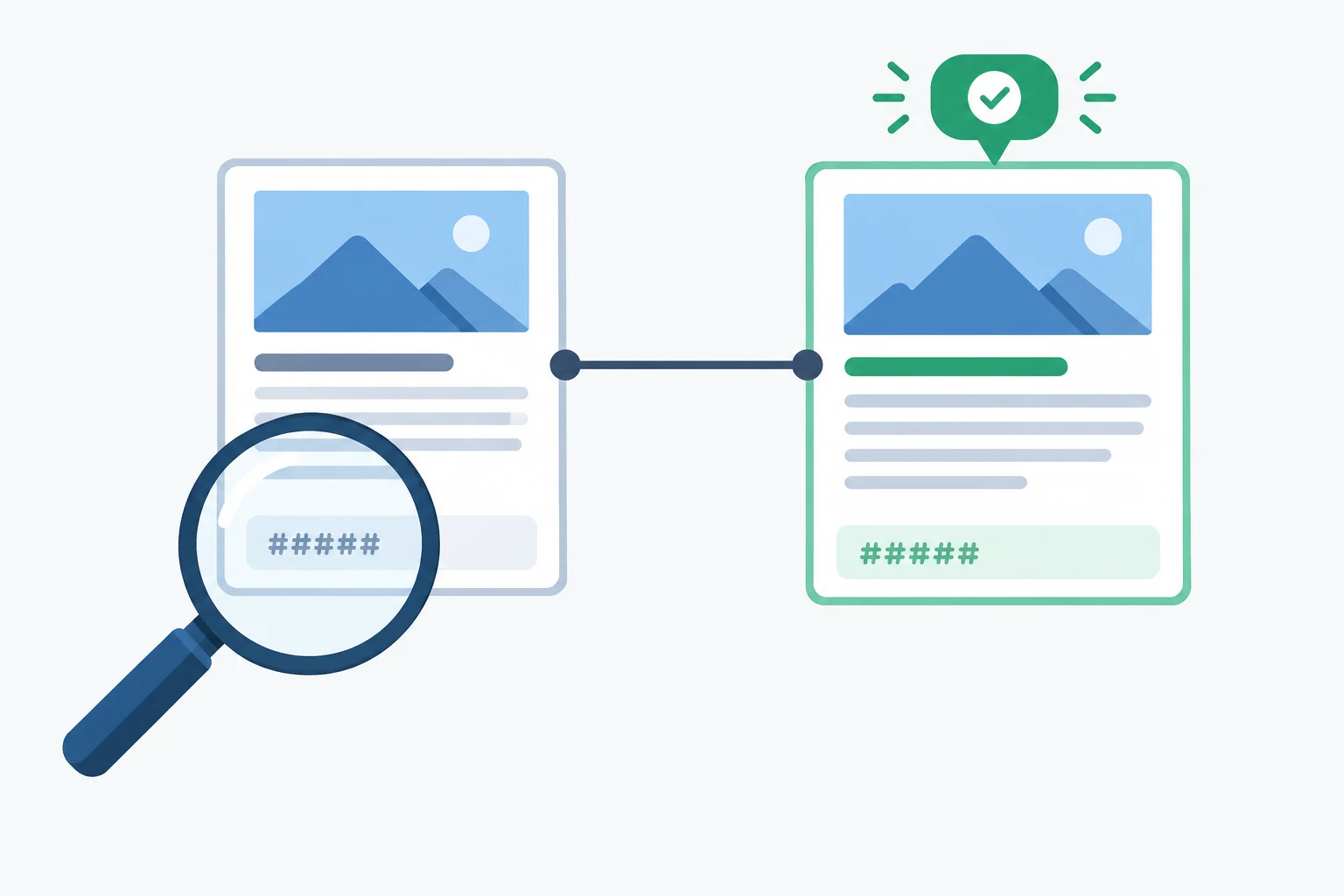
Find the baseline by its commit message, then use the hash from your own local timeline.
After copying the baseline hash, replace COMMIT_HASH in the commands below with that actual value. COMMIT_HASH is a replacement token in this tutorial, not text to enter literally.
git show COMMIT_HASH displays commit details and its patch: lines the commit added or removed compared with its parent. The baseline has no earlier project snapshot, so its patch records newly added files.
git show COMMIT_HASH:index.html instead prints the complete index.html stored in that snapshot. Both commands only inspect history: they do not change the working tree, staging area, existing commits, or the uncommitted stylesheet edit.
Use the actual baseline hash that you copied. This command shows the commit and its recorded patch.
git show COMMIT_HASHcommit 42bd9e1a4c8d7f3b9e0a1c2d3e4f5a6b7c8d9e0f
Author: Alex Morgan <alex@example.com>
Date: Tue Jan 14 10:30:00 2025 +0000
Create local practice baseline
diff --git a/.gitignore b/.gitignore
new file mode 100644
index 0000000..5c27f26
--- /dev/null
+++ b/.gitignore
@@ -0,0 +1 @@
+node_modules/
diff --git a/index.html b/index.html
new file mode 100644
index 0000000..c2a0b18
--- /dev/null
+++ b/index.html
@@ -0,0 +1,15 @@
+<!doctype html>
+<html lang="en">
+ <head>
+ <meta charset="UTF-8" />
+ <meta name="viewport" content="width=device-width, initial-scale=1.0" />
+ <title>Local Change Lab</title>
+ <link rel="stylesheet" href="styles.css" />
+ </head>
+ <body>
+ <main>
+ <h1>Local Change Lab</h1>
+ <p>A small project for practicing local Git history.</p>
+ </main>
+ </body>
+</html>Representative excerpt. The hash and date vary. The full output continues with patches for the other files in the baseline, including the npm-generated package-lock.json.
Use the same actual baseline hash. The output is the full file stored in that commit, not a patch.
git show COMMIT_HASH:index.html<!doctype html>
<html lang="en">
<head>
<meta charset="UTF-8" />
<meta name="viewport" content="width=device-width, initial-scale=1.0" />
<title>Local Change Lab</title>
<link rel="stylesheet" href="styles.css" />
</head>
<body>
<main>
<h1>Local Change Lab</h1>
<p>A small project for practicing local Git history.</p>
</main>
</body>
</html>This is the complete baseline `index.html` content. Your terminal prints the same file contents after you replace `COMMIT_HASH` with your copied baseline hash.
A patch answers “What did this commit change?” A historical file view answers “What did this file contain at that checkpoint?”
| Command | Displays | Does not do |
|---|---|---|
| git show COMMIT_HASH | Commit details and its recorded patch | Edit a file or move HEAD |
| git show COMMIT_HASH:index.html | Complete stored index.html contents | Stage, restore, or overwrite anything |
This is a newest-first local history:
91ab3c0 Clarify page heading
4e82a19 Create local practice baseline
Choose the completed command that displays the baseline commit’s stored index.html contents without restoring or changing anything.

Step 7 of 10
Review an unwanted unstaged stylesheet change, discard only that file after inspection, and distinguish discarding from unstaging.
The heading change is already committed. The only pending edit should be in styles.css: the h1 color changed from #334155 to #2563eb.
Before overwriting a file, inspect both its location and its exact difference. git status should show styles.css only under Changes not staged for commit. Then use a file-scoped diff to see precisely what would be lost.
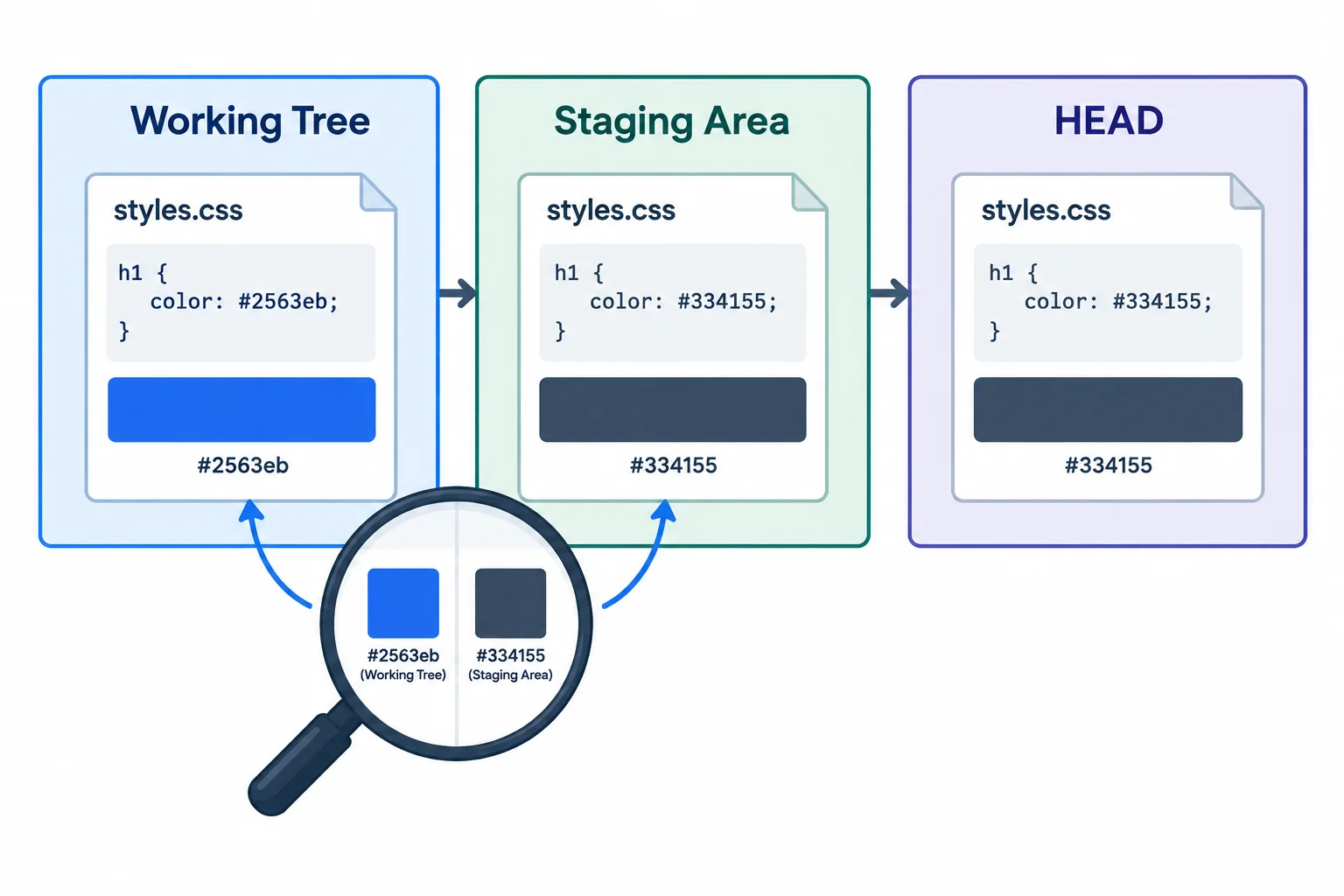
The blue edit exists only in the working tree; the staging area still matches HEAD.
Run these commands from the git-practice folder. Read the - removed line and + added line in the diff before deciding whether to discard the edit.
git status
git diff -- styles.cssOn branch <your-current-branch>
Changes not staged for commit:
(use "git add <file>..." to update what will be committed)
(use "git restore <file>..." to discard changes in working directory)
modified: styles.css
no changes added to commit (use "git add" and/or "git commit -a")
diff --git a/styles.css b/styles.css
index 8cf9c32..e7a486d 100644
--- a/styles.css
+++ b/styles.css
@@ -16,5 +16,5 @@ main {
}
h1 {
- color: #334155;
+ color: #2563eb;
}Your branch name and blob hashes can differ. The important evidence is that `styles.css` appears only as an unstaged change and that the complete CSS context shows the color changing from `#334155` to `#2563eb`.
You have reviewed the diff and decided the blue color is unwanted. In this exercise, styles.css has no staged change, so its staging-area version still has the baseline color and matches HEAD, the currently checked-out commit.
git restore -- styles.css copies that staging-area version into the working tree. It overwrites this file’s unstaged edit; it does not create a commit and does not alter existing history.
Warning
Run the file-scoped command only after reviewing the stylesheet diff and deciding that its edit is unwanted. The command overwrites the current working-tree contents of styles.css. If you might want an uncommitted edit, preserve it instead of assuming Git can recover it later.
Run the restore, then verify that no stylesheet difference remains and that the repository is clean.
git restore -- styles.css
git diff -- styles.css
git statusOn branch <your-current-branch> nothing to commit, working tree clean
`git restore -- styles.css` and a clean `git diff -- styles.css` produce no output. The displayed lines are the expected output from the final `git status`; your branch name can differ.
Both commands begin with git restore, but they affect different local states. An unstaged edit that you overwrite was never recorded in a commit, so do not assume it can be recovered later.
| Command | What it changes | What happens to the working-tree edit |
|---|---|---|
| git restore --staged -- styles.css | The staging-area selection is restored from HEAD. | It stays in the working tree. |
| git restore -- styles.css | The working-tree file is restored from the staging area. | It is overwritten. |
Put the safe workflow in its only sensible order.
Complete the safe sequence: inspect before discarding styles.css, then identify the state changed by the alternative unstaging form.
# Review first:
git
git  -- styles.css

# After deciding the edit is unwanted:
git  -- styles.css

# The form with --staged changes the  and preserves working-tree edits.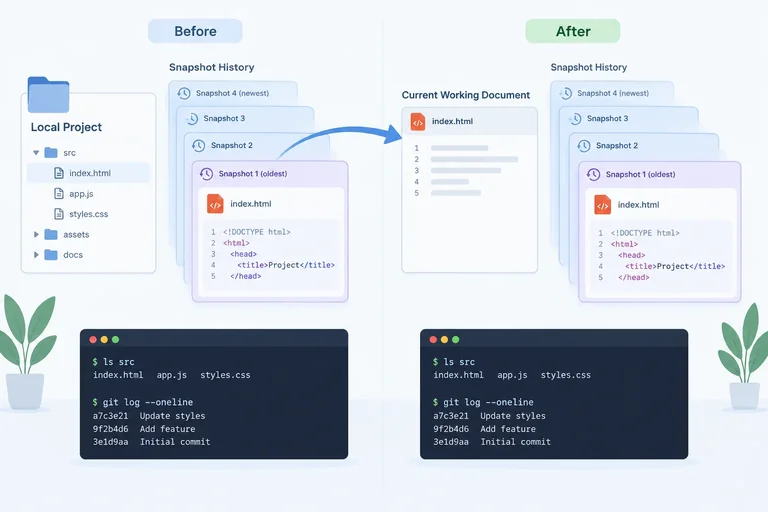
Step 8 of 10
Restore index.html from the baseline snapshot, review the result, and record the recovery without removing earlier local commits.
Your local history contains two commits. List it newest first, then find the commit whose message is Create local practice baseline. Copy the abbreviated hash beside that message.
COMMIT_HASH below is a replacement token: replace it with the actual hash from your own history, never type the token literally. Inspecting history does not change the working tree, staging area, or existing commits.
Find the baseline commit by its message.
git log --onelinec7d91a4 Clarify page heading a4e8b2f Create local practice baseline
This is an example only; your hashes will differ. The newest commit appears first.
Use the baseline hash you copied to inspect the complete index.html stored in that snapshot.
git show COMMIT_HASH:index.html<!doctype html>
<html lang="en">
<head>
<meta charset="UTF-8" />
<meta name="viewport" content="width=device-width, initial-scale=1.0" />
<title>Local Change Lab</title>
<link rel="stylesheet" href="styles.css" />
</head>
<body>
<main>
<h1>Local Change Lab</h1>
<p>A small project for practicing local Git history.</p>
</main>
</body>
</html>Replace COMMIT_HASH with your copied baseline hash. This output is the complete baseline file; confirm its original heading before using it as a restoration source.
Before overwriting a file, check that it has no wanted edits. At this point, index.html should have no staged or unstaged changes. If git status lists that file in either change section, stop and preserve, commit, or deliberately discard that work first.
git restore --source=COMMIT_HASH -- index.html takes file contents from the named historical commit instead of the default staging-area source. Because this form has no --staged, it changes only the working tree. It does not change the staging area, HEAD, or existing history.
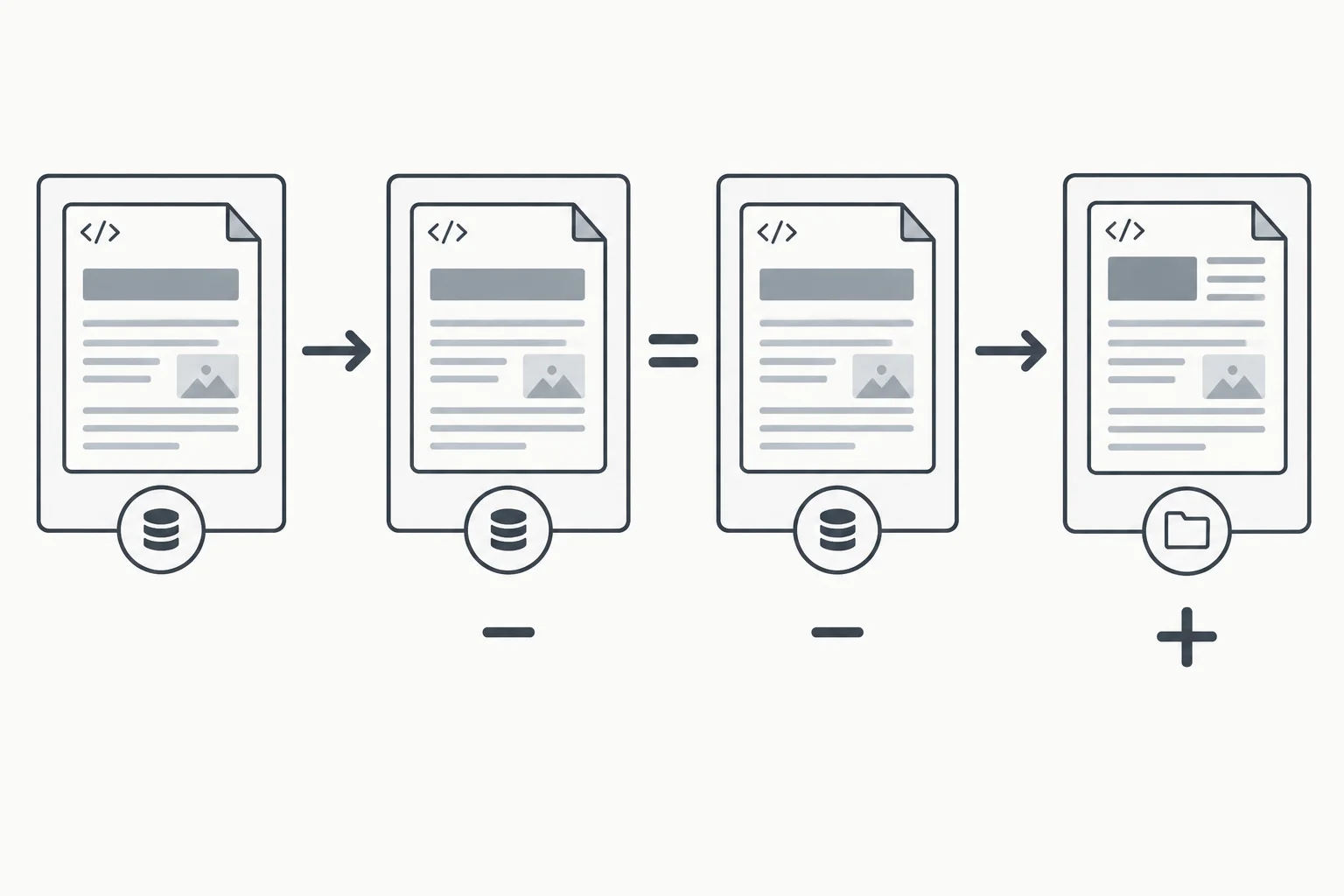
With an explicit source and no --staged flag, Git changes the selected working-tree file only.
Warning
This command overwrites the current working-tree contents of the selected file. Run it only after reviewing the historical source and confirming that overwriting index.html is safe.
First confirm the repository is clean. Then restore index.html from the copied baseline hash and review the resulting working-tree diff.
git status
git restore --source=COMMIT_HASH -- index.html
git diff -- index.htmlOn branch <your branch name>
nothing to commit, working tree clean
diff --git a/index.html b/index.html
index 2e9ad88..7bfc967 100644
--- a/index.html
+++ b/index.html
@@ -8,7 +8,7 @@
</head>
<body>
<main>
- <h1>My Local Change Lab</h1>
+ <h1>Local Change Lab</h1>
<p>A small project for practicing local Git history.</p>
</main>
</body>`git restore` itself produces no output. The blob IDs can differ, but the diff should change only the h1 line and retain the original paragraph.
The diff shows recovered content only in the working tree. Stage just index.html, then inspect the staged diff before committing.
The new commit records this recovery as a new checkpoint. It does not move the repository back in time or remove either earlier commit. After committing, HEAD becomes the new recovery commit.
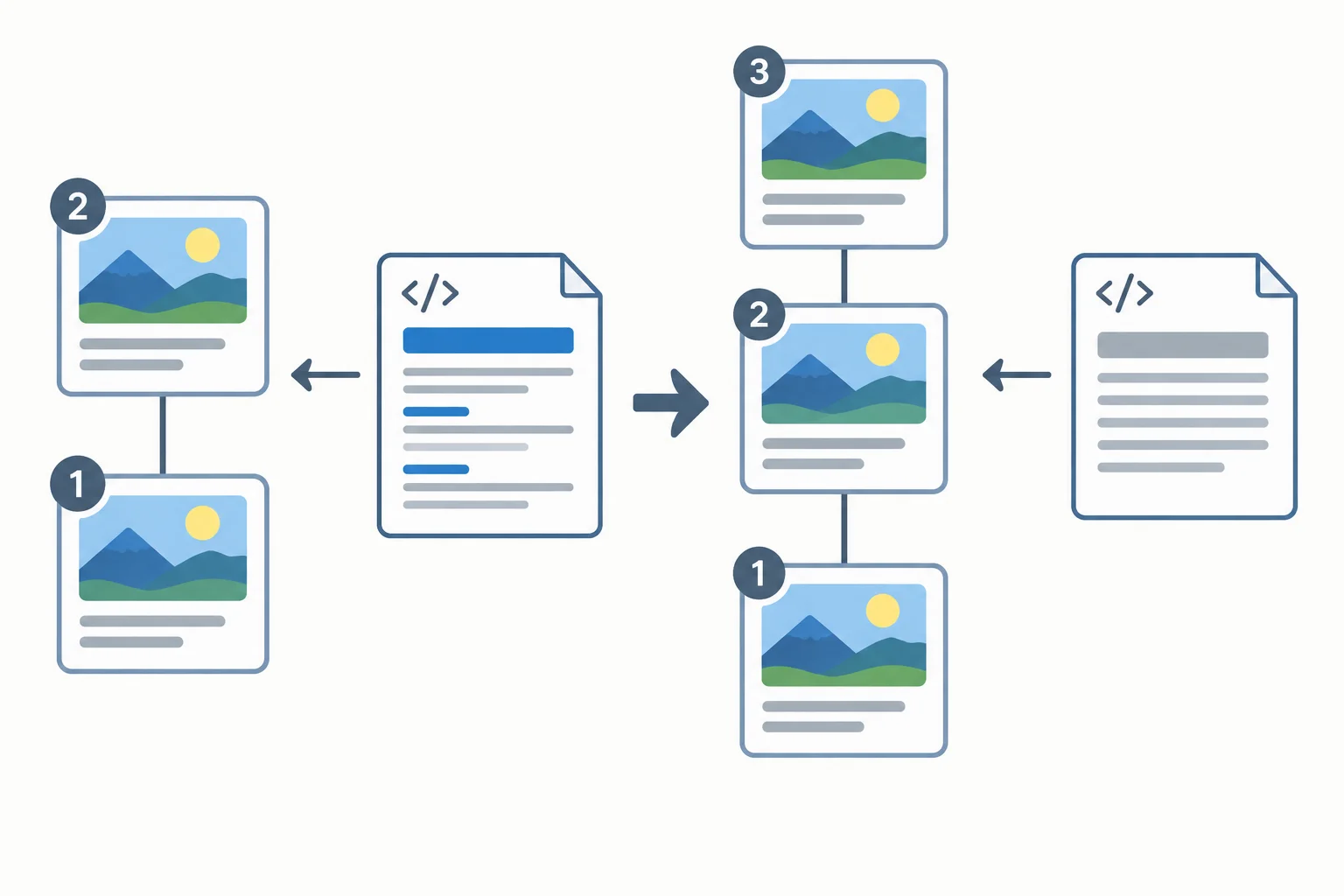
Restoring one file creates a change to commit. The new Restore original heading commit is added while the baseline and heading-revision commits remain available.
Stage only the recovered file and inspect exactly what the next commit would contain.
git add -- index.html
git diff --staged -- index.htmldiff --git a/index.html b/index.html
index 2e9ad88..7bfc967 100644
--- a/index.html
+++ b/index.html
@@ -8,7 +8,7 @@
</head>
<body>
<main>
- <h1>My Local Change Lab</h1>
+ <h1>Local Change Lab</h1>
<p>A small project for practicing local Git history.</p>
</main>
</body>The staged patch should show only the heading returning to its original text. Metadata IDs can vary by repository.
Create the recovery checkpoint. Then verify the clean working tree and inspect the newest-first history.
git commit -m "Restore original heading"
git status
git log --oneline[<your branch name> f3a81c9] Restore original heading 1 file changed, 1 insertion(+), 1 deletion(-) On branch <your branch name> nothing to commit, working tree clean f3a81c9 Restore original heading c7d91a4 Clarify page heading a4e8b2f Create local practice baseline
Your branch name and hashes will differ. The important results are a clean working tree and all three commit messages remaining in the log.
After completing the workflow in your terminal, report all of the following:
git add, which Git area changed?git status report?Write at least 220 characters (0/220).
Step 9 of 10
Determine what existing local commits preserve, what they leave out, and why a separate backup is still necessary.
A commit preserves the exact file contents that were staged and recorded at that moment. It does not automatically include edits saved later in the working tree, even if those edits were staged but no new commit was created.
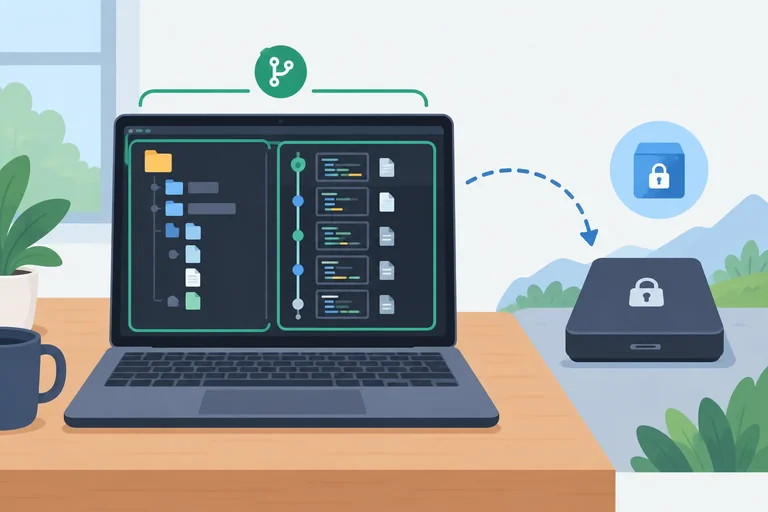
In this practice repository, commits are useful local checkpoints: while the git-practice folder remains available, you can inspect and restore the contents they recorded.
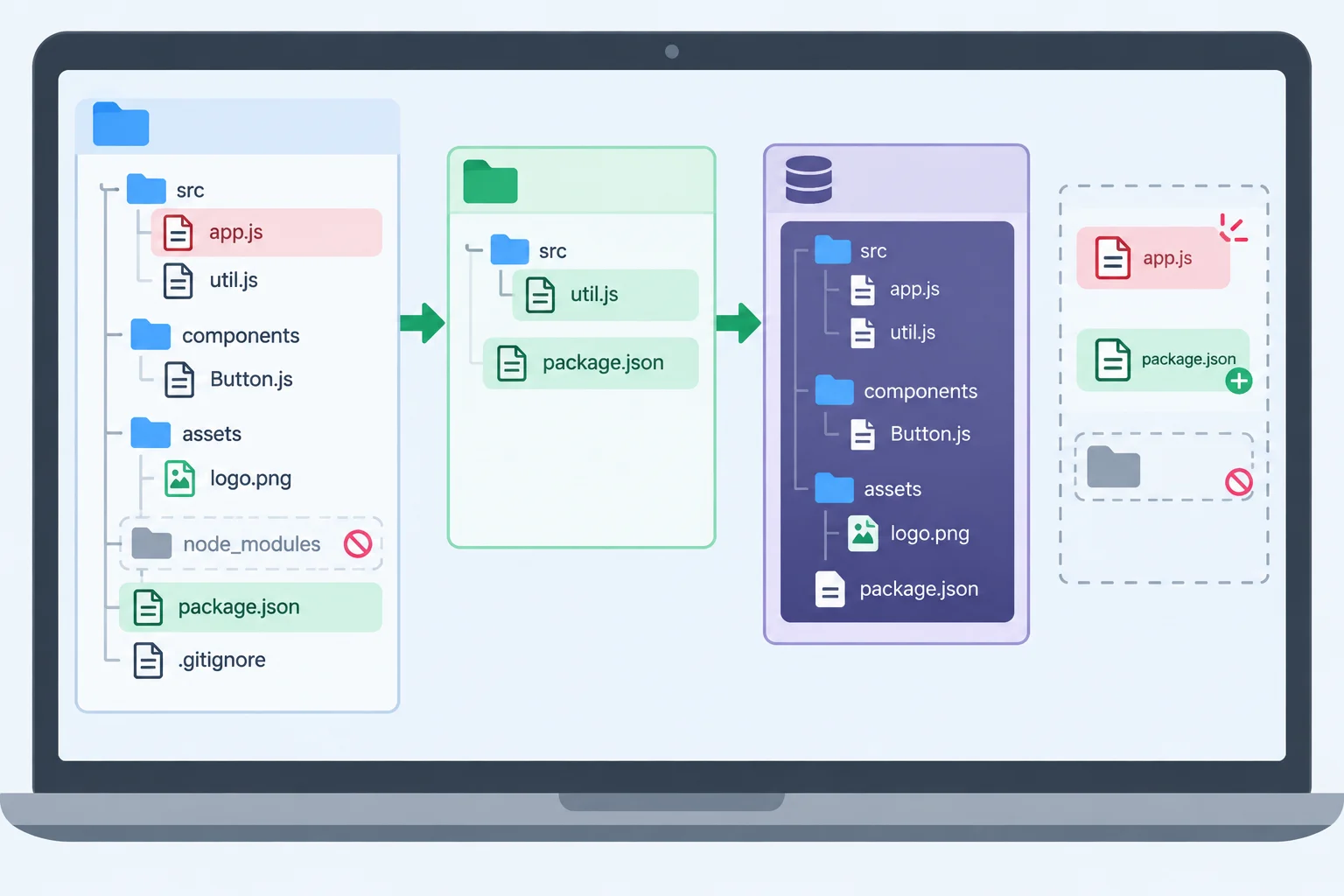
A local commit captures selected content only after it is recorded.
Use this table to decide what an existing local commit can preserve.
| Situation | What existing commits preserve | Important limit |
|---|---|---|
| A source-file version recorded in a commit | That exact recorded version | A later edit needs another commit |
| A saved working-tree edit after the commit | Nothing from that later edit | Saving is not a checkpoint |
| A staged change with no new commit | Nothing from that staged-only version | Staging selects; committing records |
| Ignored `node_modules/` contents | Nothing from the ignored folder | Ordinary commits do not include ignored contents |
| Loss of the whole project folder or disk | No separate copy | Working files and `.git` can disappear together |
Warning
Local history is valuable, but it normally lives in the same git-practice folder and on the same computer as your working files. If that folder is deleted or the device storage fails, both the project files and the .git history may be lost together.
Keep a separate, verified backup for loss of the computer or project folder. Setting up backup tools or remote services is outside this tutorial.
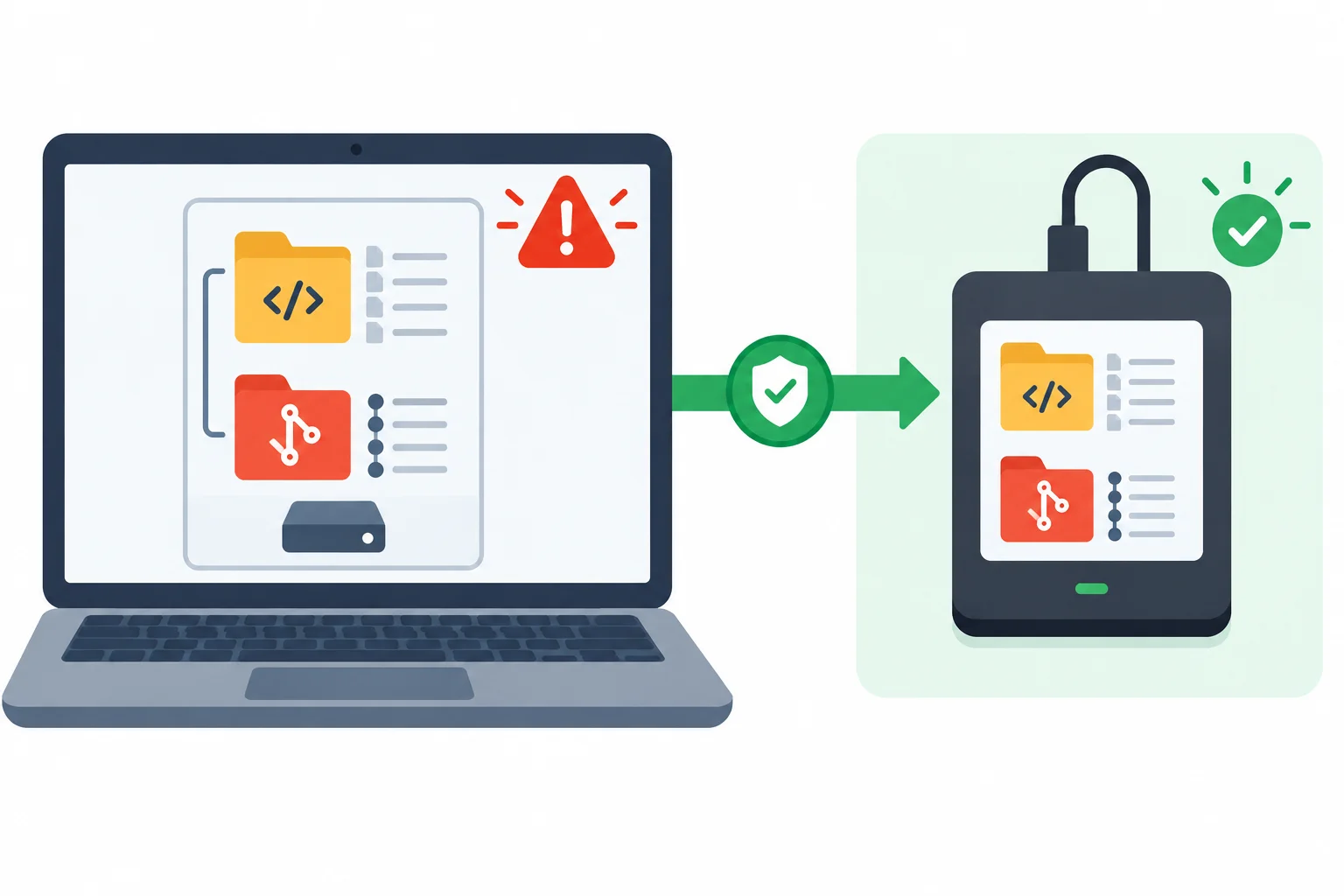
A local repository helps recover recorded versions only while that local project and its history still exist.
True or false: Once a file is staged, its current version is already protected by local commit history.
Match each situation to what existing local commit history protects or does not protect.
Tap an item and then its matching pair.
Step 10 of 10
Apply the complete local Git workflow to record a change, recover an earlier stylesheet, and verify the retained history.
In git-practice, open styles.css and change only the h1 color from #334155 to #16a34a. Save the file.
Then inspect the working-tree change, stage only styles.css, review the staged version, and record it. This adds a focused checkpoint; it does not alter earlier commits.
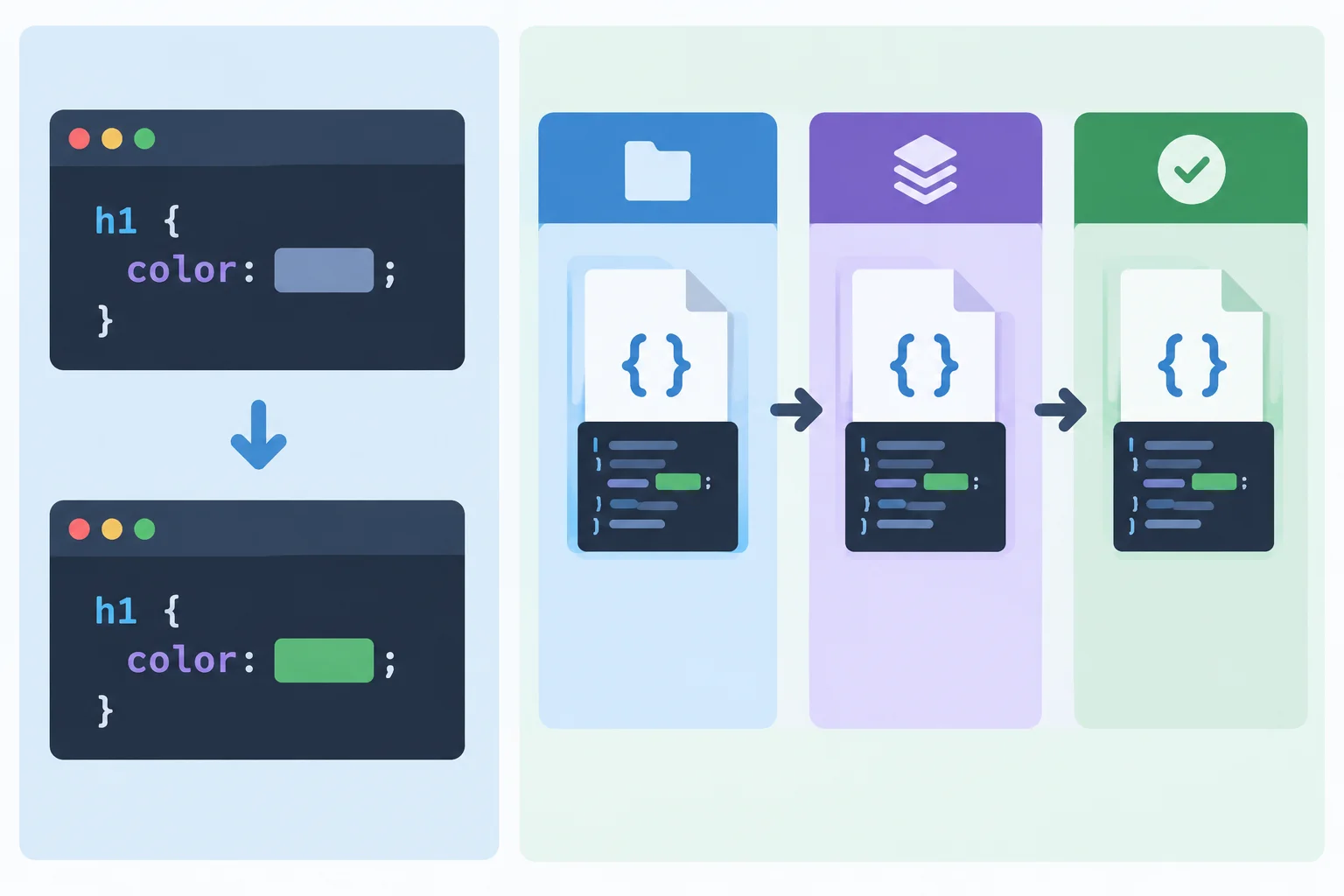
Inspect the saved file first, then stage and review only styles.css before committing it.
Run these commands after saving the color change. The output shows the complete stylesheet diff before and after staging; your branch name and hashes will differ.
git status
git diff -- styles.css
git add -- styles.css
git diff --staged -- styles.css
git commit -m "Set heading color to green"On branch BRANCH_NAME
Changes not staged for commit:
(use "git add <file>..." to update what will be committed)
(use "git restore <file>..." to discard changes in working directory)
modified: styles.css
no changes added to commit (use "git add" and/or "git commit -a")
diff --git a/styles.css b/styles.css
index BASELINE_BLOB_HASH..GREEN_BLOB_HASH 100644
--- a/styles.css
+++ b/styles.css
@@ -16,5 +16,5 @@ main {
}
h1 {
- color: #334155;
+ color: #16a34a;
}
diff --git a/styles.css b/styles.css
index BASELINE_BLOB_HASH..GREEN_BLOB_HASH 100644
--- a/styles.css
+++ b/styles.css
@@ -16,5 +16,5 @@ main {
}
h1 {
- color: #334155;
+ color: #16a34a;
}
[BRANCH_NAME GREEN_COMMIT_HASH] Set heading color to green
1 file changed, 1 insertion(+), 1 deletion(-)`BRANCH_NAME` and the values ending in `_HASH` stand for values generated in your local repository. The two displayed diffs are expected to show the same one-line color change: first as an unstaged change, then as a staged change.
Complete the option that copies styles.css from a selected earlier commit into the working tree. COMMIT_HASH is a replacement token for a hash copied from git log; do not enter that word literally.
git restore -- styles.cssMatch each goal to the Git command that fits it.
Tap an item and then its matching pair.
Use newest-first history to find Create local practice baseline, then copy the actual hash beside that message. Inspect that commit’s stored styles.css and confirm that it contains the original stylesheet.
Before restoring, confirm that styles.css has no wanted staged or unstaged work. Replace COMMIT_HASH with the baseline hash you copied. Review the recovered change, stage only that file, review it again, and commit the recovery.
This keeps the green-color commit in local history while making the current stylesheet match the selected earlier snapshot.
Use your actual baseline hash in place of COMMIT_HASH. The output below shows the expected checkpoints and complete stylesheet contents.
git status
git log --oneline
git show COMMIT_HASH:styles.css
git restore --source=COMMIT_HASH -- styles.css
git diff -- styles.css
git add -- styles.css
git diff --staged -- styles.css
git commit -m "Restore original heading color"On branch BRANCH_NAME
nothing to commit, working tree clean
GREEN_COMMIT_HASH Set heading color to green
RESTORE_HEADING_HASH Restore original heading
CLARIFY_HASH Clarify page heading
BASELINE_HASH Create local practice baseline
:root {
font-family: system-ui, sans-serif;
color: #1e293b;
background: #f8fafc;
}
body {
display: grid;
min-height: 100vh;
margin: 0;
place-items: center;
}
main {
padding: 2rem;
}
h1 {
color: #334155;
}
diff --git a/styles.css b/styles.css
index GREEN_BLOB_HASH..BASELINE_BLOB_HASH 100644
--- a/styles.css
+++ b/styles.css
@@ -16,5 +16,5 @@ main {
}
h1 {
- color: #16a34a;
+ color: #334155;
}
diff --git a/styles.css b/styles.css
index GREEN_BLOB_HASH..BASELINE_BLOB_HASH 100644
--- a/styles.css
+++ b/styles.css
@@ -16,5 +16,5 @@ main {
}
h1 {
- color: #16a34a;
+ color: #334155;
}
[BRANCH_NAME RESTORE_COLOR_HASH] Restore original heading color
1 file changed, 1 insertion(+), 1 deletion(-)`BRANCH_NAME` and values ending in `_HASH` vary by repository. In the log, identify the baseline by its message, not by an example hash. The initial clean status assumes you completed Part 1 and have made no additional edits.
Run these final checks from git-practice. They confirm the clean working tree, the current stylesheet stored at HEAD, and the retained newest-first history.
git status
git show HEAD:styles.css
git log --onelineOn branch BRANCH_NAME
nothing to commit, working tree clean
:root {
font-family: system-ui, sans-serif;
color: #1e293b;
background: #f8fafc;
}
body {
display: grid;
min-height: 100vh;
margin: 0;
place-items: center;
}
main {
padding: 2rem;
}
h1 {
color: #334155;
}
RESTORE_COLOR_HASH Restore original heading color
GREEN_COMMIT_HASH Set heading color to green
RESTORE_HEADING_HASH Restore original heading
CLARIFY_HASH Clarify page heading
BASELINE_HASH Create local practice baseline`BRANCH_NAME` and values ending in `_HASH` vary by repository. The five commit messages and their newest-first order should match this output.
Summary
git restore --staged to change a commit selection without deleting working-tree edits.git restore -- only to discard a reviewed working-tree edit; use --source=COMMIT_HASH to recover historical contents.Using results from your own computer, report all of the following:
h1 color you observed.git status result after the two challenge commits.Write at least 100 characters (0/100).
Congratulations! You completed: Track and Restore Local Changes with Git
You completed this level!
Up next: Asynchronous JavaScript and APIs
 Sequence Asynchronous Work with async/awaitWrite asynchronous functions that wait for dependent results, handle failures, and perform cleanup. Use small delayed operations on your own computer to observe execution order before introducing network requests.
Thousands of online courses in video, ebooks and audiobooks.
To test your knowledge during online courses
Generated directly from your cell phone's photo gallery and sent to your email

Download our app via QR Code or the links below:.



Carry knowledge in your pocket.
Download the Cursa app.
There are hundreds of free courses available, with a free certificate of completion that is saved in your mobile image gallery.
Download the app to access the Course Completion Certificate for Free.


+ 10 million
students

Free and Valid
Certificate

60 thousand free
exercises

4.8/5 rating in
app stores

Free courses in
video and ebooks