Step 1 of 8
Recognize What an Error Boundary Contains
Decide which unexpected failures an error boundary contains and which conditions need explicit handling elsewhere.

Learning path · Level 10 · Tutorial 7
Contain unexpected React rendering failures so one broken feature does not remove the entire application. Provide an accessible fallback and recovery behavior that distinguishes resetting the boundary from correcting the cause.
 Recognize What an Error Boundary Contains
Decide which unexpected failures an error boundary contains and which conditions need explicit handling elsewhere. 2 min
Recognize What an Error Boundary Contains
Decide which unexpected failures an error boundary contains and which conditions need explicit handling elsewhere. 2 min
 Protect the Routed Feature, Not the Whole Shell
Add a typed error boundary around project details while preserving usable application navigation. 3 min
Protect the Routed Feature, Not the Whole Shell
Add a typed error boundary around project details while preserving usable application navigation. 3 min
 Trigger and Observe a Contained Render Failure
Trigger a deterministic descendant rendering failure in Project Workspace and inspect the visible containment locally. 2 min
Trigger and Observe a Contained Render Failure
Trigger a deterministic descendant rendering failure in Project Workspace and inspect the visible containment locally. 2 min
 Repair the Cause Before Retrying
Repair a parent-owned simulated failure source before explicitly retrying an error boundary. 3 min
Repair the Cause Before Retrying
Repair a parent-owned simulated failure source before explicitly retrying an error boundary. 3 min
 Make the Fallback Usable by Keyboard
Make failed project content understandable and keyboard-accessible by focusing the fallback after replacement and the detail heading after successful recovery. 3 min
Make the Fallback Usable by Keyboard
Make failed project content understandable and keyboard-accessible by focusing the fallback after replacement and the detail heading after successful recovery. 3 min
 Recover When the Relevant Route Input Changes
Use a stable route parameter as a reset input while preserving the distinction between retrying a boundary and repairing the failure source. 2 min
Recover When the Relevant Route Input Changes
Use a stable route parameter as a reset input while preserving the distinction between retrying a boundary and repairing the failure source. 2 min
 Trace Which State Survives Recovery
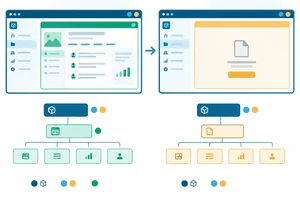
Trace local, shared, and route-owned state through an error boundary fallback and a successful remount. 2 min
Trace Which State Survives Recovery
Trace local, shared, and route-owned state through an error boundary fallback and a successful remount. 2 min
 Verify the Complete Failure and Recovery Flow
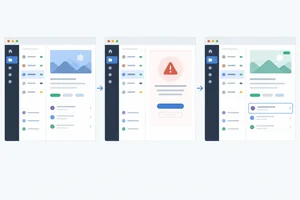
Verify a contained, accessible error-boundary recovery flow in the completed local Project Workspace application. 3 min
Verify the Complete Failure and Recovery Flow
Verify a contained, accessible error-boundary recovery flow in the completed local Project Workspace application. 3 min
Step 1 of 8
Decide which unexpected failures an error boundary contains and which conditions need explicit handling elsewhere.
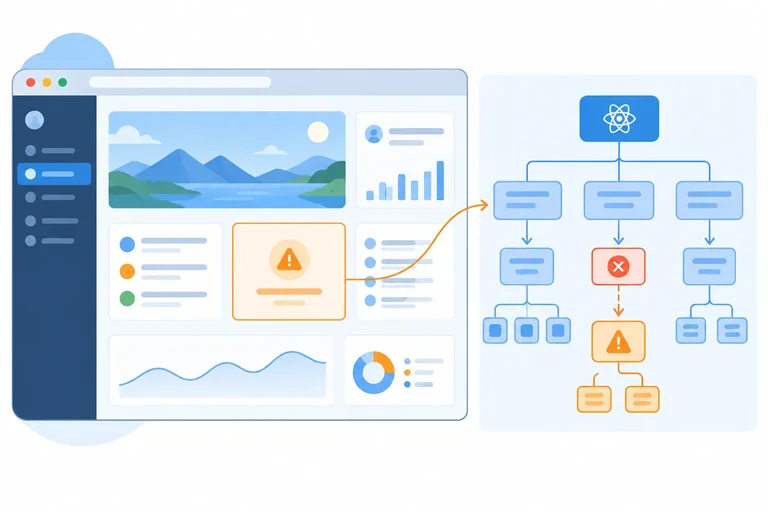
An error boundary contains an unexpected failure that occurs while React renders a descendant or performs React-managed lifecycle work. Instead of leaving that descendant subtree on screen, React shows the boundary’s fallback.
The boundary is not a general JavaScript catch-all. Its scope is specifically React’s managed rendering work below it. Content outside the failed descendant subtree can remain available.
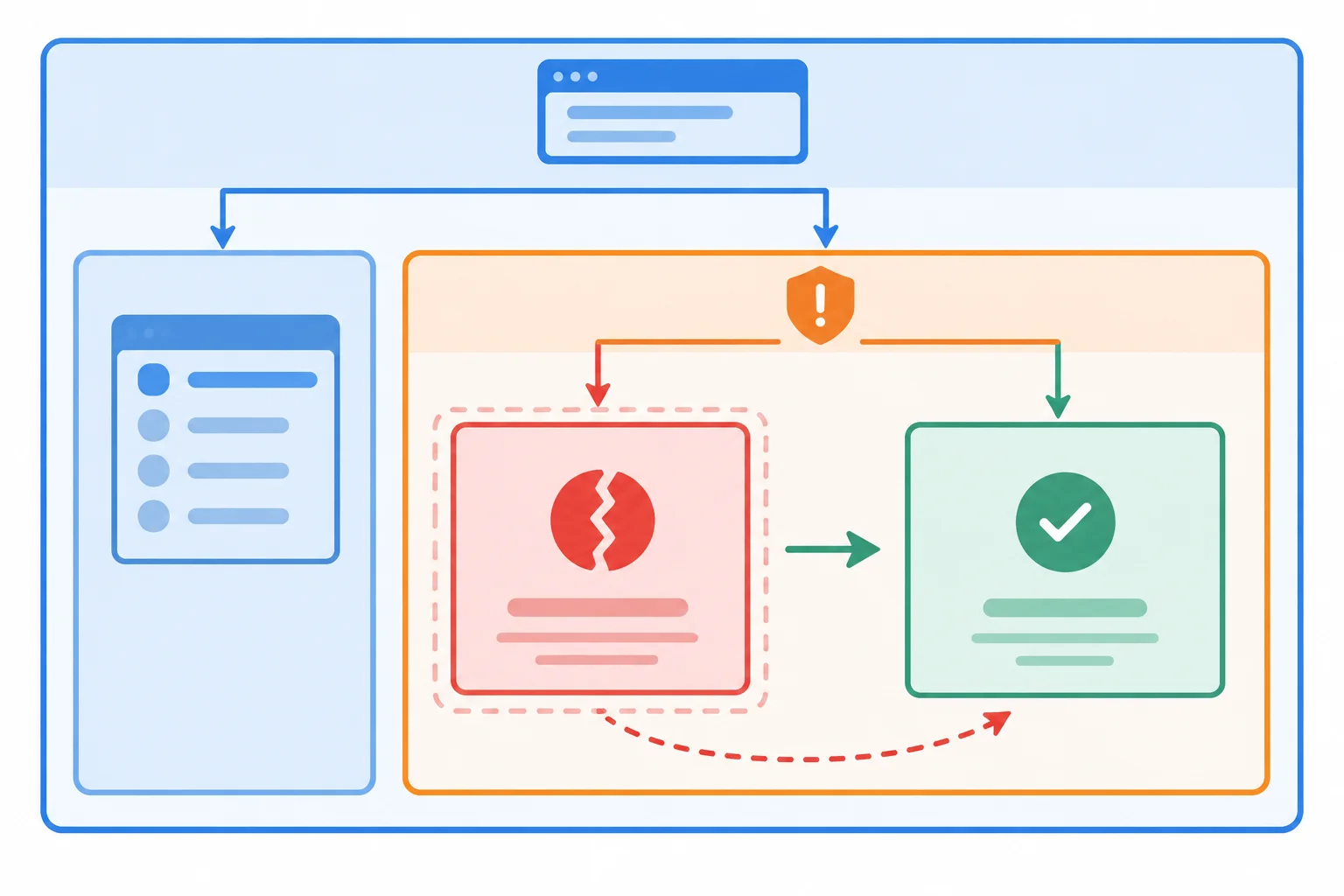
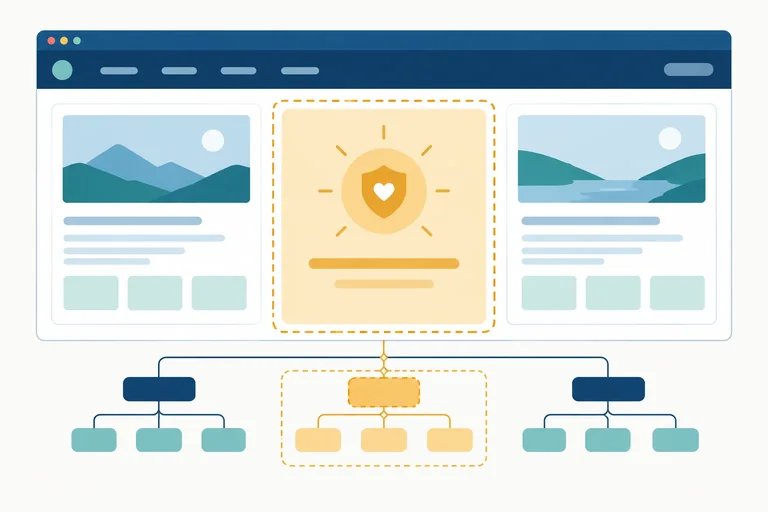
A boundary replaces its failed descendant subtree with fallback content; it does not remove unrelated content outside that subtree.
Tip
Think in terms of ownership: a boundary can contain a descendant’s render failure, but it cannot contain a failure that happens in the boundary’s own rendering or in its fallback. An enclosing error boundary could contain that later failure.
A JSX expression creates a React element description; it does not immediately call the child component. React renders that child later. Therefore, a try/catch around return <Child /> does not catch an exception thrown while React subsequently renders Child.
A tempting try/catch
function Parent() {
  try {
    return <Child />;
  } catch {
    return <p>Child could not render.</p>;
  }
}

function Child() {
  throw new Error('Render failed');
}
Example
Parent returns a description that says to render Child. React later enters Child, where the exception occurs—after the try block has completed. Use an error boundary for this descendant rendering case rather than relying on this try/catch.
Choose explicit handling when the condition is an expected part of the feature’s normal behavior. Do not deliberately turn expected states into render crashes just to show a fallback.
Use this distinction when deciding whether a boundary is the right tool.
| Situation | Appropriate response |
|---|---|
| Descendant throws while rendering | Error boundary fallback |
| Click handler throws | Handle at the event source |
| Request promise rejects | Request-error state and recovery |
| Validation does not pass | Validation feedback |
| No matching records | Empty-result state |
| Fallback itself throws | An enclosing boundary may contain it |
Match each situation to the response or explanation that fits it best.
Match every situation with its correct handling or explanation.
Tap an item and then its matching pair.
Step 2 of 8
Add a typed error boundary around project details while preserving usable application navigation.
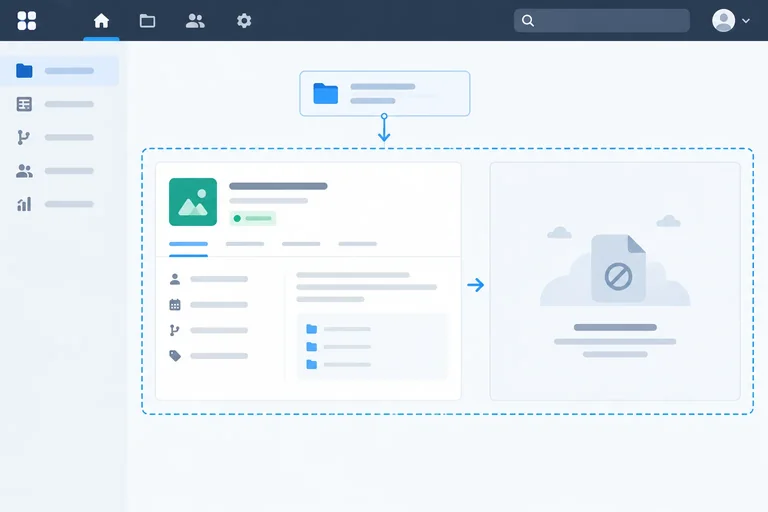
An error boundary should protect a feature that can fail independently—not the whole application shell. In this lab, project details are protected so a failed detail view can be replaced by a fallback while navigation remains available.
Use your own Vite React TypeScript application. Every source file and local record required for this Project Workspace lab appears in this step; no external assets are needed.
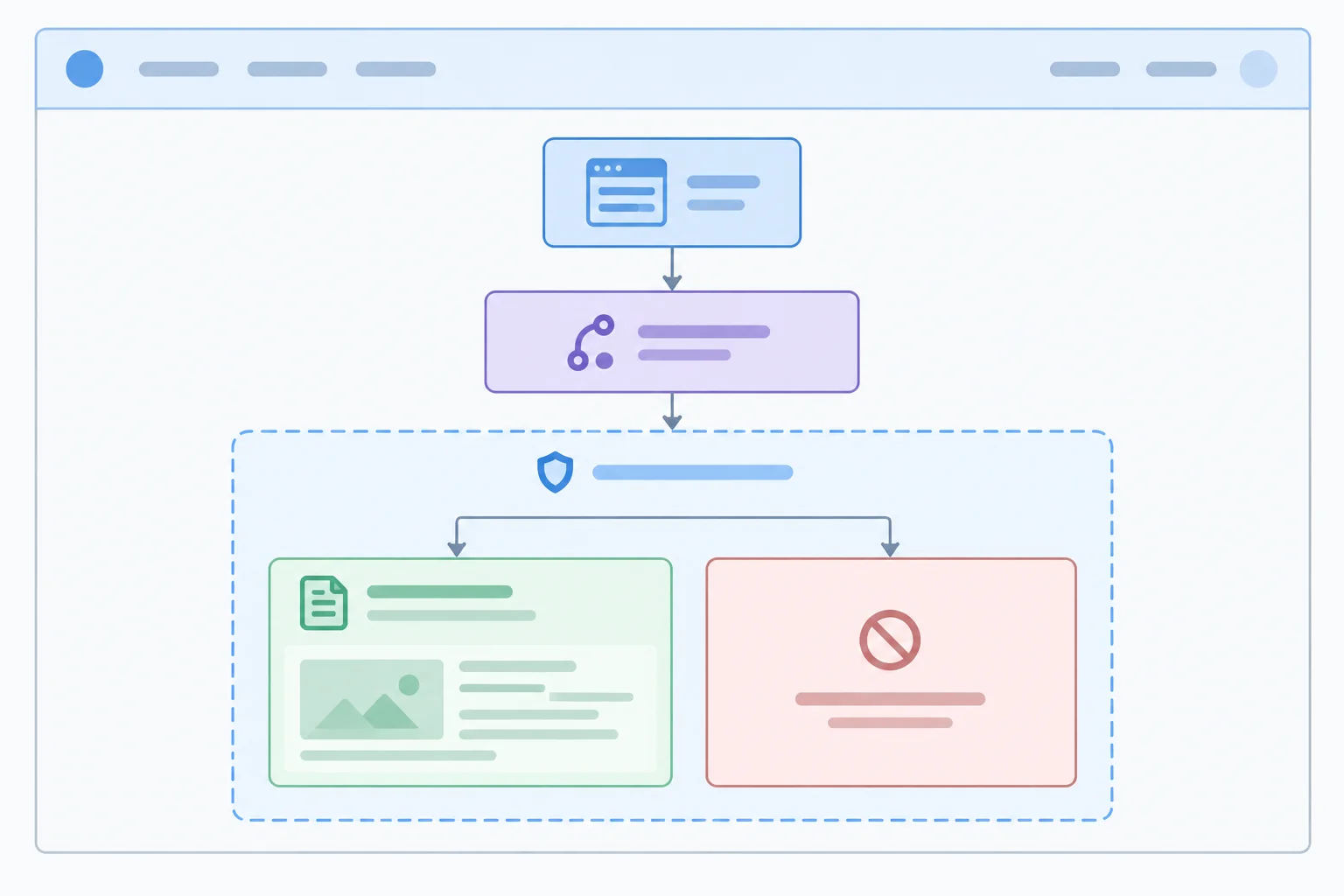
The shell and navigation remain mounted. ProjectRoute owns blockedProjectId above the error boundary, which protects ProjectDetails.
Run this command from the root of your local Vite React TypeScript application.
npm install react-error-boundary react-routerInstallation completes successfully. No npm ERR! message appears.
Package, audit, and timing lines vary with your existing project and npm version.
Keep BrowserRouter above the application shell. The shell owns persistent navigation, and all route content belongs inside <main>. Because these links sit outside the feature boundary added later, users retain a route away from an unavailable project.
src/main.tsx
import { StrictMode } from 'react';
import { createRoot } from 'react-dom/client';
import { BrowserRouter } from 'react-router';
import { App } from './App';

createRoot(document.getElementById('root')!).render(
  <StrictMode>
    <BrowserRouter>
      <App />
    </BrowserRouter>
  </StrictMode>
);
src/App.tsx
import { Link, Route, Routes } from 'react-router';
import { ProjectRoute } from './features/projects/ProjectRoute';

function ProjectsOverview() {
  return (
    <section>
      <h1>Projects</h1>
      <p>Select Atlas or Beacon to view its details.</p>
    </section>
  );
}

export function App() {
  return (
    <div>
      <header>
        <nav aria-label='Primary'>
          <Link to='/projects'>Projects</Link>{' '}
          <Link to='/projects/alpha'>Atlas</Link>{' '}
          <Link to='/projects/beta'>Beacon</Link>
        </nav>
      </header>
      <main>
        <Routes>
          <Route path='/projects' element={<ProjectsOverview />} />
          <Route path='/projects/:projectId' element={<ProjectRoute />} />
        </Routes>
      </main>
    </div>
  );
}ProjectRoute composes the routed feature. It reads the project parameter, keeps the small local record collection, and owns blockedProjectId above the error boundary. The source starts as null, so this step does not create a failure.
An unknown identifier is expected route data. Render ordinary not-found content for it rather than converting it into a rendering failure. The boundary surrounds only ProjectDetails, and FallbackComponent={FeatureFallback} connects the typed fallback.
src/features/projects/ProjectRoute.tsx
import { useState } from 'react';
import { useParams } from 'react-router';
import { ErrorBoundary } from 'react-error-boundary';
import { FeatureFallback } from './FeatureFallback';
import { ProjectDetails } from './ProjectDetails';

type Project = { id: string; name: string };

const projects: Project[] = [
  { id: 'alpha', name: 'Atlas' },
  { id: 'beta', name: 'Beacon' }
];

export function ProjectRoute() {
  const { projectId } = useParams();
  const [blockedProjectId] = useState<string | null>(null);
  const project = projects.find((item) => item.id === projectId);

  if (!projectId || !project) {
    return <h1 tabIndex={-1}>Project not found</h1>;
  }

  return (
    <ErrorBoundary FallbackComponent={FeatureFallback}>
      <ProjectDetails
        project={project}
        shouldCrash={blockedProjectId === projectId}
      />
    </ErrorBoundary>
  );
}
src/features/projects/FeatureFallback.tsx
import { Link } from 'react-router';
import type { FallbackProps } from 'react-error-boundary';

export function FeatureFallback(_props: FallbackProps) {
  return (
    <section>
      <h1 tabIndex={-1}>Project unavailable</h1>
      <p>We could not display this project.</p>
      <Link to='/projects'>Back to projects</Link>
    </section>
  );
}
src/features/projects/ProjectDetails.tsx
type Project = { id: string; name: string };

type ProjectDetailsProps = {
  project: Project;
  shouldCrash: boolean;
};

export function ProjectDetails({
  project,
  shouldCrash
}: ProjectDetailsProps) {
  void shouldCrash;

  return (
    <section>
      <h1 tabIndex={-1}>{project.name}</h1>
      <p>Project ID: {project.id}</p>
    </section>
  );
}
Tip
blockedProjectId is deliberately owned by ProjectRoute, outside the error boundary. If the protected descendant is later replaced by a fallback, this parent owner remains mounted. The fallback is typed with the library’s FallbackProps; no class component is required.
Complete the protected route composition. Keep the error boundary around the detail component, connect its typed fallback, and pass the failure-related value down from the parent-owned state.
return (
  <ErrorBoundary ={FeatureFallback}>
    <ProjectDetails
      project={project}

    />
  </ErrorBoundary>
);
Step 3 of 8
Trigger a deterministic descendant rendering failure in Project Workspace and inspect the visible containment locally.
A controlled failure begins with an ordinary click. The button asks ProjectRoute to update its parent-owned blockedProjectId state. React then renders ProjectDetails again with shouldCrash set to true.
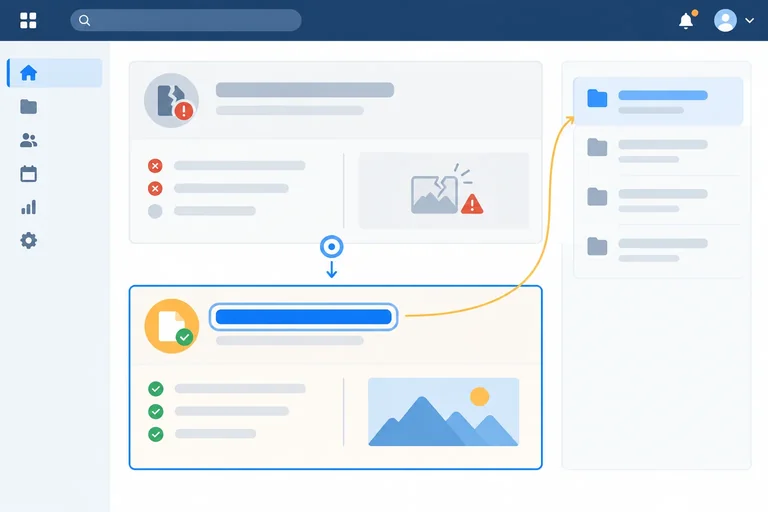
The throw happens during that later descendant render—not inside the click handler. The error boundary can therefore replace only its failed child area with its fallback. The shell and its navigation are outside that boundary.
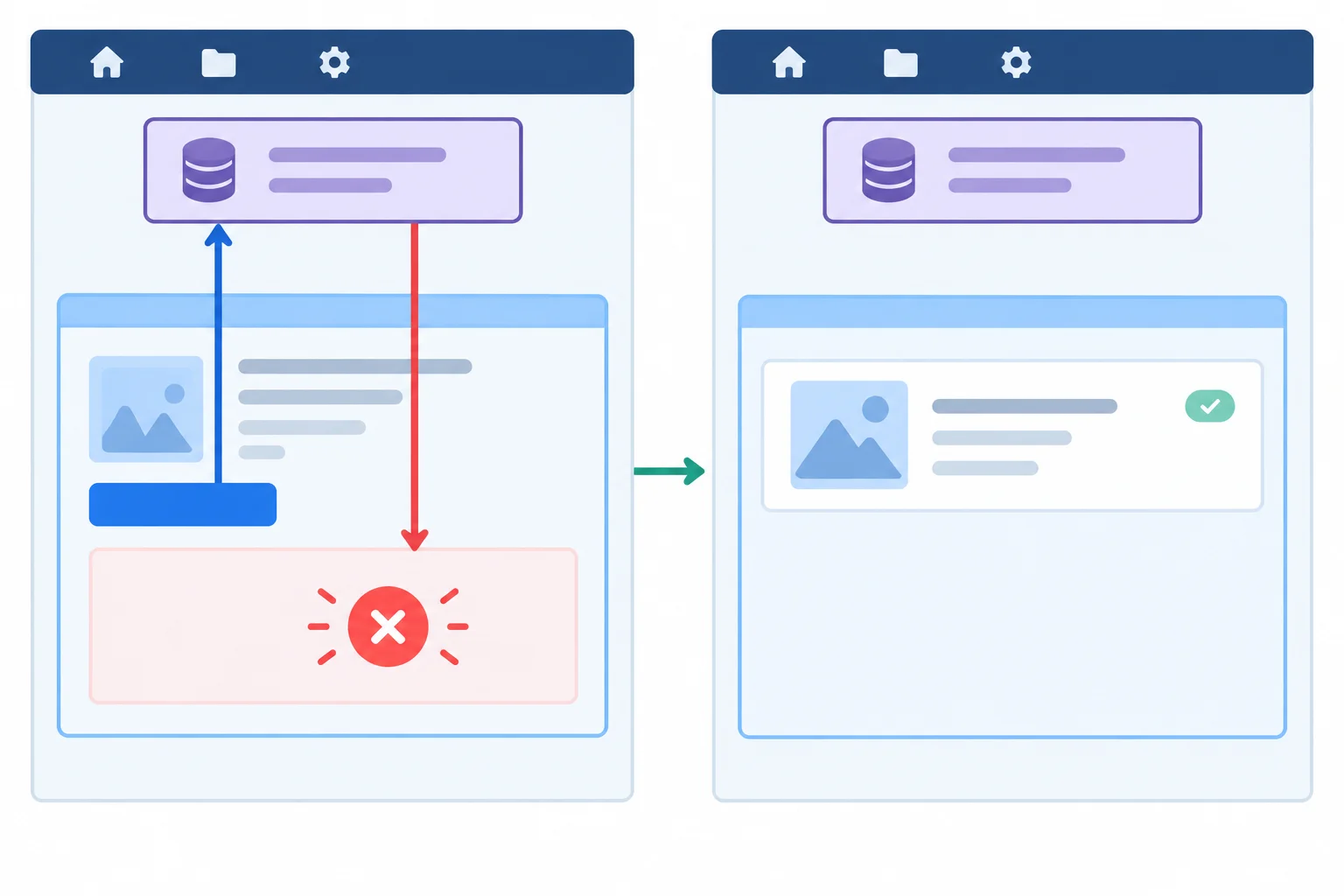
The boundary replaces its failed descendant content. The shell remains outside the failed subtree.
Update the two feature files below. blockedProjectId stays in ProjectRoute, above ErrorBoundary, so the button can request a state change that leads to a new descendant render. Keep the ordinary not-found branch: an unknown URL is expected content, not a render crash.
import { useState } from 'react';
import { useParams } from 'react-router';
import { ErrorBoundary } from 'react-error-boundary';
import { FeatureFallback } from './FeatureFallback';
import { ProjectDetails } from './ProjectDetails';

type Project = { id: string; name: string };

const projects: Project[] = [
  { id: 'alpha', name: 'Atlas' },
  { id: 'beta', name: 'Beacon' }
];

export function ProjectRoute() {
  const { projectId } = useParams();
  const [blockedProjectId, setBlockedProjectId] = useState<string | null>(null);
  const project = projects.find((item) => item.id === projectId);

  if (!projectId || !project) {
    return <h1 tabIndex={-1}>Project not found</h1>;
  }

  return (
    <ErrorBoundary FallbackComponent={FeatureFallback}>
      <ProjectDetails
        project={project}
        shouldCrash={blockedProjectId === projectId}
        onSimulateFailure={() => setBlockedProjectId(projectId)}
      />
    </ErrorBoundary>
  );
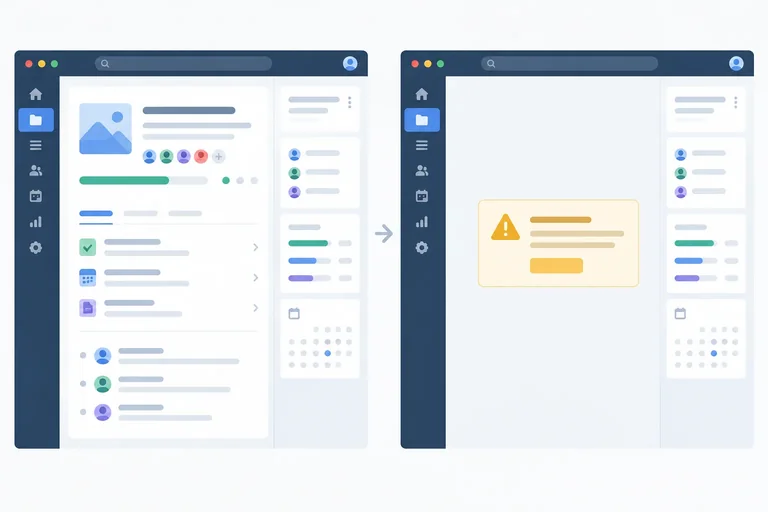
}After activating Simulate render failure on Atlas: Project unavailable We could not display this project. Back to projects The shell navigation remains visible: Projects Atlas Beacon
After you save both feature files, open `/projects/alpha` and activate the button rendered by ProjectDetails. The visible result is shown below; development diagnostics can vary.
import { useState } from 'react';

type Project = { id: string; name: string };

interface ProjectDetailsProps {
  project: Project;
  shouldCrash: boolean;
  onSimulateFailure: () => void;
}

export function ProjectDetails({
  project,
  shouldCrash,
  onSimulateFailure
}: ProjectDetailsProps) {
  const [draft, setDraft] = useState('');

  if (shouldCrash) {
    throw new Error('Simulated project render failure');
  }

  return (
    <section>
      <h1 tabIndex={-1}>{project.name}</h1>
      <label>
        Local draft
        <input
          value={draft}
          onChange={(event) => setDraft(event.currentTarget.value)}
        />
      </label>
      <button type='button' onClick={onSimulateFailure}>
        Simulate render failure
      </button>
    </section>
  );
}Before activation, the Atlas detail is visible with a Local draft input and a Simulate render failure button. After activation, the project-detail area becomes: Project unavailable We could not display this project. Back to projects The shell navigation remains visible: Projects Atlas Beacon
Run the local app, open `/projects/alpha`, and activate Simulate render failure. Inspect the application after dismissing any development overlay.
Tip
The Hook is called before the conditional throw. That keeps Hook calls in the same order on every render, so this example isolates the descendant rendering failure you intend to study.
Complete the condition so this component throws only when it receives the crash signal.
const [draft, setDraft] = useState('');

if () {
  throw new Error('Simulated project render failure');
}Warning
Open /projects/alpha in your local app and activate Simulate render failure. Development mode may log the error more than once, and a development overlay may appear. If an overlay appears, dismiss it before judging the rendered application. Console output or diagnostics alone do not show whether containment worked.
This trigger is a local learning aid that makes the behavior repeatable. Do not treat an intentional render crash as a production recovery design.
After completing the trigger and running it locally, report what interface region was replaced after activation and name one navigation link that you could still use. Base your answer on the page after dismissing any development overlay.
Write at least 60 characters (0/60).
Step 4 of 8
Repair a parent-owned simulated failure source before explicitly retrying an error boundary.
A reset asks an error boundary to try rendering its children again. It does not repair the state, input, or code that made a descendant throw.
Here, ProjectRoute still owns blockedProjectId above the boundary. If it still matches the current projectId, the next ProjectDetails render receives shouldCrash={true}, throws again, and the fallback returns.
A reset is useful only when something relevant has changed before the retry. For this controlled example, the explicit recovery action will clear the recoverable failure source first.
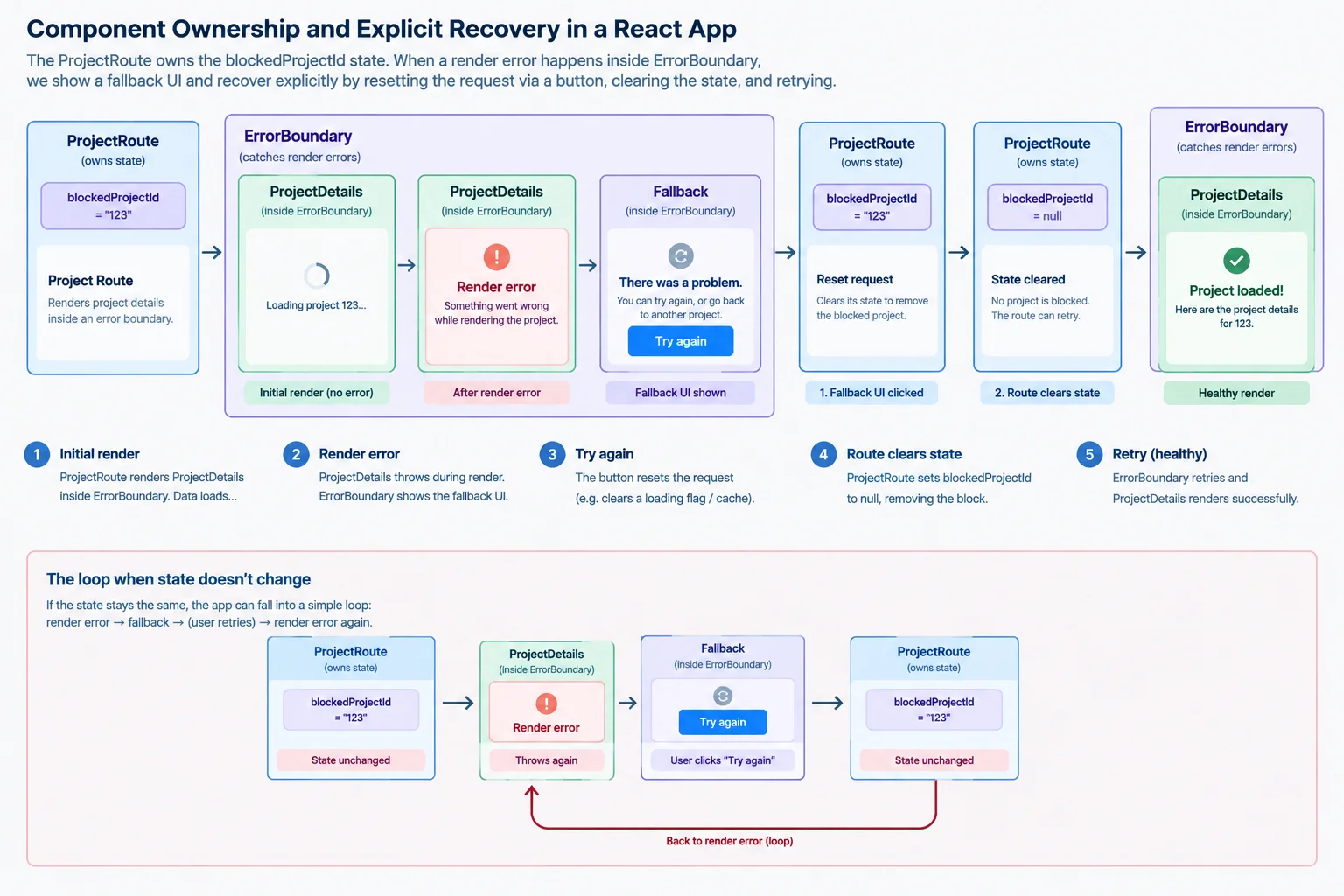
The owner outside the boundary can repair the failure source before the boundary retries its child.
Warning
Do not reset automatically from an Effect or timer. If the cause remains, repeated retries only create a reset loop.
Likewise, a reset button cannot repair a deterministic code defect. Correct the defective code, deploy the correction, or offer a different safe path; then a retry can be meaningful.
Update FeatureFallback.tsx so its button makes an explicit reset request. The fallback requests recovery; it does not own or modify blockedProjectId. Keep the escape link available.
src/features/projects/FeatureFallback.tsx
import { Link } from 'react-router';
import type { FallbackProps } from 'react-error-boundary';

export function FeatureFallback({
  resetErrorBoundary
}: FallbackProps) {
  return (
    <section>
      <h1>Project unavailable</h1>
      <p>This project cannot be displayed right now.</p>
      <button type='button' onClick={resetErrorBoundary}>
        Try again
      </button>
      <Link to='/projects'>Back to projects</Link>
    </section>
  );
}In ProjectRoute, handle the reset where blockedProjectId is owned. onReset runs before the boundary tries its children again. For this step, repair state only for an explicit button-driven reset; other reset reasons are deliberately left alone.
Replace the existing ErrorBoundary opening tag and its child in src/features/projects/ProjectRoute.tsx with this composition. Keep your existing records and not-found branch unchanged.
<ErrorBoundary
  FallbackComponent={FeatureFallback}
  onReset={(details) => {
    if (details.reason === 'imperative-api') {
      setBlockedProjectId(null);
    }
  }}
>
  <ProjectDetails
    project={project}
    shouldCrash={blockedProjectId === projectId}
    onSimulateFailure={() => setBlockedProjectId(projectId)}
  />
</ErrorBoundary>Complete the condition so onReset clears the simulated failure source only for a button-driven explicit reset.
onReset={(details) => {
  if (details.reason === '') {
    setBlockedProjectId(null);
  }
}}Arrange the successful explicit recovery flow. Use this sequence to predict why a reset-only attempt fails when the source-clear step is missing.
Step 5 of 8
Make failed project content understandable and keyboard-accessible by focusing the fallback after replacement and the detail heading after successful recovery.
When a render failure replaces project details, the control that triggered it disappears with that subtree. Keyboard users need a deliberate new position in the replacement content.
The fallback should explain the unavailable project in plain language, offer Try again, and provide Back to projects. Do not expose the raw exception message: it does not guide recovery and may reveal implementation details.
After the fallback commits, move focus to its heading. tabIndex={-1} allows programmatic focus without adding the heading to the normal Tab sequence. Keep the button and link native: no positive tabIndex, keyboard trap, or custom keyboard activation is needed.
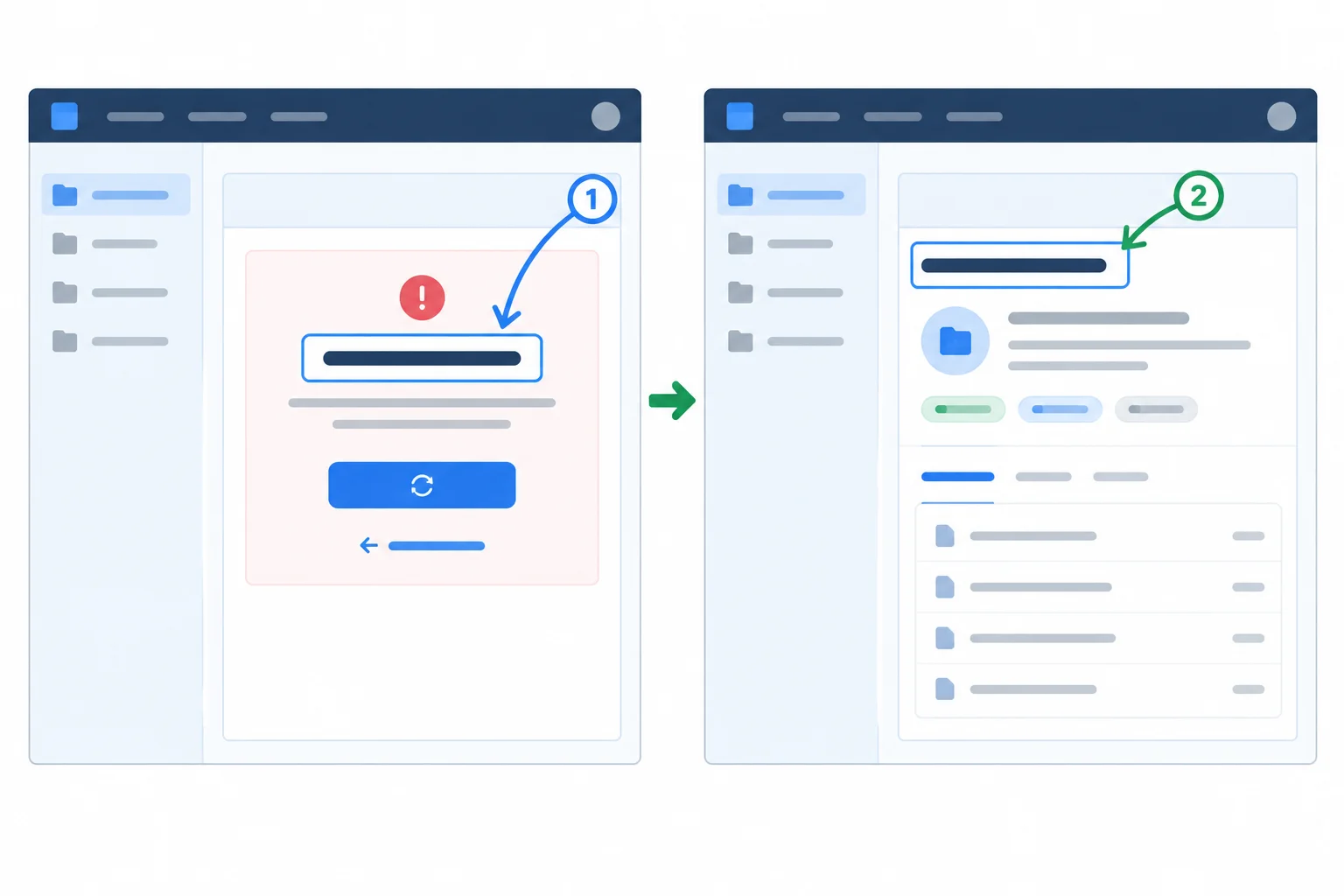
The shell remains usable. Each displayed feature state has one deliberate heading-focus destination.
Replace src/features/projects/FeatureFallback.tsx with this version. Its Effect runs after the fallback is committed, so the new heading exists before it receives focus. The native retry button requests the explicit recovery already connected in ProjectRoute.
src/features/projects/FeatureFallback.tsx
import { useEffect, useRef } from 'react';
import { Link } from 'react-router';
import type { FallbackProps } from 'react-error-boundary';

export function FeatureFallback({
  resetErrorBoundary
}: FallbackProps) {
  const headingRef = useRef<HTMLHeadingElement>(null);

  useEffect(() => {
    headingRef.current?.focus();
  }, []);

  return (
    <section aria-labelledby='project-unavailable-heading'>
      <h1
        id='project-unavailable-heading'
        ref={headingRef}
        tabIndex={-1}
      >
        Project unavailable
      </h1>
      <p>This project cannot be displayed right now.</p>
      <button type='button' onClick={resetErrorBoundary}>
        Try again
      </button>
      <Link to='/projects'>Back to projects</Link>
    </section>
  );
}Visible fallback: Project unavailable This project cannot be displayed right now. Try again Back to projects Focus: the Project unavailable heading is focused. Press Tab: Try again receives focus. Press Tab again: Back to projects receives focus.
This is expected browser behavior, not terminal output. It appears after the controlled render failure replaces the project details.
src/features/projects/ProjectDetails.tsx
import { useEffect, useRef, useState } from 'react';

type Project = { id: string; name: string };

interface ProjectDetailsProps {
  project: Project;
  shouldCrash: boolean;
  onSimulateFailure: () => void;
}

export function ProjectDetails({
  project,
  shouldCrash,
  onSimulateFailure
}: ProjectDetailsProps) {
  const [draft, setDraft] = useState('');
  const headingRef = useRef<HTMLHeadingElement>(null);

  useEffect(() => {
    headingRef.current?.focus();
  }, [project.id]);

  if (shouldCrash) {
    throw new Error('Simulated project render failure');
  }

  return (
    <section aria-labelledby='project-details-heading'>
      <h1
        id='project-details-heading'
        ref={headingRef}
        tabIndex={-1}
      >
        {project.name}
      </h1>
      <label>
        Local draft
        <input
          value={draft}
          onChange={(event) => setDraft(event.currentTarget.value)}
        />
      </label>
      <button type='button' onClick={onSimulateFailure}>
        Simulate render failure
      </button>
    </section>
  );
}Visible detail after a successful explicit recovery: Atlas Local draft Simulate render failure Focus: the restored Atlas heading is focused.
This is expected browser behavior. A successful explicit reset mounts the detail again and focuses its heading.
Tip
Focus ownership stays local to the displayed feature state: FeatureFallback focuses only its fallback heading, and ProjectDetails focuses only its successful detail heading. Do not add a shell-level Effect that also focuses a heading on route changes; it could steal focus from either state.
Keep route content inside the shell’s <main> as before.
Complete the fallback heading’s focus handling.
const headingRef = useRef<HTMLHeadingElement>(null);

useEffect(() => {
  headingRef.current?.();
}, []);

return (
  <h1 ref={headingRef} tabIndex={}>
    Project unavailable
  </h1>
);Run the updated local application and use only the keyboard for this check.
/projects/alpha, Tab to Simulate render failure, and activate it.Report the observed focus destinations, keyboard access, and navigation behavior. If a result differs, identify which displayed state did not receive its intended focus.
Write at least 120 characters (0/120).
Step 6 of 8
Use a stable route parameter as a reset input while preserving the distinction between retrying a boundary and repairing the failure source.
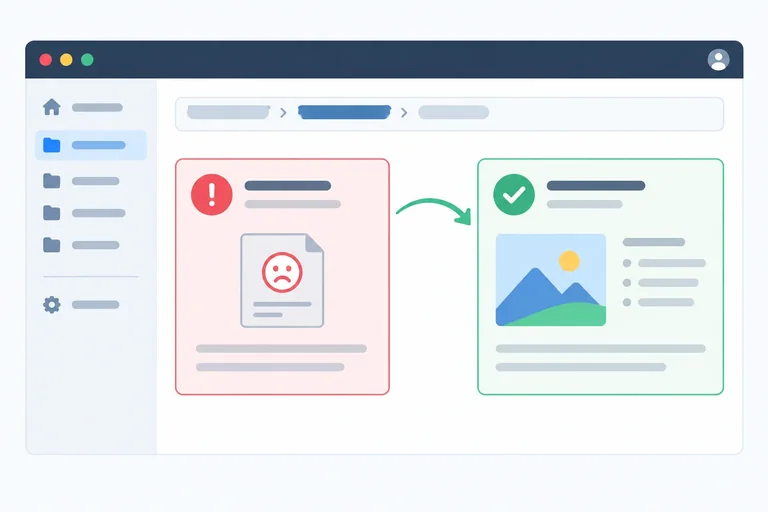
After an error boundary has switched to its fallback, the boundary can remain mounted while the route parameter changes. Without a reset signal, it may keep displaying the fallback even though the next project is healthy.
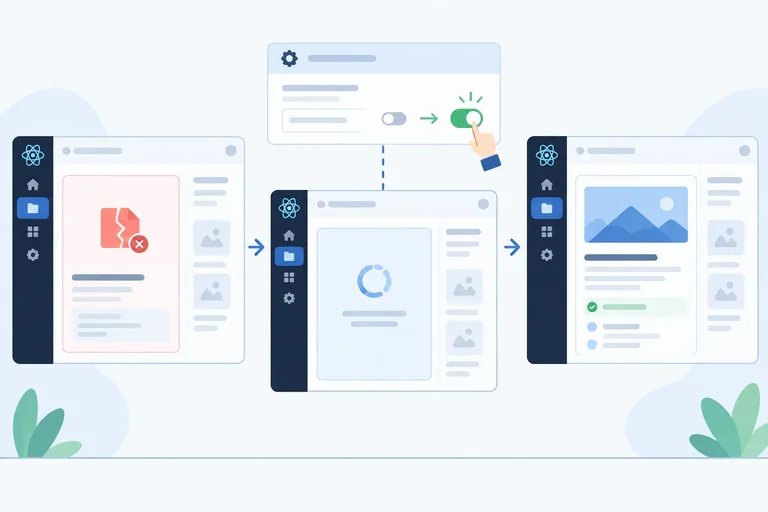
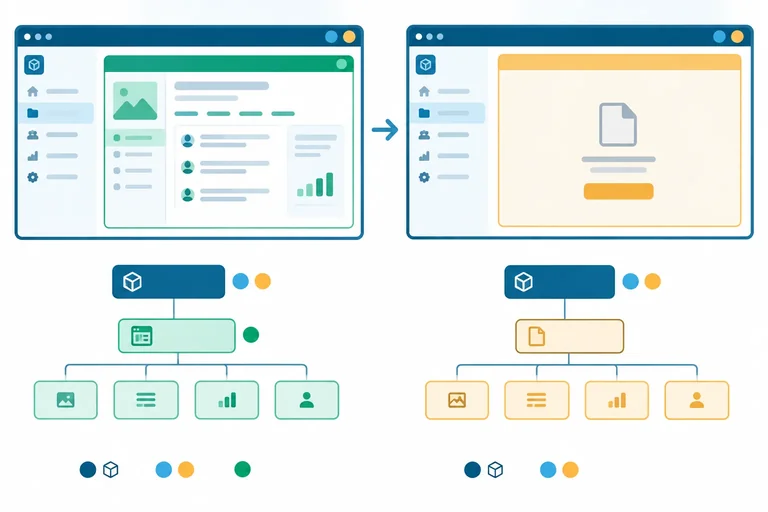
Give the boundary the route input that matters: resetKeys={[projectId]}. When that primitive value changes, the existing boundary resets and tries its children again. This is a retry of the same boundary instance—not a replacement of the boundary.
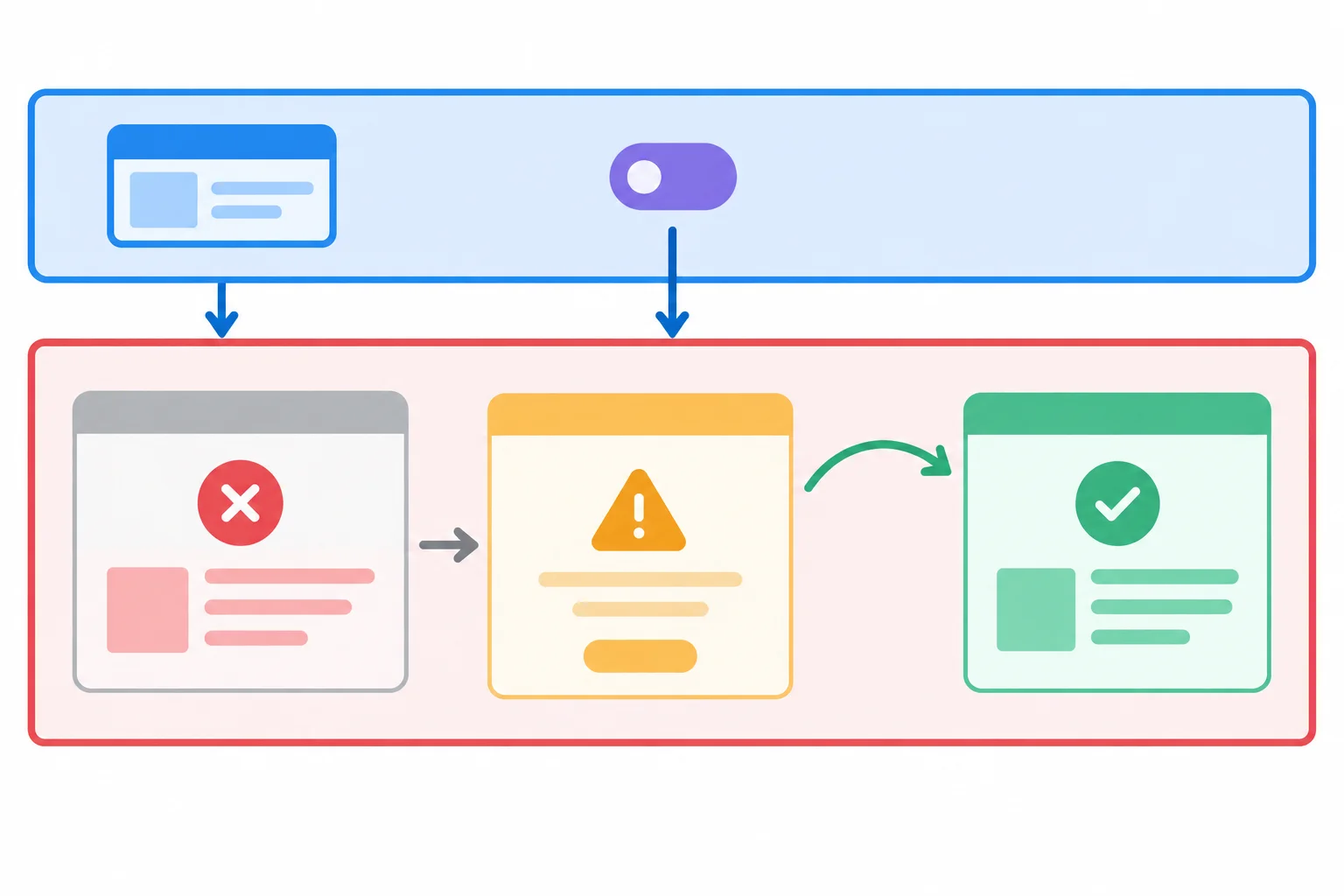
ProjectRoute stays above the same boundary. A relevant route-input change asks that boundary to retry its child content.
Tip
An inline array is appropriate here because its entry is a stable primitive value. The array itself is new on each render, but the boundary compares its entries.
Do not use a fresh object as a reset entry, and do not add key={projectId} to the boundary. Either choice can hide the intended behavior by causing unnecessary resets or by replacing the boundary instead of exercising resetKeys.
In src/features/projects/ProjectRoute.tsx, add the reset input to the existing boundary. Keep the repair in onReset limited to an explicit user retry.
<ErrorBoundary
  FallbackComponent={FeatureFallback}
  onReset={({ reason }) => {
    if (reason === 'imperative-api') {
      setBlockedProjectId(null);
    }
  }}
  resetKeys={[projectId]}
>
  <ProjectDetails
    project={project}
    shouldCrash={blockedProjectId === projectId}
    onSimulateFailure={() => setBlockedProjectId(projectId)}
  />
</ErrorBoundary>A reset-key change has a different purpose from clicking Try again. Moving from a failed project to another project should retry for the new input, but it should not erase the stored cause for the old input.
Expected behavior with blockedProjectId still set to alpha:
| Action | Boundary result | Stored failure source | Focus destination |
|---|---|---|---|
| Fail Atlas | Fallback is shown | alpha | Fallback heading |
| Navigate to Beacon | Retries and shows details | alpha remains | Beacon detail heading |
| Return to Atlas | Retries, then fails again | alpha remains | Fallback heading |
| Click Try again on Atlas | Repairs, then remounts details | cleared | Atlas detail heading |
Complete the reset-reason guard and the relevant route input.
<ErrorBoundary
  FallbackComponent={FeatureFallback}
  onReset={({ reason }) => {
    if (reason === '') {
      setBlockedProjectId(null);
    }
  }}
  resetKeys={[]}
>
  <ProjectDetails
    project={project}
    shouldCrash={blockedProjectId === projectId}
    onSimulateFailure={() => setBlockedProjectId(projectId)}
  />
</ErrorBoundary>blockedProjectId is alpha, and Atlas is showing the fallback. The user navigates to Beacon, returns to Atlas, then uses Try again. Which outcome is expected?
Step 7 of 8
Trace local, shared, and route-owned state through an error boundary fallback and a successful remount.
When ProjectDetails throws, the error boundary replaces its failed descendant subtree with the fallback. The failed child is unmounted; it is not paused for later continuation.
After a successful reset, React mounts a fresh ProjectDetails instance. Its component-local state starts from its initializer again. State owned by components that remain mounted above the boundary retains its current value.
In this lab, draft belongs to ProjectDetails, while sharedNote belongs to WorkspaceProvider and blockedProjectId belongs to ProjectRoute. Ownership and position—not whether a value feels important or shared—determine what survives.
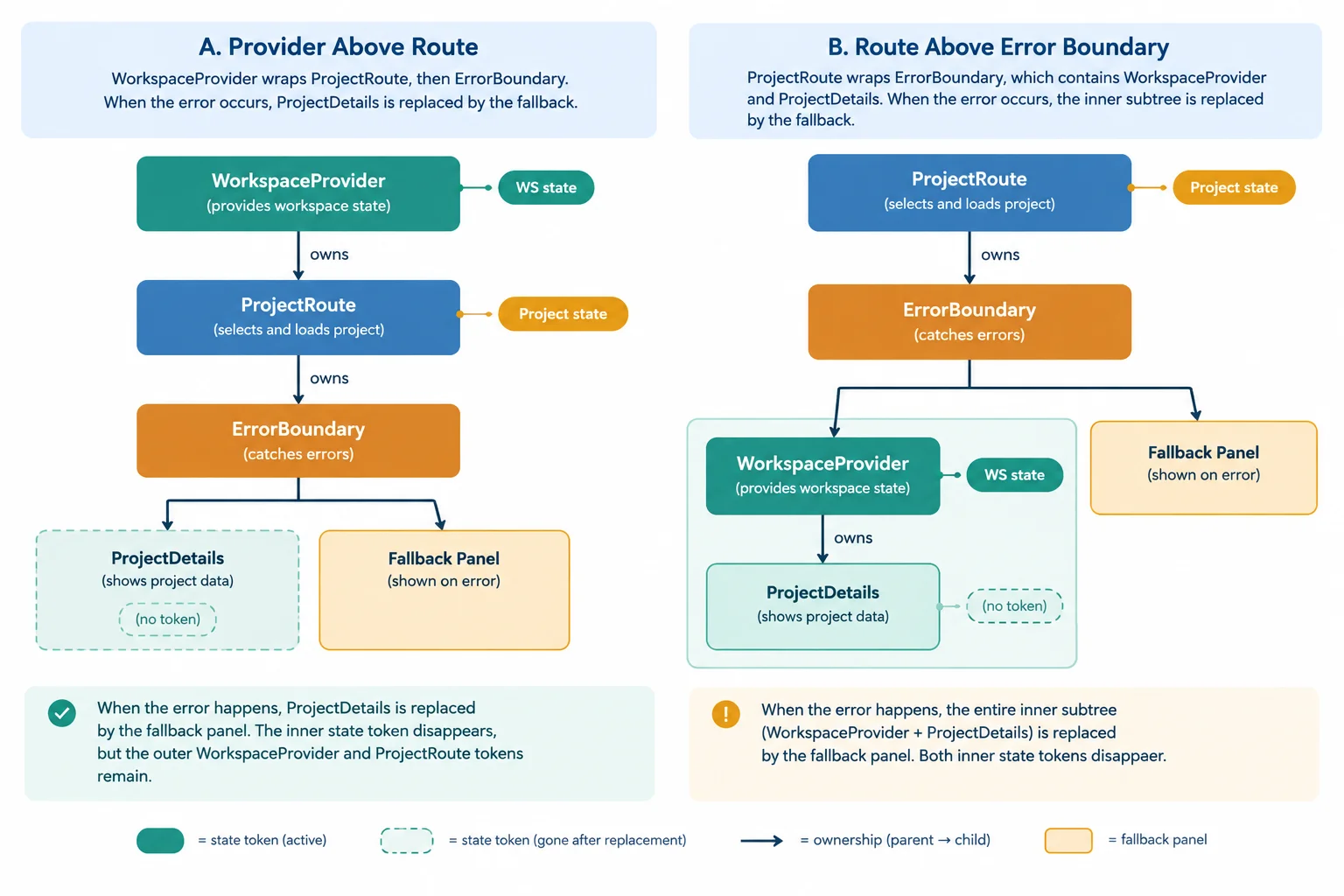
An owner above the error boundary remains mounted. A provider moved inside the failed subtree would remount and lose the state it owns.
Use the component that owns each value to predict the result of a fallback and successful recovery.
| State value | Owner | Position | After fallback and successful recovery |
|---|---|---|---|
| draft | ProjectDetails | Inside failed subtree | Returns to its initial empty value |
| sharedNote | WorkspaceProvider | Above boundary | Keeps its current value |
| blockedProjectId | ProjectRoute | Above boundary | Keeps its current value; explicit repair is needed |
Add a compact context module for the workspace-wide note. This provider owns only sharedNote; keep the local draft in ProjectDetails and keep blockedProjectId in ProjectRoute.
Place WorkspaceProvider above the shell and routes. It will therefore remain mounted when the error boundary replaces project details with its fallback.
src/WorkspaceContext.tsx
import { createContext, useContext, useState } from 'react';
import type { Dispatch, ReactNode, SetStateAction } from 'react';

interface WorkspaceValue {
  sharedNote: string;
  setSharedNote: Dispatch<SetStateAction<string>>;
}

const WorkspaceContext = createContext<WorkspaceValue | null>(null);

interface WorkspaceProviderProps {
  children: ReactNode;
}

export function WorkspaceProvider({ children }: WorkspaceProviderProps) {
  const [sharedNote, setSharedNote] = useState('');

  return (
    <WorkspaceContext.Provider value={{ sharedNote, setSharedNote }}>
      {children}
    </WorkspaceContext.Provider>
  );
}

export function useWorkspace(): WorkspaceValue {
  const workspace = useContext(WorkspaceContext);

  if (workspace === null) {
    throw new Error('useWorkspace must be used within WorkspaceProvider');
  }

  return workspace;
}src/main.tsx
import { StrictMode } from 'react';
import { createRoot } from 'react-dom/client';
import { BrowserRouter } from 'react-router';
import { App } from './App';
import { WorkspaceProvider } from './WorkspaceContext';

createRoot(document.getElementById('root')!).render(
  <StrictMode>
    <BrowserRouter>
      <WorkspaceProvider>
        <App />
      </WorkspaceProvider>
    </BrowserRouter>
  </StrictMode>
);Replace ProjectDetails.tsx with the version below. It preserves the existing typed failure callback and button while adding the shared input.
All Hooks remain before the conditional throw. The detail heading still becomes the focus destination after a successful remount. The existing ProjectRoute continues to own blockedProjectId and its existing onReset repair clears that value only for an explicit reset.
src/features/projects/ProjectDetails.tsx
import { useEffect, useRef, useState } from 'react';
import { useWorkspace } from '../../WorkspaceContext';

type Project = { id: string; name: string };

interface ProjectDetailsProps {
  project: Project;
  shouldCrash: boolean;
  onSimulateFailure: () => void;
}

export function ProjectDetails({
  project,
  shouldCrash,
  onSimulateFailure
}: ProjectDetailsProps) {
  const [draft, setDraft] = useState('');
  const { sharedNote, setSharedNote } = useWorkspace();
  const headingRef = useRef<HTMLHeadingElement>(null);

  useEffect(() => {
    headingRef.current?.focus();
  }, [project.id]);

  if (shouldCrash) {
    throw new Error('Simulated project render failure');
  }

  return (
    <section aria-labelledby='project-details-heading'>
      <h1
        id='project-details-heading'
        ref={headingRef}
        tabIndex={-1}
      >
        {project.name}
      </h1>
      <label>
        Local draft
        <input
          value={draft}
          onChange={(event) => setDraft(event.currentTarget.value)}
        />
      </label>
      <label>
        Shared note
        <input
          value={sharedNote}
          onChange={(event) => setSharedNote(event.currentTarget.value)}
        />
      </label>
      <button type='button' onClick={onSimulateFailure}>
        Simulate render failure
      </button>
    </section>
  );
}After successful recovery: Local draft: empty Shared note: [the value entered before the failure]
Expected rendered state after a successful failure-and-recovery cycle. The shared-note value varies because it is the distinctive value you entered before triggering the failure.
Tip
Run the local app at /projects/alpha. Enter two distinct values: one in Local draft and one in Shared note. Activate Simulate render failure, then activate Try again in the fallback.
After the restored detail heading receives focus, compare both fields. The local field is empty because its ProjectDetails instance was unmounted and remounted. The shared field keeps its value because WorkspaceProvider stayed mounted above the error boundary. The parent-owned blockedProjectId also survives fallback replacement, which is why the explicit reset path must repair it before children retry.
In your local application, enter distinct values in Local draft and Shared note, trigger the controlled failure, and recover with Try again. After the detail heading returns, report the observed value in each field. Name the owner of each value and explain why one was reset while the other was preserved. Also explain why blockedProjectId needed parent-owned repair before the retry could succeed.
Write at least 160 characters (0/160).
Step 8 of 8
Verify a contained, accessible error-boundary recovery flow in the completed local Project Workspace application.
Verify the completed local Project Workspace in two independent runs. This avoids relying on source edits preserving the boundary state, blockedProjectId, or the workspace provider state.
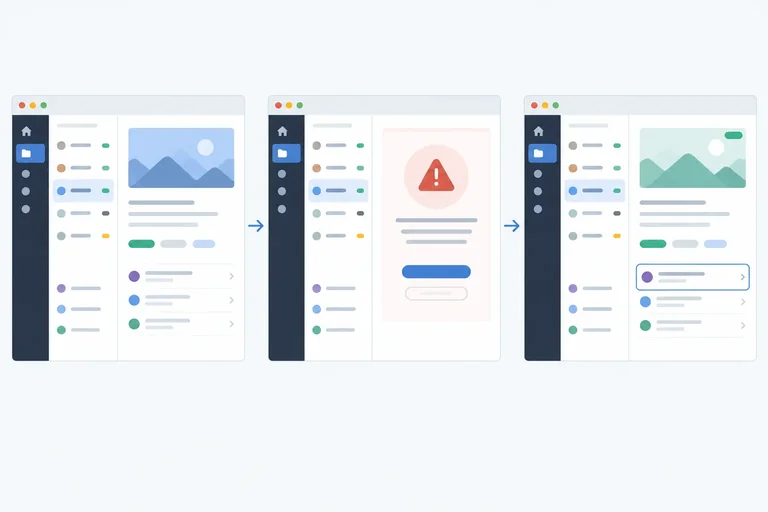
Run A — unchanged cause: configure the temporary onReset below, then start or reload the app fresh at /projects/alpha. Trigger the failure and activate Try again. Record that the unchanged cause produces the fallback again.
Run B — completed recovery: restore the completed onReset, then start a fresh run. Enter distinct values in Local draft and Shared note before triggering the failure. Use this independent run to check successful recovery, focus, state lifetime, and route-input recovery. Do not edit source while the fallback is displayed.
Use this model while checking the app. The first run isolates what a reset does when nothing repairs the cause. The second run starts with fresh runtime state, then checks the completed recovery design and the meaningful route-input change.
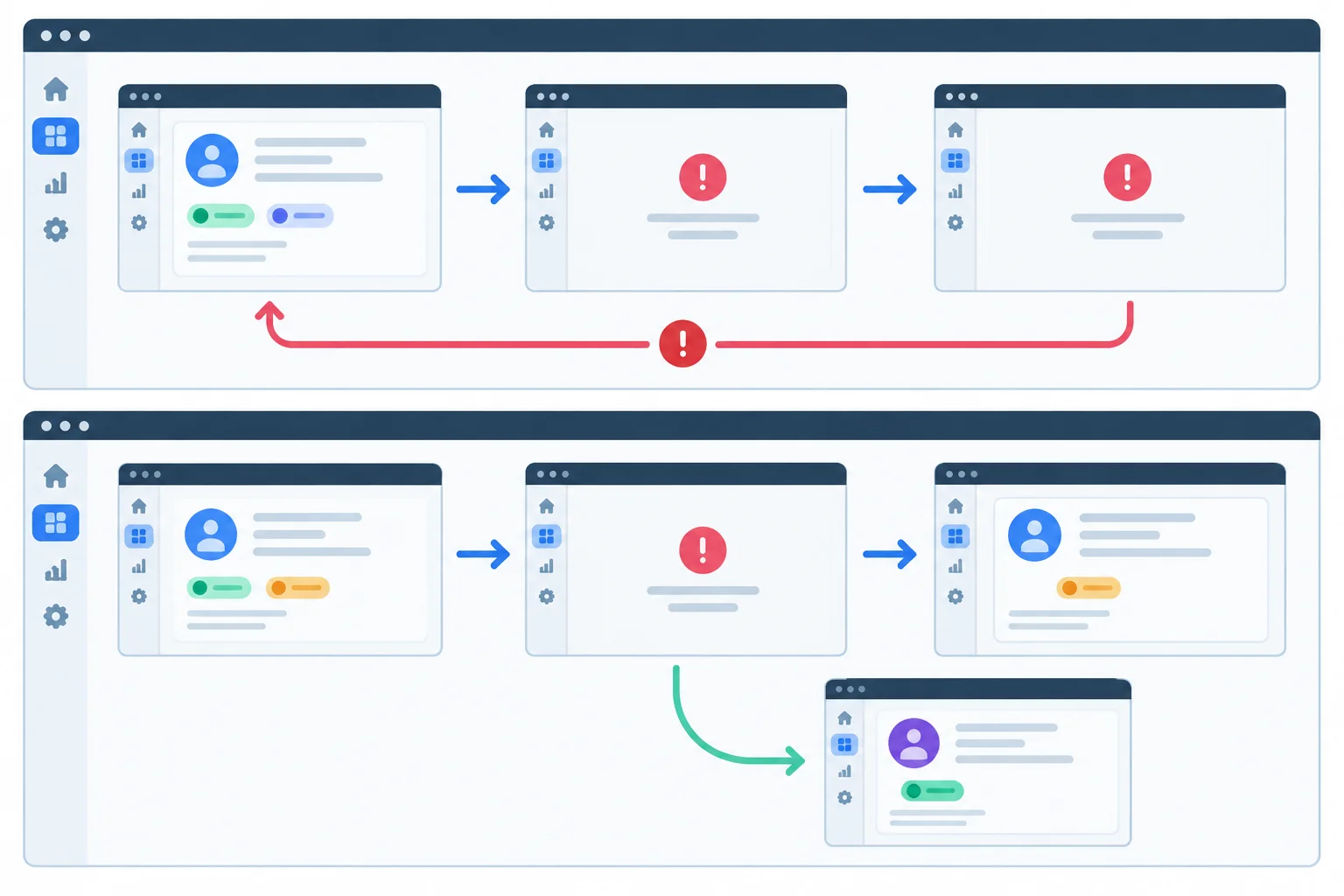
A reset alone retries failed children. Explicit repair and a relevant route-input change are distinct recovery paths.
Before Run A, temporarily replace only the existing onReset prop in src/features/projects/ProjectRoute.tsx with the no-repair version. Save it, then load a fresh app run and perform the check. Afterward, restore the completed version and begin a separate fresh Run B.
Do not make this source edit while depending on a visible fallback or entered field values to remain on screen.
// Temporary Run A version: leave blockedProjectId unchanged.
onReset={() => {}}

// Restore before starting fresh Run B.
onReset={({ reason }) => {
  if (reason === 'imperative-api') {
    setBlockedProjectId(null);
  }
}}After activating Try again with blockedProjectId still set to 'alpha': ProjectDetails throws again. The fallback remains visible or returns: Project unavailable This project cannot be displayed right now.
Expected browser observation for Run A after activating Try again; development diagnostics may also appear.
Follow the applicable stages in order and record observations from the browser UI, not only from development diagnostics.
| Run | Stage | Action | Inspect |
|---|---|---|---|
| A | 1 | Use the temporary no-repair prop and start fresh at Atlas. | Trigger the controlled failure. |
| A | 2 | Activate Try again. | Fallback remains or returns because the cause is unchanged. |
| B | 1 | Restore completed onReset and start a fresh run. | Enter distinct values in both text controls on Atlas. |
| B | 2 | Trigger failure using the keyboard. | Fallback heading receives focus; shell navigation remains usable. |
| B | 3 | Tab through fallback actions, then activate Try again. | Detail returns and its heading receives focus. |
| B | 4 | Compare both text controls after recovery. | Local draft and Shared note reveal their state lifetimes. |
| B | 5 | Trigger Atlas failure again, then choose Beacon. | Beacon renders after the relevant route input changes. |
| B | 6 | Return to Atlas. | Atlas can fail again because route change did not repair its stored cause. |
Match each situation to the handling location that keeps the boundary’s responsibility narrow.
Tap an item and then its matching pair.
Transfer the pattern only to a routed feature that can fail independently while the surrounding application remains useful. Place its boundary around the replaceable feature area—not around persistent navigation or the entire shell. Its fallback needs a clear unavailable-state message, a meaningful recovery action when one exists, and a route away.
Before choosing the scope, identify state owners. Keep state that must survive feature replacement above the boundary, such as shell-level controls or deliberately shared workspace state. State owned within failed content is discarded when that content remounts.
Summary
A reliable error-boundary flow is a coordinated design, not just a wrapper component.
Complete the independent local checks, then submit a short labeled field report.
Write at least 450 characters (0/450).
Congratulations! You completed: Contain React Rendering Failures with Error Boundaries
Thousands of online courses in video, ebooks and audiobooks.
To test your knowledge during online courses
Generated directly from your cell phone's photo gallery and sent to your email

Download our app via QR Code or the links below:.



Carry knowledge in your pocket.
Download the Cursa app.
There are hundreds of free courses available, with a free certificate of completion that is saved in your mobile image gallery.
Download the app to access the Course Completion Certificate for Free.


+ 10 million
students

Free and Valid
Certificate

60 thousand free
exercises

4.8/5 rating in
app stores

Free courses in
video and ebooks