
Step 1 of 5
Display Your Own Local Image
Add a learner-owned image to a local HTML page by placing it in an images folder and matching its relative src path exactly.

Learning path · Level 1 · Tutorial 6
Add an image of your own to a local page and provide an appropriate text alternative based on what the image contributes.

 Display Your Own Local Image
Add a learner-owned image to a local HTML page by placing it in an images folder and matching its relative src path exactly. 3 min
Display Your Own Local Image
Add a learner-owned image to a local HTML page by placing it in an images folder and matching its relative src path exactly. 3 min
 Write Alt Text That Preserves Meaning
Use surrounding context to write concise, informative alt text that preserves the meaning an image adds. 3 min
Write Alt Text That Preserves Meaning
Use surrounding context to write concise, informative alt text that preserves the meaning an image adds. 3 min
 Mark Decorative Images Explicitly
Decide when an image is decorative, declare that choice with an empty alt attribute, and distinguish it from a missing alt attribute. 2 min
Mark Decorative Images Explicitly
Decide when an image is decorative, declare that choice with an empty alt attribute, and distinguish it from a missing alt attribute. 2 min
 Name Image-Only Links by Their Purpose
Use destination-focused alt text for image-only links, and avoid duplicate names when visible text inside the same link already communicates its purpose. 3 min
Name Image-Only Links by Their Purpose
Use destination-focused alt text for image-only links, and avoid duplicate names when visible text inside the same link already communicates its purpose. 3 min
 Apply and Check Your Image Choices
Complete and verify a local image page while applying informative, decorative, and linked-image alt text decisions. 3 min
Apply and Check Your Image Choices
Complete and verify a local image page while applying informative, decorative, and linked-image alt text decisions. 3 min
Step 1 of 5
Add a learner-owned image to a local HTML page by placing it in an images folder and matching its relative src path exactly.
An <img> element embeds an image in a page. Its src attribute identifies the image file to load.
The alt attribute provides alternative text (alt text) for the image. Include both attributes now; later steps will help you decide what the alt text should say in different contexts.
For a local page, the src value is a relative path from index.html to the image file.
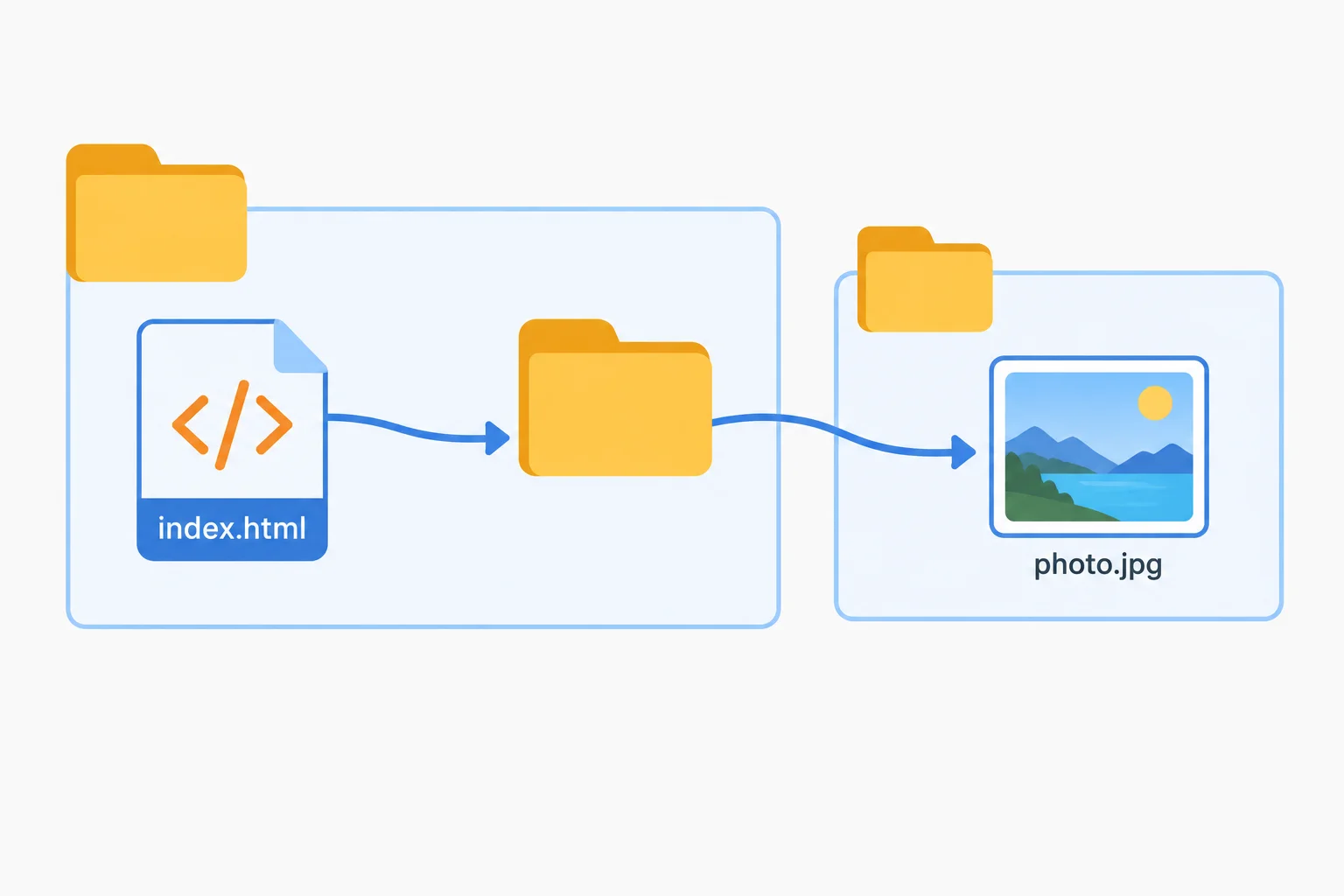
The path starts at index.html, enters images, and names the image file.
On your computer, create this structure inside image-practice/:
image-practice/index.html.image-practice/images/.images/.The tutorial illustration is only a reference; it is not a file for your page. The code uses object.jpg as a reference filename. Replace it with your image's actual filename.
Save this as image-practice/index.html. Replace the reference filename and mug-specific alt text with details that match your own image before you save and refresh the page.
<!doctype html>
<html lang="en">
<head>
  <meta charset="utf-8">
  <title>Everyday Objects</title>
</head>
<body>
  <main>
    <h1>Everyday Objects</h1>
    <img src="images/object.jpg" alt="Blue ceramic mug with a chipped rim">
  </main>
</body>
</html>Everyday Objects [Your chosen image is visible; no broken-image indicator]
The image content and filename vary because you use your own file. The important result is a visible image with no broken-image indicator.
Tip
Keep the attributes in this order: src, then alt. If your file is named orange-vase.PNG, its path must use the same capitalization and extension: images/orange-vase.PNG.
index.html is directly inside image-practice/, and the reference photograph is directly inside its images/ folder. Complete the src value.
<img src="" alt="Blue ceramic mug with a chipped rim">Replace the reference image in your local starter with an image you own. Keep the image in image-practice/images/, save index.html, and refresh it in your browser.
Report your result in one of these forms:
appears: [your exact src value]mismatch: [folder, filename, capitalization, or extension issue]Also include your completed <img> line. Keep an alt attribute after src; you will refine its wording in the next step.
Write at least 20 characters (0/20).
Step 2 of 5
Use surrounding context to write concise, informative alt text that preserves the meaning an image adds.
Alternative text (alt text) gives a person who cannot see an informative image the information that image contributes here. It is not a catalog of every visible detail.
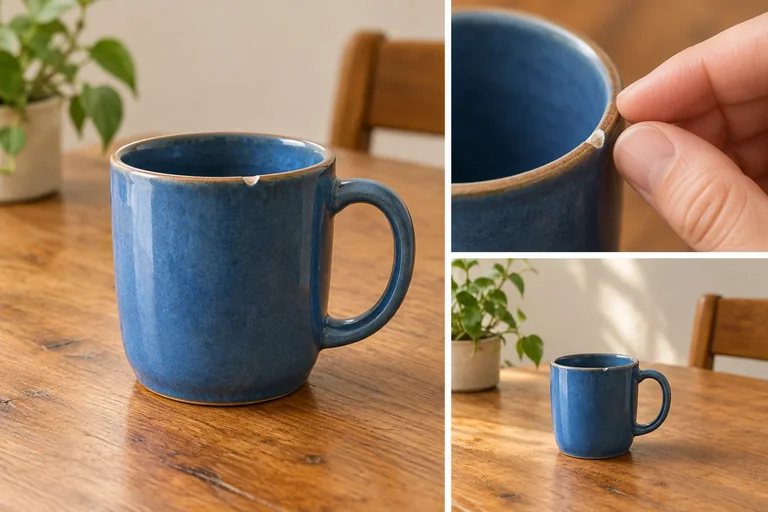
The reference photograph shows a blue ceramic mug with a chipped rim on a wooden table. When a page is about damage, the chip matters. When a page is about a blue-and-wood display, the color and surface matter instead. The photograph is unchanged; its contribution changes with the surrounding content.
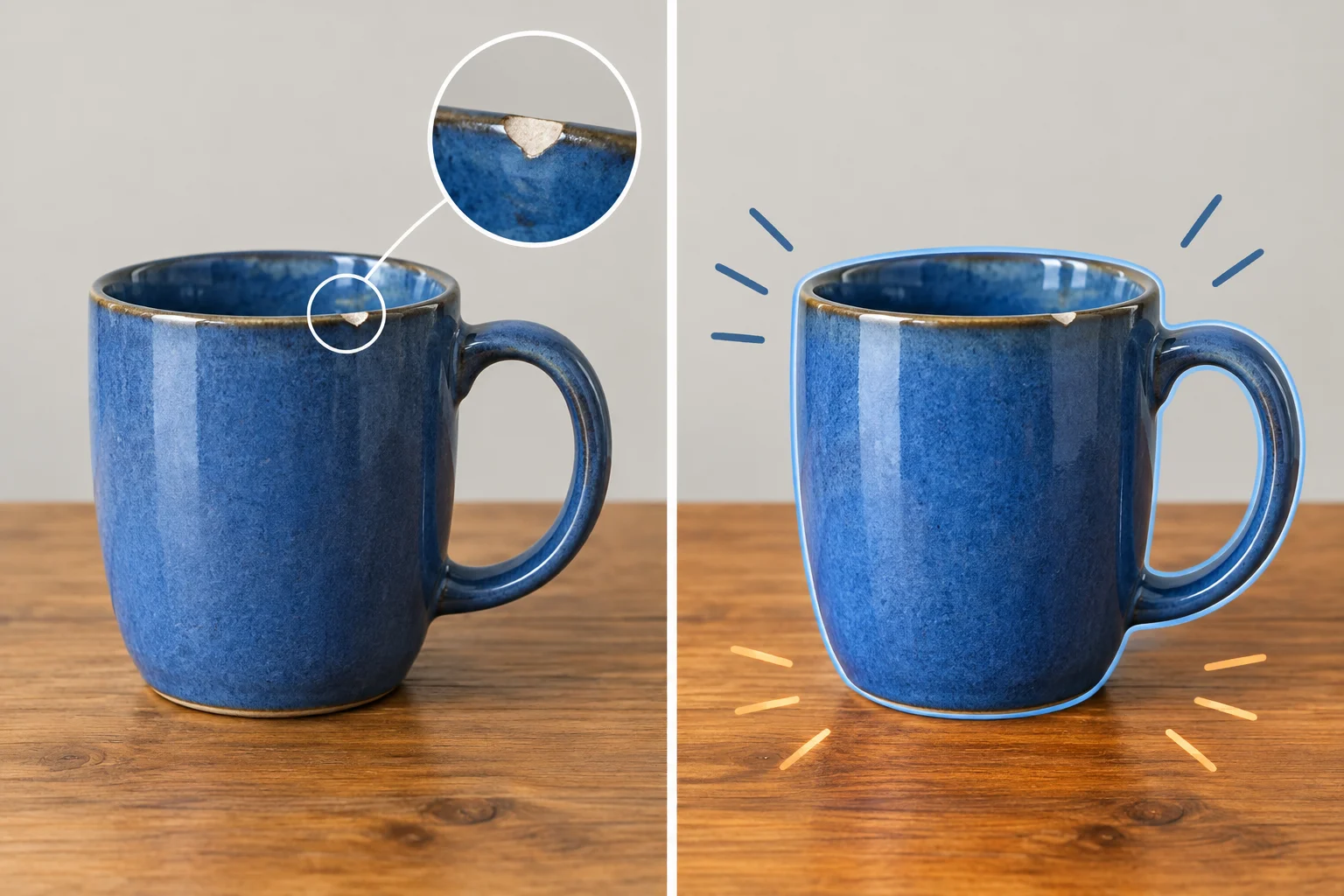
The surrounding topic determines which meaningful detail the alt text preserves.
These examples select the detail that the reader needs from the photograph.
| Page context | Information preserved | Alt text |
|---|---|---|
| Checking kitchenware for damage | The chipped rim | Chipped rim on a blue ceramic mug |
| Blue ceramics displayed with natural wood | The blue mug and wooden surface | Blue ceramic mug on a wooden table |
Before writing alt text, read the heading and nearby text. Ask: “What would a reader miss if this image were unavailable?” Keep that information, including a meaningful detail that nearby text does not already provide.
Be specific and concise, but do not chase an arbitrary character limit. A filename such as object.jpg and generic wording such as “image” do not communicate the photograph's meaning. For your own photograph, describe what it actually shows; do not copy the mug wording.
Example
The page tells readers to inspect a mug before using it. The photograph supplies the visual evidence: damage at the rim. The alt text names that useful evidence and identifies the object.
<img src="images/object.jpg" alt="Chipped rim on a blue ceramic mug">Tip
Keep src matched to your real file as you did in the previous step. Changing the alt text changes the meaning conveyed by the page; it does not change which local file the browser loads.
A section asks readers to inspect a mug's rim before using it. The reference photograph shows a blue ceramic mug with a chipped rim. Complete the informative alt value.
<img src="images/object.jpg" alt="">In your local image-practice/index.html page, revise the alt value for your learner-owned image so it matches the image's actual content and the purpose of your Everyday Objects page.
Then respond with:
<img> line, using your real filename.Write at least 120 characters (0/120).

Step 3 of 5
Decide when an image is decorative, declare that choice with an empty alt attribute, and distinguish it from a missing alt attribute.
An image is decorative when it adds no information a reader needs in that context. This is a decision about the image’s role on the page, not its file type or visual style.
For example, a photograph may be informative when it is the only source of a detail. The same photograph is decorative when nearby text already supplies every relevant detail.
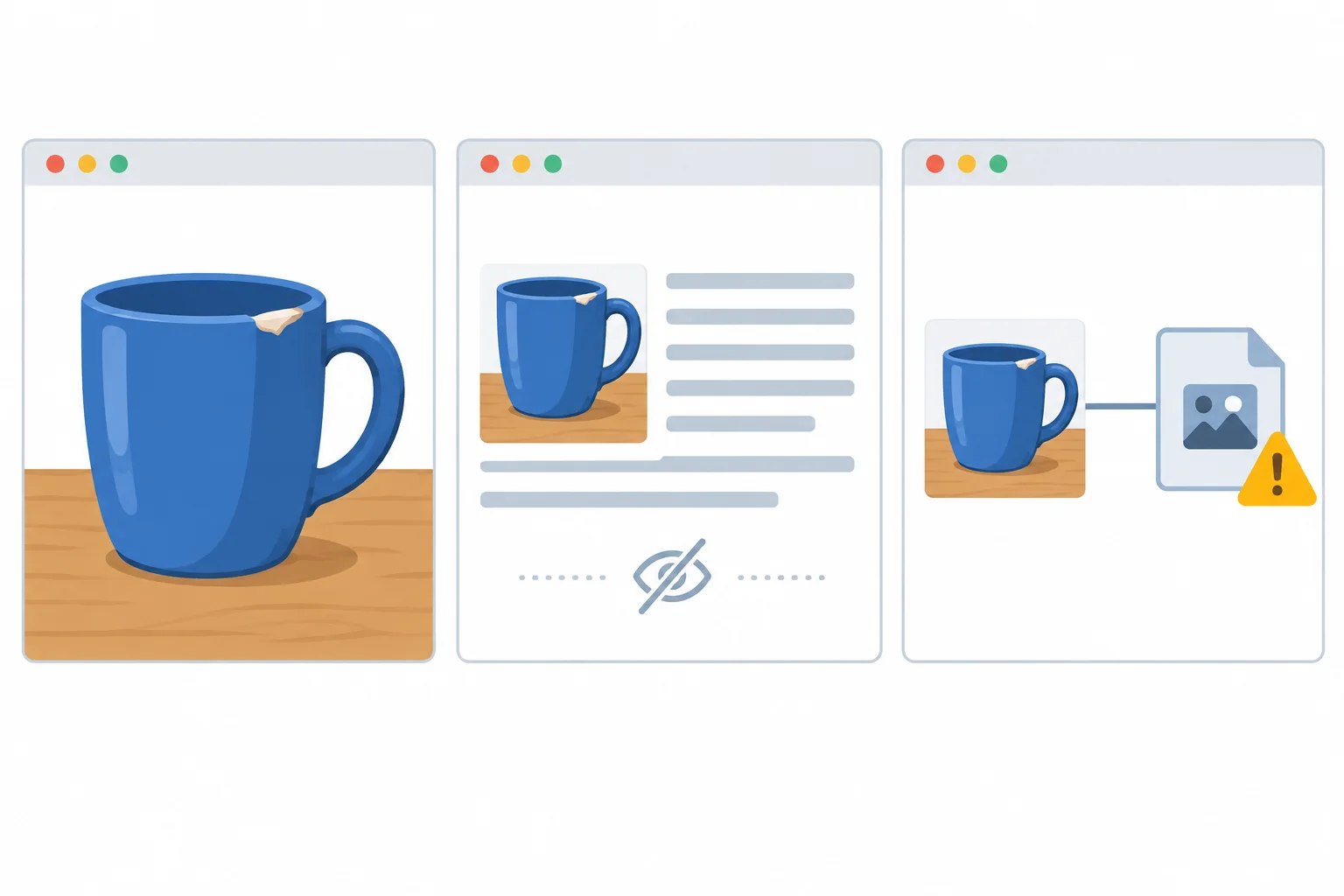
The pixels can be identical, but the image’s context changes what its alt text should communicate.
Tip
Ask: “If I could not perceive this image, would I miss information needed to understand this content?” If the answer is no, use alt="" for an ordinary decorative image.
These three forms can look similar in a browser, but they communicate different choices to assistive technologies.
| Image role in context | Markup | What is communicated |
|---|---|---|
| Unique, relevant information | <img src="images/object.jpg" alt="Blue ceramic mug with a chipped rim"> | The relevant information is available as alt text. |
| No needed information | <img src="images/object.jpg" alt=""> | The image is explicitly decorative and is generally skipped. |
| Alternative not declared | <img src="images/object.jpg"> | The image is unspecified; a filename or other unhelpful fallback may be announced. |
Warning
Do not remove alt to make an image decorative. alt="" is an intentional empty alternative. Omitting the attribute leaves the image without a declared alternative.
True or false: Removing the alt attribute is an acceptable way to mark a decorative image.
Apply the decision to these two ordinary, non-interactive contexts using images/object.jpg:
Write two complete img elements: one for each context. Then write one sentence correcting this claim: “Deleting alt makes an image decorative.”
Write at least 80 characters (0/80).
Step 4 of 5
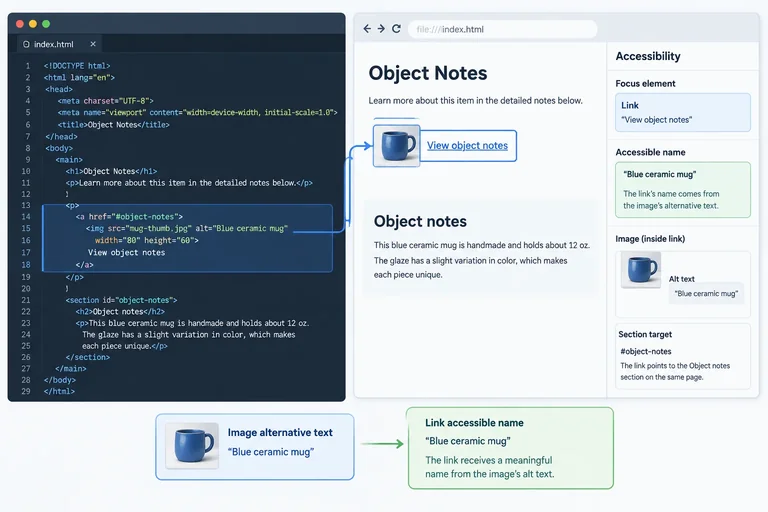
Use destination-focused alt text for image-only links, and avoid duplicate names when visible text inside the same link already communicates its purpose.
When an <img> is the only content inside an <a> element, the image's alt text supplies that link's accessible name in these native HTML examples.
Write what following the link does—not only what the image looks like. A mug image that links to notes should communicate the notes destination, not merely describe the mug.
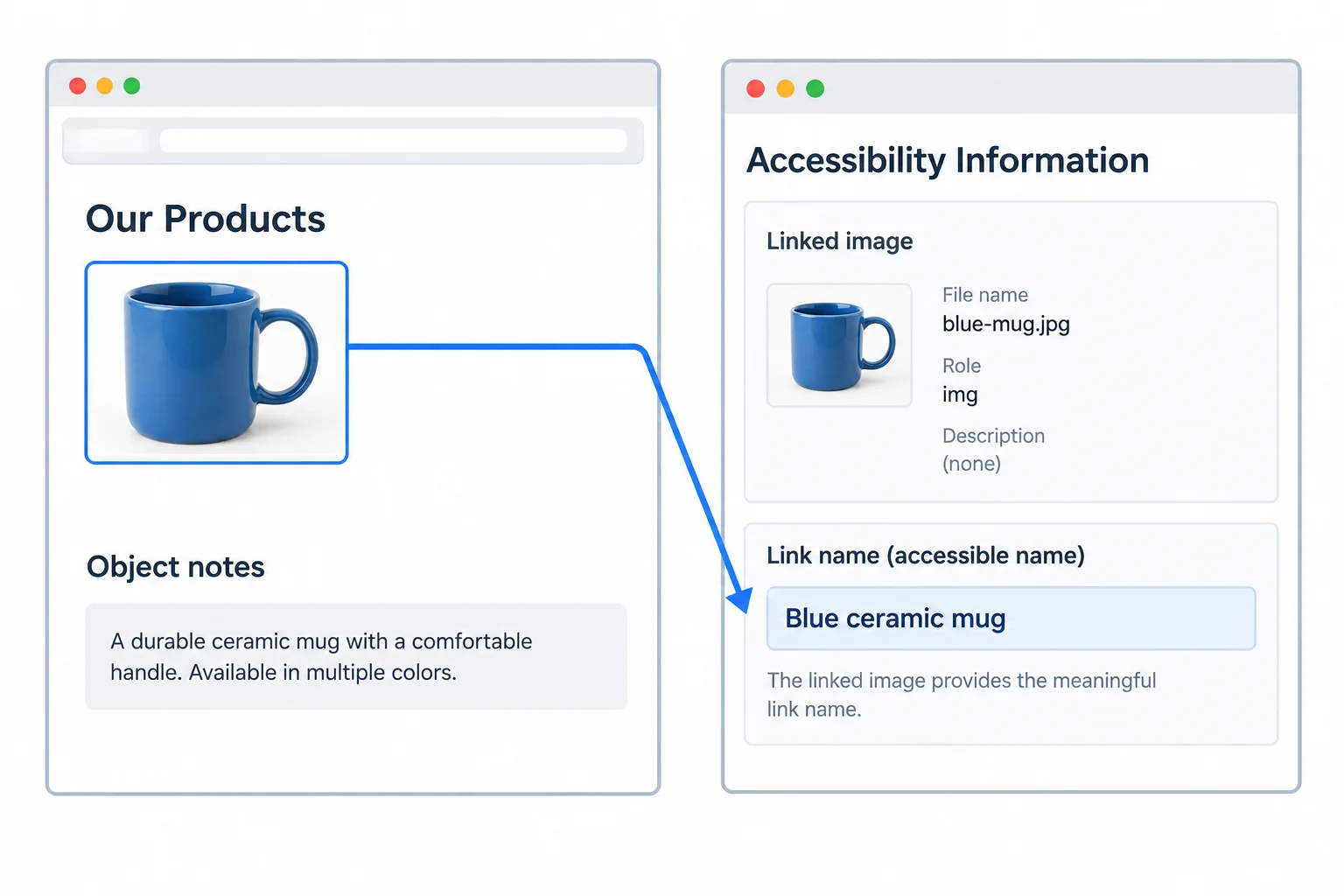
For an image-only link, the image's alt text provides the link name.
This image-only link moves to the Object notes section. Its alt text names that destination.
<a href="#object-notes">
  <img src="images/object.jpg" alt="Read the object notes">
</a>If visible link text inside the same link already communicates the purpose, and the image adds no extra meaning, use alt="" for that image. This avoids announcing duplicate information.
Text outside a link does not automatically name it. A nearby sentence may help a sighted reader understand the page, but the image-only link still needs its own accessible name.
Seeing the image in the browser does not confirm its accessible name. Inspect the link in your browser's accessibility information and look for its role and name. Panel names and locations vary by browser.
Here, the visible words are part of the anchor, so they provide the link's accessible name. The decorative image is explicitly empty.
<a href="#object-notes">
  <img src="images/object.jpg" alt="">
  Read the object notes
</a>
Tip
Do not make an image-only link decorative just because a related sentence appears before or after it. The purpose must be available from the link itself.
Match each link situation to the most appropriate alternative.
Tap an item and then its matching pair.
Complete both links: one is image-only, and one includes sufficient visible text inside its anchor.
<a href="#object-notes">
  <img src="images/object.jpg" alt="">
</a>

<a href="#object-notes">
  <img src="images/object.jpg" >
  Read the object notes
</a>

<h2 id="object-notes">Object notes</h2>
Step 5 of 5
Complete and verify a local image page while applying informative, decorative, and linked-image alt text decisions.
Use one local file in two roles. Put an image you own in image-practice/images/, then replace each images/object.jpg value below with your file’s exact name, capitalization, and extension.
For the first image, write alt text for a visual detail that the image contributes. The nearby paragraph should explain the page’s purpose without already stating that detail. That way, the image remains informative rather than redundant.
For the image-only link, keep the alternative focused on where the link goes. Its accessible name is about the destination, not the object’s appearance.
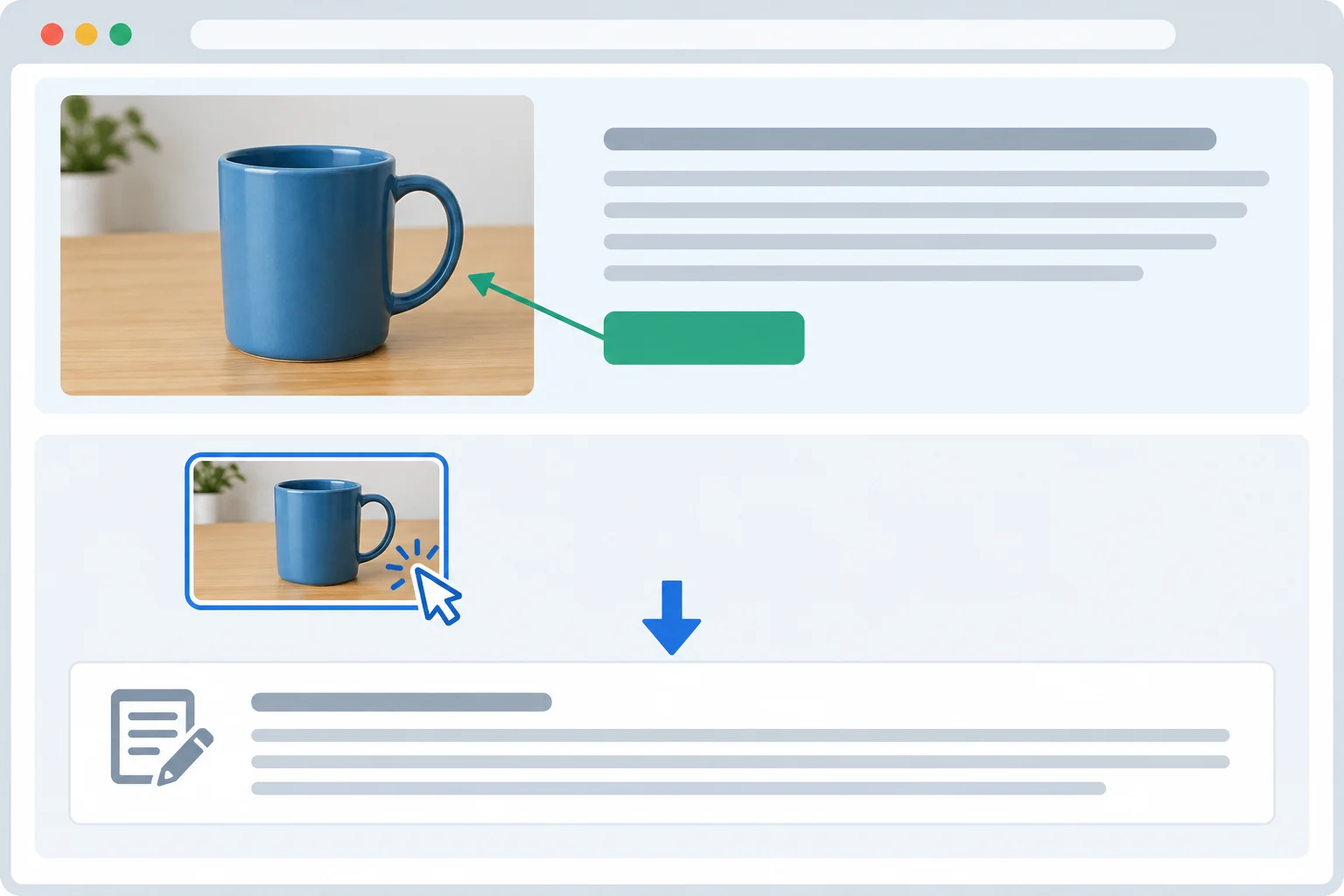
The first image adds information not already supplied by nearby text. The linked image names its destination instead.
Save this as image-practice/index.html. Replace both source paths with your learner-owned filename. Replace only the first image’s alt text with a concise detail that your image uniquely contributes; do not add that same detail to the introductory paragraph. Keep the image-only link’s destination-focused alt text and the Object notes identifier unchanged.
<!doctype html>
<html lang="en">
<head>
  <meta charset="utf-8">
  <title>Everyday Objects</title>
</head>
<body>
  <main>
    <h1>Everyday Objects</h1>
    <p>This page collects everyday objects with details worth noticing.</p>
    <img src="images/object.jpg" alt="Blue ceramic mug with a chipped rim">

    <p>
      <a href="#object-notes">
        <img src="images/object.jpg" alt="Read the object notes">
      </a>
    </p>

    <h2 id="object-notes">Object notes</h2>
    <p>Use these notes to record observations about the object.</p>
  </main>
</body>
</html>Everyday Objects This page collects everyday objects with details worth noticing. [Informative learner-owned image] [Linked learner-owned image] Object notes Use these notes to record observations about the object.
After you replace the reference filename and informative alt text, the exact image and its alternative will vary. Activating the linked image moves to the Object notes heading.
Save the adapted file and refresh it in your browser. Check each result separately:
src with the file’s folder, filename, capitalization, and extension.Object notes heading.Seeing an image confirms that its file rendered. It does not, by itself, confirm the accessible name of a link.
Summary
Use this checklist when reviewing your page.
src must match the learner-owned file exactly.The image adds no information beyond the preceding sentence and is not a link. Complete the missing markup so it is treated as decorative.
<p>The object label immediately above already supplies all relevant information.</p>
<img src="images/object.jpg" >Finish and save your local page before responding. It should contain your learner-owned informative image and an image-only link to Object notes. Also complete the separate decorative-image repair.
Base your report on the file you actually saved and checked. In particular, explain why the informative alt text adds a visual detail that the nearby introductory text does not already provide.
Write a 4–6 sentence report about your completed work. Include your informative image’s relative src; its alt text and the unique visual detail it contributes in this context; how you confirmed that the file rendered; what happened when you activated the image-only link; the accessible name you confirmed for that link and why it communicates its destination; and the markup choice used for the separate decorative-image example.
Write at least 180 characters (0/180).
Congratulations! You completed: Add Images with Appropriate Alt Text
Thousands of online courses in video, ebooks and audiobooks.
To test your knowledge during online courses
Generated directly from your cell phone's photo gallery and sent to your email

Download our app via QR Code or the links below:.



Carry knowledge in your pocket.
Download the Cursa app.
There are hundreds of free courses available, with a free certificate of completion that is saved in your mobile image gallery.
Download the app to access the Course Completion Certificate for Free.


+ 10 million
students

Free and Valid
Certificate

60 thousand free
exercises

4.8/5 rating in
app stores

Free courses in
video and ebooks