
Step 1 of 6
Separate Visible Data from DOM Handles
Separate React-owned visible message data from a DOM ref that holds an imperative native-control handle.

Learning path · Level 9 · Tutorial 7
Use typed React refs to focus native controls when an interaction calls for it, without storing visible data outside React state.
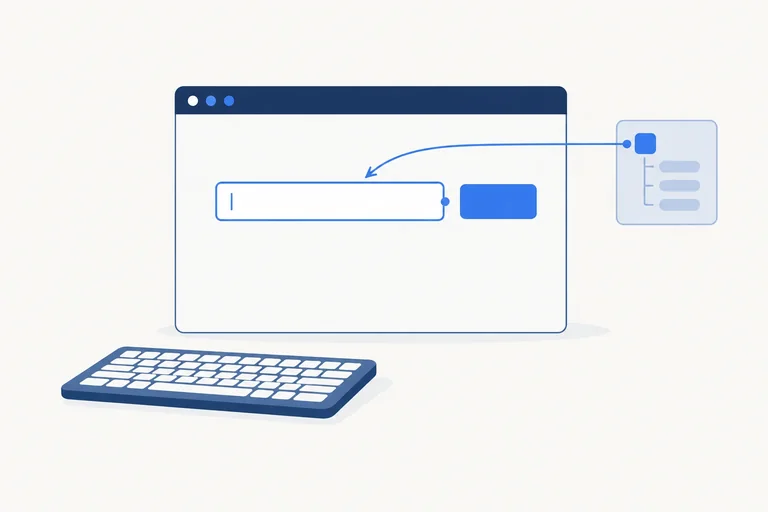
 Separate Visible Data from DOM Handles
Separate React-owned visible message data from a DOM ref that holds an imperative native-control handle. 2 min
Separate Visible Data from DOM Handles
Separate React-owned visible message data from a DOM ref that holds an imperative native-control handle. 2 min
 Attach a Typed Ref to a Native Input
Attach a nullable, element-specific ref to the controlled Message input without moving visible data out of state. 2 min
Attach a Typed Ref to a Native Input
Attach a nullable, element-specific ref to the controlled Message input without moving visible data out of state. 2 min
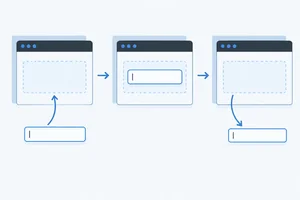 Track When ref.current Is Available
Follow a DOM ref from its initial null value through attachment, retention, and removal, without treating rendering as a DOM-access phase. 2 min
Track When ref.current Is Available
Follow a DOM ref from its initial null value through attachment, retention, and removal, without treating rendering as a DOM-access phase. 2 min
 Focus from a Deliberate User Action
Implement a null-safe native focus action from the Edit message button while preserving the controlled message and preview. 3 min
Focus from a Deliberate User Action
Implement a null-safe native focus action from the Edit message button while preserving the controlled message and preview. 3 min
 Preserve Native Keyboard Behavior
Use the native button's built-in keyboard behavior while keeping focus movement deliberate and predictable. 2 min
Preserve Native Keyboard Behavior
Use the native button's built-in keyboard behavior while keeping focus movement deliberate and predictable. 2 min
 Apply and Verify the Complete Interaction
Complete and locally verify an accessible, typed focus interaction while keeping visible message data in state. 3 min
Apply and Verify the Complete Interaction
Complete and locally verify an accessible, typed focus interaction while keeping visible message data in state. 3 min
Step 1 of 6
Separate React-owned visible message data from a DOM ref that holds an imperative native-control handle.
In Message draft, the text a person sees and edits is interface data. The input displays message, and the preview displays that same value. Because a change to this data must update what React renders, it belongs in state.
A DOM ref has a different job. It holds an imperative handle to a native element so code can later ask that element to perform a native action. It is not a second place to store the message.
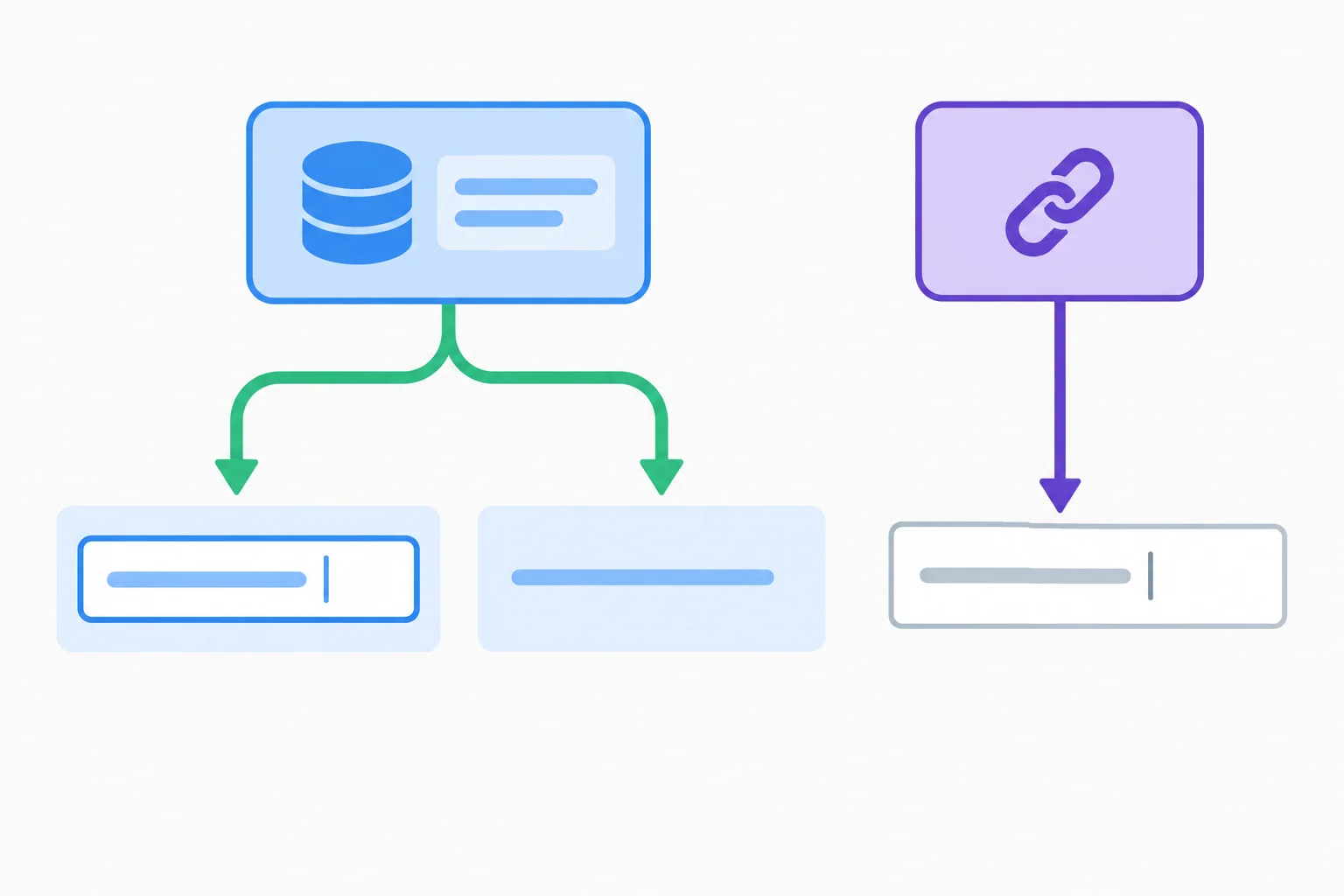
State supplies visible data to React's rendered interface. A DOM ref identifies the native control for an imperative action.
A ref is a stable container for the same mounted component instance. Its current value can persist through ordinary renders, but changing that value does not ask React to render again.
Use state when a change must affect rendered output. Use a DOM ref when code needs an imperative handle to a native element. The handle can support a native action, but it does not own the controlled value.
Use this decision rule for the running example.
| Thing or change | Keep it in | Why |
|---|---|---|
| Message shown in the input | State | It is visible data |
| Text after Preview: | State | It is rendered output |
| Handle to the native input | DOM ref | It enables a native action |
| Updating message | State setter | It requests a render |
| Changing ref.current | Ref | It does not request a render |
Tip
Do not use an element handle to manually replace React-owned input text or preview text. React still renders from state, so a later render can overwrite that manual DOM change. Update the controlled value through state instead.
Match each description to its correct category.
Tap an item and then its matching pair.

Step 2 of 6
Attach a nullable, element-specific ref to the controlled Message input without moving visible data out of state.
Your controlled input still keeps its visible text in message state. Add a separate ref only to identify the native <input> element.
A ref is not a second value store: it does not replace value={message} or the onChange handler. Its object remains stable for this mounted component, and changing its current value does not request a render.
For a text <input>, declare the ref with the matching DOM type and an empty initial value: HTMLInputElement | null and null.
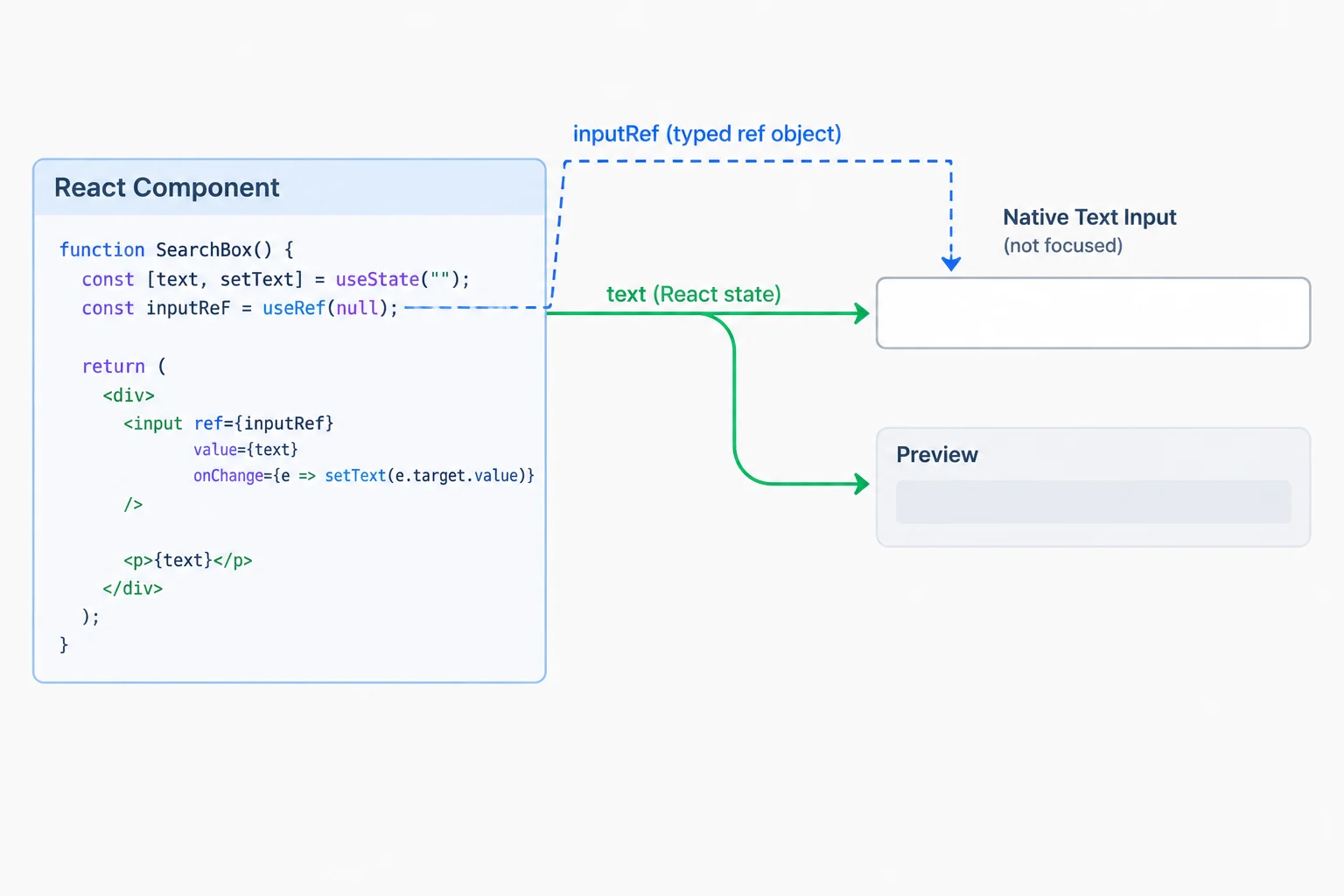
The controlled value remains React state; the ref is a handle to the native control.
Replace src/App.tsx with this starter in your existing local React and TypeScript app. It keeps the Message field controlled while attaching a typed ref object to the native input.
import { useRef, useState } from "react";

export default function App() {
  const [message, setMessage] = useState("Hello, React!");
  const messageRef = useRef<HTMLInputElement | null>(null);

  return (
    <main>
      <h1>Message draft</h1>

      <label htmlFor="message">Message</label>
      <input
        ref={messageRef}
        id="message"
        type="text"
        value={message}
        onChange={(event) => setMessage(event.currentTarget.value)}
      />

      <p>Preview: {message}</p>
    </main>
  );
}
Message draft
Message
Hello, React!
Preview: Hello, React!
The attached ref produces no additional visual change. The input and preview continue to render from `message` state.
Tip
Pass the ref object as ref={messageRef}. Do not pass messageRef.current in JSX. React uses the object to maintain its connection to the native element.
The ref identifies this controlled input, but React state still owns its displayed value and the preview.
Choose the element type that matches the actual native control. The ref type describes what may eventually be available through the ref.
| Native JSX element | Ref generic type | Empty value |
|---|---|---|
| <input> | HTMLInputElement | null | null |
| <textarea> | HTMLTextAreaElement | null | null |
Complete the declaration and attachment for a native text input.
const messageRef = useRef< | >();

<input ref={} id="message" type="text" />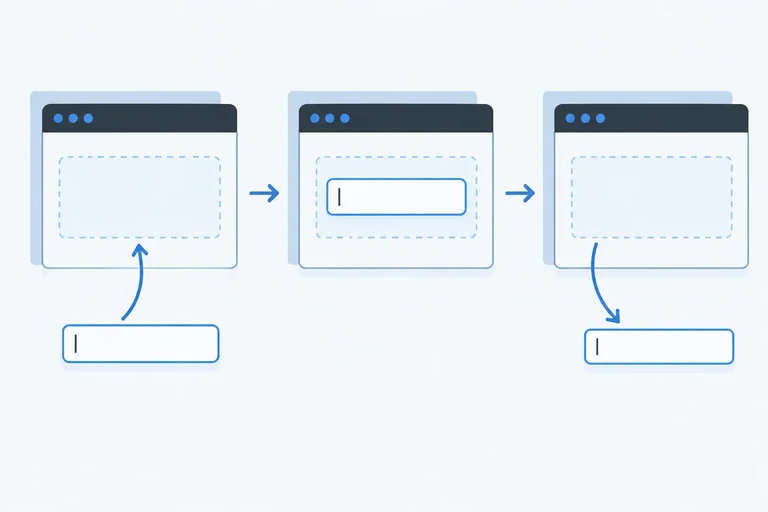
Step 3 of 6
Follow a DOM ref from its initial null value through attachment, retention, and removal, without treating rendering as a DOM-access phase.
A ref begins with its declared empty value. For the attached input, messageRef.current is null during the initial Render. Render calculates JSX; it is not a safe place to read a DOM ref or call a native DOM method.
Afterward, during Commit, React attaches the native input and assigns that element to current. The ref container itself remains stable for the mounted component instance.
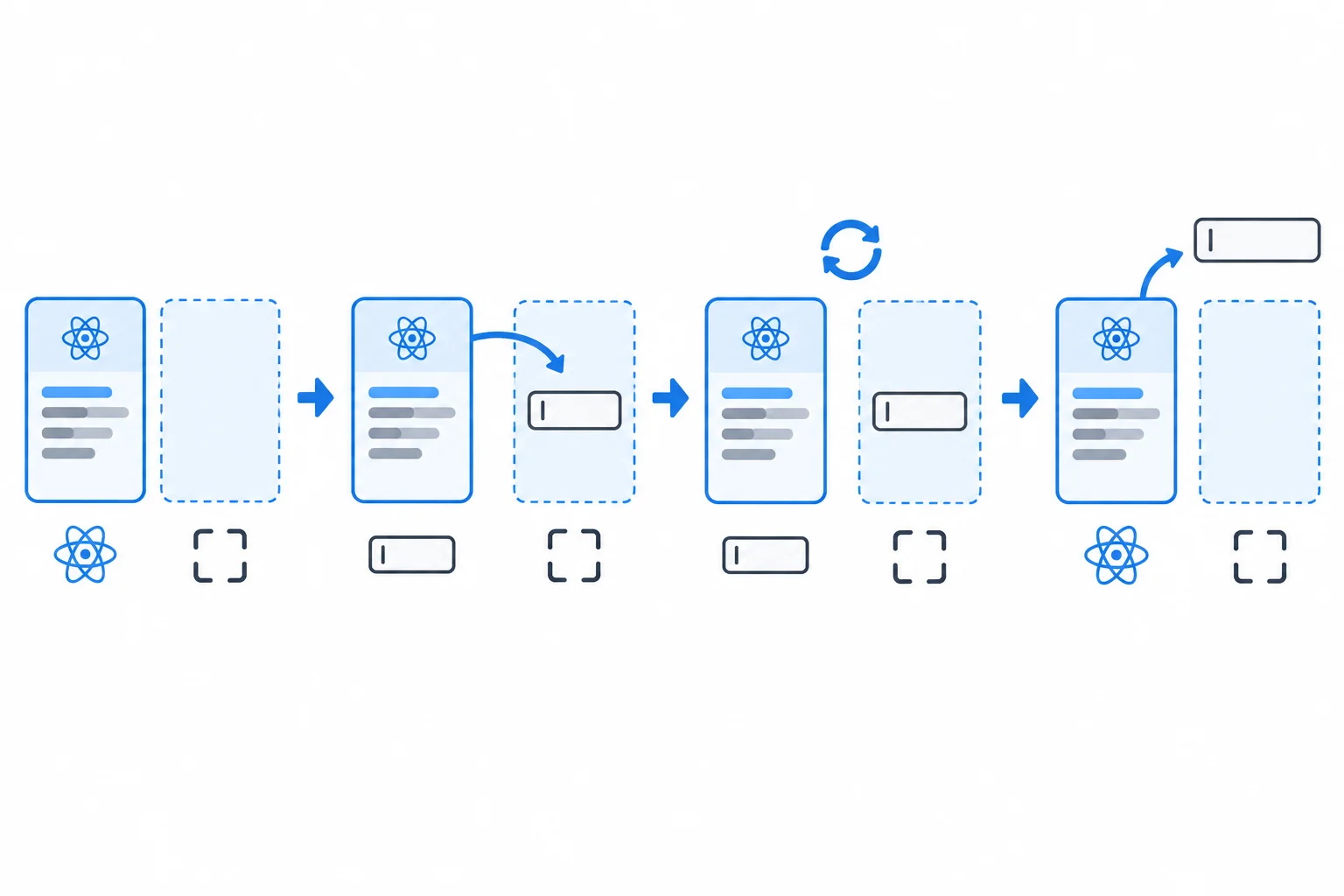
Read the flow as Render, Commit, an ordinary rerender, and Removal. React connects and clears the DOM reference as it updates the committed interface.
On an ordinary rerender, the ref container is retained. If the same input remains mounted, its current value continues to refer to that input.
At Removal, when React removes the referenced input, it clears current back to null. A ref does not keep a removed DOM node available.
Example
A user action can request a state change that conditionally includes an input. The handler continues before React has completed the later Render and Commit. Therefore, requesting the input does not make its DOM node available immediately inside that same handler.
Keep DOM reads and DOM manipulation out of Render. Render should describe the interface; React performs the attachment during Commit.
A user action requests state that will include an input that is currently absent. Which statement is accurate during that same handler?
Arrange these stages from earliest to latest for an initially absent conditional input that later remains mounted for one ordinary rerender and is then removed.

Step 4 of 6
Implement a null-safe native focus action from the Edit message button while preserving the controlled message and preview.
The input is already mounted and enabled, so the Edit message button can perform one deliberate imperative action: move focus to that input.
Put this work in the button's event handler—not while React is rendering. Here, focus means that the input becomes the active keyboard target; it does not mean its text is selected.
The input remains controlled by message. Focusing it does not require setMessage, and it does not require changing React-owned DOM text yourself.
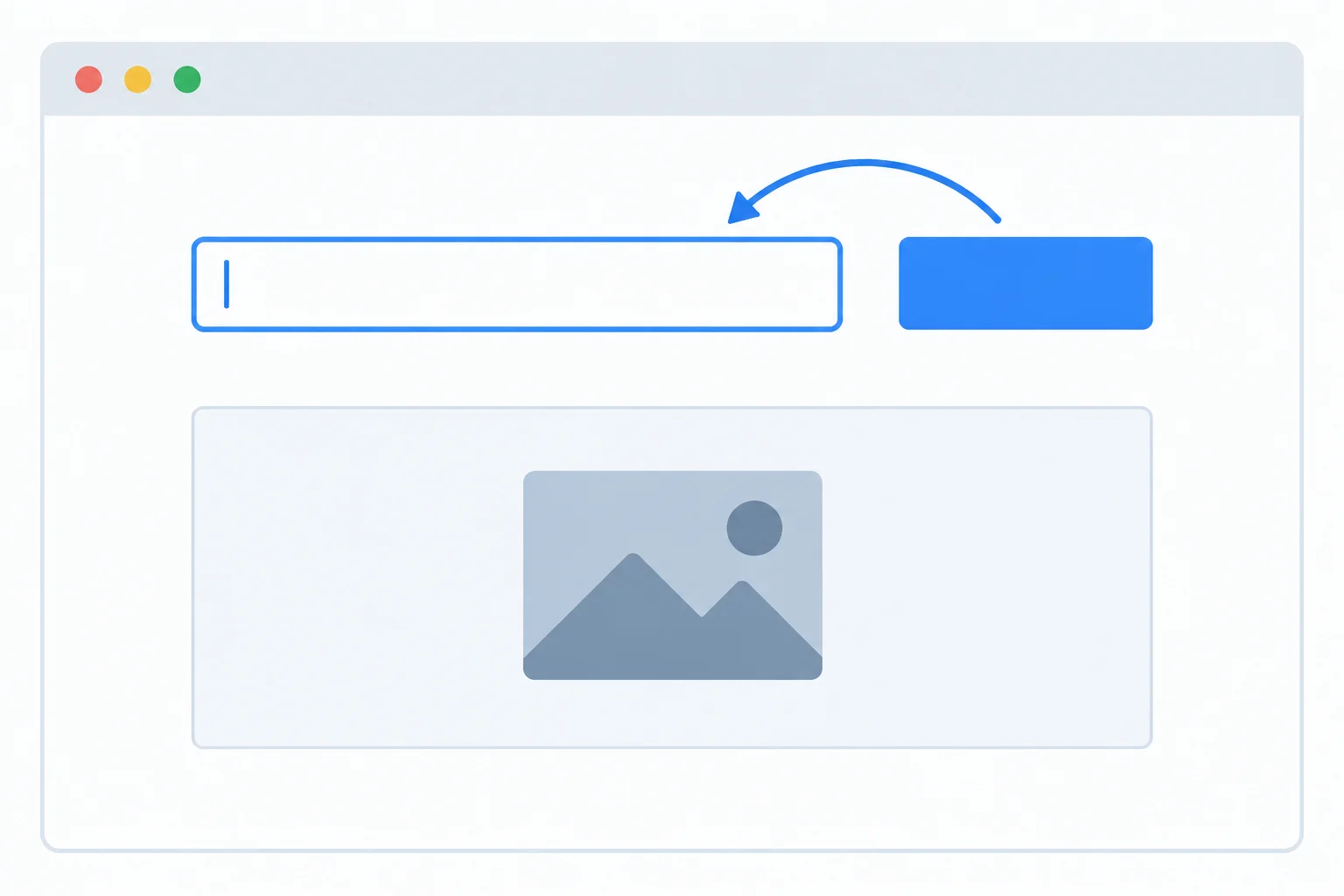
The handler moves focus to the existing input. It does not change the controlled message or its preview.
Add the handler and button to the existing controlled-input example. The ref's current can still be null, so optional chaining calls the native method only when an input element is available.
Replace src/App.tsx in your existing local React and TypeScript app with this complete component.
import { useRef, useState } from "react";

export default function App() {
  const [message, setMessage] = useState("Hello, React!");
  const messageRef = useRef<HTMLInputElement | null>(null);

  function handleEditMessage() {
    messageRef.current?.focus();
  }

  return (
    <main>
      <h1>Message draft</h1>

      <label htmlFor="message">Message</label>
      <input
        ref={messageRef}
        id="message"
        type="text"
        value={message}
        onChange={(event) => setMessage(event.currentTarget.value)}
      />

      <button type="button" onClick={handleEditMessage}>
        Edit message
      </button>

      <p>Preview: {message}</p>
    </main>
  );
}Initial browser view: Message draft Message [Hello, React!] [Edit message] Preview: Hello, React! After Edit message is activated: The input containing "Hello, React!" has visible focus and is the active keyboard target. The input text remains "Hello, React!". Preview: Hello, React!
This is the expected browser result. The exact appearance of the native focus indicator varies by browser and CSS, but the input should become the active keyboard target after the button is activated.
Warning
?. prevents an error when current is null; it does not create an input or guarantee that focus moved. Use this handler for an existing, mounted, enabled control. Do not replace the lifecycle check with a non-null assertion.
Complete the missing pieces that connect the native button to its handler and call the input's native method safely.
function handleEditMessage() {
  messageRef.current?.();
}

<button type="button" ={handleEditMessage}>
  Edit message
</button>In your local src/App.tsx, complete the button-to-handler connection and the null-safe native call. Then activate Edit message once.
Write the event-handler JSX fragment, the handler line, and a prediction of what changes versus what stays the same for the message and Preview:.
Write at least 60 characters (0/60).
Step 5 of 6
Use the native button's built-in keyboard behavior while keeping focus movement deliberate and predictable.
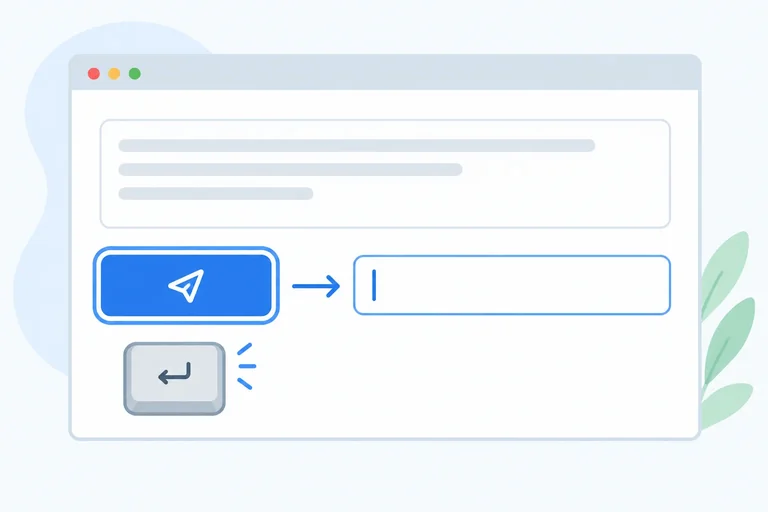
A native <button> already supports keyboard activation. When Edit message has focus, pressing Enter or Space activates its onClick handler—no separate key handler is needed.
The intended interaction is:
Preview: update through state.Afterward, Tab and Shift+Tab should keep their normal navigation behavior.

The button keeps native activation; the deliberate action moves focus to the input.
Keep the focus move limited to the deliberate button action. Do not focus the input again while the learner types or whenever React renders: that could interrupt navigation or pull focus away from where the learner placed it.
Also avoid custom activation keys and positive tabIndex values. Native controls already provide the expected keyboard model and focus order.
Example
The button needs only its normal click handler. Enter and Space activation are built into the native button.
Keep this handler and button in your existing src/App.tsx. Do not add an onKeyDown handler just to activate the button.
function handleEditMessage() {
  messageRef.current?.focus();
}

<button type="button" onClick={handleEditMessage}>
  Edit message
</button>With Edit message focused: Enter or Space activates handleEditMessage. Focus moves to the Message input. The existing message and Preview: do not change until the user types.
Interaction result to check in the browser: first place focus on Edit message with Tab, then activate it with Enter or Space.
Tip
A visible focus indicator and the input's associated Message label tell keyboard users both where focus moved and what they can edit.
Which implementation best preserves native keyboard interaction for Edit message?

Step 6 of 6
Complete and locally verify an accessible, typed focus interaction while keeping visible message data in state.
In your existing local React + TypeScript project, replace src/App.tsx with this complete Message draft example. The input value remains React state; the ref is used only for the deliberate focus action.
Save the file and view the running app in your local browser.
src/App.tsx
import { useRef, useState } from "react";

export default function App() {
  const [message, setMessage] = useState("Hello, React!");
  const messageRef = useRef<HTMLInputElement | null>(null);

  function handleEditMessage() {
    messageRef.current?.focus();
  }

  return (
    <main>
      <h1>Message draft</h1>

      <label htmlFor="message">Message</label>
      <input
        ref={messageRef}
        id="message"
        type="text"
        value={message}
        onChange={(event) => setMessage(event.currentTarget.value)}
      />

      <button type="button" onClick={handleEditMessage}>
        Edit message
      </button>

      <p>Preview: {message}</p>
    </main>
  );
}
Initial browser rendering:
Message
Input value: Hello, React!
Edit message
Preview: Hello, React!

After activating Edit message:
Visible focus: Message input
Input value: Hello, React!
Preview: Hello, React!

After typing a changed message:
Input value: the typed message
Preview: the same typed message
This is the expected browser result, not console output. Your browser's focus indicator styling may differ.
Check the interaction in your local browser:
The button handler moves focus only. It does not replace the current message or write visible content outside React state.
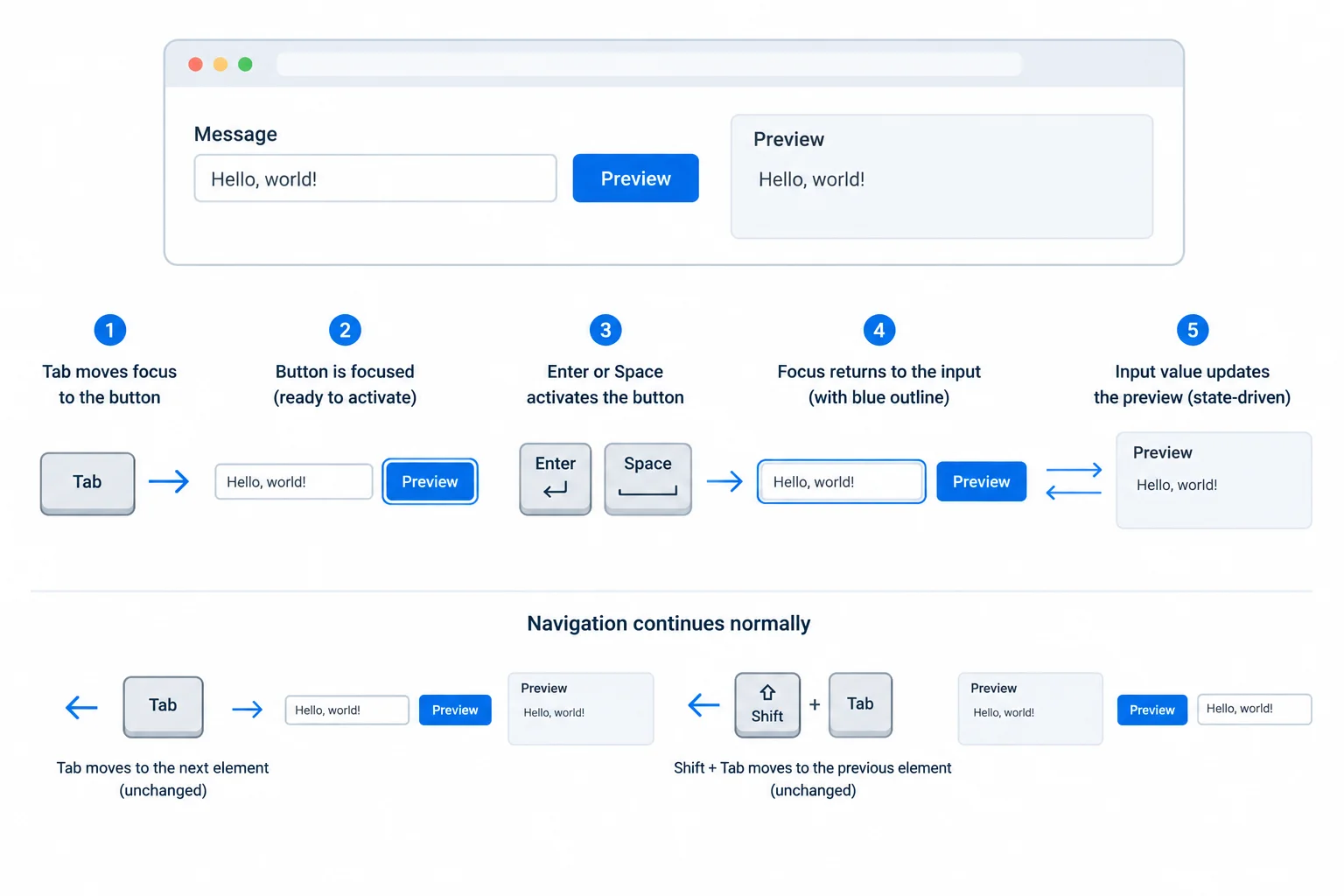
Native button activation moves focus to the existing input. Typing afterward updates the state-driven preview.
The completed interaction has separate responsibilities. State owns message, so React renders the input value and Preview: from one visible source of truth. messageRef identifies the already mounted native input without owning its value. The button handler performs one deliberate focus action, while native controls retain their built-in keyboard behavior.
Summary
message controls the visible input text and the preview.messageRef identifies the native input without owning its value.Complete the typed ref declaration, the handler's native method call, and the input attachment.
import { useRef, useState } from "react";

export default function App() {
  const [message, setMessage] = useState("Hello, React!");
  const messageRef = useRef<>(null);

  function handleEditMessage() {
    messageRef.current?.();
  }

  return (
    <main>
      <h1>Message draft</h1>

      <label htmlFor="message">Message</label>
      <input
        ref={}
        id="message"
        type="text"
        value={message}
        onChange={(event) => setMessage(event.currentTarget.value)}
      />

      <button type="button" onClick={handleEditMessage}>
        Edit message
      </button>

      <p>Preview: {message}</p>
    </main>
  );
}
Run your completed app locally and perform two keyboard passes: activate Edit message once with Enter and once with Space. Then type a changed draft and navigate with Tab and Shift+Tab.
Report what you observed for all of these points: visible focus after each activation, whether the existing message text changed on activation, whether the preview changed while typing, and how Tab and Shift+Tab behaved afterward.
Write at least 220 characters (0/220).
Congratulations! You completed: Focus Native Controls with React Refs
Thousands of online courses in video, ebooks and audiobooks.
To test your knowledge during online courses
Generated directly from your cell phone's photo gallery and sent to your email

Download our app via QR Code or the links below:.



Carry knowledge in your pocket.
Download the Cursa app.
There are hundreds of free courses available, with a free certificate of completion that is saved in your mobile image gallery.
Download the app to access the Course Completion Certificate for Free.


+ 10 million
students

Free and Valid
Certificate

60 thousand free
exercises

4.8/5 rating in
app stores

Free courses in
video and ebooks