Step 1 of 8
Define the Resource Lifecycle
Model the Book List request lifecycle with coordinated state, data, and error information.

Learning path · Level 7 · Tutorial 5
Build a data-loading interface that communicates progress, displays results or an empty outcome, and offers recovery after failure. Keep its controls and accessible feedback consistent throughout each request.
 Define the Resource Lifecycle
Model the Book List request lifecycle with coordinated state, data, and error information. 2 min
Define the Resource Lifecycle
Model the Book List request lifecycle with coordinated state, data, and error information. 2 min
 Build a Stable, Testable Interface
Set up the local Book List shell, deterministic JSON fixtures, and an idle-only rendering foundation for later loading states. 3 min
Build a Stable, Testable Interface
Set up the local Book List shell, deterministic JSON fixtures, and an idle-only rendering foundation for later loading states. 3 min
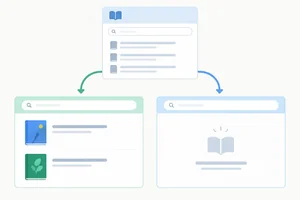 Render Results and Valid Empty Outcomes
Render populated and valid empty Book List responses from centralized state while keeping obsolete content out of the results region. 3 min
Render Results and Valid Empty Outcomes
Render populated and valid empty Book List responses from centralized state while keeping obsolete content out of the results region. 3 min
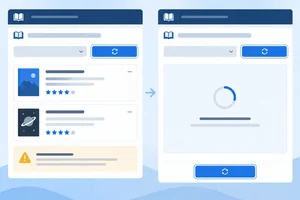 Enter Loading Without Leaving Stale Feedback
Start each replacement load with clean feedback, temporarily unavailable request controls, and a repeatable local loading preview. 3 min
Enter Loading Without Leaving Stale Feedback
Start each replacement load with clean feedback, temporarily unavailable request controls, and a repeatable local loading preview. 3 min
 Announce Progress Without Moving Focus
Use separate busy and status semantics to announce Book List progress and completion while preserving keyboard focus. 3 min
Announce Progress Without Moving Focus
Use separate busy and status semantics to announce Book List progress and completion while preserving keyboard focus. 3 min
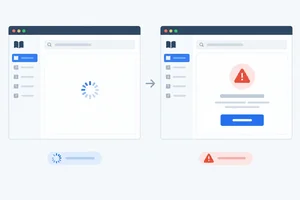 Render Failure and Restore Usable Controls
Handle rejected reads as visible error outcomes, then use a final render to restore controls and busy semantics without losing that outcome. 4 min
Render Failure and Restore Usable Controls
Handle rejected reads as visible error outcomes, then use a final render to restore controls and busy semantics without losing that outcome. 4 min
 Provide an Explicit Retry Path
Use the persistent action button to retry failed reads, reset a changed fixture to idle, and verify that recovery depends on the next request outcome. 2 min
Provide an Explicit Retry Path
Use the persistent action button to retry failed reads, reset a changed fixture to idle, and verify that recovery depends on the next request outcome. 2 min
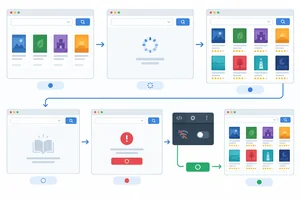 Verify the Complete Lifecycle
Manually verify every Book List lifecycle state, replacement transition, and explicit recovery path in your local application. 3 min
Verify the Complete Lifecycle
Manually verify every Book List lifecycle state, replacement transition, and explicit recovery path in your local application. 3 min
Step 1 of 8
Model the Book List request lifecycle with coordinated state, data, and error information.
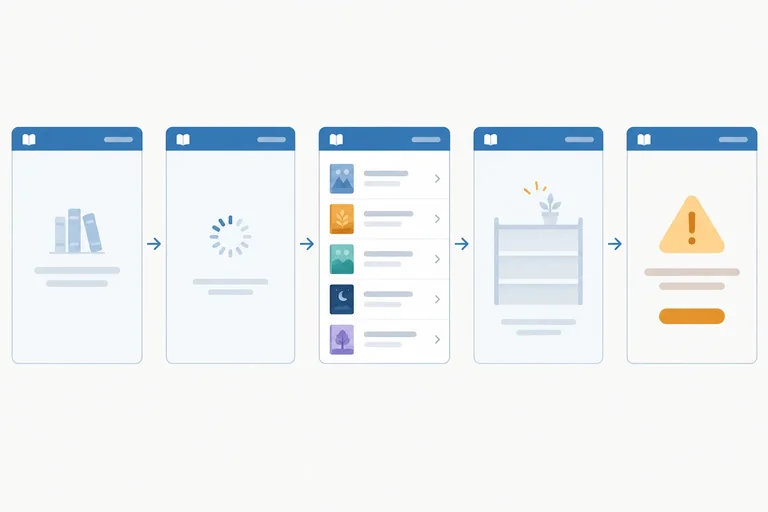
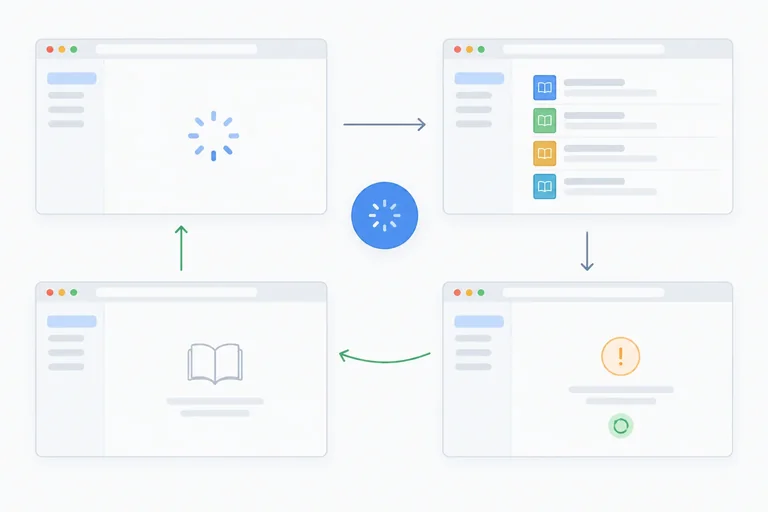
A Book List request is not simply “done” or “not done.” Model its lifecycle with five states:
A request that finishes has reached an outcome, but that outcome is not automatically usable results. A valid [] is empty; a failed or unusable response is error.
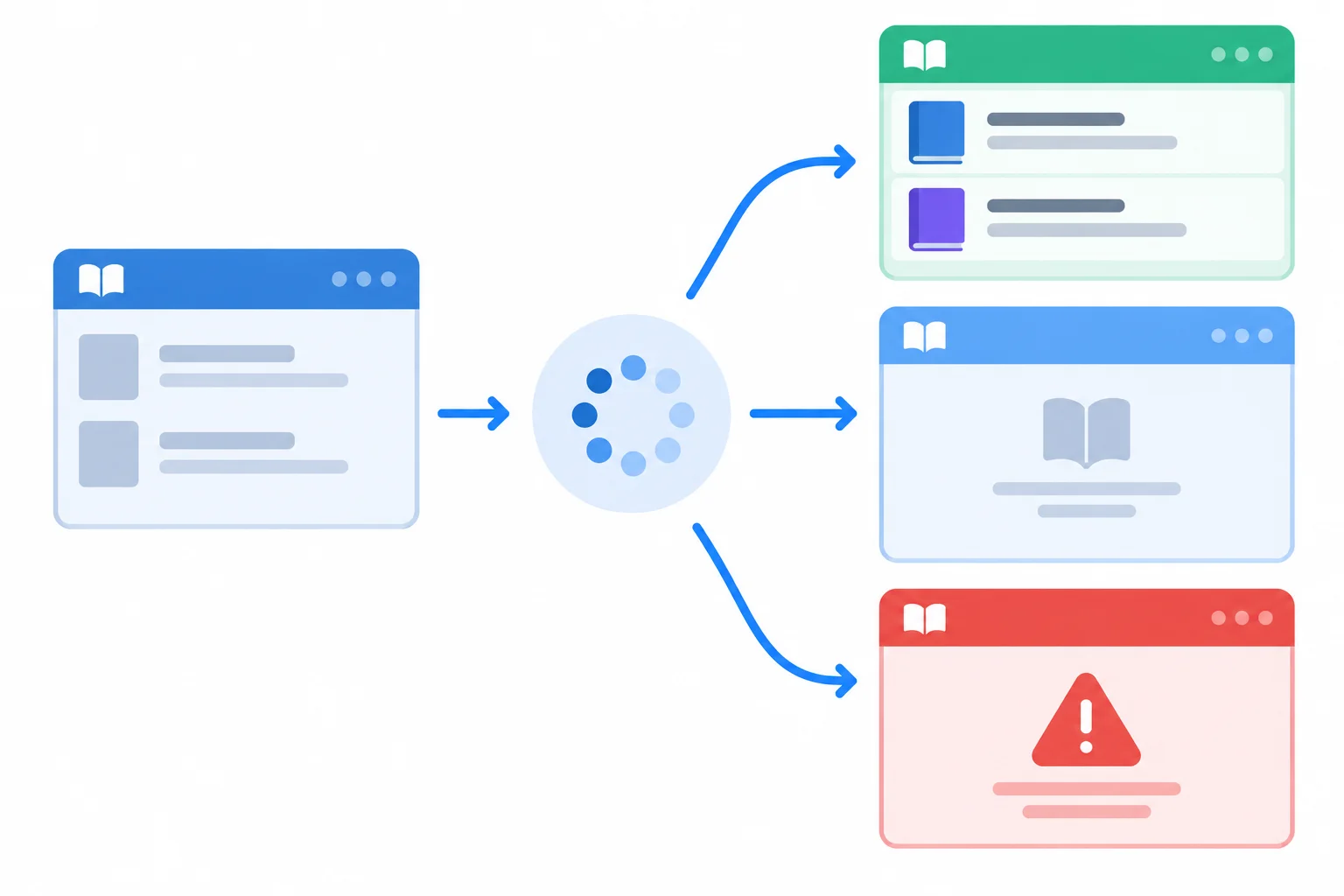
After loading, exactly one terminal outcome describes what the request produced.
Keep related facts in one state object. This prevents combinations such as an error message paired with old books presented as the current result.
const state = {
  status: "idle",
  books: [],
  error: null
};Use status to interpret the other fields. The collection is shown only when it belongs to the current outcome.
| Status | books | error | Visible feedback |
|---|---|---|---|
| idle | [] | null | No request outcome yet |
| loading | [] | null | Loading books… |
| success | Validated, nonempty books | null | Loaded count and book titles |
| empty | Validated [] | null | No books found. |
| error | [] | User-facing message | Books could not be loaded. Try again. |
These are invariants: rules that must stay true in every rendering. In particular, success requires a validated nonempty collection, empty requires a validated empty collection, and error requires a message with no displayed collection. Independent flags such as isLoading and hasError can accidentally allow contradictory combinations; this coordinated object gives each situation one meaning.
Match each Book List situation to its correct state or consistency judgment.
Tap an item and then its matching pair.
Step 2 of 8
Set up the local Book List shell, deterministic JSON fixtures, and an idle-only rendering foundation for later loading states.
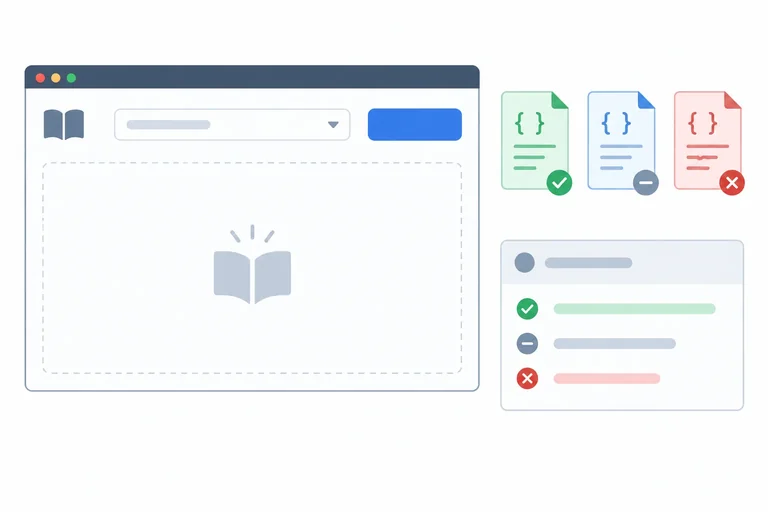
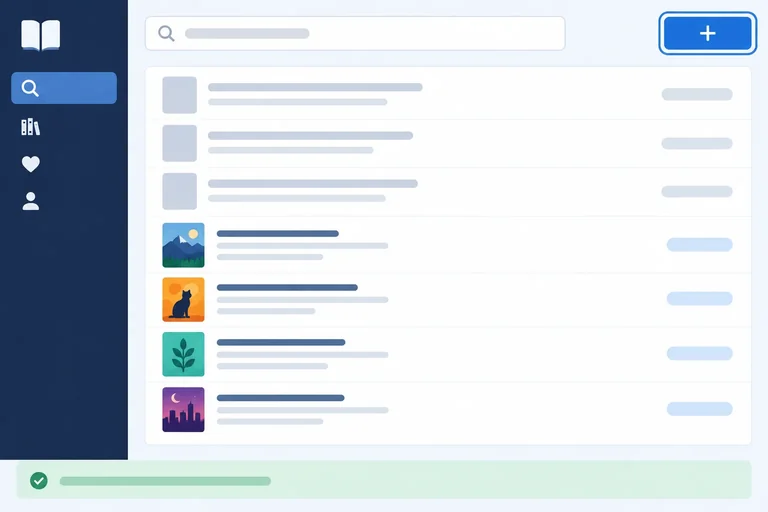
Build the Book List around elements that persist across every request: a fixture selector, one action button, a results region, and a separate status region.
Keep the action button outside the results region. Later, the list or visible outcome message can change without replacing the control the user activated.
Inside the results region, keep the book list and visible outcome message separate. The status region is a separate persistent element and starts empty while the interface is idle.
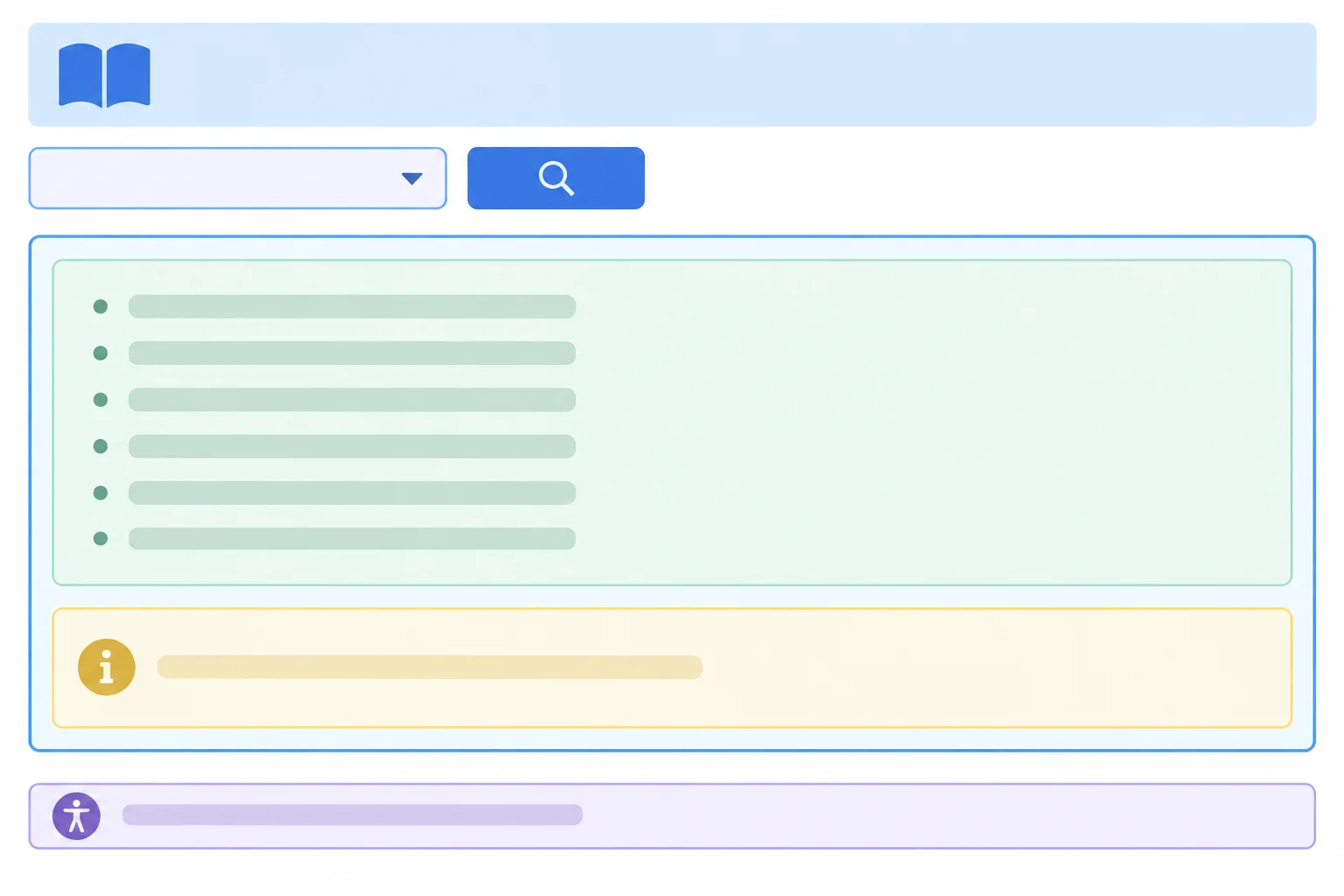
Keep the action control, replaceable results content, and status feedback as separate structural areas.
Begin with the lifecycle snapshot already defined:
{ status: "idle", books: [], error: null }
Idle means the interface is ready, not loading. Its first render must not request a fixture automatically. The learner selects a fixture and explicitly starts a read in a later step.
If you need a minimal Vite project, create package.json, run npm install, then start the local server with npm run dev. Use the localhost address printed by Vite.
{
  "name": "book-list-states",
  "private": true,
  "version": "1.0.0",
  "type": "module",
  "scripts": {
    "dev": "vite"
  },
  "devDependencies": {
    "vite": "^6.0.0"
  }
}$ npm run dev > book-list-states@1.0.0 dev > vite VITE v6.x.x ready in 150 ms ➜ Local: http://localhost:5173/
The localhost URL and installed Vite version can differ on your computer.
Create these three files in public/data/. They provide reproducible populated, empty, and malformed outcomes without an external API.
[
  {
    "id": 1,
    "title": "Practical HTML"
  },
  {
    "id": 2,
    "title": "Everyday CSS"
  }
][]Keep the trailing comma. This fixture is intentionally malformed, so JSON decoding will fail when it is requested later.
[{"id":1,"title":"Practical HTML"},]Create index.html. The stylesheet link makes the local styles apply. The results region has a name, while load-status is a persistent sibling outside it. Do not place the button inside results.
<!doctype html>
<html lang="en">
  <head>
    <meta charset="UTF-8" />
    <meta name="viewport" content="width=device-width, initial-scale=1.0" />
    <title>Book List</title>
    <link rel="stylesheet" href="/src/style.css" />
  </head>
  <body>
    <main>
      <h1>Book List</h1>

      <label for="fixture-select">Choose a fixture</label>
      <select id="fixture-select">
        <option value="/data/books.json">Books</option>
        <option value="/data/books-empty.json">Empty books</option>
        <option value="/data/books-broken.json">Broken books</option>
      </select>
      <button id="load-button" type="button" aria-disabled="false">Load books</button>

      <section id="results" aria-labelledby="results-heading" aria-busy="false">
        <h2 id="results-heading" class="visually-hidden">Book results</h2>
        <ul id="book-list"></ul>
        <p id="outcome-message"></p>
      </section>

      <p
        id="load-status"
        role="status"
        aria-atomic="true"
        class="visually-hidden"
      ></p>
    </main>
    <script type="module" src="/src/main.js"></script>
  </body>
</html>Create src/style.css. The .visually-hidden class removes the status element from the visual layout while preserving it in the document.
body {
  font-family: system-ui, sans-serif;
  line-height: 1.5;
  margin: 0;
}

main {
  margin: 0 auto;
  max-width: 42rem;
  padding: 2rem;
}

#results {
  border: 1px solid #b8c1cc;
  margin-top: 1rem;
  min-height: 5rem;
  padding: 1rem;
}

.visually-hidden {
  clip: rect(0, 0, 0, 0);
  height: 1px;
  margin: -1px;
  overflow: hidden;
  padding: 0;
  position: absolute;
  white-space: nowrap;
  width: 1px;
}Create src/main.js. Use let because later steps replace the entire state object for each lifecycle transition. This starter renders only the initial idle view: it does not attach a request handler or request a fixture. The supplied helper reuses established HTTP, JSON, and record-validation checks, with cache-free fixture reads.
let state = {
  status: "idle",
  books: [],
  error: null
};

const fixtureSelect = document.querySelector("#fixture-select");
const loadButton = document.querySelector("#load-button");
const resultsRegion = document.querySelector("#results");
const bookList = document.querySelector("#book-list");
const outcomeMessage = document.querySelector("#outcome-message");
const loadStatus = document.querySelector("#load-status");

function render() {
  resultsRegion.setAttribute("aria-busy", "false");
  bookList.replaceChildren();
  outcomeMessage.textContent = "";
  loadStatus.textContent = "";
  loadButton.textContent = "Load books";
  loadButton.setAttribute("aria-disabled", "false");
  fixtureSelect.disabled = false;
}

async function fetchBooks(url) {
  const response = await fetch(url, { cache: "no-store" });

  if (!response.ok) {
    throw new Error(`Request failed with status ${response.status}.`);
  }

  const data = await response.json();
  const hasValidBooks = Array.isArray(data) && data.every((book) => {
    return book !== null &&
      typeof book === "object" &&
      typeof book.id === "number" &&
      typeof book.title === "string";
  });

  if (!hasValidBooks) {
    throw new Error("The response does not contain valid book records.");
  }

  return data;
}

render();Browser page, initial idle state: Book List Choose a fixture [Books ▼] [Load books] [empty bordered results region] Results region: aria-busy="false" Fixture selector: enabled Action button: aria-disabled="false" Visible outcome message: empty Status region text: empty JSON fixture requests: none
This is the expected browser UI after Vite loads the page. No Network request for a JSON fixture occurs yet.
Complete the structural scaffold. Preserve the shown placement: the action button must stay outside the replaceable results region.
<label for="fixture-select">Choose a fixture</label>
<select id="fixture-select"></select>
<button id="load-button" type="button" aria-disabled="false">Load books</button>

<section id="" aria-labelledby="results-heading" aria-busy="false">
  <h2 id="results-heading" class="visually-hidden">Book results</h2>
  <ul id=""></ul>
  <p id=""></p>
</section>

<p id="" class="visually-hidden" role="status" aria-atomic="true"></p>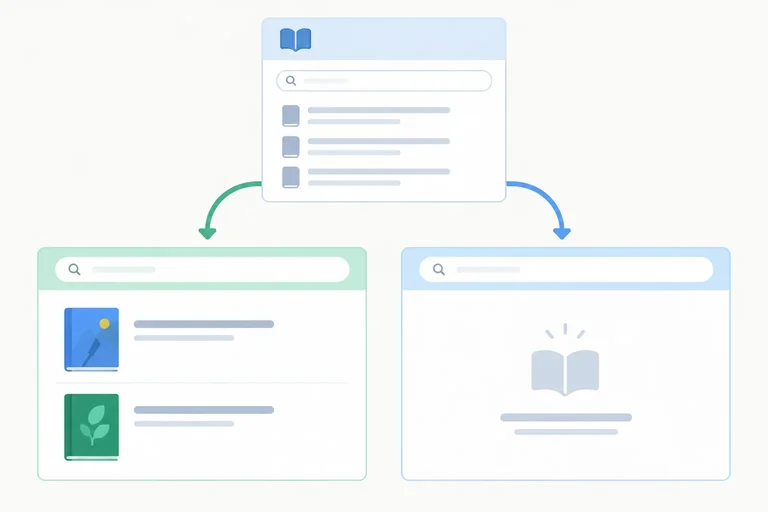
Step 3 of 8
Render populated and valid empty Book List responses from centralized state while keeping obsolete content out of the results region.
A completed Book List request has two valid data outcomes. After a response has been decoded and validated as a collection:
success.empty.Both outcomes mean the request produced usable data. They differ only in what that validated collection contains, so the results region must show different content.
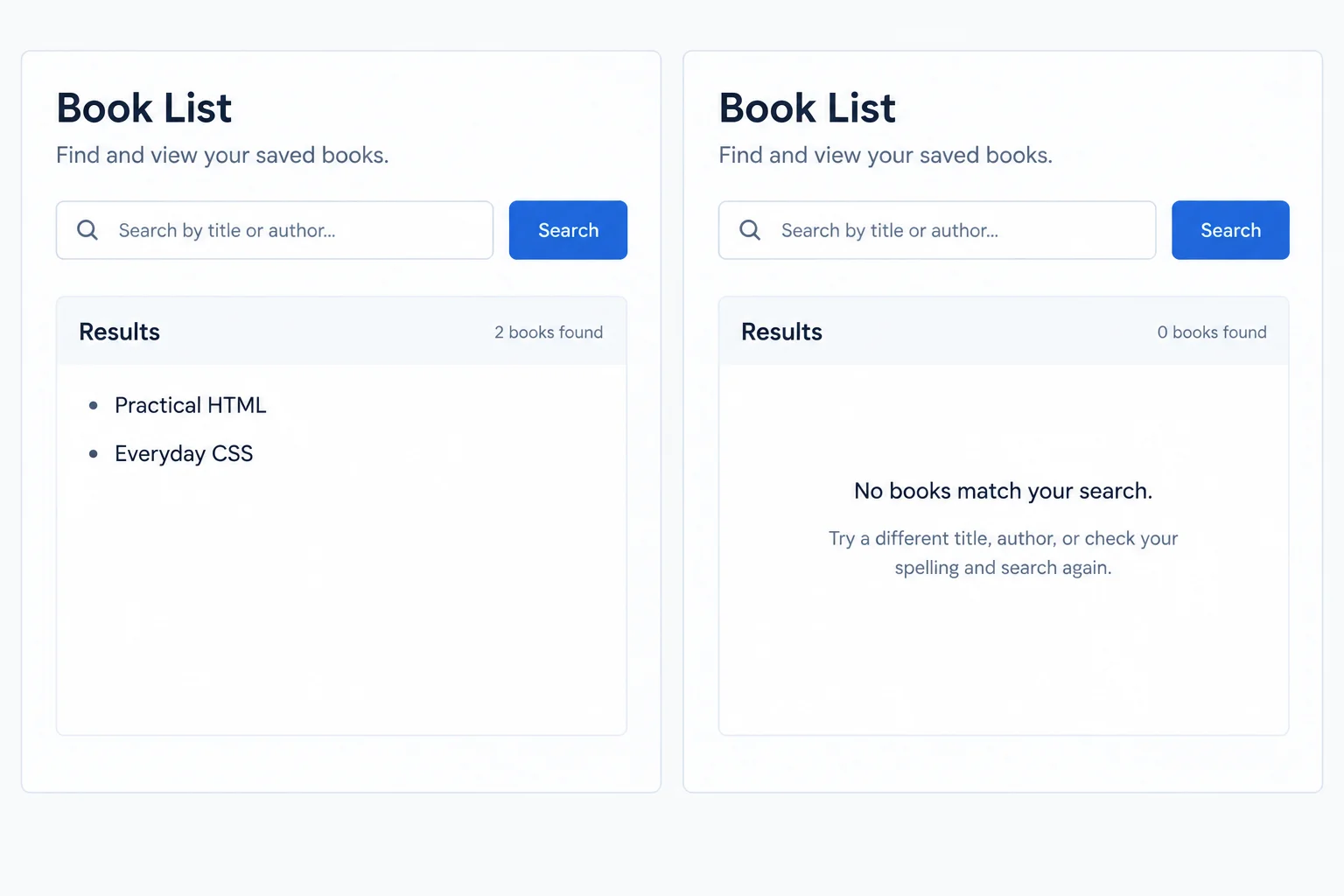
Both are valid completed responses. The validated collection length determines the visible outcome.
The renderer must make the DOM agree with the current state snapshot.
| State | Validated books | Visible in the results region |
|---|---|---|
| success | 2 records | Practical HTML and Everyday CSS |
| empty | [] | No books found. |
| idle | [] | No result content yet |
Step 2 already created render(). Do not add a second function declaration. Replace that existing render() function with the version below, then keep the existing render(); call at the bottom of src/main.js.
This single renderer first clears result-specific DOM content, applies the stable idle control settings, and then adds only the content for success or empty. Later steps will extend this same function for loading, status feedback, and errors.
Replace the render() function from Step 2 with this integrated version. It handles idle, success, and empty; later states will be added to this same function.
function render() {
  resultsRegion.setAttribute("aria-busy", "false");
  bookList.replaceChildren();
  outcomeMessage.textContent = "";
  loadStatus.textContent = "";
  loadButton.textContent = "Load books";
  loadButton.setAttribute("aria-disabled", "false");
  fixtureSelect.disabled = false;

  if (state.status === "success") {
    for (const book of state.books) {
      const item = document.createElement("li");
      item.textContent = book.title;
      bookList.append(item);
    }
    return;
  }

  if (state.status === "empty") {
    outcomeMessage.textContent = "No books found.";
  }
}Visible interface after the existing render() call with the initial idle state: - Results region: no list items and no visible outcome message - Fixture selector: enabled - Action button: Load books; aria-disabled="false" - Results region: aria-busy="false" - Status region: empty
After saving with the initial idle state, the results region is blank. The selector is enabled, the button reads “Load books,” `aria-disabled` is “false,” and the results region has `aria-busy="false"`.
Tip
The clearing lines run before either valid-outcome branch. A change from a populated snapshot to an empty snapshot therefore removes every old <li> before the no-results message is written. The renderer never relies on a previous DOM outcome to decide the next one.
Use the established fetchBooks(url) helper as the boundary for valid data. Only after that helper resolves does the collection length choose success or empty.
Malformed JSON does not produce a validated collection. Its JSON decoding fails before a length can be checked, so it must not be represented as empty. A later step maps that failure to the error outcome.
To inspect rendering without request timing, temporarily replace the existing final render(); call with this success snapshot. Save, inspect the page, then restore the original render(); call before continuing.
state = {
  status: "success",
  books: [
    { id: 1, title: "Practical HTML" },
    { id: 2, title: "Everyday CSS" }
  ],
  error: null
};
render();Visible interface: - Results region list: Practical HTML; Everyday CSS - Visible outcome message: empty - Fixture selector: enabled - Action button: Load books; aria-disabled="false" - Results region: aria-busy="false" - Status region: empty
This is a temporary local rendering check. It does not request a fixture.
Next, temporarily replace the final render(); call with this empty snapshot. The list must be cleared rather than retained from the earlier snapshot. Restore the original render(); call when finished.
state = {
  status: "empty",
  books: [],
  error: null
};
render();Visible interface: - Results region list: no items - Visible outcome message: No books found. - Fixture selector: enabled - Action button: Load books; aria-disabled="false" - Results region: aria-busy="false" - Status region: empty
This is a temporary local rendering check. It does not request a fixture.
Complete the valid-response branch. This code runs only after the helper has decoded and validated the collection.
const books = await fetchBooks(url);

state = books.length  0
  ? { status: , books, error: null }
  : { status: , books: [], error: null };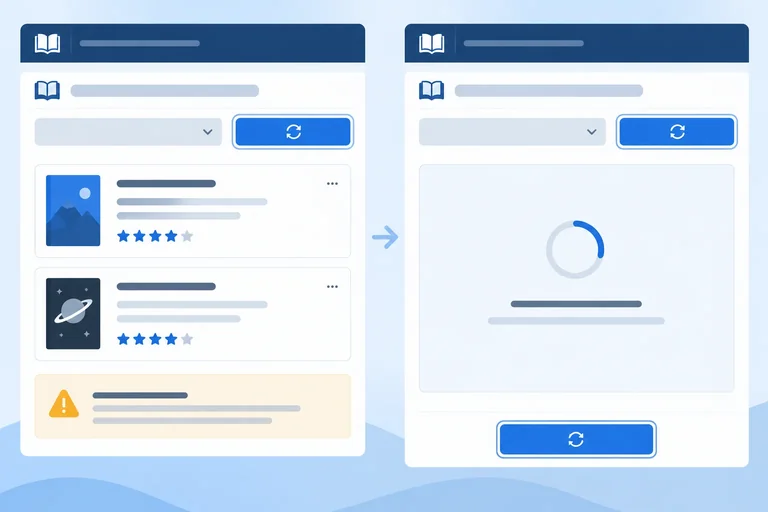
Step 4 of 8
Start each replacement load with clean feedback, temporarily unavailable request controls, and a repeatable local loading preview.
A replacement load starts a new request. While its outcome is unknown, previous book titles must not look like the new request’s result, and obsolete error information must not remain attached to it.
Before any await, replace the current state with a clean loading snapshot:
status is "loading".books is an empty array.error is null.Call render() immediately after that assignment. The results region can then show Loading books… without old titles or a previous message. The controlled 1.2 s delay in this step makes that pending state observable.
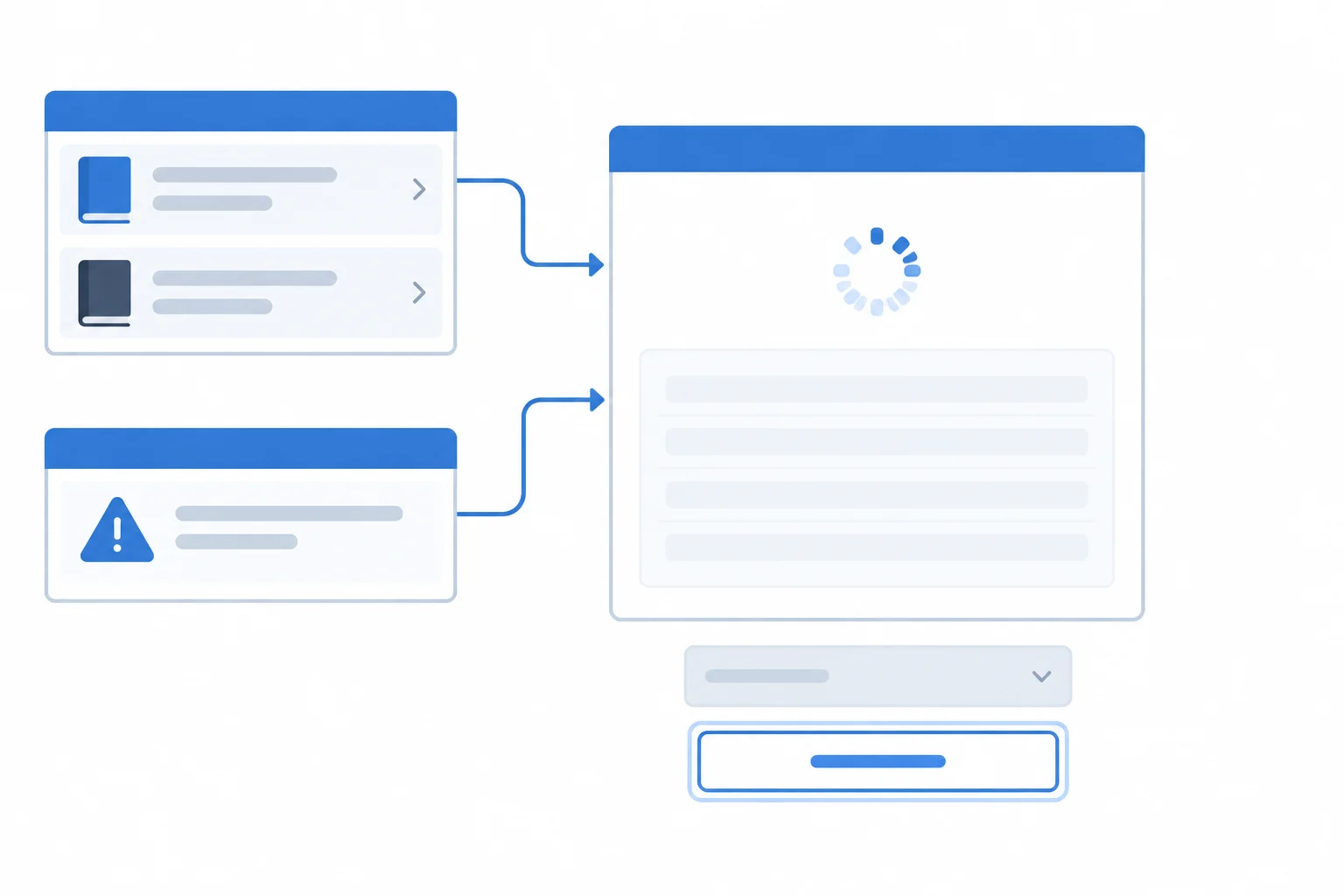
Loading replaces the earlier outcome; it does not present old feedback as the result of the new request.
Replace the existing render() function from Step 3 with this version. It still handles the existing idle, success, and empty snapshots, but it now derives temporary control availability from state.status.
The fixture selector uses its native disabled property. The action button stays focusable and exposes its unavailable state through aria-disabled. Because aria-disabled alone does not block click events, loadBooks() will guard activation separately.
Replace the existing render() function. Keep the existing final render(); call at the bottom of src/main.js.
function render() {
  const isLoading = state.status === "loading";

  resultsRegion.setAttribute("aria-busy", "false");
  bookList.replaceChildren();
  outcomeMessage.textContent = "";
  loadStatus.textContent = "";
  loadButton.textContent = "Load books";
  loadButton.setAttribute("aria-disabled", String(isLoading));
  fixtureSelect.disabled = isLoading;

  if (isLoading) {
    outcomeMessage.textContent = "Loading books…";
    return;
  }

  if (state.status === "success") {
    for (const book of state.books) {
      const item = document.createElement("li");
      item.textContent = book.title;
      bookList.append(item);
    }
    return;
  }

  if (state.status === "empty") {
    outcomeMessage.textContent = "No books found.";
  }
}During a loading render: - Results region: no book list items; visible message "Loading books…" - Fixture selector: disabled - Action button: label "Load books" and aria-disabled="true" - The button remains in the keyboard tab order because its native disabled property is not set.
When the temporary controller in the next screen assigns the loading snapshot and calls render(), inspect the interface during its 1.2 s pending period.
Tip
Do not set loadButton.disabled. A native disabled button is removed from normal keyboard navigation. Here, aria-disabled="true" communicates temporary unavailability while the JavaScript guard prevents a second request from starting.
Add this temporary, repeatable loading preview before the existing final render(); call in src/main.js. It intentionally does not call fetchBooks() yet: after the 1.2 s observation period, it returns to idle so the application remains usable for another attempt.
The local url is captured before rendering disables the selector. In Step 6, replace this temporary controller with the controller that reads the fixture and selects a terminal outcome.
Add this code before the existing final render(); call. Save the file, select a fixture, and activate Load books to inspect the transition.
function delay(ms) {
  return new Promise((resolve) => {
    window.setTimeout(resolve, ms);
  });
}

async function loadBooks() {
  if (state.status === "loading") {
    return;
  }

  const url = fixtureSelect.value;
  state = {
    status: "loading",
    books: [],
    error: null
  };
  render();

  await delay(1200);

  state = {
    status: "idle",
    books: [],
    error: null
  };
  render();
  console.info(`Loading preview finished for ${url}.`);
}

loadButton.addEventListener("click", () => {
  loadBooks();
});Immediately after activation: - The previous list or outcome message is cleared. - "Loading books…" is visible. - The fixture selector is disabled. - The action button has aria-disabled="true" but remains focusable. After 1.2 s: - The loading message is cleared. - The fixture selector is enabled again. - The action button has aria-disabled="false". - Console example: Loading preview finished for /data/books.json.
The final console line contains the path selected when the action began. The visible interface returns to idle after the preview; this is intentional until the request controller is completed in Step 6.
Tip
During the 1.2 s period, activate the focused button again with Enter or Space. The event still occurs, but the guard returns immediately because the current state already represents a pending operation. After the preview returns to idle, you can select a fixture and repeat the observation without reloading the page.
After the pending-request guard has allowed activation, put these replacement-load entry actions in their required order.
Complete the state checks and transition that keep a second activation from beginning another operation.
const isPending = state.status === "";
fixtureSelect.disabled = isPending;
loadButton.setAttribute("aria-disabled", String(isPending));

async function loadBooks() {
  if (state.status === "") {
    return;
  }

  const url = fixtureSelect.value;
  state = {
    status: "",
    books: [],
    error: null
  };
  render();

  await delay(1200);
}
Step 5 of 8
Use separate busy and status semantics to announce Book List progress and completion while preserving keyboard focus.
A results update needs separate accessibility signals:
aria-busy="true" while its contents are being replaced. It returns to "false" after the interface has rendered the settled outcome.Keep load-status outside results. If a status message were inside busy content, assistive technology could defer it along with the changing results. The book list itself is not live, so inserting titles does not announce each title individually.
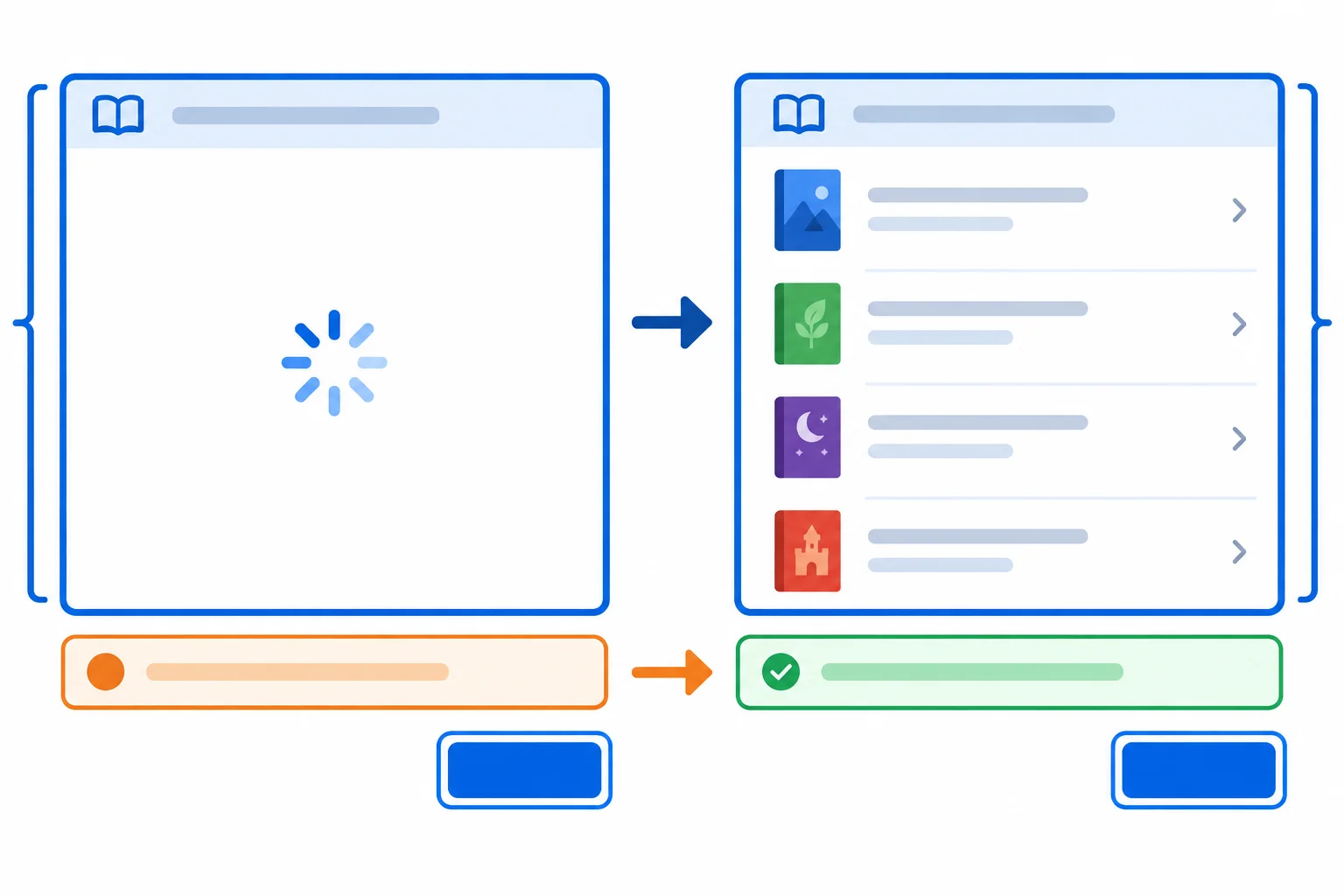
The results region is busy while it changes. The separate status region announces concise progress and completion feedback.
Tip
Keep the status region available to assistive technology. The existing .visually-hidden class removes it from visual layout while preserving it in the document and accessibility tree. Do not use hidden or display: none for load-status.
role="status" provides polite status behavior, and aria-atomic="true" asks for the complete new message rather than only a changed fragment.
Replace the render() function from Step 4 with this version. It updates the busy state before changing result content, then leaves aria-busy true only for the loading state. There are no early returns, so control, visible-result, and status updates run for every state.
Keep the existing render(); call and the temporary loadBooks() preview from Step 4. Step 6 will connect this renderer to the completed request controller.
function render() {
  const isLoading = state.status === "loading";

  resultsRegion.setAttribute("aria-busy", "true");
  bookList.replaceChildren();
  outcomeMessage.textContent = "";
  loadStatus.textContent = "";
  loadButton.textContent = "Load books";
  loadButton.setAttribute("aria-disabled", String(isLoading));
  fixtureSelect.disabled = isLoading;

  if (isLoading) {
    outcomeMessage.textContent = "Loading books…";
    loadStatus.textContent = "Loading books…";
  } else if (state.status === "success") {
    for (const book of state.books) {
      const item = document.createElement("li");
      item.textContent = book.title;
      bookList.append(item);
    }

    const count = state.books.length;
    loadStatus.textContent =
      `Loaded ${count} ${count === 1 ? "book." : "books."}`;
  } else if (state.status === "empty") {
    outcomeMessage.textContent = "No books found.";
    loadStatus.textContent = "No books found.";
  }

  resultsRegion.setAttribute("aria-busy", String(isLoading));
}Loading state: results aria-busy="true" Visible results message: Loading books… Status region: Loading books… Fixture selector: disabled Action button: aria-disabled="true" After the populated Books fixture settles: results aria-busy="false" Visible list: Practical HTML; Everyday CSS Status region: Loaded 2 books. Fixture selector: enabled Action button: aria-disabled="false" After a valid empty fixture settles: results aria-busy="false" Visible results message: No books found. Status region: No books found. Fixture selector: enabled Action button: aria-disabled="false"
After a normal lifecycle transition, inspect the rendered state in the browser. The status text is visually hidden but available to assistive technology.
The action button is not created, removed, or replaced by render(). A person who activates it with the keyboard remains on that same button while the status region reports progress or completion.
Do not call .focus() for an ordinary Book List update. An announcement communicates the result; moving focus would unnecessarily interrupt the user's current keyboard position. The list remains non-live, so the status message gives a concise count instead of reading every inserted title.
Complete the JavaScript that exposes the current busy state and produces grammatically correct completion feedback.
const isLoading = state.status === "loading";

resultsRegion.setAttribute("aria-busy", );

if (state.status === "success") {
  const count = state.books.length;
  loadStatus.textContent =
    `Loaded ${count} ${count === 1 ?  : }`;
}After a valid Book List request begins and then settles, describe the accessible feedback implementation in three to five sentences. State where load-status belongs relative to results, how aria-busy changes, which region announces loading and completion, and whether focus should move from the action button.
Write at least 140 characters (0/140).
Step 6 of 8
Handle rejected reads as visible error outcomes, then use a final render to restore controls and busy semantics without losing that outcome.
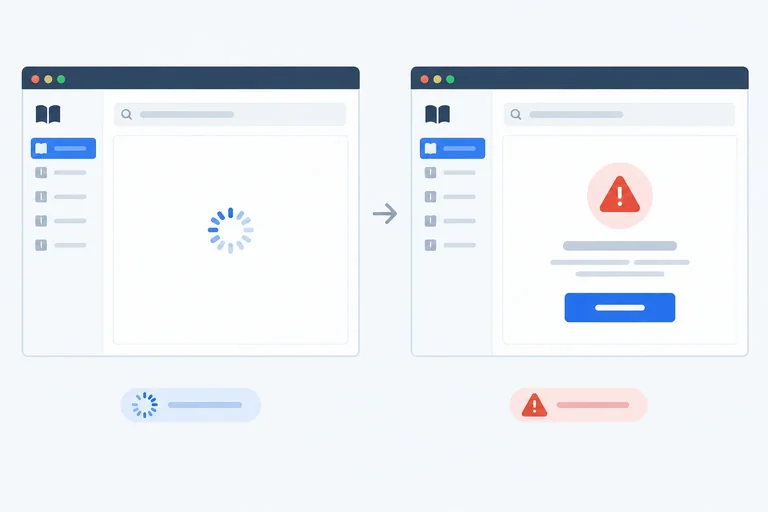
A request that fails has finished, but it has not produced usable books. Treat it as the terminal error state—not as empty.
The existing fetchBooks(url) helper rejects when the read fails, the HTTP response is unsuccessful, JSON is malformed, or decoded data fails validation. One catch maps all of those technical causes to one concise interface outcome.
For an error state, keep books as an empty array and store a user-facing message in error. This prevents titles from a previous request from looking like the response to the failed request.
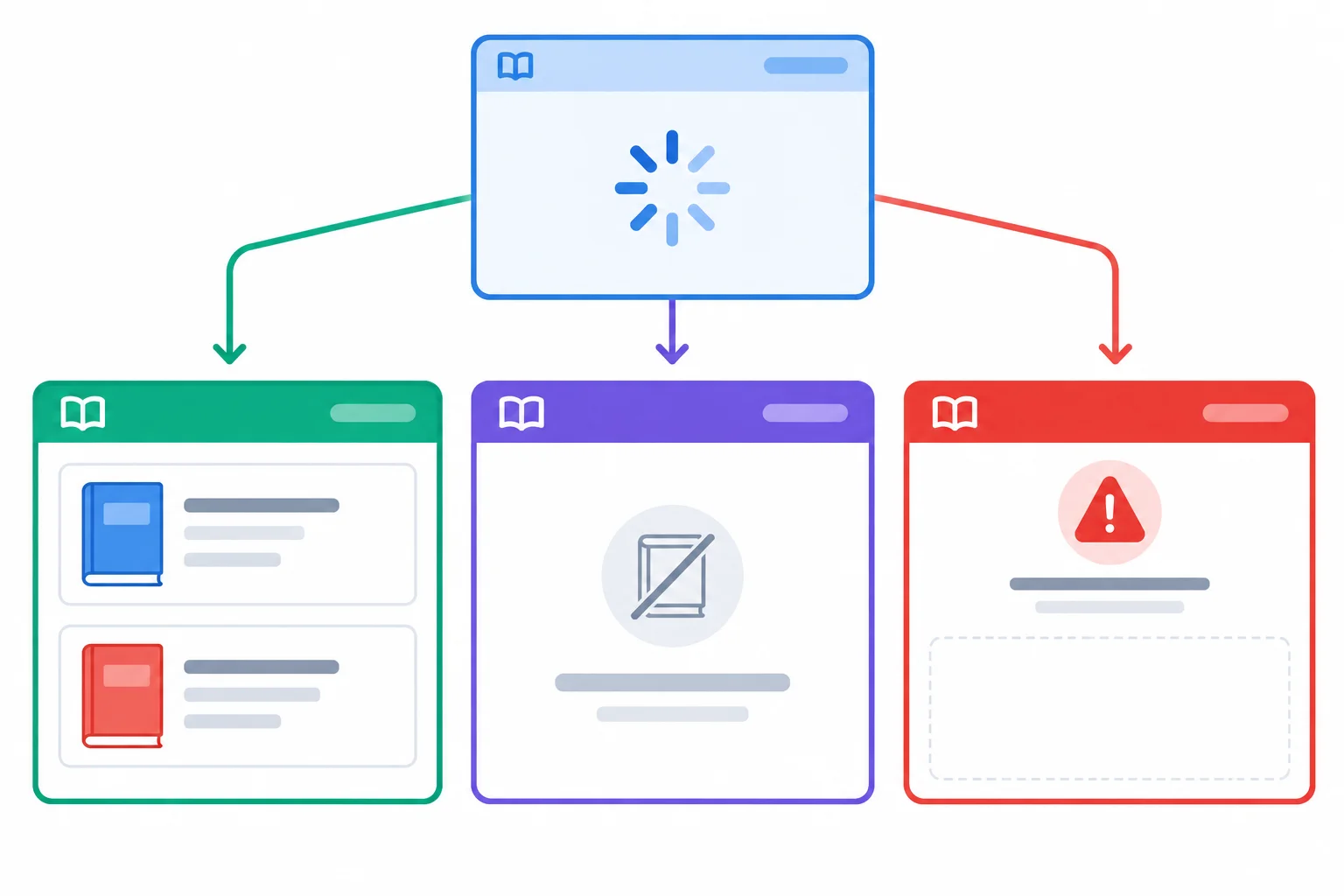
A failed request is a distinct terminal outcome; it does not become a valid empty collection.
Tip
The browser Console can retain the technical error for debugging, but the interface should show the stable message: “Books could not be loaded. Try again.”
Each helper failure belongs to the same user-facing state.
| What happens | Helper result | Interface state |
|---|---|---|
| Network read is rejected | Throws or rejects | error |
| HTTP response is unsuccessful | Throws | error |
| JSON is malformed | Throws while decoding | error |
| Decoded records fail validation | Throws | error |
| Validated array has no records | Returns [] | empty |
Replace the existing render() function from Step 5 with this version. It preserves the busy, control, success, and empty behavior already established, then adds a small error branch.
The shared isLoading value restores terminal settings automatically. When an error state is rendered, it is no longer loading: aria-busy becomes "false", the selector is enabled, and the persistent button is available. Rendering does not reset the stored error state.
Replace the existing render() function. Keep the existing final render(); call and the temporary controller until the next screen replaces it.
function render() {
  const isLoading = state.status === "loading";

  resultsRegion.setAttribute("aria-busy", "true");
  bookList.replaceChildren();
  outcomeMessage.textContent = "";
  loadStatus.textContent = "";
  loadButton.textContent = "Load books";
  loadButton.setAttribute("aria-disabled", String(isLoading));
  fixtureSelect.disabled = isLoading;

  if (isLoading) {
    outcomeMessage.textContent = "Loading books…";
    loadStatus.textContent = "Loading books…";
  } else if (state.status === "success") {
    for (const book of state.books) {
      const item = document.createElement("li");
      item.textContent = book.title;
      bookList.append(item);
    }

    const count = state.books.length;
    loadStatus.textContent =
      `Loaded ${count} ${count === 1 ? "book." : "books."}`;
  } else if (state.status === "empty") {
    outcomeMessage.textContent = "No books found.";
    loadStatus.textContent = "No books found.";
  } else if (state.status === "error") {
    outcomeMessage.textContent = state.error;
    loadStatus.textContent = state.error;
  }

  resultsRegion.setAttribute("aria-busy", String(isLoading));
}For an error state, the results region shows “Books could not be loaded. Try again.” and contains no book list items. The status region has the same message. The results region has aria-busy="false". The fixture selector is enabled, and the action button has aria-disabled="false".
The status region is visually hidden but remains available to assistive technology.
Warning
Do not assign status: "empty" merely because books is []. Only a successfully decoded and validated empty response is empty. After a failure, the empty array clears obsolete display data; status: "error" explains why it is empty.
loadBooks() owns the request transition. It captures the selected path, enters loading, and renders before awaiting. Then try selects a valid terminal data outcome, while catch selects the error outcome.
finally performs the final render on both paths. Because it renders the terminal state already chosen by try or catch, it restores controls and clears busy semantics without resetting the outcome to idle or success.
Replace the temporary loadBooks() preview from Step 4 with this controller. Keep delay(ms), the existing click listener, and the final render(); call in src/main.js.
async function loadBooks() {
  if (state.status === "loading") {
    return;
  }

  const url = fixtureSelect.value;
  state = {
    status: "loading",
    books: [],
    error: null
  };
  render();

  try {
    await delay(1200);
    const books = await fetchBooks(url);

    state = books.length > 0
      ? { status: "success", books, error: null }
      : { status: "empty", books: [], error: null };
  } catch (error) {
    console.error(error);
    state = {
      status: "error",
      books: [],
      error: "Books could not be loaded. Try again."
    };
  } finally {
    render();
  }
}With /data/books.json selected: for 1.2 s, the results region shows “Loading books…”, has aria-busy="true", the selector is disabled, and the button has aria-disabled="true". It then shows Practical HTML and Everyday CSS; the status region says “Loaded 2 books.”; aria-busy is "false"; both controls are usable. With /data/books-empty.json selected: it settles with “No books found.” in both outcome and status feedback, with no list items. With /data/books-broken.json selected: it settles with “Books could not be loaded. Try again.” in both outcome and status feedback, with no list items. aria-busy is "false" and both controls are usable.
The 1.2 s delay makes the loading state observable before either terminal outcome is rendered.
Tip
The 1.2 s delay is intentional: it makes the loading state observable during local checks. A rejected read from fetchBooks(url) reaches catch; finally still runs after either a valid outcome or that failure.
Complete the working controller. Its valid read path must still reach success or empty; its failure path must remain visible while the terminal render restores usable controls and clears busy state.
async function loadBooks() {
  if (state.status === "loading") {
    return;
  }

  const url = fixtureSelect.value;
  state = {
    status: "loading",
    books: [],
    error: null
  };
  render();

  try {
    await delay(1200);
    const books = await fetchBooks(url);

    state = books.length > 0
      ? { status: "success", books, error: null }
      : { status: "empty", books: [], error: null };
  } catch (error) {
    console.error(error);
    state = {
      status: "",
      books: [],
      error:
    };
  } finally {
    ();
  }
}
Step 7 of 8
Use the persistent action button to retry failed reads, reset a changed fixture to idle, and verify that recovery depends on the next request outcome.
An error is a terminal outcome, not the end of the interface. Keep the same persistent action button in the document and label it Retry when state.status is "error".
The button still starts the existing loadBooks() controller. A retry begins a new read of the selected fixture: the controller clears the previous error, enters "loading", and can settle as "success", "empty", or "error" again.
Do not add automatic retries. Recovery remains an explicit user action, so the user decides whether to try again.
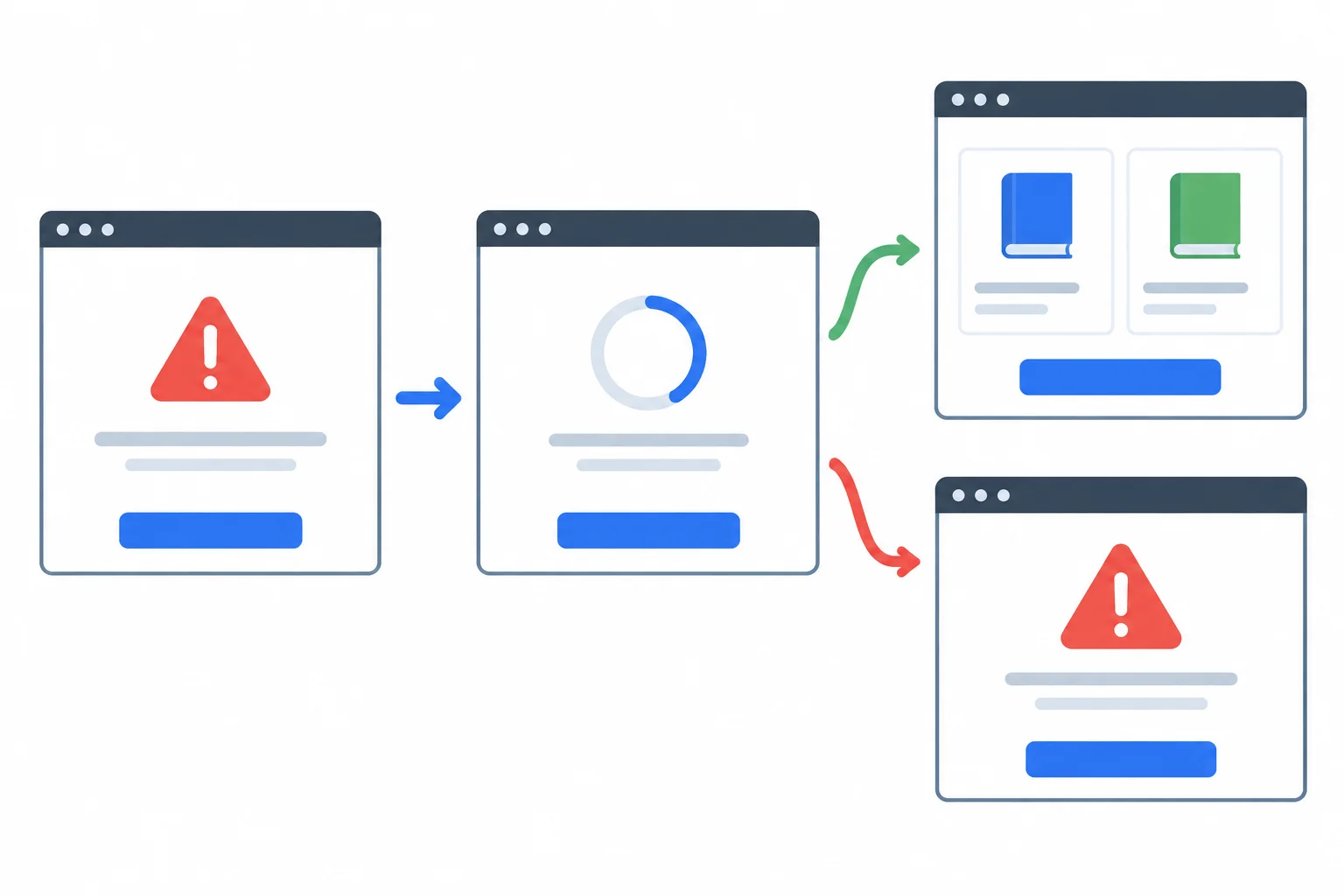
Retry uses the same control and controller: error → loading → a new terminal outcome.
Update the existing render() function so its persistent button communicates the current action. Replace its current loadButton.textContent = "Load books"; line with the following expression. Keep the existing loading availability logic unchanged.
Replace the existing button-label line inside render().
loadButton.textContent =
state.status === "error" ? "Retry" : "Load books";Error state: Button label: Retry Visible outcome: Books could not be loaded. Try again. Status region: Books could not be loaded. Try again. results aria-busy: false Button aria-disabled: false
Expected rendered interface after an error state is rendered.
At the bottom of src/main.js, replace the earlier click-listener block with this complete block. It preserves exactly one click listener and adds the fixture-change behavior; do not append a second click listener.
loadButton.addEventListener("click", () => {
  loadBooks();
});

fixtureSelect.addEventListener("change", () => {
  state = {
    status: "idle",
    books: [],
    error: null
  };
  render();
});After an error, activating Retry: The same loadBooks() controller starts a replacement load. After changing the selected fixture: State: idle Button label: Load books Visible outcome: empty Status region: empty results aria-busy: false Fixture selector: enabled
Expected interface behavior after the application renders following either interaction.
Tip
The fixture-change handler does not fetch anything. A different selected resource is a new load, so it clears the previous outcome and returns the interface to idle. If the selection does not change, Retry uses the same selected path captured when the new request begins.
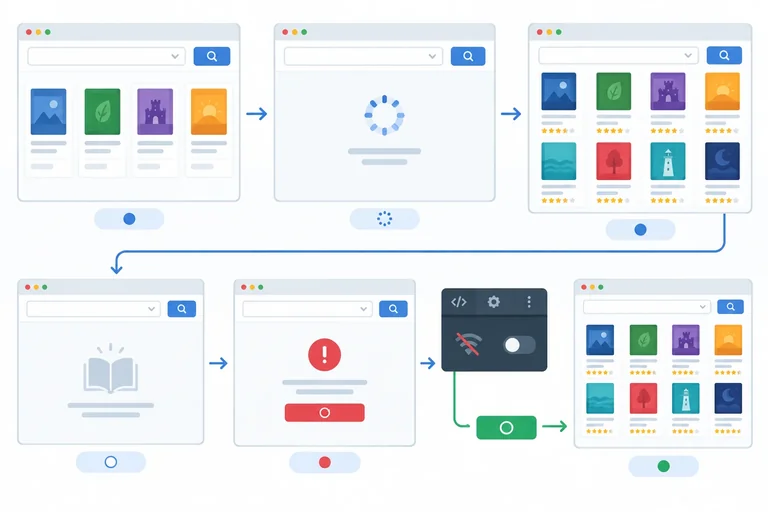
To test recoverable failure, select /data/books.json, open your browser DevTools Network conditions, and switch Offline on. Activate Load books and wait for the error. Restore connectivity without reloading the page, then activate Retry. The same selected path can now produce the populated outcome.
By contrast, /data/books-broken.json remains malformed. Retrying it without changing the selection should reach error again. Recovery is possible, not guaranteed.
Complete the shared persistent-control behavior.
Put this retry lifecycle in the required order.
Step 8 of 8
Manually verify every Book List lifecycle state, replacement transition, and explicit recovery path in your local application.
Verify Book List in the browser, not only by reading its code. Start from a freshly loaded page: it should be idle, make no request automatically, show no books or outcome message, and leave both controls usable.
For each route, observe the visible results region, the separate status region, control availability, and aria-busy. The controlled await delay(1200) pause gives you 1.2 s to inspect loading before a fixture settles.
A normal fixture-selector change intentionally resets the interface to idle. To test a direct replacement transition from populated results to an empty outcome, use the Console method on the next screen instead. It changes the selector value without firing its change event, so the current success state remains until the existing button starts the replacement load.
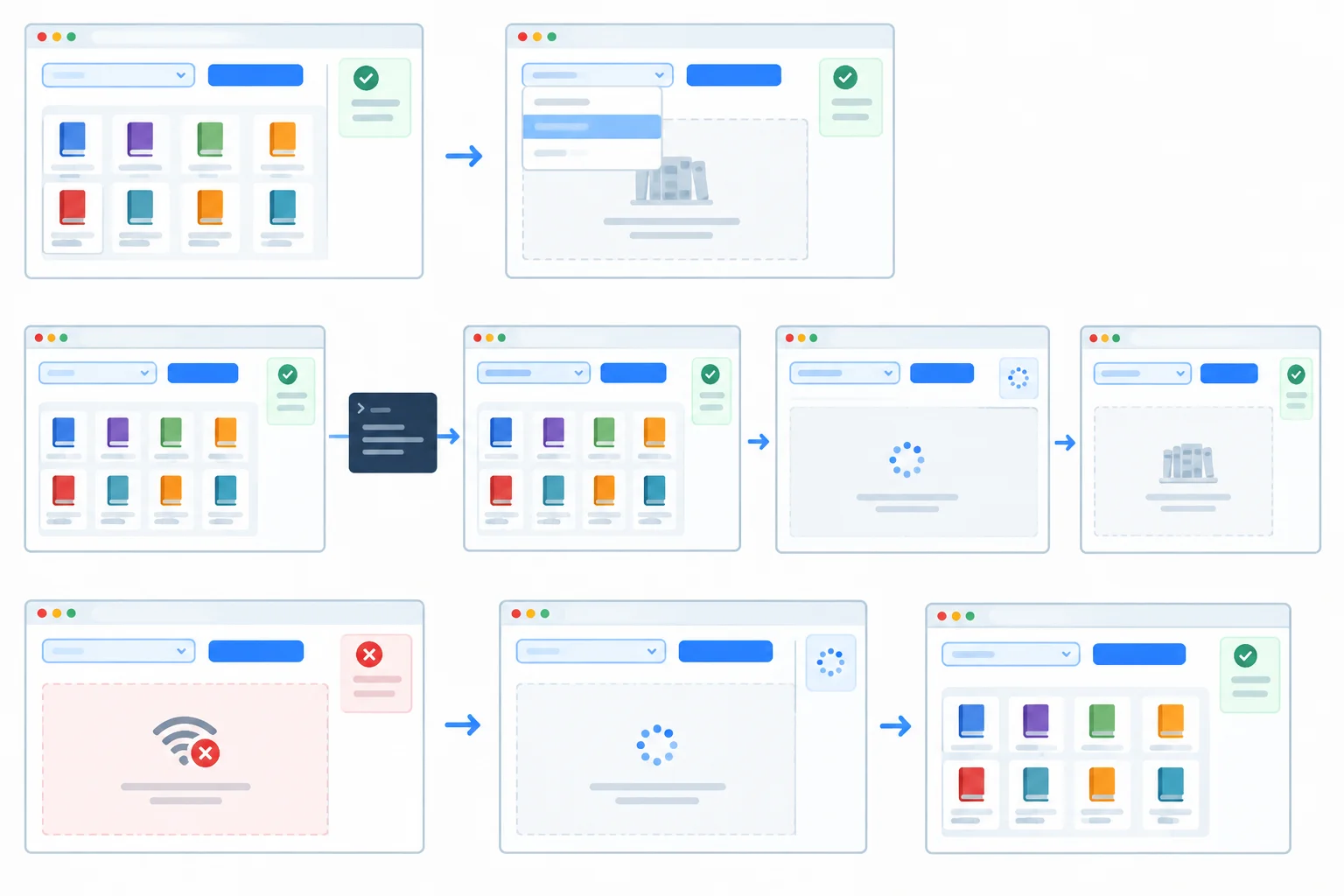
Use the Console-set selector value only to inspect the direct success to loading to empty transition without editing a watched fixture.
Work through these checks in your own browser. The observations describe behavior to confirm, not a substitute for making the check yourself.
| Check | Action | Observe |
|---|---|---|
| Initial idle | Reload the page while online | No request, no results or outcome message, and usable controls |
| Populated success | Load /data/books.json | Two titles and status feedback for 2 books |
| Selector reset | Change to /data/books-empty.json | Idle view clears the previous outcome before a request |
| Direct replacement | After success, set the selector value in Console without a change event; activate Load books | Old titles disappear during loading, then the empty outcome appears |
| Valid empty | Load /data/books-empty.json | No-results feedback and no displayed titles |
| Malformed error | Load /data/books-broken.json | Failure feedback, no books, and a Retry label |
| Repeated failure | Activate Retry with the broken fixture unchanged | Loading, followed by the same failure outcome |
| Offline recovery | Fail /data/books.json while offline, restore connectivity, then Retry | Loading, followed by two titles and completion feedback |
Run the fixture routes in order:
/data/books.json and wait for the two titles./data/books-empty.json. Confirm that the change handler returns the interface to idle and clears the titles before you activate Load books. Then load it and confirm the empty outcome./data/books.json again and wait for success. Keep this populated state for the direct replacement check./data/books-broken.json, then activate Retry once without changing the selection./data/books.json normally, enable your browser DevTools Network Offline condition, and activate Load books. After the error, restore connectivity without reloading the page and activate Retry.The helper uses fetch(url, { cache: "no-store" }), so the recovery attempt reads the same URL again rather than relying on a cached response.
After /data/books.json has settled with two titles, open the browser Console and run this exact command. Do not dispatch a change event. Then activate the existing Load books button with the mouse or keyboard.
document.querySelector("#fixture-select").value = "/data/books-empty.json";"/data/books-empty.json"
A browser Console commonly displays the assigned string with quotation marks. The command changes only the selector value; it does not run the selector change handler.
The Console assignment changes what loadBooks() will capture when the button is activated, but it does not invoke the selector's change listener. The app therefore remains in its populated success state until activation enters loading. This makes the direct success → loading → empty check reproducible without changing public/data/books.json while Vite is watching it.
During every loading period, confirm that the fixture selector is natively disabled. The persistent action button remains in keyboard navigation with aria-disabled="true", while its JavaScript guard prevents another request. After success, empty, or error, both controls become usable and the results region ends with aria-busy="false".
Activate the button with the keyboard and keep focus on it. Feedback should update without a .focus() call or an automatic focus move. Inspecting text and attributes confirms what the app set, but it does not alone prove what a particular screen reader announced.
Tip
Load the page before enabling Offline mode, and do not reload while Offline is enabled. Restore the normal connection before selecting Retry. For the direct replacement check, use the Console assignment rather than editing any file or dispatching a synthetic change event.
Write a concise report of what you actually observed in your local Book List application. Cover initial idle, delayed loading, populated success, valid empty, malformed-response error, repeated failure, and offline recovery.
Include the direct replacement route: after populated success, you set the selector value to /data/books-empty.json in the Console without a change event and then activated Load books. Report what happened to the old titles during loading and at settlement. Also report what happened to the old error message when the offline failure entered loading again for Retry.
Describe control availability during loading and after settlement, the final aria-busy value, status-region feedback, and where keyboard focus remained. Explain why a valid empty response and a malformed response require different outcomes. Mention any discrepancy you need to investigate.
Write at least 450 characters (0/450).
Summary
Congratulations! You completed: Render Loading, Empty, Error, and Recovery States
Thousands of online courses in video, ebooks and audiobooks.
To test your knowledge during online courses
Generated directly from your cell phone's photo gallery and sent to your email

Download our app via QR Code or the links below:.



Carry knowledge in your pocket.
Download the Cursa app.
There are hundreds of free courses available, with a free certificate of completion that is saved in your mobile image gallery.
Download the app to access the Course Completion Certificate for Free.


+ 10 million
students

Free and Valid
Certificate

60 thousand free
exercises

4.8/5 rating in
app stores

Free courses in
video and ebooks