
Step 1 of 9
Link a Local Stylesheet
Create a local CSS file beside an HTML page, connect it in the document head, and verify the first visible style.

Learning path · Level 2 · Tutorial 1
Connect a stylesheet to a local HTML page, target the intended elements with reusable selectors, and inspect which rules match.

 Link a Local Stylesheet
Create a local CSS file beside an HTML page, connect it in the document head, and verify the first visible style. 1 min
Link a Local Stylesheet
Create a local CSS file beside an HTML page, connect it in the document head, and verify the first visible style. 1 min
 Read and Write a CSS Rule
Learn to read a CSS rule, write declarations with correct punctuation, and use comments as notes in a stylesheet. 1 min
Read and Write a CSS Rule
Learn to read a CSS rule, write declarations with correct punctuation, and use comments as notes in a stylesheet. 1 min
 Match Element Types or All Elements
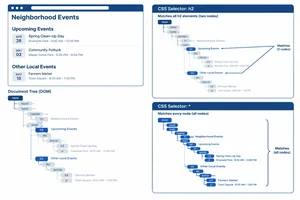
Predict which elements type selectors and the universal selector match. 1 min
Match Element Types or All Elements
Predict which elements type selectors and the universal selector match. 1 min
 Reuse Classes and Target an ID
Use reusable classes and a unique ID to target the intended elements, including an element with two classes. 2 min
Reuse Classes and Target an ID
Use reusable classes and a unique ID to target the intended elements, including an element with two classes. 2 min
 Share Declarations with Selector Lists
Replace duplicated heading declarations with one comma-separated selector list. 1 min
Share Declarations with Selector Lists
Replace duplicated heading declarations with one comma-separated selector list. 1 min
 Select Descendants and Direct Children
Choose descendant and child combinators to control whether nested paragraphs are included. 2 min
Select Descendants and Direct Children
Choose descendant and child combinators to control whether nested paragraphs are included. 2 min
 Recognize the Document-Root Selector
Recognize the document-root pseudo-class and distinguish its single match from the universal selector. 1 min
Recognize the Document-Root Selector
Recognize the document-root pseudo-class and distinguish its single match from the universal selector. 1 min
 Inspect Matched Rules
Inspect selected HTML elements in browser developer tools, trace matched rules to their local stylesheet, and repair a controlled class-selector mismatch. 1 min
Inspect Matched Rules
Inspect selected HTML elements in browser developer tools, trace matched rules to their local stylesheet, and repair a controlled class-selector mismatch. 1 min
 Apply and Check Your Selectors
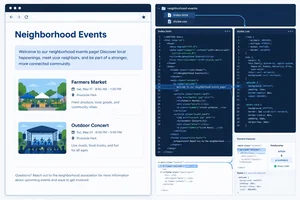
Complete a local stylesheet, verify its targets in browser developer tools, and distinguish intended matches from an excluded nested element. 2 min
Apply and Check Your Selectors
Complete a local stylesheet, verify its targets in browser developer tools, and distinguish intended matches from an excluded nested element. 2 min
Step 1 of 9
Create a local CSS file beside an HTML page, connect it in the document head, and verify the first visible style.
An external stylesheet is a plain-text file saved with a .css extension. Keep index.html and styles.css together in the css-practice folder.
A <link> element in the HTML <head> connects the page to that stylesheet. Because both files are at the same level, the path is simply the stylesheet filename. The browser resolves that path from the location of index.html.
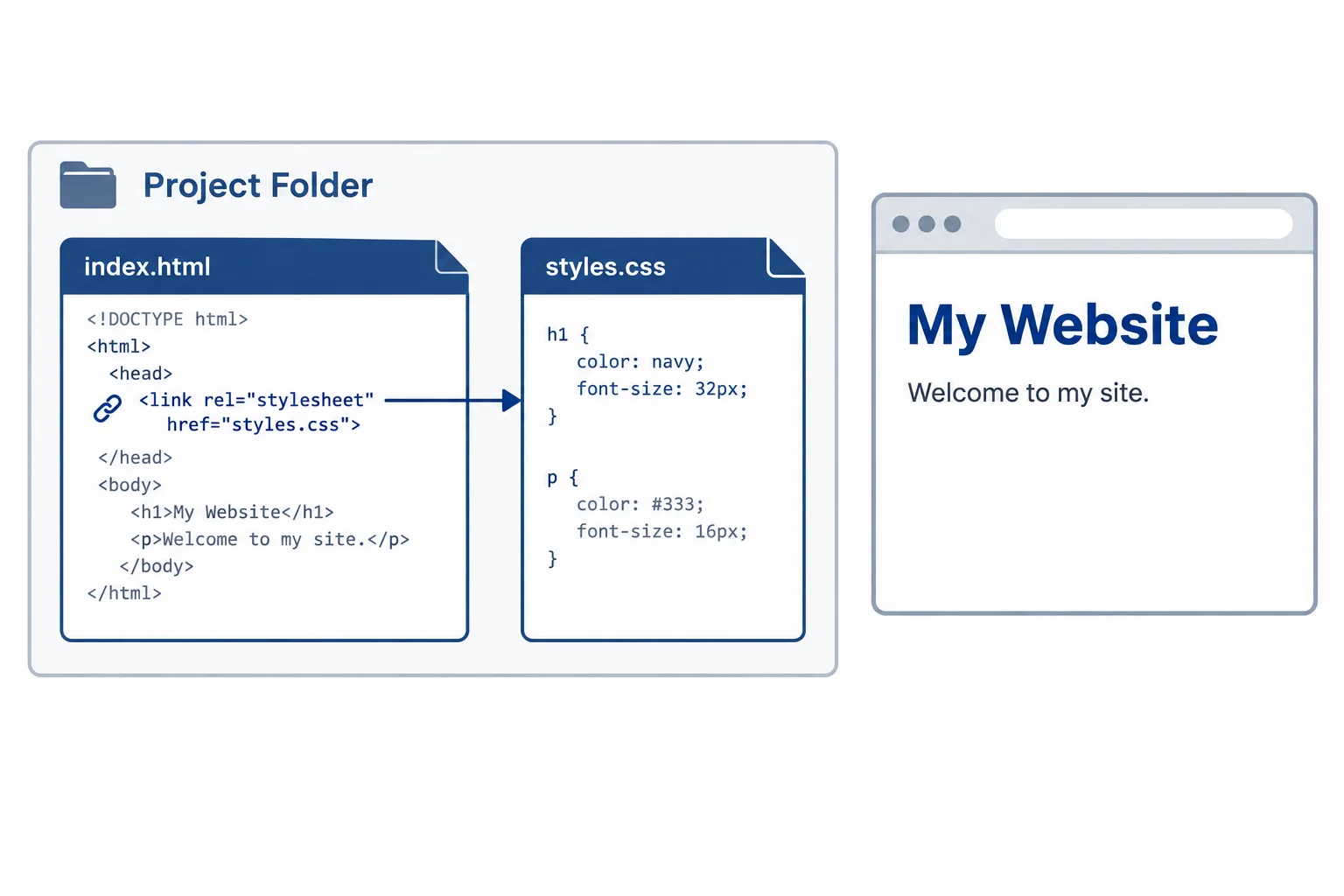
The link points from the HTML document to the CSS file. After both files are saved and the page is refreshed, the starter style changes the heading.
On your computer, create a folder named css-practice. Create index.html and styles.css inside it. Paste this complete page into index.html. The link belongs in <head>, not in the visible page content.
Save as index.html. Open this file in your browser after you also save the stylesheet below.
<!doctype html>
<html lang="en">
<head>
  <meta charset="utf-8">
  <title>Neighborhood Events</title>
  <link rel="stylesheet" href="styles.css">
</head>
<body>
  <header>
    <h1>Neighborhood Events</h1>
    <p id="welcome">Find an event near you.</p>
  </header>
  <main>
    <article class="event featured">
      <h2>Book Swap</h2>
      <p>Bring a book to exchange.</p>
      <footer>
        <p>Hosted by the library.</p>
      </footer>
    </article>
    <article class="event">
      <h2>Garden Walk</h2>
      <p>Meet at the community garden.</p>
    </article>
  </main>
</body>
</html>Neighborhood Events [displayed in navy] Find an event near you. Book Swap Bring a book to exchange. Hosted by the library. Garden Walk Meet at the community garden.
Expected browser result after both local files are saved and the page is refreshed. The heading is shown in navy; the remaining text uses the browser’s ordinary presentation at this point.
Save this in styles.css, beside index.html.
/* Event styles */
h1 {
  color: navy;
}Complete the connection used by the local page. Then save both files and refresh index.html in your browser.
<head>
  <meta charset="utf-8">
  <title>Neighborhood Events</title>
  <link rel="" href="">
</head>After completing the link, save index.html and styles.css, then refresh your local page. Report the page heading and the visible change you observed.
Write at least 20 characters (0/20).

Step 2 of 9
Learn to read a CSS rule, write declarations with correct punctuation, and use comments as notes in a stylesheet.
A CSS rule has two main parts:
{ and }.Inside the block, each declaration follows this pattern: property: value;.
The colon connects a property to its value. The semicolon marks the end of that declaration.
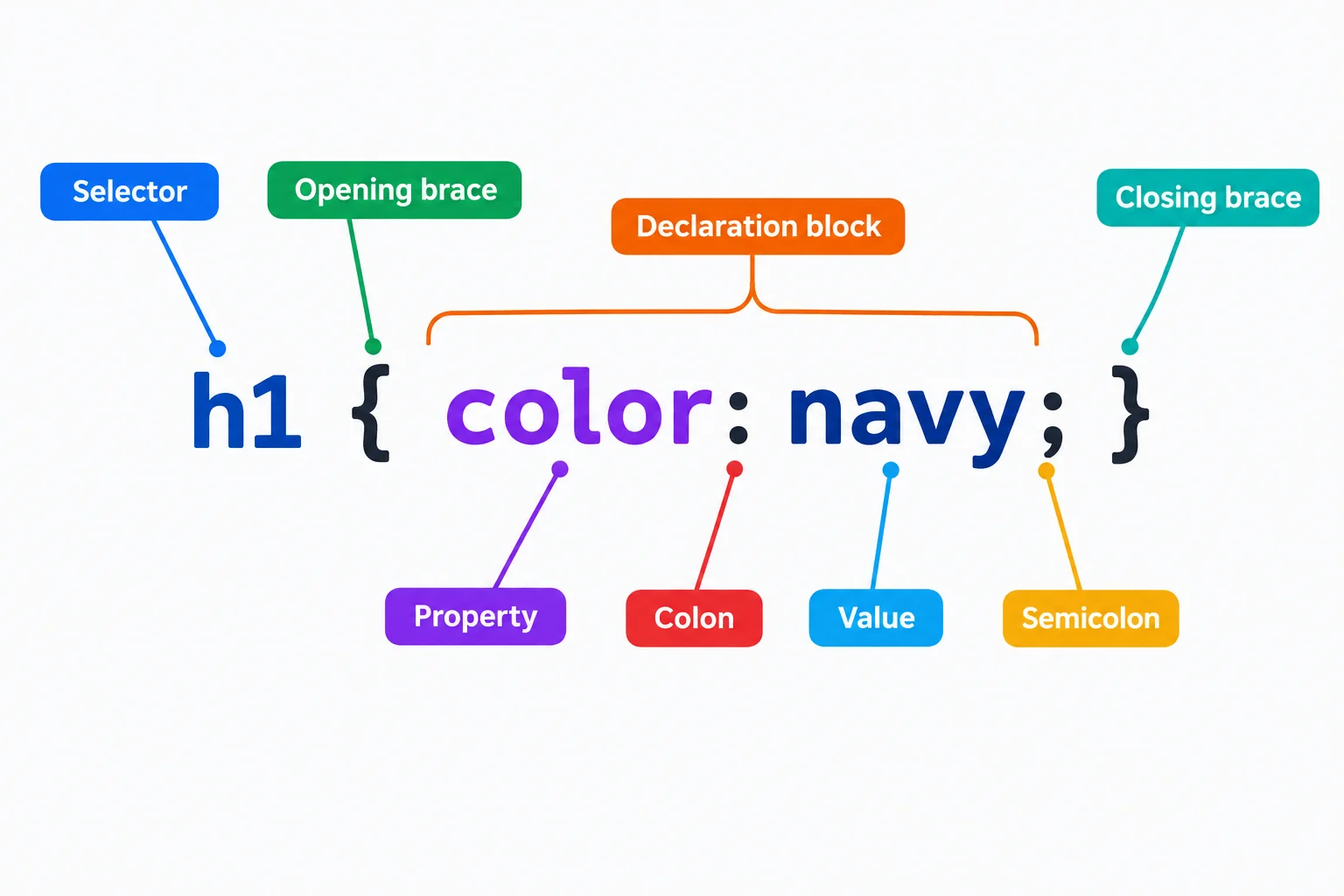
A declaration is made of a property, a colon, a value, and a closing semicolon.
In styles.css, this rule targets the page heading.
h1 {
  color: navy;
}A declaration names one setting with its property and supplies a value for that setting. A rule can include several declarations; keep each one on its own line and end each with a semicolon.
A CSS comment begins with /* and ends with */. Comments can document your stylesheet, but they are not styling instructions.
This rule has two declarations and one comment.
/* Event styles */
h1 {
  color: navy;
  background-color: whitesmoke;
}
Tip
Keep comment markers separate from active CSS. The browser ignores the comment, but it reads the rule below it.
Match each CSS fragment to its role.
Tap an item and then its matching pair.
Complete the rule so it keeps its intended selector and uses valid CSS syntax.
h1
Step 3 of 9
Predict which elements type selectors and the universal selector match.
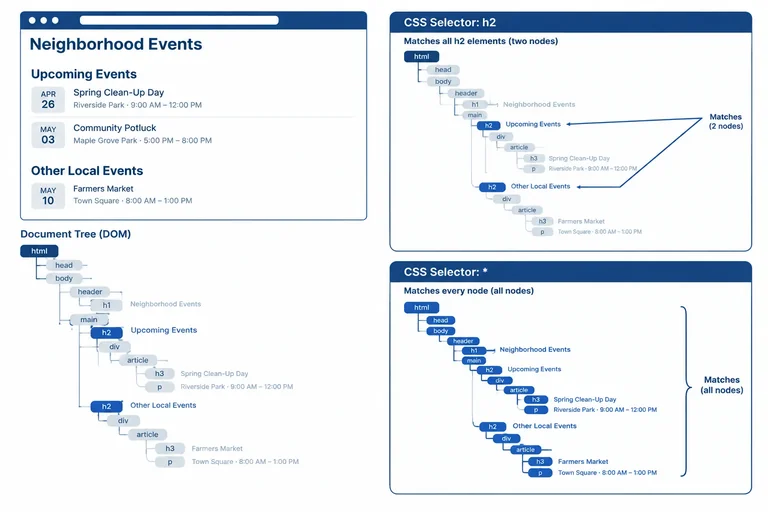
A type selector is an HTML element name used as a selector. It targets every element with that name in the document—not only the first one.
For example, h2 targets both event headings on the Neighborhood Events page. A CSS rule applies its declarations to the elements selected by its selector.
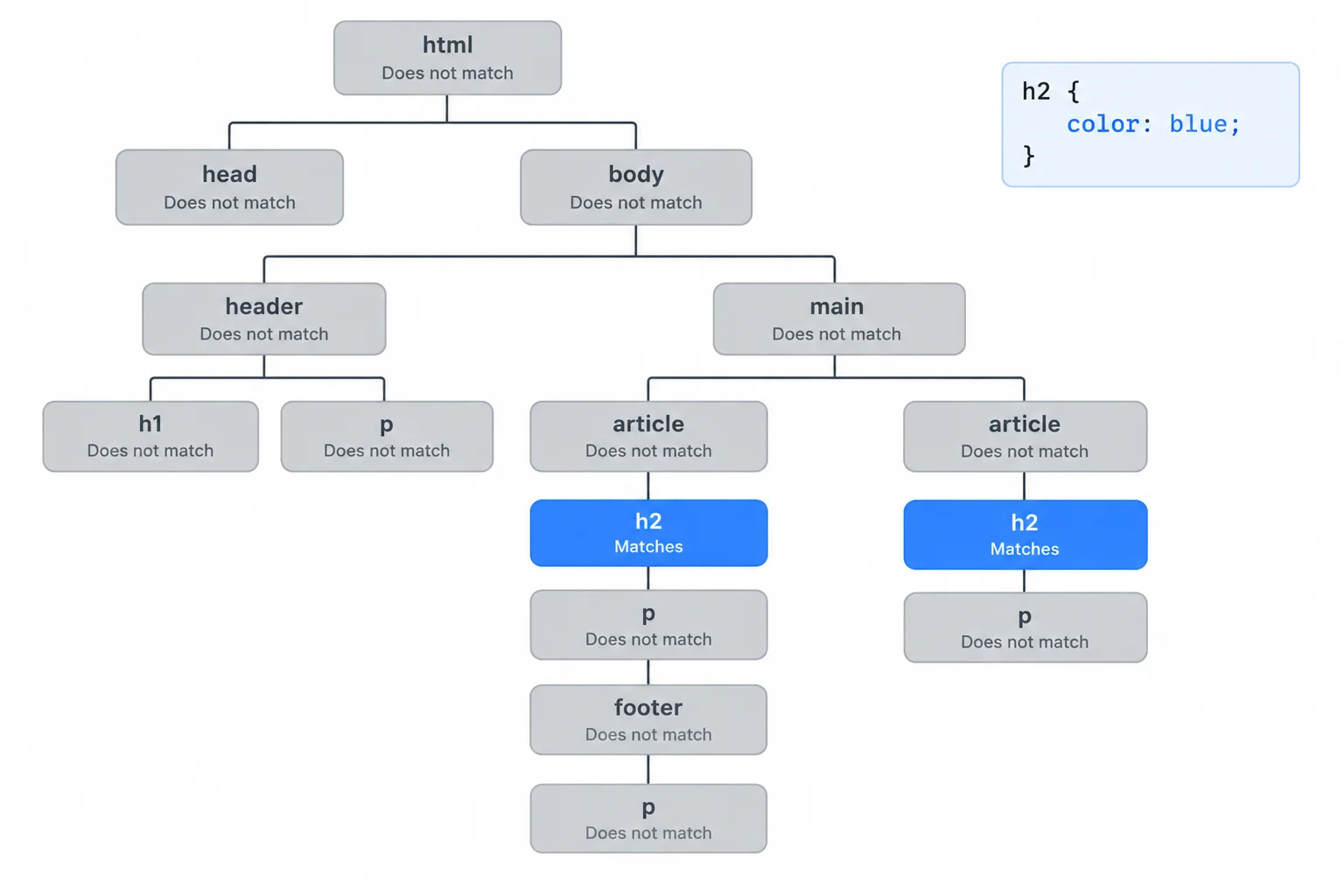
The selector h2 matches both h2 elements, wherever they appear in this document.
A type selector followed by a declaration block
h2 {
  color: navy;
}
The universal selector is *. When used alone, it matches every element in the document.
It does not mean “every paragraph” or “every visible word.” It targets elements of all types: html, body, headings, paragraphs, articles, and more. Selector matching tells you which elements a CSS rule targets; it does not by itself explain every visible effect on the page.
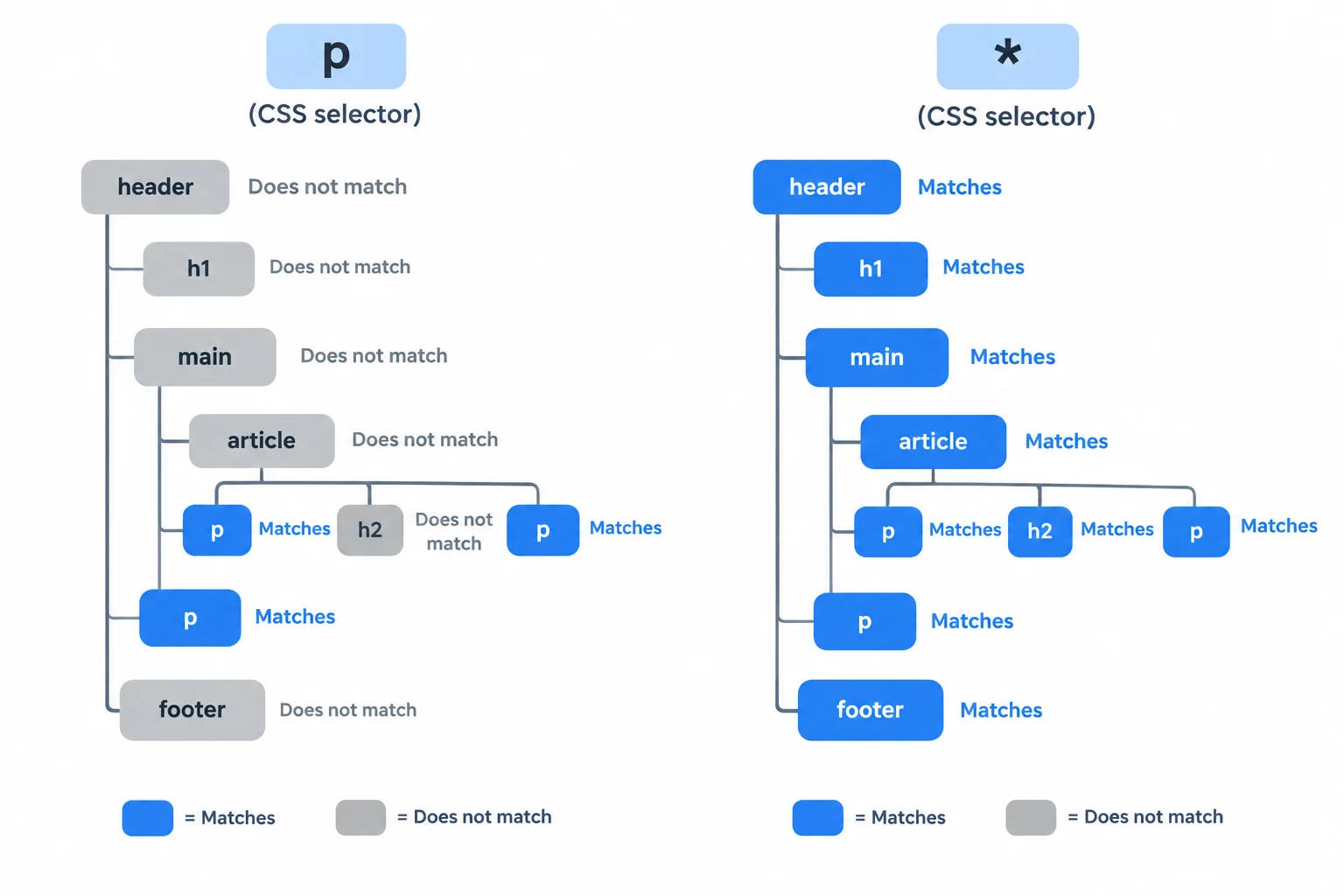
p and * target different sets of elements.
This rule targets every element in the page.
* {
  background-color: whitesmoke;
}Complete the selector so the rule targets every level-two heading.
 {
  color: navy;
}Match each selector to the set of elements it targets on the page.
Tap an item and then its matching pair.

Step 4 of 9
Use reusable classes and a unique ID to target the intended elements, including an element with two classes.
A class selector starts with a dot (.) followed by a class name. It targets every element whose class attribute contains that name.
In the Neighborhood Events page, both articles use class="event". One CSS rule can therefore target both articles:
.event {
  background-color: whitesmoke;
}
The selector must use the class name exactly as it appears in the HTML.
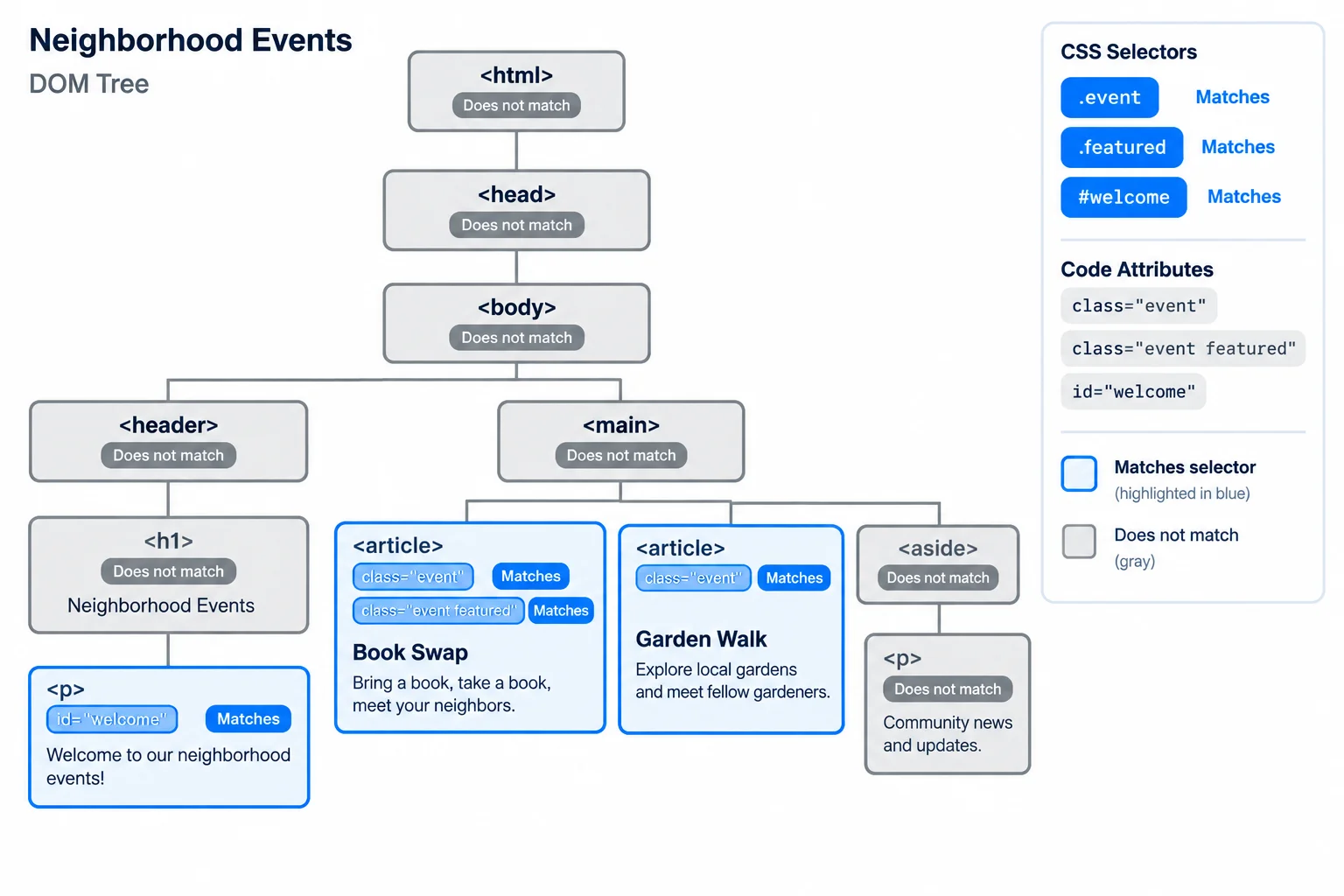
A selector matches an element when the selector text corresponds to that element’s HTML attributes.
An element may have several space-separated class names. The Book Swap article uses class="event featured", so it matches each individual class selector:
.event {
  background-color: whitesmoke;
}

.featured {
  color: navy;
}
These are two separate selectors. .event also matches Garden Walk; .featured matches only Book Swap.
An ID selector starts with #. The paragraph with id="welcome" is targeted by:
#welcome {
  color: navy;
}
Use an ID value once in a document.
Selectors use different prefixes because they read different HTML information. This table describes intended reuse, not which selector wins when rules conflict.
| Selector kind | Syntax | Matches | Typical reuse |
|---|---|---|---|
| Type | h2 | Every h2 element | All elements of that type |
| Class | .event | Elements with class="event" | Many elements |
| ID | #welcome | The element with id="welcome" | One element |
Tip
Keep the HTML value and CSS selector spelling aligned: class="featured" requires .featured, while id="welcome" requires #welcome. A missing dot, hash, or letter means the CSS rule will not match the intended element.
Complete the three selectors to target, in order: both event articles, the featured Book Swap article, and the welcome paragraph.
 {
  background-color: whitesmoke;
}

 {
  color: navy;
}

 {
  color: navy;
}
Step 5 of 9
Replace duplicated heading declarations with one comma-separated selector list.
When two selectors need the same declarations, write them in a selector list. Separate the selectors with a comma and a space. One declaration block is then shared.
An element matches the list if it matches any one of its selectors. So a list containing the two heading element names targets every matching <h1> and every matching <h2> on the page.
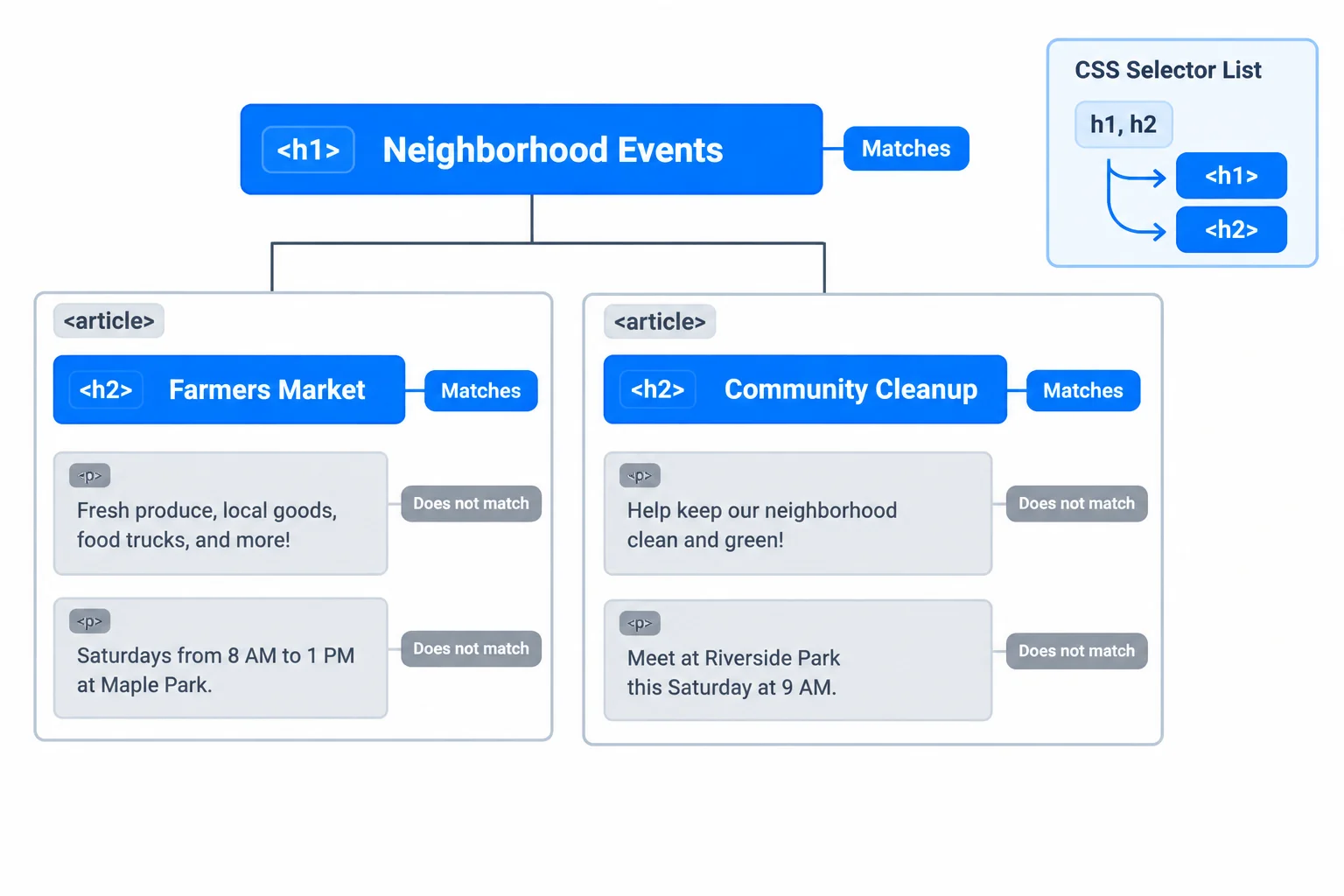
The selector list targets the combined set of h1 and h2 elements.
Suppose two CSS rules have identical declaration blocks. Instead of maintaining the same declarations twice, replace the two selectors and blocks with one selector list and one block.
Use this only when the declarations should be shared. The refactor changes how the CSS is written, not the intended set of matching headings.
The first two rules repeat the same declarations. The final rule keeps those declarations in one shared block.
/* Event styles */
h1 {
  color: navy;
  background-color: whitesmoke;
}

h2 {
  color: navy;
  background-color: whitesmoke;
}

/* Refactored */
h1, h2 {
  color: navy;
  background-color: whitesmoke;
}Complete the selector so this single CSS rule replaces identical rules for the page heading and the article headings.
 {
  color: navy;
  background-color: whitesmoke;
}
Step 6 of 9
Choose descendant and child combinators to control whether nested paragraphs are included.
A descendant combinator is one space between selectors. The final selector identifies what to target; the selector before it limits the target to content nested inside it.
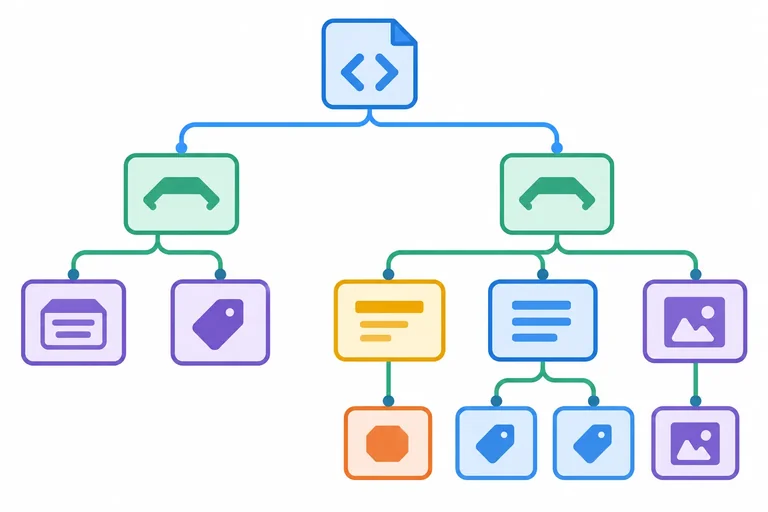
In .event p, p is the target. It matches every paragraph at any depth inside an element whose class is event—not only paragraphs immediately inside the article.
This CSS rule targets every paragraph nested inside an event article.
.event p {
  color: navy;
}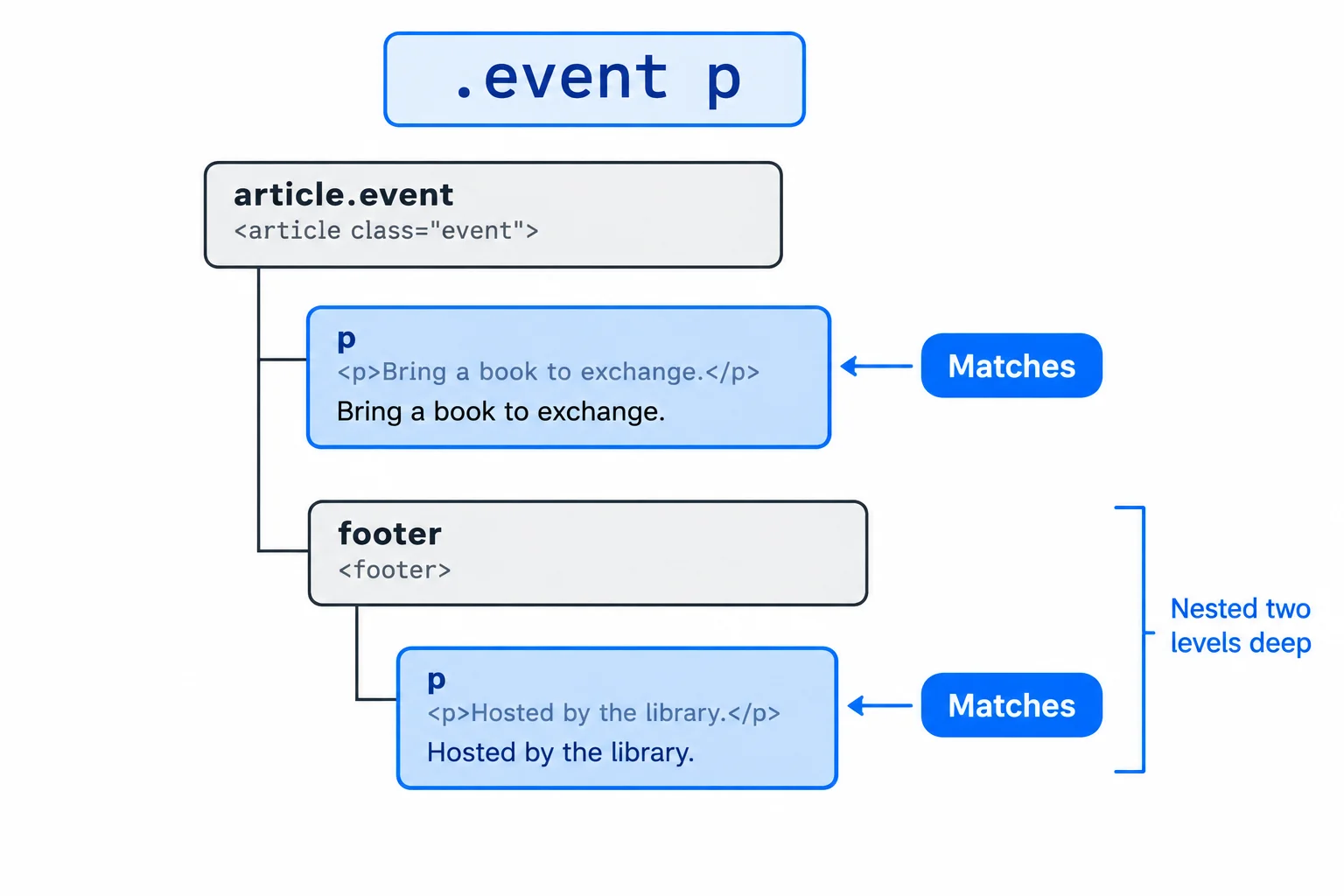
With .event p, the space permits any nesting depth inside .event.
A child combinator uses > and requires an immediate parent-child relationship. In .event > p, the paragraph must be a direct child of the event article.
The summary paragraph in each article is a direct child. The paragraph inside the article footer is not: its direct parent is footer.
Compare the two selectors. These are alternative ways to target paragraphs; use the one that matches the relationship you intend.
| Selector | Required relationship | Paragraphs matched per event article |
|---|---|---|
| .event p | Nested at any depth | Summary paragraph and footer paragraph |
| .event > p | Direct child only | Summary paragraph only |
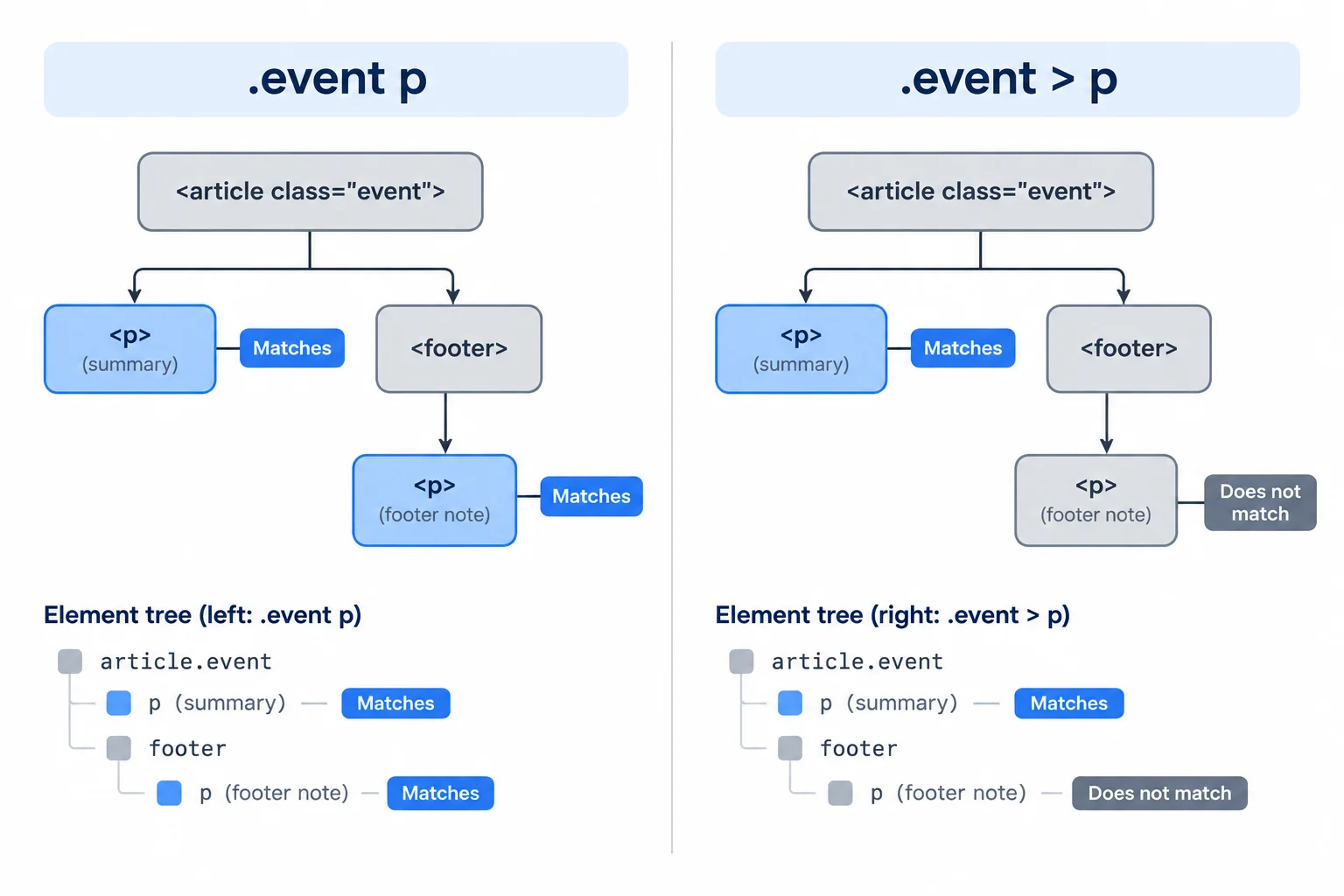
The > excludes the paragraph because a footer sits between that paragraph and the article.
Consider the paragraph Hosted by the library. inside the footer of the Book Swap article. Which statement is correct?
Complete the selector so the rule targets only paragraphs that are direct children of an .event article.
.event  p {
  background-color: whitesmoke;
}
Step 7 of 9
Recognize the document-root pseudo-class and distinguish its single match from the universal selector.
Some selectors begin with a colon. A selector in this form is a pseudo-class: it selects elements according to a defined condition or structural role.
:root is a pseudo-class. It selects the document's root element. In an HTML document, that element is html, not body.
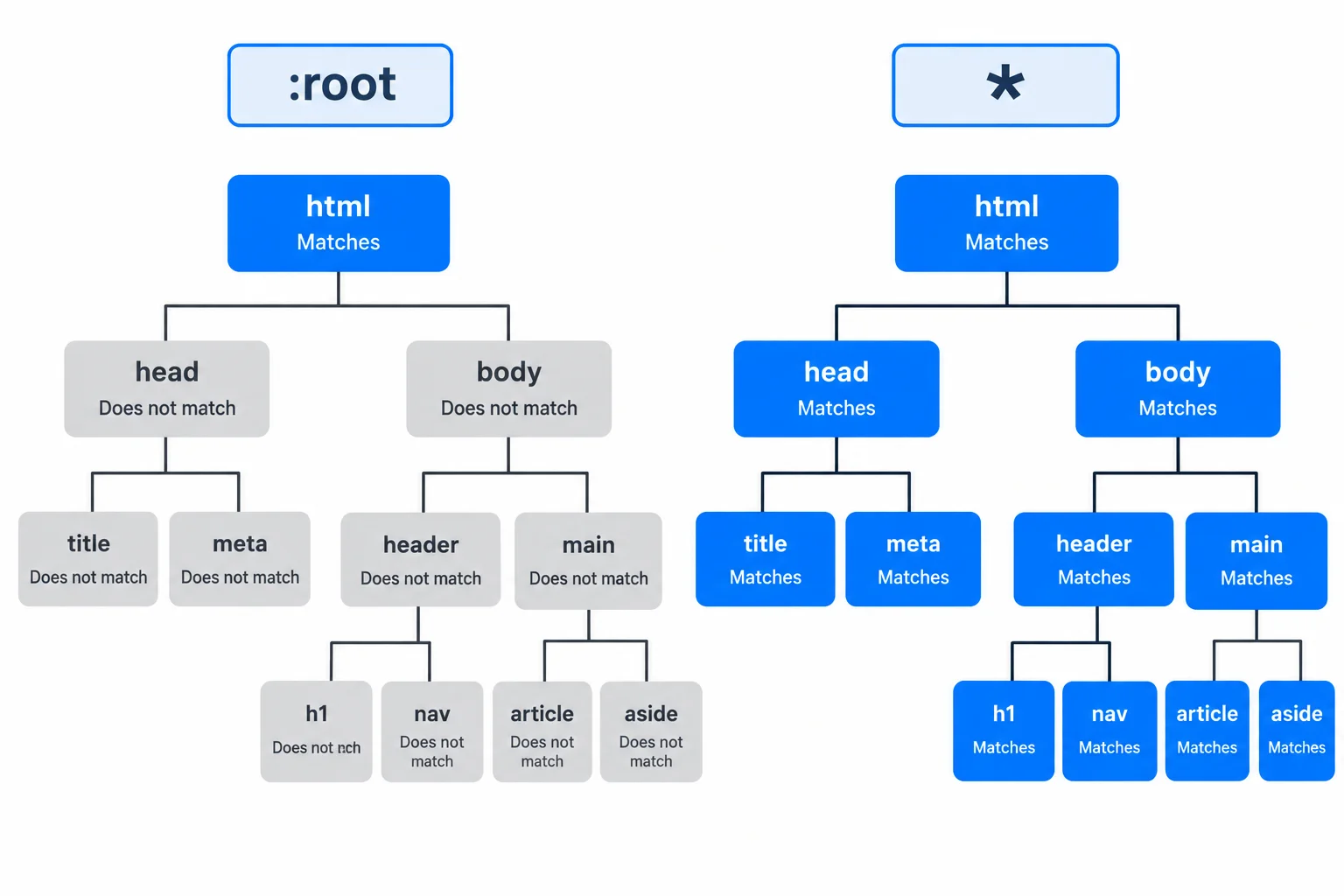
:root has one match: html. The universal selector * matches every element in the document.
Read a pseudo-class as one selector unit: the colon belongs to its name. Place :root where a selector goes—before the braces and declarations.
This CSS rule selects html; it does not select body.
A CSS rule that uses the document-root pseudo-class
:root {
  background-color: whitesmoke;
}Complete the selector so this rule uses the document-root pseudo-class.
root {
  background-color: whitesmoke;
}Match each symbol or selector to what it identifies in an HTML document.
Tap an item and then its matching pair.
Step 8 of 9
Inspect selected HTML elements in browser developer tools, trace matched rules to their local stylesheet, and repair a controlled class-selector mismatch.
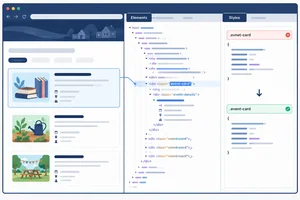
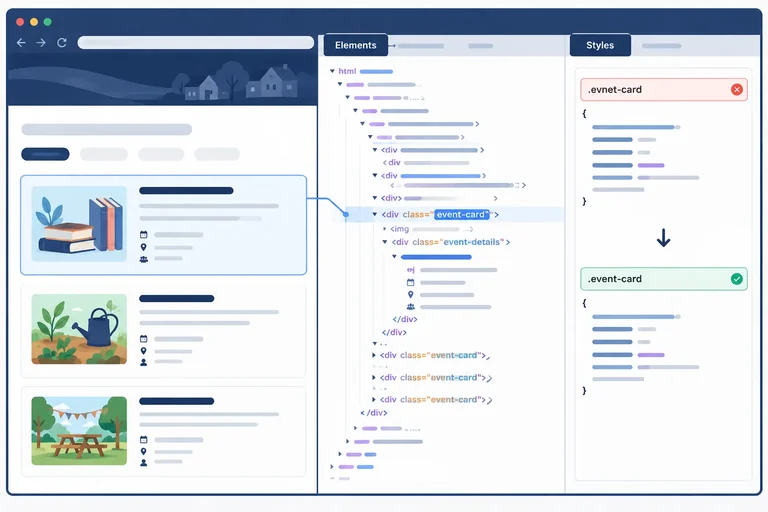
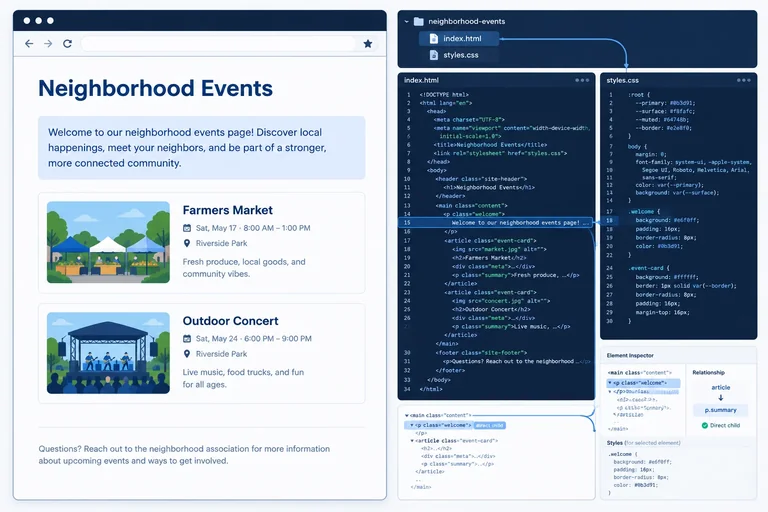
Open your local Neighborhood Events page and open browser developer tools. When you select an element in Elements / Inspector, the Styles / Rules pane updates to show the CSS rules that match that selected element.
Use this view to connect three pieces of evidence: the selected HTML element, its attributes and nesting, and each matched rule. A listed rule also shows its stylesheet source, such as styles.css.
This step checks whether a selector matches. It does not compare competing declarations or decide which declaration wins.
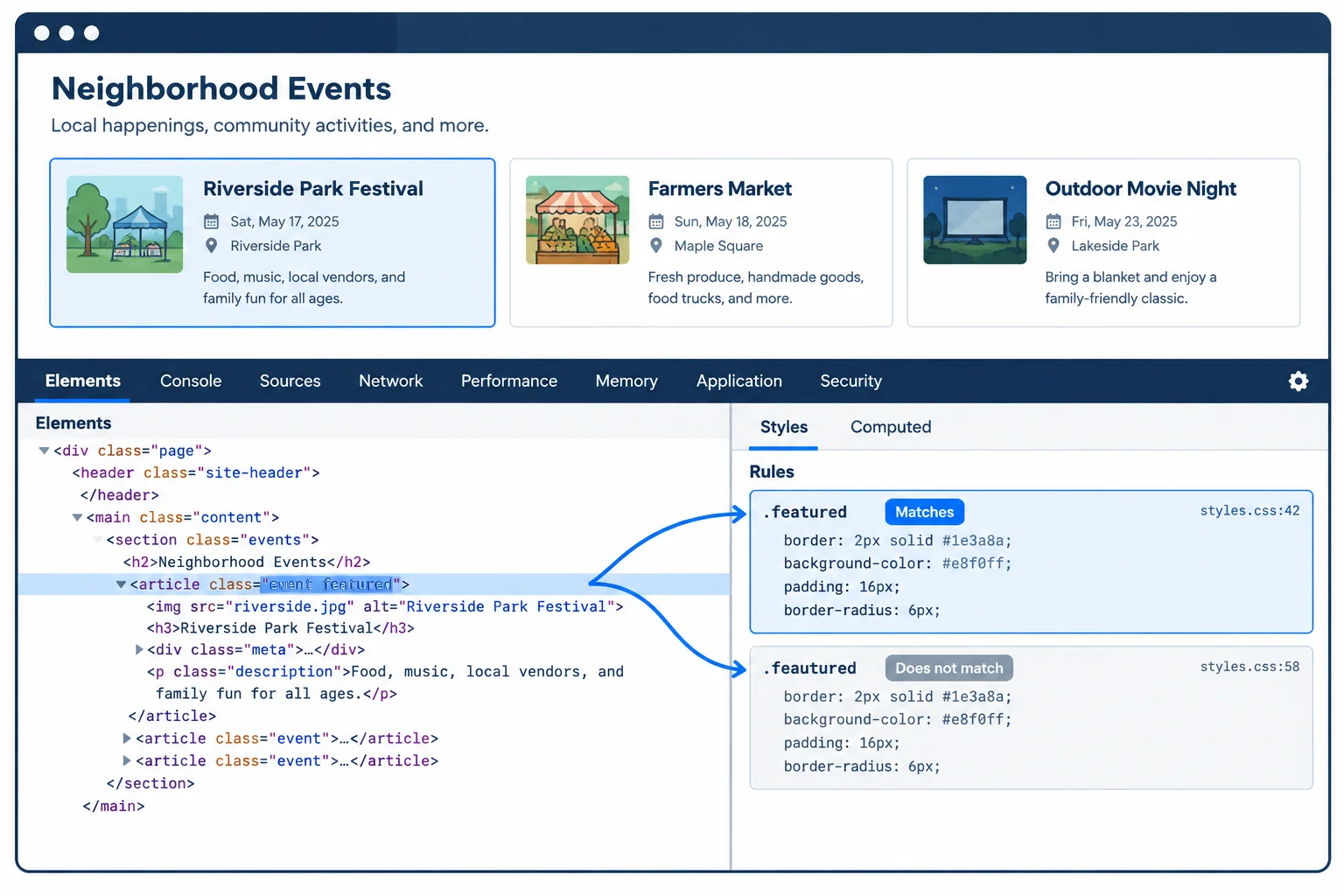
Select an element first, then compare its HTML values with the selectors listed in Styles / Rules.
Tip
Developer tools are useful for inspection and short experiments, but edits made only inside those tools do not update your local source files. Make lasting corrections in styles.css, save the file, and refresh index.html.
Create a controlled mismatch in your local styles.css. Add the rule below after your existing rules. If you already created a rule beginning with .featured, temporarily change that selector to the misspelled selector below instead of adding a duplicate.
Save styles.css, refresh index.html, and select the Book Swap container in Elements / Inspector. Its class values do not exactly match the misspelled selector, so this rule is absent from Styles / Rules. Then change only the selector spelling so it matches the HTML, save, refresh, and select the same element again.
Add this controlled test rule to your local styles.css. After observing its absence, correct the selector in the same local file.
.feautured {
  background-color: whitesmoke;
}Before the local correction: Selected in Elements / Inspector: Book Swap container Styles / Rules: no .feautured rule from styles.css is listed. After correcting the selector, saving styles.css, and refreshing: Selected in Elements / Inspector: same Book Swap container Styles / Rules: the corrected rule is listed with source styles.css. background-color: whitesmoke;
Panel names and rule order vary by browser. Other matched rules may also be listed; focus on this controlled rule and its source.
Complete the controlled check on your computer. With the misspelled rule present, select the Book Swap container and confirm that rule is absent. Correct the selector in local styles.css, save, refresh, and inspect the same container again.
Report: the selected element's tag and class attribute; the selector now listed as a matched rule; and the stylesheet filename shown as its source.
Write at least 45 characters (0/45).
Step 9 of 9
Complete a local stylesheet, verify its targets in browser developer tools, and distinguish intended matches from an excluded nested element.
Finish by applying the selectors in your local css-practice folder. Keep index.html and styles.css at the same level.
Your stylesheet must:
h1 and both h2 elements together in navy;Use separate CSS rules with noncompeting declarations. This task checks whether selectors match their intended elements, not how competing declarations are resolved.
Use this exact index.html only if your existing local page differs. Save it in css-practice beside styles.css.
<!doctype html>
<html lang="en">
<head>
  <meta charset="utf-8">
  <title>Neighborhood Events</title>
  <link rel="stylesheet" href="styles.css">
</head>
<body>
  <header>
    <h1>Neighborhood Events</h1>
    <p id="welcome">Find an event near you.</p>
  </header>
  <main>
    <article class="event featured">
      <h2>Book Swap</h2>
      <p>Bring a book to exchange.</p>
      <footer>
        <p>Hosted by the library.</p>
      </footer>
    </article>
    <article class="event">
      <h2>Garden Walk</h2>
      <p>Meet at the community garden.</p>
    </article>
  </main>
</body>
</html>Neighborhood Events Find an event near you. Book Swap Bring a book to exchange. Hosted by the library. Garden Walk Meet at the community garden.
After the completed stylesheet is saved and the page is refreshed, the visible text remains in this order. The h1 and both h2 headings are navy; the welcome paragraph and the two direct article summary paragraphs are navy; both article areas have whitesmoke backgrounds. “Hosted by the library.” is not targeted by the direct-child rule, so it does not receive that navy text color from that rule.
Plan each CSS rule from an element’s HTML identity and relationship:
event class reaches both articles, including the article that also has featured.Complete the stylesheet on the next screen, then save it and refresh your local page.
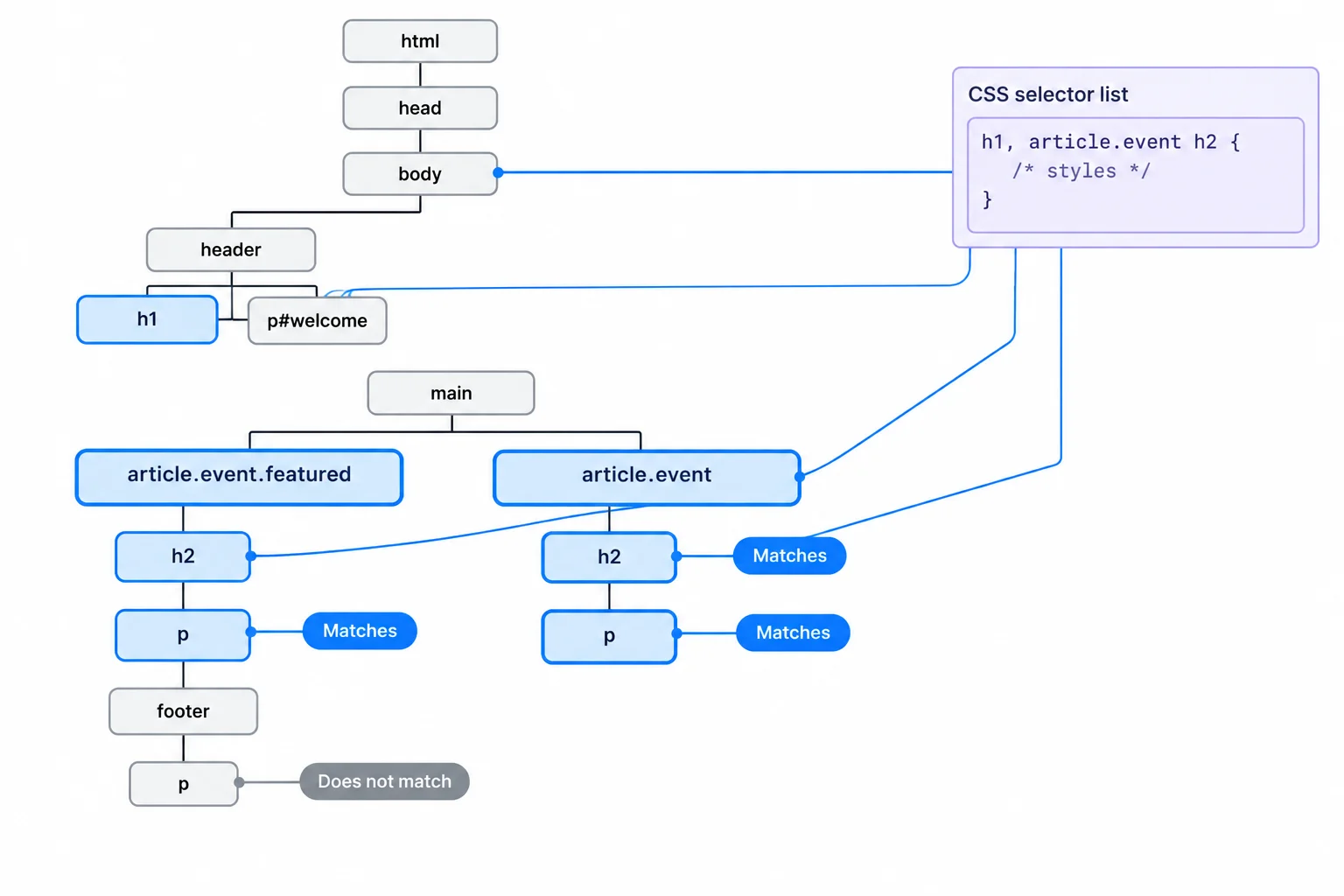
A direct-child selector reaches the two summary paragraphs, but not the paragraph nested inside the footer.
Complete the compact stylesheet. Then enter the completed rules in your local styles.css file using the same formatting.
h1,  {
  color: navy;
}

. {
  background-color: whitesmoke;
}

# {
  color: navy;
}

. > p {
  color: navy;
}After saving and refreshing your local page, use Elements / Inspector and Styles / Rules to verify the connection and the child-selector boundary.
Select the Book Swap summary paragraph, then select the paragraph inside its footer. Report the connection line you verified in index.html, the matched rule and stylesheet source for the summary paragraph, and whether that same rule appears for the footer paragraph.
Write at least 80 characters (0/80).
Summary
styles.css affect the local HTML page.Congratulations! You completed: Apply CSS with Stylesheets and Selectors
Thousands of online courses in video, ebooks and audiobooks.
To test your knowledge during online courses
Generated directly from your cell phone's photo gallery and sent to your email

Download our app via QR Code or the links below:.



Carry knowledge in your pocket.
Download the Cursa app.
There are hundreds of free courses available, with a free certificate of completion that is saved in your mobile image gallery.
Download the app to access the Course Completion Certificate for Free.


+ 10 million
students

Free and Valid
Certificate

60 thousand free
exercises

4.8/5 rating in
app stores

Free courses in
video and ebooks