
Step 1 of 8
Choose the Module Boundaries
Identify the calculator’s responsibilities, establish its working single-file baseline, and plan the file boundaries for the refactor.

Learning path · Level 6 · Tutorial 4
Refactor a small browser interface into connected JavaScript modules and explain how Vite makes local modules and installed packages usable by the browser.
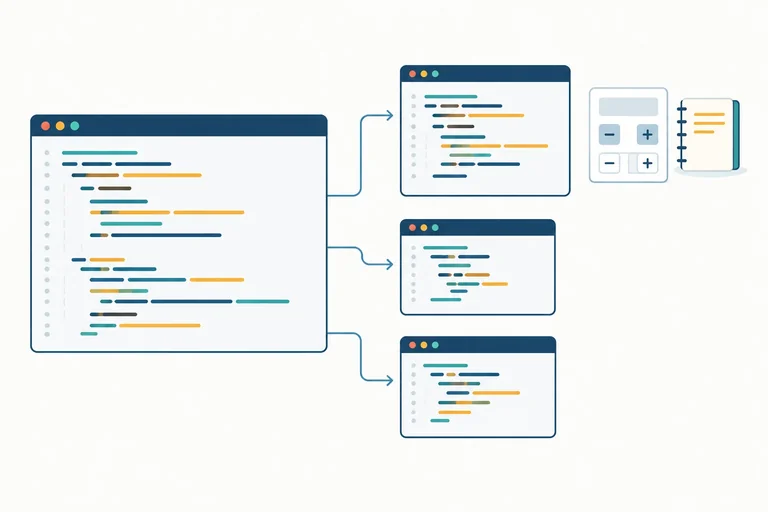
 Choose the Module Boundaries
Identify the calculator’s responsibilities, establish its working single-file baseline, and plan the file boundaries for the refactor. 3 min
Choose the Module Boundaries
Identify the calculator’s responsibilities, establish its working single-file baseline, and plan the file boundaries for the refactor. 3 min
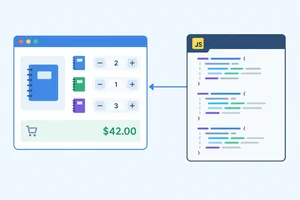 Extract Logic with Named Exports
Move reusable calculator pricing logic into a separate JavaScript module and connect it to the browser entry module with matching named exports and imports. 4 min
Extract Logic with Named Exports
Move reusable calculator pricing logic into a separate JavaScript module and connect it to the browser entry module with matching named exports and imports. 4 min
 Use Aliases and Default Exports
Use an import alias and a default export while preserving the Notebook calculator’s behavior. 3 min
Use Aliases and Default Exports
Use an import alias and a default export while preserving the Notebook calculator’s behavior. 3 min
 Keep Dependencies Pointing One Way
Read the calculator's one-way module graph and keep reusable modules independent from entry-module state. 3 min
Keep Dependencies Pointing One Way
Read the calculator's one-way module graph and keep reusable modules independent from entry-module state. 3 min
 Trace Module Evaluation
Trace dependency-first evaluation in a small module graph with a reused shared dependency. 3 min
Trace Module Evaluation
Trace dependency-first evaluation in a small module graph with a reused shared dependency. 3 min
 Separate Import Syntax from Vite Resolution
Distinguish local file imports from package imports and identify Vite’s development-time role versus browser execution. 3 min
Separate Import Syntax from Vite Resolution
Distinguish local file imports from package imports and identify Vite’s development-time role versus browser execution. 3 min
 Repair Broken Module Connections
Use visible module-loading clues to repair a wrong relative path and an import/export mismatch, then confirm that the calculator still works. 3 min
Repair Broken Module Connections
Use visible module-loading clues to repair a wrong relative path and an import/export mismatch, then confirm that the calculator still works. 3 min
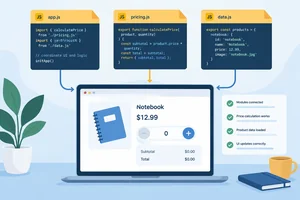 Verify the Finished Module Refactor
Assemble the final Notebook quantity calculator modules, verify its browser behavior, and explain how imports, Vite resolution, and browser execution connect. 3 min
Verify the Finished Module Refactor
Assemble the final Notebook quantity calculator modules, verify its browser behavior, and explain how imports, Vite resolution, and browser execution connect. 3 min
Step 1 of 8
Identify the calculator’s responsibilities, establish its working single-file baseline, and plan the file boundaries for the refactor.
A refactor reorganizes code without changing what a person can observe in the interface. Before splitting files, protect the calculator’s current behavior:
The goal is not to add features. It is to move each responsibility to a clearer home while preserving these results.
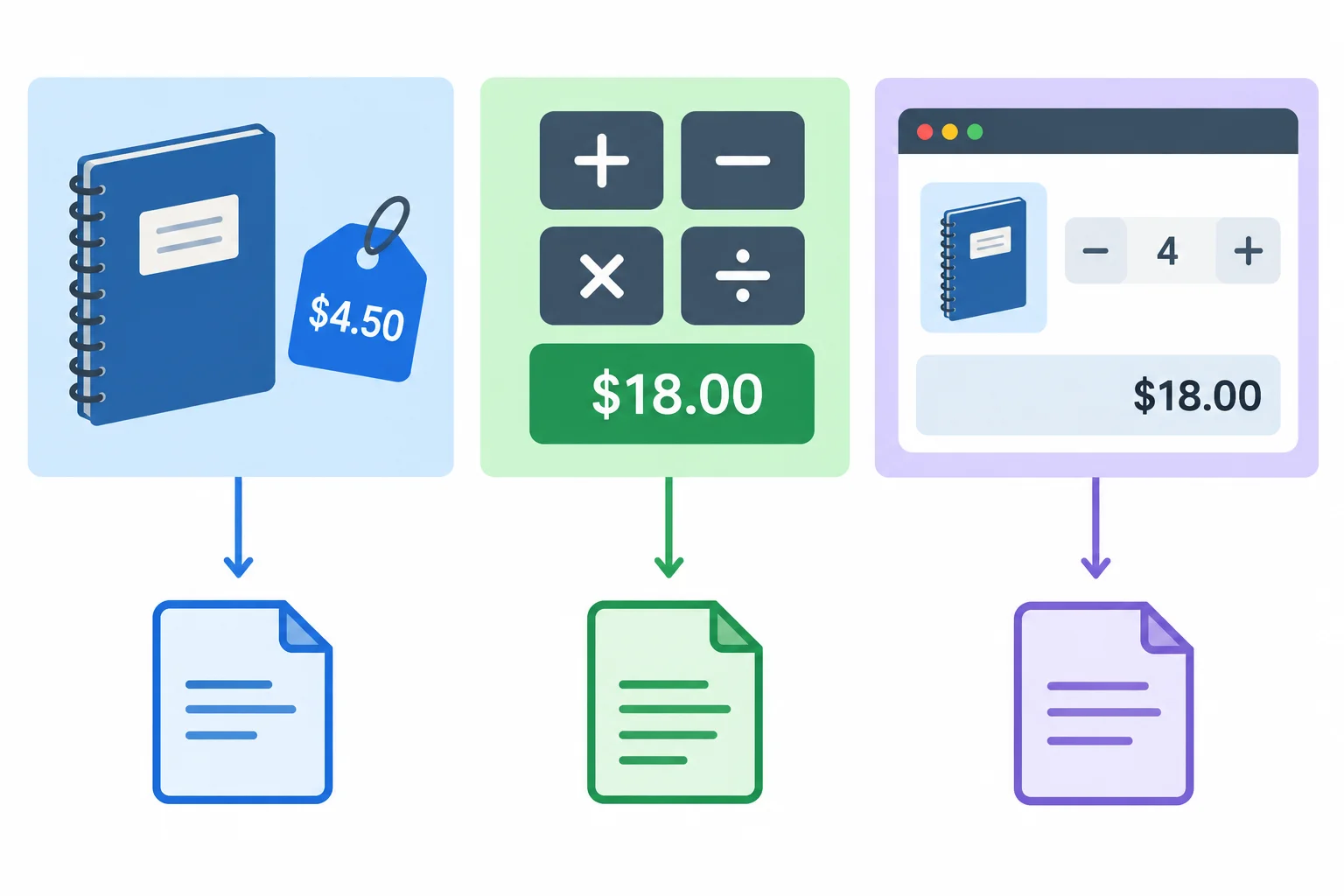
The calculator has data, reusable logic, and interface coordination. The refactor gives each area a focused file.
Tip
The target organization is deliberately small:
src/product.js will hold the Notebook product record.src/pricing.js will hold price calculation and formatting functions.src/main.js will continue to hold interface state, event listeners, DOM updates, and render().This separation is about responsibility, not about putting every declaration in its own file. The connection syntax comes next; for now, identify the boundaries.
Create or replace index.html with this complete entry document. It keeps the Vite-compatible module entry script and provides every element that the calculator code needs.
index.html
<!doctype html>
<html lang="en">
  <head>
    <meta charset="UTF-8">
    <meta name="viewport" content="width=device-width, initial-scale=1.0">
    <title>Notebook quantity calculator</title>
  </head>
  <body>
    <main>
      <h1 id="product-name"></h1>
      <p>Quantity: <span id="quantity"></span></p>
      <p>Subtotal: <span id="subtotal"></span></p>
      <button id="decrease" type="button">Decrease</button>
      <button id="increase" type="button">Increase</button>
    </main>
    <script type="module" src="/src/main.js"></script>
  </body>
</html>Place this complete single-file version in src/main.js. It is the behavior baseline to preserve. It intentionally keeps product data, price logic, and DOM coordination together for now.
Use the Vite server you already set up, save both files, and open its reported local URL. Verify the initial values, select Decrease twice to reach zero, confirm that Decrease becomes disabled, then select Increase twice to return to 2.
src/main.js
const product = {
  name: 'Notebook',
  unitPriceCents: 1250
};

const state = {
  quantity: 2
};

const productName = document.querySelector('#product-name');
const quantity = document.querySelector('#quantity');
const subtotal = document.querySelector('#subtotal');
const decrease = document.querySelector('#decrease');
const increase = document.querySelector('#increase');

function calculateSubtotal(unitPriceCents, quantity) {
  return unitPriceCents * quantity;
}

function formatPrice(cents) {
  return '$' + (cents / 100).toFixed(2);
}

function render() {
  productName.textContent = product.name;
  quantity.textContent = state.quantity;
  subtotal.textContent = formatPrice(
    calculateSubtotal(product.unitPriceCents, state.quantity)
  );
  decrease.disabled = state.quantity === 0;
}

decrease.addEventListener('click', function () {
  if (state.quantity > 0) {
    state.quantity -= 1;
    render();
  }
});

increase.addEventListener('click', function () {
  state.quantity += 1;
  render();
});

render();Initial page: Notebook Quantity: 2 Subtotal: $25.00 Decrease is enabled. After selecting Decrease twice: Notebook Quantity: 0 Subtotal: $0.00 Decrease is disabled. After selecting Increase twice: Notebook Quantity: 2 Subtotal: $25.00 Decrease is enabled.
Expected browser result after loading the page and during the described button sequence.
Tip
Keep prices as integer cents: 1250 represents $12.50. This avoids fractional-money calculations and lets formatting happen only when the value is displayed.
During the refactor, the functions should keep receiving values through parameters. They should not need DOM elements or the interface state object.
Match each calculator responsibility to the file where it belongs after the refactor.
Tap an item and then its matching pair.
Step 2 of 8
Move reusable calculator pricing logic into a separate JavaScript module and connect it to the browser entry module with matching named exports and imports.
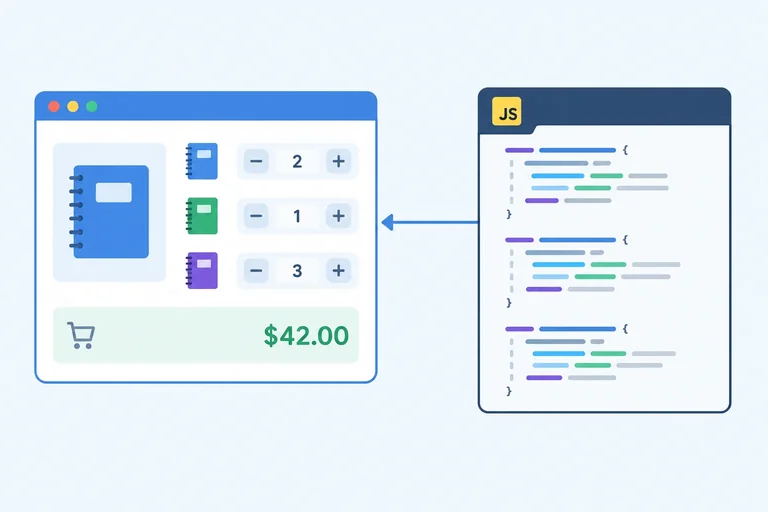
The calculator keeps the behavior you established, but its reusable price logic moves out of the entry module.
A top-level declaration in a JavaScript module belongs to that module. It does not become a shared global that another file can use automatically. A named export exposes a selected declaration; a matching named import makes that declaration available in the importing module.
For this extraction:
src/pricing.js owns reusable subtotal calculation and price formatting.src/main.js remains the entry module and owns state, DOM queries, listeners, and render().The interface behavior does not change: it still starts at quantity 2 with a subtotal of $25.00.
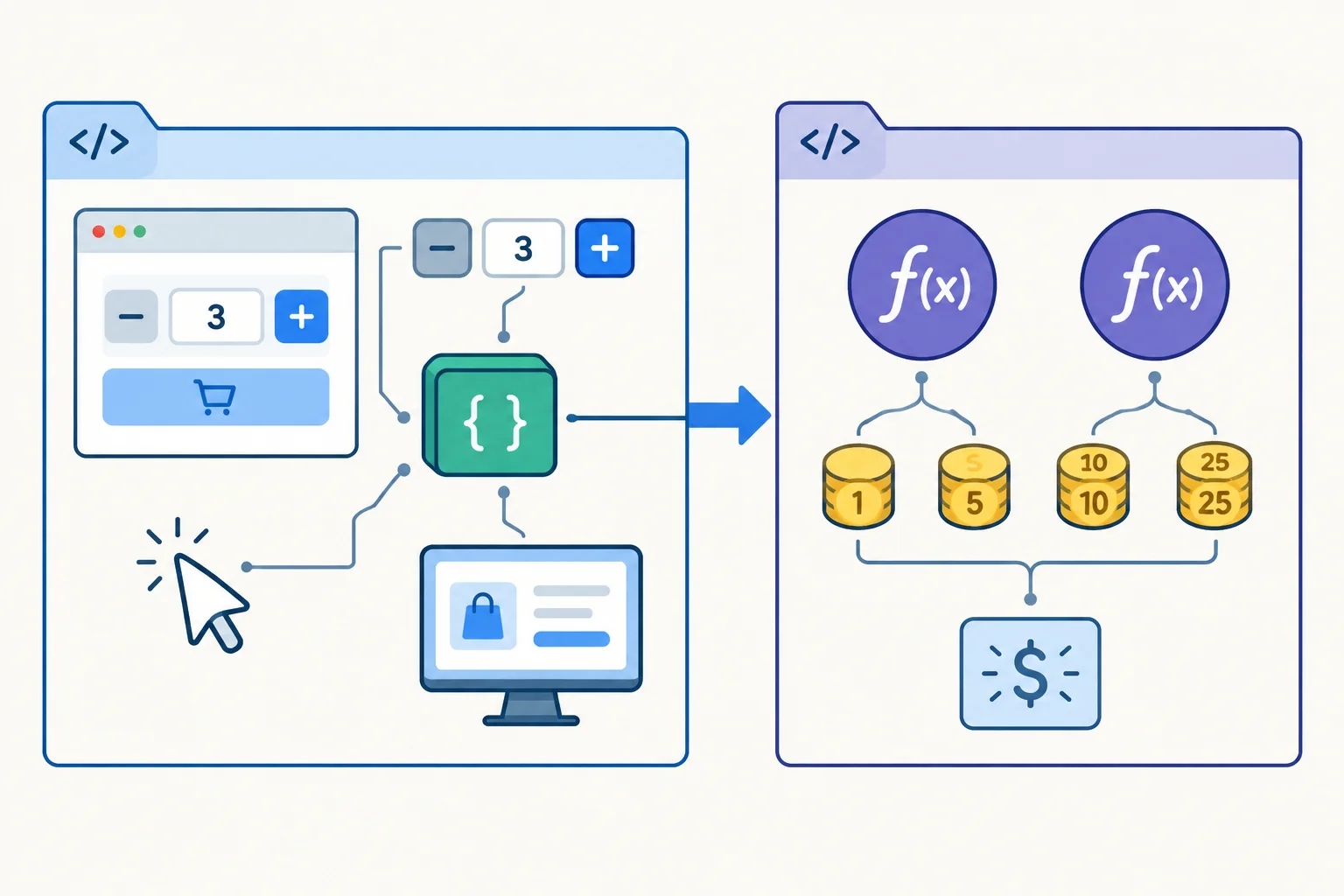
main.js coordinates the interface and imports reusable functions from pricing.js.
Create src/pricing.js beside src/main.js. Each export makes that function a named export. These functions receive every value they need through parameters, so they do not read the DOM or the entry module's state.
export function calculateSubtotal(unitPriceCents, quantity) {
  return unitPriceCents * quantity;
}

export function formatPrice(cents) {
  return '$' + (cents / 100).toFixed(2);
}The exported names are exactly calculateSubtotal and formatPrice. Their parameters keep the module reusable: 1250 and 2 produce 2500, and formatting 2500 produces $25.00.
The entry module will request these names explicitly. It does not gain access to every top-level declaration automatically, and pricing.js does not need to import main.js to reach interface state.
Replace src/main.js with this complete entry module. The static import declaration is at module top level, before code that calls the imported functions. Braces request named exports, so the requested names must match the names exported by pricing.js.
import { calculateSubtotal, formatPrice } from './pricing.js';

const product = {
  name: 'Notebook',
  unitPriceCents: 1250
};

const state = {
  quantity: 2
};

const productName = document.querySelector('#product-name');
const quantity = document.querySelector('#quantity');
const subtotal = document.querySelector('#subtotal');
const decrease = document.querySelector('#decrease');
const increase = document.querySelector('#increase');

function render() {
  productName.textContent = product.name;
  quantity.textContent = state.quantity;
  subtotal.textContent = formatPrice(
    calculateSubtotal(product.unitPriceCents, state.quantity)
  );
  decrease.disabled = state.quantity === 0;
}

decrease.addEventListener('click', function () {
  if (state.quantity > 0) {
    state.quantity -= 1;
    render();
  }
});

increase.addEventListener('click', function () {
  state.quantity += 1;
  render();
});

render();Initial render Notebook Quantity: 2 Subtotal: $25.00 Decrease: enabled After selecting Decrease twice Notebook Quantity: 0 Subtotal: $0.00 Decrease: disabled After selecting Increase twice Notebook Quantity: 2 Subtotal: $25.00 Decrease: enabled
Expected browser interface states after saving the files and using the controls. This is an interface result, not Console output.
Tip
Keep the single entry script in index.html:
<script type="module" src="/src/main.js"></script>
Do not add another HTML script element for pricing.js. The relative file specifier ./pricing.js starts from src/main.js, so it resolves to the neighboring src/pricing.js file. Keep the .js extension in this project.
Complete the named export and named import connection. Then create or save the two complete files from the preceding screens on your computer. With your Vite server running, verify the initial display, decrease twice, and increase twice. Confirm that the helpers are reached through the import rather than as globals.
// src/pricing.js
export function (unitPriceCents, quantity) {
  return unitPriceCents * quantity;
}

export function (cents) {
  return '$' + (cents / 100).toFixed(2);
}

// src/main.js
import { ,  } from './pricing.js';
Step 3 of 8
Use an import alias and a default export while preserving the Notebook calculator’s behavior.
pricing.js keeps its public function names. An import alias changes only the identifier used inside the importing module.
Here, calculateSubtotal remains the named export in pricing.js, while main.js calls it subtotal. formatPrice keeps the same local name. The braces still mean these are named imports.
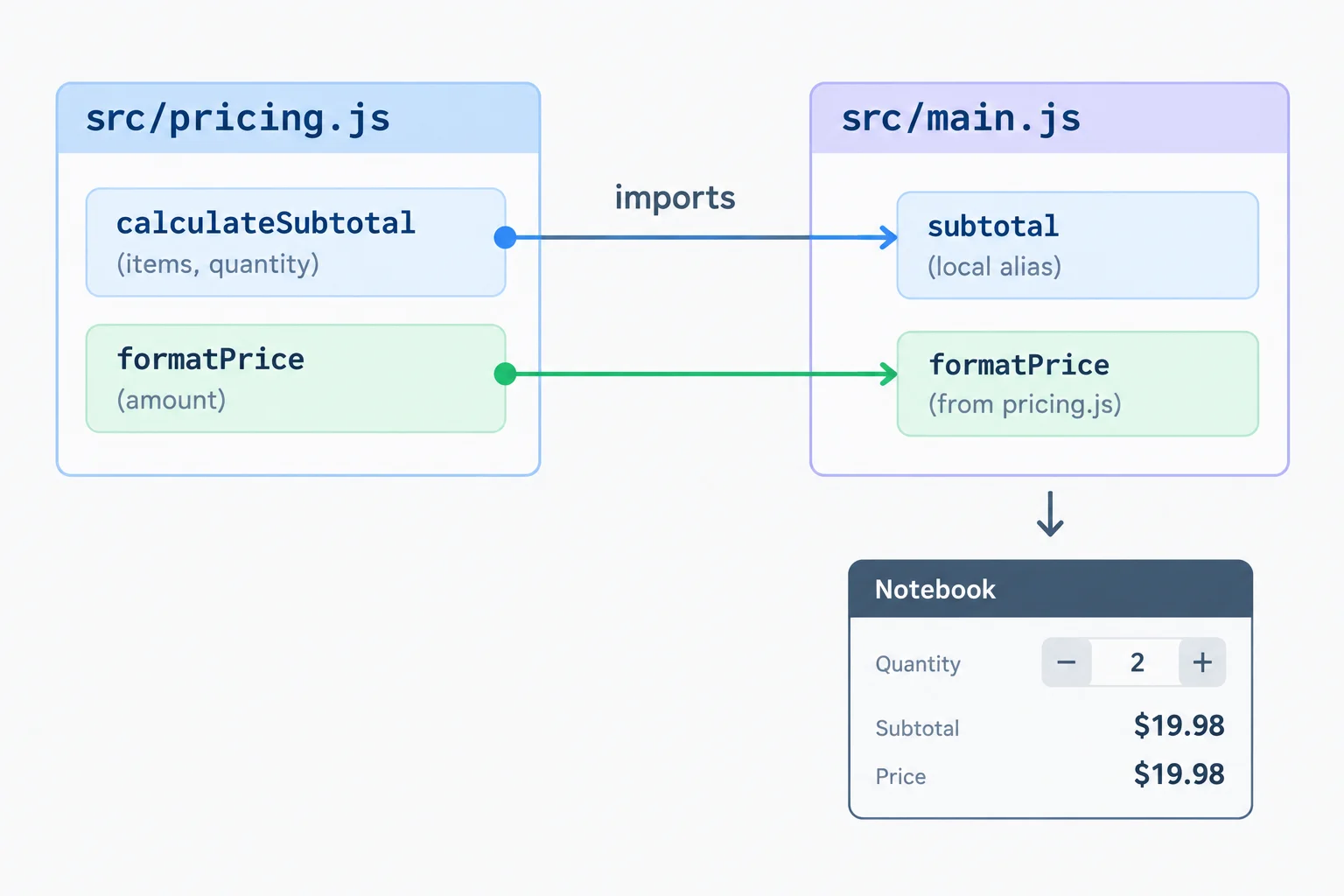
The source export name remains calculateSubtotal; only main.js uses the local alias subtotal.
src/pricing.js
export function calculateSubtotal(unitPriceCents, quantity) {
  return unitPriceCents * quantity;
}

export function formatPrice(cents) {
  return '$' + (cents / 100).toFixed(2);
}src/main.js
import {
  calculateSubtotal as subtotal,
  formatPrice
} from './pricing.js';A module may expose multiple named exports, but it has at most one default export. A default import has no braces, and the importer chooses its local name.
Create src/product.js, move the Notebook record there, and remove that record from src/main.js. The entry module can use the default import beside its aliased named import. Its state, DOM work, event listeners, and render() stay in the entry module.
src/product.js
const product = {
  name: 'Notebook',
  unitPriceCents: 1250
};

export default product;src/main.js
import { calculateSubtotal as subtotal, formatPrice } from './pricing.js';
import product from './product.js';

const state = {
  quantity: 2
};

const productName = document.querySelector('#product-name');
const quantity = document.querySelector('#quantity');
const subtotalElement = document.querySelector('#subtotal');
const decrease = document.querySelector('#decrease');
const increase = document.querySelector('#increase');

function render() {
  const totalCents = subtotal(product.unitPriceCents, state.quantity);

  productName.textContent = product.name;
  quantity.textContent = state.quantity;
  subtotalElement.textContent = formatPrice(totalCents);
  decrease.disabled = state.quantity === 0;
}

decrease.addEventListener('click', function () {
  if (state.quantity > 0) {
    state.quantity -= 1;
    render();
  }
});

increase.addEventListener('click', function () {
  state.quantity += 1;
  render();
});

render();Notebook Quantity: 2 Subtotal: $25.00 Decrease (enabled) Increase (enabled)
This is the initial rendered interface after the module loads. The button states change after interaction.
Tip
Save src/product.js and the updated src/main.js while your Vite server is running. Refresh the local page if needed. Confirm that Notebook appears at quantity 2 with $25.00; decrease twice to confirm $0.00 and a disabled Decrease button; then increase twice to confirm $12.50 and $25.00 again.
For comparison only, import notebook from './product.js'; would receive the same default-exported object. The final calculator uses the clearer local name product.
Match each import declaration to the export interface it requires.
Tap an item and then its matching pair.
Complete the import declarations used by the finished entry module.
import {
  calculateSubtotal as ,
  formatPrice
} from './pricing.js';
import from './product.js';After completing the imports, save src/product.js and src/main.js and check the calculator in your local Vite page. Report the product name and initial quantity/subtotal. Then report the subtotal after each of two Decrease clicks, whether Decrease is available at the lowest quantity, and the subtotal after each of two Increase clicks. Finally, state which identifier main.js calls for the subtotal calculation and which source export it refers to.
Write at least 180 characters (0/180).

Step 4 of 8
Read the calculator's one-way module graph and keep reusable modules independent from entry-module state.
A module graph is a map of files and their import relationships. Each file is a node. Draw each arrow from the importer to the dependency, and label the arrow imports.
For this calculator, main.js is the entry module: it coordinates the DOM and state. It imports the product record and pricing utilities. The reusable modules do not need to know that main.js exists.
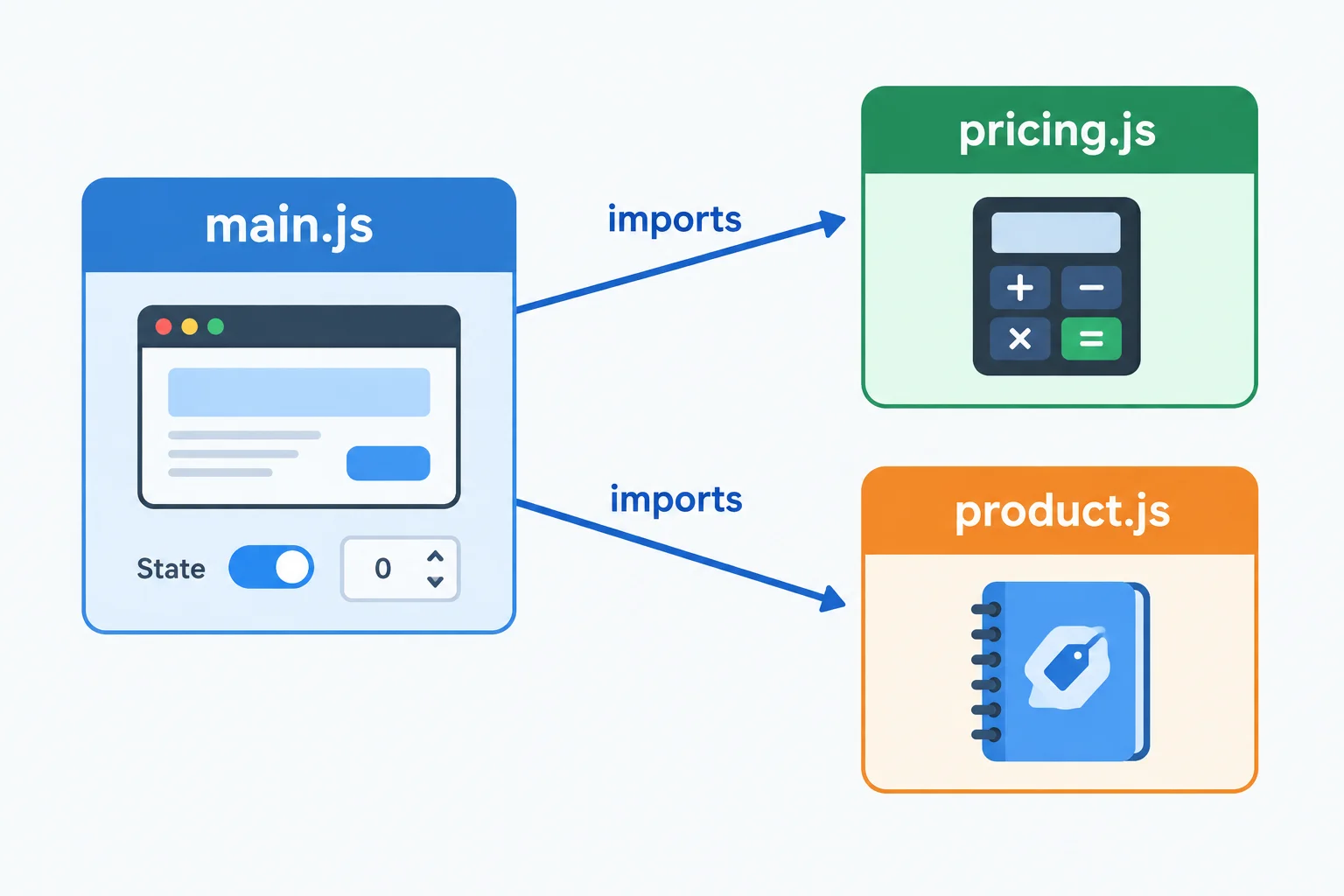
Arrows point from the module that imports to the module it needs.
Tip
This direction keeps responsibilities clear:
main.js coordinates browser interaction.pricing.js provides reusable price calculations and formatting.product.js provides product data.The graph describes dependencies, not the order in which code runs. At this point, focus on which file needs which other file.
Keep reusable modules independent of entry-module details. pricing.js receives values through parameters; it does not import main.js to reach state.
That makes the function useful wherever a unit price and quantity are available. It also prevents the pricing module from being tied to DOM coordination.
src/pricing.js
export function calculateSubtotal(unitPriceCents, quantity) {
  return unitPriceCents * quantity;
}
Warning
If main.js imports pricing.js and pricing.js imports main.js, the files form a circular dependency. Avoid creating that connection merely to read entry-module state. Pass the required value as a function argument instead.
Useful boundaries are small and explicit, not maximal: related reusable pricing functions belong together in pricing.js; every declaration does not need its own file.
Which proposed dependency edge would create an unnecessary circular dependency in the calculator?
Complete the call in src/main.js so the entry module passes its current quantity to the imported pricing function.
const totalCents = subtotal(product.unitPriceCents, );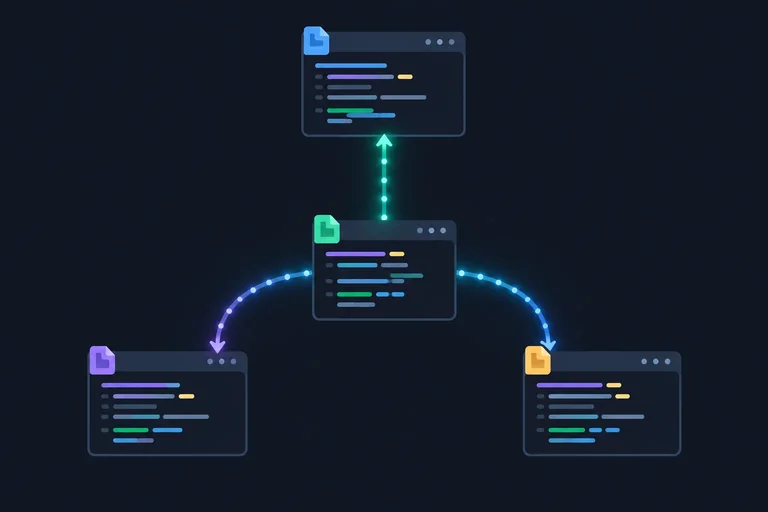
Step 5 of 8
Trace dependency-first evaluation in a small module graph with a reused shared dependency.
Module evaluation is the execution of a module’s top-level statements. It is different from calling a function that the module exports.
For this small acyclic graph with synchronous module bodies, dependencies evaluate before the importing module’s own top-level body. If two modules import the same resolved module URL during one page load, that shared module is evaluated once and then reused.
A full page reload creates a new evaluation context, so modules evaluate again for that new load. This trace does not cover hot updates.
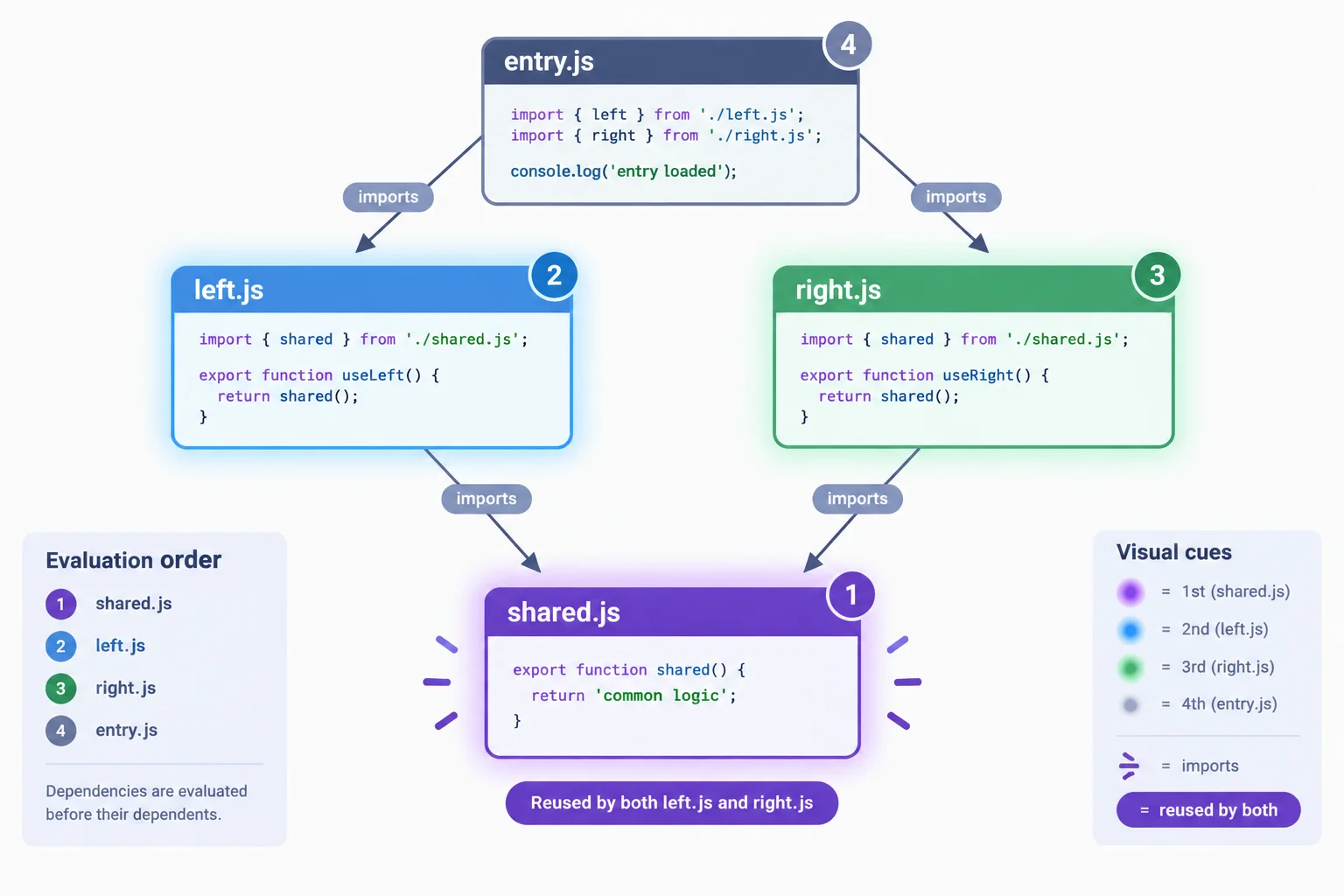
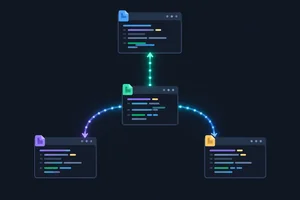
Arrows show imports from importer to dependency. The highlighted sequence shows evaluation moving from dependencies back to the entry module; shared.js is one node, not two copies.
Tip
The direction of an import arrow and the evaluation sequence are related but opposite in this trace: entry.js imports its dependencies, while those dependencies run their top-level code before entry.js does.
Importing a function makes its exported value available. It does not execute the statements inside that function. Those run only when code explicitly calls the function.
shared.js
console.log('shared');

export function useShared() {
  console.log('function call');
}
left.js
import { useShared } from './shared.js';

console.log('left');

export function runLeft() {
  useShared();
}
right.js
import { useShared } from './shared.js';

console.log('right');

export function runRight() {
  useShared();
}
entry.js
import { runLeft } from './left.js';
import { runRight } from './right.js';

console.log('entry');

export { runLeft, runRight };The browser begins with entry.js. Its first import leads to left.js, which first needs shared.js; therefore shared logs before left. Next, right.js is evaluated, but its import resolves to the already evaluated shared.js, so shared does not log again. Finally, the top-level body of entry.js logs.
No file calls runLeft() or runRight() here. If code later called runLeft(), only then would useShared() run and log function call. That later function call is not another evaluation of shared.js.
Arrange the top-level console labels in the order they appear for this graph during one page load.
After ordering the labels, choose the statement that completes the trace.

Step 6 of 8
Distinguish local file imports from package imports and identify Vite’s development-time role versus browser execution.
A relative file specifier identifies a project file from the location of the importing module. In src/main.js, ./pricing.js means the neighboring src/pricing.js file. This project writes the .js extension explicitly.
A bare package specifier names a package rather than describing a local route. For example, lodash-es has no ./, ../, or / prefix. A browser cannot find an npm package from that name alone without a tool or configured mapping.
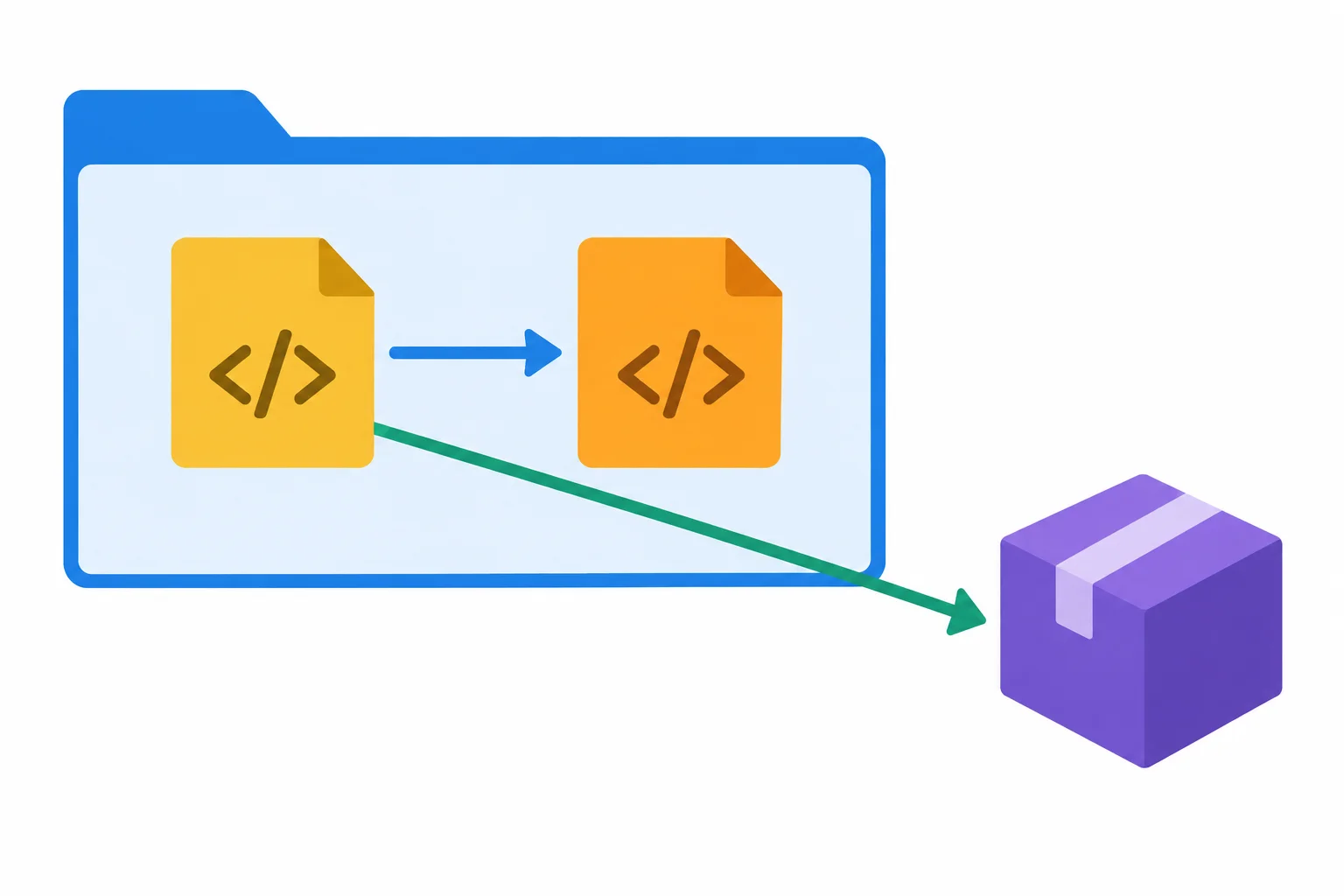
A relative file specifier follows the project structure; a bare package specifier names a package.
src/main.js
import { calculateSubtotal as subtotal, formatPrice } from './pricing.js';
import product from './product.js';The Notebook calculator still needs only src/main.js, src/pricing.js, and src/product.js; do not add this package import to its finished code.
For a temporary, runnable demonstration, install lodash-es, create one temporary module, and connect it to the existing entry module. Keep the Vite server running. After saving, open the browser DevTools Console to inspect the logged value.
Terminal, in the project folder
npm install lodash-esadded 1 package, and audited 12 packages in 1s 3 packages are looking for funding run `npm fund` for details found 0 vulnerabilities
The package count, audit details, and timing vary by project and npm version.
Create this temporary file: src/isolated-package-demo.js
import { camelCase } from 'lodash-es';

const label = camelCase('module demo');
console.log(label);moduleDemo
This output appears in the browser DevTools Console after the entry module imports this temporary file.
At the very top of src/main.js, add this temporary side-effect import before the calculator imports. Leave the existing calculator imports below it unchanged.
import './isolated-package-demo.js';
import { calculateSubtotal as subtotal, formatPrice } from './pricing.js';
import product from './product.js';During development, Vite follows the import graph. It resolves relative project files and installed packages, then serves browser-loadable module references. It can transform application source and package code when needed for development.
That preparation is not your interface running: Vite does not call render(), change calculator state, or respond to button clicks. After Vite serves the modules, the browser evaluates them and executes the calculator's application logic.
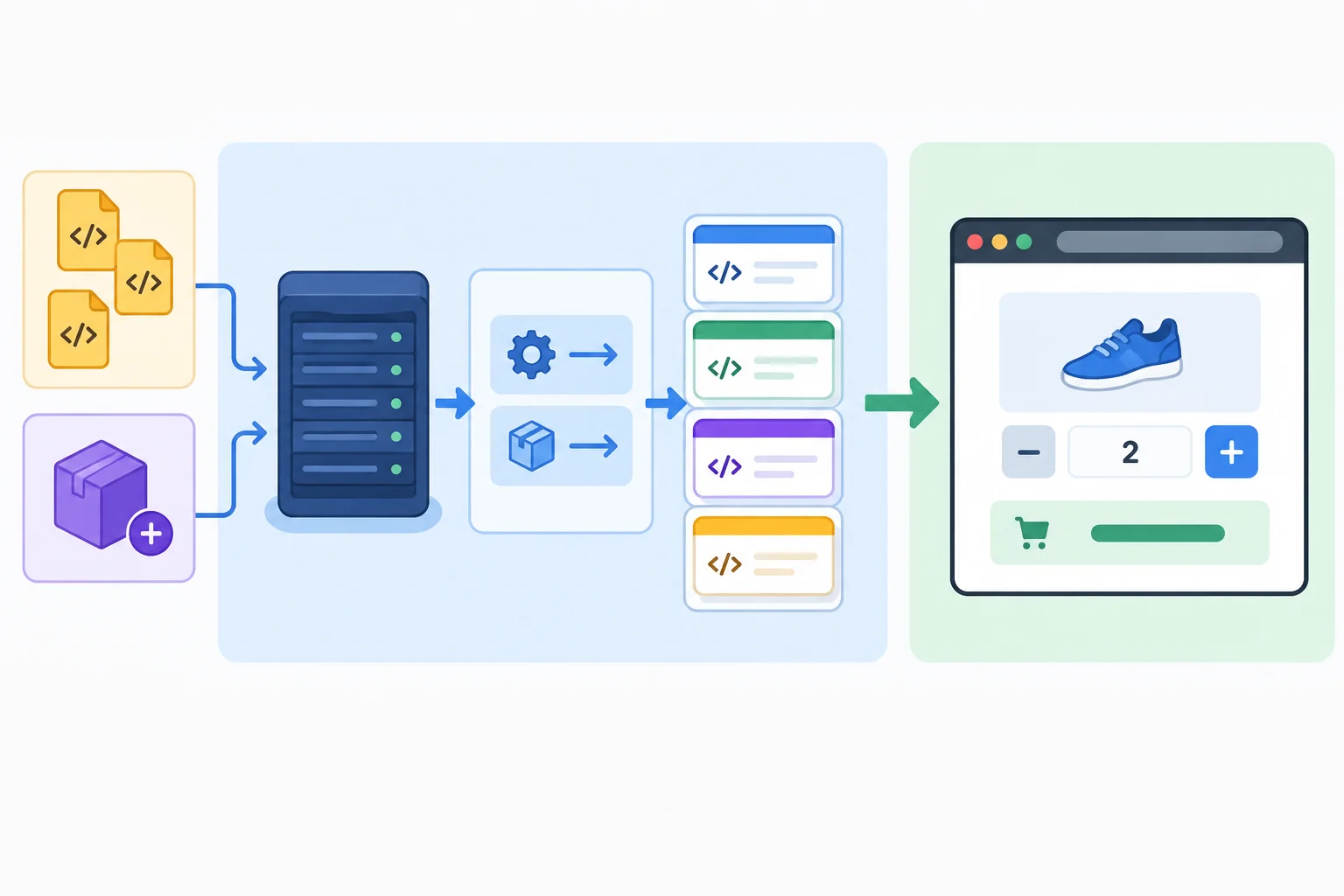
Vite resolves, transforms, and serves modules during development; the browser executes the served application modules.
Tip
After you see moduleDemo in the browser Console, restore the final calculator state:
import './isolated-package-demo.js'; from the top of src/main.js.src/isolated-package-demo.js.This removes the temporary package declaration so lodash-es is not a dependency of the finished calculator. Do not replace the supported package specifier with a manually constructed path inside node_modules.
Terminal, in the project folder
npm uninstall lodash-esremoved 1 package, and audited 11 packages in 1s 3 packages are looking for funding run `npm fund` for details found 0 vulnerabilities
The removed-package count, audit details, and timing vary by project and npm version.
Complete the classification labels, the illustrative package import, and the two runtime responsibilities.
import { formatPrice } from './pricing.js'; //
import {  } from ''; //

//  resolves packages and transforms modules during development.
// The  executes the imported code and application logic.
Step 7 of 8
Use visible module-loading clues to repair a wrong relative path and an import/export mismatch, then confirm that the calculator still works.
A module-loading message can be worded differently by Vite and by the browser. Do not focus only on its wording. Find three clues:
import appears.from.For a missing module, compare the requested path with the real file location, including spelling, capitalization, and the .js extension. For an export error, open the target module and compare its exported declarations with the import.
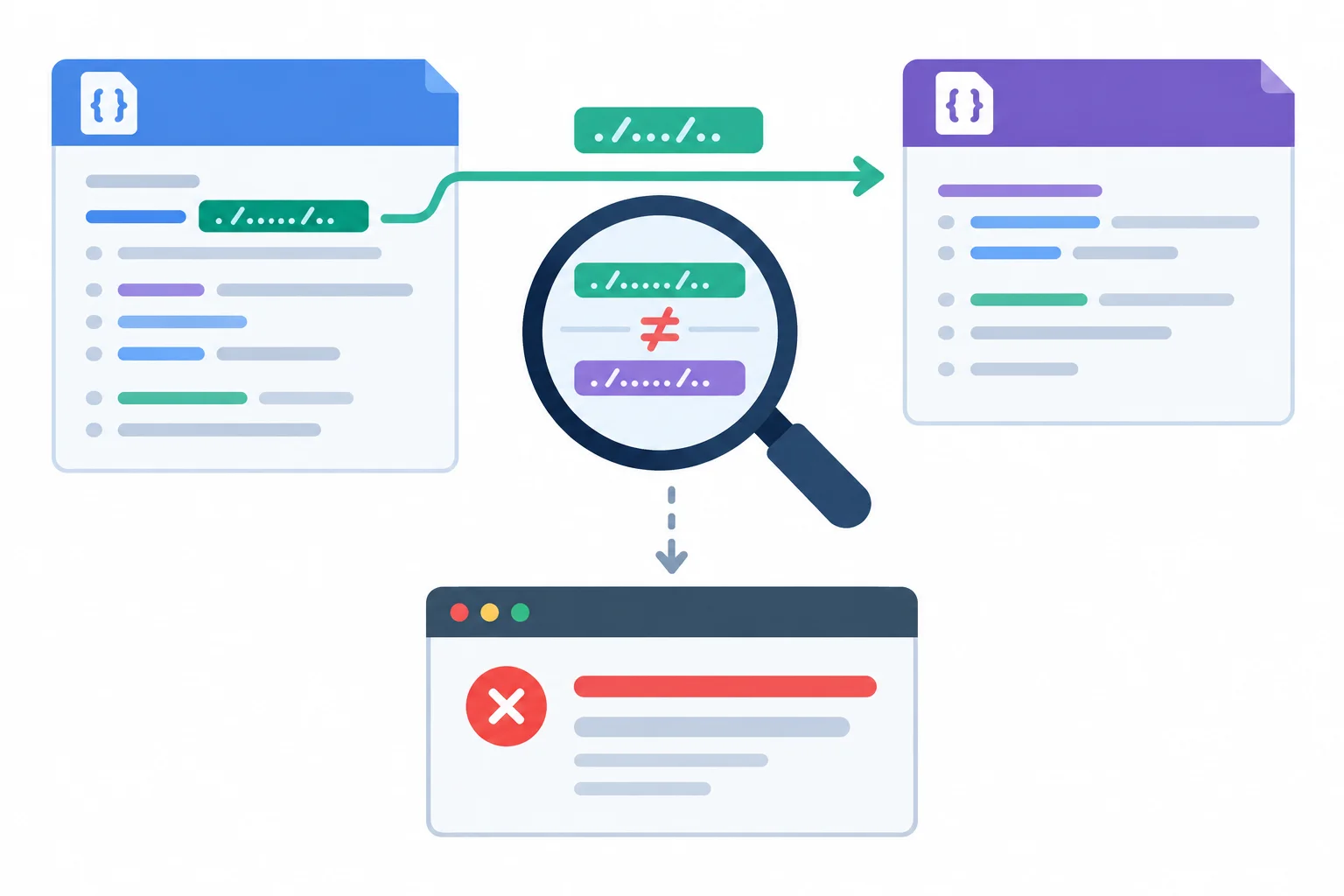
Start at the importing file, then compare what it requests with the file and export that actually exist.
Use this short sequence before changing code.
| Clue | Compare | Then do |
|---|---|---|
| Module not found | Requested path and actual filename | Check folder, spelling, capitalization, and .js |
| Export not found | Imported name and target declaration | Use the declared named export or the default-import form |
| Error clears | Page behavior | Use the calculator controls to confirm rendering still works |
An export mismatch is a contract mismatch between two files. A named import must use the name declared by the target module. A default-only export must be imported without braces.
Braces are not decorative: import { product } ... specifically requests a named export called product. It does not request the module's default export. Likewise, a small spelling difference such as formatPrices versus formatPrice is a different requested name.
Source file: src/product.js
const product = {
  name: 'Notebook',
  unitPriceCents: 1250
};

export default product;Compare the request with the declaration in the target file.
| Target declaration | Broken request | Required repair |
|---|---|---|
| `export default product;` | Named request using braces | Use a default import with no braces |
| `export function formatPrice(...)` | Requests `formatPrices` | Match the declared named-export spelling |
These are two independent broken connections. Test only one at a time. For each case, temporarily replace the corresponding valid import in src/main.js with the shown broken import—do not add it beside the valid import. Save, inspect the visible error, then restore that connection before trying the other case.
If your calculator is already correct, this controlled replacement lets you connect an error clue to the source code without leaving the project broken.
Case A — src/main.js
Temporarily replace the existing pricing import with this line. The actual target file is src/pricing.js.
import {
  calculateSubtotal as subtotal,
  formatPrice
} from './price.js';Failed to resolve import "./price.js" from "src/main.js". Does the file exist?
Representative Vite development-server output. Exact overlay, URL, and browser wording can vary; the important clue is the requested `./price.js` path from `src/main.js`.
Case B — src/main.js
Temporarily replace the existing product import with this line. Do not keep the valid default import at the same time. The target module is the default-only src/product.js shown on the previous screen.
import { product } from './product.js';Uncaught SyntaxError: The requested module '/src/product.js' does not provide an export named 'product'
Representative browser module error after Vite serves the files. Exact filename URLs and wording can vary; the important clue is that `product` was requested as a named export.
In your own project, repair both cases from the preceding screen, one connection at a time. Save after each repair and inspect the Vite overlay or browser Console.
Then verify the calculator after the connections are restored: it should start at quantity 2 with a subtotal of $25.00, and the Increase and Decrease controls should update the interface. In your response, identify the two repairs and report whether the error disappeared and interaction resumed. Do not upload files; report what you observed locally.
Write at least 100 characters (0/100).
Step 8 of 8
Assemble the final Notebook quantity calculator modules, verify its browser behavior, and explain how imports, Vite resolution, and browser execution connect.
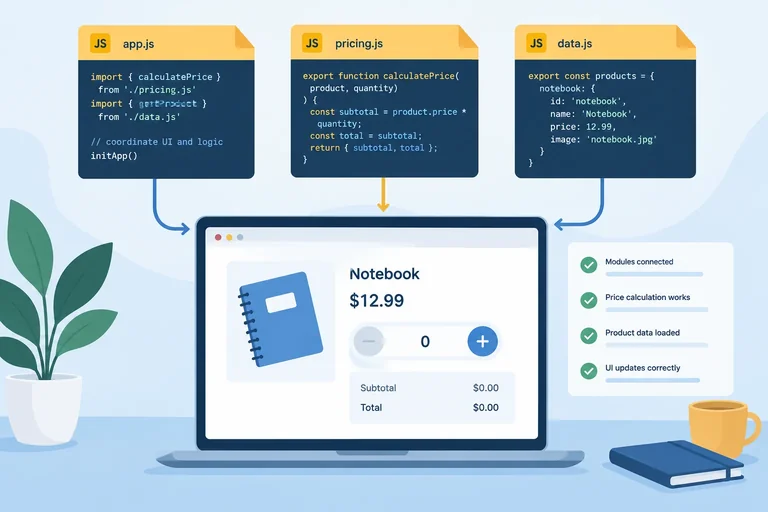
The refactor is complete when each file has one clear job:
product.js provides the Notebook data.pricing.js provides reusable price logic.main.js is the entry module: it owns interface state, DOM updates, and event listeners.The behavior must remain unchanged. A clean module structure is valuable only if the calculator still starts at quantity 2 with a subtotal of $25.00 and responds correctly to its controls.
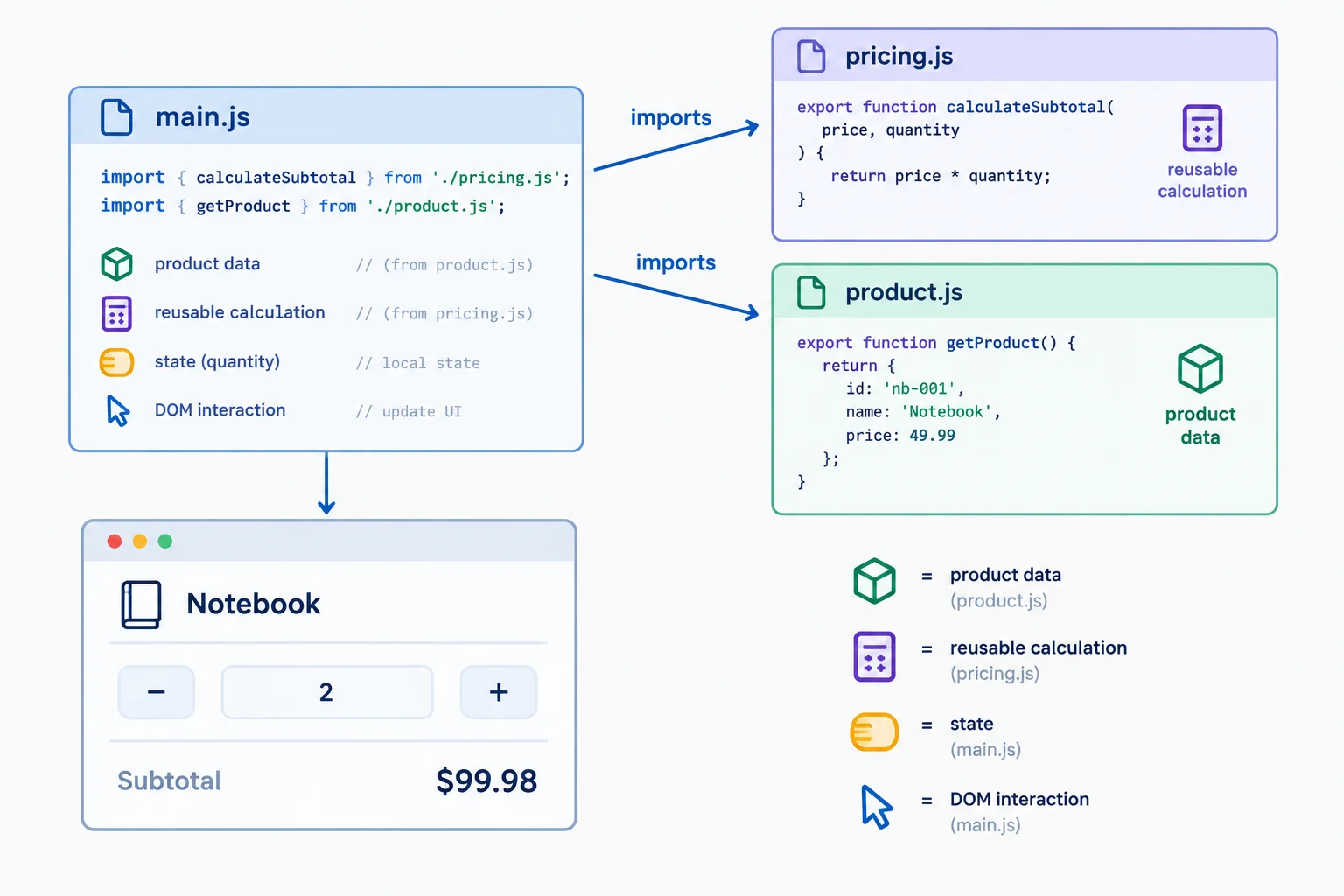
Arrows point from the importer to its dependencies. The reusable modules do not import the entry module.
index.html — the entry document
<!doctype html>
<html lang="en">
  <head>
    <meta charset="UTF-8">
    <meta name="viewport" content="width=device-width, initial-scale=1.0">
    <title>Notebook quantity calculator</title>
  </head>
  <body>
    <main>
      <h1 id="product-name"></h1>
      <p>Quantity: <span id="quantity"></span></p>
      <p>Subtotal: <span id="subtotal"></span></p>
      <button id="decrease" type="button">Decrease</button>
      <button id="increase" type="button">Increase</button>
    </main>
    <script type="module" src="/src/main.js"></script>
  </body>
</html>
src/pricing.js — reusable calculations with named exports
export function calculateSubtotal(unitPriceCents, quantity) {
  return unitPriceCents * quantity;
}

export function formatPrice(cents) {
  return '$' + (cents / 100).toFixed(2);
}
src/product.js — one default export for the product record
const product = {
  name: 'Notebook',
  unitPriceCents: 1250
};

export default product;src/main.js — the entry module imports the public interfaces and coordinates the DOM. Save all four files, keep your Vite development server running, and open its local URL.
import { calculateSubtotal as subtotal, formatPrice } from './pricing.js';
import product from './product.js';

const state = {
  quantity: 2
};

const productName = document.querySelector('#product-name');
const quantity = document.querySelector('#quantity');
const subtotalElement = document.querySelector('#subtotal');
const decrease = document.querySelector('#decrease');
const increase = document.querySelector('#increase');

function render() {
  const totalCents = subtotal(product.unitPriceCents, state.quantity);

  productName.textContent = product.name;
  quantity.textContent = state.quantity;
  subtotalElement.textContent = formatPrice(totalCents);
  decrease.disabled = state.quantity === 0;
}

decrease.addEventListener('click', function () {
  if (state.quantity > 0) {
    state.quantity -= 1;
    render();
  }
});

increase.addEventListener('click', function () {
  state.quantity += 1;
  render();
});

render();Initial page state: Notebook Quantity: 2 Subtotal: $25.00 Decrease: enabled After two Decrease clicks: Notebook Quantity: 0 Subtotal: $0.00 Decrease: disabled
These are visible browser states, not Console output. Use the checklist below for the complete click-by-click sequence.
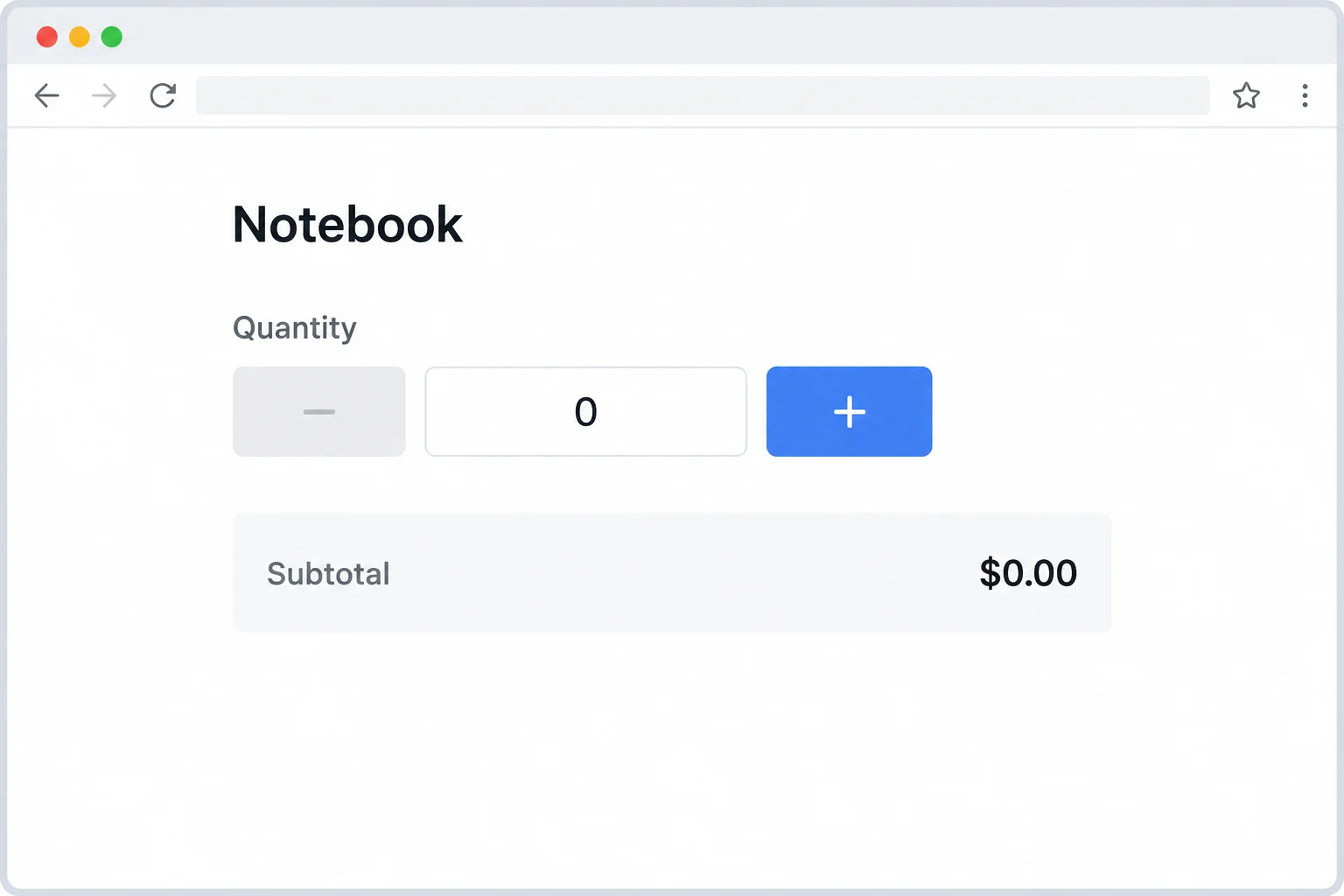
After the second Decrease click, confirm the visible state is quantity 0, subtotal $0.00, and a disabled Decrease control.
Vite resolving the imports and a page loading without an error proves that the module connections can be served. It does not prove that the refactor preserved behavior. The browser evaluates the served modules, calls render(), and runs the click listeners; verify those visible results deliberately.
Use this sequence in the browser after saving the files.
| Action | Quantity | Subtotal | Decrease control |
|---|---|---|---|
| Initial page load | 2 | $25.00 | Enabled |
| Click Decrease once | 1 | $12.50 | Enabled |
| Click Decrease again | 0 | $0.00 | Disabled |
| Click Increase once | 1 | $12.50 | Enabled |
| Click Increase again | 2 | $25.00 | Enabled |
Summary
main.js imports product data and reusable pricing functions, then coordinates state and the DOM.pricing.js stays independent by receiving values through parameters instead of importing main.js.Complete the two imports used by the final entry module.
import { calculateSubtotal as , formatPrice } from './pricing.js';
import from './product.js';After completing the imports, save the files and run the calculator through the verification checklist. In 5–8 sentences, report the quantity and subtotal at initial load, after each Decrease click, and after each Increase click. State the Decrease control’s state at quantity zero. Then explain why pricing.js does not import main.js, and how Vite resolution differs from the browser executing the calculator.
Write at least 300 characters (0/300).
Congratulations! You completed: Split Browser Code into JavaScript Modules
Thousands of online courses in video, ebooks and audiobooks.
To test your knowledge during online courses
Generated directly from your cell phone's photo gallery and sent to your email

Download our app via QR Code or the links below:.



Carry knowledge in your pocket.
Download the Cursa app.
There are hundreds of free courses available, with a free certificate of completion that is saved in your mobile image gallery.
Download the app to access the Course Completion Certificate for Free.


+ 10 million
students

Free and Valid
Certificate

60 thousand free
exercises

4.8/5 rating in
app stores

Free courses in
video and ebooks