Step 1 of 7
Choose What the Interface Must Remember
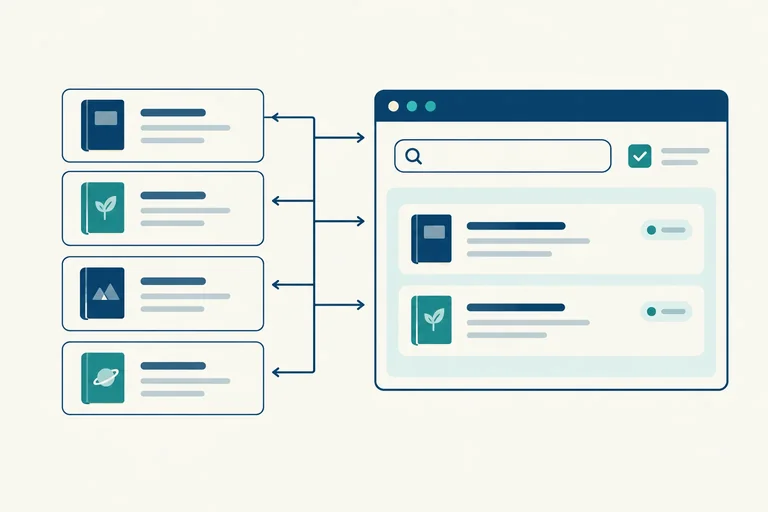
Identify the Book Finder values that belong in state and separate them from displayed output.

Learning path · Level 5 · Tutorial 3
Build a small interface over an in-memory list whose controls, results, and summaries remain consistent through explicit state updates and rendering.
 Choose What the Interface Must Remember
Identify the Book Finder values that belong in state and separate them from displayed output. 2 min
Choose What the Interface Must Remember
Identify the Book Finder values that belong in state and separate them from displayed output. 2 min
 Calculate Results Instead of Storing Copies
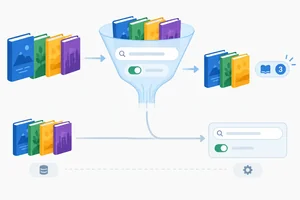
Derive Book Finder results, counts, and control availability from current state instead of storing duplicate output values. 3 min
Calculate Results Instead of Storing Copies
Derive Book Finder results, counts, and control availability from current state instead of storing duplicate output values. 3 min
 Render One Consistent Snapshot
Construct a render function that updates populated results, summaries, and controls from the same state snapshot. 3 min
Render One Consistent Snapshot
Construct a render function that updates populated results, summaries, and controls from the same state snapshot. 3 min
 Update State Before Rendering
Connect both Book Finder filters to one event-to-state-to-render cycle, keeping derived output updates inside render(). 3 min
Update State Before Rendering
Connect both Book Finder filters to one event-to-state-to-render cycle, keeping derived output updates inside render(). 3 min
 Handle Startup and Empty Results
Render startup, zero-match, and recovery states through one consistent state-to-render path. 3 min
Handle Startup and Empty Results
Render startup, zero-match, and recovery states through one consistent state-to-render path. 3 min
 Keep Controls Stable While Results Change
Keep the interactive controls stable while render() replaces only the read-only output that changed. 3 min
Keep Controls Stable While Results Change
Keep the interactive controls stable while render() replaces only the read-only output that changed. 3 min
 Build and Check the Complete Interface
Build the complete local Book Finder and verify that repeated interactions keep its controls, results, counts, and empty states consistent. 4 min
Build and Check the Complete Interface
Build the complete local Book Finder and verify that repeated interactions keep its controls, results, counts, and empty states consistent. 4 min
Step 1 of 7
Identify the Book Finder values that belong in state and separate them from displayed output.
A small interface needs one reliable memory of its current situation. In Book Finder, that memory is an explicit state object.
State is the source of truth: when the interface changes later, the displayed page must be based on this object rather than on scattered, independently updated DOM text.
For this interface, state remembers the book list and the user’s two filter choices. It does not remember every piece of output currently visible on screen.

The interface remembers source data and choices; rows and summaries are displayed output from that source.
In app.js, begin with the fixed source list and one state object.
const initialBooks = [
  { id: 1, title: "River Walk", available: true },
  { id: 2, title: "City Lights", available: false },
  { id: 3, title: "Night Sky", available: true },
  { id: 4, title: "River Stories", available: false }
];

let state = { books: initialBooks, query: "", availableOnly: false };books is source data. query preserves exactly what the user entered, and availableOnly preserves the checkbox choice.
These values must be stored because the interface needs them again after each interaction. An empty search string and false describe the starting choices; they are meaningful state values, not missing output.
Tip
Do not create separate state fields for visible rows or a displayed count. Those are derived values: output determined from the current state.
Later, the interface will derive them whenever it needs to render. This avoids giving the same fact two authorities.
If code independently edits a results list and a count, they can disagree. For example, an old row might remain visible while a separately updated summary says “Showing 0 of 4 books.”
Neither output alone is trustworthy because they no longer describe the same state. Keeping only the source list and filter choices as state gives later rendering one consistent basis for both outputs.
Example
A useful test is: “Would the interface need this value to reconstruct its current view?”
This division prevents stale output when the user changes a filter.
Match each Book Finder value to its role.
Match each value with its correct role.
Tap an item and then its matching pair.

Step 2 of 7
Derive Book Finder results, counts, and control availability from current state instead of storing duplicate output values.
state keeps facts the interface must remember: the source books, the exact search text, and whether the availability filter is selected. It does not need separate fields for filtered books or displayed counts.
A user might type RiVeR . Keep that raw text in state.query so the control can reflect what they entered. For comparison only, calculate normalizedQuery by trimming spaces and converting to lowercase. That temporary value is a derived value, not another authority to store.
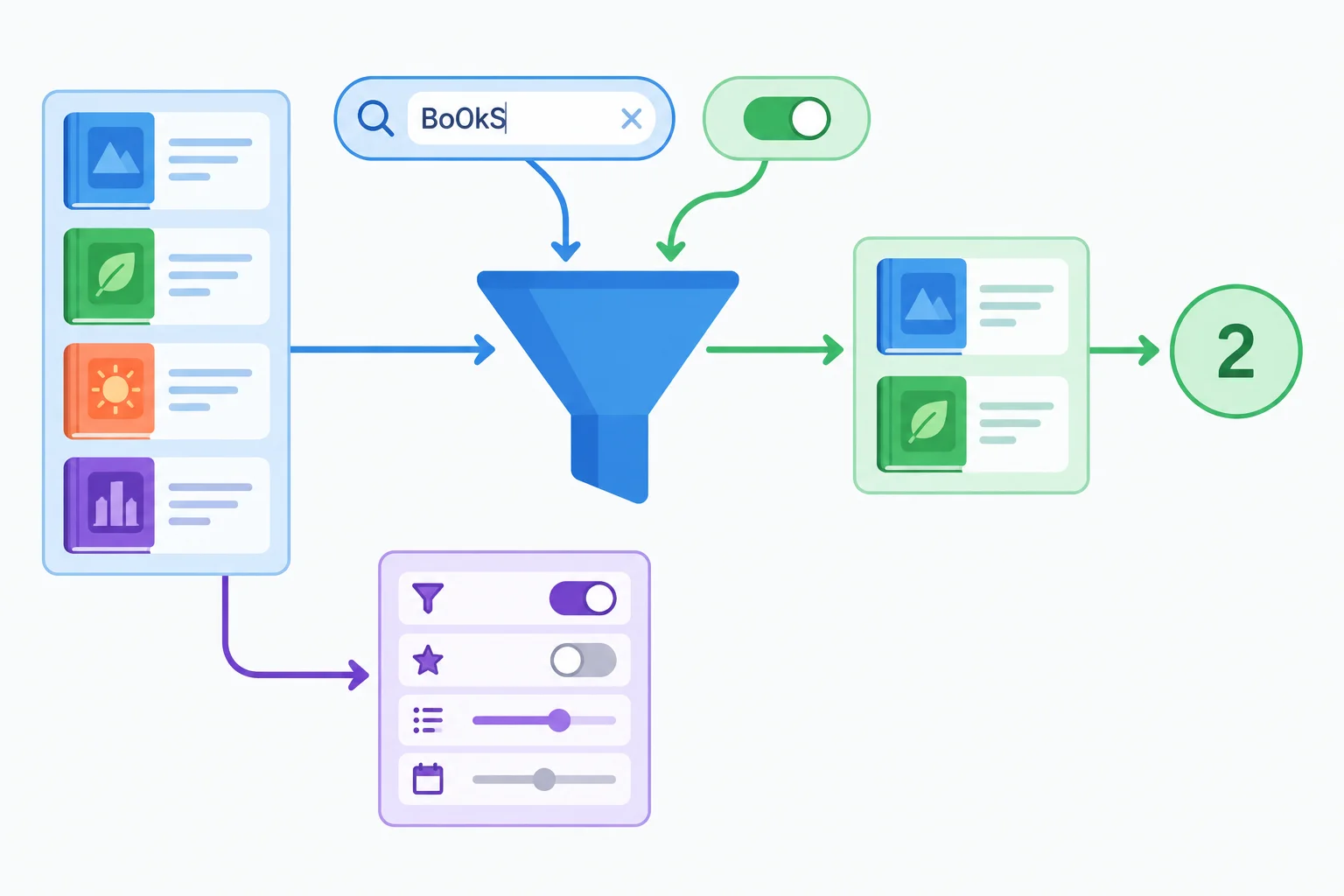
The source list and filter choices are state. Matching books, counts, and whether filters are usable are derived from that state.
getVisibleBooks() derives a fresh list every time it is called. Each book must satisfy both conditions:
normalizedQuery.When availableOnly is false, the availability condition lets every book through. When it is true, only books whose available value is true pass it.
Derive matching books from the current state.
function getVisibleBooks() {
  const normalizedQuery = state.query.trim().toLowerCase();

  return state.books.filter((book) => {
    const matchesQuery = book.title.toLowerCase().includes(normalizedQuery);
    const matchesAvailability = !state.availableOnly || book.available;

    return matchesQuery && matchesAvailability;
  });
}
Tip
Do not overwrite state.query with normalizedQuery. The first preserves the user's input; the second is only a comparison helper. For example, spaces and capitalization should not prevent a title match, but they also should not silently change what the user typed.
Use the derived list for the visible count, but use the source list for the total count and filter availability. This prevents a zero-match search from making the filters unusable: the source books are still present, so the user needs the controls to recover.
These values are calculated from state; they are not extra fields in state.
const visibleBooks = getVisibleBooks();
const hasBooks = state.books.length > 0;
const summaryText = `Showing ${visibleBooks.length} of ${state.books.length} books.`;
const controlsDisabled = !hasBooks;Compare the source list with the filtered result.
| Source books | Query / Available only | Visible books | Summary | Controls disabled? |
|---|---|---|---|---|
| 4 books | empty / false | 4 | Showing 4 of 4 books. | No |
| 4 books | river / false | 2 | Showing 2 of 4 books. | No |
| 4 books | river / true | 1 | Showing 1 of 4 books. | No |
| 4 books | ocean / false | 0 | Showing 0 of 4 books. | No |
| 0 books | any query / either value | 0 | Showing 0 of 0 books. | Yes |
Without running the code, write a short response with all four parts:
matchesQuery and matchesAvailability inside the filter.river when Available only is off.ocean has zero matches but the source still has four books, and why.Write at least 45 characters (0/45).

Step 3 of 7
Construct a render function that updates populated results, summaries, and controls from the same state snapshot.
render() has one job: make the DOM reflect the current state and its derived values. It does not decide new state, edit state, or attach listeners.
For Book Finder, one render reads state, derives the current books once, and uses that snapshot to update the controls, summary, and result rows. If all three regions come from the same snapshot, they cannot disagree because one region used an older calculation.
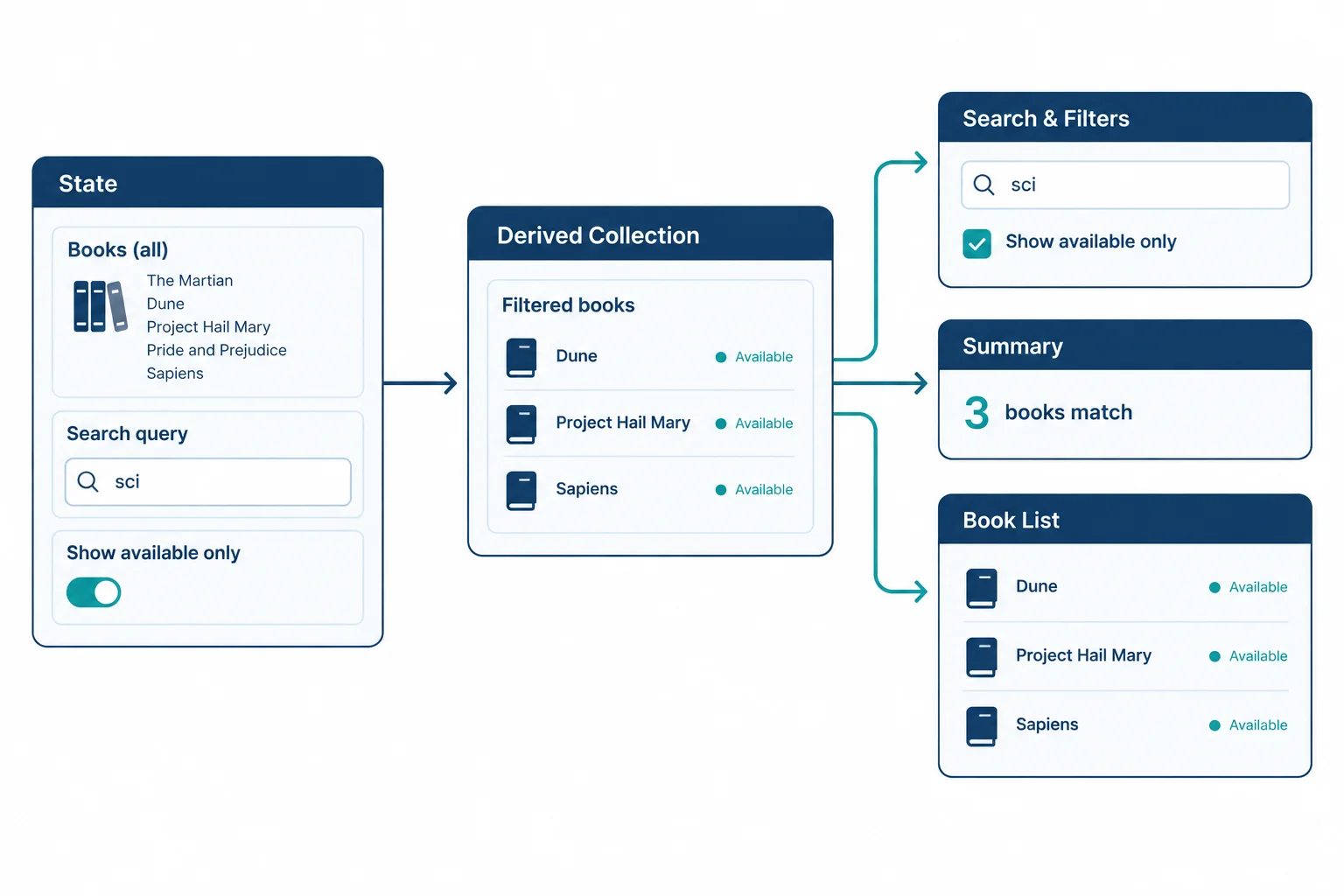
Derive the visible books once, then let that same result drive both the rows and the count.
Create the persistent interface structure in index.html. The empty-message region is included now; its visibility rule is added in the next step.
<main id="book-finder">
  <h1>Book Finder</h1>

  <label for="search">Search books</label>
  <input id="search" type="text">

  <label>
    <input id="available-only" type="checkbox">
    Available only
  </label>

  <p id="summary"></p>
  <ul id="results"></ul>
  <p id="empty-message" hidden></p>
</main>

<script src="app.js" defer></script>In app.js, select the stable regions once. Then render() updates their live properties and text from state.
Notice the boundary: render() reads state and writes DOM output. It does not contain state = ..., and it does not call addEventListener(). Those actions belong elsewhere in the interface lifecycle.
Add this after the established state and getVisibleBooks() code. This version prepares populated rows and controls; empty-message visibility is handled in the next step.
const searchInput = document.querySelector("#search");
const availableOnlyInput = document.querySelector("#available-only");
const summary = document.querySelector("#summary");
const resultsList = document.querySelector("#results");
const emptyMessage = document.querySelector("#empty-message");

function render() {
  const visibleBooks = getVisibleBooks();
  const hasBooks = state.books.length > 0;

  if (searchInput.value !== state.query) {
    searchInput.value = state.query;
  }
  availableOnlyInput.checked = state.availableOnly;
  searchInput.disabled = !hasBooks;
  availableOnlyInput.disabled = !hasBooks;

  summary.textContent = `Showing ${visibleBooks.length} of ${state.books.length} books.`;

  const bookNodes = visibleBooks.map((book) => {
    const row = document.createElement("li");
    const availability = book.available ? "Available" : "Unavailable";
    row.textContent = `${book.title} — ${availability}`;
    return row;
  });

  resultsList.replaceChildren(...bookNodes);
}
Tip
replaceChildren(...bookNodes) replaces the list's old rows with the rows for this render. Unlike repeated append() calls, it cannot leave rows from a prior state mixed with current results.
The guarded search assignment keeps the control synchronized without writing a value when it already matches the raw state.query. The raw text remains state; a normalized comparison value is only a derived value.
Complete the two missing operations so the summary and rows are built from one derived result and old rows are not retained.
function render() {
  const visibleBooks = ();

  summary.textContent = `Showing ${visibleBooks.length} of ${state.books.length} books.`;

  const bookNodes = visibleBooks.map((book) => {
    const row = document.createElement("li");
    const availability = book.available ? "Available" : "Unavailable";
    row.textContent = `${book.title} — ${availability}`;
    return row;
  });

  resultsList.(...bookNodes);
}The same state is rendered twice. Which approach keeps the result list consistent without changing state?
Step 4 of 7
Connect both Book Finder filters to one event-to-state-to-render cycle, keeping derived output updates inside render().
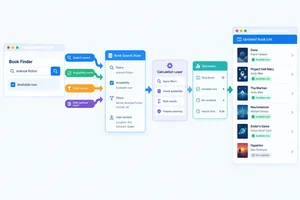
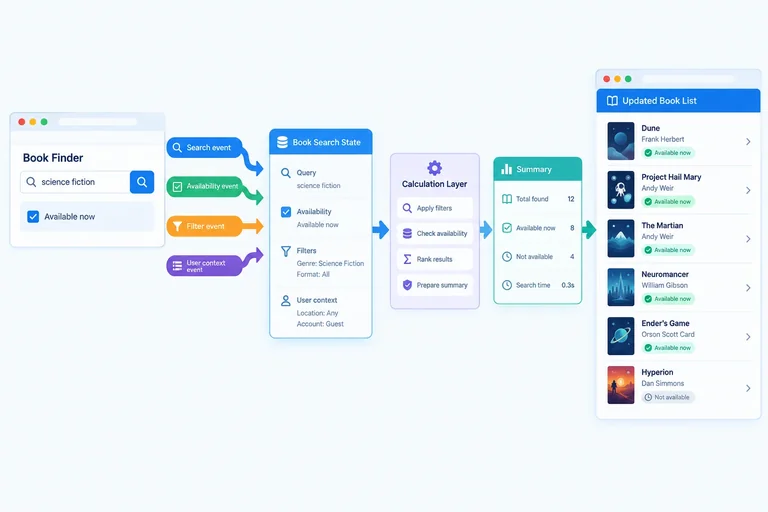
A browser event is only the start of an interface update. For either Book Finder filter, use one deliberate cycle:
input or change event.state.render() reads that current state, calculates derived values, and makes the DOM reflect them.This keeps one authority for the interface. A handler should not separately rewrite result rows or the summary; those are rendered outputs of state.
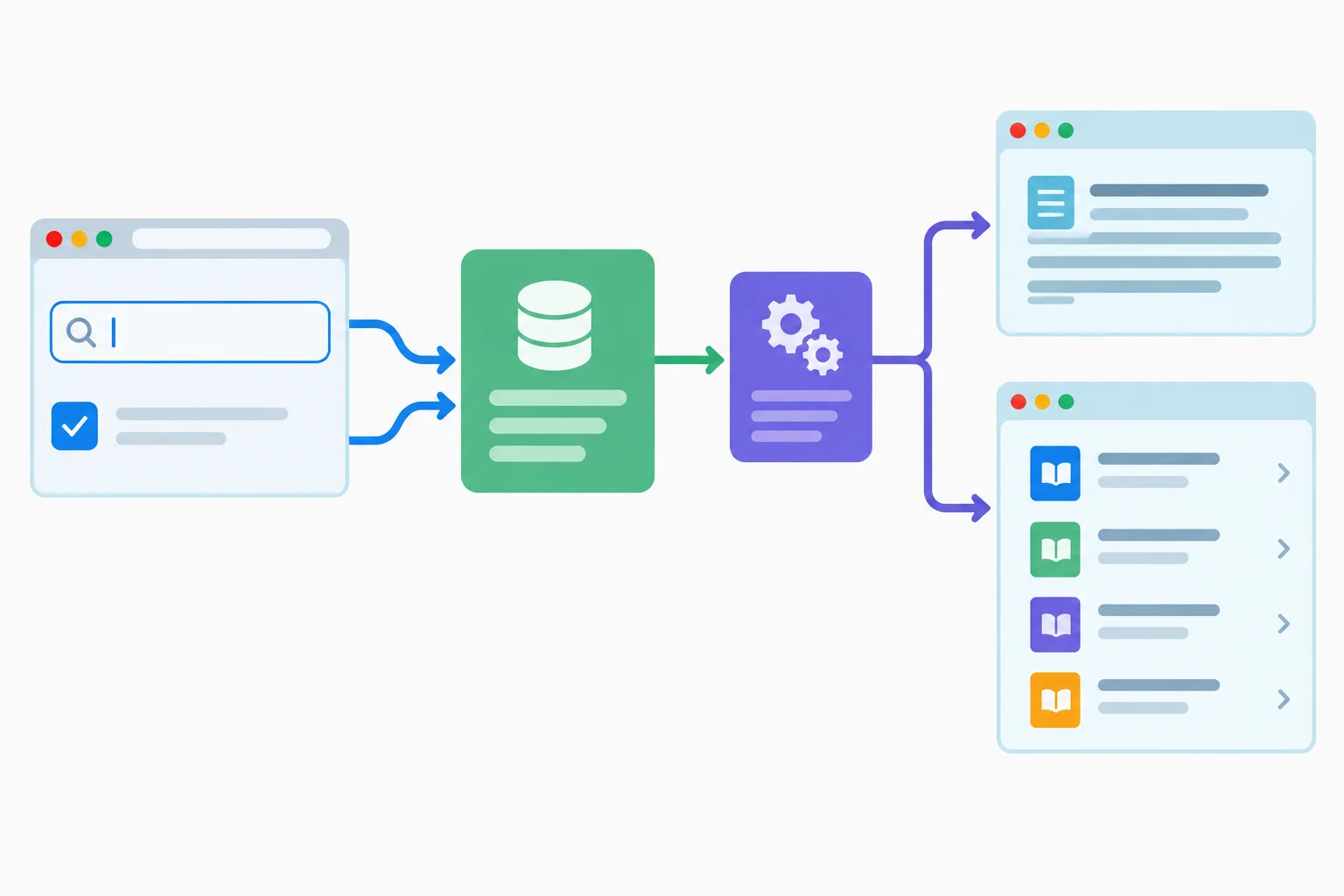
Both controls follow the same path: browser event, state update, derived values, then rendered output.
Each handler changes only the state property owned by its control, then calls render(). Object spread retains every other state property. Listener registration belongs in setup, outside render(), so each listener is attached once rather than added again on every update.
Define these handlers after the existing state, element references, getVisibleBooks(), and render() function.
function handleSearchInput(event) {
  state = { ...state, query: event.currentTarget.value };
  render();
}

function handleAvailabilityChange(event) {
  state = { ...state, availableOnly: event.currentTarget.checked };
  render();
}

searchInput.addEventListener("input", handleSearchInput);
availableOnlyInput.addEventListener("change", handleAvailabilityChange);What is the sequencing problem in this handler?
function handleSearchInput(event) {
  render();
  state = { ...state, query: event.currentTarget.value };
}Arrange the Book Finder update cycle from first to last.
Complete the missing statement so this handler updates the checkbox-related state value before rendering.
function handleAvailabilityChange(event) {

  render();
}
Step 5 of 7
Render startup, zero-match, and recovery states through one consistent state-to-render path.
The interface should be correct before anyone types or changes a checkbox. After selecting elements and registering the two listeners, call render() once.
That first call uses the same state, derived values, and rendering path that later interactions use. Do not create separate “initial” rows or a separately maintained initial count: those could disagree with the interface after a filter changes.
Finish setup by calling render after the listeners are registered.
searchInput.addEventListener("input", handleSearchInput);
availableOnlyInput.addEventListener("change", handleAvailabilityChange);

render();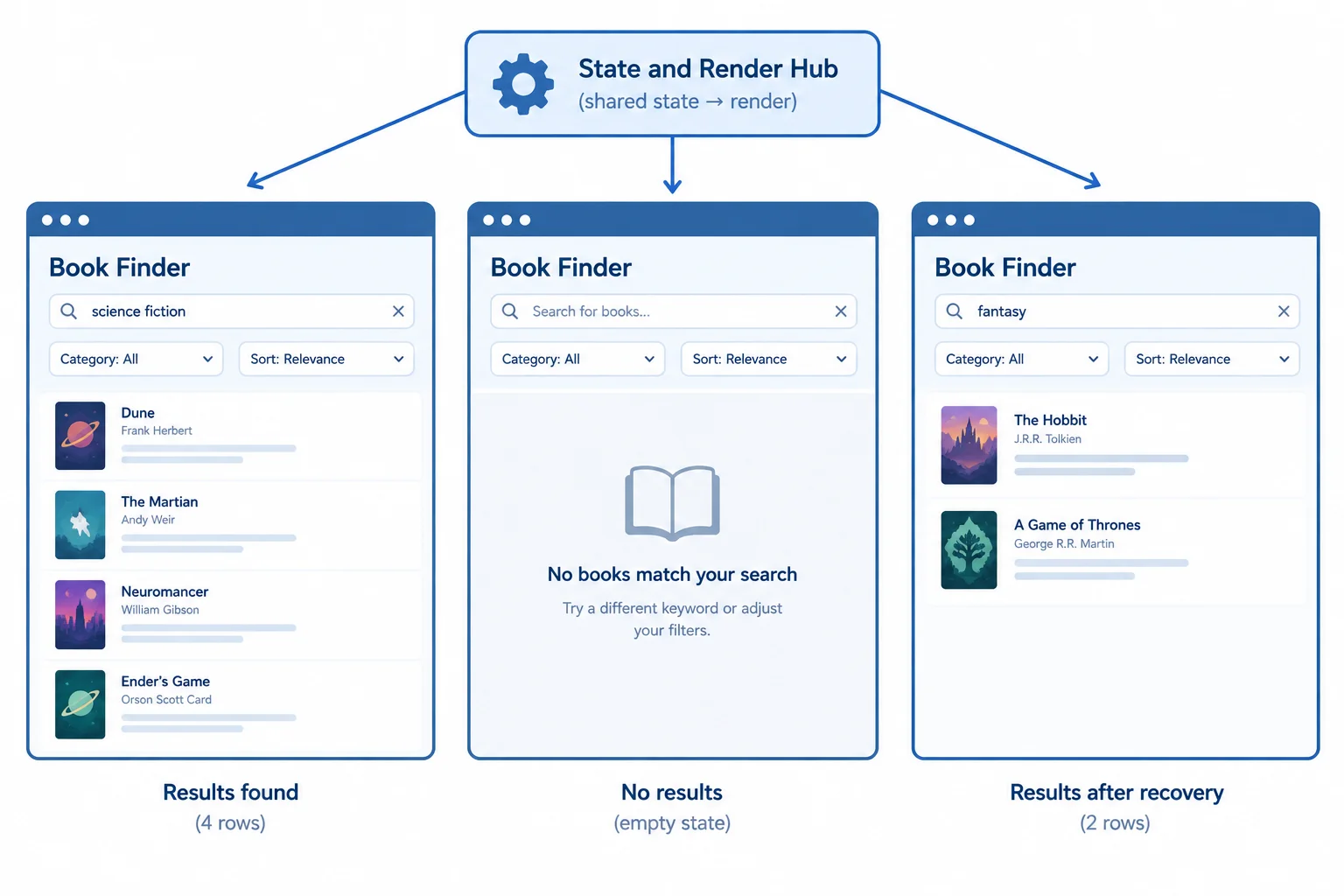
The state changes; render() updates the same interface regions for startup, empty results, and recovery.
An empty result does not always mean there are no source books. Keep these cases distinct on every render:
hasBooks is true but visibleBooks is empty, filters excluded every book. Show No books match your filters. The controls stay enabled because the source list exists.hasBooks is false, there is no source data. Show No books in this list. The controls are disabled from !hasBooks.In both cases, update the summary, empty-message visibility, and result children. Replacing the list children with an empty bookNodes array removes rows from the previous render instead of leaving stale results behind.
This portion of render() updates all output regions from the current derived values. It runs whether the result has four rows, zero rows, or any other count.
const visibleBooks = getVisibleBooks();
const hasBooks = state.books.length > 0;

searchInput.disabled = !hasBooks;
availableOnlyInput.disabled = !hasBooks;
summary.textContent = `Showing ${visibleBooks.length} of ${state.books.length} books.`;

if (!hasBooks) {
  emptyMessage.textContent = "No books in this list.";
} else {
  emptyMessage.textContent = "No books match your filters.";
}
emptyMessage.hidden = visibleBooks.length > 0;

const bookNodes = visibleBooks.map((book) => {
  const bookItem = document.createElement("li");
  const availability = book.available ? "Available" : "Unavailable";
  bookItem.textContent = `${book.title} — ${availability}`;
  return bookItem;
});

resultsList.replaceChildren(...bookNodes);
Tip
To check the empty-source branch locally, temporarily change the local initialization to const initialBooks = []; and reload the page. This is a test of rendering, not a reason to add a deletion feature. Restore the four-book array afterward.
Complete the startup call, the empty-message conditions, and the result transition for the established four-book Book Finder.
// Setup ends after element references and listener registration.
();

// Inside render(), after visibleBooks and hasBooks are derived:
summary.textContent = `Showing ${visibleBooks.length} of ${state.books.length} books.`;

if (!hasBooks) {
  emptyMessage.textContent = ;
} else {
  emptyMessage.textContent = ;
}
emptyMessage.hidden = ;
resultsList.replaceChildren(...bookNodes);

// With query "city" and Available only enabled:
const cityAvailableCount = ;

// After clearing the query while Available only remains enabled:
const clearedAvailableCount = ;
Step 6 of 7
Keep the interactive controls stable while render() replaces only the read-only output that changed.
A render should preserve the DOM nodes that users interact with. In Book Finder, keep #book-finder, the search input, the availability checkbox, and #results in place across renders.
The changing part is the read-only set of result rows. Recreating only those <li> elements is safe because users do not type into or focus them. This narrow boundary keeps control identity stable while current state produces different results.
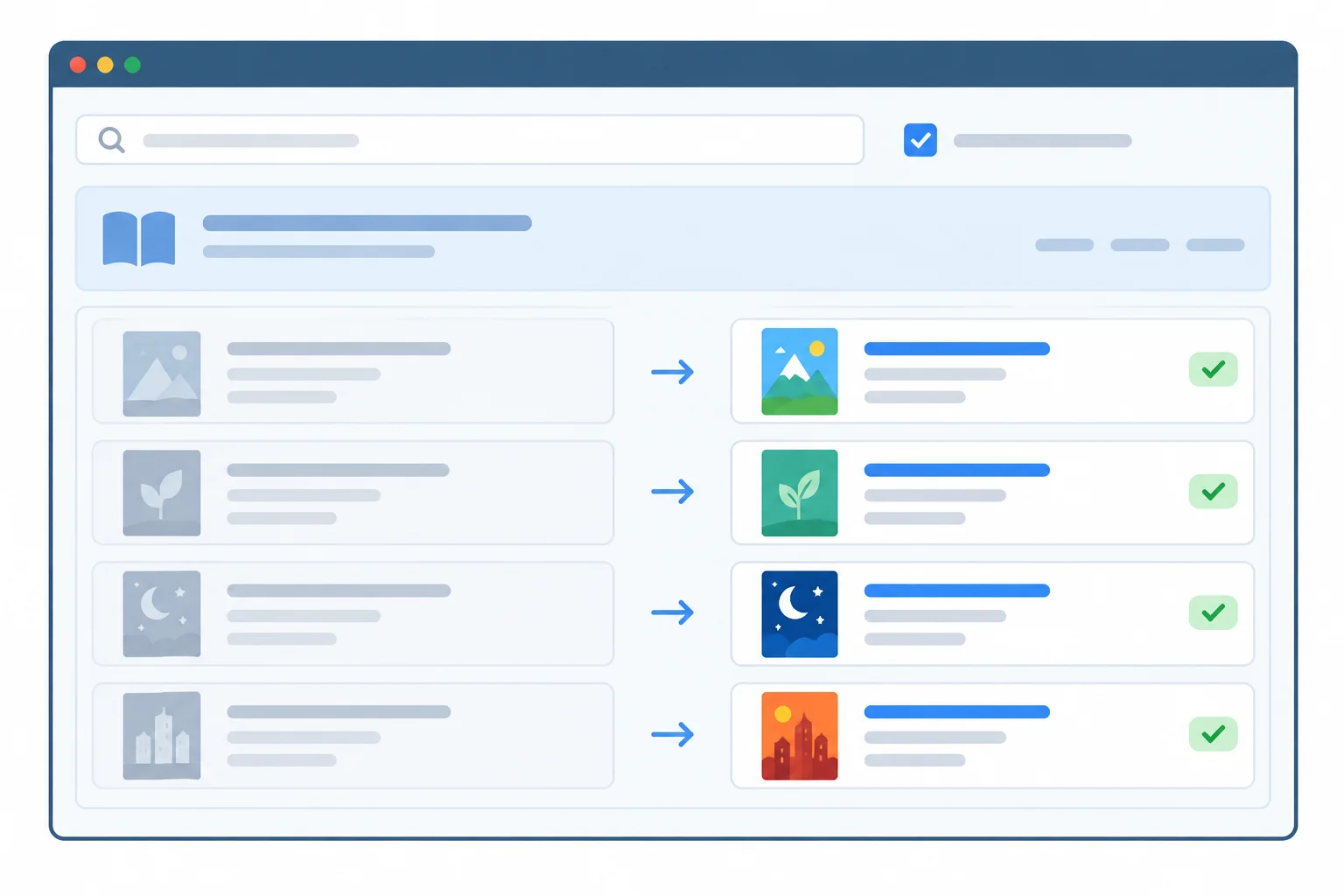
Keep the controls and list element; replace only the list's read-only children.
This portion of render() synchronizes existing controls and replaces only the current result rows.
function render() {
  const visibleBooks = getVisibleBooks();
  const hasBooks = state.books.length > 0;

  if (searchInput.value !== state.query) {
    searchInput.value = state.query;
  }
  availableOnlyInput.checked = state.availableOnly;
  searchInput.disabled = !hasBooks;
  availableOnlyInput.disabled = !hasBooks;

  const bookNodes = visibleBooks.map((book) => {
    const item = document.createElement("li");
    const availability = book.available ? "Available" : "Unavailable";
    item.textContent = `${book.title} — ${availability}`;
    return item;
  });

  resultsList.replaceChildren(...bookNodes);
}
Tip
The guard avoids assigning the same input value during ordinary typing. In particular, do not write normalizedQuery back to the search field: state keeps the user's raw text, while normalization is only a derived value used for matching.
Listeners belong in setup, outside render(). Because searchInput and availableOnlyInput remain the same nodes, their existing listeners continue to work after every result update. Rebuilding their parent would remove those nodes and their attached listeners.
True or false: If a newly created #book-finder container has identical markup, replacing the old container on every search input is a safe rendering strategy.
A user is typing in the search field when render() updates the results. A teammate proposes rebuilding all of #book-finder with replaceChildren(...) after every input event.
State which region should be replaced instead, write the guarded assignment that synchronizes the search field from state.query, and explain why recreating the whole application is unsafe even when it looks identical.
Write at least 120 characters (0/120).
Step 7 of 7
Build the complete local Book Finder and verify that repeated interactions keep its controls, results, counts, and empty states consistent.
Create two files in the same local folder: index.html and app.js. Keep the #book-finder element, both filter controls, and the output regions in the document for the whole session. Only the read-only list items will be replaced later.
Save this complete HTML file, then open or refresh index.html in your browser after saving both files.
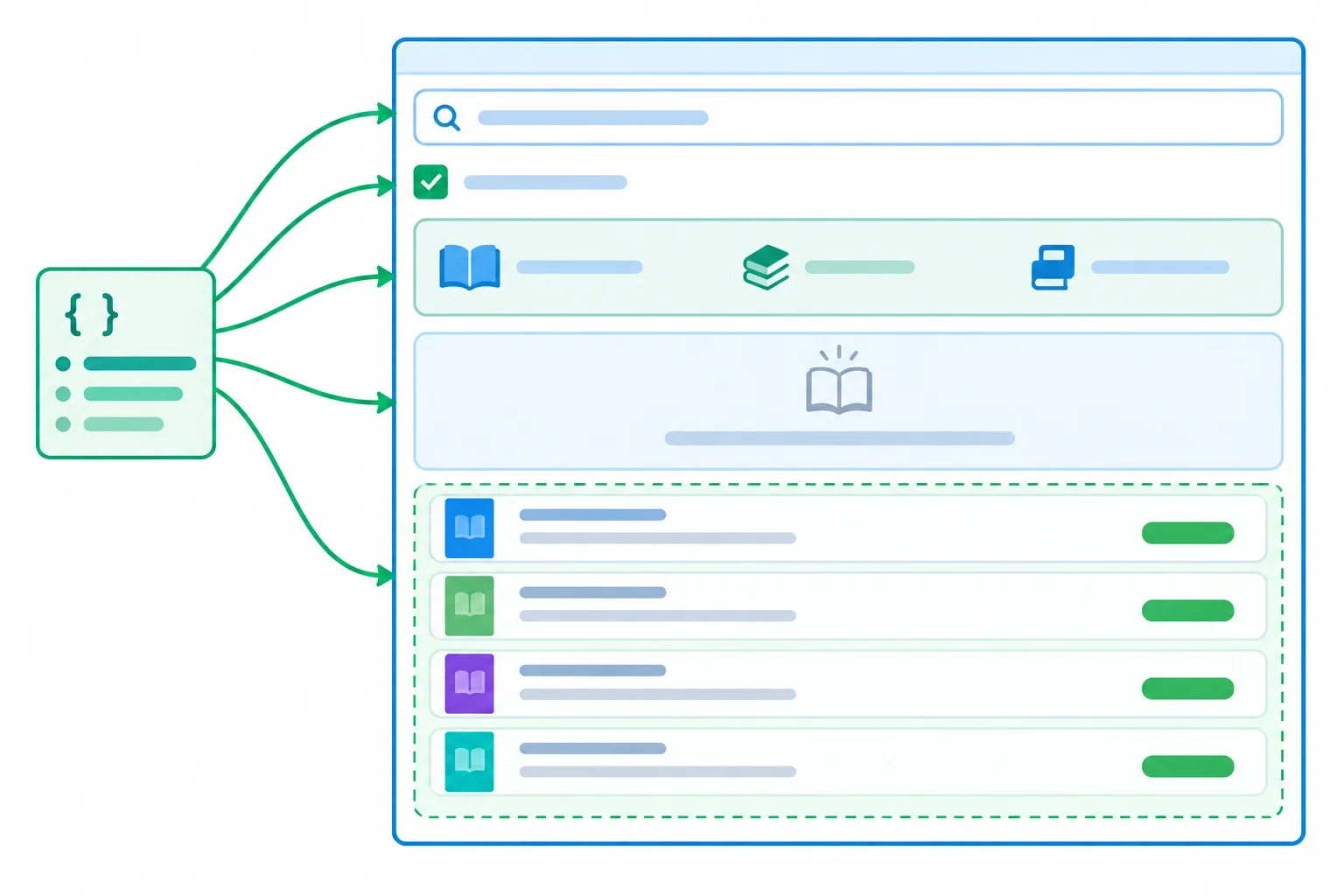
The container and controls remain in place. A render changes their properties and replaces only the result-list children.
Save this complete file as index.html.
<!doctype html>
<html lang="en">
<head>
  <meta charset="utf-8">
  <meta name="viewport" content="width=device-width, initial-scale=1">
  <title>Book Finder</title>
</head>
<body>
  <main id="book-finder">
    <h1>Book Finder</h1>

    <label for="search">Search books</label>
    <input id="search" type="text">

    <label>
      <input id="available-only" type="checkbox">
      Available only
    </label>

    <p id="summary"></p>
    <ul id="results"></ul>
    <p id="empty-message" hidden></p>
  </main>

  <script src="app.js" defer></script>
</body>
</html>Create app.js. Add the following three sections in the shown order to form one complete file. The last section attaches listeners once and performs the initial render.
Section 1 of 3 — state, references, and derived values.
const initialBooks = [
  { id: 1, title: "River Walk", available: true },
  { id: 2, title: "City Lights", available: false },
  { id: 3, title: "Night Sky", available: true },
  { id: 4, title: "River Stories", available: false }
];

let state = { books: initialBooks, query: "", availableOnly: false };

const searchInput = document.querySelector("#search");
const availableOnlyInput = document.querySelector("#available-only");
const summary = document.querySelector("#summary");
const resultsList = document.querySelector("#results");
const emptyMessage = document.querySelector("#empty-message");

function getVisibleBooks() {
  const normalizedQuery = state.query.trim().toLowerCase();

  return state.books.filter((book) => {
    const matchesQuery = book.title.toLowerCase().includes(normalizedQuery);
    const matchesAvailability = !state.availableOnly || book.available;

    return matchesQuery && matchesAvailability;
  });
}Section 2 of 3 — render the current state and its derived values.
function render() {
  const visibleBooks = getVisibleBooks();
  const hasBooks = state.books.length > 0;

  if (searchInput.value !== state.query) {
    searchInput.value = state.query;
  }
  availableOnlyInput.checked = state.availableOnly;
  searchInput.disabled = !hasBooks;
  availableOnlyInput.disabled = !hasBooks;

  summary.textContent = `Showing ${visibleBooks.length} of ${state.books.length} books.`;

  if (!hasBooks) {
    emptyMessage.textContent = "No books in this list.";
  } else {
    emptyMessage.textContent = "No books match your filters.";
  }
  emptyMessage.hidden = visibleBooks.length > 0;

  const bookNodes = visibleBooks.map((book) => {
    const row = document.createElement("li");
    const availability = book.available ? "Available" : "Unavailable";
    row.textContent = `${book.title} — ${availability}`;
    return row;
  });

  resultsList.replaceChildren(...bookNodes);
}Section 3 of 3 — event handlers, one-time listeners, and startup.
function handleSearchInput(event) {
  state = { ...state, query: event.currentTarget.value };
  render();
}

function handleAvailabilityChange(event) {
  state = { ...state, availableOnly: event.currentTarget.checked };
  render();
}

searchInput.addEventListener("input", handleSearchInput);
availableOnlyInput.addEventListener("change", handleAvailabilityChange);

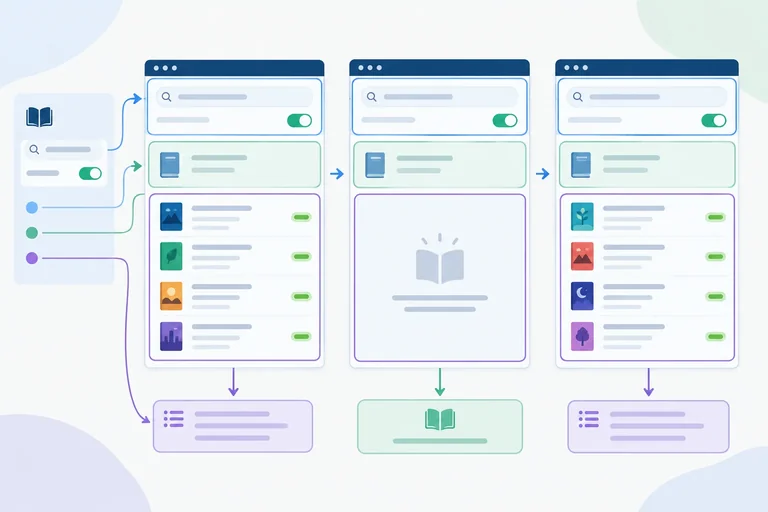
render();Search books: enabled, empty Available only: enabled, unchecked Showing 4 of 4 books. River Walk — Available City Lights — Unavailable Night Sky — Available River Stories — Unavailable Empty message: hidden
Expected initial browser state after saving both files and loading or refreshing index.html. The empty message is present in the DOM but hidden.
Save both files and refresh the browser. Use the sequence below in order. Compare what you see with every expected summary, list, and empty-result message.
For the source-empty check, temporarily change only the initialBooks array to [], save, and reload. Do not add a delete feature. Restore the complete four-book array afterward and reload again.
Each row describes the state after the action in that row.
| Action | Expected summary | Expected results and message |
|---|---|---|
| Load the page | Showing 4 of 4 books. | Four rows; no empty message |
| Type river | Showing 2 of 4 books. | River Walk and River Stories |
| Enable Available only | Showing 1 of 4 books. | River Walk only |
| Replace river with city | Showing 0 of 4 books. | No list rows; No books match your filters. |
| Clear the search field | Showing 2 of 4 books. | River Walk and Night Sky |
| Disable Available only | Showing 4 of 4 books. | All four original rows |
| Reload with source array [] | Showing 0 of 0 books. | No list rows; “No books in this list.”; both filters disabled |
Tip
After one full sequence, repeat it. Then type river, move the caret into the middle of the word, and insert one character. The search field should retain focus and the caret should remain usable while the result list changes. Remove that character and continue typing normally.
If the city check shows an old book row, or a count disagrees with the rows, inspect the state update and the single render pass rather than adding one-off DOM fixes.
Repair the missing final statement so this handler completes the required update cycle.
function handleSearchInput(event) {
  state = { ...state, query: event.currentTarget.value };

}Run your complete Book Finder again and write a short verification report. Include the exact summaries and visible book results for: initial load, river, availability enabled, city, clearing the query, and disabling the filter. State whether the city result left any old rows.
Then repeat the sequence and edit text in the middle of the search field. Report whether focus and caret continuity survived. Finally, temporarily use an empty source array, reload, and report the controls and message you observed before restoring the original data.
Write at least 350 characters (0/350).
Summary
Reusable checks for a small state-driven interface:
Congratulations! You completed: Keep Interface State and Rendering Consistent
50 XP
Thousands of online courses in video, ebooks and audiobooks.
To test your knowledge during online courses
Generated directly from your cell phone's photo gallery and sent to your email

Download our app via QR Code or the links below:.



Carry knowledge in your pocket.
Download the Cursa app.
There are hundreds of free courses available, with a free certificate of completion that is saved in your mobile image gallery.
Download the app to access the Course Completion Certificate for Free.


+ 10 million
students

Free and Valid
Certificate

60 thousand free
exercises

4.8/5 rating in
app stores

Free courses in
video and ebooks