
Step 1 of 9
Prepare a Local Component-Test Environment
Configure a local Vite React project for component tests that use a scoped jsdom environment and DOM-oriented matchers.

Learning path · Level 12 · Tutorial 2
Test React forms and controls through accessible queries and realistic user actions, checking observable outcomes without depending on component internals.
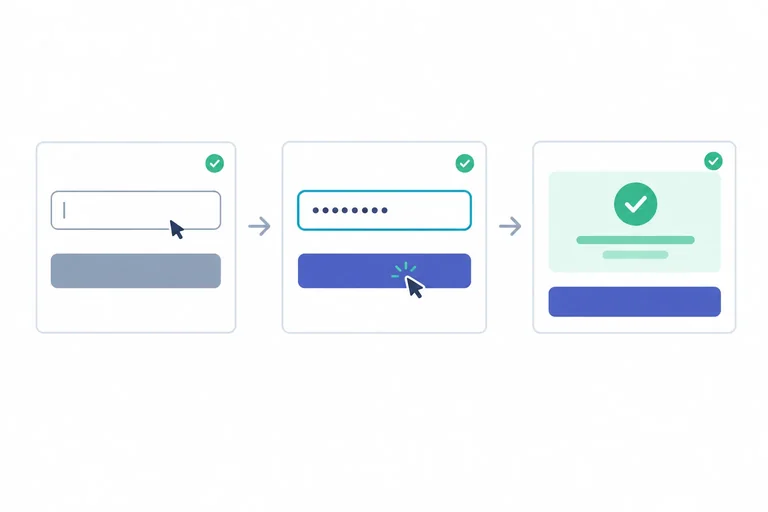
 Prepare a Local Component-Test Environment
Configure a local Vite React project for component tests that use a scoped jsdom environment and DOM-oriented matchers. 4 min
Prepare a Local Component-Test Environment
Configure a local Vite React project for component tests that use a scoped jsdom environment and DOM-oriented matchers. 4 min
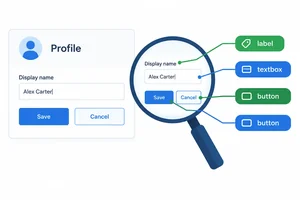 Render the Form and Find Its Controls
Render the local ProfileForm and locate its visible controls through accessible roles and names. 3 min
Render the Form and Find Its Controls
Render the local ProfileForm and locate its visible controls through accessible roles and names. 3 min
 Choose Queries for Presence, Absence, and Appearance
Choose accessible React Testing Library queries based on whether a form element is present now, absent now, or expected to appear later. 3 min
Choose Queries for Presence, Absence, and Appearance
Choose accessible React Testing Library queries based on whether a form element is present now, absent now, or expected to appear later. 3 min
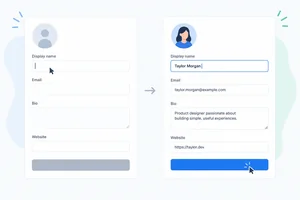 Type, Clear, and Check Control Availability
Use awaited user interactions to verify a controlled textbox value and the enabled or disabled state of the Save button. 3 min
Type, Clear, and Check Control Availability
Use awaited user interactions to verify a controlled textbox value and the enabled or disabled state of the Save button. 3 min
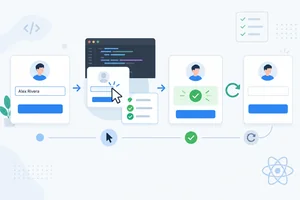 Submit the Form and Assert Its Feedback
Submit ProfileForm through its real controls, assert its eventual status feedback, and verify that Reset restores the visible initial state. 3 min
Submit the Form and Assert Its Feedback
Submit ProfileForm through its real controls, assert its eventual status feedback, and verify that Reset restores the visible initial state. 3 min
 Verify Keyboard Actions and Focus
Use awaited keyboard interactions and DOM focus assertions to verify keyboard submission and reset behavior in ProfileForm. 3 min
Verify Keyboard Actions and Focus
Use awaited keyboard interactions and DOM focus assertions to verify keyboard submission and reset behavior in ProfileForm. 3 min
 Keep Every Component Test Independent
Organize repeatable setup and explicit cleanup so each test starts with a fresh form and user-event session. 3 min
Keep Every Component Test Independent
Organize repeatable setup and explicit cleanup so each test starts with a fresh form and user-event session. 3 min
 Recognize What jsdom Cannot Prove
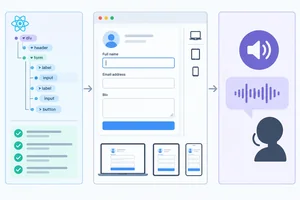
Identify what a jsdom component test can verify and when a real browser or assistive technology is necessary. 2 min
Recognize What jsdom Cannot Prove
Identify what a jsdom component test can verify and when a real browser or assistive technology is necessary. 2 min
 Complete and Run the Interaction Test Suite
Complete, run, and review a compact component-test suite that protects ProfileForm behavior through accessible queries and realistic user interactions. 4 min
Complete and Run the Interaction Test Suite
Complete, run, and review a compact component-test suite that protects ProfileForm behavior through accessible queries and realistic user interactions. 4 min
Step 1 of 9
Configure a local Vite React project for component tests that use a scoped jsdom environment and DOM-oriented matchers.
A component test runs TSX and checks the rendered DOM from a user-facing perspective. The tools have distinct jobs:
They work together locally, but they do not replace a real browser.
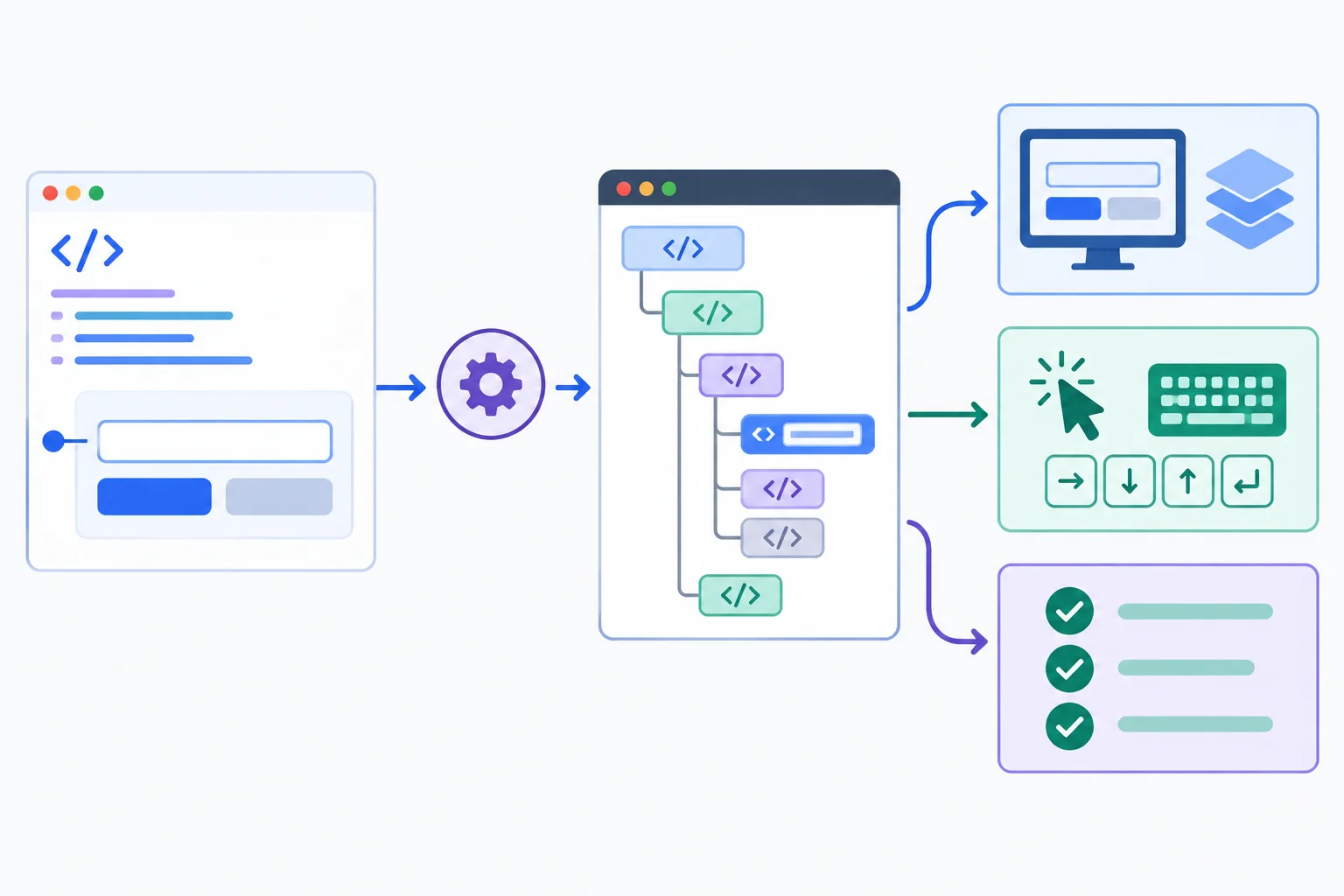
Vitest coordinates the component test; jsdom supplies the simulated document where rendering and DOM assertions occur.
Use each dependency for its own responsibility rather than expecting one package to provide every layer.
| Tool | Responsibility |
|---|---|
| Vitest | Runs and reports tests |
| jsdom | Supplies a simulated DOM |
| @testing-library/react | Renders React components |
| @testing-library/dom | Provides shared DOM query utilities |
| @testing-library/user-event | Performs user-like actions |
| @testing-library/jest-dom | Adds DOM assertion matchers |
From your local Vite React + TypeScript project root, install these as development dependencies. Install @testing-library/dom explicitly because React Testing Library uses it as a peer dependency.
Run this command from the project root.
npm install -D @testing-library/react @testing-library/dom @testing-library/user-event @testing-library/jest-dom jsdomadded 78 packages, and audited 279 packages in 4s 45 packages are looking for funding run `npm fund` for details found 0 vulnerabilities
Package counts, audit messages, funding notices, vulnerability results, and timing vary by project and npm version. A successful installation typically ends without an npm error and reports added packages.
Match each dependency to its primary responsibility.
Tap an item and then its matching pair.
Keep ordinary logic tests in Vitest’s default Node environment. Instead of changing the environment globally, put a jsdom annotation on the first line of each TSX component test that needs a document. This scopes DOM simulation to component tests.
Place this as the first line of src/ProfileForm.test.tsx.
/** @vitest-environment jsdom */Use this complete vite.config.ts in a standard Vite React project. If your file has unrelated options, retain them while adding the test section.
import { defineConfig } from 'vitest/config';
import react from '@vitejs/plugin-react';

export default defineConfig({
  plugins: [react()],
  test: {
    globals: false,
    setupFiles: ['./src/test/setup.ts'],
  },
});Create src/test/setup.ts. A standard Vite TypeScript configuration includes src, so this setup file is within the project’s TypeScript scope. If your project has a narrower explicit include list, retain its existing entries and add this file’s path.
The explicit cleanup registration is intentional; its lifecycle is examined later.
Save this complete content in src/test/setup.ts.
import { afterEach } from 'vitest';
import { cleanup } from '@testing-library/react';
import '@testing-library/jest-dom/vitest';

afterEach(cleanup);
Warning
Two errors point to different missing layers:
document is not defined means the component test lacks a DOM environment. Check that its first line selects jsdom.toBeInTheDocument property means the matcher integration is unavailable. Check the Vitest-specific jest-dom import and the configured setup-file path.Do not solve a missing matcher by changing the test environment, or a missing DOM by importing matchers.
Complete the three missing environment details across these configuration fragments.
import { defineConfig } from 'vitest/config';
import react from '@vitejs/plugin-react';

export default defineConfig({
  plugins: [react()],
  test: {
    globals: false,
    setupFiles: ['./src/test/'],
  },
});


import { afterEach } from 'vitest';
import { cleanup } from '@testing-library/react';
import '';

afterEach(cleanup);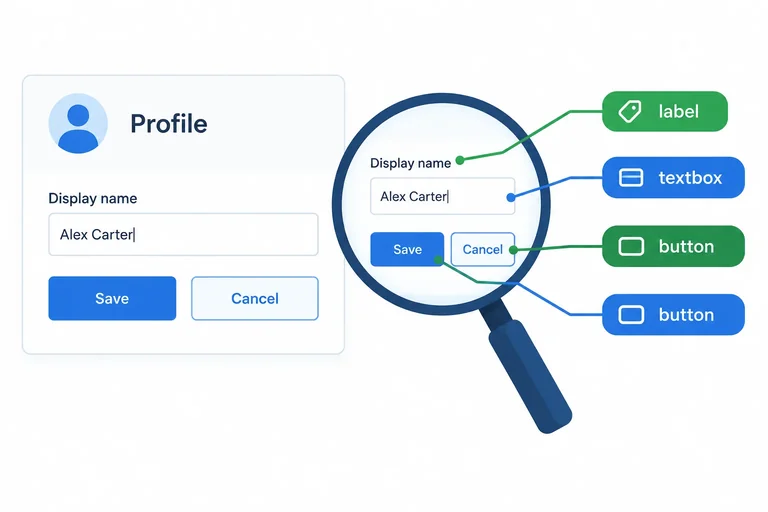
Step 2 of 9
Render the local ProfileForm and locate its visible controls through accessible roles and names.
ProfileForm is the running component for this tutorial. A person enters a display name, saves it locally, sees confirmation, and can reset the form.
Its observable contract is:
A component test starts from what a person can find and operate in the rendered document—not from Hook state, component instances, or CSS structure.
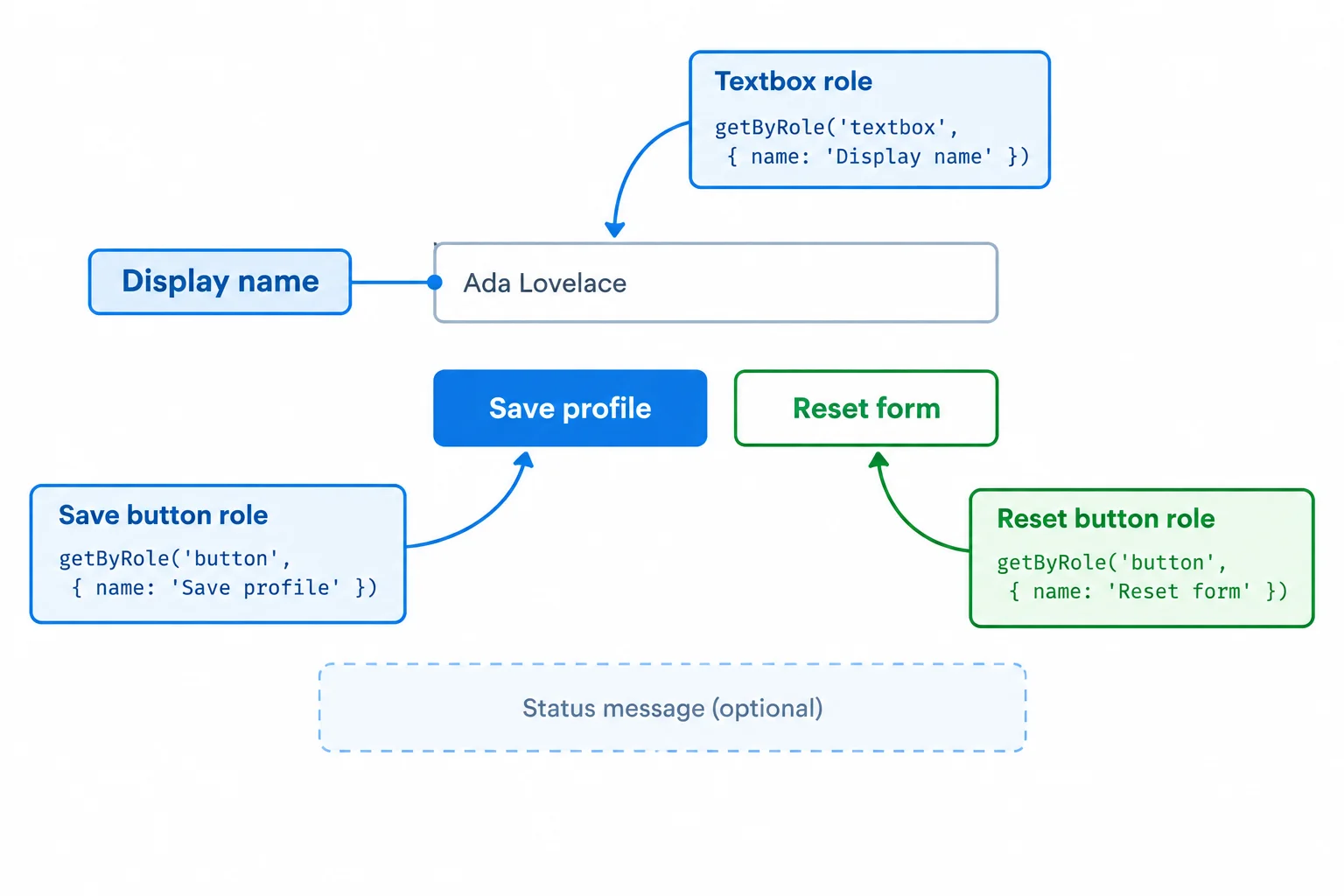
Associated labels and button text provide the accessible names that tests can use.
Create src/ProfileForm.tsx. Enter these two consecutive code sections in the same file. The save helper is local: it has no network request, timer, or persistence layer.
First section of src/ProfileForm.tsx: imports, local save helper, and component actions.
import { useRef, useState, type FormEvent } from 'react';

async function saveProfile(displayName: string): Promise<string> {
  return displayName.trim();
}

export function ProfileForm() {
  const [displayName, setDisplayName] = useState('');
  const [feedback, setFeedback] = useState('');
  const nameInput = useRef<HTMLInputElement>(null);
  const trimmedName = displayName.trim();

  async function handleSubmit(event: FormEvent<HTMLFormElement>) {
    event.preventDefault();
    const savedName = await saveProfile(displayName);
    setFeedback(`Saved profile for ${savedName}.`);
  }

  function handleReset() {
    setDisplayName('');
    setFeedback('');
    nameInput.current?.focus();
}Second section of src/ProfileForm.tsx: append this directly after part 1.
  return (
    <form onSubmit={handleSubmit}>
      <label htmlFor="display-name">Display name</label>
      <input
        ref={nameInput}
        id="display-name"
        value={displayName}
        onChange={(event) => setDisplayName(event.target.value)}
      />
      <button type="submit" disabled={trimmedName === ''}>
        Save profile
      </button>
      <button type="button" onClick={handleReset}>
        Reset form
      </button>
      {feedback && <p role="status">{feedback}</p>}
    </form>
  );
}render(<ProfileForm />) places the actual component into the DOM simulation. screen then searches that rendered document as a user would encounter it.
Use a role and an accessible name for interactive controls. The label associated with id="display-name" names the textbox. Each button's text names that button.
For this particular field, screen.getByLabelText('Display name') is also an appropriate label-based alternative. Prefer getByRole when you want the test to state both the control type and its name.
Create src/ProfileForm.test.tsx. This first test establishes that the initial controls are present.
/** @vitest-environment jsdom */

import { describe, expect, it } from 'vitest';
import { render, screen } from '@testing-library/react';
import { ProfileForm } from './ProfileForm';

describe('ProfileForm', () => {
  it('renders its named controls', () => {
    render(<ProfileForm />);

    const nameInput = screen.getByRole('textbox', {
      name: 'Display name'
    });
    const saveButton = screen.getByRole('button', {
      name: 'Save profile'
    });
    const resetButton = screen.getByRole('button', {
      name: 'Reset form'
    });

    expect(nameInput).toBeInTheDocument();
    expect(saveButton).toBeInTheDocument();
    expect(resetButton).toBeInTheDocument();
  });
});
Tip
Avoid queries such as .profile-form button, #display-name, or a component's state and props. They couple a component test to implementation choices rather than the control a person can identify.
Role-and-name queries also make an unclear label or an unexpected control type visible in the test.
Complete this component test so it renders the form and maps the textbox and both buttons to their role-and-name queries.
import { expect, it } from 'vitest';
import { render, screen } from '@testing-library/react';
import { ProfileForm } from './ProfileForm';

it('renders its named controls', () => {
  render(< />);

  const nameInput = screen.getByRole('textbox', {
    name: ''
  });
  const saveButton = screen.getByRole('button', {
    name: ''
  });
  const resetButton = screen.getByRole('button', {
    name: ''
  });

  expect(nameInput).toBeInTheDocument();
  expect(saveButton).toBeInTheDocument();
  expect(resetButton).toBeInTheDocument();
});
Step 3 of 9
Choose accessible React Testing Library queries based on whether a form element is present now, absent now, or expected to appear later.
A component test chooses its query from the UI condition—not from a habit.
getBy... when one element should exist now.queryBy... when an element should be absent now.findBy... when an element is expected to appear later.All three can start from screen and use accessible roles. The difference is how they respond when the element is not currently available.
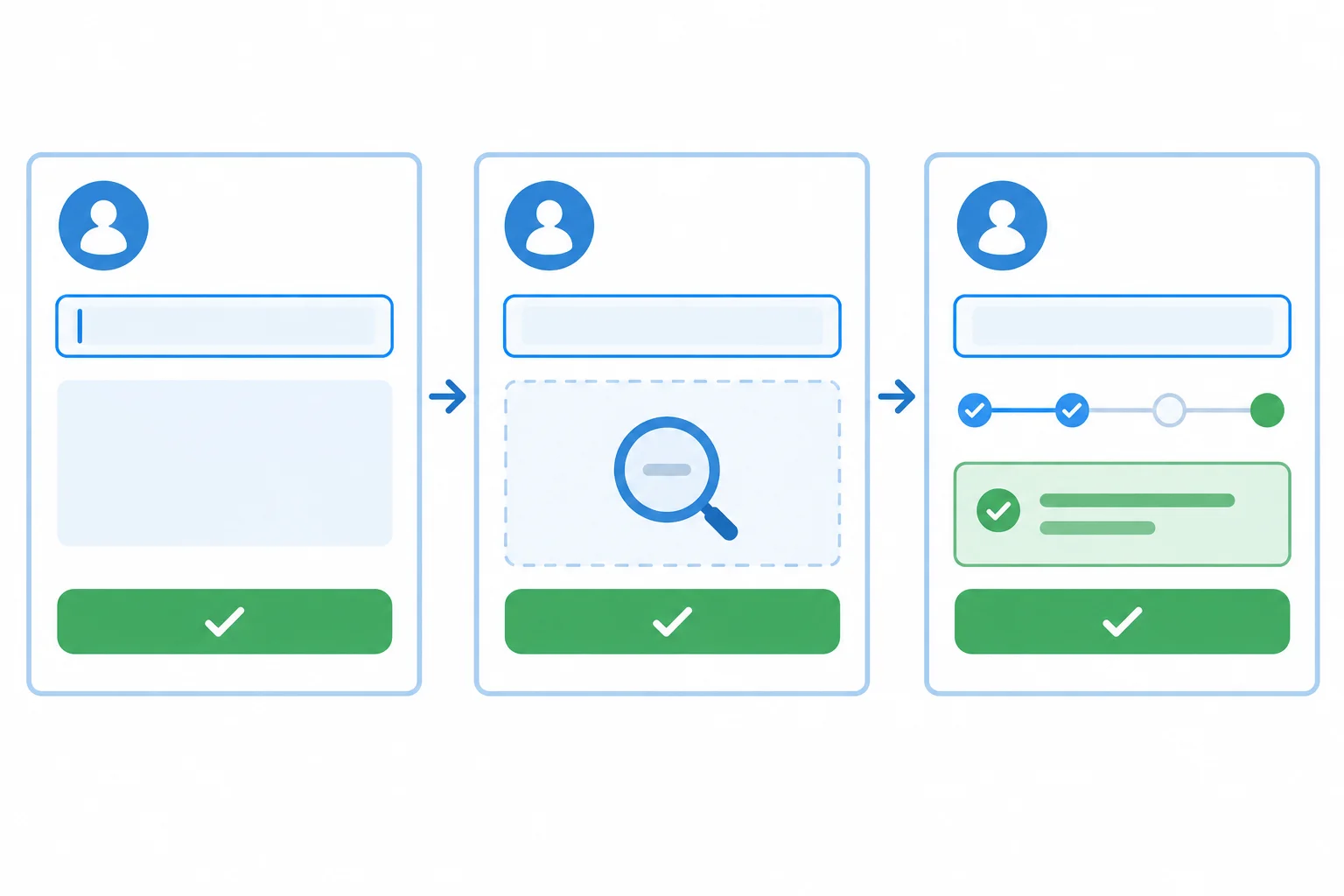
A query should reflect whether the intended element exists now, is absent now, or is expected to appear.
These are single-element queries: each targets one intended element. Use the matcher to express whether that element belongs in the rendered document.
| Query | When to use it | Result when no match exists | Typical assertion |
|---|---|---|---|
| `getBy...` | Expected immediately | Throws an error | `toBeInTheDocument()` |
| `queryBy...` | Expected to be absent | Returns `null` | `not.toBeInTheDocument()` |
| `findBy...` | Expected to appear later | Returns a Promise that waits | `await` then `toBeInTheDocument()` |
These fragments assume ProfileForm has already been rendered. The final check represents a test after an operation has started the local save flow.
const nameInput = screen.getByRole('textbox', {
  name: 'Display name',
});

expect(nameInput).toBeInTheDocument();
expect(screen.queryByRole('status')).not.toBeInTheDocument();

const feedback = await screen.findByRole('status');
expect(feedback).toHaveTextContent('Saved profile for Maya.');A single-element query must identify exactly one element. If a getBy..., queryBy..., or findBy... query finds multiple matches, it fails instead of choosing one arbitrarily. That failure is useful: refine the accessible role, accessible name, or test setup so the intended element is unambiguous.
Use findBy... only for an element that genuinely may appear later. A control that is already part of the initial form should use getBy....
Warning
Do not pause a test for a guessed amount of time before checking eventual feedback. A fixed sleep is either too short on one run or unnecessarily slow on another. findBy... states what the test actually expects: the element should become available.
Complete the three query methods so the test matches the UI conditions described in the code.
const nameInput = screen.('textbox', {
  name: 'Display name',
});
expect(nameInput).toBeInTheDocument();

// No submitted feedback exists in the initial form.
expect(screen.('status')).not.toBeInTheDocument();

// Feedback appears later after the save flow begins.
const feedback = await screen.('status');
expect(feedback).toBeInTheDocument();
Step 4 of 9
Use awaited user interactions to verify a controlled textbox value and the enabled or disabled state of the Save button.
A component test should observe what a person can do and what the DOM then shows. For this form, start with the empty field, type into the textbox, and check both the rendered value and the Save button state.
Create a new user-event session inside each test:
const user = userEvent.setup();
Await every interaction. user.type, user.clear, and user.click model a sequence of user actions, so the assertion belongs after the awaited action. Read a controlled input with toHaveValue; do not inspect React state. Read availability with toBeDisabled or toBeEnabled.
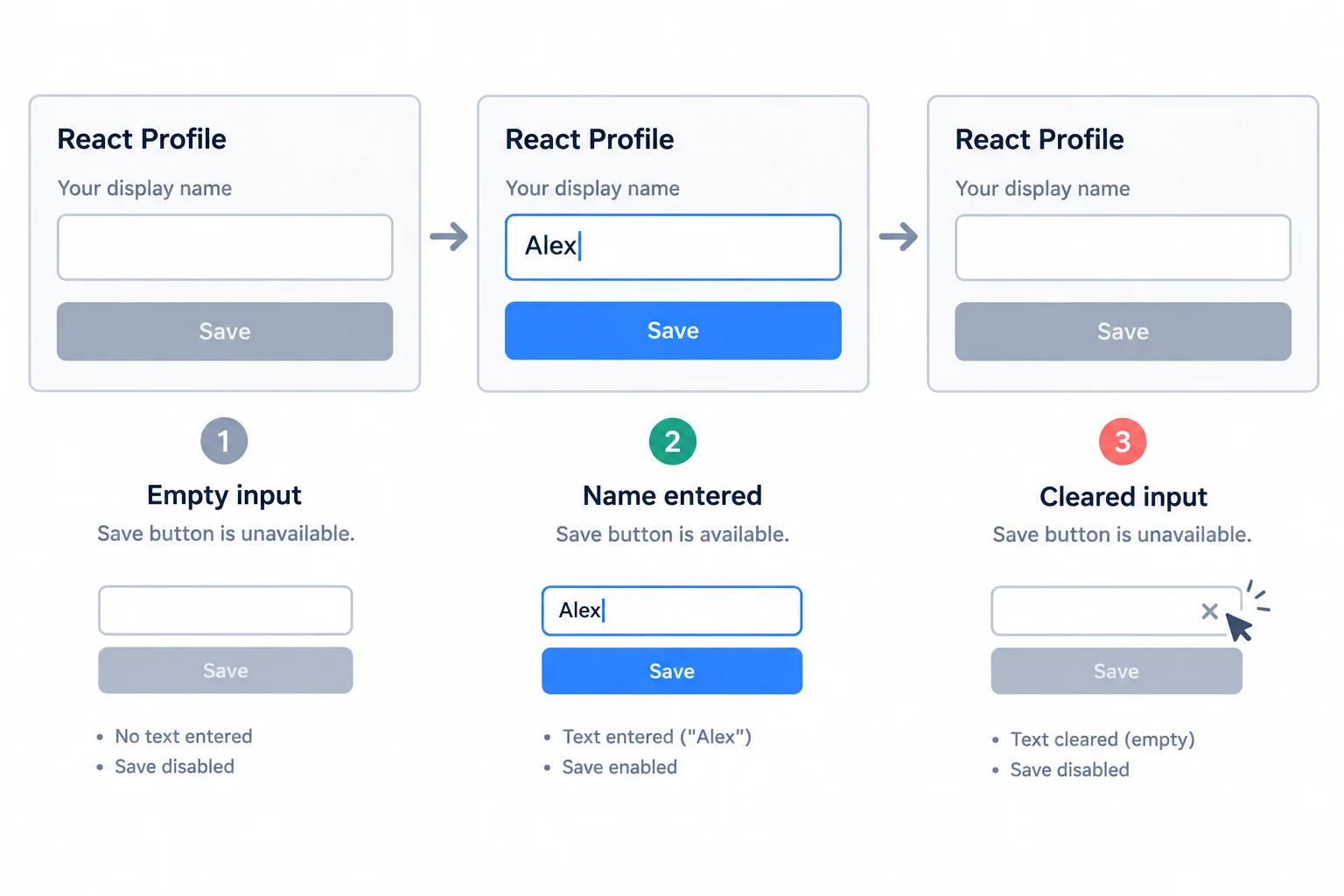
Assertions follow each awaited interaction and check the rendered control value and availability.
Tip
Use a readable Arrange, Act, Assert flow:
user, render ProfileForm, and locate nameInput and the Save button.A value containing only spaces is still the textbox value, but its trimmed value is empty. Therefore, it must leave Save profile disabled.
This test checks the whitespace-only boundary. Its own user-event session is new for this test, and the assertions concern the field and native button—not component state.
Add this case to src/ProfileForm.test.tsx. The shared setup file already loads the DOM matchers and performs cleanup after each test.
import { describe, expect, it } from 'vitest';
import { render, screen } from '@testing-library/react';
import userEvent from '@testing-library/user-event';
import { ProfileForm } from './ProfileForm';

describe('ProfileForm', () => {
  it('keeps Save profile disabled for a whitespace-only name', async () => {
    const user = userEvent.setup();

    render(<ProfileForm />);

    const nameInput = screen.getByRole('textbox', {
      name: 'Display name'
    });
    const saveButton = screen.getByRole('button', {
      name: 'Save profile'
    });

    await user.type(nameInput, '   ');

    expect(nameInput).toHaveValue('   ');
    expect(saveButton).toBeDisabled();
  });
});
Tip
A disabled native button is an observable control property. Testing that property protects the rule that a blank or whitespace-only display name cannot be submitted, without needing to know how ProfileForm stores its state.
Complete the test so it verifies the form’s value and Save button availability as the user types and then clears the textbox.
it('updates Save profile as the name changes', async () => {
  const user = userEvent.setup();

  render(<ProfileForm />);

  const nameInput = screen.getByRole('textbox', {
    name: 'Display name'
  });
  const saveButton = screen.getByRole('button', {
    name: 'Save profile'
  });

  await user.type(nameInput, );

  expect(nameInput).('Maya');
  expect(saveButton).();

  await user.clear(nameInput);

  expect(saveButton).();
});
Step 5 of 9
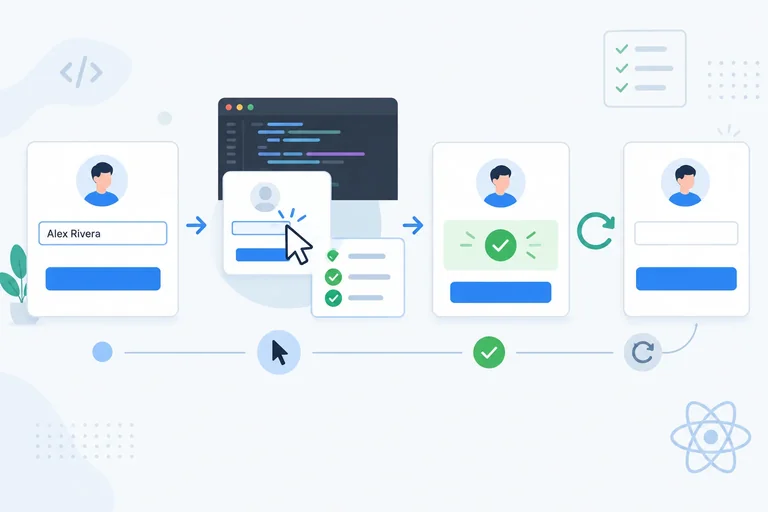
Submit ProfileForm through its real controls, assert its eventual status feedback, and verify that Reset restores the visible initial state.
A component test should submit the form through the same visible control a user uses. It should then inspect the rendered result—not call saveProfile directly and not inspect Hook state.
For this form, feedback does not exist at first. After a successful save, ProfileForm renders a status element. Reset removes that feedback and restores the empty field.
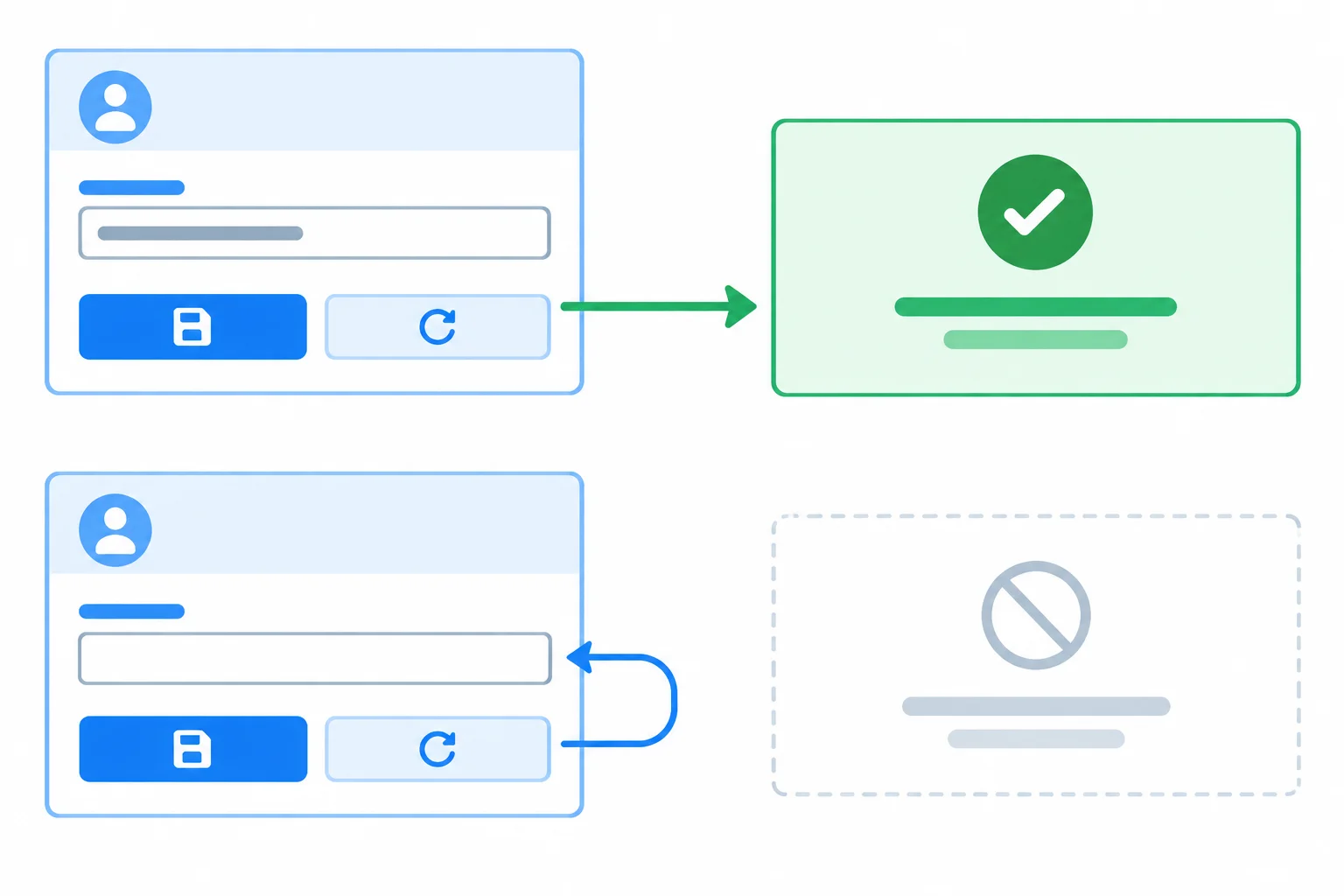
Assert each observable state: no feedback initially, status feedback after saving, then an empty field and no feedback after reset.
Start by proving that feedback is absent. queryByRole is appropriate because an absent status returns null instead of making the test fail before the absence assertion runs.
After the awaited Save click, use findByRole('status'). The local saveProfile helper returns a Promise, so the status is an eventual UI result. findByRole may resolve immediately if the awaited user-event session has already allowed React to render it; it still expresses the correct expectation without an arbitrary sleep.
Save feedback through the rendered status element
expect(screen.queryByRole('status')).not.toBeInTheDocument();

await user.type(nameInput, 'Maya');
await user.click(
  screen.getByRole('button', { name: 'Save profile' }),
);

const status = await screen.findByRole('status');
expect(status).toHaveTextContent('Saved profile for Maya.');
expect(status).toBeVisible();Reset is another user action with observable outcomes. Click the real Reset form button, check the controlled textbox value, and assert that the status no longer exists in the document.
This example covers a local Promise only. Network loading, failures, and recovery need controlled response tests later.
Continue after the successful-save assertions
await user.click(
  screen.getByRole('button', { name: 'Reset form' }),
);

expect(nameInput).toHaveValue('');
expect(screen.queryByRole('status')).not.toBeInTheDocument();Complete the component test for the complete save-and-reset flow.
it('saves and resets a profile', async () => {
  const user = userEvent.setup();
  render(<ProfileForm />);
  const nameInput = screen.getByRole('textbox', {
    name: 'Display name',
  });

  expect(screen.('status')).not.toBeInTheDocument();

  await user.(nameInput, 'Maya');
  await user.click(
    screen.getByRole('button', { name: 'Save profile' }),
  );

  const status = await screen.('status');
  expect(status).('Saved profile for Maya.');
  expect(status).toBeVisible();

  await user.click(
    screen.getByRole('button', { name: 'Reset form' }),
  );

  expect(nameInput).('');
  expect(status).;
});
Step 6 of 9
Use awaited keyboard interactions and DOM focus assertions to verify keyboard submission and reset behavior in ProfileForm.
A keyboard-focused component test follows the same native path a keyboard user takes. In this form, after a name makes Save profile available, the sequence is:
Use the user-event session for each movement and activation, and await every interaction. Assert the focused DOM element with toHaveFocus; do not inspect the component ref.
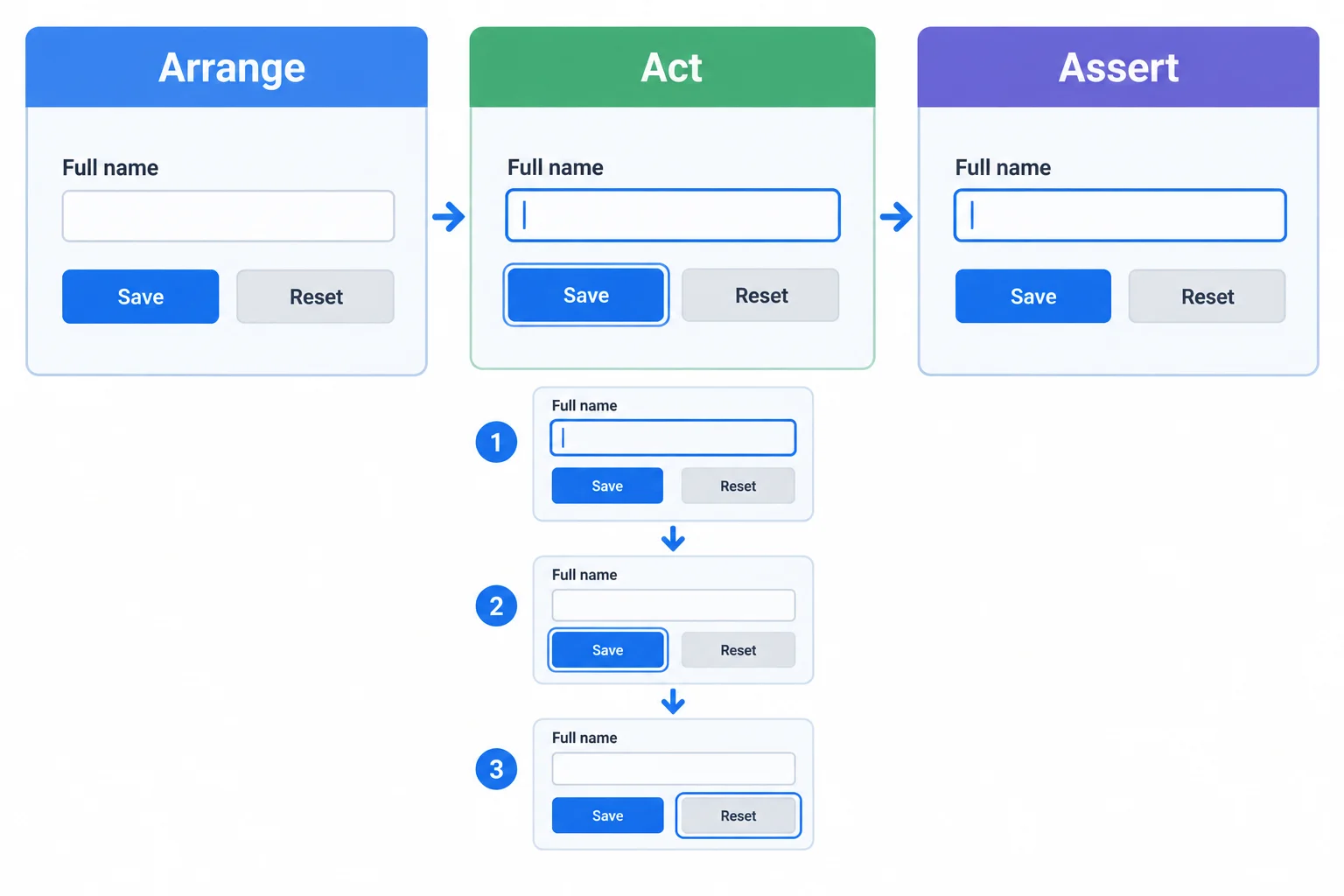
The focus path is part of the form's observable behavior. This diagram is conceptual; the assertion checks DOM focus.
A component test in jsdom can establish that DOM focus moved to the expected control. It cannot establish that the focus indicator is visibly painted or that every keyboard behavior matches a real device and browser.
| Evidence source | Can establish | Does not establish |
|---|---|---|
| jsdom | DOM focus and control state | Painted focus indicator or layout |
| real browser | Rendered focus and browser interaction | Screen-reader announcement |
| assistive technology | Observed announcements in a chosen setup | Behavior in every assistive setup |
Place this test in src/ProfileForm.test.tsx beneath the imports and existing tests. It starts from a fresh render, follows the native controls with Tab, and uses Enter on the currently focused button. findByRole('status') keeps the save assertion compatible with the Promise-based save operation.
Add this it block to src/ProfileForm.test.tsx.
it('submits and resets with the keyboard', async () => {
  const user = userEvent.setup();

  render(<ProfileForm />);

  const nameInput = screen.getByRole('textbox', {
    name: 'Display name'
  });
  const saveButton = screen.getByRole('button', {
    name: 'Save profile'
  });
  const resetButton = screen.getByRole('button', {
    name: 'Reset form'
  });

  await user.tab();
  expect(nameInput).toHaveFocus();

  await user.type(nameInput, 'Maya');
  await user.tab();
  expect(saveButton).toHaveFocus();

  await user.keyboard('{Enter}');
  const status = await screen.findByRole('status');
  expect(status).toHaveTextContent('Saved profile for Maya.');

  await user.tab();
  expect(resetButton).toHaveFocus();

  await user.keyboard('{Enter}');
  expect(nameInput).toHaveValue('');
  expect(nameInput).toHaveFocus();
});
Tip
user.keyboard('{Enter}') activates the focused native button. After Save profile completes, focus remains on that button, so the next Tab reaches Reset form. Reset clears the form and deliberately sends focus back to Display name.
Complete the awaited keyboard sequence and the final DOM-focus assertion.
const user = userEvent.setup();

render(<ProfileForm />);

const nameInput = screen.getByRole('textbox', {
  name: 'Display name'
});

const moveToNextControl = () => user.();
const activateFocusedControl = () => user.keyboard();

await moveToNextControl();
await user.type(nameInput, 'Maya');
await moveToNextControl();
await activateFocusedControl();
await screen.findByRole('status');
await moveToNextControl();
await activateFocusedControl();

expect(nameInput).();
Step 7 of 9
Organize repeatable setup and explicit cleanup so each test starts with a fresh form and user-event session.
A component test should repeat setup instructions, not reuse a document left behind by another test. Put common arrangement in beforeEach: create a new user-event session and render a new ProfileForm.
Each it owns only its actions and assertions. A case that saves a profile and a case that checks the initial form must both pass independently, regardless of which case runs first.
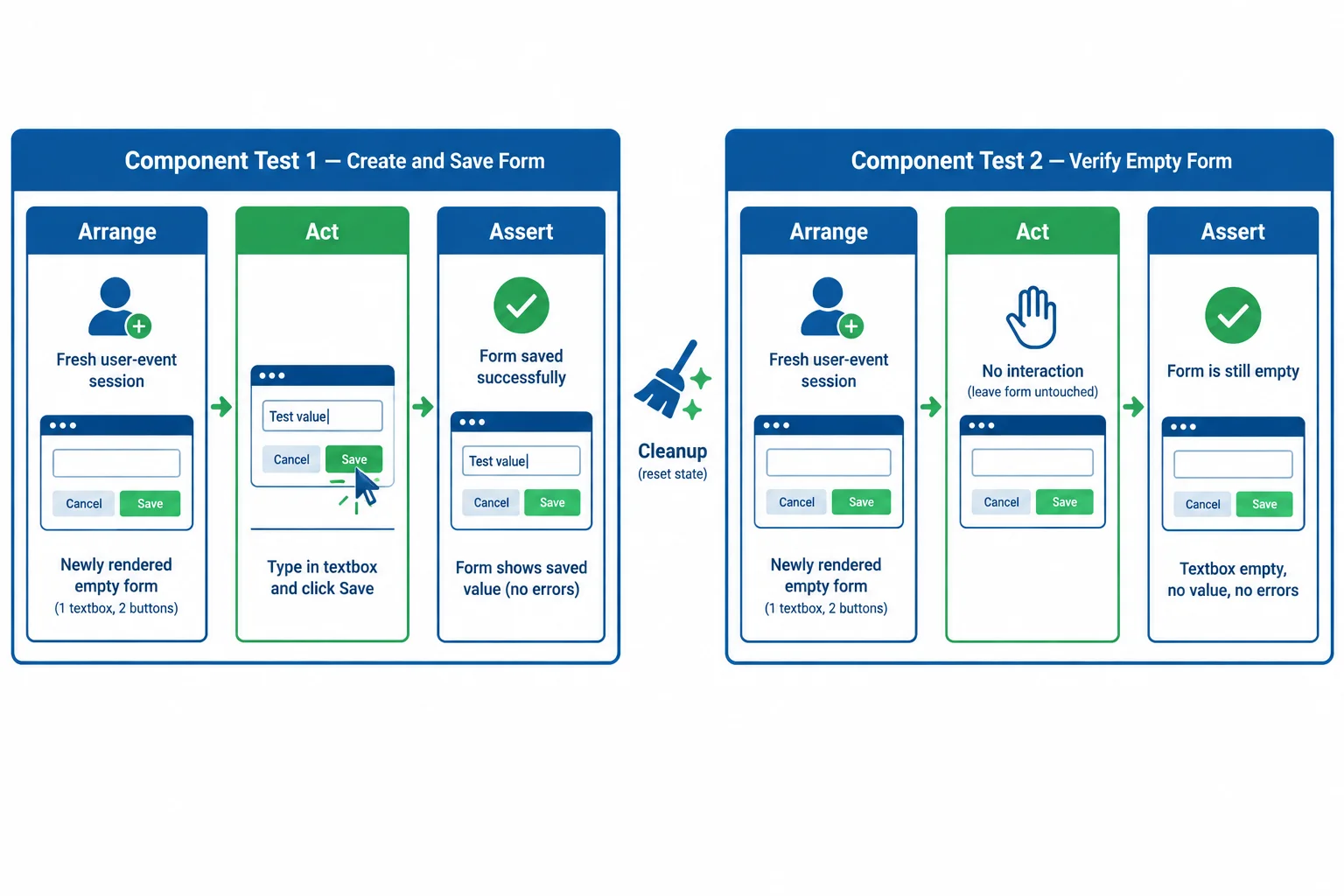
Arrange creates fresh UI for every case; Act and Assert remain inside that case.
Keep the shared arrangement near the top of src/ProfileForm.test.tsx. beforeEach runs before every individual test, so the first case can edit and submit the form while the next case can still verify its initial state.
The variable user is declared once for the test file, but it receives a new user-event session for every case. The form is rendered again for every case as well. That is reusing setup instructions—not reusing mutated UI.
src/ProfileForm.test.tsx
/** @vitest-environment jsdom */

import { beforeEach, describe, expect, it } from 'vitest';
import { render, screen } from '@testing-library/react';
import userEvent from '@testing-library/user-event';
import { ProfileForm } from './ProfileForm';

let user: ReturnType<typeof userEvent.setup>;

beforeEach(() => {
  user = userEvent.setup();
  render(<ProfileForm />);
});

describe('ProfileForm', () => {
  it('saves a display name', async () => {
    const nameInput = screen.getByRole('textbox', {
      name: 'Display name',
    });

    await user.type(nameInput, 'Maya');
    await user.click(
      screen.getByRole('button', { name: 'Save profile' }),
    );

    const status = await screen.findByRole('status');
    expect(status).toHaveTextContent('Saved profile for Maya.');
  });

  it('starts with an empty, disabled form', () => {
    const nameInput = screen.getByLabelText('Display name');

    expect(nameInput).toHaveValue('');
    expect(
      screen.getByRole('button', { name: 'Save profile' }),
    ).toBeDisabled();
    expect(screen.queryByRole('status')).not.toBeInTheDocument();
  });
});The shared setup file handles teardown after every test. It explicitly imports afterEach, loads DOM-oriented matchers, and registers cleanup.
cleanup unmounts rendered React components and removes their test containers from the DOM simulation. A later test therefore cannot query or interact with UI rendered by an earlier test.
src/test/setup.ts
import { afterEach } from 'vitest';
import { cleanup } from '@testing-library/react';
import '@testing-library/jest-dom/vitest';

afterEach(cleanup);Cleanup has a deliberate boundary: it resets rendered UI, not every mutable value that might exist outside that UI. Keep outside state out of these component tests unless it has its own explicit lifecycle.
| Lifecycle action | What it does | Scope |
|---|---|---|
| beforeEach | Creates a user-event session and renders ProfileForm | Each individual test |
| afterEach(cleanup) | Unmounts components and removes test containers | Rendered React UI |
| Not guaranteed by cleanup | Resets unrelated mutable state outside rendered UI | Outside the rendered UI boundary |
Warning
Do not render once outside the test cases and let several cases reuse that document. A prior interaction can leave an input value, feedback, focus, or enabled state that changes what a later test observes.
Complete the two lifecycle hooks that preserve explicit rendered-UI cleanup and move repeated arrangement into a per-test hook.
/* src/test/setup.ts */
(cleanup);

/* src/ProfileForm.test.tsx */
let user: ReturnType<typeof userEvent.setup>;

(() => {
  user = userEvent.setup();
  render(<ProfileForm />);
});Why can rendering ProfileForm once outside several test cases make the cases order-dependent?
Step 8 of 9
Identify what a jsdom component test can verify and when a real browser or assistive technology is necessary.
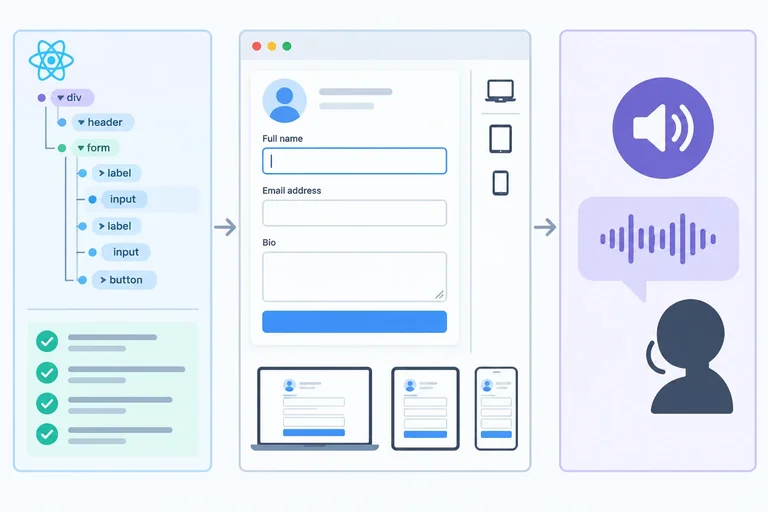
A component test running in jsdom checks a DOM simulation, not a complete browser rendering engine. For ProfileForm, it can establish observable DOM behavior: content appears, the textbox value changes, buttons become disabled or enabled, and focus moves to a control.
That is valuable evidence about component behavior. It is not evidence that the page has been laid out, painted, or announced by a screen reader.
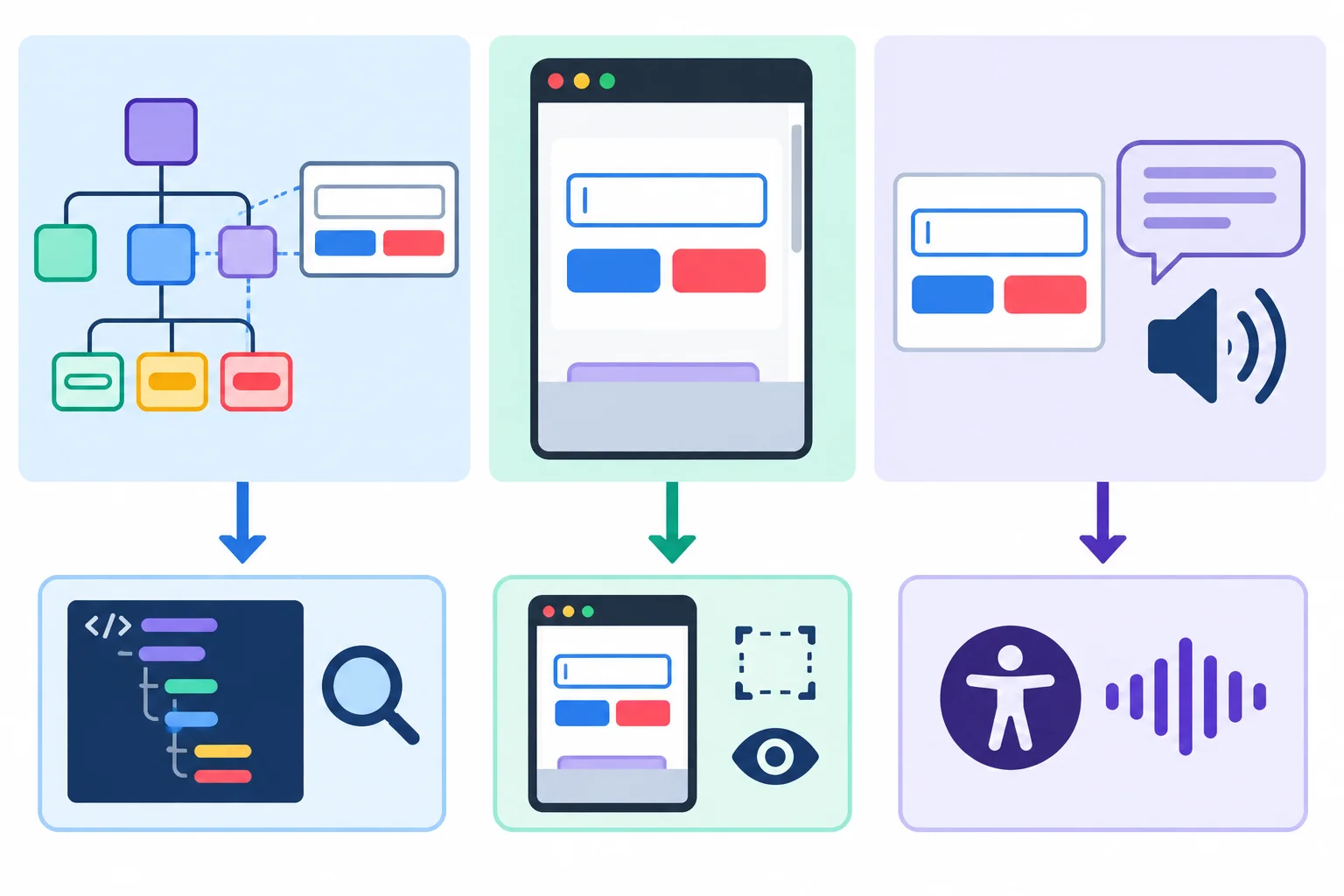
jsdom can inspect DOM state. A real browser is needed for rendered appearance, and assistive technology is needed to check announcements.
Choose the check that can actually support the claim. A DOM matcher answers a DOM question; it does not turn jsdom into a layout engine or a screen reader.
Evidence appropriate for common ProfileForm claims
| Claim | Appropriate evidence | Reason |
|---|---|---|
| Typed value is in the textbox | Component test in jsdom | Checks a DOM control value |
| Reset moves focus to the textbox | Component test in jsdom | Checks simulated active focus |
| Status message is rendered | Component test in jsdom | Checks DOM content and role |
| Controls do not overlap at a narrow width | Real browser check | Requires layout and painting |
| Focus indicator can be seen | Real browser check | Requires painted visual output |
| Save feedback is announced | Assistive-technology check | Depends on assistive technology behavior |
Warning
toBeVisible() is still a DOM-oriented assertion. It does not prove that an element is unobscured, within the viewport, responsive at a given width, or visibly outlined when focused.
Likewise, an accessible query and a role="status" assertion support a semantic DOM contract, but they do not prove screen-reader output or full accessibility conformance.
Match each claim to the evidence needed to verify it.
Tap an item and then its matching pair.

Step 9 of 9
Complete, run, and review a compact component-test suite that protects ProfileForm behavior through accessible queries and realistic user interactions.
A compact regression suite protects what a person can observe in ProfileForm: its initial controls, a pointer-driven save and reset, and keyboard-driven focus behavior.
Each case follows the same discipline:
beforeEach creates a fresh user-event session and renders a fresh form.The shared setup file’s explicit afterEach(cleanup) removes each rendered form after its test. This prevents a saved message, a typed value, or a focused control from leaking into the next case.
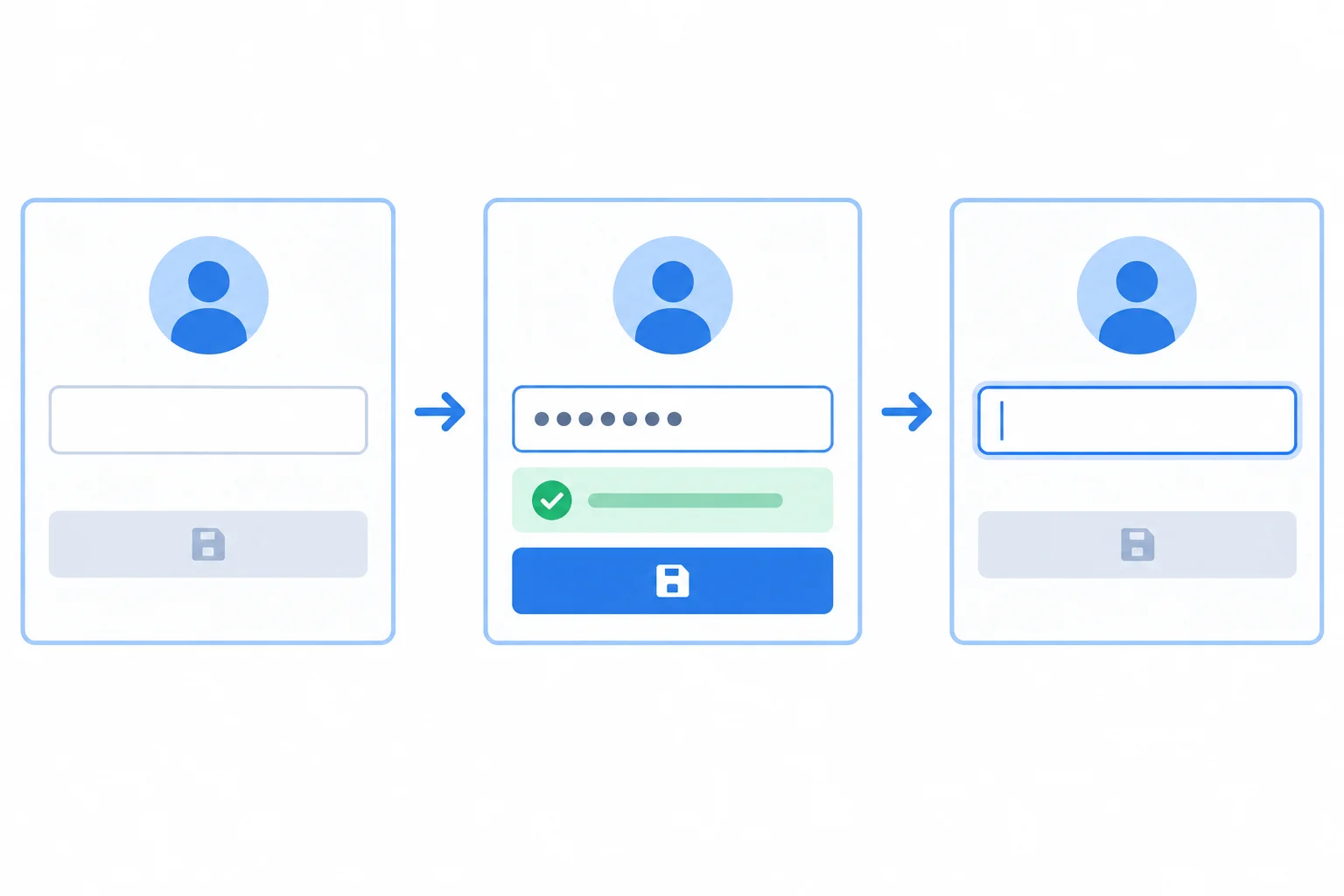
The suite checks visible state transitions and focus in the DOM, not Hook state or CSS structure.
Summary
Use this review list while reading the final suite.
Replace the contents of src/ProfileForm.test.tsx with the two consecutive parts below. The existing vite.config.ts, src/test/setup.ts, and src/ProfileForm.tsx from the earlier steps remain unchanged.
Part 1 imports the explicit APIs, creates a new user-event session for each test, and covers the initial and pointer-driven flows.
/** @vitest-environment jsdom */
import { beforeEach, describe, expect, it } from 'vitest';
import { render, screen } from '@testing-library/react';
import userEvent from '@testing-library/user-event';
import { ProfileForm } from './ProfileForm';

let user: ReturnType<typeof userEvent.setup>;

beforeEach(() => {
  user = userEvent.setup();
  render(<ProfileForm />);
});

describe('ProfileForm', () => {
  it('shows the initial controls and no feedback', () => {
    const nameInput = screen.getByRole('textbox', { name: 'Display name' });

    expect(nameInput).toHaveValue('');
    expect(screen.getByRole('button', { name: 'Save profile' })).toBeDisabled();
    expect(screen.getByRole('button', { name: 'Reset form' })).toBeEnabled();
    expect(screen.queryByRole('status')).not.toBeInTheDocument();
  });

  it('saves and resets through pointer actions', async () => {
    const nameInput = screen.getByRole('textbox', { name: 'Display name' });

    await user.type(nameInput, 'Maya');
    expect(screen.getByRole('button', { name: 'Save profile' })).toBeEnabled();

    await user.click(screen.getByRole('button', { name: 'Save profile' }));
    const feedback = await screen.findByRole('status');

    expect(feedback).toHaveTextContent('Saved profile for Maya.');
    expect(feedback).toBeVisible();

    await user.click(screen.getByRole('button', { name: 'Reset form' }));
    expect(nameInput).toHaveValue('');
    expect(screen.queryByRole('status')).not.toBeInTheDocument();
}); it('submits and resets through the keyboard', async () => {
const nameInput = screen.getByLabelText('Display name');
await user.type(nameInput, 'Maya');
await user.tab();
expect(screen.getByRole('button', { name: 'Save profile' })).toHaveFocus();
await user.keyboard('{Enter}');
const feedback = await screen.findByRole('status');
expect(feedback).toHaveTextContent('Saved profile for Maya.');
await user.tab();
expect(screen.getByRole('button', { name: 'Reset form' })).toHaveFocus();
await user.keyboard('{Enter}');
expect(nameInput).toHaveValue('');
expect(nameInput).toHaveFocus();
expect(screen.queryByRole('status')).not.toBeInTheDocument();
});
});Run this command from the Vite project root after saving the file.
npx vitest run src/ProfileForm.test.tsx
 RUN  v2.1.0 /path/to/project

 ✓ src/ProfileForm.test.tsx (3 tests) 94ms

 Test Files  1 passed (1)
      Tests  3 passed (3)
   Start at  10:00:00
   Duration  1.21s
Vitest version numbers, durations, and the project path vary. The important result is one passed test file and three passed tests.
Complete this focused save case using the suite conventions.
(() => {
  user = userEvent.();
  render(<ProfileForm />);
});

it('saves a display name', async () => {
  const nameInput = screen.('textbox', { name: 'Display name' });

  await user.(nameInput, 'Maya');
  await user.click(screen.getByRole('button', { name: 'Save profile' }));

  const feedback = await screen.('status');
  expect(feedback).('Saved profile for Maya.');
});After completing the code and running the command on your computer, write 2–4 sentences. State the observed passed or failed test-file and test counts. Then identify one claim about the form that a passing jsdom component test cannot establish.
Write at least 80 characters (0/80).
Congratulations! You completed: Test React Components Through User Interactions
Thousands of online courses in video, ebooks and audiobooks.
To test your knowledge during online courses
Generated directly from your cell phone's photo gallery and sent to your email

Download our app via QR Code or the links below:.



Carry knowledge in your pocket.
Download the Cursa app.
There are hundreds of free courses available, with a free certificate of completion that is saved in your mobile image gallery.
Download the app to access the Course Completion Certificate for Free.


+ 10 million
students

Free and Valid
Certificate

60 thousand free
exercises

4.8/5 rating in
app stores

Free courses in
video and ebooks