
Step 1 of 9
Identify What Needs an Effect
Decide when React needs an Effect and when rendering or an event handler is the better home for the work.

Learning path · Level 9 · Tutorial 8
Synchronize React state with browser listeners and native element APIs using Effects with complete dependencies, reliable cleanup, and meaningful lint checks.
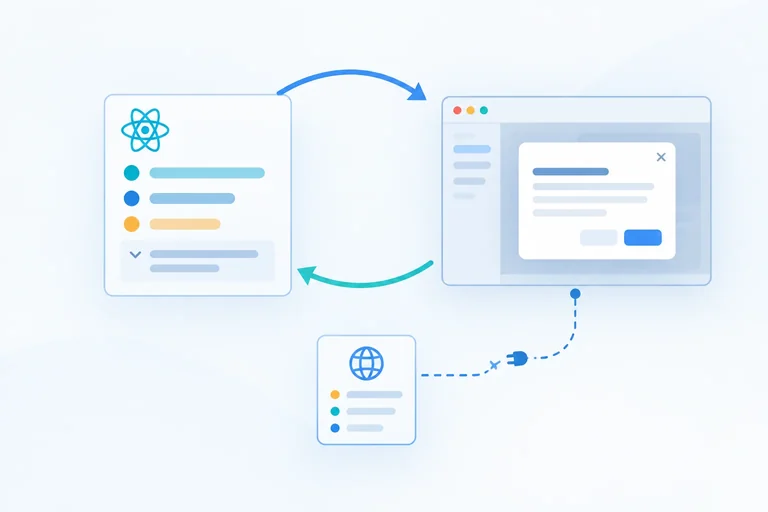
 Identify What Needs an Effect
Decide when React needs an Effect and when rendering or an event handler is the better home for the work. 2 min
Identify What Needs an Effect
Decide when React needs an Effect and when rendering or an event handler is the better home for the work. 2 min
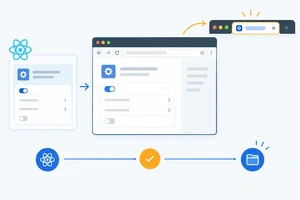 Run Synchronization After a Commit
Implement a small Effect that keeps the Sync Lab browser tab title synchronized with the current label after React commits. 2 min
Run Synchronization After a Commit
Implement a small Effect that keeps the Sync Lab browser tab title synchronized with the current label after React commits. 2 min
 Declare the Values Your Effect Reads
Choose complete Effect dependency arrays from reactive reads and predict when setup runs again. 3 min
Declare the Values Your Effect Reads
Choose complete Effect dependency arrays from reactive reads and predict when setup runs again. 3 min
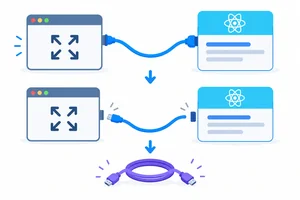 Pair Listener Setup with Cleanup
Implement a browser resize subscription whose setup and cleanup remain paired across label changes and unmounting. 3 min
Pair Listener Setup with Cleanup
Implement a browser resize subscription whose setup and cleanup remain paired across label changes and unmounting. 3 min
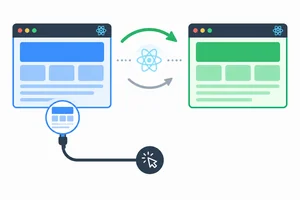 Repair a Stale Closure with Lint Feedback
Repair a stale browser listener closure by treating a dependency lint diagnostic as a missing synchronization detail. 3 min
Repair a Stale Closure with Lint Feedback
Repair a stale browser listener closure by treating a dependency lint diagnostic as a missing synchronization detail. 3 min
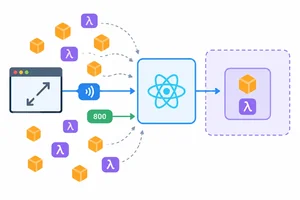 Simplify Object and Function Dependencies
Restructure a resize-listener Effect so fresh object and function identities do not cause unnecessary replacement setup, while preserving its real reactive dependency. 2 min
Simplify Object and Function Dependencies
Restructure a resize-listener Effect so fresh object and function identities do not cause unnecessary replacement setup, while preserving its real reactive dependency. 2 min
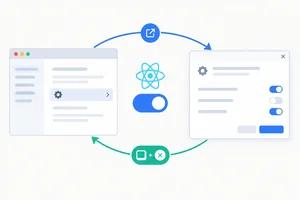 Keep a Native Dialog in Sync
Synchronize React-owned dialog intent with the native dialog API and reflect native dismissal back into state. 4 min
Keep a Native Dialog in Sync
Synchronize React-owned dialog intent with the native dialog API and reflect native dismissal back into state. 4 min
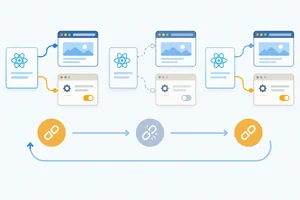 Verify Repeatable Synchronization in Strict Mode
Use development Strict Mode replay, browser logs, and an initially-open dialog check to verify that Effects release and replace external resources correctly. 3 min
Verify Repeatable Synchronization in Strict Mode
Use development Strict Mode replay, browser logs, and an initially-open dialog check to verify that Effects release and replace external resources correctly. 3 min
 Repair and Verify the Complete Synchronization Flow
Integrate, repair, and locally verify complete React Effect synchronization in Sync Lab. 4 min
Repair and Verify the Complete Synchronization Flow
Integrate, repair, and locally verify complete React Effect synchronization in Sync Lab. 4 min
Step 1 of 9
Decide when React needs an Effect and when rendering or an event handler is the better home for the work.
React rendering describes what the interface should look like from the current props and state. An Effect has a narrower job: it keeps React synchronized with a system outside React.
Examples of external systems include browser APIs, browser event subscriptions, and imperative native element APIs. An Effect is not a general-purpose response to every state change.
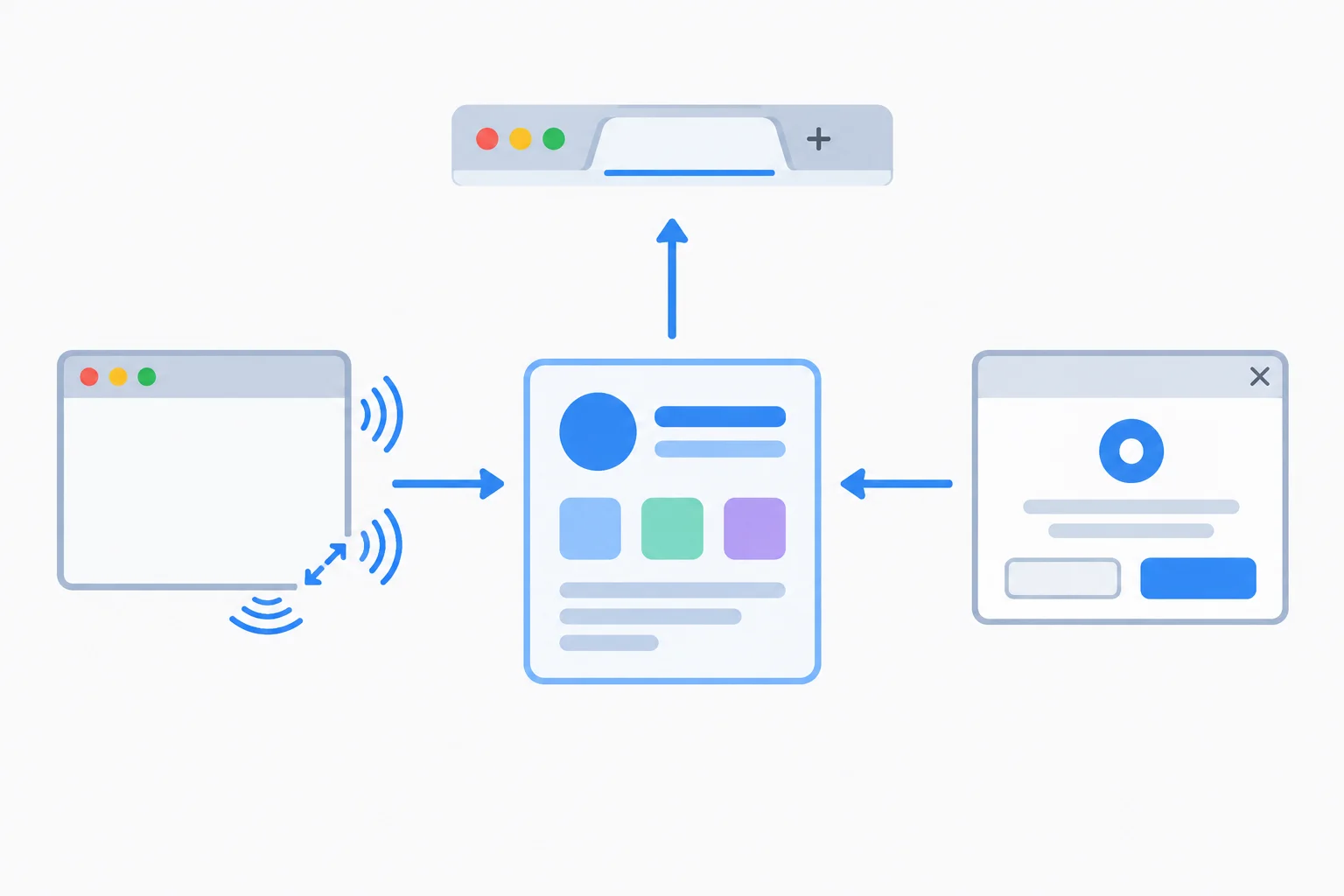
Effects bridge React state and browser-owned behavior.
Use the location of the work to choose the right tool:
State changing does not, by itself, mean that an Effect is needed.
Example
In Sync Lab, label begins as 'Preview' and can change to 'Details'.
label is a rendering calculation.Match each requirement to the place where its work belongs.
Tap an item and then its matching pair.
Step 2 of 9
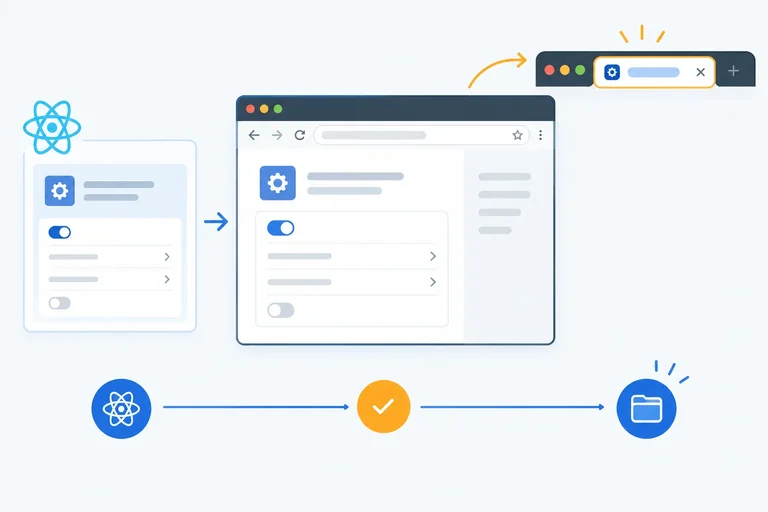
Implement a small Effect that keeps the Sync Lab browser tab title synchronized with the current label after React commits.
Rendering calculates JSX for a component. An Effect is different: it synchronizes something outside React after React has committed the rendered result.
In this step, the external system is the browser tab title. App owns label, and an Effect keeps document.title aligned with its current value. Do not write to browser APIs while the component function is rendering.
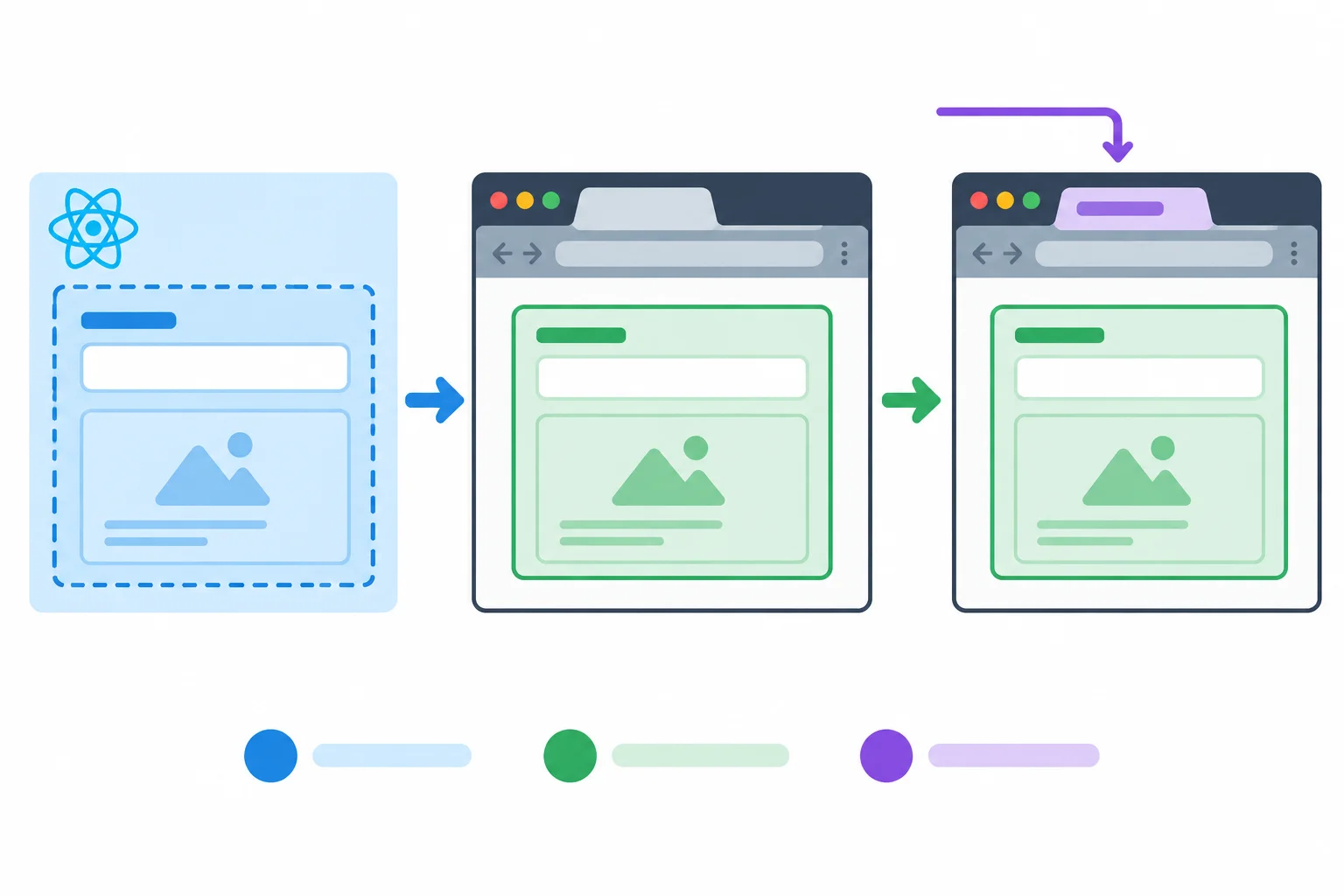
The Effect writes to the browser tab after React commits the component output.
Tip
useEffect runs its setup after a commit. A commit and a browser paint are separate milestones: this ordering does not guarantee that the browser has already painted pixels for the user.
Place the Hook call at the component's top level. Its setup can safely write to the external browser API.
In src/App.tsx, use this small Sync Lab interface. The setup reads the current label and synchronizes the tab title after each relevant committed render.
import { useEffect, useState } from 'react';

export default function App() {
  const [label, setLabel] = useState('Preview');

  useEffect(() => {
    document.title = `Sync Lab — ${label}`;
  }, [label]);

  return (
    <main>
      <h1>Sync Lab</h1>

      <label htmlFor="label">Label</label>
      <input
        id="label"
        value={label}
        onChange={(event) => setLabel(event.currentTarget.value)}
      />

      <p>Current label: {label}</p>
    </main>
  );
}
Browser tab after the initial committed render:
Sync Lab — Preview

Browser tab after changing Label to Details and React commits:
Sync Lab — Details
These are expected browser-tab results, not lines printed in the browser console.
Run npm run dev. On the initial load, the browser tab becomes Sync Lab — Preview. Enter Details in the Label field; after React commits that update, the tab becomes Sync Lab — Details.
The dependency list [label] is intentionally small. The next step develops the rules for choosing complete dependency lists.
Read the change as two responsibilities. Rendering calculates interface output from state. The Effect performs browser-title synchronization only after React has committed that output.
Warning
The Effect is ordered after the commit, but it is not a signal that a paint has definitely happened. Do not use useEffect as a promise about what the user has already seen on screen.
A label change follows this sequence:
| Milestone | What React does | What this code does |
|---|---|---|
| Render | Evaluates App and its JSX | Uses label to calculate visible content |
| Commit | Places the result in the DOM | Does not write the tab title during rendering |
| Effect setup | Runs after the commit | Synchronizes the browser tab title |
Complete the tab-title Effect and the short execution diagram.
(() => {
   = `Sync Lab — ${label}`;
}, [label]);

// Short execution diagram:
// render: calculate JSX from label
// React commit
// : synchronize browser tab title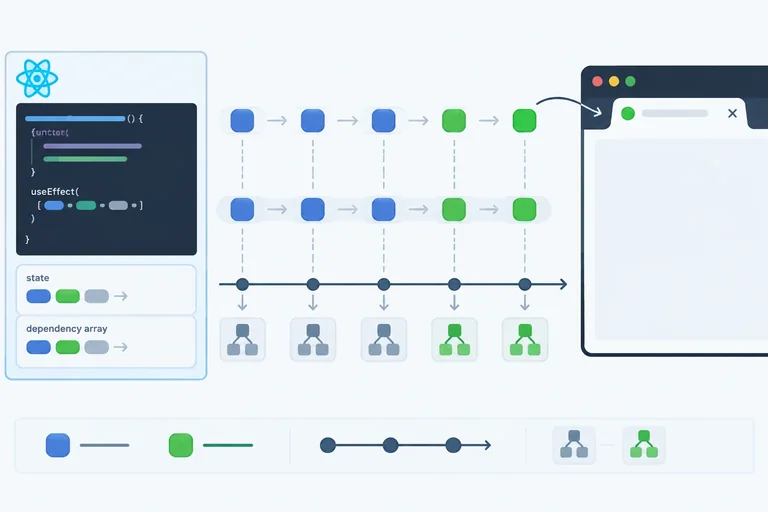
Step 3 of 9
Choose complete Effect dependency arrays from reactive reads and predict when setup runs again.
A dependency array describes which reactive values an Effect reads, so React knows when its setup must synchronize again. It is not a preference for how often code should run.
There are three forms:
[]): setup declares no reactive dependencies. It runs after this component mounts, but an unmount followed by a remount creates another setup.[label]): setup runs after the initial commit and again when label changes.React compares each listed value with Object.is. Keep the dependency list inline and with a fixed number of entries.
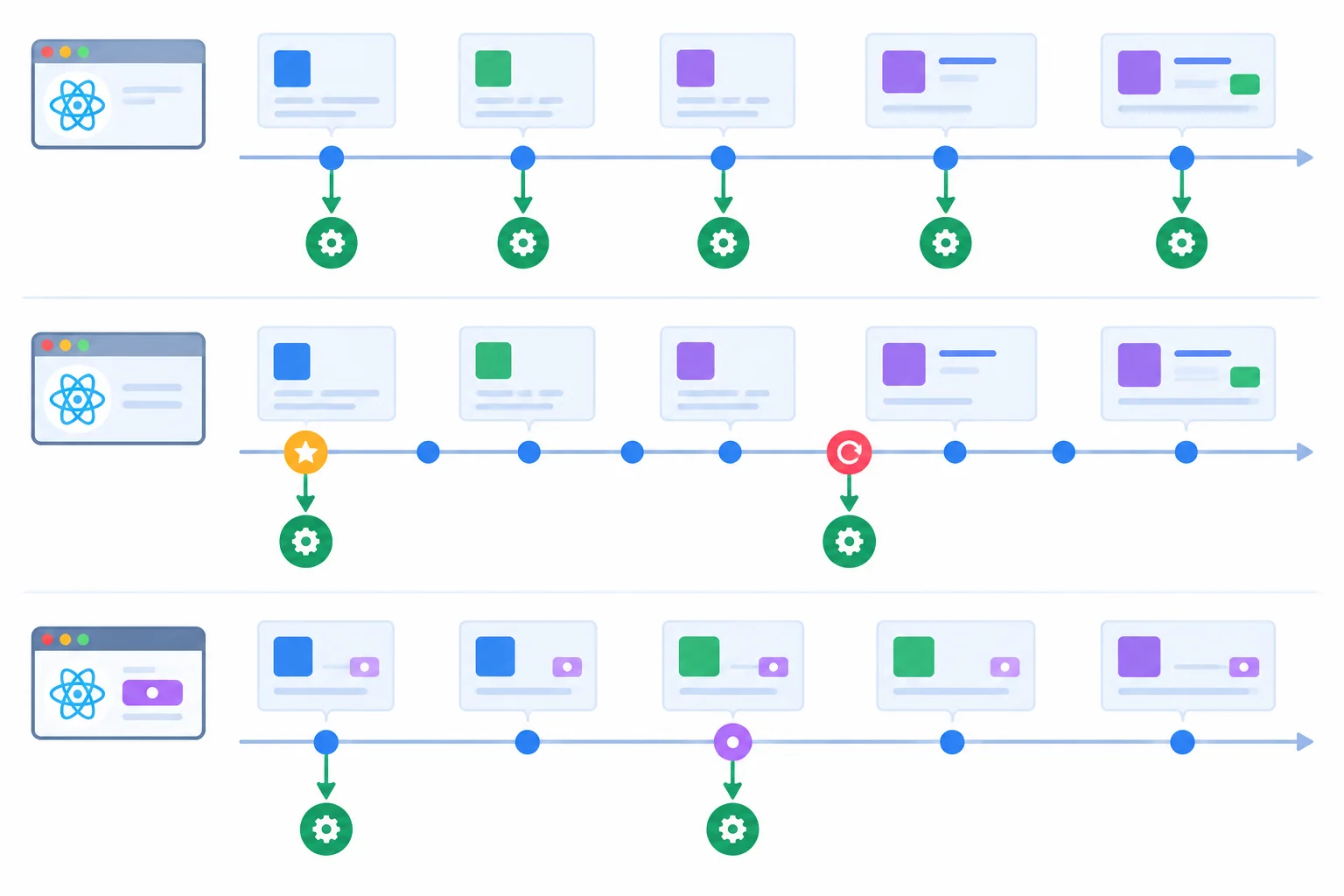
Dependency declarations describe when React may need to run setup again.
Compare what each declaration permits after a component commits.
| Declaration | Reactive reads declared | When setup may run |
|---|---|---|
| No array | Not declared | After every committed render |
| [] | None | After each mount |
| [label] | label | After mount and when label changes |
Find dependencies by reading the setup function, including callbacks nested inside it. Include reactive props, state values, and component-local values that setup reads.
Do not add entries merely because they exist nearby. A state setter and a ref object created by useState or useRef are known-stable values, so they do not need dependency entries. The values an Effect reads—not a desired schedule—determine its array.
src/App.tsx
import { useEffect, useState } from 'react';

export default function App() {
  const [label, setLabel] = useState('Preview');

  useEffect(() => {
    document.title = `Sync Lab — ${label}`;
  }, [label]);

  return (
    <main>
      <h1>Sync Lab</h1>

      <label htmlFor="label">Label</label>
      <input
        id="label"
        value={label}
        onChange={(event) => setLabel(event.currentTarget.value)}
      />

      <p>Current label: {label}</p>
    </main>
  );
}
Tip
Here, setup reads label, so [label] is complete. setLabel appears only in the event handler; setup does not read it. When the component commits with the same label value, Object.is reports no dependency change and title setup does not need to run again.
Which statement correctly describes an Effect declared with []?
Complete the dependency list, then predict setup behavior across the three committed renders.
useEffect(() => {
  document.title = `Sync Lab — ${label}`;
}, []);

// Prediction across committed renders:
// initial: label is 'Preview' -> setup runs
// unchanged: label is still 'Preview' ->
// changed: label is 'Details' -> 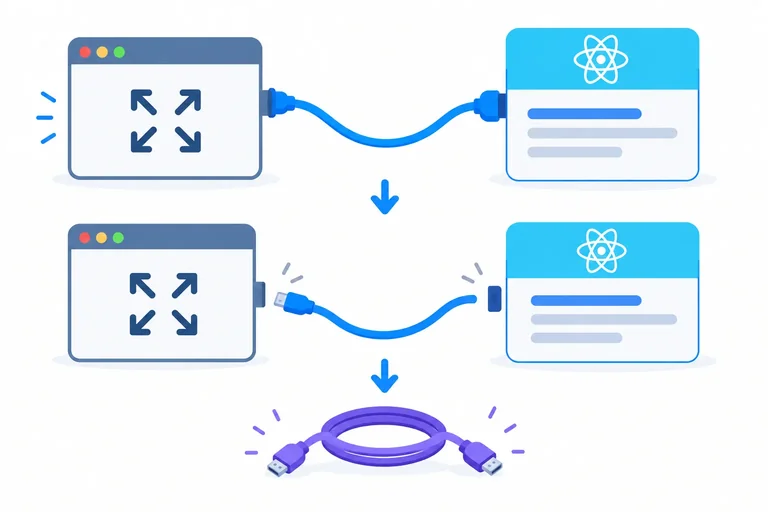
Step 4 of 9
Implement a browser resize subscription whose setup and cleanup remain paired across label changes and unmounting.
A browser listener is a resource outside React. Its lifecycle has two matched parts:
For a resize listener, setup creates handleResize and passes it to window.addEventListener(). Cleanup must pass the same callback object to window.removeEventListener() on the same target. It must also match the event type and capture setting.
When label changes, React first runs cleanup from the earlier setup, then runs replacement setup with the new label. When ResizeMonitor unmounts, its latest cleanup runs.
Cleanup releases the listener created by its own setup; a different callback cannot remove it.
Tip
The cleanup function closes over the values and callback created by that setup. That is why a Preview cleanup can remove the Preview listener before a Details setup installs a new one.
Using false in both calls explicitly matches the default non-capturing listener. Keep the event type, event target, callback identity, and capture setting matched between setup and cleanup.
Add these files in your existing project, keeping the existing root StrictMode wrapper. App controls whether ResizeMonitor is mounted; ResizeMonitor owns the browser subscription.
Run npm run dev and open the browser console. Dispatch one resize event, change Label to Details, and dispatch again. Then clear Show resize monitor and dispatch once more. Dragging the browser can create many resize events, so window.dispatchEvent(new Event('resize')); is the repeatable check.
src/App.tsx
import { useEffect, useState } from 'react';
import { ResizeMonitor } from './ResizeMonitor';

export default function App() {
  const [label, setLabel] = useState('Preview');
  const [showMonitor, setShowMonitor] = useState(true);

  useEffect(() => {
    document.title = `Sync Lab — ${label}`;
  }, [label]);

  return (
    <main>
      <h1>Sync Lab</h1>

      <label htmlFor="label">Label</label>
      <input
        id="label"
        value={label}
        onChange={(event) => setLabel(event.currentTarget.value)}
      />

      <label>
        <input
          type="checkbox"
          checked={showMonitor}
          onChange={(event) => setShowMonitor(event.currentTarget.checked)}
        />
        Show resize monitor
      </label>

      {showMonitor && <ResizeMonitor label={label} />}
    </main>
  );
}
Sync Lab
Label [Preview]
[x] Show resize monitor
Monitoring: Preview
This is a schematic of the initial browser rendering. Console lifecycle output from the combined application is shown with `src/ResizeMonitor.tsx`.
src/ResizeMonitor.tsx
import { useEffect } from 'react';

type ResizeMonitorProps = { label: string };

export function ResizeMonitor({ label }: ResizeMonitorProps) {
  useEffect(() => {
    function handleResize(): void {
      console.log('resize', label, `${window.innerWidth}px`);
    }

    console.log('setup', label);
    window.addEventListener('resize', handleResize, false);

    return () => {
      console.log('cleanup', label);
      window.removeEventListener('resize', handleResize, false);
    };
  }, [label]);

  return <p>Monitoring: {label}</p>;
}
setup Preview
cleanup Preview
setup Preview
resize Preview 960px
cleanup Preview
setup Details
resize Details 960px
cleanup Details
Representative development-console sequence after the initial Strict Mode replay, one dispatched event, changing Preview to Details, a second dispatched event, and unmounting. `960px` is an example integer CSS-pixel width and varies by viewport. After the final cleanup, dispatching another resize event adds no ResizeMonitor log.
Complete the paired browser-listener calls.
useEffect(() => {
  function handleResize(): void {
    console.log('resize', label, `${window.innerWidth}px`);
  }

  window.('resize', handleResize, false);

  return () => {
    window.('resize', handleResize, false);
  };
}, [label]);After the initial development replay has settled, start with a mounted monitor for Preview. Put the events in order, including the result of a resize dispatched after unmounting.
Step 5 of 9
Repair a stale browser listener closure by treating a dependency lint diagnostic as a missing synchronization detail.
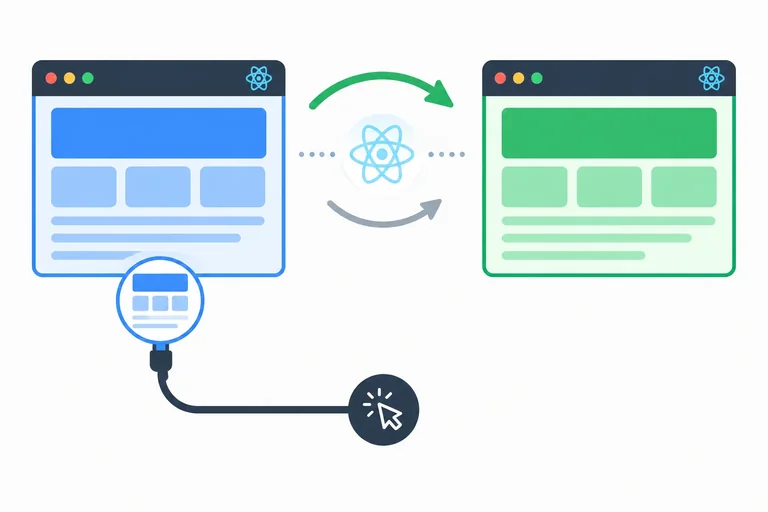
A listener retains the variables from the render that created it. If its Effect does not replace the listener when label changes, the page can render Details while the active callback still retains Preview.
That mismatch is a stale closure: React rendered current UI, but the browser subscription is still using a callback from an earlier setup.
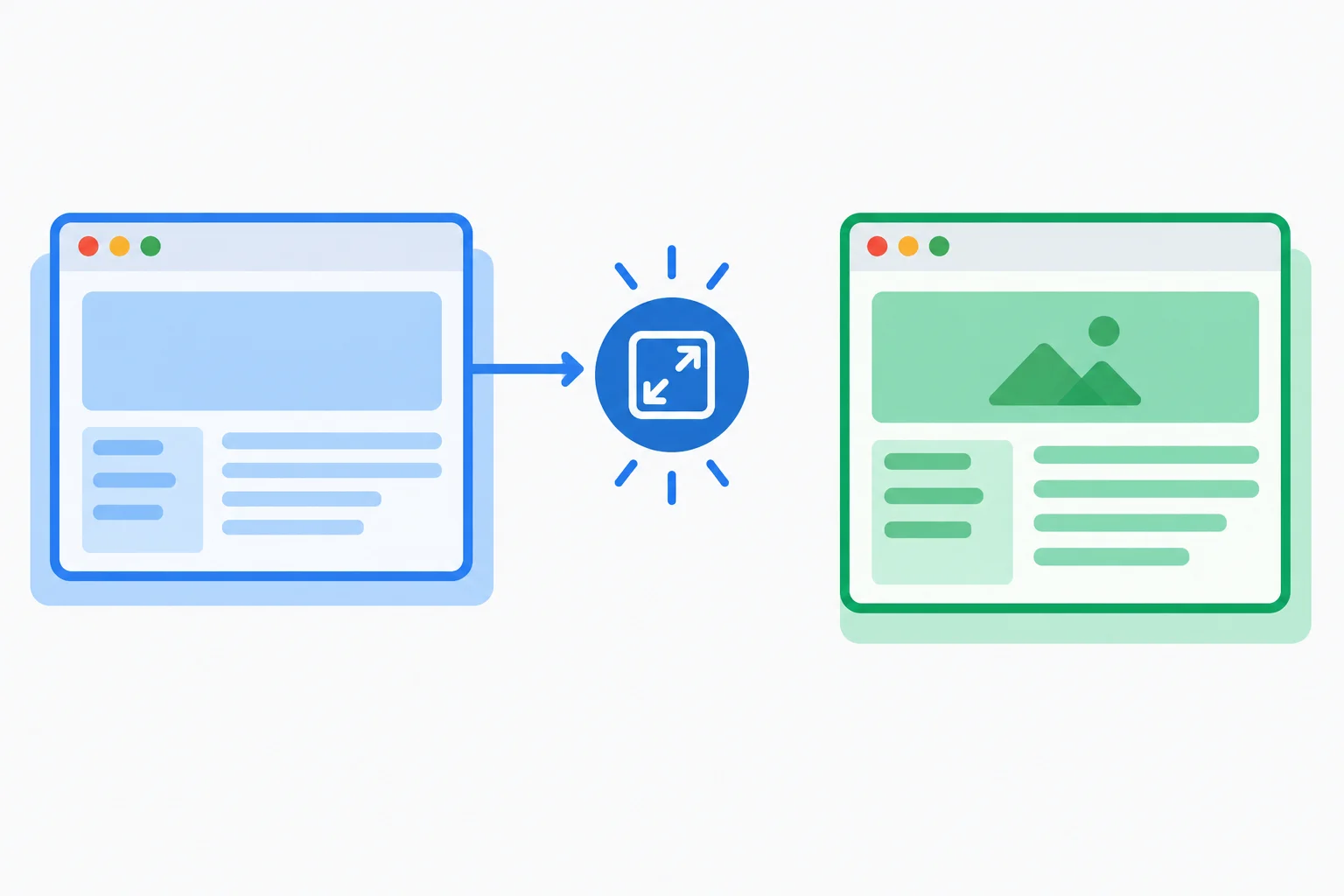
Until replacement setup runs, the active listener belongs to the earlier setup that created it.
This intentionally incomplete src/ResizeMonitor.tsx reproduces the mismatch after you change Label from Preview to Details and dispatch one resize event.
import { useEffect } from 'react';

type ResizeMonitorProps = { label: string };

export function ResizeMonitor({ label }: ResizeMonitorProps) {
  useEffect(() => {
    function handleResize(): void {
      console.log('resize', label, `${window.innerWidth}px`);
    }

    console.log('setup', label);
    window.addEventListener('resize', handleResize, false);

    return () => {
      console.log('cleanup', label);
      window.removeEventListener('resize', handleResize, false);
    };
  }, []);

  return <p>Monitoring: {label}</p>;
}
Interface after changing Label: Monitoring: Details
Console after one dispatched resize event: resize Preview 960px
The width varies with your browser. Development Strict Mode can add setup and cleanup logs during the initial mount; compare the interface and the result of one dispatched event after changing the label.
The Effect setup reads label, including through its nested handleResize callback. An empty dependency list claims that setup has no reactive reads, so React leaves the original subscription active when the prop changes.
react-hooks/exhaustive-deps reports that mismatch. Treat the diagnostic as evidence that the synchronization description is incomplete—not as a warning to suppress.
Replace the incomplete file with this version. Its dependency list declares the reactive value read by setup and its callback.
import { useEffect } from 'react';

type ResizeMonitorProps = { label: string };

export function ResizeMonitor({ label }: ResizeMonitorProps) {
  useEffect(() => {
    function handleResize(): void {
      console.log('resize', label, `${window.innerWidth}px`);
    }

    console.log('setup', label);
    window.addEventListener('resize', handleResize, false);

    return () => {
      console.log('cleanup', label);
      window.removeEventListener('resize', handleResize, false);
    };
  }, [label]);

  return <p>Monitoring: {label}</p>;
}
cleanup Preview
setup Details
resize Details 960px
The reported width varies by browser size. Development Strict Mode can add mount-time setup and cleanup logs; after changing Preview to Details, the relevant replacement sequence is cleanup Preview -> setup Details, followed by one resize Details line for one dispatched event.
Warning
Do not disable react-hooks/exhaustive-deps and do not conceal this read in a ref. With the complete dependency, changing the label causes cleanup -> setup: cleanup removes the callback that captured the earlier value, then setup registers a callback with the current value.
Run npm run lint from the project folder. Then change Label to Details and enter window.dispatchEvent(new Event('resize')); once in the browser console. Confirm both that the lint diagnostic is gone and that the resize line uses Details with the current integer CSS-pixel width.
Complete the dependency list for this listener Effect.
useEffect(() => {
  function handleResize(): void {
    console.log('resize', label, `${window.innerWidth}px`);
  }

  window.addEventListener('resize', handleResize, false);

  return () => {
    window.removeEventListener('resize', handleResize, false);
  };
}, []);The interface displays Details, but a single dispatched resize event from the intentionally incomplete version logs Preview. In 2–3 sentences, explain why the values differ, write the complete dependency array, and state what the next dispatched resize event should report after the repaired subscription has run.
Write at least 120 characters (0/120).
Step 6 of 9
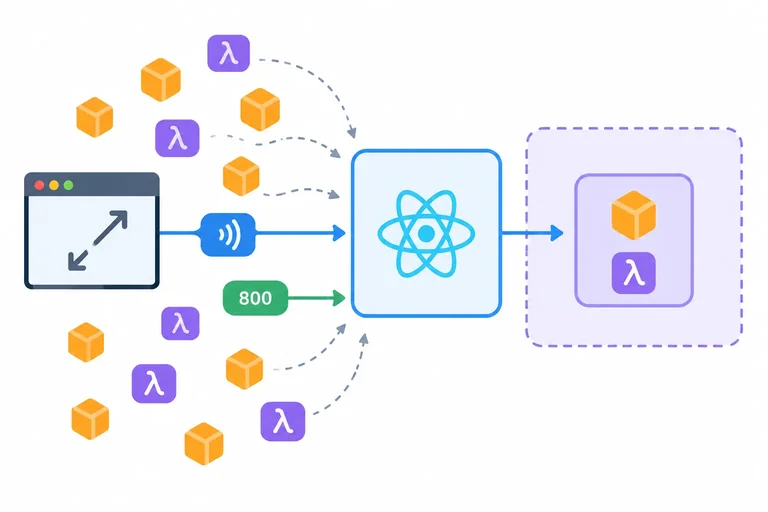
Restructure a resize-listener Effect so fresh object and function identities do not cause unnecessary replacement setup, while preserving its real reactive dependency.
Object.is compares dependency identities, not the contents you intended them to represent. A component-local object and a component-local function are normally new references on every render.
In this version, every value used by setup appears in the dependency list. Yet an unrelated parent render creates a new options object and a new handleResize function. React sees changed dependencies, runs cleanup, then installs a replacement listener—even when label is unchanged.
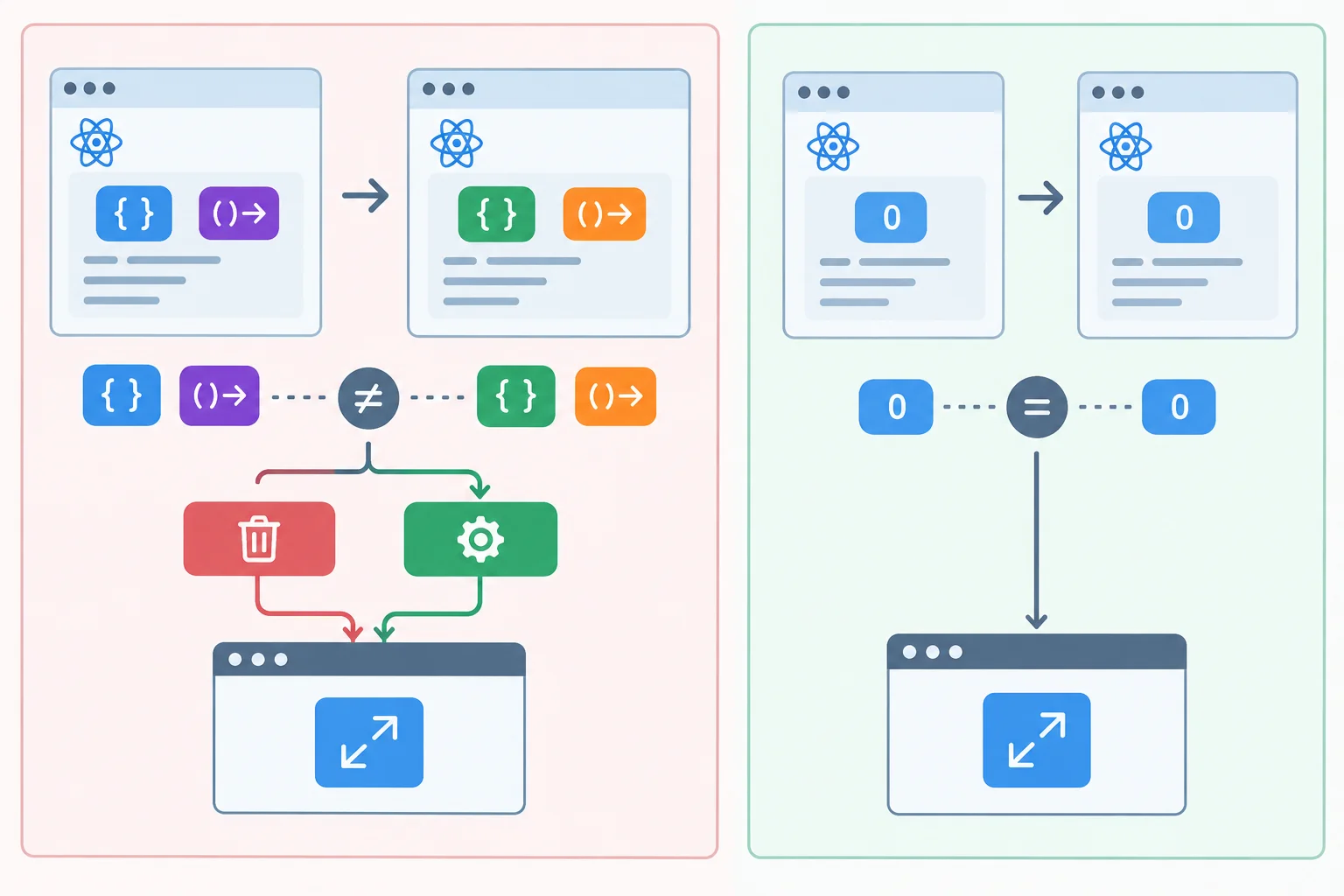
Fresh references can trigger cleanup and replacement setup even when the visible label has not changed.
This complete dependency list still replaces the listener after every render because both listed references are newly created.
import { useEffect } from 'react';

type ResizeMonitorProps = { label: string };

export function ResizeMonitor({ label }: ResizeMonitorProps) {
  const options = { capture: false };

  function handleResize(): void {
    console.log('resize', label, `${window.innerWidth}px`);
  }

  useEffect(() => {
    console.log('setup', label);
    window.addEventListener('resize', handleResize, options);

    return () => {
      console.log('cleanup', label);
      window.removeEventListener('resize', handleResize, options);
    };
  }, [options, handleResize]);

  return <p>Monitoring: {label}</p>;
}
Move values inside setup only when that setup is their only consumer. Here, options configures this listener and handleResize is this listener's callback, so both belong to the Effect.
The Effect still reads the reactive label. Its dependency array must remain [label]. With an unchanged label, an unrelated render preserves the existing subscription. With a changed label, React performs cleanup -> setup, replacing the callback so it captures the current label.
Replace src/ResizeMonitor.tsx with this scope-based version.
import { useEffect } from 'react';

type ResizeMonitorProps = { label: string };

export function ResizeMonitor({ label }: ResizeMonitorProps) {
  useEffect(() => {
    const options = { capture: false };

    function handleResize(): void {
      console.log('resize', label, `${window.innerWidth}px`);
    }

    console.log('setup', label);
    window.addEventListener('resize', handleResize, options);

    return () => {
      console.log('cleanup', label);
      window.removeEventListener('resize', handleResize, options);
    };
  }, [label]);

  return <p>Monitoring: {label}</p>;
}
setup Preview
cleanup Preview
setup Preview
With the existing development Strict Mode wrapper, the initial mount can log setup, cleanup, then setup. After that replay settles, an unrelated render with the same label adds no setup or cleanup logs.
Tip
Scope is the reason, not a shortcut. If rendering, another Effect, or an event handler also needs an object or function, do not move it merely to shorten a dependency list. Instead, preserve its appropriate scope and reassess the design.
The goal is an accurate synchronization boundary, not the shortest possible dependency array. In particular, replacing a noisy list with [] would recreate the stale-closure problem because this listener genuinely reads label.
ResizeMonitor uses the earlier version. Its parent re-renders, but label is still 'Preview'. Why does React replace the listener?
Complete the scope-based repair for the listener Effect.
useEffect(() => {


  console.log('setup', label);
  window.addEventListener('resize', handleResize, options);

  return () => {
    console.log('cleanup', label);
    window.removeEventListener('resize', handleResize, options);
  };
}, []);
Step 7 of 9
Synchronize React-owned dialog intent with the native dialog API and reflect native dismissal back into state.
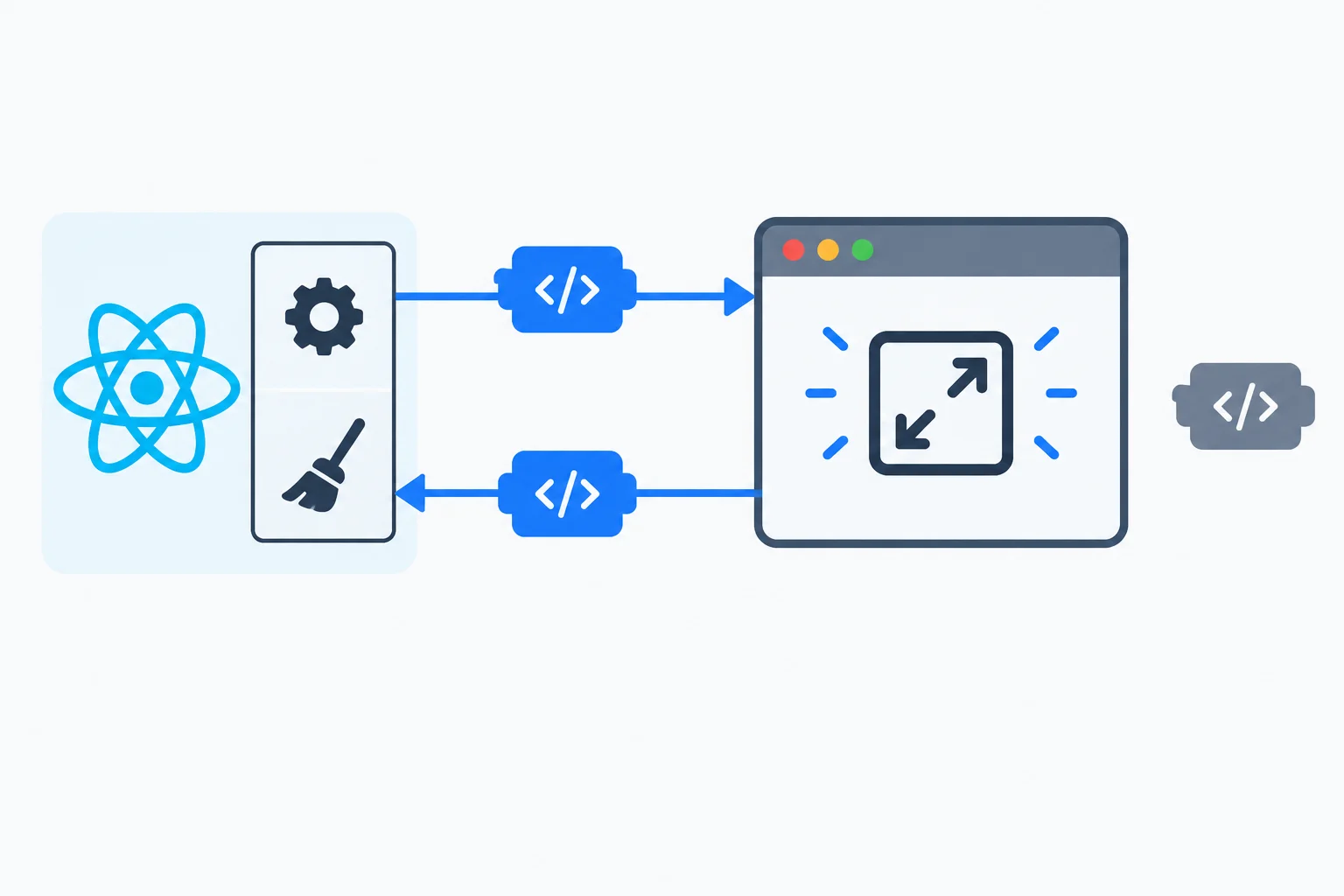
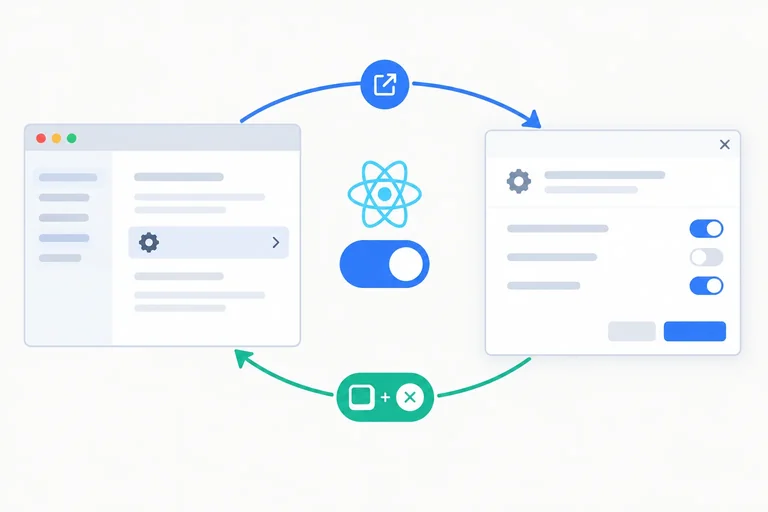
isOpen in App is the authoritative request for the settings dialog: React intends it to be open or closed. The browser-owned <dialog> has its own imperative state and methods. An Effect bridges these two systems after React commits.
Keep SettingsDialog mounted whether it is open or closed. Its ref can then point to the same native element while the Effect synchronizes isOpen with the browser API.
Do not add a JSX open attribute while also calling showModal() or close(). That would give JSX and imperative browser code competing control over the native dialog state.
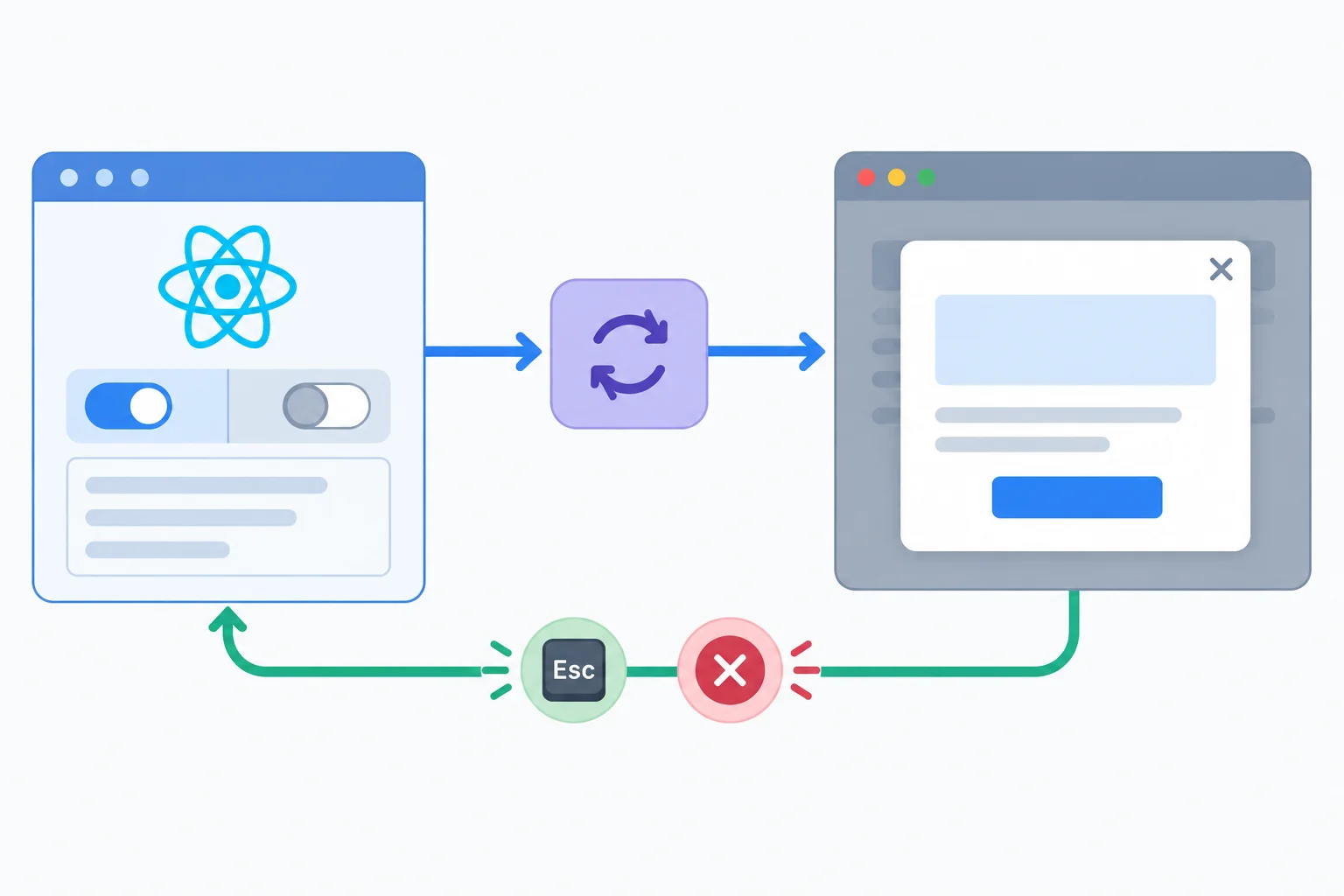
The Effect sends React intent to the native dialog; a native close event sends dismissal intent back to React.
App owns the dialog intent. The opening control requests true; the callback passed to SettingsDialog requests false. The button does not call a native dialog method directly: the dialog component's Effect performs that external synchronization.
Add the dialog alongside the existing title Effect and resize monitor. Keep SettingsDialog in the JSX tree even when isOpen is false.
src/App.tsx — replace the file while keeping your existing root StrictMode wrapper
import { useEffect, useState } from 'react';
import { ResizeMonitor } from './ResizeMonitor';
import { SettingsDialog } from './SettingsDialog';

export default function App() {
  const [label, setLabel] = useState('Preview');
  const [showMonitor, setShowMonitor] = useState(true);
  const [isOpen, setIsOpen] = useState(false);

  useEffect(() => {
    document.title = `Sync Lab — ${label}`;
  }, [label]);

  return (
    <main>
      <h1>Sync Lab</h1>

      <label htmlFor="label">Label</label>
      <input
        id="label"
        value={label}
        onChange={(event) => setLabel(event.currentTarget.value)}
      />

      <label>
        <input
          type="checkbox"
          checked={showMonitor}
          onChange={(event) => setShowMonitor(event.currentTarget.checked)}
        />
        Show resize monitor
      </label>

      <button type="button" onClick={() => setIsOpen(true)}>
        Open settings
      </button>

      {showMonitor && <ResizeMonitor label={label} />}
      <SettingsDialog isOpen={isOpen} onDismiss={() => setIsOpen(false)} />
    </main>
  );
}
Initial settled state:
document.title: Sync Lab — Preview
isOpen: false
dialog.open: false

After Open settings:
isOpen: true
dialog.open: true
Expected settled browser state after `SettingsDialog` is added on the next screen; these are state outcomes, not console messages.
Inside setup, capture dialogRef.current as dialog and null-check that captured node. The Effect reads isOpen, so its complete dependency list is [isOpen]. The ref object is stable, and ref.current is not a reactive dependency.
Before calling either native method, inspect dialog.open. Cleanup closes the particular captured dialog when it is still open. onDismiss is used by JSX event handling, not by Effect setup, so it does not belong in this dependency list.
The native onClose event reflects dismissal—including Escape—back to React. Its open guard prevents an older queued close notification from dismissing a dialog that has already reopened.
src/SettingsDialog.tsx
import { useEffect, useRef } from 'react';

type SettingsDialogProps = {
  isOpen: boolean;
  onDismiss: () => void;
};

export function SettingsDialog({ isOpen, onDismiss }: SettingsDialogProps) {
  const dialogRef = useRef<HTMLDialogElement | null>(null);

  useEffect(() => {
    const dialog = dialogRef.current;
    if (!dialog) {
      return;
    }

    if (isOpen) {
      if (!dialog.open) {
        dialog.showModal();
      }
    } else if (dialog.open) {
      dialog.close();
    }

    return () => {
      if (dialog.open) {
        dialog.close();
      }
    };
  }, [isOpen]);

  return (
    <dialog
      ref={dialogRef}
      aria-labelledby="settings-title"
      onClose={(event) => {
        if (!event.currentTarget.open) {
          onDismiss();
        }
      }}
    >
      <h2 id="settings-title">Settings</h2>
      <button type="button" onClick={onDismiss}>
        Close
      </button>
    </dialog>
  );
}
Initial settled state:
isOpen: false
dialog.open: false

After Open settings:
isOpen: true
dialog.open: true

After Close:
isOpen: false
dialog.open: false

After Escape:
isOpen: false
dialog.open: false

After reopening:
isOpen: true
dialog.open: true
Expected settled states after each interaction; this component does not log these values automatically.
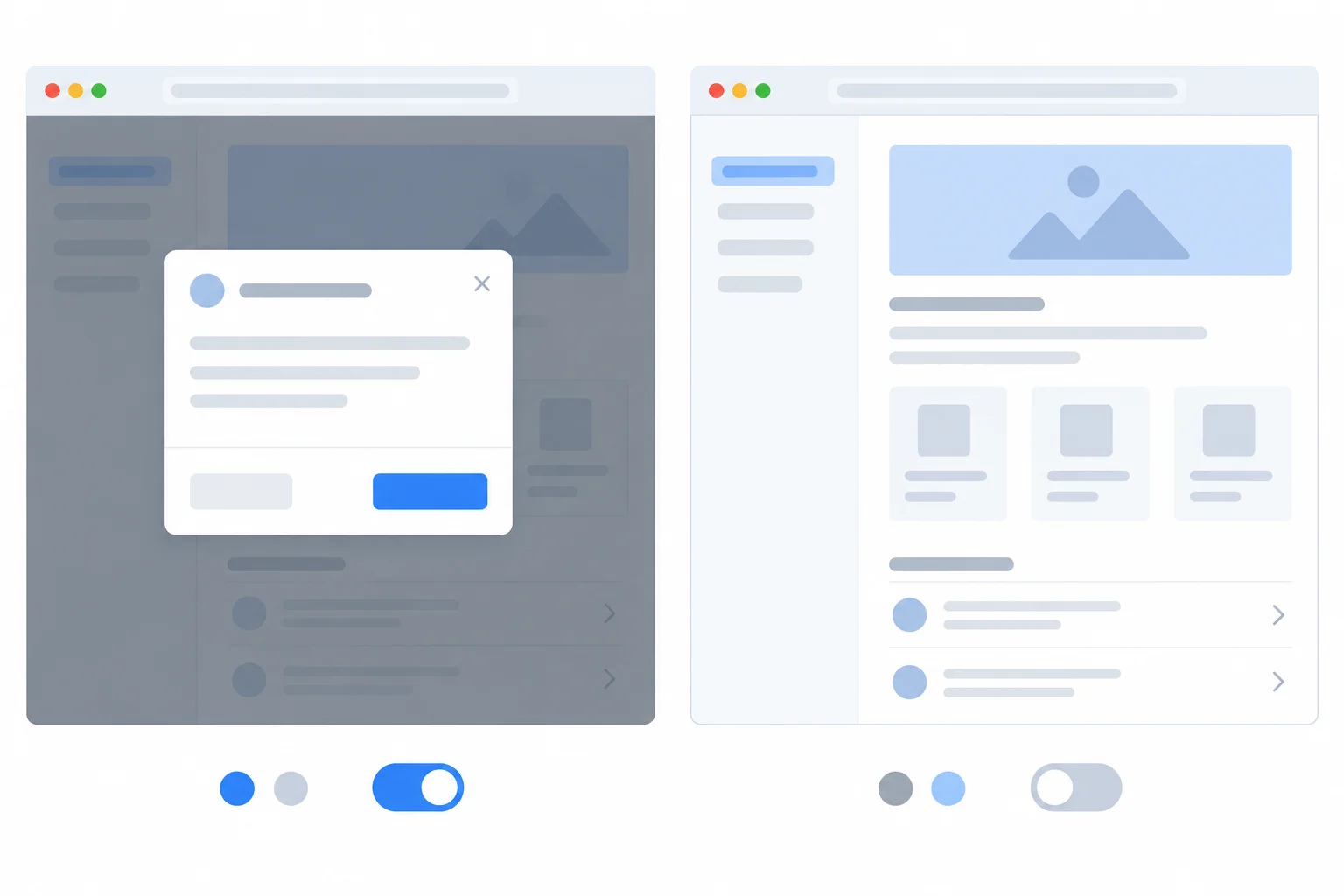
After each interaction settles, React's isOpen value and the native dialog.open value agree: both open or both closed.
Tip
The heading gives the dialog its accessible name through aria-labelledby="settings-title". Keep the native dialog's keyboard behavior; do not add a custom focus trap. The Close button requests a React state change, while Escape closes the native dialog and then its onClose handler requests the matching state change.
Complete the state-to-dialog Effect and guarded native-close handler. Then complete the settled (isOpen, dialog.open) pair after opening, after either dismissal path, and after reopening.
useEffect(() => {
  const dialog = dialogRef.current;
  if (!dialog) {
    return;
  }

  if (isOpen) {
    if (!dialog.open) {
      dialog.();
    }
  } else if (dialog.open) {
    dialog.close();
  }

  return () => {
    if (dialog.open) {
      dialog.close();
    }
  };
}, );

<dialog
  ref={dialogRef}
  aria-labelledby="settings-title"
  onClose={(event) => {
    if (!event.currentTarget.open) {
      ();
    }
  }}
/>

// Settled state pairs are (isOpen, dialog.open).
// After Open settings:
// After Close or Escape:
// After reopening: 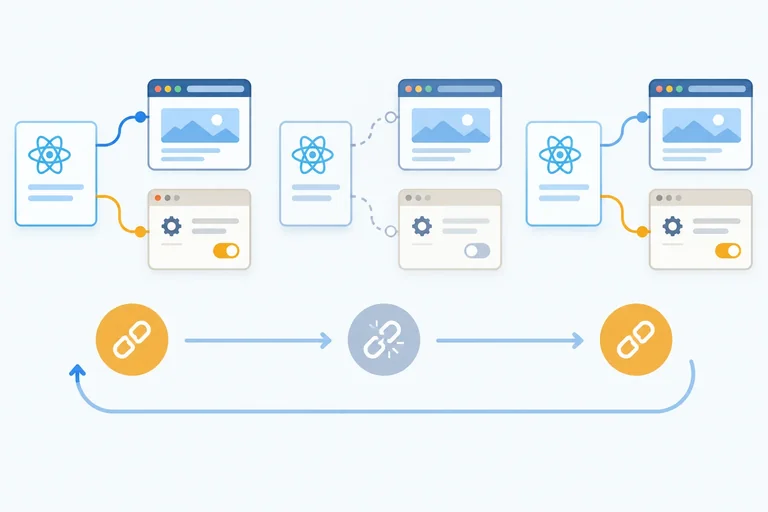
Step 8 of 9
Use development Strict Mode replay, browser logs, and an initially-open dialog check to verify that Effects release and replace external resources correctly.
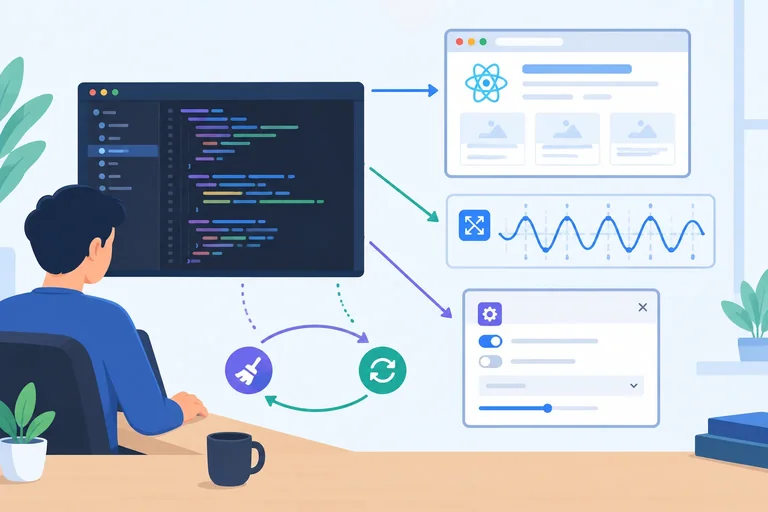
With the root StrictMode wrapper enabled in development, React checks a newly mounted Effect by running an extra lifecycle sequence:
setup -> cleanup -> setup
Treat this as a resource-lifetime check. A correct listener subscription survives the replay with one active callback: the first setup acquires it, cleanup releases it, and the replacement setup acquires a fresh one.
This is a development check, not a promise that every update runs twice. Production behavior is different.
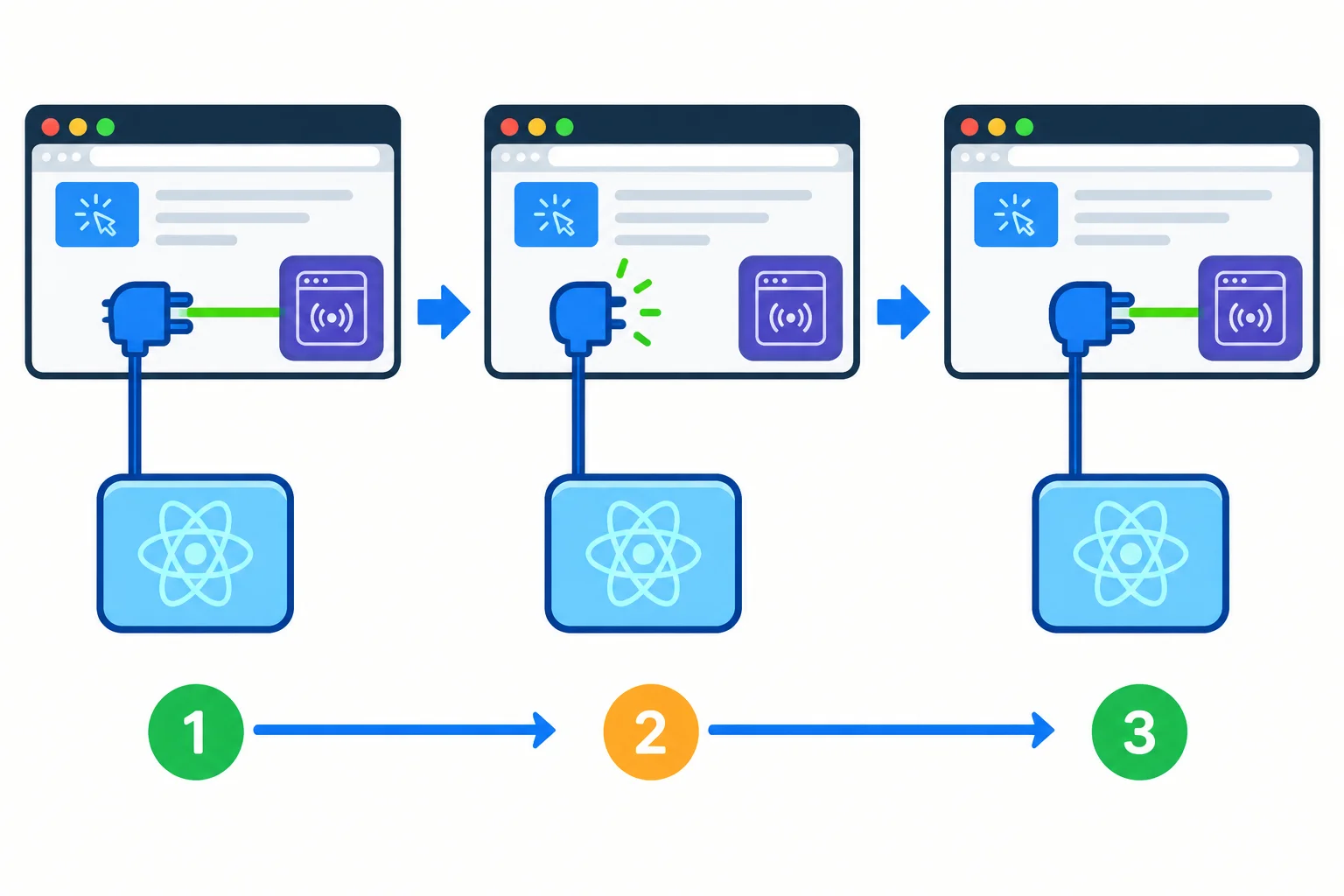
The development replay should finish with one active resource, not two.
Use console logs as runtime evidence about the listener lifetime. In ResizeMonitor, setup and cleanup logs should form a matched sequence. The callback logs the label captured by its own setup.
After the mount replay has finished, dispatch one event from the browser console. One dispatched event should produce one resize line while the monitor is mounted.
npm run lint can report static issues such as react-hooks/exhaustive-deps, but it cannot prove that a browser listener was removed or that a native browser event behaved correctly. Check both lint and the running browser.
The listener setup and cleanup should remain paired in src/ResizeMonitor.tsx.
useEffect(() => {
  function handleResize(): void {
    console.log('resize', label, `${window.innerWidth}px`);
  }

  console.log('setup', label);
  window.addEventListener('resize', handleResize);

  return () => {
    console.log('cleanup', label);
    window.removeEventListener('resize', handleResize);
  };
}, [label]);After npm run dev and after the initial replay has settled, enter this once in the browser console.
window.dispatchEvent(new Event('resize'));resize Preview 960px
The width depends on your browser viewport. The important evidence is one resize line for one dispatched event.
Also test an initially-open native dialog after a full reload. For this verification only, temporarily initialize isOpen to true in src/App.tsx:
const [isOpen, setIsOpen] = useState(true);
During development replay, dialog cleanup can call close(), whose native close notification may be queued. Replacement setup can reopen the dialog before that notification is handled. The onClose event handler must not turn the newly reopened dialog back into closed React state.
After reload and queued events settle, the Settings dialog should still be open. Restore the normal initial value of false after this focused check.
Keep the guarded native close feedback on the dialog. It checks the dialog's current state when the event handler runs.
<dialog
  ref={dialogRef}
  aria-labelledby="settings-title"
  onClose={(event) => {
    if (!event.currentTarget.open) {
      onDismiss();
    }
  }}
>
Tip
Do not remove StrictMode and do not add a run-once ref to hide repeated setup. Those changes conceal the lifecycle check instead of showing whether cleanup is complete. Runtime logs, one-event checks, and dialog behavior complement static lint results.
During an initially-open verification after a full reload in development, the console shows setup Preview -> cleanup Preview -> setup Preview. One dispatched resize event then produces one resize Preview 960px line. Which conclusion and repair are correct after queued native events settle?
Step 9 of 9
Integrate, repair, and locally verify complete React Effect synchronization in Sync Lab.
Before installing the repaired files, inspect this compact faulty sketch. It isolates the Effect boundaries to review; it is not a runnable component.
For each boundary, ask:
The repaired application will synchronize the browser title, one resize subscription, and one native dialog. It will not use an Effect for rendering calculations or button-click requests.
Faulty review sketch — do not copy this into the application.
useEffect(() => {
  document.title = `Sync Lab — ${label}`;
}, []);

useEffect(() => {
  function handleResize(): void {
    console.log('resize', label, `${window.innerWidth}px`);
  }

  window.addEventListener('resize', handleResize, false);
}, []);

useEffect(() => {
  if (isOpen) {
    dialogRef.current?.showModal();
  }
}, []);

<dialog ref={dialogRef} open={isOpen} onClose={onDismiss} />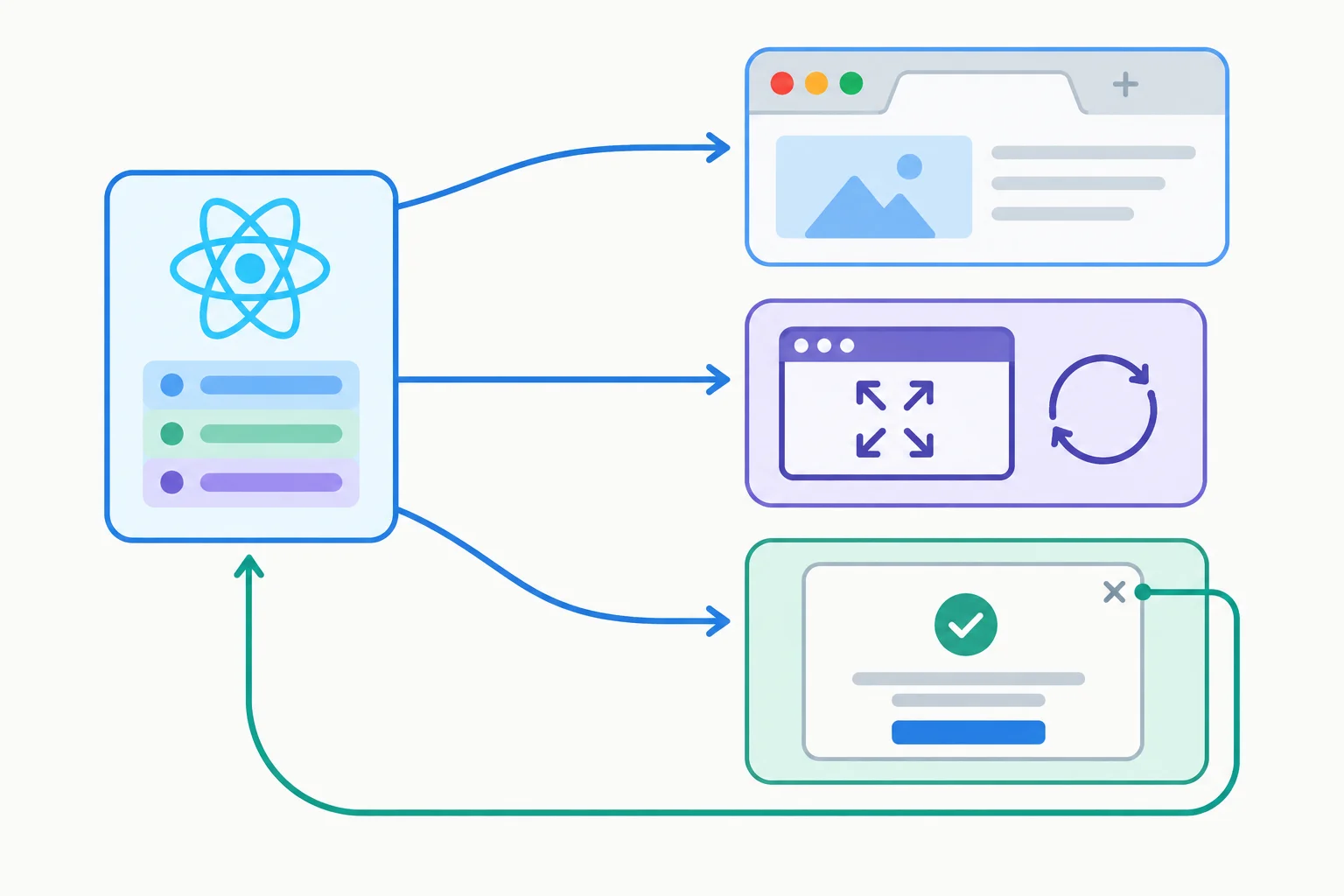
React sends current state to browser APIs; native dialog dismissal also has to request a matching React state update.
Complete the three targeted repairs: title dependency, listener cleanup, and guarded native dismissal feedback.
useEffect(() => {
  document.title = `Sync Lab — ${label}`;
}, []);

useEffect(() => {
  function handleResize(): void {
    console.log('resize', label, `${window.innerWidth}px`);
  }

  window.addEventListener('resize', handleResize, false);

  return () => {
    window.('resize', handleResize, false);
  };
}, [label]);

<dialog
  onClose={(event) => {
    if () {
      onDismiss();
    }
  }}
/>Replace the following three files in your existing local project. Keep its existing entry point and root StrictMode wrapper. These files make App the owner of React state, while each Effect synchronizes only a browser-owned boundary.
The outputs describe representative browser and console evidence to compare with your local result.
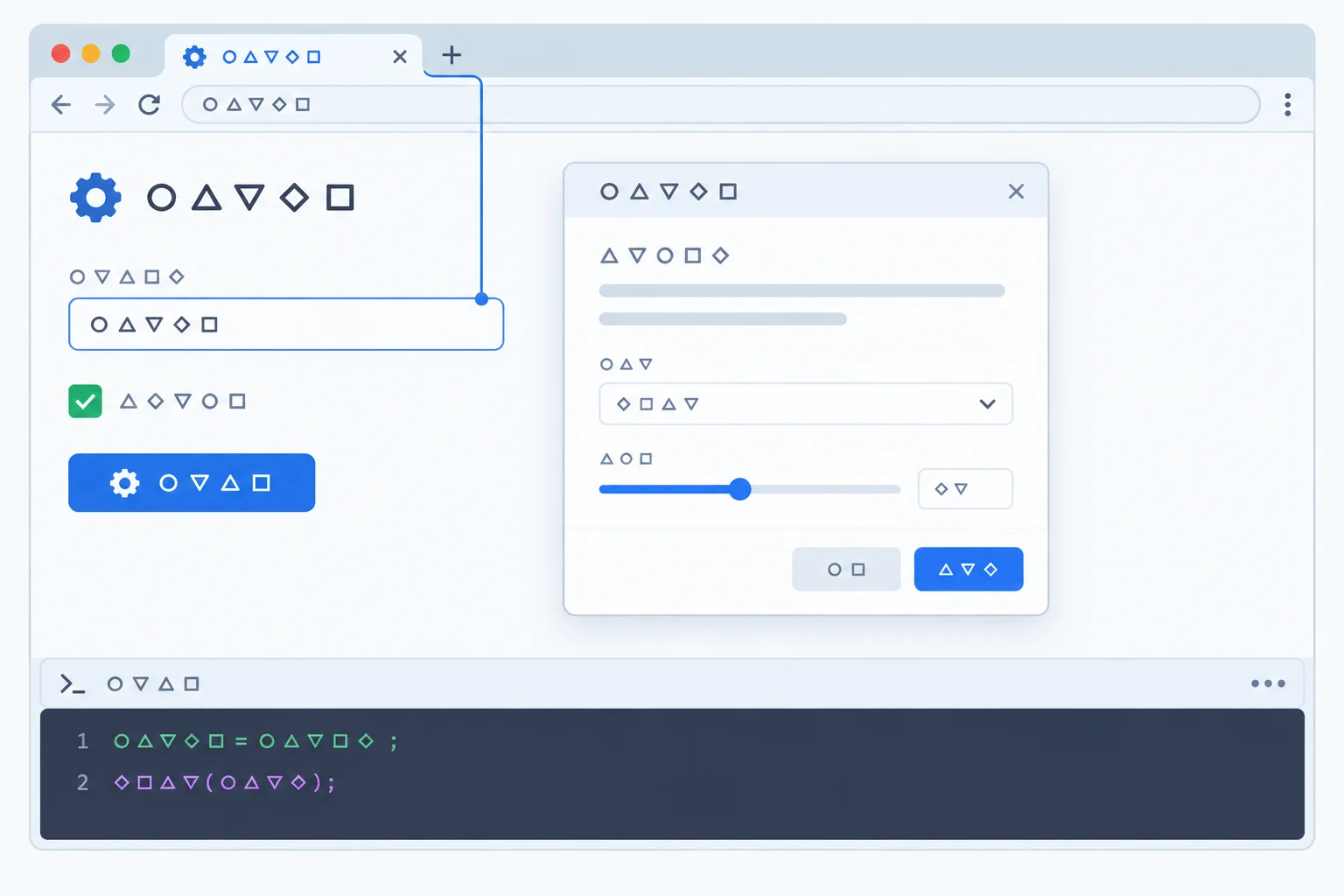
After the label changes, the browser tab and the active resize callback use the new value. The dialog is open only when React state requests it.
src/App.tsx
import { useEffect, useState } from 'react';
import { ResizeMonitor } from './ResizeMonitor';
import { SettingsDialog } from './SettingsDialog';

export default function App() {
  const [label, setLabel] = useState('Preview');
  const [showMonitor, setShowMonitor] = useState(true);
  const [isOpen, setIsOpen] = useState(false);

  useEffect(() => {
    document.title = `Sync Lab — ${label}`;
  }, [label]);

  return (
    <main>
      <h1>Sync Lab</h1>

      <label htmlFor="label">Label</label>
      <input
        id="label"
        value={label}
        onChange={(event) => setLabel(event.currentTarget.value)}
      />

      <label>
        <input
          type="checkbox"
          checked={showMonitor}
          onChange={(event) => setShowMonitor(event.currentTarget.checked)}
        />
        Show resize monitor
      </label>

      <button type="button" onClick={() => setIsOpen(true)}>
        Open settings
      </button>

      {showMonitor && <ResizeMonitor label={label} />}
      <SettingsDialog isOpen={isOpen} onDismiss={() => setIsOpen(false)} />
    </main>
  );
}Initial browser tab title: Sync Lab — Preview After entering Details in Label: Sync Lab — Details
The displayed input value changes as you type. The title update occurs after the relevant committed render; it is not a promise about browser paint timing.
src/ResizeMonitor.tsx
import { useEffect } from 'react';

type ResizeMonitorProps = { label: string };

export function ResizeMonitor({ label }: ResizeMonitorProps) {
  useEffect(() => {
    const options = { capture: false };

    function handleResize(): void {
      console.log('resize', label, `${window.innerWidth}px`);
    }

    console.log('setup', label);
    window.addEventListener('resize', handleResize, options);

    return () => {
      console.log('cleanup', label);
      window.removeEventListener('resize', handleResize, options);
    };
  }, [label]);

  return <p>Monitoring: {label}</p>;
}setup Preview cleanup Preview setup Preview resize Preview 960px cleanup Preview setup Details resize Details 960px cleanup Details
Console ordering includes the development Strict Mode mount replay, so the initial setup/cleanup lines can appear before your first manual check. Viewport width varies; `960px` is an example. After the replay settles, one dispatched event produces one resize line while mounted.
src/SettingsDialog.tsx
import { useEffect, useRef } from 'react';

type SettingsDialogProps = {
  isOpen: boolean;
  onDismiss: () => void;
};

export function SettingsDialog({ isOpen, onDismiss }: SettingsDialogProps) {
  const dialogRef = useRef<HTMLDialogElement | null>(null);

  useEffect(() => {
    const dialog = dialogRef.current;
    if (!dialog) {
      return;
    }

    if (isOpen) {
      if (!dialog.open) {
        dialog.showModal();
      }
    } else if (dialog.open) {
      dialog.close();
    }

    return () => {
      if (dialog.open) {
        dialog.close();
      }
    };
  }, [isOpen]);

  return (
    <dialog
      ref={dialogRef}
      aria-labelledby="settings-title"
      onClose={(event) => {
        if (!event.currentTarget.open) {
          onDismiss();
        }
      }}
    >
      <h2 id="settings-title">Settings</h2>
      <button type="button" onClick={onDismiss}>
        Close
      </button>
    </dialog>
  );
}Initial settled state: isOpen false, dialog.open false After Open settings: isOpen true, dialog.open true After Close button or Escape: isOpen false, dialog.open false After reopening: isOpen true, dialog.open true Initially-open Strict Mode check after settling: isOpen true, dialog.open true
Check settled states after native close events have been handled. For the initially-open Strict Mode verification, temporarily initialize `isOpen` to `true`, fully reload, confirm the final open state, then restore the required initial value of `false`.
From the project folder, run npm run dev and keep the browser console visible. Record concise evidence for each check:
Preview to Details; inspect the tab title, then dispatch window.dispatchEvent(new Event('resize')); once.npm run lint and npx tsc --noEmit.useState(true), fully reload under Strict Mode, observe the settled dialog state, then restore useState(false).Report your observations. Also explain one synchronization defect that clean react-hooks/exhaustive-deps lint and TypeScript output alone would not rule out.
Write at least 350 characters (0/350).
Summary
Congratulations! You completed: Synchronize External Systems with React Effects
You completed this level!
Up next: Application Architecture and Routing
 Build Accessible Client-Side Routes with React RouterCreate multiple URL-addressable views in a local React application with persistent navigation. Make page changes understandable through active links, document titles, and deliberate keyboard-focus behavior.
Thousands of online courses in video, ebooks and audiobooks.
To test your knowledge during online courses
Generated directly from your cell phone's photo gallery and sent to your email

Download our app via QR Code or the links below:.



Carry knowledge in your pocket.
Download the Cursa app.
There are hundreds of free courses available, with a free certificate of completion that is saved in your mobile image gallery.
Download the app to access the Course Completion Certificate for Free.


+ 10 million
students

Free and Valid
Certificate

60 thousand free
exercises

4.8/5 rating in
app stores

Free courses in
video and ebooks