Step 1 of 8
Identify What Must Change After a Save
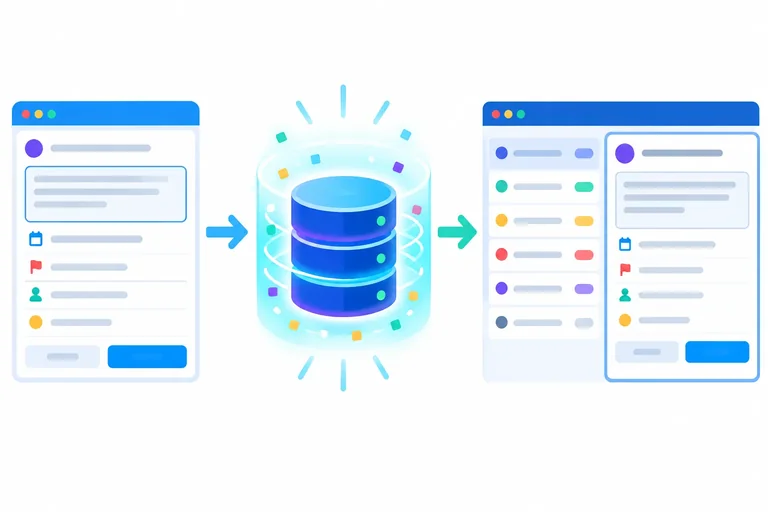
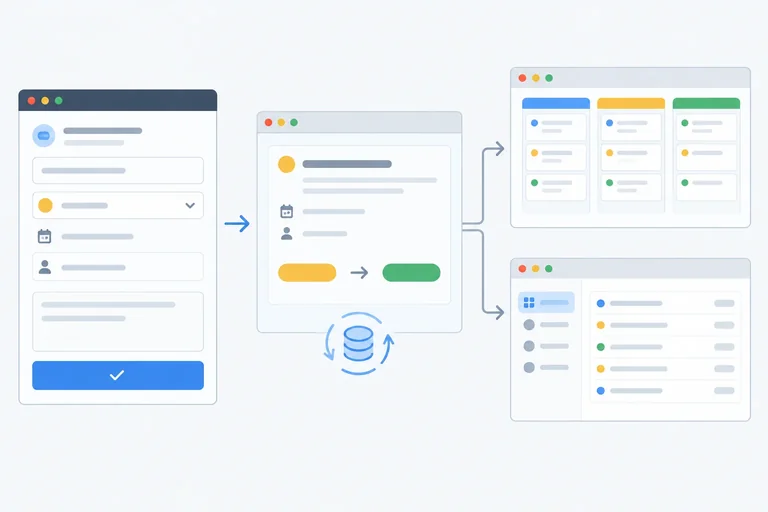
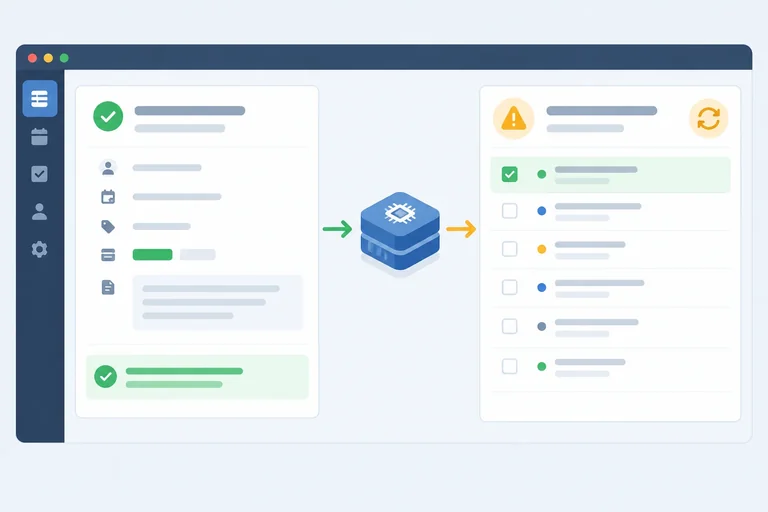
Trace a Task Board edit from the editable draft to the simulated source and separately cached routed views.

Learning path · Level 10 · Tutorial 9
Keep routed views consistent after a data update by coordinating mutations with cache updates and refreshes. Practice reads and writes with an in-memory adapter you create locally, handling failure and recovery without claiming server persistence.
 Identify What Must Change After a Save
Trace a Task Board edit from the editable draft to the simulated source and separately cached routed views. 2 min
Identify What Must Change After a Save
Trace a Task Board edit from the editable draft to the simulated source and separately cached routed views. 2 min
 Connect Reads and Writes to One Local Adapter
Replace static task reads with one typed browser-only in-memory adapter, then connect routed list and detail queries to it. 5 min
Connect Reads and Writes to One Local Adapter
Replace static task reads with one typed browser-only in-memory adapter, then connect routed list and detail queries to it. 5 min
 Submit the Draft as a Mutation
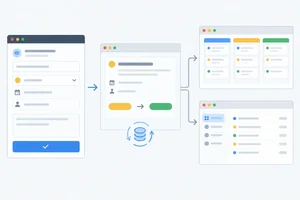
Save a typed Task Board form draft through a guarded TanStack Query mutation while keeping the confirmed in-memory write distinct from cached routed views. 4 min
Submit the Draft as a Mutation
Save a typed Task Board form draft through a guarded TanStack Query mutation while keeping the confirmed in-memory write distinct from cached routed views. 4 min
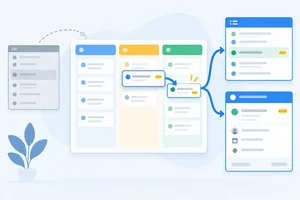 Invalidate the Views Affected by the Update
Refresh all affected cached task views after a confirmed update by invalidating list variants and the edited detail entry. 3 min
Invalidate the Views Affected by the Update
Refresh all affected cached task views after a confirmed update by invalidating list variants and the edited detail entry. 3 min
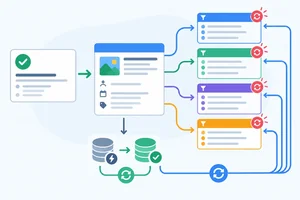 Use Confirmed Results Where They Are Sufficient
Use a confirmed mutation result to update the exact detail cache safely, while invalidating broader list views that need a refresh. 3 min
Use Confirmed Results Where They Are Sufficient
Use a confirmed mutation result to update the exact detail cache safely, while invalidating broader list views that need a refresh. 3 min
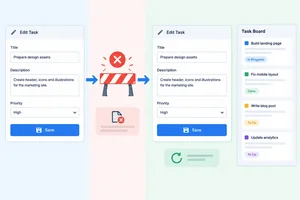 Recover from a Rejected Write Without Losing Input
Preserve an editable form draft and confirmed routed data when the local in-memory adapter rejects a write, then recover through one deliberate resubmission. 2 min
Recover from a Rejected Write Without Losing Input
Preserve an editable form draft and confirmed routed data when the local in-memory adapter rejects a write, then recover through one deliberate resubmission. 2 min
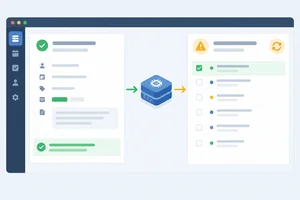 Separate Save Success from Refresh Failure
Handle a failed follow-up list refresh as a synchronization outcome after a confirmed write, then recover through an awaited read-only refresh. 3 min
Separate Save Success from Refresh Failure
Handle a failed follow-up list refresh as a synchronization outcome after a confirmed write, then recover through an awaited read-only refresh. 3 min
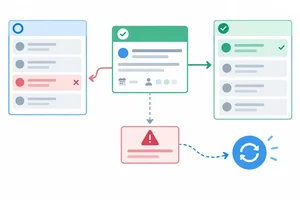 Verify the Complete Save and Recovery Flow
Verify the completed mutation, cache synchronization, failure recovery, and reload behavior in the local Task Board application. 4 min
Verify the Complete Save and Recovery Flow
Verify the completed mutation, cache synchronization, failure recovery, and reload behavior in the local Task Board application. 4 min
Step 1 of 8
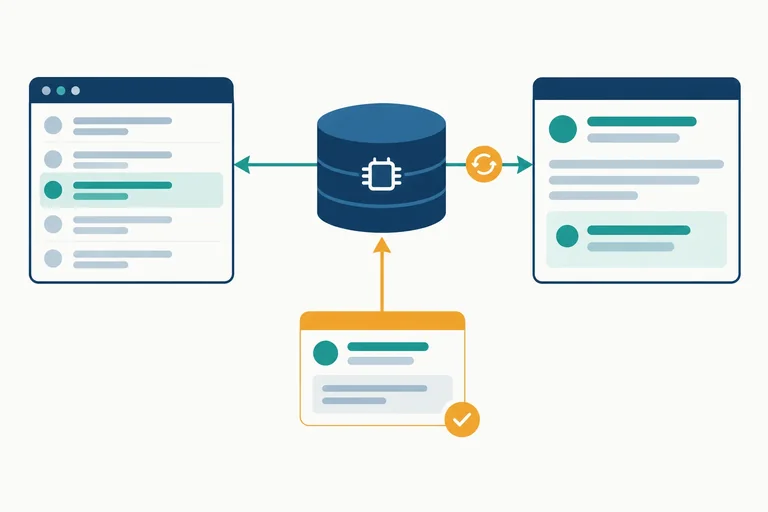
Trace a Task Board edit from the editable draft to the simulated source and separately cached routed views.
A mutation is a user-triggered write: for example, submitting an edit for t1 from a Task Board form. Its lifecycle is separate from the cached query reads already used by the routed list and detail views.
Keep three responsibilities distinct:
So a Save action is not the same operation as refreshing what the list and detail currently display.
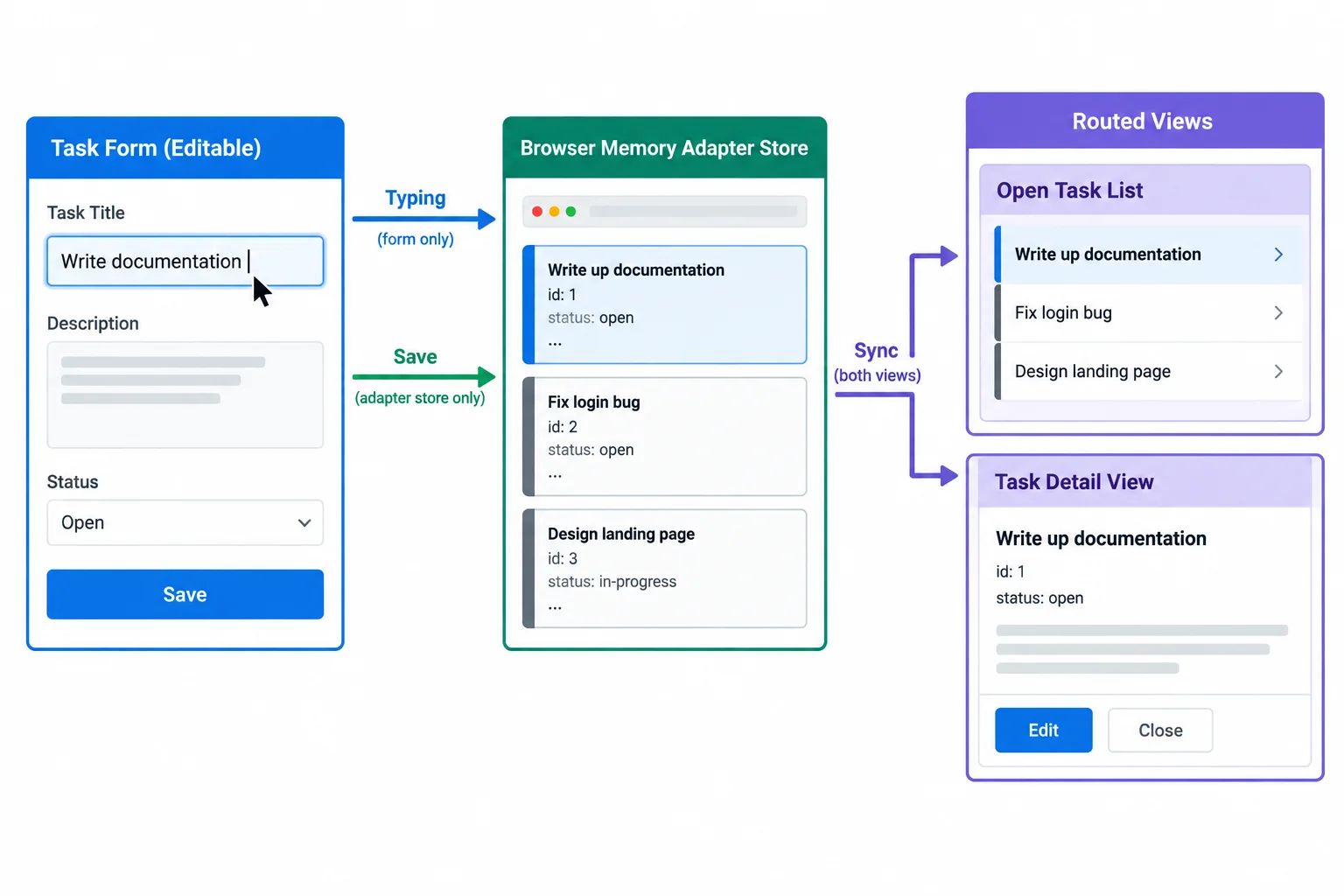
A confirmed write and cache synchronization are separate steps.
Imagine the open list remains mounted at /tasks?status=open while its nested selected detail is open at /tasks/t1?status=open.
After an edit is confirmed, the adapter store can contain the new task while the cached open list and cached detail still show earlier query results. A successful write does not automatically update every separately cached result.
This matters especially when an edit changes a task’s status: the task may need to disappear from one filtered list and appear in another. Later steps will add the synchronization behavior that keeps these routed views current.
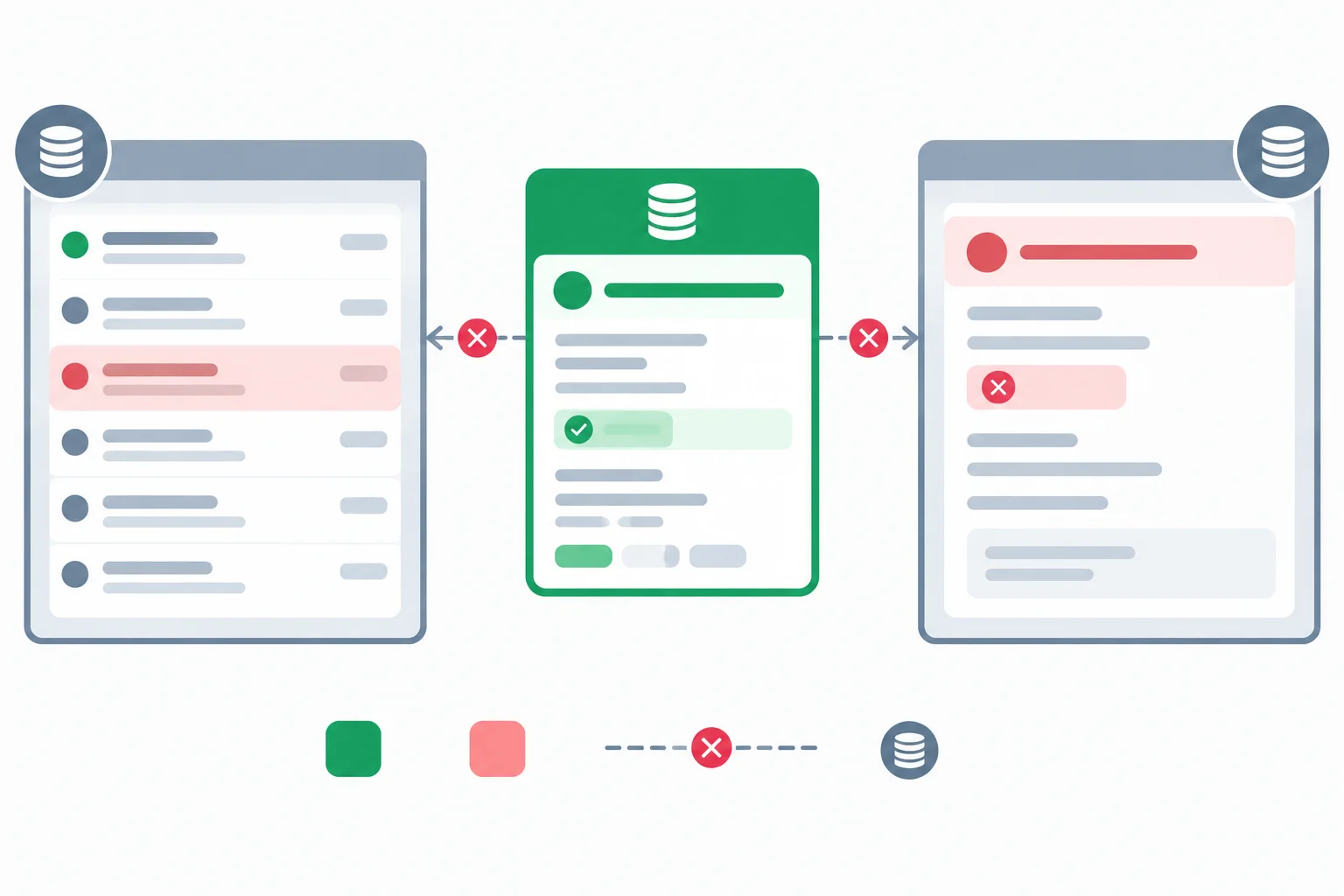
The source can be updated before independently cached views are refreshed.
Warning
A Vite-served JSON file is a read-only HTTP resource from the browser’s perspective. Client-side mutation code can request and use it, but cannot rewrite that file.
For this tutorial, reads and writes will instead use a browser-only in-memory adapter. Its adapter store is useful for practicing the full flow locally, but it is not durable storage: reloading the page restores the seed data. No persistent server record is created.
Tip
Do not infer persistence from a changed screen. In this tutorial, a changed screen can reflect a confirmed write to browser memory and synchronized cached views—but a browser reload removes that simulated change.
Match each event or resource to its outcome.
Tap an item and then its matching pair.

Step 2 of 8
Replace static task reads with one typed browser-only in-memory adapter, then connect routed list and detail queries to it.
Your routed views must read from the same source that later receives updates. In Task Board, that source is a browser-only in-memory adapter. It owns a module-scoped adapter store: list reads, detail reads, and writes all pass through it.
Do not leave an old Vite static JSON read in either query. A write to an in-memory adapter cannot modify a static JSON resource, so mixing those sources would make routed views disagree.
The adapter store is a local simulation. Reloading the browser recreates its seed data.
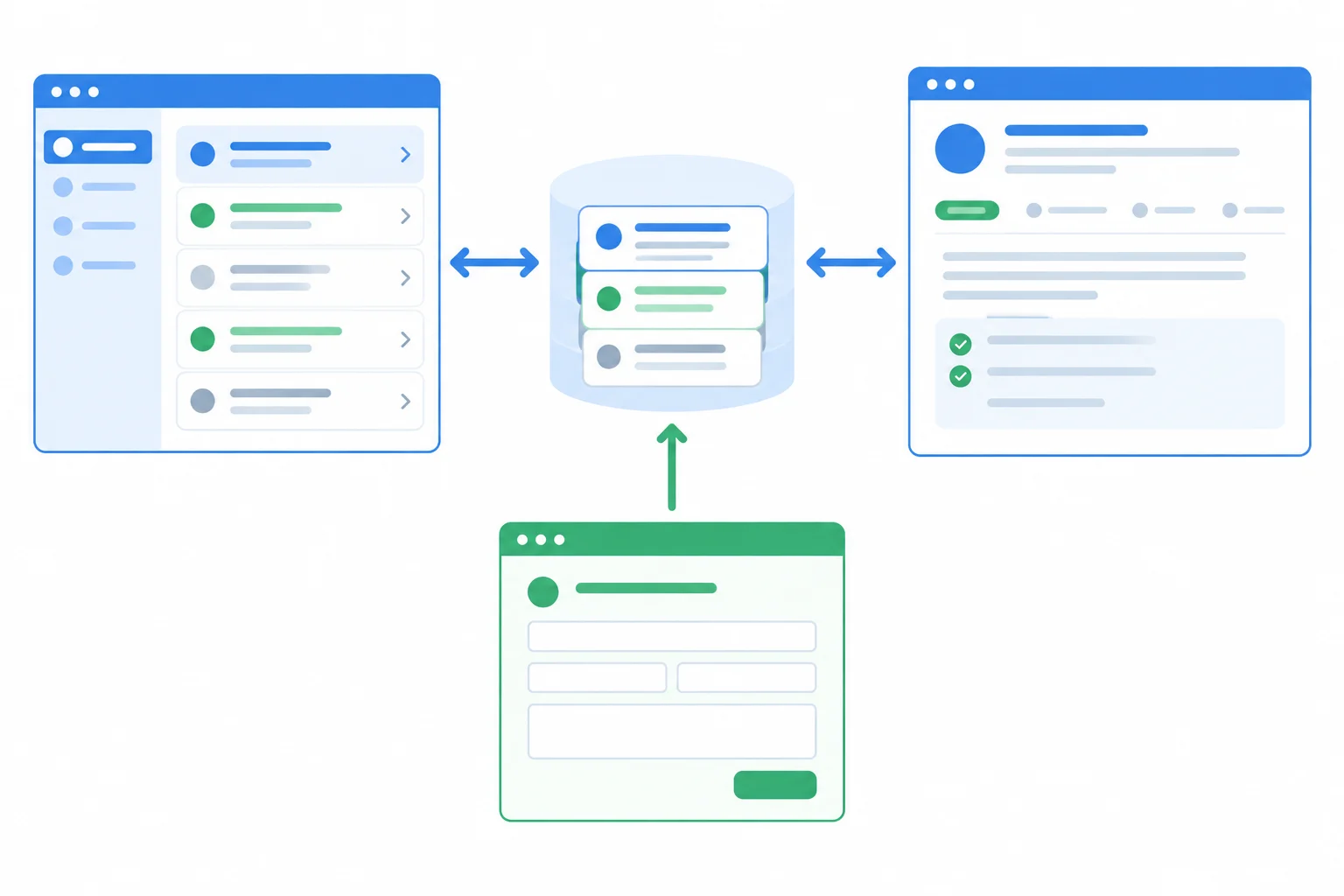
Both routed views read from one adapter store; a later editor will write to that same store.
Tip
Create the tutorial-specific files under src/features/tasks/ in your own Vite project. Keep the Router and QueryClient providers from the previous tutorial. This step replaces the task data-access path and connects the existing task routes to typed queries.
Define the shared contracts first. TaskDraft describes editable fields; UpdateTaskInput adds the identity needed by an update. The adapter returns a complete Task, not only the submitted draft.
Create this file.
export type TaskStatus = 'open' | 'done';
export type TaskFilter = 'all' | 'open' | 'done';

export type Task = {
  id: string;
  title: string;
  status: TaskStatus;
};

export type TaskDraft = Pick<Task, 'title' | 'status'>;
export type UpdateTaskInput = TaskDraft & { id: string };Start the adapter module with its module-scoped store, failure configuration, cancellable delay, and copying helper. The 400 ms delay makes local reads and writes observably asynchronous. A copied result prevents a consumer from changing the adapter store through a shared object reference.
import type {
  Task,
  TaskFilter,
  UpdateTaskInput,
} from './types';

let adapterStore: Task[] = [
  { id: 't1', title: 'Review navigation', status: 'open' },
  { id: 't2', title: 'Update help text', status: 'done' },
];

let demoFailures = { writes: false, reads: false };

export function setDemoFailures(next: {
  writes: boolean;
  reads: boolean;
}) {
  demoFailures = { ...next };
}

function delay(ms: number, signal?: AbortSignal): Promise<void> {
  if (signal?.aborted) {
    return Promise.reject(new DOMException('Read aborted', 'AbortError'));
  }

  return new Promise((resolve, reject) => {
    const abort = () => {
      window.clearTimeout(timer);
      reject(new DOMException('Read aborted', 'AbortError'));
    };
    const timer = window.setTimeout(() => {
      signal?.removeEventListener('abort', abort);
      resolve();
    }, ms);
    signal?.addEventListener('abort', abort, { once: true });
  });
}

function copyTask(task: Task): Task {
  return { ...task };
}Append these operations to taskAdapter.ts. Both reads retain the optional AbortSignal. Every fulfilled read returns copies. An update validates its input, trims the title, stores the complete record, and returns another copy. A configured rejected write occurs before any adapter-store assignment.
export async function getTasks(
  status: TaskFilter,
  signal?: AbortSignal,
): Promise<Task[]> {
  await delay(400, signal);
  if (demoFailures.reads) {
    throw new Error('The in-memory adapter rejected this read.');
  }

  const tasks = status === 'all'
    ? adapterStore
    : adapterStore.filter((task) => task.status === status);

  return tasks.map(copyTask);
}

export async function getTask(
  id: string,
  signal?: AbortSignal,
): Promise<Task> {
  await delay(400, signal);
  if (demoFailures.reads) {
    throw new Error('The in-memory adapter rejected this read.');
  }

  const task = adapterStore.find((entry) => entry.id === id);
  if (!task) {
    throw new Error(`Task ${id} was not found.`);
  }

  return copyTask(task);
}

export async function updateTask(input: UpdateTaskInput): Promise<Task> {
  await delay(400);
  if (demoFailures.writes) {
    throw new Error('The in-memory adapter rejected this write.');
  }
  if (input.title.trim().length === 0) {
    throw new Error('Task title is required.');
  }
  if (input.status !== 'open' && input.status !== 'done') {
    throw new Error('Task status is invalid.');
  }

  const index = adapterStore.findIndex((task) => task.id === input.id);
  if (index === -1) {
    throw new Error(`Task ${input.id} was not found.`);
  }

  const savedTask: Task = {
    ...input,
    title: input.title.trim(),
  };

  adapterStore[index] = savedTask;
  return copyTask(savedTask);
}Add persistent simulation switches to src/features/tasks/DemoControls.tsx. While this component remains mounted in the layout, its switch state remains available while navigating between the list and nested detail. Each change updates the adapter configuration; it does not itself submit or refresh anything.
import { useState } from 'react';
import { setDemoFailures } from './taskAdapter';

export function DemoControls() {
  const [writes, setWrites] = useState(false);
  const [reads, setReads] = useState(false);

  function changeWrites(nextWrites: boolean) {
    setWrites(nextWrites);
    setDemoFailures({ writes: nextWrites, reads });
  }

  function changeReads(nextReads: boolean) {
    setReads(nextReads);
    setDemoFailures({ writes, reads: nextReads });
  }

  return (
    <fieldset>
      <legend>Local simulation</legend>
      <label>
        <input
          type='checkbox'
          checked={writes}
          onChange={(event) => changeWrites(event.currentTarget.checked)}
        />
        Reject writes
      </label>
      <label>
        <input
          type='checkbox'
          checked={reads}
          onChange={(event) => changeReads(event.currentTarget.checked)}
        />
        Reject reads
      </label>
    </fieldset>
  );
}Both query hooks import their reads from the adapter. The key factory includes the list prefix needed later; this step only establishes consistent typed reads. Tutorial queries use no automatic retries or window-focus refreshes so local behavior remains reproducible.
import { useQuery } from '@tanstack/react-query';
import { getTask, getTasks } from './taskAdapter';
import type { TaskFilter } from './types';

export const taskKeys = {
  lists: () => ['tasks', 'list'] as const,
  list: (status: TaskFilter) => ['tasks', 'list', { status }] as const,
  detail: (id: string) => ['tasks', 'detail', id] as const,
};

export function useTasks(status: TaskFilter) {
  return useQuery({
    queryKey: taskKeys.list(status),
    queryFn: ({ signal }) => getTasks(status, signal),
    retry: false,
    refetchOnWindowFocus: false,
  });
}

export function useTask(taskId: string) {
  return useQuery({
    queryKey: taskKeys.detail(taskId),
    queryFn: ({ signal }) => getTask(taskId, signal),
    enabled: taskId.length > 0,
    retry: false,
    refetchOnWindowFocus: false,
  });
}Use the list query and render DemoControls in the parent layout. The nested route renders through Outlet, so this list and the local simulation controls remain mounted when a detail is open. Links preserve the selected status.
import { Link, Outlet, useSearchParams } from 'react-router-dom';
import { DemoControls } from './DemoControls';
import { useTasks } from './taskQueries';
import type { TaskFilter } from './types';

function readStatus(value: string | null): TaskFilter {
  return value === 'open' || value === 'done' ? value : 'all';
}

export function TaskLayout() {
  const [searchParams] = useSearchParams();
  const status = readStatus(searchParams.get('status'));
  const { data: tasks = [], isPending, isError } = useTasks(status);
  const search = `?status=${status}`;

  return (
    <section>
      <h1>Task Board</h1>
      <DemoControls />
      {isPending && <p>Loading tasks…</p>}
      {isError && <p role='alert'>Could not load tasks.</p>}
      <ul>
        {tasks.map((task) => (
          <li key={task.id}>
            <Link to={`/tasks/${task.id}${search}`}>{task.title}</Link>
          </li>
        ))}
      </ul>
      <Outlet />
    </section>
  );
}Use the detail query for the taskId route parameter. The link back to the list preserves the existing search parameters, including status=open. A later step adds the editor after this query has supplied a task.
import { Link, useParams, useSearchParams } from 'react-router-dom';
import { useTask } from './taskQueries';

export function TaskDetails() {
  const { taskId } = useParams<{ taskId: string }>();
  const [searchParams] = useSearchParams();
  const taskQuery = useTask(taskId ?? '');
  const search = searchParams.toString();
  const listPath = search ? `/tasks?${search}` : '/tasks';

  if (!taskId) return <p role='alert'>Invalid task route.</p>;
  if (taskQuery.isPending) return <p>Loading task…</p>;
  if (taskQuery.isError || !taskQuery.data) {
    return <p role='alert'>Could not load this task.</p>;
  }

  const task = taskQuery.data;
  return (
    <article>
      <h2>{task.title}</h2>
      <p>Status: {task.status}</p>
      <Link to={listPath}>Back to tasks</Link>
    </article>
  );
}Inside your existing Routes component, replace the prior task-route section with this nested route structure. It keeps TaskLayout mounted at /tasks/t1?status=open.
<Route path='tasks' element={<TaskLayout />}>
  <Route path=':taskId' element={<TaskDetails />} />
</Route>At /tasks?status=open, getTasks receives open and returns a copied filtered array from the adapter store. Selecting t1 moves to /tasks/t1?status=open; the layout stays mounted while getTask('t1') supplies the selected detail. Both results originate in taskAdapter.ts, not a static JSON file.
Complete the typed adapter-to-query connections.
export function useTasks(status: TaskFilter) {
  return useQuery({
    queryKey: ,
    queryFn: ({ signal }) => ,
    retry: false,
    refetchOnWindowFocus: false,
  });
}

export function useTask(taskId: string) {
  return useQuery({
    queryKey: ,
    queryFn: ({ signal }) => ,
    retry: false,
    refetchOnWindowFocus: false,
  });
}In your local app, visit /tasks?status=open, then select t1 to reach /tasks/t1?status=open. Verify the visible seed record or records, then use the Reject reads and Reject writes controls only to confirm that both switches are present. Leave both switches off afterward. Report the titles you observed and the module that both query functions call.
Write at least 25 characters (0/25).
Step 3 of 8
Save a typed Task Board form draft through a guarded TanStack Query mutation while keeping the confirmed in-memory write distinct from cached routed views.
Submitting a form draft starts a mutation: a user-triggered write with a lifecycle separate from cached query reads. The input combines the selected task ID with the current draft.
When updateTask resolves, the adapter store has a confirmed write. That does not yet replace query results already cached for the routed list or detail view. At this point, the editor can truthfully say Saved while those routed views still render their earlier cached data.
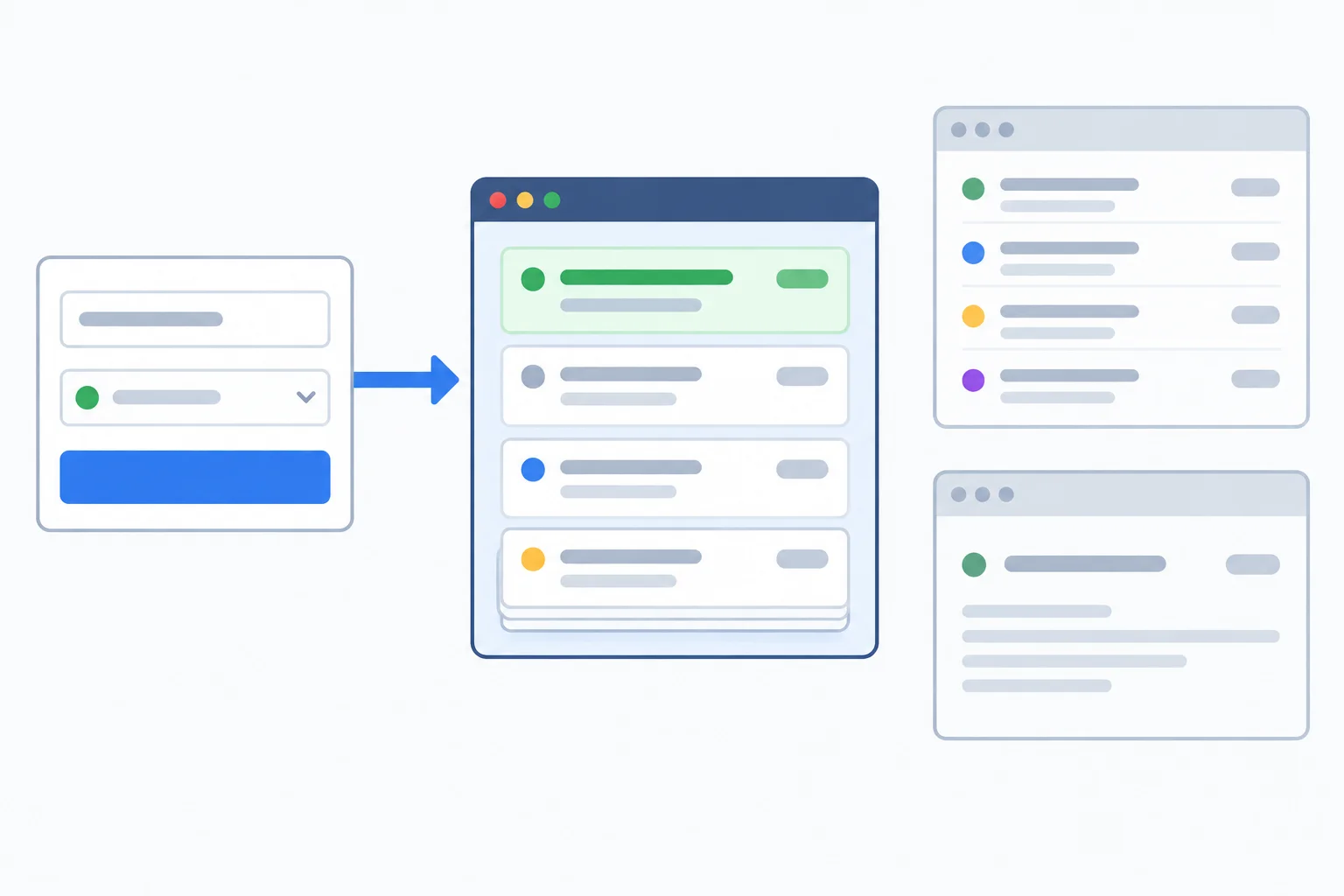
The mutation writes to the adapter store. Cached routed views remain separate until a later synchronization step.
Create src/features/tasks/useSaveTask.ts for the mutation behavior. mutationFn receives an UpdateTaskInput only when the user submits. retry: false keeps a save intentional: rendering and Effects must not repeat a write.
src/features/tasks/useSaveTask.ts
import { useMutation } from '@tanstack/react-query';
import { updateTask } from './taskAdapter';

export function useSaveTask() {
  const saveTask = useMutation({
    mutationFn: updateTask,
    retry: false,
  });

  return { saveTask };
}Create src/features/tasks/TaskEditor.tsx. Its draft is initialized when this editor mounts. It is not continuously copied from background query data, so typing remains owned by the controlled form.
saveTask.data is named savedTask: it is the confirmed result returned by the adapter. The status feedback describes the mutation outcome only; cache synchronization comes later.
TaskEditor.tsx — imports, draft, and submit handler
import { type FormEvent, useState } from 'react';
import type { Task, TaskDraft } from './types';
import { useSaveTask } from './useSaveTask';

type TaskEditorProps = { task: Task };

export function TaskEditor({ task }: TaskEditorProps) {
  const [draft, setDraft] = useState<TaskDraft>({
    title: task.title,
    status: task.status,
  });
  const { saveTask } = useSaveTask();
  const savedTask = saveTask.data;
  const isSaving = saveTask.isPending;

  function handleSubmit(event: FormEvent<HTMLFormElement>) {
    event.preventDefault();
    if (isSaving) return;

    saveTask.mutate({ id: task.id, ...draft });
}TaskEditor.tsx — append the returned form and closing brace
  return (
    <form onSubmit={handleSubmit} aria-busy={isSaving}>
      {isSaving ? (
        <p role='status' aria-live='polite'>Saving…</p>
      ) : saveTask.isError ? (
        <p role='alert'>Could not save. Your draft is unchanged.</p>
      ) : savedTask ? (
        <p role='status' aria-live='polite'>Saved</p>
      ) : null}

      <fieldset disabled={isSaving}>
        <label>
          Title
          <input
            value={draft.title}
            onChange={(event) => setDraft({
              ...draft,
              title: event.currentTarget.value,
            })}
          />
        </label>
        <label>
          Status
          <select
            value={draft.status}
            onChange={(event) => setDraft({
              ...draft,
              status: event.currentTarget.value as TaskDraft['status'],
            })}
          >
            <option value='open'>Open</option>
            <option value='done'>Done</option>
          </select>
        </label>
        <button type='submit'>
          {isSaving ? 'Saving…' : 'Save task'}
        </button>
      </fieldset>
    </form>
  );
}
Tip
The pending guard protects the write even if another submission is triggered before React finishes disabling controls. The disabled fieldset prevents further edits and clicks during the active write, while live status feedback keeps the state available to assistive technology.
The editor must be rendered inside the available-data branch of TaskDetails. The key changes editor identity only when task.id changes: navigating from one task to another creates a new draft, while a background result for the same task ID does not overwrite the current form draft.
src/features/tasks/TaskDetails.tsx
import { Link, useParams, useSearchParams } from 'react-router-dom';
import { TaskEditor } from './TaskEditor';
import { useTask } from './taskQueries';

export function TaskDetails() {
  const { taskId } = useParams<{ taskId: string }>();
  const [searchParams] = useSearchParams();
  const taskQuery = useTask(taskId ?? '');
  const search = searchParams.toString();
  const listPath = search ? `/tasks?${search}` : '/tasks';

  if (!taskId) return <p role='alert'>Invalid task route.</p>;
  if (taskQuery.isPending) return <p>Loading task…</p>;
  if (taskQuery.isError || !taskQuery.data) {
    return <p role='alert'>Could not load this task.</p>;
  }

  const task = taskQuery.data;
  return (
    <article>
      <h2>{task.title}</h2>
      <p>Status: {task.status}</p>
      <TaskEditor key={task.id} task={task} />
      <Link to={listPath}>Back to tasks</Link>
    </article>
  );
}
Tip
Try a title with leading or trailing spaces in your local Task Board. The successful adapter operation returns a complete savedTask with its title trimmed. The editor can report the confirmed write, but the list heading and detail heading still come from their existing cached query results for now.
Complete the mutation configuration and the guarded user submission.
const saveTask = useMutation({
  mutationFn: ,
  retry: false,
});

function handleSubmit(event: FormEvent<HTMLFormElement>) {
  event.preventDefault();
  if (saveTask.) return;

  saveTask.({ id: task.id, ...draft });
}After completing the code, explain in two or three sentences why a successful save can leave the adapter store with the saved task while the routed list or detail still shows its earlier value. Include the distinct responsibilities of the mutation and the query cache.
Write at least 110 characters (0/110).
Step 4 of 8
Refresh all affected cached task views after a confirmed update by invalidating list variants and the edited detail entry.
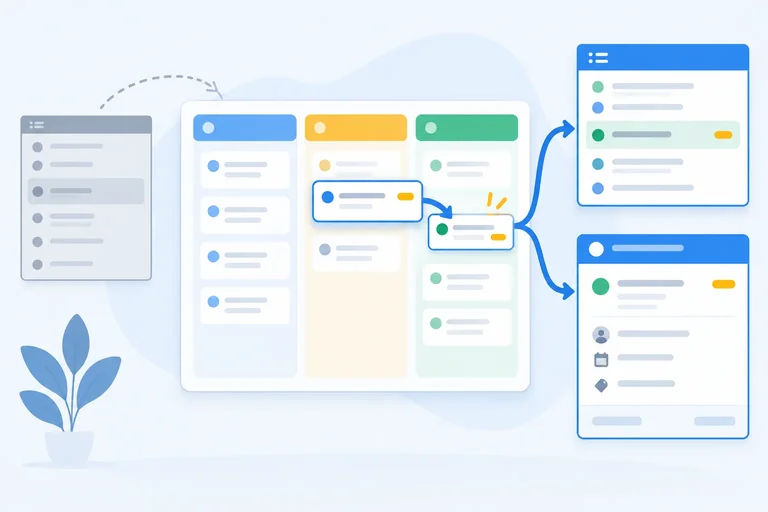
A confirmed write changes the adapter store. It does not automatically change every cached query that previously read that task.
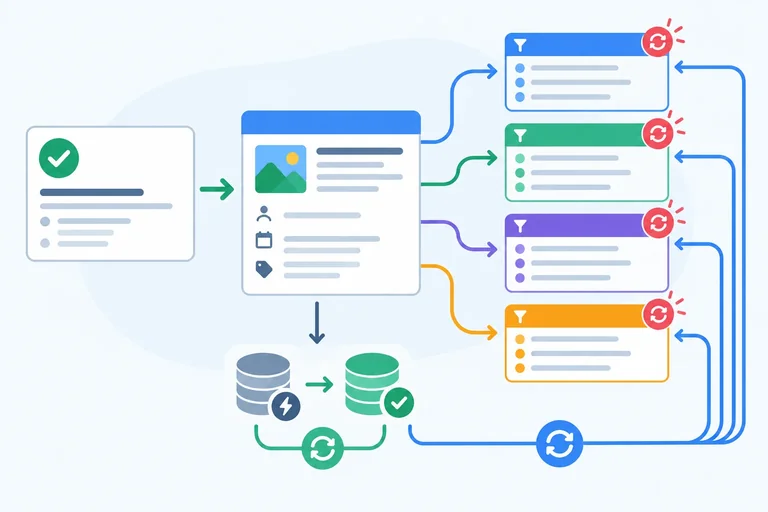
For t1, a status change can affect two kinds of routed views:
/tasks/t1?status=openopen, done, and allIn TaskLayout, the filtered list stays mounted while its nested detail route is open. That makes both views active candidates for a follow-up refresh.
A status change can alter filtered-list membership, so refreshing only the detail is not enough.
Put synchronization in the mutation hook's hook-level onSuccess callback. It receives savedTask only after updateTask confirms the write. Use that confirmed ID rather than relying on route state or the submitted draft.
taskKeys.lists() is a prefix: it matches cached lists for every status. The detail key uses exact: true so it targets only the one edited task.
src/features/tasks/useSaveTask.ts
import { useState } from 'react'
import { useMutation, useQueryClient } from '@tanstack/react-query'
import { updateTask } from './taskAdapter'
import { taskKeys } from './taskQueries'

export type SyncStatus = 'idle' | 'refreshing' | 'current' | 'failed'

export function useSaveTask() {
  const queryClient = useQueryClient()
  const [syncStatus, setSyncStatus] = useState<SyncStatus>('idle')

  const saveTask = useMutation({
    mutationFn: updateTask,
    retry: false,
    onMutate: () => setSyncStatus('idle'),
    onSuccess: async (savedTask) => {
      setSyncStatus('refreshing')

      await Promise.all([
        queryClient.invalidateQueries({
          queryKey: taskKeys.lists(),
        }),
        queryClient.invalidateQueries({
          queryKey: taskKeys.detail(savedTask.id),
          exact: true,
        }),
      ])

      setSyncStatus('current')
    },
  })

  return { saveTask, syncStatus }
}TaskEditor status and submission controls
const { saveTask, syncStatus } = useSaveTask()
const isRefreshing = saveTask.isPending && syncStatus === 'refreshing'

<p aria-live="polite">
  {saveTask.isPending
    ? isRefreshing
      ? 'Saved; refreshing views…'
      : 'Saving…'
    : syncStatus === 'current'
      ? 'Saved'
      : null}
</p>

<button type="submit" disabled={saveTask.isPending}>
  Save task
</button>Invalidation marks matching cache entries stale. It does not erase their useful data.
Because the open list and t1 detail are mounted, they normally begin refetching immediately. A cached done list that is not mounted is marked stale now and normally refreshes when a view starts using it later.
Tip
The await keeps saveTask.isPending true during the chosen follow-up synchronization. Therefore the interface can move from Saving… to Saved; refreshing views… before it reaches Saved.
Warning
This first version uses TanStack Query's default non-throwing refetch-error behavior for invalidation. A read refresh problem is not yet handled as a separate synchronization outcome; the next steps refine that behavior without treating it as a failed write.
Cache target
| Target | Key strategy | Expected result |
|---|---|---|
| All filtered lists | `taskKeys.lists()` prefix | Every cached status variant becomes stale |
| Edited task detail | Exact detail key for confirmed ID | Only that task's detail becomes stale |
| Active match | Same invalidation | Normally refetches immediately |
| Inactive match | Same invalidation | Normally refetches when used later |
t1 changes from open to done. The open list and its detail are currently mounted; a done-list query is cached but inactive. Which onSuccess strategy correctly synchronizes the affected views?
Select the correct plan.
Step 5 of 8
Use a confirmed mutation result to update the exact detail cache safely, while invalidating broader list views that need a refresh.
A confirmed write gives you a complete saved record from the adapter store. That record can immediately replace one cache entry when it fully describes that entry: the detail query for that same task.
This is not an optimistic update: the cache changes only after updateTask resolves. It is also not persistence: setQueryData changes TanStack Query's browser cache, not the adapter store.
For Task Board, use savedTask, not the submitted form draft. The adapter normalizes a successful title by trimming it, so the draft might not equal the confirmed record.
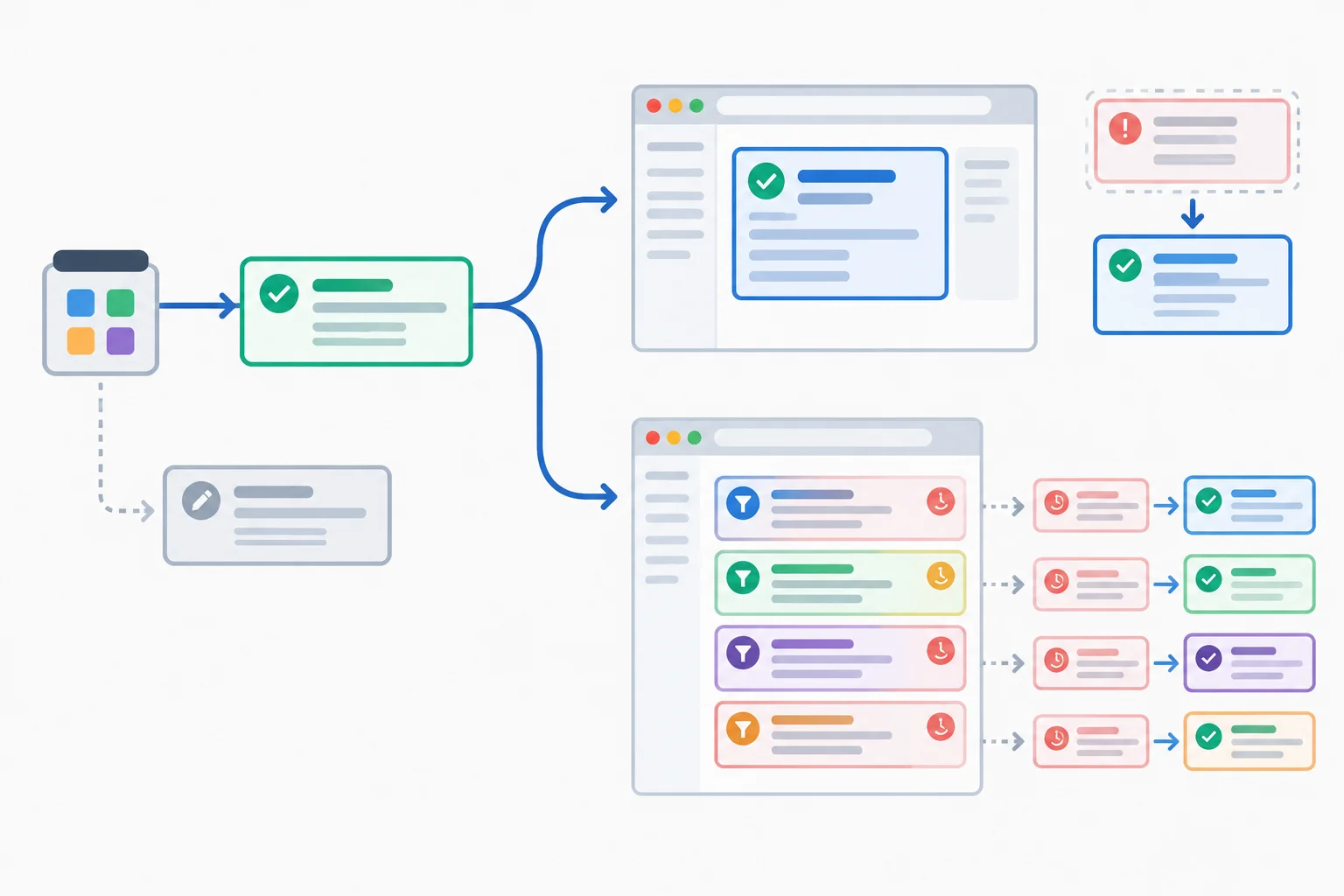
A complete confirmed record is enough for its exact detail entry; affected lists still need invalidation.
Choose the cache operation by what the confirmed result can safely describe. The taskKeys.lists() prefix matches every cached list variant, including open, done, and all.
Do not manually patch each list variant here. A task's fields alone may not establish list membership rules, ordering, counts, or pagination.
Use the confirmed result for the exact detail entry and invalidate the broader list family.
| Operation | Best use | Why |
|---|---|---|
| Invalidate a detail query | Detail result is not sufficient | Fetches current detail data later or now if active |
| setQueryData for detail | Complete confirmed Task for that ID | Shows normalized saved data immediately |
| Invalidate list prefix | Any update can affect lists | Refreshes every relevant filter variant |
| Combine both | Task Board final strategy | Precise detail plus safe list membership refresh |
Replace the existing successful-sync work in src/features/tasks/useSaveTask.ts. Keep the existing syncStatus transitions around this awaited callback.
onSuccess: async (savedTask) => {
  await queryClient.cancelQueries({
    queryKey: taskKeys.detail(savedTask.id),
    exact: true,
  })

  queryClient.setQueryData(
    taskKeys.detail(savedTask.id),
    savedTask,
  )

  await queryClient.invalidateQueries({
    queryKey: taskKeys.lists(),
  })
},Complete the cache method that writes the confirmed record into only the matching detail entry. The cancellation stays first so an older in-flight detail read cannot overwrite that confirmed result.
Fill in the QueryClient method.
await queryClient.cancelQueries({
  queryKey: taskKeys.detail(savedTask.id),
  exact: true,
})

queryClient.(
  taskKeys.detail(savedTask.id),
  savedTask,
)

await queryClient.invalidateQueries({
  queryKey: taskKeys.lists(),
})A mutation confirms a complete normalized Task for t1. Its status may have changed, and Task Board has cached multiple filtered list variants. Which synchronization policy is appropriate?
Step 6 of 8
Preserve an editable form draft and confirmed routed data when the local in-memory adapter rejects a write, then recover through one deliberate resubmission.
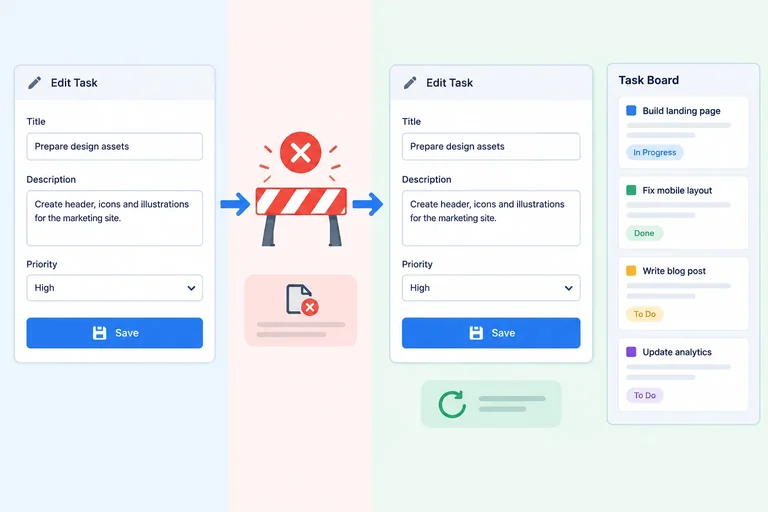
A rejected write must stay rejected. In this simulation, updateTask throws before it changes the adapter store, so useMutation enters its error state rather than receiving misleading success data.
After that rejection, three things have separate outcomes:
Do not clear the draft, copy an older query result over it, or navigate away after a write error.
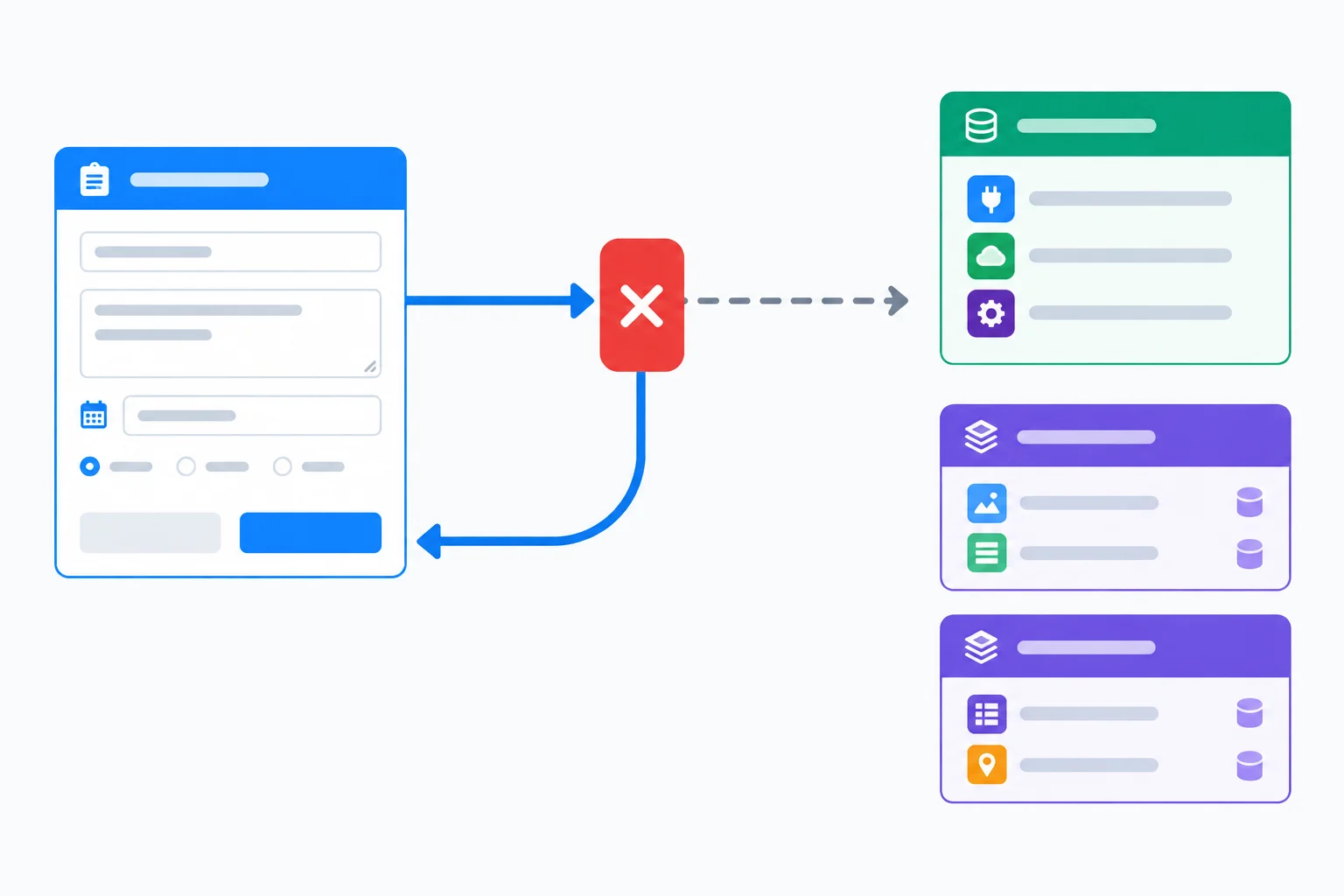
The form draft survives the rejection; no confirmed data is replaced.
Warning
This browser-only simulation rejects before committing, making the exercise deterministic: a rejected write leaves its adapter store unchanged.
A real transport failure can be ambiguous. A request may fail after a remote system has already processed it. Do not generalize this simulation into a guarantee about every real-world write.
In src/features/tasks/taskAdapter.ts, keep the configured rejection before validation, record creation, and adapter-store assignment. The earlier delay helper remains in this module.
export async function updateTask(input: UpdateTaskInput): Promise<Task> {
  await delay(400);

  if (demoFailures.writes) {
    throw new Error('The in-memory adapter rejected this write.');
  }

  const title = input.title.trim();
  if (title.length === 0) {
    throw new Error('Task title is required.');
  }
  if (input.status !== 'open' && input.status !== 'done') {
    throw new Error('Task status is invalid.');
  }

  const index = adapterStore.findIndex((task) => task.id === input.id);
  if (index === -1) {
    throw new Error(`Task ${input.id} was not found.`);
  }

  const savedTask: Task = {
    ...input,
    title,
  };

  adapterStore[index] = savedTask;
  return copyTask(savedTask);
}A write-specific error is shown only when saveTask.isError is true. Replace the feedback area in the existing TaskEditor.tsx form with this branch. Keep the existing controlled inputs inside fieldset disabled={isSaving}: when the pending write ends in rejection, that fieldset becomes enabled again and still reads from the unchanged draft state.
TaskEditor.tsx — feedback branch
{saveTask.isError ? (
  <p role='alert'>Could not save. Your draft is unchanged.</p>
) : saveTask.isPending ? (
  <p role='status' aria-live='polite'>
    {syncStatus === 'refreshing'
      ? 'Saved; refreshing views…'
      : 'Saving…'}
  </p>
) : syncStatus === 'current' ? (
  <p role='status' aria-live='polite'>Saved</p>
) : null}

<fieldset disabled={isSaving}>
  {/* Keep the existing controlled title and status controls here. */}
  <button type='submit'>
    {isSaving ? 'Saving…' : 'Save task'}
  </button>
</fieldset>
Tip
Do not catch the adapter rejection and return a fallback task. A fulfilled fallback would incorrectly run onSuccess even though no confirmed write occurred.
Keep retry: false. After disabling Reject writes, recovery is one new, deliberate user submission—not an Effect, a timer, or an automatic retry.
Complete the safeguards that make a configured failed write leave the adapter store unchanged while successful titles are normalized.
export async function updateTask(input: UpdateTaskInput): Promise<Task> {
  await delay(400);

  if (demoFailures.) {
     new Error('The in-memory adapter rejected this write.');
  }

  const title = input.title.trim();
  if (title.length === 0) {
    throw new Error('Task title is required.');
  }

  const index = adapterStore.findIndex((task) => task.id === input.id);
  if (index === -1) {
    throw new Error(`Task ${input.id} was not found.`);
  }

  const savedTask: Task = {
    ...input,
    title: ,
  };

  adapterStore[index] = savedTask;
  return copyTask(savedTask);
}In your local Task Board, reload the browser to restore the seed data. Ensure Reject reads and Reject writes are off, then open /tasks/t1?status=open so the open list stays mounted with the selected detail.
Change only t1’s title in the form draft to Review navigation labels. Enable Reject writes and select Save task once. After the error appears, verify that the title remains editable in the form draft and that the routed heading and open-list entry still show their previously confirmed value.
Next, disable Reject writes and select Save task exactly once. Report the rejection observations and the outcome of that deliberate resubmission.
Write at least 220 characters (0/220).
Step 7 of 8
Handle a failed follow-up list refresh as a synchronization outcome after a confirmed write, then recover through an awaited read-only refresh.
A confirmed write and a follow-up refresh are separate outcomes. When updateTask resolves, the adapter store has accepted the edit and savedTask is confirmed. If the mounted list then cannot read, that is a synchronization failure—not evidence that the write failed.
Keep the confirmed detail entry and any previously displayed list data. Mark the list as needing recovery instead of asking the user to submit the form draft again. Repeating a write would be a new operation, not a repair for a rejected read.
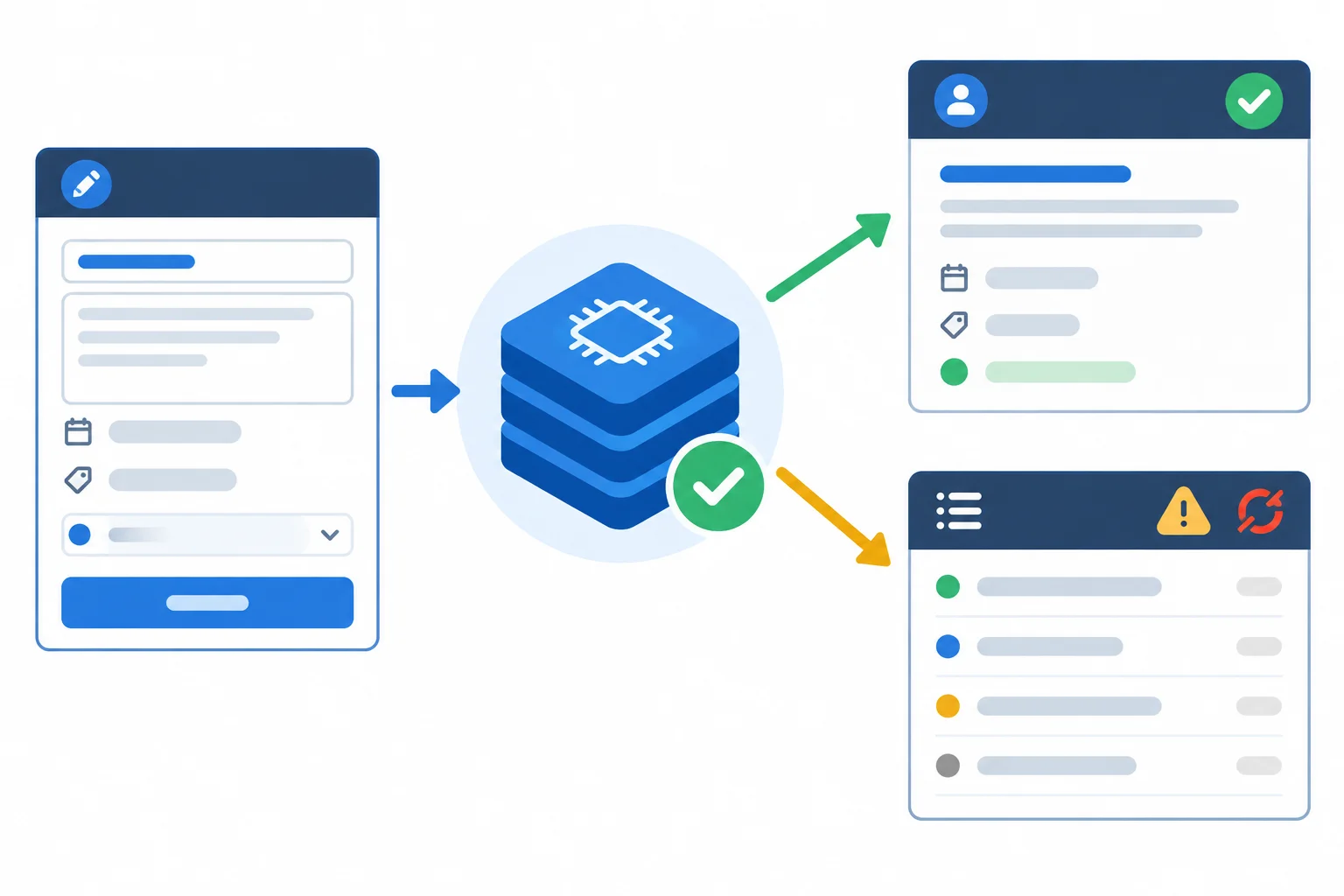
The confirmed detail can remain current while the previously available list needs a read-only refresh.
Tip
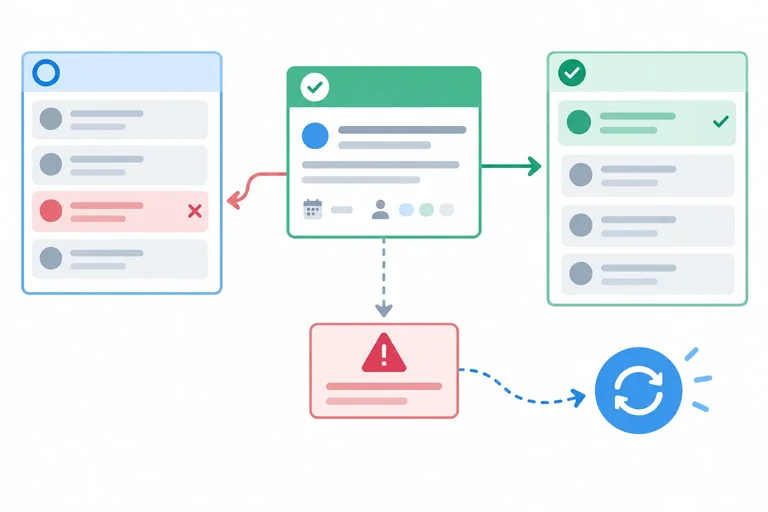
invalidateQueries normally records refetch errors in query state without rejecting its returned promise. To detect a failed follow-up refresh, use throwOnError: true in the second options argument of the TanStack Query v5 call.
Catch that rejection during the asynchronous success path. The mutation then remains a successful write, while syncStatus records whether the follow-up refresh made views current or failed.
Replace the body of useSaveTask in src/features/tasks/useSaveTask.ts with the version below. Keep the existing SyncStatus type from the earlier step. The exact detail is cancelled and replaced from savedTask before the list family is refreshed.
The try/catch is inside onSuccess, so a rejected list read sets syncStatus to 'failed' without entering the mutation's write-error path. refreshViews repeats only the list invalidation; it never calls mutate or updateTask.
useSaveTask.ts — replace the hook implementation
export function useSaveTask() {
  const queryClient = useQueryClient();
  const [syncStatus, setSyncStatus] = useState<SyncStatus>('idle');

  async function invalidateLists() {
    await queryClient.invalidateQueries(
      { queryKey: taskKeys.lists() },
      { throwOnError: true },
    );
  }

  async function refreshViews() {
    setSyncStatus('refreshing');
    try {
      await invalidateLists();
      setSyncStatus('current');
    } catch {
      setSyncStatus('failed');
    }
  }

  const saveTask = useMutation({
    mutationFn: updateTask,
    retry: false,
    onMutate: () => setSyncStatus('idle'),
    onSuccess: async (savedTask) => {
      await queryClient.cancelQueries({
        queryKey: taskKeys.detail(savedTask.id),
        exact: true,
      });
      queryClient.setQueryData(
        taskKeys.detail(savedTask.id),
        savedTask,
      );

      setSyncStatus('refreshing');
      try {
        await invalidateLists();
        setSyncStatus('current');
      } catch {
        setSyncStatus('failed');
      }
    },
  });

  return { saveTask, syncStatus, refreshViews };
}
Tip
Why the detail remains usable: savedTask is a complete confirmed record for taskKeys.detail(savedTask.id), so that exact cached detail can remain current even when a later list read fails. The list cache keeps any data it already had; its query also records the read failure. The editor warning makes the synchronization problem explicit.
Update the existing TaskEditor.tsx values, submit guard, and feedback area as shown. Keep the controlled title and status inputs already inside this fieldset.
During either automatic or manual refreshing, editing and submitting are disabled. After a failed refresh, the only recovery control is Refresh views. Its handler awaits the read-only action, so it cannot repeat the confirmed write.
TaskEditor.tsx — update the hook values, handlers, and form feedback
const { saveTask, syncStatus, refreshViews } = useSaveTask();
const savedTask = saveTask.data;
const isSaving = saveTask.isPending;
const isRefreshing = syncStatus === 'refreshing';

function handleSubmit(event: FormEvent<HTMLFormElement>) {
  event.preventDefault();
  if (isSaving || isRefreshing) return;

  saveTask.mutate({ id: task.id, ...draft });
}

async function handleRefresh() {
  await refreshViews();
}

{saveTask.isError ? (
  <p role='alert'>Could not save. Your draft is unchanged.</p>
) : isSaving || isRefreshing ? (
  <p role='status' aria-live='polite'>
    {isSaving && syncStatus !== 'refreshing'
      ? 'Saving…'
      : 'Saved; refreshing views…'}
  </p>
) : syncStatus === 'failed' ? (
  <>
    <p role='alert'>Saved, but refresh failed.</p>
    <button type='button' onClick={handleRefresh}>
      Refresh views
    </button>
  </>
) : syncStatus === 'current' || savedTask ? (
  <p role='status' aria-live='polite'>Saved</p>
) : null}

<fieldset disabled={isSaving || isRefreshing}>
  {/* Keep the existing controlled title and status controls here. */}
  <button type='submit'>
    {isSaving ? 'Saving…' : 'Save task'}
  </button>
</fieldset>
Example
To exercise this path locally, open /tasks/t1?status=open with the list still mounted. Leave Reject writes off, enable Reject reads, edit and save t1 once, and wait for the warning. The detail shows the confirmed result from the adapter store; the list retains its previous data but could not complete its follow-up refresh. Turn Reject reads off, then select Refresh views—not Save task.
Match each Task Board outcome to its correct interface response and next action.
Tap an item and then its matching pair.
Step 8 of 8
Verify the completed mutation, cache synchronization, failure recovery, and reload behavior in the local Task Board application.
Run the final checks in your own Task Board. For a repeatable run, reload the browser first and set both Reject writes and Reject reads to off.
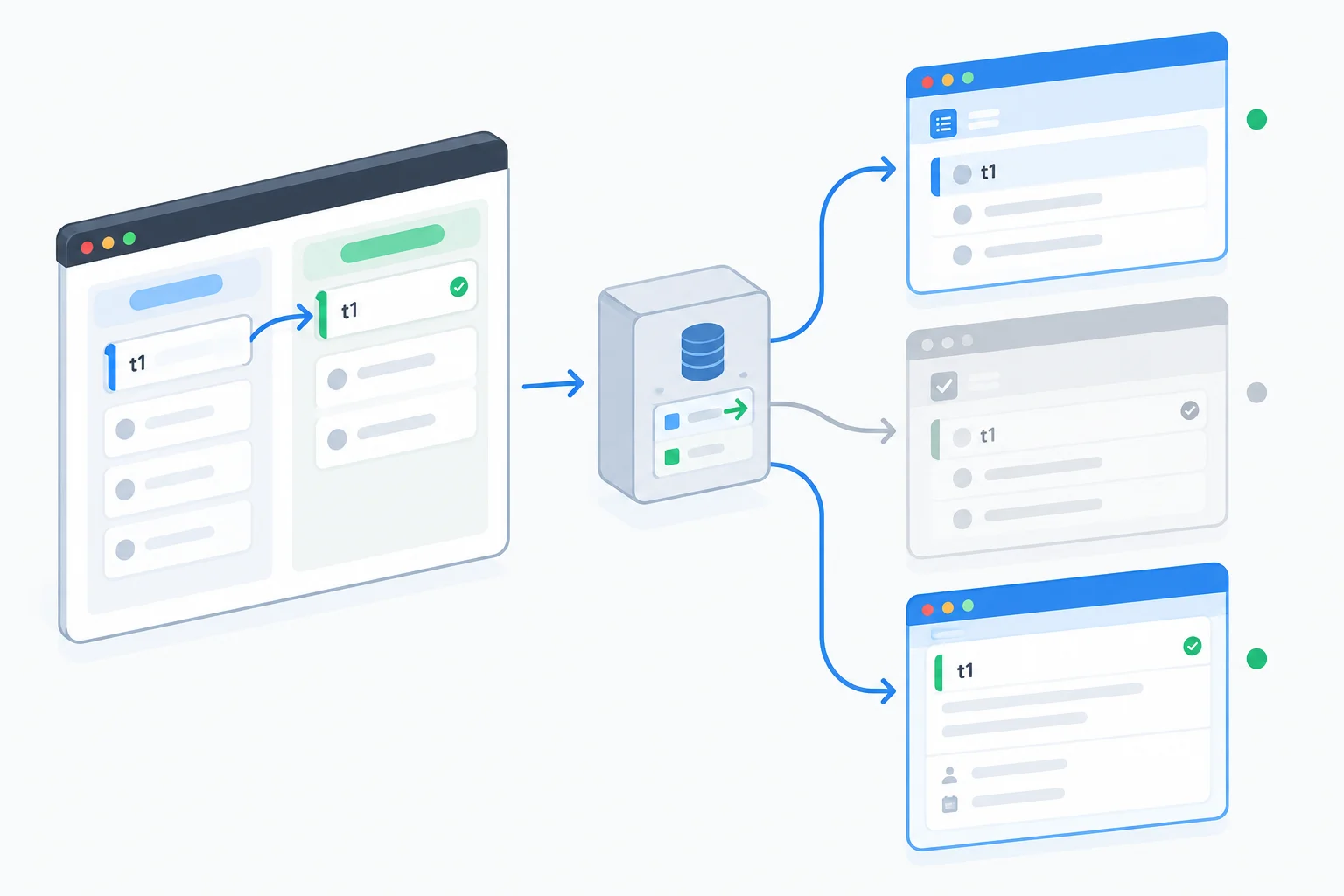
Open /tasks?status=open and keep that list mounted while viewing /tasks/t1?status=open. Edit t1 to Review keyboard navigation with status done, then save once. Observe the pending feedback, followed by the completed synchronization state.
Confirm two routed views: the selected detail shows the confirmed title and status, while the open list no longer contains t1. Then navigate to the done filter and confirm that t1 appears there. Preserve the status search parameter as you move between list and detail routes.
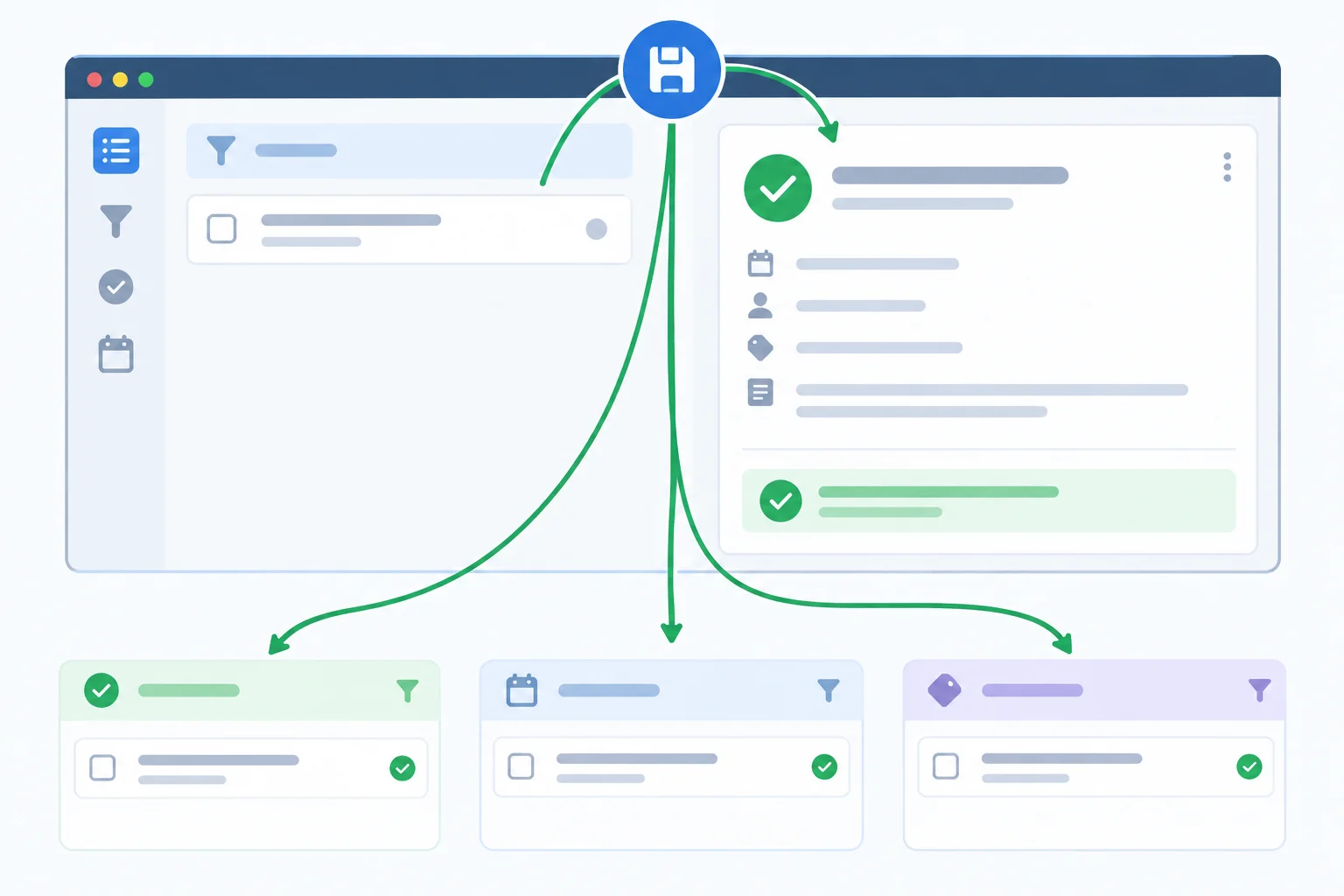
After the confirmed write and follow-up refresh, the detail is current and the open list excludes the task whose status changed.
Use these drills after completing the successful update. They distinguish a rejected write from a confirmed write whose later read synchronization fails. Keep the list mounted during the failed-refresh case.
Perform each case deliberately in the local app.
| Scenario | Setup and action | Evidence to check |
|---|---|---|
| Rejected write | Turn on Reject writes. Enter a different valid form draft and save. Turn Reject writes off, then resubmit the preserved draft. | The write error appears, the draft remains editable, and confirmed detail and list data stay unchanged until the intentional resubmission succeeds. |
| Failed follow-up refresh | Keep Reject writes off and turn on Reject reads. Change the draft and save. Turn Reject reads off, then choose Refresh views. | The save is confirmed, the detail remains confirmed, and the list is marked stale until read-only recovery succeeds. |
| Inactive list variant | After recovery, visit the done filter, then return to the open filter and its selected detail route. | The done variant includes t1 and the open variant excludes it; an inactive variant becomes current when it is used. |
| Reload boundary | Reload the browser after recording the successful result. | The two seed records return because the in-memory adapter store is recreated; no static file or durable record changed. |
Tip
Do not select Save task again merely because a follow-up refresh failed. The write has already been confirmed. Use Refresh views, which repeats synchronization reads without calling the mutation.
Summary
Complete the three QueryClient method names in this final onSuccess callback.
onSuccess: async (savedTask) => {
  await queryClient.({
    queryKey: taskKeys.detail(savedTask.id),
    exact: true,
  });

  queryClient.(
    taskKeys.detail(savedTask.id),
    savedTask,
  );
  setSyncStatus('refreshing');

  try {
    await queryClient.(
      { queryKey: taskKeys.lists() },
      { throwOnError: true },
    );
    setSyncStatus('current');
  } catch {
    setSyncStatus('failed');
  }
},After completing the callback check, run the local scenarios and report your observations in five labeled parts:
t1 in the detail, open list, and done list after the requested edit.Describe behavior you observed in your own local app; no file upload is needed.
Write at least 400 characters (0/400).
Congratulations! You completed: Synchronize Cached Data After Mutations
You completed this level!
Up next: Client-Side Security
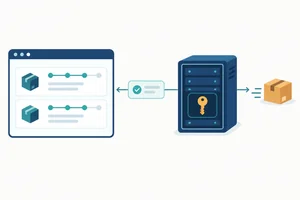 Protect Sensitive Data at the Browser BoundaryReview a front-end feature for exposed private credentials and unnecessary sensitive data, and identify which operations require a server-controlled boundary.
Thousands of online courses in video, ebooks and audiobooks.
To test your knowledge during online courses
Generated directly from your cell phone's photo gallery and sent to your email

Download our app via QR Code or the links below:.



Carry knowledge in your pocket.
Download the Cursa app.
There are hundreds of free courses available, with a free certificate of completion that is saved in your mobile image gallery.
Download the app to access the Course Completion Certificate for Free.


+ 10 million
students

Free and Valid
Certificate

60 thousand free
exercises

4.8/5 rating in
app stores

Free courses in
video and ebooks