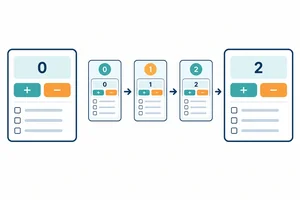
Step 1 of 7
Choose Between JSX Branches
Use an early return for an absent featured product and a ternary expression for its stock label.

Learning path · Level 9 · Tutorial 3
Render alternative interface states and collections from typed data, choosing keys that keep item identity stable as the data changes.

 Choose Between JSX Branches
Use an early return for an absent featured product and a ternary expression for its stock label. 2 min
Choose Between JSX Branches
Use an early return for an absent featured product and a ternary expression for its stock label. 2 min
 Hide Optional Content Without Showing Zero
Render optional note and offer content without accidentally displaying numeric zero. 2 min
Hide Optional Content Without Showing Zero
Render optional note and offer content without accidentally displaying numeric zero. 2 min
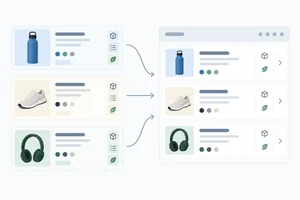 Render Typed Records as List Items
Map typed product records to semantic list rows with typed props and a supplied sibling key. 2 min
Render Typed Records as List Items
Map typed product records to semantic list rows with typed props and a supplied sibling key. 2 min
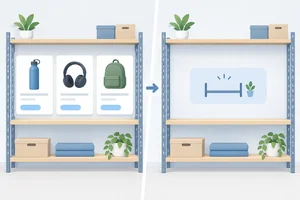 Give Empty Collections a Meaningful Alternative
Render an explanatory empty state for an available product collection with no records. 2 min
Give Empty Collections a Meaningful Alternative
Render an explanatory empty state for an available product collection with no records. 2 min
 Keep List Identity Attached to the Record
Use stable record identifiers to keep React list identity attached to changing Supply Shelf records. 2 min
Keep List Identity Attached to the Record
Use stable record identifiers to keep React list identity attached to changing Supply Shelf records. 2 min
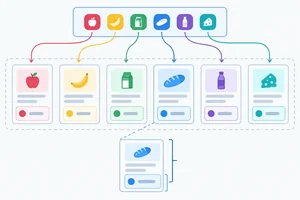 Place Keys at the Mapped Boundary
Place keys on the sibling elements returned by a map callback, while passing record identifiers separately as ordinary component props. 2 min
Place Keys at the Mapped Boundary
Place keys on the sibling elements returned by a map callback, while passing record identifiers separately as ordinary component props. 2 min
 Apply and Check the Complete Rendering Pattern
Repair and verify a complete typed Supply Shelf interface that covers absent, optional, empty, and reordered content. 3 min
Apply and Check the Complete Rendering Pattern
Repair and verify a complete typed Supply Shelf interface that covers absent, optional, empty, and reordered content. 3 min
Step 1 of 7
Use an early return for an absent featured product and a ternary expression for its stock label.
A featured product can be either a Product or null. Use an early return when product === null: it selects the complete fallback before any JSX reads product fields.
Once that guard returns, TypeScript knows product is available in the remaining JSX. Use a ternary expression only for the short stock label, because the heading and product name stay the same.
In src/App.tsx, this component handles both the absent and available cases.
type Product = {
  id: string;
  name: string;
  inStock: boolean;
  note: string | null;
  offerCount: number;
};

type FeaturedProductProps = {
  product: Product | null;
};

const featuredProduct: Product | null = {
  id: "p-101",
  name: "Desk Lamp",
  inStock: true,
  note: null,
  offerCount: 2,
};

function FeaturedProduct({ product }: FeaturedProductProps) {
  if (product === null) {
    return <p>No featured product.</p>;
  }

  return (
    <section>
      <h2>Featured product</h2>
      <p>{product.name}</p>
      <p>{product.inStock ? "In stock" : "Out of stock"}</p>
    </section>
  );
}

export default function App() {
  return (
    <main>
      <h1>Supply Shelf</h1>
      <FeaturedProduct product={featuredProduct} />
    </main>
  );
}The early return changes the entire component output for an absent record. For an available record, the ternary expression changes only the stock words inside shared JSX.
This division keeps each condition focused: one branch for availability, one branch for a small display difference.
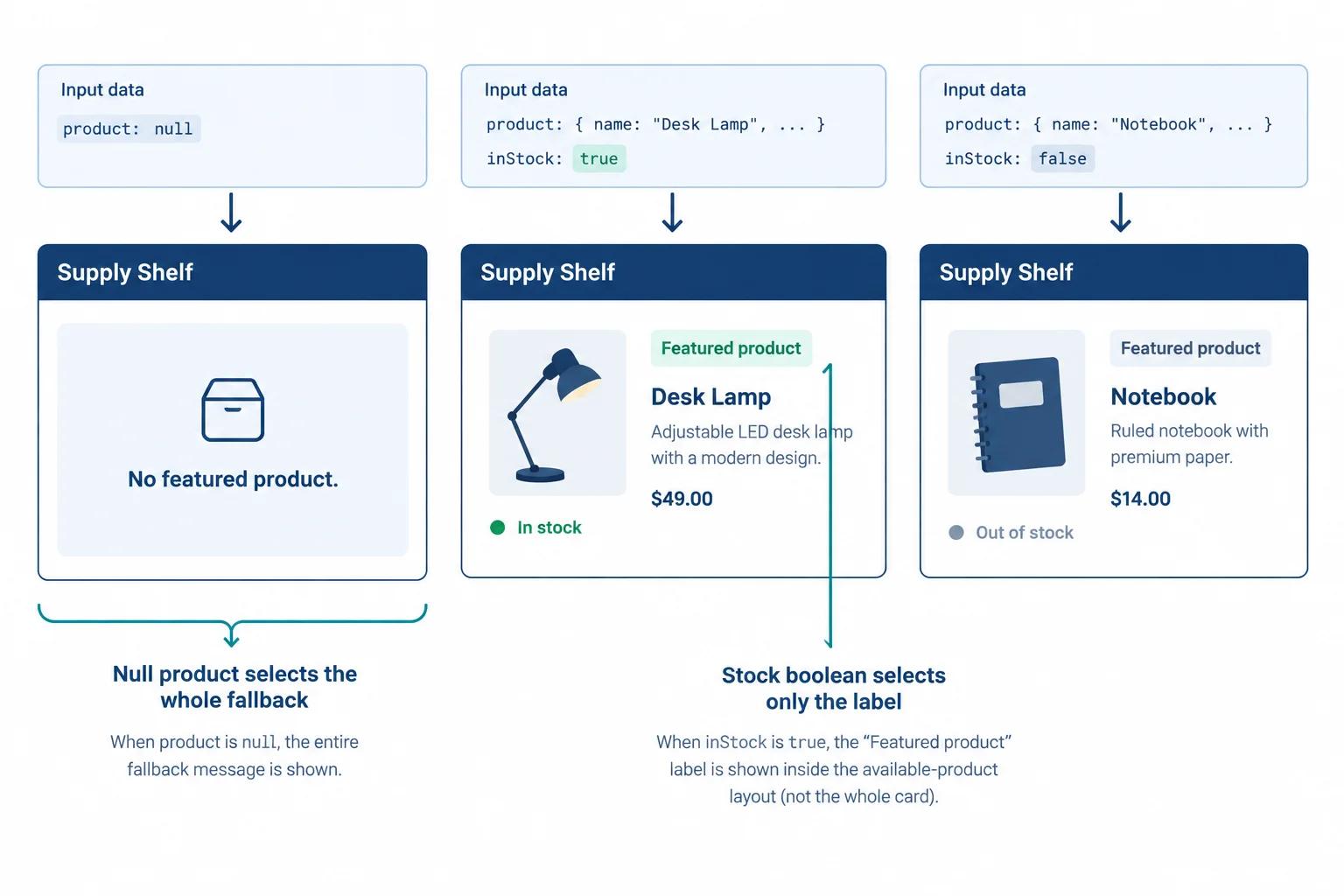
An early return chooses a whole-component fallback; a ternary expression chooses one short value within shared JSX.
Complete the two JSX branch expressions in this component.
function FeaturedProduct({ product }: FeaturedProductProps) {
  if () {
    return <p>No featured product.</p>;
  }

  return (
    <section>
      <h2>Featured product</h2>
      <p>{product.name}</p>
      <p></p>
    </section>
  );
}Match each supplied product prop case to its visible output.
Tap an item and then its matching pair.
Step 2 of 7
Render optional note and offer content without accidentally displaying numeric zero.
A component can intentionally render nothing. ProductNote receives a nullable note; when the value is absent, its early return is null. React adds no element and no placeholder text for that component.
Once the note === null guard has passed, TypeScript treats note as a string, so the remaining JSX can display it.
Use this helper in src/App.tsx when a note should occupy no interface space if it is absent.
type ProductNoteProps = {
  note: string | null;
};

function ProductNote({ note }: ProductNoteProps) {
  if (note === null) {
    return null;
  }

  return <p>{note}</p>;
}Logical AND can conditionally include a short JSX fragment. With a Boolean condition, true && <p>...</p> produces the paragraph, while false && <p>...</p> produces false, which React does not display.
Do not use a number itself as the left side. When offerCount is 0, 0 && <p>...</p> evaluates to the numeric value 0; React renders that value as visible text. Compare the count explicitly so the left side is always a Boolean.
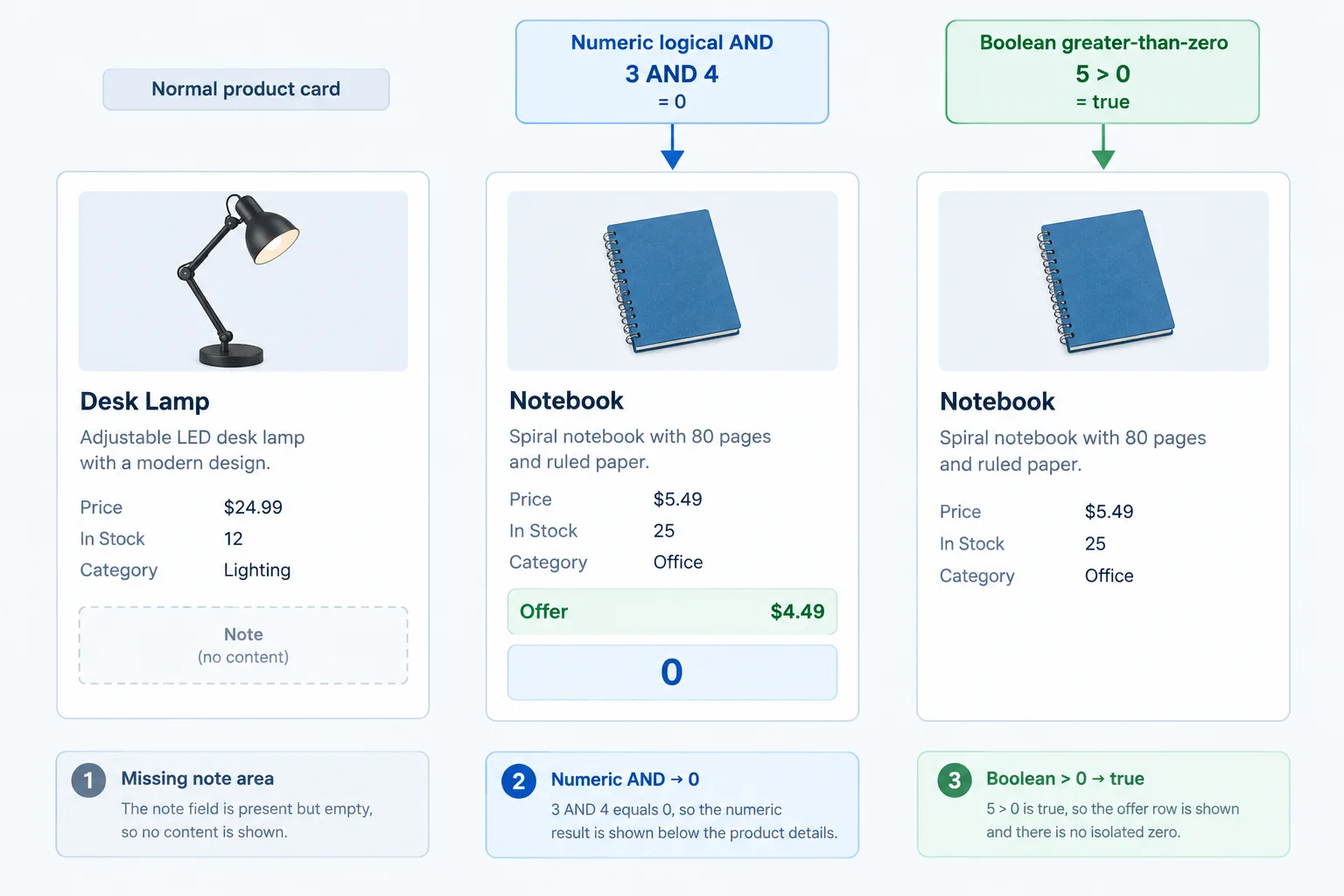
An absent note and a hidden offer message leave no visible row. A numeric zero is different: React can render it as text.
Both fragments test the same offer message. Only the second condition is guaranteed to be Boolean.
{/* Problem: when offerCount is 0, this expression evaluates to 0. */}
{product.offerCount && <p>Offers: {product.offerCount}</p>}

{/* A Boolean false produces no visible content. */}
{product.offerCount > 0 && <p>Offers: {product.offerCount}</p>}When product.offerCount is 0, can this JSX expression display a visible 0?
{product.offerCount && <p>Offers: {product.offerCount}</p>}
Complete the two missing expressions: one for an absent optional note and one for an offer message that should appear only for a positive count.
type ProductNoteProps = {
  note: string | null;
};

type FeaturedProductProps = {
  product: Product | null;
};

function ProductNote({ note }: ProductNoteProps) {
  if (note === null) {
    return ;
  }

  return <p>{note}</p>;
}

function FeaturedProduct({ product }: FeaturedProductProps) {
  if (product === null) {
    return <p>No featured product.</p>;
  }

  return (
    <section>
      <h2>Featured product</h2>
      <p>{product.name}</p>
      {product.offerCount  && <p>Offers: {product.offerCount}</p>}
    </section>
  );
}
Step 3 of 7
Map typed product records to semantic list rows with typed props and a supplied sibling key.
ProductList receives a typed Product[] and turns it into sibling ProductRow elements with products.map(...). Each callback result becomes one row because ProductRow returns one <li>.
The array order becomes the visible row order. ProductList supplies the surrounding <ul>, while each row receives only the fields in its prop contract: productId, name, and inStock.
Add key={product.id} to every mapped row from the start. Here, the key is React's sibling identifier; later, you will examine why the record identifier is the right choice.
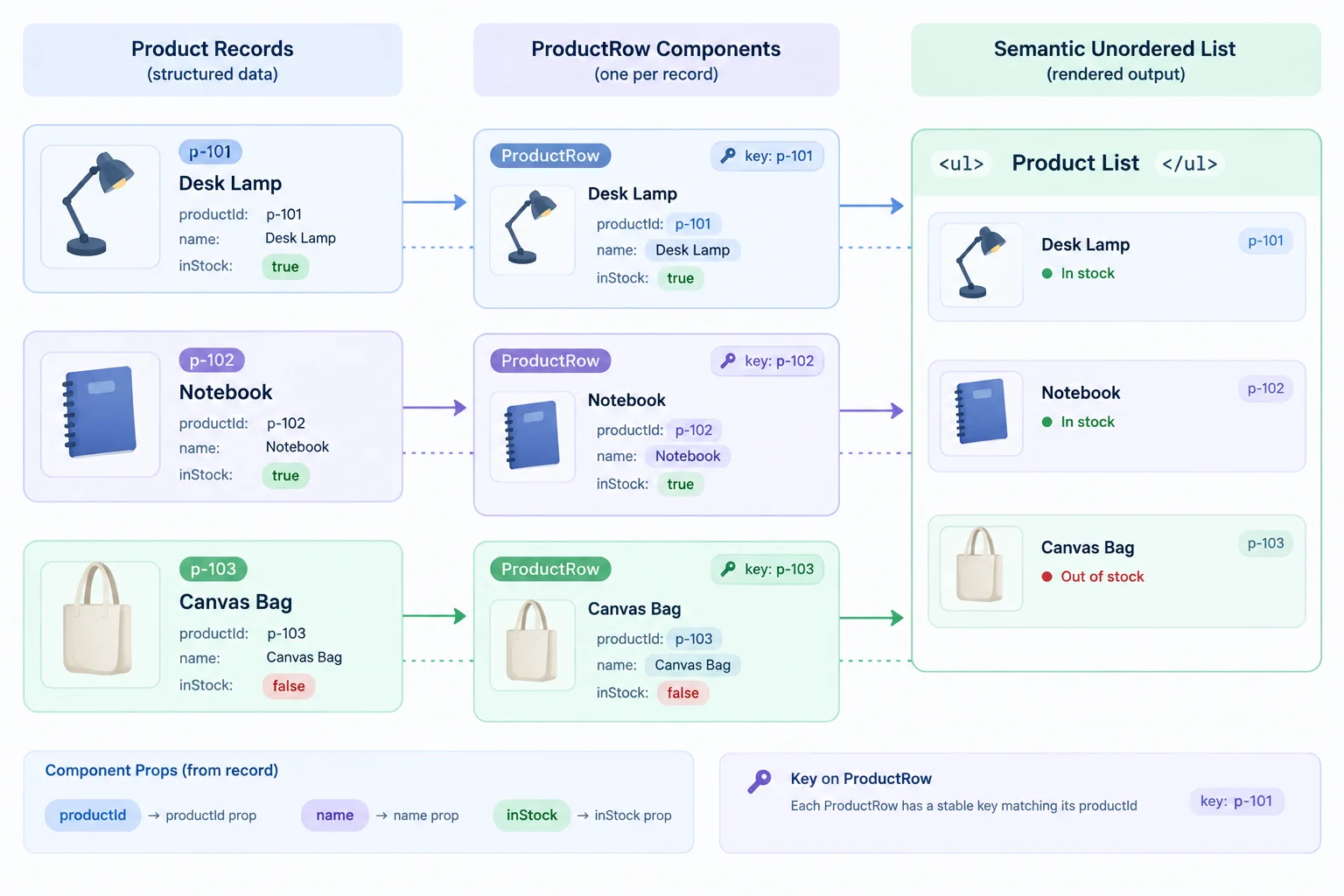
The map callback preserves the array order: each Product record produces one ProductRow, which produces one list item.
Place this complete example in src/App.tsx. The three records are mapped in their array order, so the shelf shows three rows in that same order.
type Product = { id: string; name: string; inStock: boolean; note: string | null; offerCount: number; };

const products: Product[] = [
  { id: "p-101", name: "Desk Lamp", inStock: true, note: null, offerCount: 2 },
  { id: "p-102", name: "Notebook", inStock: false, note: "Back next week.", offerCount: 0 },
  { id: "p-103", name: "Canvas Bag", inStock: true, note: null, offerCount: 1 }
];

type ProductRowProps = {
  productId: string;
  name: string;
  inStock: boolean;
};

type ProductListProps = { products: Product[]; };

function ProductRow({ productId, name, inStock }: ProductRowProps) {
  return <li>{name} — Item: {productId} — {inStock ? "In stock" : "Out of stock"}</li>;
}

function ProductList({ products }: ProductListProps) {
  return (
    <ul>
      {products.map((product) => (
        <ProductRow key={product.id} productId={product.id} name={product.name} inStock={product.inStock} />
      ))}
    </ul>
  );
}

export default function App() {
  return <main><h1>Supply Shelf</h1><ProductList products={products} /></main>;
}Supply Shelf Desk Lamp — Item: p-101 — In stock Notebook — Item: p-102 — Out of stock Canvas Bag — Item: p-103 — In stock
When the complete file runs, the browser renders these visible text lines; HTML list markers may also appear depending on browser styling.
Complete the mapping callback and the remaining row prop expressions. Keep the supplied key unchanged.
function ProductList({ products }: ProductListProps) {
  return (
    <ul>
      {products.((product) => (
        <ProductRow
          key={product.id}
          productId={product.id}
          name={product.}
          inStock={product.}
        />
      ))}
    </ul>
  );
}Write the products.map(...) JSX expression for ProductList, including the supplied key and all ProductRow props. Then predict how many rows render from the fixture array and give their record identifier order.
Write at least 80 characters (0/80).
Step 4 of 7
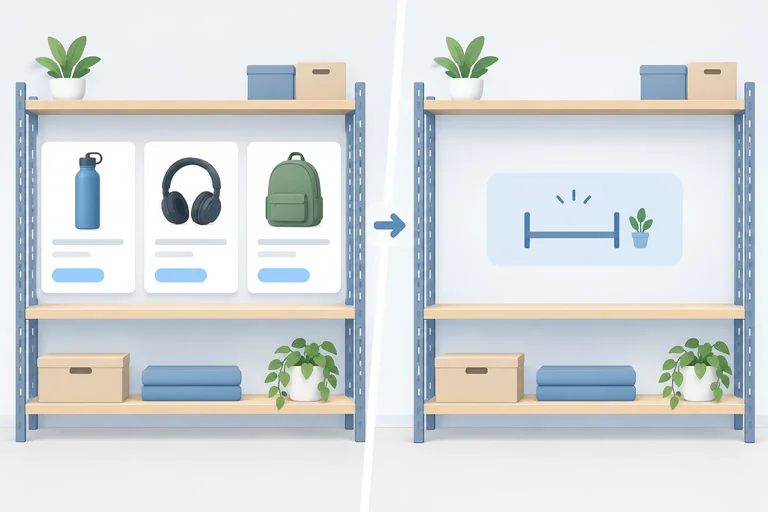
Render an explanatory empty state for an available product collection with no records.
featuredProduct can be null, which means that one record is absent. In contrast, products is always a Product[]. When it contains [], the collection is available but has no records.
Give that valid empty collection a visible empty state. Do not render an unexplained empty <ul>.
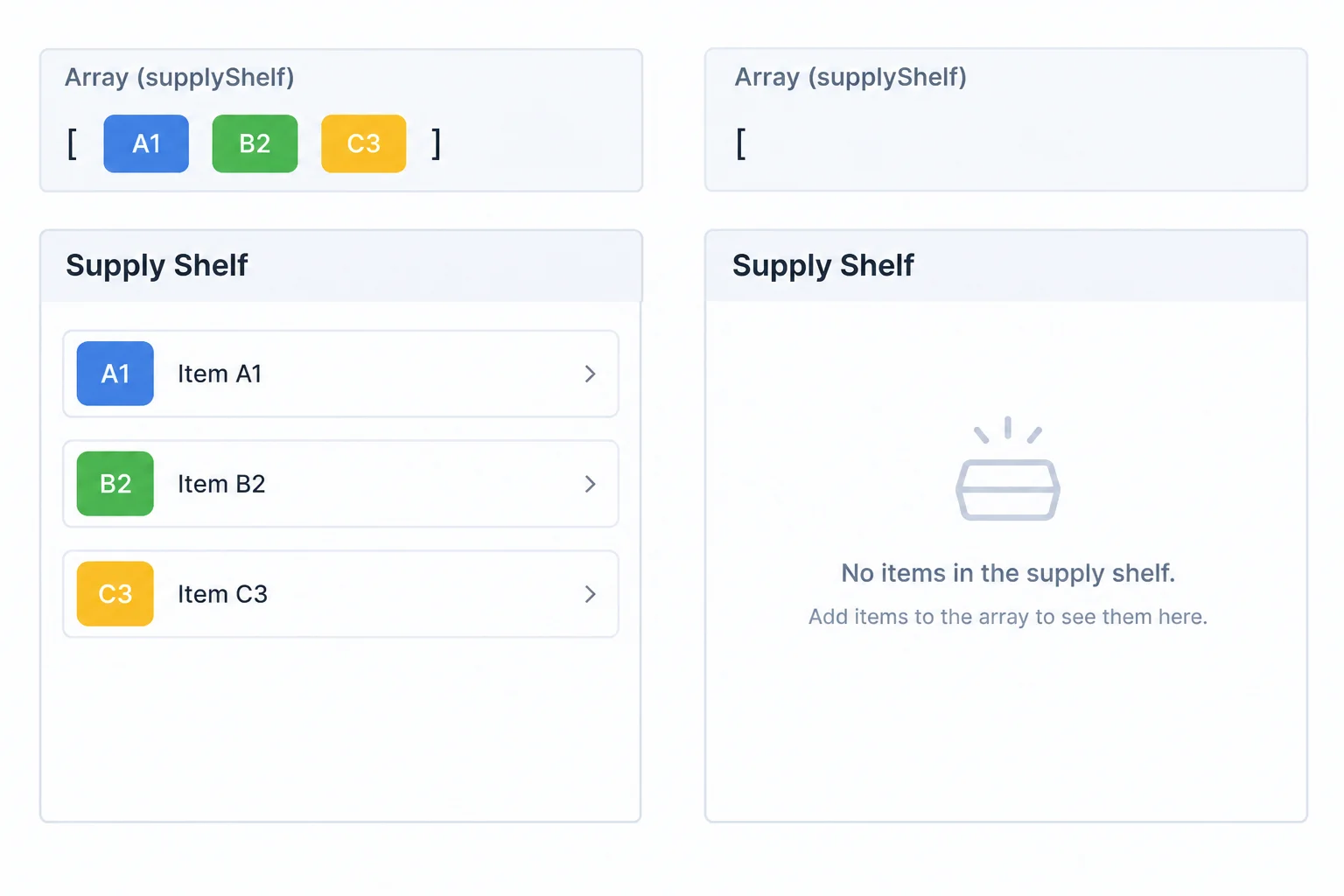
A populated collection produces a list. An empty collection produces an empty state that explains why no rows appear.
Check the array length before creating the list container. The early return replaces the entire list branch: for an empty array, there is no <ul> at all.
Do not use if (products). Even [] is truthy in JavaScript, so that check cannot distinguish an empty collection from a populated one.
A ProductList owns the collection-level branch, while each ProductRow still returns exactly one list item.
type Product = {
  id: string;
  name: string;
  inStock: boolean;
  note: string | null;
  offerCount: number;
};

type ProductListProps = {
  products: Product[];
};

type ProductRowProps = {
  productId: string;
  name: string;
  inStock: boolean;
};

function ProductRow({ productId, name, inStock }: ProductRowProps) {
  return (
    <li>
      Item: {productId} — {name} — {inStock ? "In stock" : "Out of stock"}
    </li>
  );
}

function ProductList({ products }: ProductListProps) {
  if (products.length === 0) {
    return <p>No products available.</p>;
  }

  return (
    <ul>
      {products.map((product) => (
        <ProductRow
          key={product.id}
          productId={product.id}
          name={product.name}
          inStock={product.inStock}
        />
      ))}
    </ul>
  );
}ProductList must handle both fixtures: an empty products array should show an explanatory paragraph and no <ul>; a populated array should render its <ul> and rows. Which branch belongs immediately before the list JSX?

Step 5 of 7
Use stable record identifiers to keep React list identity attached to changing Supply Shelf records.
When a mapped list changes, React uses keys to match sibling elements with their corresponding records across renders. A key should remain attached to the record—not to where that record happens to appear today.
Start with p-101 → p-102 → p-103. If p-102 is removed and the order becomes p-103 → p-101, the remaining records still have the same record identifiers. Their positions changed, but their identities did not.
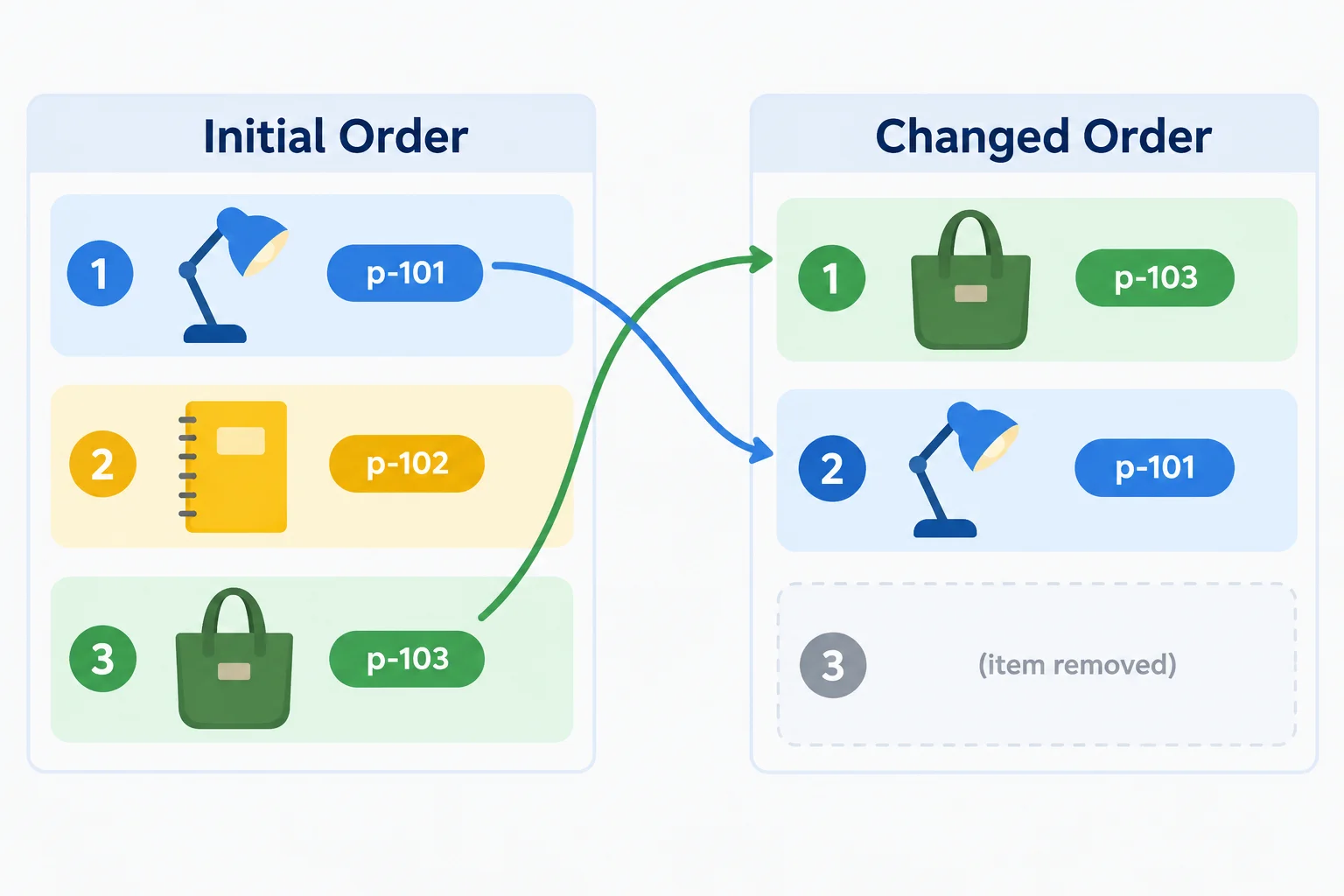
The record identifier stays with its token; a numbered position does not.
A stable key is unique among the current siblings and continues to mean the same record when the collection changes. It does not need to be globally unique across the whole application.
For Supply Shelf, product.id is a stable record identifier. An array index identifies a position, so it can point to a different record after removal or reordering. A random value is worse: it changes on every render.
Stable keys help React perform correct identity matching. They do not promise that a component will not render.
Compare each candidate against a list that changes from p-101 → p-102 → p-103 to p-103 → p-101.
| Candidate key | Attached to | After the list changes | Suitable? |
|---|---|---|---|
| `product.id` | The record | Still identifies that record | Yes |
| Array index | Current position | May identify another record | No |
| `Math.random()` | One render only | Changes on every render | No |
Example
Match each key choice to its consequence in a changing sibling list.
Match each key source with what it follows.
Tap an item and then its matching pair.
The initial order is p-101 → p-102 → p-103. The changed order is p-103 → p-101. Which plan correctly matches the surviving records and chooses an appropriate sibling key?
Step 6 of 7
Place keys on the sibling elements returned by a map callback, while passing record identifiers separately as ordinary component props.
A map callback creates a set of siblings. Put the key on the outermost element that the callback returns, because that is the boundary where React compares those siblings.
If the callback returns an <li>, the <li> receives the key. If it returns a <ProductRow />, the ProductRow receives the key. A stable key uses the record identifier, such as product.id.
key is special: React consumes it while matching siblings. It is not delivered to ProductRow as a normal prop.
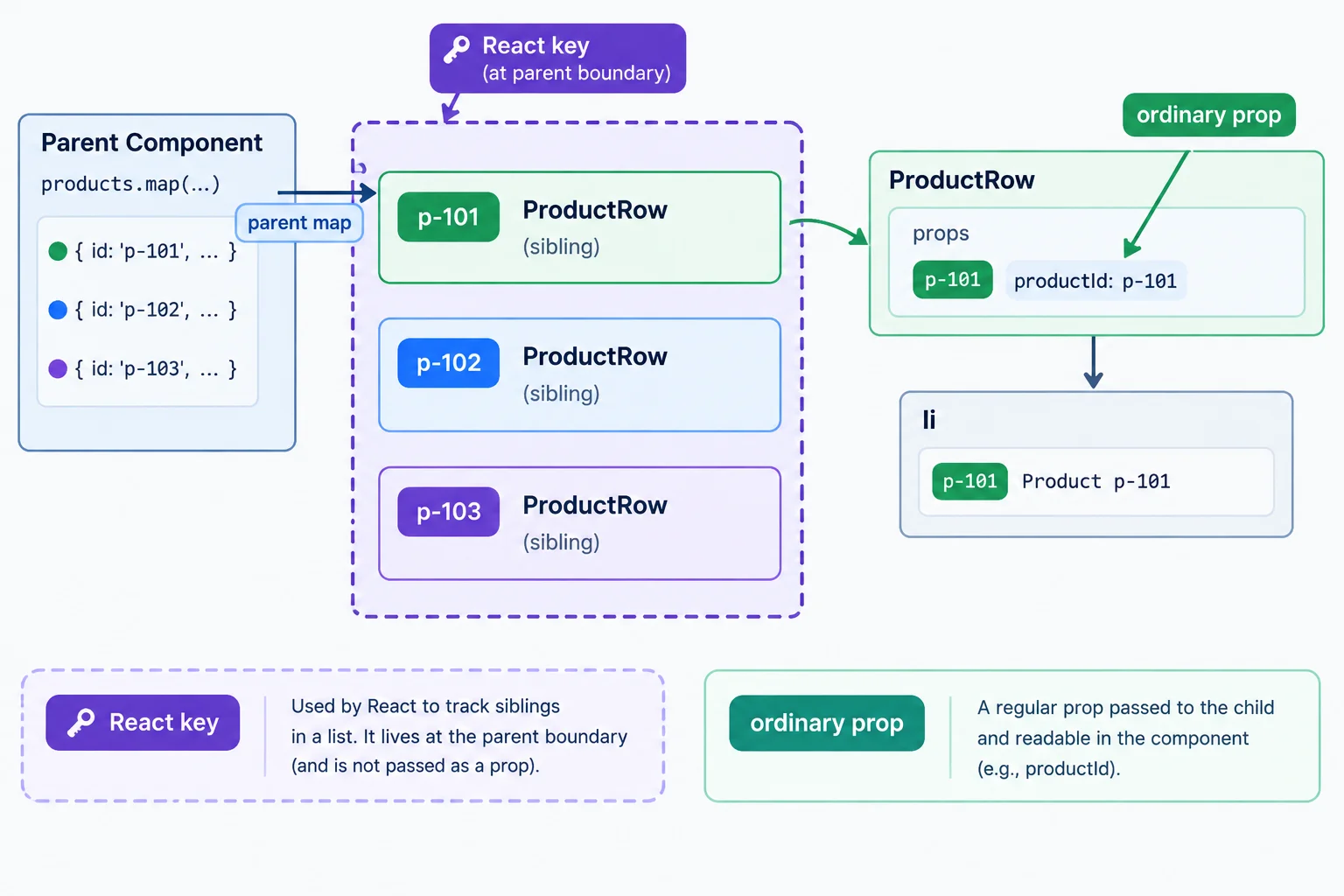
React matches siblings with a key at the parent boundary; ProductRow reads its record identifier through productId.
In this Supply Shelf mapping, the callback returns ProductRow, so key={product.id} belongs on ProductRow. The child receives productId separately because it needs to display Item: p-101-style identifiers.
The stock label remains ordinary rendering logic inside the child.
Use this pattern in src/App.tsx. The parent supplies both React's sibling identifier and the child-readable record identifier.
type ProductRowProps = {
  productId: string;
  name: string;
  inStock: boolean;
};

function ProductRow({ productId, name, inStock }: ProductRowProps) {
  return (
    <li>
      Item: {productId} — {name} — {inStock ? "In stock" : "Out of stock"}
    </li>
  );
}

function ProductList({ products }: { products: Product[] }) {
  return (
    <ul>
      {products.map((product) => (
        <ProductRow
          key={product.id}
          productId={product.id}
          name={product.name}
          inStock={product.inStock}
        />
      ))}
    </ul>
  );
}
Warning
Do not place a key only on the <li> inside ProductRow. The parent mapping returns ProductRow siblings, not <li> siblings, so an inner key does not identify the elements React is matching.
Also, key cannot replace productId: a component cannot read key from its props.
This version has an inner key and omits the child-readable identifier from the parent mapping. Repair it locally before answering.
type ProductRowProps = {
  productId: string;
  name: string;
  inStock: boolean;
};

function ProductRow({ productId, name, inStock }: ProductRowProps) {
  return (
    <li key={productId}>
      Item: {productId} — {name} — {inStock ? "In stock" : "Out of stock"}
    </li>
  );
}

function ProductList({ products }: { products: Product[] }) {
  return (
    <ul>
      {products.map((product) => (
        <ProductRow
          name={product.name}
          inStock={product.inStock}
        />
      ))}
    </ul>
  );
}
Repair the code. Move the stable key to the mapped ProductRow, remove the key from the child <li>, and pass the record identifier through productId so the child can display it.
Paste the corrected ProductRow return and the corrected mapped ProductRow element.
Write at least 120 characters (0/120).

Step 7 of 7
Repair and verify a complete typed Supply Shelf interface that covers absent, optional, empty, and reordered content.
Build the complete Supply Shelf pattern in your local src/App.tsx. It combines:
ProductNote that returns null for an absent note;ProductRow siblings.Copy the three code sections in order. Then inspect each static variation with your local development server. Change one fixture at a time and restore it before the next check.
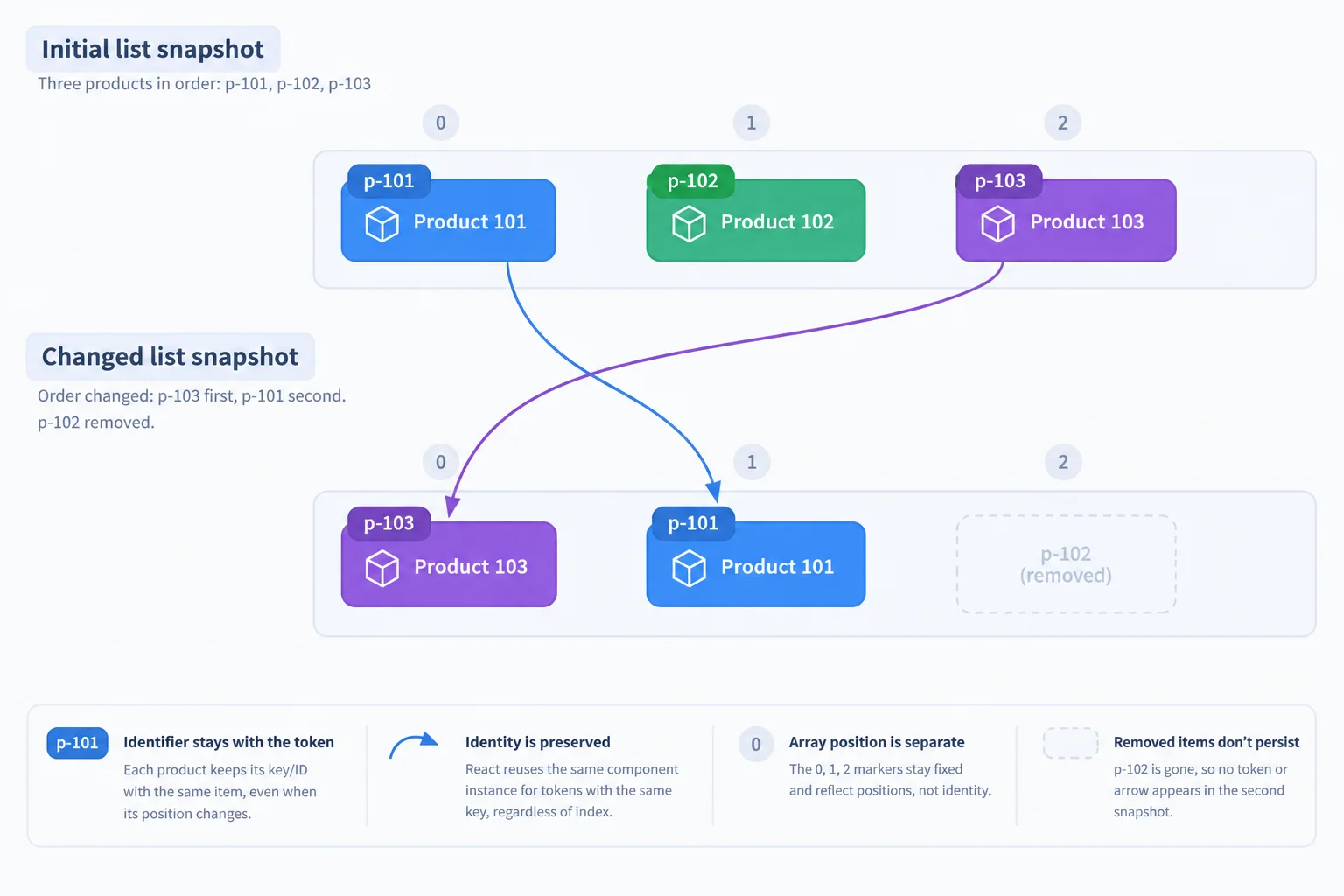
A stable key follows the record identifier, not the current array position. Source edits and hot reload do not prove preserved component identity.
Use these local checks after assembling the file. They verify visible rendering; the changed-order check lets you reason about stable keys from the source and diagram.
| Change | Visible evidence |
|---|---|
| Initial fixtures | Desk Lamp is featured with In stock and Offers: 2; all three list rows appear. |
| Set featuredProduct to null | The featured area shows No featured product. |
| Set featuredProduct to products[1] | Notebook shows Out of stock and Back next week.; no offers line appears. |
| Set products to [] and featuredProduct to null | The list area shows No products available. instead of an empty list. |
| Keep only p-103 then p-101 | Rows follow that order; each surviving row keeps its own record identifier as its stable key. |
Part 1 of 3 — place this first in src/App.tsx. This is the initial section of the file, not a runnable file by itself; the helper components follow in Parts 2 and 3.
type Product = {
  id: string;
  name: string;
  inStock: boolean;
  note: string | null;
  offerCount: number;
};

const products: Product[] = [
  { id: "p-101", name: "Desk Lamp", inStock: true, note: null, offerCount: 2 },
  { id: "p-102", name: "Notebook", inStock: false, note: "Back next week.", offerCount: 0 },
  { id: "p-103", name: "Canvas Bag", inStock: true, note: null, offerCount: 1 }
];

const featuredProduct: Product | null = products[0];

export default function App() {
  return (
    <main>
      <h1>Supply Shelf</h1>
      <FeaturedProduct product={featuredProduct} />
      <ProductList products={products} />
    </main>
  );
}Part 2 of 3 — append these typed helper components below Part 1 in the same file.
type FeaturedProductProps = {
  product: Product | null;
};

type ProductNoteProps = {
  note: string | null;
};

type ProductListProps = {
  products: Product[];
};

type ProductRowProps = {
  productId: string;
  name: string;
  inStock: boolean;
};

function FeaturedProduct({ product }: FeaturedProductProps) {
  if (product === null) {
    return (
      <section>
        <h2>Featured product</h2>
        <p>No featured product.</p>
      </section>
    );
  }

  return (
    <section>
      <h2>Featured product</h2>
      <p>{product.name}</p>
      <p>{product.inStock ? "In stock" : "Out of stock"}</p>
      <ProductNote note={product.note} />
      {product.offerCount > 0 && <p>Offers: {product.offerCount}</p>}
    </section>
  );
}

function ProductNote({ note }: ProductNoteProps) {
  if (note === null) {
    return null;
  }

  return <p>{note}</p>;
}Part 3 of 3 — append this below Part 2. It completes the executable src/App.tsx file. Run your existing local development server and compare the initial browser output with the result below.
function ProductList({ products }: ProductListProps) {
  if (products.length === 0) {
    return <p>No products available.</p>;
  }

  return (
    <ul>
      {products.map((product) => (
        <ProductRow
          key={product.id}
          productId={product.id}
          name={product.name}
          inStock={product.inStock}
        />
      ))}
    </ul>
  );
}

function ProductRow({ productId, name, inStock }: ProductRowProps) {
  return (
    <li>
      {name} — Item: {productId} — {inStock ? "In stock" : "Out of stock"}
    </li>
  );
}Supply Shelf Featured product Desk Lamp In stock Offers: 2 Desk Lamp — Item: p-101 — In stock Notebook — Item: p-102 — Out of stock Canvas Bag — Item: p-103 — In stock
Rendered browser text for the initial fixtures. Desk Lamp has no visible note because ProductNote returns null for its null note.
Complete the integrated rendering repairs. The surrounding types and components are available in your local file.
function ProductNote({ note }: ProductNoteProps) {
  if (note === null) {
    return ;
  }

  return <p>{note}</p>;
}

function FeaturedProduct({ product }: FeaturedProductProps) {
  if (product  null) {
    return (
      <section>
        <h2>Featured product</h2>
        <p>No featured product.</p>
      </section>
    );
  }

  return (
    <section>
      <h2>Featured product</h2>
      <p>{product.inStock ? "In stock" : "Out of stock"}</p>
      <ProductNote note={product.note} />
      {product.offerCount  0 && <p>Offers: {product.offerCount}</p>}
    </section>
  );
}

function ProductList({ products }: ProductListProps) {
  if (products.length  0) {
    return <p>No products available.</p>;
  }

  return (
    <ul>
      {products.map((product) => (
        <ProductRow
          key={}
          productId={product.}
          name={product.name}
          inStock={product.inStock}
        />
      ))}
    </ul>
  );
}In your local app, apply the static checks and write four short lines:
Confirm that you applied the repaired conditions before reporting the results.
Write at least 210 characters (0/210).
Summary
Use this compact decision guide whenever typed data can be absent, empty, optional, or reordered.
Congratulations! You completed: Render Conditional Content and Keyed Lists
20 XP
Thousands of online courses in video, ebooks and audiobooks.
To test your knowledge during online courses
Generated directly from your cell phone's photo gallery and sent to your email

Download our app via QR Code or the links below:.



Carry knowledge in your pocket.
Download the Cursa app.
There are hundreds of free courses available, with a free certificate of completion that is saved in your mobile image gallery.
Download the app to access the Course Completion Certificate for Free.


+ 10 million
students

Free and Valid
Certificate

60 thousand free
exercises

4.8/5 rating in
app stores

Free courses in
video and ebooks