Step 1 of 7
Choose Meaning Before Appearance
Choose HTML elements for their content purpose rather than their default visual appearance.

Learning path · Level 1 · Tutorial 4
Organize an unstyled page into meaningful regions, headings, and lists so its structure remains understandable without visual styling.

 Choose Meaning Before Appearance
Choose HTML elements for their content purpose rather than their default visual appearance. 1 min
Choose Meaning Before Appearance
Choose HTML elements for their content purpose rather than their default visual appearance. 1 min
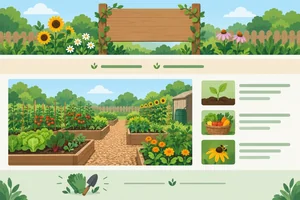 Identify the Main Page Regions
Assign introductory, navigation, primary, and closing content to suitable page-level elements. 2 min
Identify the Main Page Regions
Assign introductory, navigation, primary, and closing content to suitable page-level elements. 2 min
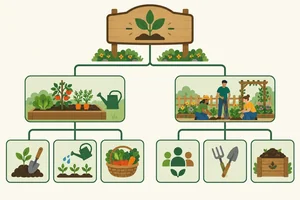 Build a Clear Heading Hierarchy
Create a heading hierarchy that expresses the garden page's title, major topics, and subtopics. 2 min
Build a Clear Heading Hierarchy
Create a heading hierarchy that expresses the garden page's title, major topics, and subtopics. 2 min
 Choose Sections and Articles
Distinguish thematic sections from self-contained articles and use a generic container only when no specific meaning applies. 2 min
Choose Sections and Articles
Distinguish thematic sections from self-contained articles and use a generic container only when no specific meaning applies. 2 min
 Represent Collections and Sequences
Use semantic list markup to distinguish collections from sequences in the Maple Community Garden page. 2 min
Represent Collections and Sequences
Use semantic list markup to distinguish collections from sequences in the Maple Community Garden page. 2 min
 Make the Reading Order Coherent
Arrange semantic HTML so an unstyled page remains coherent when read in source order. 2 min
Make the Reading Order Coherent
Arrange semantic HTML so an unstyled page remains coherent when read in source order. 2 min
 Organize and Check a Complete Page
Organize an unstyled page into meaningful regions, headings, and lists so its structure remains understandable without visual styling. 3 min
Organize and Check a Complete Page
Organize an unstyled page into meaningful regions, headings, and lists so its structure remains understandable without visual styling. 3 min
Step 1 of 7
Choose HTML elements for their content purpose rather than their default visual appearance.
HTML is not only a way to place words on a page. A semantic element describes the purpose of its content.
Ask: “What is this content?” rather than “How do I want it to look?” CSS can later change appearance, but it does not change what the HTML element means.
A <div> is useful when you need a generic grouping and no more specific purpose applies. It does not identify the kind of content inside it.
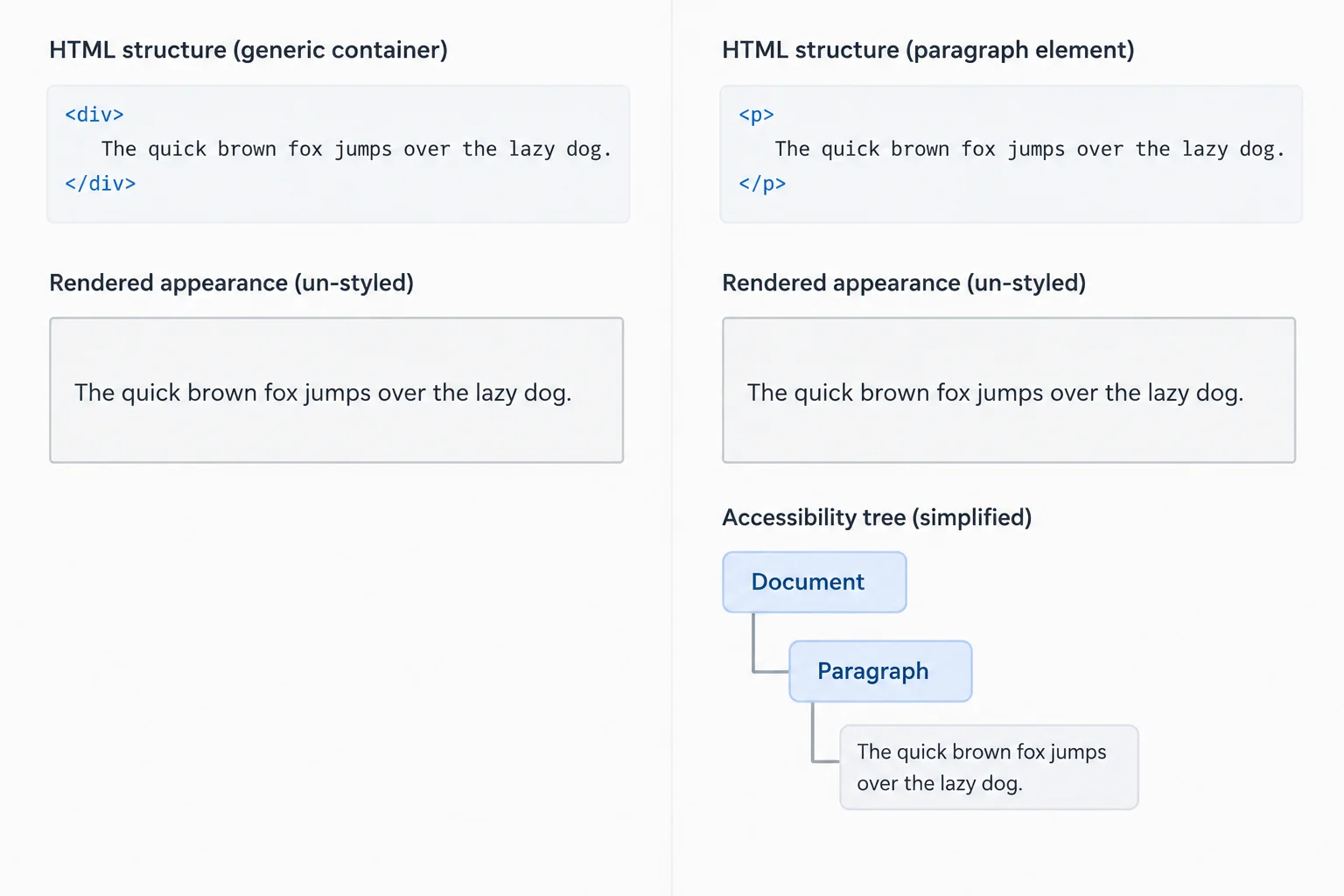
An unstyled view can look similar, but native semantics give browsers structural information they can expose to assistive technologies.
These snippets can occupy a similar block in an unstyled page. The first is a generic group; the second identifies a paragraph. Choose based on the content’s purpose, not on a default visual effect.
<div>Garden updates are posted weekly.</div>

<p>Garden updates are posted weekly.</p>
Tip
Do not select an element because it seems likely to create a preferred font size, spacing, or color. Those are presentation decisions for CSS. First choose the element whose built-in meaning best matches the content.
A developer needs to mark a sentence that is a paragraph. Which reason for choosing <p> follows semantic HTML?
Step 2 of 7
Assign introductory, navigation, primary, and closing content to suitable page-level elements.
Semantic HTML can identify the broad parts of a page before styling is added. For the garden page:
<header> contains introductory content.<nav> contains a major navigation block.<main> contains the page’s dominant content.<footer> contains closing information.These native elements create recognizable page landmarks that browsers can expose to assistive technologies. This ordinary page has one visible <main> element.
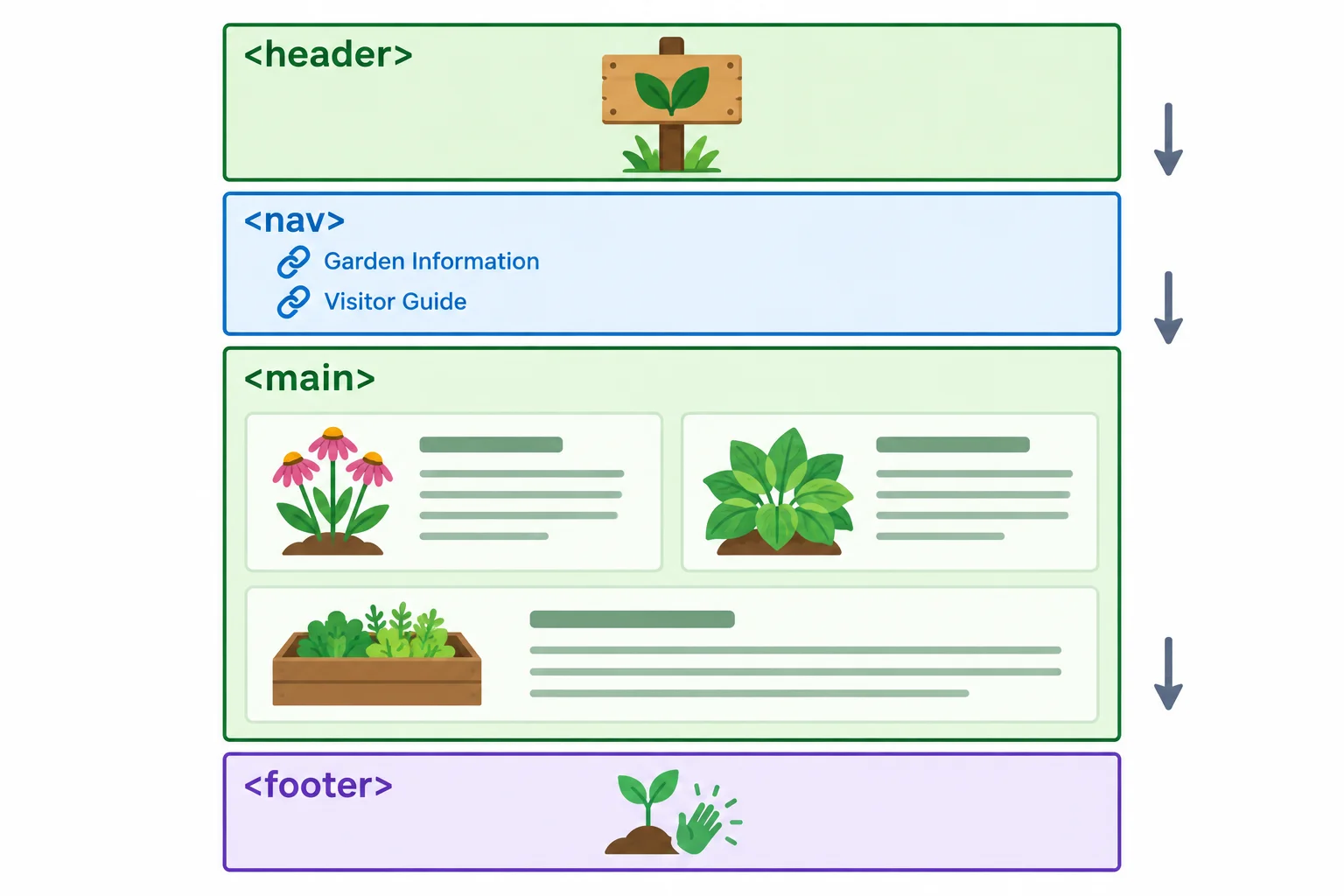
The page-level regions are siblings in this source order: <header>, <nav>, <main>, then <footer>.
Tip
A link does not automatically need a <nav> wrapper. Use <nav> for a major block of navigation links, such as the garden page’s two links to important page content. A lone link within ordinary content is not automatically a navigation region.
Match each garden content block to the page region that describes its purpose.
| Garden content block | Suitable element | Why |
|---|---|---|
| Introductory garden content | <header> | Introduces the page |
| Two major garden navigation links | <nav> | Groups major navigation |
| Garden information | <main> | Dominant page content |
| Run by neighborhood volunteers. | <footer> | Closing information |
Create or replace your local garden.html with this page-region skeleton. Save it and refresh the browser. Later steps add the detailed main content, but this source order already identifies the page’s broad regions.
<!doctype html>
<html lang="en">
<head>
  <meta charset="utf-8">
  <title>Maple Community Garden</title>
</head>
<body>
  <header>
    <h1>Maple Community Garden</h1>
  </header>
  <nav>
    <a href="#visit">Visit the Garden</a>
    <a href="#news">Garden News</a>
  </nav>
  <main>
  </main>
  <footer>
    <p>Run by neighborhood volunteers.</p>
  </footer>
</body>
</html>Maple Community Garden Visit the Garden Garden News Run by neighborhood volunteers.
Browser-default spacing and link appearance can vary. The empty `<main>` has no visible content, so it does not add a line to the page.
Complete each blank with the complete page region that matches the content purpose named by its comment.
<body>
  <!-- introductory page content -->


  <!-- major navigation links -->


  <!-- dominant page content -->


  <!-- closing page information -->

</body>
Step 3 of 7
Create a heading hierarchy that expresses the garden page's title, major topics, and subtopics.
Heading elements describe a topic relationship, not a preferred text size. <h1> is the page title; <h2> introduces a major topic; <h3> introduces a subtopic within that major topic.
For this page, use one descriptive <h1>: Maple Community Garden. The major topics are Visit the Garden and Garden News, so they are siblings at the same <h2> level. Their related subtopics use <h3>.
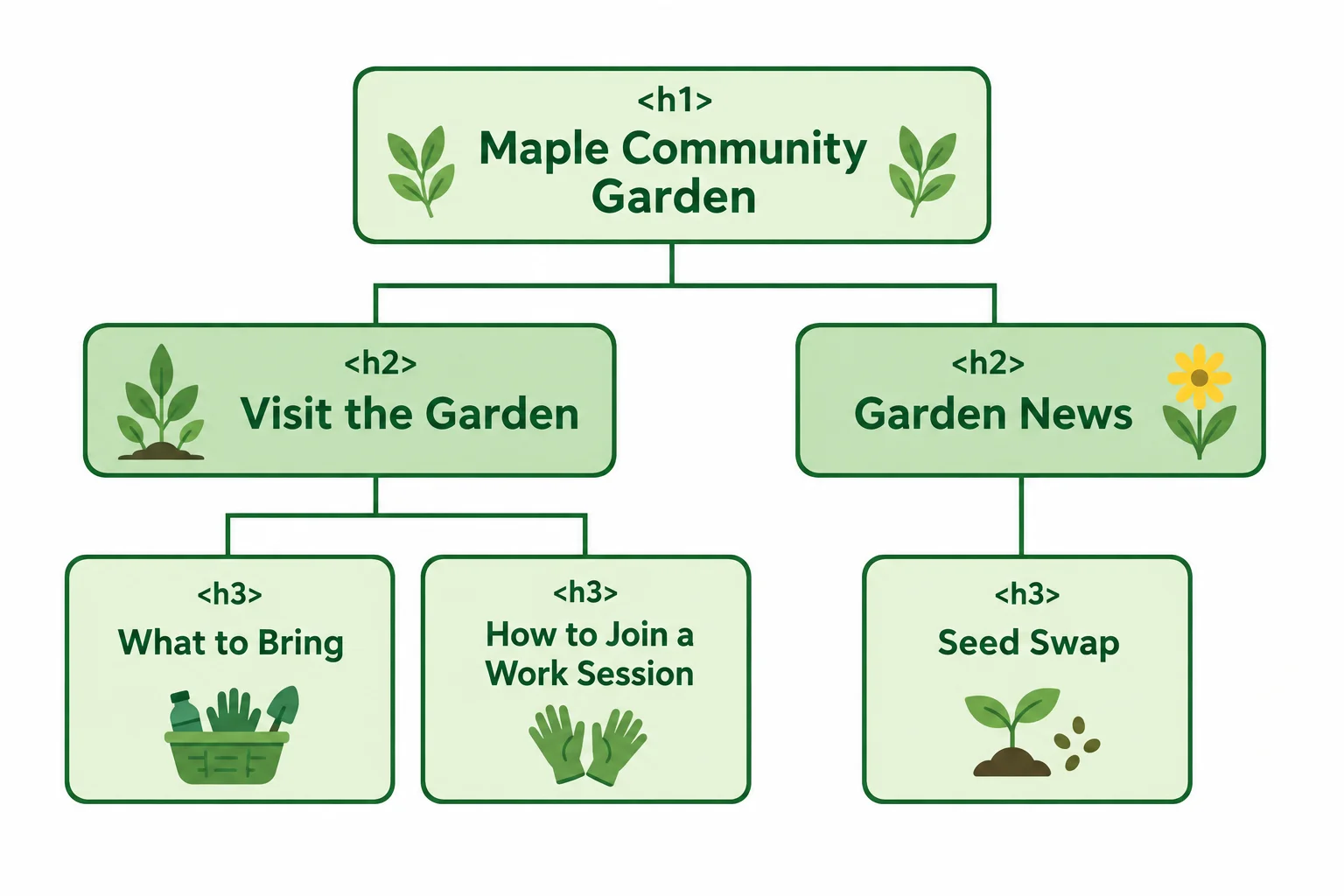
Sibling topics share a heading level. A subtopic uses the next deeper heading level.
Use explicit heading levels in the markup. Putting a heading inside another container does not change its level.
Do not skip from an <h2> to an <h4> when opening a subtopic. After an <h3> subtopic, another <h3> is a sibling subtopic. Returning to <h2> starts the next major topic.
This heading order describes the garden page from its overall subject to its subtopics.
<h1>Maple Community Garden</h1>

<h2>Visit the Garden</h2>
<h3>What to Bring</h3>
<h3>How to Join a Work Session</h3>

<h2>Garden News</h2>
<h3>Seed Swap</h3>
Tip
A browser may display headings at different default sizes, but size is not the reason to choose a heading level. Choose the level from the content relationship first; styling can be added later.
A draft has one page title, then major topics, but it uses <h4> for What to Bring. Which revision assigns heading levels correctly for the complete garden page and fixes the skipped level?
Step 4 of 7
Distinguish thematic sections from self-contained articles and use a generic container only when no specific meaning applies.
A <section> groups one thematic part of a larger document. It normally begins with a heading that names that topic.
An <article> is a self-contained composition: its content should still make sense if it is encountered independently. A news announcement is a common example.
For the garden page, Garden News is a topic within the main content, so it is a <section>. Seed Swap is one complete announcement within that topic, so it is an <article>.
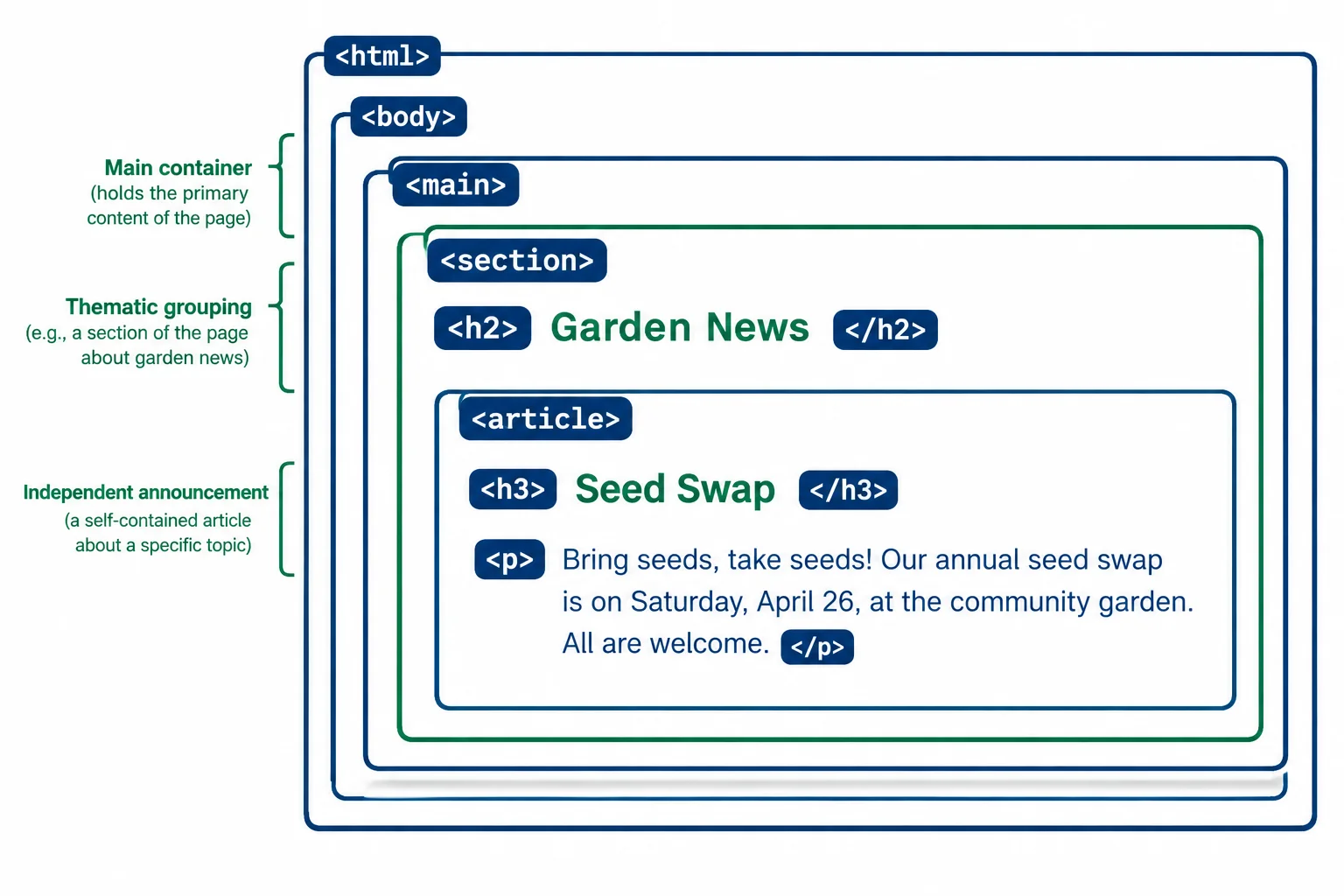
A thematic section can contain a self-contained article.
Choose an element for the meaning of the content, not for the amount of space it occupies on screen.
| Content situation | Suitable element | Why |
|---|---|---|
| A major topic of the page | <section> | A thematic grouping, usually with a heading |
| One complete announcement | <article> | Can make sense on its own |
| A grouping with no specific meaning | <div> | Generic container only when needed |
Add this structure inside the existing <main> in your local garden.html. The broader topic and the announcement keep the heading levels already established for the page.
<section id="news">
  <h2>Garden News</h2>
  <article>
    <h3>Seed Swap</h3>
    <p>Neighbors are organizing a seed swap at the garden. Bring spare seeds to share.</p>
  </article>
</section>
Tip
A <section> or <article> does not automatically become a page landmark merely because that tag is present. A <header> or <footer> nested inside an article or section describes that smaller piece of content; it is not the page-level header or footer landmark.
Match each content purpose to the most suitable HTML element.
Tap an item and then its matching pair.
Complete all four wrapper blanks in the Garden News structure. Keep the displayed heading levels unchanged.
<main>
  < id="news">
    <h2>Garden News</h2>
    <>
      <h3>Seed Swap</h3>
      <p>Neighbors are organizing a seed swap at the garden. Bring spare seeds to share.</p>
    </>
  </>
</main>
Step 5 of 7
Use semantic list markup to distinguish collections from sequences in the Maple Community Garden page.
A list is structure, not decoration. Choose the element from the relationship between the items:
For the garden page, supplies are a collection, while work-session instructions are a sequence. Browser bullets and numbers are only one possible visual result; native list structure communicates the meaning.
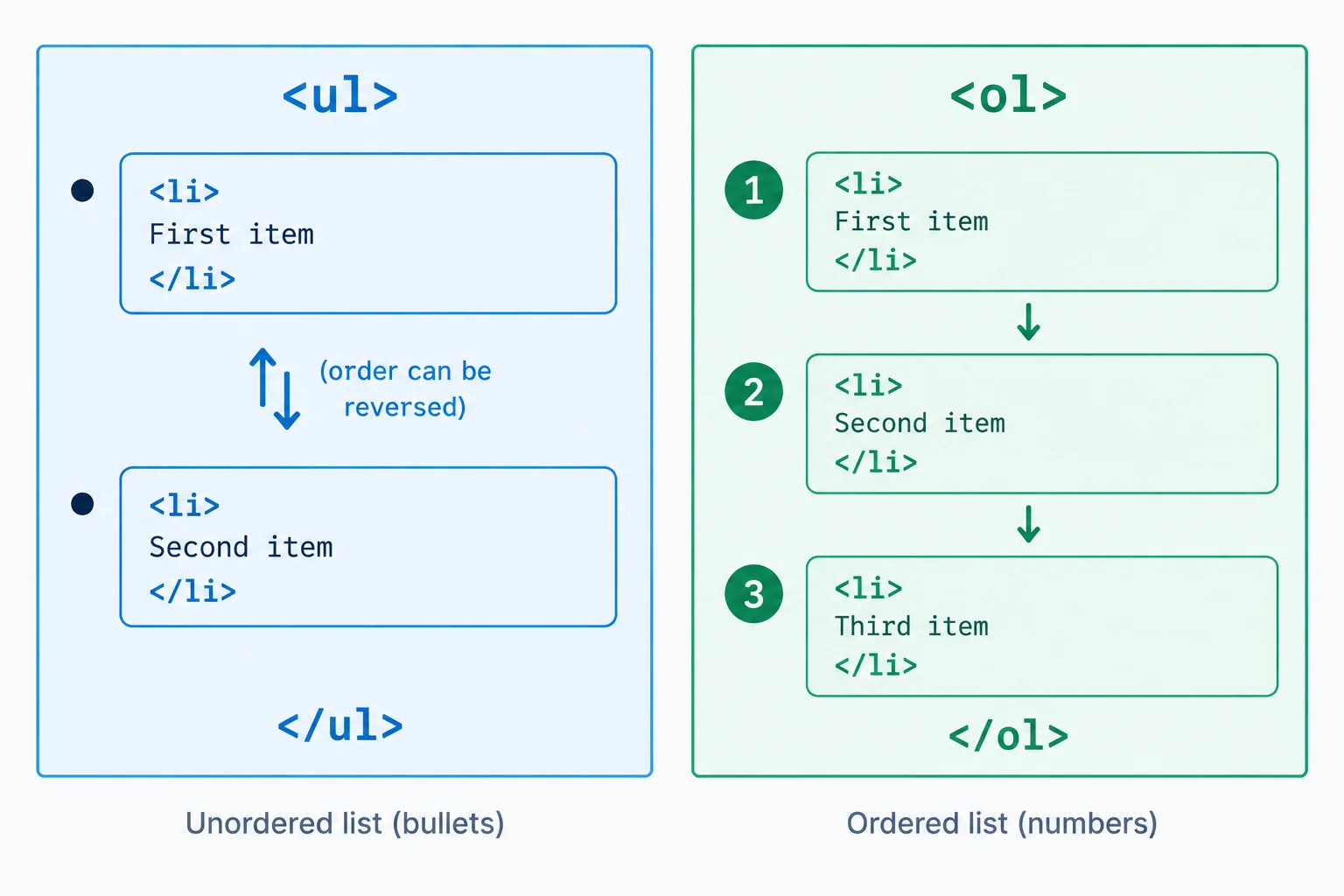
Use an unordered list for a collection and an ordered list for steps whose order matters.
In these simple lists, each item is marked with an <li> element nested directly inside its list container. Do not type bullet characters or step numbers into separate paragraphs: paragraphs do not provide native list structure.
Inside the existing <main> in your local garden.html, add the complete Visit the Garden section below. It includes its id, heading hierarchy, and both lists.
Add this complete section inside <main> in garden.html.
<section id="visit">
  <h2>Visit the Garden</h2>
  <h3>What to Bring</h3>
  <ul>
    <li>Gloves</li>
    <li>Water bottle</li>
  </ul>
  <h3>How to Join a Work Session</h3>
  <ol>
    <li>Meet at the gate</li>
    <li>Sign in</li>
    <li>Choose a task</li>
  </ol>
</section>Which semantic choice fits the two garden lists?
Complete each missing paired list structure. Include its container, every list item, and its closing tag.
<section id="visit">
  <h2>Visit the Garden</h2>
  <h3>What to Bring</h3>

  <h3>How to Join a Work Session</h3>

</section>
Step 6 of 7
Arrange semantic HTML so an unstyled page remains coherent when read in source order.
Source order is the sequence in which content appears in the HTML markup. Before any styling is added, that sequence should read like a clear document: introductory content, navigation, primary content, then closing information.
A heading hierarchy describes which topics belong under other topics. Source order describes when each topic and its content are encountered. Put a heading before the material it introduces, and keep instructions in their intended sequence.
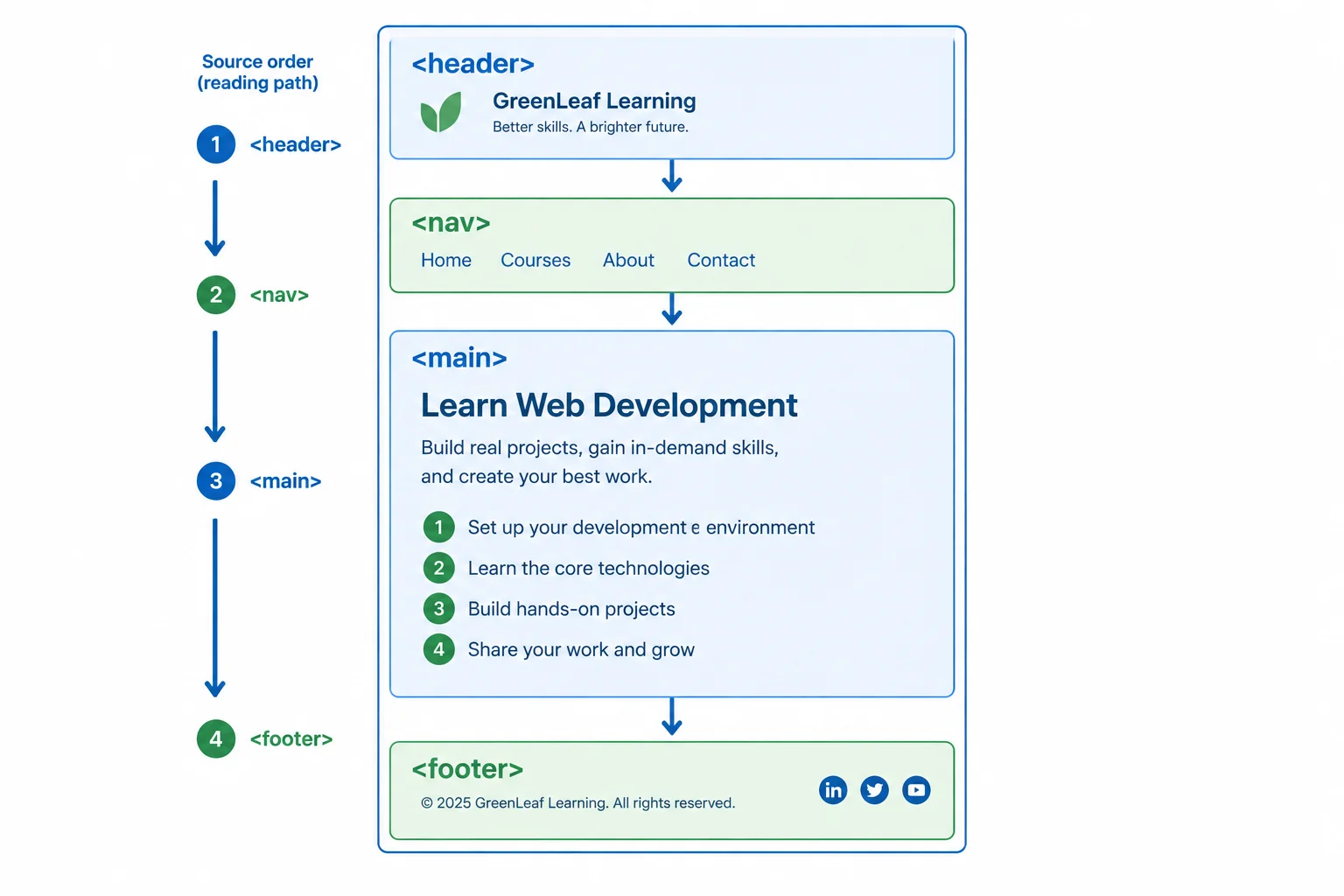
Page regions identify broad areas; headings introduce topics; lists keep related items in a meaningful order.
This body content reads coherently from top to bottom. The markup—not its unstyled appearance—communicates the page regions, topic relationships, and list meaning.
<body>
  <header>
    <h1>Maple Community Garden</h1>
  </header>
  <nav>
    <a href="#visit">Visit the Garden</a>
    <a href="#news">Garden News</a>
  </nav>
  <main>
    <section id="visit">
      <h2>Visit the Garden</h2>
      <h3>What to Bring</h3>
      <ul>
        <li>Gloves</li>
        <li>Water bottle</li>
      </ul>
      <h3>How to Join a Work Session</h3>
      <ol>
        <li>Meet at the gate</li>
        <li>Sign in</li>
        <li>Choose a task</li>
      </ol>
    </section>
    <section id="news">
      <h2>Garden News</h2>
      <article>
        <h3>Seed Swap</h3>
        <p>Neighbors are organizing a seed swap at the garden. Bring spare seeds to share.</p>
      </article>
    </section>
  </main>
  <footer>
    <p>Run by neighborhood volunteers.</p>
  </footer>
</body>
Tip
A browser can display content in a readable-looking way even when its markup is misplaced or too generic. Check the element choices, heading levels, list type, and source order—not only the visible result.
Arrange these HTML source blocks into a coherent reading order. Keep every native element and its content unchanged.
Step 7 of 7
Organize an unstyled page into meaningful regions, headings, and lists so its structure remains understandable without visual styling.
You have now chosen each structure for its meaning. The final task is to assemble those choices in one local document and check two things:
A readable page is useful evidence, but it is not enough by itself. Inspect the source as well: page regions identify major areas, heading levels show topic relationships, section and article express different kinds of grouping, and list types show whether order matters.
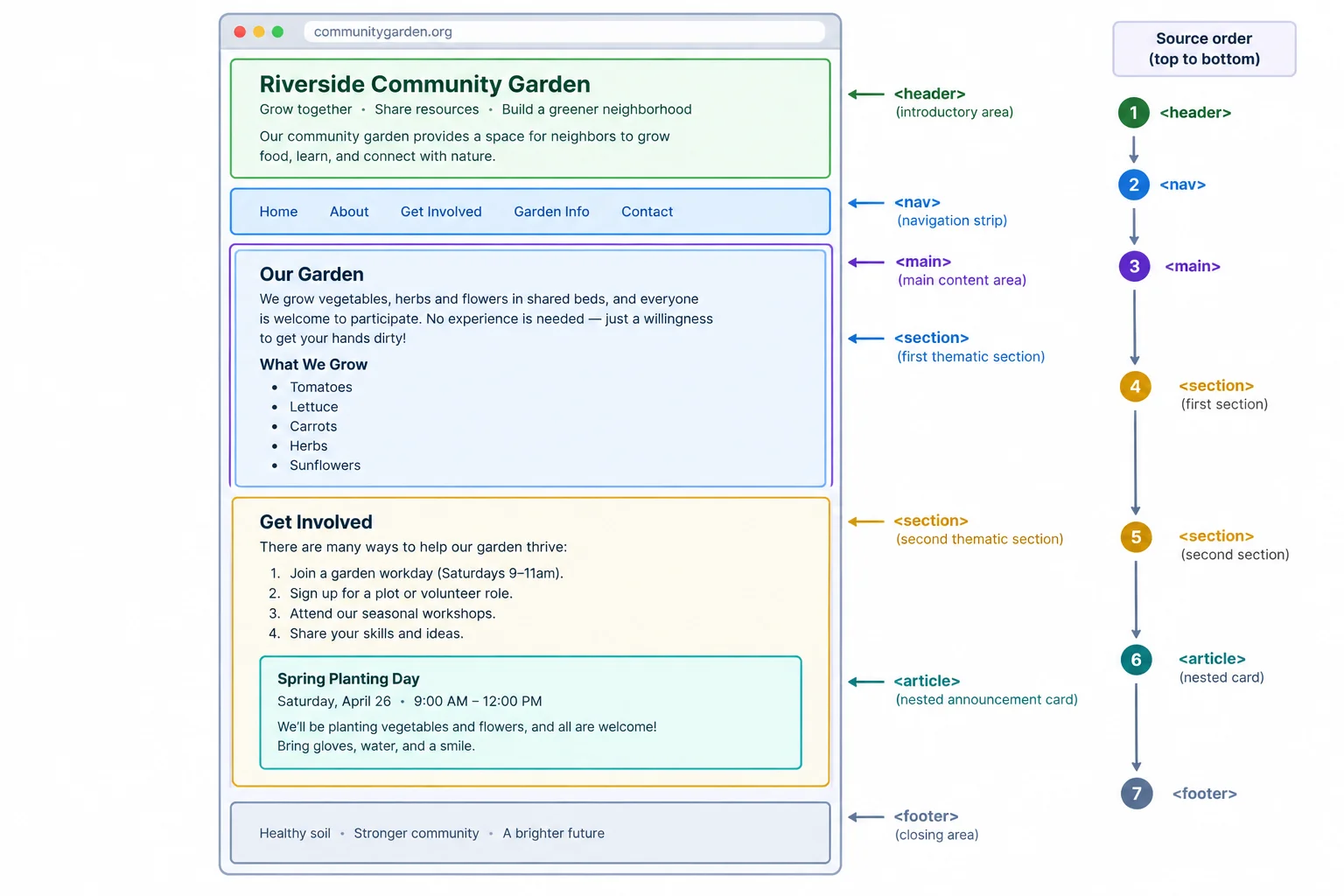
The source order moves through page regions and then through the topics and content inside <main>.
Complete each paired tag. Choose elements for the introductory page content, the Garden News topic, and the self-contained announcement.
<body>
  <>
    <h1>Maple Community Garden</h1>
  </>
  <main>
    < id="news">
      <h2>Garden News</h2>
      <>
        <h3>Seed Swap</h3>
        <p>Neighbors are organizing a seed swap at the garden. Bring spare seeds to share.</p>
      </>
    </>
  </main>
</body>In your local editor, replace the contents of garden.html with this complete document. Save the file, then refresh it in your browser. The page should be understandable in its plain browser-default view, with no CSS, JavaScript, or external assets.
Save this as garden.html, then refresh your local browser tab. Use the expected result to check the reading sequence, then use the checklist below to verify the markup itself.
<!doctype html>
<html lang="en">
<head>
  <meta charset="utf-8">
  <title>Maple Community Garden</title>
</head>
<body>
  <header>
    <h1>Maple Community Garden</h1>
  </header>
  <nav>
    <a href="#visit">Visit the Garden</a>
    <a href="#news">Garden News</a>
  </nav>
  <main>
    <section id="visit">
      <h2>Visit the Garden</h2>
      <h3>What to Bring</h3>
      <ul>
        <li>Gloves</li>
        <li>Water bottle</li>
      </ul>
      <h3>How to Join a Work Session</h3>
      <ol>
        <li>Meet at the gate</li>
        <li>Sign in</li>
        <li>Choose a task</li>
      </ol>
    </section>
    <section id="news">
      <h2>Garden News</h2>
      <article>
        <h3>Seed Swap</h3>
        <p>Neighbors are organizing a seed swap at the garden. Bring spare seeds to share.</p>
      </article>
    </section>
  </main>
  <footer>
    <p>Run by neighborhood volunteers.</p>
  </footer>
</body>
</html>Maple Community Garden Visit the Garden Garden News Visit the Garden What to Bring • Gloves • Water bottle How to Join a Work Session 1. Meet at the gate 2. Sign in 3. Choose a task Garden News Seed Swap Neighbors are organizing a seed swap at the garden. Bring spare seeds to share. Run by neighborhood volunteers.
Browser fonts, heading sizes, spacing, bullet shapes, and link styling vary. The important expected result is this top-to-bottom content order; the two navigation links appear before the main content.
Compare your source and browser result with this checklist:
<body> and occur in source order from introductory content through closing information.<main> containing the dominant page content.If something looks readable but fails a source check, revise the markup rather than relying on appearance.
Summary
A plain browser view helps you check source order. The markup confirms the meaning behind that view.
After saving and checking your local garden.html, report one structural relationship you confirmed. Name the content involved, the semantic element or heading/list relationship you checked, and how its source order supports understanding.
Write at least 40 characters (0/40).
Congratulations! You completed: Organize Content with Semantic HTML
Thousands of online courses in video, ebooks and audiobooks.
To test your knowledge during online courses
Generated directly from your cell phone's photo gallery and sent to your email

Download our app via QR Code or the links below:.



Carry knowledge in your pocket.
Download the Cursa app.
There are hundreds of free courses available, with a free certificate of completion that is saved in your mobile image gallery.
Download the app to access the Course Completion Certificate for Free.


+ 10 million
students

Free and Valid
Certificate

60 thousand free
exercises

4.8/5 rating in
app stores

Free courses in
video and ebooks