Step 1 of 7
Give the Native Dialog a Clear Name
Build the semantic structure of a confirmation dialog and connect its accessible name to its visible heading.

Learning path · Level 5 · Tutorial 5
Implement a native modal dialog with meaningful labeling, predictable keyboard behavior, and reliable focus handling instead of recreating modal behavior with generic elements.
 Give the Native Dialog a Clear Name
Build the semantic structure of a confirmation dialog and connect its accessible name to its visible heading. 2 min
Give the Native Dialog a Clear Name
Build the semantic structure of a confirmation dialog and connect its accessible name to its visible heading. 2 min
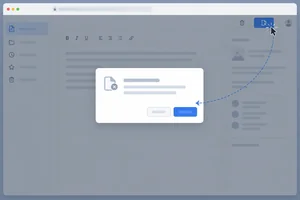 Open and Close Through Native Controls
Open and dismiss the named native dialog with browser-provided button activation and modal methods. 3 min
Open and Close Through Native Controls
Open and dismiss the named native dialog with browser-provided button activation and modal methods. 3 min
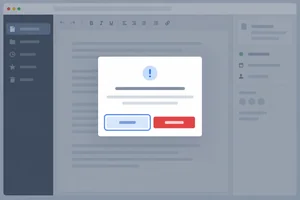 Choose a Useful Initial Focus Target
Select an initial focus target that supports the task of a native modal dialog. 3 min
Choose a Useful Initial Focus Target
Select an initial focus target that supports the task of a native modal dialog. 3 min
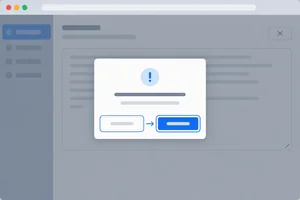 Let the Browser Contain Keyboard Focus
Verify that a native modal dialog keeps sequential document focus out of its background without a custom focus trap. 3 min
Let the Browser Contain Keyboard Focus
Verify that a native modal dialog keeps sequential document focus out of its background without a custom focus trap. 3 min
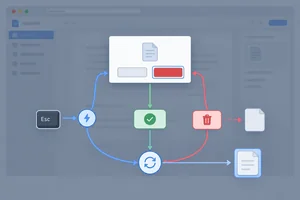 Synchronize Every Dismissal Path
Keep dialog state and draft content correct after Keep draft, Clear draft, or Escape. 4 min
Synchronize Every Dismissal Path
Keep dialog state and draft content correct after Keep draft, Clear draft, or Escape. 4 min
 Restore Focus to a Useful Destination
Record the actual opener and restore focus after rendering: return to the usable opener when possible, or continue in Draft text when confirmation disables it. 3 min
Restore Focus to a Useful Destination
Record the actual opener and restore focus after rendering: return to the usable opener when possible, or continue in Draft text when confirmation disables it. 3 min
 Verify the Complete Keyboard Journey
Run a complete local keyboard check of the native Draft workspace dialog, including cancellation, confirmation, restoration, and repeated use. 3 min
Verify the Complete Keyboard Journey
Run a complete local keyboard check of the native Draft workspace dialog, including cancellation, confirmation, restoration, and repeated use. 3 min
Step 1 of 7
Build the semantic structure of a confirmation dialog and connect its accessible name to its visible heading.
A native <dialog> gives this confirmation surface dialog semantics. You do not need to make a generic container imitate a dialog.
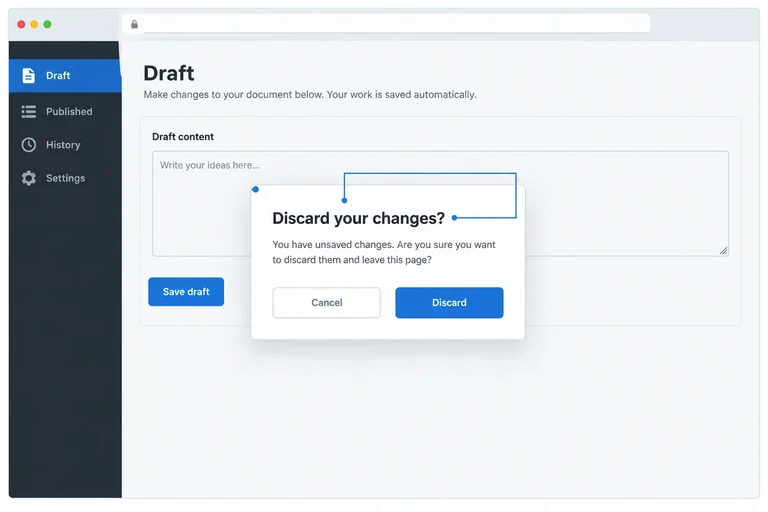
In the Draft workspace, the editable Draft text remains on the page. The Clear draft button is the opener. The dialog asks Clear this draft? and offers two actions in a deliberate order: Keep draft, then Clear draft.
A dialog also needs an accessible name. Connect the dialog to its visible heading with aria-labelledby. The attribute value must match the heading’s id.
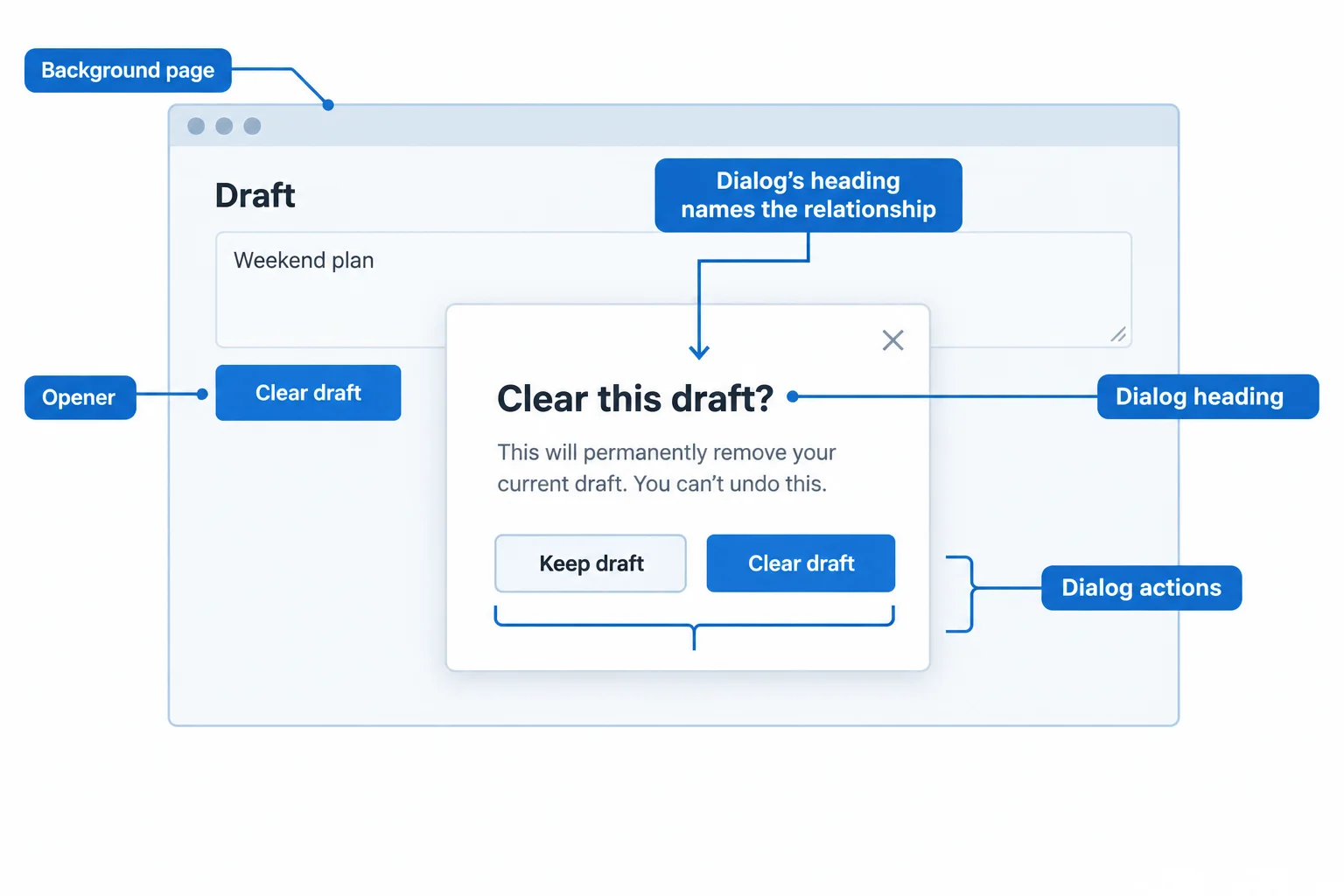
The visible dialog heading supplies the modal dialog’s accessible name.
Create index.html, styles.css, and script.js in one local folder. Save the following complete contents in the matching files, then open index.html in a browser.
This version supplies the complete page structure, baseline styling, state object, and DOM references. The dialog is intentionally not opened or dismissed yet; later steps add that behavior.
<!doctype html>
<html lang="en">
<head>
  <meta charset="UTF-8">
  <meta name="viewport" content="width=device-width, initial-scale=1.0">
  <title>Draft workspace</title>
  <link rel="stylesheet" href="styles.css">
  <script src="script.js" defer></script>
</head>
<body>
  <main>
    <h1>Draft workspace</h1>
    <label for="draft-text">Draft text</label>
    <textarea id="draft-text" rows="6">Weekend plan</textarea>
    <button id="open-dialog" type="button">Clear draft</button>

    <dialog id="clear-dialog" aria-labelledby="dialog-title">
      <h2 id="dialog-title">Clear this draft?</h2>
      <p>This action empties the current draft.</p>
      <div class="dialog-actions">
        <button id="keep-draft" type="button">Keep draft</button>
        <button id="confirm-clear" type="button">Clear draft</button>
      </div>
    </dialog>
  </main>
</body>
</html>Draft workspace Draft text [textarea containing: Weekend plan] [Clear draft button] The confirmation dialog is not visible yet.
After all three files in this screen are saved in the same folder and index.html is opened, the browser shows the described page. The dialog remains closed at this stage.
:root {
  font-family: system-ui, sans-serif;
  color: #172033;
  background: #f4f7fb;
}

body {
  margin: 0;
}

main {
  max-width: 42rem;
  margin: 4rem auto;
  padding: 0 1.5rem;
}

label,
textarea,
button {
  display: block;
}

textarea {
  box-sizing: border-box;
  width: 100%;
  margin: 0.5rem 0 1rem;
  padding: 0.75rem;
}

button {
  padding: 0.65rem 1rem;
  font: inherit;
}

button:disabled {
  cursor: not-allowed;
  opacity: 0.55;
}

button:focus-visible,
textarea:focus-visible {
  outline: 3px solid #0759c7;
  outline-offset: 3px;
}

dialog {
  max-width: 28rem;
  border: 0;
  border-radius: 0.75rem;
  box-shadow: 0 1rem 3rem #17203366;
  padding: 1.5rem;
}

dialog::backdrop {
  background: #17203399;
}

.dialog-actions {
  display: flex;
  gap: 0.75rem;
  justify-content: flex-end;
}Draft workspace Draft text [textarea containing: Weekend plan] [Clear draft button] The page has spacing and controls show a blue outline when reached with keyboard focus.
With the three-file page assembled, these styles provide the visible focus outline and the dialog’s baseline appearance. The backdrop becomes visible only when a later step opens the modal dialog.
const state = { draftText: "Weekend plan", dialogOpen: false };

let opener = null;

const draftInput = document.querySelector("#draft-text");
const openButton = document.querySelector("#open-dialog");
const dialog = document.querySelector("#clear-dialog");
const keepButton = document.querySelector("#keep-draft");
const confirmButton = document.querySelector("#confirm-clear");

function render() {
  if (draftInput.value !== state.draftText) {
    draftInput.value = state.draftText;
  }

  openButton.disabled = state.draftText.length === 0;
}

render();Draft workspace Draft text [textarea containing: Weekend plan] [enabled Clear draft button] The confirmation dialog is not visible yet.
This script performs the initial render only. With the other two files saved, it keeps the textarea value and opener availability aligned with the initial state without replacing text unnecessarily.
Complete both missing attributes so the modal dialog receives its accessible name from the visible question.
<dialog id="clear-dialog" >
  <h2 >Clear this draft?</h2>
  <p>This action empties the current draft.</p>
</dialog>
Step 2 of 7
Open and dismiss the named native dialog with browser-provided button activation and modal methods.
Your existing Draft workspace has a named native <dialog>. To open it as a modal dialog, call showModal() on the dialog object.
showModal() requests browser-managed modality; it is more than making a box visible. show() opens a non-modal dialog. Manually adding the open attribute exposes the element, but does not perform the equivalent modal operation.
Read dialog.open to learn whether the dialog is currently open. It is a status property, not the command that opens the dialog.
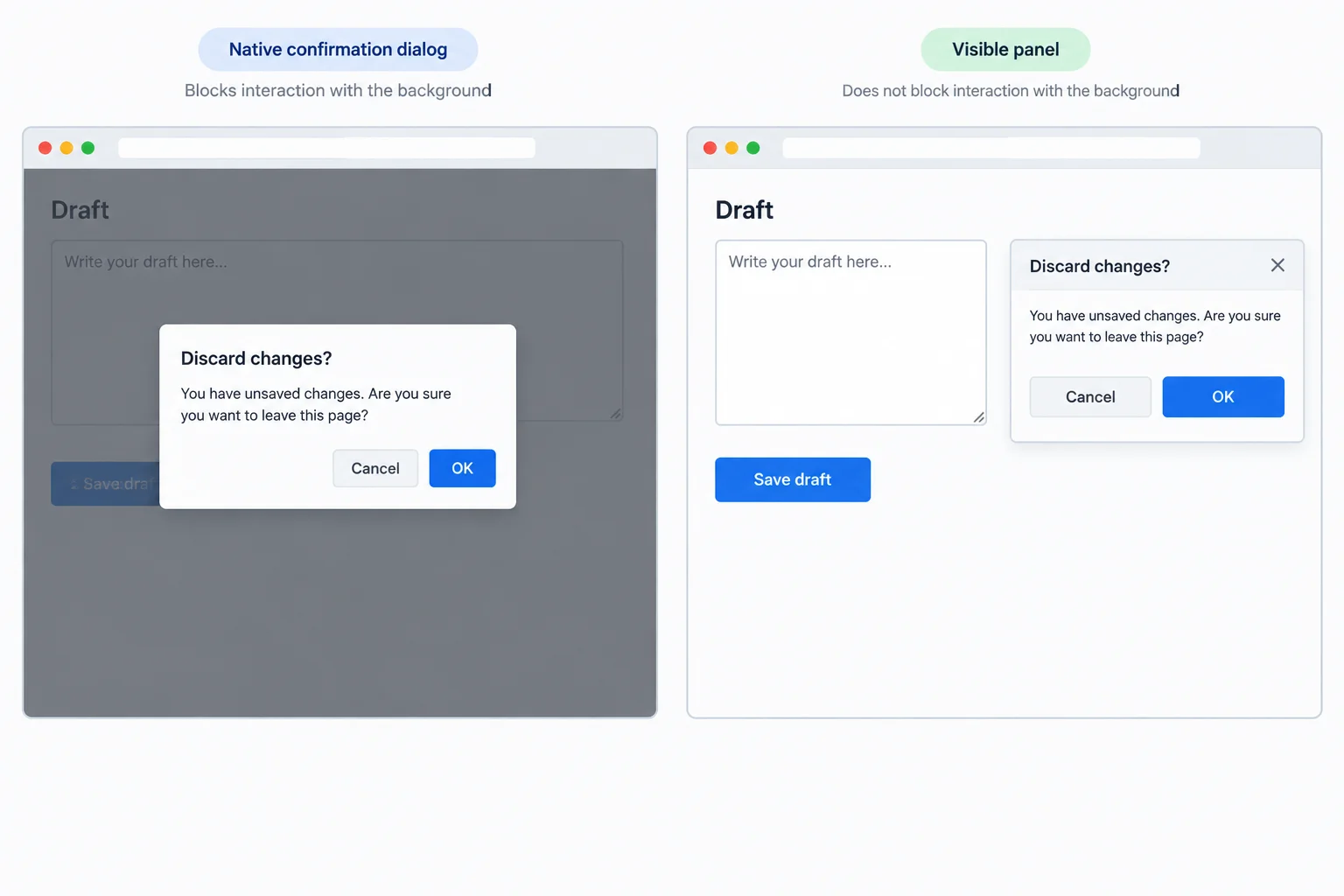
A modal dialog is a browser-managed interaction state, not only a visible surface.
Choose a method to open the dialog. Use the property only to inspect its current state.
| Operation | Meaning | Use here |
|---|---|---|
| `dialog.showModal()` | Opens as a modal dialog | Open Clear this draft? |
| `dialog.show()` | Opens as a non-modal dialog | Do not use |
| Set `open` attribute | Exposes the element manually | Do not use |
| `dialog.open` | Reports current open state | Guard repeated opening |
Use one activation path: register a click listener for each native button. A browser dispatches click when someone activates a button with a pointer, Enter, or Space.
Do not add separate keydown handlers for Enter or Space. They duplicate the button’s built-in behavior and can cause an action to run twice.
The guard below avoids another opening request while the dialog is already open. Keep draft dismisses the dialog without changing the draft. The clearing action is added later.
In script.js, add this section after the existing render() function and before the final render(); call.
function handleOpen() {
  if (dialog.open) {
    return;
  }

  dialog.showModal();
}

function handleKeep() {
  dialog.close();
}

openButton.addEventListener("click", handleOpen);
keepButton.addEventListener("click", handleKeep);Draft workspace Draft text: Weekend plan Clear draft: enabled After activating Clear draft: Modal dialog is open: Clear this draft? After activating Keep draft: Modal dialog is closed Draft text: Weekend plan
Expected browser result after saving and refreshing: the Draft workspace shows the textarea containing “Weekend plan” and an enabled Clear draft button. Select Clear draft with a pointer, Enter, or Space to open the modal dialog. Select Keep draft with a pointer, Enter, or Space to close it; the draft text remains unchanged.
Tip
Keep opening and dismissal as native method calls. Do not replace showModal() with show(), set or remove the open attribute yourself, or add keyboard-specific handlers to these buttons.
Complete the two handlers used by the Clear draft opener and the Keep draft dismissal button.
function handleOpen() {
  if (dialog.) {
    return;
  }

  dialog.();
}

function handleKeep() {
  dialog.();
}Which implementation correctly opens the dialog as a modal dialog while preserving one activation path for pointer, Enter, and Space?
Step 3 of 7
Select an initial focus target that supports the task of a native modal dialog.
Initial focus is where keyboard focus lands when a modal dialog opens. Choose it for the task—not because a control happens to appear first in the markup.
This dialog confirms a destructive change. Keep draft is the useful initial focus because it is the non-destructive choice. A keyboard user can press Enter to preserve the draft rather than accidentally clear it.
When you open the dialog, the visible :focus-visible outline provides evidence of the initial focus target.
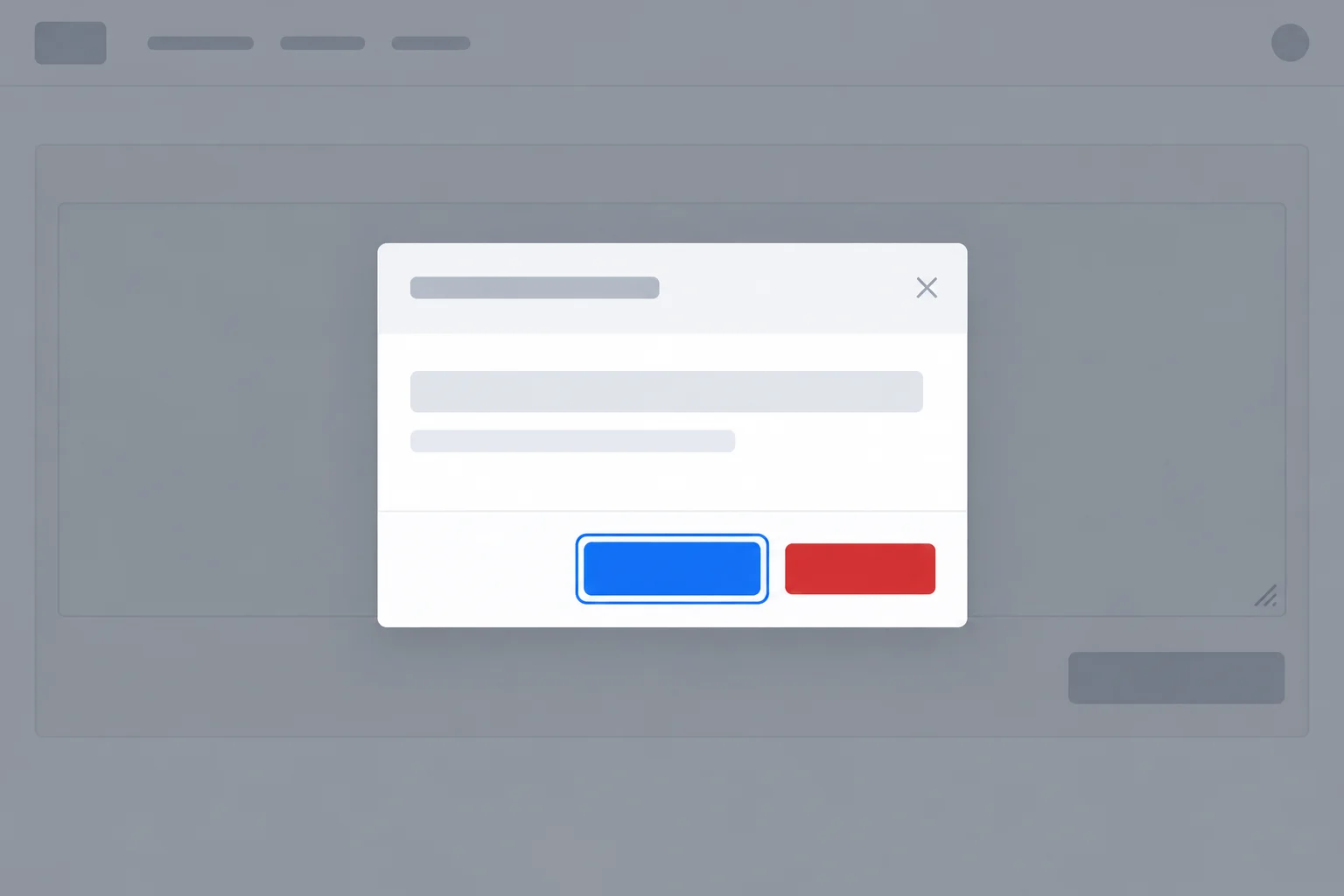
For this confirmation, initial focus supports keeping the draft rather than clearing it.
Edit the existing dialog in index.html. Add autofocus only to Keep draft. This fixed dialog has one appropriate target, so the HTML attribute communicates the intent without JavaScript.
Preserve the existing heading, explanatory text, action order, and dialog-actions class.
index.html — replace only the existing dialog section with this version.
<dialog id="clear-dialog" aria-labelledby="dialog-title">
  <h2 id="dialog-title">Clear this draft?</h2>
  <p>This action empties the current draft.</p>
  <div class="dialog-actions">
    <button id="keep-draft" type="button" autofocus>Keep draft</button>
    <button id="confirm-clear" type="button">Clear draft</button>
  </div>
</dialog>The modal dialog opens with a visible focus outline on Keep draft. Clear draft remains the second action.
After saving and refreshing the completed local page, open the dialog with Clear draft to observe this browser result.
Use an explicit focus() call only when context chooses the target. It is an alternative to a fixed autofocus target—not an additional routine call for this Draft workspace.
The request belongs immediately after showModal(), when the dialog is open. Do not add tabindex to the dialog element, and do not use positive tabindex values to manufacture a focus order.
Alternative pattern — study this pattern for a dialog whose calling code has selected an appropriate target. Do not add it alongside the autofocus used by Draft workspace.
function openDialogWithTarget(initialTarget) {
  if (dialog.open) {
    return;
  }

  dialog.showModal();
  initialTarget.focus();
}When this function receives an enabled control inside the dialog, the dialog opens and the visible focus outline moves to that control.
This is an alternative pattern, not a replacement for the running example's handleOpen function.
Initial focus should help the person begin the dialog's next meaningful task. The suitable target changes with the dialog's purpose.
Choose a target based on what the dialog asks the person to do, rather than source order.
| Dialog task | Useful initial target | Why |
|---|---|---|
| Destructive confirmation | Non-destructive action | Supports the safer outcome |
| Short data-entry task | First editable field | Lets the person begin entering data |
| Substantial introductory content | Heading with tabindex="-1" | Lets the person read the context first |
Tip
A heading with tabindex="-1" can receive programmatic focus but is not inserted into ordinary Tab navigation. This is useful when substantial content needs attention first; it is not needed for the short Draft workspace confirmation.
Complete the attribute for the fixed initial target in this confirmation.
<button id="keep-draft" type="button" >Keep draft</button>In the context-dependent alternative, complete the method called after opening.
function openDialogWithTarget(initialTarget) {
  if (dialog.open) {
    return;
  }

  dialog.showModal();
  initialTarget.();
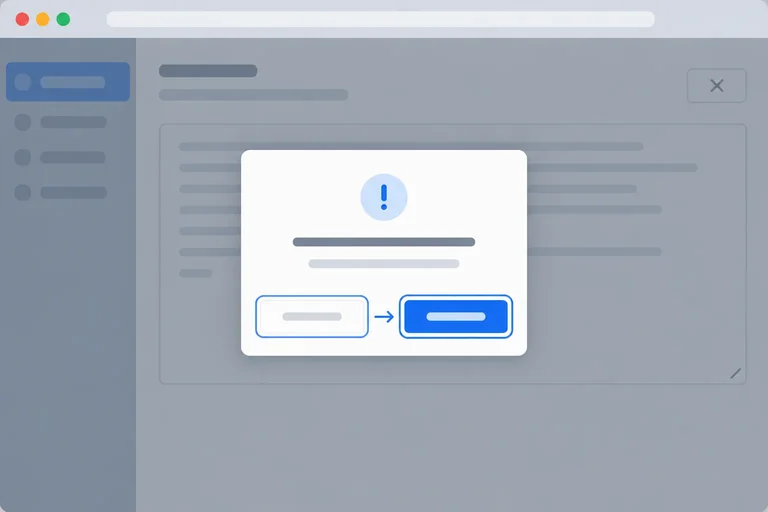
}Match each dialog purpose to its most useful initial focus target.
Tap an item and then its matching pair.
Step 4 of 7
Verify that a native modal dialog keeps sequential document focus out of its background without a custom focus trap.
When showModal() opens the native modal dialog, the browser makes the rest of that document inert. The Draft text textarea and Clear draft opener remain visible in the background, but they are unavailable for normal pointer interaction and sequential keyboard navigation.
This is native modal behavior. The darkened background is only a visual cue: dialog::backdrop helps people see that the dialog is active, but it does not create focus containment.
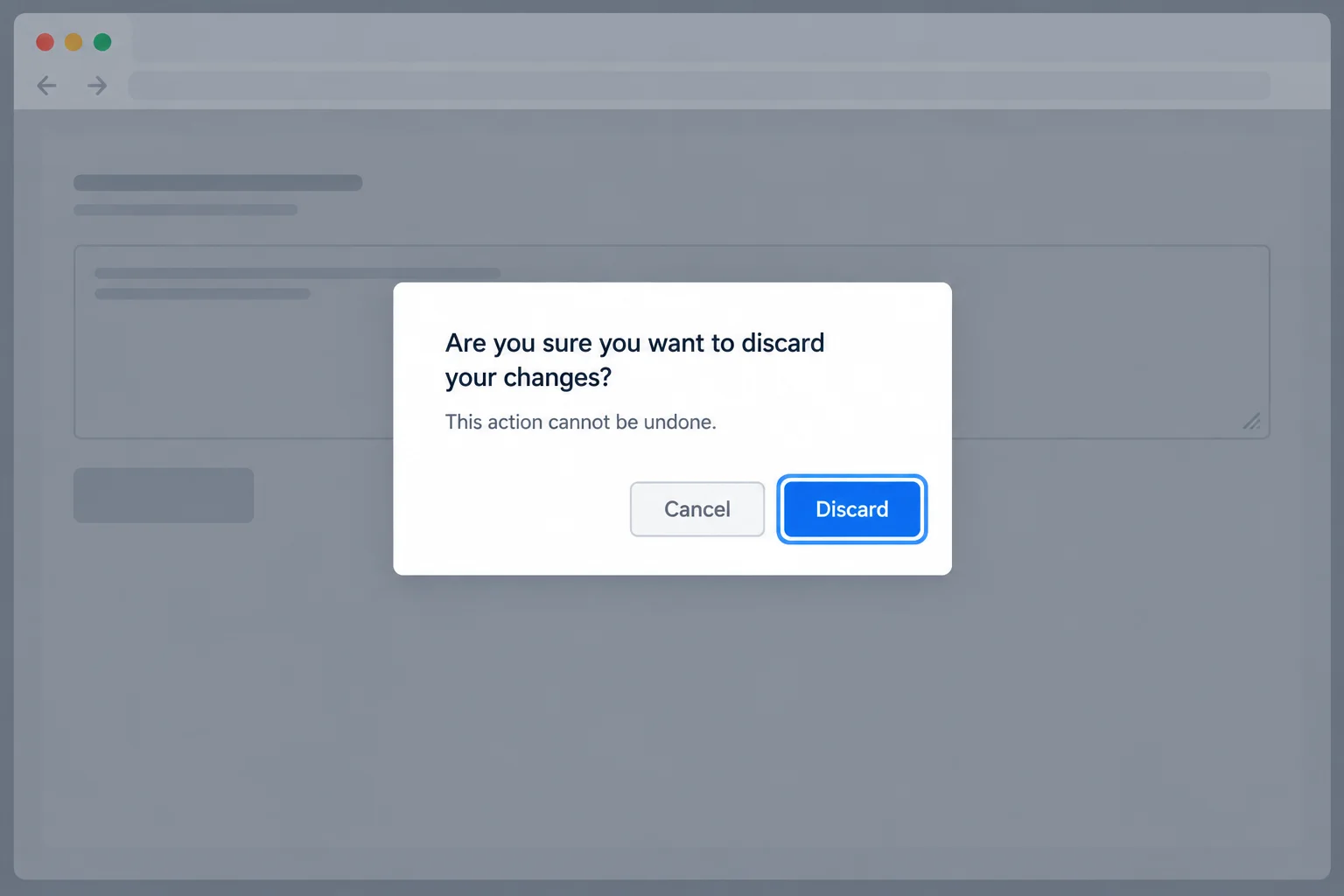
The backdrop signals the active layer; native modal behavior makes the background document inert.
Tip
Do not add inert yourself to the page background for this example. A dialog opened with showModal() already has the browser behavior needed for the background document.
Within the document, Tab and Shift+Tab can move only among controls that are available in the modal dialog. Starting from the existing initial focus on Keep draft, move forward with Tab and backward with Shift+Tab to inspect the dialog actions.
Browser chrome, such as the address bar or browser tabs, is outside the document. It is not a background page control, so document-level focus containment does not promise to keep focus away from browser chrome.
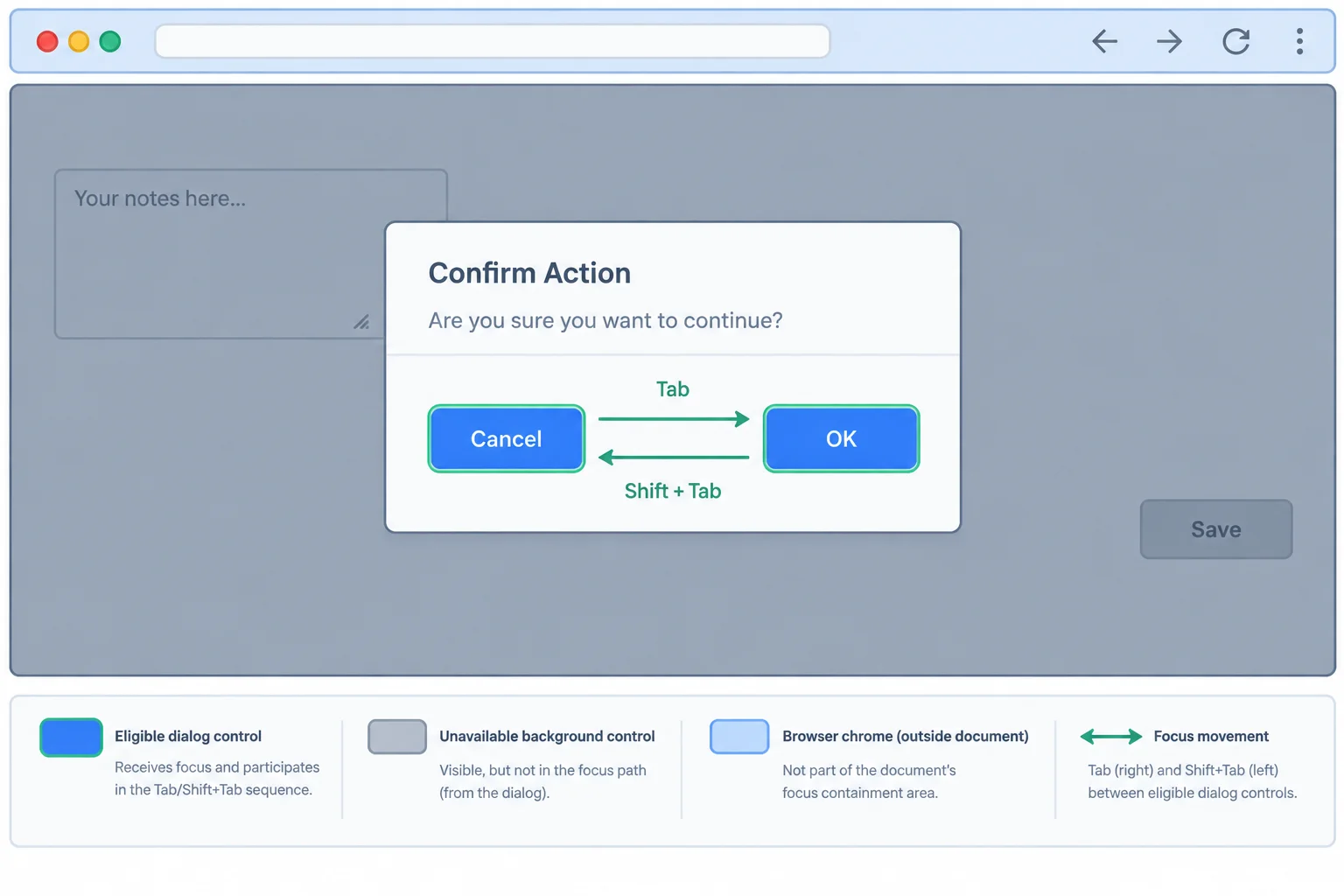
Sequential navigation stays with eligible dialog controls; background controls are not eligible.
Warning
Do not intercept Tab or Shift+Tab with a keydown listener, and do not build a custom focus trap. Those additions can create incorrect keyboard behavior. The browser supplies focus containment for this native modal dialog.
Test the local page in your browser while the draft still contains text:
Clear draft to open the modal dialog.Tab several times and watch the visible focus outline.Shift+Tab several times and watch it move in the reverse direction.Draft text textarea using those keys.Keep the dialog open for the check. This test is about focus containment, not dismissal behavior.
Tip
Use the visible :focus-visible outline as evidence of the current focused control. Do not infer focus only from the dimmed appearance of the page.
After your local check, write three short statements:
Draft text as either a background document control or browser chrome.Tab and Shift+Tab from reaching Draft text, and report what happened in your test.Write at least 100 characters (0/100).
Step 5 of 7
Keep dialog state and draft content correct after Keep draft, Clear draft, or Escape.
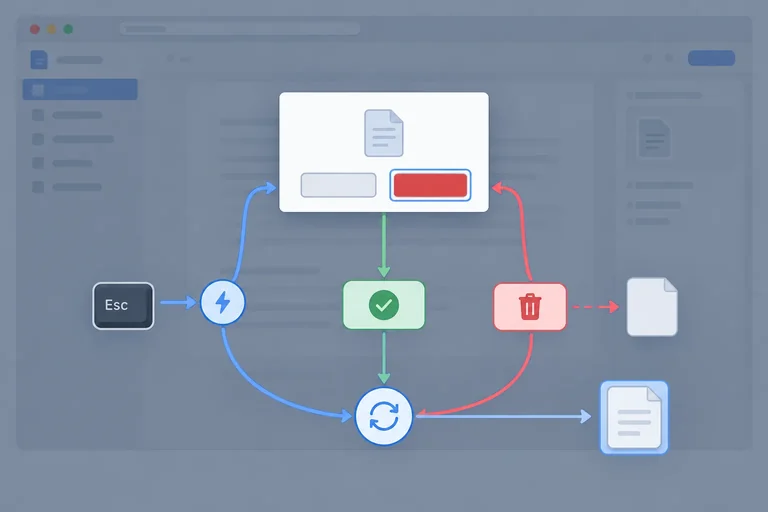
A modal dialog can be dismissed in several ways, but completed dismissal has one shared destination: the dialog’s close listener.
When the user presses Escape, the native modal dialog first receives cancel. This confirmation does not prevent that event, so the browser performs its default dismissal and then fires close. In contrast, calling dialog.close() from Keep draft or Clear draft does not fire cancel; it proceeds to close.
Register both listeners directly on dialog because these events do not bubble. Use cancel to observe or deliberately block an Escape request—not as universal cleanup.
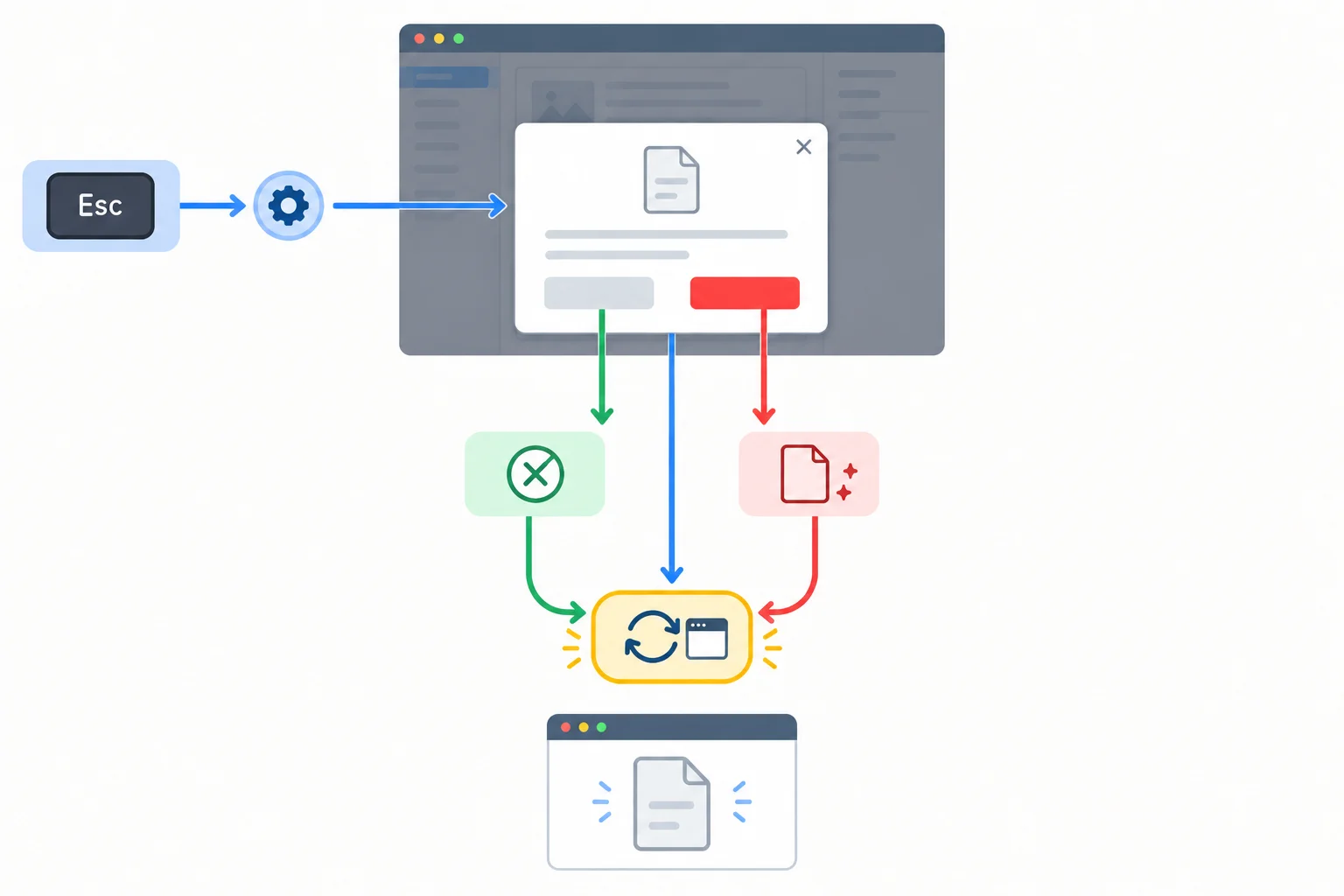
Escape requests cancellation first. Button handlers call close directly; every completed dismissal reaches close.
Treat dialog.open as authoritative for native dialog visibility. Immediately after showModal(), copy its value into state.dialogOpen. Then, in the close listener, copy dialog.open again and call render().
render() updates existing page controls. It keeps the textarea aligned with state and derives whether the opener is disabled from state.draftText.length === 0. It does not add or remove the dialog’s open attribute and never reopens the modal dialog.
While someone is editing, the input listener updates state and calls render(). The guarded textarea assignment avoids rewriting the focused textarea when its current value already matches state, preserving its caret and selection.
Each path has a task-specific action, followed by the same close synchronization.
| Path | Does cancel fire? | Draft text | Shared close result |
|---|---|---|---|
| Keep draft button | No | Unchanged | Synchronize and render |
| Clear draft button | No | Empty string | Synchronize and render |
| Escape | Yes | Unchanged | Synchronize and render |
Tip
Do not call preventDefault() in this dialog’s cancel listener. Preventing that event would block native Escape dismissal, which is not the intended behavior for this confirmation.
Replace the complete contents of script.js with this version. It adds confirmation, input, cancel, and close handling while preserving the native dialog lifecycle.
const state = { draftText: "Weekend plan", dialogOpen: false };

let opener = null;

const draftInput = document.querySelector("#draft-text");
const openButton = document.querySelector("#open-dialog");
const dialog = document.querySelector("#clear-dialog");
const keepButton = document.querySelector("#keep-draft");
const confirmButton = document.querySelector("#confirm-clear");

function render() {
  if (draftInput.value !== state.draftText) {
    draftInput.value = state.draftText;
  }

  openButton.disabled = state.draftText.length === 0;
}

function handleDraftInput(event) {
  state.draftText = event.currentTarget.value;
  render();
}

function handleOpen() {
  if (dialog.open) {
    return;
  }

  dialog.showModal();
  state.dialogOpen = dialog.open;
}

function handleKeep() {
  dialog.close();
}

function handleConfirm() {
  state.draftText = "";
  dialog.close();
}

function handleCancel() {
  // Allow native Escape dismissal.
}

function handleClose() {
  state.dialogOpen = dialog.open;
  render();
}

draftInput.addEventListener("input", handleDraftInput);
openButton.addEventListener("click", handleOpen);
keepButton.addEventListener("click", handleKeep);
confirmButton.addEventListener("click", handleConfirm);
dialog.addEventListener("cancel", handleCancel);
dialog.addEventListener("close", handleClose);

render();Draft workspace Draft text Weekend plan Clear draft
Expected browser result after saving and refreshing: the page initially shows the existing draft and enabled Clear draft opener. Keep draft and Escape close the dialog without changing the draft. Clear draft empties the textarea and disables the opener.
Put the native Escape lifecycle in order.
Complete the confirmation and shared-close handlers.
function handleConfirm() {
  state.draftText = ;
  dialog.();
}

function handleClose() {
  state.dialogOpen = dialog.;
  ();
}
Step 6 of 7
Record the actual opener and restore focus after rendering: return to the usable opener when possible, or continue in Draft text when confirmation disables it.
Native closing ordinarily restores focus to the element focused before the modal dialog opened. That is helpful, but it does not always choose a useful destination.
A pointer can activate the opener without making it the previously focused element. Record the actual opening button from event.currentTarget before showModal().
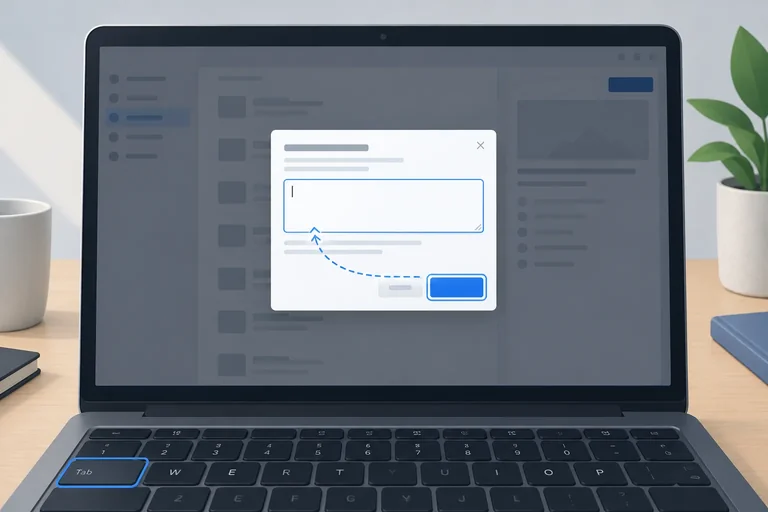
When the dialog closes, synchronize state and call render() first. Then choose the focus destination from the resulting page: prefer the remembered opener when it is still available. After Clear draft, rendering disables that opener, so focus should move to the enabled Draft text textarea.
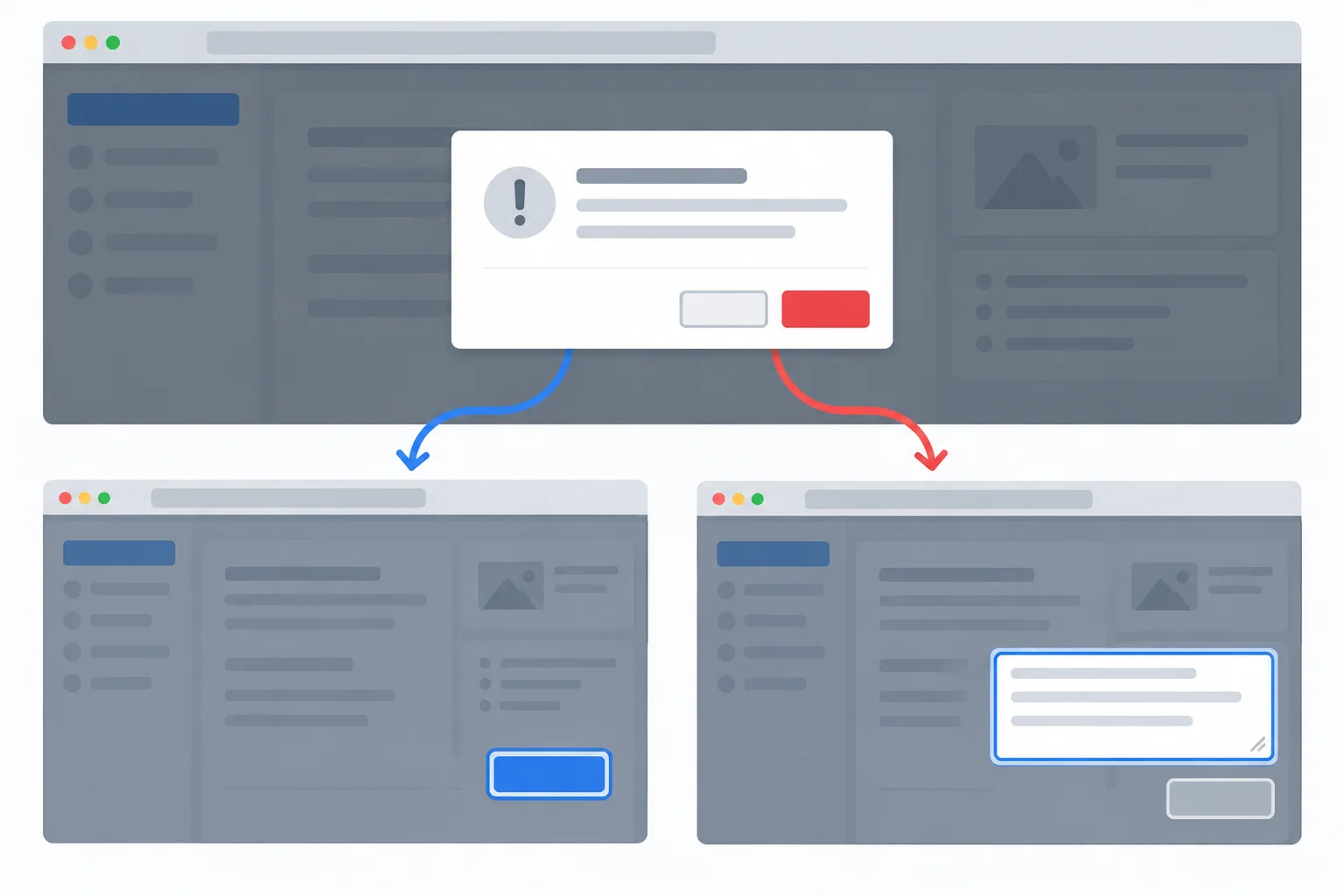
Choose the destination after rendering the close result, rather than relying only on the element focused before opening.
Tip
For this page, the remembered opener is useful only when it is still in the document (isConnected) and is not disabled. In another interface, a removed or hidden opener also needs a deliberate, usable fallback—not an arbitrary first page control.
Replace the complete contents of script.js with this version. It preserves the existing dialog behavior, records the actual opener, and restores focus after the shared close listener synchronizes state and renders the updated controls.
const state = { draftText: "Weekend plan", dialogOpen: false };

let opener = null;

const draftInput = document.querySelector("#draft-text");
const openButton = document.querySelector("#open-dialog");
const dialog = document.querySelector("#clear-dialog");
const keepButton = document.querySelector("#keep-draft");
const confirmButton = document.querySelector("#confirm-clear");

function render() {
  if (draftInput.value !== state.draftText) {
    draftInput.value = state.draftText;
  }

  openButton.disabled = state.draftText.length === 0;
}

function handleDraftInput(event) {
  state.draftText = event.currentTarget.value;
  render();
}

function handleOpen(event) {
  opener = event.currentTarget;

  if (dialog.open) {
    return;
  }

  dialog.showModal();
  state.dialogOpen = dialog.open;
}

function handleKeep() {
  dialog.close();
}

function handleConfirm() {
  state.draftText = "";
  dialog.close();
}

function handleCancel() {
  // Allow native Escape dismissal.
}

function handleClose() {
  state.dialogOpen = dialog.open;
  render();

  const focusTarget =
    opener && opener.isConnected && !opener.disabled
      ? opener
      : draftInput;

  if (document.activeElement !== focusTarget) {
    focusTarget.focus();
  }

  opener = null;
}

draftInput.addEventListener("input", handleDraftInput);
openButton.addEventListener("click", handleOpen);
keepButton.addEventListener("click", handleKeep);
confirmButton.addEventListener("click", handleConfirm);
dialog.addEventListener("cancel", handleCancel);
dialog.addEventListener("close", handleClose);

render();Initial browser result: Draft workspace displays Draft text containing "Weekend plan" and an enabled Clear draft opener. After Keep draft or Escape: The dialog closes, the draft remains "Weekend plan", and the visible focus outline is on the enabled Clear draft opener. After Clear draft: The dialog closes, Draft text is empty, Clear draft is disabled, and the visible focus outline is on Draft text.
This browser example renders an interface rather than terminal text. The focus outline appears when focus is moved by keyboard or by the close handler.
The shared handleClose() runs after every completed dismissal. Its order is intentional: render() first updates the textarea and opener availability; target selection follows that result. The guarded textarea update avoids rewriting its value when it already matches state, including during ordinary input.
The document.activeElement check avoids an unnecessary second focus() call when native focus restoration has already reached the chosen target.
After the shared close listener synchronizes state and calls render(), match each dismissal path to its expected focus destination.
Tap an item and then its matching pair.
After state synchronization and rendering, complete the focus-target selection in the shared close handler.
function handleClose() {
  state.dialogOpen = dialog.open;
  render();

  const focusTarget =
    opener && opener.isConnected && !opener.disabled
      ?
      : ;

  if (document.activeElement !== focusTarget) {
    focusTarget.focus();
  }

  opener = null;
}
Step 7 of 7
Run a complete local keyboard check of the native Draft workspace dialog, including cancellation, confirmation, restoration, and repeated use.
Use this final three-file version for the local keyboard check. Save all three files in one folder, then open index.html in your browser. The heading, visible :focus-visible outline, disabled opener, and focus destination provide observable evidence during the journey.
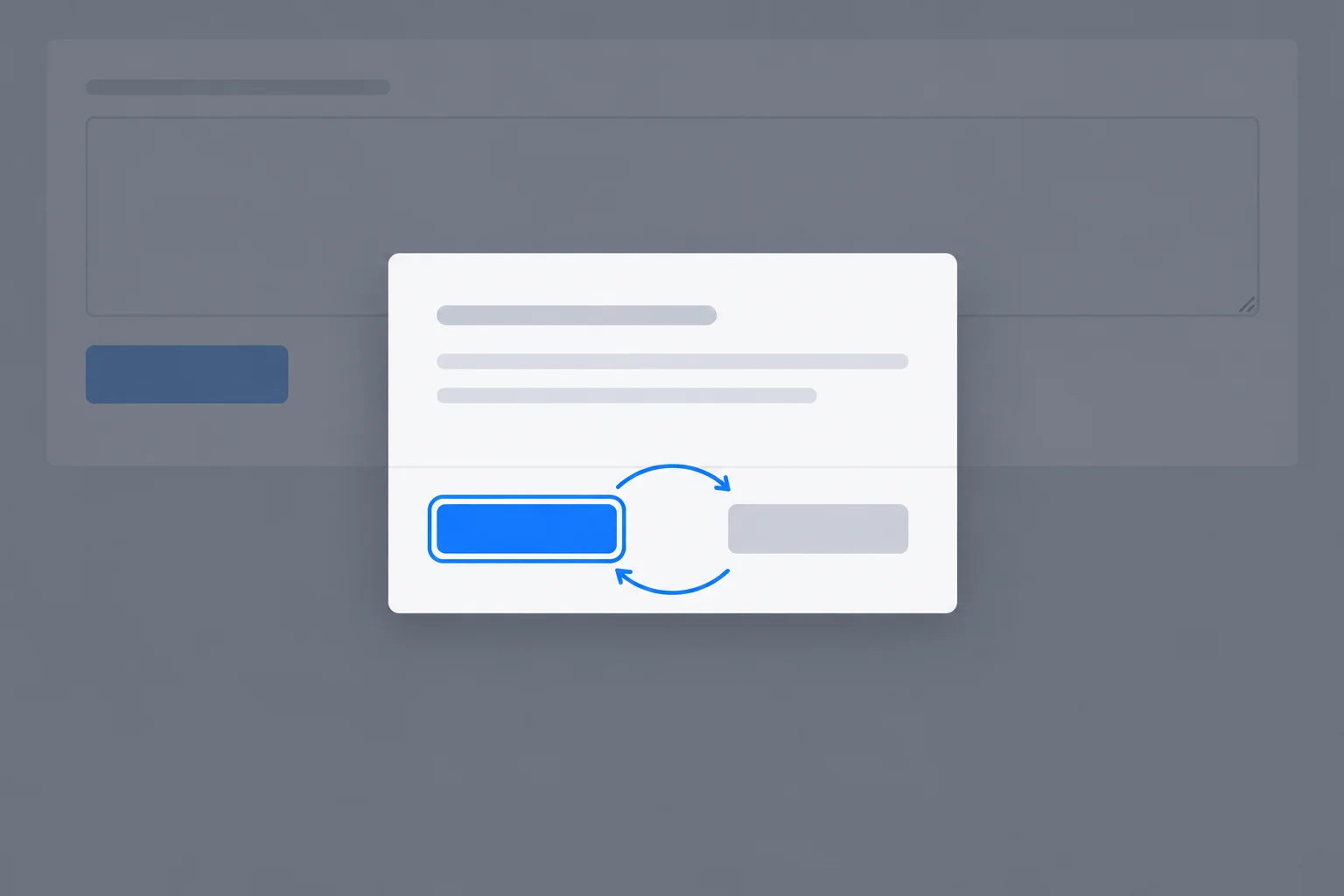
The dialog heading identifies the task, the outline identifies the current keyboard destination, and the dimmed page is not available while the modal dialog is open.
Save as index.html.
<!doctype html>
<html lang="en">
<head>
  <meta charset="UTF-8">
  <meta name="viewport" content="width=device-width, initial-scale=1.0">
  <title>Draft workspace</title>
  <link rel="stylesheet" href="styles.css">
  <script src="script.js" defer></script>
</head>
<body>
  <main>
    <h1>Draft workspace</h1>
    <label for="draft-text">Draft text</label>
    <textarea id="draft-text" rows="6">Weekend plan</textarea>
    <button id="open-dialog" type="button">Clear draft</button>

    <dialog id="clear-dialog" aria-labelledby="dialog-title">
      <h2 id="dialog-title">Clear this draft?</h2>
      <p>This action empties the current draft.</p>
      <div class="dialog-actions">
        <button id="keep-draft" type="button" autofocus>Keep draft</button>
        <button id="confirm-clear" type="button">Clear draft</button>
      </div>
    </dialog>
  </main>
</body>
</html>Draft workspace Draft text Weekend plan Clear draft
After saving all three files and opening index.html, this file supplies the visible page structure. The browser result also depends on styles.css and script.js.
Save as styles.css.
:root {
  font-family: system-ui, sans-serif;
  color: #172033;
  background: #f4f7fb;
}

body {
  margin: 0;
}

main {
  max-width: 42rem;
  margin: 4rem auto;
  padding: 0 1.5rem;
}

label,
textarea,
button {
  display: block;
}

textarea {
  box-sizing: border-box;
  width: 100%;
  margin: 0.5rem 0 1rem;
  padding: 0.75rem;
}

button {
  padding: 0.65rem 1rem;
  font: inherit;
}

button:disabled {
  cursor: not-allowed;
  opacity: 0.55;
}

button:focus-visible,
textarea:focus-visible {
  outline: 3px solid #0759c7;
  outline-offset: 3px;
}

dialog {
  max-width: 28rem;
  border: 0;
  border-radius: 0.75rem;
  box-shadow: 0 1rem 3rem #17203366;
  padding: 1.5rem;
}

dialog::backdrop {
  background: #17203399;
}

.dialog-actions {
  display: flex;
  gap: 0.75rem;
  justify-content: flex-end;
}Visible result after opening the modal dialog: A blue focus outline appears on the focused control. The background page is dimmed behind the dialog.
After all three files are saved, the page has a visible focus outline and the native dialog backdrop dims the background when the modal dialog opens.
Save this complete script.js beside the other two files. It keeps state.dialogOpen aligned with dialog.open, preserves the draft for Keep draft and Escape, and restores focus after the page controls have been rendered. The empty cancel listener deliberately permits native Escape dismissal.
Save as script.js. This is the final behavior file for the three-file example.
const state = { draftText: "Weekend plan", dialogOpen: false };

let opener = null;

const draftInput = document.querySelector("#draft-text");
const openButton = document.querySelector("#open-dialog");
const dialog = document.querySelector("#clear-dialog");
const keepButton = document.querySelector("#keep-draft");
const confirmButton = document.querySelector("#confirm-clear");

function render() {
  if (draftInput.value !== state.draftText) {
    draftInput.value = state.draftText;
  }

  openButton.disabled = state.draftText.length === 0;
}

function handleDraftInput(event) {
  state.draftText = event.currentTarget.value;
  render();
}

function handleOpen(event) {
  opener = event.currentTarget;

  if (dialog.open) {
    return;
  }

  dialog.showModal();
  state.dialogOpen = dialog.open;
}

function handleKeep() {
  dialog.close();
}

function handleConfirm() {
  state.draftText = "";
  dialog.close();
}

function handleCancel() {
  // Allow native Escape dismissal.
}

function handleClose() {
  state.dialogOpen = dialog.open;
  render();

  const focusTarget =
    opener && opener.isConnected && !opener.disabled
      ? opener
      : draftInput;

  if (document.activeElement !== focusTarget) {
    focusTarget.focus();
  }

  opener = null;
}

draftInput.addEventListener("input", handleDraftInput);
openButton.addEventListener("click", handleOpen);
keepButton.addEventListener("click", handleKeep);
confirmButton.addEventListener("click", handleConfirm);
dialog.addEventListener("cancel", handleCancel);
dialog.addEventListener("close", handleClose);

render();Draft workspace Draft text Weekend plan Clear draft After opening: Clear this draft? This action empties the current draft. Keep draft receives the visible focus outline. After Keep draft: Weekend plan remains in Draft text. Clear draft receives the visible focus outline.
Open index.html after saving all three files. The first four lines describe the initial page. The remaining lines are the expected result after activating Clear draft and then Keep draft.
Test with a keyboard, not only a pointer. Use the visible dialog heading, focus outline, draft text, and opener availability as evidence. To inspect the state check without editing the example, place a breakpoint at the end of handleOpen() or handleClose() in browser DevTools and inspect state.dialogOpen and dialog.open; they should match after each listed transition.
Perform the rows in order. After confirmation, type new text into Draft text before the repeated-opening row.
| Check | Keyboard action | Visible evidence | State check |
|---|---|---|---|
| Open with Enter | Focus Clear draft; press Enter | The dialog heading is visible; Keep draft has initial focus | true / true |
| Traverse forward | Press Tab | Focus moves to Clear draft inside the dialog; background is unavailable | true / true |
| Traverse backward | Press Shift+Tab | Focus returns to Keep draft | true / true |
| Keep draft | Press Enter on Keep draft | Weekend plan remains; focus returns to Clear draft | false / false |
| Escape | Reopen, then press Escape | Weekend plan remains; focus returns to Clear draft | false / false |
| Confirm clear | Reopen; Tab to Clear draft; press Space | Textarea is empty, opener is disabled, Draft text has focus | false / false |
| Repeat | Type new draft text; focus Clear draft and press Space | The opener becomes enabled and opens the dialog predictably | true / true |
Repair the two missing integration statements in the shared close handler.
function handleClose() {
  state.dialogOpen = dialog.open;
  render();

  const focusTarget =
    opener && opener.isConnected && !opener.disabled
      ? opener
      : draftInput;

  if (document.activeElement !== focusTarget) {

  }


}After applying the repair, run the matrix locally. Report the focus destination after Keep draft, Escape, and Clear draft; describe the draft and opener after Clear draft; then state whether state.dialogOpen matched dialog.open after opening and after every completed dismissal. Include what happened after you typed new draft text and opened the modal dialog again.
Write at least 150 characters (0/150).
Summary
Congratulations! You completed: Manage Keyboard Focus in a Native Dialog
Thousands of online courses in video, ebooks and audiobooks.
To test your knowledge during online courses
Generated directly from your cell phone's photo gallery and sent to your email

Download our app via QR Code or the links below:.



Carry knowledge in your pocket.
Download the Cursa app.
There are hundreds of free courses available, with a free certificate of completion that is saved in your mobile image gallery.
Download the app to access the Course Completion Certificate for Free.


+ 10 million
students

Free and Valid
Certificate

60 thousand free
exercises

4.8/5 rating in
app stores

Free courses in
video and ebooks