
Step 1 of 8
Choose what belongs in browser storage
Identify an appropriate page preference and understand the limited, optional role of browser storage.

Learning path · Level 5 · Tutorial 6
Persist a non-sensitive display preference where browser storage is available, restore only supported values, and keep the interface usable when storage is missing, invalid, or blocked.

 Choose what belongs in browser storage
Identify an appropriate page preference and understand the limited, optional role of browser storage. 2 min
Choose what belongs in browser storage
Identify an appropriate page preference and understand the limited, optional role of browser storage. 2 min
 Read, write, and remove one string
Use the three targeted localStorage operations for one string preference, while keeping every storage access inside a recovery boundary. 2 min
Read, write, and remove one string
Use the three targeted localStorage operations for one string preference, while keeping every storage access inside a recovery boundary. 2 min
 Restore only supported values
Validate a saved density string before it becomes Reading Room in-memory state, with a safe fallback for missing, unsupported, and unreadable storage. 3 min
Restore only supported values
Validate a saved density string before it becomes Reading Room in-memory state, with a safe fallback for missing, unsupported, and unreadable storage. 3 min
 Restore before the first render
Restore the Reading Room density before its first application render so the control and preview begin from the same supported in-memory state. 2 min
Restore before the first render
Restore the Reading Room density before its first application render so the control and preview begin from the same supported in-memory state. 2 min
 Save changes without breaking the interface
Update the Reading Room density preference in memory and report storage-write results accurately without breaking the current interface. 3 min
Save changes without breaking the interface
Update the Reading Room density preference in memory and report storage-write results accurately without breaking the current interface. 3 min
 Reset the preference safely
Restore the Reading Room default immediately and remove only its saved density preference when possible. 2 min
Reset the preference safely
Restore the Reading Room default immediately and remove only its saved density preference when possible. 2 min
 Interpret browser limits and test failures
Interpret persistence outcomes by browsing context and plan reversible failure checks for the guarded Reading Room helpers. 2 min
Interpret browser limits and test failures
Interpret persistence outcomes by browsing context and plan reversible failure checks for the guarded Reading Room helpers. 2 min
 Build and verify a resilient preference
Build the complete Reading Room example locally, then verify valid restoration, safe fallbacks, and truthful behavior when browser storage cannot be used. 5 min
Build and verify a resilient preference
Build the complete Reading Room example locally, then verify valid restoration, safe fallbacks, and truthful behavior when browser storage cannot be used. 5 min
Step 1 of 8
Identify an appropriate page preference and understand the limited, optional role of browser storage.
Reading Room can remember whether its reading preview feels Comfortable or Compact. That choice belongs to this web page’s interface. It does not change a setting for the browser application itself.
The current choice can live in in-memory state while this page is open. A saved preference is an extra record that the page may use again after a reload.
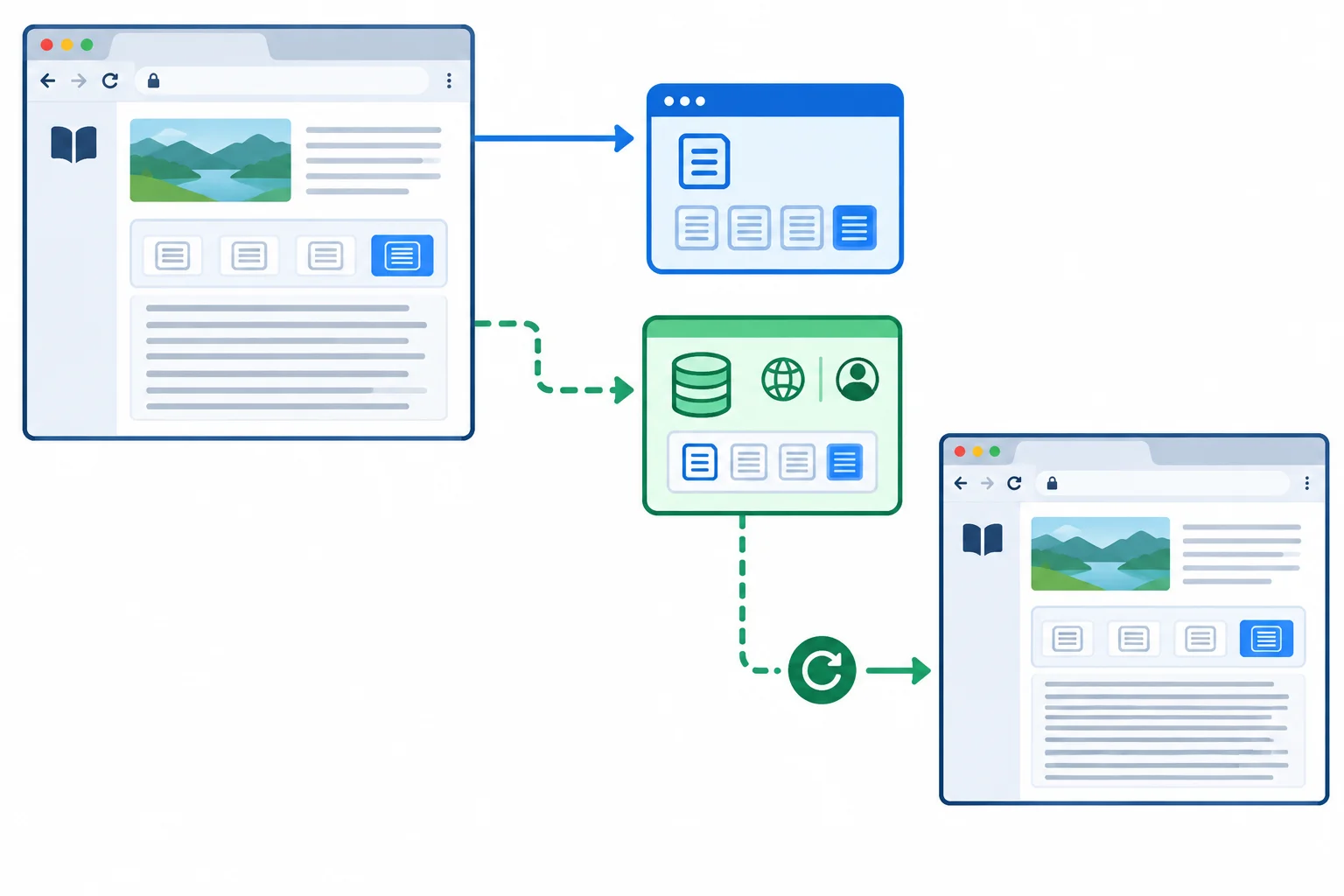
In-memory state serves the current page execution; a saved preference may be available to a later execution.
Browser storage is synchronous and stores strings. Its saved data is associated with a specific origin—the page’s scheme, host, and port—and with a browser profile.
So a preference saved for one site context is not a universal browser setting. It should not be treated as a backup or as guaranteed synchronization to another device.
Warning
Use browser storage for a small, non-sensitive interface choice that improves a return visit. Do not put passwords, access tokens, or confidential information in this preference storage.
Stored data can be cleared, unavailable, or isolated by a different origin or browser profile. The Reading Room must remain useful even when no saved preference is available.
Examples of what a page may remember and what it must not rely on browser preference storage to protect.
| Data | Storage fit | Why |
|---|---|---|
| Reading density | Appropriate | Non-sensitive page preference |
| Password | Not appropriate | Confidential credential |
| Access token | Not appropriate | Sensitive access data |
| Cross-device backup | Not guaranteed | Storage can be cleared or unavailable |
Match each concept to its best description.
Match the concepts with their descriptions.
Tap an item and then its matching pair.

Step 2 of 8
Use the three targeted localStorage operations for one string preference, while keeping every storage access inside a recovery boundary.
The Reading Room needs to remember one small value: the display-density string. Use the namespaced key STORAGE_KEY = "reading-room:density" so this preference is distinct from other data on the same site.
A write under that key replaces its previous value. A read returns the saved string, or null if that key is absent. A removal deletes only that one key. Because the preference is already one string, store it directly—no conversion is needed.
Never use a broad operation that removes unrelated site data for this task.
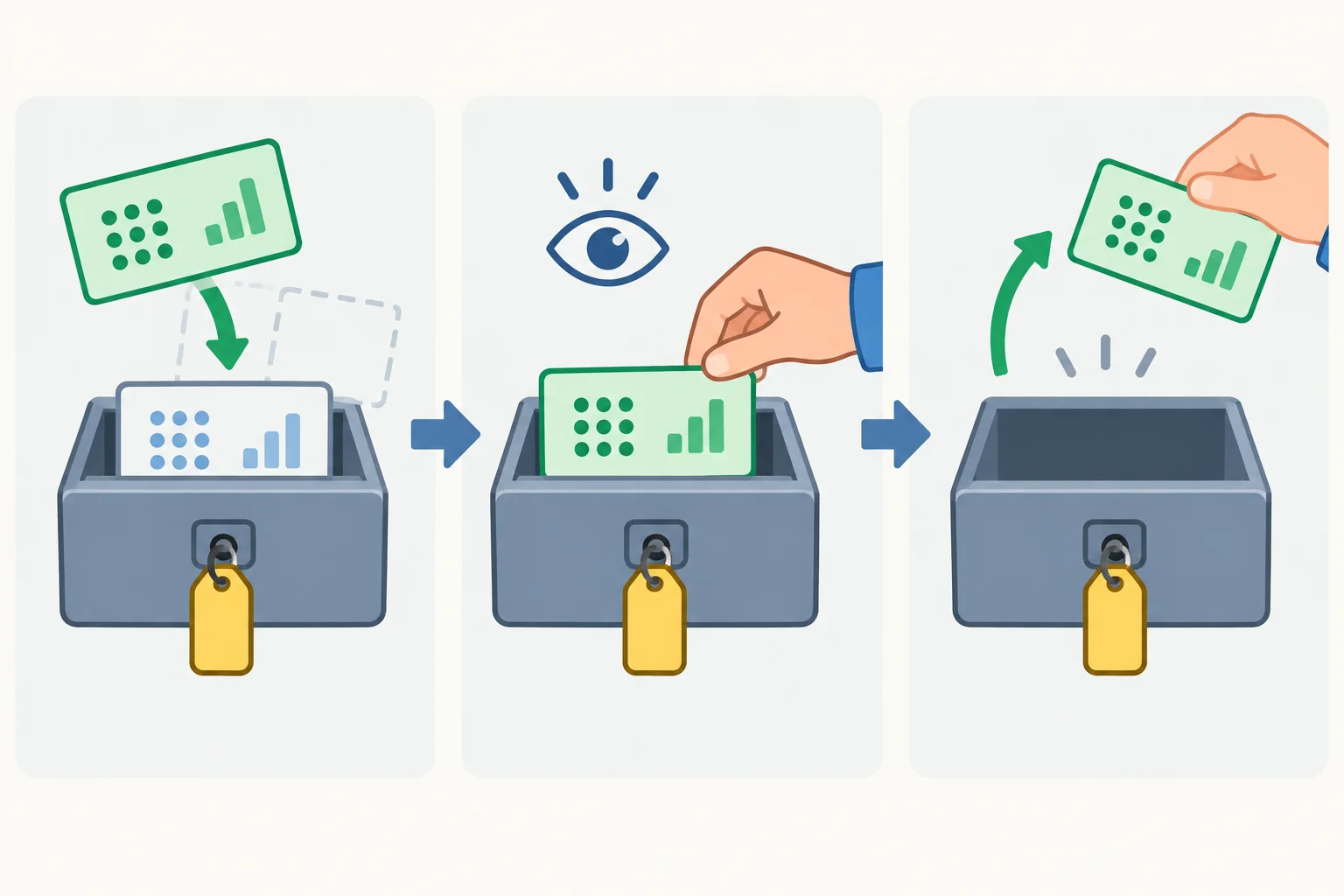
A single named slot can be written, read, or removed without affecting other slots.
Each call uses the same key.
| Operation | Call | Result |
|---|---|---|
| Write or replace | window.localStorage.setItem(STORAGE_KEY, value) | Stores the string |
| Read | window.localStorage.getItem(STORAGE_KEY) | Saved string or null |
| Remove | window.localStorage.removeItem(STORAGE_KEY) | Deletes that key only |
Storage is optional from the page's perspective: a browser can throw while obtaining window.localStorage or while calling one of its methods. Put the complete property access and method call inside try.
The next step will decide which read values are allowed. For now, notice that a guarded read has a normal path and a recovery path; do not place window.localStorage in a variable before the try block.
A guarded read keeps both the property access and the method call in the protected block.
try {
  const storedValue = window.localStorage.getItem(STORAGE_KEY);
  // Later, accept only supported values.
} catch (error) {
  // Choose a safe result for the current page.
}The writer and remover report whether their storage operation completed. They do not update the interface themselves.
function saveDensity(value) {
  try {
    window.localStorage.setItem(STORAGE_KEY, value);
    return true;
  } catch (error) {
    return false;
  }
}

function removeSavedDensity() {
  try {
    window.localStorage.removeItem(STORAGE_KEY);
    return true;
  } catch (error) {
    return false;
  }
}
Tip
window.localStorage.removeItem(STORAGE_KEY) is narrow: it removes only the Reading Room preference. If that key is already absent and storage access succeeds, removal is still harmless. Do not remove all stored data when managing one preference.
Complete the guarded sequence so it saves, retrieves, and removes the Reading Room preference, then checks the result of reading after removal.
try {
  window.localStorage.(STORAGE_KEY, "compact");
  const beforeRemoval = window.localStorage.(STORAGE_KEY);
  window.localStorage.(STORAGE_KEY);
  const afterRemoval = window.localStorage.(STORAGE_KEY);
  const isMissing = afterRemoval === ;
} catch (error) {
  // Storage access failed.
}
Step 3 of 8
Validate a saved density string before it becomes Reading Room in-memory state, with a safe fallback for missing, unsupported, and unreadable storage.
A stored value is not automatically safe for the Reading Room interface. null means the key is missing. A present string can still be unsupported—for example, an old value such as "spacious" or an empty string.
Treat storage as untrusted input at this boundary: accept only the two density strings the interface supports. Every other outcome uses the DEFAULT_DENSITY value, "comfortable".
A shortcut such as value || DEFAULT_DENSITY is insufficient. It falls back for null and "", but "spacious" is a truthy string and would incorrectly pass through.
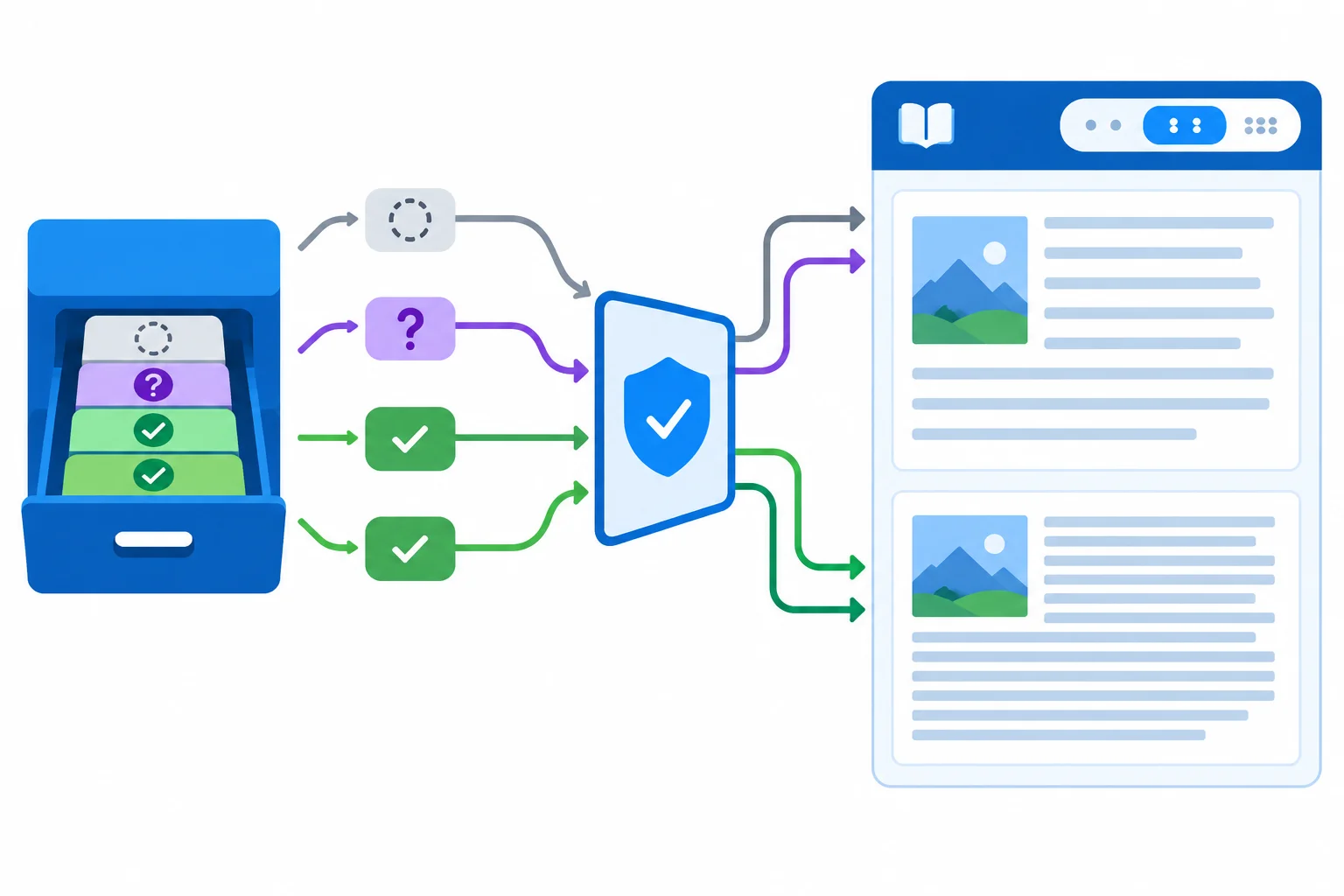
Validate the saved string before it becomes in-memory state.
The reader has a small, explicit allowlist.
| Storage result | Meaning | Reader result |
|---|---|---|
| null | Key is missing | Use the default |
| "comfortable" | Supported string | Keep it |
| "compact" | Supported string | Keep it |
| "" | Unsupported empty string | Use the default |
| "spacious" | Unsupported obsolete string | Use the default |
The guarded reader returns a value for the interface to use. It does not update storage.
const STORAGE_KEY = "reading-room:density";
const DEFAULT_DENSITY = "comfortable";

function loadDensity() {
  try {
    const value = window.localStorage.getItem(STORAGE_KEY);

    if (value === "comfortable" || value === "compact") {
      return value;
    }

    return DEFAULT_DENSITY;
  } catch (error) {
    return DEFAULT_DENSITY;
  }
}
Tip
Both window.localStorage access and getItem() are inside try. If either throws, the catch returns the same safe default.
The if returns only exact allowed strings. null, "", and "spacious" reach the fallback return. This startup reader does not rewrite or remove an unsupported saved preference; it simply declines to use it.
Complete the validation and normal fallback branch.
function loadDensity() {
  try {
    const value = window.localStorage.getItem(STORAGE_KEY);

    if (value ===  || value === ) {
      return value;
    }

    return ;
  } catch (error) {
    return DEFAULT_DENSITY;
  }
}Without running code, write the exact if condition that accepts the two supported values. Then trace what loadDensity() returns when getItem() produces "comfortable", "compact", null, and "spacious", and when the read throws.
For each fallback case, state why it reaches that result.
Write at least 180 characters (0/180).

Step 4 of 8
Restore the Reading Room density before its first application render so the control and preview begin from the same supported in-memory state.
At startup, Reading Room has one direction: read and validate the saved preference → initialize in-memory state → render the interface.
loadDensity() already handles unavailable, missing, and unsupported storage values by returning a supported density. Put that result into state.density before the first render() call. Then the density selector and the reading preview begin in agreement.
Consult storage at this startup boundary—not inside render(). Rendering should apply the current in-memory state, not repeatedly read storage.
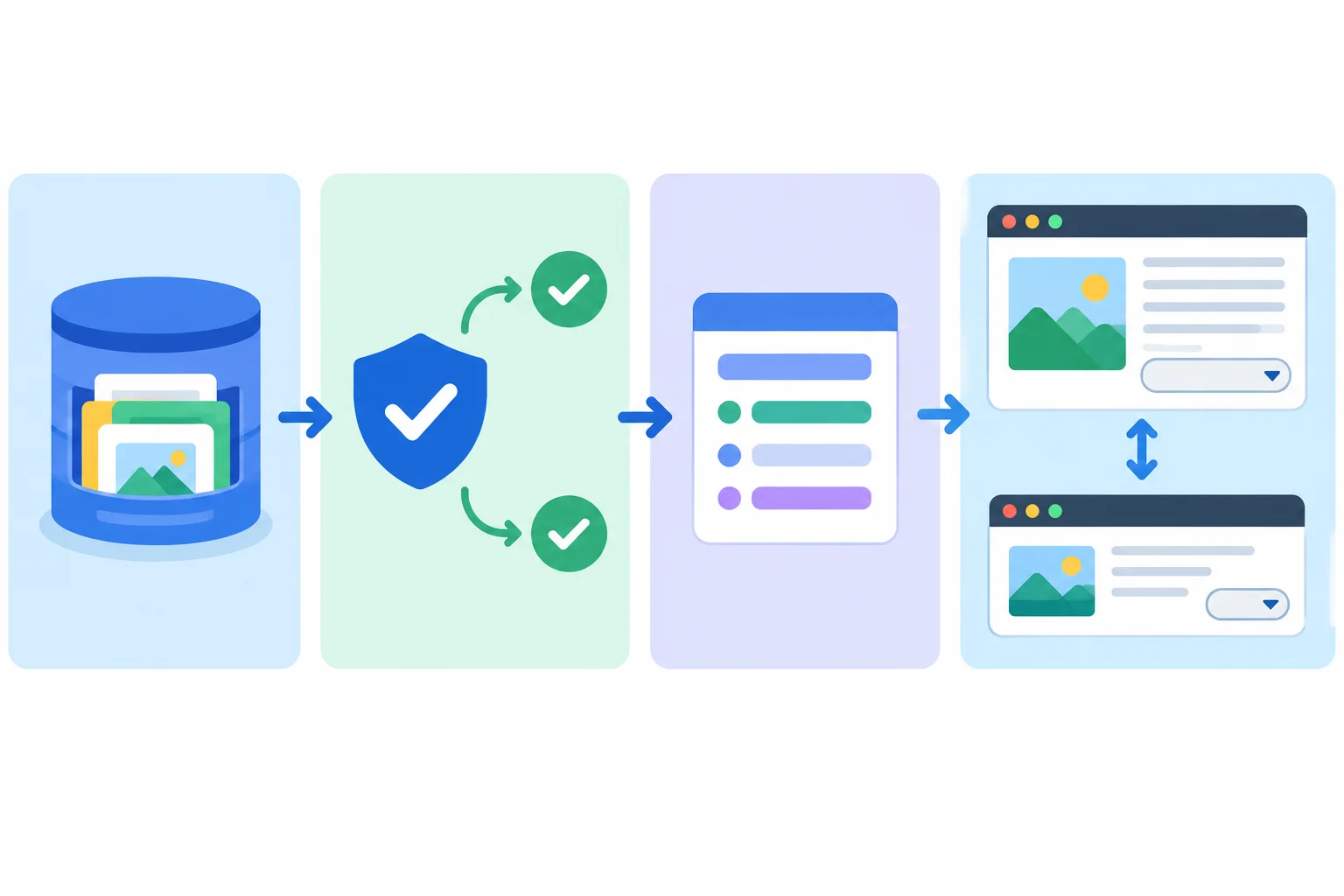
Restore and validate the density before the interface is rendered for the first time.
After the document is parsed, select the interface elements and define render() as usual. Then use this startup block. No storage write belongs here: an existing saved preference must get the chance to become state first.
Startup code placed after element selection and the render() function definition.
const restoredDensity = loadDensity();

const state = {
  density: restoredDensity,
  feedback: ""
};

render();
Tip
This ordering improves the application’s initial state, but it does not promise control over every browser paint. The browser can display parsed document content before deferred JavaScript runs. The important application rule is that Reading Room’s first render() uses the restored, validated density—not an unconditionally chosen default.
Put the Reading Room startup operations in their required order.
Which option gives both the correct startup order and the reason not to render or save a default first?

Step 5 of 8
Update the Reading Room density preference in memory and report storage-write results accurately without breaking the current interface.
When a reader chooses a density, Reading Room first commits that choice to in-memory state. It then attempts to save the preference, records truthful feedback from the result, and calls render() either way.
A storage failure must not undo the choice or disable the selector. For example, Compact can still apply on the current page even when it cannot be saved. After a later reload, the page may restore an older saved preference—or the default—because the newest write did not persist.
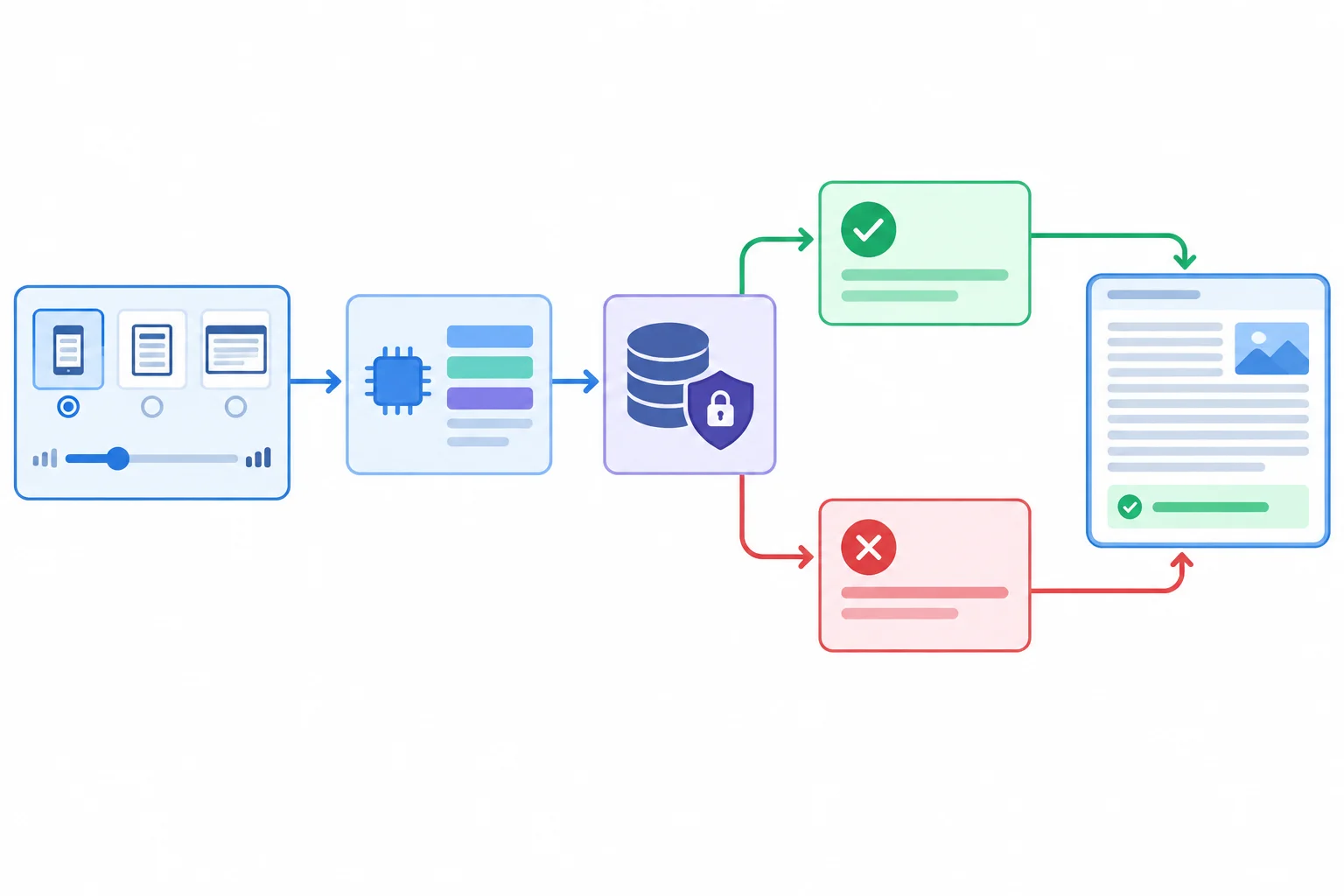
The interface renders the new state whether the write succeeds or throws.
The following is a study fragment, not code to run yet. Step 8 will provide the complete local files and assemble this helper into preferences.js.
Keep both window.localStorage access and setItem() inside try. If either operation throws, saveDensity(value) catches the exception and returns false instead of interrupting the change flow. The density is already a string, so it is written directly.
Study fragment for the complete example assembled in Step 8.
function saveDensity(value) {
  try {
    window.localStorage.setItem(STORAGE_KEY, value);
    return true;
  } catch (error) {
    return false;
  }
}
Tip
true means the saved preference was written. false means the selected density still applies on the current page, but the page cannot claim that it was saved. The change handler—not the helper—uses that result to choose feedback.
Study fragment for the complete example assembled in Step 8. The new state is assigned before the storage attempt, and render() follows either feedback outcome.
densitySelect.addEventListener("change", () => {
  state.density = densitySelect.value;

  if (saveDensity(state.density)) {
    state.feedback = "Preference saved.";
  } else {
    state.feedback = "Density applied for this page only.";
  }

  render();
});render() reflects the existing in-memory state in the control, preview, and status region. It does not read or write storage.
function render() {
  densitySelect.value = state.density;
  readingPreview.classList.toggle(
    "is-compact",
    state.density === "compact"
  );
  preferenceStatus.textContent = state.feedback;
}
Tip
Because render() has no storage side effects, a later density change can attempt another save. One failed write does not lock the interface into an error state or roll back the current page’s choice.
Complete this study example of the guarded save and change flow.
function saveDensity(value) {
  try {
    window.localStorage.(STORAGE_KEY, value);
    return ;
  } catch (error) {
    return ;
  }
}

densitySelect.addEventListener("change", () => {
  state.density = ;

  if (saveDensity(state.density)) {
    state.feedback = "Preference saved.";
  } else {
    state.feedback = "Density applied for this page only.";
  }

  ;
});
Step 6 of 8
Restore the Reading Room default immediately and remove only its saved density preference when possible.
Reset has two separate jobs. First, apply DEFAULT_DENSITY to the in-memory state so the Reading Room immediately shows its default density. Then try to remove only STORAGE_KEY from browser storage.
A reset is not a save of the default. Saving "comfortable" leaves a stored value behind; removing the key means the next successful read finds no saved preference and uses the default.
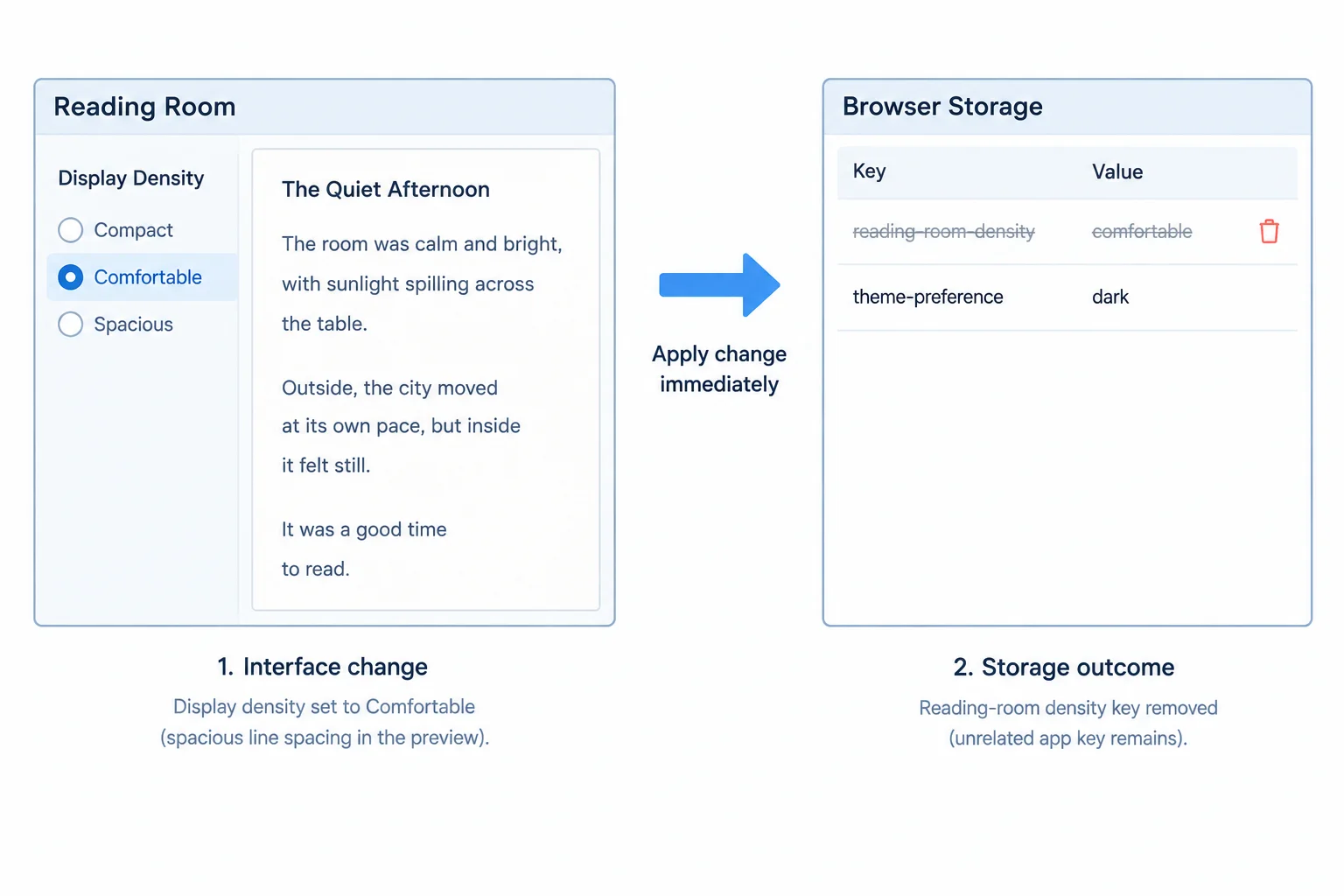
The interface uses the default immediately. Storage removal targets one named preference, never all browser storage.
Put both the localStorage property access and the method call inside try. If either operation throws, the helper reports failure instead of interrupting the reset interaction.
function removeSavedDensity() {
  try {
    window.localStorage.removeItem(STORAGE_KEY);
    return true;
  } catch {
    return false;
  }
}The handler changes in-memory state before attempting removal. It renders after either result, so the selector and preview remain usable even when persistence is blocked.
const resetButton = document.querySelector(".reset-preference");

resetButton.addEventListener("click", () => {
  state.density = DEFAULT_DENSITY;
  const removed = removeSavedDensity();
  state.feedback = removed
    ? "Default applied; saved preference removal completed."
    : "Default applied for this page; saved preference could not be removed.";
  render();
});
Tip
If removal fails, the current page still displays the default. However, an older saved density may return after a reload because the key could not be removed. The failure message must describe that limit truthfully.
Complete the reset handler.
const resetButton = document.querySelector(".reset-preference");

resetButton.addEventListener("click", () => {
  state.density = ;
  const removed = removeSavedDensity();
  state.feedback = removed
    ? "Default applied; saved preference removal completed."
    : "Default applied for this page; saved preference could not be removed.";

});
Step 7 of 8
Interpret persistence outcomes by browsing context and plan reversible failure checks for the guarded Reading Room helpers.
localStorage is not a universal folder for every copy of a page. For an HTTP or HTTPS page, storage is associated with its origin: scheme, host, and port. A different origin—or a different browser profile—uses a different storage context.
If you open index.html directly, it has a file: URL. Local-file storage behavior is not standardized as a reliable persistence workflow. If the Reading Room choice survives a reload there, that is an observation in your current browser, not a portability guarantee.
Private browsing can permit temporary storage, and browser policies or settings can block storage. Neither has one universal outcome.

A saved preference is tied to its context. Another origin, profile, or local-file page may not see it.
The complete Reading Room files arrive in Step 8. For now, learn how to interpret the check rather than running it.
A meaningful persistence check keeps the same page and browser context throughout:
The status message is evidence about the save attempt. The state after reload is evidence about the later read and restore path. Treat them as separate observations.
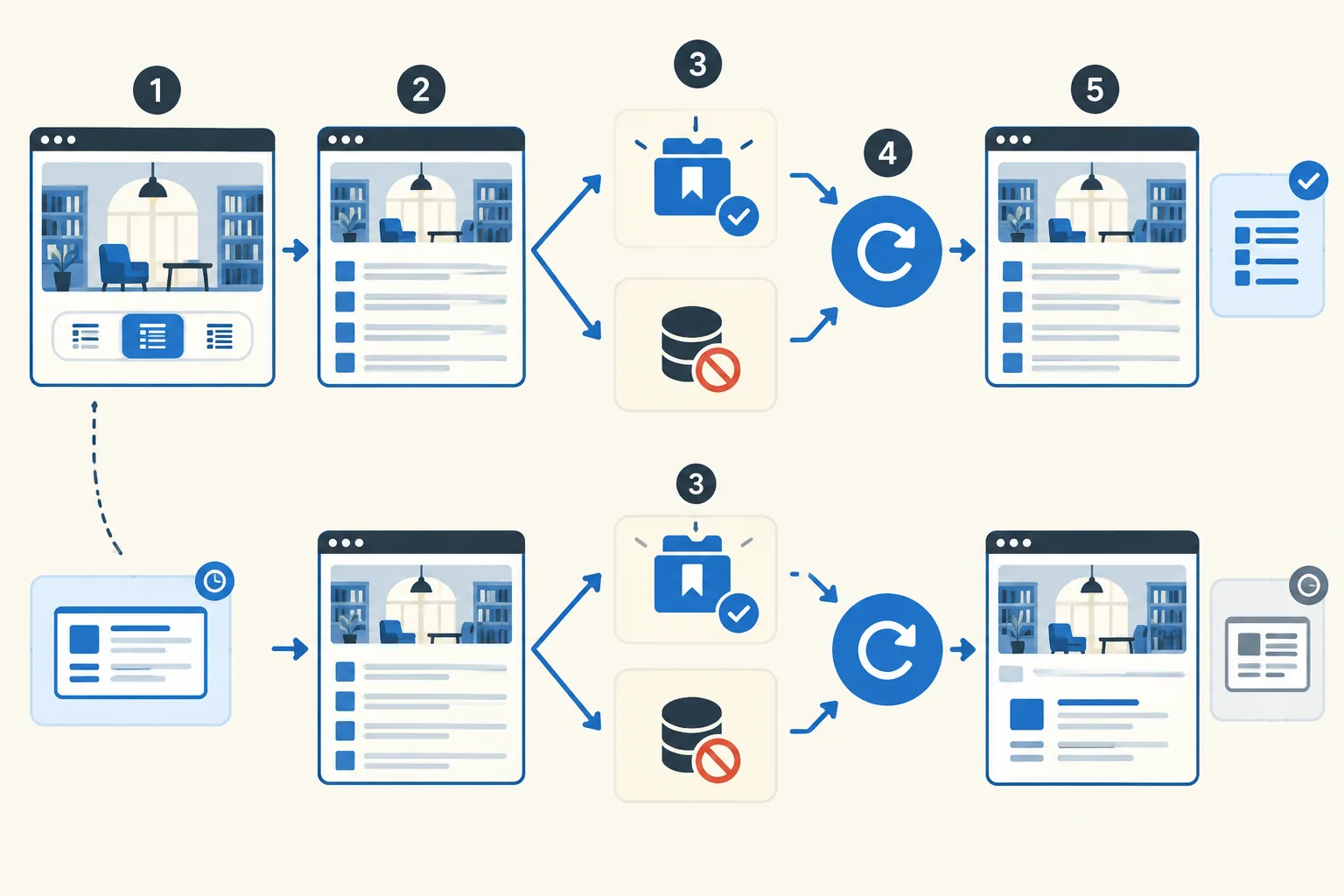
Read the status before reload as save evidence; read the restored interface after reload as restore evidence.
Use the observed result to make a narrow claim—not a claim about every browser or context.
| Observation | Sound conclusion |
|---|---|
| Compact remains after reload | Persistence worked in this same context for this check. |
| Status says current page only | The latest choice remained in-memory; it was not confirmed as saved. |
| A local-file result persists | This browser allowed it in this local-file check; portability is not guaranteed. |
| A private-window result differs | That mode behaves differently here; private browsing has no universal rule. |
In Step 8, after the complete files are in place, you can exercise each guarded recovery path without changing browser security settings. Temporarily add an explicit throw as the first statement inside the existing try block of the helper you want to trace. Its existing catch then handles that exception.
Place it in loadDensity() to trace the default after an unreadable saved preference. Place it in saveDensity(value) to trace a choice that remains usable only in in-memory state. Place it in removeSavedDensity() to trace a reset that shows the default without claiming removal succeeded.
A deliberate throw tests recovery logic; it does not demonstrate the browser's actual storage policy. Remove the throw after the check.
Study placement only; do not run this fragment until Step 8 provides the complete Reading Room files.
function saveDensity(value) {
  try {
    throw new Error("Simulated storage failure");
    window.localStorage.setItem(STORAGE_KEY, value);
    return true;
  } catch (error) {
    return false;
  }
}
Warning
Keep the throw only long enough to trace one recovery path. Leaving it in place makes later operations fail deliberately and hides the browser's real behavior.
Hypothetical Step 8 outcome: You open index.html directly from disk in a private window. After choosing Compact, the status says the choice applies only to the current page. Reloading shows Comfortable.
Which conclusion and simulated-exception placement are sound?

Step 8 of 8
Build the complete Reading Room example locally, then verify valid restoration, safe fallbacks, and truthful behavior when browser storage cannot be used.
Create a folder named reading-room anywhere on your computer. Add index.html, styles.css, and preferences.js, then save the complete contents from this step into the matching files. Open index.html in a browser after saving all three files.
This example needs no packages, assets, server, or downloads. It keeps one non-sensitive display choice: the density of a short Reading Room preview. The selector, preview, status region, and reset button are driven by the same in-memory state.
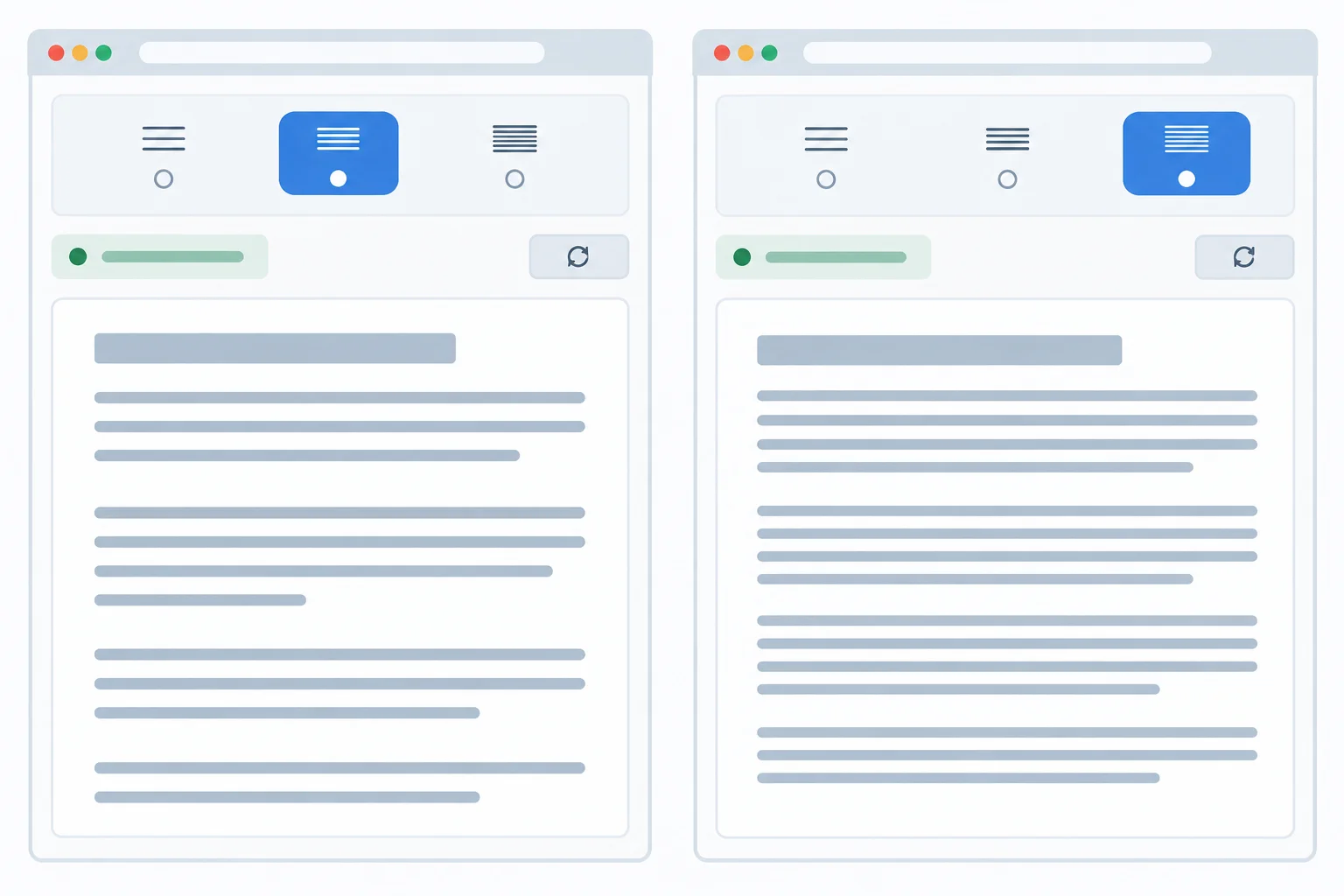
The selector and preview must always reflect the same in-memory density.
Save this as index.html.
<!doctype html>
<html lang="en">
  <head>
    <meta charset="UTF-8">
    <meta name="viewport" content="width=device-width, initial-scale=1.0">
    <title>Reading Room</title>
    <link rel="stylesheet" href="styles.css">
    <script src="preferences.js" defer></script>
  </head>
  <body>
    <main class="reading-room">
      <h1>Reading Room</h1>
      <p>Choose a display density for this page.</p>

      <section class="preferences" aria-labelledby="density-heading">
        <h2 id="density-heading">Display density</h2>
        <label for="density">Reading layout</label>
        <select id="density" name="density" aria-describedby="density-status">
          <option value="comfortable">Comfortable</option>
          <option value="compact">Compact</option>
        </select>
        <button class="reset-preference" type="button">Reset preference</button>
        <p id="density-status" class="preference-status" role="status"></p>
      </section>

      <article class="reading-preview">
        <h2>Today’s reading</h2>
        <p>A calm interface lets readers choose a layout that supports their attention.</p>
        <p>This preview makes the selected density visible immediately.</p>
      </article>
    </main>
  </body>
</html>Reading Room Choose a display density for this page. Display density Reading layout: Comfortable Reset preference Today’s reading A calm interface lets readers choose a layout that supports their attention. This preview makes the selected density visible immediately.
This rendered result depends on saving this file together with the supplied `styles.css` and `preferences.js` in the same folder.
Save this as styles.css.
:root {
  font-family: system-ui, sans-serif;
  color: #1f2933;
  background: #f4f7f8;
}

body {
  margin: 0;
}

.reading-room {
  width: min(42rem, calc(100% - 2rem));
  margin: 2rem auto;
}

.preferences,
.reading-preview {
  padding: 1.25rem;
  border: 1px solid #c9d3d8;
  border-radius: 0.75rem;
  background: #ffffff;
}

.preferences {
  display: grid;
  gap: 0.75rem;
}

select,
button {
  width: fit-content;
  padding: 0.5rem 0.75rem;
  font: inherit;
}

select:focus-visible,
button:focus-visible {
  outline: 3px solid #176b87;
  outline-offset: 2px;
}

.preference-status {
  min-height: 1.5rem;
  margin: 0;
}

.reading-preview {
  margin-top: 1rem;
  max-width: 38rem;
  font-size: 1.1rem;
  line-height: 1.8;
}

.reading-preview.is-compact {
  max-width: 32rem;
  padding: 0.8rem;
  font-size: 0.95rem;
  line-height: 1.4;
}Completed Reading Room appearance: Comfortable: a white reading preview card with 1.25rem padding, 1.1rem text, and 1.8 line height. Compact: the same preview with the is-compact modifier, 0.8rem padding, 0.95rem text, and 1.4 line height.
With all three supplied files saved, Comfortable has generous preview spacing. Choosing Compact makes the preview narrower with tighter padding, smaller text, and tighter line spacing.
Now add the complete preference lifecycle in preferences.js. The guarded reader validates before its result enters in-memory state. Change and reset handlers render whether or not storage succeeds.
Paste Part 1 first, then paste Part 2 directly below it in the same file. Save before reopening or refreshing index.html.
preferences.js — Part 1
const STORAGE_KEY = "reading-room:density";
const DEFAULT_DENSITY = "comfortable";

const densitySelect = document.querySelector("select[name=\"density\"]");
const readingPreview = document.querySelector(".reading-preview");
const resetButton = document.querySelector(".reset-preference");
const preferenceStatus = document.querySelector(".preference-status");

function loadDensity() {
  try {
    const value = window.localStorage.getItem(STORAGE_KEY);

    if (value === "comfortable" || value === "compact") {
      return value;
    }

    return DEFAULT_DENSITY;
  } catch (error) {
    return DEFAULT_DENSITY;
  }
}

function saveDensity(value) {
  try {
    window.localStorage.setItem(STORAGE_KEY, value);
    return true;
  } catch (error) {
    return false;
  }
}

function removeSavedDensity() {
  try {
    window.localStorage.removeItem(STORAGE_KEY);
    return true;
  } catch (error) {
    return false;
  }
}After the completed file loads: A missing, empty, unsupported, or unreadable saved preference produces the supported default density: comfortable. A saved "comfortable" or "compact" value is eligible to become the initial in-memory state.
This is the first part of one `preferences.js` file. Its visible behavior occurs after Part 2 is pasted below it and `index.html` loads the completed three-file set.
preferences.js — Part 2
const state = {
  density: loadDensity(),
  feedback: ""
};

function render() {
  densitySelect.value = state.density;
  readingPreview.classList.toggle(
    "is-compact",
    state.density === "compact"
  );
  preferenceStatus.textContent = state.feedback;
}

densitySelect.addEventListener("change", () => {
  state.density = densitySelect.value;

  if (saveDensity(state.density)) {
    state.feedback = "Preference saved.";
  } else {
    state.feedback = "Density applied for this page only.";
  }

  render();
});

resetButton.addEventListener("click", () => {
  state.density = DEFAULT_DENSITY;
  const removed = removeSavedDensity();
  state.feedback = removed
    ? "Default applied; saved preference removal completed."
    : "Default applied for this page; saved preference could not be removed.";
  render();
});

render();Initial completed page: The selector and preview agree on the restored supported density, or Comfortable when no supported value can be read. After selecting Compact: The selector shows Compact, the preview becomes compact, and the status is either: Preference saved. or Density applied for this page only. After Reset preference: The selector and preview immediately show Comfortable, with feedback that accurately reports whether removal completed.
Paste this directly after Part 1 in the same `preferences.js` file. Exact reload persistence depends on whether the current browser context permits storage.
Save the files and test in one browser context: the same browser profile, page location, and normal reload. You may use browser developer tools to prepare exact stored-value cases.
Paste the temporary helper into the Console. It changes only the Reading Room key and reports when the browser cannot use storage. Run one call from the matrix, then reload the page.
Temporary Console helper
function prepareDensity(value) {
  try {
    if (value === null) {
      window.localStorage.removeItem("reading-room:density");
    } else {
      window.localStorage.setItem("reading-room:density", value);
    }
    console.log("Case prepared. Reload the page.");
  } catch (error) {
    console.log("Storage is unavailable in this context.");
  }
}Case prepared. Reload the page. or, when the browser cannot perform the operation: Storage is unavailable in this context.
Run the helper once in the browser Console, then call it with one value from the matrix. The second message indicates an environmental storage limit, not a successful preparation.
For each prepared case, reload index.html and compare the selector with the preview. A local file: URL may appear to persist in one browser, but that observation is not a portable guarantee. If the helper reports unavailable storage, still verify that changing density updates the current page.
| Case | Console call or action | Expected after reload |
|---|---|---|
| Absent key | prepareDensity(null) | Comfortable default |
| Supported value | prepareDensity("comfortable") | Comfortable |
| Supported value | prepareDensity("compact") | Compact |
| Obsolete value | prepareDensity("spacious") | Comfortable default |
| Empty value | prepareDensity("") | Comfortable default |
| Reset | Click Reset preference | Default now; absent next reload if removal succeeds |
| Reload after a saved change | Choose a density, then reload | Same choice if saving succeeds |
Example
Test one recovery path at a time. Inside the existing try block of loadDensity(), saveDensity(value), or removeSavedDensity(), temporarily add this as the first statement:
throw new Error("Simulated storage failure");
For a read failure, refresh and confirm the default remains usable. For a write failure, change density and confirm the preview still changes while feedback does not claim a save. For a removal failure, click reset and confirm the default is shown without claiming removal. Delete the throw after each check and refresh.
A failed write or removal can allow an older saved preference to return after a later reload.
Summary
After saving the complete three-file example, submit a concise test record. Include the result after selecting a density and reloading; results for the missing-value case and both unsupported stored-value cases when storage was accessible; and what happened with simulated read, write, and removal failures. State whether every density change remained usable on the current page.
If storage was unavailable or reload persistence could not be observed, identify that as an environmental limit rather than an implementation failure. Name the browsing context you tested and explain the expected fallback: missing, empty, obsolete, or unreadable values use the default; a failed write or removal still leaves the latest in-memory choice usable for the current page.
Write at least 250 characters (0/250).
Congratulations! You completed: Save and Restore Browser Preferences
You completed this level!
Up next: Modules and Local Development Tools
 Prepare a Local Project with Node.js and npmSet up Node.js and npm on your computer, navigate to a project in a terminal, and run a simple JavaScript program through a repeatable package script.
Thousands of online courses in video, ebooks and audiobooks.
To test your knowledge during online courses
Generated directly from your cell phone's photo gallery and sent to your email

Download our app via QR Code or the links below:.



Carry knowledge in your pocket.
Download the Cursa app.
There are hundreds of free courses available, with a free certificate of completion that is saved in your mobile image gallery.
Download the app to access the Course Completion Certificate for Free.


+ 10 million
students

Free and Valid
Certificate

60 thousand free
exercises

4.8/5 rating in
app stores

Free courses in
video and ebooks