Step 1 of 8
Understand Vite's Role
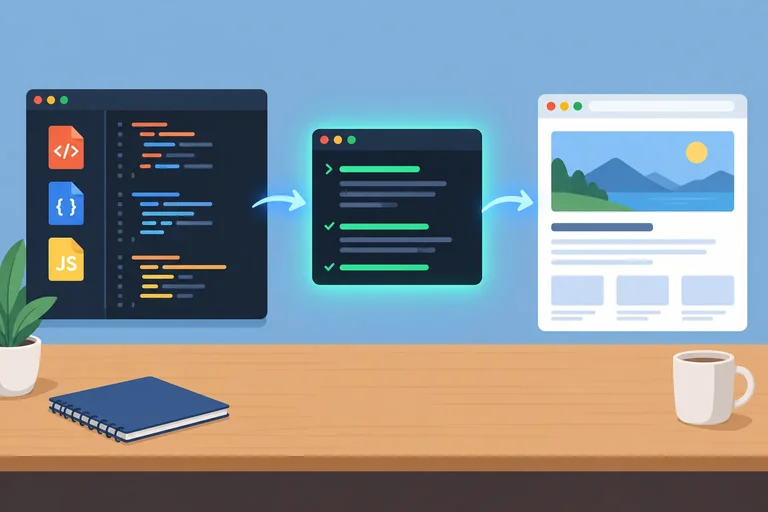
Identify how the Editor, Vite process, and Browser work together in a local development workflow.

Learning path · Level 6 · Tutorial 3
Serve a locally authored HTML, CSS, and JavaScript page with Vite and use a reliable edit-save-check workflow on your own computer.
 Understand Vite's Role
Identify how the Editor, Vite process, and Browser work together in a local development workflow. 1 min
Understand Vite's Role
Identify how the Editor, Vite process, and Browser work together in a local development workflow. 1 min
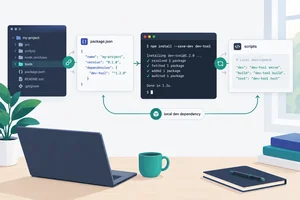 Install Vite and Define the dev Script
Install Vite as a local development dependency and add the npm script that will start it later. 2 min
Install Vite and Define the dev Script
Install Vite as a local development dependency and add the npm script that will start it later. 2 min
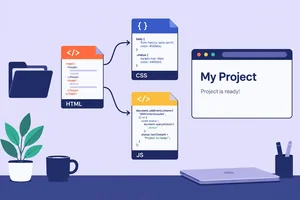 Create the HTML, CSS, and JavaScript Entry Files
Create a complete three-file page whose HTML correctly loads its stylesheet and deferred JavaScript module entry. 3 min
Create the HTML, CSS, and JavaScript Entry Files
Create a complete three-file page whose HTML correctly loads its stylesheet and deferred JavaScript module entry. 3 min
 Start the Server and Open the Reported URL
Start the Vite development server, use the Local URL it reports, and deliberately manage its running process. 2 min
Start the Server and Open the Reported URL
Start the Vite development server, use the Local URL it reports, and deliberately manage its running process. 2 min
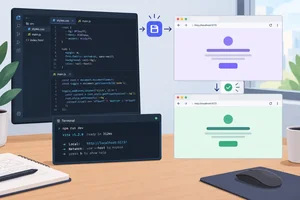 Practice the Edit-Save-Check Loop
Use a running local Vite development server to make, save, and verify visible CSS and JavaScript changes without unnecessary restarts. 2 min
Practice the Edit-Save-Check Loop
Use a running local Vite development server to make, save, and verify visible CSS and JavaScript changes without unnecessary restarts. 2 min
 Diagnose the Right Layer
Use Terminal, Network, and Console evidence to distinguish local Vite startup, resource-path, and JavaScript execution failures. 3 min
Diagnose the Right Layer
Use Terminal, Network, and Console evidence to distinguish local Vite startup, resource-path, and JavaScript execution failures. 3 min
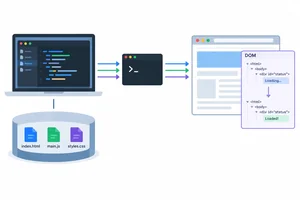 Recognize What the Server Does Not Provide
Separate Vite file serving, browser DOM updates, Editor saves, and writable application behavior. 1 min
Recognize What the Server Does Not Provide
Separate Vite file serving, browser DOM updates, Editor saves, and writable application behavior. 1 min
 Complete a Local Development Session
Complete an independent local Vite session and consolidate the workflow, diagnostic choices, and server boundary. 2 min
Complete a Local Development Session
Complete an independent local Vite session and consolidate the workflow, diagnostic choices, and server boundary. 2 min
Step 1 of 8
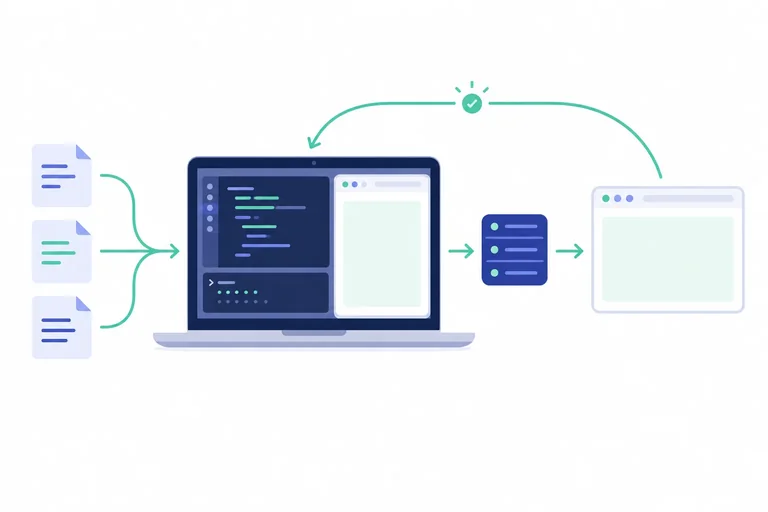
Identify how the Editor, Vite process, and Browser work together in a local development workflow.
A local development workflow has three separate jobs:
Vite helps the browser obtain your authored files. It does not take over the browser’s job of executing page code.
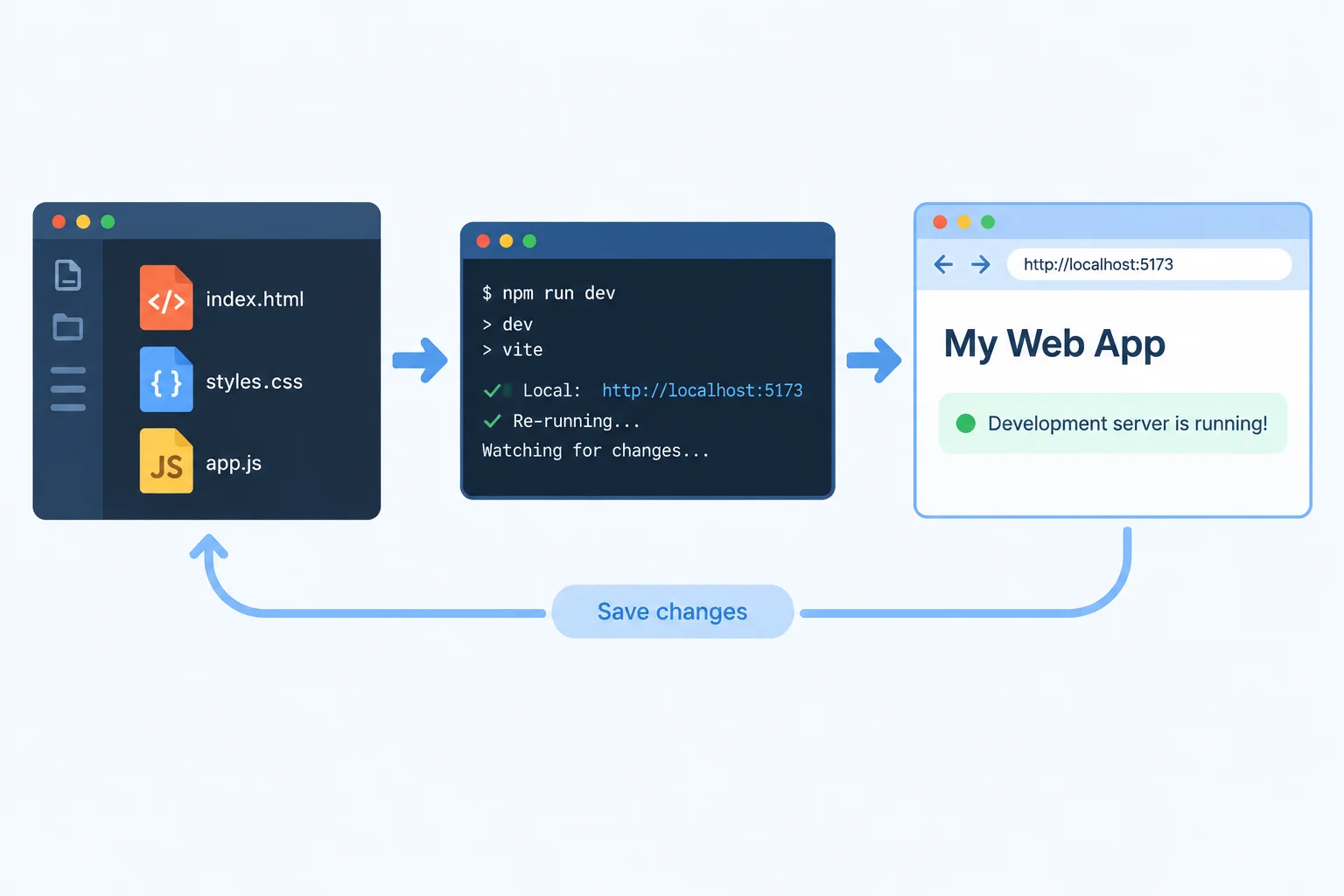
The Editor authors files; the Vite process serves them locally; the Browser loads and executes them.
A development server uses a local HTTP address so the browser requests the project resources through a running process on your own computer.
This differs from opening an HTML file directly with a file:// address. A local server supports a development workflow between your saved source files and the browser.
“Localhost” means the address points back to your own computer. Serving a project this way does not publish it as a public website. Other people cannot visit it simply because it is running locally.
Tip
Keep the roles separate when you investigate a page:
Later, you will install and start Vite. For now, use this model to identify which part is responsible for each job.
Match each part of the workflow to its primary responsibility.
Tap an item and then its matching pair.
Step 2 of 8
Install Vite as a local development dependency and add the npm script that will start it later.
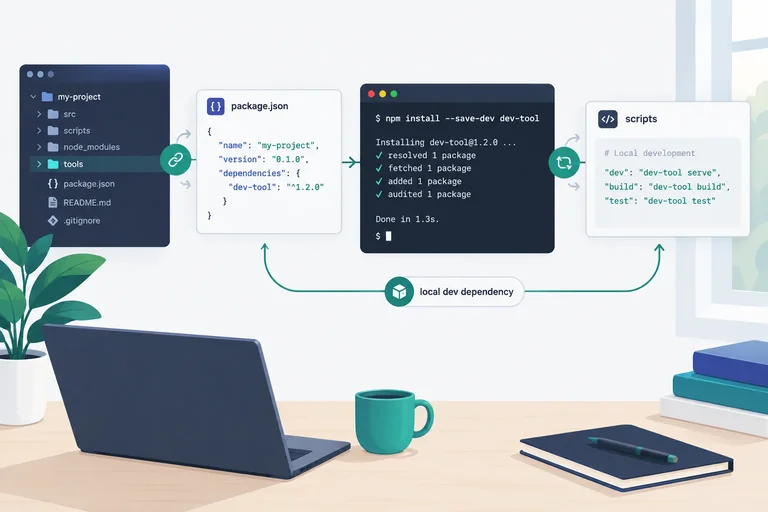
Install Vite inside the intended npm project folder—shown here as vite-practice/. With an internet connection, npm adds Vite as a project-local development dependency.
Use a supported Node.js LTS release that is compatible with the Vite release npm installs. If npm reports an engine or Node.js version error, stop and address that compatibility issue rather than forcing the installation.
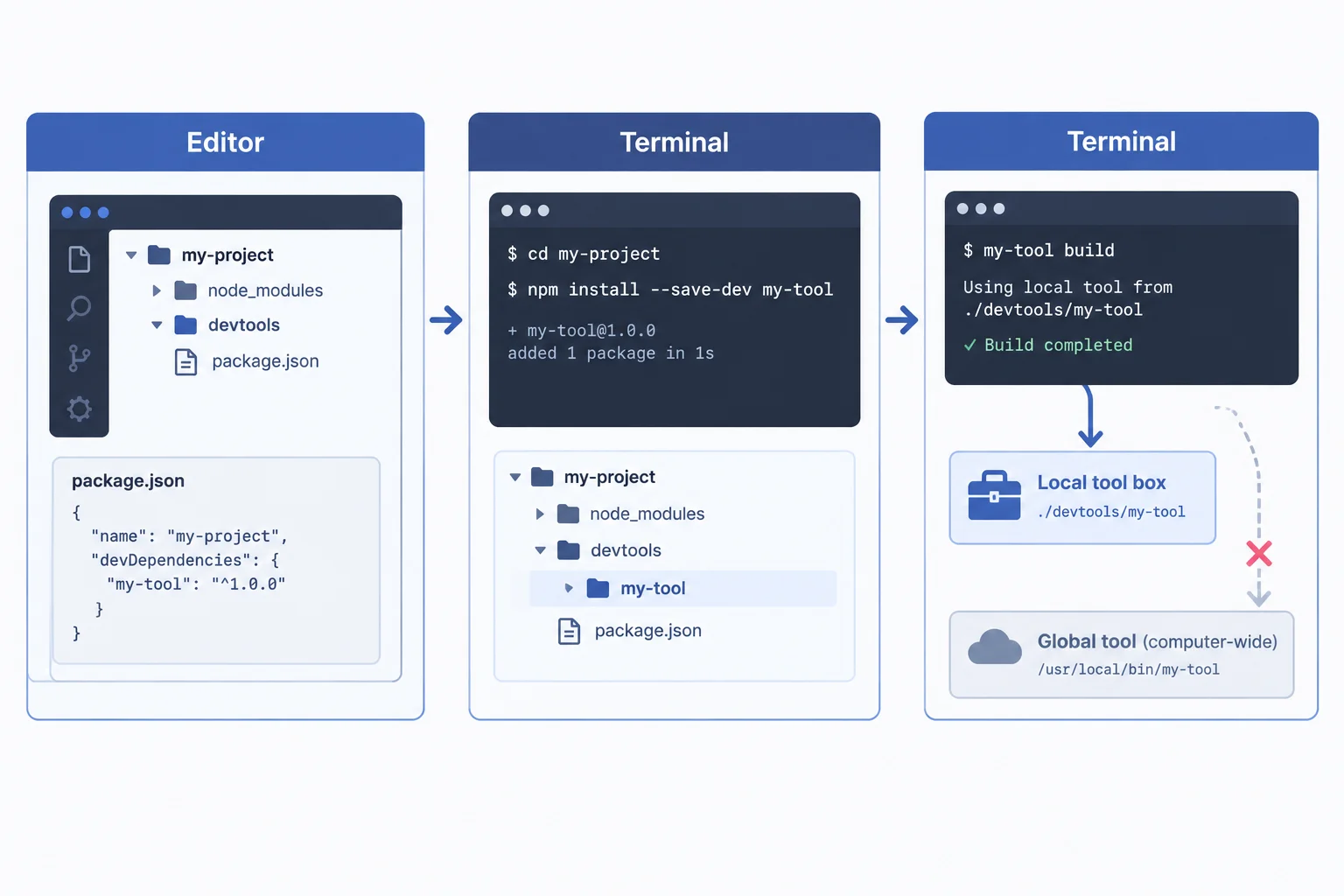
The package installation and the dev script belong to the same local project.
Tip
You do not need a global Vite installation or a scaffolding command. The project’s npm script will locate its installed Vite command.
From the project root, run this installation command. Its exact package count, timing, audit notices, and installed version can vary. What matters is that it completes without a compatibility error and records Vite in package.json as a development dependency.
Run this from the project root.
npm install --save-dev viteadded 11 packages, and audited 12 packages in 2s 3 packages are looking for funding run `npm fund` for details found 0 vulnerabilities
Your package count, timing, audit notices, and installed Vite version may differ. Check that the command completes without an engine error and that package.json records Vite as a development dependency.
Next, edit the existing scripts object in package.json. Add the dev entry while preserving every unrelated script and package field already present. JSON uses double quotes and no trailing comma after the final entry.
Example
For example, if the project already has a check script, keep it and add dev beside it. Your project may contain different existing fields or scripts; retain them.
This is the scripts object only, not a replacement for the whole package.json file.
{
  "scripts": {
    "check": "node check.js",
    "dev": "vite"
  }
}Complete the missing package name in the terminal command and the missing value in the package.json script entry. Then apply those same two changes in your local npm project.
npm install --save-dev

"dev": ""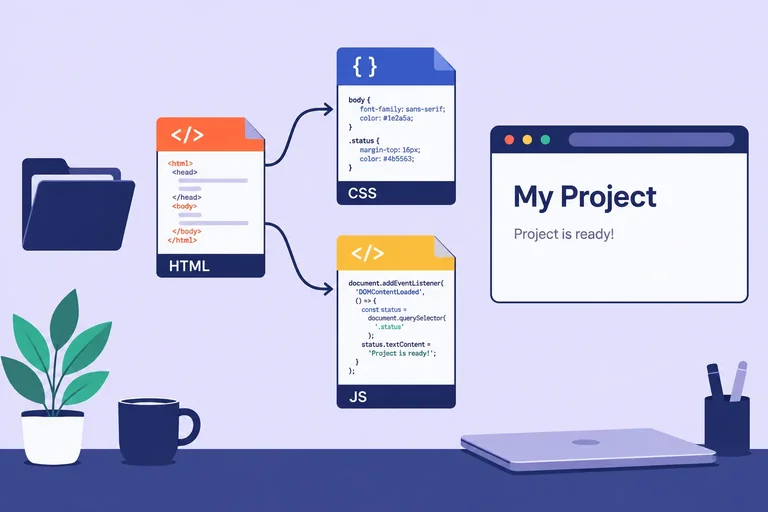
Step 3 of 8
Create a complete three-file page whose HTML correctly loads its stylesheet and deferred JavaScript module entry.
Your existing npm-initialized practice folder is the project root when you later run Vite from that folder. In this example, the root is vite-practice/.
Place these three authored files directly beside package.json:
index.html — the page entry documentstyle.css — the stylesheetmain.js — the browser JavaScript entry fileDo not put these files inside another folder. This small page uses no external assets.
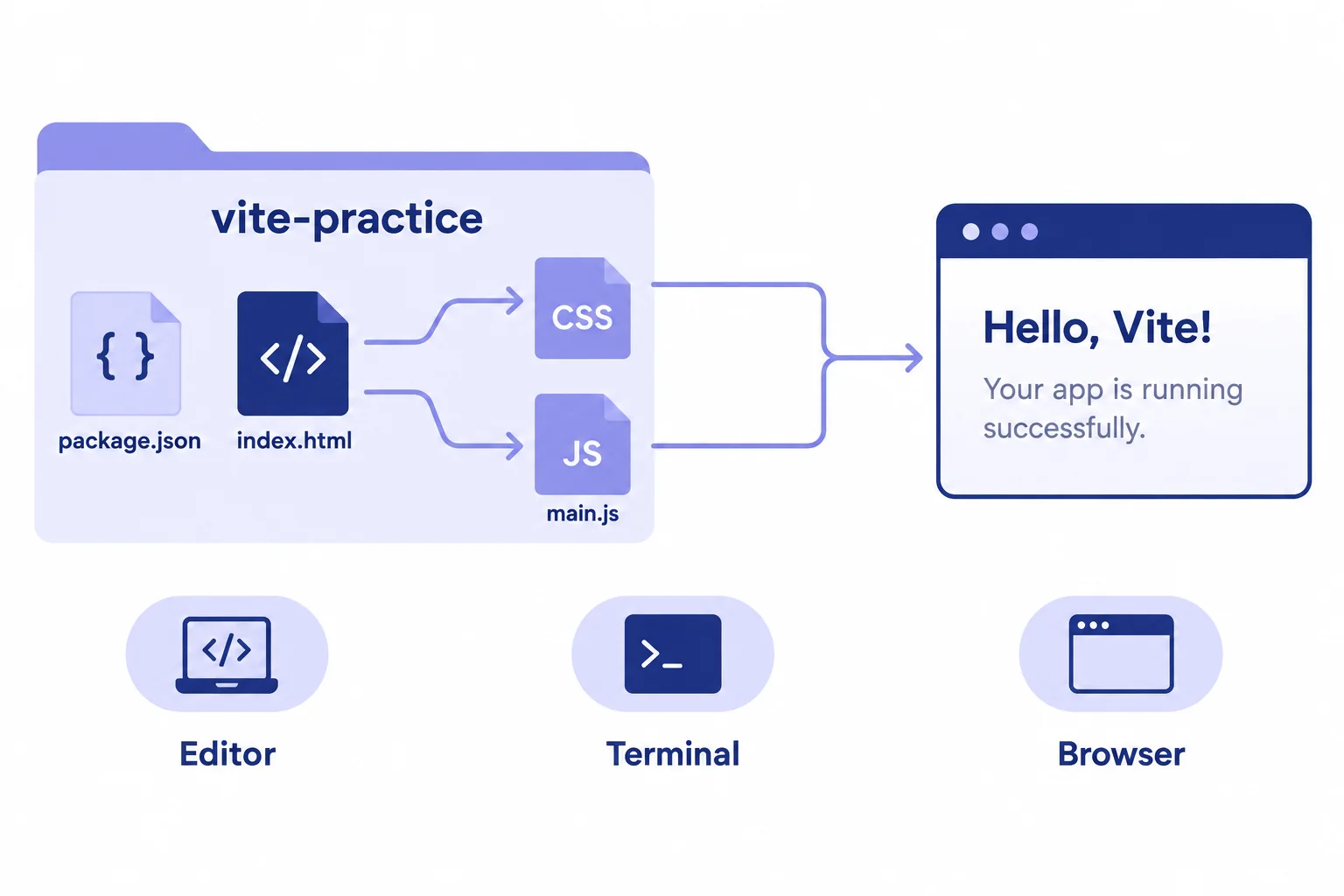
index.html is the page entry document. It points the browser to the other two files.
Create index.html directly in the project root. Its head links the stylesheet and loads main.js as a module entry file.
The module script is in the head, but it has no async or defer attribute. A module script without async runs after the HTML has been parsed, so the status paragraph exists when main.js selects it.
Save as index.html in the project root.
<!doctype html>
<html lang="en">
<head>
  <meta charset="UTF-8">
  <meta name="viewport" content="width=device-width, initial-scale=1.0">
  <title>Local Dev Lab</title>
  <link rel="stylesheet" href="./style.css">
  <script type="module" src="./main.js"></script>
</head>
<body>
  <main>
    <h1>Local Dev Lab</h1>
    <p id="status">Waiting for JavaScript.</p>
  </main>
</body>
</html>Browser page after Vite is started in the next step: Local Dev Lab JavaScript is running. The HTML initially contains “Waiting for JavaScript.” The module entry file replaces it when it runs.
This is the expected Browser result after Vite is started in the next step and you open its reported Local URL.
Save as style.css in the project root.
body {
  background: #eef2ff;
  color: #172033;
  font-family: system-ui, sans-serif;
}

main {
  max-width: 42rem;
  margin: 4rem auto;
  padding: 2rem;
}Browser result after Vite is started in the next step: The Local Dev Lab page has a body background of #eef2ff and page text colored #172033.
This is the expected Browser styling after Vite is started in the next step and the page is opened through its reported Local URL.
Save as main.js in the project root. This browser entry file has no imports or exports. The null guard means the assignment happens only when the selected paragraph exists.
const statusMessage = document.querySelector('#status');

if (statusMessage) {
  statusMessage.textContent = 'JavaScript is running.';
}Browser result after Vite is started in the next step: The Local Dev Lab page displays the status text: JavaScript is running.
This is the expected Browser result after Vite is started in the next step and the page is opened through its reported Local URL.
Tip
After the server is started in the next step, the page will show the heading on a light background. The initial HTML status is replaced by the JavaScript result when the module entry file runs.
In your own project root, create index.html, style.css, and main.js using the supplied source from the previous screens. Then complete this HTML head so it loads the stylesheet and the JavaScript module entry file.
<head>
  <title>Local Dev Lab</title>
  <link rel="stylesheet" href="">
  <script  src=""></script>
</head>
Step 4 of 8
Start the Vite development server, use the Local URL it reports, and deliberately manage its running process.
Open a Terminal in your project root: the folder that contains package.json, index.html, style.css, and main.js. Start the development server with npm run dev.
Read the startup output before opening a browser. When Vite is ready, it prints a line beginning with Local:. That line supplies the address for this running server.
Leave this Terminal process running while you work. It is waiting for requests from the browser; it has not become stuck.
Run this command in the project root.
npm run dev> vite-practice@1.0.0 dev > vite VITE v6.0.0 ready in 142 ms ➜ Local: http://localhost:5173/ ➜ press h + enter to show help
This output is illustrative. Your project name, Vite version, startup time, and Local URL can differ. Use the Local URL printed by your own running process.
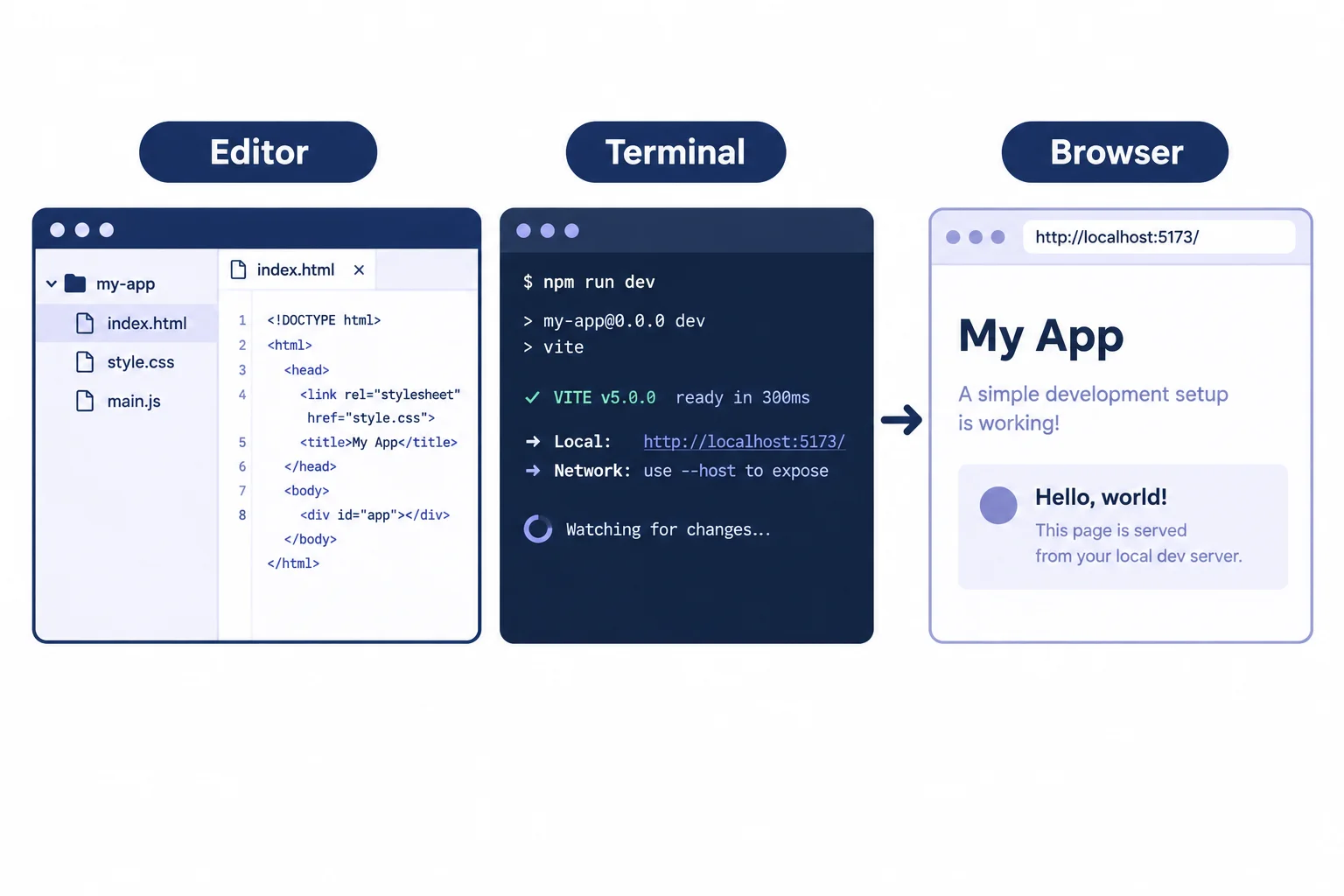
Start the development server in Terminal, then use its printed Local address in Browser.
Open the exact address on your process's Local: line. It uses http://localhost, not a file:// address. The commonly used port is 5173, so http://localhost:5173/ is an illustrative address—not an address to assume.
If that port is already occupied, Vite can use another available port, such as the illustrative http://localhost:5174/. Keep the port that Vite actually reports.
To stop the server, focus its Terminal and press Ctrl+C. You can start it again later with npm run dev. A Browser tab may still display the last page after the server stops, so a visible page alone does not prove the process is still running.
Tip
Treat the Terminal's Local: line as the source of truth every time you start the server. Do not replace a reported port with 5173 just because it is common.
A running Vite process prints a Local address whose port is 5174. Which address should you open in Browser?
In your own project root, start the server. Open the exact Local URL that your running Vite process prints, then inspect the page.
Write both: (1) the full Local address you opened and (2) the status text currently rendered on the page. If your process reports a port other than 5173, keep that reported port in your answer.
Write at least 25 characters (0/25).
Step 5 of 8
Use a running local Vite development server to make, save, and verify visible CSS and JavaScript changes without unnecessary restarts.
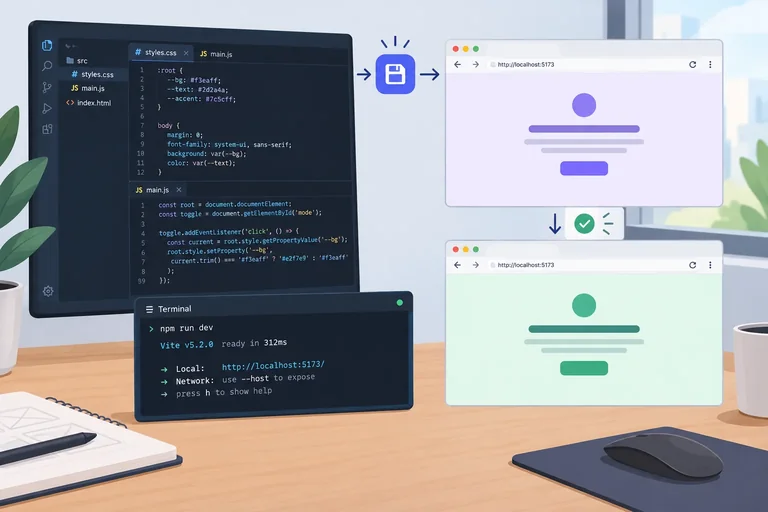
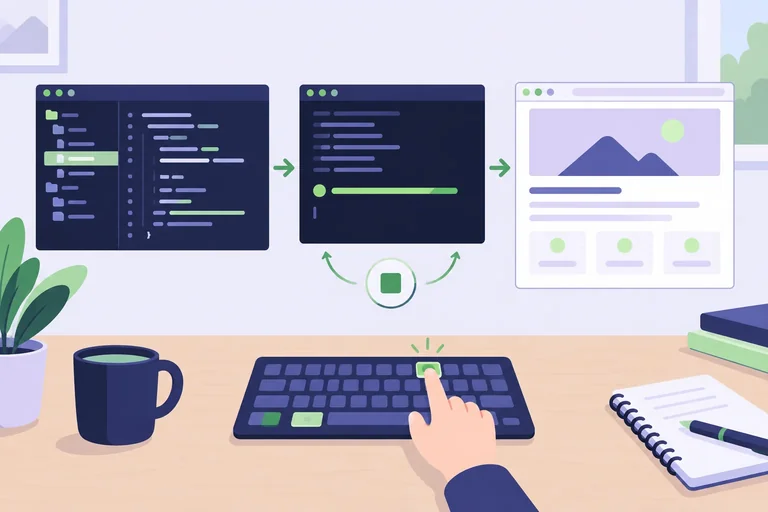
With Vite still running, use one repeatable loop: edit a source file, save it, then check the Browser at the active Local URL. Keep the Terminal process running; a normal saved source edit does not require restarting Vite.
Vite may update the affected resource or reload the page after a save. Treat temporary page state as disposable, because an automatic update does not guarantee that temporary state remains.
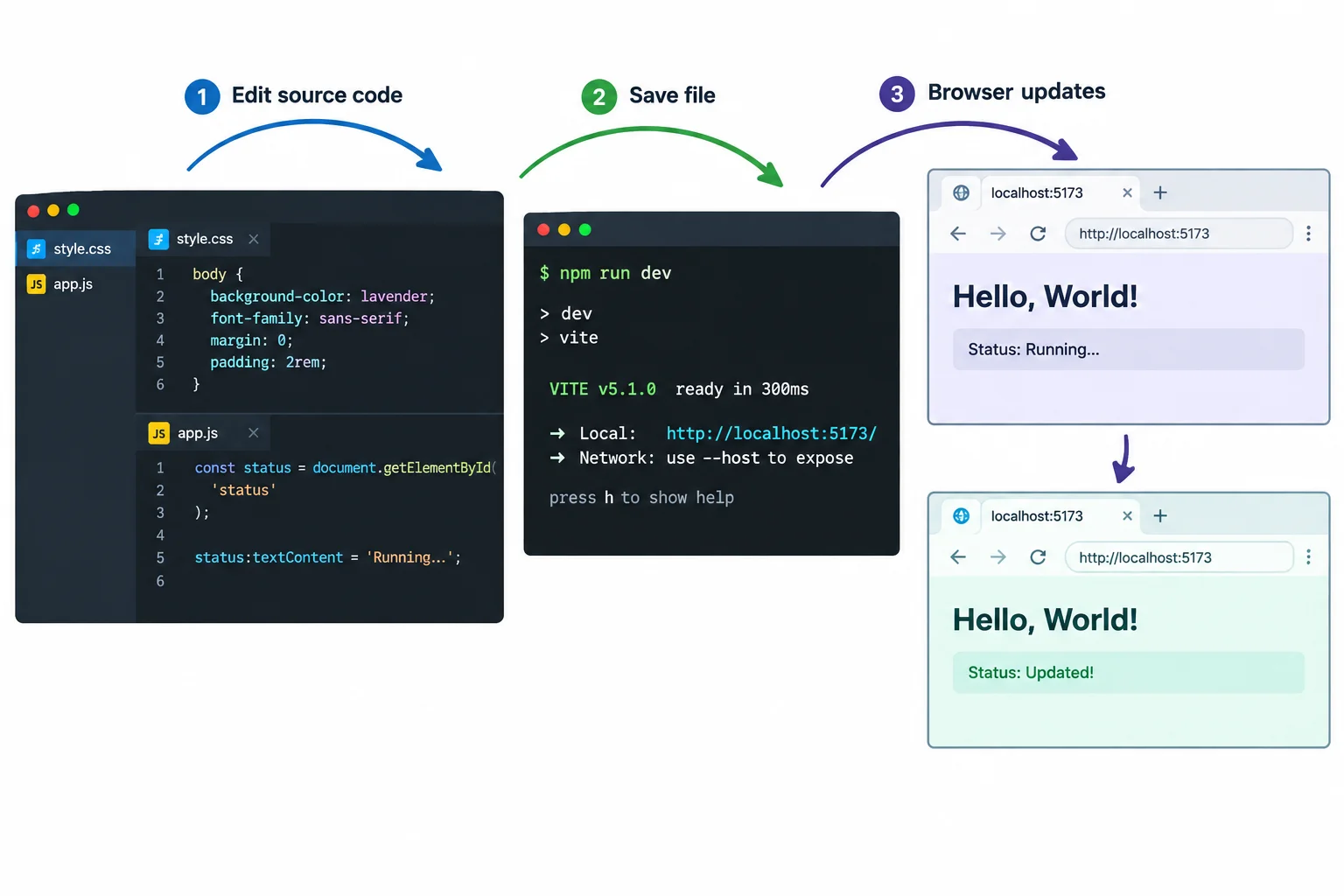
Edit and save in the Editor, leave the development server running in the Terminal, and verify the visible result in the Browser.
Put the edit-save-check workflow in its reliable order.
First, edit style.css. Preserve the existing text color and font family, and change only the body background declaration. Save the file, then look at the page in the Browser.
In style.css, use this complete body rule after the edit.
body {
  background: #ecfdf5;
  color: #172033;
  font-family: system-ui, sans-serif;
}The saved page background becomes #ecfdf5.
After you save, leave Vite running and check the Browser at its active Local URL. Vite may update the stylesheet or reload the page.
Next, in main.js, change the assigned status text and save. Keep the existing selector and null guard; browser code stays in this entry file.
const statusMessage = document.querySelector('#status');

if (statusMessage) {
  statusMessage.textContent = 'Saved changes are live.';
}Saved changes are live.
After you save, leave Vite running and check the Browser at its active Local URL. Vite may update the affected resource or reload the page.
Tip
If a change seems absent, check these basics before restarting anything: confirm the file was saved, confirm you edited the file in the intended project root, and confirm the Browser is open at the active Local URL reported by Vite.
On your own computer, keep Vite running and complete both planned edits. Then write a short report that:
Check the Browser at your running server's current Local URL before answering.
Write at least 100 characters (0/100).
Step 6 of 8
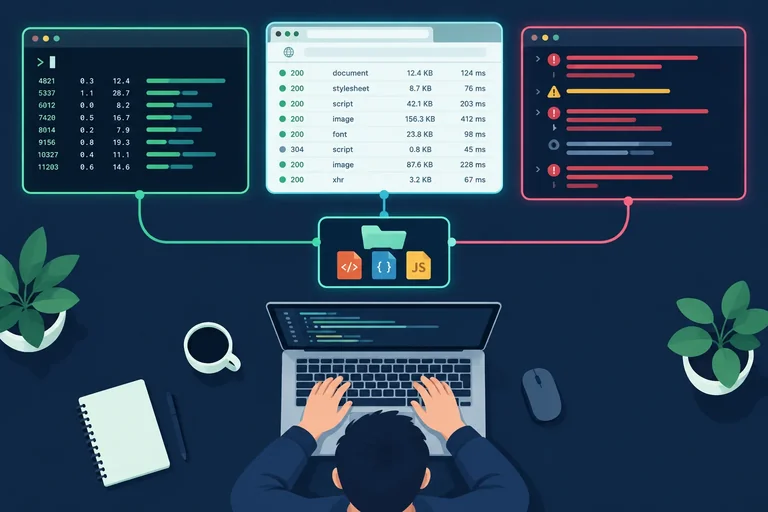
Use Terminal, Network, and Console evidence to distinguish local Vite startup, resource-path, and JavaScript execution failures.
When something fails, start with the evidence closest to the failure—not with a package reinstall.
Make one correction at the indicated layer, save, then check the browser at the current Local URL reported by Vite.
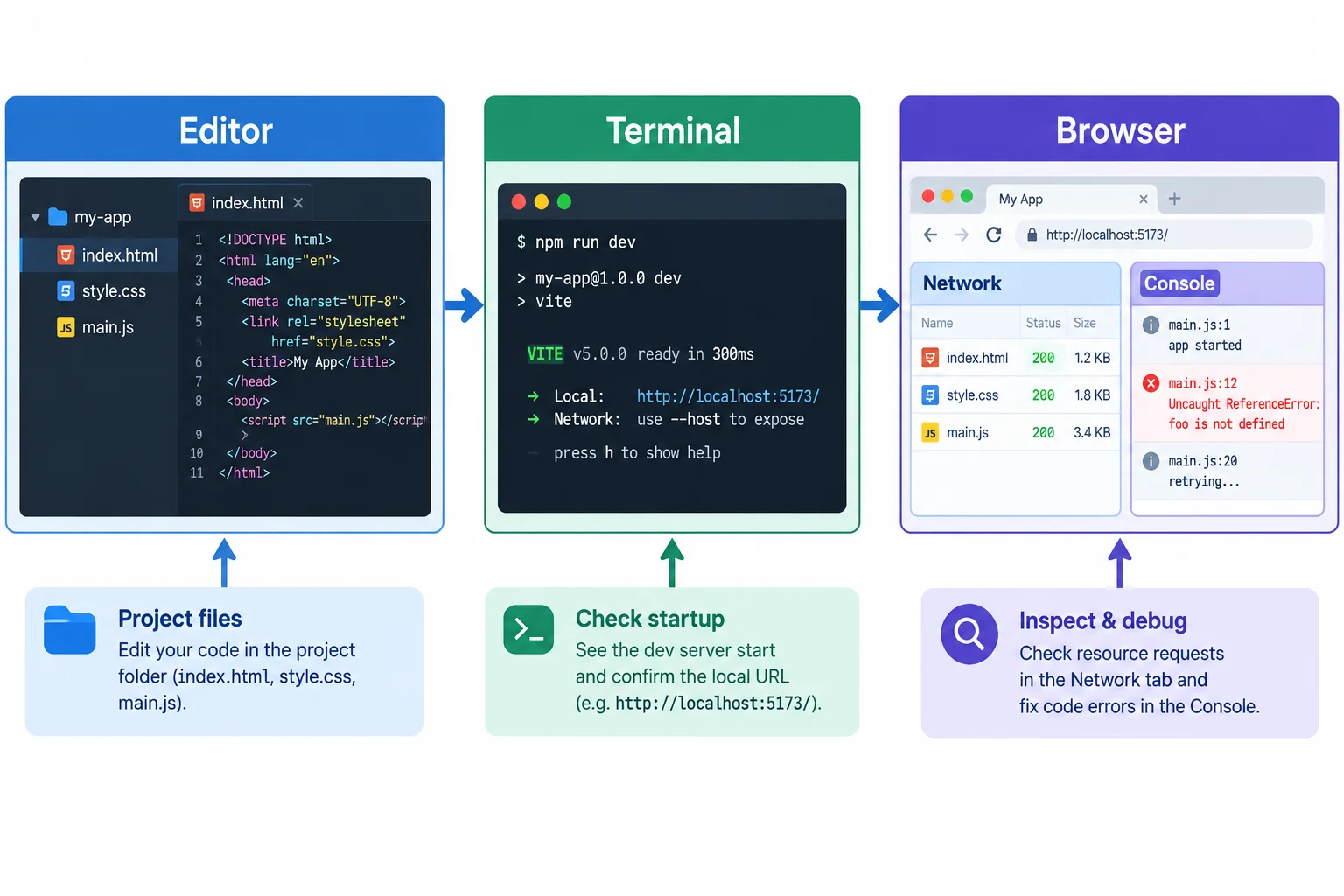
Match the evidence to its source before choosing a fix.
A development server can be running while a resource path or browser script still fails. Use the panel that contains direct evidence, then make the smallest relevant correction.
Use these signals to avoid treating unrelated problems as installation problems.
| Evidence location | What it indicates | Targeted next action |
|---|---|---|
| Terminal, before a Local URL | Startup did not complete | Confirm the project root, the "dev": "vite" script, local Vite availability, and a Node.js version compatible with Vite. |
| Network, after loading the page | A requested resource may not match the authored file | Compare the request path with the filename in index.html; inspect whether the expected resource was delivered. |
| Console, with resources available | Browser JavaScript stopped or failed | Read the error and source location; correct the named identifier or line in main.js. |
| Any layer after a correction | The evidence may have changed | Save the file and recheck the running server URL before making another change. |
Match each evidence sample to its failure category.
Tap an item and then its matching pair.
The Network evidence points to a stylesheet path mismatch. Complete the targeted correction in the index.html head.
<head>
  <link rel="stylesheet" href="">
  <script type="module" src="./main.js"></script>
</head>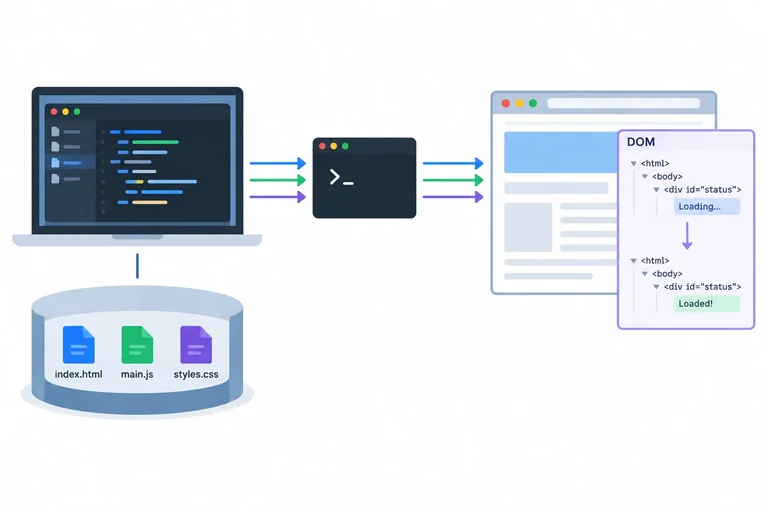
Step 7 of 8
Separate Vite file serving, browser DOM updates, Editor saves, and writable application behavior.
Vite serves the files in your project root to a browser at a local HTTP address. It can notice saved source changes and help the browser refresh or update affected resources.
That does not add application endpoints or data storage. Vite is a development tool; the browser runs the page’s JavaScript and holds the current DOM for the displayed page.
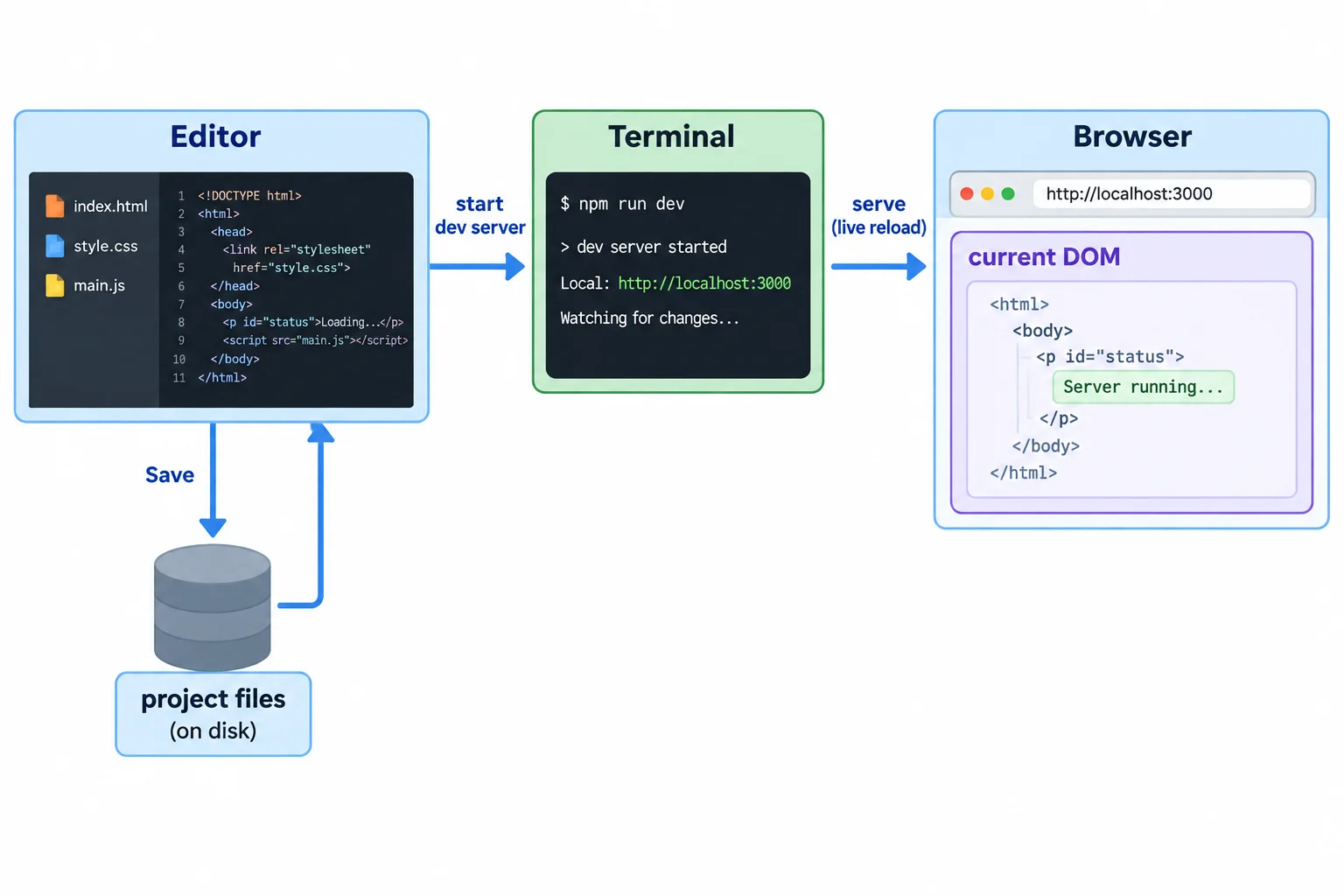
The browser can change its current DOM without writing those changes back into the project files.
These actions may look similar because each can change what you see, but they happen in different places.
| Action | Where it happens | Effect on project files |
|---|---|---|
| Vite delivers index.html | Development server to Browser | No source file is rewritten |
| JavaScript changes #status | Browser DOM | No source file is rewritten |
| You edit and save main.js | Editor and disk | The authored file changes |
| An app saves submitted data | Separate implemented behavior | Not supplied automatically by Vite |
Tip
A page can display new text because JavaScript updated the current DOM. That visual result is separate from saving source in the Editor or persisting application data.
True or false: When JavaScript changes the text of the status paragraph in the Browser, it also rewrites main.js on disk.
Match each situation to what it actually represents.
Tap an item and then its matching pair.
Step 8 of 8
Complete an independent local Vite session and consolidate the workflow, diagnostic choices, and server boundary.
Summary
Use this final model to guide your session.
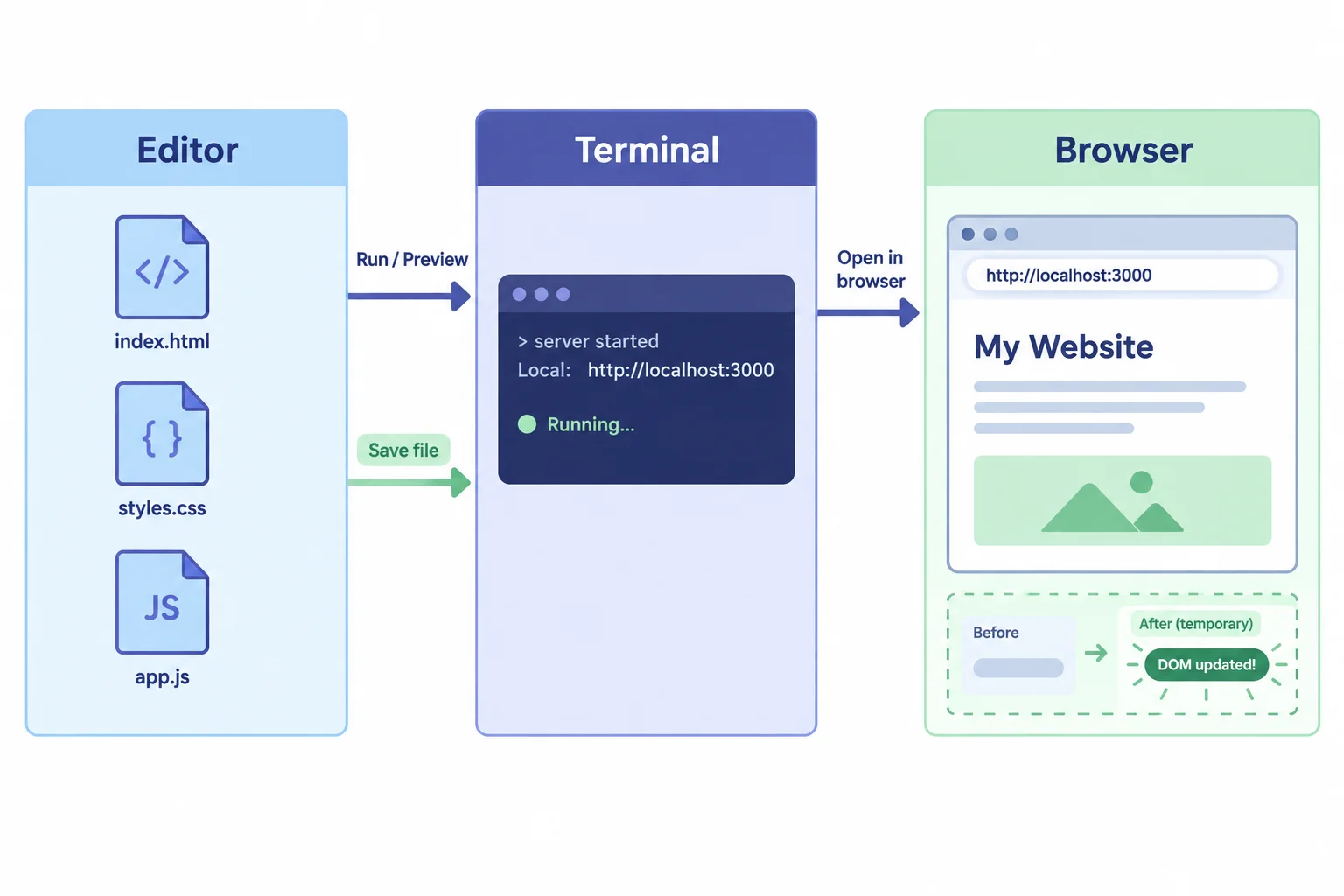
The development server connects saved project resources to the browser, but it does not turn browser changes into saved source files.
Complete the command that starts the configured development server.
npm run Complete the two local resource paths in this document head.
<head>
  <link rel="stylesheet" href="">
  <script type="module" src=""></script>
</head>Now complete a short session on your own computer.
vite-practice/.style.css, set the body background declaration to #eef2ff, reversing the earlier green background edit. Save the file and verify the visible background change in the browser. If it was already that color, briefly save #ecfdf5 first, then save #eef2ff.Ctrl+C.Stopping the process leaves index.html, style.css, main.js, and the package configuration available for a later restart.
Use evidence from the layer where the problem appears. Make one focused correction rather than reinstalling packages for every failure.
| Observed signal | First diagnostic source | Targeted next action |
|---|---|---|
| The start command reports a missing script | Terminal | Inspect the scripts object in package.json |
| A stylesheet or entry file is not delivered as expected | Network | Compare the requested path with the authored filename |
| A served page has a JavaScript error | Console | Read the error and its source location |
After you complete the local session, write a five-line report. Include: your actual Local URL; the background change you observed after saving; the action you used to stop Vite; the first diagnostic source you would use if npm run dev reported Missing script: dev; and why this setup does not provide a writable application API.
Write at least 120 characters (0/120).
Congratulations! You completed: Run a Local Development Server with Vite
Thousands of online courses in video, ebooks and audiobooks.
To test your knowledge during online courses
Generated directly from your cell phone's photo gallery and sent to your email

Download our app via QR Code or the links below:.



Carry knowledge in your pocket.
Download the Cursa app.
There are hundreds of free courses available, with a free certificate of completion that is saved in your mobile image gallery.
Download the app to access the Course Completion Certificate for Free.


+ 10 million
students

Free and Valid
Certificate

60 thousand free
exercises

4.8/5 rating in
app stores

Free courses in
video and ebooks