Step 1 of 9
Connect a Button to a Callback
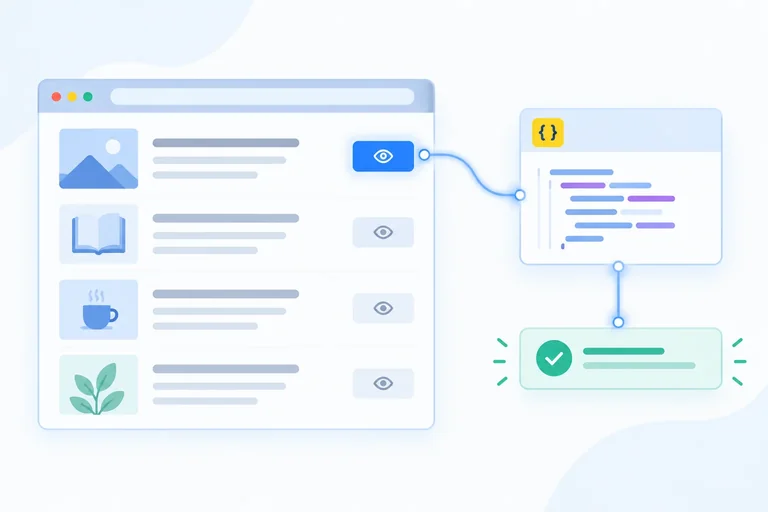
Register a direct click listener that waits for a native Preview button to be activated and then updates visible feedback.

Learning path · Level 5 · Tutorial 2
Connect browser interactions to JavaScript callbacks and use delegation to handle repeated controls, without accidentally blocking useful browser behavior.
 Connect a Button to a Callback
Register a direct click listener that waits for a native Preview button to be activated and then updates visible feedback. 3 min
Connect a Button to a Callback
Register a direct click listener that waits for a native Preview button to be activated and then updates visible feedback. 3 min
 Choose the Event That Matches the Interaction
Choose browser events that match button activation, live text editing, committed selection changes, and form submission. 3 min
Choose the Event That Matches the Interaction
Choose browser events that match button activation, live text editing, committed selection changes, and form submission. 3 min
 Distinguish target from currentTarget
Identify the element where a nested click begins and the element whose direct listener is executing. 3 min
Distinguish target from currentTarget
Identify the element where a nested click begins and the element whose direct listener is executing. 3 min
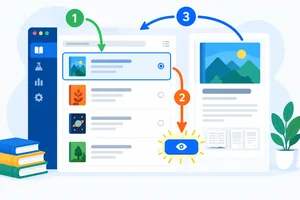 Trace the Event Through the Page
Trace a focused button click through capture, target, and bubbling listeners in Reading List Lab. 3 min
Trace the Event Through the Page
Trace a focused button click through capture, target, and bubbling listeners in Reading List Lab. 3 min
 Cancel Only the Default Action You Intend
Keep a local form on the current page by cancelling its submit default action, while preserving native validation, bubbling, and ordinary link navigation. 3 min
Cancel Only the Default Action You Intend
Keep a local form on the current page by cancelling its submit default action, while preserving native validation, bubbling, and ordinary link navigation. 3 min
 Delegate Clicks to a Stable Ancestor
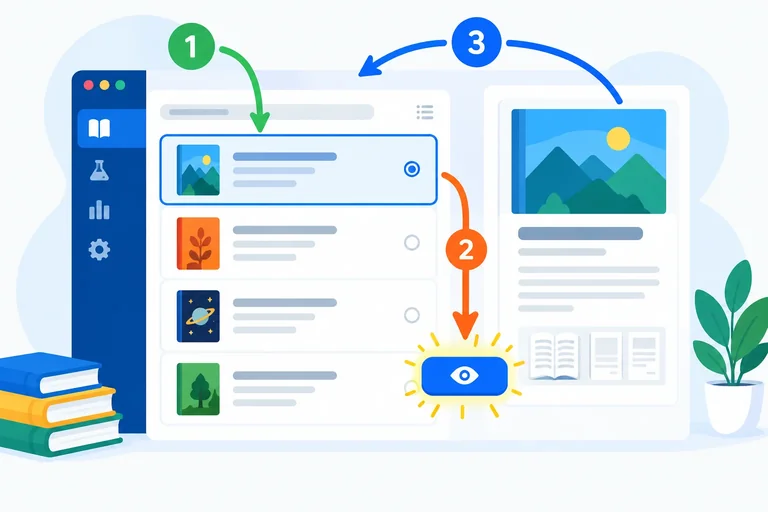
Use one bounded list listener to resolve nested clicks to existing Preview buttons without canceling browser behavior. 4 min
Delegate Clicks to a Stable Ancestor
Use one bounded list listener to resolve nested clicks to existing Preview buttons without canceling browser behavior. 4 min
 Handle Controls Added After Registration
Append a Reading List Lab entry through the local form and confirm that the existing delegated listener handles its nested Preview control. 3 min
Handle Controls Added After Registration
Append a Reading List Lab entry through the local form and confirm that the existing delegated listener handles its nested Preview control. 3 min
 Remove a Listener Reliably
Remove temporary event diagnostics by matching the original listener registration exactly, without disrupting delegated Preview behavior. 2 min
Remove a Listener Reliably
Remove temporary event diagnostics by matching the original listener registration exactly, without disrupting delegated Preview behavior. 2 min
 Apply and Verify the Complete Event Flow
Verify a complete local event flow with appropriate listeners, deliberate cancellation, and delegated controls. 3 min
Apply and Verify the Complete Event Flow
Verify a complete local event flow with appropriate listeners, deliberate cancellation, and delegated controls. 3 min
Step 1 of 9
Register a direct click listener that waits for a native Preview button to be activated and then updates visible feedback.
Create a folder containing two local files: index.html and events.js. This small interface is Reading List Lab. It has one initial Preview button that will receive a direct listener in this step, plus form controls that you will use later.
Save this complete scaffold as index.html.
<!doctype html>
<html lang="en">
<head>
  <meta charset="utf-8">
  <meta name="viewport" content="width=device-width, initial-scale=1">
  <title>Reading List Lab</title>
  <script src="events.js" defer></script>
</head>
<body>
  <main>
    <h1>Reading List Lab</h1>

    <ul id="reading-list">
      <li>
        Event Basics — Article
        <button type="button" id="preview-button" data-action="preview" data-title="Event Basics"><span>Preview</span></button>
      </li>
      <li>
        Delegation Notes — Article
        <button type="button" data-action="preview" data-title="Delegation Notes"><span>Preview</span></button>
      </li>
    </ul>

    <p id="feedback" aria-live="polite"></p>

    <form id="reading-form">
      <label for="title-input">Title</label>
      <input id="title-input" required>

      <label for="format-select">Format</label>
      <select id="format-select">
        <option value="article">Article</option>
        <option value="video">Video</option>
      </select>

      <button type="submit">Add item</button>
    </form>

    <a href="#notes">Read notes</a>

    <section id="notes">
      <h2>Notes</h2>
      <p>Use Preview to inspect a reading-list entry.</p>
    </section>
  </main>
</body>
</html>Reading List Lab Event Basics — Article [Preview] Delegation Notes — Article [Preview] Title [required text field] Format [Article] [Add item] Read notes Notes Use Preview to inspect a reading-list entry.
Open `index.html` in a browser. Native browser styling may vary, but the labeled controls and content should be visible.
A listener connects a browser interaction to a named handler. Keep behavior in JavaScript rather than placing an inline event attribute such as onclick in HTML.
During page setup, addEventListener() receives a function reference. Writing handlePreview gives the browser the handler to run later. Writing handlePreview() would call the handler immediately during setup, before anyone activates the button.
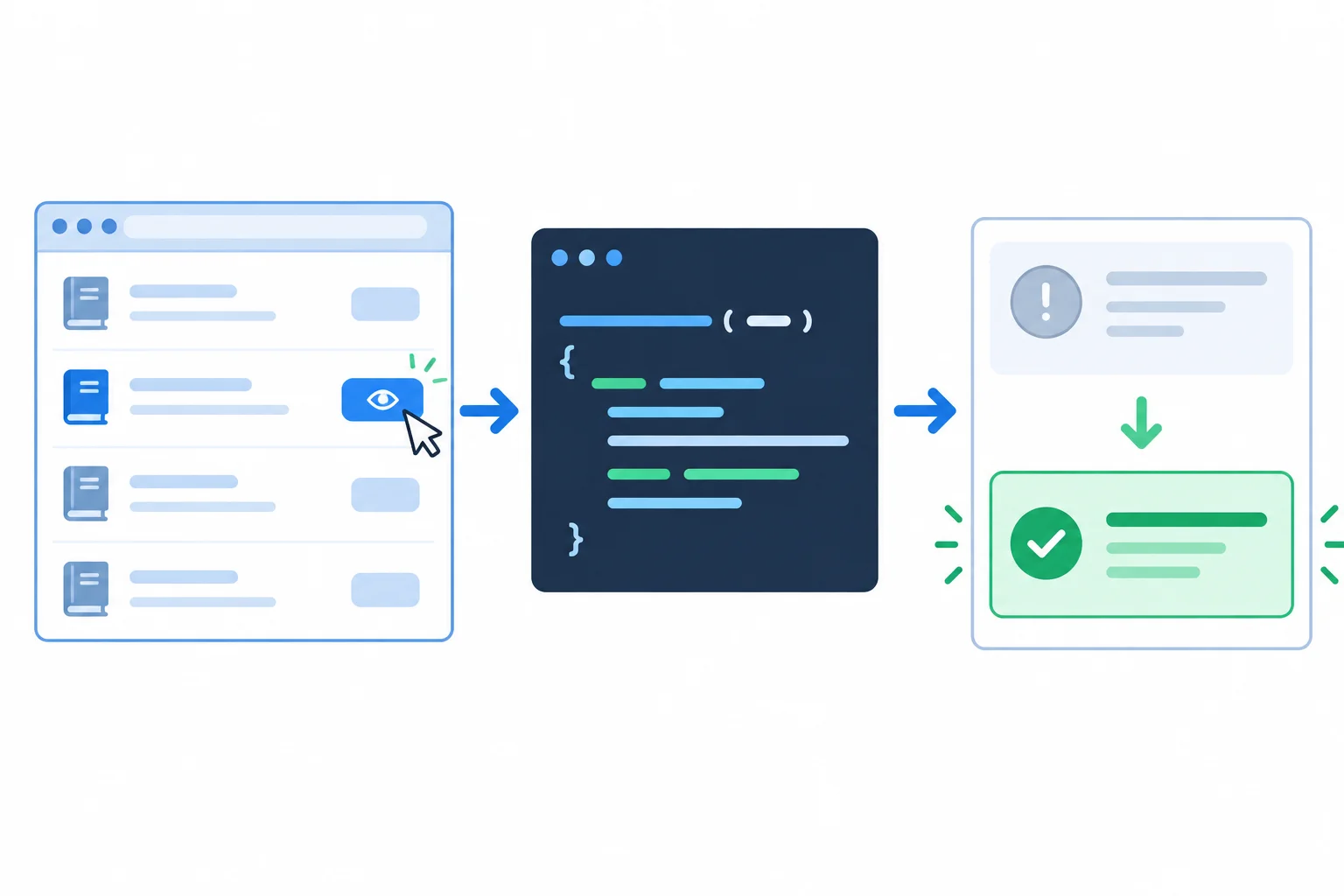
The handler is registered during setup, but its visible work happens later, when Preview is activated.
Save this as events.js. The selectors connect the supplied page elements to the fixed variable names used throughout this tutorial.
const list = document.querySelector('#reading-list');
const form = document.querySelector('#reading-form');
const titleInput = document.querySelector('#title-input');
const formatSelect = document.querySelector('#format-select');
const feedback = document.querySelector('#feedback');
const previewButton = document.querySelector('#preview-button');

function handlePreview(event) {
  feedback.textContent = 'Preview requested for Event Basics.';
}

previewButton.addEventListener('click', handlePreview);Initial feedback: After activating the first Preview button: Preview requested for Event Basics.
After saving and refreshing the local page, activate the first Preview button. The feedback changes only after that button is activated.
Tip
Save both files and refresh index.html. The feedback area starts empty. Activate the first Preview button and confirm that it displays the message from handlePreview. The second Preview button, the form controls, and the link do not run this direct handler.
Complete the listener registration in events.js. Then save, refresh the local page, and activate the first Preview button to verify that feedback changes only after its activation.
previewButton.addEventListener(, );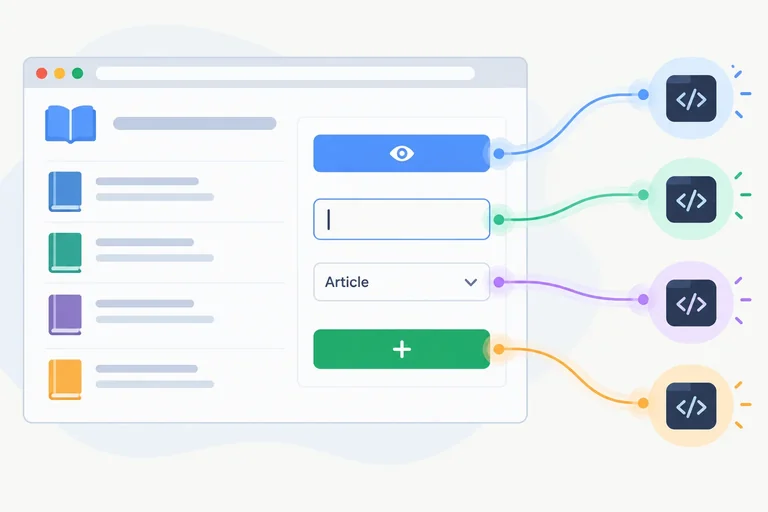
Step 2 of 9
Choose browser events that match button activation, live text editing, committed selection changes, and form submission.
A listener should describe the interaction you need—not merely the element you can see.
click when a button is activated.input while a person edits a text control; it reports each change as it happens.change when a selection is changed and committed; it is a clear fit for the Format select.submit for the Reading List Lab form itself.Keep the direct click listener on the first Preview button from the previous step. Do not treat the Add item button’s click as the whole form interaction: a form can also be submitted from its title field.
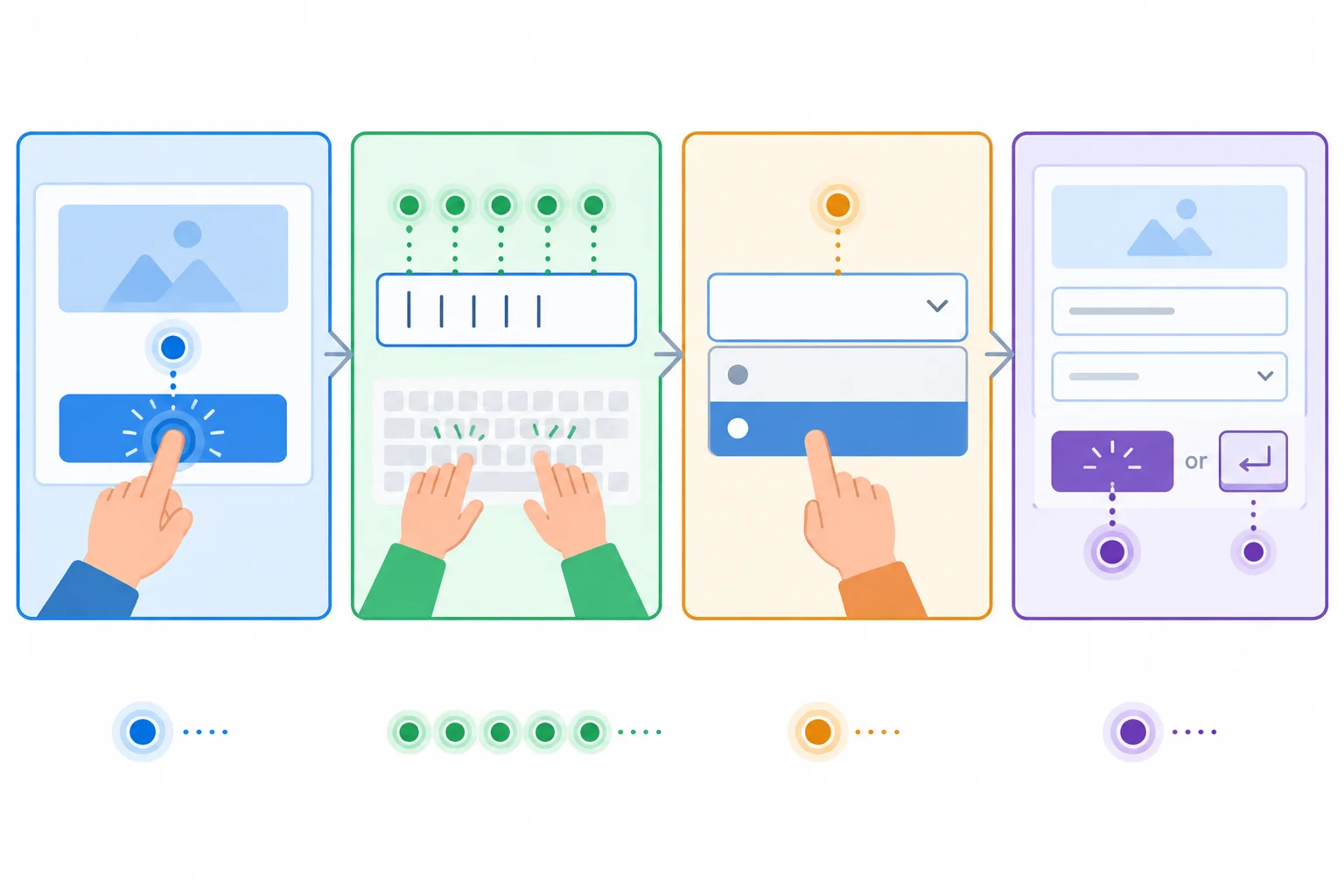
Text editing can produce many input events. A selection change and a form submission represent different interactions, even when submission starts from a button.
Use the event that represents the intended interaction.
| Interaction requirement | Listen on | Event |
|---|---|---|
| Activate Preview | Preview button | click |
| Report live title edits | Title input | input |
| Report chosen format | Format select | change |
| Handle the whole submission | Reading List Lab form | submit |
input is useful when feedback should follow each edit in the Title field. For a text field, change waits until the edited value is committed, commonly when the field loses focus. The Format select represents a committed choice, so change is a useful match.
For now, these handlers only report the controls’ current values with textContent. They do not filter items or build application state.
In events.js, keep the existing direct Preview listener. Then add these two named handlers and registrations. The element variables were supplied in the Reading List Lab scaffold.
function handleTitleInput(event) {
  feedback.textContent = `Editing title: ${event.currentTarget.value}`;
}

function handleFormatChange(event) {
  feedback.textContent = `Selected format: ${event.currentTarget.value}`;
}

titleInput.addEventListener('input', handleTitleInput);
formatSelect.addEventListener('change', handleFormatChange);After typing Reading Notes: Editing title: Reading Notes After selecting Video: Selected format: video
After typing `Reading Notes`, the first handler has also run for earlier partial edits; this output shows the final feedback. Selecting Video then replaces that feedback.
Tip
Save events.js and refresh the local page. Type Reading Notes in the labeled Title field: the feedback should end as Editing title: Reading Notes. Then choose Video: it should become Selected format: video.
The form variable will be used with a submit listener later. Do not add that handler yet.
Match each Reading List Lab requirement to the event that represents it.
Tap an item and then its matching pair.
Complete the two listener registrations for the existing handlers.
titleInput.addEventListener('', handleTitleInput);
formatSelect.addEventListener('', handleFormatChange);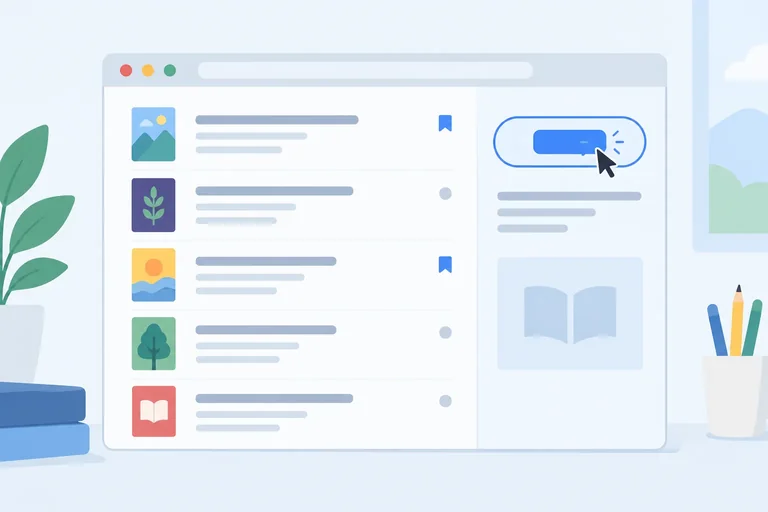
Step 3 of 9
Identify the element where a nested click begins and the element whose direct listener is executing.
A click handler receives an event object from the browser. In this Reading List Lab example, two properties answer different questions:
event.target: Where did this click begin?event.currentTarget: Which element owns the listener that is running now?The first Preview button contains a nested <span>Preview</span>. When a click begins on that visible span, target is the span. The direct listener is still attached to the surrounding Preview button, so currentTarget is the button.
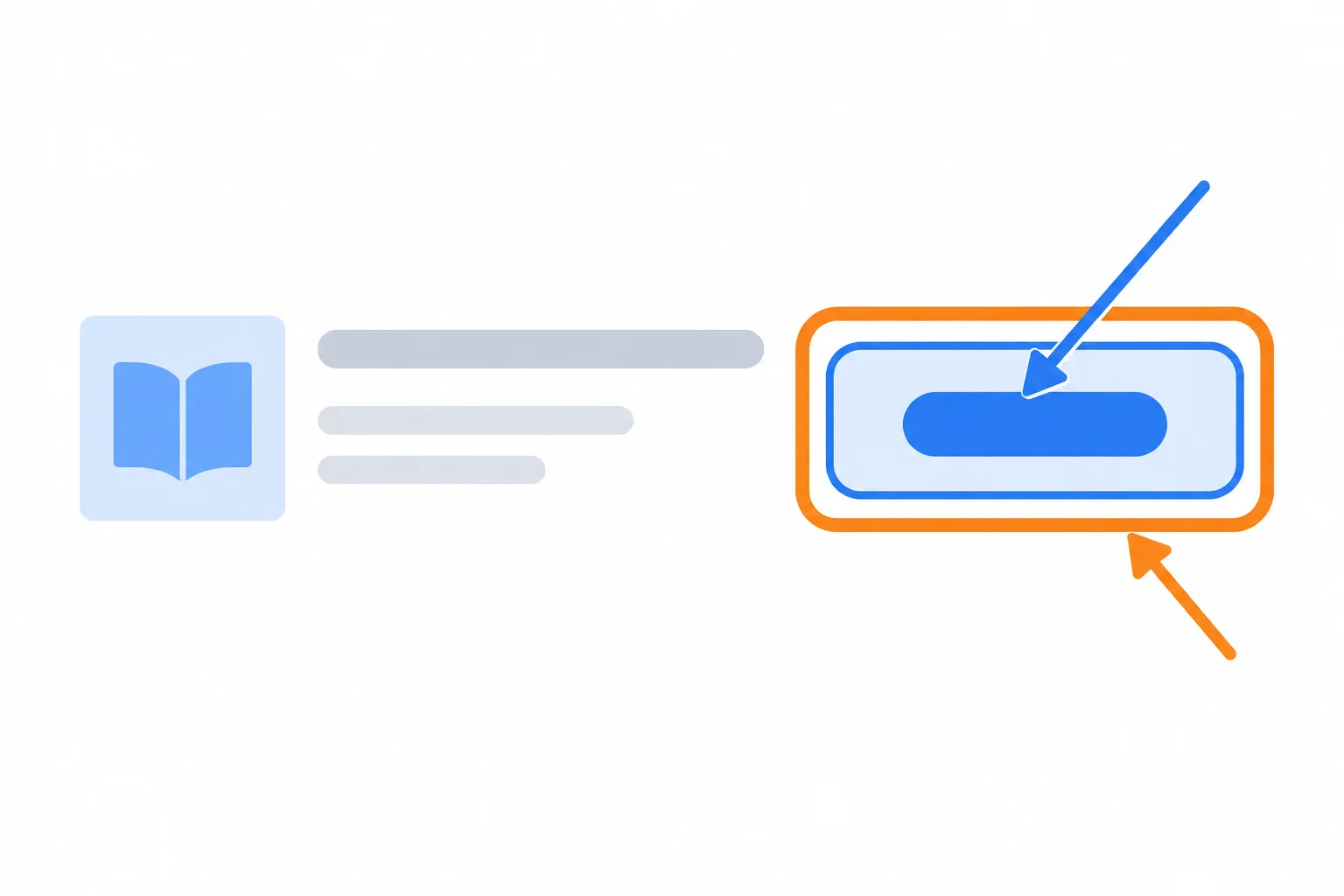
When the inner Preview span is clicked, the event begins on the inner element while the direct listener runs on the outer button.
Use currentTarget in the direct Preview handler because it is the button whose listener is executing. It remains the button even when the click begins on its nested span.
In events.js, replace the existing handlePreview function with this version. Keep the direct listener registration below it.
events.js — direct Preview handler
function handlePreview(event) {
  const button = event.currentTarget;
  const title = button.getAttribute('data-title');

  feedback.textContent = `Previewing: ${title}`;
}

previewButton.addEventListener('click', handlePreview);Previewing: Event Basics
After saving and refreshing, activate the first Preview button by clicking either its surface or its nested Preview span. This text appears in the feedback area.
Example
The nested structure explains why target is not a safe place to assume a button. The first control has a button around its visible label:
<button type="button" id="preview-button" data-action="preview" data-title="Event Basics"><span>Preview</span></button>Click either the button surface or the word “Preview.” The handler can still read the button’s data-title through event.currentTarget.
A click lands on the inner <span>Preview</span> of the first Preview control. Match each expression to its role during the direct handler.
Tap an item and then its matching pair.
A user clicks the inner <span>Preview</span>. Complete the direct handler so it identifies both references and reads the title from the button.
function handlePreview(event) {
  const origin = event.;
  const button = event.;
  const title = button.getAttribute('data-title');

  feedback.textContent = `${origin.tagName} started the click. Previewing: ${title}`;
}
Step 4 of 9
Trace a focused button click through capture, target, and bubbling listeners in Reading List Lab.
A click travels along an event path through the page: capture → target → bubbling.
For this focused trace, click the padding or background of the first Preview button—not the word inside its nested <span>. The button is then the event origin.
list registered with { capture: true } runs during capture.previewButton runs at the target.list registered without a capture option runs during bubbling.event.target stays the originating button for this trace. event.currentTarget changes to the element whose listener is currently running.
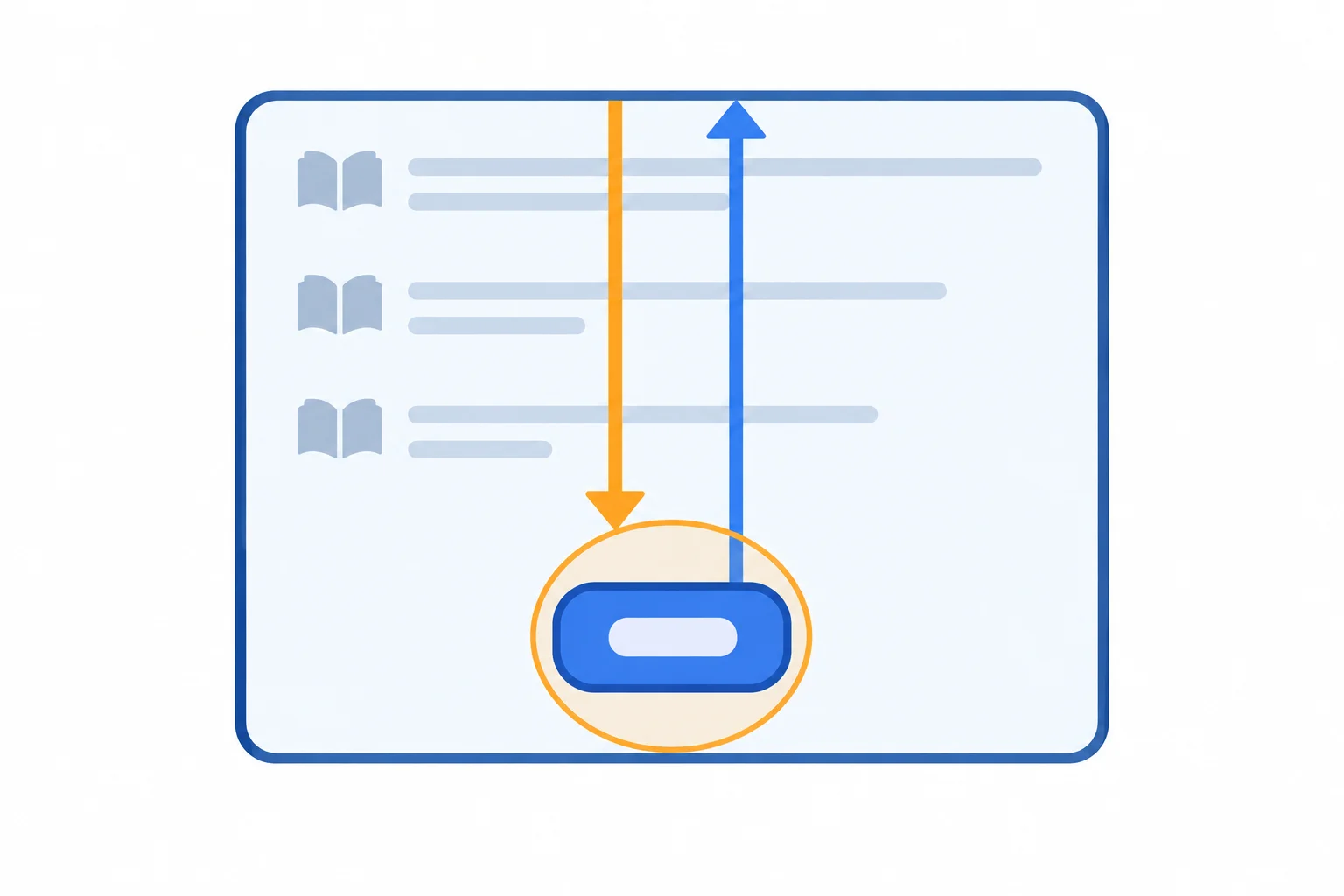
Capture moves toward the target; bubbling moves from the target back to an ancestor.
Temporarily replace your current handlePreview function and its direct Preview-button registration in events.js with the block below. Keep the existing element selections plus the title and format listeners from earlier steps.
The first list listener explicitly uses capture. The second list listener uses the default registration, so it observes the bubbling click.
events.js — diagnostic revision
function handlePreview(event) {
  const title = event.currentTarget.getAttribute('data-title');

  console.log(`button: currentTarget=${event.currentTarget.id}, target=${event.target.id}`);
  feedback.textContent = `Previewing: ${title}`;
}

function logListCapture(event) {
  console.log(`capture: currentTarget=${event.currentTarget.id}, target=${event.target.id}`);
}

function logListClick(event) {
  console.log(`bubbling: currentTarget=${event.currentTarget.id}, target=${event.target.id}`);
}

previewButton.addEventListener('click', handlePreview);
list.addEventListener('click', logListCapture, { capture: true });
list.addEventListener('click', logListClick);capture: currentTarget=reading-list, target=preview-button button: currentTarget=preview-button, target=preview-button bubbling: currentTarget=reading-list, target=preview-button
This console trace assumes you click the first Preview button's padding or background, making that button the target. If you click its nested word instead, the target is the span, but the listener order is unchanged.
Tip
Save, refresh, open the browser Console, and click the first Preview button's padding or background.
Both diagnostic listeners belong to list, but they run in different phases. The direct handler belongs to the button. This is why currentTarget changes even though target does not.
A later use of delegation will depend on a click bubbling to an ancestor. That pattern requires an event that bubbles; not every event does.
For a click on the first Preview button's padding or background, which element is event.currentTarget while logListClick is executing?
Arrange the three diagnostic messages for a click on the first Preview button's padding or background. Then perform that click locally and compare your prediction with the Console trace. Use the complete messages to identify the ancestor listener's currentTarget.
Step 5 of 9
Keep a local form on the current page by cancelling its submit default action, while preserving native validation, bubbling, and ordinary link navigation.
A listener and a default action are separate. A listener can run when an event occurs; the browser may then perform its built-in behavior. For a valid form submission, that behavior commonly navigates or reloads the page. For the Read notes link, it moves to the #notes destination.
In Reading List Lab, cancel only the valid form submission so you can show local feedback. Leave the link alone. Do not use propagation control as a substitute for cancellation.
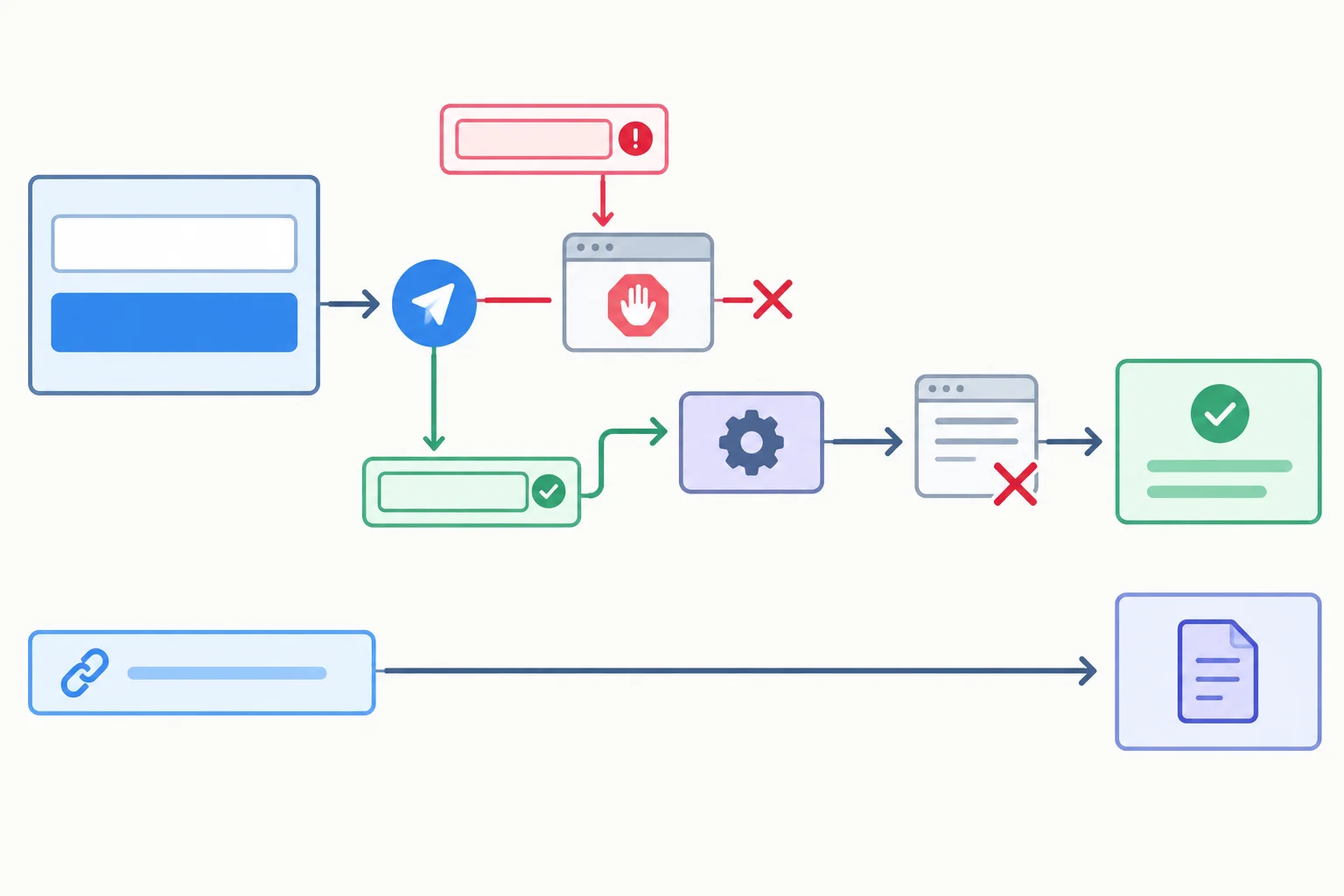
Cancel the form default action after a valid submit event; keep validation, propagation, and unrelated link behavior available.
These interactions have different browser behavior. The form listener is attached to the form, so it covers both ways a user normally submits it.
| Interaction | Listener event | Native browser behavior | Lab decision |
|---|---|---|---|
| Valid Add item submission | submit on the form | May navigate or reload | Cancel only this action |
| Empty required title | Submit may not dispatch | Shows native required-field feedback | Keep validation enabled |
| Read notes link | click on the link | Moves to #notes | Do not cancel it |
Listen for submit on form, not only for a click on its submit button. This one listener handles a click on Add item and an ordinary Enter submission from the title field.
Native required validation happens first. If the required title is empty, the browser can block submission before the submit event is dispatched. Keep the form validation intact: do not add novalidate.
For a valid submission, the handler below cancels navigation and writes a local message. It does not send, save, or add data yet.
In events.js, add this handler and registration alongside your existing listeners. Keep the registration only once.
function handleSubmit(event) {
  event.preventDefault();
  feedback.textContent = `Submitted "${titleInput.value}" as ${formatSelect.value}.`;
}

form.addEventListener('submit', handleSubmit);Submitted "Listener Practice" as article. Page stays on the current document.
For this check, enter `Listener Practice`, select Article, and submit. The first line is the exact feedback text shown in the page; the second line states the browser result. Required-field behavior and the Read notes link are separate checks.
Tip
preventDefault() cancels the browser's default action; it does not stop the event from bubbling to ancestors. Conversely, stopPropagation() controls event travel but does not cancel form navigation. There is no need to stop propagation for this local form interaction, and doing so can prevent other useful listeners from observing it.
Complete the first statement so a valid local form submission does not navigate away from the page.
function handleSubmit(event) {
  event.();
  feedback.textContent = `Submitted "${titleInput.value}" as ${formatSelect.value}.`;
}Use your completed local files to verify the full boundary of this handler:
Listener Practice, choose Article, and submit the form.Write 3–5 sentences describing what you observed in each case. State whether the valid submission navigated, whether a new submit result appeared for the empty required field, and whether the link reached its destination. Then explain why preventDefault() is sufficient here and why stopPropagation() is not needed.
Write at least 180 characters (0/180).
Step 6 of 9
Use one bounded list listener to resolve nested clicks to existing Preview buttons without canceling browser behavior.
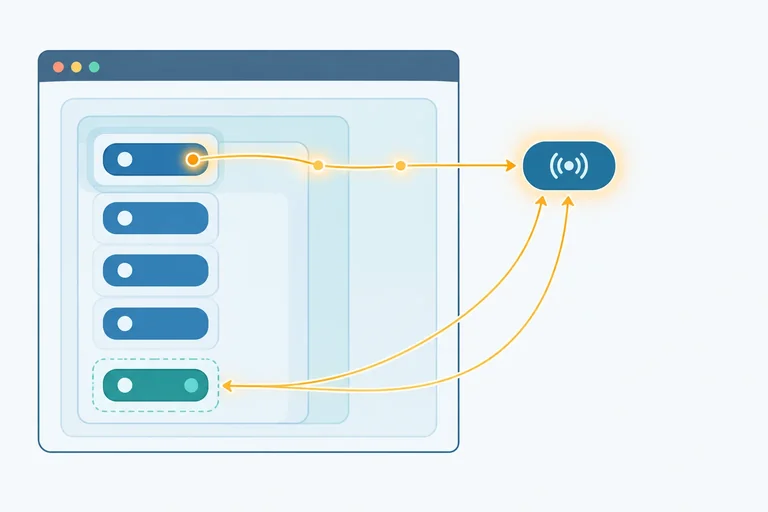
The list already contains repeated Preview buttons. Instead of giving each button its own listener, delegation puts one click listener on the stable #reading-list ancestor.
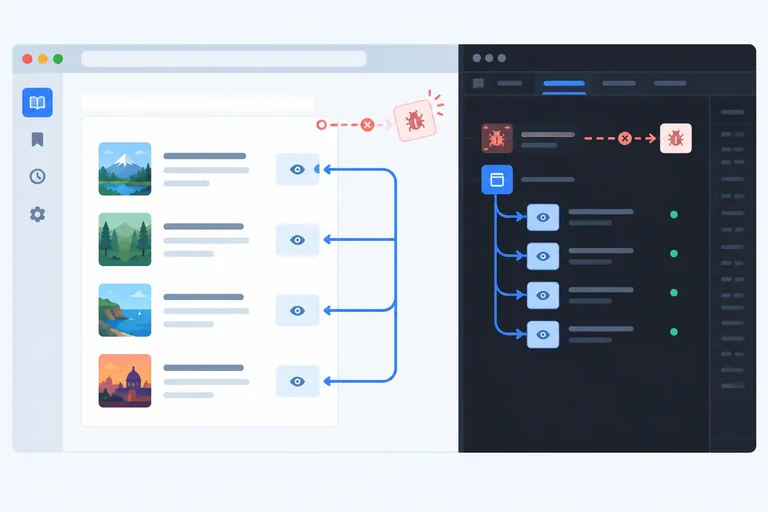
A click on a button—or on its nested <span>—bubbles to the list. The delegated handler starts with event.target, finds the nearest matching Preview button, and acts only when that button belongs to this list.
This is a bounded use of delegation: the listener handles only Preview actions inside #reading-list.
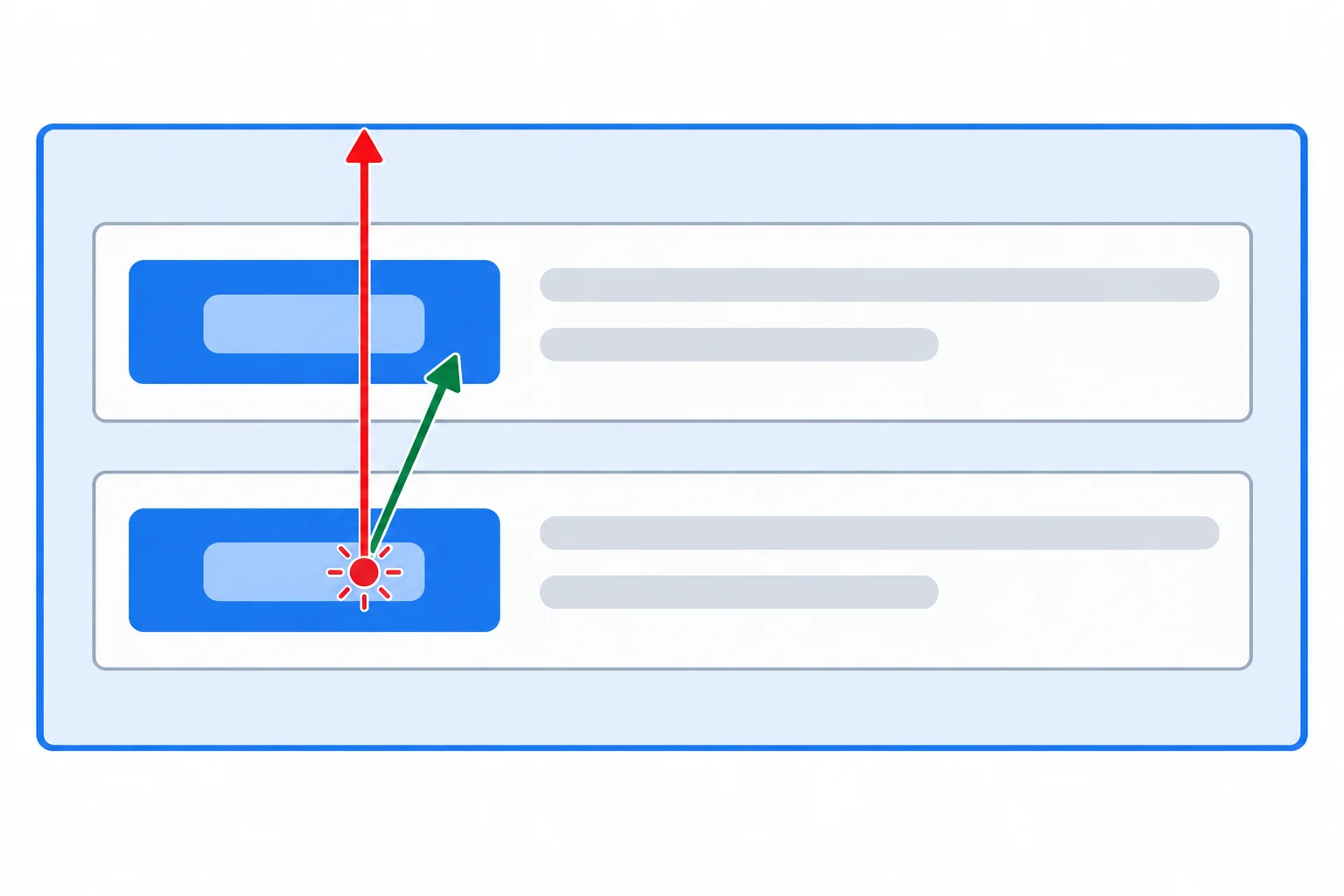
The click can originate on the nested span, while the list listener finds the enclosing Preview button.
Open events.js and replace its contents with the revision below. Save the file and reload index.html.
This revision removes the earlier direct Preview listener and the temporary capture and bubbling diagnostic listeners. The input, select, and form listeners remain in place. The previewButton selection remains part of the shared page setup, but delegation no longer registers a listener on that individual button.
The new list listener does not call preventDefault() or stopPropagation(). It reports a Preview action and leaves browser default actions and other listeners alone.
Complete replacement for events.js
const list = document.querySelector('#reading-list');
const form = document.querySelector('#reading-form');
const titleInput = document.querySelector('#title-input');
const formatSelect = document.querySelector('#format-select');
const feedback = document.querySelector('#feedback');
const previewButton = document.querySelector('#preview-button');

function handleTitleInput(event) {
  feedback.textContent = `Editing title: ${event.currentTarget.value}`;
}

function handleFormatChange(event) {
  feedback.textContent = `Selected format: ${event.currentTarget.value}`;
}

function handleSubmit(event) {
  event.preventDefault();
  feedback.textContent = `Submitted "${titleInput.value}" as ${formatSelect.value}.`;
}

function handleListClick(event) {
  if (!(event.target instanceof Element)) {
    return;
  }

  const button = event.target.closest('button[data-action="preview"]');

  if (!button || !list.contains(button)) {
    return;
  }

  const title = button.getAttribute('data-title');
  feedback.textContent = `Previewing: ${title}`;
}

titleInput.addEventListener('input', handleTitleInput);
formatSelect.addEventListener('change', handleFormatChange);
form.addEventListener('submit', handleSubmit);
list.addEventListener('click', handleListClick);After clicking the inner Preview span for Event Basics: Previewing: Event Basics After clicking the inner Preview span for Delegation Notes: Previewing: Delegation Notes After clicking list space that is not inside a Preview button: No new Preview action; the feedback remains unchanged.
These are visible interface checks, performed after saving and reloading the local page. The last check leaves the current feedback unchanged because no Preview action matches.
Tip
event.target is not guaranteed to be an element, so check event.target instanceof Element before calling closest().
closest('button[data-action="preview"]') searches from the event origin upward. The containment guard prevents a matching button outside #reading-list from being treated as one of this interface's actions.
Try the behavior in your local page:
Event Basics button.Delegation Notes button.The first two clicks should update feedback with the matching title. The third click should not create a Preview message. The nested span works because the handler finds its enclosing action button.
Example
Click: the nested Preview text for Event Basics
Feedback: Previewing: Event Basics
Click: the nested Preview text for Delegation Notes
Feedback: Previewing: Delegation Notes
The listener belongs to the list, but the reported title comes from the matched button's data-title attribute.
Complete the delegated handler so it safely handles clicks on either existing Preview button, including clicks on a nested span, and ignores other list clicks.
function handleListClick(event) {
  if (!(event.target  Element)) {
    return;
  }

  const button = event.target.('button[data-action="preview"]');

  if (!button || !list.(button)) {
    return;
  }

  const title = button.getAttribute('data-title');
  feedback.textContent = `Previewing: ${title}`;
}
Step 7 of 9
Append a Reading List Lab entry through the local form and confirm that the existing delegated listener handles its nested Preview control.
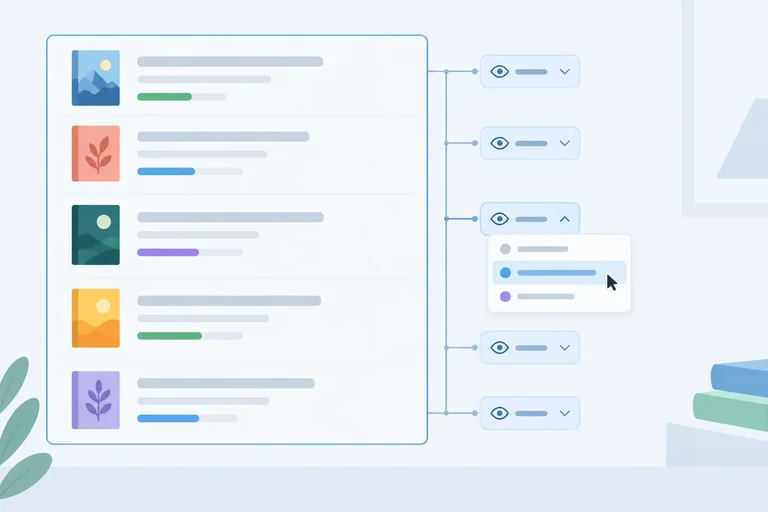
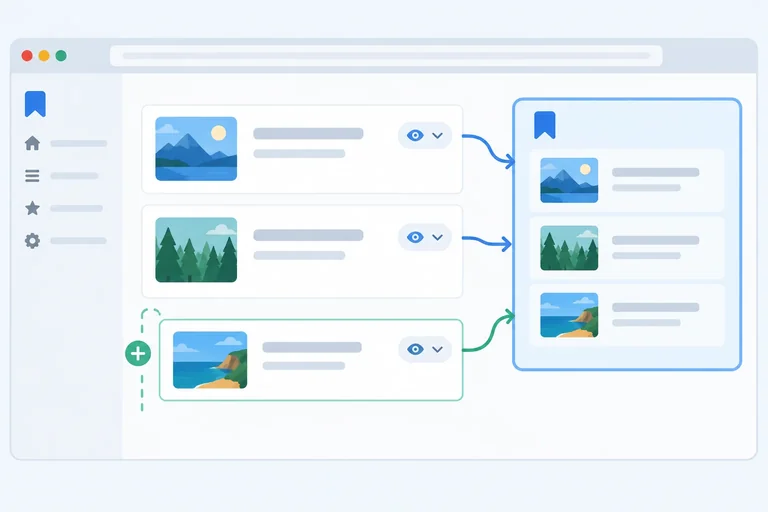
Your delegated click listener is attached to the existing #reading-list element—not to each Preview button. When you append a new list item, its Preview button becomes another descendant of that same listener-owning list.
A click on either button bubbles to list. The existing handleListClick handler can then find the clicked button, including when the click begins on its nested <span>Preview</span> label. No new button listener is needed.
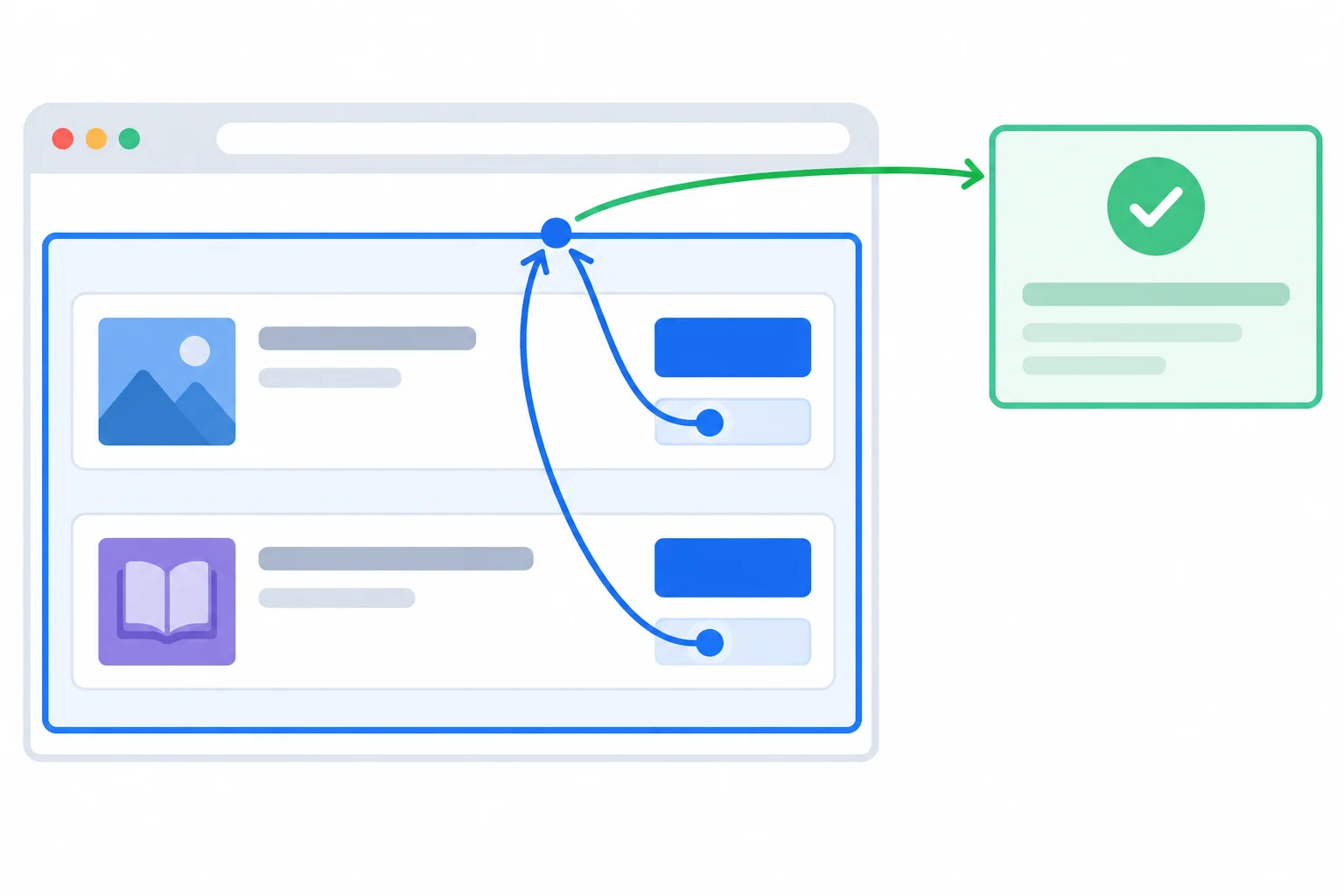
Appending a descendant preserves the listener on list; both button clicks bubble to that one ancestor.
Warning
Keep the existing list element in the page. Adding children is safe for delegation; replacing the list element with a different DOM element would discard the listener registered on the old element.
In events.js, add the helper after the element selections and before the handlers. Then replace the existing handleSubmit function with the version below. The form's submit listener stays registered once, and handleListClick stays registered on the existing list.
The helper uses familiar safe DOM operations to create the same button structure as the original entries. It does not register a listener on the new button.
function appendReadingItem(title, format) {
  const item = document.createElement('li');
  const details = document.createElement('span');
  const button = document.createElement('button');
  const label = document.createElement('span');

  details.textContent = `${title} — ${format}`;
  button.setAttribute('type', 'button');
  button.setAttribute('data-action', 'preview');
  button.setAttribute('data-title', title);
  label.textContent = 'Preview';

  button.append(label);
  item.append(details, button);
  list.append(item);
}

function handleSubmit(event) {
  event.preventDefault();

  const title = titleInput.value;
  const format = formatSelect.value === 'video' ? 'Video' : 'Article';

  appendReadingItem(title, format);
  feedback.textContent = `${title} added as ${format}.`;
  form.reset();
}List after valid submission: Event Basics — Article [Preview] Delegation Notes — Article [Preview] Dynamic Controls — Video [Preview] Feedback immediately after submission: Dynamic Controls added as Video. Feedback after activating the nested Preview label in the new entry: Previewing: Dynamic Controls
These are browser-interface results, not Console messages. They assume you enter `Dynamic Controls`, choose Video, submit the valid form, then activate the visible nested Preview label in the new entry.
Complete the missing statement in the submit handler. The variables already hold the submitted title and its display format. Connect those prepared values to the supplied helper; do not add a listener to the new button here.
Fill the missing helper call.
function handleSubmit(event) {
  event.preventDefault();

  const title = titleInput.value;
  const format = formatSelect.value === 'video' ? 'Video' : 'Article';


  feedback.textContent = `${title} added as ${format}.`;
  form.reset();
}Save events.js and refresh your local Reading List Lab.
Perform this check in your own browser. Do not upload files or paste your full code.
Write 2–3 sentences describing the feedback you observed for the original entry and for Dynamic Controls. State whether the new button worked without an individual listener, and explain why in terms of the stable ancestor and bubbling.
Write at least 80 characters (0/80).
Step 8 of 9
Remove temporary event diagnostics by matching the original listener registration exactly, without disrupting delegated Preview behavior.
removeEventListener() does not search for code that merely looks similar. It removes a listener only when three parts match the original registration:
A function is a value. Writing a new function—even with identical statements—creates a different function value, so it cannot remove the earlier listener.
This lets you remove temporary diagnostics without touching the delegated handleListClick listener that keeps Preview controls working.
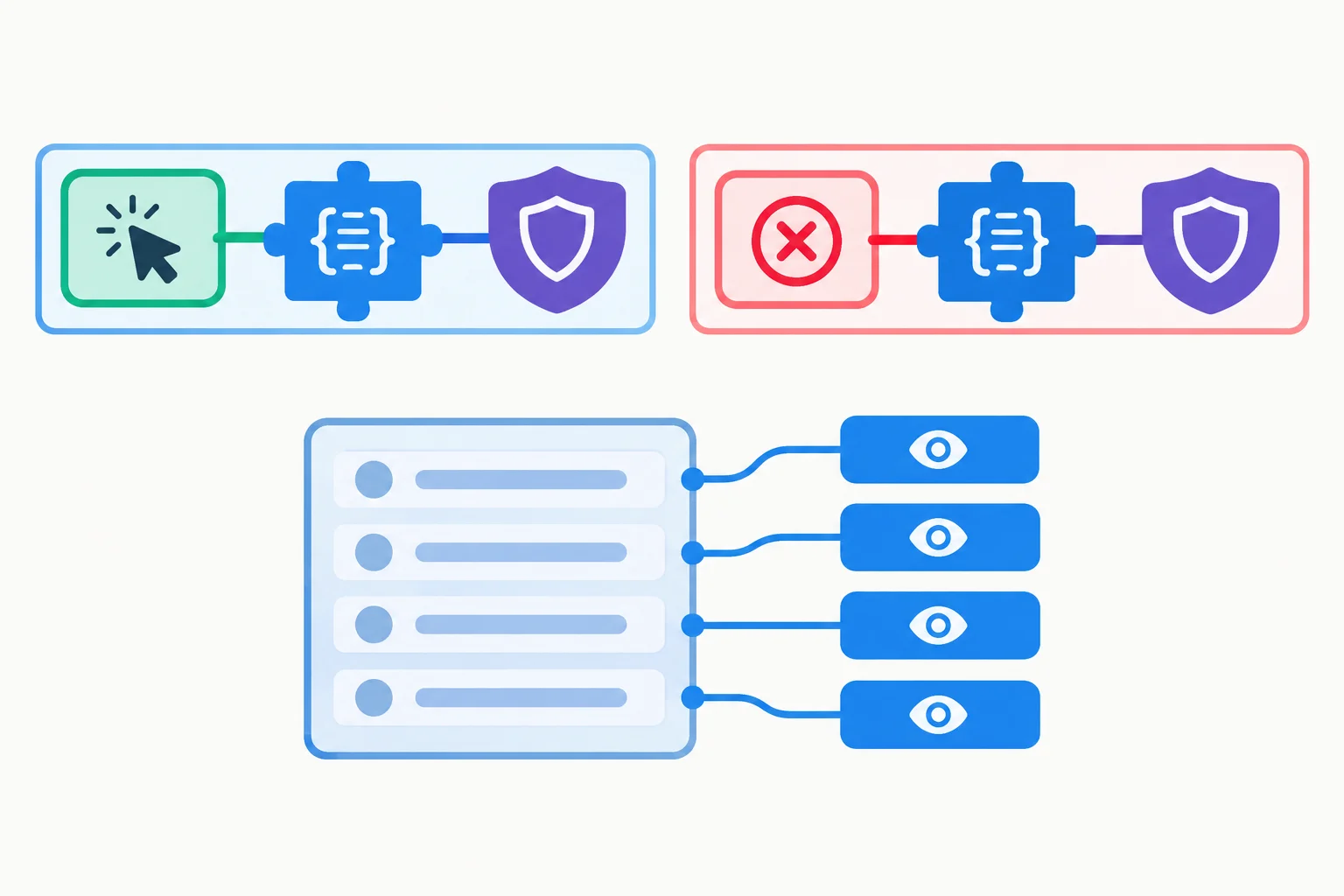
Removal matches one specific listener registration; it does not remove every click listener on the list.
Tip
For the temporary diagnostics from the event-flow trace, keep the named functions available:
logListCapture is the capture diagnostic.logListClick is the bubbling diagnostic.handleListClick remains the delegated Preview handler.Do not remove handleListClick here. Its listener is what lets the Reading List Lab respond when a user clicks a Preview button or its nested span.
Which pair correctly registers and later removes the capture diagnostic listener?
Temporarily add these named diagnostics and their registrations after the existing delegated Preview registration in events.js. Keep the existing list.addEventListener('click', handleListClick); line unchanged.
function logListCapture(event) {
  console.log(`capture diagnostic: ${event.type}`);
}

function logListClick(event) {
  console.log(`bubbling diagnostic: ${event.type}`);
}

list.addEventListener('click', logListCapture, { capture: true });
list.addEventListener('click', logListClick);capture diagnostic: click bubbling diagnostic: click Page feedback: Previewing: Event Basics
After saving, refreshing, opening the Console, and clicking the nested Preview span for Event Basics, the first two lines appear in the Console. The final line is the visible page feedback, produced by the existing delegated handler.
Version A confirms that the diagnostics and the delegated Preview handler can observe the same click. Next, add the removal calls below the temporary registrations, save, and refresh. This is Version B: the diagnostic messages disappear, while Preview feedback continues to update.
list.removeEventListener('click', logListCapture, { capture: true });
list.removeEventListener('click', logListClick);Console: no diagnostic messages Page feedback: Previewing: Event Basics
The removal calls produce no Console output when the page loads. After you click the nested Preview span for Event Basics, there should be no diagnostic messages in the Console; the visible feedback still comes from the separate delegated `handleListClick` listener.
Complete the removal calls for the temporary diagnostics. Then save, refresh, and click a nested Preview span: no diagnostic messages should appear in the Console, but the Preview feedback should still update.
list.removeEventListener('click', , );
list.removeEventListener('click', );
Step 9 of 9
Verify a complete local event flow with appropriate listeners, deliberate cancellation, and delegated controls.
Your completed Reading List Lab now has a small but complete event flow. The title field reports live edits through an input listener. The format select reports a committed choice through change. The form’s submit handler keeps a valid local submission on the page, and the list’s one delegated click listener handles every Preview action.
Use this step to verify observable behavior rather than add a new pattern. A click on the text inside a Preview button begins at the nested span, bubbles to the stable list, and is resolved back to its actionable button by the delegated handler.
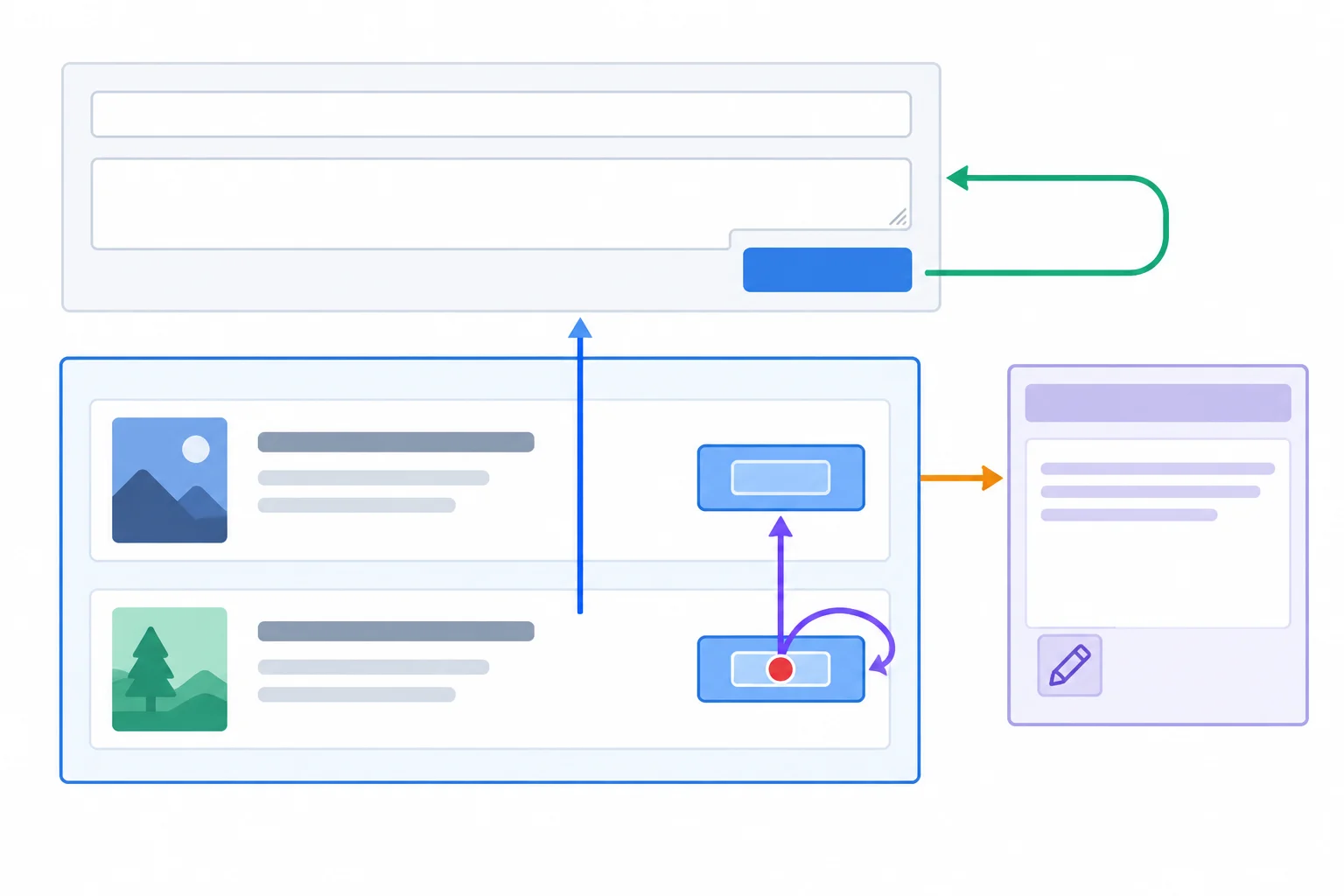
The event can originate in nested content while one ancestor listener identifies the intended control.
Repair the three missing parts of the delegated Preview handler.
function handleListClick(event) {
  if (!(event.target instanceof Element)) {
    return;
  }

  const button = event.target.closest('[data-action=""]');
  if (!button || !.contains(button)) {
    return;
  }

  const title = button.('data-title');
  feedback.textContent = `Previewing: ${title}`;
}

list.addEventListener('click', handleListClick);Save the repaired handler in events.js, keep the other completed handlers in place, and reload your local index.html. Then perform this compact verification sequence. For the Preview checks, click the visible word inside each button rather than an empty part of the button.
Record what the interface does for each action. Exact feedback wording can vary if your earlier handler used different phrasing; the behavior should match.
| Action | Expected observation |
|---|---|
| Type in the title field | Feedback updates while the text is edited. |
| Choose Video in the format select | Feedback reports the changed selection. |
| Enter Dynamic Controls and submit | The page stays in place and a new Video entry appears. |
| Clear the required title and submit | Native required-field behavior blocks submission; no entry is added. |
| Click the nested span in Event Basics Preview | Feedback identifies Event Basics. |
| Click the nested span in Dynamic Controls Preview | Feedback identifies Dynamic Controls. |
| Select Read notes | The browser follows the #notes link normally. |
Summary
click, input, change, and submit for their matching interactions.preventDefault() without stopping propagation or changing unrelated link behavior.After completing the checks, report your evidence in one short paragraph. Include the observed result for the original nested Preview control, the newly added nested Preview control, and the Read notes link. Then, for a click on the inner span, identify the event origin, identify event.currentTarget while the delegated handler runs, identify the element returned by closest(), and explain why those values differ.
Write at least 260 characters (0/260).
Congratulations! You completed: Handle Browser Events with Listeners and Delegation
Thousands of online courses in video, ebooks and audiobooks.
To test your knowledge during online courses
Generated directly from your cell phone's photo gallery and sent to your email

Download our app via QR Code or the links below:.



Carry knowledge in your pocket.
Download the Cursa app.
There are hundreds of free courses available, with a free certificate of completion that is saved in your mobile image gallery.
Download the app to access the Course Completion Certificate for Free.


+ 10 million
students

Free and Valid
Certificate

60 thousand free
exercises

4.8/5 rating in
app stores

Free courses in
video and ebooks