
Step 1 of 7
Write the search title and main heading
Draft a clear Search title and H1 that serve different locations while making a consistent, accurate promise.

Learning path · Level 3 · Tutorial 3
Draft an on-page SEO specification for a proposed page, including its search title, headings, meta description, URL, and image descriptions. Complete the work as text without coding or publishing a website.

 Write the search title and main heading
Draft a clear Search title and H1 that serve different locations while making a consistent, accurate promise. 3 min
 Build a useful heading outline
3 min
 Draft a relevant meta description
Draft an accurate Meta description for the small-desk guide while distinguishing proposed copy from a Search snippet and from ranking claims. 3 min
 Choose a readable URL path
2 min
 Describe informative images and mark decoration
Draft contextual alternative text for an informative desk image and intentionally mark a purely decorative divider with an empty value. 3 min
 Audit the elements as one set
Review a short on-page SEO specification as one coordinated set, then diagnose and revise misaligned, duplicate wording. 2 min
 Complete your on-page specification
Assemble and self-check a complete plain-text on-page SEO specification for the proposed Tidy Corner guide. 3 min
Step 1 of 7
Draft a clear Search title and H1 that serve different locations while making a consistent, accurate promise.
A Search title is the drafted page-title element. It can inform the title a search engine shows in results. A Displayed title is the title actually shown by that search engine, so it may differ from your draft.
An H1 is the main heading readers see on the page itself. Both should make the same accurate promise, but they serve different locations.
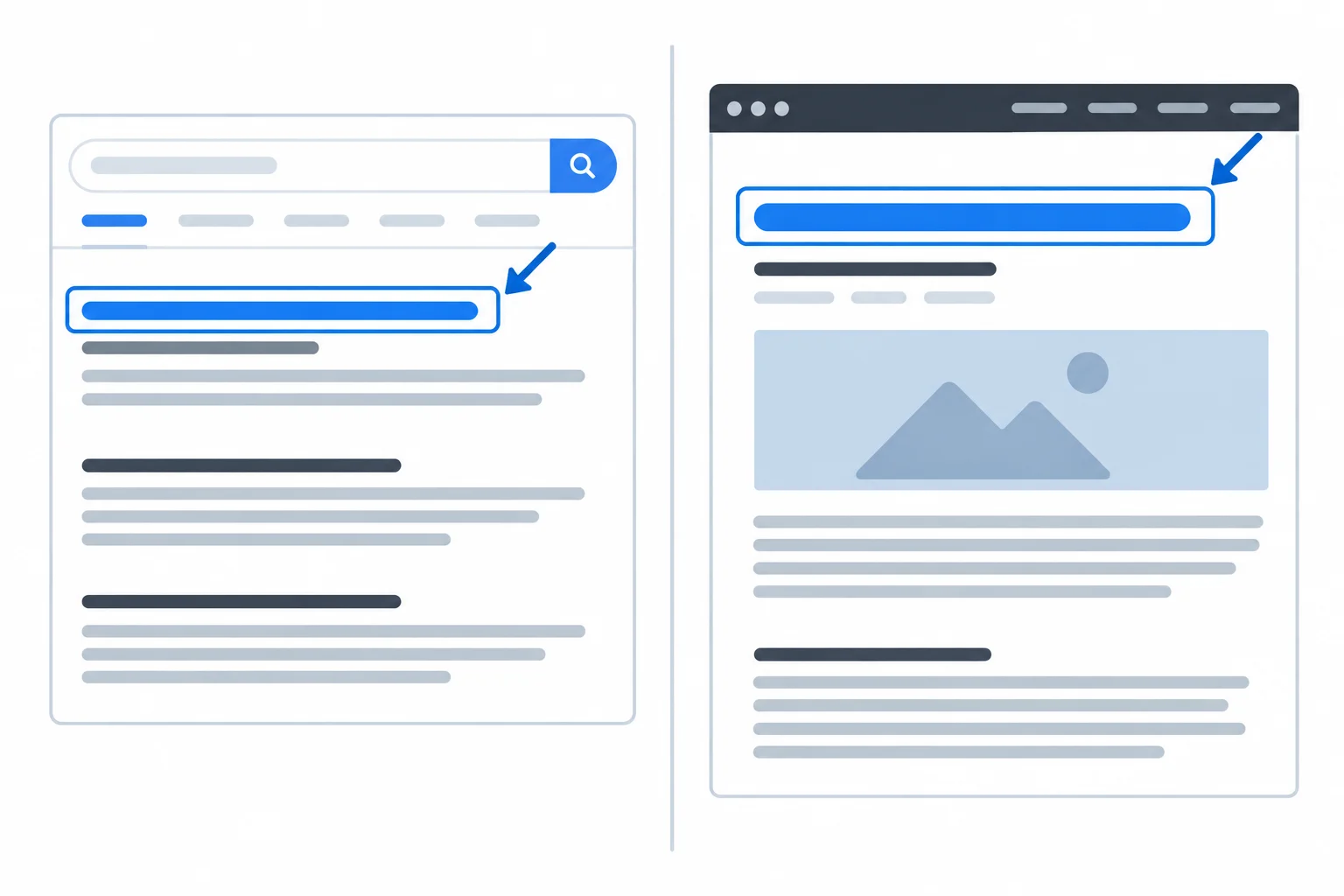
The result can show a displayed title; the webpage shows its visible H1.
For the small-desk guide, the promise is practical organization for home workers with limited desk space. The page covers daily-use tools, vertical space, and cable routing. It is not a guide to organizing drawer interiors.
A search title should name that specific topic naturally. The H1 should confirm the same purpose for the person who arrives on the page. It may use identical or slightly different wording.
Example
Search title: How to organize a small desk | Tidy Corner
H1: Organize a small desk for daily work
These lines point to the same guide. They do not claim it is the “best” guide, and they do not repeat variations of the query. They also remain distinct from the neighboring page, Desk drawer organization, which has a different scope.
Tip
Write for relevance and clarity, not a fixed character count. Search engines can rewrite a displayed title, and display length varies. A concise, accurate draft is more useful than padding or cutting words solely to meet a number.
Match each label to its role.
Tap an item and then its matching pair.
Draft the two labels for the proposed Tidy Corner guide.
Page purpose: Help home workers with limited desk space organize a usable work area.
Primary query: how to organize a small desk
Coverage: choosing daily-use tools, using vertical space, and routing cables.
Neighboring page: Desk drawer organization — organizing items inside drawers.
Write one line beginning with Search title: and one beginning with H1:. Keep the promise aligned, specific, and natural. If you add the brand to the Search title, use | Tidy Corner.
Write at least 40 characters (0/40).

Step 2 of 7
The H1 states the guide’s main answer. Use H2 headings for the major supporting questions a reader needs answered next. For this guide, the sections should move from deciding what belongs on the desk to making room for it and then managing the connections.
Use an H3 only when one H2 needs a meaningful subdivision. Heading levels describe the content’s structure—not how large the words should look. One clear H1 is enough for this draft.
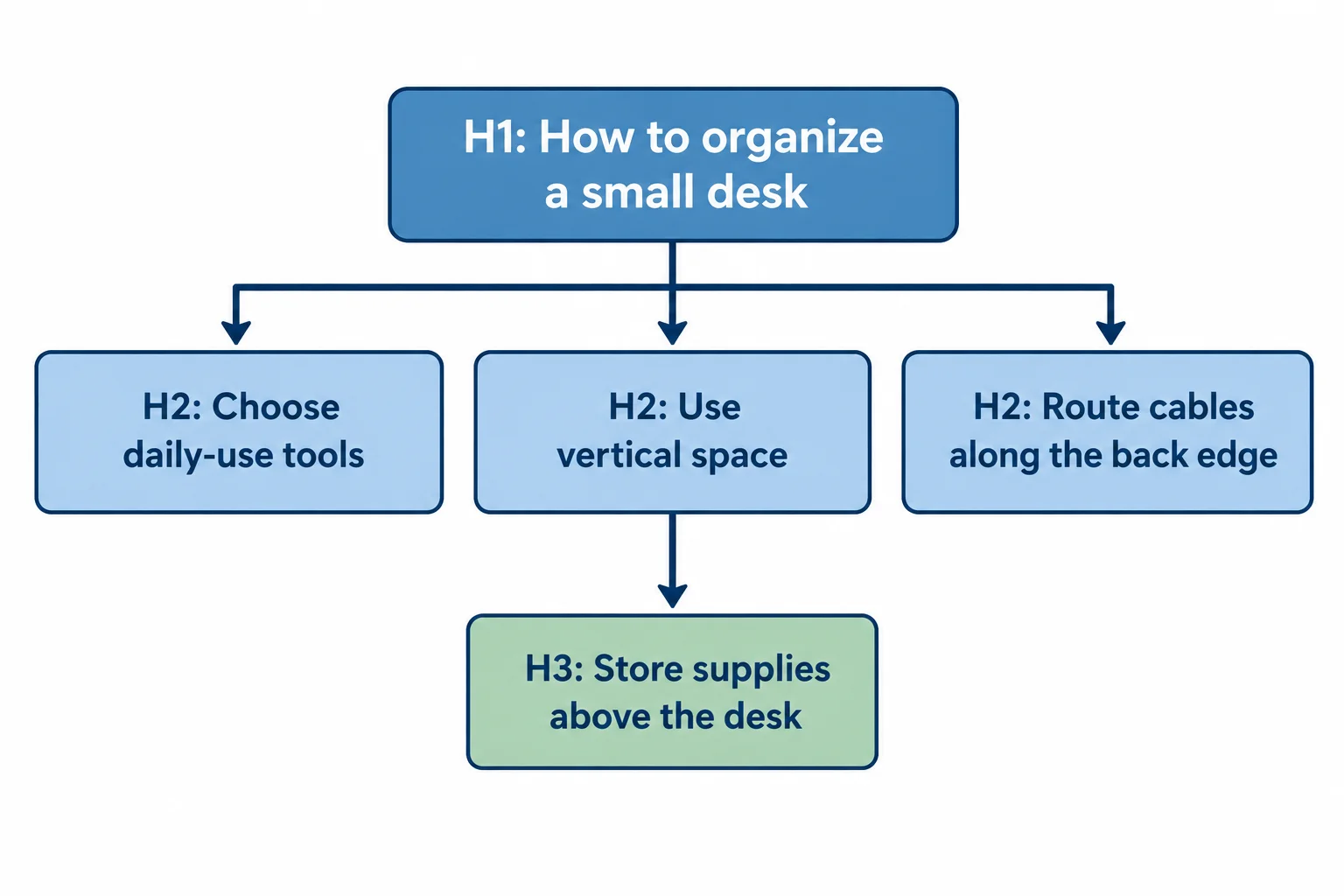
The H3 narrows one H2; it is not a second main section.
Example
H1: How to organize a small desk
H2: Choose daily-use tools
H2: Use vertical space
H3: Store supplies above the desk
H2: Route cables along the back edge
Each H2 has a different job. The H3 adds detail within the vertical-space section. Do not add headings just to repeat “small desk organization” in slightly different words.
Arrange these sections in the order that best follows this guide’s practical sequence: first identify what must stay accessible, then create room for it, then tidy the connections after devices are positioned.
Draft a plain-text heading outline for the Tidy Corner guide in your own words. Include one H1 and exactly three relevant H2 sections based on the guide’s intended coverage. Add one H3 only if it is a true subsection of one H2.
Then add a short check line stating whether any two headings repeat the same purpose. If they do, revise one before submitting.
Write at least 120 characters (0/120).

Step 3 of 7
Draft an accurate Meta description for the small-desk guide while distinguishing proposed copy from a Search snippet and from ranking claims.
A Meta description is a short draft that summarizes the specific value of a page for a relevant searcher. For this guide, it should accurately signal help with organizing a small desk—not topics that belong on the neighboring page, Desk drawer organization.
A search engine may use this draft as a source for the Search snippet, the description shown in a result. It may also select useful page content instead. The displayed snippet can change with the searcher’s query.
Write it to communicate relevance when it is shown. It is not a direct ranking factor, and it does not control the displayed snippet.
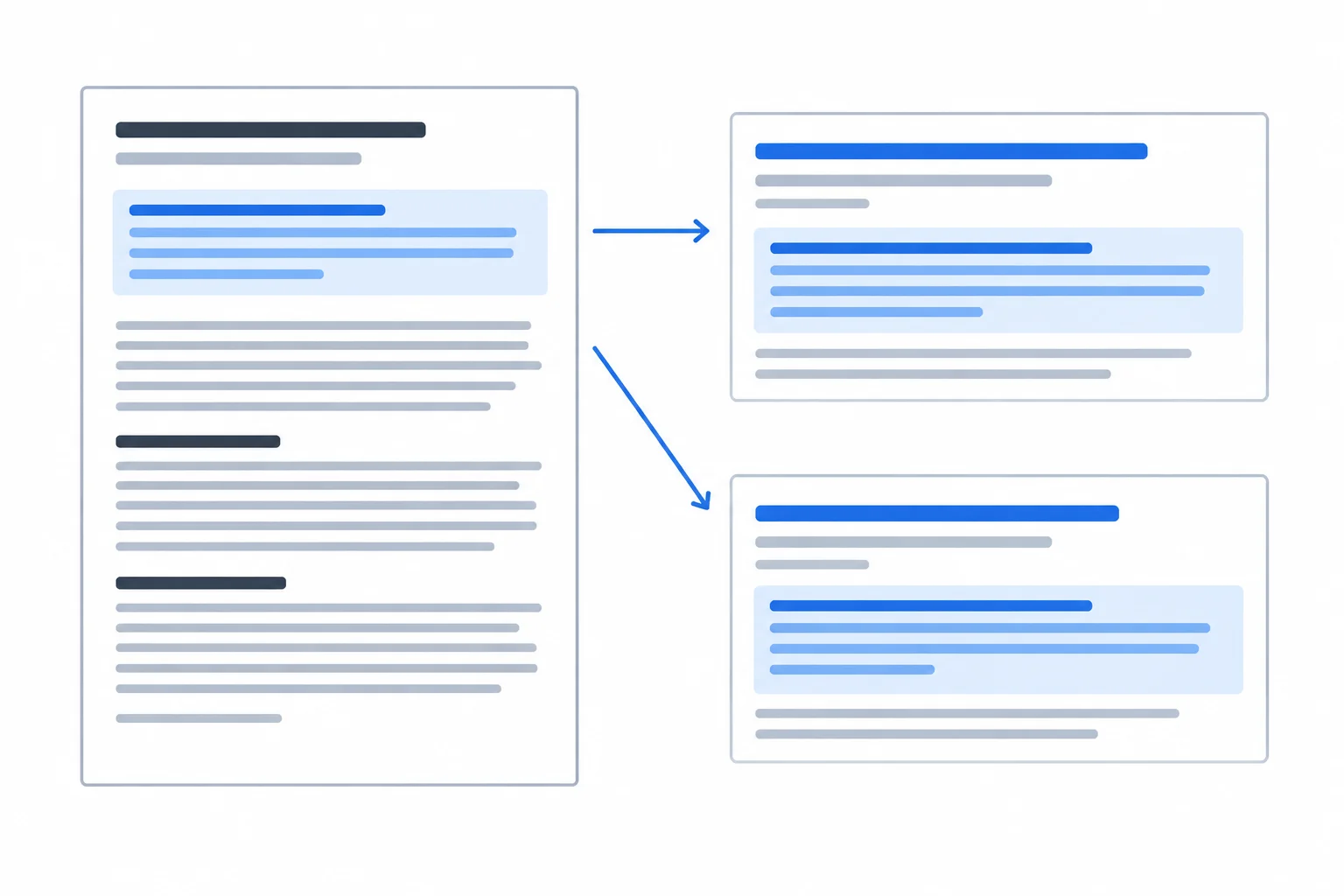
A drafted Meta description can inform a Search snippet, but a search engine may show different page text for different queries.
Example
Meta description: Learn how to organize a small desk with daily-use tools, vertical storage, and simple cable routing for a clearer home workspace.
This draft names the topic and the guide’s real coverage. It does not list repeated keyword variations, claim a guaranteed result, or push a sales message that the informational guide cannot support.
Tip
Snippet previews are only illustrations. A character count cannot guarantee that every word will appear in search results; prioritize an accurate, useful sentence instead.
True or false: A well-written Meta description directly determines where a page ranks in search results.
Using the small-desk guide brief, write three labeled lines:
Keep the description natural and within the guide’s actual scope.
Write at least 120 characters (0/120).

Step 4 of 7
A URL path is the part of a web address that identifies a page within a site. For a new guide, a descriptive path helps people recognize the topic before they visit.
Use meaningful topic words, not a string of repeated keywords, unexplained codes, or extra filler. In this tutorial, proposed paths use the /guides/ directory, lowercase letters, and hyphens between words.

The proposed path is only the page-specific portion of an address, such as /guides/organize-small-desk.
Use the path to describe the specific guide, while keeping it short enough to scan.
| Element | Drafting choice | Why it helps |
|---|---|---|
| Directory | /guides/ | Groups the guide with related guides |
| Topic words | organize-small-desk | States the guide topic |
| Word separator | Hyphens | Makes separate words easy to read |
| Letter case | Lowercase | Keeps the convention consistent |
| Avoid | Repeated terms or codes | Prevents clutter and ambiguity |
Example
Proposed URL path: /guides/organize-small-desk
This path identifies an informational guide about organizing a small desk. It is distinct from the neighboring page /guides/desk-drawer-organization, which covers items inside drawers rather than the overall desk workspace.
Warning
Drafting an address for a new page is different from changing an established one. A change to a published URL can disrupt access and existing links. If a change is proposed, coordinate with the site owner or an SEO or technical specialist; do not treat it as a casual copy edit.
A new guide explains cable routing for people with small desks. Which proposed path is the clearest and most relevant?
Use the small-desk guide brief below. Write three short lines in your notes or response:
/guides/organize-small-desk, /guides/small-desk-organize-small-desk-tips, and /guides/guide-204./guides/desk-drawer-organization. Someone proposes changing it. State the appropriate next action and why.Write at least 120 characters (0/120).

Step 5 of 7
Draft contextual alternative text for an informative desk image and intentionally mark a purely decorative divider with an empty value.
Alternative text communicates an image’s relevant meaning when the image cannot be seen, including for people using screen readers.
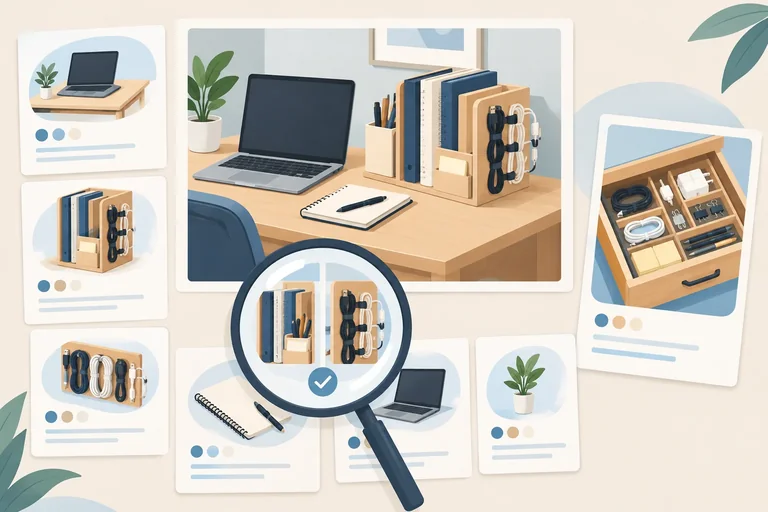
For this guide, the desk image is informative: it helps a home worker understand how a small workspace can place daily tools and keep cables out of the way. Describe the useful arrangement, not every color, material, or tiny object in the scene.

This layout visually supports the guide’s advice about keeping a small desk usable.
Example
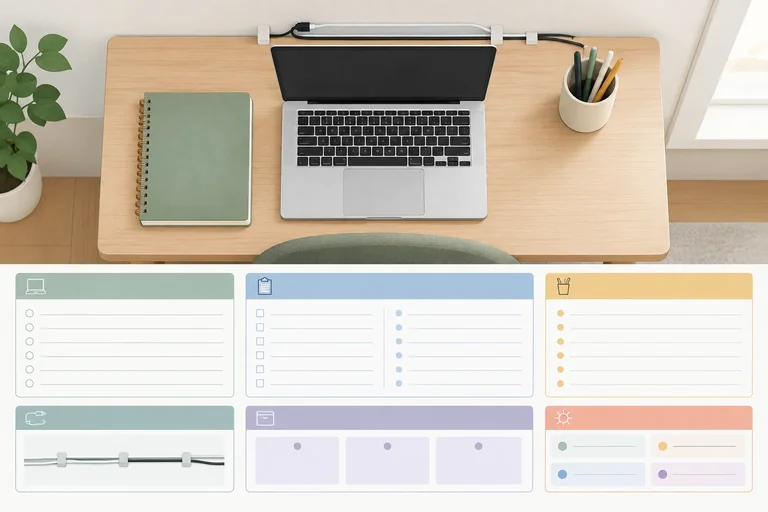
A concise draft can focus on the working arrangement: “Small desk with a centered laptop, notebook on the left, pen cup at the upper right, and cables clipped along the back edge.”
It is specific enough to convey the image’s contribution. It does not need to repeat the primary query, claim that the setup is “perfect,” or list irrelevant visual details.
Not every image needs descriptive words. A pale blue geometric divider separates parts of the guide but adds no information about organizing a desk. Its correct specification is:
Alt text: "" (decorative)
The empty value is intentional. It tells assistive technology that the divider should not be announced as meaningful content. This is different from forgetting to provide an alternative-text decision.

This divider does not add content to the guide, so its specification uses an empty alternative-text value.
Tip
Image role depends on context, not on whether an image is a photo, illustration, or graphic. Ask: if this image were unavailable, would the reader miss useful page information? If yes, write contextual alternative text. If no, an intentionally empty value may be appropriate.
Match each image context to the appropriate alternative-text treatment.
Match each context with its treatment.
Tap an item and then its matching pair.
Create the two image decisions for the small-desk guide.
Use the guide’s purpose: helping home workers organize a small desk.
Write at least 120 characters (0/120).
Step 6 of 7
Review a short on-page SEO specification as one coordinated set, then diagnose and revise misaligned, duplicate wording.
An audit reads the elements as one promise, not as separate fields. Start with the page purpose and primary query, then ask whether the search title, H1, headings, meta description, URL path, and image descriptions all describe that same guide.
Check two kinds of fit:
Repeat the topic when it helps a reader recognize the page. Do not force the exact primary query into every field. Clear, specific wording matters more than repetition.
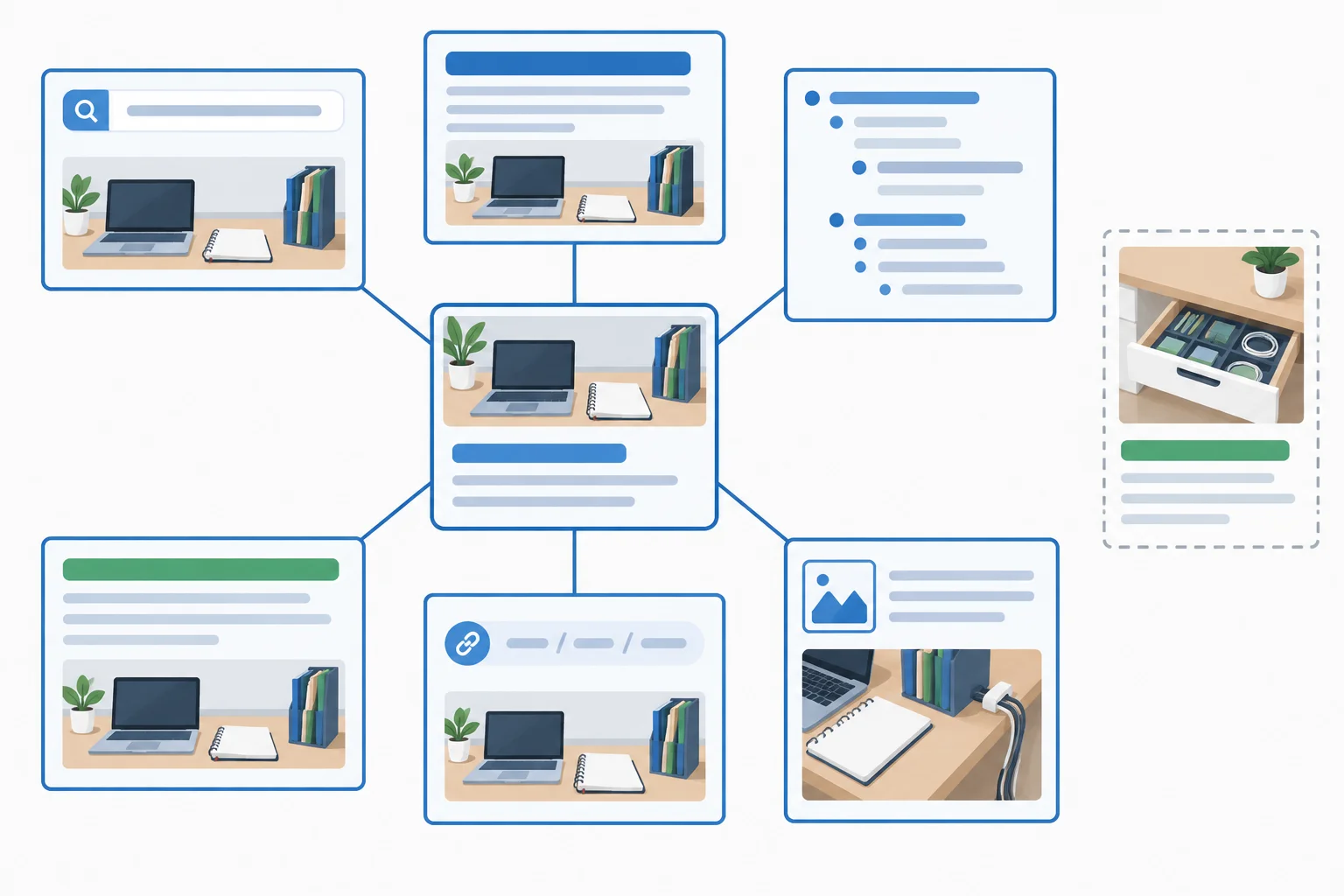
Each element should support the same page purpose while remaining distinct from the drawer-focused neighbor.
Tip
A revision can make the draft clearer and more aligned, but it cannot guarantee rankings or a particular displayed title or search snippet.
Use a compact review table to separate what you notice from the copy change you need. Diagnose the problem first; then revise only the element that causes it.
Use these checks while reviewing a proposed specification.
| Observed problem | Review check | Revision direction |
|---|---|---|
| The element promises a different topic | Intent alignment | Name the actual page scope |
| The wording overlaps the drawer page | Duplication | Restore the small-desk surface focus |
| The same query is forced into each heading | Clarity and natural language | Use distinct reader questions |
| Alt text gives no useful image meaning | Image relevance | Describe the meaningful layout |
Example
Read this deliberately flawed mini-specification. Its page purpose is to help home workers organize a small desk using daily-use tools, vertical space, and cable routing.
Primary query: how to organize a small desk
Search title: Desk drawer organization | Tidy Corner
H1: Organize a small desk for daily work
Heading outline:
H2: Choose daily-use tools
H2: Use vertical space
H2: Route desk cables
Proposed URL path: /guides/desk-drawer-organization
The search title and URL path use the neighboring page’s drawer scope, even though this guide is about the desk surface.
Match each observation to the audit check it needs.
Tap an item and then its matching pair.
Audit and revise exactly two elements in the mini-specification below.
Page purpose: Help home workers organize a small desk using daily-use tools, vertical space, and cable routing.
Primary query: how to organize a small desk
Neighboring page: Desk drawer organization
Current Search title: Desk drawer organization | Tidy Corner
Current Proposed URL path: /guides/desk-drawer-organization
For the Search title and the Proposed URL path, write:
Keep the guide focused on the desk surface, not items inside drawers. Use the required brand suffix for the search title and the required path format for the URL.
Write at least 180 characters (0/180).
Step 7 of 7
Assemble and self-check a complete plain-text on-page SEO specification for the proposed Tidy Corner guide.
You now have the parts of one on-page SEO specification. The final skill is to make them work as one clear proposal for the same guide.
A usable plain-text specification includes:
These are proposed page elements—not a promise of publication, rankings, a particular Displayed title, or a particular Search snippet.
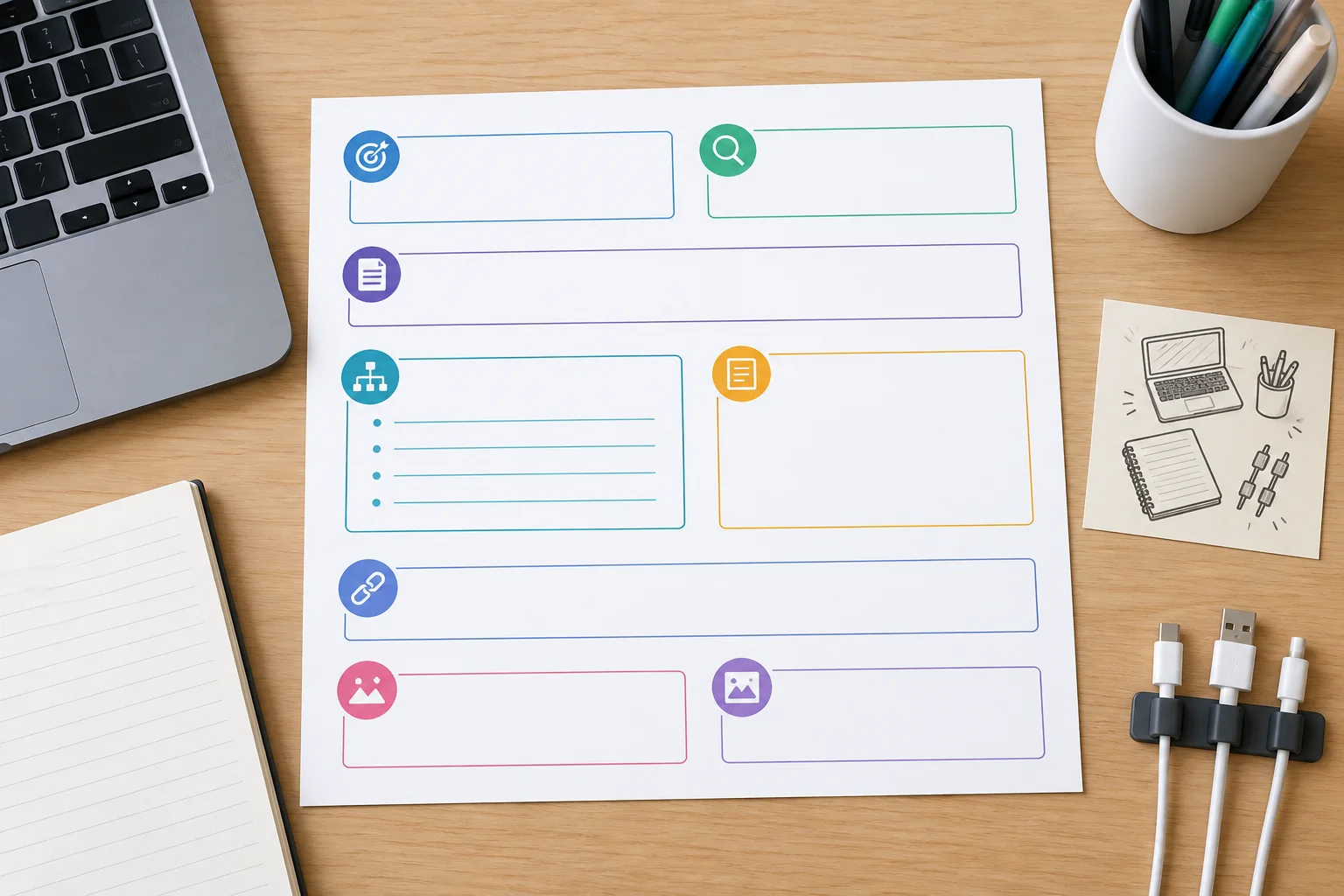
Treat each field as part of one proposal for the same small-desk guide.
Tip
Use natural language and keep the scope distinct from the neighboring page, Desk drawer organization. Your guide is about organizing a limited desk surface and its work area—not organizing items inside drawers.
Use this brief for your final draft. You may write your response on screen or in your own notes; no website, tool, file, or saved earlier response is needed.
Brand: Tidy Corner
Audience: home workers with limited desk space
Page purpose: an informational guide to organizing a small desk
Primary query: how to organize a small desk
Guide coverage: choosing daily-use tools, using vertical space, and routing cables
Neighboring page: Desk drawer organization; it covers organizing items inside drawers.
Informative image context: a top-down view of a small desk with a centered laptop, a notebook on the left, a pen cup at the upper right, and cables clipped along the back edge.
Decorative image context: a pale blue geometric divider with no informational function.
Use these exact labels in your response. For the heading outline, use plain-text labels and indent each H3 beneath its parent H2. Keep the proposed path lowercase, hyphenated, and within /guides/.
| Field | What to provide |
|---|---|
| Page purpose | The guide’s reader need and scope |
| Primary query | The supplied query |
| Search title | A distinct, accurate proposed title |
| H1 | A visible main heading with the same promise |
| Heading outline | One H1, useful H2 sections, and H3 only where needed |
| Meta description | A concise, relevant summary |
| Proposed URL path | A readable new-page path |
| Informative image alt text | Contextual description using the required label |
| Decorative image alt text | Intentional empty-value decision using the required label |
Create the complete on-page specification from the supplied brief. Include every required label exactly as shown below:
Page purpose
Primary query
Search title
H1
Heading outline
Meta description
Proposed URL path
Informative image alt text
Decorative image alt text
Then perform a final alignment check: confirm that the elements describe the same small-desk guide, remain distinct from Desk drawer organization, and avoid forced repetition. End with “Revision made:” followed by one specific revision you made during that check.
Write at least 450 characters (0/450).
Summary
Congratulations! You completed: Draft Search-Friendly Page Elements
Thousands of online courses in video, ebooks and audiobooks.
To test your knowledge during online courses
Generated directly from your cell phone's photo gallery and sent to your email

Download our app via QR Code or the links below:.


Carry knowledge in your pocket.
Download the Cursa app.
There are hundreds of free courses available, with a free certificate of completion that is saved in your mobile image gallery.
Download the app to access the Course Completion Certificate for Free.

+ 10 million
students

Free and Valid
Certificate

60 thousand free
exercises

4.8/5 rating in
app stores

Free courses in
video and ebooks