Step 1 of 9
Define the Campaign Brief
Define the audience, purpose, offer, and destination action before drafting the email.

Learning path · Level 8 · Tutorial 2
Draft an accessible email whose inbox preview, body, and call to action work together, and explain what must be checked before sending. Use a text-based draft or an optional Mailchimp editor where its current free tier permits; no domain setup or live send is required.

 Define the Campaign Brief
Define the audience, purpose, offer, and destination action before drafting the email. 2 min
 Align the Inbox Preview
Create inbox elements that recognize the sender, accurately promise the offer, and remain meaningful when an inbox shortens the display. 2 min
 Build the Body Around One Action
Build a concise, accessible email body that explains one offer and leads to one clear action. 3 min
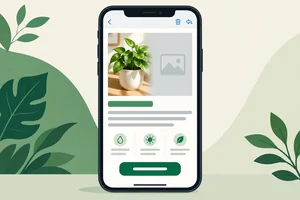 Keep Meaning Accessible Without Images
Specify image treatments and readable link styling so the campaign remains understandable and actionable when images are unavailable. 3 min
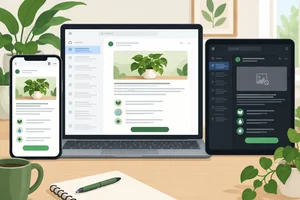 Review Mobile and Client Variations
Review likely email rendering variations and separate observations from checks that remain unverified. 2 min
 Specify Sender and Footer Details
Specify a coherent sender identity, a monitored reply path, and clear footer controls while preserving unresolved operational details for later verification. 2 min
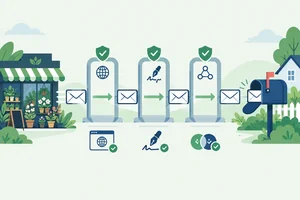 Understand Sender Authentication
Distinguish SPF, DKIM, and DMARC roles and identify the domain-authentication checks that need administrator support. 3 min
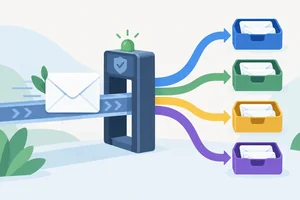 Separate Delivery from Inbox Placement
Separate provider acceptance from inbox placement, then identify practices that can create avoidable sender-reputation risk. 2 min
 Complete the No-Send Preflight
Finalize the accessible campaign draft with evidence-based preflight records, without sending it. 4 min
Step 1 of 9
Define the audience, purpose, offer, and destination action before drafting the email.
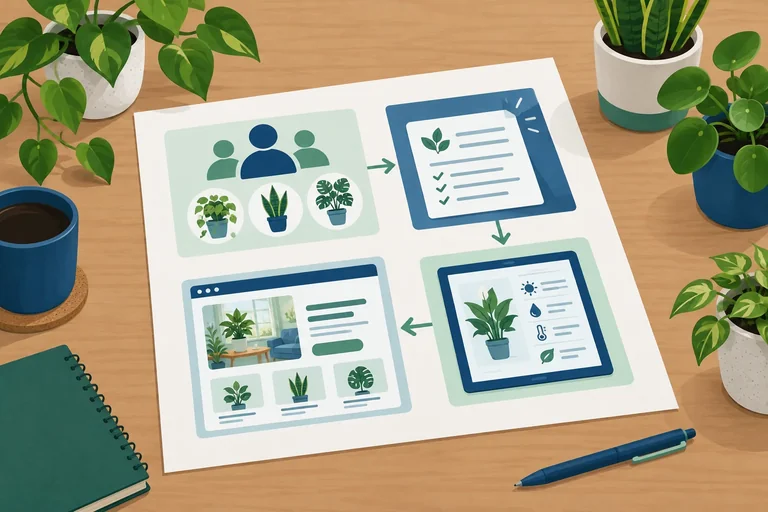
A one-time campaign brief is the decision sheet behind an email draft. It connects four choices:
Keeping these choices aligned prevents a campaign from promising one thing and asking recipients to do another. The brief guides later copy and layout decisions; it is not evidence that an email is ready to send.
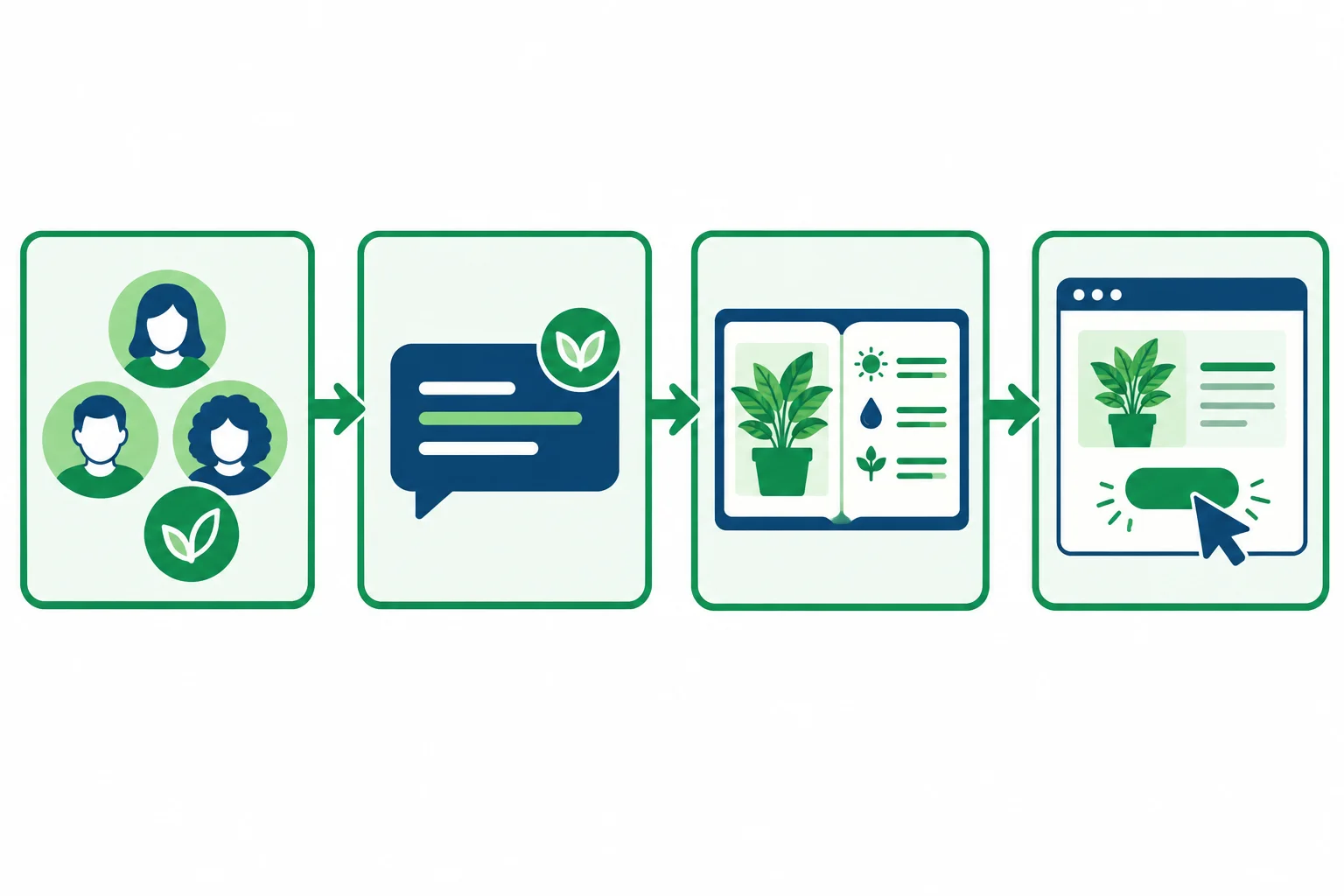
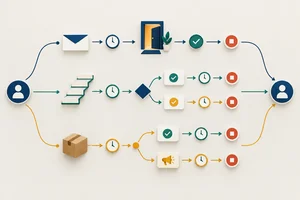
A campaign brief creates one connected path: eligible audience → purpose → offer → destination action.
Use the supplied scenario facts exactly. The audience is active, permission-based subscribers who selected indoor plant care and are not suppressed.
The offer is the free online Small-Space Plant Care Guide. It covers choosing a spot, watering basics, and checking drainage. It requires no purchase or registration and has no deadline.
The intended destination action is to read the guide. The supplied destination is:
https://northstarplants.example/plant-care-guide?utm_source=newsletter&utm_medium=email&utm_campaign=plant_care_guide
Do not add a discount, urgency, a signup requirement, or another campaign goal.
Example
Campaign brief
Audience: Active, permission-based subscribers who selected indoor plant care and are not suppressed.
Message purpose: Invite eligible subscribers to use a practical small-space plant-care resource.
Offer: The free online Small-Space Plant Care Guide, covering choosing a spot, watering basics, and checking drainage. No purchase, registration, or deadline applies.
Destination action: Read the plant care guide at the supplied tracked guide URL.
This is a draft specification for later copy, structure, destinations, and operational checks. It does not prove that the address, link, or any sending setup is ready for use.
Tip
Create the brief in a local text document. You may also enter it into an optional Mailchimp draft only if your current account permissions and free-tier features allow it. Do not add contacts, configure a domain, schedule, or send an email for this activity.
Using the supplied Northstar Plants scenario, write a compact Campaign brief with these four labeled parts: Audience, Message purpose, Offer, and Destination action.
Use one eligible audience and one destination action. Keep the offer accurate, and do not invent conditions or additional goals.
Write at least 180 characters (0/180).
Step 2 of 9
Create inbox elements that recognize the sender, accurately promise the offer, and remain meaningful when an inbox shortens the display.
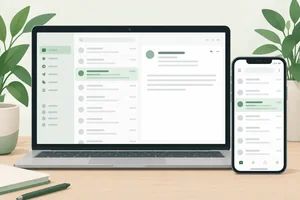
Inbox previews answer three quick questions before the email is opened:
These elements work as a set. For this campaign, they should consistently introduce the free guide for active, permission-based subscribers interested in indoor plant care.
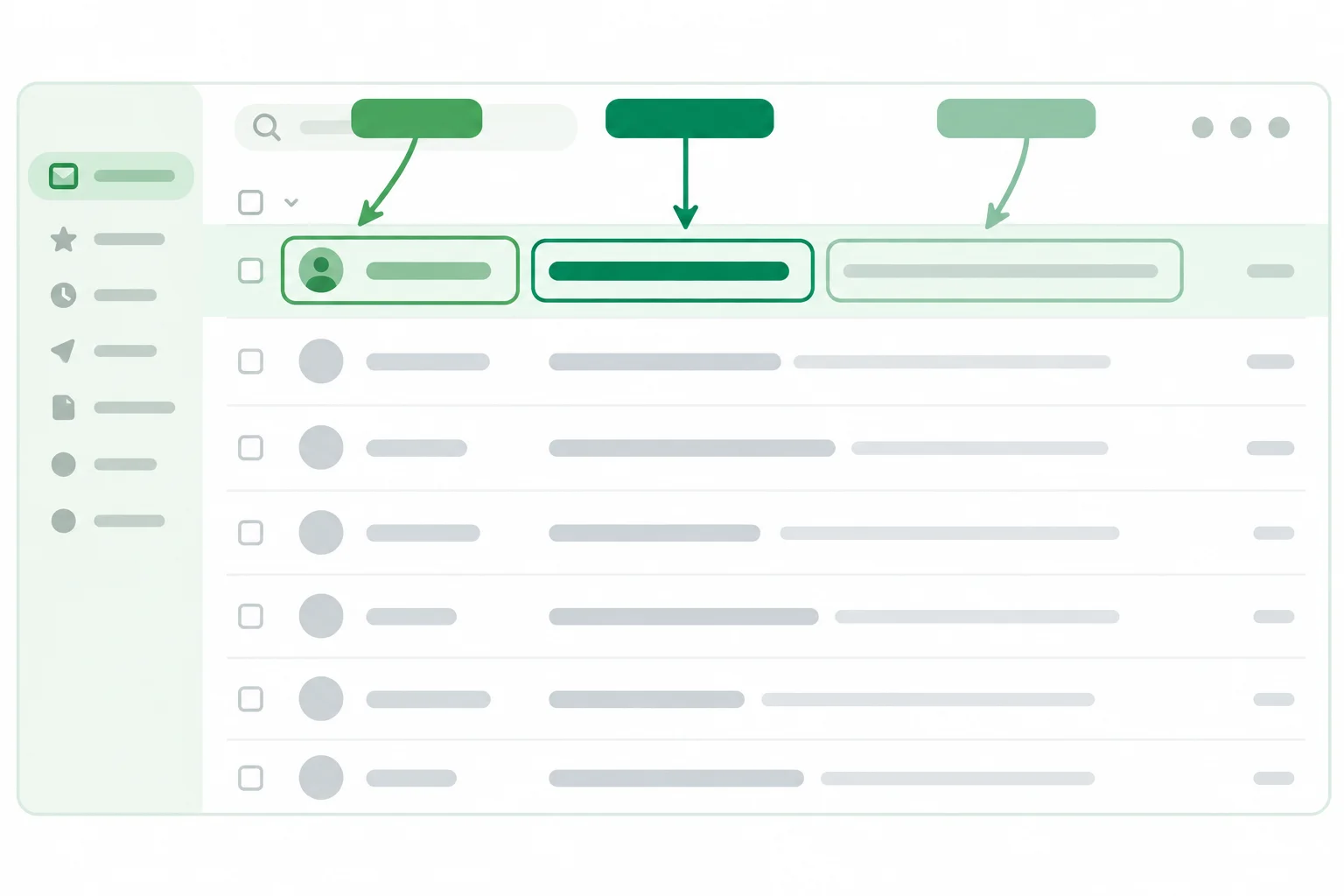
The sender name supports recognition; the subject and preview text set expectations together.
Example
Sender name: Northstar Plants
Subject line: Free Small-Space Plant Care Guide
Preview text: Choose a spot, water with confidence, and check drainage.
The subject names the offer early. The preview text adds the guide’s topics instead of repeating the subject. Neither suggests a purchase, registration, deadline, or benefit that the guide does not provide.
Inbox apps may shorten the subject line or preview text differently on each device, client, and setting. There is no character count that guarantees the full copy will show.
Put the meaningful words first. Write preview text deliberately so an accidental opening line, “view in browser” message, or footer language does not become the snippet.
Keep expectations honest: do not add a misleading reply prefix, false urgency, or personalization that the campaign does not actually have.
Tip
Use this quick review before drafting:
A shortened display can hide detail, but it should not turn a clear offer into a vague or misleading one.
Match each inbox element to its primary job.
Tap an item and then its matching pair.
Using the campaign scenario from the earlier screens, create an inbox-preview specification.
First, state the primary job of each of the three inbox elements in a short phrase. Then write labeled values for Sender name, Subject line, and Preview text.
Your draft must describe the same guide offer, make the sender recognizable, and place the essential offer meaning near the start of the subject and preview text so the set remains clear when shortened.
Write at least 120 characters (0/120).
Step 3 of 9
Build a concise, accessible email body that explains one offer and leads to one clear action.
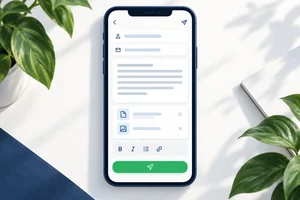
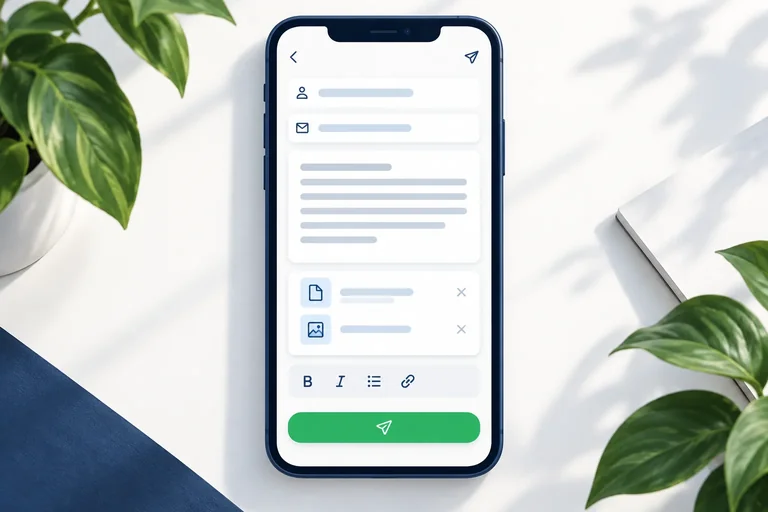
A promotional email body should lead a reader through one clear path: understand the offer, see the useful details, then take one action. A single-column structure makes that path easier to scan on a narrow screen.
Use live text for the heading, benefit, details, and CTA. Do not put essential words inside a decorative image. Where your editor provides structural heading and list formatting, use it instead of relying only on larger type, bold styling, or all caps.

The reading order is: main heading, brief benefit, essential details, then the primary CTA.
Tip
Keep the offer focused. A necessary footer or preference link can appear later in the email, but it does not need to compete with the one promotional CTA in the body.
The body must fulfill the promise made in the inbox. For this campaign, explain that the guide is free, what it covers, and what the reader can do next. Do not add a discount, a signup requirement, a deadline, or a second campaign goal.
A button-style CTA should be a real text link. Its words should describe the action or destination, rather than using vague wording such as “Click here.”
Example
Body
Small-Space Plant Care Guide
Make a confident start with indoor plants in a small space.
This free online guide covers:
No purchase, registration, or deadline.
Primary CTA
Read the plant care guide
Destination: https://northstarplants.example/plant-care-guide?utm_source=newsletter&utm_medium=email&utm_campaign=plant_care_guide
Arrange these body blocks in the most logical reading order for a reader encountering the campaign for the first time.
Draft a four-block email body for Northstar Plants. Put the blocks in the reading sequence you chose: a main heading, a brief benefit statement, essential guide details, and a descriptive primary CTA.
Use the supplied offer facts. Keep the message focused on the promised free guide, and make the CTA lead to that guide rather than to a competing action.
Write at least 80 characters (0/80).
Step 4 of 9
Specify image treatments and readable link styling so the campaign remains understandable and actionable when images are unavailable.
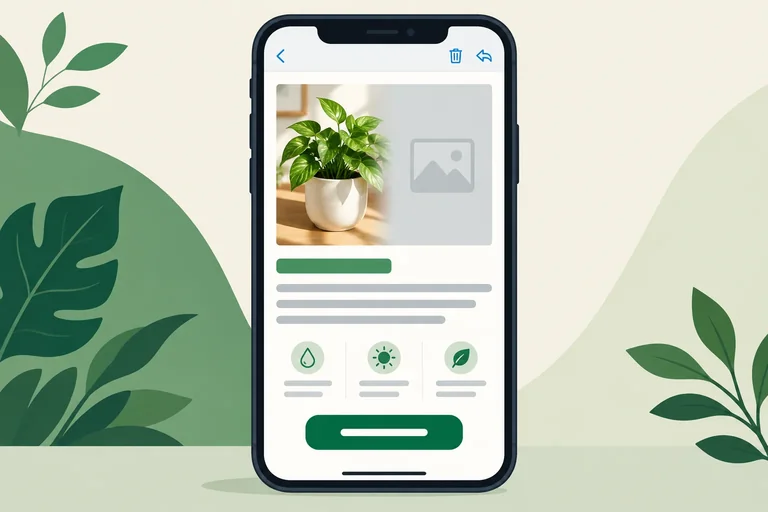
Images can support this campaign, but they must not carry its only promise or action. Keep the guide’s purpose, its key topics, and the Primary CTA as live text in the Body. If images are blocked, a subscriber should still understand the offer and be able to act.
Use the Image alternatives field to record each image’s purpose. An informative image needs a short alternative that communicates why it is there in this email. A purely decorative flourish should be marked decorative, or given an empty alternative where the editor supports that treatment. Avoid filenames and avoid repeating nearby copy that already says the same thing.
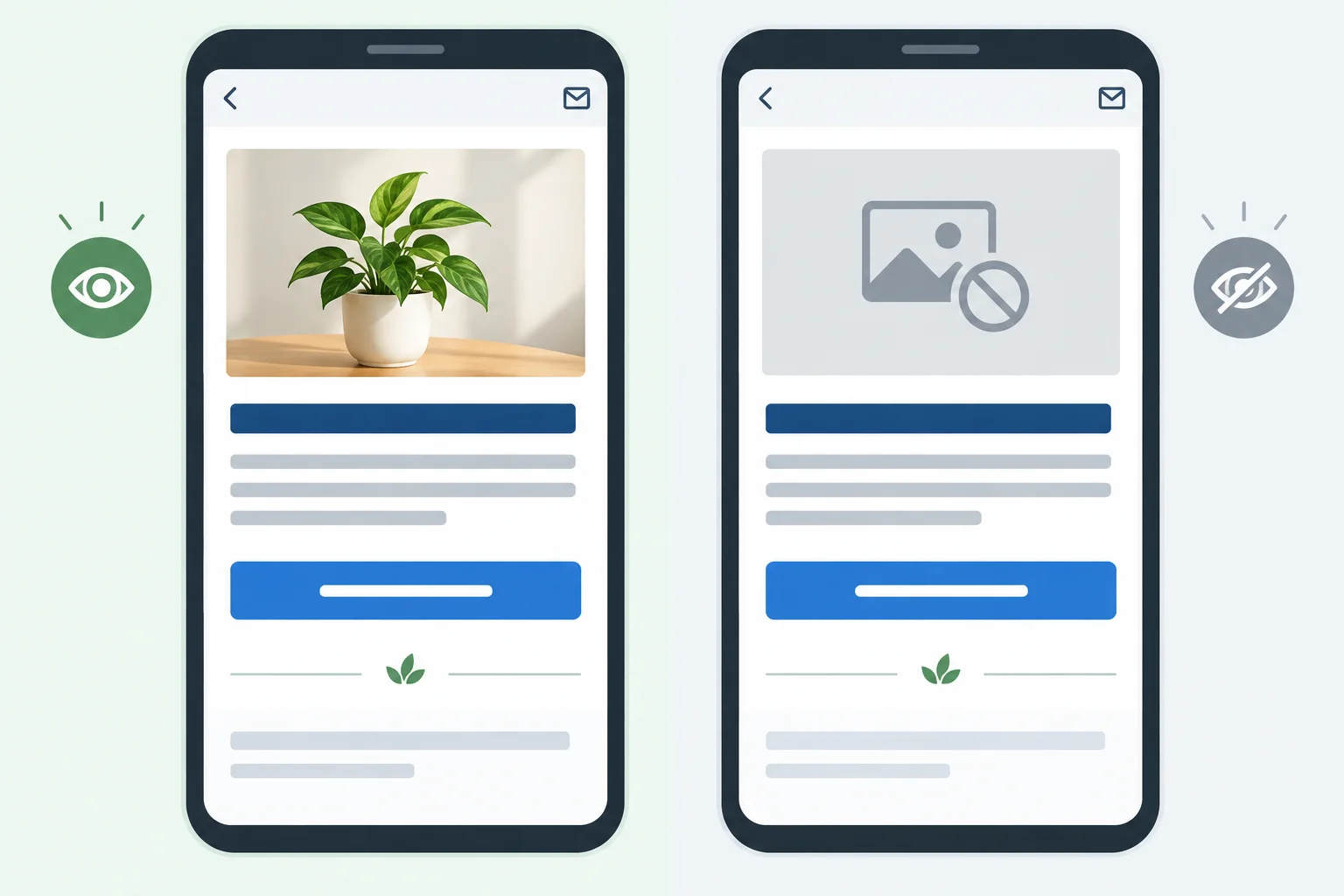
The image may add context, but the offer and action must survive without it.
Choose treatment based on what the image contributes in context.
| Email element | Appropriate treatment |
|---|---|
| Photo supporting drainage advice | Brief alternative that communicates the photo’s purpose |
| Leaf flourish between sections | Mark decorative or use an empty alternative where supported |
| Linked guide-cover image | Give the link an accessible name that states its action or destination |
Do not rely on color, an icon, or a background image alone to communicate meaning. Make text links recognizable beyond color, such as with an underline, and keep the Primary CTA as a real text link rather than words inside an image.
Use readable text sizing, for example 16 px, and aim for sufficient contrast, such as 4.5:1 for normal text. Make tap targets generous and separated, for example 44 × 44 px. These are useful design targets, not proof that a particular email passes accessibility testing.
Tip
A text-only design is valid. If an optional editor cannot provide an accessible image treatment or a usable control, remove the nonessential image or use a simpler text-based layout. Do not assume an attractive preview is accessible.
If you practice with an image in your own editor, use your own file. Tutorial illustrations demonstrate the intended meaning and layout only; they are not campaign assets.
Add concise implementation notes to the draft rather than relying on appearance alone.
| Check | Draft specification |
|---|---|
| Offer and guide topics | Live text in Body |
| Primary CTA | Real text link with a descriptive label |
| Text links | Recognizable beyond color alone |
| Normal body text | Readable size, for example 16 px |
| Touch controls | Generous spacing and target, for example 44 × 44 px |
| Text contrast | Aim for sufficient contrast, such as 4.5:1 |
Match each email element to its most appropriate accessibility treatment.
Tap an item and then its matching pair.
In your local campaign draft, add an Image alternatives section and a short implementation note for this scenario: the email uses a photo that supports choosing a plant spot, a leaf divider between sections, and a linked guide-cover image near the Primary CTA.
Write three lines—one for each image—with the treatment and concise wording or accessible name you would specify. Then add one line under Body or Primary CTA explaining how the message and action remain usable when images are blocked. Use the existing CTA wording from your draft; do not write HTML.
Write at least 180 characters (0/180).
Step 5 of 9
Review likely email rendering variations and separate observations from checks that remain unverified.
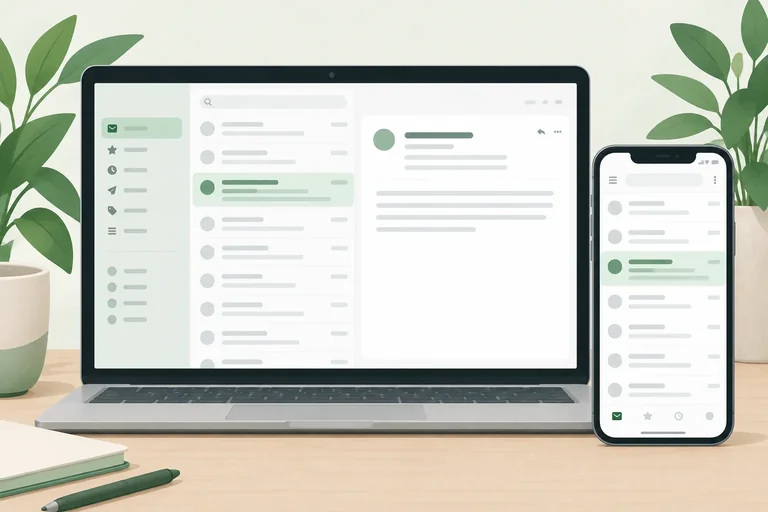
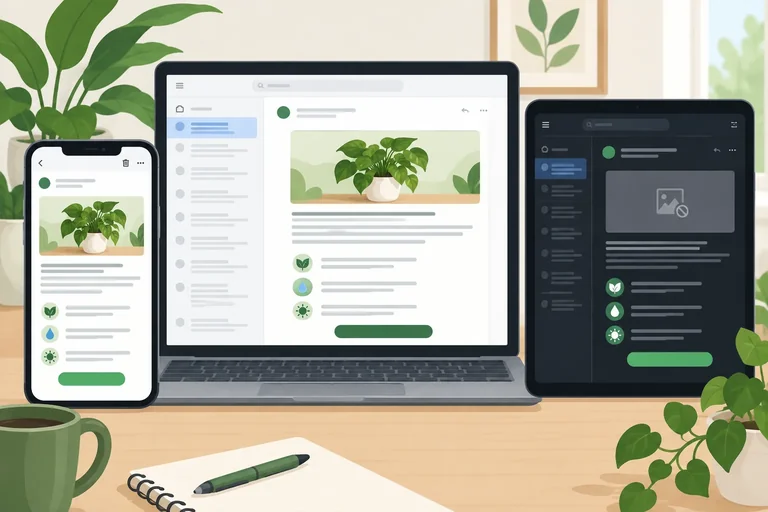
A single email draft can look different across email clients, screen widths, color modes, and image settings. Text may wrap differently; spacing and buttons may change; images may not load; and dark mode can alter color contrast.
Review a draft in more than one condition, but treat every preview as evidence about that condition—not proof that every recipient will see the same result.
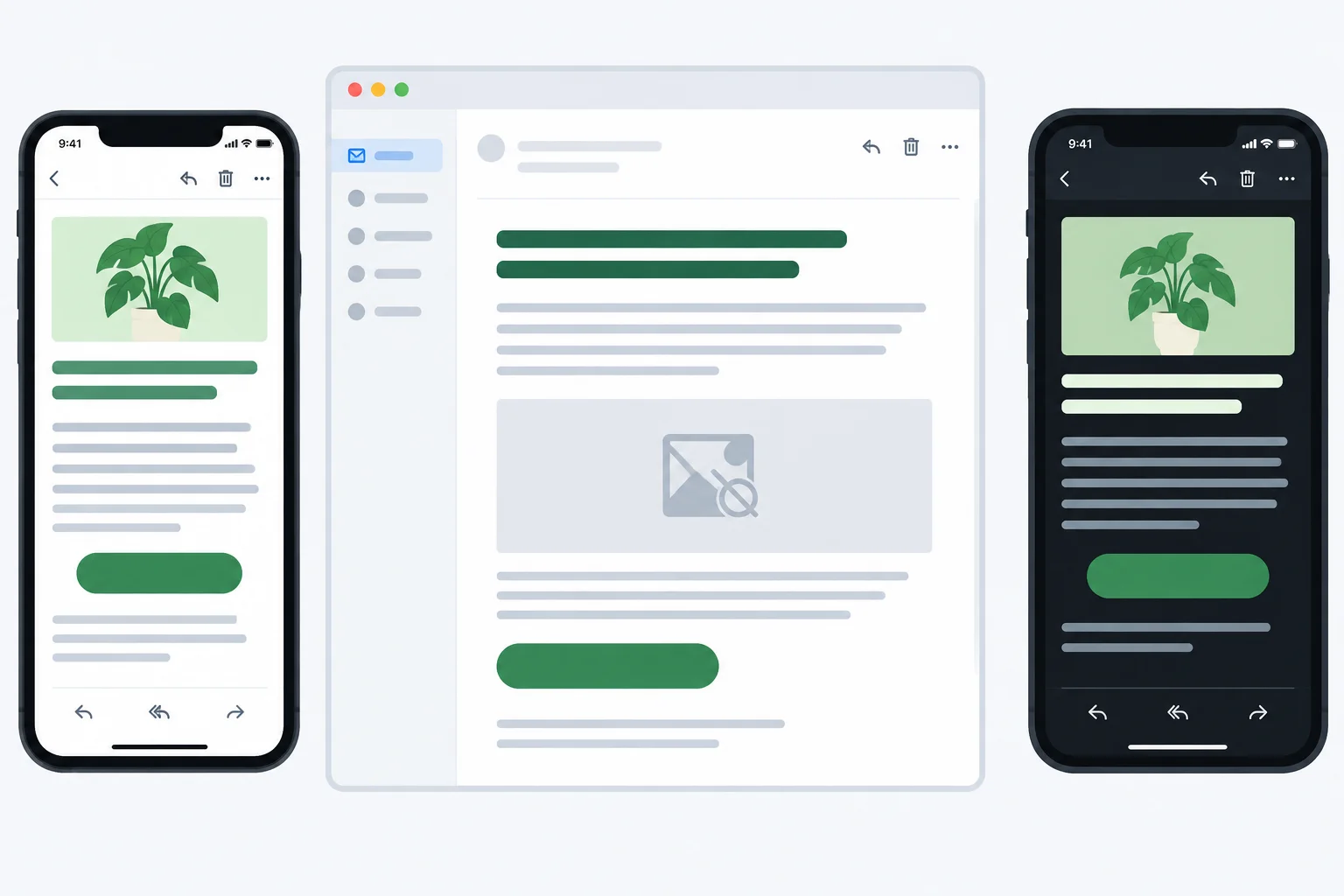
Check the message under conditions that can change wrapping, image visibility, and color appearance.
Tip
Do not assume that a tutorial mockup or one editor preview proves universal compatibility. It illustrates a likely condition only.
Use a narrow-screen review to look for a readable single-column flow, sensible text wrapping, visible live text, a usable CTA, and no awkward horizontal navigation.
Then review with images blocked. The offer, essential details, and CTA should still make sense and remain available. A text-only walkthrough can catch missing or contradictory specifications, but it cannot verify final markup or rendering.
A visual preview can support a limited set of observations. If a needed check cannot be performed in the available editor or environment, record it as Unverified rather than assuming it passed.
| Check | What you can inspect | If not available |
|---|---|---|
| Narrow screen | Reading order, wrapping, visible text, CTA appearance | Unverified |
| Images blocked | Message and CTA remain understandable | Unverified |
| Visual preview | Spacing, obvious overflow, color appearance | Unverified |
| Keyboard or assistive technology | Focus behavior and announced content | Unverified |
Example
For example, an editor preview can show that a CTA is visible on a phone-sized canvas. It cannot, by itself, establish that keyboard focus reaches the CTA in a sensible order or that assistive technology announces it as intended.
A 320 px-wide visual preview of the Northstar Plants email has a horizontal scroll bar. Its opening message appears only inside a large header image. When images are blocked, the preview shows a blank rectangle, and neither the guide offer nor the CTA is available.
In three short sentences: identify one problem, propose one draft correction, and name one check that this visual preview alone cannot establish. State how you would record that unavailable check.
Write at least 120 characters (0/120).

Step 6 of 9
Specify a coherent sender identity, a monitored reply path, and clear footer controls while preserving unresolved operational details for later verification.
The inbox identity fields serve different purposes:
They should form a coherent identity, but they are separate fields. For this draft, use Northstar Plants as the Sender name and hello@northstarplants.example for both the From address and Reply-to.
The .example addresses are scenario placeholders, not verified sending identities. Before real use, the actual Reply-to must reach a mailbox that someone monitors; a no-reply address prevents a recipient from responding normally.
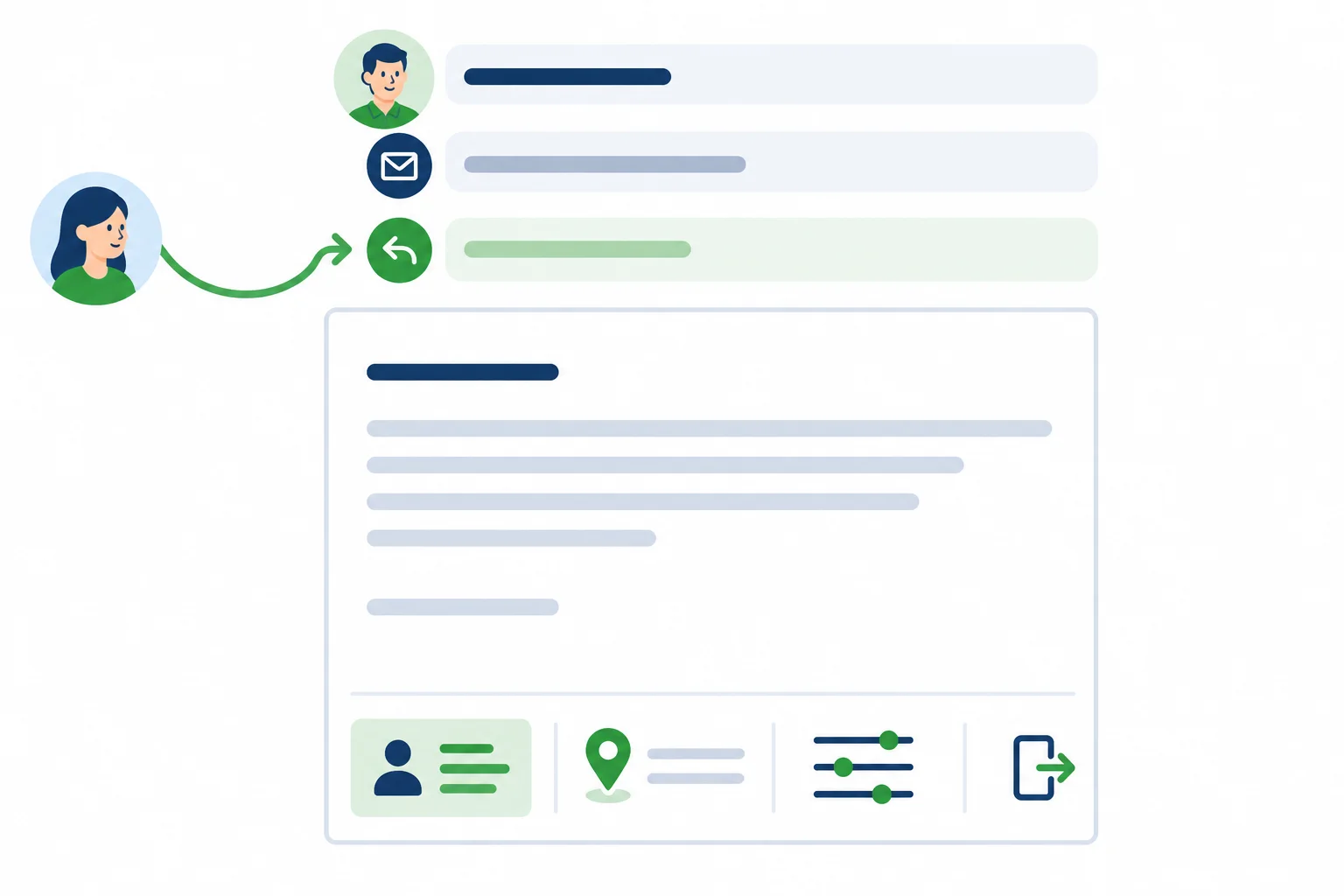
Treat sender fields and footer controls as separate specifications, even when they appear in the same email.
The Footer identifies the sender and provides operational controls. Include clear sender identification and applicable contact details, including a valid postal address when required by law or the provider.
Recipients must be able to find and understand both preference management and a direct way to stop marketing email. A preference center can offer choices, but it must not hide or replace a clearly labeled unsubscribe option.
Do not treat a link that merely looks correct as complete. Before a real send, the email tool must generate or resolve the preference and unsubscribe links, and the unsubscribe process must honor the request without requiring an account sign-in or another authentication barrier.
Providers can impose additional footer, sender, or unsubscribe requirements. Applicable rules vary by provider and jurisdiction; this draft is not a legal-compliance determination.
Example
Sender name: Northstar Plants
From address: hello@northstarplants.example
Reply-to: hello@northstarplants.example
Footer:
Northstar Plants
[Sender postal address]
Manage email preferences: [Preference center link]
Unsubscribe from marketing email: [Unsubscribe link]
The bracketed entries are intentionally unresolved operational details, not final customer-facing copy. Keep them visible until the actual postal address and tool-generated or verified destinations are available.
Which footer control should appear alongside a preference-management link?
Review this incomplete specification. Rewrite the sender and Footer fields as a suitable no-send draft. Keep supplied information that is appropriate, correct misleading or incomplete entries, and leave unknown operational values visibly unresolved in square brackets. Then name one check that must remain unresolved before real use.
Sender name: Plant Deals
From address: hello@northstarplants.example
Reply-to: no-reply@northstarplants.example
Footer: Northstar Plants — Manage settings
Do not invent a postal address or live link destination.
Write at least 180 characters (0/180).
Step 7 of 9
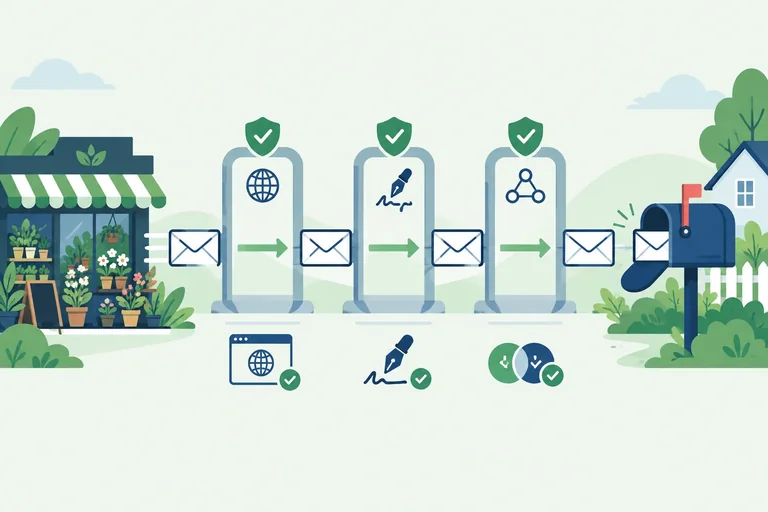
Distinguish SPF, DKIM, and DMARC roles and identify the domain-authentication checks that need administrator support.
Authentication uses three related—but not interchangeable—domains. The visible From domain is what recipients see in the From address. In this scenario, the visible From domain is northstarplants.example.
The envelope sender domain works behind the scenes for mail handling. The DKIM signing domain is associated with the message signature. A sending platform may use domains that differ from the visible From domain, so check each role by name rather than assuming they are identical.
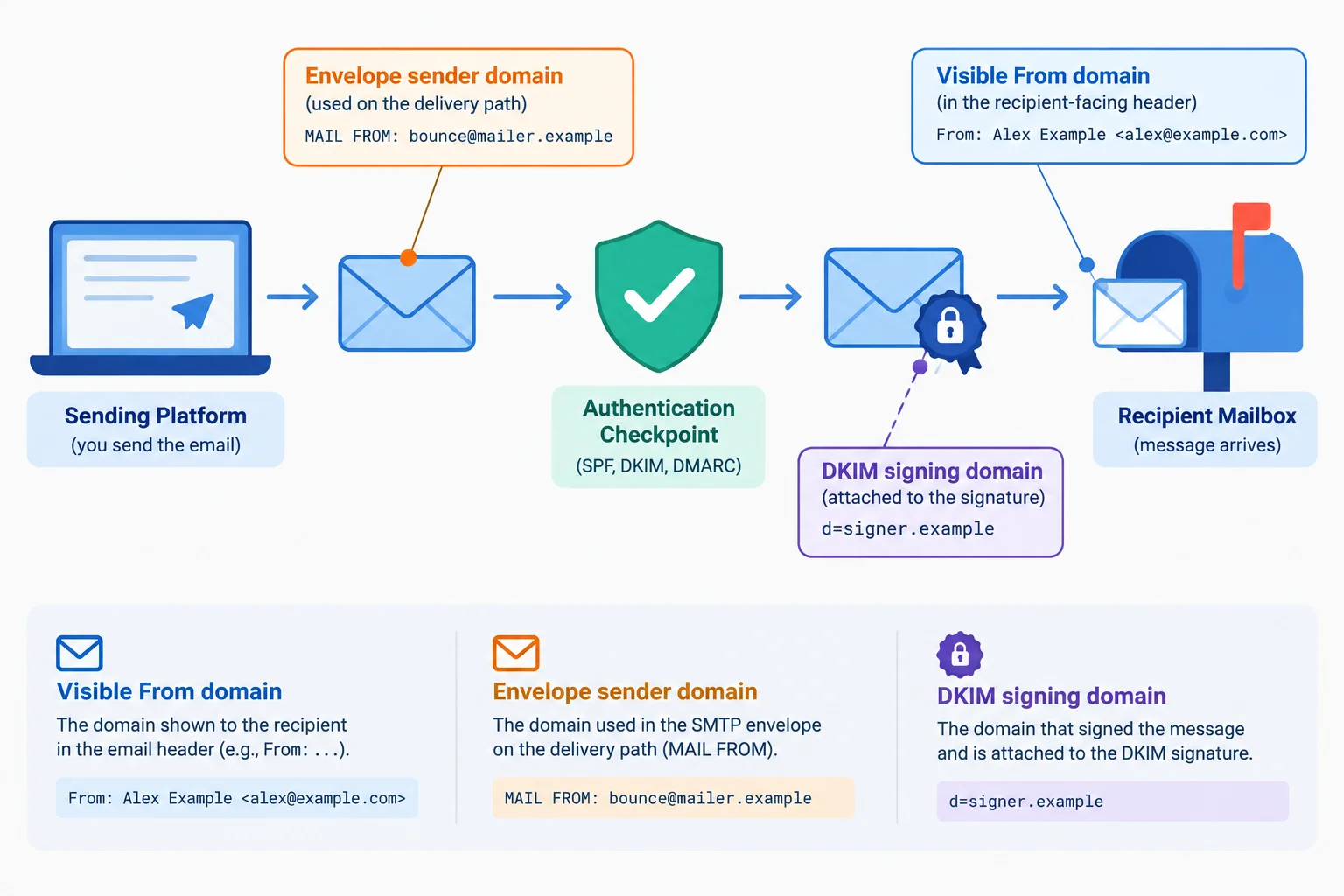
These domains can be related without being the same domain.
Tip
Do not equate a recognizable From address with complete authentication. Each mechanism checks a different part of the sending and identity process.
Use this comparison to keep the mechanisms distinct. These are roles, not a guide to creating DNS records.
| Mechanism | Primary question | Domain involved | What it does not establish |
|---|---|---|---|
| SPF | Is this sending system authorized? | Envelope sender domain | That the visible From address is authenticated by itself |
| DKIM | Has signed content remained unchanged? | DKIM signing domain | Encryption of the email content |
| DMARC | Does visible From align with passing SPF or DKIM? | Visible From domain plus an authenticated domain | Guaranteed receiver action or inbox placement |
SPF publishes which sending systems may send for the envelope sender domain.
DKIM adds a cryptographic signature associated with a signing domain. A receiver can verify that the signed content was not changed after signing. DKIM signing is not encryption.
DMARC evaluates whether the visible From domain aligns with a domain that passed SPF or DKIM. One passing, aligned mechanism can satisfy DMARC; both mechanisms are not required.
DMARC can publish requested handling for authentication failures and support reporting. That does not force every receiver to act the same way, and it does not guarantee inbox placement.
For example, DMARC can pass when SPF passes and its authenticated domain aligns with the visible From domain—even if DKIM does not pass or does not align. The same principle applies when DKIM is the one passing, aligned mechanism.
Warning
If a platform requests domain-authentication setup or a change to existing DNS, do not guess at values or overwrite records. Ask an authorized domain administrator to handle or approve the change and confirm the platform's instructions.
A marketer can document the platform request and request verification. Authentication still needs confirmation before a real send.
Match each authentication concept or situation to its correct role or next action.
Tap an item and then its matching pair.

Step 8 of 9
Separate provider acceptance from inbox placement, then identify practices that can create avoidable sender-reputation risk.
A receiving provider can accept an email without placing it in the inbox. Acceptance means the provider took responsibility for the message; it does not prove placement in the inbox, a particular inbox tab, or that a recipient read it.
Think of acceptance as one checkpoint, not the campaign outcome. Placement can still be affected by filtering decisions, recipient preferences, message relevance, and the sender’s reputation.
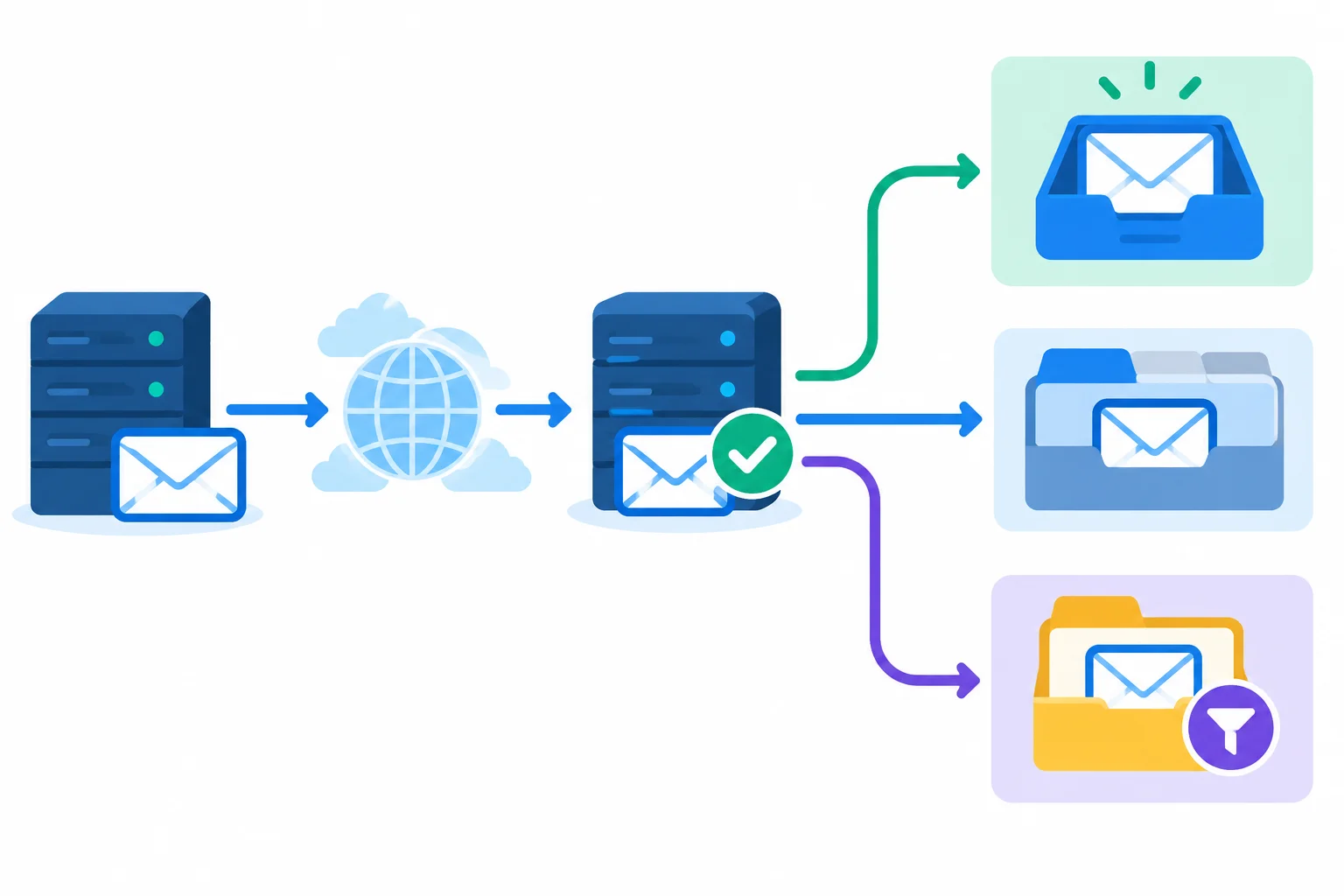
Provider acceptance occurs before a provider’s later placement decision.
Authentication helps receivers assess domain identity, but it does not override every later decision. SPF authorizes sending systems for the envelope sender domain; DKIM signs content with a signing domain; DMARC evaluates alignment with the visible From domain. These checks can support trust, but they do not guarantee inbox placement.
There is no universal subject-word trick, formatting formula, or authentication badge that guarantees an inbox result. Keep the Northstar Plants message relevant to its eligible indoor-plant-care segment, use an accurate identity and promise, and follow existing suppression and opt-out rules.
Avoidable practices can weaken a sender’s reputation. Use the campaign brief and eligibility rules to prevent these risks before a send.
| Risk pattern | Why it can harm trust | Safer response |
|---|---|---|
| Recipient complaints | Signals unwanted or misleading mail | Send relevant email only to eligible, permission-based subscribers |
| Poor list quality | More unwanted or unreliable recipients | Keep the defined active segment; do not add questionable contacts |
| Misleading identity or promise | Creates a mismatch between expectation and content | Use a recognizable sender and accurate subject, preview text, and body |
| Ignored opt-outs | Disregards recipient preferences | Honor suppression and unsubscribe requests |
| Abrupt unexplained volume change | Can look inconsistent or suspicious | Use a deliberate, consistent sending approach |
True or false: If a receiving provider accepts an email and authentication passes, the sender can conclude that the email is guaranteed to appear in the recipient’s inbox.
Choose the best answer.
A teammate proposes adding a large batch of unverified addresses to Northstar Plants’ usual campaign audience so the guide reaches more people. What is the most appropriate response?

Step 9 of 9
Finalize the accessible campaign draft with evidence-based preflight records, without sending it.
A no-send preflight turns the specifications you created into one reviewable local draft. It does not prove that an email platform can send the email.
Copy the assembled draft into a local document using the required field labels. Keep unresolved operational details in square brackets. Treat every fictional .example address and URL as a scenario reference, not as a verified sending identity or live destination.
The goal is to separate what the draft already specifies well from what must be corrected or verified before real use. Keep the campaign unscheduled and unsent.
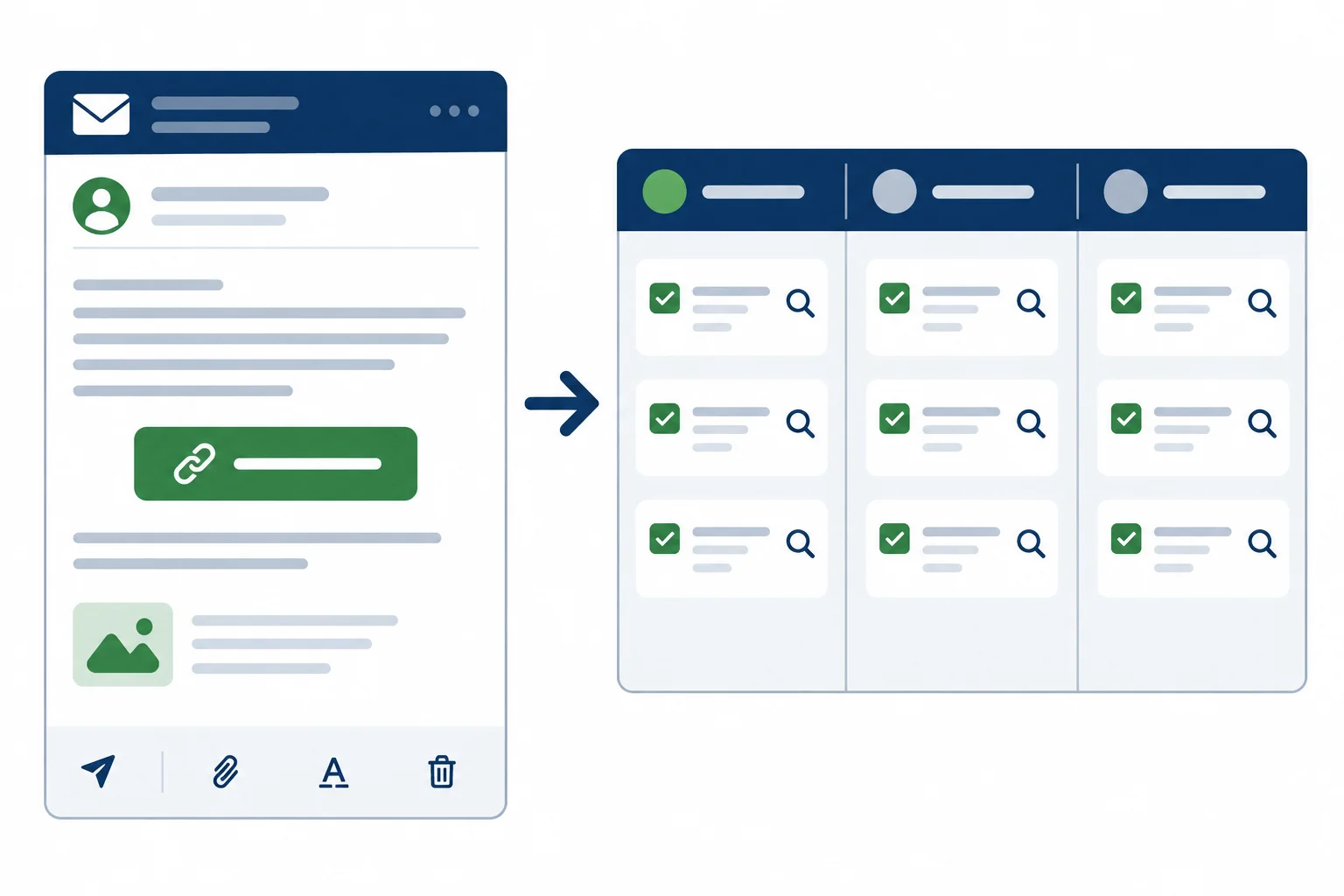
Review the whole specification together; a visually complete draft is not evidence that its operational parts work.
Example
Campaign brief: Audience: Active, permission-based subscribers who selected indoor plant care and are not suppressed. Message purpose: Invite eligible subscribers to use a practical small-space plant-care resource. Offer: The free online Small-Space Plant Care Guide, covering choosing a spot, watering basics, and checking drainage. No purchase, registration, or deadline applies. Destination action: Read the plant care guide.
Sender name: Northstar Plants
From address: hello@northstarplants.example
Reply-to: hello@northstarplants.example
Subject line: Free Small-Space Plant Care Guide
Preview text: Choose a spot, water with confidence, and check drainage.
Body: Small-Space Plant Care Guide
Make a confident start with indoor plants in a small space.
This free online guide covers choosing a spot, watering basics, and checking drainage. No purchase, registration, or deadline.
Primary CTA: Read the plant care guide
Destination: https://northstarplants.example/plant-care-guide?utm_source=newsletter&utm_medium=email&utm_campaign=plant_care_guide
Image alternatives: Any informative image has a concise alternative; essential offer copy and the CTA remain live text.
Footer: Northstar Plants
[Sender postal address]
Manage email preferences: [Preference center link]
Unsubscribe from marketing email: [Unsubscribe link]
Use one status for each check:
A Pass is not a production approval. In particular, unverified authentication, operational links, or required sender details block a real send. Record evidence for Pass and a concrete next action for Revise or Unverified.
This example separates copy, accessibility, operational, and tool checks. It documents a usable draft while preserving the boundaries of the fictional scenario.
| Check | Status | Evidence or next action |
|---|---|---|
| Recipient eligibility | Pass | Active permission-based indoor-plant-care subscribers; not suppressed. |
| Offer and CTA accuracy | Pass | Free guide, no purchase, registration, or deadline; CTA matches the stated guide. |
| Accessible structure | Pass | Specification calls for live text, logical single-column order, image alternatives, and a descriptive CTA. |
| Destination link | Unverified | Tracked URL is recorded; test resolution, redirects, and destination content in real use. |
| Sender and authentication | Unverified | `.example` identity is fictional; an authorized administrator must verify sender setup and SPF, DKIM, and DMARC. |
| Footer controls | Revise | Replace bracketed postal address and link placeholders; verify preference and unsubscribe access before real use. |
| Current tool restrictions | Unverified | Check the current plan for available previews, authentication options, footer controls, contact limits, and sending allowances. |
Now review your own locally assembled Northstar Plants draft. Do not send, schedule, activate, or try to configure a domain. Use only evidence available in the draft and scenario. When a real-world check cannot be performed here, record the check as Unverified and state the next action rather than assuming it passed.
Create seven separate checklist records for: recipient eligibility; offer and CTA accuracy; accessible structure; destination link; sender and authentication; footer controls, including preference and unsubscribe access; and current tool restrictions.
Use the exact format Check | Status | Evidence or next action for every record. Use only the statuses Pass, Revise, or Unverified.
Then add a 2–3 sentence readiness statement explaining what is complete, what must be corrected or verified, and why the draft must remain unsent. Your statement must recognize that the fictional .example identities and any unverified operational checks prevent a real send.
Write at least 550 characters (0/550).
Summary
.example identities, unverified SPF, DKIM, or DMARC, unresolved Footer details, and untested preference or unsubscribe behavior block a real send.Congratulations! You completed: Draft an Accessible Email Campaign
Thousands of online courses in video, ebooks and audiobooks.
To test your knowledge during online courses
Generated directly from your cell phone's photo gallery and sent to your email
Download our app via QR Code or the links below:.


Carry knowledge in your pocket.
Download the Cursa app.
There are hundreds of free courses available, with a free certificate of completion that is saved in your mobile image gallery.
Download the app to access the Course Completion Certificate for Free.

+ 10 million
students

Free and Valid
Certificate

60 thousand free
exercises

4.8/5 rating in
app stores

Free courses in
video and ebooks