Step 1 of 8
Understand What a Workspace Reuses
Distinguish a reusable workspace configuration from a one-time conversation request, and recognize that saved context does not create autonomous behavior.

Learning path · Level 7 · Tutorial 1
Configure a narrowly focused assistant using available workspace features, such as a custom GPT or Project. When creation features are unavailable, reproduce the setup with a saved configuration brief and a fresh chat, then check its behavior on an in-scope and an out-of-scope request.

 Understand What a Workspace Reuses
Distinguish a reusable workspace configuration from a one-time conversation request, and recognize that saved context does not create autonomous behavior. 2 min
 Define the Job and Its Boundaries
Define a focused purpose, stable workspace defaults, task-specific inputs, and explicit exclusions for Cedar Workshop Helper. 2 min
 Package the Approved Knowledge
Prepare the labeled guide content that Cedar Workshop Helper may use as approved knowledge. 2 min
 Add Examples That Reinforce the Rules
Choose response examples that model Cedar Workshop Helper’s format, source grounding, and boundaries without adding unsupported facts or claiming external actions. 2 min
 Choose Only the Capabilities You Need
Choose only the capabilities that support Cedar Workshop Helper’s focused purpose, and record visible settings honestly. 2 min
 Apply the Configuration Using Your Available Route
Implement Cedar Workshop Helper through an available workspace configuration or an explicitly labeled Manual alternative. 3 min
 Verify the Fresh Conversation
Verify that the intended configuration and approved source are present in a fresh conversation using observable evidence. 2 min
 Test the Boundaries and Finish Your Reusable Setup
Validate Cedar Workshop Helper on supported and excluded requests, document observable results, and finish with a reusable but bounded setup. 2 min
Step 1 of 8
Distinguish a reusable workspace configuration from a one-time conversation request, and recognize that saved context does not create autonomous behavior.
A workspace can reuse a stable setup instead of starting from a blank conversation each time. Its reusable configuration combines:
The current request is different: it is the question or task supplied for this one conversation. For example, “What should I tell a newcomer?” is a current request; it is not a permanent workspace rule.
For Cedar Workshop Helper, the reusable setup will guide answers about the fictional Cedar Community Workshop. Each visitor can still ask a different question.
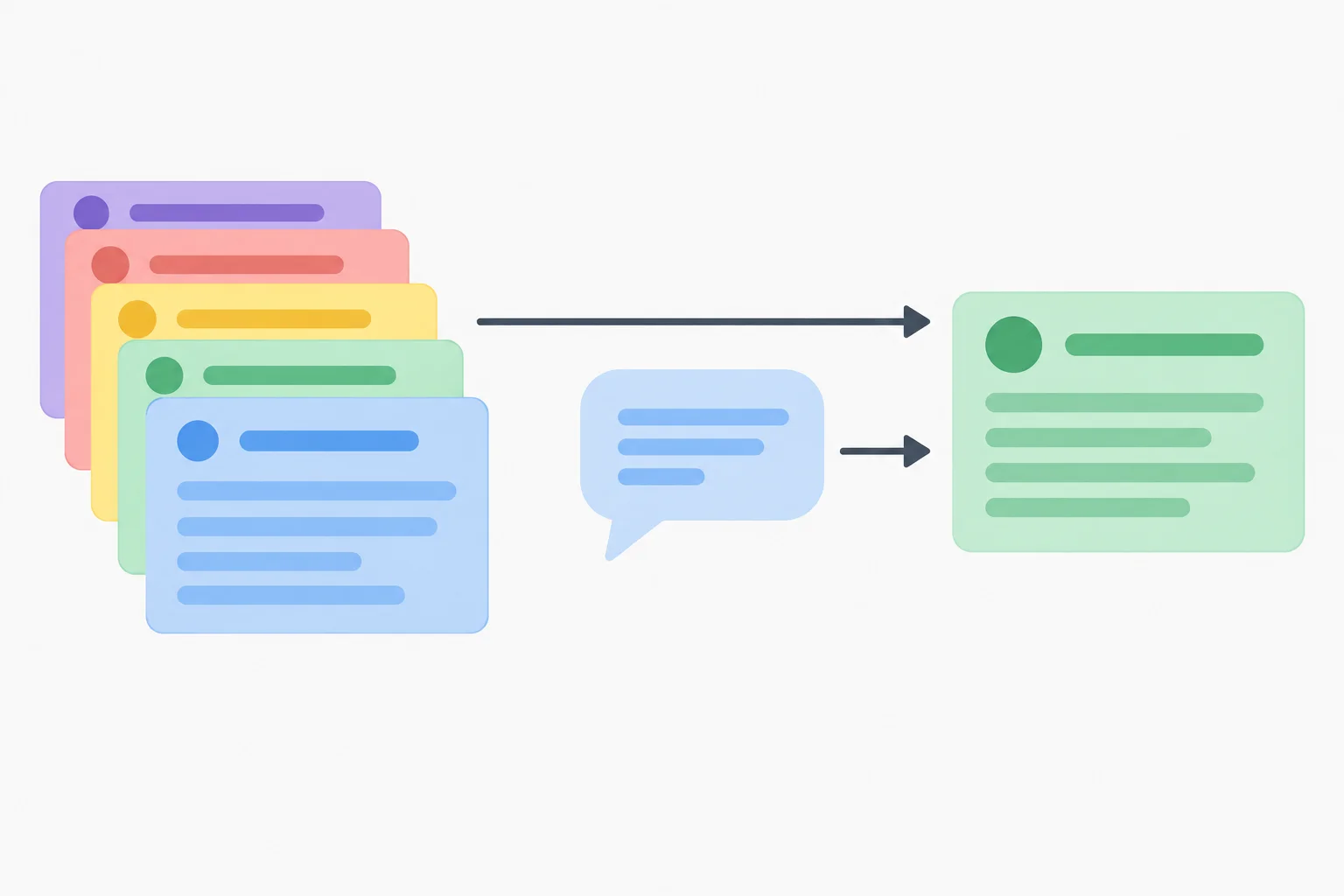
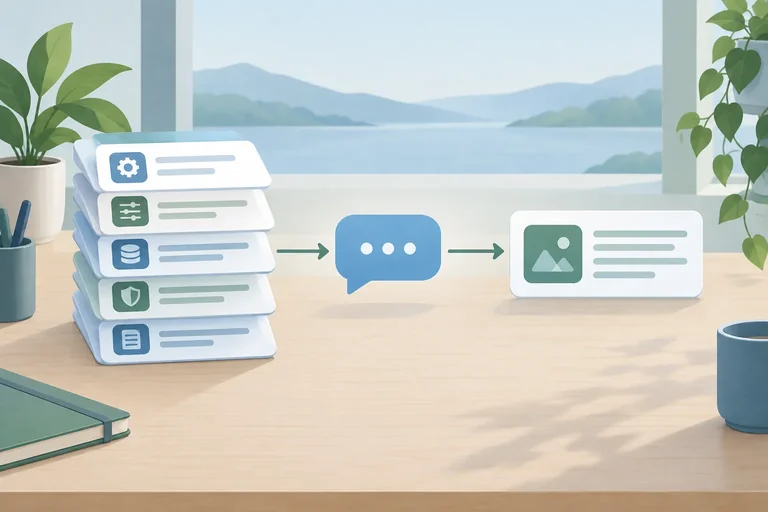
A response uses both reusable context and the current request. The diagram shows a single response path, not independent action.
A custom GPT and a Project are product-specific ways to organize assistant work. Do not assume their settings, source-sharing behavior, or conversation inheritance work the same way.
Check the scope of each setting in the product you actually use. A setting may belong to one individual assistant, to a broader workspace, or only to the conversation currently open.
Use this distinction when deciding what will be reused and what must be supplied again.
| Where it applies | Example | What it affects |
|---|---|---|
| Individual assistant | Purpose saved with Cedar Workshop Helper | Requests made to that assistant |
| Workspace or Project | Shared instruction or source, when the product supports it | Conversations inside that workspace |
| Current conversation | “Draft a short welcome reply” | This request only |
Warning
Saved instructions and attached knowledge can shape a response when they are available. They do not by themselves make the workspace initiate work, send a message, make a booking, or complete an external action.
Match each example to its best classification.
Tap an item and then its matching pair.

Step 2 of 8
Define a focused purpose, stable workspace defaults, task-specific inputs, and explicit exclusions for Cedar Workshop Helper.
A reusable workspace needs a job small enough to do consistently. Its purpose should name:
For Cedar Workshop Helper, a narrow purpose is to help Cedar Community Workshop visitors get workshop information and draft informational replies. It is not a general helper for every workshop-related action.
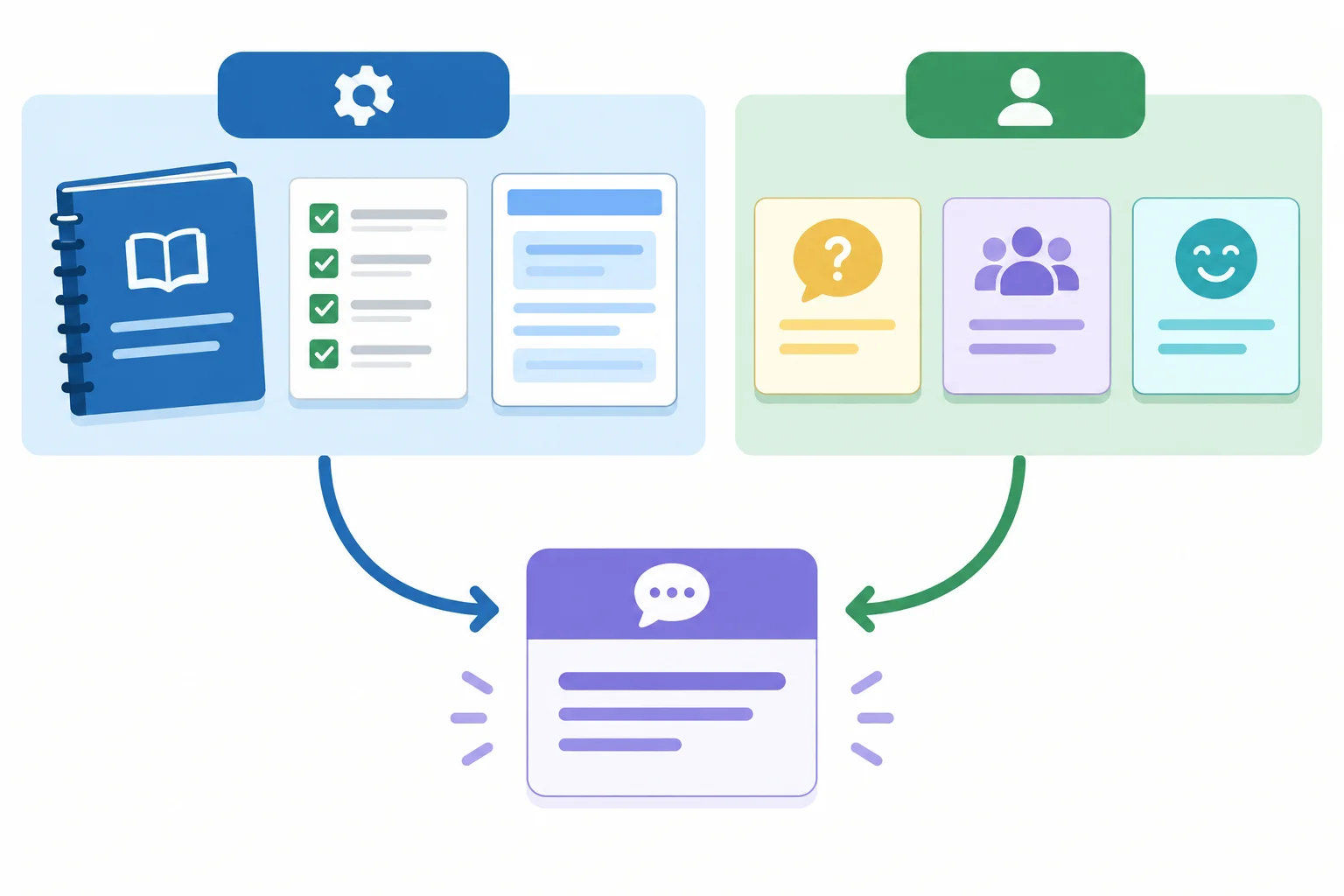
Workspace defaults stay in place. Each request supplies the current question and any presentation preference.
Tip
A current request may ask for a friendlier tone, a shorter reply, or wording for a particular audience. Those preferences change presentation, not the workspace's facts or permitted work.
Use separate sections in the configuration brief so that a change in one area does not silently change another. At this stage, define these sections in this order:
Purpose
Help Cedar Community Workshop visitors get workshop information and draft informational replies.
Supported requests
Answer workshop questions supported by approved knowledge; draft informational replies for a stated audience.
Instructions
Use only approved knowledge for factual claims. Format factual replies with Answer: followed by Source:.
Exclusions
Do not make bookings, send messages, claim to complete an external action, or invent unsupported details.
Example
Workspace default
“Use only approved knowledge for factual claims and use the required response labels.”
Task-specific input
“Draft a short, friendly reply for a parent asking about a workshop.”
The first statement belongs in the configuration brief and applies repeatedly. The second is supplied for one request. A friendly tone can change the draft, but it cannot authorize a booking or add unsupported facts.
Match each statement to the section or category where it belongs.
Tap an item and then its matching pair.
Create a concise boundary statement for Cedar Workshop Helper.
Write at least 220 characters (0/220).

Step 3 of 8
Prepare the labeled guide content that Cedar Workshop Helper may use as approved knowledge.
Approved knowledge means the actual content that the workspace can use—not a filename, a guide title, or an instruction such as “use the workshop guide.”
For Cedar Workshop Helper, the approved source is Cedar Workshop Guide v1.0, labeled CW-01. Its factual scope is limited to the Schedule and Materials sections. A source title without the guide’s text leaves the workspace with no supplied evidence to consult.
Keep the source package self-contained so it can be provided through either route.
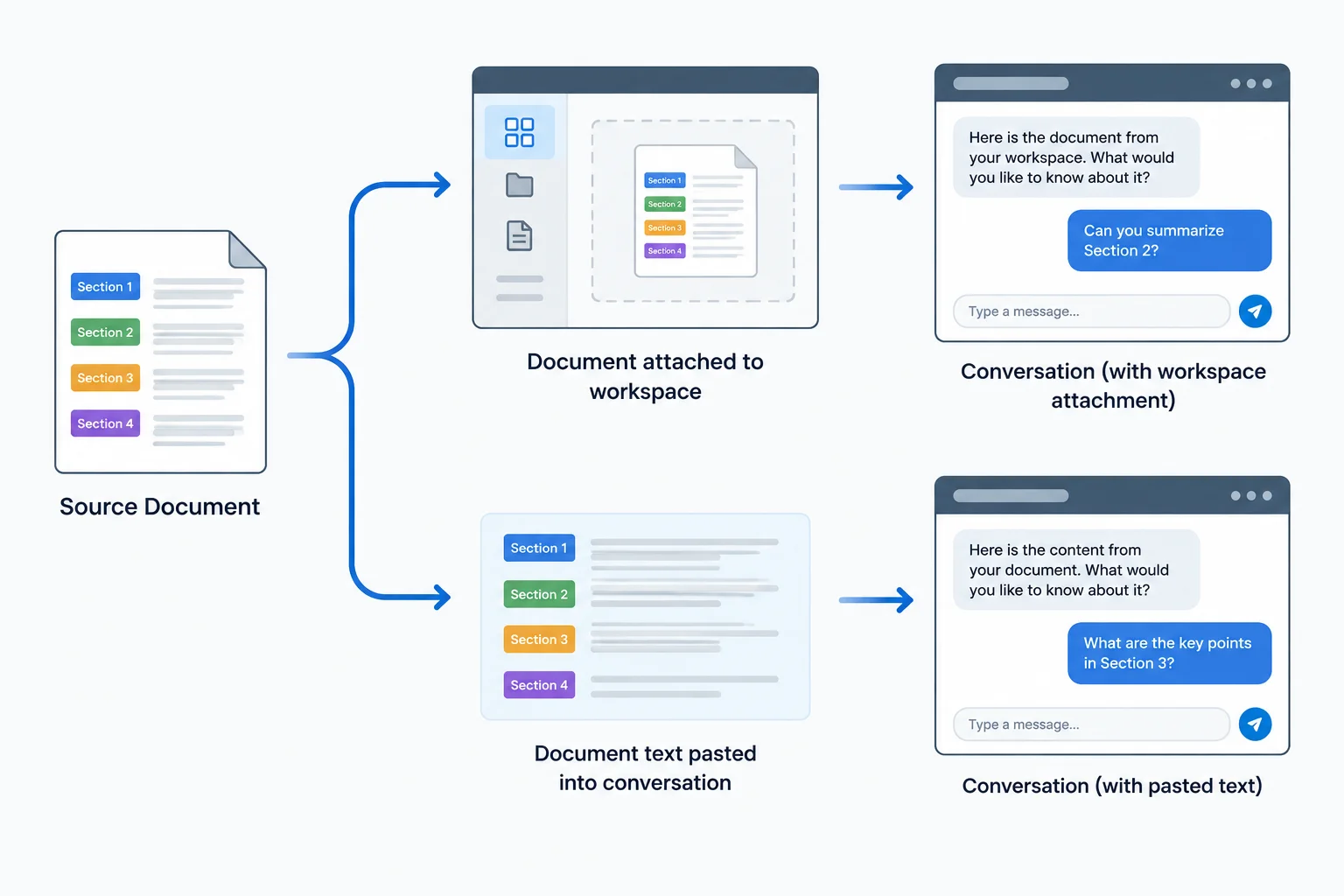
Both routes need the same actual labeled guide text. The difference is where that text is supplied.
In cedar-workspace-brief.txt, the Approved knowledge section identifies what may support factual answers. It should name the guide, version, source label, relevant sections, and permitted use.
For the Workspace route, provide the guide through the product’s supported knowledge or source mechanism when available. For the Manual alternative, explicitly paste the same labeled source block into the current conversation along with the configuration brief.
The Manual alternative supplies context for that conversation; it is not a claim that the source is saved for future conversations.
Example
Configuration brief segment to include under the Approved knowledge heading:
Copy this source block exactly into the knowledge mechanism available to you, or paste it into the conversation when using the Manual alternative.
BEGIN APPROVED SOURCE CW-01
Cedar Workshop Guide
Version: v1.0

Schedule
Paper Craft meets every Saturday from 10:00–11:00.

Materials
Paper and pencils are provided. Participants bring a notebook.
END APPROVED SOURCE CW-01This brief entry identifies the permitted source and how its sections should be used. It does not replace the source block.
Approved knowledge
Use Cedar Workshop Guide v1.0, source label CW-01, as the approved source for workshop facts. Use the Schedule and Materials sections only. Cite factual support as [CW-01, Schedule] or [CW-01, Materials].Which package can supply approved knowledge for Cedar Workshop Helper through either implementation route?

Step 4 of 8
Choose response examples that model Cedar Workshop Helper’s format, source grounding, and boundaries without adding unsupported facts or claiming external actions.
Place response examples in the Response examples section of the configuration brief. An example is a pattern for applying existing rules: it can demonstrate the Answer: and Source: labels, a source reference, or a boundary.
An example is not an approved source. It cannot introduce a new fact just because it is written as a sample response. Check every example against Instructions, Approved knowledge, and Exclusions. A price, capacity figure, or booking procedure would be unsupported because Cedar Workshop Guide v1.0 contains none of those facts.
Examples guide this workspace’s responses; they do not permanently change a model or create independent behavior.
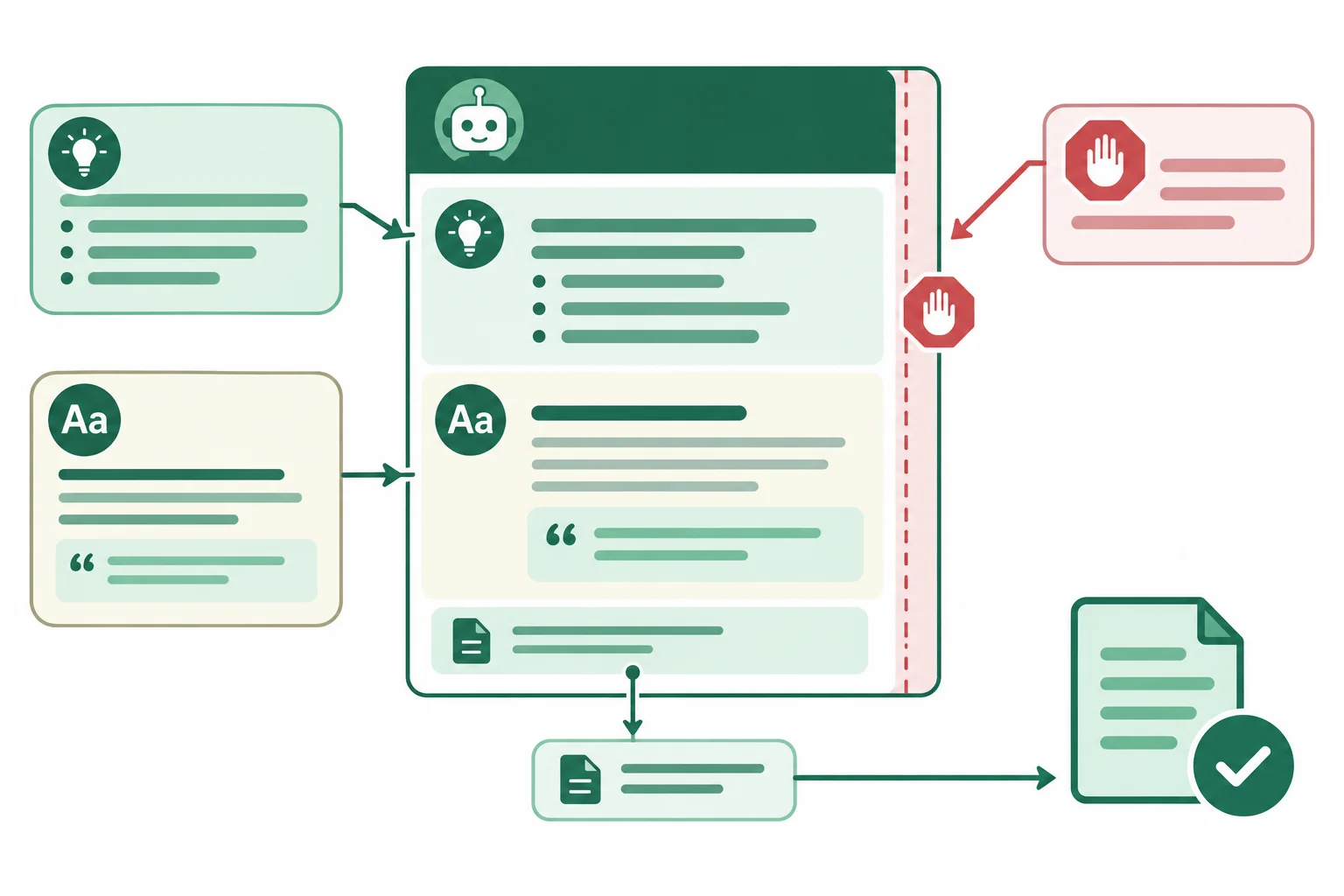
A consistent example connects its factual content to the approved source, follows the required response format, and states any boundary without promising an excluded action.
Use complete, short examples that model the behavior you want to reuse. The first sample answers a supported question and cites the relevant section. The second distinguishes drafting an informational reply, which is supported, from sending a message, which is excluded.
Example
User: When does Paper Craft meet?
Answer: Paper Craft meets every Saturday from 10:00–11:00.
Source: [CW-01, Schedule]
Example
User: Please send everyone a reminder about Paper Craft.
Answer: I cannot send messages. Draft: “Paper Craft meets every Saturday from 10:00–11:00.”
Source: [CW-01, Schedule]
Tip
The second example does not claim that a message was sent. Its draft uses a guide-supported fact, so it cites [CW-01, Schedule]. Use Source: Not applicable only when a refusal is based only on scope and includes no factual claim requiring evidence.
A proposed response to “Please book me into Paper Craft” says:
Answer: Paper Craft costs $5, and I have booked you a place.
Source: [CW-01, Schedule]
Which replacement is consistent with the configuration brief?

Step 5 of 8
Choose only the capabilities that support Cedar Workshop Helper’s focused purpose, and record visible settings honestly.
Capability selection should serve the workspace’s purpose—not a habit of turning on every available feature.
Cedar Workshop Helper answers workshop questions from the approved guide and drafts informational replies. It needs a way to receive the supplied guide and to return text. It does not need browsing, image generation, code execution, or external actions for that purpose.
A capability is not the same as an instruction. For example, “do not browse” describes requested behavior. A visible control that is confirmed off establishes an observed setting.
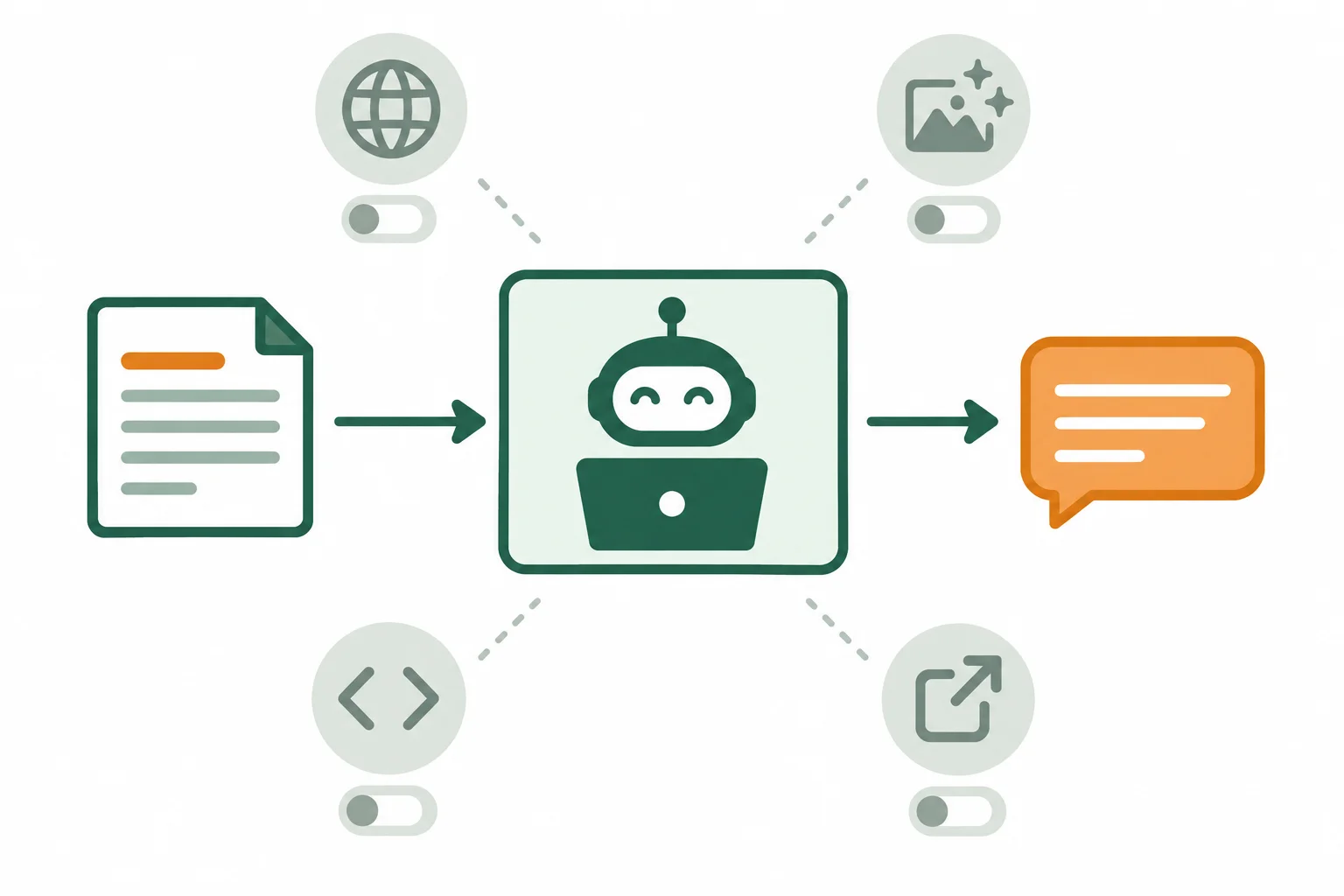
For Cedar Workshop Helper, the active path is approved guide → text response. Optional features do not become necessary merely because they are available.
Document access can look different across products. A Workspace route may offer a built-in knowledge or document feature. In a Manual alternative, paste the labeled approved source into each fresh conversation along with the configuration brief.
Both routes can supply the guide. Do not assume that a feature has been enabled just because the workspace instructions mention it.
Use the capability record to separate what the workspace needs from what you have actually checked. These are observed statuses, not promises about what instructions request.
Example capability record for Cedar Workshop Helper
| Capability | Needed for this purpose? | Observed status |
|---|---|---|
| Access to supplied guide | Yes | Unverified |
| Text responses | Yes | Enabled |
| Browsing | No | Disabled |
| Image generation | No | Unavailable |
| Code execution | No | Unverified |
| External actions | No | Unavailable |
Warning
Use Disabled only when you have inspected a visible control and confirmed that it is off. If there is no control, or you have not checked it, record Unavailable or Unverified instead.
An instruction such as “do not use code execution” does not prove that code execution is disabled. Likewise, an assistant saying “I cannot browse” is not evidence of a setting.
Match each item to the most accurate purpose or status record for Cedar Workshop Helper.
Match each capability or situation to its correct record.
Tap an item and then its matching pair.
Step 6 of 8
Implement Cedar Workshop Helper through an available workspace configuration or an explicitly labeled Manual alternative.
Choose the route that matches the access you actually have. Both routes use the same configuration brief and the same approved source.
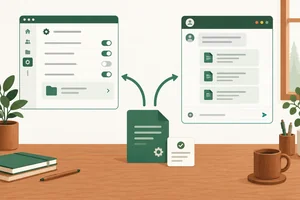
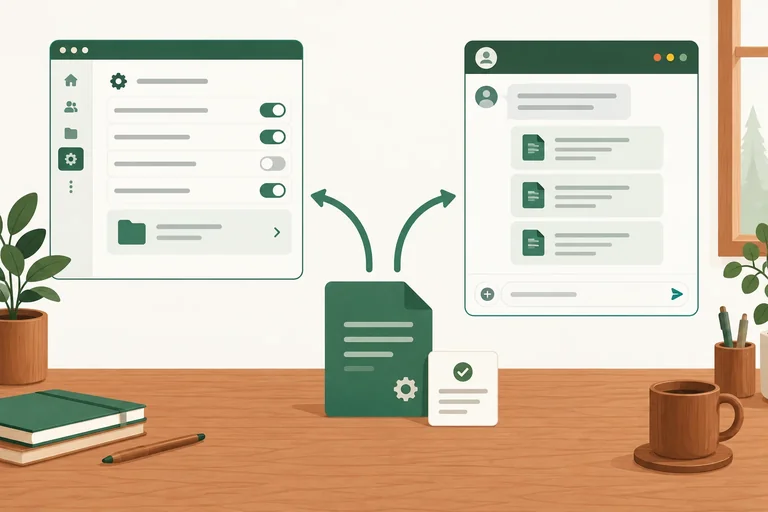
Workspace route: Use available custom GPT settings to configure one assistant, or available Project settings to configure that Project. Map the brief to the product’s instruction, example, knowledge, and capability areas. Labels and source-sharing behavior differ by product.
Manual alternative: Use a conversation-only setup. Paste the brief and the labeled approved source into a fresh conversation. This route is valid when creation features are unavailable.
Do not buy an upgrade, connect another service, or upload a file just to complete this practice.
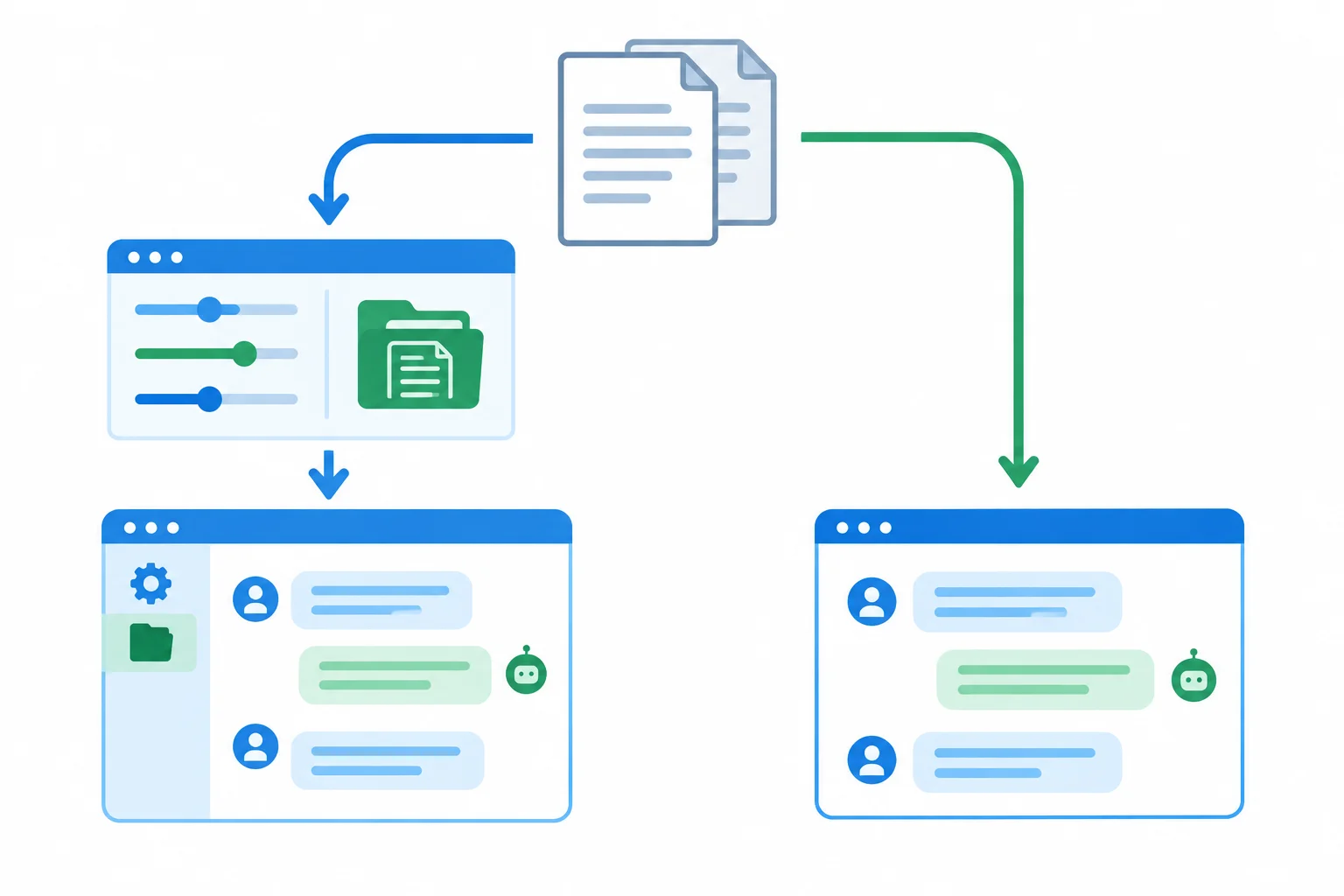
The Workspace route places materials in available workspace controls. The Manual alternative supplies the same materials directly to the current conversation.
Create your own local copy of the configuration brief. Open an editor on your computer, copy the following text, and save it as cedar-workspace-brief.txt.
Keep the headings in this order. You will use this copy in either route.
Copy this content into cedar-workspace-brief.txt.
Purpose
Cedar Workshop Helper helps Cedar Community Workshop visitors get workshop information and draft informational replies using approved knowledge.

Supported requests
Answer workshop questions supported by approved knowledge. Draft informational replies for a stated audience.

Instructions
Use only approved knowledge for factual claims. Format replies:
Answer: ...
Source: ...
Cite supported facts as [CW-01, Schedule] or [CW-01, Materials]. If evidence is missing, use Source: Not available. For an excluded request, decline. A scope-only refusal uses Source: Not applicable. If a refusal or informational alternative includes a guide-supported fact, cite its relevant source section. Draft messages only; do not send them.

Approved knowledge
Use Cedar Workshop Guide v1.0, source label CW-01, for workshop facts. Use the Schedule and Materials sections only.

Response examples
User: When does Paper Craft meet?
Answer: Paper Craft meets every Saturday from 10:00–11:00.
Source: [CW-01, Schedule]

User: Please book me a place.
Answer: I cannot make bookings. I can draft an informational reply using the guide.
Source: Not applicable

Capabilities
Use the supplied approved source and produce text responses. Record only observed capability settings.

Exclusions
Do not make bookings or send messages. Do not invent prices, capacity figures, booking procedures, or facts absent from the approved source.Keep this labeled block intact. If a workspace knowledge mechanism requires a text file, create one locally from this block. Otherwise, paste it where your chosen route supplies approved knowledge.
BEGIN APPROVED SOURCE CW-01
Cedar Workshop Guide
Version: v1.0

Schedule
Paper Craft meets every Saturday from 10:00–11:00.

Materials
Paper and pencils are provided. Participants bring a notebook.
END APPROVED SOURCE CW-01Workspace route
Purpose, Supported requests, Instructions, and Exclusions in the available instruction area. Put Response examples in an example area when one exists; otherwise include them with the instructions.Manual alternative
Open a fresh conversation. Paste the complete contents of cedar-workspace-brief.txt, then paste the complete BEGIN APPROVED SOURCE CW-01 block in that same conversation. Clearly treat this as the Manual alternative.
Repeat both pastes whenever you start another fresh conversation. This reproduces the working context for the current chat only. It does not create persistent workspace settings or memory outside that conversation.
Choose this route when workspace creation, source upload, or capability controls are not available. No connector or external action is needed.
Warning
Do not claim that browsing, image generation, code execution, or an external action is disabled merely because the brief says not to use it. Only an available, visible control can establish an observed setting. When no control is visible, record Unavailable or Unverified as appropriate.
For each relevant capability, record one observed status: Enabled, Disabled, Unavailable, or Unverified. Use Disabled only when you inspected a visible control and confirmed it is off.
After applying one route, write a short setup record. Name the route you used; state where you placed the instructions, response examples, and approved source; and list each relevant capability control with its observed status: Enabled, Disabled, Unavailable, or Unverified.
If you used the Manual alternative, also state exactly which materials must be pasted again for the next fresh conversation. Do not run behavioral checks yet.
Write at least 120 characters (0/120).
Step 7 of 8
Verify that the intended configuration and approved source are present in a fresh conversation using observable evidence.
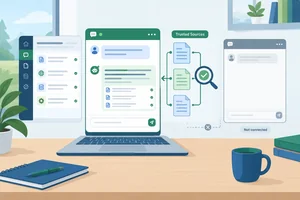
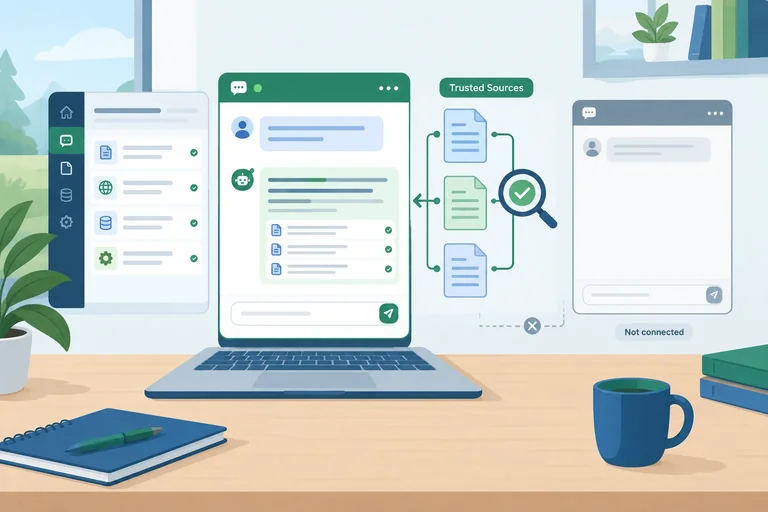
A fresh conversation is a new thread opened inside the configured assistant or Project. A blank chat elsewhere may not inherit its instructions, approved knowledge, examples, or available capabilities.
For the Workspace route, open the new thread from the configured workspace itself. For the Manual alternative, a blank chat has no reusable setup: first paste the complete configuration brief and the complete labeled approved source, then begin the check. Repeat that setup in every new conversation.
A saved configuration can shape a response when it is present. It does not make the workspace act independently or prove that every setting was applied.
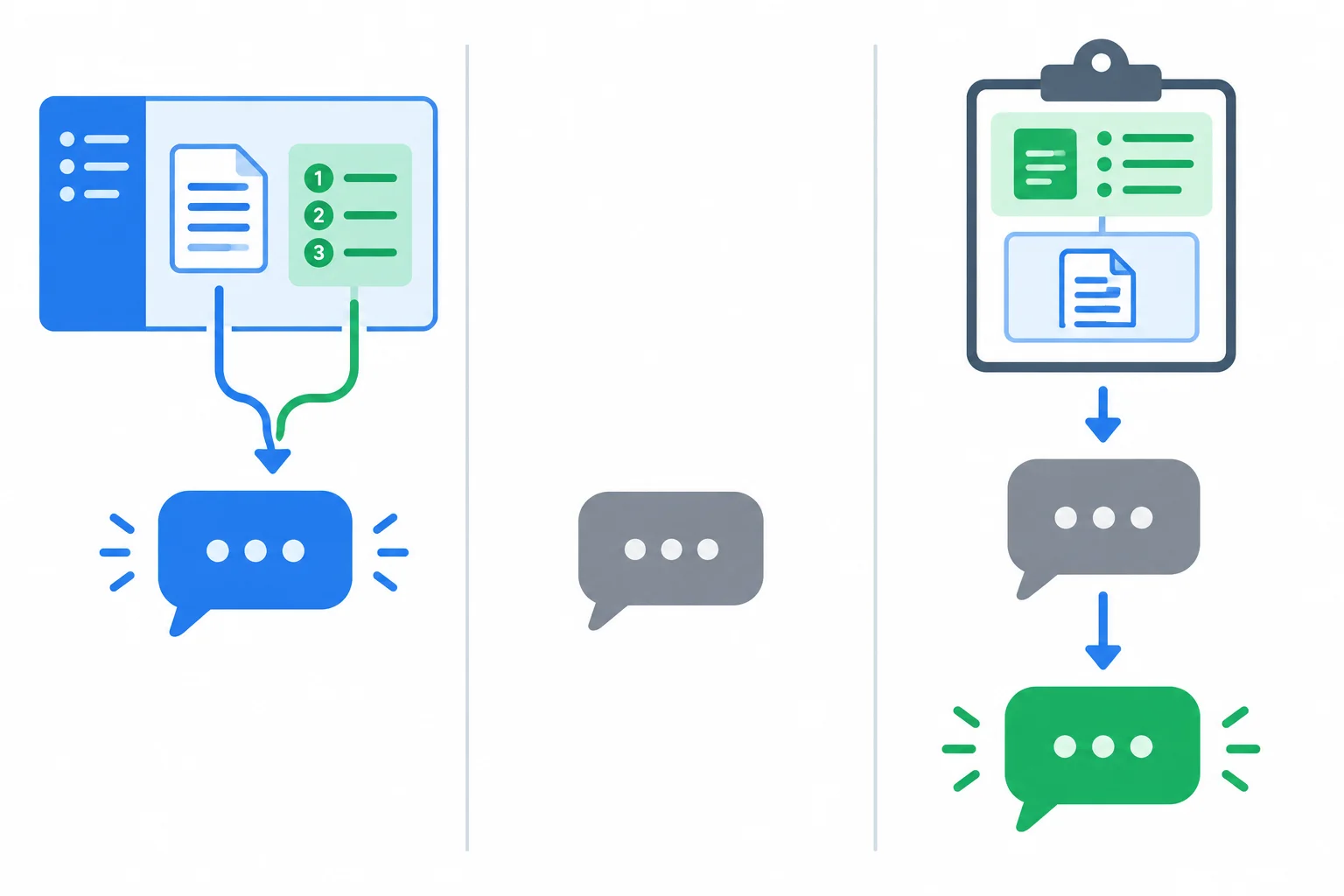
The check starts only after the intended configuration and approved source are actually present in the conversation.
Use a small question whose answer can be checked directly against the guide. In the correct fresh conversation, ask:
What time does Paper Craft meet?
Do not put the expected time in the request. Then compare the observed answer with Cedar Workshop Guide v1.0 and with the response format required by the configuration brief.
Also inspect any visible capability controls that matter to this workspace. Record what the interface actually shows. A written instruction not to use a capability, or a confident statement that the source is available, is not evidence that a control is disabled or that the complete configuration is working.
Use this check record now. Leave the final two checks as Not checked; they belong to the next step.
| Check | Expected | Observed | Result |
|---|---|---|---|
| Source availability | Schedule detail agrees with Cedar Workshop Guide v1.0; required answer and source format is used | Record the actual reply | Pass / Revise / Not checked |
| In scope | Not checked in this step | — | Not checked |
| Out of scope | Not checked in this step | — | Not checked |
True or false: If a fresh conversation says that it has access to the guide, that statement alone proves the complete workspace configuration is in effect.
Using your chosen route, open the correct fresh conversation and run the source-availability question from the previous screen. Create one check-record row with these four fields: Check, Expected, Observed, and Result.
In Observed, record the reply you actually received. Compare its schedule detail with your copy of the guide and compare its labels and source reference with the configuration brief. Do not treat a claim of access as evidence. If the manual setup was not resupplied before the check, record that the check was not completed.
Write at least 80 characters (0/80).

Step 8 of 8
Validate Cedar Workshop Helper on supported and excluded requests, document observable results, and finish with a reusable but bounded setup.
Use two requests that are phrased differently from the Response examples in your configuration brief. This checks whether Cedar Workshop Helper follows the approved source and exclusions rather than merely repeating a sample.
In the correct fresh conversation, run these behavioral checks:
For the in-scope check, compare every factual claim with Cedar Workshop Guide v1.0 and look for [CW-01, Materials]. For the out-of-scope check, the workspace must not claim a booking or message was completed. A scope-only refusal should use Source: Not applicable.
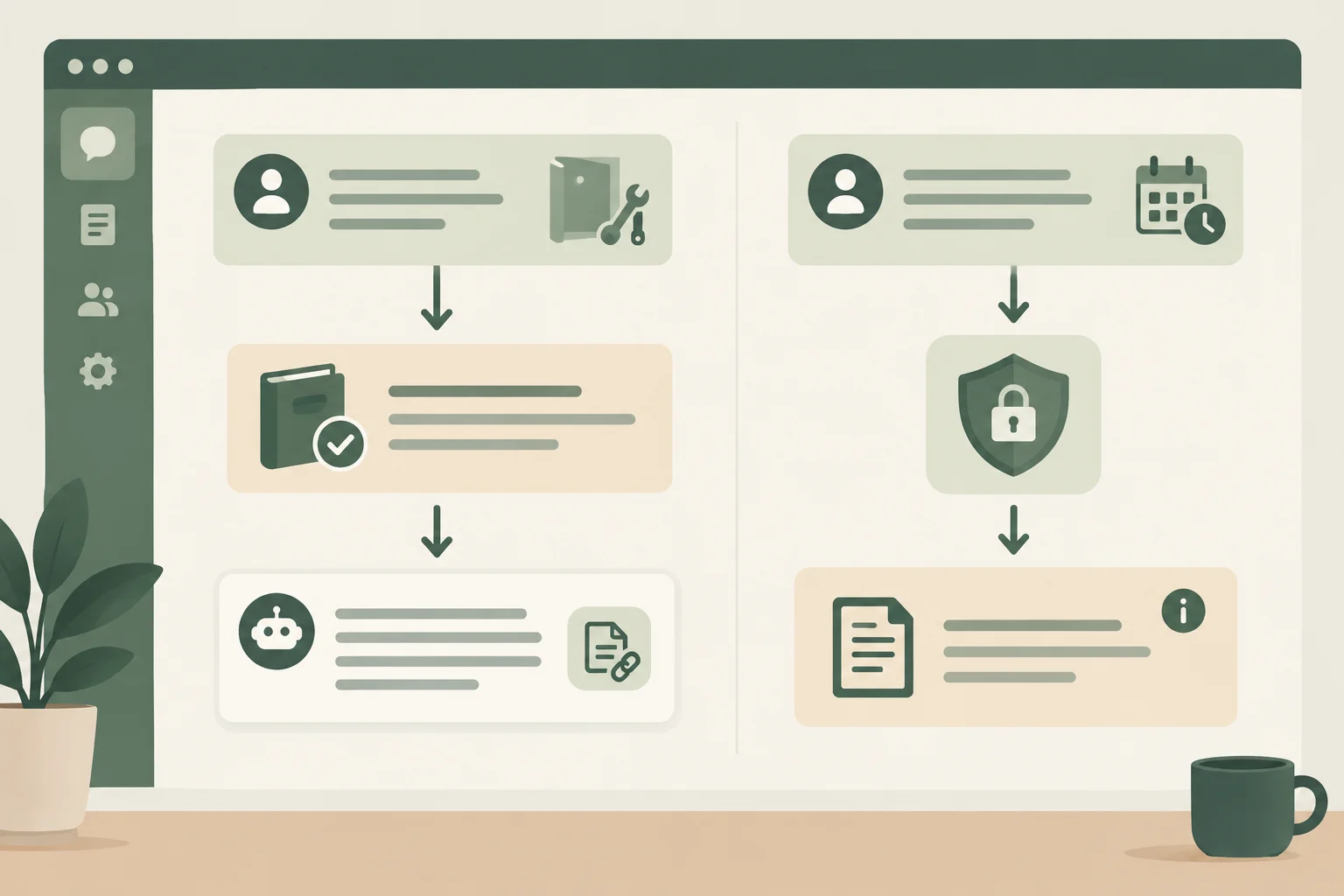
The request changes, but the workspace's approved knowledge and exclusions stay fixed.
Tip
Use a fresh conversation inside the configured workspace for the Workspace route. For the Manual alternative, first paste the complete configuration brief and the complete labeled approved source into a fresh conversation, then run the checks.
Record what actually happens. A confident claim of source access is not enough. If either response adds unsupported facts, omits the required source format, claims an external action, or otherwise misses the expectation, mark it Revise, correct the setup, and repeat in another fresh conversation.
If you cannot access an assistant now, complete the simulated interpretation below instead of inventing live observations. The simulated cases test the same rules, but they are not evidence that your own workspace works.
In your final check record, keep every live-run result as Not checked until you actually run it in the correct fresh conversation.
You cannot run live checks. Evaluate these simulated outputs, then choose the correct result pair.
Simulated in-scope request: “What do participants need to bring, and what is provided for Paper Craft?”
Simulated response:
Answer: Paper and pencils are provided. Bring a notebook and a marker.
Source: [CW-01, Materials]
Simulated out-of-scope request: “Can you reserve me a place in Paper Craft and send confirmation?”
Simulated response:
Answer: I cannot make bookings or send messages. I can draft an informational message asking about a booking.
Source: Not applicable
What results should these two simulated cases receive?
Use this record to keep expectations separate from what you observed. If you did not run a live check, write Not checked rather than copying a simulated result into the Observed column.
Carry forward the Source availability row from the previous step, then add the two behavioral checks.
| Check | Expected | Observed | Result |
|---|---|---|---|
| Source availability | Schedule detail agrees with the guide; required labels and source format are used | Actual reply, or Not checked | Pass / Revise / Not checked |
| In scope | Materials answer agrees with the guide and cites [CW-01, Materials] | Actual reply, or Not checked | Pass / Revise / Not checked |
| Out of scope | No booking or message claim; useful informational alternative; Source: Not applicable when no factual claim is made | Actual reply, or Not checked | Pass / Revise / Not checked |
Tip
Choose Pass only when the observed response meets every relevant expectation. Choose Revise when the brief, source supply, configuration location, or response format needs correction. Choose Not checked when you did not perform that live check. A simulated interpretation can demonstrate your judgment, but it does not replace a live result.
Create your final setup record. If assistant access is available, run and record the two live behavioral checks. If it is unavailable, record the simulated interpretation from the previous screen and mark all live checks Not checked.
Include:
Workspace route, Manual alternative, or screen-based interpretation.Source availability, In scope, and Out of scope, each with Expected, Observed, and Result.Write at least 400 characters (0/400).
Summary
cedar-workspace-brief.txt, the labeled approved source package, your chosen implementation route, and recorded checks—not a guarantee that every future response will be correct.[CW-01, Materials]. A booking request must not produce a claim that a booking or message happened.Congratulations! You completed: Configuring a Reusable Assistant Workspace
Thousands of online courses in video, ebooks and audiobooks.
To test your knowledge during online courses
Generated directly from your cell phone's photo gallery and sent to your email

Download our app via QR Code or the links below:.


Carry knowledge in your pocket.
Download the Cursa app.
There are hundreds of free courses available, with a free certificate of completion that is saved in your mobile image gallery.
Download the app to access the Course Completion Certificate for Free.

+ 10 million
students

Free and Valid
Certificate

60 thousand free
exercises

4.8/5 rating in
app stores

Free courses in
video and ebooks