
Step 1 of 8
Turn a Vague Request into a Change Brief
Organize a vague Team Supply request into a change brief that separates known behavior, intended outcomes, constraints, and unanswered questions.

Learning path · Level 5 · Tutorial 5
Use a coding helper as a requirements and explanation partner without writing or executing code. Clarify a software request, assess a proposed change through its plain-language explanation, and specify acceptance checks for an implementer.

 Turn a Vague Request into a Change Brief
Organize a vague Team Supply request into a change brief that separates known behavior, intended outcomes, constraints, and unanswered questions. 2 min
 Ask Questions Before Choosing Behavior
Use a coding helper to expose ambiguous quantity rules, then update the Team Supply brief only with request-owner confirmations. 2 min
 Read the Change Explanation as a System Story
Read a proposed Team Supply change explanation as a plain-language account of behavior, data effects, dependencies, and unconfirmed details. 2 min
 Find Gaps and Unintended Effects
Compare a proposed Team Supply change explanation with the confirmed brief, identify contradictions and potential effects, and ask focused questions about unknown behavior. 2 min
 Write an Observable Acceptance Check
Turn the confirmed normal submission behavior into an observable acceptance check without treating an expected result as executed evidence. 2 min
 Cover Missing, Invalid, and Boundary Inputs
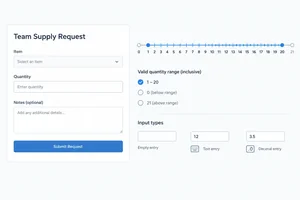
Extend the Team Supply acceptance checks beyond the normal path, covering missing, invalid, and boundary quantities with observable expected results. 3 min
 Separate Proposals from Verified Changes
Distinguish a proposed explanation from review, executed test evidence, and release status, without treating a helper’s assurance as proof. 2 min
 Prepare a Clear Handoff to an Implementer
Finalize a concise Team Supply change handoff that aligns confirmed behavior, proposal gaps, acceptance checks, and remaining evidence needs. 3 min
Step 1 of 8
Organize a vague Team Supply request into a change brief that separates known behavior, intended outcomes, constraints, and unanswered questions.
You do not need to write, read, or run code in this tutorial. A coding helper can help you organize a request, identify what is missing, and explain a proposed change in plain language.
Treat the helper’s output as a draft to check against supplied facts—not as a decision-maker. The request owner decides the business rules; an implementer later makes the change.
All practice uses fictional Team Supply notes and example exchanges. No app, repository, paid assistant, or executable environment is needed.

The goal is a clear behavioral brief, not generated or executed code.
A change brief gives each statement a job:
Current behavior: what the software does now.Desired behavior: the outcome the request is asking for.Constraints: what must stay unchanged.Open questions: decisions not yet supplied.Also mark certainty carefully: Confirmed fact, Assumption, or Open question. Do not turn a vague request into a rule just because a rule sounds reasonable.
Quantity and select Submit request.Submit request saves a request and triggers the existing confirmation email, even when Quantity is blank or contains unsuitable text.The notes do not say which quantities are permitted, whether a blank is allowed, or when a check happens.
Example
Current behavior
Submit request saves a request and triggers the existing confirmation email even when Quantity is blank or unsuitable.Desired behavior
Team Supply.Constraints
Open questions
Quantity allowed?Notice that the brief records missing decisions instead of guessing them.
Create a compact change brief from these Team Supply notes:
Submit request currently saves a request and triggers the existing confirmation email, including when Quantity is blank or contains unsuitable text.Use exactly these headings: Current behavior, Desired behavior, Constraints, and Open questions.
Label each statement as Confirmed fact, Assumption, or Open question. Do not invent a quantity limit or present a missing decision as confirmed.
Write at least 250 characters (0/250).

Step 2 of 8
Use a coding helper to expose ambiguous quantity rules, then update the Team Supply brief only with request-owner confirmations.
The request to “prevent unsuitable quantities” does not yet describe observable behavior. Turn it into decisions before anyone chooses a solution.
Ask what a person can see or do:
Quantity required?These are requirement questions—not programming questions. No code or app access is needed to answer them.
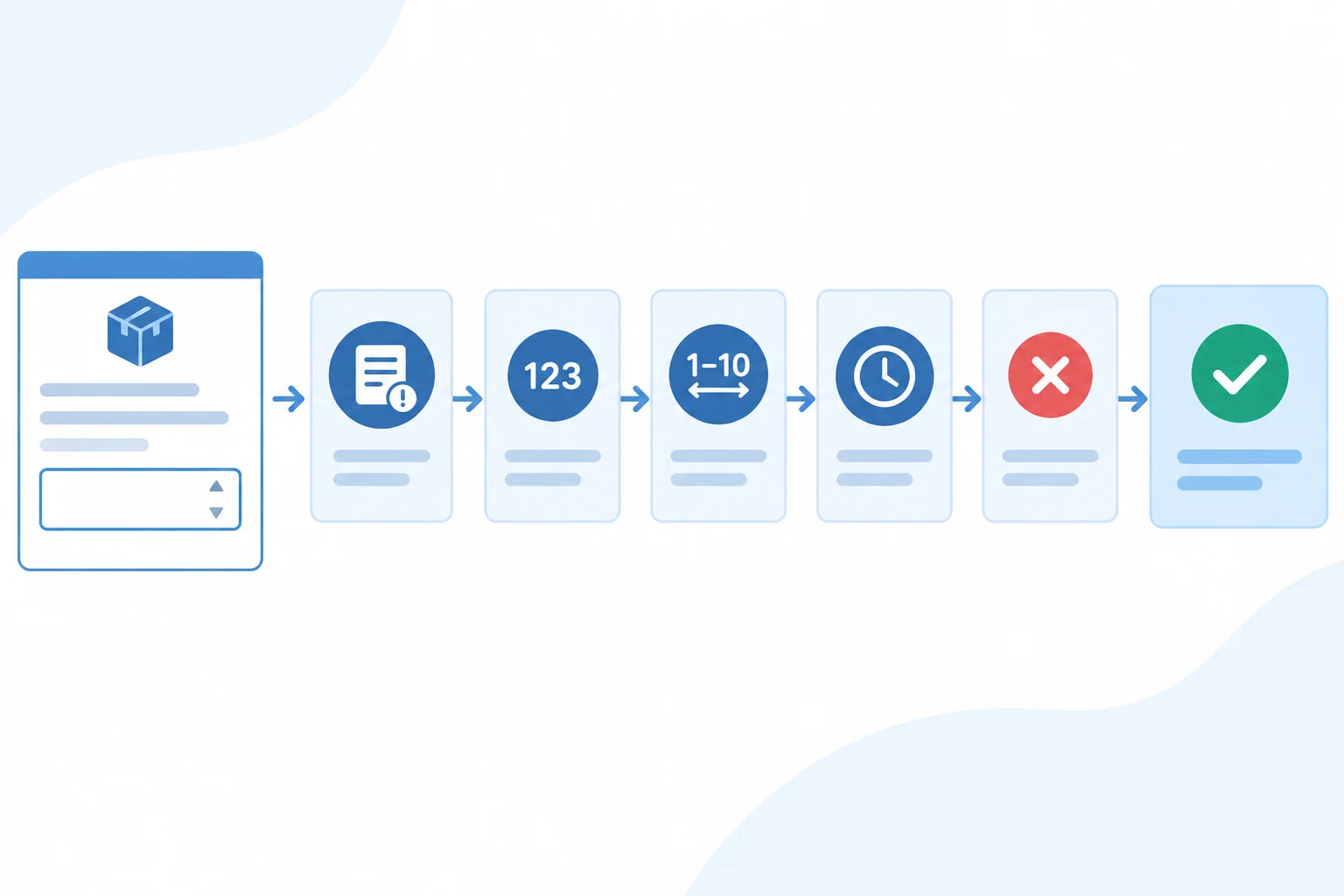
Ask about visible behavior before choosing how a change will be implemented.
Give the coding helper a bounded role: find what is unanswered and state any assumptions clearly. Do not request code, and do not let the helper silently fill a business-rule gap.
A useful request names the brief and asks for questions. A useful response separates a question from an Assumption. The helper may suggest a possible rule, but only the request owner can confirm it as a Confirmed fact.
Example
Request to the coding helper
“Do not write code. Review this Team Supply change brief. The goal is to prevent unsuitable values in Quantity. List the unanswered questions needed to define observable behavior. Mark any assumption separately.”
Coding helper
“Questions: Is Quantity required? Are fractional values allowed? What inclusive range is permitted? Is the check performed when Submit request is selected? What must happen after a rejection?
Assumption: A blank entry could be replaced with a convenient default.”
The assumption is useful to expose, but it must not be copied into the brief as a decision.
The request owner now supplies the business decisions. Update the brief only with those answers. Keep a question under Open questions until an owner confirms it; never convert a helper suggestion into a fact.
The existing preservation constraints still apply: historical requests remain unchanged, and accepted submissions retain the existing confirmation process.
Owner-confirmed quantity decisions for Team Supply
| Topic | Owner answer | Certainty | Brief update |
|---|---|---|---|
| Allowed value | A required whole number from 1 through 20, inclusive | Confirmed fact | Desired behavior |
| Check timing | Check when `Submit request` is selected | Confirmed fact | Desired behavior |
| Blank entry | Do not substitute a default | Confirmed fact | Constraints |
| Rejected submission | Show a quantity-specific message; preserve entries; do not save a request or trigger an email | Confirmed fact | Desired behavior |
| Accepted submission | Save one request and trigger the existing confirmation email | Confirmed fact | Desired behavior |
Start with the original vague request: “Prevent unsuitable quantities in Team Supply.”
A supplied exchange then says:
Coding helper: “I assume a blank Quantity can become 1 so the request can continue.”
Request owner: “Quantity is required. It must be a whole number from 1 through 20, inclusive. Check it when Submit request is selected. Do not use a blank default. A rejection must preserve entered values, save no request, and trigger no email.”
From the vague request, write the questions the helper needed to surface before behavior was chosen. Then label each statement in the exchange as Assumption or Confirmed fact, and state which source is allowed to update the brief.
Write at least 180 characters (0/180).

Step 3 of 8
Read a proposed Team Supply change explanation as a plain-language account of behavior, data effects, dependencies, and unconfirmed details.
A change explanation is a human-readable system story, not code. Read it by tracing one user action through four things:
Submit request.For Team Supply, do not stop at “a message appears.” The explanation must also account for request storage and the existing confirmation-email service.
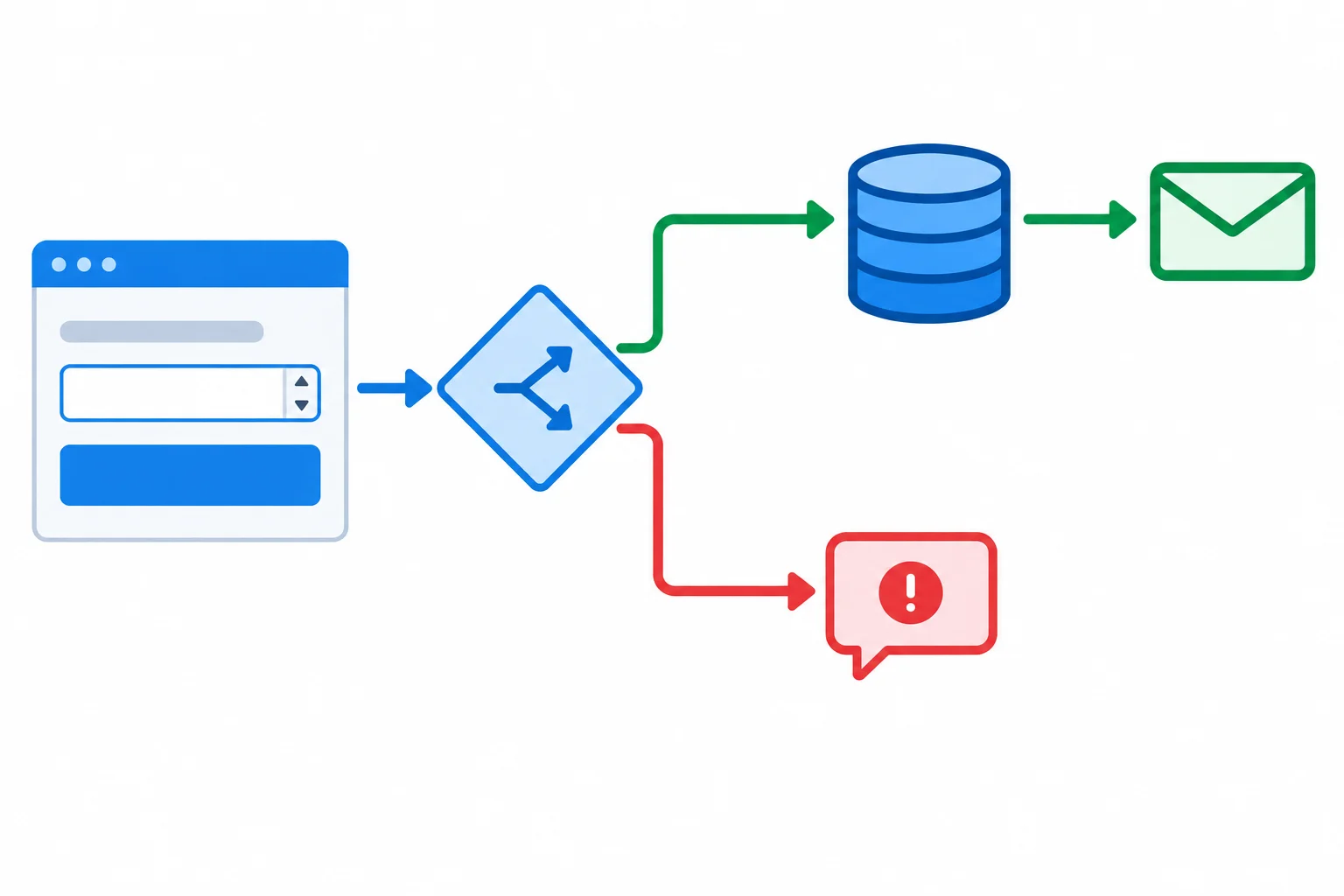
A useful explanation follows both the visible form outcome and the downstream effects.
Tip
A dependency is another component or service that the behavior relies on. Here, the existing confirmation-email service is a dependency: an allowed submission uses it, while a rejected submission must not trigger it.
Do not invent technical details from a fluent explanation. For example, the supplied workflow does not establish how the email service is connected internally or how the implementer will prevent its call after rejection.
Separate what the supplied notes establish from what the coding helper infers. The notes establish the existing flow from Submit request to request saving and the existing confirmation email. They also establish the confirmed target outcomes for allowed and rejected submissions.
The helper can turn those facts into a clear change explanation. It should mark unsupported claims rather than presenting them as system facts. The implementer is the person who must confirm system mechanics that the notes do not show.
Example
Change explanation from the coding helper
“When a user selects Submit request, Team Supply evaluates Quantity. An allowed whole-number value from 1 through 20 continues to create one request and invokes the existing confirmation-email service. A rejected value shows a quantity-specific message, keeps the entered form values, and stops request creation and email sending. Existing requests are not changed.”
How to read it
Quantity.Tip
Ask the coding helper for an explanation of effects and uncertainties—not for a claim that the change is complete. A useful follow-up is: “Which statements are supplied facts, which are assumptions, and what must the implementer confirm?”
Match each statement from a coding helper’s explanation to the kind of information it represents. One statement identifies a detail the explanation does not provide.
Tap an item and then its matching pair.

Step 4 of 8
Compare a proposed Team Supply change explanation with the confirmed brief, identify contradictions and potential effects, and ask focused questions about unknown behavior.
A fluent change explanation can sound complete while leaving a required outcome out. Compare it line by line with the confirmed brief instead of trusting its tone.
Use four headings: Requirement, Proposed behavior, Match or gap, and Question for implementer. Record what the explanation actually says. A missing detail is an unknown—not proof that the software already fails.
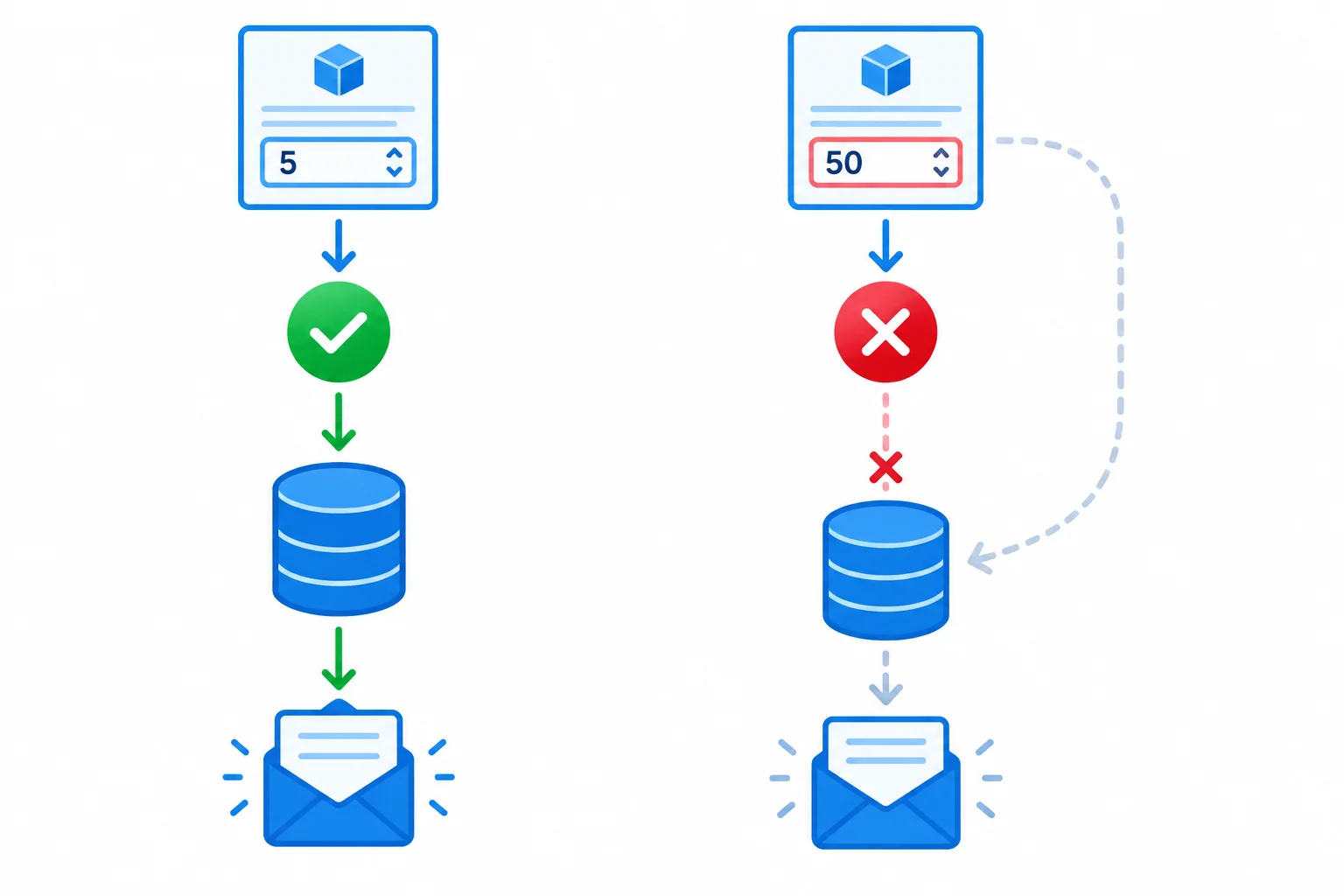
A quantity-specific message is only one part of the requirement. For a rejected submission, the request storage and confirmation-email path must also be stopped.
Map this illustrative explanation to the confirmed Team Supply brief.
| Requirement | Proposed behavior | Match or gap | Question for implementer |
|---|---|---|---|
| Reject an unsuitable `Quantity` on submission | Show a quantity-specific message | Gap: message alone does not describe downstream behavior | Does rejection stop both saving and email? |
| Do not substitute a default for `(blank)` | Use 1 when the field is blank | Contradiction: an unrequested default is proposed | Can blank input be rejected instead? |
| Existing requests remain unchanged | No treatment of existing requests is described | Unknown, not a proven defect | Will existing request records remain unchanged? |
Separate two kinds of review note:
Quantity becomes 1, it conflicts with the confirmed rule that (blank) receives no default.Possible unintended effects deserve the same check: a default can create an unwanted request, changing historical records can alter existing data, and an altered confirmation path can affect accepted submissions.
Example
Coding helper's change explanation: “The form checks the value at submission and displays a quantity-specific message when needed. It uses the current confirmation-email service.”
A careful reviewer can say: the visible message is described, but the explanation does not establish whether rejected submissions bypass request storage and the email service. The reviewer asks the implementer about that path; they do not claim an unobserved email was sent.
Even when every sentence appears to match the brief, the explanation is still a proposal. It is not evidence that the behavior has occurred.
Tip
Keep questions narrow and observable. Ask about the decision point and its consequence—for example, whether rejection occurs before a request is stored and before the email service is triggered.
Read this proposed change explanation for Team Supply:
“On Submit request, the form will reject text and decimal entries with a quantity-specific message. A blank Quantity will be changed to 1 so the request can continue. Confirmation emails will keep working as before. Existing request records will be updated to the new range.”
Write three short labeled notes:
Requirement mismatchPossible unintended effectQuestion for implementerIdentify one of each. Base the mismatch and effect on the confirmed brief. Make the question seek an unknown detail about a rejected submission; do not claim that an unobserved failure already happened.
Write at least 120 characters (0/120).

Step 5 of 8
Turn the confirmed normal submission behavior into an observable acceptance check without treating an expected result as executed evidence.
An acceptance check is a behavioral verification specification: it describes what must be true before a check, what a person does, and what they can observe or inspect afterward.
Use these headings:
Starting conditionsUser actionExpected resultIt describes required behavior, not the implementation approach. A reader should be able to carry out the action and compare the outcome with the stated expectation.
Replace broad claims such as “works correctly” with specific outcomes. For a successful submission, relevant outcomes can include what happens in the form and what happens to the request record or the existing confirmation email.
Writing an Expected result is not evidence that it happened. Use Observed result only after an actual check has been carried out; a mockup or illustrative diagram is not test evidence.
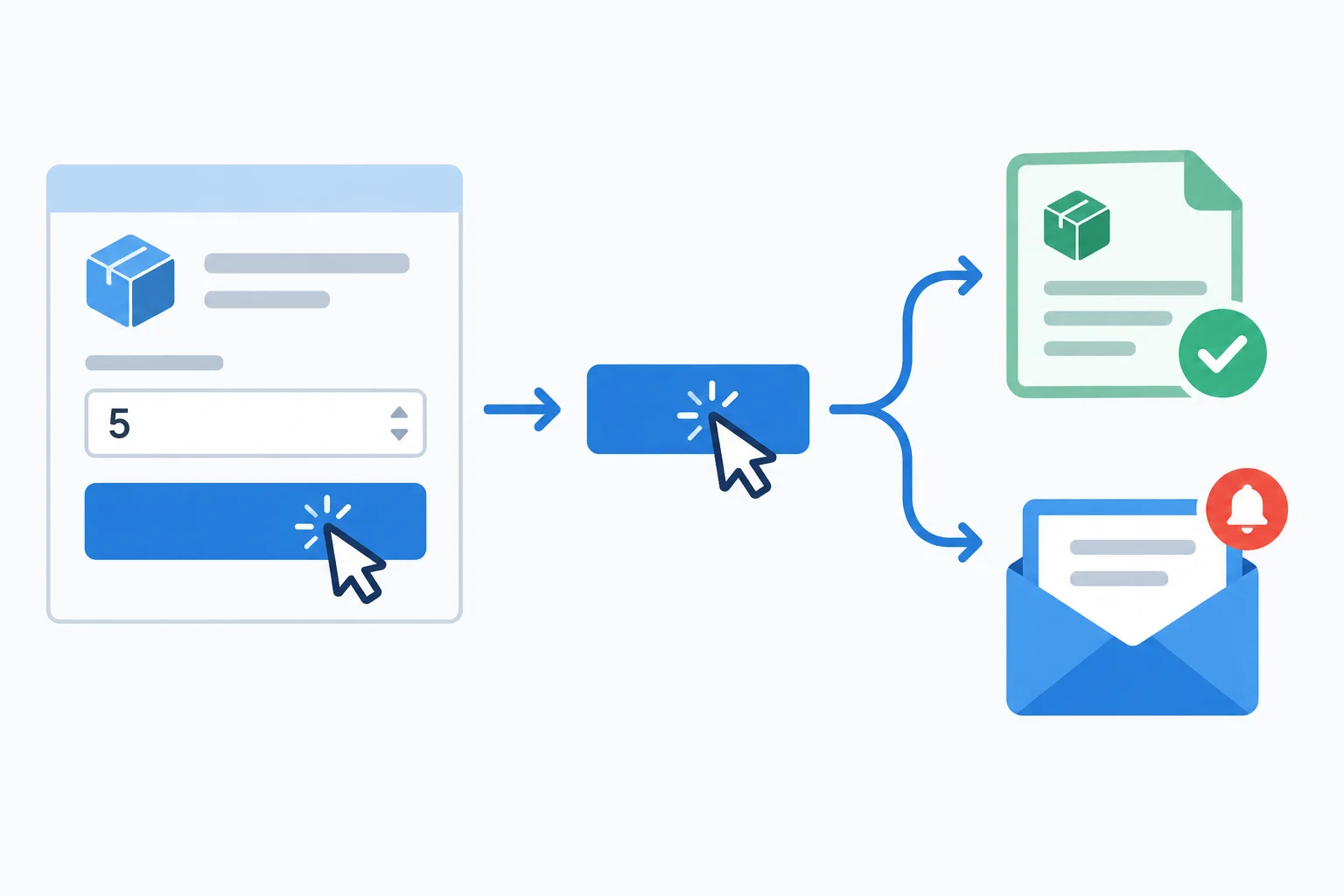
This diagram represents the expected successful flow. It is a specification diagram, not an observed result from an executed check.
This normal-input acceptance check uses the confirmed valid quantity 5. It states outcomes that an implementer can inspect without claiming that the check has already been run.
Example
Starting conditions
The Team Supply supply-request form is open and ready for a new request.
User action
Enter 5 in Quantity, then select Submit request.
Expected result
One request with quantity 5 is saved, and the existing confirmation email is triggered.
Tip
Notice the difference between an expectation and a report. The example says what should happen. It does not say that a request was observed in storage or that an email was received.
Arrange the parts of the normal acceptance check in the order another person would use them.
Your sentence
Available words
For the normal Team Supply case you just assembled, write a short acceptance check using Starting conditions, User action, and Expected result. Replace the vague expectation “works correctly” with concrete, observable outcome(s).
Write at least 160 characters (0/160).
Step 6 of 8
Extend the Team Supply acceptance checks beyond the normal path, covering missing, invalid, and boundary quantities with observable expected results.
A complete acceptance check covers more than the normal success path. Use different lenses to expose different specification gaps:
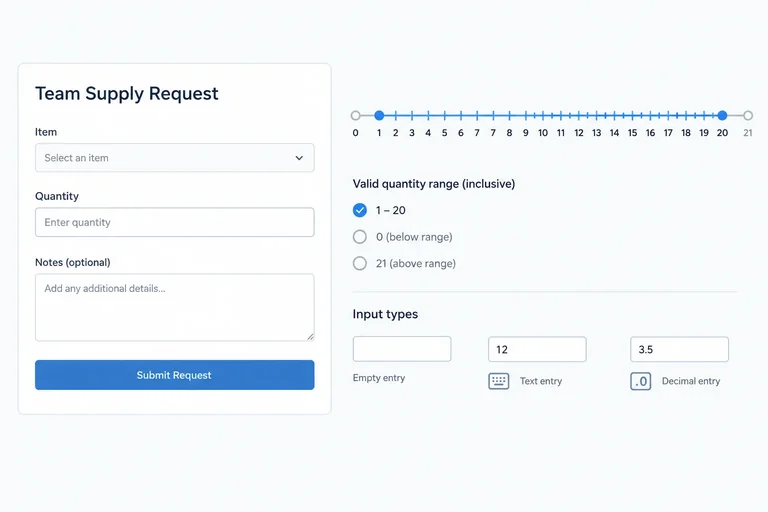
5.(blank); it is not literal text typed into Quantity.three or 1.5.0, 1, 20, and 21.The confirmed rule—not a coding helper’s preference—sets the decision: Quantity must be a whole number from 1 through 20, inclusive. A value can fit more than one lens: 0 and 21 are boundary values and invalid values because they are outside the allowed range.
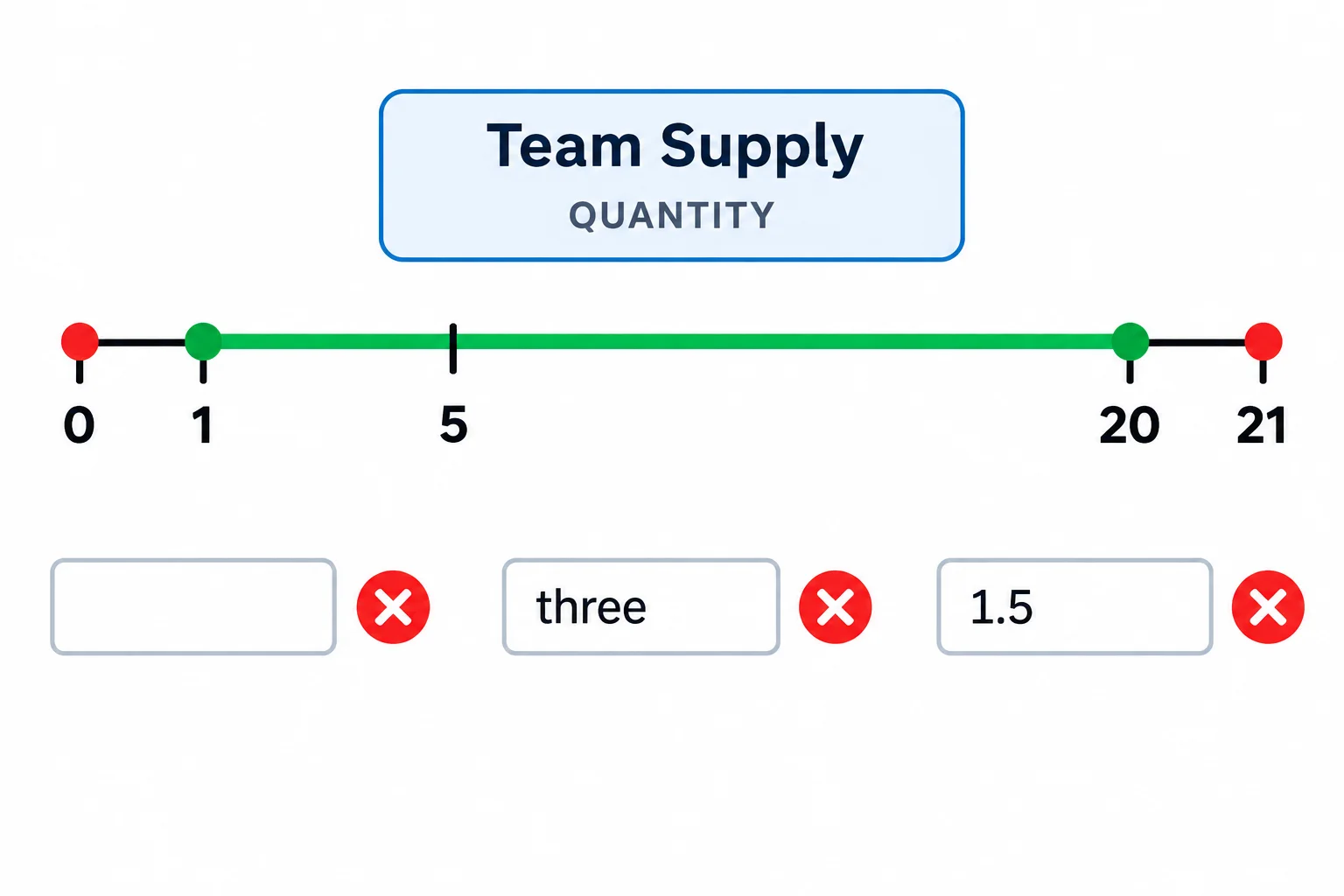
Boundary coverage checks both included endpoints and immediately adjacent excluded values.
Use each lens to choose cases deliberately; the lenses are not mutually exclusive.
| Coverage lens | Quantity examples | What it reveals |
|---|---|---|
| Normal | `5` | The intended successful path |
| Missing | `(blank)` | Whether the field is required and has no default |
| Invalid | `three`, `1.5` | Whether text and fractional values are rejected |
| Boundary | `0`, `1`, `20`, `21` | Whether the inclusive range is applied at both ends |
For every rejected submission, make the outcome observable—not merely “validation fails.” The acceptance check should state that a quantity-specific message appears, entered values are preserved, no request is saved, and the existing confirmation email is not triggered.
For accepted values, state the opposite relevant outcomes: one request is saved and the existing confirmation email is triggered. Existing requests remain unchanged in either case.
These are Expected result statements. They predict what a later executed check should find; they are not an Observed result.
Example
Starting conditions
A Team Supply request form is open. Record the current saved-request count and confirmation-email count for comparison.
User action
Enter three in Quantity, then select Submit request.
Expected result
A quantity-specific message is shown. three remains in Quantity. The saved-request count does not increase, existing requests are unchanged, and the existing confirmation email is not triggered.
Apply the same outcome rule consistently to each case.
| Quantity | Expected result |
|---|---|
| `5`, `1`, or `20` | Accept; save one request; trigger the existing confirmation email |
| `(blank)` | Reject; quantity-specific message; preserve values; no save or email |
| `three` or `1.5` | Reject; quantity-specific message; preserve values; no save or email |
| `0` or `21` | Reject; quantity-specific message; preserve values; no save or email |
Complete a compact acceptance table for independent Team Supply submissions. Include shared Starting conditions and User action, then provide one Expected result row for each of these Quantity cases: 5, (blank), three, 1.5, 0, 1, 20, and 21.
Your rows must distinguish accepted from rejected submissions. For every rejected case, include the quantity-specific message, preserved values, no saved request, and no existing confirmation email. For accepted cases, include one saved request and the existing confirmation email.
Write at least 450 characters (0/450).

Step 7 of 8
Distinguish a proposed explanation from review, executed test evidence, and release status, without treating a helper’s assurance as proof.
A coding helper can draft a confident change explanation, but confidence is not evidence that Team Supply behaves correctly.
Use the implementation-state labels to describe what evidence is available:
Proposed: a change has been suggested.Reviewed: a qualified person examined a stated scope.Tested: a check was actually run and its result recorded.Released: the change was deployed for intended users.These labels describe different activities. They are not a guarantee that the quantity rules, saved-request behavior, or confirmation-email behavior are correct.

The activities correspond to Proposed, Reviewed, Tested, and Released. Their arrangement is not a quality ladder: one label does not prove the claims associated with another.
Use the strongest conclusion the available evidence supports—no stronger.
| State | Evidence available | It does not establish |
|---|---|---|
| Proposed | A suggested change or change explanation | That the software works |
| Reviewed | A qualified person examined a stated scope | That a check was executed successfully |
| Tested | A check was executed and a result recorded | That every untested case works |
| Released | The change was deployed for intended users | That every requirement is satisfied |
For example, a helper may explain that rejected quantities preserve entered values, save no request, and trigger no email. Without a qualified review record or an executed acceptance check with an Observed result, this remains a Proposed claim.
A Tested result can include a failure. It supports only the conditions and action that were actually checked; it does not silently cover every other input or environment.
Tip
Treat claims about unchanged existing requests, absent saved requests after rejection, and absent confirmation emails as items that need appropriate human review or actual check results—not as facts established by the helper.
A qualified person reviewed the quantity-validation description. This alone establishes that an actual acceptance check passed.
Match each statement to the strongest conclusion it supports.
Tap an item and then its matching pair.

Step 8 of 8
Finalize a concise Team Supply change handoff that aligns confirmed behavior, proposal gaps, acceptance checks, and remaining evidence needs.
A final handoff is a compact decision package for the implementer. It connects the owner-confirmed brief, the coding helper’s change explanation, any proposal gap, acceptance checks, and the evidence still needed.
Final review asks one question across all of them: Do they describe the same observable behavior? A clear handoff can be ready for implementation while the change itself remains unverified. It does not turn a proposal into a Reviewed, Tested, or Released change.

A handoff keeps the request, proposal, checks, and evidence needs connected rather than treating them as separate notes.
Use this supplied, partially completed Team Supply handoff as your source. The existing acceptance coverage includes only the normal successful path with Quantity set to 5; missing, invalid, and boundary coverage still needs to be written.
Example
Current behaviorSubmit request saves a request and triggers the existing confirmation email even when Quantity is blank or contains unsuitable text.
Desired behavior
Confirmed fact — request owner: On submission, accept whole-number Quantity values from 1 through 20, inclusive. A valid submission saves one request and triggers the existing confirmation email. A rejected submission shows a quantity-specific message, preserves entered values, saves no request, and triggers no email.
Constraints
Confirmed fact — request owner: Do not substitute a default for a blank entry. Existing requests remain unchanged.
Open questions
No owner decision is open in this brief.
Example
The coding helper’s revised change explanation says: “When the user selects Submit request, Team Supply checks Quantity before request storage and before the existing confirmation-email service. Whole numbers from 1 through 20 proceed normally. Blank, text, fractional, and out-of-range entries show a quantity-specific message and do not create a request or send an email. Existing requests are not changed. After a rejection, the form clears Quantity so the user can enter it again.”
Compare the explanation against the confirmed brief before handing work to the implementer.
| Requirement | Proposed behavior | Match or gap | Question for implementer |
|---|---|---|---|
| Validate on submission before downstream actions | Checks before storage and email service | Match | — |
| Rejected submission preserves entered values | Clears `Quantity` after rejection | Gap | How will entered values remain visible after rejection? |
| Existing requests remain unchanged | States existing requests are not changed | Match | — |
| Valid submission saves one request and triggers the existing email | States valid values proceed normally after the checks | Match | — |
Prepare the final additions to the Team Supply handoff using the supplied brief and change explanation.
Use these headings:
Correction to proposal — correct the remaining mismatch without inventing a new request-owner decision.Acceptance checks — write observable checks for all four categories: normal (5), missing ((blank)), invalid (three and 1.5), and boundary (0, 1, 20, and 21). For each category, use Starting conditions, User action, and Expected result.Evidence still needed — state which implementation-state label the available evidence supports, plus what qualified review or executed checks are still needed. Do not claim the change has been reviewed, tested, or released.Keep the results specific about saved requests, confirmation emails, feedback, and preserved values where applicable.
Write at least 700 characters (0/700).
Summary
A useful handoff does not certify implementation. It gives the implementer one consistent target and makes the next evidence-gathering action clear.
Proposed state, not a claim that the change is Reviewed, Tested, or Released.Congratulations! You completed: Clarifying Software Changes with a Coding Helper
You completed this level!
Up next: Document Retrieval and Quality Testing
 How Retrieval-Augmented Generation Uses DocumentsExplain how an assistant retrieves document passages to support an answer, and distinguish this process from retraining a model or simply pasting more text into a conversation.
Thousands of online courses in video, ebooks and audiobooks.
To test your knowledge during online courses
Generated directly from your cell phone's photo gallery and sent to your email

Download our app via QR Code or the links below:.



Carry knowledge in your pocket.
Download the Cursa app.
There are hundreds of free courses available, with a free certificate of completion that is saved in your mobile image gallery.
Download the app to access the Course Completion Certificate for Free.


+ 10 million
students

Free and Valid
Certificate

60 thousand free
exercises

4.8/5 rating in
app stores

Free courses in
video and ebooks