Free Course Image Linux for Beginners

Free online courseLinux for Beginners

Duration of the online course: 5 hours and 45 minutes

New

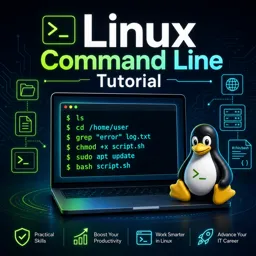
Free Linux course for beginners: terminal basics, processes, files, permissions, scripting, networking, SSH, and essential command-line tools.

In this free course, learn about

  • Getting Started with Linux and Your Environment
  • Shell, Commands, and Help System Basics
  • Processes and Monitoring
  • Streams, Redirection, and Piping
  • File System Navigation and Core File Operations
  • Finding, Processing, and Archiving Files
  • Users, Permissions, and Running Scripts
  • Networking, Remote Access, and Environment Variables

Course Description

Linux for Beginners is a free online course in Technology and Programming designed for anyone who wants to feel confident using Linux in real, everyday scenarios. It starts from the essentials and quickly builds practical skills you can apply whether you are learning for IT support, development, DevOps, or simply to better understand how operating systems work.

You will begin with a clear introduction and learn common ways to use Linux on Windows and macOS, including running Linux in containers with Docker. From there, you will get comfortable with the shell and terminal, understand how commands are interpreted, and learn how to get help efficiently with built-in documentation and command options.

The course then moves into working with processes and system monitoring, including how to inspect running tasks, start and stop processes, and use popular tools for visibility and troubleshooting. You will also learn how Linux handles input and output streams, how to redirect output and errors, and how to connect commands together using piping for more powerful workflows.

File and directory management is covered in depth, including navigating the Linux filesystem, creating and removing files and folders, editing with Vim and Nano, copying and moving data, and reading and filtering text with tools like grep. You will practice working with links, searching effectively using find, and combining results with xargs to automate repetitive tasks. Archiving and compression with tar and gzip are also included to help you manage backups and bundles.

To round out essential administration skills, you will explore user management, ownership, permissions, and scripting basics, including making scripts executable and configuring PATH. The networking section helps you verify connectivity, inspect IP settings, enable and use SSH for remote access, and use common tools like curl and wget. You will also work with environment variables to make your command-line work more flexible and reusable.

Course content

  • Video class: Linux Tutorial: Introduction 03m
  • Exercise: Why is learning Linux considered important for software developers and IT roles?
  • Video class: Linux Tutorial: 1 Possible options to use Linux on MacOS and Windows 01m
  • Video class: Linux Tutorial: 2 Creating Linux container using Docker 02m
  • Video class: Linux Tutorial: 3 What is Shell, Terminal and Command 04m
  • Video class: Linux Tutorial: 4 Getting information about Linux computer 05m
  • Exercise: Which command prints the currently used shell in a typical Bash session?
  • Video class: Linux Tutorial: 5 How shell understands that you have entered command 04m
  • Video class: Linux Tutorial: 6 Getting help about commands using man utility 06m
  • Video class: Linux Tutorial: 7 Command Options 08m
  • Video class: Linux Tutorial: 8 Command Arguments 09m
  • Exercise: What does it mean when an argument in a command's usage is NOT in square brackets (e.g., mkdir [OPTION] DIRECTORY)?
  • Video class: Linux Tutorial: 9 Arguments for Options 04m
  • Video class: Linux Tutorial: 10 What are processes 01m
  • Exercise: What happens in Linux when you enter a command like ls or mkdir?
  • Video class: Linux Tutorial: 11 List running processes 03m
  • Video class: Linux Tutorial: 12 Starting additional processes and killing process 05m
  • Exercise: Which command is used to stop a specific process by its process ID (PID)?
  • Video class: Linux Tutorial: 13 Installing htop package using apt get 02m
  • Video class: Linux Tutorial: 14 Using htop utility 04m
  • Exercise: In htop, which key is used to send a kill signal to the selected process?
  • Video class: Linux Tutorial: 15 Summary for Processes Monitoring 05m
  • Video class: Linux Tutorial: 16 Data Streams of the Process 02m
  • Exercise: Which data streams does every running Linux process have?
  • Video class: Linux Tutorial: 17 Redirecting STDOUT and STDERR to the file 04m
  • Video class: Linux Tutorial: 18 Where process data streams send data by default 03m
  • Exercise: In a terminal session, what happens by default to a command’s standard output and standard error streams?
  • Video class: Linux Tutorial: 19 How to send data to STDIN and redirect STDOUT and STDERR 11m
  • Video class: Linux Tutorial: 20 Piping 04m
  • Video class: Linux Tutorial: 21 Summary for Data Streams and Piping 01m
  • Video class: Linux Tutorial: 22 Introduction to the Files and Directories Management 00m
  • Exercise: What is the main topic introduced in the new section?
  • Video class: Linux Tutorial: 23 Linux File System structure and navigation 10m
  • Video class: Linux Tutorial: 24 Listing files and directories 09m
  • Exercise: In the long listing output of ls -l, what does the very first character in each line indicate?
  • Video class: Linux Tutorial: 25 Exploring subdirectories of the root directory 06m
  • Video class: Linux Tutorial: 26 Creating and removing directories and files 05m
  • Exercise: Which command and option lets you create a nested directory path even if the parent directories don’t exist yet?
  • Video class: Linux Tutorial: 27 Creating new files 04m
  • Video class: Linux Tutorial: 28 Editing files using Vim and Nano editors 07m
  • Exercise: In the Nano editor, which key combination is used to exit?
  • Video class: Linux Tutorial: 29 Copy and move files and directories 08m
  • Video class: Linux Tutorial: 30 Reading files 05m
  • Exercise: Which command allows you to monitor live changes to a file and see new lines as they are appended?
  • Video class: Linux Tutorial: 31 Filtering text using grep command 04m
  • Video class: Linux Tutorial: 32 Soft vs Hard links 07m
  • Exercise: Which set of properties best indicates two files are hard links to the same data?
  • Video class: Linux Tutorial: 33 Creating hard and soft links 08m
  • Video class: Linux Tutorial: 34 Introduction to the Find command 05m
  • Exercise: When you run the command find with no additional arguments, what does it output?
  • Video class: Linux Tutorial: 35 Searching files using Find command 05m
  • Video class: Linux Tutorial: 36 Some other examples of the Find command 05m
  • Exercise: Which find command option filters results to show only directories?
  • Video class: Linux Tutorial: 37 Executing additional commands inside of the Find operation 06m
  • Video class: Linux Tutorial: 38 Xargs command 04m
  • Exercise: What does the pipe operator (|) do in Linux commands?
  • Video class: Linux Tutorial: 39 Piping results of the Find command to the other command using Xargs 05m
  • Video class: Linux Tutorial: 40 Overview of the tar and gzip utilities 03m
  • Video class: Linux Tutorial: 41 Creating and extracting compressed archive using tar and gzip 07m
  • Video class: Linux Tutorial: 42 Sorting files using ls command 04m
  • Exercise: Which command option sorts files by modification time with newest items shown first?
  • Video class: Linux Tutorial: 43 Sorting contents of the files using Sort utility 06m
  • Video class: Linux Tutorial: 44 Introduction to users management in Linux 01m
  • Exercise: What does the tilde (~) represent in a Linux terminal?
  • Video class: Linux Tutorial: 45 Creating users using useradd command 14m
  • Video class: Linux Tutorial: 46 Creating new user using adduser command 06m
  • Exercise: What is the main purpose of the Linux command used to create a new user (e.g., useradd/adduser)?
  • Video class: Linux Tutorial: 47 Changing ownership of the file 10m
  • Video class: Linux Tutorial: 48 Changing files permissions 14m
  • Exercise: Which numeric permission should you set to make a file readable, writable, and executable by the owner, and readable + executable by everyone else?
  • Video class: Linux Tutorial: 49 Creating executable script 08m
  • Video class: Linux Tutorial: 50 Adding path to scripts to the PATH variable 04m
  • Exercise: How can you run a script from anywhere without typing its absolute or relative path?
  • Video class: Linux Tutorial: 51 Summary for Users, Permissions and Scripts 00m
  • Video class: Linux Tutorial: 52 Introduction to the Linux Networking Section 00m
  • Exercise: Which set of utilities is used to verify remote connectivity and related network information?
  • Video class: Linux Tutorial: 53 Exploring ip address settings 09m
  • Video class: Linux Tutorial: 54 Verifying connectivity with remote servers 06m
  • Exercise: Which command is used to manually perform a DNS lookup to resolve a hostname to an IP address?
  • Video class: Linux Tutorial: 55 Enabling SSH on the Linux server 06m
  • Video class: Linux Tutorial: 56 Connecting to the Linux server remotely via SSH 08m
  • Video class: Linux Tutorial: 57 Using curl and wget utilites 05m
  • Video class: Linux Tutorial: 58 Environment variables 05m
  • Exercise: Which command is used to create (or modify) an environment variable for the current shell session?
  • Video class: Linux Tutorial: 59 SOLUTION Script with env variable access 02m

This free course includes:

5 hours and 45 minutes of online video course

Digital certificate of course completion (Free)

Exercises to train your knowledge

100% free, from content to certificate

Ready to get started?Download the app and get started today.

Install the app now

to access the course
Icon representing technology and business courses

Over 5,000 free courses

Programming, English, Digital Marketing and much more! Learn whatever you want, for free.

Calendar icon with target representing study planning

Study plan with AI

Our app's Artificial Intelligence can create a study schedule for the course you choose.

Professional icon representing career and business

From zero to professional success

Improve your resume with our free Certificate and then use our Artificial Intelligence to find your dream job.

You can also use the QR Code or the links below.

QR Code - Download Cursa - Online Courses

More free courses at Hardware, Operating Systems and IT Support

Free Ebook + Audiobooks! Learn by listening or reading!

Download the App now to have access to + 5000 free courses, exercises, certificates and lots of content without paying anything!

  • 100% free online courses from start to finish

    Thousands of online courses in video, ebooks and audiobooks.

  • More than 60 thousand free exercises

    To test your knowledge during online courses

  • Valid free Digital Certificate with QR Code

    Generated directly from your cell phone's photo gallery and sent to your email

Cursa app on the ebook screen, the video course screen and the course exercises screen, plus the course completion certificate