When people start learning computers, it’s easy to focus on the device itself—screen, keyboard, mouse. But what really makes a computer useful is software: the programs and systems that tell the hardware what to do. Understanding the basic types of software (and how they connect) makes everything else—learning new tools, solving small problems, and staying confident—much easier.
This guide explains the essentials: what an operating system is, what apps are, what “installation” means, why updates matter, and how to choose software safely—without getting lost in technical jargon.
1) Hardware vs. software (the simplest definition)
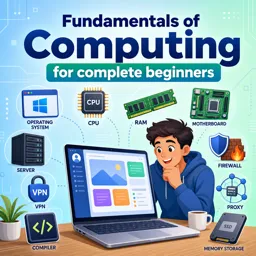
Think of hardware as the physical parts you can touch (laptop body, monitor, mouse). Software is the set of instructions that runs on that hardware. Without software, even the most powerful computer is basically an inactive machine.
At a beginner level, it helps to group software into two big categories:
- System software: runs the computer itself (mainly the operating system).
- Application software (“apps”): helps you do tasks—write documents, browse the web, edit photos, chat, learn, and more.
2) What an operating system (OS) does
The operating system is the main software that manages the computer and provides the interface you use. It acts like a translator and coordinator between you, your apps, and the hardware.
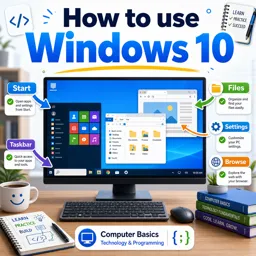
Common OS examples include Microsoft Windows, macOS, Linux, Android, and iOS. On many beginner computers, you’ll encounter Windows. If you’re learning that environment, you can also explore the Microsoft Windows topic here: https://cursa.app/free-online-courses/windows-11
Core jobs of an operating system include:
- Managing files: saving, opening, and organizing documents.
- Running programs: starting apps and letting them share system resources.
- Handling devices: printers, headphones, webcams, storage drives.
- Security basics: accounts, permissions, and system protections.
- User interface: desktop, menus, windows, settings.
3) What apps are (and why you have different kinds)
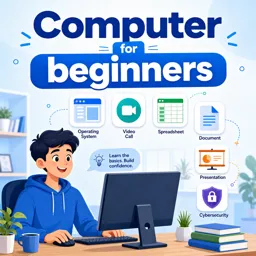
Applications (apps/programs) are tools for specific tasks. Beginners often use these categories first:
- Web browsers (to access websites and web apps)
- Office apps (documents, spreadsheets, presentations)
- Messaging and video calling (communication)
- Media apps (music, photos, video)
- Utility apps (PDF readers, compression tools, note apps)
Some apps are installed on your computer. Others run mostly in the browser (like many email services). Both are valid—what matters is understanding where the app “lives” and what it needs to run.

4) Installed software vs. web apps
One confusing beginner point: not everything needs to be installed.
- Installed apps run on your device. You download them and they appear in your app list. They may work even without internet (depending on the app).
- Web apps run in your browser. You typically log in to a website and use the service there. They rely more on an internet connection.
How to choose?
- If you want offline access and strong performance (like video editing), installed apps are common.
- If you want access from anywhere without managing installations, web apps can be easier.
5) What “installing” actually means
Installing is simply the process of placing the necessary program files on your device and registering them with the operating system so you can run the app easily.
During installation, you might see options like:
- Install location (where the files go)
- Shortcuts (desktop/start menu entries)
- Permissions (what the app can access)
Beginner rule: take your time during installs. If you see optional “extras” you didn’t ask for (toolbars, “recommended” add-ons), skip them unless you’re sure you want them.
6) Updates: why software changes and why it matters
Software updates can feel annoying, but they serve important purposes:
- Security fixes: closing weaknesses that scammers and malware might exploit.
- Bug fixes: solving problems like crashes or features not working.
- Compatibility: working better with new devices, file types, and services.
- New features: improvements over time.
Good practice is to keep the operating system and major apps (browser, office tools, communication apps) updated. It’s one of the easiest ways to avoid preventable issues.
7) File types and “default apps” (why double-clicking works)
When you double-click a file, the operating system decides which program should open it. That decision is based on the file type (like .pdf, .jpg, .mp3, .docx).
The app your computer uses automatically is called the default app. Sometimes defaults change after installing new software. If a file suddenly opens in the “wrong” program, you usually just need to change the default app in system settings.
8) Permissions and accounts: why software asks for access
Many apps request permission to access things like:
- Microphone/camera (video calls)
- Location (maps)
- Files (uploading or saving documents)
- Notifications (alerts)
These prompts can be helpful—but they also matter for privacy. A useful beginner habit is to ask: “Does this app need this permission to do what I want?” If not, deny it. You can usually change permissions later in settings.
9) Choosing software safely (beginner checklist)
To avoid unwanted programs and risky downloads, use this checklist:
- Prefer official sources: the developer’s site or the operating system’s app store when available.
- Read the name carefully: scammers imitate popular app names.
- Watch out for “download managers”: avoid third-party installers that bundle extras.
- Check reviews and reputation: a quick search can reveal common problems.
- Be cautious with “free” tools: free can be fine, but verify what it installs and what data it collects.
For broader learning pathways in this area, explore the Information Technology course category: https://cursa.app/free-online-information-technology-courses and the Basic informatics subcategory: https://cursa.app/free-courses-information-technology-online

10) A simple mental model for confidence
If you remember one model, use this:
- Hardware is the machine.
- The operating system runs the machine and provides the interface.
- Apps let you do specific tasks.
- Files are what you create and use inside apps.
Once that clicks, many “mysteries” become easier: why updates appear, why installation matters, why file types open in specific apps, and how to troubleshoot when something feels off.
Next steps
To build practical skills quickly, focus on a few core actions: install one trusted app, update it, open different file types, and practice changing a setting (like default apps or permissions). These small experiments create the kind of familiarity that makes computers feel manageable instead of intimidating.