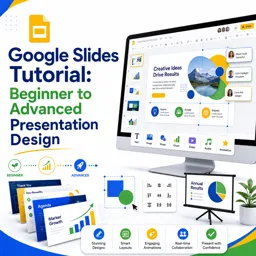
Free Course Image Google Slides Tutorial: Beginner to Advanced Presentation Design

Free online courseGoogle Slides Tutorial: Beginner to Advanced Presentation Design

Duration of the online course: 4 hours and 51 minutes

New

Free Google Slides course from beginner to advanced: design better presentations with themes, images, charts, video, animations, and collaboration tools.

In this free course, learn about

  • Getting Started with Google Slides
  • Slides Management and Layout Basics
  • Text and Typography Essentials
  • Images: Inserting and Sources
  • Shapes, Lines, and Object Arrangement
  • Image Editing and Formatting
  • Video and Visual Data Elements
  • Transitions, Animations, and Presenting
  • Sharing, Collaboration, and File Management
  • Editing Efficiency and Layout Precision
  • Audio, Word Art, and Tables
  • Links, Numbers, and Proofing Tools
  • Smart Features and Productivity Tools
  • Accessibility, Themes, Add-ons, and Advanced Projects

Course Description

Learn to design polished, professional presentations with the free Google Slides Tutorial: Beginner to Advanced Presentation Design. Built for the Technology and Programming category within Office Productivity, this course guides you from your first steps in Google Slides to advanced formatting, visual design, and delivery features that make your decks look clean, consistent, and compelling.

You will move confidently through the workspace, creating presentations from scratch or with templates, managing files in Drive, and organizing slides for a smooth narrative flow. You will improve readability with typography controls, spacing, alignment, lists, and advanced text cleanup, while keeping designs consistent with themes and master slides.

For visual storytelling, you will work with images from multiple sources, crop and mask them into shapes, apply adjustments and effects, and precisely position and arrange elements using align, distribute, rotate, order, grouping, guides, and grid tools. You will also add shapes, lines, arrows, word art, tables, special characters, links, slide numbers, and diagrams to build structured, modern layouts.

To make presentations more engaging, you will embed video and audio, add transitions and animations with timing control, and use presenter tools such as speaker notes, presenter view, and live Q and A. You will also explore collaboration and sharing workflows including comments, chat, version history, offline access, importing and copying decks, and exporting options for printing, emailing, and downloading. Accessibility features, alt text, and helpful productivity tools like spell check, find and replace, and menu search round out the skills so you can create, present, and collaborate with confidence in Google Slides.

Course content

  • Video class: Google Slides Tutorial - Lesson 1 - Accessing Google Slides 01m
  • Exercise: In Google Slides, what is the primary purpose of choosing a theme?
  • Video class: Google Slides Tutorial - Lesson 2 - Interface 02m
  • Video class: Google Slides Tutorial - Lesson 3 - Creating a Presentation from Blank Slide 02m
  • Video class: Google Slides Tutorial - Lesson 4 - Using Templates 02m
  • Exercise: What is the main benefit of using templates in Google Slides when creating a presentation?
  • Video class: Google Slides Tutorial - Lesson 5 - Saving and Accessing Presentations 02m
  • Video class: Google Slides Tutorial - Lesson 6 - Adding Slides with Different Preset Layouts 03m
  • Video class: Google Slides Tutorial - Lesson 7 - Rearranging Slides 01m
  • Exercise: How can you rearrange slides in Google Slides using Grid view?
  • Video class: Google Slides Tutorial - Lesson 8 - Copying, Deleting and Duplicating Slides 01m
  • Video class: Google Slides Tutorial - Lesson 9 - Changing Slide Background 03m
  • Video class: Google Slides Tutorial - Lesson 10 - Adjusting and Adding Text Boxes 02m
  • Exercise: How can you duplicate an existing text box in Google Slides?
  • Video class: Google Slides Tutorial - Lesson 11 - Textbox Fill and Stroke 02m
  • Video class: Google Slides Tutorial - Lesson 12 - Selecting Font Type and Font Size 01m
  • Video class: Google Slides Tutorial - Lesson 13 - Bold, Italics, Underline Text Color and Highlight Text 02m
  • Exercise: Which keyboard shortcut underlines selected text in Google Slides?
  • Video class: Google Slides Tutorial - Lesson 14 - Text Alignment and Line Spacing Options 04m
  • Video class: Google Slides Tutorial - Lesson 15 - Numbered and Bulleted List 02m
  • Video class: Google Slides Tutorial - Lesson 16 - Indent 01m
  • Video class: Google Slides Tutorial - Lesson 17 - Adding More Fonts 02m
  • Video class: Google Slides Tutorial - Lesson 18 - Upload Image from Computer 01m
  • Video class: Google Slides Tutorial - Lesson 19 - Search for Image on Web 01m
  • Exercise: How can you insert an image directly from the web in Google Slides?
  • Video class: Google Slides Tutorial - Lesson 20 - Insert Image from Google Drive 01m
  • Video class: Google Slides Tutorial - Lesson 21 - Insert Image by URL 01m
  • Video class: Google Slides Tutorial - Lesson 22 - Insert Image from Camera 01m
  • Exercise: How can you insert a photo directly from a connected camera into Google Slides?
  • Video class: Google Slides Tutorial - Lesson 23 - Inserting Shapes and Lines 03m
  • Video class: Google Slides Tutorial - Lesson 24 - Shape and Line Fill, Line Type and Color Options 03m
  • Video class: Google Slides Tutorial - Lesson 25 - Inserting and Working with Text inside of Shapes 02m
  • Exercise: How do you add text inside a shape in Google Slides?
  • Video class: Google Slides Tutorial - Lesson 26 - Turning Lines into Arrows 01m
  • Video class: Google Slides Tutorial - Lesson 27 - Align 02m
  • Video class: Google Slides Tutorial - Lesson 28 - Distribute 02m
  • Exercise: How do you evenly space multiple shapes in Google Slides?
  • Video class: Google Slides Tutorial - Lesson 29 - Centre 01m
  • Video class: Google Slides Tutorial - Lesson 30 - Rotate and Flip 01m
  • Video class: Google Slides Tutorial - Lesson 31 - Automatic Snapping 02m
  • Exercise: What does the appearance of guide lines and the object snapping indicate when moving items in Google Slides?
  • Video class: Google Slides Tutorial - Lesson 32 - Order 02m
  • Video class: Google Slides Tutorial - Lesson 33 - Grouping and Ungrouping 02m
  • Video class: Google Slides Tutorial - Lesson 34 - Crop Image 01m
  • Exercise: How do you crop an image in Google Slides?
  • Video class: Google Slides Tutorial - Lesson 35 - Replace Image 01m
  • Video class: Google Slides Tutorial - Lesson 36 - Reset Image 01m
  • Video class: Google Slides Tutorial - Lesson 37 - Size and Rotation 02m
  • Exercise: Where can you adjust an image’s exact width/height and rotation in Google Slides?
  • Video class: Google Slides Tutorial - Lesson 38 - Position 02m
  • Video class: Google Slides Tutorial - Lesson 39 - Recolor 02m
  • Video class: Google Slides Tutorial - Lesson 40 - Adjustments 02m
  • Exercise: Where do you go in Google Slides to change an image's transparency, brightness, and contrast?
  • Video class: Google Slides Tutorial - Lesson 41 - Drop Shadow 02m
  • Video class: Google Slides Tutorial - Lesson 42 - Reflection 01m
  • Video class: Google Slides Tutorial - Lesson 43 - Crop Image to Shape 01m
  • Exercise: How do you crop an image into a specific shape in Google Slides?
  • Video class: Google Slides Tutorial - Lesson 44 - Text Fitting 02m
  • Video class: Google Slides Tutorial - Lesson 45 - Insert Video from Google Drive 02m
  • Video class: Google Slides Tutorial - Lesson 46 - Insert Video from YouTube 02m
  • Exercise: How can you insert a YouTube video into Google Slides?
  • Video class: Google Slides Tutorial - Lesson 47 - Video Format Options 03m
  • Video class: Google Slides Tutorial - Lesson 48 - Inserting and Working with Diagrams 03m
  • Video class: Google Slides Tutorial - Lesson 49 - Inserting and Working with Bar Chart 03m
  • Exercise: How do you edit the data of a bar chart after inserting it in Google Slides?
  • Video class: Google Slides Tutorial - Lesson 50 - Inserting and Working with Column Chart 02m
  • Video class: Google Slides Tutorial - Lesson 51 - Inserting and Working with Line Chart 02m
  • Video class: Google Slides Tutorial - Lesson 52 - Inserting and Working with Pie Chart 02m
  • Exercise: How do you edit the data for a pie chart inserted in Google Slides?
  • Video class: Google Slides Tutorial - Lesson 53 - Inserting Charts from Existing Google Sheets Document 02m
  • Video class: Google Slides Tutorial - Lesson 54 - Transitions 02m
  • Video class: Google Slides Tutorial - Lesson 55 - Adding Animations 03m
  • Exercise: How can you make slide content appear only when you click during a presentation in Google Slides?
  • Video class: Google Slides Tutorial - Lesson 56 - Animation Type and Start Condition 04m
  • Video class: Google Slides Tutorial - Lesson 57 - Animation Duration and Order 03m
  • Video class: Google Slides Tutorial - Lesson 58 - Speaker Notes 02m
  • Exercise: How do you view speaker notes while presenting in Google Slides?
  • Video class: Google Slides Tutorial - Lesson 66 - Present Options 02m
  • Video class: Google Slides Tutorial - Lesson 67 - Presentation Tools 02m
  • Exercise: Which action is required before you can use the presentation tools toolbar in Google Slides?
  • Video class: Google Slides Tutorial - Lesson 68 - Presenter View 02m
  • Video class: Google Slides Tutorial - Lesson 69 - Question and Answer Session 03m
  • Video class: Google Slides Tutorial - Lesson 101 - Q and A History 02m
  • Video class: Google Slides Tutorial - Lesson 59 - Sharing Options 02m
  • Video class: Google Slides Tutorial - Lesson 60 - Simultaneously Collaborating on the same Slide 02m
  • Video class: Google Slides Tutorial - Lesson 61 - Comment and Chat 03m
  • Exercise: In Google Slides, what is the best way to quickly notify a collaborator (who is online) that you added a new comment on a slide?
  • Video class: Google Slides Tutorial - Lesson 62 - Version History 03m
  • Video class: Google Slides Tutorial - Lesson 63 - Print Slides 04m
  • Video class: Google Slides Tutorial - Lesson 64 - Email Slides 02m
  • Exercise: In Google Slides, which option emails the presentation as a non-editable attachment (e.g., PDF) instead of a collaboration link?
  • Video class: Google Slides Tutorial - Lesson 65 - Download Slides 02m
  • Video class: Google Slides Tutorial - Lesson 70 - Import Slides 02m
  • Exercise: How do you import slides from another file into a Google Slides presentation?
  • Video class: Google Slides Tutorial - Lesson 71 - Make a Copy Options 03m
  • Video class: Google Slides Tutorial - Lesson 72 - Make Available Offline 02m
  • Video class: Google Slides Tutorial - Lesson 73 - Add Shortcut to Drive 02m
  • Exercise: How do you create a Google Drive shortcut to a Google Slides file from within Slides?
  • Video class: Google Slides Tutorial - Lesson 74 - Document Details and Page Setup 02m
  • Video class: Google Slides Tutorial - Lesson 75 - Copying and Pasting and Pasting Without Formatting 01m
  • Video class: Google Slides Tutorial - Lesson 76 - Find and Replace 02m
  • Video class: Google Slides Tutorial - Lesson 77 - Snap to Grid 02m
  • Video class: Google Slides Tutorial - Lesson 78 - Guides 02m
  • Video class: Google Slides Tutorial - Lesson 79 - Inserting Audio 02m
  • Exercise: What is the correct sequence to insert an audio file into Google Slides?
  • Video class: Google Slides Tutorial - Lesson 80 - Audio Format Options 02m
  • Video class: Google Slides Tutorial - Lesson 81 - Word Art 02m
  • Video class: Google Slides Tutorial - Lesson 82 - Inserting Table 01m
  • Exercise: How do you insert a table in Google Slides?
  • Video class: Google Slides Tutorial - Lesson 83 - Inserting and Deleting Rows and Columns 02m
  • Video class: Google Slides Tutorial - Lesson 84 - Resizing and Distributing Rows and Columns 02m
  • Video class: Google Slides Tutorial - Lesson 85 - Merging and Unmerging Cells 02m
  • Exercise: In Google Slides tables, how do you merge two cells into one?
  • Video class: Google Slides Tutorial - Lesson 86 - Table Formatting Options 03m
  • Video class: Google Slides Tutorial - Lesson 87 - Table Content Alignment Options 02m
  • Video class: Google Slides Tutorial - Lesson 88 - Table Cell Color and Border Style 02m
  • Exercise: How do you change a table cell’s background color in Google Slides?
  • Video class: Google Slides Tutorial - Lesson 89 - Special Characters 02m
  • Video class: Google Slides Tutorial - Lesson 90 - Internal Slide Link 02m
  • Video class: Google Slides Tutorial - Lesson 91 - External Page Link 02m
  • Exercise: How do you create an external hyperlink on text in Google Slides?
  • Video class: Google Slides Tutorial - Lesson 92 - Slide Numbers 02m
  • Video class: Google Slides Tutorial - Lesson 93 - Advance Text Formatting Options 02m
  • Video class: Google Slides Tutorial - Lesson 94 - Clear Formatting 02m
  • Exercise: In Google Slides, which menu option removes most styling from selected pasted text while keeping links?
  • Video class: Google Slides Tutorial - Lesson 95 - Borders and Lines 01m
  • Video class: Google Slides Tutorial - Lesson 96 - Skip Slide Option 01m
  • Video class: Google Slides Tutorial - Lesson 97 - Spell Check 02m
  • Exercise: How can you turn off the red underlines for spelling errors in Google Slides?
  • Video class: Google Slides Tutorial - Lesson 98 - Explore 02m
  • Video class: Google Slides Tutorial - Lesson 99 - Linked Objects 01m
  • Video class: Google Slides Tutorial - Lesson 100 - Define using Dictionary 01m
  • Exercise: How can you look up a word’s meaning using the built-in dictionary in Google Slides?
  • Video class: Google Slides Tutorial - Lesson 102 - Edit Master Slides 03m
  • Video class: Google Slides Tutorial - Lesson 103 - Voice Type 02m
  • Exercise: How can you quickly add text to speaker notes in Google Slides without typing?
  • Video class: Google Slides Tutorial - Lesson 104 - Substitutions 01m
  • Video class: Google Slides Tutorial - Lesson 105 - Automatically Capitalize Words 02m
  • Video class: Google Slides Tutorial - Lesson 106 - Show Link Details 01m
  • Exercise: How can you hide the full URL preview that appears when clicking a linked word in Google Slides?
  • Video class: Google Slides Tutorial - Lesson 107 - Automatically Detect Link 01m
  • Video class: Google Slides Tutorial - Lesson 108 - Automatically Detect List 02m
  • Video class: Google Slides Tutorial - Lesson 109 - Smart Quotes and Dumb Quotes 02m
  • Exercise: How do you switch from smart quotes to straight (dumb) quotes in Google Slides?
  • Video class: Google Slides Tutorial - Lesson 110 - Keyboard Shortcuts 02m
  • Video class: Google Slides Tutorial - Lesson 111 - Search the Menus 01m
  • Video class: Google Slides Tutorial - Lesson 112 - Alt Text 01m
  • Exercise: What is the main purpose of adding alternative text (alt text) to an image in Google Slides?
  • Video class: Google Slides Tutorial - Lesson 113 - Save to Keep 01m
  • Video class: Google Slides Tutorial - Lesson 114 - Update Theme 02m
  • Video class: Google Slides Tutorial - Lesson 115 - Importing Themes 02m
  • Exercise: How do you import a PowerPoint theme into Google Slides?
  • Video class: Google Slides Tutorial - Lesson 116 - Using Addons 03m
  • Video class: Google Slides Tutorial - Lesson 117 - Accessibility Settings 02m
  • Video class: Google Slides Tutorial - Lesson 118 - Making Interactive Quiz 06m
  • Exercise: How do you make a quiz option in Google Slides navigate to a specific feedback slide (like Right answer or Wrong answer)?
  • Video class: Google Slides Searching and Inserting Image from Web 00m
  • Video class: Google Slides URL Shortcut to create new Google Slides 00m
  • Video class: Google Slides - Lesson 119 - Searching for Google Images 02m
  • Exercise: How can you insert a timeline image directly inside Google Slides without manually importing a file?

This free course includes:

4 hours and 51 minutes of online video course

Digital certificate of course completion (Free)

Exercises to train your knowledge

100% free, from content to certificate

Ready to get started?Download the app and get started today.

Install the app now

to access the course
Icon representing technology and business courses

Over 5,000 free courses

Programming, English, Digital Marketing and much more! Learn whatever you want, for free.

Calendar icon with target representing study planning

Study plan with AI

Our app's Artificial Intelligence can create a study schedule for the course you choose.

Professional icon representing career and business

From zero to professional success

Improve your resume with our free Certificate and then use our Artificial Intelligence to find your dream job.

You can also use the QR Code or the links below.

QR Code - Download Cursa - Online Courses

More free courses at Office Productivity (Excel, Word and More)

Free Ebook + Audiobooks! Learn by listening or reading!

Download the App now to have access to + 5000 free courses, exercises, certificates and lots of content without paying anything!

  • 100% free online courses from start to finish

    Thousands of online courses in video, ebooks and audiobooks.

  • More than 60 thousand free exercises

    To test your knowledge during online courses

  • Valid free Digital Certificate with QR Code

    Generated directly from your cell phone's photo gallery and sent to your email

Cursa app on the ebook screen, the video course screen and the course exercises screen, plus the course completion certificate