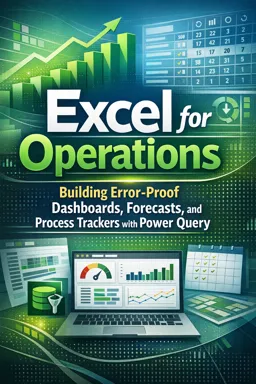
Free Course Image Excel Basics: Formulas, Functions, PivotTables and Power Query for Work

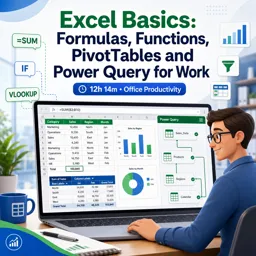
Free online courseExcel Basics: Formulas, Functions, PivotTables and Power Query for Work

Duration of the online course: 12 hours and 14 minutes

New

Boost your spreadsheet skills fast with a free Excel course—master formulas, PivotTables and Power Query to analyze data, automate tasks and work smarter.

In this free course, learn about

  • Excel interface basics: formatting, page setup, formulas, and relative/absolute/mixed cell references
  • Use absolute references ($) for fixed denominators; apply Excel's “golden rule” to build formulas correctly
  • Counting and conditional aggregations: COUNT, SUMIFS/COUNTIFS/AVERAGEIFS with multi-criteria AND logic
  • PivotTables: prep a proper dataset, insert PivotTable first; default text-in-Values is COUNT
  • Advanced PivotTable reporting: calculations, “Show Values As”, slicers, and other reporting tricks
  • Customize Excel workflow: Quick Access Toolbar (including non-ribbon commands) and show ribbon tabs
  • Keyboard efficiency: AutoSum shortcut and Insert Function dialog shortcut for finding functions
  • Data types & formatting: default alignment clues; why formatting can mask rounding errors; use ROUND
  • Date/time math: calculate hours worked from Time In/Out using correct time-difference formulas
  • Text formulas: concatenate/join text from multiple cells into one result
  • Logical tests: IF and IS functions for robust decision logic (e.g., bonus thresholds)
  • Lookup skills: VLOOKUP exact match (range_lookup FALSE/0) and common lookup patterns
  • Excel Tables vs defined names: structured references, auto-expanding ranges; limitations of named ranges
  • Data modeling & analysis: Relationships/Data Model for large Pivot reports; sort/filter/Flash Fill; charts & PQ prep

Course Description

Excel is one of the most practical workplace skills you can build, whether you manage budgets, track performance, clean lists, or turn raw data into clear reports. This free online course is designed to take you from everyday spreadsheet use to confident, job-ready productivity, focusing on the features that matter most in real workflows: solid formula habits, reliable references, smart formatting, powerful summaries, and modern data preparation.

You will start by creating cleaner, more readable sheets while learning how Excel thinks about calculations. You will practice writing formulas that copy correctly, using relative, absolute, and mixed references so your results stay accurate as your spreadsheet grows. Along the way, you will work with common functions and learn to troubleshoot typical errors that cost time at work, from numbers stored as text to results that look right but calculate incorrectly because of rounding and formatting behavior.

As you progress, you will move beyond manual totals and build interactive reports with PivotTables. You will learn how to prepare data so PivotTables work smoothly, how Excel summarizes different types of fields, and how to tailor layouts to match professional reporting expectations. You will also explore built-in tools that add analysis without extra formulas, such as options for showing changes over time, running totals, and percent differences, helping you explain trends with clarity.

To work faster, you will strengthen core productivity habits: customizing the Quick Access Toolbar, using time-saving keyboard shortcuts, setting defaults, and navigating Excel features efficiently. The course also covers working with dates and times for real business scenarios, plus function search tools that help you choose the right approach without guessing.

Finally, you will learn modern ways to manage and transform data. You will see when tables provide a stronger foundation than static ranges, why structured data matters for analysis, how relationships can replace lookups in large models, and how Power Query can streamline cleaning and combining data so your reports become easier to refresh and maintain.

Course content

  • Video class: Excel Basics 1: Introduction To Excel 1: Formatting, Formulas, Cell References, Page Setup 1h02m
  • Exercise: When creating a percentage grade formula that is copied down a column, which cell reference type should be used for the class total (the denominator) so it does NOT change?
  • Video class: Excel Basics 2: Introduction to Excel 2: Excel's Golden Rule for Formulas, Formula Inputs, 37m
  • Exercise: What does Excel’s “golden rule” for building formulas recommend?
  • Video class: Excel Basics 3: Count 21m
  • Video class: Excel Basics 4: PivotTables 33m
  • Exercise: When creating a PivotTable from a proper data set, what is the first step?
  • Video class: Excel Basics 5: PivotTable Power to Create Reports with Various Calculations 20m
  • Exercise: In a PivotTable, what is the default summary calculation when you drag a text field (like Region) into the Values area?
  • Video class: Excel Basics 6: Customize Quick Access Toolbar (QAT) and Show New Ribbon Tabs 10m
  • Exercise: How can you add a command that isn’t available on any ribbon tab to the Quick Access Toolbar (QAT)?
  • Video class: Excel Basics 7: Keyboard Shortcuts Are Fast! 08m
  • Exercise: Which keyboard shortcut quickly inserts the SUM function in a cell?
  • Video class: Excel Basics 8: Default Data Alignment In Excel 09m
  • Exercise: What does it usually indicate if a value that should be a number is aligned to the left in a default-formatted Excel cell?
  • Video class: Excel Basics 9: Number Formatting as Façade 28m
  • Exercise: Why can a SUM of currency-formatted multiplication results be “wrong” unless you use ROUND?
  • Video class: Excel Basics 10: Date 39m
  • Exercise: Which formula correctly calculates total hours worked when you have a Time Out and Time In entered as times?
  • Video class: Excel Basics 11: Search for Excel Functions 17m
  • Exercise: Which keyboard shortcut opens the Insert Function dialog box to search for a function and get help with its arguments?
  • Video class: Excel Basics 12: Complete Formula Lesson of Formula Types 43m
  • Exercise: Which formula element is used to join text from different cells into a single text result?
  • Video class: Excel Basics 13: IF Function Made Easy! IS Functions Too! 14 Epic Examples!! 54m
  • Exercise: Which IF function setup correctly returns "No Bonus" when sales are under 20000, and "Bonus" when sales are 20000 or more (sales in A2, hurdle in $B$1)?
  • Video class: Excel Basics 14: Excel VLOOKUP Function Made Easy! 9 Examples to Make Your Job Easier! 40m
  • Exercise: In VLOOKUP, which range_lookup setting performs an exact match (e.g., finding the product name exactly)?
  • Video class: Excel Basics 15: Excel Table Feature 36m
  • Video class: Excel Basics 16: Mixed Cell References #1 Trick to Creating Formulas Quickly!!! 45m
  • Exercise: In a multiplication table or budget grid, which mixed reference setup lets you write one formula and copy it down and across correctly?
  • Video class: Excel Basics 18: Defined Names in Excel Formulas 10m
  • Exercise: What is a key limitation of using Defined Names for a dataset range compared with using an Excel Table?
  • Video class: Excel Basics 17: Style Formatting: By Hand, Cell, Table 18m
  • Exercise: What is the key effect of using Home Styles Format as a Table on a selected range?
  • Video class: Excel Basics 19: SUMIFS, COUNTIFS, AVERAGEIFS, functions calculations w 1 or more Criteria 35m
  • Exercise: When using COUNTIFS with two or more conditions, what logical rule determines whether a record is counted?
  • Video class: Excel Basics 20: PivotTable Power: 14 Amazing PivotTable Reporting Tricks: Slicers to Show Values As 39m
  • Exercise: In a PivotTable, which feature calculates month-to-month change, percent change, and running totals without writing formulas?
  • Video class: Excel Basics 21: Relationships Rather than VLOOKUP for PivotTable Reports (Excel 2016 Data Model) 21m
  • Exercise: Why use Relationships (Data Model) instead of adding VLOOKUP columns before building a PivotTable on a large dataset?
  • Video class: Excel Basics 22: Set Default PivotTable Layout 04m
  • Exercise: Where do you go to set the default PivotTable layout in Excel (2016/Office 365 or later)?
  • Video class: Excel Basics 23: Data Analysis Features: Sort, Filter, Flash Fill to Organize 30m
  • Video class: Excel Basics 24: Excel Charts 34m
  • Exercise: When should you use an XY scatter chart instead of a line chart?
  • Video class: Excel Basics 25: Power Query (Get 30m
  • Exercise: Why is converting a range to an Excel Table recommended before using Power Query (From Table/Range)?

This free course includes:

12 hours and 14 minutes of online video course

Digital certificate of course completion (Free)

Exercises to train your knowledge

100% free, from content to certificate

Ready to get started?Download the app and get started today.

Install the app now

to access the course
Icon representing technology and business courses

Over 5,000 free courses

Programming, English, Digital Marketing and much more! Learn whatever you want, for free.

Calendar icon with target representing study planning

Study plan with AI

Our app's Artificial Intelligence can create a study schedule for the course you choose.

Professional icon representing career and business

From zero to professional success

Improve your resume with our free Certificate and then use our Artificial Intelligence to find your dream job.

You can also use the QR Code or the links below.

QR Code - Download Cursa - Online Courses

More free courses at Office Productivity (Excel, Word and More)

Free Ebook + Audiobooks! Learn by listening or reading!

Download the App now to have access to + 5000 free courses, exercises, certificates and lots of content without paying anything!

  • 100% free online courses from start to finish

    Thousands of online courses in video, ebooks and audiobooks.

  • More than 60 thousand free exercises

    To test your knowledge during online courses

  • Valid free Digital Certificate with QR Code

    Generated directly from your cell phone's photo gallery and sent to your email

Cursa app on the ebook screen, the video course screen and the course exercises screen, plus the course completion certificate