You will learn the PowerPoint interface, creating slides, adding text, shapes and pictures, designing slides, saving/exporting files, and using transitions and animations.

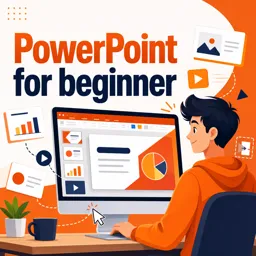
Duration of the online course: 1 hours and 51 minutes
4.7


(75)
Build polished slides fast with this free PowerPoint course for beginners—learn design basics, shapes, images, animations, and export options with confidence.
Strong presentations open doors: they help you explain ideas clearly, pitch projects, support classes, and stand out at work. This free PowerPoint for beginners course is designed to take you from unsure clicks to confident slide-building, even if you have never created a deck before. You will learn what PowerPoint is, why it remains one of the most valuable office skills, and how to approach slides with a practical, modern workflow that saves time and improves results.
Early lessons guide you through the interface so you stop searching for tools and start using them intentionally. You will practice creating and duplicating slides, working with the ribbon, and building layouts using shapes and text the right way. Understanding the difference between text boxes and shape-based text, and when to keep them separate, will make your designs easier to edit, align, and reuse—especially when you need consistent formatting across an entire presentation.
As you progress, the course helps you think like a designer without needing graphic design software. You will explore shape formatting options, adjust colors and sizing cleanly, and use picture tools that are most useful in real projects. You will also learn good habits for slide backgrounds and overall structure, so your deck looks professional and readable rather than crowded or distracting.
Motion is introduced step by step, moving from simple animations to more advanced control. You will understand transitions versus object animations, work with different animation types, control how and when effects start, and use the animation pane to refine timing. You will also learn how layered effects can be added to the same element for more complex results while still keeping your slides manageable.
Finally, the course covers saving your work and exporting your presentation to other formats, including video, so you can share your content anywhere. By the end, you will be able to produce clean slides, create smooth animated sequences, and deliver presentations that feel intentional—an essential skill for students, job seekers, creators, and professionals in any industry.

1 hours and 51 minutes of online video course

Digital certificate of course completion (Free)

Exercises to train your knowledge

100% free, from content to certificate
What will I learn in a PowerPoint for beginners course?
You will learn the PowerPoint interface, creating slides, adding text, shapes and pictures, designing slides, saving/exporting files, and using transitions and animations.
How do I add and customize shapes in Microsoft PowerPoint?
Use Insert > Shapes to add a shape, then use Shape Format options to change its fill color, outline, size, effects, and position.
What is the difference between PowerPoint animations and transitions?
Animations control how objects such as text, images, and shapes appear or move on a slide. Transitions control how one slide changes to the next.
Ready to get started?Download the app and get started today.
Install the app now
to access the course
Over 5,000 free courses
Programming, English, Digital Marketing and much more! Learn whatever you want, for free.

Study plan with AI
Our app's Artificial Intelligence can create a study schedule for the course you choose.

From zero to professional success
Improve your resume with our free Certificate and then use our Artificial Intelligence to find your dream job.
You can also use the QR Code or the links below.



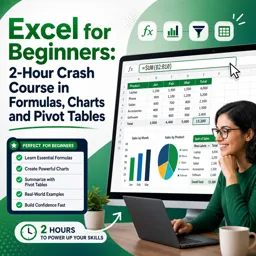
Free CourseExcel for Beginners: 2-Hour Crash Course in Formulas, Charts and Pivot Tables
5
(11)

2h09m

30 exercises
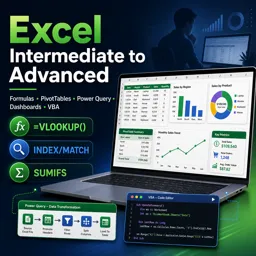
Free CourseExcel Intermediate to Advanced: Formulas, PivotTables, Power Query, Dashboards and VBA
5
(4)
18h53m
28 exercises
Free CourseMS Excel Beginner to Advanced: Formulas, Charts, Pivot Tables and Shortcuts
5
(4)
10h08m
26 exercises
Free CourseMicrosoft 365 Fundamentals MS-900 Certification Prep Course
5
(3)
3h16m
14 exercises
Free CourseGoogle data studio
5
(1)
3h42m
11 exercises
Free CourseMS Word Complete Course: Basics to Advanced Features
5
(1)
2h47m
20 exercises
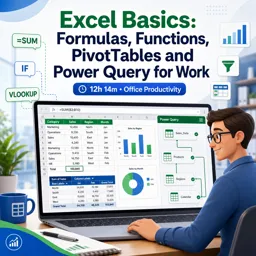
Free CourseExcel Basics: Formulas, Functions, PivotTables and Power Query for Work
5
(3)
12h14m
22 exercises
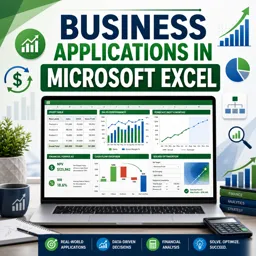
Free CourseBusiness Applications in Microsoft Excel
5
(1)
46m
7 exercises
Free CourseWord for beginners
4.9
(11)
43m
8 exercises
Free CourseWord
4.9
(102)
1h46m
25 exercises
Carry knowledge in your pocket.
Download the Cursa app.
There are hundreds of free courses available, with a free certificate of completion that is saved in your mobile image gallery.
Download the app to access the Course Completion Certificate for Free.


+ 10 million
students

Free and Valid
Certificate

60 thousand free
exercises

4.8/5 rating in
app stores

Free courses in
video and ebooks
Course comments: PowerPoint for beginner
SOUVIK SAHA
This was a good course , A lot of new basic things full of there , but the problem is the teacher was often promoted his paid courses , which was full of useful curriculum , so it would be well if he add the new points here .
zahir uddin
good