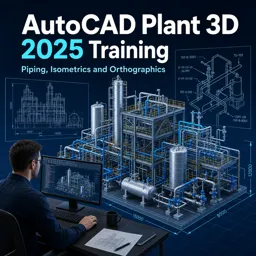
Free Course Image AutoCAD Plant 3D 2025 Training: Piping, Isometrics and Orthographics

Free online courseAutoCAD Plant 3D 2025 Training: Piping, Isometrics and Orthographics

Duration of the online course: 3 hours and 11 minutes

New

Free AutoCAD Plant 3D 2025 course covering piping design, equipment, structural steel, data management, and orthographic and isometric drawings.

In this free course, learn about

  • Getting Started with Plant 3D Interface
  • Managing Plant 3D Project Files
  • Structural Steel Modeling Fundamentals
  • Equipment Creation and Customization
  • Piping Design and Routing Basics
  • Modifying and Reusing Piping Models
  • Data Manager and Project Data Workflows
  • P&ID Integration with the 3D Model
  • Orthographic Drawings Production
  • Isometric Drawings Generation and Annotation
  • Project Validation, Maintenance, and Export
  • Report Creator Essentials

Course Description

AutoCAD Plant 3D 2025 Training: Piping, Isometrics and Orthographics is a free online course in Design and Creative Arts, focused on Architectural Design workflows for plant and piping projects. It guides you from first launch through producing professional deliverables, helping you build confidence with the Plant 3D interface, core tools, and project organization.

You will learn how to open and set up Plant 3D projects and models, configure the workspace, and navigate key panels such as the ribbon, tool palettes, properties, and on-screen tools. The course also covers practical file handling, including creating new models, bringing existing drawings into a project, renaming files, and keeping drawing information up to date.

As the project develops, you will work with structural steel by creating grids and placing and editing beams, plus adding common access and safety elements such as ladders, railings, plate, grating, and footings. You will also create and refine equipment, apply trims, add and adjust nozzles, and use annotations and templates, including methods for converting existing AutoCAD equipment into Plant 3D equipment.

Piping design is addressed in depth, with guidance on routing lines, branching, placing valves and instrumentation, and adding pipe supports. You will also explore techniques to modify and reuse piping data, isolate and manage components, update line numbers, connect to external references, and extend capability with custom parts.

To support data-driven deliverables, the course introduces the Data Manager for tagging, filtering, locating components, and exchanging project data with Excel. You will then generate orthographic drawings with view creation and editing, adjacent views, dimensions, annotations, bills of materials, and revision control. Finally, you will produce isometric drawings, from quick outputs to production-ready isometrics, including reference dimensions, start and break points, line locking and issuing, and PCF-to-isometric workflows, plus validation, auditing, database maintenance, and export options.

Course content

  • Video class: Chapter 01 Getting Started - 1.1 Locating and opening your Plant 3D project 02m
  • Exercise: Which file should you select to open and initialize a Plant 3D project from a chapter folder?
  • Video class: Chapter 01 Getting Started - 1.2 Opening a Plant 3D model 02m
  • Video class: Chapter 01 Getting Started - 1.3 Setting up the Plant 3D workspace 02m
  • Exercise: What is the main benefit of using workspaces in AutoCAD Plant 3D?
  • Video class: Chapter 01 Getting Started - 1.4 Understanding the Plant 3D ribbon menu 03m
  • Video class: Chapter 01 Getting Started - 1.5 Understanding the Plant 3D tool palette 02m
  • Exercise: What makes Tool Palettes in Plant 3D different from standard AutoCAD Tool Palettes?
  • Video class: Chapter 01 Getting Started - 1.6 Using the Plant 3D Properties dialog box 02m
  • Video class: Chapter 01 Getting Started - 1.7 Using on screen tools 02m
  • Exercise: Where do you go to customize what information appears in AutoCAD Plant 3D rollover tooltips for piping components?
  • Video class: Chapter 02 Working with Plant 3D files - 2.1 Creating a new Plant 3D model 02m
  • Video class: Chapter 02 Working with Plant 3D files - 2.2 Importing an existing Plant 3D file to the project 01m
  • Exercise: What is the main benefit of using the Copy Drawing to Project function when reusing an existing Plant 3D model?
  • Video class: Chapter 02 Working with Plant 3D files - 2.3 Renaming drawing files 01m
  • Video class: Chapter 02 Working with Plant 3D files - 2.4 Updating drawing information 02m
  • Exercise: What is a key advantage of using Plant 3D drawing properties data fields instead of manually editing title block attributes?
  • Video class: Chapter 03 Structural Steel - 3.1 Structural steel overview 02m
  • Video class: Chapter 03 Structural Steel - 3.2 Creating a structural grid 01m
  • Exercise: What is the main purpose of setting up a structural grid before placing steel members?
  • Video class: Chapter 03 Structural Steel - 3.3 Placing structural beams 03m
  • Video class: Chapter 03 Structural Steel - 3.4 Editing structural beams 03m
  • Exercise: When using the Cut tool to trim structural steel elements, what does the selection order determine?
  • Video class: Chapter 03 Structural Steel - 3.5 Placing ladders 01m
  • Video class: Chapter 03 Structural Steel - 3.6 Placing railings 01m
  • Exercise: How are railings positioned in the model after accepting the standard Railing Settings?
  • Video class: Chapter 03 Structural Steel - 3.7 Placing plate and grating 02m
  • Video class: Chapter 03 Structural Steel - 3.8 Placing footings 01m
  • Exercise: Which steps correctly describe adding concrete footings to column bases in the project?
  • Video class: Chapter 04 Equipment - 4.1 Equipment Overview 01m
  • Video class: Chapter 04 Equipment - 4.2 Creating equipment 02m
  • Exercise: What happens when you copy a pump that already has an assigned tag?
  • Video class: Chapter 04 Equipment - 4.3 Adding equipment trim 02m
  • Video class: Chapter 04 Equipment - 4.4 Adding and modifying nozzles 03m
  • Exercise: What is the main reason for placing nozzles on parametric equipment in Plant 3D?
  • Video class: Chapter 04 Equipment - 4.5 Adding messages and annotations 01m
  • Video class: Chapter 04 Equipment - 4.6 Equipment templates 01m
  • Exercise: How do you save the current equipment setup as a reusable template in AutoCAD Plant 3D?
  • Video class: Chapter 04 Equipment - 4.7 Converting existing AutoCAD equipment to Plant 3D equipment 02m
  • Video class: Chapter 05 Piping - 5.1 Piping overview 02m
  • Exercise: Which interface area is described as the heart of piping where you set pipe size, spec, and line numbers before routing?
  • Video class: Chapter 05 Piping - 5.2 Basic pipe routing 03m
  • Video class: Chapter 05 Piping - 5.3 Route pipe from equipment 04m
  • Exercise: When starting a pipe route from equipment, what should you click to begin running the pipe from the nozzle connection?
  • Video class: Chapter 05 Piping - 5.4 Adding branches 03m
  • Video class: Chapter 05 Piping - 5.5 Adding valves 05m
  • Exercise: What does the teardrop symbol indicate after copying a valve configuration in Plant 3D?
  • Video class: Chapter 05 Piping - 5.6 Adding instrumentation 02m
  • Video class: Chapter 05 Piping - 5.7 Pipe supports 01m
  • Exercise: When pipe supports are added to a piping model, what happens in the isometric drawings?
  • Video class: Chapter 05 Piping - 5.8 Adding instrumentation 01m
  • Video class: Chapter 05 Piping - 5.9 Line to Pipe command 01m
  • Exercise: What does the "Line to Pipe" command do when a specification is selected and an AutoCAD centerline is used?
  • Video class: Chapter 05 Piping - 5.10 Piping overview 02m
  • Video class: Chapter 06 Modify and Reuse Piping - 6.1 Moving and copying data overview 03m
  • Exercise: After copying an existing pump configuration, what is the correct way to update the valve tags in the new setup?
  • Video class: Chapter 06 Modify and Reuse Piping - 6.2 Hiding and isolating parts 02m
  • Video class: Chapter 06 Modify and Reuse Piping - 6.3 Assign new line numbers 03m
  • Exercise: How do you ensure an unassigned vertical pipe becomes part of an existing line number (e.g., 100) in Plant 3D?
  • Video class: Chapter 06 Modify and Reuse Piping - 6.4 Connecting to X-refs 03m
  • Video class: Chapter 06 Modify and Reuse Piping - 6.5 Custom Part Builder 02m
  • Exercise: What happens in Plant 3D when you insert a valve that is not available in the current piping specification?
  • Video class: Chapter 07 Data Manager - 7.1 Data Manager overview 01m
  • Video class: Chapter 07 Data Manager - 7.2 Modifying tag data 02m
  • Exercise: Why should duplicate pump tags (e.g., 701A/701B/701C with question marks) be updated in the Data Manager?
  • Video class: Chapter 07 Data Manager - 7.3 Using Data Manager filters 02m
  • Video class: Chapter 07 Data Manager - 7.4 Locating components using Data Manager 02m
  • Exercise: Which Data Manager feature helps you jump to the exact location of a listed valve or instrument in the model?
  • Video class: Chapter 07 Data Manager - 7.5 Importing and exporting project data to Excel spreadsheets 02m
  • Video class: Chapter 08 P - 03m
  • Exercise: Why does the 3D model’s Data Manager appear empty after opening a completed P&ID?
  • Video class: Chapter 08 P - 02m
  • Video class: Chapter 08 P - 02m
  • Exercise: What is the key benefit of using the P&ID Line List tool to place inline valves and components in the 3D model?
  • Video class: Chapter 08 P - 02m
  • Video class: Chapter 09 Orthographic Drawings - 9.1 Orthographic overview 01m
  • Exercise: What is a key advantage of Plant 3D system-generated orthographic drawings for project handover?
  • Video class: Chapter 09 Orthographic Drawings - 9.2 Creating an Orthographic drawing 02m
  • Video class: Chapter 09 Orthographic Drawings - 9.3 Creating, saving, and modifying views 02m
  • Exercise: Which command is used to create a new orthographic drawing in the orthographics section?
  • Video class: Chapter 09 Orthographic Drawings - 9.4 Create adjacent views 02m
  • Video class: Chapter 09 Orthographic Drawings - 9.5 Adding annotations and dimensions 02m
  • Video class: Chapter 09 Orthographic Drawings - 9.6 Bill of Materials 02m
  • Video class: Chapter 09 Orthographic Drawings - 9.7 Revisions and document control 04m
  • Exercise: How can you preserve an issued ortho revision so it does NOT update when the Plant 3D model changes?
  • Video class: Chapter 10 Isometric Drawings - 10.1 Isometric overview 03m
  • Video class: Chapter 10 Isometric Drawings - 10.2 Touring the interface 03m
  • Exercise: What is the key difference between a Quick ISO and a Production ISO?
  • Video class: Chapter 10 Isometric Drawings - 10.3 Creating quick isometrics 02m
  • Video class: Chapter 10 Isometric Drawings - 10.4 Creating production isometrics 05m
  • Exercise: When generating a Production ISO, how is the pipeline selection primarily made?
  • Video class: Chapter 10 Isometric Drawings - 10.5 Adding messages and annotations 06m
  • Video class: Chapter 10 Isometric Drawings - 10.6 Reference dimensions 03m
  • Exercise: What is the primary purpose of adding a reference dimension when creating piping isometrics?
  • Video class: Chapter 10 Isometric Drawings - 10.7 Start points and break points 03m
  • Video class: Chapter 10 Isometric Drawings - 10.8 Lock and issue a line 02m
  • Exercise: What is the purpose of using the lock line and issue command after generating final isometrics?
  • Video class: Chapter 10 Isometric Drawings - 10.9 PCF to isometric 02m
  • Video class: Chapter 11 Project Tools - 11.1 Validation settings 03m
  • Exercise: Why is running validation in AutoCAD Plant 3D useful before finalizing drawings?
  • Video class: Chapter 11 Project Tools - 11.2 Validating your drawing or project 02m
  • Video class: Chapter 11 Project Tools - 11.3 Auditing and maintaining your project database 01m
  • Exercise: What is the recommended next step after successfully running an Audit Project with no errors found?
  • Video class: Chapter 11 Project Tools - 11.4 Exporting to AutoCAD 02m
  • Video class: Chapter 12 Report creator - Overview 03m
  • Exercise: In Plant 3D Report Creator, what does selecting "one report per drawing" do?

This free course includes:

3 hours and 11 minutes of online video course

Digital certificate of course completion (Free)

Exercises to train your knowledge

100% free, from content to certificate

Ready to get started?Download the app and get started today.

Install the app now

to access the course
Icon representing technology and business courses

Over 5,000 free courses

Programming, English, Digital Marketing and much more! Learn whatever you want, for free.

Calendar icon with target representing study planning

Study plan with AI

Our app's Artificial Intelligence can create a study schedule for the course you choose.

Professional icon representing career and business

From zero to professional success

Improve your resume with our free Certificate and then use our Artificial Intelligence to find your dream job.

You can also use the QR Code or the links below.

QR Code - Download Cursa - Online Courses

More free courses at Architectural Design

Free Ebook + Audiobooks! Learn by listening or reading!

Download the App now to have access to + 5000 free courses, exercises, certificates and lots of content without paying anything!

  • 100% free online courses from start to finish

    Thousands of online courses in video, ebooks and audiobooks.

  • More than 60 thousand free exercises

    To test your knowledge during online courses

  • Valid free Digital Certificate with QR Code

    Generated directly from your cell phone's photo gallery and sent to your email

Cursa app on the ebook screen, the video course screen and the course exercises screen, plus the course completion certificate