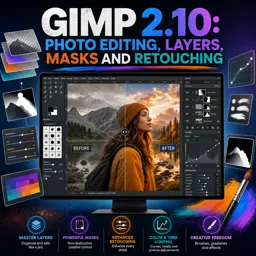
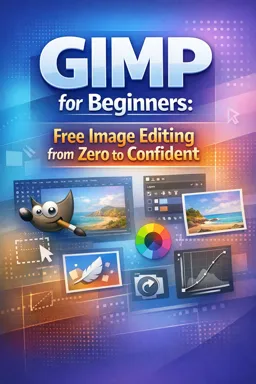
Free Course Image GIMP 2.10: Photo Editing, Layers, Masks and Retouching

Free online courseGIMP 2.10: Photo Editing, Layers, Masks and Retouching

Duration of the online course: 6 hours and 57 minutes

New

Edit photos like a pro with layers, masks and retouching in this free GIMP course. Improve color, remove distractions, and prep images for web or print.

In this free course, learn about

  • Install GIMP 2.10 and plugins; set up and customize UI, fullscreen, and save window layouts
  • Open/import files; manage layers, background layer behavior, linking layers, and layer boundaries
  • Navigate efficiently: zoom/pan and key shortcuts like fit image to window
  • Paint workflows: brush tool, dynamics (e.g., velocity taper), special effects, tablet use, MyPaint brush
  • Use History panel; understand HSV vs RGB and how Value affects brightness
  • Core tonal/color correction: Levels, Curves, Brightness-Contrast, Hue-Saturation, and color picker
  • Save correctly: XCF for editable layers; export for web/print; PDF/PSD handling and limitations
  • Make selections: rectangle, free select, paths, select-by-color vs fuzzy; refine selections and quick mask
  • Use layer masks for non-destructive edits, gradient blends, tint removal, and hair/channel-based masking
  • Transform and design: crop, resize/print size settings, text, kerning workflow, glyphs, and gradients/patterns
  • Blend modes mastery: darken/lighten, contrast, color modes; apply for tonal edits and duotone effects
  • Blurring methods; retouching with Clone/Heal, Heal Selection, frequency separation, warp, dodge & burn
  • Nik Collection in GIMP: global/local adjustments, recipes, vignettes, B&W, noise reduction, sharpening, HDR
  • Build e-book covers: set correct pixel dimensions at DPI, use blend modes, and control edge shadow lightening

Course Description

Take control of your photo edits with GIMP 2.10 and build a workflow you can repeat on any image. This free online course is designed for anyone who wants clean, professional-looking results without paying for expensive software, whether you’re polishing content for social media, building a design portfolio, or preparing images for clients.

You’ll start by setting up GIMP properly, getting comfortable with the interface, and learning the small settings that make a big difference in speed, consistency, and comfort. From there, you’ll develop the core skill behind non-destructive editing: working confidently with layers. You’ll understand how layers interact, how to keep complex projects organized, and how to save work files so you can return later without losing your editability.

As you progress, you’ll strengthen essential image editing fundamentals, including navigating, selecting, and refining areas of an image with precision. That precision becomes especially powerful once you pair it with layer masks, quick masks, paths, and channel-based techniques that help you handle difficult edges like hair and fine detail. Instead of relying on rough cutouts, you’ll learn to make believable composites and targeted adjustments that blend naturally.

Color and tone are treated as practical tools, not abstract theory. You’ll learn to read and improve images using Levels, Curves, brightness and contrast, hue and saturation, and color correction methods that help fix unwanted casts while preserving natural-looking skin and midtones. You’ll also discover how blending modes can dramatically expand what you can do, from subtle contrast and color tweaks to creative effects and duotone-style looks.

The course goes beyond basic edits and moves into real retouching workflows. You’ll remove distractions cleanly, retouch non-destructively on separate layers, and explore techniques like frequency separation, dodging and burning, and warp-based adjustments. You’ll also learn practical exporting decisions, including preparing files for web, print, PDF, and PSD exchange, plus how plugins like the Google Nik Collection can add both global and local enhancements while keeping your original image safe.

By the end, you’ll be able to approach photo editing with a clear process: set up the file correctly, make precise selections, refine tone and color, retouch with control, and export with confidence for the result you need.

Course content

  • Video class: 2) Installing Gimp 2.10 02m
  • Exercise: How do you toggle GIMP’s Fullscreen mode on and off?
  • Video class: 3) Installing plugins for Gimp 2.10 05m
  • Video class: 4) Exploring Gimp's 2.10 UI 03m
  • Exercise: How do you save the current GIMP window layout so it opens the same way next time?
  • Video class: 5) Opening files in Gimp 2.10 02m
  • Video class: 6) Working with Layers in Gimp 2.10 09m
  • Exercise: In GIMP 2.10, what does clicking the chain icon between two layer thumbnails do?
  • Video class: 7) The background layer in Gimp 2.10 01m
  • Video class: 8) Zooming and panning in Gimp 2.10 03m
  • Exercise: Which shortcut fits the image perfectly on the screen in GIMP?
  • Video class: 9) Using the paintbrush 07m
  • Video class: 10) Brush special effects 05m
  • Exercise: What does the Brush Dynamic “Velocity Tapering” do in GIMP?
  • Video class: 11) Using a tablet 02m
  • Video class: 12) The Mypaint brush 02m
  • Exercise: What is the key difference between the MyPaint Brush and the normal Paintbrush when painting one color over another?
  • Video class: 13) The history panel 04m
  • Video class: 14) HSV color 03m
  • Exercise: In the HSV color model used in GIMP, what does the Value component control?
  • Video class: 15) RGB color 07m
  • Video class: 16) Levels 10m
  • Exercise: In GIMP 2.10, which Levels control is most commonly used to brighten or darken an image without losing the darkest or lightest colors?
  • Video class: 17) Curves 03m
  • Video class: 18) Brightness-Contrast 03m
  • Exercise: When you increase Contrast in Brightness-Contrast, what does Levels show has happened to the tones?
  • Video class: 19) Hue saturation 06m
  • Video class: 20) Color correction tools 02m
  • Video class: 21) Using the Color Picker 02m
  • Video class: 22) Saving a work file 01m
  • Exercise: Which file format should you use in GIMP to save an image while keeping its layers for later editing?
  • Video class: 23) The Rectangle tool 06m
  • Video class: 24) The Free select tool 02m
  • Exercise: How do you turn a Free Select outline into an active selection in GIMP?
  • Video class: 25) The Paths tool 16m
  • Video class: 26) The Select by color tool 05m
  • Exercise: What is the main difference between the Fuzzy Select tool and the Select by Color tool?
  • Video class: 27) Improve selections 04m
  • Video class: 28) The Quick mask 07m
  • Exercise: In Quick Mask mode, what effect does painting with black versus white have on the selection?
  • Video class: 29) The Layer mask 10m
  • Video class: 30) Uses of Layer masks 09m
  • Exercise: When removing a greenish tint using Curves and a layer mask, why start with a black layer mask on the color-adjusted layer?
  • Video class: 31) Selecting Channels 03m
  • Video class: 32) Selecting hair 13m
  • Exercise: After decomposing the image into channels to choose the best contrast for selecting hair, which channel/layer is typically dragged into the original document to build the mask in this workflow?
  • Video class: 33) Cropping 03m
  • Video class: 34) Resizing 07m
  • Exercise: In GIMP, which setting in the Scale Image window is used to check print size without changing the number of pixels?
  • Video class: 35) Save for web 05m
  • Video class: 36) Save images for print 03m
  • Exercise: Which file format is recommended when you want a professional print of your image?
  • Video class: 37) Transformations 11m
  • Video class: 38) Using text 12m
  • Exercise: What is the recommended way to preserve quality and flexibility after kerning text so it can still be scaled/rotated without losing sharpness?
  • Video class: 39) Using glyphs in Gimp 2.10 02m
  • Video class: 40) Blending modes: darken-lighten 11m
  • Exercise: What does the GIMP blending mode Lighten only do to the top layer?
  • Video class: 41) Blending modes: contrast 12m
  • Video class: 42) Blending modes: color 04m
  • Exercise: Which blending mode helps prevent unwanted color shifts when adjusting Levels to change mid-tone brightness?
  • Video class: 43) Methods for blurring 11m
  • Video class: 44) Making gradients 06m
  • Exercise: When blending two images using a layer mask, which steps correctly set up the gradient blend?
  • Video class: 45) Making patterns 05m
  • Video class: 46) Making duotone images 02m
  • Exercise: What is the main purpose of using the Hard Mix blending mode for a duotone-style effect?
  • Video class: 47) Saving as a PDF 02m
  • Video class: 48) Saving as a Photoshop file 01m
  • Exercise: When opening a Photoshop .psd file in GIMP, which content is read correctly?
  • Video class: 49) Downloading the Google Nik Collection 01m
  • Video class: 50) Making global adjustments in the Google Nik Collection 04m
  • Exercise: When opening an image in the Nik Collection plugin from GIMP, which 'Layer' option keeps the original image unchanged while placing the edits on a separate layer?
  • Video class: 51) Making local adjustments in the Google Nik Collection 14m
  • Video class: 52) Using recipes in the Google Nik Collection 02m
  • Exercise: How do you save a Recipe including Control Points in Color Efex?
  • Video class: 53) Adjusting color and structure in the Google Nik Collection 05m
  • Video class: 54) Using creative filters in the Google Nik Collection 07m
  • Exercise: When you want to remove part of a Bokeh effect in GIMP, what is the correct layer mask workflow?
  • Video class: 55) Making vignettes in the Google Nik Collection 05m
  • Video class: 56) Professional black and white images in the Google Nik Collection 05m
  • Exercise: How can you use a Silver Efex Pro black-and-white layer to improve a color image in GIMP?
  • Video class: 57) Remove noise in the Google Nik Collection 06m
  • Video class: 58) Sharpening images in the Google Nik Collection 03m
  • Exercise: Why is the pre-sharpener (RAW image sharpener) used before sharpening a photo?
  • Video class: 59) HDR photography in the Google Nik Collection 08m
  • Video class: 60) Using the Clone tool 06m
  • Exercise: When using the Clone tool on an empty layer to retouch an image, which Tool Option allows cloning from the visible result of all layers?
  • Video class: 61) Automatic object removal with Heal Selection 05m
  • Video class: 62) Using the Heal tool 03m
  • Exercise: What is the essential difference between the Heal tool and the Clone tool in GIMP 2.10?
  • Video class: 63) Frequency Separation 09m
  • Video class: 64) Warp Transform 03m
  • Exercise: In GIMP’s Warp Transform workflow, what action applies (commits) the warp changes you made to the current layer?
  • Video class: 65) Dodging and burning 02m
  • Video class: 66) Make a basic e-book cover 15m
  • Exercise: When creating a 6×9 inch book cover at 300 dpi in GIMP, what pixel dimensions does it produce?
  • Video class: 67) Make an e-book cover using blending modes 11m
  • Video class: 68) Finish an e-book cover using blending modes 05m
  • Exercise: How can you lighten dark edge shadows while keeping the effect controlled in GIMP?
  • Video class: 69) Configuring Gimp's User interface 07m
  • Video class: 70) Focus in Gimp 01m
  • Exercise: In GIMP, what must you do so the arrow keys move the content of the selected layer instead of switching layers in the Layers panel?
  • Video class: 71) The active tool 01m
  • Video class: 72) The floating selection 01m
  • Exercise: In GIMP 2.10, what happens when you use Edit > Paste (not Paste as > New Layer)?
  • Video class: 73) The layer boundary 00m

This free course includes:

6 hours and 57 minutes of online video course

Digital certificate of course completion (Free)

Exercises to train your knowledge

100% free, from content to certificate

Ready to get started?Download the app and get started today.

Install the app now

to access the course
Icon representing technology and business courses

Over 5,000 free courses

Programming, English, Digital Marketing and much more! Learn whatever you want, for free.

Calendar icon with target representing study planning

Study plan with AI

Our app's Artificial Intelligence can create a study schedule for the course you choose.

Professional icon representing career and business

From zero to professional success

Improve your resume with our free Certificate and then use our Artificial Intelligence to find your dream job.

You can also use the QR Code or the links below.

QR Code - Download Cursa - Online Courses

More free courses at Image Editing and Photo Editing

Free Ebook + Audiobooks! Learn by listening or reading!

Download the App now to have access to + 5000 free courses, exercises, certificates and lots of content without paying anything!

  • 100% free online courses from start to finish

    Thousands of online courses in video, ebooks and audiobooks.

  • More than 60 thousand free exercises

    To test your knowledge during online courses

  • Valid free Digital Certificate with QR Code

    Generated directly from your cell phone's photo gallery and sent to your email

Cursa app on the ebook screen, the video course screen and the course exercises screen, plus the course completion certificate