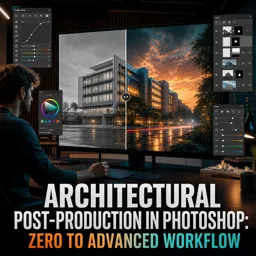
Free Course Image Architectural Post-Production in Photoshop: Zero to Advanced Workflow

Free online courseArchitectural Post-Production in Photoshop: Zero to Advanced Workflow

Duration of the online course: 10 hours and 51 minutes

New

Free Photoshop course for architectural post-production: fix perspective, replace skies, add reflections, lighting, weather, and polish renders for print.

In this free course, learn about

  • Course Overview and Project Setup
  • Perspective and Camera Corrections
  • Recover Highlights and Fix Burnt Surfaces
  • Sky Replacement and Reflections
  • Global Color, Detail Enhancement, and Print Prep (Chapter 1 Wrap-up)
  • 32-bit EXR Workflow and Exterior Compositing Essentials (Chapter 2)
  • Weather Effects and Reflections
  • Landscape, People, and Overall Scene Balancing (Chapter 2 Wrap-up)
  • Creative Adjustments and Atmosphere (Chapter 3)
  • Vanishing Point Fundamentals and Scene Integration (Chapter 3 Continued)
  • Street and Foreground Compositing (Chapter 4)
  • Lighting Assets, Vehicles, and Street Details (Chapter 4 Continued)
  • Interior Enhancements, Reflections, and Final Scene Additions (Chapter 4 Wrap-up)
  • Advanced Perspective Tools and Smart Object Workflow (Chapter 5)
  • Retouching, Warp Tools, and Practical Speed Tips
  • Custom Asset Creation and Perspective Shading

Course Description

Learn how to turn raw architectural renders into polished, presentation-ready images with a structured Photoshop post-production workflow designed for both beginners and advanced users. This free course in Design and Creative Arts focuses on practical image editing techniques used in architectural visualization, helping you build a repeatable process from project analysis through final delivery.

Follow a hands-on path that starts with understanding the CGI and evaluating the scene, then moves into correcting perspective and camera angle using Camera Raw and transform tools. You will work on rescuing overexposed surfaces, balancing tones, and creating a cohesive atmosphere with global color adjustments and detail enhancement that keep materials looking realistic.

Explore multiple approaches to sky replacement, including manual methods, and learn how to add believable reflections on water and windows. The workflow also covers environment building and storytelling elements such as birds, raindrops, mist, vegetation, people, and background integration, along with techniques for floor reflections and natural light effects like god rays.

As projects become more complex, you will refine scenes with vanishing point and perspective warp, add urban details such as asphalt, road elements, street lights, cars, and interior lighting, and handle common realism issues like window transparency and building cleanup. The course also introduces performance-friendly practices, including migrating work to new documents and using smart objects efficiently.

Finish with professional-grade polishing steps like lens flare for lights, car lights, light trails, and final adjustments, plus guidance on preparing files for print. By the end, you will have a clear post-production pipeline for architectural imagery that improves realism, mood, and visual impact.

Course content

  • Video class: Architectural Post Production (Zero to Advanced) in Photoshop Promotion 02m
  • Exercise: What is emphasized as a key principle of the Photoshop architectural post-production workflow?
  • Video class: #1 CGI Description 01m
  • Video class: #2 Analyzing the Project 02m
  • Exercise: When bright sun creates flattened, burnt highlight areas in a render and re-rendering isn’t possible, what is the recommended workflow solution?
  • Video class: #3 Open Image 01m
  • Video class: #4 Fix Camera Angle with Camera Raw Filter (ACR) 08m
  • Exercise: In Camera Raw Filter > Geometry, which option is used to manually correct perspective by drawing horizontal and vertical guide lines?
  • Video class: #5 Fix Camera Angle by Free Transform Tool 06m
  • Video class: #6 Fix Burned Surfaces with Camera Raw Filter 10m
  • Exercise: When adjusting burnt/flattened surfaces with Camera Raw Filter, what makes the changes apply only to specific areas instead of the whole image?
  • Video class: #7 Fix Burned Surfaces Manually 11m
  • Video class: #8 Sky Replacement Automatically 06m
  • Exercise: In Photoshop’s Sky Replacement, which output option creates separate layers (sky with mask plus lighting and color adjustment layers) so you can edit them later?
  • Video class: #9 Sky Replacement Manually 12m
  • Video class: #10 Add Sky Reflection on Water pool 11m
  • Exercise: What is the correct blend mode to use for the sky reflection layer on water before fine-tuning intensity?
  • Video class: #11 Overall Color Adjustments 06m
  • Video class: #12 Detail Enhancement 04m
  • Exercise: Which workflow is used to enhance details by detecting edges and then blending the result into the image?
  • Video class: #13 Preparing file for Print 05m
  • Video class: #14 Chapter 2: Introduction 05m
  • Exercise: When working with a 32-bit EXR exterior render in Photoshop, what is the recommended first step to better manage gamma and visible details?
  • Video class: #15 Adding Alpha for Sky Replacement 06m
  • Video class: #16 Add Sky Reflection In Windows 06m
  • Exercise: Which blend mode is recommended for adding sky reflections on glass in Photoshop?
  • Video class: #17 Add Birds 04m
  • Video class: #18 Add Raindrops Method 1 06m
  • Exercise: Why is the Wind filter disabled, and what must you change to enable it when creating rain streaks?
  • Video class: #19 Add Raindrops Method 2 23m
  • Video class: #20 Floor Reflection 17m
  • Exercise: When creating a ground reflection, which Photoshop action is used to turn the duplicated render into a reflection?
  • Video class: #21 Adding Mist 08m
  • Video class: #22 Adding Tree 13m
  • Exercise: Which Photoshop feature is used to quickly generate simple background trees on an empty layer?
  • Video class: #23 Adding Grass 22m
  • Video class: #24 Adding Peoples 18m
  • Video class: #25 Overall Adjustments 16m
  • Video class: #26 Final Adjustments (end of chapter 2) 10m
  • Exercise: What is the recommended workflow to prepare an architectural image for printing versus web export?
  • Video class: #27 Chapter 3 - Introduction, Adjusting 12m
  • Video class: #28 Adjust Grass 07m
  • Exercise: When adding a Total Lighting render pass in Photoshop, which blend mode is suggested to improve the image subtly?
  • Video class: #29 Adjusting Sky 04m
  • Video class: #30 Add God Rays 07m
  • Exercise: Which Photoshop blending mode is used to make the created God Rays layer brighten the scene naturally?
  • Video class: #31 Adding Background 05m
  • Video class: #32 Add Birds 08m
  • Exercise: When adding birds from a non-transparent image, what masking approach helps separate them from the sky quickly?
  • Video class: #33 Final Adjustments 08m
  • Video class: #34 Chapter 3 - Introduction: Vanishing Point 15m
  • Exercise: Why was a new 8-bit document created before using the Vanishing Point filter?
  • Video class: #35 Sky Replacement 07m
  • Video class: #36 Add Buildings 21m
  • Exercise: When adding a new building into a scene, what is the most important criteria to check first so it blends realistically?
  • Video class: #37 Add Street Asphalt 06m
  • Video class: #38 Add Roadblocks 12m
  • Exercise: What is the main advantage of using PixelSquid with its Photoshop plugin during architectural post-production?
  • Video class: #39 Add Grass 07m
  • Video class: #40 Add Vegetation 07m
  • Exercise: What is the main Photoshop method used to fix an incorrect road perspective/angle in a scene?
  • Video class: #41 Finishing Road Asphalt 11m
  • Video class: #42 Add Bushes 13m
  • Exercise: When creating a simple block shape for bushes, what is done to add depth after drawing the rectangle?
  • Video class: #43 Street Lights Part 1 12m
  • Video class: #44 Street Lights Part 2 11m
  • Exercise: When adding new street light PNGs into a composite, what is the purpose of adjusting them with Curves (Ctrl/Command + M) before adding bloom/glow effects?
  • Video class: #45 Add Cars 20m
  • Video class: #46 Fix Windows Transparency 04m
  • Exercise: What is the main purpose of Ctrl/Command + clicking on a layer mask during window refraction cleanup?
  • Video class: #47 Buildings Re-adjustments 18m
  • Video class: #48 Add Traffic Cone 11m
  • Exercise: When adding a traffic cone cutout into a scene, what workflow best helps it match the environment realistically?
  • Video class: #49 Interior Ceiling Lights 17m
  • Video class: #50 Add Interior Details 10m
  • Exercise: Which workflow best creates a subtle interior glow/bloom behind a window in Photoshop?
  • Video class: #51 Cleanup Buildings 05m
  • Video class: #52 Add Airplane 13m
  • Exercise: When creating the airplane’s smoke/light trail, which blending mode is used after moving the trail into the main document?
  • Video class: #53 Buildings Reflection 08m
  • Video class: #54 Add Cars 08m
  • Exercise: What is the correct workflow to create a realistic ground reflection of an object in Photoshop?
  • Video class: #55 Add Street Lights 05m
  • Video class: #56 Migrate to new Document for better performance 03m
  • Exercise: What is the purpose of creating a Solid Color layer sampled from the sky and setting it to a blending mode like Overlay/Soft Light/Vivid Light during post-production?
  • Video class: #57 Add Lens Flare for Lights 12m
  • Video class: #58 Add Car Lights 02m
  • Exercise: Which blending mode is used after painting a saturated red light spot on a new layer to create a lighting effect?
  • Video class: #59 Add Light Trails 13m
  • Video class: #60 Project Final Adjustments (end of chapter 4) 07m
  • Exercise: What is required for Photoshop’s Filter Gallery to work properly in this workflow?
  • Video class: #61 Chapter 5 - Perspective Warp 09m
  • Video class: #62 Vanishing Point in advanced 06m
  • Exercise: In Vanishing Point, what should you do to avoid unwanted color/light changes when using the Stamp tool as a simple clone?
  • Video class: #63 Smart Objects Tips 05m
  • Video class: #64 Content Aware Fill 03m
  • Exercise: What is the main advantage of using Content-Aware Fill for removing objects in Photoshop?
  • Video class: #65 Hue Saturation Tips 07m
  • Video class: #66 Puppet Warp 02m
  • Exercise: What adjustment can you make in Puppet Warp to get a smoother deformation on a subject?
  • Video class: #67 Quick Switch Modes 05m
  • Video class: #68 Perspective Shading Intro 10m
  • Exercise: Which combination most helps a flat shape read as 3D when creating custom assets in Photoshop?

This free course includes:

10 hours and 51 minutes of online video course

Digital certificate of course completion (Free)

Exercises to train your knowledge

100% free, from content to certificate

Ready to get started?Download the app and get started today.

Install the app now

to access the course
Icon representing technology and business courses

Over 5,000 free courses

Programming, English, Digital Marketing and much more! Learn whatever you want, for free.

Calendar icon with target representing study planning

Study plan with AI

Our app's Artificial Intelligence can create a study schedule for the course you choose.

Professional icon representing career and business

From zero to professional success

Improve your resume with our free Certificate and then use our Artificial Intelligence to find your dream job.

You can also use the QR Code or the links below.

QR Code - Download Cursa - Online Courses

More free courses at Image Editing and Photo Editing

Free Ebook + Audiobooks! Learn by listening or reading!

Download the App now to have access to + 5000 free courses, exercises, certificates and lots of content without paying anything!

  • 100% free online courses from start to finish

    Thousands of online courses in video, ebooks and audiobooks.

  • More than 60 thousand free exercises

    To test your knowledge during online courses

  • Valid free Digital Certificate with QR Code

    Generated directly from your cell phone's photo gallery and sent to your email

Cursa app on the ebook screen, the video course screen and the course exercises screen, plus the course completion certificate