What Memory Forensics Is (and Why It Matters)
Memory forensics is the examination of a system’s volatile memory (RAM) to identify running processes, loaded modules, network connections, in-memory-only malware, decrypted content, and other runtime artifacts that may never be written to disk. Unlike disk artifacts, RAM reflects what is happening “right now” (or what was happening at the moment the memory image was captured). This makes memory analysis especially valuable for investigating fileless malware, credential theft, injected code, and attacker tooling that lives primarily in memory.

In practical terms, a memory image is a snapshot of physical memory pages plus related kernel structures. When you analyze it, you are not “scanning files”; you are reconstructing operating system state: process lists, handle tables, loaded drivers, sockets, and more. The challenge is that memory is messy: pages can be swapped, overwritten, or partially captured, and structures differ by Windows version and build. Volatility helps by providing parsers (“plugins”) that understand OS internals and can extract meaningful artifacts from raw memory images.
Volatility in a Beginner-Friendly Way
Volatility is an open-source memory forensics framework. You provide a memory image (and sometimes symbols), and Volatility runs plugins that interpret kernel and process structures to produce investigative output. There are two major versions in common use: Volatility 2 (older, many tutorials exist, relies heavily on “profiles”) and Volatility 3 (newer architecture, uses symbol tables and automagic detection rather than classic profiles). For modern Windows analysis, Volatility 3 is generally preferred, but you may still encounter Volatility 2 in legacy workflows or older case notes.
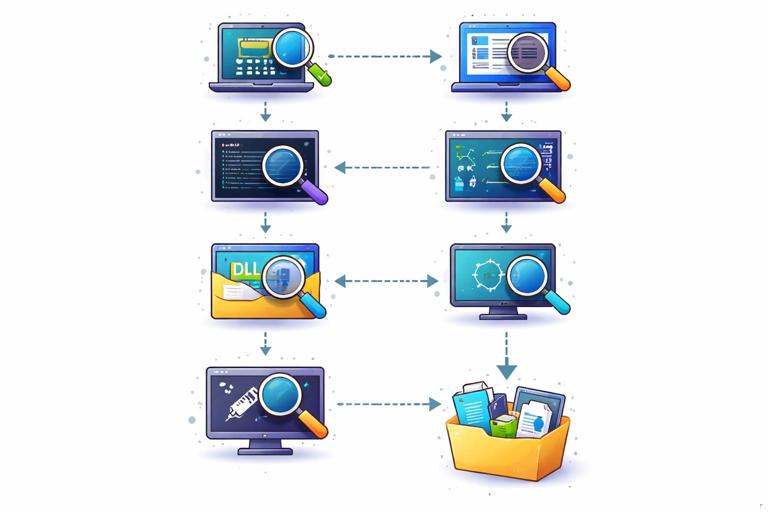
Conceptually, Volatility workflows look like this: identify the image type and OS context, validate that Volatility can parse it, enumerate processes and suspicious activity, pivot into specific processes (DLLs, handles, command lines), then extract or carve relevant data (e.g., dumped process memory, injected code regions) for deeper analysis. You will often iterate: a suspicious process found during enumeration becomes the focus of targeted plugins and extraction.
Memory Acquisition Formats You’ll Encounter
Volatility can work with several memory capture formats. Common ones include raw memory dumps, crash dumps, and vendor-specific formats. The exact acquisition method is outside this chapter’s scope, but you should recognize that different formats may include different metadata and may affect what Volatility can parse. For example, a full physical memory dump is typically ideal for broad analysis, while a partial capture might miss key regions (such as certain process pages) and lead to incomplete results.
- Listen to the audio with the screen off.
- Earn a certificate upon completion.
- Over 5000 courses for you to explore!

Download the app
Before analysis, keep the memory image unchanged and work from a verified copy in your analysis workspace. Memory images are large, so plan for storage and fast I/O. Also expect that some plugins can be time-consuming on multi-gigabyte images, especially when scanning memory for patterns or reconstructing objects.
Setting Up Volatility 3 (Practical Basics)
Volatility 3 is typically run from the command line using Python. A practical setup approach is to use a dedicated analysis machine or VM with Python installed, then install Volatility 3 and its dependencies. Once installed, you will run commands like python vol.py -f <memory_image> windows.pslist. The key elements are the memory image path (-f) and the plugin name (for example, windows.pslist).
Volatility 3 relies on Windows symbols to interpret kernel structures. If symbols are missing or mismatched, plugins may fail or produce incomplete output. Volatility 3 can often download required symbols automatically if configured, but in restricted environments you may need an offline symbol cache. When troubleshooting plugin errors, symbol resolution is one of the first things to check.
Command Pattern to Remember
Most commands follow this pattern: specify the file, optionally set verbosity or output format, then run a plugin. A generic example looks like this:
python vol.py -f mem.raw windows.infoThe windows.info plugin is a good starting point because it attempts to identify OS version details and confirm that the image is parseable.
Step-by-Step: A Practical Triage Workflow in Volatility
This step-by-step workflow is designed for beginners: it starts broad, then narrows down to suspicious processes and activity. The goal is to build a working picture of what was running, what looked abnormal, and what to extract for deeper inspection.
Step 1: Validate the Image and Identify the OS Context
Start by confirming Volatility can interpret the memory image and by collecting basic OS information. This helps you avoid wasting time on plugins that will fail due to symbol or layer issues.
python vol.py -f mem.raw windows.infoLook for indicators such as Windows version/build, kernel base, and whether Volatility successfully created the required translation layers. If you see errors about missing symbols, address that before proceeding.
Step 2: Enumerate Processes (Multiple Views)
Process enumeration is foundational. Attackers often hide by manipulating process lists, so you should use more than one method to list processes. Compare outputs to spot discrepancies.
python vol.py -f mem.raw windows.pslistpython vol.py -f mem.raw windows.pstreepython vol.py -f mem.raw windows.psscanpslist shows active processes from linked lists, pstree adds parent-child relationships, and psscan scans memory for process objects (which can reveal terminated or unlinked processes). A process that appears in psscan but not in pslist can be a sign of stealth, abrupt termination, or list manipulation.
Step 3: Capture Command Lines and Process Metadata
Command-line arguments often reveal how a process was launched and what it was instructed to do. This is especially useful for scripting engines, LOLBins, and remote administration tools.
python vol.py -f mem.raw windows.cmdlineReview for suspicious patterns such as encoded commands, unusual PowerShell flags, unexpected script interpreters, or binaries running from user-writable directories. Also note that some processes may not have retrievable command lines depending on memory availability.
Step 4: Identify Suspicious Parent-Child Relationships
Use pstree output to look for abnormal lineage. Examples that often deserve scrutiny include an Office application spawning a script interpreter, a browser spawning a system utility unexpectedly, or a service host spawning an interactive tool. Parent-child anomalies are not proof of compromise, but they are strong pivot points.
Practical approach: pick one suspicious subtree, record the PIDs involved, and focus subsequent plugins on those PIDs.
Step 5: Review Network Activity from Memory
Memory can reveal active or recently active network connections and sockets. This can help you identify command-and-control channels, lateral movement, or data exfiltration paths that may not be obvious from disk artifacts alone.
python vol.py -f mem.raw windows.netscanFocus on established connections, listening ports on unexpected processes, and connections to unusual external IPs. Correlate the owning PID with your suspicious process list. If a process with an odd command line also owns an external connection, that strengthens the case for deeper analysis.
Step 6: Inspect Loaded DLLs and Modules
Malware frequently injects code into legitimate processes or loads malicious DLLs. Listing loaded modules can reveal unsigned or oddly located DLLs, or modules loaded into processes where they do not belong.
python vol.py -f mem.raw windows.dlllist --pid 1234For each suspicious process, review module paths. Pay attention to DLLs loaded from temporary directories, user profile paths, or uncommon application data locations. Also look for modules with random-looking names or mismatched vendor naming.
Step 7: Look for Code Injection Indicators
One common technique is to allocate memory in a process and mark it executable, then place shellcode or unpacked payloads there. Volatility can help identify suspicious memory regions and injection patterns.
python vol.py -f mem.raw windows.malfind --pid 1234malfind typically highlights memory regions that are private, executable, and have characteristics consistent with injected code. Treat results carefully: some legitimate software uses similar techniques (JIT compilers, security tools). Use malfind as a lead generator, then validate by dumping and analyzing the bytes.
Step 8: Dump Suspicious Processes or Memory Regions
Once you identify a suspicious process or injected region, extraction allows deeper analysis with other tools (static analysis, YARA scanning, sandboxing in a controlled environment). Volatility supports dumping process memory and sometimes specific artifacts depending on plugins.
python vol.py -f mem.raw -o output_dir windows.pslistThen use a dumping plugin appropriate to your goal. A common approach is to dump a process for offline inspection:
python vol.py -f mem.raw -o output_dir windows.dumpfiles --pid 1234Depending on the plugin and OS structures available, you may be able to dump mapped files, handles, or memory-backed sections. If a plugin does not produce what you expect, try alternate methods (for example, dumping from malfind results if supported) and document exactly what was extracted and from where.
How to Interpret Common Findings (Practical Heuristics)
Beginners often ask, “What is suspicious?” In memory forensics, suspicion is usually based on combinations of indicators rather than a single output line. Practical heuristics include: a process with an unusual name running from an unusual directory; a legitimate process with an unusual parent; a process with an encoded or obfuscated command line; a process that owns unexpected network connections; or evidence of executable private memory regions consistent with injection.
Here is a practical example of how to pivot: you find a process with a strange command line in windows.cmdline. You note its PID, then run windows.netscan to see if it has connections. If it does, you run windows.dlllist to see what modules are loaded and windows.malfind to look for injected regions. If malfind flags regions, you dump them and scan the dump with YARA rules in a separate step. This “enumerate → correlate → pivot → extract” loop is the core of practical memory triage.
Working with Handles, Tokens, and Privilege Clues
Memory analysis can also help you understand what a process could access. Handles can indicate open files, registry keys, mutexes, and other objects. Tokens can indicate the security context and privileges. These artifacts are useful when you suspect credential theft, privilege escalation, or access to sensitive resources.
Depending on the image and plugin availability, you can enumerate handles for a PID and look for interesting targets such as LSASS access, browser credential stores, or sensitive document paths. If you see a process holding handles to many user documents or security-sensitive processes, that can support a hypothesis of collection or credential access. Treat handle data as contextual evidence: it shows access, not necessarily successful theft.
Common Pitfalls and Troubleshooting in Volatility
Memory forensics tools are sensitive to OS version differences and capture quality. A frequent pitfall is assuming that a plugin’s empty output means “nothing happened.” It may mean the relevant pages were not captured, the process terminated and its structures were overwritten, or symbols are missing. When output looks wrong, cross-check with another plugin that provides a different view (for example, compare pslist with psscan), and verify that windows.info reports a coherent OS context.
Another pitfall is over-trusting automated “malware finding” plugins. Plugins like malfind are powerful, but they can produce false positives. Use them to prioritize where to look, then validate by examining the dumped bytes, checking module paths, and correlating with process behavior (command line, network activity, parent process). Also remember that modern malware may use techniques that evade simple heuristics, so absence of malfind hits does not guarantee a clean process.
Mini Lab: Investigate a Suspicious PowerShell Process
This mini lab demonstrates a realistic beginner workflow. Scenario: you suspect that PowerShell was used for malicious activity on a Windows host, and you have a memory image named mem.raw. Your goal is to identify the PowerShell process, understand how it was launched, check for network activity, and look for injection.

1) Identify PowerShell Processes
python vol.py -f mem.raw windows.pslistScan the output for powershell.exe or pwsh.exe. Note the PID(s). If you do not see it, try scanning:
python vol.py -f mem.raw windows.psscanIf PowerShell appears only in psscan, it may have terminated before acquisition or may be hidden/unlinked.
2) Retrieve the Command Line
python vol.py -f mem.raw windows.cmdlineFind the matching PID and read the full command line. Practical red flags include -EncodedCommand, long base64 blobs, -nop, -w hidden, or download-and-execute patterns. Even if the command is partially missing, fragments can still guide your next steps.
3) Check Parent Process and Process Tree Context
python vol.py -f mem.raw windows.pstreeLocate the PowerShell PID and identify its parent. If the parent is an Office app, a browser, or a script host, that may indicate initial access or user-driven execution. If the parent is a service process, consider scheduled tasks, services, or remote management contexts.
4) Correlate with Network Connections
python vol.py -f mem.raw windows.netscanFilter mentally by the PowerShell PID (or copy output to a file and search). If you see outbound connections, record remote IPs and ports and note connection states. This can help you identify staging servers or command-and-control endpoints.
5) Look for Injection or Suspicious Executable Memory
python vol.py -f mem.raw windows.malfind --pid <PowerShellPID>If results appear, treat them as leads. If your workflow allows extraction, dump relevant regions or associated memory artifacts for offline inspection. If no results appear, continue pivoting to other suspicious processes in the same tree (for example, a child process spawned by PowerShell).
Mini Lab: Spot a Hidden or Terminated Process
This mini lab focuses on a common memory-forensics advantage: finding traces of processes that are no longer running or are not visible in standard lists.
1) Compare Active List vs Memory Scan
python vol.py -f mem.raw windows.pslistpython vol.py -f mem.raw windows.psscanIdentify processes present in psscan but missing from pslist. For each discrepancy, capture the PID, process name, and any timestamps shown. A terminated process with a suspicious name can still be valuable, especially if it aligns with suspected attacker activity.
2) Pivot into Metadata and Context
For a candidate PID, attempt to retrieve command line data and inspect the process tree context (if available). Even partial command line fragments can reveal execution intent.
python vol.py -f mem.raw windows.cmdlinepython vol.py -f mem.raw windows.pstreeIf the process is too old or overwritten, you may not recover much. In that case, pivot to other artifacts: look for network connections owned by related processes, or examine sibling processes in the same parent tree that are still active.
Output Handling: Making Volatility Results Usable
Volatility output can be extensive. A practical habit is to redirect output to text files per plugin and per case, then annotate what you found and which PIDs you pivoted on. For example, you might save pslist.txt, pstree.txt, cmdline.txt, and netscan.txt in a case folder. This makes it easier to compare results, share findings with teammates, and revisit decisions later.
When you extract artifacts (such as dumped memory regions), store them in a dedicated output directory and name them in a way that preserves context, such as including the PID and plugin name. This reduces confusion when you later scan dumps with other tools or correlate them with process behavior.
Plugin Selection Cheat Sheet (Beginner Set)
These plugins form a practical beginner toolkit for Windows memory triage in Volatility 3:
- windows.info: confirm OS context and parsing readiness
- windows.pslist: list active processes
- windows.pstree: view parent-child relationships
- windows.psscan: scan for process objects (including hidden/terminated)
- windows.cmdline: recover process command lines
- windows.netscan: identify network sockets and connections
- windows.dlllist: list loaded modules per process
- windows.malfind: highlight suspicious executable memory regions
Use this set iteratively: start with info, build a process map, correlate with command lines and network activity, then pivot into module inspection and injection checks for the most suspicious PIDs.