What the Web App Manifest Does (and What It Does Not)
The Web App Manifest is a small JSON file that tells the browser how your web app should look and behave when it is “installed” on a device. It supplies metadata such as the app name, icons, theme colors, and the start URL. When a browser decides your site is eligible for installation, it uses the manifest to create a home screen icon, an app entry in the launcher, and a standalone window experience (instead of a normal browser tab).
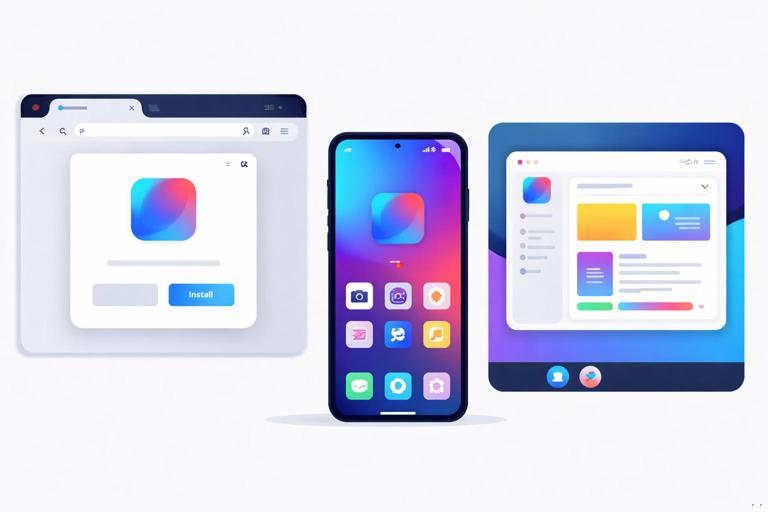
It is important to separate responsibilities: the manifest describes install-time and launch-time presentation, while the service worker handles offline behavior, caching, and network interception. A manifest alone does not make an app offline-capable, and a service worker alone does not define install UI, icons, or display mode. For an installable experience that feels native, you typically need both working together, but this chapter focuses on configuring the manifest correctly and predictably.
How Browsers Use the Manifest During Installation
When a user installs your app (via an install prompt, a browser menu action, or an OS-level suggestion), the browser reads your manifest and stores key fields. Later, when the user launches the installed app, the browser uses the stored manifest data to decide:
- Which URL to open first (
start_url) - Whether to show browser UI (address bar, navigation controls) via
display - Which icon to use in the launcher and splash screen (
icons) - What colors to apply to the window and splash screen (
theme_color,background_color) - Which screen orientation to prefer (
orientation) - Which app name to show under the icon (
name,short_name)
Different browsers and operating systems interpret some fields slightly differently. Your goal is to provide a robust, standards-compliant manifest that degrades gracefully when a field is ignored.
Step-by-Step: Create and Link a Manifest
Step 1: Add a manifest file to your project
Create a file named manifest.webmanifest (or manifest.json) in a public/static directory that is served by your web server. The recommended extension is .webmanifest because it communicates intent and can be served with the correct MIME type more easily.
- Listen to the audio with the screen off.
- Earn a certificate upon completion.
- Over 5000 courses for you to explore!

Download the app
{ "name": "Acme Tasks", "short_name": "Tasks", "start_url": "/?source=pwa", "display": "standalone", "background_color": "#ffffff", "theme_color": "#0f62fe", "icons": [ { "src": "/icons/icon-192.png", "sizes": "192x192", "type": "image/png" }, { "src": "/icons/icon-512.png", "sizes": "512x512", "type": "image/png" } ]}Step 2: Link the manifest from your HTML
Add a <link> tag in the document head of your main HTML entry point (often index.html). The browser discovers the manifest through this link.
<link rel="manifest" href="/manifest.webmanifest">Step 3: Ensure it is served correctly
The manifest should be served with Content-Type: application/manifest+json (preferred) or application/json. Many setups work even if the MIME type is not perfect, but correct headers reduce edge-case issues and improve tooling compatibility.
If you control server headers, configure something like:
# Example (conceptual): map .webmanifest to application/manifest+jsonStep 4: Validate in DevTools
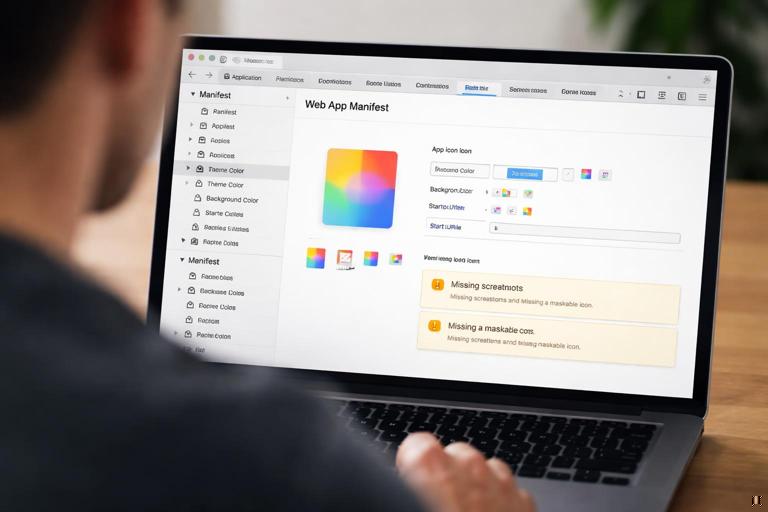
Use browser DevTools (Application panel in Chromium-based browsers) to confirm the manifest is detected, parsed, and that icons are valid. You should see the manifest fields rendered and any warnings about missing icon sizes or invalid values.
Core Manifest Fields You Should Configure Carefully
name and short_name
name is the full app name used in install UI and OS surfaces where there is enough space. short_name is used under the home screen icon or in tight UI. If short_name is missing, browsers may fall back to name, which can be truncated.
Practical guidance:
- Keep
short_nameunder ~12 characters when possible. - Avoid version numbers in the name; treat the manifest as stable branding metadata.
- Use consistent capitalization to match your product UI.
start_url
start_url determines what opens when the user launches the installed app. It can be absolute or relative. A common pattern is to include a query parameter to distinguish PWA launches for analytics or UI tweaks (for example, hiding a “Install our app” banner when already installed).
{ "start_url": "/?source=pwa"}Practical guidance:
- Ensure
start_urlis reachable and returns a valid page even when the user is offline (this is where your offline strategy matters, but the manifest must point to a URL your app can handle). - Prefer a stable route that does not depend on ephemeral session state.
- If your app supports deep links, keep
start_urlas a safe landing page and handle deep links separately.
display
display controls how “app-like” the installed window is:
standalone: Looks like a native app window; no browser address bar.fullscreen: Uses the entire screen (common for games, kiosks).minimal-ui: A compromise with minimal navigation controls (support varies).browser: Opens like a normal tab (not app-like).
Most productivity apps choose standalone. If your app relies heavily on browser UI (for example, users need the URL bar), you might choose browser, but that reduces the “installed” feel.
{ "display": "standalone"}scope
scope defines the navigation boundary of your installed app. Links within the scope open inside the app window; links outside may open in the regular browser. If you omit scope, it defaults to the directory containing the manifest.
{ "scope": "/app/", "start_url": "/app/"}Practical guidance:
- Set
scopeintentionally to avoid surprising behavior where some routes open “outside” the app. - Keep
start_urlinsidescope; otherwise installation may be ignored or behave inconsistently. - If your app lives at the site root,
scopecan be"/".
icons (and why sizes matter)
The icons array is one of the most important parts of a polished install experience. Browsers use these images for the home screen icon, launcher icon, task switcher, and sometimes splash screens. Provide multiple sizes so the OS can pick the best match.
A minimal baseline is 192x192 and 512x512 PNG icons:
{ "icons": [ { "src": "/icons/icon-192.png", "sizes": "192x192", "type": "image/png" }, { "src": "/icons/icon-512.png", "sizes": "512x512", "type": "image/png" } ]}Practical guidance:
- Use square icons with transparent background unless your brand requires a solid shape.
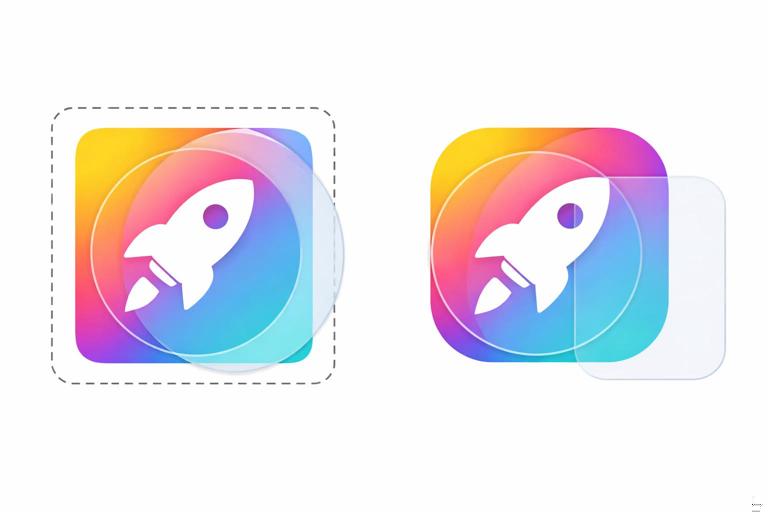
- Ensure the icon artwork has padding (safe area). Many platforms apply masks (rounded corners, squircles) and can clip edges.
- Host icons on the same origin and ensure they are cacheable and served with correct headers.
- Consider adding additional sizes (e.g., 96, 128, 256) for better fidelity on some devices.
purpose: maskable icons for better integration
Some platforms mask icons into shapes (rounded rectangles, circles). A “maskable” icon is designed with extra padding so the important artwork remains visible after masking. You can declare icon purpose:
{ "icons": [ { "src": "/icons/icon-192-maskable.png", "sizes": "192x192", "type": "image/png", "purpose": "maskable" }, { "src": "/icons/icon-512-maskable.png", "sizes": "512x512", "type": "image/png", "purpose": "maskable" }, { "src": "/icons/icon-192.png", "sizes": "192x192", "type": "image/png", "purpose": "any" } ]}Practical guidance:
- Provide both
maskableandanywhen possible; browsers can choose the best option. - Test the maskable icon in DevTools (some tools preview safe area and masking).
theme_color and background_color
theme_color influences the browser UI color (and the title bar color in standalone windows on some platforms). background_color is used as the background for the splash screen and sometimes as the default background while the app loads.
{ "theme_color": "#0f62fe", "background_color": "#ffffff"}Practical guidance:
- Pick a
background_colorthat matches your app shell background to avoid a “flash” during startup. - Keep contrast in mind: if your theme is dark, ensure the OS UI elements remain readable.
- Also set the HTML meta theme-color for non-installed browsing contexts:
<meta name="theme-color" content="#0f62fe">description
description is not always displayed, but it can appear in install UI or OS surfaces depending on platform. Keep it short and user-focused.
{ "description": "Track tasks offline and sync when you reconnect."}orientation
If your app is designed primarily for portrait or landscape, you can request an orientation. This is most relevant for media apps, games, or kiosk-style experiences.
{ "orientation": "portrait"}Practical guidance:
- Only lock orientation when it improves usability; otherwise, allow rotation.
- Test on actual devices; some platforms treat this as a hint rather than a strict lock.
Advanced Configuration for More Native-Like Behavior
id: stable identity across updates
The id field helps browsers identify your app consistently even if start_url changes. This can reduce issues where updates to the manifest accidentally create a “new” app identity.
{ "id": "/", "start_url": "/?source=pwa"}Practical guidance:
- Keep
idstable over time. - Use a simple path-like identifier on your origin.
categories
categories can help classify your app in some contexts. Support varies, but it is harmless when used correctly.
{ "categories": ["productivity", "utilities"]}screenshots and richer install UI
Some browsers may show screenshots during installation. Providing them can improve user confidence and perceived quality.
{ "screenshots": [ { "src": "/screenshots/home.png", "sizes": "1080x1920", "type": "image/png" }, { "src": "/screenshots/list.png", "sizes": "1080x1920", "type": "image/png" } ]}Practical guidance:
- Use realistic screenshots that match the current UI.
- Keep file sizes reasonable; compress images.
shortcuts: app icon quick actions
Shortcuts let users long-press or right-click the app icon to jump to key actions or sections (support varies by platform). Each shortcut includes a name, a URL, and optional icons.
{ "shortcuts": [ { "name": "New Task", "short_name": "New", "url": "/tasks/new?source=shortcut", "icons": [ { "src": "/icons/shortcut-new.png", "sizes": "96x96", "type": "image/png" } ] }, { "name": "Today", "short_name": "Today", "url": "/tasks/today?source=shortcut" } ]}Practical guidance:
- Keep shortcut destinations inside your
scope. - Make sure the target routes load fast and handle offline states gracefully.
- Use query parameters to track usage without relying on referrers.
display_override: fine-tuning display behavior
display_override allows you to provide a preferred list of display modes, letting the browser choose the best supported option. For example, you might prefer window-controls-overlay on desktop (where supported) and fall back to standalone.
{ "display": "standalone", "display_override": ["window-controls-overlay", "standalone"]}Practical guidance:
- Use this when you have a desktop-optimized UI and want tighter integration with window chrome.
- Always include a widely supported fallback like
standalone.
Practical Manifest Patterns for Common App Structures
Pattern: App served from a subpath
If your PWA lives at /app/ (for example, marketing site at / and app at /app/), set scope and start_url to that subpath. Place the manifest at /app/manifest.webmanifest or keep it at root but ensure scope is correct.
{ "name": "Acme Tasks", "short_name": "Tasks", "scope": "/app/", "start_url": "/app/?source=pwa", "display": "standalone", "theme_color": "#0f62fe", "background_color": "#ffffff", "icons": [ {"src": "/app/icons/icon-192.png", "sizes": "192x192", "type": "image/png"}, {"src": "/app/icons/icon-512.png", "sizes": "512x512", "type": "image/png"} ]}Pattern: Multi-tenant or locale-aware apps
If your app supports multiple locales or tenants (e.g., /en/, /fr/), you have two common approaches:
- Single manifest with a neutral
start_urlthat redirects to the right locale based on user preference. - Multiple manifests per locale, each linked conditionally (server-side or via different entry points).
A single-manifest approach might use:
{ "start_url": "/?source=pwa", "scope": "/"}Then your app decides where to route on first load. If you use multiple manifests, ensure each has consistent id strategy so you do not accidentally create multiple installed apps unless that is desired.
Testing and Troubleshooting Manifest Issues
Common problems and how to fix them
Manifest not detected: Confirm the
<link rel="manifest">path is correct and that the manifest URL returns 200. Check DevTools Network panel for 404s.Icons not showing or low quality: Verify icon URLs are correct, sizes match the actual image dimensions, and files are not blocked by authentication. Provide at least 192 and 512. Add maskable icons if the OS masks icons.
Installed app opens outside the app window: Your
scopemay be too narrow, or navigation is leaving scope. Adjustscopeto include the routes you consider part of the app.Wrong start page on launch: Ensure
start_urlis insidescopeand does not redirect to an out-of-scope URL. Avoid start URLs that depend on transient state.Changes not reflected after editing manifest: Browsers may cache manifest data for installed apps. Uninstall and reinstall the app during development, or bump relevant URLs (e.g., icon file names) to force refresh. Also clear site data in DevTools when needed.
DevTools checklist for manifest verification
- Manifest is fetched successfully and parsed without errors.
nameandshort_nameappear as expected.start_urlis correct and loads in standalone.scopeincludes all app routes.- Icons show previews for required sizes; maskable icons are recognized.
- Theme and background colors match your UI and do not cause flashes.
Putting It Together: A Production-Ready Manifest Example
The following example includes a balanced set of fields that improve install quality without overcomplicating the configuration. Adjust paths and values to match your app structure.
{ "id": "/", "name": "Acme Tasks", "short_name": "Tasks", "description": "Track tasks offline and sync when you reconnect.", "start_url": "/?source=pwa", "scope": "/", "display": "standalone", "display_override": ["window-controls-overlay", "standalone"], "background_color": "#ffffff", "theme_color": "#0f62fe", "orientation": "portrait", "categories": ["productivity", "utilities"], "icons": [ { "src": "/icons/icon-192.png", "sizes": "192x192", "type": "image/png", "purpose": "any" }, { "src": "/icons/icon-512.png", "sizes": "512x512", "type": "image/png", "purpose": "any" }, { "src": "/icons/icon-192-maskable.png", "sizes": "192x192", "type": "image/png", "purpose": "maskable" }, { "src": "/icons/icon-512-maskable.png", "sizes": "512x512", "type": "image/png", "purpose": "maskable" } ], "shortcuts": [ { "name": "New Task", "short_name": "New", "url": "/tasks/new?source=shortcut", "icons": [ { "src": "/icons/shortcut-new.png", "sizes": "96x96", "type": "image/png" } ] }, { "name": "Today", "short_name": "Today", "url": "/tasks/today?source=shortcut" } ], "screenshots": [ { "src": "/screenshots/home.png", "sizes": "1080x1920", "type": "image/png" }, { "src": "/screenshots/detail.png", "sizes": "1080x1920", "type": "image/png" } ]}Implementation Notes: Keeping Manifest Data in Sync with Your App
Align colors with your CSS and app shell
To avoid mismatches between the splash background and your first rendered screen, ensure your initial app shell background color matches background_color. If your app supports dark mode, consider whether you want a single neutral background or a strategy that changes theme colors dynamically (note that the manifest itself is static; dynamic theming is typically handled via HTML meta tags and CSS, while the manifest provides a baseline for install surfaces).
Versioning icons and cache behavior
When you update icons, some platforms may keep the old icon until the app is reinstalled or until the browser refreshes the manifest data. A practical approach is to change icon file names when you make a significant icon update (for example, icon-512.v2.png) and update the manifest accordingly. This avoids relying on cache invalidation heuristics.
Security and access considerations
Make sure the manifest and icon URLs are publicly accessible without authentication challenges. If your app requires login, the manifest should still be fetchable, and the start_url should lead to a route that can handle unauthenticated users (for example, redirecting to a login screen within scope). If the manifest fetch fails due to redirects to login pages, installation and icon fetching may break.
Step-by-Step: Quick Audit of an Existing Manifest
If you already have a manifest and want to improve install quality, run this quick audit:
Step 1: Confirm install metadata
- Is
namemeaningful and consistent with the product? - Is
short_nameshort enough to avoid truncation? - Is
descriptionpresent and accurate?
Step 2: Confirm launch behavior
- Does
start_urlopen the correct landing screen? - Is
start_urlinsidescope? - Is
displayappropriate (standalonefor most apps)?
Step 3: Confirm icon completeness
- Do you have at least 192x192 and 512x512 PNG icons?
- Do the declared
sizesmatch the actual pixel dimensions? - Do you provide
maskableicons for better OS masking?
Step 4: Confirm visual polish
- Do
theme_colorandbackground_colormatch the app shell? - Do screenshots (if provided) reflect current UI?
- Do shortcuts (if provided) lead to fast, reliable routes?