What “App Shell” Means in a PWA
App Shell Architecture is a way to structure a Progressive Web App so the “frame” of the application loads instantly and reliably, even when the network is slow or unavailable. The shell is the minimal set of resources required to render the core UI: layout, navigation, header/footer, base styles, and the JavaScript needed to bootstrap routing and render placeholders. The shell is intentionally separated from the “content” (dynamic data, API responses, user-specific information) so that the UI can appear immediately while content is fetched (or read from cache) in the background.
In practice, the App Shell is what you want to cache aggressively and version carefully. It should be small, stable, and independent of data. When implemented well, the user experience feels like a native app: the interface appears instantly, transitions are smooth, and offline states are handled gracefully.
App Shell vs. Content
- Shell (static, reusable): HTML skeleton, CSS, critical JS bundles, icons, fonts (if needed), base route components, and offline fallback UI.
- Content (dynamic, changing): API data, user-generated content, images loaded from a CDN, personalized feeds, search results.
This separation helps you avoid a common offline pitfall: caching entire HTML pages that embed data, which quickly becomes stale and hard to invalidate. Instead, you cache the shell and fetch data separately, using caching strategies appropriate for each resource type.
Core Principles of App Shell Architecture
1) Fast first paint by caching the UI frame
The shell should be available from cache on repeat visits and offline. That means the service worker precaches the shell assets during installation, so the browser can render the UI without waiting for network requests.
2) Route-driven rendering with placeholders
When the user navigates, the app should render the route’s UI immediately (from cached code) and show placeholders (skeleton screens, shimmer blocks, or simple loading states) while data is retrieved. This avoids blank screens and reduces perceived latency.
- Listen to the audio with the screen off.
- Earn a certificate upon completion.
- Over 5000 courses for you to explore!

Download the app
3) Data is fetched separately and cached with a strategy
Different data has different freshness needs. Some data should be “stale-while-revalidate” (show cached immediately, update in background), while other data must be network-first (e.g., real-time pricing) with an offline fallback. App Shell architecture encourages you to treat data caching as a separate layer from UI caching.
4) Versioning and invalidation are explicit
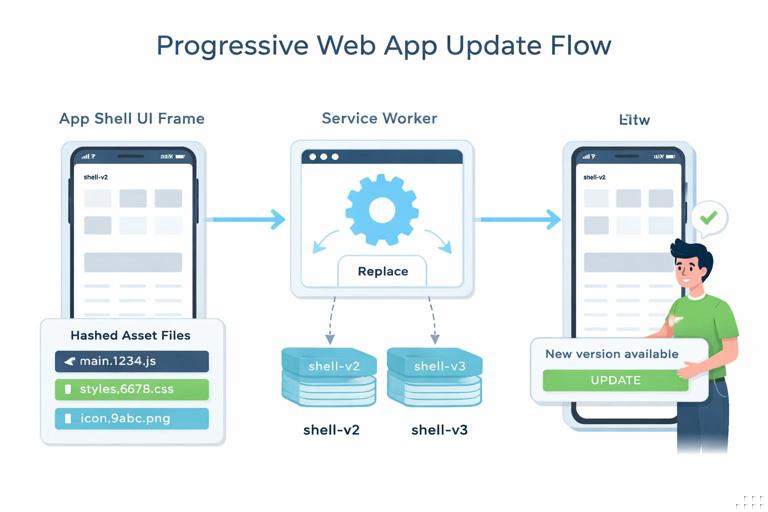
Because the shell is cached, you must plan how updates propagate. A new shell version should replace the old one safely, and the UI should not break if it loads new JS with old cached data or vice versa. This is typically handled with hashed filenames for assets and careful service worker update flows.
Designing the Shell: What to Include (and What Not to)
Include
- Minimal HTML that mounts your app (often a single root element).
- Critical CSS for layout and basic styling (or a small CSS bundle).
- Core JS bundles needed to render routes and basic interactions.
- Navigation UI, top-level layout, and route components.
- Offline fallback page or offline route UI.
Avoid including
- Route-specific data embedded in HTML (unless it’s truly static).
- Large images or heavy media that are not essential to first render.
- Non-critical fonts or third-party scripts that delay boot.
- Excessive prefetching that bloats the precache and slows install.
A useful rule: if removing a resource would prevent the app from showing a usable frame offline, it belongs in the shell. If it only improves richness or content completeness, it likely belongs in runtime caching.
Step-by-Step: Implementing an App Shell with a Service Worker
This section focuses on how to wire the shell into caching and routing behavior. It assumes you already have a service worker registered and understand the basics of fetch events; the goal here is to apply those mechanics specifically to an App Shell and offline UX patterns.
Step 1: Identify shell assets
Make a list of assets that must be available offline to render the UI frame. A typical list might include:
/(or/index.html)/styles/app.css/scripts/app.js/scripts/vendor.js/offline.html(or an offline route)- Minimal icons used in the UI chrome
Keep the list small. If you use a bundler that outputs hashed filenames, you can generate this list automatically at build time, but the architectural decision remains: only the shell goes into precache.
Step 2: Precache the shell during service worker install
Precache ensures the shell is available before the service worker activates. Use a versioned cache name so you can replace old shells cleanly.
const SHELL_CACHE = 'shell-v3'; const SHELL_ASSETS = [ '/', '/styles/app.css', '/scripts/app.js', '/offline.html' ]; self.addEventListener('install', (event) => { event.waitUntil( (async () => { const cache = await caches.open(SHELL_CACHE); await cache.addAll(SHELL_ASSETS); self.skipWaiting(); })() ); });skipWaiting() helps the new service worker move forward, but you should still plan for a controlled activation flow (covered below) to avoid breaking open tabs.
Step 3: Clean up old shell caches on activate
When you ship a new shell version, remove old caches so storage doesn’t grow indefinitely and users don’t get stuck with outdated UI resources.
self.addEventListener('activate', (event) => { event.waitUntil( (async () => { const keys = await caches.keys(); await Promise.all( keys.map((key) => { if (key.startsWith('shell-') && key !== SHELL_CACHE) { return caches.delete(key); } }) ); await self.clients.claim(); })() ); });clients.claim() allows the active service worker to control pages immediately after activation, improving consistency for navigation requests.
Step 4: Serve the shell for navigations (App Shell routing)
For single-page apps (SPAs) or apps that rely on client-side routing, you typically want navigation requests to return the shell (e.g., /index.html) so the app can render the correct route. Offline, this is essential: returning the shell allows the UI to load and show cached content or offline states.
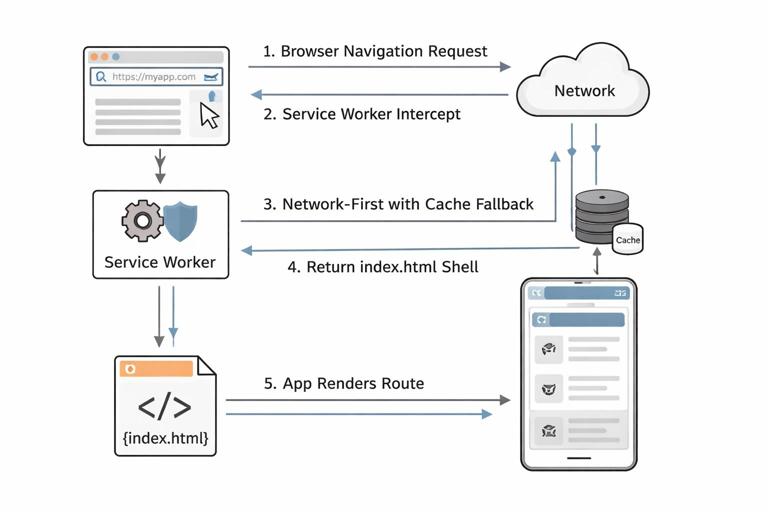
A robust pattern is: for navigation requests, try network first (to get the latest shell) but fall back to cached shell when offline. Alternatively, you can use cache-first for the shell to maximize speed, but then you must handle updates carefully.
self.addEventListener('fetch', (event) => { const req = event.request; if (req.mode === 'navigate') { event.respondWith( (async () => { try { const networkRes = await fetch(req); const cache = await caches.open(SHELL_CACHE); cache.put('/', networkRes.clone()); return networkRes; } catch (err) { const cache = await caches.open(SHELL_CACHE); const cached = await cache.match('/'); return cached || cache.match('/offline.html'); } })() ); return; } });Notes: (1) This example updates the cached shell when online by caching the latest response. (2) If your server serves different HTML per route, you may prefer caching /index.html explicitly and always returning that for navigations.
Step 5: Add runtime caching for content (separate from shell)
App Shell is only half the story. The shell loads instantly, but the user still needs content. Use runtime caching strategies for API calls and images, and keep them in separate caches so you can manage them independently.
const DATA_CACHE = 'data-v1'; const IMAGE_CACHE = 'images-v1'; self.addEventListener('fetch', (event) => { const url = new URL(event.request.url); if (url.pathname.startsWith('/api/')) { event.respondWith(staleWhileRevalidate(event.request, DATA_CACHE)); return; } if (event.request.destination === 'image') { event.respondWith(cacheFirst(event.request, IMAGE_CACHE)); return; } }); async function staleWhileRevalidate(request, cacheName) { const cache = await caches.open(cacheName); const cached = await cache.match(request); const networkPromise = fetch(request).then((res) => { cache.put(request, res.clone()); return res; }).catch(() => null); return cached || (await networkPromise) || new Response(JSON.stringify({ error: 'offline' }), { headers: { 'Content-Type': 'application/json' } }); } async function cacheFirst(request, cacheName) { const cache = await caches.open(cacheName); const cached = await cache.match(request); if (cached) return cached; const res = await fetch(request); cache.put(request, res.clone()); return res; }This separation supports better offline UX: the shell always loads, and content can be progressively enhanced based on what’s cached and what’s reachable.
Offline UX Patterns That Work Well with App Shell
Offline UX is not just “show an offline page.” A good offline-first experience uses patterns that communicate state, preserve user intent, and avoid dead ends. Below are practical patterns you can combine depending on your app’s content and workflows.
1) Skeleton screens and optimistic UI
When the shell loads, show skeleton components that match the layout of the content. If cached content exists, replace skeletons immediately. If not, show an offline-friendly empty state with clear actions (retry, view saved items, create draft).
- Good for: feeds, lists, dashboards.
- Implementation hint: render skeletons by default; swap with cached data if available; then revalidate in background.
2) Offline-aware empty states (not generic errors)
Instead of “Failed to fetch,” show a state that explains what the user can do offline. Examples:
- “You’re offline. Showing saved articles.”
- “No cached results for this search. Try again when you’re online.”
- “You can still create a draft; we’ll upload it later.”
This requires the UI to know whether data is cached for the current view. A simple approach is: attempt to read from cache/IndexedDB first; if empty and offline, show a tailored empty state.
3) “Last updated” indicators and stale content messaging
When using stale-while-revalidate, users may see older content briefly. Add a subtle “Updated 2 hours ago” label or a refresh indicator when new data arrives. This builds trust and reduces confusion when content changes after the initial render.
Practical approach: store a timestamp alongside cached data (e.g., in IndexedDB). When rendering, show the timestamp and update it when fresh data is fetched.
4) Read-through cache for detail pages
Detail pages (article/product/profile) are often visited from a list. A strong offline pattern is to cache the detail response when the user views it online, so revisiting works offline. Combine with prefetching: when the list is loaded, prefetch the top N detail pages in the background (carefully, to avoid bandwidth waste).
- Good for: news, documentation, catalogs.
- Implementation hint: prefetch only on Wi-Fi or when the user opts in; cap storage with an LRU policy.
5) Offline fallback route inside the shell
Rather than redirecting to a separate offline HTML page, you can keep the user inside the app shell and render an offline route/view. This keeps navigation consistent and allows access to cached sections (saved items, drafts, settings).
One approach: if a navigation fails and there is no cached content for that route, return the shell and let the app render an offline screen based on connectivity and route metadata.
6) Background sync for queued actions (when applicable)
For apps where users create or modify data (messages, forms, checklists), offline UX should preserve intent. The pattern is: accept the action immediately, store it locally, and sync later. The UI shows the item as “pending” until confirmed.
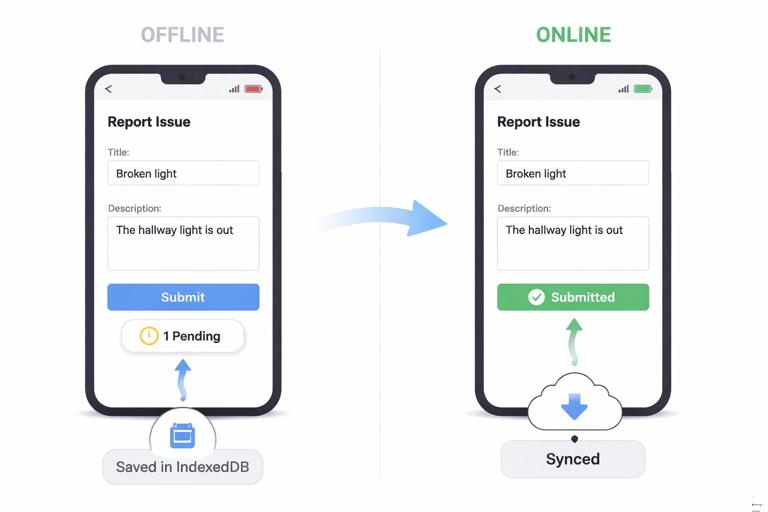
Even without advanced APIs, you can implement a basic queue: store pending requests in IndexedDB, retry when the app regains connectivity, and reconcile conflicts.
7) Granular offline capability: “some screens work offline”
Not every screen needs to work offline. A practical pattern is to explicitly choose offline-capable routes (home, saved, recent) and mark others as online-only (live search, real-time map). The shell still loads everywhere, but online-only routes show a clear offline message and a path back to offline-capable areas.
Putting It Together: A Route-Level Offline Strategy
App Shell works best when you decide, per route, what the offline behavior should be. A simple planning table can guide implementation:
- Home feed: show cached feed immediately; revalidate in background; show “last updated.”
- Detail page: cache-first for previously visited items; if not cached and offline, show offline empty state with “save for later” disabled.
- Create/edit: allow offline drafts; queue submissions; show pending state.
- Search: online-only; offline shows explanation and recent searches if stored.
To implement this, you can tag routes in your client code and choose data strategies accordingly. The service worker handles network-level caching, while the app decides how to render based on available data and connectivity.
Offline UX for Assets: Fonts, Icons, and Images
Icons and UI images
Icons used in navigation and core UI should be part of the shell or at least cached early. If icons fail to load offline, the UI can look broken even if functional. Prefer inline SVG for critical icons or ensure the icon sprite is precached.
Fonts
Custom fonts can be expensive and can block text rendering depending on CSS settings. For offline resilience and performance:
- Use system fonts for the shell, or
- Precache only the minimal font files needed (e.g., one weight), and set
font-display: swapso text renders even if the font is unavailable.
Images
Images are typically runtime-cached. For offline UX, consider:
- Use low-quality placeholders (LQIP) embedded in HTML/CSS or generated at build time.
- Cache thumbnails rather than full-resolution images when storage is limited.
- Provide an offline placeholder image for missing content images.
Handling Updates Without Breaking the Shell Experience
Because the shell is cached, updates can create tricky states: a new service worker may install while the user is still using an older version of the app. If the new shell expects a different API format or different cached data schema, you can get runtime errors.
Practical update pattern: notify and refresh
A common approach is to detect that a new service worker is waiting and prompt the user to refresh. This avoids silently swapping the shell mid-session.
In the service worker, you already call skipWaiting(). In the page, listen for an update and show a “New version available” banner. When the user accepts, send a message to the service worker to activate and reload.
// In the page (app.js) navigator.serviceWorker.addEventListener('controllerchange', () => { window.location.reload(); }); async function listenForUpdates(reg) { if (!reg) return; if (reg.waiting) { showUpdateBanner(reg); } reg.addEventListener('updatefound', () => { const sw = reg.installing; if (!sw) return; sw.addEventListener('statechange', () => { if (sw.state === 'installed' && navigator.serviceWorker.controller) { showUpdateBanner(reg); } }); }); } function showUpdateBanner(reg) { // Render UI in your shell: “Update available” // On click: reg.waiting.postMessage({ type: 'SKIP_WAITING' }); }// In the service worker self.addEventListener('message', (event) => { if (event.data && event.data.type === 'SKIP_WAITING') { self.skipWaiting(); } });This pattern keeps the offline-first promise (shell is cached) while making updates predictable.
Common Pitfalls and How to Avoid Them
Caching too much in the shell
If you precache large bundles, images, or many route assets, the service worker install can become slow or fail on poor connections. Keep the shell minimal and move non-critical assets to runtime caching.
Serving stale HTML that references missing JS
If index.html is cached but references a JS file that changed name (e.g., hashed build output), the app can break offline. Avoid this by precaching the exact build output together (HTML + referenced assets) and versioning them consistently, or by using a build process that injects correct asset lists into the service worker precache.
Not providing offline states per route
Users don’t experience “offline” globally; they experience it when a specific action fails. Design offline UX at the interaction level: loading a list, opening a detail, submitting a form. The shell ensures the UI loads; your route-level patterns ensure the UI remains useful.
Ignoring storage limits and cache eviction
Browsers may evict caches under storage pressure. Plan for missing cached entries: always handle cache misses gracefully and show offline empty states rather than crashing. Consider implementing cache size limits for images and data caches.
Checklist: App Shell + Offline UX Pattern Selection
- Shell assets identified and kept minimal.
- Shell precached and versioned; old caches cleaned up.
- Navigations return the shell with offline fallback.
- Data caching separated from shell caching with clear strategies.
- Route-level offline behavior defined (cached view, offline empty state, online-only).
- Skeleton/loading states implemented for perceived performance.
- Stale content messaging (“last updated”) where applicable.
- Update flow avoids breaking sessions (notify + refresh).