Why naming, version control, documentation, and handoffs matter in operations
In operations, spreadsheets and Power Query solutions often outlive the person who built them. The risk is not only “someone changes a formula,” but also: files get duplicated, the wrong version gets emailed, a refresh breaks because a folder path changed, or a new owner cannot tell which tabs are inputs versus outputs. Best practices in naming, version control, documentation, and handoffs reduce these risks by making your work discoverable, traceable, and transferable.
This chapter focuses on operational governance for Excel-based tools: how to name things so they are searchable, how to control versions so teams don’t fork the truth, how to document so the next person can run and modify the tool safely, and how to hand off ownership without losing continuity.
Naming standards that scale
Naming is a control mechanism. Good names reduce misinterpretation, speed onboarding, and prevent accidental edits. The goal is consistency across files, tabs, tables, queries, connections, and output exports.
Principles for operational naming
- Be unambiguous: names should describe purpose, scope, and grain (daily vs weekly, site vs region).
- Be consistent: choose a pattern and apply it everywhere.
- Be sortable: use ISO dates (YYYY-MM-DD) and fixed-width numbers (v01, v02) so lists sort correctly.
- Be system-friendly: avoid special characters that break paths or integrations (e.g., / \ : * ? " < > |). Prefer hyphens and underscores.
- Separate human labels from machine identifiers: a sheet can have a readable title, while a table/query uses a strict identifier.
File naming convention (recommended pattern)
Use a pattern that encodes the operational context and the lifecycle state of the file.
[OrgOrTeam]_[Process]_[Tool]_[Scope]_[Cadence]_[Environment]_[Version]_[YYYY-MM-DD].xlsxExample:
- Listen to the audio with the screen off.
- Earn a certificate upon completion.
- Over 5000 courses for you to explore!

Download the app
OPS_Purchasing_PipelineTracker_NA_Weekly_PROD_v07_2026-01-09.xlsxGuidelines:
- OrgOrTeam: OPS, WH, FINOPS, CS, etc.
- Process: Receiving, Maintenance, Purchasing, Staffing.
- Tool: Dashboard, Tracker, Forecast, Reconciliation.
- Scope: Site01, NA, EMEA, AllSites.
- Cadence: Daily, Weekly, Monthly, AdHoc.
- Environment: PROD, UAT, DEV (more on this later).
- Version: v01, v02… (avoid “final”).
- Date: use the publish date, not the data period, unless the file is a snapshot.
Folder naming and structure
Folder structure should support: (1) stable refresh paths, (2) separation of raw inputs from curated outputs, and (3) auditability.
\SharedDrive\OPS\Tools\PurchasingPipeline\01_Raw\02_Staging\03_Model\04_Outputs\05_Archive\99_Admin- 01_Raw: immutable source extracts (CSV exports, vendor files). Avoid editing files here.
- 02_Staging: intermediate files created by automation or controlled transforms.
- 03_Model: the Excel workbook(s) that contain queries, calculations, and dashboards.
- 04_Outputs: published PDFs, shared extracts, or distribution-ready files.
- 05_Archive: dated snapshots of outputs and retired versions.
- 99_Admin: documentation, data dictionaries, change logs.
Operational tip: if Power Query points to a folder, keep that folder path stable. If you must move it, move the entire parent folder and keep the relative structure identical.
Sheet naming: make intent obvious
Use a small set of prefixes so anyone can tell what a sheet is for. Example pattern:
- IN_ for user inputs (e.g., IN_Assumptions, IN_Parameters)
- REF_ for reference lists (e.g., REF_Sites, REF_StatusCodes)
- CALC_ for intermediate calculations (kept minimal and protected)
- OUT_ for outputs meant to be copied/exported (e.g., OUT_KPIs, OUT_WeeklyReport)
- DB_ for data tables loaded to the workbook (e.g., DB_Orders, DB_Receipts)
- ADM_ for admin notes, change logs, runbooks (e.g., ADM_ReadMe)
Avoid ambiguous names like “Sheet1,” “New,” “Temp,” or “Dashboard2.” If you need a scratch area, name it explicitly (e.g., ADM_Sandbox) and keep it empty in production.
Naming tables, queries, and connections
In operational workbooks, tables and queries are the backbone of refresh and reporting. Use strict identifiers that are easy to reference and hard to confuse.
- Tables:
tblOrders,tblReceipts,tblKPI_Definitions - Queries: prefix by layer:
qRaw_,qStg_,qDim_,qFact_,qOut_ - Parameters:
pFolder_Raw,pAsOfDate,pSite
Example query chain naming:
qRaw_Folder_Receipts → qStg_Receipts_Clean → qFact_Receipts → qOut_Receipts_ForPivotThis makes it clear which queries are safe to load and which are intermediate steps.
Version control without chaos
Operations teams often “version control” by emailing files or appending “final_final.” That creates forks and makes it impossible to know what is authoritative. A practical version control approach for Excel tools should answer four questions: Who changed what? When? Why? Which version is current?
Choose a versioning model
Pick one model and apply it consistently.
- Model A: Single live file + change log (best for shared tools). One production workbook is the source of truth. Changes are made through a controlled process and recorded.
- Model B: Release-based files (best for regulated reporting or external distribution). Each release is a new file (v01, v02) stored in an archive; only one is marked current.
- Model C: Snapshot outputs + stable model (best for recurring reporting). The model workbook stays stable; outputs are saved as dated snapshots (PDF/CSV) for audit.
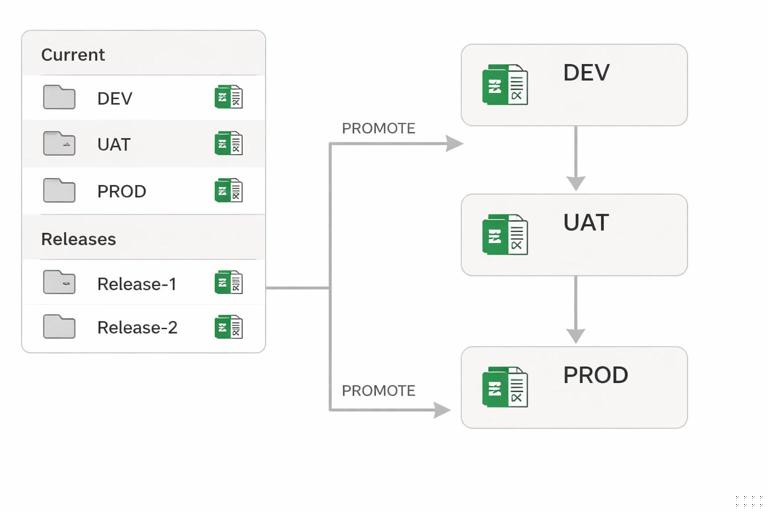
Define environments: DEV, UAT, PROD
Even in Excel, separating environments prevents accidental breakage.
- DEV: where you test changes, new queries, new logic.
- UAT: a copy used for user acceptance testing with realistic data and a checklist.
- PROD: the file used for official reporting and operational decisions.
Practical rule: only promote from DEV → UAT → PROD. Do not “hot fix” PROD unless there is a documented incident and a follow-up promotion.
Semantic versioning for operational tools
Use a simple semantic version scheme:
- Major (v2.0): structural changes that affect users (new workflow, new outputs, new data model).
- Minor (v1.3): new features that are backward compatible (new KPI, new filter, additional site).
- Patch (v1.3.2): bug fixes and small corrections (typo, mapping fix, formatting fix).
If your team prefers shorter names, keep a single integer (v07) but still record “major/minor/patch” in the change log.
Step-by-step: implement a lightweight release process
This process works well for shared-drive or Teams/SharePoint storage.
Create a release folder structure
\...\03_Model\PROD\Current\Tool.xlsx
\...\03_Model\PROD\Releases\v1.3.2\Tool_v1.3.2.xlsx
\...\03_Model\DEV\Tool_DEV.xlsx
\...\03_Model\UAT\Tool_UAT.xlsx
Add an in-workbook “Build Info” block on an admin sheet (ADM_ReadMe): Version, owner, last published date, data sources, refresh instructions.
Make changes in DEV and update the change log as you go (don’t wait until the end).
Run a UAT checklist (see below) and have a second person validate key outputs.
Publish to PROD by copying the validated file to Releases and updating Current.
Archive the prior PROD so you can roll back quickly.
UAT checklist (operations-focused)
- Refresh completes without prompts or errors.
- Row counts match expectations for key datasets (e.g., orders, receipts).
- Key KPIs reconcile to a known baseline period.
- Filters/slicers behave correctly for at least two sites/regions.
- Outputs export correctly (PDF/CSV) and file names follow the standard.
- Performance is acceptable (refresh time, pivot responsiveness).
- Access permissions are correct (no restricted data exposed).
Documentation that people actually use
Documentation fails when it is too long, too vague, or stored somewhere nobody checks. For Excel operational tools, documentation should be embedded where users work, and it should answer: What is this? How do I run it? What can I change safely? What should never be changed? What do I do when it breaks?
Minimum viable documentation set
Maintain these four artifacts:
- ADM_ReadMe sheet (in the workbook): purpose, owner, refresh steps, dependencies, version/build info.
- Data dictionary (in 99_Admin folder or a sheet): definitions of fields, units, grain, and allowed values.
- Change log (in workbook + optionally separate file): date, version, change summary, author, ticket/incident reference.
- Runbook (short): step-by-step operating procedure for daily/weekly use and troubleshooting.
ADM_ReadMe template (copy/paste structure)
Tool Name:
Purpose:
Primary Owner:
Backup Owner:
Business Users / Audience:
Data Sources (system, folder paths, extracts):
Refresh Frequency:
Refresh Steps (exact clicks):
Outputs Produced (where saved, naming):
Known Limitations:
Do Not Change (protected assumptions, query names, table names):
Last Published Version:
Last Published Date:
Support / Escalation:
Operational tip: include the exact folder path(s) used by Power Query and the expected file naming pattern of incoming extracts.
Data dictionary: define fields the way operations uses them
A data dictionary should be practical, not academic. Include:
- Field name (as used in the model)
- Description (operational meaning)
- Type (text, number, date/time)
- Unit (minutes, hours, units, currency)
- Grain (per order line, per shipment, per day per site)
- Source (system/report name)
- Rules (e.g., “Cancelled orders excluded from SLA”)
Example entries:
Field: SLA_DueDate
Description: Date/time by which the order must be shipped to meet SLA
Type: DateTime
Unit: local time
Grain: per order
Source: WMS export
Rules: If Priority='Expedite', SLA is 24h from CreatedDate
Change log: make it scannable
Use a table format so it can be filtered.
Date | Version | Type (Major/Minor/Patch) | Summary | Reason | Author | Validated By | Link/RefExamples of good summaries:
- “Fixed site mapping for Site07; receipts were attributed to Site01 due to code collision.”
- “Added KPI: Backlog Age (days) and updated OUT_WeeklyReport export.”
- “Updated folder parameter pFolder_Raw to new shared drive path; validated refresh.”
Runbook: document the “how,” not the “why”
A runbook should be short enough to follow during a busy shift. Keep it procedural.
- When to run: e.g., “Every weekday by 9:00 AM local.”
- Inputs required: which extracts must be placed in which folder, naming pattern.
- Refresh procedure: exact steps (buttons, order).
- Validation checks: quick checks (row counts, date range, key KPI sanity).
- Publish procedure: where to save outputs, naming, distribution list.
- Failure modes: what to do if refresh fails, if data is missing, if outputs look wrong.
Operational handoffs: transferring ownership safely
A handoff is successful when the new owner can run the tool, troubleshoot common issues, and make small changes without breaking the system. Handoffs fail when knowledge is trapped in the builder’s head or when the tool depends on personal paths, credentials, or undocumented steps.
Design the handoff package
Prepare a “handoff package” that lives next to the tool (e.g., in 99_Admin). Include:
- Latest PROD file and last two release versions.
- ADM_ReadMe, runbook, data dictionary, change log.
- List of dependencies: shared folders, source systems, credentials model (who owns access).
- Test dataset or a known-good snapshot for validation.
- Contact list: business owner, technical owner, upstream data owners.
Step-by-step: execute a structured handoff
Schedule a working session (60–90 minutes) where the current owner runs the tool end-to-end while the new owner follows the runbook.
Transfer access and permissions before the handoff date: shared drive folders, source system exports, mailbox or Teams channel used for distribution.
Validate refresh on the new owner’s machine to catch path, credential, or add-in differences.
Walk through the dependency map: where raw files come from, how they are named, what happens if a file is missing, and where outputs go.
Review “Do Not Change” items: query names, table names, parameter cells, protected ranges, and any manual steps that must remain consistent.
Practice troubleshooting using one intentional break (e.g., remove an input file, rename a column in a copy) and show how to diagnose and recover.
Agree on support and escalation: who approves changes, how incidents are reported, and the expected response time.
Set a shadow period: for the next 1–2 cycles, the new owner runs the process while the old owner reviews outputs.
Create a dependency map (simple but powerful)
A dependency map is a one-page view of the tool’s moving parts. Use a bulleted structure:
- Inputs: source systems/reports, file drops, manual inputs.
- Transform: key Power Query queries and parameters.
- Model: key tables and relationships (at a high level).
- Outputs: dashboards, exports, recipients.
- Controls: validation checks, exception logs, protected areas.
Keep it at the “operational interface” level: what must be present for the tool to work and where failures show up.
Change management: controlling edits in a spreadsheet world
Operational tools change constantly: new sites, new status codes, new KPIs, new upstream exports. Without a change process, small edits accumulate into fragile complexity. A lightweight change management approach keeps the tool stable while allowing improvements.
Define roles and decision rights
- Business owner: defines KPIs, approves changes that affect decisions.
- Tool owner: maintains the workbook, implements changes, ensures documentation.
- Data owner(s): responsible for upstream extracts and field definitions.
- Reviewer: validates releases (can be a peer or analyst).
Use a change request intake (simple form)
Track requests in a shared list (Excel table, SharePoint list, or ticketing system). Minimum fields:
- Request date, requester, priority
- Problem statement and desired outcome
- Impacted outputs/KPIs
- Deadline (if any)
- Acceptance criteria (how to know it’s correct)
Acceptance criteria example: “Backlog Age KPI matches manual calculation for Site03 for the last 4 Mondays within ±0.1 days.”
Release notes: communicate what changed
For each PROD release, publish short release notes (can be a section in ADM_ReadMe):
- What changed (user-visible)
- What stayed the same
- Any action required by users (e.g., new input file naming)
- Known issues/workarounds
Auditability and traceability in day-to-day operations
Auditability is not only for finance. In operations, you often need to answer: “Why did we report this KPI last week?” or “Which data extract was used?” Build traceability into the operating rhythm.
Operational traceability practices
- Stamp outputs with an “As Of” timestamp and the refresh time (in a cell that is included in exports).
- Record input file inventory: keep a small log table listing the files detected in the raw folder (name, modified date, row count). This can be maintained manually or via a query output.
- Keep snapshots of published outputs in 05_Archive with ISO dates.
- Maintain a reconciliation checkpoint: one or two numbers that can be compared to an upstream system report each cycle.
Operational resilience: designing for the “Monday morning problem”
Many failures happen at the worst time: right before a meeting or shift change. Resilience practices reduce downtime and prevent panic edits.
Standard troubleshooting playbook (runbook section)
- Refresh fails: check folder path, missing file, renamed column, credential prompt, locked file.
- Numbers look wrong: verify date filters, confirm the latest extract is present, check for duplicate files in Raw, confirm the “As Of” timestamp.
- Performance is slow: close other workbooks, refresh in the recommended order, confirm no unnecessary loads are enabled.
- Someone edited PROD: restore from last release, document incident, re-apply change in DEV if needed.
Backup and rollback rules
- Always keep at least the last two PROD releases accessible.
- When publishing, copy (don’t move) the prior Current into Releases.
- Use a consistent rollback procedure: replace Current with the prior release and notify stakeholders with the version number.
Practical templates you can implement immediately
Template: ADM_ReadMe layout (recommended sections)
- Top block: Tool name, owner, backup, version, publish date.
- How to run: refresh steps, expected duration, validation checks.
- Inputs: file patterns, folder paths, upstream owners.
- Outputs: where saved, naming, distribution.
- Controls: what is protected, what is safe to edit.
- Change log: last 10 changes (with link to full log if separate).
Template: naming cheat sheet (pin it in 99_Admin)
Files: TEAM_Process_Tool_Scope_Cadence_ENV_vX.Y.Z_YYYY-MM-DD.xlsx
Sheets: IN_, REF_, DB_, CALC_, OUT_, ADM_
Tables: tblEntity (tblOrders, tblSites)
Queries: qRaw_, qStg_, qDim_, qFact_, qOut_
Parameters: pFolder_, pDate_, pSite_
Template: handoff checklist
- New owner has access to all folders and source extracts.
- New owner can refresh successfully on their machine.
- Runbook is current and tested.
- Data dictionary matches current fields and definitions.
- Change log updated to latest release.
- Rollback versions available and labeled.
- Shadow period scheduled for next cycles.