Why naming, structure, and versioning are part of the brand system
A modular brand system only scales when people can find the right asset quickly, understand what it is, and trust that it is current. Naming conventions, file structures, and versioning workflows are the operational layer that makes your asset library usable across teams, tools, and time. Without them, you get duplicated files, “final_final” chaos, broken links in templates, and inconsistent outputs because different people unknowingly use different versions.
This chapter focuses on three practical questions: (1) What should we call things so they are searchable and unambiguous? (2) Where should things live so they are discoverable and maintainable? (3) How do we change things safely without breaking downstream usage?
Naming conventions: make assets self-explanatory
A naming convention is a set of rules that turns a filename into a compact description. A good name answers: what is it, where is it used, which variant is it, and what state/version is it in. The goal is not to encode every detail, but to encode the details that matter for selection and reuse.
Principles for robust naming
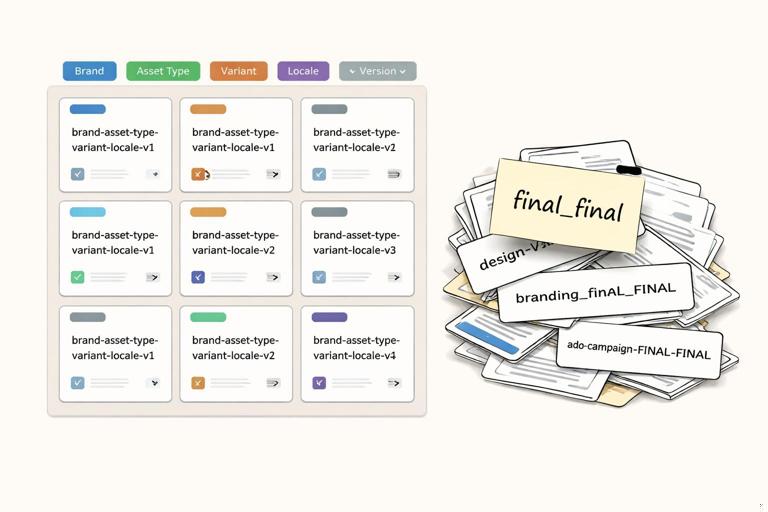
- Consistency beats cleverness: one pattern used everywhere is better than multiple “almost” patterns.
- Human-readable and machine-friendly: avoid spaces and special characters that break URLs or scripts. Prefer lowercase, hyphens, and underscores.
- Stable identifiers: names should not change because someone rephrased a label. Use stable codes for recurring categories (channels, regions, formats).
- Search-first: put the most important discriminators first (brand/product, asset type, component name).
- Variant clarity: encode variants like size, ratio, theme, language, and state in predictable slots.
Recommended filename anatomy
Use a structured pattern with fixed slots. One practical pattern for brand assets is:
{brand}-{product?}-{assetType}-{name}-{variant?}-{channel?}-{locale?}-{sizeOrRatio?}-{format}-{version}You won’t always use every slot; the key is that when a slot is used, it is used the same way everywhere. A simpler pattern for many teams is:
- Listen to the audio with the screen off.
- Earn a certificate upon completion.
- Over 5000 courses for you to explore!

Download the app
{brand}-{assetType}-{name}__{variant}__{size}__v{major}.{minor}Use a double underscore to separate “core identity” from “variants,” which improves scanning and reduces accidental renaming of the core.
Controlled vocabularies (the hidden power)
Naming works only if the words are standardized. Create a small glossary of allowed values for each slot, for example:
- assetType: logo, lockup, template, banner, social, email, deck, doc, photo, video, icon, pattern
- channel: web, ios, android, print, ooh, event, internal
- locale: en-us, en-gb, fr-fr, es-es (BCP 47 style)
- theme: light, dark, mono
- state: default, hover, active, disabled, loading
- ratio: 1x1, 4x5, 16x9, a4, us-letter
Keep the vocabulary short. If you need a new value, add it intentionally (with an owner) rather than letting everyone invent their own.
Examples of good filenames
- Logos: acme-logo-primary__light__rgb__v2.1.svg
- Social post template: acme-template-social-instagram-post__4x5__en-us__v1.3.fig
- Campaign banner export: acme-banner-spring-sale__web__728x90__en-us__png__v1.0.png
- Photography: acme-photo-product-shoe-runner__studio__hero__v3.0.jpg
- Presentation deck: acme-deck-sales-q1__internal__en-us__v5.2.pptx
Anti-patterns to avoid
- Spaces and mixed casing: “Acme Logo Final.svg” becomes inconsistent and harder to script.
- Ambiguous adjectives: “new,” “updated,” “final,” “latest” are time-bound and subjective.
- Dates as the only versioning: “2026-01-10” doesn’t tell you compatibility or change impact.
- Overstuffed names: if filenames become paragraphs, people will stop following the rules.
File structures: design for discovery and governance
File structure is the physical map of your library. A good structure reduces cognitive load: people should be able to guess where something lives. It also supports governance: permissions, review flows, and deprecation become easier when assets are grouped logically.
Two common models: by asset type vs by use case
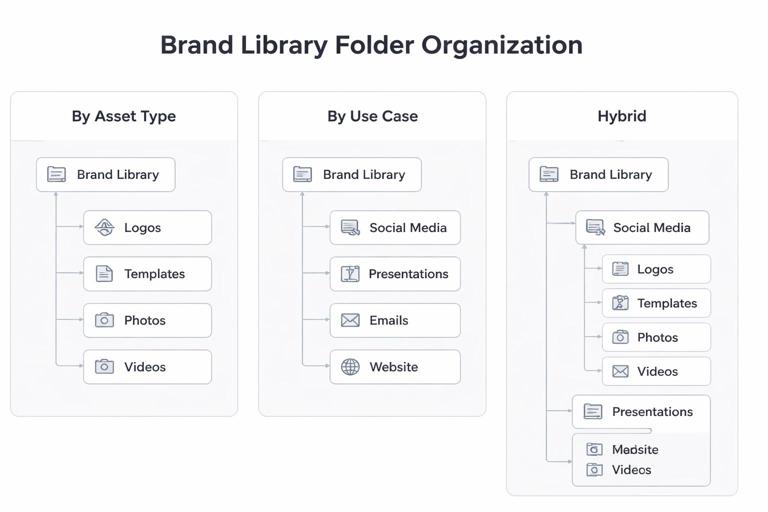
By asset type (logos, templates, photography) is stable and works well for centralized brand teams. By use case (web, social, print) matches how channel teams think and can reduce friction for production. Many organizations use a hybrid: top-level by asset type, with subfolders by channel/use case.
A practical folder blueprint
Here is a structure that scales without becoming too deep:
/brand-library/ /00-governance/ naming-conventions.md versioning-policy.md request-intake.md release-notes/ /01-source/ /logos/ /templates/ /photography/ /video/ /patterns/ /icons/ /02-exports/ /logos/ /svg/ /png/ /templates/ /pptx/ /key/ /canva/ /social/ /instagram/ /linkedin/ /print/ /a4/ /us-letter/ /03-archive/ /deprecated/ /superseded/How to use it: “01-source” holds editable masters (Figma, AI, PSD). “02-exports” holds production-ready outputs (SVG, PNG, PDF, PPTX). “00-governance” contains the rules and release notes that explain what changed and why. “03-archive” is not a dumping ground; it is a controlled area for assets that should not be used but must be retained.
Rules for source vs export separation
- Never edit exports: exports are outputs; changes happen in source files and are re-exported.
- One source of truth per asset: avoid multiple editable masters for the same item. If you must, designate a primary and mark others as derived.
- Exports are immutable per version: once published as v2.1, that file should not be overwritten; publish v2.2 instead.
Folder naming conventions
Folder names should be short, stable, and pluralized consistently. Recommended rules:
- lowercase with hyphens (e.g.,
brand-library,release-notes) - numeric prefixes only when order matters (e.g., governance first)
- avoid personal names (no
/jane-work/)
Metadata: when filenames aren’t enough
Some attributes are better stored as metadata rather than in filenames: licensing terms, model releases, usage rights, expiration dates, and internal approvals. If you use a DAM or shared drive with tags, define a minimal metadata schema:
- owner: team or person responsible
- status: draft, review, approved, deprecated
- rights: internal-only, public, licensed-until-YYYY-MM-DD
- channels: allowed channels
- notes: short usage guidance
Keep metadata mandatory only for high-risk assets (photography, video, legal-sensitive materials). For everyday templates, lightweight metadata is enough.
Versioning: control change without breaking usage
Versioning is how you communicate change over time. In a modular system, changes ripple: a template update can affect dozens of teams; a logo export update can break print production if dimensions shift. A versioning workflow makes change predictable, reviewable, and reversible.
Choose a versioning scheme
For brand assets, semantic versioning (SemVer) is a useful mental model even outside software:
- MAJOR (v2.0): breaking change; users must update intentionally (e.g., new logo geometry, new template layout that changes safe areas, new file format requirements).
- MINOR (v2.1): backward-compatible enhancement (e.g., added new size exports, added new slide layouts without changing existing ones).
- PATCH (v2.1.1): small fix (e.g., corrected typo, fixed an export artifact, adjusted a misaligned element) that does not change how the asset is used.
If SemVer feels heavy, use v{major}.{minor} and reserve patch for rare cases. The key is to define what counts as “breaking” for your organization.
Define “breaking change” for brand assets
Write explicit rules so teams don’t argue case-by-case. Examples of breaking changes:
- Any change that alters dimensions, aspect ratio, or safe area of a template
- Any change that alters a logo’s geometry, clear space, or minimum size guidance
- Any change that requires re-exporting downstream assets (e.g., updating a linked symbol/component that changes layout)
- Any change that affects legal compliance (trademark marks, required disclaimers)
Non-breaking changes might include adding new optional variants, adding new export formats, or improving internal layer naming without changing outputs.
Status labels: draft vs approved vs deprecated
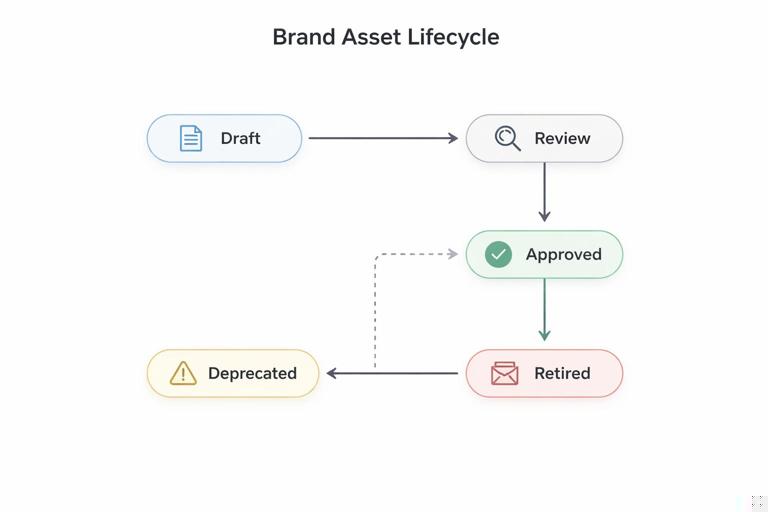
Version numbers tell you sequence; status tells you whether you should use it. Use both. A simple lifecycle:
- draft: in progress, not for production
- review: awaiting approval (brand, legal, accessibility, channel owner)
- approved: safe for production
- deprecated: should not be used for new work; may still exist in legacy materials
- retired: removed from active library; stored in archive for record
Do not rely on folder names like “final.” Use status fields in a DAM, or a small README in the asset folder that lists current approved versions.
Practical workflow: from request to release
Below is a step-by-step workflow you can implement with a shared drive + change log, or with a DAM + design tool integration. Adjust roles to match your organization.
Step 1: Intake and scoping
- Create a request ticket (or form) that captures: asset type, channel, required sizes/ratios, locale needs, deadline, and where it will be used.
- Assign an asset owner (responsible for correctness) and a publisher (responsible for library hygiene).
- Decide whether this is a new asset or a change to an existing one. If change, identify the current version and downstream dependencies (templates, campaigns, partner portals).
Step 2: Create or update the source file
- Place editable files in
/01-source/{assetType}/. - Use internal layer/page naming that mirrors the external naming convention (so exports are predictable).
- Record key decisions in a short changelog note (one paragraph) while they are fresh.
Step 3: Internal QA checklist (before review)
Use a repeatable checklist to reduce review cycles. Example checks:
- Correct naming pattern applied to file and key frames/pages
- Export settings verified (color profile, transparency, resolution)
- Locale variants complete and correctly labeled
- Accessibility-related requirements met where applicable (e.g., sufficient contrast in template backgrounds, legible minimum sizes)
- No embedded raster where vector is required (or vice versa)
Step 4: Review and approval gates
Define who must approve which asset types. A practical matrix:
- Brand/design lead: required for all externally facing assets
- Legal: required for logos, trademarks, partner lockups, claims/disclaimers, licensed photography
- Channel owner: required for channel-specific templates (email, paid social, app store)
Record approvals in the request ticket and, if possible, attach a snapshot or PDF proof so there is an audit trail.
Step 5: Assign version number and publish exports
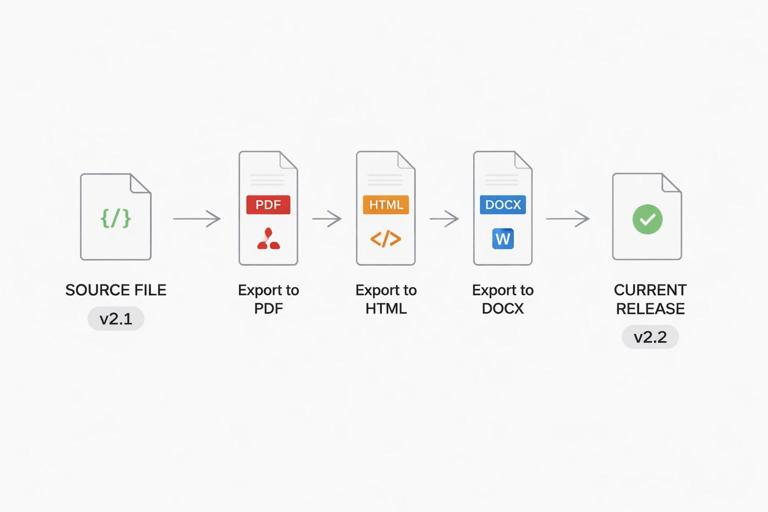
- Increment version based on impact (major/minor/patch).
- Export production formats into
/02-exports/with immutable versioned filenames. - Update a
current.jsonorREADMEpointer file in the export folder that states which version is “current approved.” Example:
{ "asset": "acme-logo-primary", "current": "v2.1", "deprecated": ["v1.9"], "notes": "v2.1 adds mono export and fixes SVG viewBox."}This small pointer prevents people from guessing which file to use when multiple versions exist.
Step 6: Communicate the release
Publish a release note entry in /00-governance/release-notes/ (or your DAM announcement feature). Keep it scannable:
- What changed
- Who is affected
- Required actions (if any)
- Deadline for migration (if deprecating)
Example release note text:
Asset: acme-template-social-instagram-post v1.4 Date: 2026-01-10 Change: Added 9x16 story layout; no changes to existing 4x5 post layout. Action: Optional. Use v1.4 for new story posts. Owner: Brand OpsStep 7: Deprecation and migration workflow
Deprecation is a workflow, not a folder. Use these steps:
- Mark the old version as deprecated in metadata and in the pointer file.
- Set a migration window (e.g., 30–90 days) depending on how widely the asset is used.
- If possible, add a “deprecated” banner inside editable templates (source files) so users see it when they open it.
- Move deprecated exports to
/03-archive/deprecated/only after the migration window, keeping a redirect note in the original folder (or keep them but clearly labeled).
Concrete naming and structure recipes by asset category
Templates (slides, docs, social)
Templates often have multiple layouts and locales. Use a naming pattern that distinguishes the template family from the exported deliverable.
- Source: acme-template-deck-sales__en-us__v5.2.pptx
- Exported PDF preview: acme-template-deck-sales__en-us__preview__v5.2.pdf
- Social layout set: acme-template-social-instagram__4x5__en-us__v1.3.fig
Folder suggestion:
/01-source/templates/deck/ /01-source/templates/social/ /02-exports/templates/pptx/ /02-exports/templates/pdf/Photography and video
For media, include rights and shoot identifiers in metadata, not in filenames. Filenames should still encode what the content depicts and its role.
- Photo: acme-photo-team-collaboration__candid__v1.0.jpg
- Video: acme-video-product-demo__15s__1x1__v2.0.mp4
Folder suggestion:
/01-source/photography/{shoot-id}/ /02-exports/photography/web/ /02-exports/video/social/Partner and co-branded assets
Co-branded assets need extra clarity because multiple parties may store copies. Include partner code and approval state.
- Lockup source: acme-lockup-partner-zenbank__horizontal__v1.0.ai
- Approved export: acme-lockup-partner-zenbank__horizontal__svg__v1.0.svg
Also store the approval proof (email PDF or ticket link) in a governance folder tied to the version.
Operational safeguards: prevent drift and duplication
Single “current” pointer and immutable versions
Teams often overwrite files to keep a clean folder. That breaks traceability. Prefer immutable versioned files plus a single pointer to “current.” This gives you both cleanliness (people know what to use) and auditability (you can recover what was used last quarter).
Automated checks (lightweight)
You can enforce conventions with simple automation even without engineering-heavy systems:
- A shared drive script or DAM rule that rejects uploads with spaces or missing version suffix
- A checklist in your request form that requires selecting assetType/channel/locale from dropdowns
- A periodic “library lint” review: scan for duplicates, missing metadata, and unapproved items in export folders
Ownership and stewardship
Every folder should have an owner. If ownership is unclear, assets stagnate and conventions decay. A practical rule: each top-level assetType folder has a named steward responsible for quarterly hygiene (archiving, deprecations, naming compliance).
Mini playbook: implement in 7 days
Day 1: Decide the naming slots and vocabulary
- Pick your filename pattern and write 10 examples across asset types.
- Create a one-page vocabulary list for assetType, channel, locale, ratio.
Day 2: Create the folder skeleton
- Set up
/00-governance,/01-source,/02-exports,/03-archive. - Add a
naming-conventions.mdfile with the pattern and examples.
Day 3: Define versioning rules
- Write what counts as major/minor/patch for your most common assets (logos, templates, social exports).
- Create a release note template file.
Day 4: Pilot with one asset family
- Migrate one category (e.g., social templates) into the new structure.
- Create pointer files that mark “current approved.”
Day 5: Add approval gates
- Define who approves what and where approvals are recorded.
- Update your intake form/ticket template accordingly.
Day 6: Train by doing
- Run a 30-minute working session where a teammate finds, exports, and publishes an asset using the new rules.
- Collect friction points and adjust vocabulary or folder depth.
Day 7: Lock the rules and start enforcing
- Make the governance docs the single reference.
- Stop accepting uploads that don’t follow naming/versioning rules (or quarantine them in a
needs-triagefolder with a steward).