Why cross-browser and platform constraints matter for PWAs
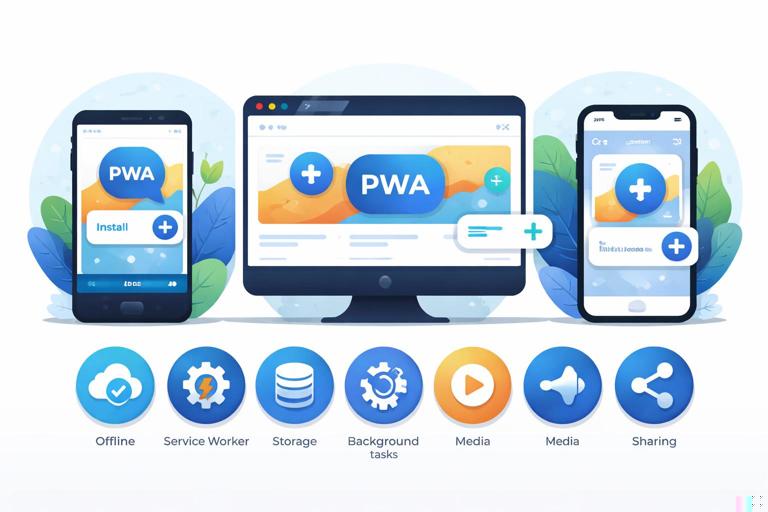
Progressive Web Apps are built on web standards, but the “surface area” of a PWA spans multiple subsystems: installability, service worker capabilities, storage persistence, background execution, media playback, and integration points like share targets or file handling. Each browser and OS combination implements these pieces differently, and the differences are not just cosmetic—they can change what your app can do when offline, how reliably it can stay signed in, whether it can run in the background, and how users discover and launch it.
This chapter focuses on practical constraints you must design for, with special attention to iOS and iPadOS quirks. The goal is not to memorize a compatibility matrix, but to build a repeatable approach: detect capabilities, provide fallbacks, and test on real devices.
Capability-first thinking: avoid “browser detection”
When you encounter a platform limitation, the temptation is to branch on user agent strings. This is fragile and often wrong (user agents change, browsers can masquerade, and features can be enabled/disabled by settings). Prefer capability detection: ask the runtime whether a feature exists, then adapt.
Practical pattern: feature detection helpers
Create a small module that centralizes checks. Keep it simple and explicit so it’s easy to audit and update.
// capabilities.js (example patterns, not exhaustive)export const caps = { serviceWorker: 'serviceWorker' in navigator, periodicSync: 'serviceWorker' in navigator && 'periodicSync' in (window.ServiceWorkerRegistration?.prototype || {}), backgroundSync: 'serviceWorker' in navigator && 'SyncManager' in window, webShare: 'share' in navigator, storagePersist: navigator.storage && 'persist' in navigator.storage, storageEstimate: navigator.storage && 'estimate' in navigator.storage, standaloneDisplay: window.matchMedia && window.matchMedia('(display-mode: standalone)').matches, iosStandalone: 'standalone' in navigator && navigator.standalone === true};Use these checks to decide whether to show UI affordances (for example, “Enable offline” toggles), whether to offer a feature (like “Share”), and whether to warn about limitations (like background tasks).
- Listen to the audio with the screen off.
- Earn a certificate upon completion.
- Over 5000 courses for you to explore!

Download the app
Installability differences: what “installed” means across platforms
On Chromium-based browsers, installation is tightly integrated: the browser can show an install prompt, and the app can run in a standalone window with its own icon and app identity. On iOS, installation is typically “Add to Home Screen” from Safari’s share sheet, and the installed experience behaves differently from Safari itself.
iOS and iPadOS: Add to Home Screen quirks
No standard install prompt: iOS Safari does not support the Chromium-style
beforeinstallpromptevent. You cannot programmatically trigger the native install UI. You must guide the user with instructions.Standalone mode detection differs: On iOS,
(display-mode: standalone)may work in modern versions, but historicallynavigator.standalonewas the reliable signal. Many apps check both.App identity and icon behavior: Icons and splash behavior can differ from other platforms. Ensure your manifest icons are correct, but also test iOS-specific icon requirements (Safari uses Apple touch icons in some cases).
Step-by-step: build an iOS install education banner
Because you can’t rely on a native prompt, provide a lightweight banner that appears only when it’s helpful: on iOS Safari, when not already installed.
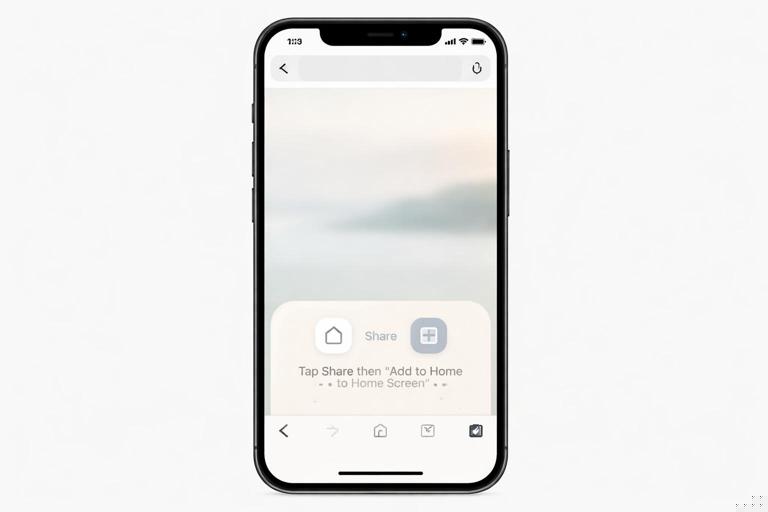
// ios-install-banner.jsfunction isIos() { return /iphone|ipad|ipod/i.test(navigator.userAgent);}function isInStandaloneMode() { return (window.matchMedia && window.matchMedia('(display-mode: standalone)').matches) || (typeof navigator.standalone !== 'undefined' && navigator.standalone);}export function maybeShowIosInstallBanner() { if (!isIos()) return; if (isInStandaloneMode()) return; // Optional: only show in Safari (not in in-app browsers) const isSafari = /^((?!chrome|android).)*safari/i.test(navigator.userAgent); if (!isSafari) return; const banner = document.getElementById('ios-install-banner'); if (banner) banner.hidden = false;}In your HTML, keep the instructions short and visual (icons, not text-heavy). For example: “Tap Share, then Add to Home Screen.” Also provide a dismiss action and remember it in storage so you don’t annoy users.
Service worker capability gaps and behavioral differences
Even when service workers are supported, the surrounding APIs may not be. Some platforms restrict background execution, limit cache sizes, or aggressively clear data. Your app should remain usable when background features are missing.
Background Sync and periodic tasks
Background Sync and Periodic Background Sync are not uniformly available. iOS has historically not supported Background Sync in the same way as Chromium. Even where supported, the OS may delay or skip background work based on battery, network, and usage patterns.
Design implication: treat background sync as an optimization, not a guarantee. Always provide a manual “Retry” or “Sync now” action in the UI for queued operations, and ensure the app can reconcile state when it next opens.
Step-by-step: graceful fallback for “sync later” workflows
Step 1: When offline, store the user’s intent locally (for example, a pending post, form submission, or status update).
Step 2: If background sync is available, register it. If not, mark the item as “Pending” and show a “Send” button when connectivity returns.
Step 3: On app start and on “online” events, attempt to flush pending items.
// pseudo-code for a UI-driven fallbackwindow.addEventListener('online', () => flushPending());document.getElementById('syncNow').addEventListener('click', () => flushPending());This approach works everywhere, and background sync simply improves the experience on platforms that support it.
Storage constraints: quotas, eviction, and iOS persistence quirks
Offline-first apps depend on storage. The problem is that storage is not equally durable across platforms. Browsers may evict data under pressure, and some platforms treat “website data” as more disposable than users expect.
Key constraints you must plan for
Quota varies: Available storage depends on device capacity, OS policy, and browser implementation. You cannot assume a fixed number.
Eviction can happen: Caches and IndexedDB can be cleared by the browser when space is needed, sometimes without a clear signal to the app.
iOS data clearing behavior: iOS Safari and WebKit-based contexts have historically been more aggressive about clearing data for sites that are not frequently used, and backgrounded web apps can be suspended quickly. Users can also enable settings that clear history and website data.
Step-by-step: implement a storage health check and recovery path
Instead of assuming offline data is always present, build a “storage health” routine that runs at startup and after critical operations.
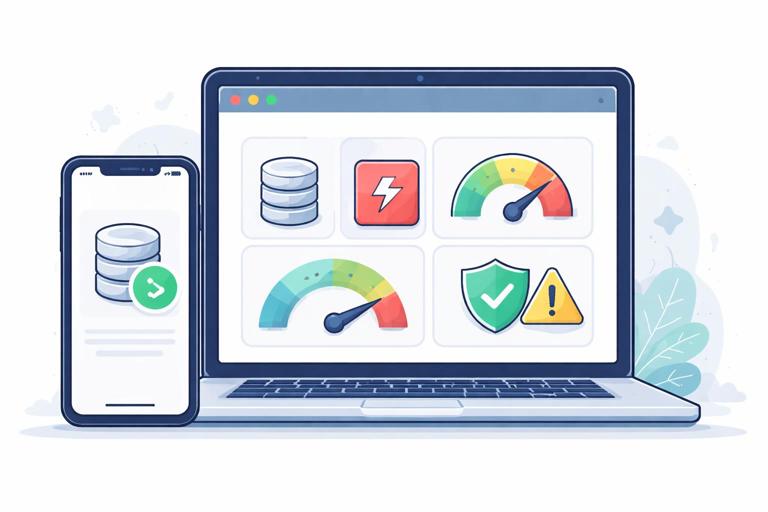
Step 1: Estimate storage (when supported) and log it for diagnostics.
Step 2: Check for the presence of a small “sentinel” record in IndexedDB (or a known cache entry). If missing, treat it as a cold start.
Step 3: If cold start, rehydrate essential data from the network when possible, and show a clear message when offline.
// storage-health.jsexport async function storageHealthCheck() { const report = { estimate: null, sentinelOk: false }; if (navigator.storage?.estimate) { report.estimate = await navigator.storage.estimate(); } // Example sentinel check (replace with your IndexedDB logic) report.sentinelOk = Boolean(localStorage.getItem('offline_sentinel_v1')); return report;}For a real app, prefer IndexedDB for the sentinel (localStorage can be cleared too), but the idea is the same: detect missing state and recover gracefully.
Requesting persistent storage (where available)
Some browsers support requesting persistent storage to reduce eviction risk. This is not universal, and it may require user engagement. If supported, request it after the user has demonstrated value (for example, after saving offline content).
export async function maybeRequestPersistence() { if (!navigator.storage?.persist) return { supported: false }; const persisted = await navigator.storage.persist(); return { supported: true, persisted };}On platforms that don’t support it (commonly iOS), your best mitigation is to keep offline payloads smaller, allow users to choose what to download, and provide a “Manage offline storage” screen.
Network stack differences: fetch, cookies, and authentication edge cases
Authentication and session handling can behave differently in standalone mode, especially on iOS. Issues often show up as “works in Safari tab but not when installed,” or “login loops only on iPhone.”
Common causes
Third-party cookie restrictions: Embedded login flows, iframes, or cross-site auth can fail when cookies are blocked or partitioned.
ITP and storage partitioning: Safari’s privacy features can limit tracking and affect cross-site state. Even first-party flows can be impacted if they rely on redirects and third-party resources.
Standalone vs browser context: Some storage and cookie behaviors differ between Safari and an Add-to-Home-Screen app.
Practical steps to reduce auth-related surprises
Prefer same-site auth flows: Keep login endpoints and app endpoints on the same site when possible. If you must use a separate domain, ensure cookies use correct
SameSiteandSecureattributes and test on Safari.Avoid hidden iframes for critical auth: Use top-level navigation for login when possible.
Instrument failures: Log error codes and redirect loops (without logging secrets). Provide a “Reset session” action that clears app state and restarts login.
Media, sensors, and device integration: uneven support
PWAs can access many device capabilities, but support varies widely. iOS is often the most constrained, and some APIs are only available in Safari, not in embedded web views.
Areas that frequently differ
Camera and microphone: Generally supported via
getUserMedia, but permission prompts and autoplay policies differ. Always handle permission denial and provide alternate upload flows.File handling: File System Access API is not universally supported. Provide a fallback using standard file inputs and downloads.
Web Share: Supported on many mobile browsers; desktop support varies. Always provide a “Copy link” fallback.
Geolocation and motion sensors: Permissions and availability differ; iOS may require explicit user gestures and has stricter policies.
Step-by-step: robust sharing with fallback
Step 1: If
navigator.shareexists, use it for a native share sheet.Step 2: Otherwise, provide a “Copy” button that writes to the clipboard (and a manual select fallback if clipboard isn’t available).
export async function shareLink({ title, text, url }) { if (navigator.share) { await navigator.share({ title, text, url }); return; } const value = url || ''; if (navigator.clipboard?.writeText) { await navigator.clipboard.writeText(value); return; } // last-resort fallback: show a modal with the URL selected throw new Error('No share or clipboard support');}In the UI, catch the error and open a small dialog with the URL in a text field for manual copy.
iOS viewport, safe areas, and “standalone UI” layout issues
Installed PWAs on iOS run in a standalone container with different UI chrome than Safari. The most visible issues are layout and input problems: content hidden behind the notch, bottom bars overlapping buttons, and viewport resizing when the keyboard opens.
Safe area insets
Use CSS environment variables to pad critical UI away from the notch and home indicator. This is especially important for fixed headers/footers and bottom navigation.
/* Example: safe padding for a bottom bar */.bottom-nav { position: fixed; left: 0; right: 0; bottom: 0; padding-bottom: env(safe-area-inset-bottom);}100vh and keyboard resizing quirks
On mobile browsers, 100vh can include areas covered by browser UI, and the value can change as the address bar shows/hides. iOS has been particularly tricky here, and the on-screen keyboard can cause jumps.
A practical approach is to avoid relying on 100vh for critical layouts. Use flex layouts that grow naturally, or compute a CSS variable from visualViewport when available.
// set a CSS variable for viewport height (best-effort)function setVh() { const h = window.visualViewport ? window.visualViewport.height : window.innerHeight; document.documentElement.style.setProperty('--app-vh', `${h}px`);}setVh();window.addEventListener('resize', setVh);window.visualViewport?.addEventListener('resize', setVh);/* CSS */.app { min-height: var(--app-vh); }Test forms in standalone mode on iOS: focus inputs near the bottom, open/close the keyboard, rotate the device, and ensure your fixed elements don’t trap content.
In-app browsers and embedded web views: the “not really a browser” problem
Many users open links inside in-app browsers (for example, social apps, messaging apps). These environments may have partial support for PWA features: service workers might be disabled, storage might be ephemeral, and install flows might be unavailable.
Practical mitigation
Detect likely in-app browsers: You can’t do this perfectly, but you can identify common patterns and show a “Open in browser” hint when critical features are missing.
Make core flows work without install: Treat install as optional. Ensure the app works in a normal tab with reduced capabilities.
Provide shareable deep links: If the in-app browser breaks login or storage, allow users to copy a link and open it in Safari/Chrome.
Testing strategy: build a cross-platform “PWA constraints” checklist
Compatibility issues are easiest to manage when you turn them into repeatable tests. Create a checklist that maps your app’s features to the platforms you support, and run it on real devices and at least one low-storage scenario.
Step-by-step: a practical test matrix
Step 1: Define target environments. At minimum: Android Chrome, Desktop Chrome/Edge, Desktop Firefox, iOS Safari, and iOS installed (Add to Home Screen). If you support iPad, include iPadOS Safari and installed mode.
Step 2: List feature probes. Installability, offline launch, offline navigation, storage persistence, login, media capture, share, and any background behavior you rely on.
Step 3: Write “expected behavior” per environment. For example: “On iOS installed mode, background sync is not expected; queued items must be sent on next open.”
Step 4: Add diagnostics UI. Include a hidden “Diagnostics” screen that shows capability flags, storage estimate, service worker status, and last sync time. This reduces guesswork when a user reports a problem.
Step 5: Test failure modes intentionally. Turn on airplane mode, fill storage, kill the app, reboot the device, and verify recovery paths.
Example: a lightweight diagnostics panel
// diagnostics.jsimport { caps } from './capabilities.js';export async function getDiagnostics() { const estimate = navigator.storage?.estimate ? await navigator.storage.estimate() : null; return { userAgent: navigator.userAgent, caps, storageEstimate: estimate };}Render this data in a simple table and allow users (or testers) to copy it. Keep it behind a gesture or a debug flag so it doesn’t clutter the main UI.
Designing for constraints: progressive enhancement and “capability tiers”
To keep complexity manageable, group features into tiers and ensure each tier provides a coherent experience. For example:
Tier 0 (baseline web): Works in any modern browser tab without install; core reading/browsing works online; limited offline messaging.
Tier 1 (offline-capable): Service worker + storage available; offline launch and cached content works; manual sync actions exist.
Tier 2 (integrated): Installable experience, share integration, richer media, optional background optimizations.
This framing helps you make decisions when iOS (or any platform) lacks a feature: you don’t “break” the app, you drop to a lower tier with explicit UX support.