What “Core UI Patterns” Mean in an HTMX App
In an HTMX-driven UI, “core patterns” are repeatable ways to update only the part of the page that needs to change, while keeping the rest of the document stable. Instead of building a client-side state machine, you compose interactions out of small HTML fragments returned by the server. This chapter focuses on four patterns you will use constantly: partial updates (refreshing a region), pagination (navigating large result sets), search (query-driven updates), and filtering (refining results with multiple controls). The goal is to make these patterns predictable, accessible, and easy to maintain.
Pattern 1: Partial Updates (Refreshing a Region Without Reloading the Page)
When to Use Partial Updates
Partial updates are ideal when a user action affects only a subsection of the UI: toggling a status badge, updating a cart summary, refreshing a table after a mutation, or showing validation errors next to a form. The key is to define a stable “target” container in your page layout and have the server return markup that fits exactly into that container.
Step-by-step: Refresh a List After Creating an Item
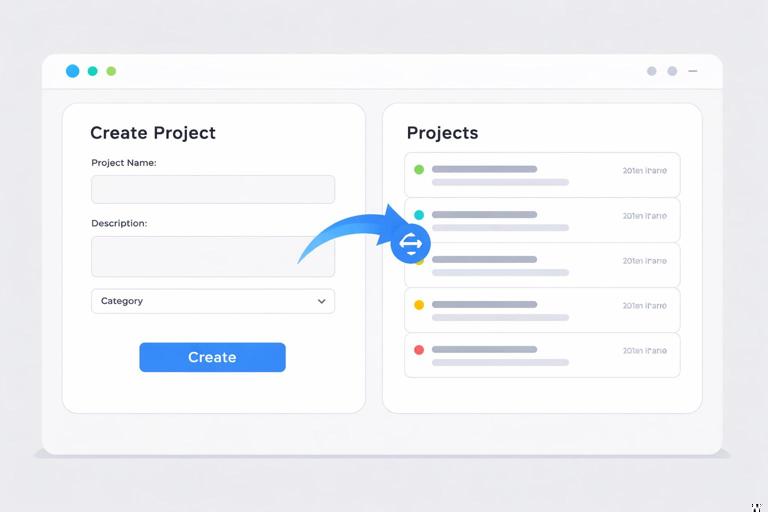
Imagine a page with a “Create project” form and a project list. After submitting, you want the list to refresh and the form to reset, without a full reload. One straightforward approach is to have the POST request return the updated list fragment and swap it into the list container. If you also want to reset the form, you can return a fragment that includes both regions, or use an out-of-band swap for the form.
<!-- page body -->
<section>
  <h3>Create project</h3>
  <form id="project-form"
        hx-post="/projects"
        hx-target="#project-list"
        hx-swap="outerHTML">
    <label>Name<input name="name" required></label>
    <button type="submit">Create</button>
  </form>
</section>

<section>
  <h3>Projects</h3>
  <div id="project-list">
    <!-- server renders initial list here -->
  </div>
</section>
On the server, handle POST /projects by creating the project and then rendering the list fragment (the HTML that should replace #project-list). Your response should be the new list container markup so that outerHTML swap replaces the entire list region cleanly.
<!-- response fragment for #project-list -->
<div id="project-list">
  <ul>
    <li>Alpha</li>
    <li>Beta</li>
    <li>New Project</li>
  </ul>
</div>
Practical Notes: Choosing the Swap Strategy
Use hx-swap="outerHTML" when you want to replace the entire target element (including its wrapper and attributes). Use the default (innerHTML) when the wrapper should remain stable and only its contents change. For lists and tables, outerHTML is often simpler because the server can re-render the entire block consistently, including empty states, counts, and ARIA attributes.
- Listen to the audio with the screen off.
- Earn a certificate upon completion.
- Over 5000 courses for you to explore!

Download the app
Partial Updates With Alpine.js for Local UI State
A common issue with partial updates is that replacing markup can reset local UI state (like an expanded row, a selected tab, or a transient “copied” indicator). Alpine.js is useful for state that should remain on the client and not be re-derived from the server on every swap. The pattern is: keep Alpine state on a stable parent that is not swapped, and swap only the inner fragment. That way, Alpine state persists while the server updates the content.
<div x-data="{ expandedId: null }">
  <div id="project-list">
    <!-- swap only inside this div, not the Alpine parent -->
  </div>
</div>
Pattern 2: Pagination (Next/Prev, Page Numbers, and “Load More”)
Pagination as a Fragment Navigation Problem
Pagination is simply navigating between different slices of the same dataset. In an HTMX UI, pagination links should request a fragment that represents the updated list (and often the pagination controls too). The most maintainable approach is to make the server render a single “results block” partial that includes both the items and the pager, then swap that block as a unit.
Step-by-step: Classic Pager That Replaces the Results Block
Start with a stable container that holds the results and pager. Each pager link uses hx-get to fetch the next page fragment and targets the same container.
<div id="results">
  <!-- server renders items + pager -->
</div>
Example of server-rendered results block with pager links:
<div id="results">
  <ul>
    <li>Item 21</li>
    <li>Item 22</li>
    <li>Item 23</li>
  </ul>

  <nav aria-label="Pagination">
    <ul>
      <li>
        <a href="/items?page=2"
           hx-get="/items?page=2"
           hx-target="#results"
           hx-swap="outerHTML">Prev</a>
      </li>
      <li>
        <a href="/items?page=4"
           hx-get="/items?page=4"
           hx-target="#results"
           hx-swap="outerHTML">Next</a>
      </li>
    </ul>
  </nav>
</div>
Notice the href is still present. That means the pager works without JavaScript (full navigation), while HTMX upgrades it to partial navigation when available.
Step-by-step: “Load More” That Appends Items
Sometimes you want an infinite-scroll feel without implementing true infinite scroll. A “Load more” button can request the next page and append the new items to the existing list. The server can return only the <li> elements for the next page, and the client appends them into the list.
<div>
  <ul id="item-list">
    <li>Item 1</li>
    <li>Item 2</li>
    <li>Item 3</li>
  </ul>

  <button hx-get="/items?page=2&fragment=items"
          hx-target="#item-list"
          hx-swap="beforeend">
    Load more
  </button>
</div>
On the server, when fragment=items, return only the list items for that page:
<li>Item 4</li>
<li>Item 5</li>
<li>Item 6</li>
To keep the “Load more” button pointing at the next page, you can have the server also return an updated button via an out-of-band swap, or you can render the button inside a wrapper and replace it with a new one that has the incremented page parameter.
Alpine.js Enhancement: Disable Button and Show Loading State
With Alpine.js you can provide immediate feedback while the request is in flight. A simple pattern is to toggle a local boolean when the button is clicked and reset it on HTMX events. Keep the Alpine wrapper stable and swap only the list items.
<div x-data="{ loading: false }"
     @htmx:beforeRequest.window="loading = true"
     @htmx:afterRequest.window="loading = false">

  <ul id="item-list">...</ul>

  <button :disabled="loading"
          hx-get="/items?page=2&fragment=items"
          hx-target="#item-list"
          hx-swap="beforeend">
    <span x-show="!loading">Load more</span>
    <span x-show="loading">Loading...</span>
  </button>
</div>
Because the list is the swap target, the Alpine component remains intact and the loading state won’t be lost.
Pattern 3: Search (Query-Driven Results With Debounce and Accessibility)
Search as “Input Drives a Results Fragment”
Search is a pattern where a user’s query updates a results region. The most important UX details are: avoid sending a request on every keystroke without control, show that results are updating, and keep keyboard focus behavior predictable. HTMX can trigger requests from inputs, and Alpine.js can help with client-side niceties like debouncing, clearing, and managing a “searching” indicator.
Step-by-step: Search Form That Updates Results as You Type
Use a search form with an input. The input triggers a GET request and swaps the results block. Keep the form semantics (method GET) so the URL can represent the query for non-JS navigation and bookmarking.
<form id="search-form" action="/items" method="get">
  <label for="q">Search</label>
  <input id="q" name="q" type="search"
         hx-get="/items"
         hx-trigger="keyup changed delay:300ms"
         hx-target="#results"
         hx-swap="outerHTML">

  <button type="submit">Search</button>
</form>

<div id="results">
  <!-- initial results -->
</div>
The trigger string keyup changed delay:300ms means: wait 300ms after typing stops, and also trigger when the input value changes due to other interactions. The server reads q and returns the updated results block.
Step-by-step: Add a “Clear” Button With Alpine.js
A clear button is a small enhancement that improves usability. Alpine can clear the input and then programmatically submit the HTMX request by dispatching an input event (or by triggering the form submission). Keep the markup accessible by using a real button and a label.
<div x-data>
  <form id="search-form" action="/items" method="get">
    <label for="q">Search</label>
    <div>
      <input id="q" name="q" type="search"
             hx-get="/items"
             hx-trigger="keyup changed delay:300ms"
             hx-target="#results"
             hx-swap="outerHTML">
      <button type="button"
              @click="const el = document.getElementById('q'); el.value=''; el.dispatchEvent(new Event('keyup'));">
        Clear
      </button>
    </div>
  </form>
</div>
In practice you might prefer dispatching an input event instead of keyup, depending on your trigger. The important idea is that Alpine handles the local interaction, while HTMX handles the server request and swap.
Search Results: Preserve Focus and Announce Updates
When results update, users navigating with a keyboard or assistive tech should not lose their place. A simple approach is to keep focus in the search input and update only the results region. You can also add aria-live to the results container so screen readers announce changes. Because you are swapping the results block, include aria-live on the swapped element itself.
<div id="results" aria-live="polite">
  <ul>...</ul>
</div>
Pattern 4: Filtering (Multiple Controls, One Results Region)
Filtering as “Many Inputs, One Query”
Filtering is like search, but with multiple controls: checkboxes, selects, radio groups, and range inputs. The maintainable pattern is to treat the filter UI as a form whose serialized values define the current view. Any change triggers a request that re-renders the results block. This keeps your server in charge of the canonical filter logic (including edge cases like invalid combinations), and keeps the client simple.
Step-by-step: Filter Form That Auto-Submits on Change
Wrap your filters in a GET form so the URL reflects the filter state. Then set the form to issue an HTMX request on change and target the results container. The form itself can remain stable while only results swap.
<aside>
  <form id="filters" action="/items" method="get"
        hx-get="/items"
        hx-trigger="change delay:150ms"
        hx-target="#results"
        hx-swap="outerHTML">

    <fieldset>
      <legend>Status</legend>
      <label><input type="checkbox" name="status" value="open"> Open</label>
      <label><input type="checkbox" name="status" value="closed"> Closed</label>
    </fieldset>

    <label>
      Category
      <select name="category">
        <option value="">All</option>
        <option value="books">Books</option>
        <option value="tools">Tools</option>
      </select>
    </label>

    <label>
      Sort
      <select name="sort">
        <option value="relevance">Relevance</option>
        <option value="newest">Newest</option>
      </select>
    </label>

  </form>
</aside>

<main>
  <div id="results">...</div>
</main>
Because the request is made from the form, HTMX will include the form fields automatically. The server reads status=open&status=closed, category, and sort, then renders the results block accordingly.
Step-by-step: Show “Active Filters” Chips With Removable Actions
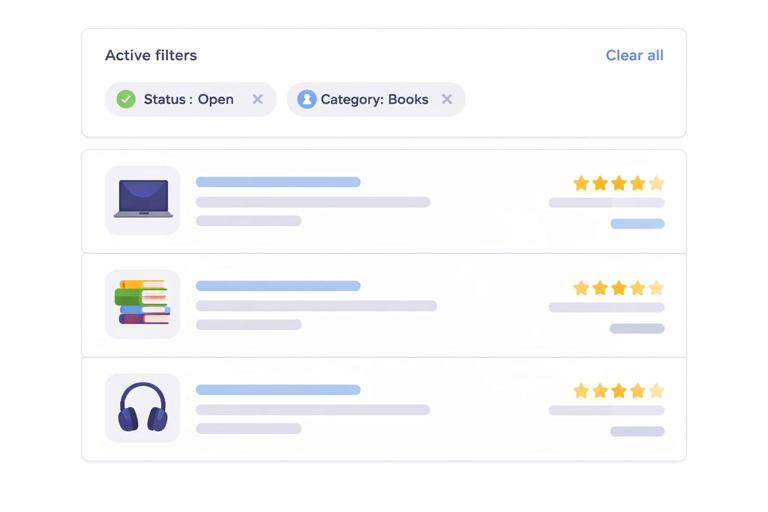
Users benefit from seeing which filters are active and removing them quickly. A robust approach is to have the server render an “active filters” strip as part of the results block, because the server already knows which filters are applied. Each chip is a link that points to the same page with that filter removed, and HTMX upgrades it to a partial update.
<div id="results">
  <div aria-label="Active filters">
    <ul>
      <li>
        <a href="/items?category=books"
           hx-get="/items?category=books"
           hx-target="#results"
           hx-swap="outerHTML">
          Status: Open ×
        </a>
      </li>
      <li>
        <a href="/items?status=open"
           hx-get="/items?status=open"
           hx-target="#results"
           hx-swap="outerHTML">
          Category: Books ×
        </a>
      </li>
    </ul>
  </div>

  <ul>
    <li>Filtered item A</li>
    <li>Filtered item B</li>
  </ul>
</div>
This pattern avoids client-side bookkeeping for chips. The only thing to watch is keeping the filter form controls in sync with the active filters. If the form is not swapped, the checkboxes/selects won’t automatically reflect changes made by clicking chips. A common solution is to swap both the results and the filter form together (as a single wrapper), or to use an out-of-band swap to update the form state.
Keeping Filter Controls in Sync Without Rebuilding a SPA
When filters can be changed from multiple places (form controls, chips, pagination links), you need a single source of truth. The simplest approach is to define a wrapper that contains both the filter form and results, and always swap that wrapper. That way, the server re-renders both the controls (with correct checked/selected states) and the results in one response.
<div id="items-view">
  <aside>
    <form id="filters" action="/items" method="get">...</form>
  </aside>
  <main>
    <div id="results">...</div>
  </main>
</div>
Then point all interactions (filter changes, pager links, chip links) at #items-view as the target, and have the server return the full #items-view fragment. This costs a bit more HTML per response, but it dramatically reduces UI drift bugs.
Composing Patterns: Search + Filters + Pagination Together
One Results Block, Many Controls
In real screens, search, filters, and pagination usually coexist. The composition rule is: every interaction should request the same canonical fragment, with the same query parameters, and swap the same target. That ensures the UI stays consistent. Practically, this means pagination links must include the current q and filter params, and filter/search interactions must reset page to 1 (or omit page) to avoid empty pages after narrowing results.
Step-by-step: A Unified “Browse” Form With Search and Filters
One approach is to put search and filters into a single GET form. Any change triggers a request that swaps the view wrapper. Pagination links are rendered by the server with the current query string preserved.
<div id="items-view">
  <form id="browse" action="/items" method="get"
        hx-get="/items"
        hx-trigger="keyup changed delay:300ms, change delay:150ms"
        hx-target="#items-view"
        hx-swap="outerHTML">

    <label>Search<input name="q" type="search"></label>

    <label>
      Category
      <select name="category">
        <option value="">All</option>
        <option value="books">Books</option>
        <option value="tools">Tools</option>
      </select>
    </label>

    <fieldset>
      <legend>Status</legend>
      <label><input type="checkbox" name="status" value="open"> Open</label>
      <label><input type="checkbox" name="status" value="closed"> Closed</label>
    </fieldset>

    <!-- optional explicit submit for non-JS -->
    <button type="submit">Apply</button>
  </form>

  <div id="results">
    <!-- items + pager rendered by server -->
  </div>
</div>
On the server, render #items-view with the form controls pre-populated from the query string (q, category, status, page). When rendering pager links, include q/category/status in the link URL so paging doesn’t drop the current browse state.
Resetting Pagination When Filters Change
If the user is on page 5 and then narrows the filters, page 5 might not exist anymore. A simple server-side rule is: if any filter parameter changes compared to the previous request, treat page as 1. If you want to do it client-side, you can include a hidden input named page and set it to 1 on change events. Alpine.js is useful here because it can update the hidden page field whenever any filter changes, without requiring you to wire each control individually.
<form x-data
      @change="const p = $el.querySelector('[name=page]'); if (p) p.value = 1;"
      hx-get="/items"
      hx-trigger="change delay:150ms, keyup changed delay:300ms"
      hx-target="#items-view"
      hx-swap="outerHTML">

  <input type="hidden" name="page" value="1">
  <input name="q" type="search">
  <select name="category">...</select>
</form>
Pager links should set page explicitly in their href/hx-get. When the user clicks Next, the server returns the same view with page incremented and the hidden input updated accordingly.
Micro-Interactions That Make These Patterns Feel “App-Like”
Inline Loading Indicators With Minimal Markup
Users should understand when a region is updating. A lightweight pattern is to include a small “loading” element next to the results header and toggle it based on request lifecycle events. Alpine.js can manage the boolean, while HTMX performs the request and swap. Keep the loading indicator outside the swapped region if you don’t want it to flicker or reset.
<div x-data="{ busy: false }"
     @htmx:beforeRequest.window="busy = true"
     @htmx:afterRequest.window="busy = false">

  <div>
    <h3>Results</h3>
    <span x-show="busy">Updating...</span>
  </div>

  <div id="items-view">...</div>
</div>
Empty States and Error States as First-Class Fragments
Search and filters frequently produce empty results. Treat the empty state as a normal server-rendered fragment, not as a client-side special case. Similarly, validation errors or server errors should return HTML that can be swapped into the same target region. This keeps the UI consistent: the user always sees an updated results block, whether it contains items, an empty message, or an error panel.
- Empty state: include the current query/filter summary and a suggestion to broaden filters.
- Error state: return a fragment with a retry link that uses hx-get and targets the same region.
- Partial failure: if only a sidebar widget fails, isolate it into its own target so the main results still update.
Keeping URL and Back/Forward Behavior Predictable
For search, filtering, and pagination, the URL should represent the current view (q, filters, page). The simplest way to achieve this is to rely on standard GET URLs in href/action attributes and let HTMX-enhanced interactions request those URLs. When the user copies the URL or refreshes, they should land on the same view. When you render pager links and filter chips, always include the full query string needed to reconstruct the state.