Case Overview and Objectives
Scenario summary: A mid-sized company suspects that a departing employee (Alex Rivera) exfiltrated confidential product roadmap documents and customer pricing before resignation. Two days after Alex’s last day, a competitor releases a suspiciously similar roadmap. Security also detects unusual Microsoft 365 activity and a spike in outbound traffic from Alex’s Windows laptop on the final afternoon.
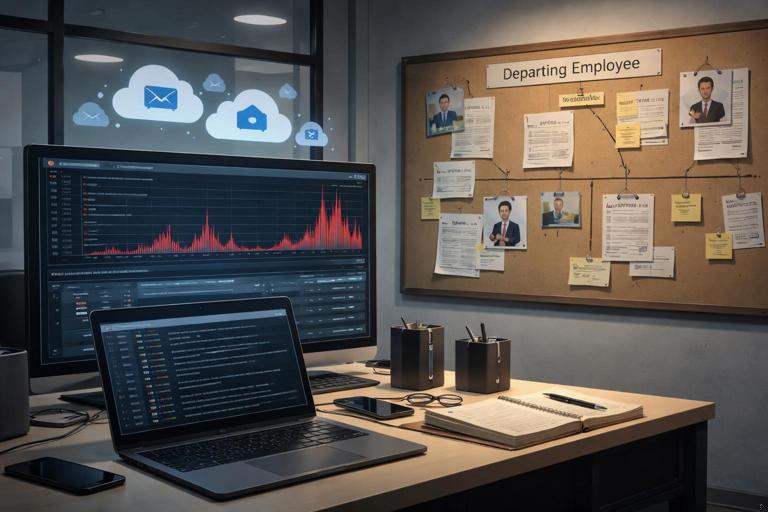
Investigation goals: (1) Determine whether sensitive files were accessed, staged, and exfiltrated; (2) identify the exfiltration path (USB, cloud sync, email, web upload, messaging); (3) correlate actions across endpoints, mobile, and cloud; (4) attribute activity to a user and device with defensible reasoning; (5) produce a complete forensic report with clear scope, methods, findings, and supporting exhibits.
Evidence sources in scope: Windows laptop (primary), a personal Android phone used for MFA (secondary), Microsoft 365 tenant logs and mailbox, Google Drive (personal) access from the laptop, and perimeter proxy logs. The capstone emphasizes end-to-end reasoning: you will move from question → evidence → correlation → findings → report-ready exhibits.
Case Setup: What You Receive and What You Must Produce
Inputs Provided (Typical in Real Cases)
- Endpoint image and/or collected artifacts: a forensic image or a targeted collection from the laptop, plus a memory capture if available.
- Cloud exports: Microsoft 365 unified audit log export, Azure AD sign-in logs, mailbox export (PST) for Alex, OneDrive sharing logs, and DLP alerts (if enabled).
- Network logs: proxy logs (URL, user, device, timestamp), firewall egress summaries, and DNS logs.
- HR timeline: resignation date, last working day, exit interview time, and any policy acknowledgments.
- Data classification list: which folders and filenames count as “confidential roadmap” and “pricing.”
Outputs Required (Your Deliverables)
- Investigation plan: a short, dated plan listing hypotheses, sources, and validation steps.
- Evidence map: a table that links each question to artifacts/logs that can answer it.
- Timeline package: a normalized timeline with time zone handling and key events highlighted.
- Forensic report: a complete report with exhibits (screenshots, log excerpts, hashes/IDs of exports, and file metadata tables).
Investigation Plan: Hypotheses and Decision Points
Hypothesis A (USB exfiltration): Alex copied confidential files to removable media near the end of employment.
Hypothesis B (Cloud exfiltration): Alex uploaded or synced files to personal cloud storage (Google Drive, Dropbox, personal OneDrive) or shared them externally from corporate storage.
- Listen to the audio with the screen off.
- Earn a certificate upon completion.
- Over 5000 courses for you to explore!

Download the app
Hypothesis C (Email exfiltration): Alex emailed attachments or links to a personal address, or forwarded corporate mail externally.
Hypothesis D (Web upload / messaging): Alex used webmail, file transfer sites, or messaging apps to transmit data.
Decision points: If you can prove file access and staging but not the final exfil path, you still report what is supported (access + staging + attempted transfer). If multiple paths exist, prioritize the one with the strongest corroboration across independent sources (endpoint + cloud + network).
Step-by-Step Workflow: From Intake to Findings
Step 1: Normalize Time and Build a Case Clock
Create a “case clock” reference that states the primary time zone (e.g., UTC) and lists known offsets: laptop local time, Microsoft 365 log time (often UTC), proxy log time, and mobile device time. Document any observed skew (for example, laptop clock is +4 minutes). Your timeline later should store both original timestamps and normalized timestamps.
CaseClock: Primary = UTC
Laptop: Local = America/New_York, observed skew +00:04:12
M365 Unified Audit: UTC
Proxy logs: UTC
Android: device local America/New_York (verify in extraction)
Step 2: Identify the Confidential Dataset and Create a Tracking List
From the data classification list, build a tracking list of sensitive filenames, folder paths, and unique identifiers (file IDs in SharePoint/OneDrive, document IDs, or known hashes if available). This list becomes your “watchlist” for searches across endpoint and cloud exports.
- Example watchlist entries:
Roadmap_Q3_2026.pptx,Pricing_Master_2026.xlsx, folder\\fileserver\Product\Roadmap\, SharePoint site/sites/ProductStrategy. - Include near-matches: renamed copies like
Roadmap_Q3_2026 - Copy.pptxor zipped bundles likeroadmap.zip.
Step 3: Endpoint Scoping: Who Used the Laptop and When?
Establish the user context: which accounts logged in, which profile directories exist, and whether remote access tools were used. Your goal is to confidently tie actions to Alex’s user profile and to the timeframe around the last day.
- Confirm the primary user profile path and SID mapping for Alex.
- Extract a “last day window” (e.g., 48 hours before last login) to focus analysis.
- Note any secondary accounts, admin accounts, or unexpected logins that could complicate attribution.
Step 4: File Access and Staging: Prove Interaction with the Confidential Dataset
Use your watchlist to locate evidence of file opens, copies, compressions, and staging directories. Staging often appears as a temporary folder on the desktop, in Downloads, in a newly created archive, or in a sync client folder.
- Look for staging patterns: creation of
.zip/.7z/.rar, bulk copy operations, or a new folder likeC:\Users\Alex\Desktop\transfer\. - Corroborate with multiple traces: file system metadata, application recent files, and any indexing or thumbnail artifacts.
- Record exact paths and timestamps: created/modified/accessed times, plus file sizes.
Example finding record (draft):
File: C:\Users\Alex\Desktop\transfer\Pricing_Master_2026.xlsx
Size: 4.2 MB
Created (UTC): 2026-05-14 20:11:03
Modified (UTC): 2026-05-14 20:11:03
Notes: Appears as a copy from corporate share; located in staging folder.
Step 5: Determine the Exfiltration Path (Branching Analysis)
At this stage, you branch based on what the endpoint and logs suggest. The key is to avoid “single-source certainty.” A defensible conclusion usually requires at least two independent sources that agree (for example, endpoint evidence of upload + proxy logs showing upload destination).
Branch 5A: USB Copy Indicators
If you see a staging folder and a removable drive connection around the same time, test the USB hypothesis by correlating: device connection time, volume label/serial, and file copy traces to a removable drive letter.
- Extract the removable device identifiers (serial numbers) and map them to drive letters used on the last day.
- Search for file paths referencing
E:\,F:\, etc., that include watchlist filenames. - Check for bulk copy utilities or command-line copy activity (e.g.,
robocopy) in execution traces.
USB correlation checklist:
1) Removable device connected at 2026-05-14 20:18 UTC
2) Drive letter assigned: E:
3) Watchlist file path observed: E:\transfer\Roadmap_Q3_2026.pptx
4) Independent confirmation: proxy logs quiet during same window (supports USB path)
Branch 5B: Cloud Sync or Web Upload
If you see a sync client folder (e.g., Google Drive for desktop) or browser sessions to cloud storage, test the cloud hypothesis by correlating local sync folders, client logs, and cloud audit events.
- On the laptop: identify sync root folders and recently created files within them that match the watchlist.
- In proxy logs: look for upload endpoints and large POST/PUT requests to cloud domains.
- In cloud logs: confirm file uploads, sharing events, or external link creation near the same timestamps.
Example correlation pattern:
Endpoint: C:\Users\Alex\Google Drive\My Drive\transfer\roadmap.zip created 20:22 UTC
Proxy: POST drive.google.com/upload at 20:23 UTC, 118 MB
Google account: login from Alex's laptop IP at 20:21 UTC (if available)
Result: Strong support for cloud upload exfiltration
Branch 5C: Email Exfiltration
If you see attachments created or email client activity, test the email hypothesis by correlating local mail client artifacts (if present), mailbox export searches, and Microsoft 365 audit events for send/forward rules.
- Search the PST for watchlist filenames as attachments or for keywords in subject/body (e.g., “roadmap,” “pricing”).
- Review sent items and deleted items; check for “recoverable items” if available in the export scope.
- Check for forwarding rules, auto-forward settings, or suspicious OAuth app consents that could enable exfil without visible sent mail.
Mailbox search notes (report-ready):
Query: attachment:(Roadmap_Q3_2026.pptx OR Pricing_Master_2026.xlsx)
Result: No direct attachments found
Query: recipients:(alex.personal@example.com)
Result: 1 message with OneDrive link sent 2026-05-14 20:31 UTC
Branch 5D: Messaging Apps and Webmail
If browser history and proxy logs show webmail or messaging, focus on session timing, file upload endpoints, and any downloaded “export” confirmations. Often you cannot recover message content, but you can still report access and transfer indicators.
- Proxy logs: identify domains and upload endpoints (e.g.,
/uploadpaths) and data volume. - Browser artifacts: correlate visit times, downloads of “your file is ready,” or saved attachments.
- Endpoint: look for temporary upload copies in browser cache directories (when available) and recently accessed file lists.
Cross-Source Correlation: Building a Single Narrative
Correlation Technique: Event Triplets
A practical method is to build “event triplets” for each key action: (1) endpoint action, (2) network evidence, (3) cloud evidence. Not every action will have all three, but the more triplets you can form, the stronger your narrative.
- Triplet example (upload): local creation of
roadmap.zip→ proxy POST to cloud upload endpoint → cloud audit log “FileUploaded” or “SharingLinkCreated.” - Triplet example (USB): removable device connected → file path references to removable drive → absence of network upload during the same period (supporting, not proving).
Handling Conflicts and Ambiguity
Conflicts happen: timestamps differ by minutes, logs are missing, or a file appears accessed but not transferred. Treat conflicts as reportable observations, not problems to hide. Document the most likely explanation (time skew, log retention gaps, offline activity) and state what cannot be determined.
- If proxy logs show upload but endpoint lacks the file: consider uploads from a different device or a cloud-to-cloud share.
- If endpoint shows staging but no network: consider USB, local printing, or later transfer from another network.
- If cloud logs show sharing but no local staging: consider direct sharing from SharePoint/OneDrive web interface.
Constructing the Capstone Timeline (Report-Ready)
Timeline Structure
Build a timeline that includes: normalized UTC time, original time source, event type, actor (user/account), device, and supporting artifact reference (log line ID, file path, screenshot ID). Keep it sortable and filterable.
UTC Time | Source Time | Source | Event | Actor | Device | Reference
20:11:03 | 16:11:03 EDT | Endpoint | File copied to staging folder | Alex | WIN-LAP-23 | EXH-04
20:18:10 | 16:18:10 EDT | Endpoint | USB device connected (SN: X1Y2...) | Alex | WIN-LAP-23 | EXH-07
20:23:44 | 20:23:44 UTC | Proxy | POST upload to drive.google.com (118MB) | Alex | WIN-LAP-23 | EXH-12
20:25:02 | 20:25:02 UTC | Cloud | Google Drive upload (if available) | alex@gmail.com | Cloud | EXH-13
20:31:19 | 20:31:19 UTC | M365 | Sent message with OneDrive link | alex@corp.com | Exchange Online | EXH-16
Highlighting “Key Moments”
Mark key moments that answer the investigation goals: first access to confidential file, creation of archive, first external transfer, external sharing link creation, deletion/cleanup attempts, and last login. These become the backbone of your executive summary later (even though you will not write a closing section here, you will prepare the material).
Validation and Alternative Explanations (Capstone Standard)
Validation Checklist for Each Finding
For each major finding, add a validation note: what independent source confirms it, and what plausible alternative exists. This reduces overstatement and makes the report resilient under review.
- Finding: “Roadmap_Q3_2026.pptx was staged in transfer folder.” Validation: file metadata + recent files list. Alternative: file was opened but not copied; verify by presence of duplicate in staging path.
- Finding: “118MB uploaded to drive.google.com.” Validation: proxy log volume + endpoint file size match. Alternative: upload could be unrelated; verify by timing and filename indicators in browser artifacts.
- Finding: “OneDrive link sent externally.” Validation: mailbox export + M365 audit event. Alternative: link could point to non-sensitive content; verify link target in OneDrive sharing logs.
Detecting and Reporting Cleanup Attempts
In insider cases, you often see deletion of staging folders, clearing of browser data, uninstalling sync clients, or disabling logging. Report cleanup as behavior, not as proof of guilt. Correlate cleanup timing with the transfer window.
- Example: staging folder created at 20:11 UTC, archive created at 20:22 UTC, folder deleted at 20:40 UTC.
- Example: browser history cleared shortly after visiting a file transfer site (if supported by artifacts).
Complete Forensic Report: Structure and What to Include
Report Front Matter: Scope, Systems, and Constraints
Write a scope section that names the systems examined (with identifiers), the time window, and explicit constraints (missing logs, unavailable devices, limited cloud retention). This prevents readers from assuming you examined everything.
- System identifiers: hostname, serial number, OS version, user accounts examined.
- Cloud tenants/accounts: tenant ID, mailbox UPN, relevant app IDs.
- Constraints: “No full packet capture available,” “Google account audit logs limited,” “Mobile extraction limited to backup.”
Methods Section: What You Did (Without Re-Teaching Fundamentals)
Describe your process at a high level: how you searched for watchlist items, how you correlated endpoint/network/cloud timestamps, and how you selected artifacts for exhibits. Keep it specific to this case rather than general theory.
- Example method statements: “Searched endpoint artifacts for watchlist filenames and derived archive names,” “Correlated proxy uploads with local file creation times and sizes,” “Reviewed Microsoft 365 audit events for external sharing and message sends.”
Findings Section: Write in Claim–Evidence–Reasoning Format
For each finding, use a consistent pattern: (1) claim stated narrowly, (2) evidence list with references, (3) reasoning that explains why the evidence supports the claim, (4) limitations.
Finding 2 (Example): Upload of staged archive to personal cloud storage
Claim: A ZIP archive containing confidential roadmap documents was uploaded from WIN-LAP-23 to Google Drive on 2026-05-14.
Evidence:
- EXH-04: Endpoint shows roadmap.zip created in Google Drive sync folder at 20:22 UTC, size 118,432,901 bytes.
- EXH-12: Proxy log shows POST to drive.google.com/upload at 20:23 UTC with 118MB transferred from WIN-LAP-23.
Reasoning: The archive size and timing align within 2 minutes, and the destination is a personal cloud storage endpoint.
Limitations: Google Drive account-side audit logs were not available to confirm the destination account ownership.
Exhibits: Make Them Self-Contained
Each exhibit should stand alone: include what it is, where it came from, the relevant lines highlighted, and why it matters. Use stable IDs (EXH-01, EXH-02…). For log excerpts, include enough surrounding context to show it is not cherry-picked.
- EXH-04: File listing of staging folder with timestamps and sizes.
- EXH-07: Removable device connection record with serial number and first/last seen times.
- EXH-12: Proxy log excerpt showing upload endpoint, bytes sent, user/device mapping.
- EXH-16: Mailbox export excerpt showing message with external link, plus matching audit event ID.
Attribution Language: Be Precise
Use careful wording that distinguishes “device performed action” from “person performed action.” Tie actions to Alex’s authenticated sessions where possible, and explicitly state when attribution is based on circumstantial alignment (exclusive access, timing, account usage).
- Prefer: “Activity occurred under Alex’s Windows user profile and corporate account.”
- Avoid: “Alex definitely uploaded the file,” unless you have strong authentication evidence and no competing access.
Recommendations Section (Optional in Some Reports)
If your organization expects it, include operational recommendations that are directly supported by what you observed (for example, tighten external sharing controls, improve proxy logging fields, enable DLP alerts for specific repositories). Keep recommendations separate from findings so they do not look like evidence.
Capstone Practical Exercise: Assemble the Final Package
Exercise Instructions
Using the scenario, produce a final package with three artifacts: (1) an evidence map table, (2) a normalized timeline CSV, and (3) a report document with at least five exhibits. Your package should allow a reviewer to reproduce your reasoning from raw exports to conclusions.
- Evidence map table: columns = Question, Source, Artifact/Log, Search Key, Output/Exhibit ID.
- Timeline CSV: include UTC time, original time, source, event, actor, device, reference.
- Report: include scope, constraints, methods, findings (3–6), and exhibits.
Evidence Map Example (Template)
Question | Source | Artifact | Search Key | Output
Which confidential files were accessed? | Endpoint | File listings + recent docs | watchlist names | EXH-04
Was removable media used? | Endpoint | USB connection records | device serial | EXH-07
Was data uploaded externally? | Network | Proxy logs | drive.google.com/upload | EXH-12
Were external shares created? | M365 | Unified audit log | SharingLinkCreated | EXH-15
Was a link emailed externally? | M365 | Mailbox export + audit | recipient domain | EXH-16
Quality Gate: Self-Review Before Submission
Before finalizing, run a self-review that checks: every claim has cited evidence; timestamps are normalized and time zones stated; exhibits are readable and labeled; limitations are explicit; and alternative explanations are addressed where relevant. This quality gate is what turns a collection of artifacts into a complete forensic report package.