Why the Service Worker lifecycle matters
A service worker (SW) is a long-lived, event-driven script that sits between your web app and the network. Unlike typical JavaScript running in a page, it has its own lifecycle and can keep controlling pages across navigations. Understanding that lifecycle is the key to answering practical questions like: “Why didn’t my new code take effect?”, “Why are some tabs still using the old cache?”, and “How do I roll out updates without breaking offline?”
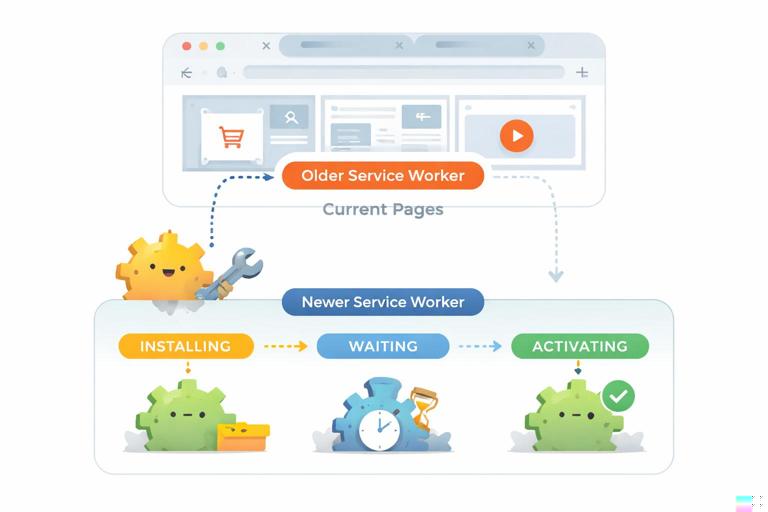
The lifecycle is designed for safety: a new service worker version will not immediately take over if an older version is still controlling open pages. This prevents a new worker from changing caching rules mid-session and potentially breaking a running app. The trade-off is that you must intentionally manage updates if you want fast rollouts.
Registration and scope: who is controlled, and from where
What “scope” means
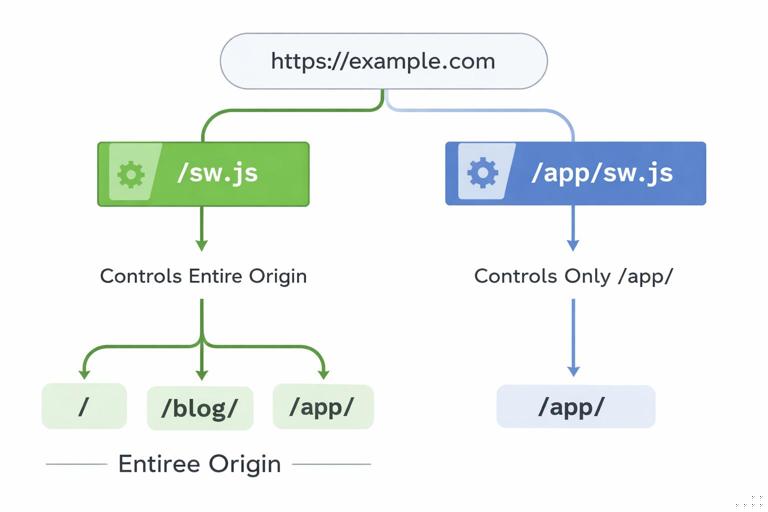
The scope of a service worker is the URL path prefix that it can control. If a page’s URL starts with the scope, that page can be controlled by the SW (assuming it is successfully installed and activated). Scope is determined by where the service worker file is served from and by an optional scope option during registration.
- If your SW script is at
/sw.js, its default scope is/(the whole origin). - If your SW script is at
/app/sw.js, its default scope is/app/. - You can narrow scope during registration (within allowed limits), e.g.
{ scope: '/app/' }.
Scope cannot be broadened beyond the directory that contains the SW script unless you use a special HTTP header (Service-Worker-Allowed) on the SW script response. For example, if your SW is served from /app/sw.js but you want it to control /, you must set Service-Worker-Allowed: / on the response for /app/sw.js. Many deployments avoid this complexity by placing the SW at the origin root (/sw.js).
Practical registration patterns
Register the SW from a page that is within the intended scope. Registration is typically done once on app startup.
- Listen to the audio with the screen off.
- Earn a certificate upon completion.
- Over 5000 courses for you to explore!

Download the app
if ('serviceWorker' in navigator) { window.addEventListener('load', async () => { try { const reg = await navigator.serviceWorker.register('/sw.js'); console.log('SW registered', reg.scope); } catch (err) { console.error('SW registration failed', err); } });}If you need a narrower scope (for example, you only want the SW to control a sub-app), register with an explicit scope:
navigator.serviceWorker.register('/app/sw.js', { scope: '/app/' });Be careful: a page outside the scope will not be controlled, and you may misinterpret that as “the SW isn’t working.” Always verify control status in the browser devtools (Application/Storage panel) and via navigator.serviceWorker.controller in the console.
Control is not immediate: the “first load” rule
Even after successful registration, the currently loaded page is not controlled until the next navigation (reload or route change that triggers a navigation). This is because control is established when the page is loaded. Practically, you often see: first visit registers the SW; second visit is controlled.
You can detect whether the page is currently controlled:
const isControlled = !!navigator.serviceWorker.controller;console.log('Controlled?', isControlled);The lifecycle phases: install, waiting, activate
1) Install: preparing a new version
When the browser detects a new service worker script (first registration or script changed), it starts the install phase. The install event is where you typically prepare resources needed for offline and fast startup. The install step must complete successfully; otherwise the SW is considered failed and won’t progress.
During install, you usually call event.waitUntil(promise) to tell the browser “keep the SW alive until this work finishes.” If the promise rejects, install fails.
self.addEventListener('install', (event) => { event.waitUntil((async () => { const cache = await caches.open('static-v1'); await cache.addAll([ '/', '/styles.css', '/app.js' ]); })());});Important: install should be deterministic and reasonably fast. Avoid caching huge lists or doing slow network work that may time out. If you need large or optional caching, do it after activation or lazily on demand.
2) Waiting: installed but not yet in control
After a successful install, the new SW often enters the “waiting” state. Waiting means: the new version is ready, but it will not activate while there are still pages controlled by the old version. This is the safety mechanism that prevents mid-session takeovers.
Common scenario: you deploy a new SW; users with an open tab keep the old SW controlling that tab. The new SW installs and waits. Only after all old controlled tabs are closed (or navigated away) can the new SW activate—unless you explicitly opt into faster activation using skipWaiting().
3) Activate: taking control and cleaning up
Activation happens when the new SW is allowed to take over. In activate, you typically clean up old caches, migrate data, and claim clients if desired.
self.addEventListener('activate', (event) => { event.waitUntil((async () => { const keys = await caches.keys(); await Promise.all( keys .filter((k) => k.startsWith('static-') && k !== 'static-v1') .map((k) => caches.delete(k)) ); })());});By default, even after activation, the SW will control only pages loaded after activation. If you want the newly activated SW to start controlling currently open pages immediately, you can call clients.claim() during activation. This is often paired with skipWaiting() for faster updates, but you must understand the implications (covered below).
self.addEventListener('activate', (event) => { event.waitUntil((async () => { await clients.claim(); })());});Update detection: when does the browser check for a new SW?
The browser checks for updates to the service worker script in several situations:
- On page load/navigation (commonly).
- Periodically in the background (browser-dependent).
- When you call
registration.update()from the page.
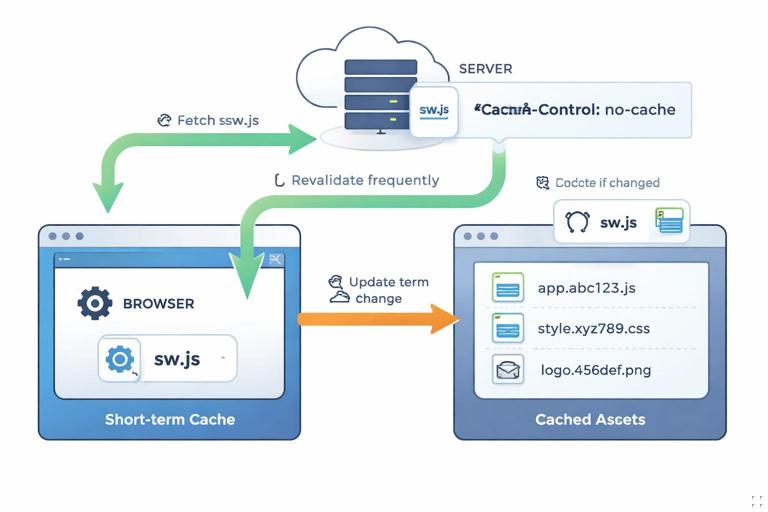
An update is considered when the SW script byte content changes (after HTTP caching rules are applied). This means HTTP caching headers on /sw.js matter. If your server caches /sw.js aggressively, clients may not see updates quickly.
Practical guidance: serve the SW script with headers that allow frequent revalidation (for example, Cache-Control: no-cache) so the browser can check for updates without downloading the full file every time. Your other static assets can still be long-cacheable with fingerprinted filenames; the SW script is the “update entry point.”
Update control strategies: choosing between safety and speed
Strategy A: Default lifecycle (safe, slower rollout)
With the default lifecycle, new SW versions wait until old controlled pages are closed. This is safest because it avoids changing caching logic while the app is running. It is appropriate when:
- Your app has long-lived sessions and you prefer not to interrupt them.
- You are making changes that could conflict with in-memory state.
- You want updates to apply on “next visit” rather than immediately.
In this strategy, you still need to handle the “waiting” state so you can inform the user that an update is ready, if you want. You can detect waiting from the registration object in the page.
async function registerSW() { const reg = await navigator.serviceWorker.register('/sw.js'); if (reg.waiting) { // A new SW is waiting to activate notifyUpdateReady(reg); } reg.addEventListener('updatefound', () => { const newWorker = reg.installing; if (!newWorker) return; newWorker.addEventListener('statechange', () => { if (newWorker.state === 'installed' && navigator.serviceWorker.controller) { // Update installed and waiting (because there's an existing controller) notifyUpdateReady(reg); } }); });}notifyUpdateReady could show a banner: “New version available. Refresh to update.” If the user refreshes, the old tabs close/reload, and activation can proceed.
Strategy B: Immediate activation (fast rollout with skipWaiting + clients.claim)
If you want updates to take effect quickly, you can instruct the new SW to skip the waiting phase and activate as soon as it finishes installing. This is done by calling self.skipWaiting() inside the SW, typically during install.
self.addEventListener('install', (event) => { event.waitUntil((async () => { // ...cache preparation... await self.skipWaiting(); })());});Then, in activate, claim clients so the new SW starts controlling open pages without requiring a reload:
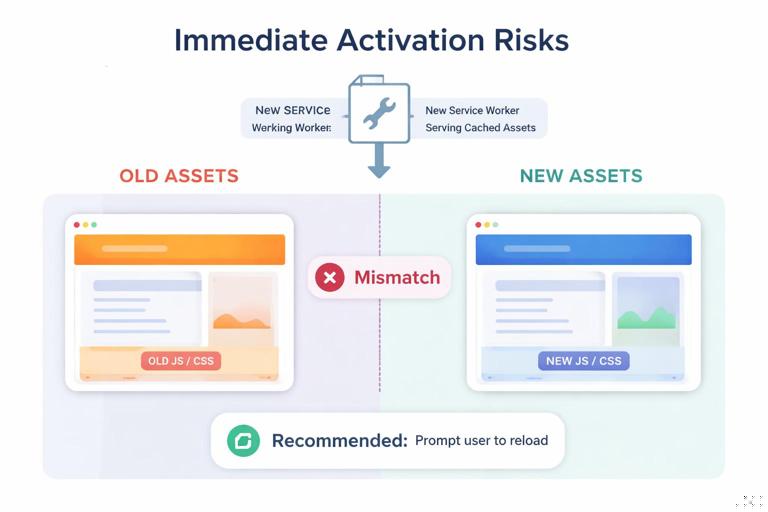
self.addEventListener('activate', (event) => { event.waitUntil((async () => { await clients.claim(); })());});This combination can be powerful, but it can also create subtle issues:
- If your new SW expects different cached assets than what the currently open page loaded, you can get mismatches (e.g., page JS expects API responses or files that the new SW now handles differently).
- If you delete old caches immediately, a currently running page might still reference old URLs that are no longer available offline.
- If you change routing or navigation handling, open pages can behave inconsistently until reloaded.
To use immediate activation safely, coordinate it with a controlled refresh flow: activate quickly, then prompt the user to reload so the page and SW are aligned.
Strategy C: User-driven activation (recommended for many apps)
A common pattern is: allow the new SW to install and wait; then, when you decide (often after user confirmation), send a message to the waiting SW telling it to call skipWaiting(). This gives you control without forcing immediate takeover.
In the SW, listen for a message:
self.addEventListener('message', (event) => { if (event.data && event.data.type === 'SKIP_WAITING') { self.skipWaiting(); }});In the page, when you detect reg.waiting, offer an “Update” button. On click, message the waiting worker:
function activateUpdate(reg) { if (!reg.waiting) return; reg.waiting.postMessage({ type: 'SKIP_WAITING' });}Then listen for the controller change event to know when the new SW has taken over, and reload:
let refreshing = false;navigator.serviceWorker.addEventListener('controllerchange', () => { if (refreshing) return; refreshing = true; window.location.reload();});This pattern avoids mid-session surprises: you activate only when the user is ready, and you reload immediately so the page uses the new cached assets and logic.
Step-by-step: implementing a robust update flow
Step 1: Version your caches intentionally
Use explicit cache names that encode a version, and keep them consistent. This makes cleanup predictable.
const STATIC_CACHE = 'static-v3';const RUNTIME_CACHE = 'runtime';Step 2: Install caches for the new version
During install, populate the new version’s cache. Keep install focused on essential resources.
self.addEventListener('install', (event) => { event.waitUntil((async () => { const cache = await caches.open(STATIC_CACHE); await cache.addAll(['/','/styles.css','/app.js']); })());});Step 3: Activate cleanup without breaking open pages
In activate, delete old versioned caches. If you are using user-driven activation + reload, this is typically safe because you reload after takeover. If you are not reloading, consider delaying deletion or keeping a fallback period.
self.addEventListener('activate', (event) => { event.waitUntil((async () => { const keys = await caches.keys(); await Promise.all(keys .filter((k) => k.startsWith('static-') && k !== STATIC_CACHE) .map((k) => caches.delete(k))); await clients.claim(); })());});Step 4: Detect updates in the page and prompt the user
Wire up registration listeners so you can show UI when an update is waiting.
async function setupServiceWorker() { const reg = await navigator.serviceWorker.register('/sw.js'); function onUpdateReady() { // Show a banner/button in your UI // Example: window.dispatchEvent(new CustomEvent('sw:update-ready')); console.log('Update ready'); // If you want immediate user-driven activation: // activateUpdate(reg); } if (reg.waiting) onUpdateReady(); reg.addEventListener('updatefound', () => { const worker = reg.installing; if (!worker) return; worker.addEventListener('statechange', () => { if (worker.state === 'installed' && navigator.serviceWorker.controller) { onUpdateReady(); } }); });}Step 5: Activate on demand and reload on controller change
When the user clicks “Update,” message the waiting SW and reload when control changes.
function requestUpdate(reg) { if (reg.waiting) { reg.waiting.postMessage({ type: 'SKIP_WAITING' }); }}let reloading = false;navigator.serviceWorker.addEventListener('controllerchange', () => { if (reloading) return; reloading = true; window.location.reload();});Common lifecycle pitfalls and how to debug them
“My SW updated, but users still see old behavior”
- Cause: the new SW is installed but waiting; old tabs are still open.
- Fix: implement an update-ready prompt and user-driven activation, or accept next-visit updates.
- Debug: in devtools, check if there is a “waiting” worker. Inspect the “Service Workers” section for “waiting to activate.”
“My SW never updates”
- Cause:
/sw.jsis cached by HTTP and not revalidated. - Fix: serve the SW script with revalidation-friendly headers (commonly
Cache-Control: no-cache), and ensure your deployment actually changes the SW file content when you release. - Debug: open the Network panel, inspect the response headers for
/sw.js, and verify the browser is checking for updates.
“Some pages are not controlled”
- Cause: scope mismatch (SW not at root, or registered with a narrow scope).
- Fix: move SW to
/sw.jsfor origin-wide control, or adjust registration scope and server headers. - Debug: check
reg.scopeand compare it to the page URL; verifynavigator.serviceWorker.controlleron the affected page.
“I get inconsistent assets after an update”
- Cause: immediate activation without a coordinated reload; the page is running old JS while the SW serves new cached files (or vice versa).
- Fix: use user-driven activation and reload on
controllerchange, or ensure backward compatibility between versions. - Debug: log cache names and fetch handling; verify which SW version is controlling the page.
Advanced scope and multi-app considerations
One origin, multiple service workers
You can have multiple service workers on the same origin as long as their scopes do not overlap. For example, /app1/ and /app2/ can each have their own SW. The browser will use the most specific matching scope for a given page.
Practical use cases include: hosting separate products under one domain, or isolating experimental features. The downside is operational complexity: each SW has its own update cycle, caches, and debugging surface.
Choosing the right scope boundary
A broad scope (/) simplifies control and enables consistent offline behavior across the site. A narrow scope reduces risk of accidentally controlling pages you did not design for offline caching (e.g., admin panels, marketing pages, or legacy routes). If you choose a narrow scope, ensure that any navigation that should be offline-capable stays within that scope, or you will see “offline gaps.”
Practical checklist for lifecycle and update control
- Place the SW at
/sw.jsunless you have a strong reason to narrow scope. - Ensure
/sw.jsis served with revalidation-friendly caching headers so updates are discoverable. - Keep
installfast and reliable; cache only essential resources there. - Use versioned cache names and delete old caches in
activate. - Decide on an update strategy: default (next visit), immediate (skipWaiting + claim), or user-driven activation with a reload.
- Implement UI and messaging for “update ready” if you care about timely updates.
- Use devtools to inspect states: installing, waiting, active; verify scope and controller status.