What “publishing and sharing” means in Power BI
Publishing and sharing is the set of actions that move a report from your development environment into a controlled, discoverable, and consumable experience for stakeholders. In Power BI, this typically means publishing a report to the Power BI service, placing it in the right workspace, packaging it as an app (or sharing it directly), configuring access, and ensuring the right people can view the right content on the right device at the right time. Delivery is not only “making it available”; it is also about establishing a predictable path for how stakeholders find the report, how they know it is current, how they interact with it, and how you handle requests and updates without breaking trust.
In practice, stakeholder delivery includes decisions such as: whether to distribute via a workspace link or an app; whether to grant view-only access or allow build permissions; how to provide a single “source of truth” while still enabling self-service; how to communicate changes; and how to support executives who may consume content via email, Teams, or mobile. The goal is to reduce friction for consumers while maintaining control and clarity for owners.
Choosing the right delivery vehicle: workspace sharing vs apps
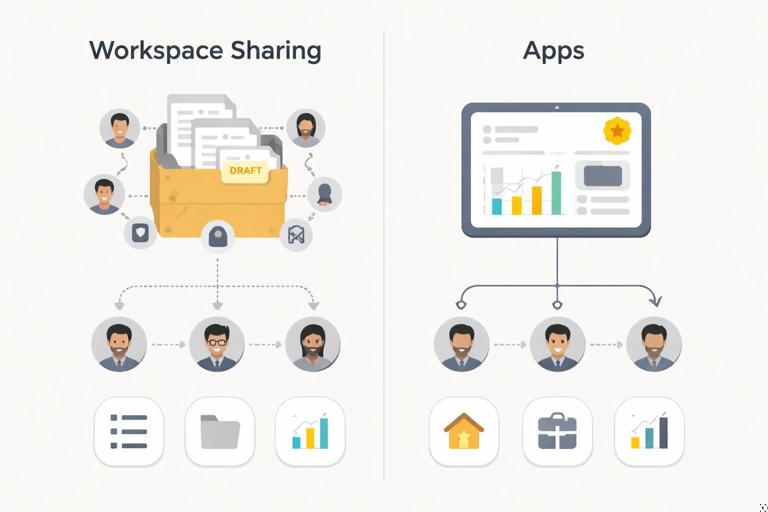
Workspace sharing: fast, flexible, but easier to mismanage
Sharing directly from a workspace is convenient for small teams and early iterations. You can add users to a workspace role (Viewer, Contributor, Member, Admin) and they can access all content in that workspace according to their role. This is useful when stakeholders are collaborators or when you need rapid feedback loops. The risk is that workspaces can become cluttered with drafts, duplicates, and “in-progress” items, and broad workspace access can expose content that was not meant for all audiences.
Apps: curated, stable, and stakeholder-friendly
Publishing an app from a workspace creates a curated package of reports and dashboards intended for consumption. Apps provide a cleaner experience: stakeholders see only what you include, navigation is controlled, and updates can be released intentionally. Apps also support audience targeting, allowing different groups to see different content from the same app. For executive-ready delivery, apps are often the default choice because they reduce confusion and help you present a stable “front door” to analytics.
Decision checklist
- Use an app when you need a curated experience, multiple audiences, and controlled releases.
- Use workspace sharing when consumers are also contributors, or when you are in a short-lived pilot phase.
- If stakeholders are executives or broad business audiences, prefer apps to avoid exposing drafts and to simplify navigation.
Step-by-step: publishing from Power BI Desktop to the service
Step 1: validate the file before publishing
Before you publish, treat the .pbix as a release candidate. Confirm that report pages are named clearly, visuals render correctly, and any bookmarks or buttons behave as expected. If you use parameters for environment switching (for example, dev vs prod sources), confirm the correct parameter values are set for the target environment. Also confirm that the report has a clear landing page or default page that matches stakeholder expectations.
- Listen to the audio with the screen off.
- Earn a certificate upon completion.
- Over 5000 courses for you to explore!

Download the app
Step 2: publish to the correct workspace
In Power BI Desktop, select Publish and choose the target workspace. The workspace should reflect your delivery structure (for example, a workspace dedicated to a business domain or to a specific product). Publishing to the wrong workspace is a common cause of broken links and stakeholder confusion, so treat workspace selection as a controlled step.
Step 3: confirm dataset and report artifacts in the service
After publishing, open the workspace in the Power BI service and verify that both the report and the semantic model (dataset) appear. Open the report in the service to confirm that visuals load and that any service-only behaviors (such as cross-report drillthrough links or integration with Teams) behave as intended.
Step 4: set ownership expectations
Decide who owns the content operationally. If you are the owner, ensure you can manage permissions and updates. If ownership will transfer to a team, confirm that the right people have at least Member access in the workspace so they can manage the lifecycle. Stakeholder delivery fails when no one is clearly responsible for maintaining access and responding to issues.
Permissions and access patterns that match stakeholder needs
Viewer vs Build vs Edit: align capability with responsibility
Power BI access is not just “can they see it.” You should align permissions with what you want stakeholders to do. Executives typically need view access only. Analysts may need Build permission to create their own reports from a shared semantic model. Report developers need edit permissions in the workspace. Avoid granting edit permissions broadly; it increases the risk of accidental changes and makes it harder to maintain a single source of truth.
- Viewer: can view content; best for most stakeholders.
- Build: can create new reports using the semantic model; best for trusted analysts in a governed self-service model.
- Contributor/Member: can publish and edit content in the workspace; best for the delivery team.
Sharing a report vs granting workspace access
Sharing a report directly (using the Share button) can be useful for targeted distribution, but it can create a web of individual shares that is hard to audit. Workspace access is easier to manage centrally but can expose more than intended. Apps often provide the best balance: you manage access at the app level and stakeholders get a consistent entry point.
External sharing considerations
If you need to share with partners or clients outside your organization, confirm your tenant settings allow external sharing and that your organization’s policies permit it. External sharing should be treated as a separate delivery scenario with explicit approval, because it affects data exposure risk and support expectations. When external sharing is required, prefer a controlled approach (such as a dedicated workspace and app for external audiences) so internal and external delivery do not get mixed.
Row-level security and audience segmentation in delivery
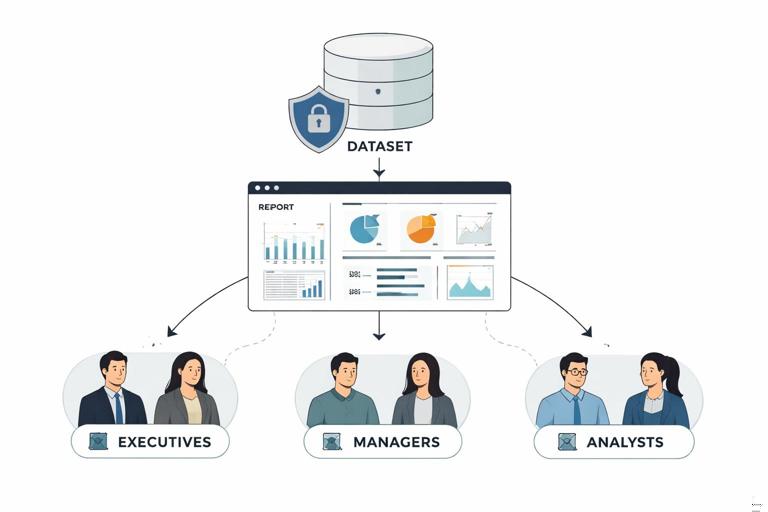
When different stakeholders should see different slices of data, delivery must incorporate security and segmentation. Row-level security (RLS) ensures users only see the data they are allowed to see. From a delivery perspective, the key is to test RLS in the service with representative accounts and to document who belongs to which security role. Stakeholders should not have to guess whether they are seeing “their” data; the experience should be seamless.
Apps add another layer: audiences. You can publish one app but define multiple audiences so different groups see different reports or navigation. This is useful when executives need a high-level view while managers need operational detail, without forcing everyone into the same report experience.
Step-by-step: testing RLS in the service
- Publish the report and open the semantic model settings in the service.
- Confirm security roles are present and assigned to the correct users or groups.
- Use Test as role (or view-as functionality) to validate that filters behave as expected.
- Ask a pilot user from each audience to validate the experience with their real account.
Packaging and releasing with Power BI apps
Step-by-step: creating an app for stakeholders
- In the workspace, select Create app (or Update app if one exists).
- Choose which reports and dashboards are included. Exclude drafts and internal QA artifacts.
- Configure navigation: order items logically and use clear names that match stakeholder language.
- Set permissions: decide who can access the app and whether they can share or build.
- Configure audiences if needed: assign content per audience and validate each audience view.
- Publish the app and copy the app link for distribution.
Release discipline: updates without surprises
Apps allow you to update content in the workspace without immediately pushing changes to all users, depending on your settings and workflow. Treat app updates like releases: bundle changes, validate them, then publish an updated app. This reduces “dashboard whiplash” where stakeholders see frequent layout changes and lose confidence. When you do release changes, communicate what changed and why, especially if navigation or definitions were updated.
Delivering where stakeholders already work: Teams, email, and mobile
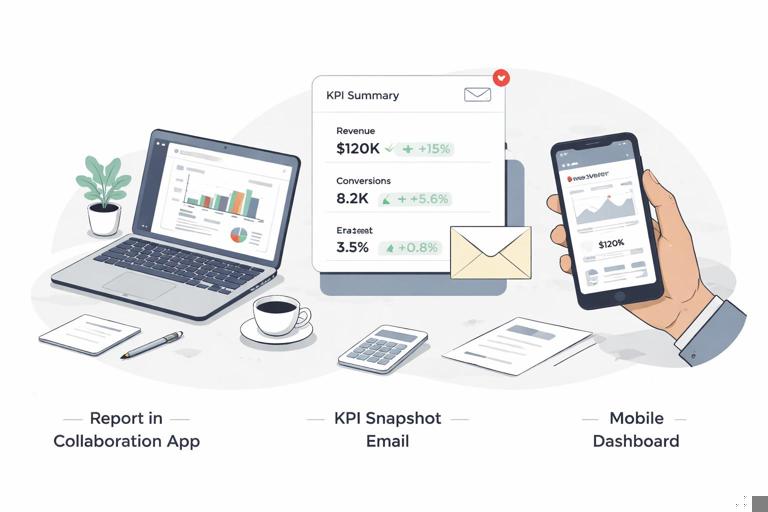
Microsoft Teams integration
Many stakeholders prefer to consume insights in Teams rather than visiting the Power BI service. You can add a Power BI tab to a Teams channel or chat, pin a report, or share a link that opens in Teams. For delivery, this means you should ensure the report’s default page is appropriate and that the report renders well in the Teams frame. Teams delivery works best when paired with a clear channel purpose, such as an “Executive Metrics” channel where the report is pinned and discussions happen next to the visuals.
Email subscriptions and alerts
Some stakeholders want proactive delivery. Subscriptions can send snapshots or links on a schedule. Alerts can notify users when a metric crosses a threshold (often used with dashboards). When setting up subscriptions, align the schedule with business cadence: daily for operational metrics, weekly for leadership reviews, monthly for finance cycles. Also ensure the email content is meaningful: use a report page that is designed to be readable as a snapshot, with key KPIs visible without interaction.
Mobile consumption
Executives often consume content on mobile devices. Delivery readiness includes verifying that key pages are readable on smaller screens and that critical KPIs are accessible quickly. If you design a mobile layout, validate it in the Power BI mobile app and ensure navigation is simple. Avoid relying on tiny slicers or dense tables for mobile-first stakeholders; instead, provide a compact overview page optimized for quick scanning.
Stakeholder onboarding: making the first experience frictionless
Provide a “how to use this” micro-guide inside the report
Even well-designed reports benefit from a short onboarding layer. Add a small help section or an info button that explains how to filter, what the main KPIs mean, and where to go for deeper detail. Keep it brief and embedded in the report so stakeholders do not need separate documentation. This is especially important when you deliver via an app to a broad audience with varying Power BI familiarity.
Standardize the entry point and naming
Stakeholders should not have to choose between “Sales Dashboard v3,” “Sales Dashboard FINAL,” and “Sales Dashboard (new).” Use a consistent naming convention and a single entry point (preferably the app). If you must keep multiple versions during transition, label them clearly as “Pilot” or “Archived” and restrict access to drafts.
Set expectations for interaction
Some stakeholders assume dashboards are static; others expect drill-down and export. Clarify what is intended. For example, if you want executives to use the report for discussion rather than exporting data, make that explicit. If exports are allowed, specify what is acceptable to export and how to interpret exported numbers, especially if filters affect totals.
Managing feedback and change requests without breaking delivery
Create a single intake path
Once a report is shared widely, feedback arrives from many directions: email, chat, meetings, and hallway conversations. Establish a single intake path (for example, a Teams thread, a form, or a ticketing queue) so requests are captured consistently. The delivery team should categorize requests into: defects (something is wrong), enhancements (new feature), and questions (needs explanation). This prevents urgent issues from being buried under “nice-to-have” ideas.
Use a change log and version notes
Stakeholders notice changes, especially if a KPI moves or a page layout shifts. Maintain a simple change log that records what changed and when. You can publish release notes in the app description, a dedicated “Updates” tooltip, or a small “What’s new” section on the landing page. The goal is to reduce confusion and prevent repeated questions like “Did the definition change?”
Plan for deprecations and transitions
When replacing an older report, plan a transition period. Provide a link from the old report to the new one, set an end-of-life date, and communicate it. If stakeholders rely on bookmarks or saved links, app-based delivery helps because the app link remains stable even as underlying reports evolve.
Embedding and sharing beyond the Power BI service
SharePoint and intranet embedding
Many organizations deliver analytics through SharePoint pages or intranet portals. Embedding a report in SharePoint can make discovery easier because stakeholders find insights where they already go for information. For delivery, ensure that permissions are consistent: users still need Power BI access to view the embedded report. Also ensure the page context is clear: include a short description of what the report is for and who to contact for support.
Secure embedding for applications
If your organization embeds Power BI in internal applications, delivery becomes part of a product experience. This requires coordination with application owners to align authentication, permissions, and user experience. From a stakeholder perspective, embedded analytics should feel seamless: the right report appears for the right user without extra logins or confusing access errors.
Operational delivery checklist for stakeholder-ready publishing
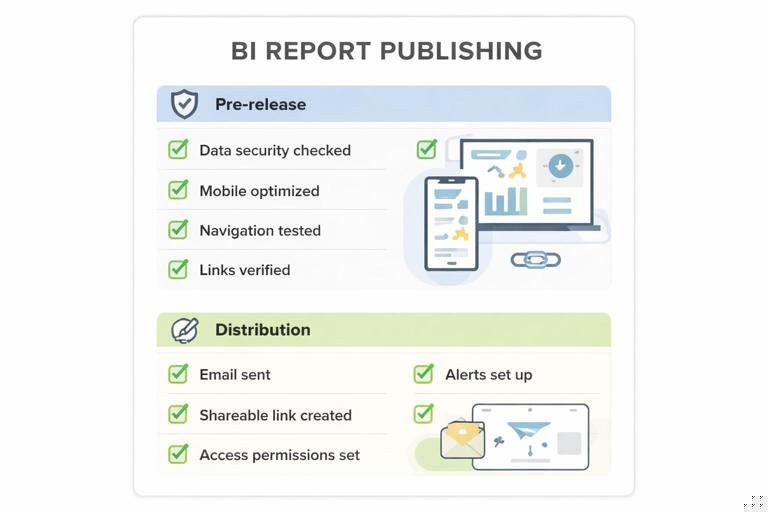
Pre-release checklist
- Report opens correctly in the Power BI service and key pages load as expected.
- Default landing page is appropriate for the target audience.
- Permissions are assigned via groups where possible, not individual users.
- RLS (if used) is tested with representative users.
- App navigation is curated and drafts are excluded.
- Subscription pages (if used) are readable as snapshots.
- Mobile experience is validated for key pages.
Distribution checklist
- Single link to share (preferably the app link) is prepared.
- Stakeholders know where to access the report (Teams tab, SharePoint page, or Power BI app).
- Support path is communicated (who to contact, where to submit requests).
- Release notes or change log is available for transparency.
Practical example: delivering an executive scorecard to three audiences
Scenario
You have one executive scorecard semantic model and three stakeholder groups: executives (high-level KPIs), regional managers (region-specific performance), and analysts (need to build their own views). You want a single delivery package that feels tailored to each group.
Implementation steps
- Publish the report to a domain workspace (for example, “Commercial Performance”).
- Create an app from the workspace and define three audiences: Executives, Managers, Analysts.
- Executives audience: include only the scorecard report with a simplified navigation order.
- Managers audience: include the scorecard plus a detailed operations report; ensure RLS restricts managers to their region.
- Analysts audience: grant Build permission on the semantic model and include a “Data Dictionary” report page or a separate reference report.
- Pin the executive scorecard as a Teams tab in the leadership channel; set a weekly email subscription for the landing page.
- Publish release notes in the app description whenever KPI definitions or layouts change.
What stakeholders experience
Executives open a single app and see only what they need, with minimal navigation. Managers see the same app but with additional detail and region-appropriate data. Analysts can use the shared semantic model to create their own reports without requesting extracts, while still relying on the governed dataset. The delivery is consistent, discoverable, and controlled, even though different groups have different needs.