How to Use This Chapter
This chapter is a practice pack: exercises, mini-projects, quizzes, and a troubleshooting playbook you can reuse on real PWA work. It assumes you already have an offline-first PWA built in earlier chapters. The goal here is to strengthen your instincts: how to verify behavior, how to design small experiments, and how to diagnose issues quickly when the app behaves differently across devices, networks, and update cycles.
Exercises: Targeted Skill Drills
Exercise 1: Build a “Test Matrix” and Run It
PWAs fail in the gaps between environments: different browsers, different network conditions, different install states. A test matrix turns “it works on my machine” into repeatable checks.
Step-by-step
- Create a table (in your notes or issue tracker) with rows for scenarios and columns for environments.
- Scenarios (rows) to include: first visit online, repeat visit online, repeat visit offline, cold start offline (no open tabs), update available while app is open, update after closing all tabs, install flow (if supported), storage cleared, background sync queued then network restored, push permission denied then later granted.
- Environments (columns) to include: Chrome desktop, Chrome Android, Safari iOS (if applicable), Edge desktop, and at least one low-end Android device or emulator profile.
- For each cell, record: expected behavior, actual behavior, and evidence (screenshots, console logs, DevTools screenshots, or exported HAR if needed).
What you learn: you stop relying on a single “happy path” and start thinking in states: installed vs not, fresh vs returning, online vs offline, updated vs stale.
Exercise 2: Add a “Diagnostics Mode” Toggle
When troubleshooting, you need visibility without attaching DevTools on every device. A diagnostics mode is a small UI switch that surfaces runtime state and recent events.
- Listen to the audio with the screen off.
- Earn a certificate upon completion.
- Over 5000 courses for you to explore!

Download the app
Step-by-step
- Add a hidden toggle (e.g., click app logo 5 times) that enables diagnostics mode.
- In diagnostics mode, display: app version string, service worker status (controlled/uncontrolled), last update check time, current network status (navigator.onLine), and a small log panel.
- Implement a lightweight logger that stores the last 100 events in memory and optionally in IndexedDB for persistence across reloads.
- Log key events: app start, route change, fetch failures, cache hits/misses (if you can instrument), sync queued/sent, and update prompts shown/accepted.
// Example: minimal client-side logger (in app code, not SW-specific) const logBuffer = []; export function logEvent(type, data = {}) { const entry = { ts: Date.now(), type, data }; logBuffer.push(entry); if (logBuffer.length > 100) logBuffer.shift(); } export function getLogs() { return [...logBuffer]; }What you learn: you can reproduce and capture issues on real devices, including those where remote debugging is painful.
Exercise 3: Offline UX “Red Team” Review
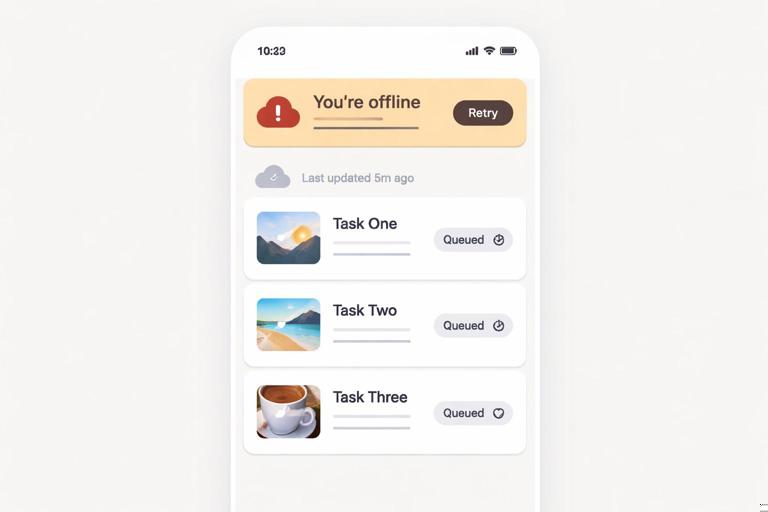
Offline-first is not just “show an offline page.” It’s about preventing confusing states (spinners forever, empty lists with no explanation, forms that appear to submit but don’t).
Step-by-step
- Put the app in offline mode (system airplane mode or DevTools offline).
- Attempt every primary user task: browse, search, open details, create/edit data, submit forms, upload media (if any).
- For each task, answer: What does the user see? Is it honest about offline state? Is there a clear next action?
- Write three improvements that require no new backend work (copy changes, better empty states, retry buttons, “queued” labels, last-updated timestamps).
What you learn: offline UX is a product feature; you can improve it with small, targeted changes.
Exercise 4: Storage Pressure Simulation
Real users clear storage, devices run low on space, and browsers evict data. You want your app to degrade gracefully.
Step-by-step
- In your browser, clear site data (storage + caches) and reload.
- Simulate partial eviction: delete only some caches or only IndexedDB (where possible) and reload.
- Verify that the app can recover: it should re-fetch critical assets when online, and show a clear message when offline and required data is missing.
- Add a “Reset offline data” button in settings for users (and for QA) that clears app-managed caches and local data safely.
What you learn: you design for recovery, not perfection.
Mini-Projects: Small Builds That Cement Real-World Skills
Mini-Project 1: Offline Bug Report Collector
Build a feature that lets users submit bug reports even when offline. Reports are queued and sent when connectivity returns. This mini-project is valuable because it turns troubleshooting into a product capability.
Requirements
- A “Report a problem” screen with: title, description, optional screenshot (if you support it), and a “Include diagnostics” checkbox.
- When offline, the report is saved locally with status “queued.”
- When online, queued reports are sent automatically; failures remain queued with an error reason.
- A “Reports” screen shows queued/sent/failed states and allows retry.
Step-by-step
- Define a local schema for reports: id, createdAt, payload, status, lastAttemptAt, attempts, lastError.
- Implement UI to create a report and store it locally immediately on submit.
- Implement a sender routine that runs on app start and on network regain (listen to the online event) to attempt sending queued reports.
- If you already have background sync in your app, integrate with it; otherwise, implement a simple “send on next online” approach from the client.
- Attach diagnostics: app version, user agent, install status, last 20 log events from diagnostics mode, and current route.
// Pseudocode: send queued reports on network regain window.addEventListener('online', () => { processQueue(); }); async function processQueue() { const queued = await db.reports.where('status').equals('queued').toArray(); for (const r of queued) { try { await api.sendReport(r.payload); await db.reports.update(r.id, { status: 'sent', lastAttemptAt: Date.now() }); } catch (e) { await db.reports.update(r.id, { status: 'queued', lastAttemptAt: Date.now(), attempts: r.attempts + 1, lastError: String(e) }); } } }Acceptance checks
- Create a report offline, reload the app, confirm it still appears as queued.
- Go online, confirm it sends and transitions to sent.
- Force an API failure (wrong endpoint or 500), confirm it stays queued and shows lastError.
Mini-Project 2: Update Experience “Lab”
Create a controlled environment inside your app to test update behavior repeatedly. The goal is to remove guesswork when users say “I still see the old version.”
Requirements
- A hidden “Update Lab” screen that shows: current app version, last known server version (if you expose it), whether a new version is available, and buttons to “Check for update,” “Reload to update,” and “Simulate update banner.”
- A visible update banner pattern that can be triggered by real update detection and by simulation.
Step-by-step
- Add a build-time version string to your app (e.g., commit hash or timestamp) and display it in the Update Lab.
- Implement a manual “check for update” action that triggers your existing update detection mechanism (whatever you use in your app) and logs the result.
- Implement a “reload to update” button that reloads the page after the update is ready.
- Test: open two tabs, trigger an update, observe which tab updates and when; record behavior in your test matrix.
Acceptance checks
- You can reliably reproduce the update prompt and verify that the new version string appears after the update flow completes.
- You can explain, with evidence, what happens when multiple tabs are open.
Mini-Project 3: Offline Data Consistency Challenge
This mini-project focuses on the hardest user-facing problems: conflicts and stale data. You will implement a simple “conflict detector” and a UI to resolve it.
Requirements
- Each record has a version field (or updatedAt timestamp).
- When sending an update, include the last known version.
- If the server rejects due to version mismatch, mark the local record as “conflicted.”
- Provide a conflict UI: show “yours” vs “latest,” and allow the user to choose which to keep (or merge if text-based).
Step-by-step
- Extend your local data model to store lastSyncedVersion and localEdits.
- When offline edits occur, mark the record as “dirty.”
- When syncing, if you receive a conflict response, store the server version alongside the local draft.
- Build a conflict resolution screen that lists conflicted items and provides actions: keep mine, keep theirs, or edit and retry.
Acceptance checks
- You can force a conflict by editing the same record on two devices (or two sessions) and then syncing.
- The app never silently overwrites user data without a clear choice.
Quizzes: Check Your Understanding
Quiz 1: Scenario-Based Questions
- Q1: A user installs your app, uses it for a week, then reports that new features are not showing up. What are the top three pieces of evidence you ask for from the user or your diagnostics mode?
- Q2: Your offline page appears even when the user is online, but only on one device. List likely causes that are specific to that device or browser profile.
- Q3: A queued request is sent twice after reconnecting. Name two distinct reasons this can happen and one mitigation for each.
- Q4: Users report that images sometimes don’t appear offline even though the page loads. What should you inspect first: routing, cache contents, request URLs, or UI rendering? Explain your order.
- Q5: You see “This site can’t be reached” during offline testing instead of your offline UI. What does that imply about control and navigation handling?
Quiz 2: True/False (Explain Why)
- Q1: If the app works offline once, it will always work offline unless the user clears storage.
- Q2: A service worker update is guaranteed to activate immediately after a new deployment.
- Q3: If a request is in the cache, it will be used even when online.
- Q4: “Uncontrolled” pages can still read from Cache Storage directly in window code.
- Q5: A diagnostics mode should avoid collecting any user-identifying data by default.
Quiz 3: Short Answers
- Define “repro steps” in the context of PWA bugs and list the minimum information needed to make them actionable.
- What is the difference between a “network problem” and a “cache problem” from the user’s perspective?
- What is one reason an offline-first app might show stale data even when online, and how would you detect it?
Troubleshooting Playbook: Symptoms, Causes, and Fix Paths
How to Use the Playbook
Start with the symptom the user sees, then follow a fixed sequence: (1) confirm environment and state, (2) reproduce, (3) collect evidence, (4) isolate whether the issue is UI, network, storage, or update-related, (5) apply the smallest fix and re-run the test matrix cell that covers it.
Evidence checklist
- App version string (from Update Lab or diagnostics mode)
- Browser and OS version
- Install state (installed or in-browser tab)
- Network state and type (offline/online, captive portal, flaky)
- Whether the page is controlled by the service worker
- Recent diagnostics logs (last 20–50 events)
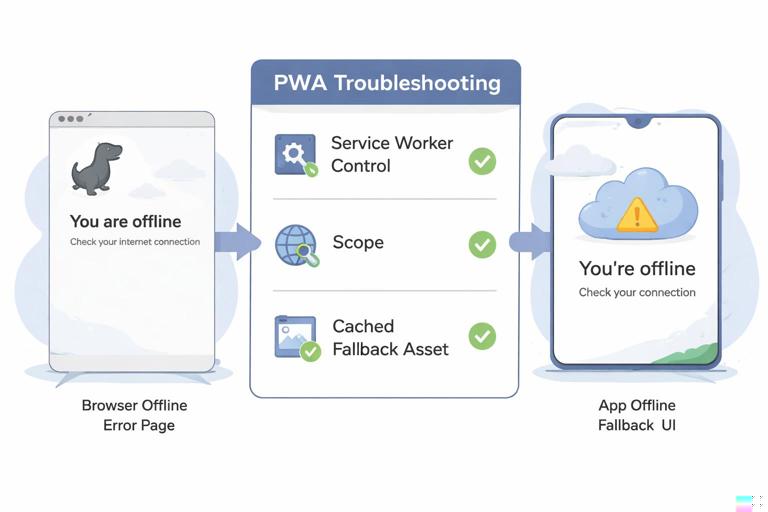
Symptom: “Offline mode shows a browser error page instead of the app UI”
Likely causes
- The page is not controlled by the service worker (first load, wrong scope, or opened via a URL outside scope).
- Navigation handling does not provide a fallback for document requests.
- The offline fallback asset is missing from storage or was evicted.
Fix path
- Verify control: in diagnostics mode, show whether navigator.serviceWorker.controller exists.
- Verify scope alignment: ensure the URL you test is within the service worker’s scope.
- Verify fallback availability: add a runtime check that the offline fallback resource exists and log if it is missing.
- Re-run: cold start offline and in-scope deep link offline.
Symptom: “The app loads offline, but some pages are blank”
Likely causes
- Client-side routing renders a view that depends on data not available offline.
- Requests for JSON/data endpoints fail and the UI doesn’t handle the error state.
- Asset URLs differ between online and offline (e.g., query params, different hosts), causing cache misses.
Fix path
- Instrument UI states: show explicit placeholders and error messages when data is missing.
- Log failed fetches with URL and mode; compare against cached keys.
- Normalize asset URLs if your build pipeline produces multiple variants.
- Re-run: navigate through all routes offline and verify each has a meaningful state.
Symptom: “Users see old UI after deployment”
Likely causes
- Update is downloaded but not activated yet due to open tabs or lifecycle waiting.
- HTML is cached by the CDN or browser, serving old entry points.
- The app shell references hashed assets correctly, but the HTML referencing them is stale.
Fix path
- Use Update Lab to confirm version mismatch and whether an update is detected.
- Check response headers for HTML and ensure they match your intended caching policy.
- Ensure your update banner is shown when a new version is ready and that the “reload” action is clear.
- Re-run: update with one tab, then with two tabs, then with installed app mode.
Symptom: “Queued actions are lost after a reload”
Likely causes
- Queue is stored only in memory, not persisted.
- Queue persistence is failing due to schema changes or storage errors.
- Data is being cleared by the user or by eviction under storage pressure.
Fix path
- Confirm persistence: create a queued action, reload, and verify it remains.
- Add a queue integrity check on startup: count queued items and log the count.
- Handle storage failures explicitly: show a message if the app cannot persist offline actions.
- Re-run: offline submit, reload, then reconnect and send.
Symptom: “Queued actions are duplicated”
Likely causes
- Retry logic lacks idempotency; the server treats retries as new actions.
- Multiple senders run concurrently (e.g., app start + online event + background process).
- Status updates are not atomic; an item remains marked queued while being sent.
Fix path
- Add an idempotency key per action (client-generated unique id) and send it with the request.
- Implement a “sending” status and lock: mark as sending before network call, then sent/queued after.
- Ensure only one queue processor runs at a time (mutex in client code).
// Pseudocode: simple mutex to avoid concurrent queue processing let processing = false; async function processQueue() { if (processing) return; processing = true; try { /* send loop */ } finally { processing = false; } }Symptom: “Offline works on Android Chrome but not on iOS Safari”
Likely causes
- Platform-specific limitations around storage, background execution, or install behavior.
- Different eviction behavior or stricter storage quotas.
- Feature differences that require fallback paths.
Fix path
- Reproduce on iOS with a minimal route and minimal data set to isolate whether it is storage, routing, or UI.
- Reduce offline dependencies: ensure critical routes have minimal required data and clear messaging when data is unavailable.
- Use diagnostics mode to capture control status, version, and last errors without relying on remote debugging.
Symptom: “App is slow only on repeat visits”
Likely causes
- Too much work during startup: reading large local datasets, expensive hydration, or rendering large lists.
- Cache or storage bloat causing slow lookups.
- Repeated migrations or schema upgrades running too often.
Fix path
- Measure: add timestamps around startup phases and log them in diagnostics mode.
- Trim: limit stored data, paginate lists, and avoid full-table scans on startup.
- Verify: clear storage and compare first vs repeat visit timings; if repeat is slower, focus on local read paths.
Symptom: “Some assets fail to load offline intermittently”
Likely causes
- Requests include varying query strings or different origins, producing cache misses.
- Assets are requested with different modes/credentials, changing the cache key behavior.
- Eviction removed some assets; the app assumes they exist.
Fix path
- Collect failing URLs from logs and compare them to stored cache keys.
- Normalize URL generation in the app (consistent base paths, avoid random query params for static assets).
- Add a “cache audit” tool in diagnostics mode that lists key caches and counts entries.
Practice Checklist: What to Automate Next
Once you’ve completed the exercises and mini-projects, choose two items to automate so regressions are caught early.
- Add a scripted “offline smoke test” that loads key routes with network disabled and checks for non-empty UI states.
- Add a scripted “update smoke test” that verifies the version string changes after a simulated update flow.
- Add a “queue reliability test” that creates a queued action, reloads, then reconnects and verifies exactly-once semantics.
- Add a “storage reset test” that clears app data and verifies the app recovers cleanly when online.