What a Caption System Is (and Why It’s Different from “Just Adding Subtitles”)
A caption system is a repeatable set of rules for how on-screen text behaves across your shorts: what types of captions you use, when they appear, how they look, how they animate, and how they support comprehension without competing with the visuals. “Just adding subtitles” usually means dumping verbatim speech on screen. A caption system is designed for clarity and retention: it selectively emphasizes meaning, reduces cognitive load, and guides the viewer’s eyes through the story beat-by-beat.
In vertical shorts, captions often do three jobs at once:
- Accessibility: viewers understand without sound, or with imperfect audio.
- Comprehension: viewers track dense information, names, numbers, steps, and contrasts.
- Attention direction: kinetic text can point to the key idea at the exact moment it matters.
The goal is not to decorate. The goal is to make the message unmissable.
Core Principles: Clarity First, Style Second
1) Reduce reading effort
Mobile viewers read in short bursts. If captions are too long, too fast, or too visually complex, they become a second task competing with the video. A good system keeps captions short, high-contrast, and paced to natural speech.
2) Caption meaning, not every word
Verbatim captions can be useful, but for high-retention shorts, selective captioning often performs better: you show the words that carry the meaning (the “payload”), not every filler phrase. This is especially important for tutorials, lists, and explanations.
- Listen to the audio with the screen off.
- Earn a certificate upon completion.
- Over 5000 courses for you to explore!

Download the app
3) One idea per caption beat
Each caption “beat” should map to a single thought. If a caption contains two ideas, split it. This makes the text easier to scan and gives you more opportunities for emphasis.
4) Consistency builds trust
When viewers learn your caption rules, they stop “figuring out” the text and start absorbing the content. Consistency includes font choice, size range, highlight color logic, and animation style.
Caption Types You Can Combine into a System
Dialogue captions (speech support)
These follow spoken words closely, but still benefit from cleanup: remove repeated words, “um,” and false starts unless they’re part of the humor or character.
Key-point captions (meaning anchors)
These are short phrases that summarize what matters. They can appear even when the speaker is talking, acting like a headline for the moment.
Step captions (procedural clarity)
Used for how-to content. They label each step with a number or short verb phrase. Step captions should be stable and easy to read, with minimal animation.
Definition captions (term + plain-language meaning)
Useful when introducing jargon. The system can show the term in one style and the definition in another, so viewers instantly recognize “new term” moments.
Data captions (numbers, measurements, time, price)
Numbers are easy to mishear. Put them on screen. Use a consistent format (e.g., “30 sec,” “$19,” “3×/week”) and keep them visible long enough to register.
Callout captions (labels pointing to the visual)
These attach text to objects or areas in the frame. They should be brief and positioned near what they label, with a subtle pointer line if needed.
Reaction captions (tone and comedic timing)
These are not informational; they amplify emotion or punchlines. Use sparingly so they don’t dilute your clarity-focused system.
Design Specs: Make Captions Readable in Real Viewing Conditions
Font choice
Pick a clean sans-serif that stays legible at small sizes. Avoid ultra-thin weights. A caption system typically uses one font family with two weights: regular for most text and bold for emphasis.
Size and line length
Keep lines short. Two lines max is a strong default for shorts. If you routinely exceed two lines, you’re captioning too much or your font size is too large for your layout.
Contrast and separation
Captions must survive bright backgrounds, busy scenes, and skin tones. Use at least one of these consistently:
- Stroke/outline: thin to medium outline around text.
- Shadow: subtle, not blurry.
- Background box: semi-opaque rectangle behind text (great for clarity, but can feel heavy if oversized).
Choose one primary method and stick to it so your captions feel cohesive.
Color logic (not random color)
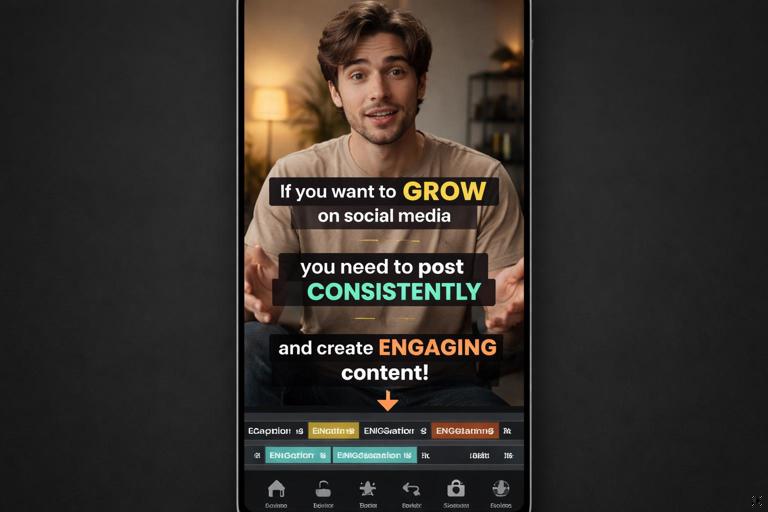
If you use color, assign meaning. Example system:
- White: default speech or narration.
- Yellow: key term or the “answer.”
- Red: warning, mistake, or “don’t do this.”
- Green: recommended action or “do this.”
Don’t highlight more than 1–3 words per caption beat. If everything is highlighted, nothing is.
Placement rules
Captions should not cover faces, hands demonstrating steps, or the object of attention. Create a default placement (often lower third) and a secondary placement (upper third) for moments when the lower area is visually important. A system includes a rule like: “If the subject’s hands are in the lower third, move captions to upper third for that segment.”

Kinetic Text: When Motion Improves Clarity (and When It Hurts)
Kinetic text means captions that animate: popping in, sliding, scaling, tracking with an object, or revealing word-by-word. Motion can increase clarity by matching the viewer’s attention to the timing of the idea. But motion can also reduce readability if it’s too fast, too bouncy, or too frequent.
Use kinetic text to:
- Mark emphasis: a key word scales up slightly as it’s said.
- Show structure: list items appear one at a time.
- Clarify relationships: “this vs that” text slides to opposite sides.
- Direct attention: a label moves toward the object it names.
Avoid kinetic text when:
- The viewer must read carefully: steps, ingredients, numbers, or safety notes.
- The background is already moving fast: handheld motion + animated text can overwhelm.
- You’re stacking multiple overlays: too many moving elements create visual noise.
Building a Caption System: A Practical Step-by-Step
Step 1: Decide your “caption coverage” level
Pick one of these approaches as your default:
- Full coverage: most spoken words appear (cleaned up). Best for dialogue-heavy content and accessibility-first channels.
- Selective coverage: only key phrases appear. Best for fast, information-dense shorts.
- Hybrid: full coverage for the first 1–2 lines of a segment, then selective for the key point. This often balances accessibility and speed.
Write this as a rule so you apply it consistently.
Step 2: Create a caption hierarchy (3 levels max)
Define three text levels and how they look:
- Level A (Primary): main spoken line or main idea. Largest size, highest contrast.
- Level B (Emphasis): 1–3 highlighted words. Bold and/or color.
- Level C (Support): small clarifier like “Step 2,” a number, or a short label. Smaller size, less visual weight.
If you add more levels, viewers won’t know what to prioritize.
Step 3: Set timing rules (readability math)
Use simple timing guidelines:
- Minimum on-screen time: 0.8–1.2 seconds for short phrases; longer for numbers and multi-word steps.
- Reading speed target: keep most captions under ~12–15 characters per second (including spaces) for comfortable mobile reading.
- Hold key numbers longer: if a caption contains a number, add an extra 0.2–0.5 seconds of hold time.
These aren’t strict laws, but they prevent the common mistake of captions flashing too quickly.
Step 4: Decide your animation “grammar”
Pick 2–3 animation behaviors and assign them meaning:
- Pop-in (scale 95% → 100%): default caption entry.
- Underline sweep or highlight wipe: emphasis word only.
- Slide-in from side: contrast or “option A vs option B.”
Keep motion subtle. The viewer should feel guided, not distracted.
Step 5: Create templates you can reuse
In your editing software, build reusable caption presets: font, outline/shadow, color palette, and animation. Also create a few layout templates: lower-third centered, lower-third left, upper-third centered, and a callout label style.
Practical Caption Writing: Turning Speech into High-Clarity Text
Technique: Compress without losing meaning
Spoken language is longer than written language. Your job is to compress.
Spoken: “So what you want to do is basically start by turning this setting off, because it’s going to mess up your export.”
Caption (selective): “Turn this setting OFF (it breaks export)”
Same meaning, less reading.
Technique: Put the answer on screen when it’s said
If the viewer must remember a key term, show it exactly at the moment it’s introduced.
Spoken: “The fix is to use a constant frame rate.”
Caption: “Fix: Constant frame rate”
Technique: Use parallel structure for lists
Lists become clearer when each item uses the same grammatical shape.
Messy list captions: “Better lighting / Use a mic / and also try to edit tighter”
Parallel list captions: “Improve lighting / Improve audio / Tighten edits”
Technique: Name the mistake explicitly
When teaching, clarity often comes from labeling the error.
Caption: “Mistake: Captions too fast to read”
Caption: “Mistake: Highlighting every word”
Kinetic Text Patterns That Improve Understanding
1) Word-by-word reveal (use sparingly)
This can match speech rhythm and keep eyes engaged, but it can also slow reading. Use it for short punchy lines (3–7 words), not paragraphs.
“Stop doing this.” (reveal each word on beat)2) Emphasis pop on the key word
Keep the whole caption stable, but animate only the emphasized word. This preserves readability while still guiding attention.
“This is the REAL problem.” (only “REAL” pops 105% and returns)3) Contrast layout: left vs right
For comparisons, place two short phrases on opposite sides. Animate them in from their sides to reinforce the contrast.
Left: “What you said” Right: “What they heard”4) Step stack (one line at a time)
For tutorials, show one step caption at a time, or stack steps with the current step highlighted. If stacking, keep previous steps smaller and dimmer.
Step 1: Do X (dim once Step 2 appears) Step 2: Do Y (highlight) Step 3: Do Z (next)5) Object-anchored labels
When you point at something, attach a small label near it. The label can fade in, not bounce. If the camera moves, track the label to the object if possible; if not, keep it static and brief.
Common Caption Problems (and Fixes)
Problem: Captions cover the demonstration
Fix: Use a rule-based “caption lane.” For example: “If hands are visible, captions go to upper third.” Build a second template so switching placement is fast.
Problem: Too many words per caption
Fix: Rewrite captions as headlines. Remove filler. Split into more beats. If you need three lines, you likely need two captions.
Problem: Over-animated text
Fix: Reduce animation to entry/exit only, and animate emphasis words instead of entire blocks. Keep easing smooth and durations short (e.g., 6–10 frames at 30fps for a subtle pop).
Problem: Highlight color used randomly
Fix: Assign meaning to colors and limit highlights. Use a checklist: “Is this word a term, a number, a warning, or the answer?” If not, keep it default.
Problem: Captions lag behind speech
Fix: Align caption entry slightly before the word is spoken (a few frames) so the viewer’s eyes can catch it in time. This is especially helpful for names and numbers.
Problem: Captions feel like noise in emotional moments
Fix: Reduce caption density during high-emotion or visually important moments. Use one short anchor line instead of full dialogue, or remove captions for a beat if the visual alone carries the meaning.
Workflow: Producing Captions Efficiently Without Losing Quality
1) Start with a transcript, then edit for meaning
Generate a transcript (manual or automated), then rewrite into caption beats. Treat this like copywriting: your job is to make the idea land fast.
2) Mark “must-caption” items
Before styling anything, identify items that must appear on screen:
- Names, titles, and proper nouns
- Numbers, measurements, time frames
- Step labels and warnings
- The final takeaway phrase
This prevents you from spending time animating filler text while missing the crucial details.
3) Apply templates first, then customize exceptions
Use your default caption template for 80–90% of captions. Only customize when there’s a clarity reason: a comparison, a label, a step, or a warning.
4) Do a “mute test” and a “squint test”
- Mute test: watch without audio. Can you follow the message from captions and visuals?
- Squint test: reduce attention to simulate small-screen distraction. Do the key words still stand out?
Examples: Caption Systems You Can Adopt
System A: Clean tutorial system (minimal motion)
- Coverage: selective
- Primary captions: white text with subtle shadow
- Steps: “Step 1/2/3” in a small colored pill
- Emphasis: bold yellow for the key term only
- Motion: fade + slight pop-in; no bouncing
Example caption sequence:
Step 1: Turn OFF “Auto” Step 2: Set to 24fps Step 3: Export (Constant frame rate)System B: Commentary system (rhythm + emphasis)
- Coverage: hybrid
- Primary captions: white with outline for busy backgrounds
- Emphasis: one word pops per line
- Motion: pop-in on beat; occasional slide for contrasts
Example caption sequence:
“Here’s what nobody tells you…” “It’s not the camera.” “It’s the LIGHT.”System C: Data-heavy system (numbers-first)
- Coverage: selective
- Primary captions: white in semi-opaque box
- Numbers: bold, slightly larger, held longer
- Motion: minimal; numbers fade in and hold
Example caption sequence:
Target: 2–3 key points Max: 12–15 chars/sec Hold numbers +0.3sQuality Checklist for Every Short
- Can a viewer understand the main message with audio off?
- Do captions avoid covering the most important visual action?
- Is each caption beat one idea?
- Are key terms and numbers on screen at the moment they’re said?
- Is highlight color used with consistent meaning?
- Is kinetic motion subtle and purposeful (not constant)?
- Do steps, warnings, and definitions use stable, easy-to-read styling?